
10 Best Rapid Prototyping Tools for UX Teams in 2026

10 Best Rapid Prototyping Tools Shortlist


As a product manager, I know the importance of rapid prototyping firsthand. It’s exciting to see ideas take shape quickly and gather early feedback from stakeholders or users. But when the tools aren’t up to the task, product development can stall and things can spiral fast.
You might waste hours wrestling with clunky interfaces or miss tight deadlines because the prototyping tool didn’t play nice with your team’s existing workflow. Worse, feedback loops can stall when sharing designs feels like more work than it’s worth.
Looking back, I realized many of these headaches came down to not having access to the right rapid prototyping tools that could adapt to the fast pace of product development and the demands of UX design.
That’s why I’ve rounded up the best tools for rapid prototyping. These solutions will help you quickly bring concepts to life, streamline feedback, and keep your team focused on creating great user experiences. Read on to find the best fit for your needs and workflows.
Why Trust Our Software Reviews
We’ve been testing and reviewing product management software since 2020. As product managers ourselves, we know how critical and difficult it is to make the right decision when selecting software.
We invest in deep research to help our audience make better software purchasing decisions. We’ve tested more than 2,000 tools for different product management use cases and written over 1,000 comprehensive software reviews. Learn how we stay transparent & our software review methodology.
The Best Rapid Prototyping Tools Comparison Chart
Here is a table you can use to compare all the tools we just covered in the overviews.
| Tool | Best For | Trial Info | Price | ||
|---|---|---|---|---|---|
| 1 | Best for visual product roadmaps | Free plan available | From $8/member/month (billed annually) | Website | |
| 2 | Best rapid prototyping tool for codeless and advanced transitions | Free plan available | From $16/user/month (billed annually) | Website | |
| 3 | Best rapid prototyping tool for embedding hotspots and transitions | Free plan + free demo available | From $12/month (billed annually) | Website | |
| 4 | Best rapid prototyping tool for simplifying the design handoff process | 14-day free trial + free demo available | From $49/month (billed annually) | Website | |
| 5 | Best rapid prototyping tool for responsive breakpoints and liquid layouts | Free plan available | From $19/user/month | Website | |
| 6 | Best rapid prototyping tool for e-commerce websites | Free plan + free demo available | From $15/month (billed annually) | Website | |
| 7 | Best rapid prototyping tool with a native macOS application | 30-day free trial available | From $12/user/month (billed annually) | Website | |
| 8 | Best rapid prototyping tool for implementing conditional logic | Free trial available | From $25/user/month | Website | |
| 9 | Best for creating video game design prototypes | Free plan available | From $25/seat/month (billed annually) | Website | |
| 10 | Best rapid prototyping tool with comprehensive UI component libraries | 15-day free trial + free demo available | From $29/user/month (billed annually) | Website |

Overviews Of The 10 Best Rapid Prototyping Tools
Let’s get to the nitty gritty. Here are the best prototyping tools with screenshots so you can preview the user interface.
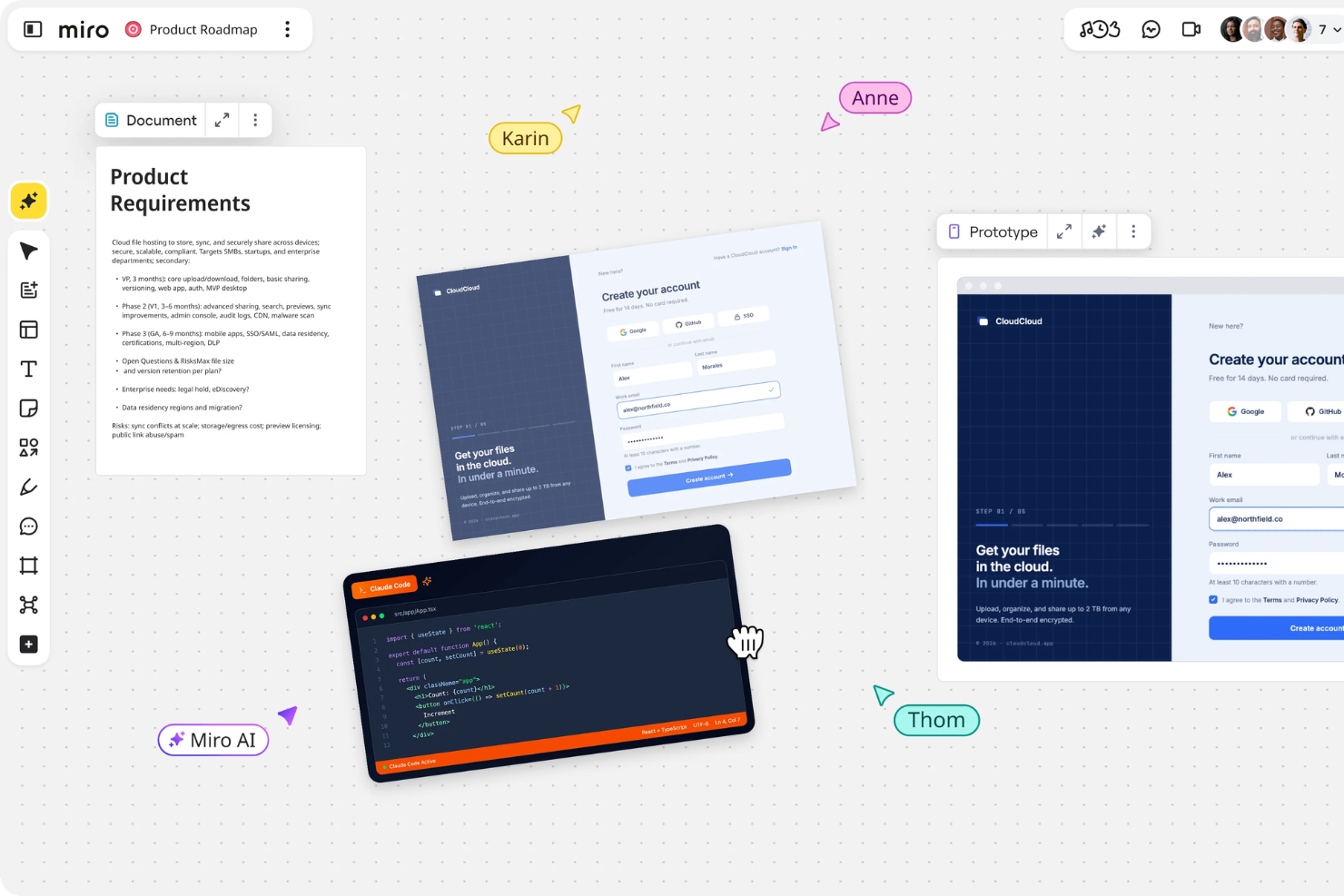
Miro is a digital collaboration platform that helps teams brainstorm, plan, and prototype faster. Its interactive canvas allows you to visualize ideas, create user flows, and map product roadmaps in real time. As a rapid prototyping tool, Miro supports both creative exploration and structured planning so you can move from concept to deliverable with speed and clarity.
Why I picked Miro: I picked Miro because it helps teams bridge the gap between ideation and execution. The platform’s AI Innovation Workspace adds an extra layer of speed by generating ideas, organizing thoughts, and building early prototypes directly on the board. This makes it especially valuable when you need to validate ideas quickly and keep design discussions moving forward.
I also like how Miro supports visual roadmap creation, which is essential in rapid prototyping cycles. You can connect ideas, dependencies, and milestones in a single view, helping you align design and product teams around shared goals. Combined with features for workshops and customer journey mapping, Miro ensures everyone stays in sync through each iteration.
Miro Standout Features and Integrations
Features include AI innovation workspace, roadmap visualization, design workshops, customer journey mapping, interactive canvases, process automation, and enhanced AI prototyping for cleaner visuals.
Integrations include Microsoft 365, Google Workspace, Atlassian Jira, Atlassian Confluence, Microsoft Teams, Slack, AWS, GitHub, Azure DevOps, Asana, Trello, and Figma.
Pros and Cons
Pros:
- Provides AI-powered innovation workspace
- Enables collaborative design and brainstorming
- Supports over 250 software integrations
Cons:
- Learning curve for new users
- Limited offline functionality
New Product Updates from Miro
Miro Adds Japan Data Residency for Enterprise Customers
Miro has introduced Japan data residency for enterprise customers, offering in-region storage for production data, backups, and metadata, plus in-region compute infrastructure. For more information, visit Miro's official site.

Figma
Best rapid prototyping tool for codeless and advanced transitions

Figma took the design world by storm thanks to their revolutionary all-in-one platform that offers rapid prototyping, a wireframing tool, UI/UX design, brainstorming, and so much more. Figma created the very first design tool combining the versatility of the web with a native app’s functionality. Fast forward to the present, and Figma doesn’t fail to impress with excellent features like smart animations and advanced transitions.
Why I picked Figma: I’m a massive fan of low-code and no-code tools, especially in this age and time of artificial intelligence (AI) intervention. Figma helps product managers create impressive prototypes without demanding any innate coding expertise. As a result, you can quickly translate great ideas into incredible functional and interactive prototypes. Figma’s advanced transitions give you a unique touch to prototypes. Throw dynamic overlays into the mix, and your prototypes are responsive and ready for handoff.
With Figma, your rapid prototyping gets faster. You can easily drag and “connect” buttons and elements to apply complex overlays and conditions. Moreover, you can define subtle yet critical interactions like hovers and clicks, etc.
Figma Standout Features and Integrations
Features include UI/UX design, wireframing, diagramming, brainstorming, Agile workflows, strategic planning, rapid prototyping, a drag-and-drop interface, real-time collaboration, auto layouts, plugins and widgets, hotspots, transitions, components, and more.
Integrations include tools such as Axure, Bubble, Flinto, Maze, Microsoft Teams, Mixpanel, Pendo, Principle, Sprig, Zeplin, and others.
Pros and Cons
Pros:
- Powerful pen tool for vector editing
- Generous free plan
- Effortless prototype sharing via URLs
Cons:
- Responsive prototyping could be better
- No dedicated desktop application (web-based only)

Marvel
Best rapid prototyping tool for embedding hotspots and transitions

Marvel is a staple name in the mockup and wireframing industry. With an intuitive, collaborative platform, Marvel helps product managers and developers to synergize and create great prototypes.
Why I picked Marvel: I find Marvel’s simplicity marvelous because you can easily convert design mockups into realistic prototypes in minutes. Furthermore, Marvel has built-in mockup and wireframing capabilities that enable you to go from an idea to an MVP (minimum viable product) very quickly.
Marvel supports every screen, including all Apple and Android devices and desktops. With Marvel, you can easily embed hotspots and improve user engagement. Hotspots refer to areas where your users can tap or click. Additionally, Marvel helps you link screens with hotspots and impart a feeling of spatial orientation for mobile users.
Marvel Standout Features and Integrations
Features include wireframing, mockup design, rapid prototyping, user testing, real-time collaboration, a developer API, advanced transitions, gestures, offline downloads, user testing, and others.
Integrations include 10+ tools, such as Ballpark, Dropbox Paper, Jira, Sketch, Slack, Userflows, and others.
Pros and Cons
Pros:
- Commenting on prototypes
- Easily shareable links to prototypes
- Clean and simple UI
Cons:
- Limited features on the mobile application
- Animations are not very fluid

UXPin
Best rapid prototyping tool for simplifying the design handoff process

UXPin endeavors to streamline prototyping and product development. UXPin started with Polish roots and has expanded worldwide. UXPin’s proprietary Merge technology helps build high-fidelity prototypes while simplifying the handoffs in a design process.
Why I picked UXPin: I commend UXPin for its fantastic design handoff capabilities. Design handoff is that stage in the product development process when the design team signs off on a prototype, and developers start the actual coding or development. UXPin helps smooth out the handoff cycle by automating design specs, CSS (cascading style sheets), and style guides.
UXPin helps developers get a mighty headstart by automatically filling in the CSS details. Moreover, UXPin creates contextual documentation that helps developers inspect designs accurately. Lastly, UXPin’s advanced transitions and navigation flows positively influence the look and feel of your interactive prototypes.
UXPin Standout Features and Integrations
Features include auto layout, component-driven prototyping, UI/UX designing, wireframing, logic-based prototyping with variable definitions and conditional interactions, heat mapping, and usability testing.
Integrations include 10+ tools, such as Asana, Google Sheets, Microsoft Dynamics 365, NPM, Salesforce, Storybook, Zendesk, and others.
Pros and Cons
Pros:
- Custom fonts upload
- Password protected prototypes
- Prototype annotation
Cons:
- Occasional lags on the platform
- Slightly steep learning curve

Best rapid prototyping tool for responsive breakpoints and liquid layouts

Justinmind has swiftly and steadily progressed to a full-blown UI/UX design platform. It’s fascinating to note that developers and designers used Justinmind to develop the entire Justinmind website and product portfolio, showing that the founding team has considerable faith in their technology.
Why I picked Justinmind: I love the responsive features that Justinmind offers. Liquid layouts are one such feature that allows you to define “liquid” containers for elements to adapt to various screen sizes, aspect ratios, or device orientations. Additionally, the auto-resize feature ensures that UI elements on a mobile or web app automatically resize to deliver a good user experience.
Furthermore, Justinmind features an instant preview feature that is extremely handy for simulating prototype behaviors, while you design a website or application. Justinmind gives you supreme control over responsive designing via breakpoints - predefined “points” for your website’s content to adapt. Lastly, Justinmind also supports exporting into HTML, PNG, SVG, TIFF, and JPG formats.
Justinmind Standout Features and Integrations
Features include responsive prototyping, wireframing, rapid prototyping, smart templates, mobile transitions and gestures, animations, conditional logic, variables, functional fields, data grids, real data testing, design handoff, user management, and others.
Integrations include 10+ tools such as Adobe Photoshop, Adobe XD, Azure DevOps, Clicktale, Figma, Jira, Sketch, UserZoom, and others.
Pros and Cons
Pros:
- The free version allows unlimited prototypes
- Intuitive drag-and-drop UI
- Vast free resources for prototyping
Cons:
- Export bugs
- A slightly steep learning curve


Webflow’s vision is to create the world’s most robust no-code development tool so that non-technical stakeholders can produce professional designs irrespective of their product design expertise. Founded in 2013, Webflow has evolved into a comprehensive design platform with e-commerce, a CMS, and website editing features.
Why I picked Webflow: As a former product manager from a non-technical background, I strongly advocate for no-code and low-code design platforms. Webflow takes the sting out of writing huge chunks of code for implementing functional prototypes.
Webflow is a massive blessing for e-commerce website prototyping. With Webflow, you can control criticalities like the online shopping cart, checkout flow, and the overall end-to-end shopping experience. Webflow also helps you master other aspects of an e-commerce business, like transactional emails and product information updates.
Webflow Standout Features and Integrations
Features include a visual canvas, content marketing, website publishing, SEO optimization, immersive interactions and animations, a CMS, and a comprehensive set of courses packed into Webflow University.
Integrations include 10+ tools such as Arengu, Chatwoot, Getform, Monto, Off Script, Pixie, Shopify, Zapier and others.
Pros and Cons
Pros:
- Great CMS
- Industry-wise template categorization
- Webflow University has tons of great resources
Cons:
- Lacks code customization
- Only supports the Stripe payment gateway


Sketch was born in 2010 in response to the founding team’s frustration with no tools available for UI design. Since then, Sketch has made tremendous strides in providing amazing design tools for freelancers and enterprises worldwide. Amongst its wide arsenal of design tools, Sketch’s interactive website prototyping is a must-use feature.
Why I picked Sketch: I love the firepower and sheer simplicity of Sketch. With Sketch, you can effortlessly build user journeys by connecting screens and UI elements. You can reuse UI elements and interactions instead of building from scratch every time. I love the multiple start-point feature that allows you to showcase several user flows and ideas to clients.
Sketch helps create authentic interactions powered by hotspots that allow you to make entire sections clickable instead of single elements. As a result, your mobile app rapid prototyping gains a unique edge. To create interactive website prototypes, Sketch ships unique interactions like fade-in and slide-up to improve user engagement. Lastly, Sketch has a native macOS app that allows users to leverage the Apple ecosystem for added productivity and personalization.
Sketch Standout Features and Integrations
Features include A/B testing, overlays, rapid prototyping, user journeys, a native macOS app, and a component web view - a comprehensive view of all colors, symbols, text & layer styles, font embedding, corner controls, and others.
Integrations include 15+ tools, such as Abstract, Flinto, Flow, InVision, Marvel, Maze, Origami, Plant, ProtoPie, Prott, Zeplin, and others.
Pros and Cons
Pros:
- Asset re-usability across designs
- Great version control
- Extensive plugin library
Cons:
- Limited to macOS users
- Limited measuring tools


The RP in “Axure RP” is short for Rapid Prototyping. The team at Axure has built a powerful design platform that allows multiple stakeholders to co-author a single RP file. Axure’s latest update, Axure RP 10, boasts unique features like widget manipulation and increased design flexibility.
Why I picked Axure RP: Axure RP made my cut mainly because of its infinite interactive possibilities. With Axure RP, you can access unlimited interactive possibilities by tweaking several interaction events like move, open link, rotate, set image, and focus, etc.
Axure RP also packs great conditional logic features like enabling/disabling buttons based on predefined conditional checks. For instance, if you are designing a prototype for an e-commerce website, you could implement a block of conditional logic that disables the buy button during depleted stocks.
Axure RP Standout Features and Integrations
Features include rapid prototyping, dynamic content, conditional logic, interaction events, dynamic panels, data interfaces, adaptive views, flow diagrams, functional prototyping, on-screen prototype commenting, developer inspecting, and others.
Integrations include 10+ tools such as Adobe XD, Figma, Jira, Microsoft Teams, Sketch, Slack, and others.
Pros and Cons
Pros:
- Customizable widgets
- Powerful functional prototyping
- Vast online learning resources
Cons:
- No live chat customer service
- Steep learning curve

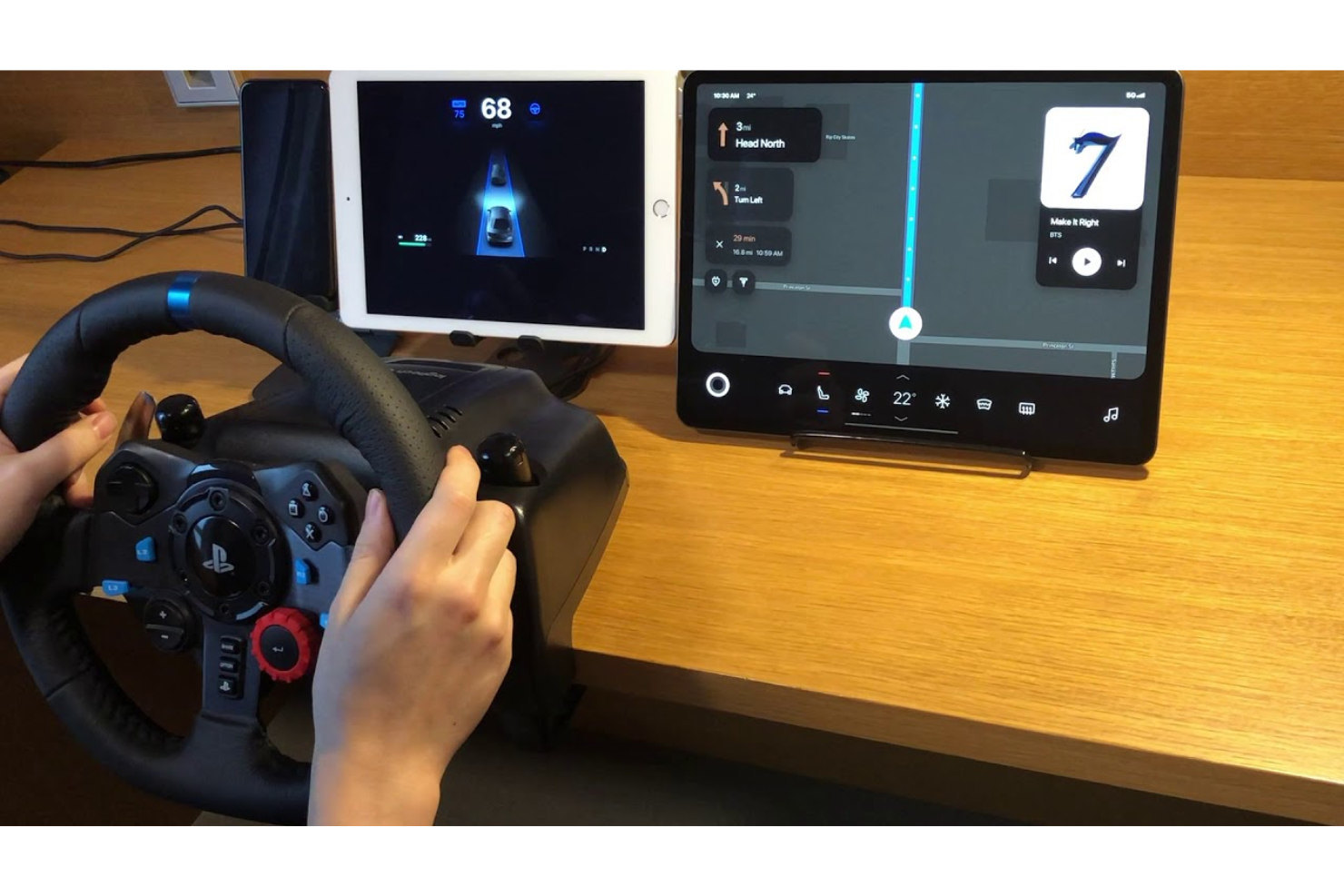
ProtoPie's tagline is "Deliver Prototypes Easy as Pie." The team behind ProtoPie strives to create design tools that everybody can use. Since its inception, ProtoPie has evolved into a robust, rapid prototyping tool catering to various industries, including automotive, gaming, smartphones, smartwatches, and TVs.
Why I picked ProtoPie: Back in the day, I used to game a lot, and my product manager's idiosyncrasies always got me thinking about how developers would test something so intricate, like a whole virtual world and characters and conversations within a game. Enter ProtoPie, which helps with the rapid prototyping of games for desktops, mobile devices, and even consoles like the PS5 and Xbox.
With ProtoPie, you can create immersive prototypes for any gamepad. ProtoPie enables you to define dynamic interactions like variables, logic, and formulae. Variables help keep track of a game's score or a character's health.
ProtoPie Standout Features and Integrations
Features include rapid prototyping, interactive text input, AI voice assistant, photo gallery, scrolling and swiping interaction design, UI animation, ping and rotate interactions, draggable drawer, sound triggers, and more.
Integrations include software design tools like Adobe XD, Figma, Sketch and hardware devices like Arduino, Logitech G29 steering wheel, and others.
Pros and Cons
Pros:
- Vast learning resources
- Lottie animations
- Comprehensive interactive prototyping
Cons:
- No webcam support for desktops
- The desktop view is a little cluttered


Proto.io strives to improve product development by creating easy-to-use design tools for wireframing and prototyping. With Proto.io, you can effortlessly and swiftly create Windows, iOS, and watchOS prototypes topped with visually stunning UI elements.
Why I picked Proto.io: Proto.io has staggering numbers as the tool offers 250+ UI elements, 1,000+ templates, and over 6,000 digital assets. Consequently, you can quickly draw inspiration instead of reinventing the wheel.
With Proto.io, you can create functional prototypes brimming with life thanks to over 80 events like on mouse-over, on-screen show, on tap, etc., to define custom behaviors. Additionally, Proto.io offers great transitions and animations to create realistic prototypes.
Proto.io Standout Features and Integrations
Features include UI/UX design, wireframing, mockup design, rapid prototyping, a drag-and-drop interface, advanced animations and interactions, a great UI component library, customized events, custom font uploads, and others.
Integrations include Adobe Fonts, Adobe Photoshop, Adobe XD, Figma, Google Fonts, Sketch, and others.
Pros and Cons
Pros:
- Great version control
- Easily shareable prototypes
- UI libraries for specific device types
Cons:
- Buggy import feature
- Occasional performance chokes
Other Options
Here are a few more worthwhile options that didn’t make the best rapid prototyping tools list:
- Origami Studio
Rapid prototyping tool for leveraging native hardware APIs
- Framer
For creating interactive website prototypes
- Invision
Rapid prototyping tool with a collaborative design whiteboard
- Balsamiq
For creating low-fidelity prototypes and wireframes
- Mockplus
Rapid prototyping tool with an extensive mobile app and web template collection
- Adobe XD
Rapid prototyping tool for creating content-aware layouts
- Bubble
Rapid prototyping tool with an API connector
- Principle
Rapid prototyping tool with a Retina interface
- Flinto
Rapid prototyping tool for implementing scrolling and micro-interactions
- Avonni
Rapid prototyping tool with support for Salesforce simulations
- Ignite UI by Infragistics
For designing web application prototypes


How I Picked The Best Rapid Prototyping Tools
To build this top 10 list, I evaluated and compared various rapid prototyping tools with positive user ratings.
After determining my list of top choices, I further honed my list by using the selection criteria below to see how each platform stacked up against the next. I also drew on my years of product management experience to pinpoint beginner-friendly and effective features.
Selection Criteria
Here’s a summary of the primary evaluation criteria I used to build my list of the best rapid prototyping tools:
Usability
As a product manager, time is of the essence. Does the rapid prototyping tool feature a clean and intuitive UI? Does the tool offer easy no-code and drag-and-drop features? How steep is the tool’s learning curve? Do the tool creators offer online tutorials, certification, or webinars for getting started?
Template Collection
Tools with a rich library of relevant prototyping templates can help you start quickly. Does the rapid prototyping tool have a vast number of editable templates? Are the templates easy to edit?
Software Integrations
Does the rapid prototyping tool have integrations with other third-party design and collaboration tools? For instance, if a prototyping tool integrates with a design tool like Adobe Illustrator, you can pull your design files, libraries, and assets, streamlining the entire design and prototyping process.
Pricing
The right prototyping tool will be different for everyone, depending on the features you need. I look for the starting price these tools offer on a month-by-month payment schedule. This way, you know how much it'll cost you to try out the software if you want to try it out for 30 days. From there, make sure to factor in any additive costs for specialized or advanced features, storage, or multiple users.
Implementing rapid prototyping tools provides numerous advantages for your team and business. These include cost and time savings, iterative design capabilities, and enhanced testing processes to reduce design flaws.
What is a rapid prototyping tool?
A rapid prototyping tool is a software solution that allows you to swiftly create functional prototypes for digital or physical products. Through features like drag-and-drop functionality, support for various interactive elements, real-time collaboration, and the ability to generate prototypes for multiple devices, these tools focus on providing a quick and efficient way for designers and developers to turn their ideas into tangible prototypes, fostering rapid iteration and user testing.
The main benefits of using rapid prototyping tools include faster design iterations, reduced time-to-market, and the ability to gather user feedback early in the development process.
Features of Rapid Prototyping Tools
When selecting rapid prototyping tools, keep an eye out for the following key features:
- Interactive design: Lets users create prototypes with clickable elements, making it easier to visualize user interactions.
- Real-time collaboration: Enables team members to work together simultaneously, improving communication and speeding up the design process.
- Integration capabilities: Connects with other software tools, streamlining workflows and maintaining consistency across platforms.
- AR and VR support: Allows for prototyping in augmented and virtual reality, helping teams assess designs in immersive environments.
- Voice interface design: Facilitates the creation of prototypes for voice-activated devices, aligning with modern user interface trends.
- Customizability: Provides options to tailor the tool to specific project needs, enhancing user experience and alignment to your overall product development strategy.
- Ease of use: Features an intuitive interface, reducing the learning curve and making it accessible for all team members.
- Feedback collection: Includes tools to gather input from stakeholders and users, aiding in the iterative design process.
- Security safeguards: Protects sensitive design data with encryption and compliance features, ensuring information remains secure.
- Detailed 3D printing technologies: Rapid prototyping has become synonymous with additive manufacturing and 3D printing, with common methods including:
- FDM (Fused Deposition Modeling): Cost-effective for basic models and early-stage prototypes. Best for creating simple designs with thermoplastics.
- SLA (Stereolithography): Delivers high-resolution, accurate parts with smooth surface finishes, ideal for high-fidelity prototypes and designs requiring tight tolerances.
- SLS (Selective Laser Sintering): Produces strong, functional prototypes suitable for rigorous testing, using powdered materials like nylon.
Benefits of Rapid Prototyping Tools
- Faster design iterations: Quickly create and test prototypes, reducing time spent on revisions and accelerating the development cycle.
- Improved collaboration: Real-time collaboration features enhance teamwork and communication, leading to more cohesive and innovative designs.
- Cost savings: Identify design flaws early in the process, minimizing costly changes and reducing the risk of project delays.
- Enhanced user experience: Gather feedback through interactive prototypes to refine user interfaces, resulting in more user-friendly products.
- Better stakeholder engagement: Share prototypes easily to keep stakeholders informed, fostering buy-in and aligning project goals.
- Increased flexibility: Customizable tools adapt to various project requirements, allowing teams to meet specific design needs.
- Future-proofing: Stay competitive by leveraging cutting-edge features like AR and VR support, ensuring your designs meet modern expectations.
People Also Ask
Find answers to common questions other people ask about this topic.
What is rapid prototyping?
Rapid prototyping is a swift illustration of your product idea with basic features and functionalities to test, collect feedback, and pivot. By quickly churning out a prototype, you can validate and make tweaks to nail the final product idea that will attain your desired results. Many product managers mistake a prototype to be the MVP. However, that’s not the case. Glance through our MVP crash course to learn more.
When should rapid prototyping be used?
In a nutshell, a prototype helps you answer the question, “Will this idea work?” Interestingly, you could use rapid prototyping at any stage of the overall product development process. The key is to iterate on prototypes enough times to fully validate your product idea.
What are the main types of rapid prototyping methods?
Rapid prototyping methods can be broadly categorized into additive manufacturing, subtractive manufacturing, and hybrid methods. Each type serves specific applications and provides unique advantages:
- Additive Manufacturing (3D Printing):
- Applications: Ideal for creating detailed models, engineering prototypes, and functional testing. Commonly used in industries like healthcare, automotive, and consumer goods.
- Advantages: Cost-effective for complex geometries, reduced material waste, and faster turnaround times.
- Subtractive Manufacturing (CNC Tools):
- Applications: Used for creating precise physical prototypes from solid materials like metals, plastics, or wood. Suited for industries requiring robust, works-like prototypes.
- Advantages: High precision, superior surface finish, and compatibility with a wide range of materials.
- Hybrid Methods:
- Applications: Combines additive and subtractive techniques to leverage the benefits of both methods. Often used for high-accuracy, production-ready prototypes.
- Advantages: Flexible and capable of handling intricate designs while maintaining durability.
What’s the difference between prototyping and rapid prototyping?
The difference is a matter of speed. With so many applications and websites being built every day, it’s critical for product team members to test, validate, and build digital products quickly. To ensure that your energy and time head in the right direction, rapid prototyping helps garner quick feedback for your product ideas.
How are CNC tools used in rapid prototyping?
CNC tools play a critical role in subtractive manufacturing, where material is removed to shape a prototype. Key CNC tools include:
- CNC Machining: Removes material using a spinning tool (milling) or a spinning part (lathe) for precise cuts and finishes.
- Laser Cutters: Utilize high-powered lasers to engrave or cut through various materials with exceptional accuracy.
- Water Jet Cutters: Use high-pressure water mixed with abrasives to cut through hard materials like metal and stone without generating heat.
What's Next?
If you're in the process of researching rapid prototyping tools, connect with a SoftwareSelect advisor for free recommendations.
You fill out a form and have a quick chat where they get into the specifics of your needs. Then you'll get a shortlist of software to review. They'll even support you through the entire buying process, including price negotiations.