

Ever looked at your site analytics and thought, “Okay, traffic’s up—but why aren’t more people converting?” That’s where heatmaps come in. They turn passive numbers into active insight, showing you exactly where users click, scroll, and drop off—so you can spot friction fast.
But not all heatmap tools will work for everyone. Some flood you with raw data but leave you guessing about what it means. Others highlight user clicks but miss the context—like what content is being ignored, or where users hesitate. To choose the right tool, you need more than visuals. You need clarity, focus, and actionable insights that tie directly to engagement and conversion goals.
I’ve tested and compared today’s leading heatmap platforms across usability, depth of insight, and real-world ROI for UX teams and marketers. In this guide, I’ll break down the top options, how they differ, and which ones actually help you optimize—not just observe.
Why Trust Our Software Recommendations
6,700+
Reviews
20
Industry experts
16+
Evaluation factors
14
Years
Our team has been testing and reviewing software since 2012. As product managers ourselves, we know how difficult—and important—it is to choose the right software.
For this guide, we evaluated tools using hands-on testing and independent research, scoring tools using our selection criteria.
Our reviews reflect our human editorial judgment, not a sales pitch.
Expert reviewers:
- Andrew LumbySenior TPM
- Cristiano ValimSenior UI/UX Lead


Heatmap Software Comparison Table
This comparison table summarizes pricing details for my top heatmap software selections:
| Tool | Best For | Trial Info | Price | ||
|---|---|---|---|---|---|
| 1 | Best for revenue-impact scoring on interaction data | Free demo available | Pricing upon request | Website | |
| 2 | Best for linking click behavior to session replay | Free plan available | Pricing upon request | Website | |
| 3 | Best for heatmaps linked to session replay | 14-day free trial available | Plans start at $65/month | Website | |
| 4 | Best for simple heatmaps and A/B tests | 30-day free trial available | From $29/month | Website | |
| 5 | Best for heatmaps tied to built-in A/B test variants | 30-day free trial + free demo available | Pricing upon request | Website | |
| 6 | Best for seven auto-generated heatmap types | Free plan available | From $25/month | Website | |
| 7 | Best for website analytics with real-time heatmaps | 7-day free trial + free plan available | From $32/month (billed annually) | Website | |
| 8 | Best for heatmaps with rage click and form analytics | Free plan available | From $39/month (billed annually) | Website | |
| 9 | Best for heatmaps tied to event segmentation | Free plan available | Pricing upon request | Website | |
| 10 | Best for free, no-cap behavioral analytics | Free plan available | Pricing upon request | Website |


Best Heatmap Software Reviews
You can use the simple overviews below to understand how each tool stands out from other heatmap software.
 Best for revenue-impact scoring on interaction data
- Free demo available
- Pricing upon request
Visit WebsiteCustomer Rating:4.7/5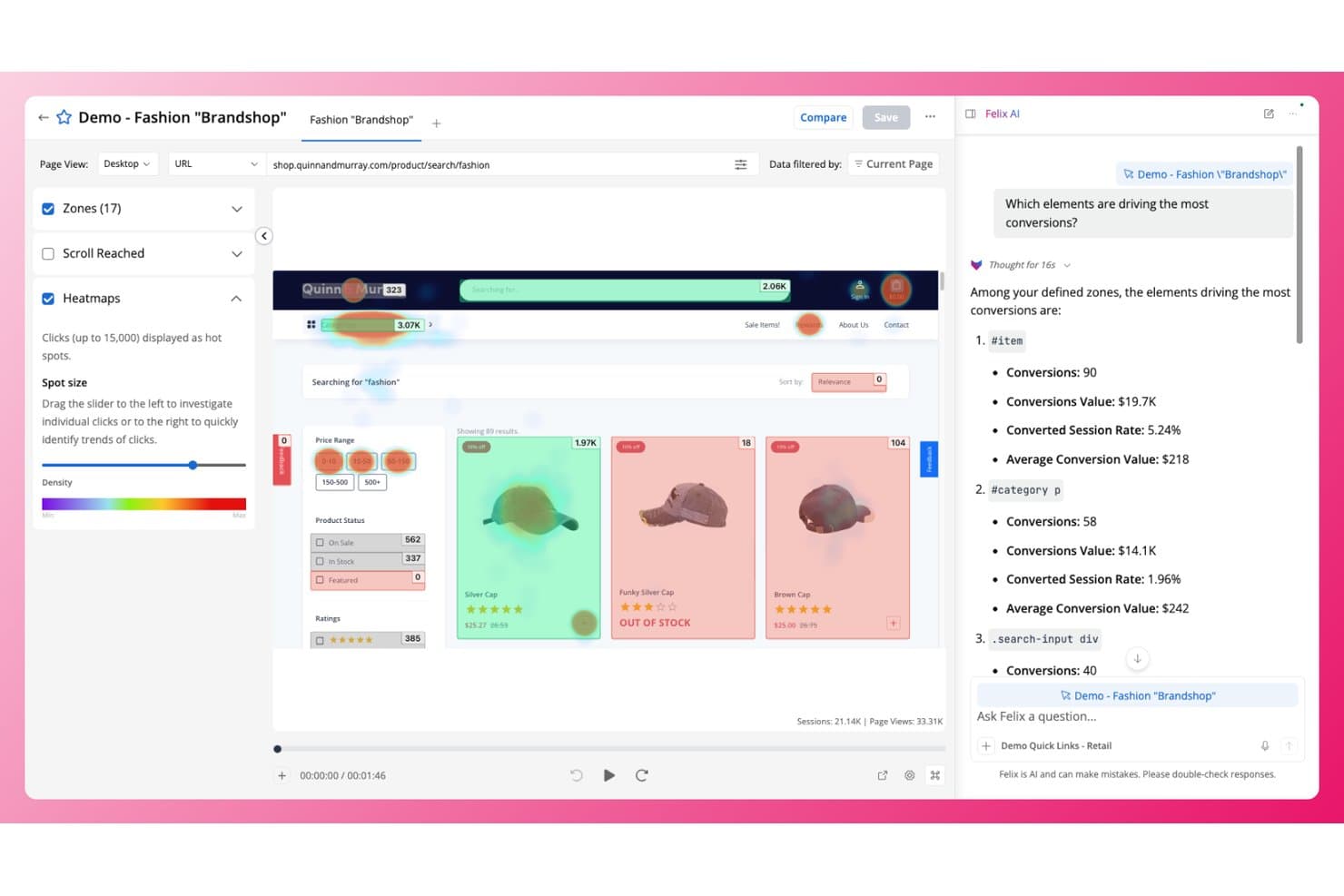
Quantum Metric overlays click heatmaps on pages to reveal top conversion drivers. Quantum Metric is a digital experience analytics platform that combines click, scroll, and attention heatmaps with session replay, AI-generated insight summaries, and revenue-impact scoring across web and native mobile.
Who Is Quantum Metric Best For?
Quantum Metric is a strong fit for enterprise product and digital experience teams that need to connect interaction data directly to revenue outcomes.
Why I Picked Quantum Metric
Quantum Metric earns its spot on my shortlist because it's the only heatmap platform I've seen that puts a dollar figure on interaction data through its Opportunity Analysis feature. I like that when I spot a rage-click cluster in a heatmap, I can calculate the revenue impact of that friction in one click, which makes prioritization straightforward. Copilot for Interactions then reads the zone metrics directly in the heatmap view and tells me which elements to fix, promote, or test.
Quantum Metric Key Features
- Felix AI summarization: Summarizes individual sessions or cross-device user journeys in plain language using Google Gemini Pro, with follow-up questioning built in.
- Segment Builder: Lets you filter heatmap data using nested and sequential logic across 300+ captured metrics, device types, and user attributes.
- Native mobile heatmaps: Captures tap maps, interaction maps, and scroll data from native iOS and Android apps with near web-feature parity.
- Visible browser extension: Overlays click, scroll, attention, and element-level conversion data directly on your live site in Chrome or Firefox.
Quantum Metric Integrations
Quantum Metric documents integrations with Optimizely, AB Tasty, Qualtrics, Google BigQuery, Adobe Analytics, Slack, ServiceNow, Salesforce Service Cloud, Looker, and Tealium. Its Felix Summarization REST API and Data Streaming add-on support custom data workflows.
Pros and Cons
Pros:
- Native mobile heatmaps approach web parity
- Heatmaps connect directly to session replays
- Revenue impact quantifies friction for prioritization
Cons:
- Mobile tracking can reduce frame rates
- Segment builder navigation frustrates some reviewers
Learn more about Quantum Metric: Best for linking click behavior to session replay
- Free plan available
- Pricing upon request
Visit WebsiteCustomer Rating:4.5/5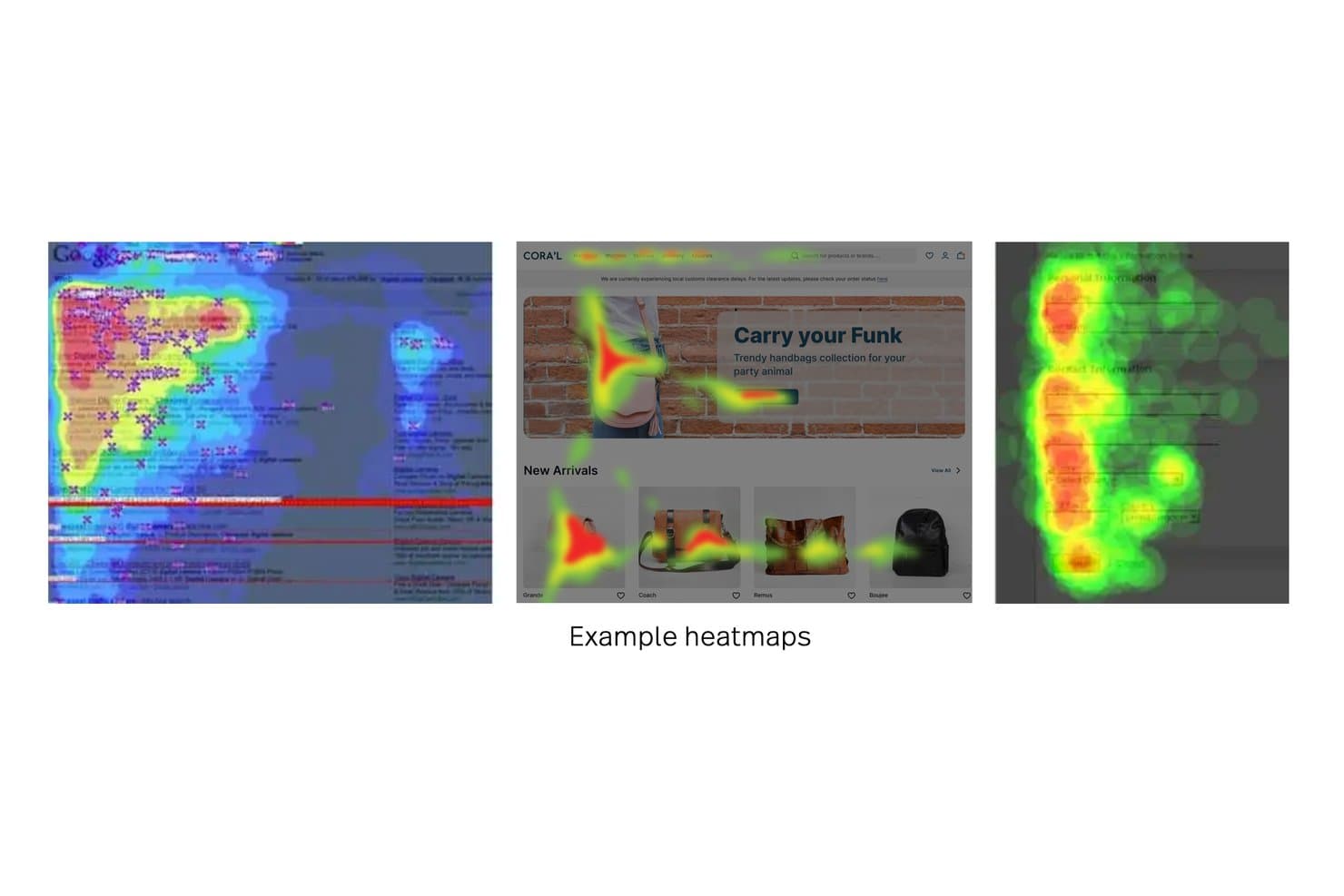
Fullstory displays heatmaps showing user attention across web pages. Fullstory is a behavioral analytics and session replay platform that captures click maps, scroll maps, and conversion maps alongside automatic frustration signal detection like rage clicks, dead clicks, and error clicks.
Who Is Fullstory Best For?
Fullstory is a strong fit for product and UX teams that need to connect click behavior directly to session replay to understand the "why" behind user friction.
Why I Picked Fullstory
Fullstory earns its spot on my shortlist because it closes the gap between seeing where users click and understanding why they clicked there. I love that you can jump directly from any heatmap element to the exact sessions behind it, so a spike in rage clicks on a checkout button isn't just a data point—it's a queue of real recordings to watch. Page Insights takes this further by overlaying click and scroll maps inside session replay, so context is never lost.
Fullstory Key Features
- Frustration signal detection: Fullstory automatically flags rage clicks, dead clicks, error clicks, and thrashed cursor behavior across your sessions.
- Conversion Maps: This map type calculates the conversion rate from named page elements to a defined goal, like a checkout-success URL or revenue event.
- StoryAI session summaries: An AI layer that generates plain-language summaries of individual sessions, so you can understand what happened without watching every replay.
- Tagless autocapture: Fullstory's Fullcapture™ system records clicks and interactions automatically, with no manual event tagging required.
Fullstory Integrations
Fullstory offers native integrations with Google Analytics, Google Tag Manager, BigQuery, Segment, Optimizely, VWO, Slack, Jira, and Shopify. It also supports Zapier, webhooks, and APIs for custom integrations.
Pros and Cons
Pros:
- Connects conversion maps to revenue outcomes
- Detects rage, dead, and error clicks
- Links heatmap elements to session replays
Cons:
- Mobile app heatmaps omit scroll maps
- No dedicated hover movement heatmap
Learn more about Fullstory: Best for heatmaps linked to session replay
- 14-day free trial available
- Plans start at $65/month
Visit WebsiteCustomer Rating:4.6/5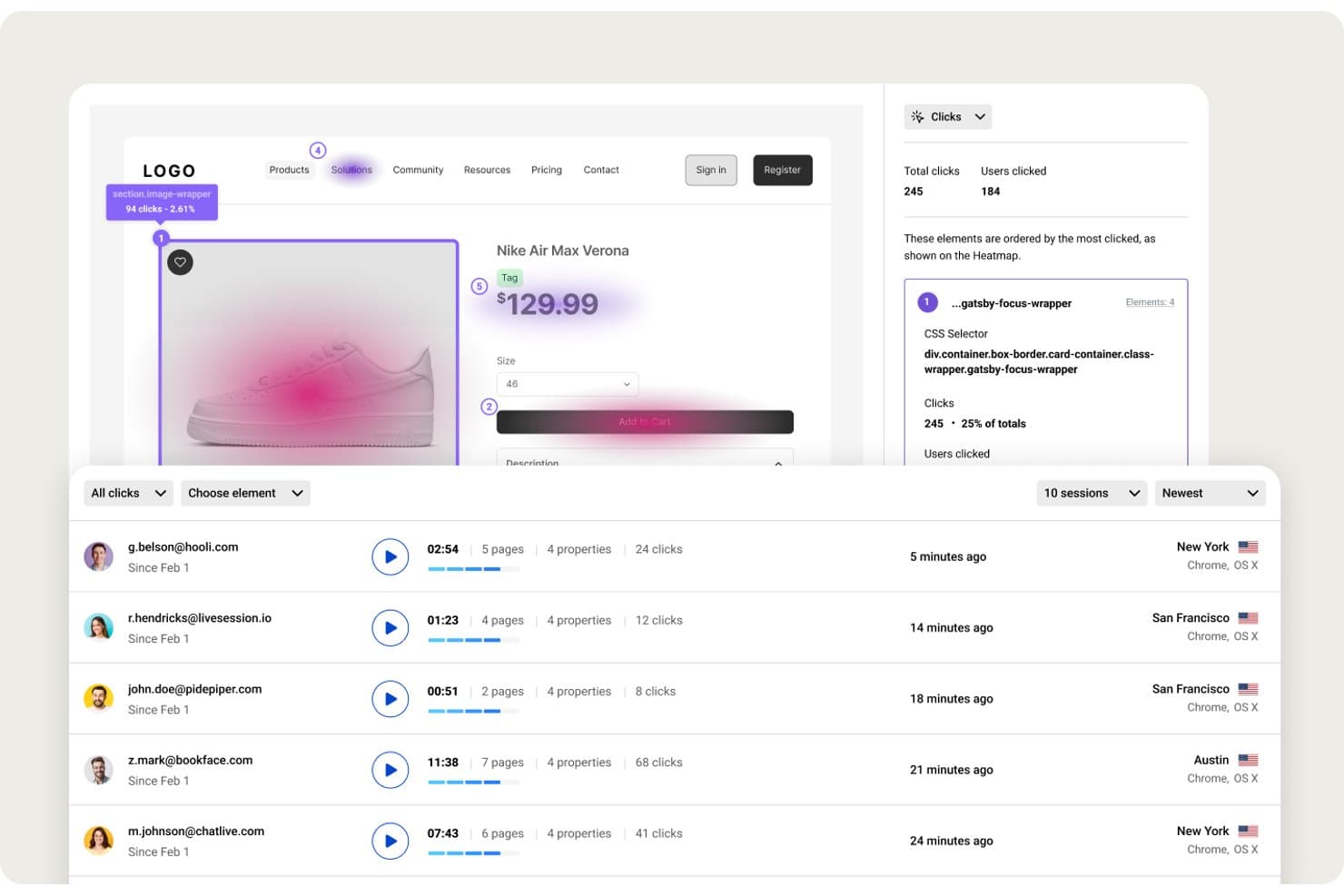
LiveSession visualizes click heatmaps with session data side by side. LiveSession is a behavioral analytics platform that combines heatmaps, session replay, funnels, and custom metrics in a single interface.
Who Is LiveSession Best For?
LiveSession suits product teams and UX designers who want to move directly from a heatmap to the session replay behind it, without switching tools.
Why I Picked LiveSession
LiveSession earns its spot on my shortlist because the link between its heatmaps and session replay is genuinely tight in a way most tools don't match. From a clickmap, I can pull up every session where a user clicked that element and turn them into a segment instantly. I also get rage click and error click detection baked into the same view, so I'm not just seeing where users click but also where they're getting stuck.
LiveSession Key Features
- Scroll map analysis: Visualize the exact depth users reach on any page, with separate views for desktop and mobile, plus "effective fold" markers to see how much content gets seen.
- Saved segments: Build reusable filter groups based on behavior, device, geography, or custom properties, then apply those segments across heatmaps, funnels, and metrics in one click.
- Custom events tracking: Use
ls.track()to log specific user actions beyond automatic captures, then filter sessions and heatmaps by those events to analyze targeted interactions. - Inspect Mode: Select any CSS element on your site without writing code to instantly surface all sessions where users interacted with that specific element.
LiveSession Integrations
LiveSession offers native integrations with Google Analytics, Segment, Mixpanel, Heap, Shopify, Google Tag Manager, and Survicate. It also supports Slack, webhooks, Zapier, and a REST API on Pro and above for custom integrations.
Pros and Cons
Pros:
- Saved segments work across behavioral views
- Rage and error clicks reveal friction
- Heatmap clicks open matching session replays
Cons:
- No side-by-side heatmap comparisons available
- Heatmap rendering can miss page elements
Learn more about LiveSession: Best for simple heatmaps and A/B tests
- 30-day free trial available
- From $29/month
Visit WebsiteCustomer Rating:4.3/5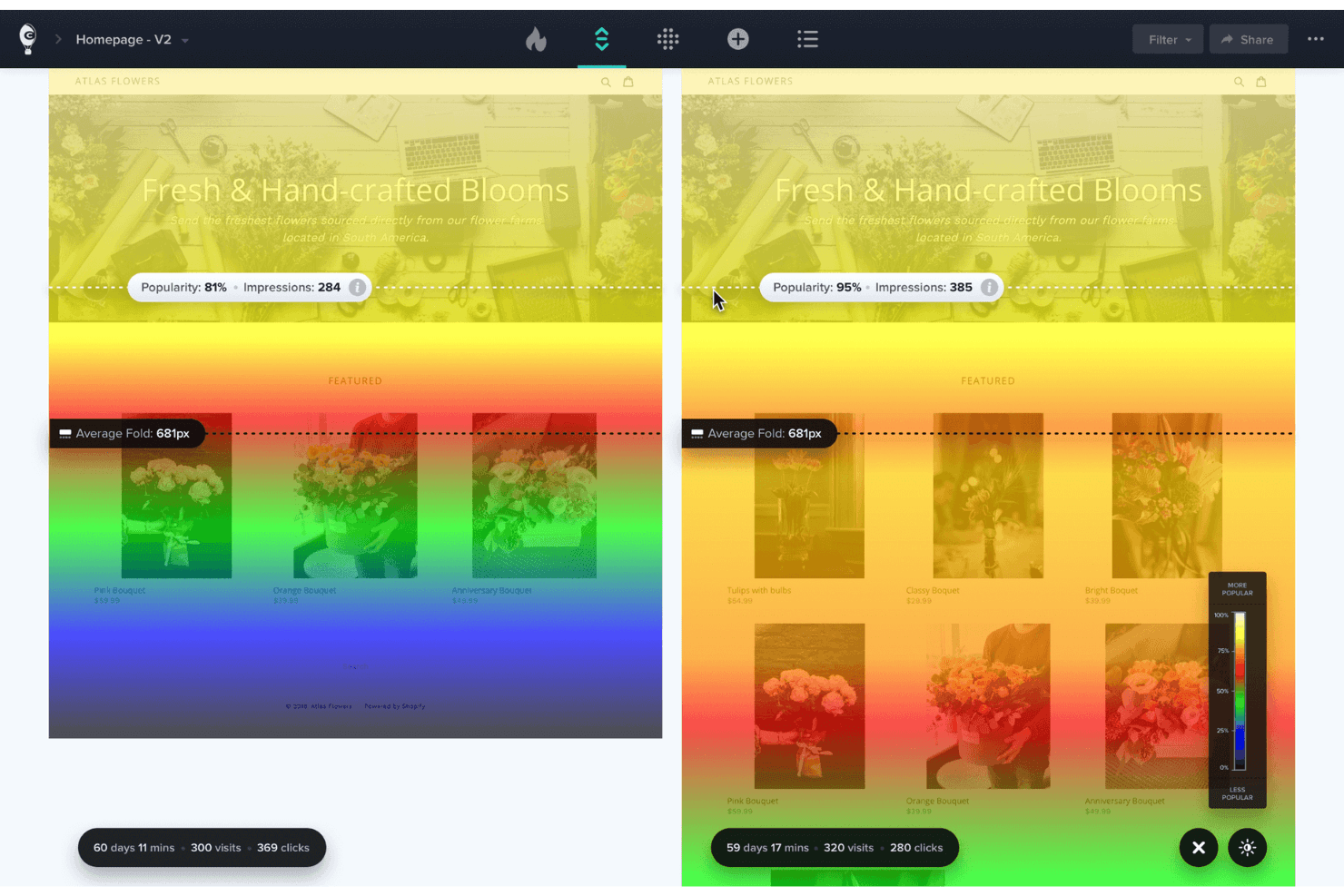
Crazy Egg shows where visitors click and scroll on your site. Crazy Egg is a heatmap and website optimization platform that combines click maps, scroll maps, confetti maps, session recordings, A/B testing, surveys, and funnels in a single tool.
Who Is Crazy Egg Best For?
Crazy Egg is a great fit for product managers and marketers at small to mid-sized teams who want heatmaps, A/B testing, and session recordings without juggling multiple tools.
Why I Picked Crazy Egg
Crazy Egg earns its spot on my shortlist because it keeps heatmaps genuinely simple without stripping out the tools you actually need to act on what you find. I like how its five map types, including the Confetti Map that breaks clicks down by traffic source, UTM, or device, let me pinpoint exactly which audience segment is struggling with a layout. What ties it together is the native A/B testing: I can spot a dead-click problem in the Page Performance report and launch a variant to fix it without switching tools.
Crazy Egg Key Features
- Confetti Map: Breaks down individual clicks by traffic source, UTM, device, OS, and 17 other attributes in a single view.
- Session recording auto-tags: Automatically flags recordings with rage clicks, dead clicks, JavaScript errors, abandoned forms, and slow load times.
- AI-powered Tasks report: A chat-driven tool that builds prioritized PDF reports and drafts A/B test variants based on your heatmap and recording data.
- Funnel tracking: Retroactive, cross-session funnels that show where visitors drop off, filterable by conversion goal.
Crazy Egg Integrations
Crazy Egg supports integrations with Google Analytics 4, Google Tag Manager, Shopify, WordPress, Wix, Squarespace, Drupal, Joomla, Magento, and Segment. It also offers a heatmap automation API and Zapier connectivity.
Pros and Cons
Pros:
- Users praise quick setup and support
- Rage-click detection surfaces frustrated sessions
- Native A/B tests validate heatmap findings
Cons:
- Form insights stop at submissions
- No dedicated hover heatmap
Learn more about Crazy Egg: 5Best for heatmaps tied to built-in A/B test variants
VWO
- 30-day free trial + free demo available
- Pricing upon request
Visit WebsiteCustomer Rating:4.3/5
VWO lets users generate heatmaps from click data across multiple pages. VWO is a behavior analytics platform that combines heatmaps, session recordings, form analytics, and A/B testing in one toolset, with eight visualization types including clickmaps, scrollmaps, hovermaps, and a Frictionmap for rage and dead click detection.
Who Is VWO Best For?
VWO is a strong fit for conversion rate optimization teams that run A/B tests and want heatmap data tied directly to each test variation.
Why I Picked VWO
I picked VWO as one of the best because it's the only tool on my list that ties heatmaps directly to A/B test variations, so you can see exactly how visitors interact with each version of a page. The per-variation heatmap filter lets you compare click and scroll behavior across up to three campaigns at once. I also like that selecting a friction or click cluster pulls up matching session recordings instantly, with Wingz AI summarizing what those visitors experienced.
VWO Key Features
- Frictionmap: Detects rage clicks, dead clicks, and error clicks on any page, then surfaces matching session recordings directly from the map.
- Element list: Shows click counts and percentages for every page element, including hidden ones like dropdown contents.
- Form analytics: Tracks field-level behavior, including which fields take longest to complete, get refilled, or cause visitors to abandon the form.
- Wingz AI hypotheses: Converts heatmap insights into ranked, actionable test hypotheses you can push directly into VWO's experimentation workflow.
VWO Integrations
VWO offers native integrations with GA4, Adobe Analytics, Amplitude, Mixpanel, FullStory, Microsoft Clarity, HubSpot, Salesforce, Shopify, BigQuery, Snowflake, and Jira. Enterprise plans include a REST API for custom integrations.
Pros and Cons
Pros:
- Offers eight visualization types and segmentation
- Links friction clusters to session recordings
- Ties heatmaps directly to A/B variations
Cons:
- Hovermaps work only on desktop устройств
- Sampling limits can hide lower-volume behavior
Learn more about VWO: Best for seven auto-generated heatmap types
- Free plan available
- From $25/month
Visit WebsiteCustomer Rating:4.7/5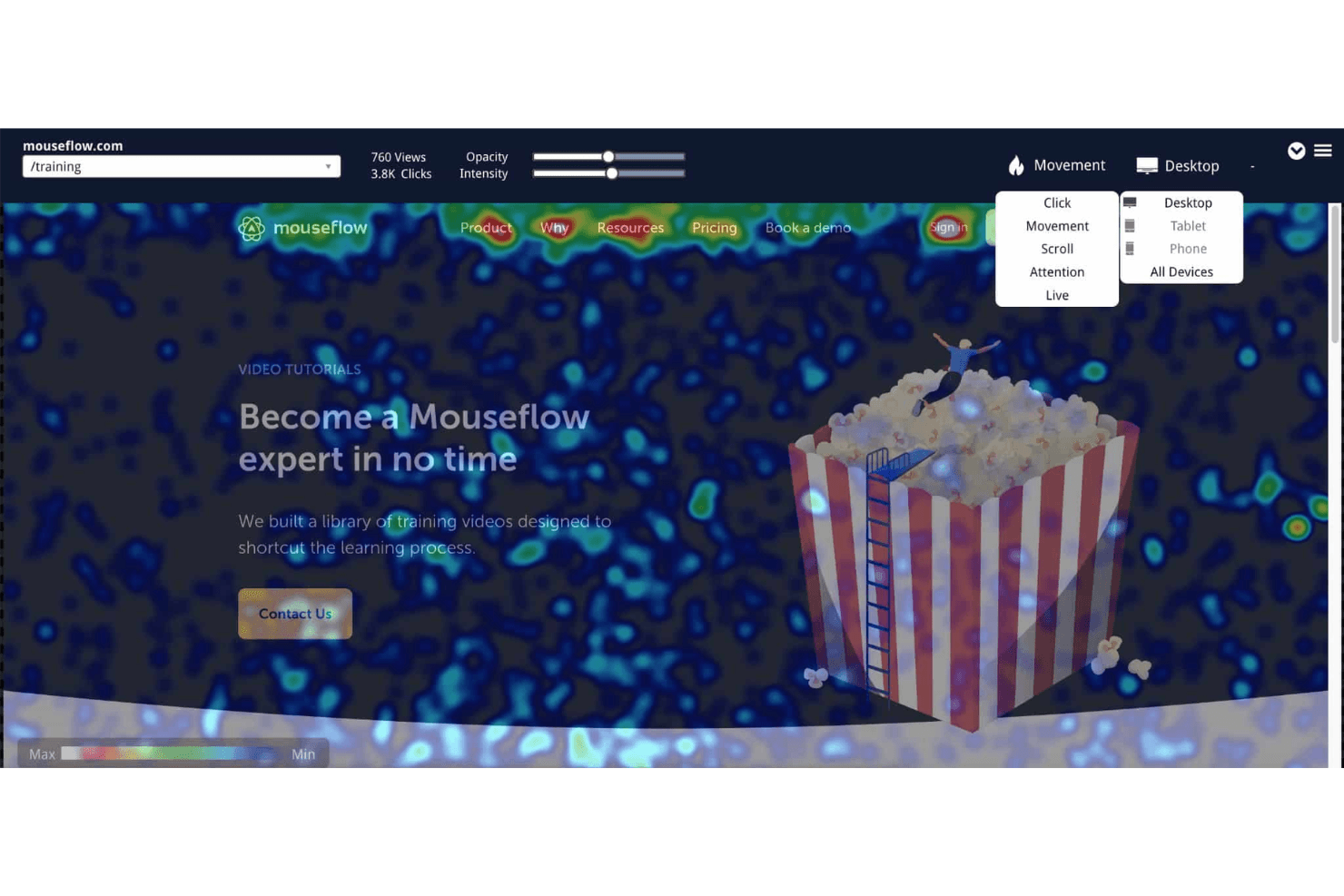
Mouseflow's heatmaps include options for analyzing click, movement, scroll, attention, and live user data. Mouseflow is a session analytics and heatmap platform that automatically generates seven types of heatmaps—including click, scroll, movement, attention, geo, friction, and interactive—alongside session replay, form analytics, funnel tracking, and feedback surveys.
Who Is Mouseflow Best For?
Mouseflow is a strong fit for product managers and CRO teams who need visual behavior data across the full user journey, not just isolated page snapshots.
Why I Picked Mouseflow
I picked Mouseflow as one of the best because no other tool automatically generates seven heatmap types the moment you install it. Click, scroll, movement, attention, geo, friction, and interactive heatmaps all appear without any per-page configuration. I especially like the Friction Map, which surfaces rage clicks, dead clicks, and JavaScript errors as a dedicated overlay, so I can spot exactly which elements are frustrating users rather than guessing from click data alone.
Mouseflow Key Features
- Friction Score: Mouseflow assigns each session a numeric Friction Score based on detected rage clicks, dead clicks, JavaScript errors, 404s, and bounces, so you can prioritize which sessions to review first.
- Form analytics: Field-level data shows where users hesitate, which fields they skip, and where they abandon forms—without any additional coding required.
- Side-by-side heatmap comparison: A built-in comparison view lets you place two heatmaps side by side with independent filters for date range, device, segment, and heatmap type.
- Mina AI: An AI assistant included on all paid plans that answers plain-language questions about your session, heatmap, funnel, and friction data.
Mouseflow Integrations
Mouseflow lists 42 integrations, including GA4, Adobe Analytics, Google Ads, Google Tag Manager, Shopify, WordPress, HubSpot, Twilio Segment, Slack, and Microsoft Teams. Its open REST API supports custom integrations.
Pros and Cons
Pros:
- Replay links explain each hotspot
- Friction maps expose rage and dead clicks
- Seven heatmaps generate automatically
Cons:
- Web-only capture misses native app behavior
- Tracking stops after monthly session caps
Learn more about Mouseflow: Best for website analytics with real-time heatmaps
- 7-day free trial + free plan available
- From $32/month (billed annually)
Visit WebsiteCustomer Rating:4.7/5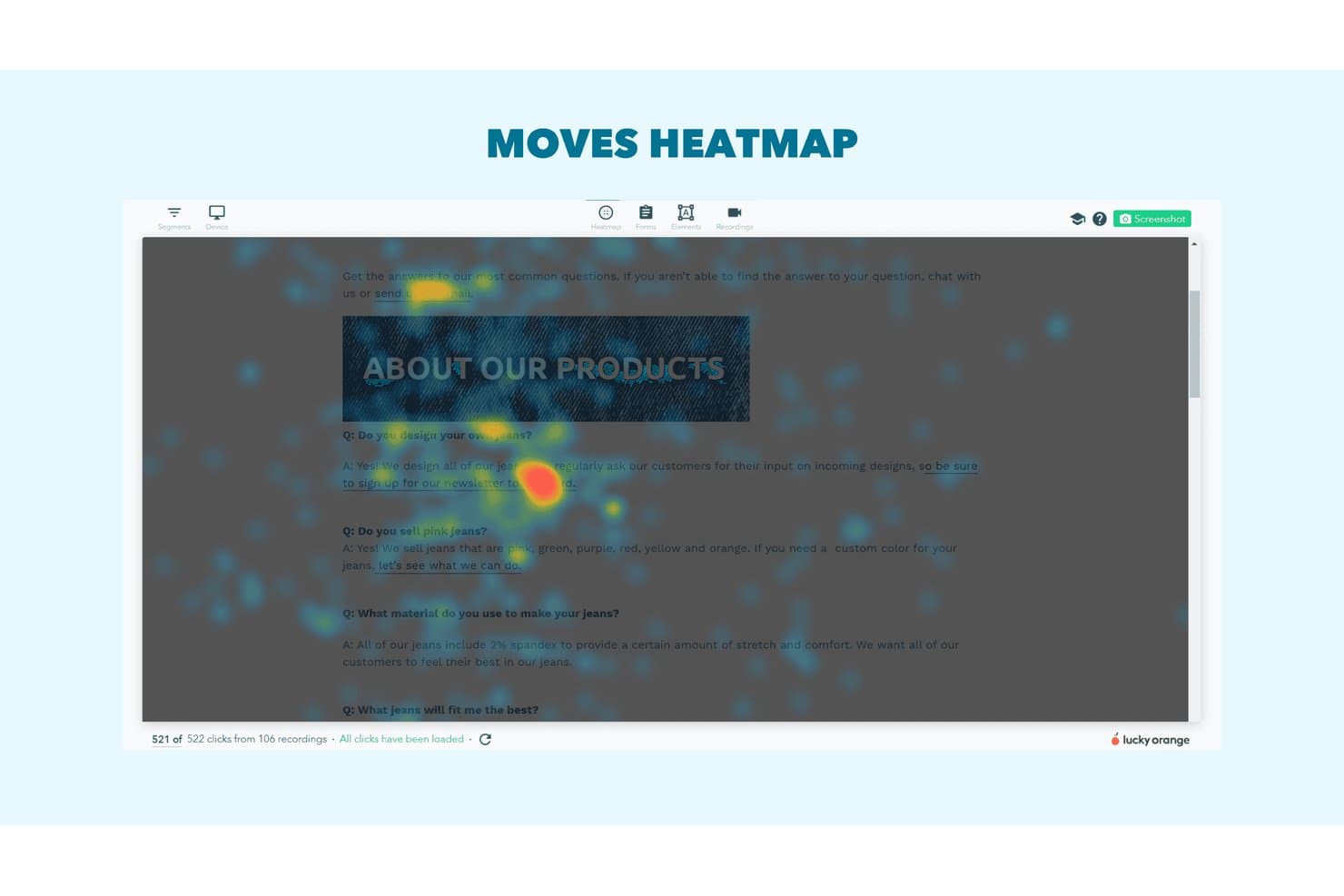
Lucky Orange's moves heatmap shows where users hover on FAQ pages. Lucky Orange is a website analytics and heatmap tool that combines dynamic click, scroll, and move heatmaps with session recordings, form analytics, conversion funnels, and an AI assistant built on live visitor data.
Who Is Lucky Orange Best For?
Lucky Orange is a strong fit for product managers, UX designers, and conversion rate optimizers who want heatmaps, session recordings, and form analytics in one place without juggling multiple tools.
Why I Picked Lucky Orange
Lucky Orange earns its spot on my shortlist because real-time heatmaps are genuinely central to how it works, not an afterthought. I love that Dynamic Heatmaps capture clicks inside pop-ups, modals, and carousels as they happen, so you're seeing actual interaction data rather than a static snapshot of the page underneath. The U-Turn event detection (which flags visitors who leave and return within 10 seconds) and tightened rage-click tracking give me frustration signals I can act on immediately, linked directly to session recordings.
Lucky Orange Key Features
- Form analytics: Tracks drop-off rates, time spent, and device breakdown for each individual form field, with direct links to session recordings of visitors who abandoned the form.
- Discovery AI: A conversational AI assistant connected to live visitor data that runs audits, answers behavioral questions, and links responses back to supporting heatmaps, funnels, or recordings.
- Conversion funnels: Maps visitor drop-off across multi-step flows so you can pinpoint exactly where users exit before completing a goal.
- On-site surveys: Deploys unlimited behavior-triggered and exit-intent surveys to collect direct visitor feedback, with responses linked to individual session recordings.
Lucky Orange Integrations
Lucky Orange has documented integrations with Shopify, BigCommerce, Magento, HubSpot, Google Analytics 4, ClickFunnels, Unbounce, Webflow, Google Tag Manager, and Optimizely. It also supports Zapier and offers an API for custom integrations.
Pros and Cons
Pros:
- Frustration signals reveal UX problems
- Recordings connect directly with heatmaps
- Dynamic heatmaps capture pop-up interactions
Cons:
- Recordings sometimes lag or fail to load
- Session quotas limit high-traffic analysis
Learn more about Lucky Orange: Best for heatmaps with rage click and form analytics
- Free plan available
- From $39/month (billed annually)
Visit WebsiteCustomer Rating:4.5/5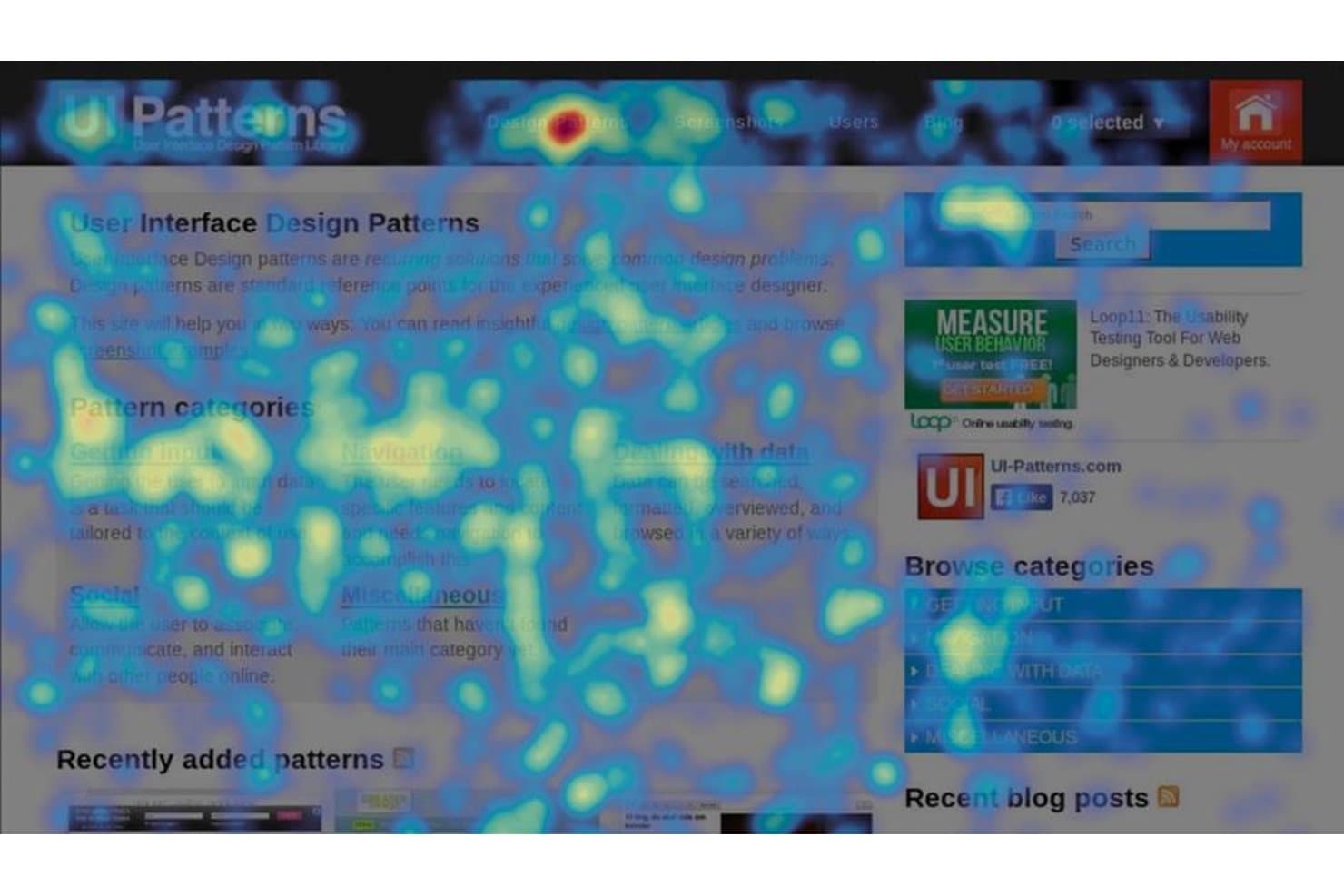
Hotjar (by Contentsquare) visualizes user clicks and attention via heatmaps. Hotjar (by Contentsquare) is a heatmap and behavior analytics platform that combines click, scroll, move, rage click, and engagement zone maps with session replay, form analytics, and feedback surveys.
Who Is Hotjar (by Contentsquare) Best For?
Hotjar is a strong fit for product managers and UX designers who need to diagnose friction at the element level—especially through rage click detection and form field drop-off analysis.
Why I Picked Hotjar (by Contentsquare)
Hotjar earns its spot on my shortlist because rage click detection and form analytics are baked directly into its heatmap workflow, not siloed into separate reports. I particularly like how rage click maps surface elements users are furiously clicking on, while Form Analysis breaks down drop, blank, and refill rates field by field. That combination tells you exactly where a form is bleeding conversions without needing to dig through session replays one by one.
Hotjar (by Contentsquare) Key Features
- Engagement zone maps: A combined heatmap that layers click, move, and scroll data into a single view for each page element.
- Session replay with one-click access: Jump directly from a heatmap to matching session replays without leaving your current workflow.
- Funnel analysis: Track visitor drop-off across up to 10 steps to pinpoint where users exit before converting.
- Feedback surveys and NPS widgets: Deploy on-page surveys and Net Promoter Score prompts that tie responses directly to session replays.
Hotjar (by Contentsquare) Integrations
Hotjar (by Contentsquare) offers 115+ integrations, including Google Analytics, Adobe Analytics, Jira, Slack, HubSpot, Optimizely, Segment, and Mixpanel. Paid Voice of Customer plans include an API and exports, plus Zapier.
Pros and Cons
Pros:
- Heatmaps link directly to session replays
- Form analytics pinpoint field-level conversion leaks
- Rage click maps expose frustrated interactions
Cons:
- Lower tiers sample session replays extensively
- Move maps work only on desktop
Learn more about Hotjar (by Contentsquare): Best for heatmaps tied to event segmentation
- Free plan available
- Pricing upon request
Visit WebsiteCustomer Rating:4.5/5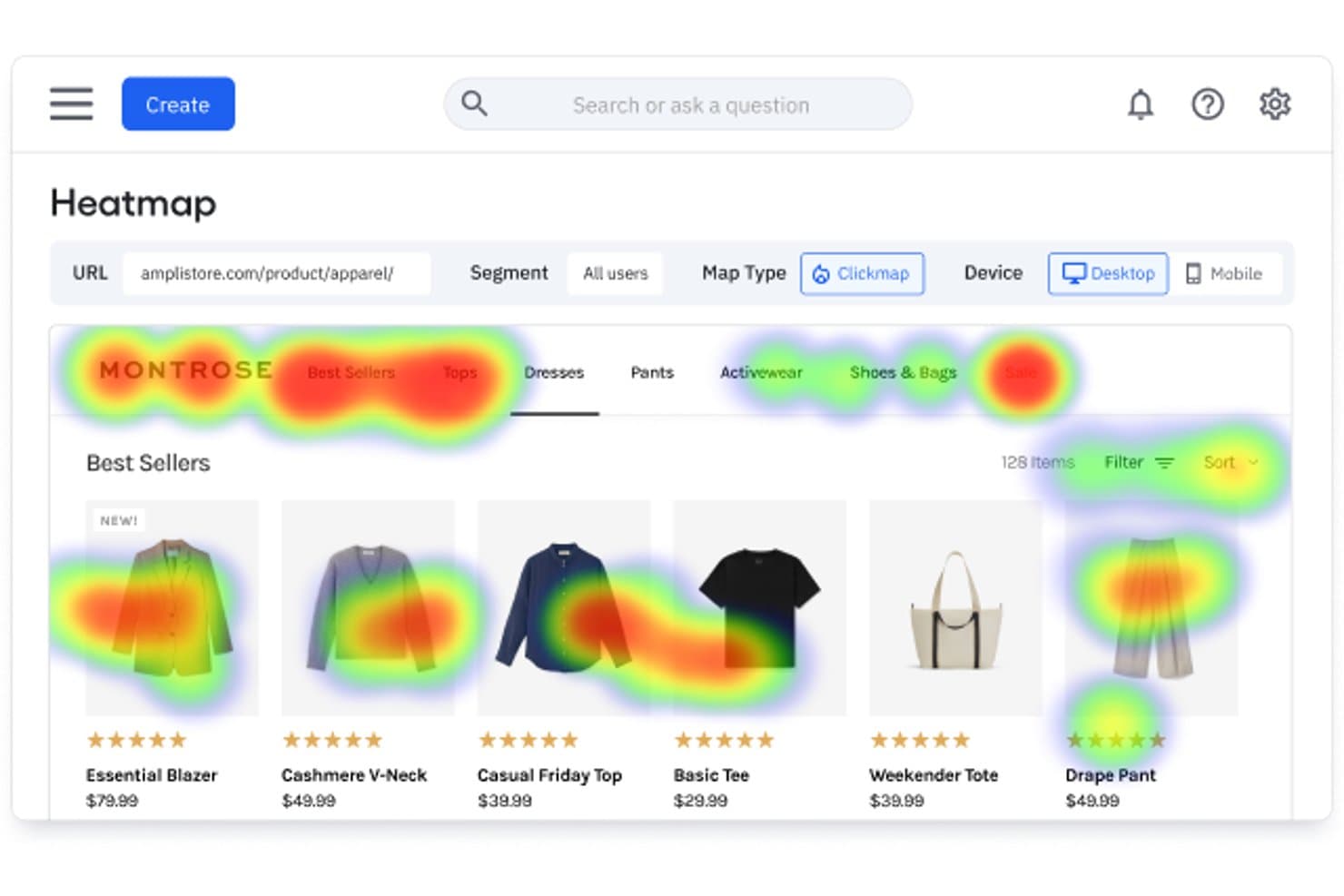
Amplitude's heatmap reveals where users click on a product page. Amplitude is a product analytics platform that includes click maps, selector maps, and scroll maps built directly on top of its Session Replay infrastructure, alongside event segmentation, cohort building, and behavioral analysis tools.
Who Is Amplitude Best For?
Amplitude is a strong fit for product and web analysts who already live in an event-based analytics workflow and want heatmaps wired directly into their segmentation, cohorts, and session replays.
Why I Picked Amplitude
I've included Amplitude in my top picks because its heatmaps are wired directly into its event segmentation engine, which means I can filter a click map by a behavioral cohort, a campaign source, or an experiment variant without leaving the same view. I especially like Microscope, which lets me highlight any zone on a click or selector map and instantly pull the replays, events, or a new cohort from that exact interaction. That loop, from visual heatmap data into quantified segments and back into experiments, is something I haven't seen replicated in a dedicated heatmap tool.
Amplitude Key Features
- Session Replay Agent: An AI tool that samples replays within a chosen funnel or event, detects rage clicks, dead clicks, and form abandonment, then delivers written findings and highlight reels.
- Scroll maps: Visual overlays showing what percentage of sessions reached each point on a page, with an adjustable depth slider and an average fold marker.
- Zoning Insights: Draw custom zones on any page to get per-zone click-through rate, exposure rate, and revenue-per-click data alongside AI opportunity scores.
- Guides and Surveys: Targeted NPS surveys, microsurveys, and visitor feedback widgets that trigger based on behavioral cohorts and link directly to Session Replay data.
Amplitude Integrations
Amplitude offers native integrations with Google Tag Manager, Segment, RudderStack, Braze, HubSpot, Salesforce, BigQuery, Optimizely, LaunchDarkly, and Meta Pixel. It also connects with data warehouses through customer data platform integrations.
Pros and Cons
Pros:
- Zoning Insights quantifies revenue per zone
- Microscope links zones to behavioral cohorts
- Cohort-filtered heatmaps connect to replays
Cons:
- Native mobile app heatmaps remain unavailable
- No hover or mouse-movement maps
Learn more about Amplitude: Best for free, no-cap behavioral analytics
- Free plan available
- Pricing upon request
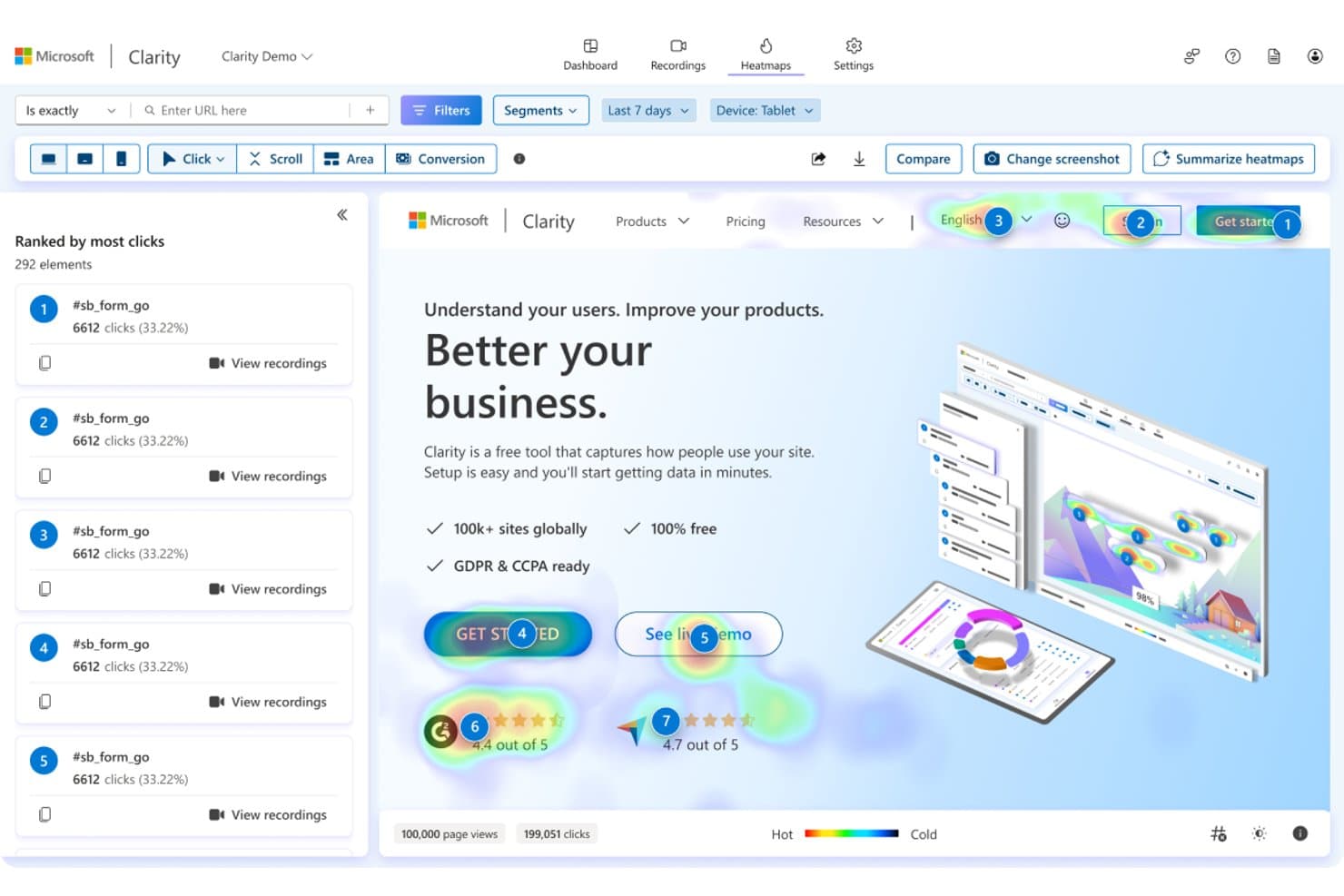
Microsoft Clarity shows click heatmaps ranked by most-clicked elements. Microsoft Clarity is a behavioral analytics platform that combines click maps, scroll maps, attention maps, session recordings, and AI-powered summaries to show you how users interact with your site or mobile app.
Who Is Microsoft Clarity Best For?
Microsoft Clarity is a strong fit for product teams and solo builders who want rich behavioral data without a budget attached.
Why I Picked Microsoft Clarity
Microsoft Clarity earns its spot on my shortlist because it's the only heatmap tool I've found that gives you five heatmap types, six click map variants (including rage, dead, and error clicks), session recordings, and AI Copilot summaries without a pricing tier in sight. I particularly like how clicking any ranked element in a click map instantly filters linked recordings to sessions where that exact element was clicked. That heatmap-to-recording linkage is what makes Clarity genuinely useful for diagnosing friction, not just spotting it.
Microsoft Clarity Key Features
- AI Copilot summaries: A built-in GPT-4o-powered assistant that generates plain-language summaries of heatmaps and session groups, plus a chat interface for direct questions.
- Funnels with step-level heatmap links: No-code funnels built from smart events and page visits that connect each step directly to filtered heatmaps and recordings.
- Mobile app SDK: Native support for Android, iOS, Flutter, React Native, Cordova, and Ionic that captures screen recordings, heatmaps, and crash data in one view.
- 30+ filters with savable segments: Filter heatmap data by device, UTM parameters, Core Web Vitals, ecommerce attributes, and more, then save and share any combination as a reusable segment.
Microsoft Clarity Integrations
Microsoft Clarity offers native integrations with Google Analytics 4, Google Tag Manager, Shopify, WordPress, WooCommerce, Wix, Squarespace, Firebase Crashlytics, and UserFeedback. It also provides Data Export and client APIs for custom integrations.
Pros and Cons
Pros:
- Heatmaps link directly to recordings
- Rage and dead clicks expose friction
- Five heatmap types support varied analysis
Cons:
- Short retention limits longitudinal comparisons
- No dedicated hover behavior heatmap
Learn more about Microsoft Clarity:
Other Heatmap Software
Here are a few more website heatmap tools and other options that didn’t make the top, but are worth considering if you are expanding your tool search.
- 11LogRocketBest for linking heatmaps to AI session insights
- 12FullSessionBest for AI-ranked friction signals and click maps
- 13InspectletBest for heatmaps with built-in AI session analysis
- 14GlassboxBest for regulated-industry interaction analytics
- 15UXCamBest for mobile and web click behavior analysis
- 16PlerdyBest for all-in-one heatmaps with built-in surveys
- 17Zoho PagesenseBest for scroll depth and average fold insights
- 18BrowseeBest for heatmap-to-replay workflow navigation
Related Product Management Reviews
If you still haven't found what you're looking for here, check out these tools closely related to heatmap software that we've tested and evaluated:
- Best Product Management Tools
- Best Product Planning Software
- Best UX Design Tools
- Best Product Development Software
- Best Product Analytics Tools
- Best Idea Management Software
- Best User Research Tools
How I Evaluate Heatmap Software
I split my evaluation into three parts, with core functionality carrying the most weight: a tool must visually map where users click and how far they scroll. From there, I look for standout features like rage click detection, then consider implementation speed and privacy compliance.
Core Functionality (Table Stakes for This List)
When I'm selecting tools for my list, I score each one on a scale from 0 (does not offer the functionality) to 5 (excels in this area) for each core functionality listed below. I then convert the total into a percentage to help assess each tool's overall fit, with extra weight on any functionalities I've deemed essential.
- Click, Scroll & Move Tracking (Essential): I check whether a tool captures all three interaction types and how well it handles dynamic elements like menus, modals, and carousels.
- Visual Heatmap Rendering: Overlays need to align accurately with the actual page layout, and I look for support across click, scroll, and movement map types in one view.
- Page & Segment Filtering: I evaluate whether you can slice heatmap data by traffic source, device, or custom attributes to compare behavior across meaningful user groups.
- Session Recording Integration: The link between heatmap zones and individual session replays matters most here. Clicking a hot spot should surface relevant recordings directly.
- Scroll Depth Analysis: I look for visual drop-off indicators with percentage markers, especially the ability to compare scroll depth across segments or device types.
- Cross-Device Capture: Mobile and desktop heatmaps should render in a unified interface without requiring separate setup or losing accuracy on responsive layouts.
Once I have a list of tools that meet the criteria, I consider what sets each platform apart.
Differentiating Factors (What Sets Vendors Apart)
Here's how I compare and contrast different vendors:
Standout Features
Rage and dead click detection is the first thing I check beyond core heatmaps. Tools like Hotjar and FullStory flag repeated frantic clicks on unresponsive elements, which helps you catch broken buttons or misleading UI before support tickets pile up. I also evaluate form analytics closely, since field-level drop-off data pinpoints exactly where users abandon a signup or checkout flow. Dynamic content and SPA support matters just as much—if your product uses client-side routing, heatmaps break without it.
Beyond Features
I check how each vendor's tracking script affects page performance, since a heavy SDK can skew the very behavior you're trying to measure. Privacy compliance is the other non-negotiable—I evaluate whether tools offer PII masking, consent management, and data residency options that match your team's obligations under GDPR or CCPA. I also look at how easily PMs can share annotated heatmap snapshots with designers and stakeholders without requiring everyone to log in.
How to Choose Heatmap Software
With so many different heatmap software solutions available, it can be challenging to make decisions on what heatmap software is going to be the best fit for your needs.
As you're shortlisting, trialing, and selecting heatmap software consider the following:
- What problem are you trying to solve - Start by identifying the heatmap feature gap you're trying to fill to clarify the features and functionality the heatmap software needs to provide.
- Who will need to use it - To evaluate cost and requirements, consider who'll be using the software and how many licenses you'll need. You'll need to evaluate if it'll just be the product management professionals, or the whole organization that will require access. When that's clear, it's worth considering if you're prioritizing ease of use for all, or speed for your heatmap software power users.
- What other tools it needs to work with - Clarify what tools you're replacing, what tools are staying, and the tools you'll need to integrate with, such as accounting, CRM or HR software. You'll need to decide if the tools will need to integrate together, or alternatively, if you can replace multiple tools with one consolidated heatmap tool.
- What outcomes are important - Consider the result that the software needs to deliver to be considered a success. Consider what capability you want to gain, or what you want to improve, and how you will be measuring success. For example, an outcome could be the ability to get greater visibility into performance. You could compare heatmap software features until you’re blue in the face but if you aren’t thinking about the outcomes you want to drive, you could be wasting a lot of valuable time.
- How it would work within your organization - Consider the software selection alongside your workflows and delivery methodology. Evaluate what's working well, and the areas that are causing issues that need to be addressed. Remember every business is different — don’t assume that because a tool is popular that it'll work in your organization.
Trends in Heatmap Software for 2025
As technology improves and product management needs change, heatmap software also continues to evolve and offer ever more sophisticated tools. These product trends not only reflect the changing landscape of user experience design, but also highlight the features and functionalities that are gaining importance, evolving rapidly, or becoming less in-demand.
Evolving Features
- Advanced User Segmentation: Recent updates show a strong trend towards more granular user segmentation capabilities. This allows businesses to create highly customized heatmaps based on specific user behaviors, demographics, or traffic sources, providing deeper insights into different audience segments.
- AI-Powered Insights: A rapidly evolving feature in heatmap software is the use of artificial intelligence to analyze user behavior patterns. AI algorithms can predict user actions, identify anomalies, and suggest optimizations, making data analysis both more efficient and insightful.
Most Important and In Demand Features
- Session Replay and Real-Time Analytics: Continuously in high demand, session replay and real-time analytics remain critical for understanding the 'why' behind user behaviors. These features allow businesses to watch user sessions as they happen and make immediate adjustments to enhance the user experience.
- Integration Capabilities: The importance of integrating heatmap software with other tools (such as analytics, CRM, and marketing automation platforms) is more pronounced than ever. This reflects a growing need for a holistic view of the customer journey across different touchpoints.
Decreasing in Importance
- Static Heatmaps: As the technology evolves, traditional static heatmaps are becoming less important. Users now expect dynamic, interactive heatmaps that offer more than just basic click and scroll data, reflecting a shift towards more actionable and in-depth analytics.
Overall, the ongoing developments in heatmap software underscore the industry's shift towards more predictive, personalized, and actionable insights.
These trends not only cater to the immediate needs of product management professionals, but also pave the way for more intuitive, efficient, and effective user experience optimization strategies.
What Is Heatmap Software?
Heatmap software is a tool that visualizes user behavior by mapping interaction data onto your website or app using color gradients.
It helps product managers and UX teams quickly spot where users click, scroll, and linger—revealing which elements attract attention and which get ignored. By exposing friction points and engagement patterns, heatmaps support smarter design decisions that improve usability, content placement, and overall product experience.
Features of Heatmap Software
Heatmap software equips your team with the tools necessary to visualize user activity and optimize your website or application based on actual user interactions. Here are the most important features to consider when selecting heatmap software:
- Real-Time Data Tracking: This feature allows you to observe user behavior as it happens. Immediate insights are crucial for adjusting strategies swiftly and improving user experience.
- User Segmentation: The ability to segment heatmaps by user demographics or behavior patterns lets you tailor your analysis and understand specific groups more deeply.
- Click Tracking: This records where users click most frequently on a page. Understanding where users are most engaged helps prioritize content and design elements.
- Scroll Depth Analysis: Tracking how far users scroll can reveal how much of your content is actually being consumed, which aids in optimizing the placement of important information.
- Heatmap Playback: Playback features replay sessions of user interactions. Seeing how users navigate in real time can uncover usability issues that may not be apparent from static data alone.
- Integration Capabilities: Seamless integration with other analytics tools and platforms expands the utility of the heatmap data, making it a part of a holistic analysis ecosystem.
- Responsive Heatmaps: Ensuring heatmaps are compatible with all devices and screen sizes is essential, as this affects the accuracy of user interaction data across platforms.
- Hover and Interaction Tracking: Beyond clicks, tracking mouse movement and hovers provides insights into user intent and areas of interest that might not lead to a click.
- Detailed Reporting and Exporting: The ability to create detailed reports and export data for further analysis allows for more in-depth study and sharing of insights with team members.
- Privacy Compliance: Ensuring that the software complies with global privacy laws protects user data and shields your company from legal issues.
By focusing on these key features, you can ensure that your heatmap tool not only captures essential data, but also aligns with your strategic analysis and decision-making processes.
Benefits of Heatmap Software
By visually representing how users interact with various elements, heatmap software provides clear, actionable data that can drive decision-making and improve user experiences.
For businesses considering investing in this technology, here are five primary benefits of heatmap software:
- Enhanced User Experience (UX) Design: Heatmap software enables users to identify popular areas and elements on a website that attract the most engagement. This data helps businesses optimize their website's layout, ensuring that important content is placed where users are most likely to notice and interact with it, thereby enhancing the overall user experience.
- Increased Conversion Rates: By highlighting areas on a site that receive less attention or are problematic for users, heatmap software allows businesses to make informed adjustments. This can lead to improved user flow and navigation, reducing friction points that may prevent users from completing desired actions, such as making a purchase or signing up for a newsletter.
- Data-Driven Decision Making: Heatmap software provides visual data that can be more intuitive and easier to understand than traditional analytics. This enables teams to make quicker, more informed decisions about design and content strategies, leading to more effective and user-focused website updates.
- Improved Content Engagement: Understanding how users interact with content, including what they click on and how far they scroll, allows for the optimization of content placement and format. This ensures that high-value content is seen and engaged with more frequently, improving the effectiveness of marketing efforts.
- Efficient Identification of Usability Issues: Heatmaps can quickly reveal areas where users encounter difficulties, such as unclickable elements or confusing navigation. Identifying and resolving these issues promptly leads to a smoother, more enjoyable user experience, reducing bounce rates and encouraging longer site visits.
For organizations seeking to deepen their understanding of user behavior and optimize their digital platforms, heatmap software offers a suite of benefits that can lead to enhanced user satisfaction, higher conversion rates, and more strategic decision-making.
Costs & Pricing For Heatmap Software
When exploring heatmap software options, providers' pricing and plans can vary significantly. Options typically range from free heatmap software plans with basic features to more advanced, premium plans that offer deeper analytics and greater customization.
Here's a breakdown of common plan options and their pricing to help you make an informed decision:
Plan Comparison Table for Heatmap Software
| Plan Type | Average Price | Common Features Included |
|---|---|---|
| Plan TypeBasic | Average Price$10 - $50/month | Common Features IncludedBasic heatmap functionality, limited pageviews, basic reporting, and limited session replays. |
| Plan TypeStandard | Average Price$50 - $100/month | Common Features IncludedEnhanced heatmap functionality, increased pageviews, advanced reporting, more session replays, and segmentation capabilities. |
| Plan TypePremium | Average Price$100 - $200/month | Common Features IncludedAll standard features plus advanced integrations, full customization, unlimited pageviews, and dedicated support. |
| Plan TypeEnterprise | Average PriceCustom Pricing | Common Features IncludedAll premium features plus API access, custom data retention, enterprise-level security, and personal account management. |
| Plan TypeFree Option | Average Price$0 | Common Features IncludedLimited heatmap functionality, very limited pageviews, and basic reporting. |
When selecting a plan, it is important to consider both your immediate needs and potential future requirements. Starting with a free option or basic plan can be a good way to familiarize yourself with heatmap software functionalities before upgrading to more advanced features as your needs grow.
Heatmap Software Frequently Asked Questions
Find answers to common questions other people ask about this topic.
What is a heatmap?
A heatmap is a data visualization technique that represents data in the form of a map. The “heat” part of the term derives from the color coding used in this technique to provide visual cues to the reader about clusters of information based on interactions with page elements.
For example, an area of the map that has a red color represents a high concentration of activity, while an orange and yellow hue represent less occurrences.
What type of data is best visualized with a heatmap?
Heatmaps are best for visualizing large data sets with high density and displaying relative differences in values using color gradients. They are ideal for displaying patterns in user behavior, website clicks, and customer engagement.
Do heatmaps work on dynamic websites and interactive elements?
Many traditional heatmap tools struggle with dynamic content, such as pop-ups, dropdown menus, and SPAs (single-page applications). Because heatmaps rely on static snapshots of a page, they may fail to accurately track elements that change after the initial page load. This can lead to misleading data if key interactions aren’t captured properly. More advanced tools that integrate with session replays or support dynamic tracking can provide a clearer picture of user behavior.
What are the biggest limitations of traditional heatmap tools?
Traditional heatmap tools provide valuable visual insights, however they do have key limitations that can make them insufficient for deeper analysis. They often lack context, making it hard to determine why users behave a certain way. They also tend to focus on single-page interactions, offering little visibility into broader user journeys across a site. Additionally, many heatmap tools struggle with tracking dynamic content, leading to gaps in data accuracy for modern, JavaScript-heavy websites.
Why don’t traditional heatmaps work well for tracking full user journeys?
Most heatmaps only capture behavior on a single page, meaning they don’t provide insights into how users navigate across multiple pages or through conversion funnels. Without the ability to connect interactions across an entire site, it’s difficult to determine whether friction points exist in a checkout process, a multi-step form, or other key user flows. This makes heatmaps most useful when paired with session recordings or event-based tracking.
What are the different types of heatmaps?
Even though heatmaps are always presented as a color-coded map, choosing what to track will provide you with different types of maps. Here are five types of heatmaps that are commonly used:
Move map
Also called a mouse tracking heatmap, it is a map that shows mouse movements from users. This can give you valuable information in terms of how they navigate your website and where they stay the longest. Something fun these types of maps revealed is that we use the pointer as a visual aid while we read text.
Click map
Click maps track the amount of clicks in a specific area. They can be used to test specific CTA buttons or other media elements. The results can tell you if users are clicking on that button, skipping it, or maybe clicks on an image (which would tell you they expected a video to play). As you can see, the information from these maps allows you to reorganize elements on a page given user interactions.
Scroll map
A scroll map will tell you how far users get when scrolling your pages. The heatmap displays a color gradient that is expected to gradually change color as people move through the website. If there are sudden color changes, you have to address it. Some of the things that this map can help you decide are:
- Making a page shorter
- Moving important information up the page to keep people engaged
Engagement Zone map
This map helps you see the areas where your users are spending the most time and interacting with. It combines the information of the three maps above: move, click, and scroll. Remember to view this map with the user’s perspective in mind as it will reflect natural tendencies when navigating your product and can surface expectations that you might not be addressing.
Rage click map
Although some clicks outside of the ordinary can indicate expectations, an increase in clicks where users cannot click displays frustration. You can use these maps to see which parts of your page are causing friction with the user and discover what you can do to control those expectations or direct them better to where they can click.
How long does it typically take to see actionable insights from heatmap data?
Gathering actionable insights from heatmap data can vary depending on several factors. Here are a few that could influence your timeline:
- Traffic Volume: Websites with higher traffic volumes might start seeing useful patterns within a few days since there’s a lot of user activity to analyze. For lower traffic sites, it might take a few weeks to accumulate enough data for reliable insights.
- Website Complexity: Simple websites might yield quicker insights because user behavior is more straightforward. In contrast, complex sites with many pages and features may require more time to understand diverse user interactions.
- Goal Specificity: If you’re looking for general trends, you might get actionable insights quite quickly. However, pinpointing solutions to specific issues or optimizing particular elements can take longer, as it requires deeper analysis.
- Analysis Frequency: Regularly checking heatmap data can help you identify trends and anomalies faster than if you only review the data sporadically.
While some insights can emerge within days for high-traffic, simple websites, a comprehensive understanding, especially for specific goals or complex sites, might take several weeks or even longer. It’s all about the volume of data, the clarity of your objectives, and how intricately you’re willing to dive into the user experience puzzle.
Are there any privacy concerns associated with using heatmap software?
Privacy is an important factor when it comes to using heatmap software, and you’ll need to maintain a clear line between gathering insightful data and respecting user privacy. Here’s how good heatmap tools address privacy concerns:
- Anonymization: Data is typically anonymized, meaning individual user identities aren’t tied to the heatmap data. You see the trends, not the person.
- Consent: Many tools now integrate ways to ensure that user consent is obtained before any data is collected, aligning with GDPR and other privacy regulations.
- Data Security: Robust encryption and secure data storage practices are a must to protect the data collected.
- Opt-out Options: Providing users with a clear way to opt-out of tracking ensures transparency and control over their data.
In short, while privacy concerns are valid, reputable heatmap software comes equipped with features designed to protect user privacy, ensuring that insights can be gained ethically and responsibly.
What are the common limitations of free heatmap software plans?
When it comes to free heatmap software plans, they’re fantastic for getting you started, but they do come with their share of limitations. You might run into caps on things like:
- The number of pageviews you can track
- The amount of data storage or history you have access to
- The number of users who can access the tool
- The number of projects you can run simultaneously
Advanced features like detailed segmentation, A/B testing integrations, or real-time data might also be paywalled. These constraints can make it tricky to get a comprehensive view of user behavior or to share insights across larger teams.
What other product manager software should I use?
Case Study: How Coinbase Optimized Its Tax Center Using User Segmentation
Coinbase, a leading cryptocurrency platform, sought to improve its Tax Center by helping advanced users navigate crypto taxes more efficiently. Instead of analyzing their entire user base, they segmented data to focus specifically on power traders—users who had made trades on other platforms and had more complex tax filing needs.
By honing in on this user group, Coinbase gained key behavioral insights that wouldn’t have been visible in a generalized analysis. This approach allowed them to refine the Tax Center experience, ensuring it met the needs of their most engaged and financially invested users.
What This Means for Heatmaps
Heatmaps are a powerful tool for user segmentation, revealing behavioral differences between various groups—new vs. returning visitors, mobile vs. desktop users, or first-time vs. power users. Just as Coinbase tailored its Tax Center based on power trader behavior, businesses can use heatmap data to customize user experiences, refine UX elements, and boost conversions which can be used in tandem with marketing tools to improve their overall marketing strategy.