
UX design tools are essential to building intuitive, user-centered products—whether you're launching something new or refining what you’ve already built. The right platform helps your team wireframe faster, prototype smarter, and align more easily with stakeholders—all while keeping feedback loops tight and workflows streamlined.
Whether you’re exploring your first tool or questioning if your current one still fits, it pays to know what’s out there.
Using my product management experience and testing today’s most popular platforms, I’ve put together this guide to the best UX design tools available. These are the ones that support modern product teams by removing friction, speeding up collaboration, and helping designers do their best work.
Why Trust Our Software Recommendations
6,700+
Reviews
20
Industry experts
16+
Evaluation factors
14
Years
Our team has been testing and reviewing software since 2012. As product managers ourselves, we know how difficult—and important—it is to choose the right software.
For this guide, we evaluated tools using hands-on testing and independent research, scoring tools using our selection criteria.
Our reviews reflect our human editorial judgment, not a sales pitch.
Expert reviewers:
- Andrew LumbySenior TPM
- Cristiano ValimSenior UI/UX Lead


UX Design Tools Comparison Table
Here’s a comparison table that summarizes basic details about each of the top UX design tools I selected.
| Tool | Best For | Trial Info | Price | ||
|---|---|---|---|---|---|
| 1 | Best for dynamic mind mapping | Free plan available | From $9/month (billed annually) | Website | |
| 2 | Best for exploring real-world design patterns | Free plan available | From $10/month (billed annually) | Website | |
| 3 | Best for offline-first design with built-in assets | Free plan + free demo available | From $11.99/user/month (billed annually) | Website | |
| 4 | Best UX design tool for the Adobe ecosystem | Free trial available | From $22.99/month (billed annually) | Website | |
| 5 | Best for logic-driven, code-free prototyping | 30-day free trial | From $29/user/month (billed annually) | Website | |
| 6 | Best for ease of collaboration | Free plan available | From $3/user/month | Website | |
| 7 | Best for gathering user insights | Free plan + 14-day free trial available | From $29/user/month (billed annually) | Website | |
| 8 | Best for open-source, self-hosted UX design | Free plan + 14-day free trial available | From $7/user/month | Website | |
| 9 | Best for clickable prototypes | Free plan available | From $19/user/month | Website | |
| 10 | Best for Mac-based design teams | 30-day free trial | From $12/user/month (billed annually) | Website |


Best UX Design Tool Reviews
Here’s a brief description of each UX design tool that showcases its best use case and standout features.
 Best for dynamic mind mapping
- Free plan available
- From $9/month (billed annually)
Visit WebsiteCustomer Rating:4.5/5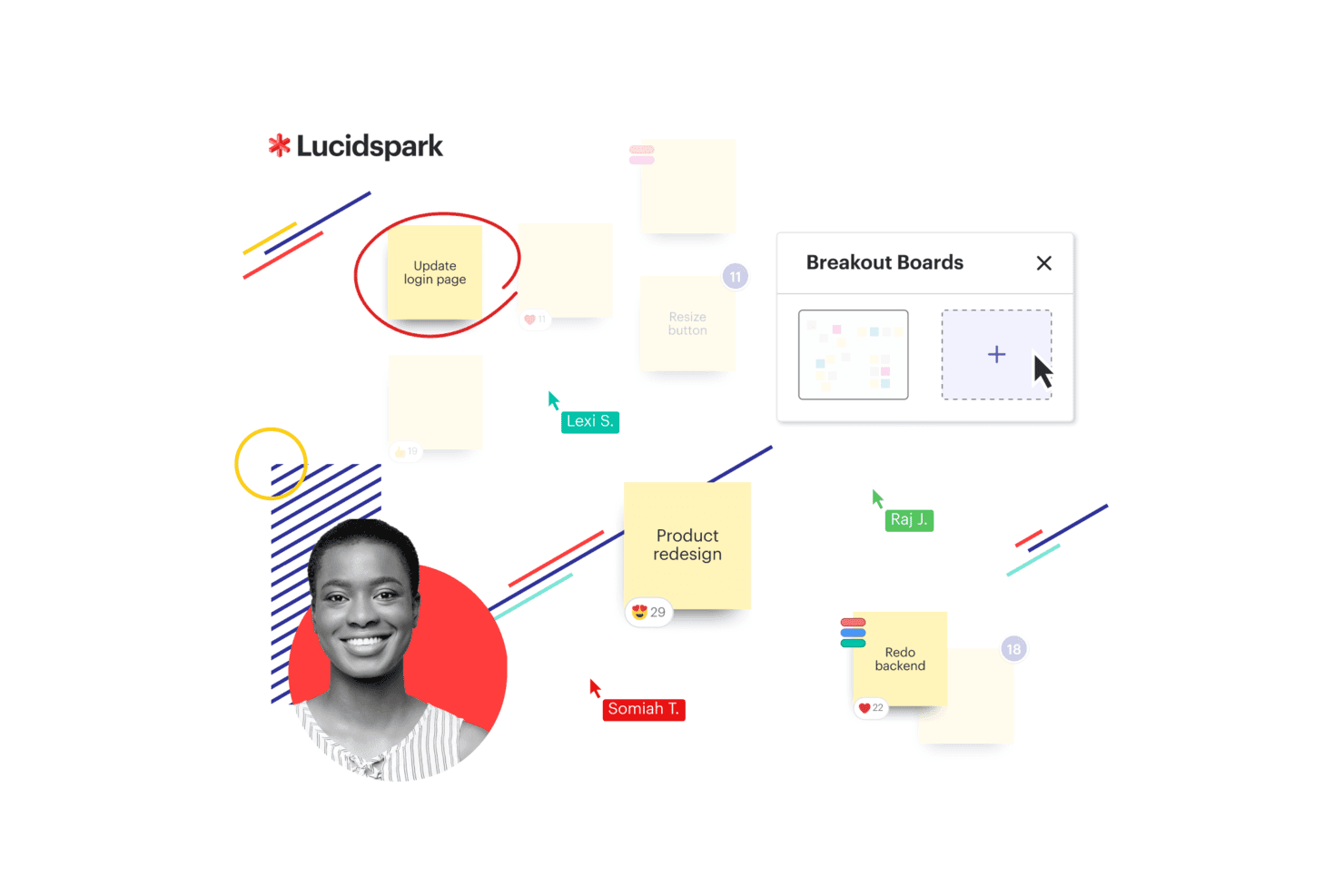
Lucidspark presents a Kanban board with workflow columns and task cards to help teams organize and track work visually. Lucidspark is a virtual whiteboard tool that combines infinite canvas ideation, mind mapping, real-time collaboration, and AI-assisted brainstorming with workflow integrations for product teams.
Who Is Lucidspark Best For?
Lucidspark suits product managers and cross-functional teams who need a flexible space for early-stage ideation, mind mapping, and collaborative planning workshops.
Why I Picked Lucidspark
I've included Lucidspark in my top picks because its dynamic mind mapping is genuinely useful during early product discovery, when you need to untangle complex problem spaces fast. I love how you can spin up a mind map in a few clicks, then run a voting session directly on the board to surface which ideas your team actually wants to pursue. Lucid AI can also scan your brainstorming content, sort it into themes, and summarize it, so nothing useful gets lost after a workshop.
Lucidspark Key Features
- Visual Activities: Run structured feedback sessions directly on the board, using voting modes to gather and prioritize input from your whole team.
- Lucid Cards: Convert ideas from your whiteboard into Jira or Azure DevOps tasks without leaving the canvas.
- Breakout Boards: Split teams into smaller working groups on separate boards during live sessions, then bring findings back together.
- Dynamic Table: Organize and sort freeform ideas into structured data tables to move from brainstorming into planning.
Lucidspark Integrations
Lucidspark offers 100+ custom-built integrations, including Figma, Jira Cloud, Confluence, and Azure DevOps. It also provides a developer platform and MCP server for custom connectivity.
Pros and Cons
Pros:
- AI summarizes brainstorming themes for later decisions
- Live voting turns workshop feedback into priorities
- Dynamic mind mapping clarifies complex product problems
Cons:
- No design systems or developer handoff specs
- Static wireframes cannot validate interactive flows
Learn more about Lucidspark: Best for exploring real-world design patterns
- Free plan available
- From $10/month (billed annually)
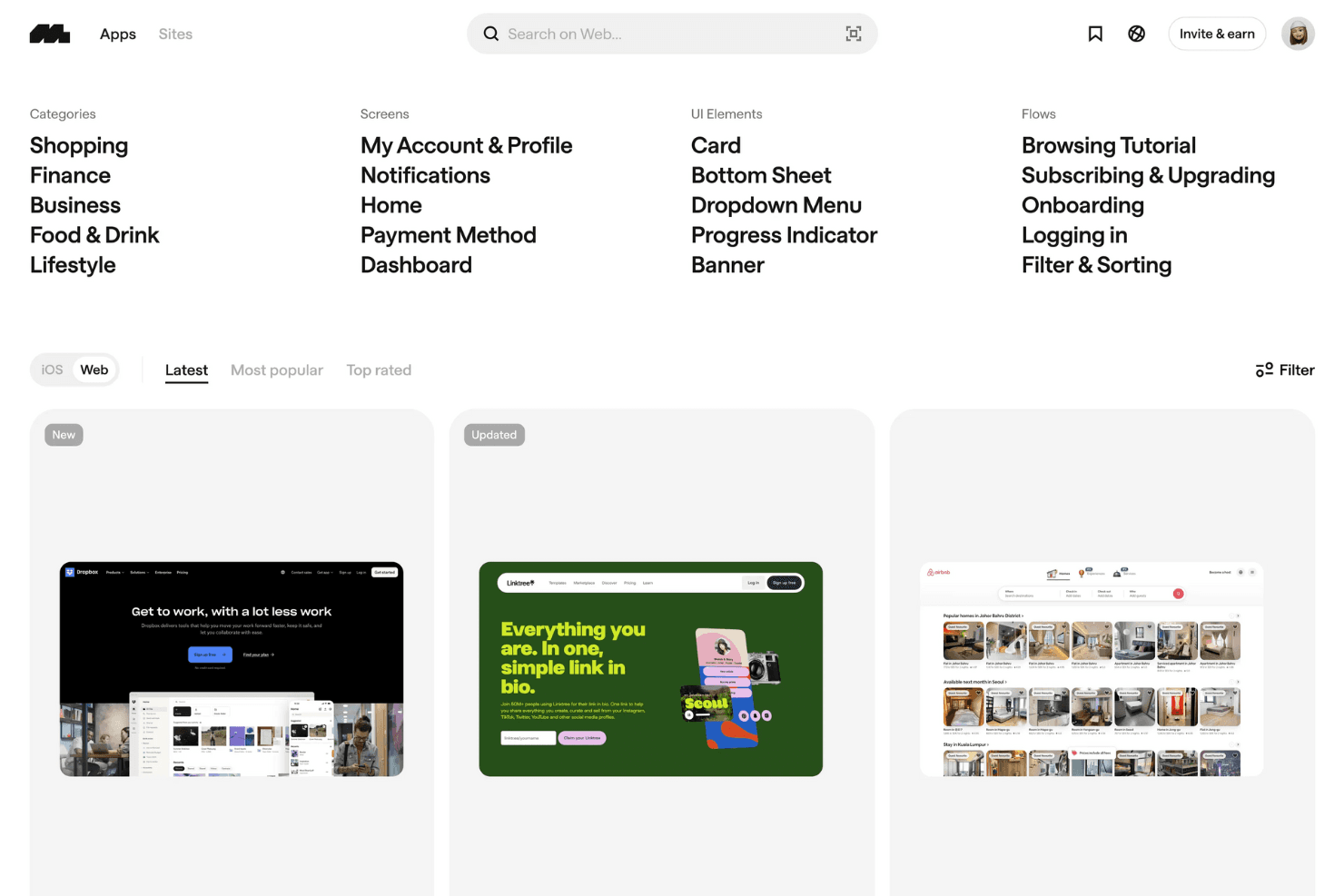
Mobbin showcases thousands of curated app screens and user flow examples for design analysis. Mobbin is a curated screen library that lets you search and browse real UI patterns, flows, and animations from live iOS, web, and marketing site products.
Who Is Mobbin Best For?
Mobbin suits designers and product managers who want to study real shipped products before making design decisions.
Why I Picked Mobbin
I picked Mobbin as one of the best because no other tool in this list lets you study real, shipped product screens at this scale before a single wireframe gets drawn. Its library spans 600,000+ screens from 1,400+ iOS and web apps, all searchable by UI element, flow type, or even text inside a screenshot. I also love the MCP integration, which lets AI agents like Claude pull synthesized pattern analysis from dozens of real paywalls or onboarding flows directly into your workflow.
Mobbin Key Features
- Screen flow playback: Step through recorded user journeys from real apps screen by screen, including animations and micro-interactions, to study how existing products handle key moments.
- Text search within screenshots: Search for specific words or labels that appear inside app screenshots to find relevant UI patterns without knowing the app name.
- Copy to Figma: Paste multiple screens or entire flows directly into Figma via the Mobbin plugin, bringing reference material into your active design workspace.
- Shared team collections: Invite teammates to a shared workspace where you can organize saved screens into collections and leave comments with for async discussion.
Mobbin Integrations
Mobbin integrates with Figma through its plugin and supports MCP clients including Claude, Cursor, and v0. Team and Enterprise plans include API access for custom integrations.
Pros and Cons
Pros:
- Flow playback exposes micro-interactions and animations
- Searchable screens reveal proven interaction approaches
- Real shipped patterns inform product decisions
Cons:
- No components, vectors, or developer specifications
- No canvas for wireframes or prototypes
Learn more about Mobbin: Best for offline-first design with built-in assets
- Free plan + free demo available
- From $11.99/user/month (billed annually)
Visit WebsiteCustomer Rating:4.4/5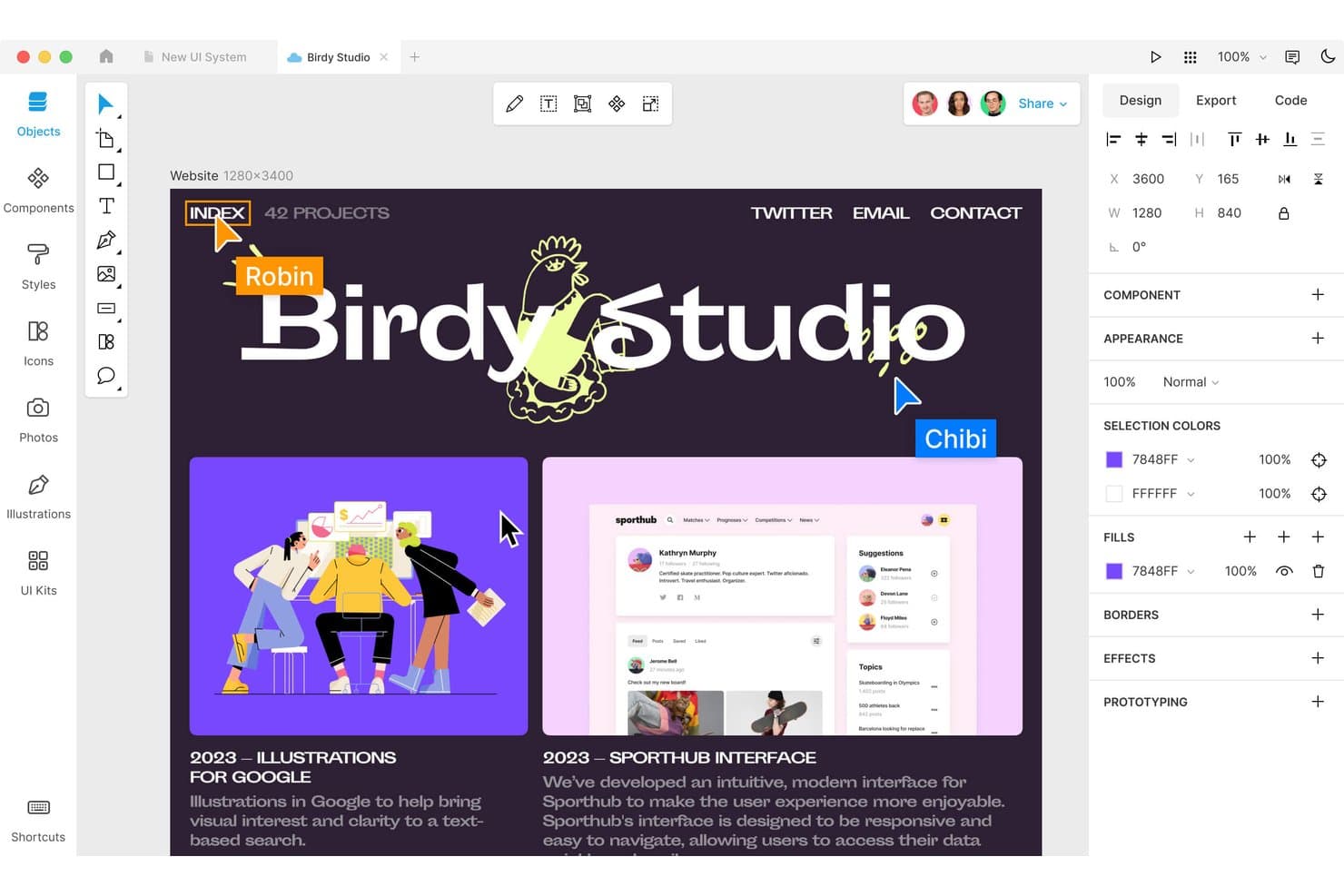
Lunacy lets users design and edit UI components with real-time collaboration. Lunacy is a native cross-platform UX design tool that covers vector editing, wireframing, interactive prototyping, and real-time collaboration, with a built-in library of icons, illustrations, and photos included directly in the app.
Who Is Lunacy Best For?
Lunacy suits UX and UI designers who need a native, offline-capable design tool with built-in assets and don't want to depend on third-party libraries or a constant internet connection.
Why I Picked Lunacy
I've included Lunacy in my top picks because it's the only tool on this list that works fully offline with a built-in asset library covering over 1.18 million icons, 71,000 illustrations, and 140,000 photos. When I'm designing in a restricted network environment or a corporate "bunker mode" setup, I don't have to pause and hunt for external resources. Its native cross-platform app (Windows, macOS, and Linux) also means no browser dependency, which keeps performance tight even on large prototyping files.
Lunacy Key Features
- Smart Animate: Automatically animates matching layers between frames, with spring animations and custom Bézier curve easing controls.
- AI Chat integration: Connects to Claude, Gemini, OpenAI, and Grok models without requiring API keys to generate and edit designs directly on the canvas.
- Auto layout with wrap: Arranges and resizes elements automatically, with wrap support for responsive UI structures.
- Linked Design: Updates elements on a live web page from within Lunacy and generates the corresponding CSS and fetch script.
Lunacy Integrations
Native integrations are not currently listed. It supports custom plugins through its MCP API, while Sketch files and Figma imports provide file-based interoperability.
Pros and Cons
Pros:
- Strong vector editing supports polished interface work
- Built-in assets speed wireframe and UI creation
- Native offline design across three desktop platforms
Cons:
- Advanced prototyping and variables remain incomplete
- Large files can cause slowdowns or freezes
Learn more about Lunacy: Best UX design tool for the Adobe ecosystem
- Free trial available
- From $22.99/month (billed annually)
Visit WebsiteCustomer Rating:4.3/5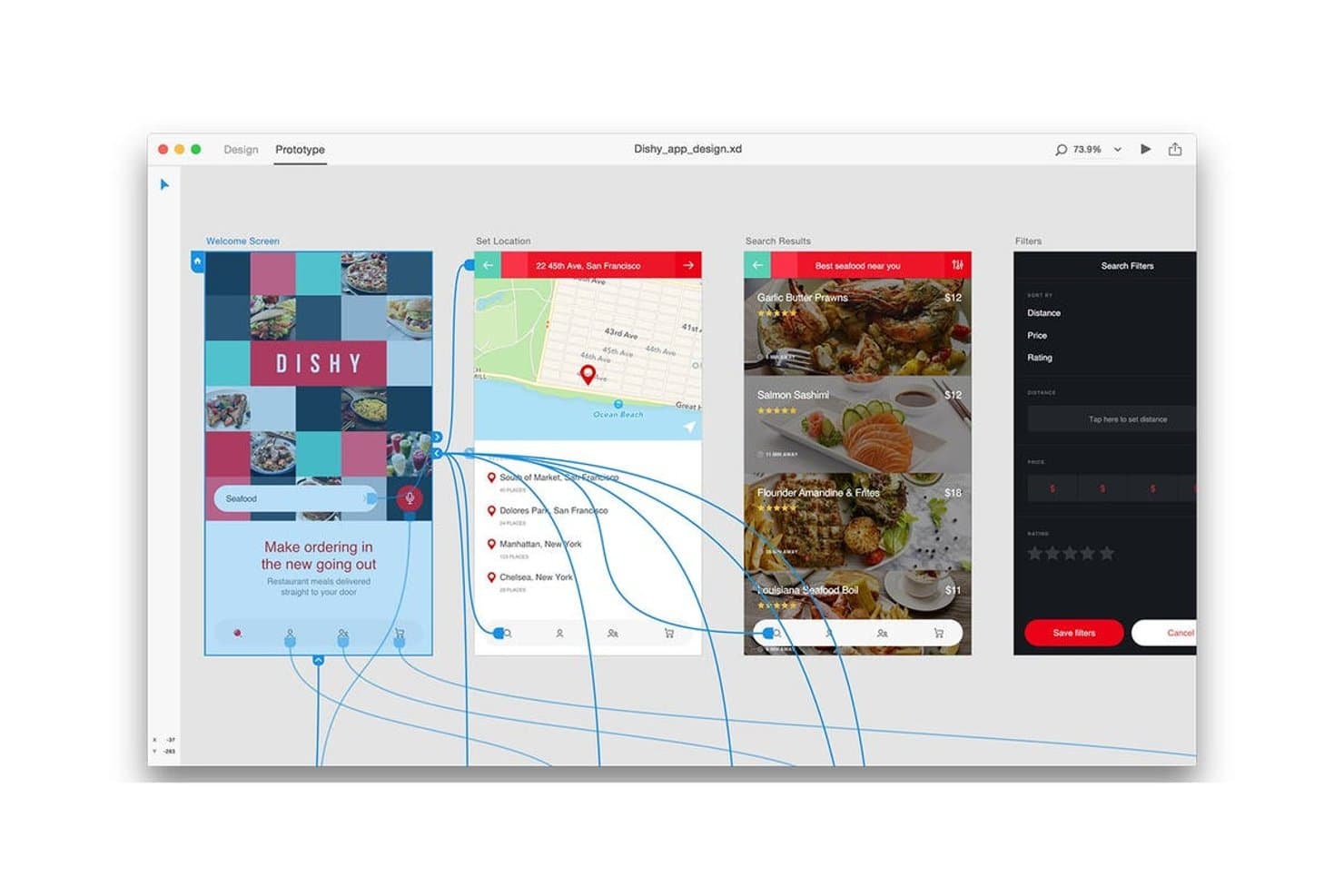
Adobe XD lets users link screens and prototype app flows visually. Adobe XD is a vector-based UX design tool that covers wireframing, interactive prototyping, real-time co-editing, and developer handoff, with deep integration across the Adobe Creative Cloud suite.
Who Is Adobe XD Best For?
Adobe XD suits UX and UI designers who are already deep in the Adobe Creative Cloud ecosystem and need a familiar prototyping tool without switching platforms.
Why I Picked Adobe XD
I've included Adobe XD in my top picks because it's the natural fit for design teams already working inside Adobe Creative Cloud. If your workflow regularly moves between Illustrator and Photoshop, XD slots in without friction—assets transfer directly, and libraries stay linked across the suite. I particularly like its auto-animate and voice-trigger prototyping features, which let you build realistic interactive flows without leaving the Adobe environment.
Adobe XD Key Features
- Auto-animate: Creates animated transitions between artboards by automatically interpolating changes in object properties between design states.
- Voice and timed triggers: Adds voice command and time-based interactions to prototypes so you can simulate hands-free or automatic UI flows.
- Repeat grid: Generates repeated UI elements like lists and card layouts from a single component, with content populated by dragging in data files.
- Creative Cloud library sync: Links shared color swatches, character styles, and graphics across XD, Illustrator, and Photoshop so assets stay consistent across tools.
Adobe XD Integrations
Adobe XD integrates with Photoshop, Illustrator, After Effects, and Creative Cloud Libraries. Marketplace plugins connect XD with Jira, Slack, and Zoom.
Pros and Cons
Pros:
- Strong vector editing and mobile previews
- Voice and timed interaction triggers
- Mature auto-animate prototyping
Cons:
- No built-in user testing tools
- Maintenance mode limits future improvements
 Best for logic-driven, code-free prototyping
- 30-day free trial
- From $29/user/month (billed annually)
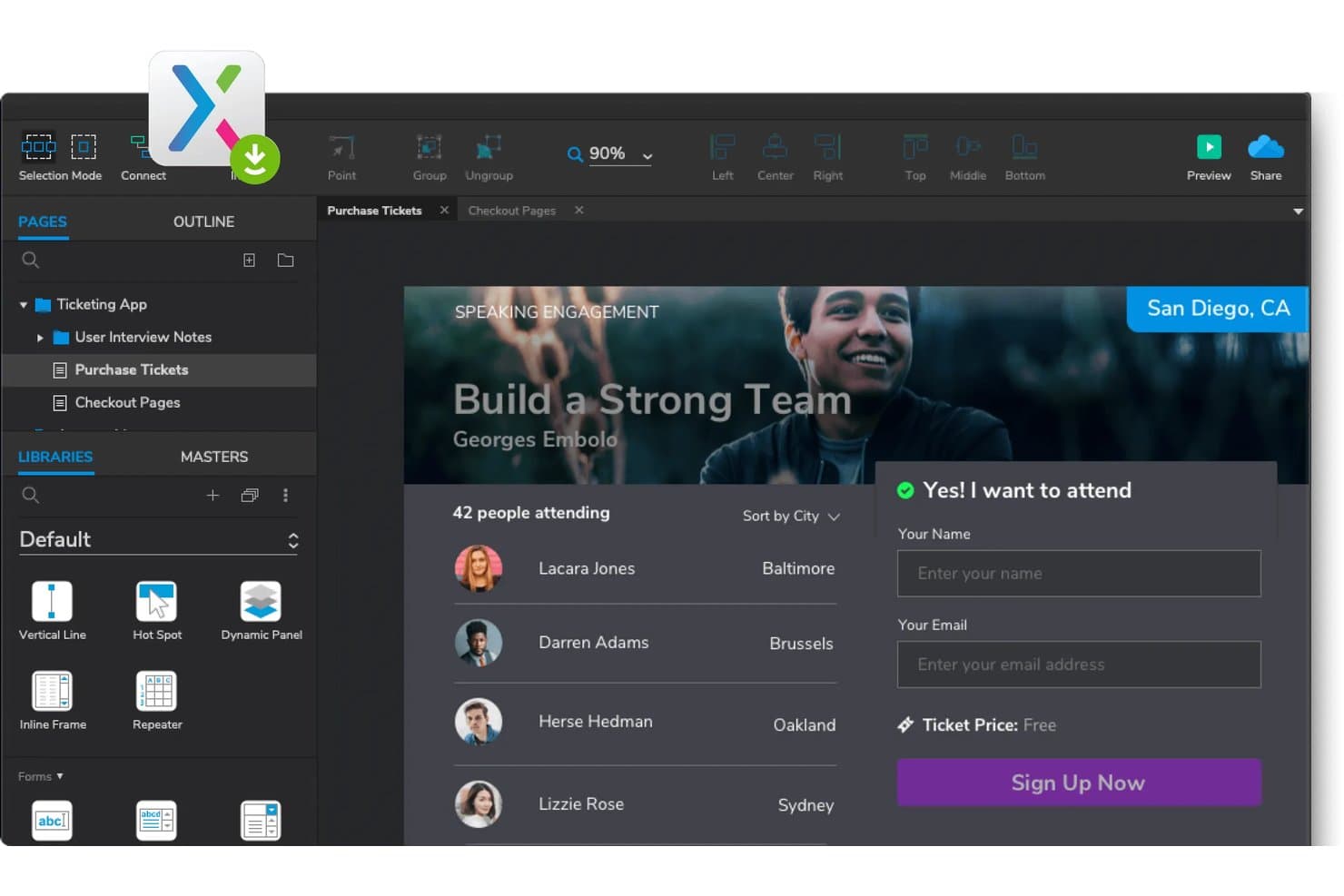
Axure RP lets users prototype interactive ticketing app flows. Axure RP is a desktop-based UX design tool built around advanced wireframing and interactive prototyping, with conditional logic, variables, dynamic panels, and data-driven components.
Who Is Axure RP Best For?
Axure RP is a strong fit for UX designers and product teams that need to build and test complex, logic-driven prototypes without writing a single line of code.
Why I Picked Axure RP
Axure RP earns its spot on my shortlist because no other tool I've used matches its depth of logic-driven prototyping without touching code. I love that you can build real conditional flows using variables and dynamic panels, so a prototype behaves like a working product during usability testing rather than a click-through demo. The repeater widget alone is something I keep coming back to: it lets you create sortable, filterable data tables that Figma still can't replicate natively.
Axure RP Key Features
- Adaptive views: Design desktop, tablet, and phone layouts on a single page, with the correct view loading automatically based on screen size.
- Automated redlines and CSS inspection: Axure Cloud generates redlines, CSS values, and annotated specs so developers can inspect and export assets without waiting on handoff files.
- Free reviewer accounts: Stakeholders and developers can view, comment on, and inspect prototypes at no cost, with unlimited reviewer seats.
- Jira and Confluence embedding: Paste a Cloud link to preview a live prototype directly inside a Jira ticket or Confluence page.
Axure RP Integrations
Axure RP integrates with Jira, Confluence, Slack, Microsoft Teams, Figma, Sketch, and Adobe XD through embeds, notifications, plugins, and import tools.
Pros and Cons
Pros:
- Generates detailed developer handoff specifications
- Simulates sortable, filterable data tables
- Builds logic-driven prototypes without code
Cons:
- Limited vector tools hinder visual design
- Check-in workflows slow collaborative editing
Learn more about Axure RP : Best for ease of collaboration
- Free plan available
- From $3/user/month
Visit WebsiteCustomer Rating:4.7/5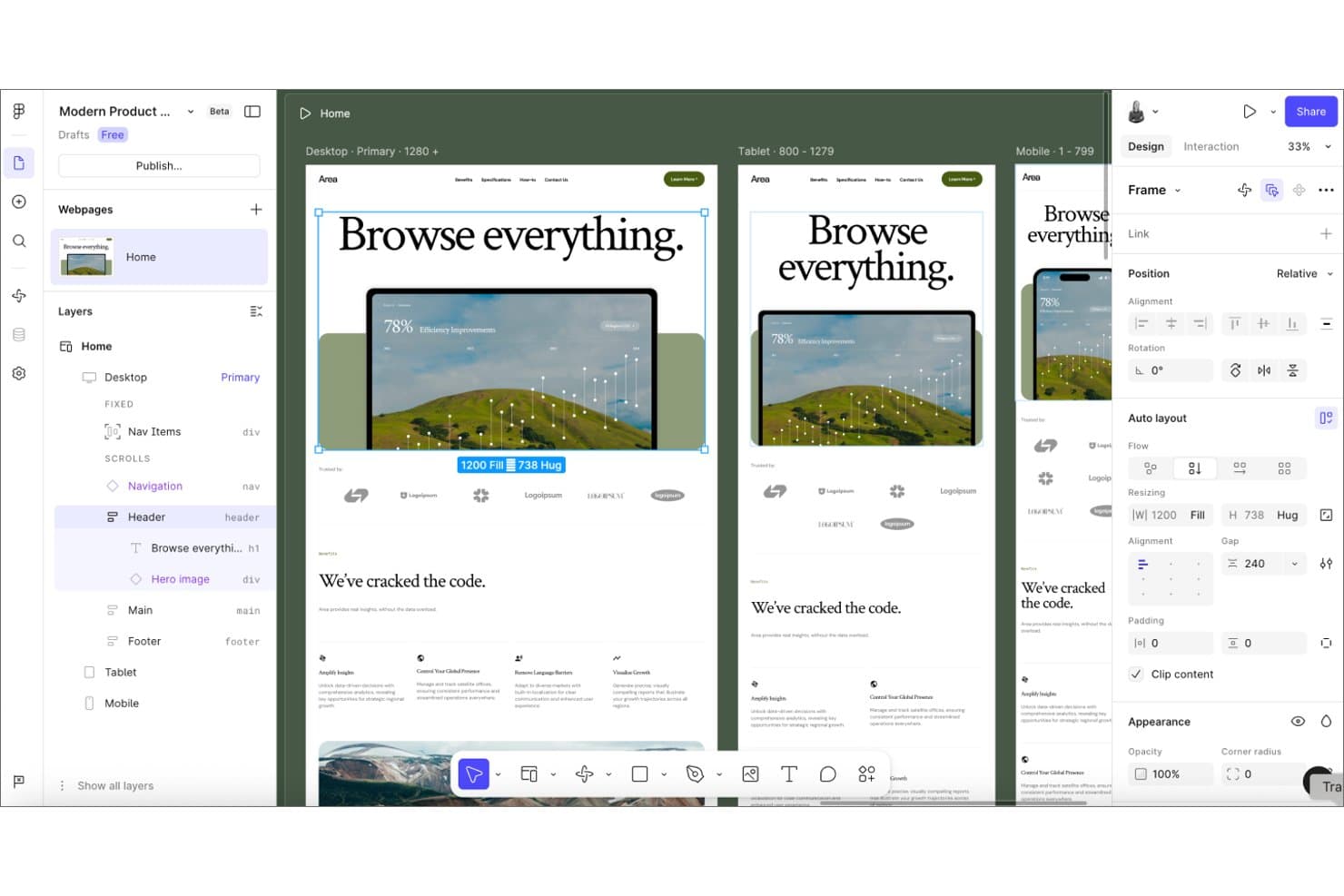
Figma lets users design responsive layouts across desktop, tablet, and mobile breakpoints. Figma is a browser-based UX and UI design tool that covers wireframing, interactive prototyping, vector editing, design system management, and developer handoff in a single platform.
Who Is Figma Best For?
Figma fits cross-functional product teams where designers, PMs, and engineers need to work in the same files without constant handoff friction.
Why I Picked Figma
Figma earns its spot on my shortlist because no other UX design tool makes cross-functional collaboration as frictionless. Multiplayer editing lets designers, PMs, and engineers work in the same file simultaneously, and free viewer seats mean stakeholders can comment without needing a paid account. I especially like how Dev Mode paired with Code Connect gives developers auto-generated specs and code snippets directly from design files, closing the handoff gap without extra tools.
Figma Key Features
- Auto Layout: Automatically resizes and repositions elements as content changes, keeping components responsive across screen sizes.
- Figma Make: Converts a text prompt into a working prototype or web app, with options to publish to a custom URL.
- Variable modes: Drives conditional, stateful prototypes by storing and reusing values like colors, spacing, and content across components.
- Figma Draw: Extends vector editing with custom brushes, visual effects, and text on a path for detailed illustration work.
Figma Integrations
Figma offers documented integrations with Visual Studio Code and Supabase through its VS Code extension and Figma Make connector. It also supports Code Connect, an MCP Server, Make connectors for PRDs and tickets, and APIs for custom integrations.
Pros and Cons
Pros:
- Developer handoff clarifies engineering requirements
- Reusable components support scalable design systems
- Real-time multiplayer speeds cross-functional reviews
Cons:
- Advanced capabilities require paid plans
- Native user testing remains unavailable
 Best for gathering user insights
- Free plan + 14-day free trial available
- From $29/user/month (billed annually)
Visit WebsiteCustomer Rating:4.2/5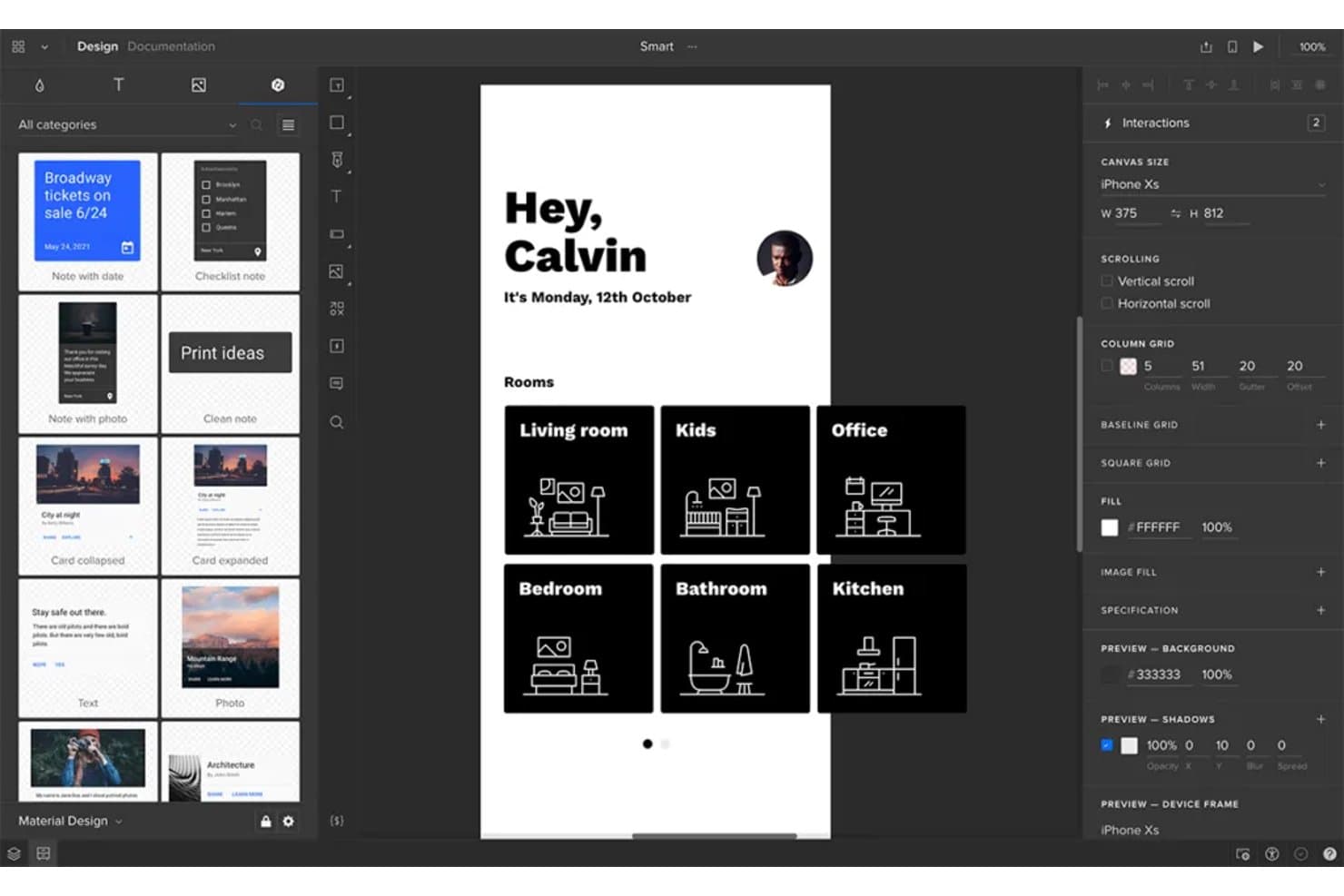
UXPin lets users prototype mobile app layouts with real interactions. UXPin is a code-backed UX design tool that combines high-fidelity interactive prototyping, real-time collaboration, design system management, built-in user testing, and developer handoff through its Merge technology.
Who Is UXPin Best For?
UXPin suits UX designers and product teams who need high-fidelity, code-backed prototypes that double as user testing environments.
Why I Picked UXPin
I picked UXPin as one of the best because its built-in user testing turns prototypes into live research sessions. Participants don't need an account, and I can edit the prototype on the spot during testing, so iterations happen in real time rather than after a separate debrief. Pair that with conditional logic and variables that make prototypes behave like finished products, and the feedback you collect reflects how users would actually experience the real thing.
UXPin Key Features
- Conditional logic and variables: Build prototypes with real branching behavior, dynamic states, and user-driven interactions using logic and variable-based expressions.
- UXPin Merge: Sync coded React components from Git, Storybook, or npm so your prototypes use the exact same components as your production environment.
- AI-assisted layout generation: Write a prompt to generate layouts from code-backed components, with access to OpenAI and Claude models depending on your plan.
- Multi-device preview: Test and preview prototypes on desktop, iOS, and Android through the Mirror app without rebuilding for each platform.
UXPin Integrations
UXPin offers integrations with Storybook, Git, and npm through Merge, plus a Figma plugin and Sketch import. You can also export React code to StackBlitz.
Pros and Cons
Pros:
- Shared components support consistent design systems
- Live testing captures feedback during iteration
- Realistic prototypes mirror production behavior
Cons:
- Large prototypes can suffer performance slowdowns
- Technical interactions take time to master
Learn more about UXPin: Best for open-source, self-hosted UX design
- Free plan + 14-day free trial available
- From $7/user/month
Visit WebsiteCustomer Rating:4.5/5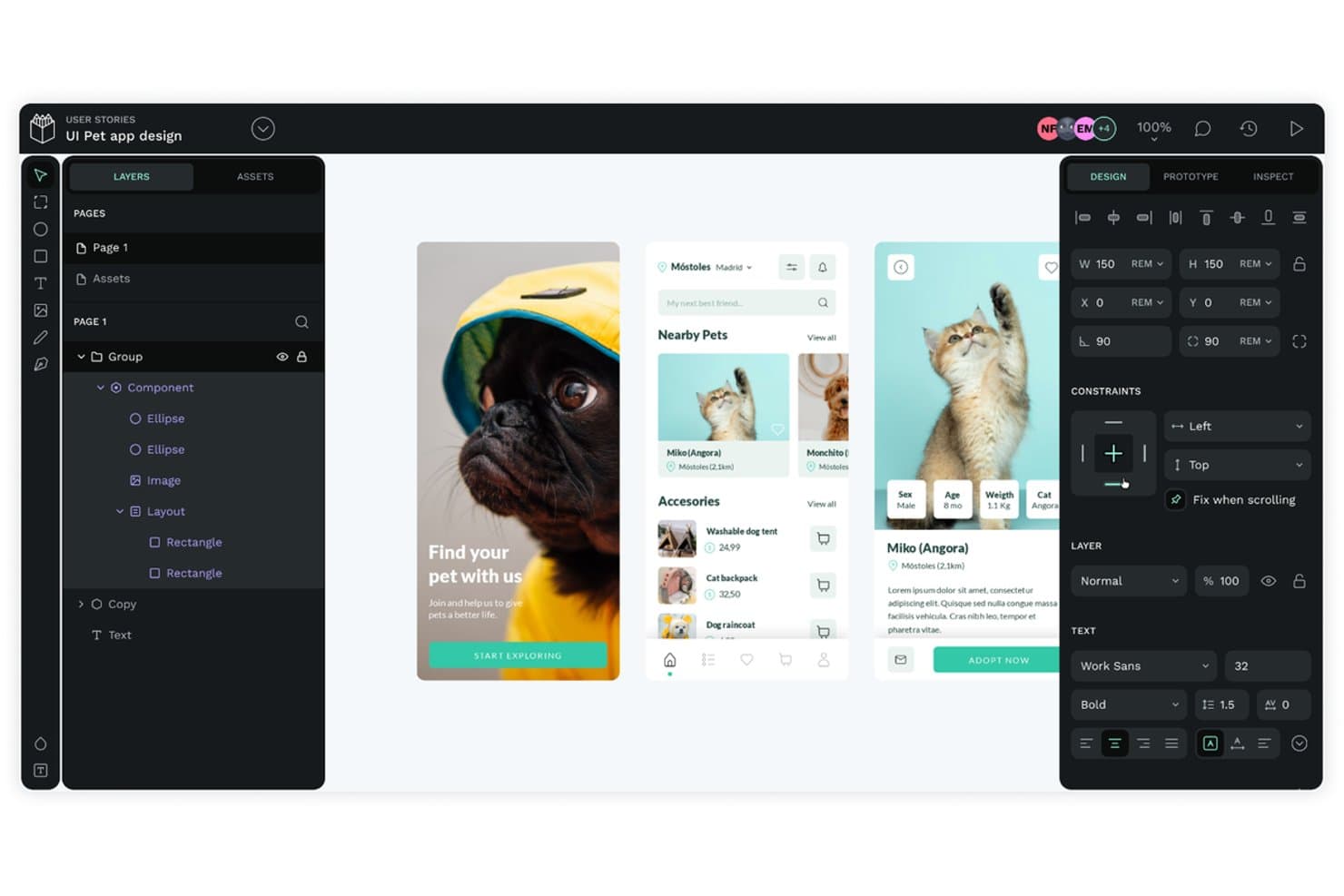
Penpot lets users design and prototype pet app UIs with layered components. Penpot is an open-source UX design tool that covers wireframing, interactive prototyping, vector editing, and developer handoff, with built-in design tokens and a self-hosting option.
Who Is Penpot Best For?
Penpot is a strong fit for design teams that need full control over their tools and data, whether through self-hosting or an open-source setup.
Why I Picked Penpot
I've included Penpot in my top picks because it's the only fully open-source UX design tool here that you can self-host, meaning your design files never leave your own infrastructure. I especially like that design tokens are built in natively, covering colors, typography, spacing, and themes without a plugin. Its CSS Flex and Grid-based layouts also mean inspect mode outputs code that maps directly to how developers actually build interfaces.
Penpot Key Features
- Interactive prototype flows: Each file supports multiple flows with distinct starting points, so you can map separate user journeys within one project.
- Version history and autosave: Files are continuously autosaved, with version history retained for 7, 30, or 90 days depending on your plan.
- Inspect mode with code output: Inspect mode generates ready-to-use CSS, SVG, and HTML code alongside a properties inspector and measurement tools.
- MCP server for AI integration: Penpot's MCP server lets any AI agent or LLM work directly with layers, components, tokens, pages, and layouts.
Penpot Integrations
Native integrations are not currently listed. Penpot supports custom connections through an open API and webhooks, plus marketplace integrations through its plugin hub and an MCP server for AI agents and LLMs.
Pros and Cons
Pros:
- Built-in tokens support scalable design systems
- CSS-based layouts clarify developer handoff
- Self-hosting keeps design data under control
Cons:
- Prototype testing requires external user research tools
- Performance can lag in smaller files
Learn more about Penpot: Best for clickable prototypes
- Free plan available
- From $19/user/month
Visit WebsiteCustomer Rating:4.2/5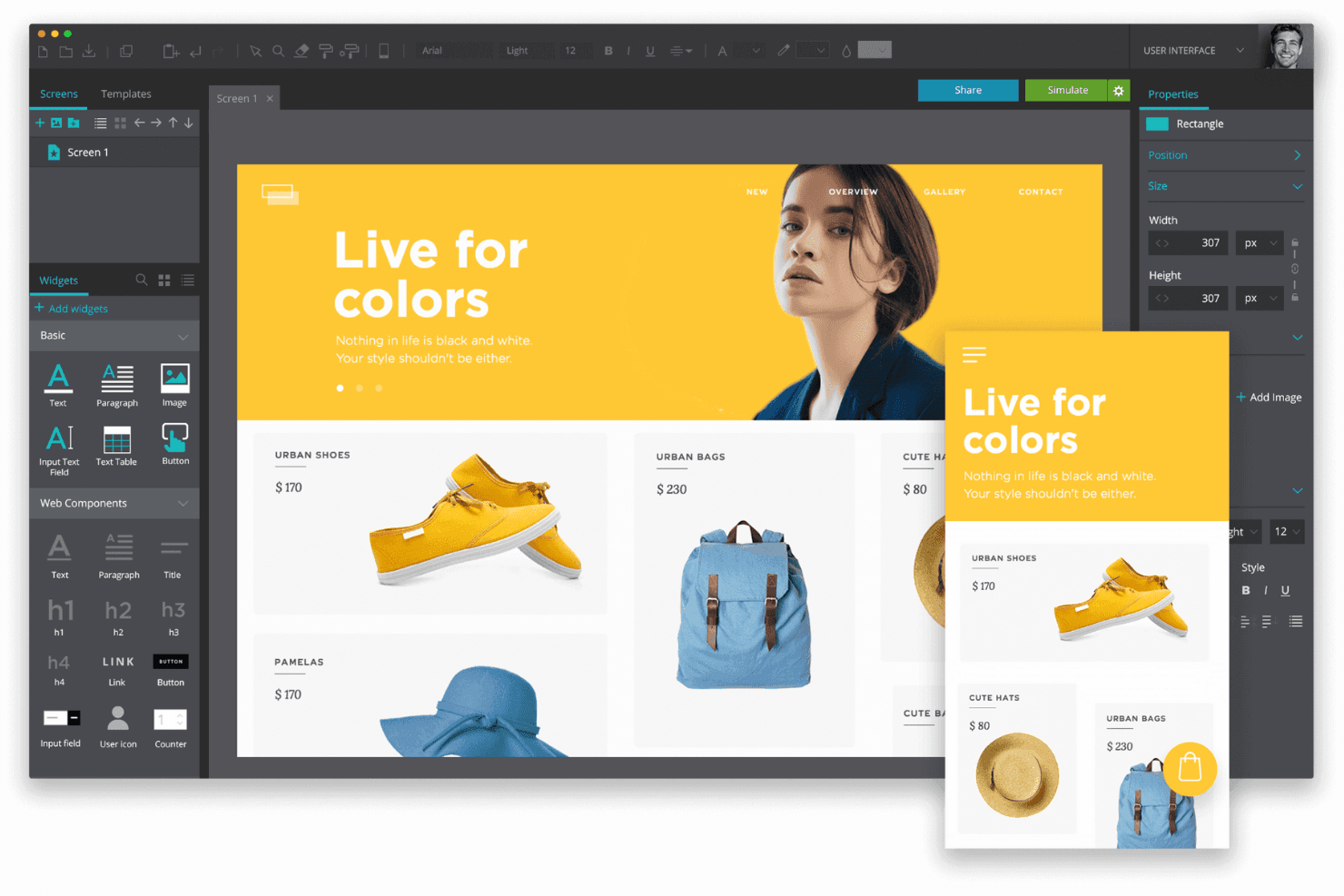
Justinmind helps product teams design and prototype responsive web and mobile interfaces. Justinmind is a desktop-based UX design tool that covers wireframing, high-fidelity interactive prototyping, vector editing, and developer handoff across web, mobile, and VR/AR use cases.
Who Is Justinmind Best For?
Justinmind is a strong fit for product managers and UX designers who need to build and share richly interactive, high-fidelity prototypes without writing a single line of code.
Why I Picked Justinmind
Justinmind earns its spot on my shortlist because no-code interactive prototyping is where it genuinely excels. I can layer in conditions, variables, working form inputs, and data simulation to create prototypes that behave like real products, not static mockups. That level of fidelity is exactly what you need when validating complex UI states or walking stakeholders through a multi-step user flow before a single line of code is written.
Justinmind Key Features
- Vector editing tools: A built-in pen tool and boolean pathfinder operations let you create custom shapes and icons directly within your prototype file.
- Multi-device support: Design and preview prototypes for web, iOS, and Android from one project, with platform-specific UI libraries included.
- Requirements management: Attach text requirements directly to UI elements and sync them with Jira or Azure DevOps for end-to-end traceability.
- Data simulation: Populate prototypes with dynamic, realistic data sets to test how your UI handles variable content before development begins.
Justinmind Integrations
Justinmind offers native integrations with Jira and Azure DevOps on Enterprise, plus integrations with UserTesting and Validately. It also provides API and SDK access for custom integrations.
Pros and Cons
Pros:
- Working forms and data simulation
- Conditions model complex product states
- High-fidelity interactions without writing code
Cons:
- No built-in user testing workflow
- Desktop-only limits cross-functional access
Learn more about Justinmind:
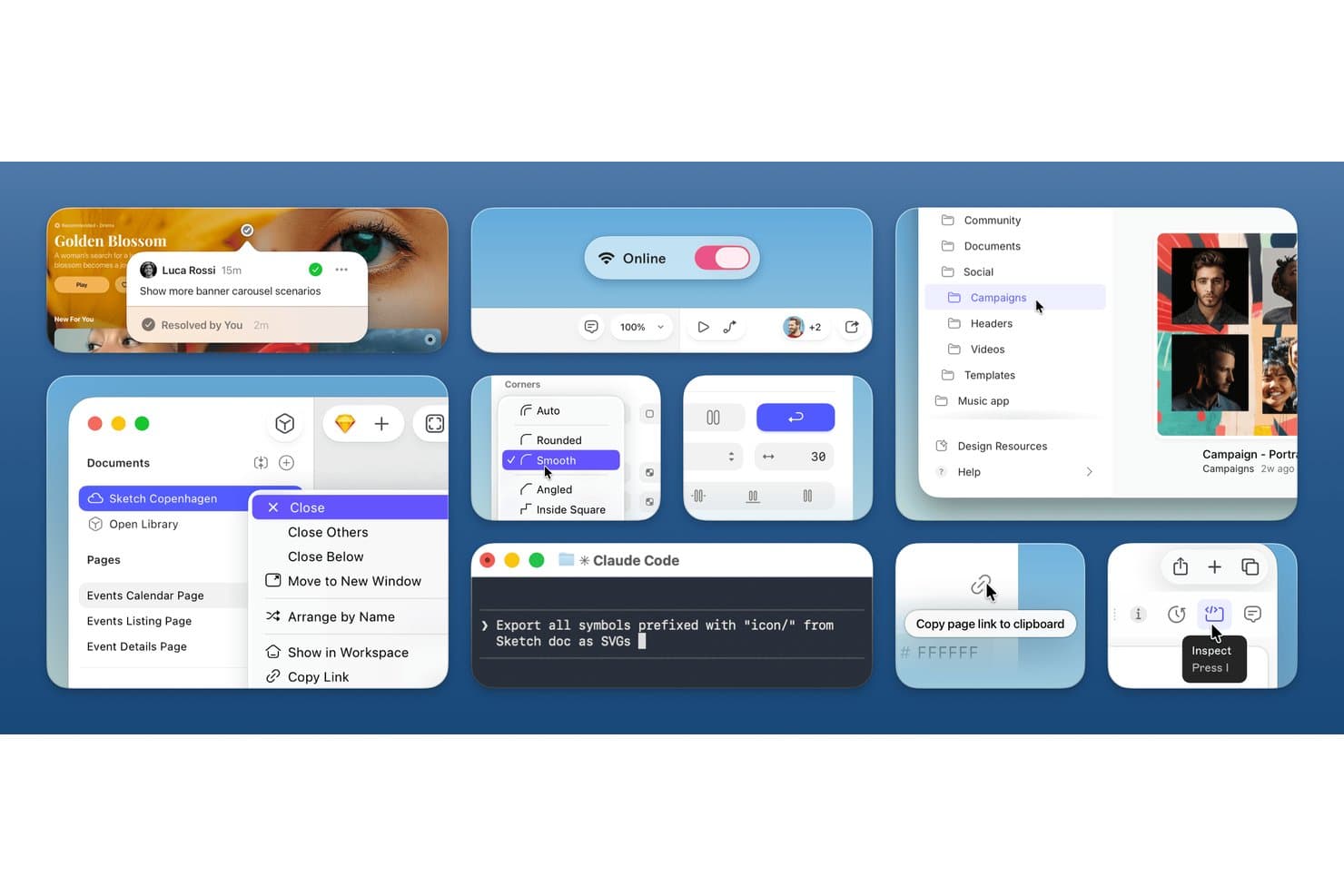
Sketch streamlines UX workflows with comments, inspect, and AI tools. Sketch is a Mac-native UX design tool that covers vector editing, interactive prototyping, shared component libraries, and browser-based developer handoff in one app.
Who Is Sketch Best For?
Sketch is a strong fit for UX and UI designers working on Mac-based teams who need a fast, native design environment with solid handoff tools.
Why I Picked Sketch
Sketch earns its spot on my list because it's built from the ground up for Mac-based design teams who want a fast, native editing experience. I love that the vector editor handles everything from icon work to full app screens without slowing down, and Smart Animate lets you add polished transitions to prototypes without extra tooling. Free browser-based developer handoff means your engineers can inspect specs and export tokens the moment you share a file.
Sketch Key Features
- Shared component libraries: Publish and manage design libraries across projects, with controls over who can edit, use, and receive updates.
- Design tokens export: Download text styles, layer styles, and color variables in multiple formats, or share them via a public link.
- Local MCP server: A built-in, privacy-friendly AI server connects Sketch to tools like Cursor, Claude, and VS Code to generate code directly from your designs.
- Pinned threaded comments: Leave context-specific feedback directly on designs, with threaded replies and resolution tracking for cleaner design review cycles.
Sketch Integrations
Sketch connects through its built-in local MCP server to Cursor, VS Code, Claude, Codex, and Antigravity for design-to-code workflows.
Pros and Cons
Pros:
- Free browser-based developer handoff
- Strong component libraries and token management
- Fast native Mac vector editing
Cons:
- Cross-functional collaboration remains browser-limited
- Editing excludes Windows and Linux designers
Learn more about Sketch:
Other UX Design Tools
Here are a few more worthwhile options that didn’t make the best UX design tools list:
- 11PixsoBest for all-in-one design and dev handoff
- 12FramerBest for interactive design elements
- 13MarvelBest for rapid design handoff
- 14MiroBest for visual ideation and mapping user flows
- 15MockplusBest for non-designer prototyping with a free team plan
- 16VisilyBest for AI wireframing without design skills
- 17MoqupsBest for wireframing with unlimited free guests
- 18ZeplinBest for design-to-dev handoff with AI spec review
- 19Mockitt DesignBest for AI-driven design-to-roadmap workflows
Related UX Design Tool Reviews
If you still haven't found what you're looking for here, check out these tools closely related to UX design tools that we've tested and evaluated.
- Best Product Management Tools
- Best Product Planning Software
- Best Product Development Software
- Best Product Analytics Tools
- Best Idea Management Software
- Best Heatmap Software
How I Evaluate UX Design Tools
I split my evaluation into three parts: core functionality first (can it wireframe interactive flows and support real-time co-editing?), then standout features like built-in user testing, and finally factors beyond features—pricing flexibility, onboarding ease, and integration depth with tools like Jira or Storybook.
Core Functionality (Table Stakes For This List)
When I'm selecting tools for my list, I score each one on a scale from 0 (does not offer the functionality) to 5 (excels in this area) for each core functionality listed below. I then convert the total into a percentage to help assess each tool's overall fit, with extra weight on any functionalities I've deemed essential.
- Wireframing and Prototyping (Essential): I check whether a tool supports interactive flows with transitions, conditional logic, and variables—not just static mockups linked by hotspots.
- Real-Time Collaboration (Essential): Live multi-cursor editing, threaded comments, and version history matter here, especially for distributed teams working across time zones.
- Design System Support: I evaluate how well the tool handles reusable components, shared libraries, and design tokens that stay in sync across files and projects.
- Developer Handoff: Clean spec generation, exportable assets, and auto-generated code snippets save hours of back-and-forth between design and engineering teams.
- Vector-Based Editing: Boolean operations, anchor point control, and scalable shape tools tell me whether designers can build custom icons and UI elements without leaving the platform.
- Feedback and Annotation: I look for pinned, threaded comments with resolution tracking so stakeholders can leave contextual feedback directly on the canvas.
Once I have a list of tools that meet the criteria, I consider what sets each platform apart.
Differentiating Factors (What Sets Vendors Apart)
Here's how I compare and contrast different vendors:
Standout Features
I evaluate whether a tool offers built-in user testing, like unmoderated usability sessions or prototype A/B tests, so product teams can validate ideas without switching to a separate research platform. AI-assisted design generation also matters—I check if the tool can turn a text prompt into a usable layout or screen, which speeds up early concepting during discovery. Beyond that, I look at how well design artifacts trace back to backlog items or roadmap epics, since that link gives PMs real visibility into what's been designed, what's in progress, and what's shipped.
Beyond Features
I check whether non-designers—PMs, engineers, stakeholders—can open a file, leave comments, and navigate prototypes without training. Tools like Figma and Penpot handle this well with browser-based viewer roles. Integration depth matters just as much; I look for native connections to Jira, Linear, or GitHub that let teams link design work directly to sprint boards. I also evaluate security posture, including SOC 2 compliance, SSO support, and role-based access controls that protect unreleased product concepts.
How to Choose UX Design Tools
With so many different UX design solutions available, it can be challenging to make decisions on what UX design tools are going to be the best fit for your needs.
As you're shortlisting, trialing, and selecting UX design tools, consider:
- What problem are you trying to solve - Start by researching user behavior, identifying the UX design feature gap you're trying to fill to clarify the features and functionality the UX design tool needs to provide.
- Who will need to use it - To evaluate cost and requirements, consider who'll be using the software and how many licenses you'll need. You'll need to evaluate if it'll just be the UX designers, or the whole organization that will require access. When that's clear, it's worth considering if you're prioritizing ease of use for all, or speed for your UX design tool power users.
- What other tools it needs to work with - Clarify what tools you're replacing, what tools are staying, and the tools you'll need to integrate with, such as accounting, CRM or HR software. You'll need to decide if the tools will need to integrate together, or alternatively, if you can replace multiple tools with one consolidated UX design tool.
- What outcomes are important - Consider the result that the software needs to deliver to be considered a success. Consider what capability you want to gain, or what you want to improve, and how you will be measuring success. For example, an outcome could be the ability to get greater visibility into performance. You could compare features of different UX design tools until you’re blue in the face, but if you aren’t thinking about the outcomes you want to drive, you could be wasting a lot of valuable time.
- How it would work within your organization - Consider the software selection alongside your workflows and delivery methodology. Evaluate what's working well, and the areas that are causing issues that need to be addressed. Remember every business is different — don’t assume that because a tool is popular that it'll work in your organization.
Trends in UX Design Tools for 2025
In 2025, UX design tools and technologies have continued to evolve towards creating more intuitive, user-centered digital experiences. These UX trends reflect the shifting needs and challenges within the product management and UX design communities.
- Generative Design and AI Integrations: Naturally, the rise of AI tools is first on the list. Tools like Figma and Canva are increasingly incorporating AI to automate design processes, enabling rapid prototyping and generative design. This trend underscores a move towards efficiency and creativity, allowing designers to generate visual images and concept art swiftly.
- Accessibility and Inclusivity: Tools are also focusing more on creating designs accessible to a broader range of users, reflecting a growing awareness of inclusivity in digital products. This includes anticipatory design techniques aimed at streamlining user experiences and guiding users towards desired interactions with minimal cognitive load.
- Interactive Animations and Microinteractions: The rise of no-code tools like Rive for creating engaging, responsive interactive animations without extensive coding knowledge indicates a shift towards more dynamic user experiences. This trend highlights the importance of adding depth and intuitiveness to interfaces through interactive elements.
- Immersive AR/VR Experiences: Augmented Reality (AR) and Virtual Reality (VR) are being more commonly integrated into UI/UX design, suggesting a trend towards more immersive digital experiences. This involves using AR elements in applications to provide richer user experiences or creating entirely new interfaces in VR.
- Buttonless Interfaces and Advanced Interaction Methods: The movement towards buttonless user interfaces, utilizing voice commands, gestures, and other natural interaction methods, reflects a broader trend of technological advancement in UI design. This approach aims at creating seamless, intuitive user experiences.
These trends not only reflect the evolving digital ecosystem but also the industry's commitment to creating more personalized, intuitive, and inclusive user experiences. Designers and product managers must stay abreast of these developments to effectively address the complex challenges and opportunities presented by the ever-changing market demands.
What Are UX Design Tools?
UX design software are tools that helps teams design, prototype, and validate user interfaces for digital products. They enable product managers, designers, and researchers to wireframe screens, map user flows, and test usability—often before a single line of code is written.
By supporting rapid iteration and collaboration, these tools reduce the risk of building the wrong thing and help teams deliver intuitive, user-friendly experiences that align with real customer needs.
Features of UX Design Tools
UX design tools not only help designers bring their visions to life, but also streamline collaboration among team members and ensure that the final product aligns closely with user needs. Here, I highlight the most important features to consider when selecting UX design tools, focusing on those that significantly contribute to the creation of effective digital experiences:
- Collaboration Capabilities: Allows multiple team members to work on the same project simultaneously. This feature is essential for fostering teamwork and ensuring that various aspects of the user experience are seamlessly integrated and consistently aligned with the project's goals.
- Prototyping Functionality: Enables the creation of interactive models of the final product. Prototyping is crucial because it allows designers and stakeholders to test and refine concepts before development, saving time and resources.
- User Testing Integration: Facilitates the incorporation of user feedback directly into the design process. This integration is vital for validating design decisions and understanding user needs, leading to more user-centered products.
- Version Control: Keeps track of changes and allows for reverting to previous versions. This feature is important for managing the evolution of a project, enabling teams to experiment freely while maintaining the ability to backtrack if needed.
- User Interface (UI) Libraries and Templates: Provides pre-made elements and templates. These resources are invaluable for speeding up the design process, ensuring consistency, and helping designers adhere to best practices.
By prioritizing tools that offer these capabilities, teams can enhance their workflow, foster collaboration, and ultimately create digital products that meet and exceed user expectations.
Benefits of UX Design Tools
UX design tools offer a suite of benefits that cater to both the practical needs of designers and the strategic objectives of organizations. Understanding these benefits can help potential buyers make informed decisions when selecting a UX design tool that best fits their project's needs and goals.
- Efficiency and Speed in Design Processes - UX design tools significantly expedite the design process from ideation to prototype, enabling teams to iterate rapidly and bring products to market faster. This efficiency can lead to cost savings and a quicker return on investment for businesses.
- Collaboration and Real-Time Feedback - By facilitating real-time collaboration, UX design tools allow team members to work together seamlessly, regardless of their physical location. This collaboration ensures that feedback is incorporated promptly, improving the final product's quality and alignment with user needs.
- Consistency and Scalability - These tools help maintain consistency across a product's design by using reusable templates and components, which is crucial for brand identity and user navigation. Scalability is easily managed as designs can be adapted or expanded without losing coherence.
- User-Centered Design and Testing - With integrated features like user testing and feedback loops, users are getting the dual functionality of both UX design and usability testing tools, allowing them to place users at the heart of the design process. This ensures that the final product is more likely to meet user expectations, leading to higher satisfaction and loyalty.
- Aligning Design and Code with Integrated Design Systems - A well-integrated design system ensures that UX designers and developers work with the same components and guidelines, streamlining the product development process. By providing developer-friendly access to design assets, these tools eliminate manual redlining, speed up coding, and help maintain pixel-perfect accuracy in final builds. This seamless design-to-development workflow reduces errors, saves time, and enhances the overall efficiency of product teams.
- Centralized Source of Truth for Design and Development - A centralized design system goes beyond just developer handoff—it provides one shared workspace where all team members can access, update, and maintain design consistency. A single source of truth keeps everything aligned while preventing outdated designs, redundant work, and inconsistencies across the product, making scaling and iteration much easier.
Not only do these tools enhance the efficiency and quality of design processes, but they also ensure that products are user-centered, accessible, and poised for success in a crowded market. By choosing the right tool, businesses can foster innovation, enhance user satisfaction, and achieve strategic goals more effectively.
Costs & Pricing for UX Design Tools
From free versions designed for beginners or small projects to comprehensive enterprise solutions that cater to large teams and complex workflows, each UX design tool pricing plan offers distinct features and pricing structures. Understanding these can help software buyers choose the tool that best fits their requirements and budget constraints.
Plan Comparison Table for UX Design Tools
| Plan Type | Average Price | Common Features Included |
| Individual | $12 - $30/month | - Single user access - Basic prototyping and design features - Limited cloud storage |
| Professional | $45 - $100/month | - Multi-user access (2-5 users) - Advanced prototyping and collaboration features - More cloud storage - Access to design libraries and integrations |
| Team | $100 - $200/month | - Team access (5-15 users) - Shared team libraries - Advanced collaboration tools - Higher cloud storage limits - Prioritized support |
| Enterprise | Custom Pricing | - Unlimited users - Customizable collaboration and security features - Dedicated support and training - Enterprise-grade cloud storage and bandwidth |
| Free | $0 | - Limited user access (1 user) - Basic design features - Minimal cloud storage - Access to a limited number of templates |
Software buyers should consider not only the initial cost but also the scalability and range of features each plan offers. Matching the plan to your team's size, project complexity, and desired level of collaboration can ensure a cost-effective and productive design process.
UX Design Tools Frequently Asked Questions
Here are some answers to the questions I’m most often asked about UX design tools:
When should I use a UX design tool?
UX design tools help with various tasks throughout the product development process. These include stages such as research, user testing, wireframing, and prototyping. The best tools can also help manage design activities. They can help you structure information architecture, product experience, and user flow.
What’s the difference between UX and UI tools?
UX (user experience) design and UI (user interface) design are two distinct but closely related aspects of designing digital products. UX design tools focus on the overall user experience, taking into account factors such as usability, accessibility, and content. These tools typically include features for user research, prototyping, and testing. UI design, on the other hand, focus specifically on the visual and interactive aspects of a product’s user interface. These tools provide features for visual design, such as creating and customizing graphics, typography, and color palettes. They may also include functions for interaction design, such as creating animations.
What is the learning curve for UX design tools for beginners?
The learning curve for UX design tools varies from one tool to the next, as many are tailored to different levels of experience and expertise. Some tools, like Sketch and Adobe XD, are praised for their intuitive interfaces and extensive online resources, making them great for beginners. They offer a gentle entry point with basic functionalities that are easy to grasp, while also providing depth for more advanced work as skills develop.
On the other hand, tools like Axure and Figma cater to an advanced audience with more complex functionalities and collaboration features, although they do offer tutorials and community support to ease the learning process. Essentially, there’s a tool out there for every level of proficiency, and many of them are designed with a learning gradient in mind. If you can test out a few or get a personalized demo, it will help you understand how well-suited they are to your level.
How do these tools support user testing and feedback collection?
Many modern UX design tools help to facilitate user testing and feedback collection. They might offer a variety of features to streamline the user testing and feedback collection process, such as:
- Interactive Prototypes: This allows designers to create high-fidelity simulations of their products, enabling users to interact with the design as if it were the final product. Feedback is gathered based on these interactions, providing insights into user behavior and preferences.
- Feedback Loops: Some tools offer integrated feedback systems, where users can directly comment on designs. This makes it easy for stakeholders and testers to provide their input, which can be directly incorporated into design revisions.
- Usability Testing Integration: Integration with usability testing platforms enables designers to conduct tests with target users remotely. These tests can track user interactions, identifying usability issues and areas for improvement.
- Heatmaps and Analytics: By generating heatmaps and collecting usage analytics, designers can see which areas of their designs are getting the most attention and interaction. This data helps identify what works well and what doesn’t, guiding iterative improvements.
- Surveys and Questionnaires: Built-in survey and questionnaire features allow for the collection of qualitative feedback from users. Designers can use this feedback to understand user satisfaction and uncover areas for enhancement.
Through these features, UX design tools not only facilitate the creation of appealing and functional designs but also ensure that user feedback is central to the design process. This approach helps in building products that not only look good but also meet the users’ needs in the most effective way possible.
Can UX design tools support accessibility design and compliance?
Absolutely, many of the top UX design tools have stepped up their game over the years to support accessibility design and ensure compliance with standards like WCAG (Web Content Accessibility Guidelines). These tools often include features that help designers do things like:
- Evaluate color contrast
- Check text sizes
- Simulate how designs are perceived by users with various types of visual impairments.
Some even integrate with or offer plugins for more comprehensive accessibility evaluation tools, enabling designers to identify and fix potential issues early in the design process. It’s all about embedding accessibility into the design workflow from the get-go, rather than treating it as an afterthought, ensuring products are accessible to as wide an audience as possible.
What’s the difference between UX and CX?
UX (user experience) and CX (customer experience) are both important concepts in the design and development of digital products. However, they are not interchangeable and have distinct differences. UX focuses specifically on the interactions and experiences that users have with a specific product or service, such as a website or mobile app. CX, on the other hand, takes a broader view and encompasses all interactions a customer has with a company, from pre-purchase research to post-purchase customer service.