
As a product manager, you face constant challenges in balancing design needs with team collaboration. Figma might be your go-to tool, but it doesn't always fit every business requirement. You might need an alternative that offers specialized features, better pricing, or improved integration with your existing software.
In my experience testing and reviewing software, I've found several Figma alternatives that could meet your unique needs. I aim to provide an unbiased review, focusing on what these tools offer and how they can help your team.
In this article, I'll guide you through the top choices, highlighting features, usability, and pricing. My goal is to help you find a tool that aligns with your team's goals and enhances your design process.
What Is Figma?
Figma is a UX design tool used for creating user interfaces and prototypes. It's popular among designers, product managers, and developers who value its collaborative features. Real-time collaboration, vector editing, and prototyping capabilities help you and your team work efficiently and creatively. Figma's overall value lies in its ability to facilitate teamwork and streamline the design process.
Why Look For A Figma Alternative?
Why Look For a Figma Alternative?
Figma is a popular web-based design platform for UI design and collaborative design, but it isn’t the perfect fit for everyone. Some teams and freelancers look for Figma competitors when they:
- Need offline access for remote or mobile app use
- Require more affordable pricing or a free version for small businesses and startups
- Want advanced animation tools for UI design and interactive prototypes
- Need stronger handoff features for developers
- Prefer an interface with a simpler learning curve
- Have specific data compliance needs or must work within a certain operating system
If these challenges sound familiar, exploring other design tool alternatives may be the right move. The options in my list are built to help design teams and stakeholders work more efficiently—without the constraints they’ve experienced in Figma.
Why Trust Our Software Recommendations
6,700+
Reviews
20
Industry experts
16+
Evaluation factors
14
Years
Our team has been testing and reviewing software since 2012. As product managers ourselves, we know how difficult—and important—it is to choose the right software.
For this guide, we evaluated tools using hands-on testing and independent research, scoring tools using our selection criteria.
Our reviews reflect our human editorial judgment, not a sales pitch.
Expert reviewers:
- Andrew LumbySenior TPM
- Cristiano ValimSenior UI/UX Lead


Figma Alternatives Comparison Table
Use this comparison table to compare pricing details for my top Figma alternatives.
Score legend (out of 5)
- Excellent4.5–5
- Good4–4.4
- Average3–3.9
- Below average2–2.9
- Poor1–1.9
Sorted by: Default
| Tool | Starting Price | Website | |||||||
|---|---|---|---|---|---|---|---|---|---|
Best for AI-generated screens from text or image | 3.0 out of 5 | 4 | 4 | 3 | 2 | 3 | 2 | $14/user/month Free plan available | Website |
Best for offline-first prototyping with desktop apps | 3.2 out of 5 | 3 | 2 | 3 | 3 | 4 | 4 | $4.95/user/month Free plan + 30-day free trial + free demo available | Website |
Best for website design without developer handoff | 2.8 out of 5 | 2 | 2 | 3 | 4 | 3 | 3 | $15/month Free plan + free trial + free demo available | Website |
Best for planning UI before handing off to design | 2.8 out of 5 | 3 | 4 | 3 | 3 | 2 | 2 | $9/user/month Free plan available | Website |
Best for designing with production React components | 4.0 out of 5 | 4 | 3 | 5 | 4 | 5 | 3 | $49/user/month Free plan + 14-day free trial + demo available | Website |
Best for interactive website prototypes | 3.3 out of 5 | 1 | 4 | 3 | 3 | 5 | 4 | $10/month Free plan + free trial available | Website |
Best for logic-driven, no-code prototypes | 3.3 out of 5 | 4 | 2 | 3 | 3 | 5 | 3 | $29/user/month Free plan + 30-day free trial available | Website |
Best for self-hosted, open-source design | 3.5 out of 5 | 4 | 4 | 3 | 4 | 3 | 3 | $7/user/month Free plan + 14-day free trial + free demo available | Website |
Best for macOS-native design workflows | 4.0 out of 5 | 5 | 3 | 4 | 4 | 4 | 4 | $12/user/month Free plan + 30-day free trial available | Website |
Best for design-to-dev handoff with AI coding agents | 3.3 out of 5 | 5 | 2 | 4 | 4 | 1 | 4 | $12/user/month Free plan + free demo available | Website |


Best Figma Alternatives Reviews
Below are my detailed summaries of the best Figma alternatives that made it onto my shortlist. My reviews offer a detailed look at the key features, pros & cons, integrations, and ideal use cases of each tool to help you find the best one for you.
 Best for AI-generated screens from text or image
- Free plan available
- From $14/user/month
Visit WebsiteCustomer Rating:4.8/5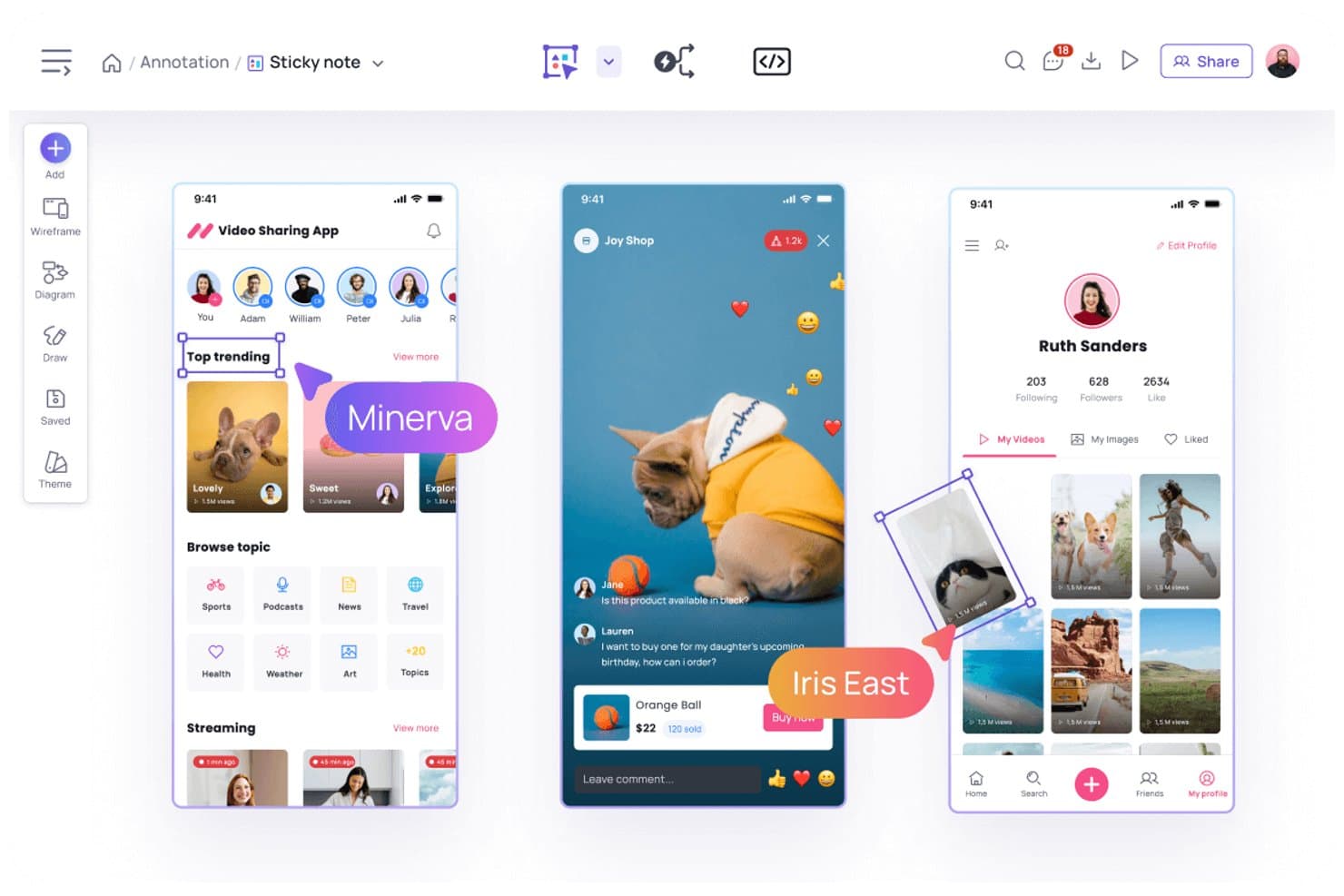
Visily lets users annotate designs with sticky notes and comments. Visily is an AI-powered UX design and prototyping platform for product teams, founders, and business stakeholders who need to turn early ideas into usable interfaces without advanced design skills.
Who Is Visily Best For?
Product managers and UX teams can turn written ideas or reference images into editable interface concepts during early discovery.
Why I Picked Visily
I picked Visily as one of the best for AI-generated screens from text or image. I use text prompts to create editable wireframes, then refine layouts for product concepts without starting from a blank canvas. Its screenshot-to-design feature also helps my team turn competitor references or legacy screens into workable interface drafts.
Visily Key Features
- UI component library: Add reusable interface elements to wireframes and prototypes.
- Interactive prototyping: Link screens to create clickable product flows.
- Design templates: Start projects with pre-built templates for common product patterns.
- Team collaboration: Invite teammates to comment on and review designs.
Visily Integrations
Visily offers documented integrations with Slack and Notion, plus an official Figma plugin for two-way design transfer. It also supports MCP connections through plugins for tools including Cursor, Claude Code, Codex, Gemini CLI, Antigravity, and Kiro.
Pros and Cons
Pros:
- Supports clickable prototypes and reusable components
- Converts screenshots into workable interface drafts
- Generates editable wireframes from text prompts
Cons:
- Complex design systems need manual refinement
- High-fidelity visual design tools remain limited
Learn more about Visily: Best for offline-first prototyping with desktop apps
- Free plan + 30-day free trial + free demo available
- From $4.95/user/month (billed annually)
Visit WebsiteCustomer Rating:4.5/5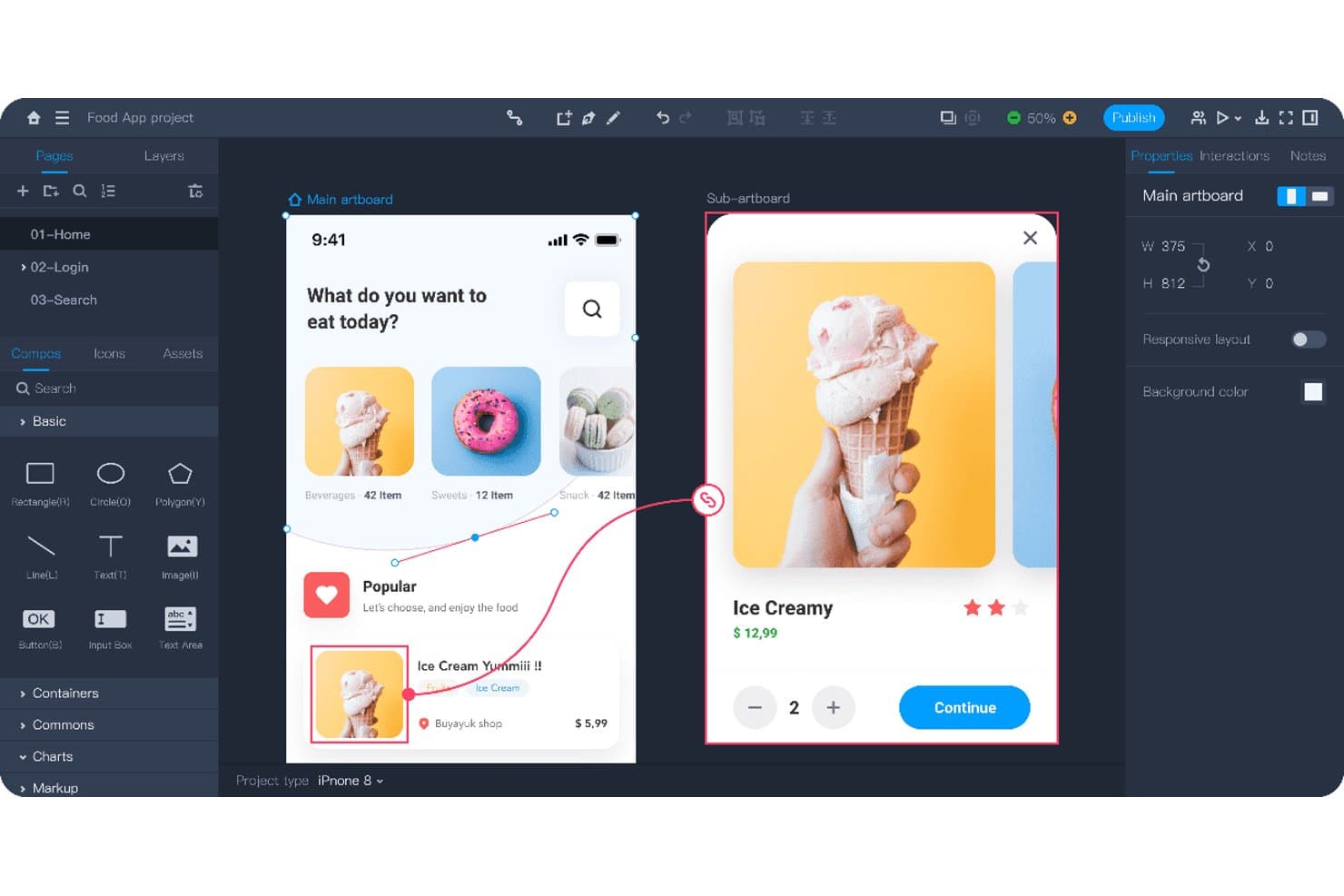
Mockplus lets users prototype interactive app flows with linked screens. Mockplus is a UX design and prototyping tool for product teams that need to turn ideas into interactive mockups, test user flows, and align designers, engineers, and stakeholders without relying on Figma.
Who Is Mockplus Best For?
Mockplus suits product teams and UX designers who need desktop-based prototyping with offline access for focused design work.
Why I Picked Mockplus
I picked Mockplus for offline-first prototyping with desktop apps because I can design and test interactive flows without depending on a browser connection. Its desktop workspace supports clickable prototypes, screen linking, and interaction states for testing app journeys locally. I use it to review product concepts during travel, workshops, or restricted-network sessions.
Mockplus Key Features
- Drag-and-drop editor: Build screens by placing elements directly onto the canvas.
- Components and icons: Add reusable interface elements from built-in libraries.
- Notes and flowcharts: Document requirements and map user journeys within projects.
- Comments and annotations: Add feedback directly to designs with pins and shapes.
Mockplus Integrations
Mockplus documents integrations with Figma, Sketch, Axure, Adobe XD, Photoshop, Slack, Jira, Confluence, and Lark, although some are design import or collaboration connections rather than native Mockplus RP integrations. Its Jira integration is also available through the Atlassian Marketplace.
Pros and Cons
Pros:
- Includes flowcharts, notes, and annotations
- Supports clickable prototypes and interaction states
- Works offline through dedicated desktop apps
Cons:
- Advanced interface design needs more manual setup
- Collaboration feels less browser-native than Figma
Learn more about Mockplus: Best for website design without developer handoff
- Free plan + free trial + free demo available
- From $15/month (billed annually)
Visit WebsiteCustomer Rating:4.4/5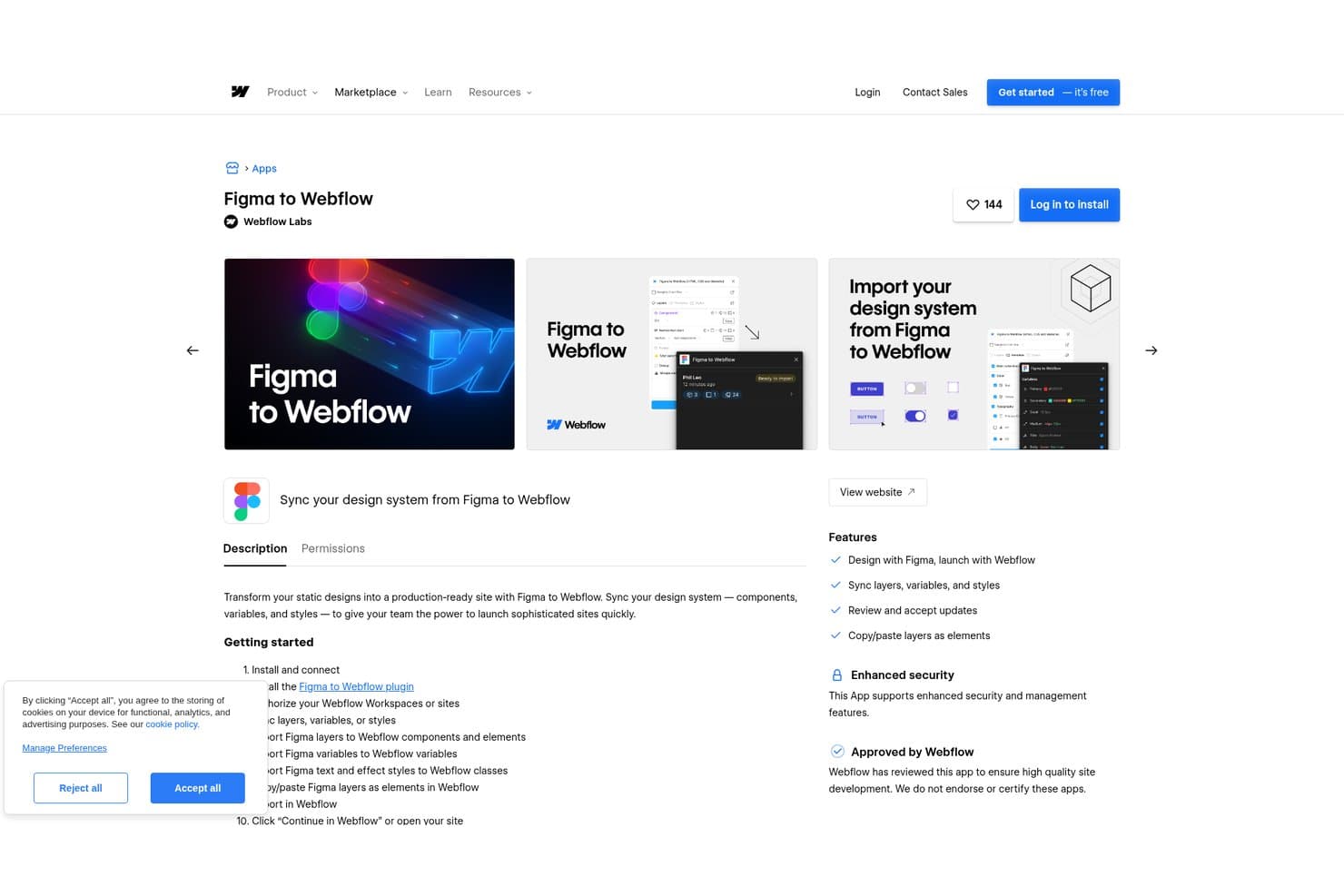
Webflow lets users sync Figma design systems directly into Webflow. Webflow is a visual web design platform for product, marketing, and UX teams that need to create responsive websites, test ideas, and publish polished experiences without relying on developer handoff.
Who Is Webflow Best For?
Webflow suits startups and lean marketing teams that need to launch polished, responsive websites without adding developer work to every update.
Why I Picked Webflow
I picked Webflow because it supports website design without developer handoff. I use its visual canvas, responsive layout controls, and reusable components to turn UX concepts into polished, production-ready pages. Its interactions and CMS help my team validate responsive flows and publish real content directly in the browser.
Webflow Key Features
- Form submissions: Collect and manage responses from published website forms.
- Custom code embeds: Add HTML, CSS, and JavaScript to supported site areas.
- SEO controls: Edit page titles, meta descriptions, slugs, and indexing settings.
- Site search: Add searchable content indexes to published websites.
Webflow Integrations
Webflow supports marketplace integrations with Airtable, Google Docs, and Google Workspace, plus Zapier. It also provides a Data API for custom integrations, including CMS, forms, assets, ecommerce, webhooks, and site publishing.
Pros and Cons
Pros:
- Interactions preview closer to shipped websites
- CMS enables testing designs with real content
- Production-ready responsive layouts reduce developer handoff
Cons:
- Limited freeform prototyping for app workflows
- Layout controls require understanding CSS concepts
Learn more about Webflow: Best for planning UI before handing off to design
- Free plan available
- From $9/user/month (billed annually)
Visit WebsiteCustomer Rating:4.3/5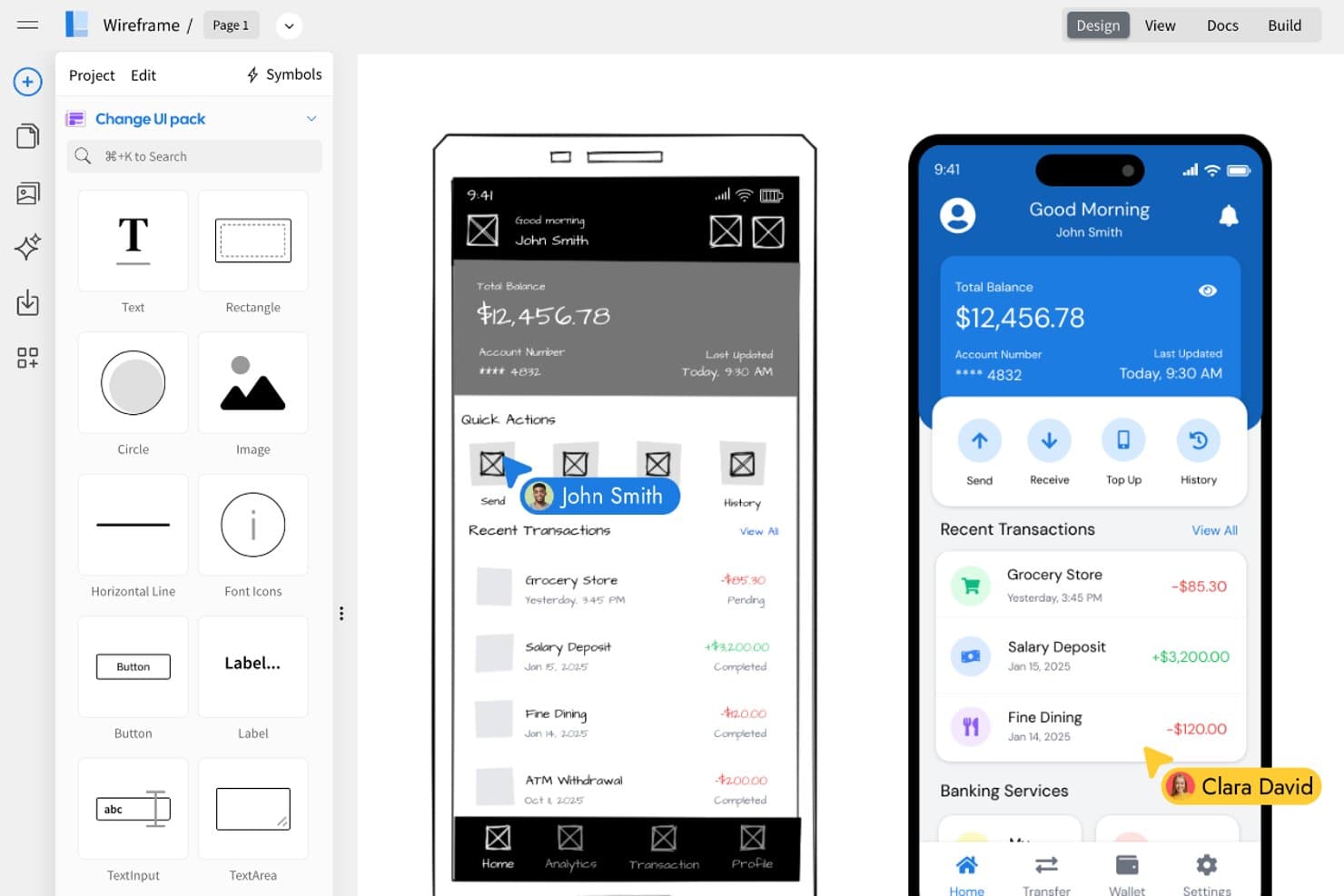
MockFlow lets users transform wireframes into polished UI designs side by side. MockFlow is a collaborative UI design tool for product managers, UX designers, and teams that need to turn early ideas into wireframes and prototypes without Figma’s broader design complexity.
Who Is MockFlow Best For?
Product managers and UX teams can use MockFlow to turn rough product concepts into annotated wireframes before design and engineering handoff.
Why I Picked MockFlow
I picked MockFlow because my team uses it to turn rough product ideas into structured wireframes before design begins. Its wireframe editor and annotation tools help us document screens, interactions, and open questions in one workspace. We can then share a clickable prototype for feedback before handing clearer requirements to designers.
MockFlow Key Features
- UI templates: Start projects with prebuilt layouts for common interfaces.
- Component library: Add reusable interface elements to wireframe pages.
- Sitemap builder: Organize website pages into a visual site structure.
- Export options: Download designs in formats such as PDF and PNG.
MockFlow Integrations
MockFlow offers documented integrations with Atlassian Jira, Atlassian Confluence, Google Drive, Google Docs, Slack, Microsoft Teams, and Microsoft Word through Microsoft 365. These integrations let teams create, attach, or insert wireframes within their existing collaboration and documentation tools.
Pros and Cons
Pros:
- Sitemap builder maps information architecture
- Annotated flows support design handoff
- Quick wireframes clarify product requirements
Cons:
- Prototype interactions feel comparatively limited
- Visual fidelity trails polished design tools
Learn more about MockFlow: Best for designing with production React components
- Free plan + 14-day free trial + demo available
- From $49/user/month
Visit WebsiteCustomer Rating:4.2/5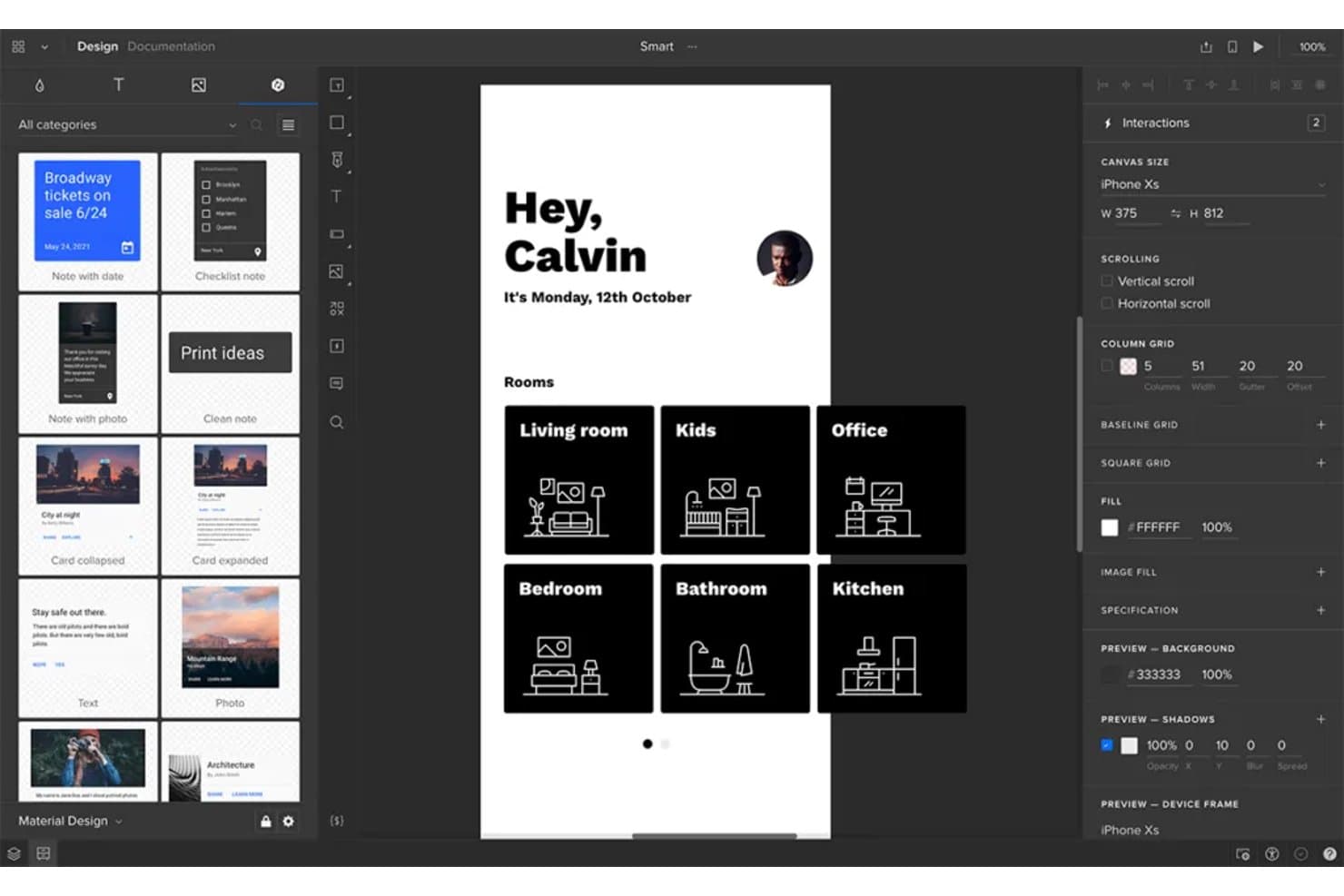
UXPin lets users prototype and design mobile app interfaces collaboratively. UXPin is a UX design platform for product teams that need to create, test, and hand off high-fidelity interfaces while keeping designers, developers, and stakeholders aligned.
Who Is UXPin Best For?
UXPin suits product teams that need designers and developers to build interfaces with production React components.
Why I Picked UXPin
I picked UXPin because it lets my team design with production React components instead of approximating them in static mockups. We can use coded components, real properties, and interactive states to prototype a checkout flow with the same UI building blocks developers ship. That keeps design reviews focused on behavior and implementation details.
UXPin Key Features
- Variables: Store user inputs and reuse values across prototypes.
- Conditional interactions: Create if-then and if-else prototype flows.
- Auto layout: Arrange and resize elements within flexible layouts.
- Comments: Add feedback directly to designs and prototypes.
UXPin Integrations
UXPin offers documented integrations with FullStory, Figma, Sketch, Git, Storybook, Jira, Adobe Fonts, Google Fonts, and Slack. Its Git and Storybook integrations support designing with production React and web components, which makes it especially useful for teams evaluating Figma alternatives.
Pros and Cons
Pros:
- Tests realistic interactions before development
- Supports variables and conditional prototype logic
- Designs with production React components
Cons:
- Canvas feels less fluid than Figma
- Component setup requires developer involvement
Learn more about UXPin: Best for interactive website prototypes
- Free plan + free trial available
- From $10/month (billed annually)
Visit WebsiteCustomer Rating:4.4/5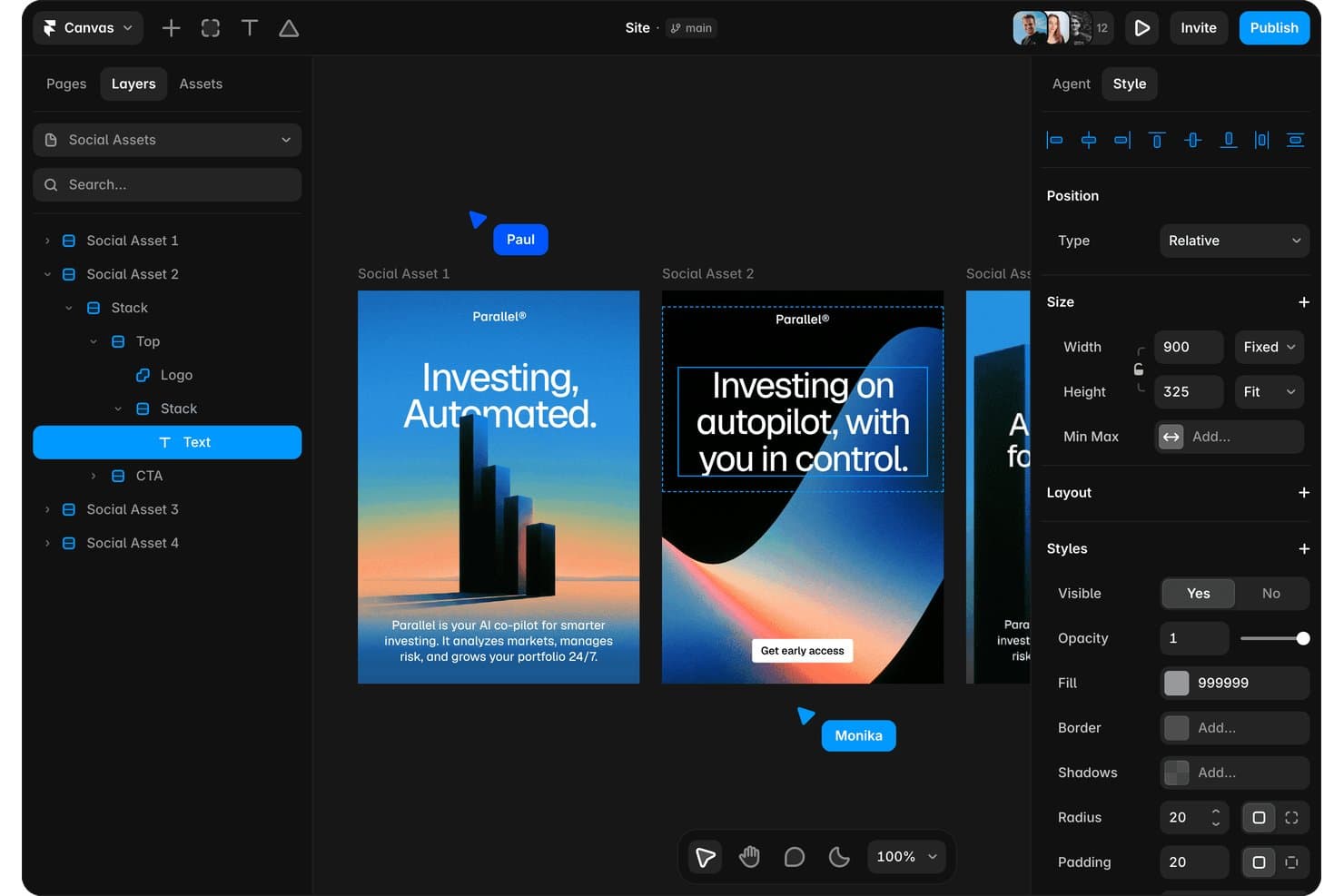
Framer lets users design and edit social media assets visually. Framer is a visual website design and prototyping platform for product designers and marketing teams who need to create interactive experiences, test ideas, and publish polished sites without switching tools.
Who Is Framer Best For?
Product designers and marketing teams who need to prototype and publish responsive websites without relying on developers.
Why I Picked Framer
I picked Framer because I can turn interactive website prototypes into published, responsive pages from the same visual canvas. I use breakpoints to test layouts across screen sizes, then add scroll effects, hover states, and page transitions for realistic product flows. This helps my team validate marketing sites and web experiences before development begins.
Framer Key Features
- CMS collections: Create structured content for blogs, case studies, and other pages.
- Localization: Translate site content and adapt pages for different locales.
- Forms: Add customizable forms to collect visitor submissions.
- Components: Build reusable elements with shared properties and variations.
Framer Integrations
Framer offers built-in integrations with Google Tag Manager, Formspark, Hotjar, HubSpot forms, Intercom, Mailchimp, Marketo forms, Meta Pixel, Typeform, and Clay. Formspark supports Slack, Zapier, and Integromat, while Framer also provides custom webhooks and a Server API for custom integrations.
Pros and Cons
Pros:
- Reusable components support consistent page systems
- Strong animations, transitions, and scroll effects
- Publishes responsive prototypes without developer handoff
Cons:
- Advanced layouts can require CSS knowledge
- Less suited to native app prototyping
 Best for logic-driven, no-code prototypes
- Free plan + 30-day free trial available
- From $29/user/month (billed annually)
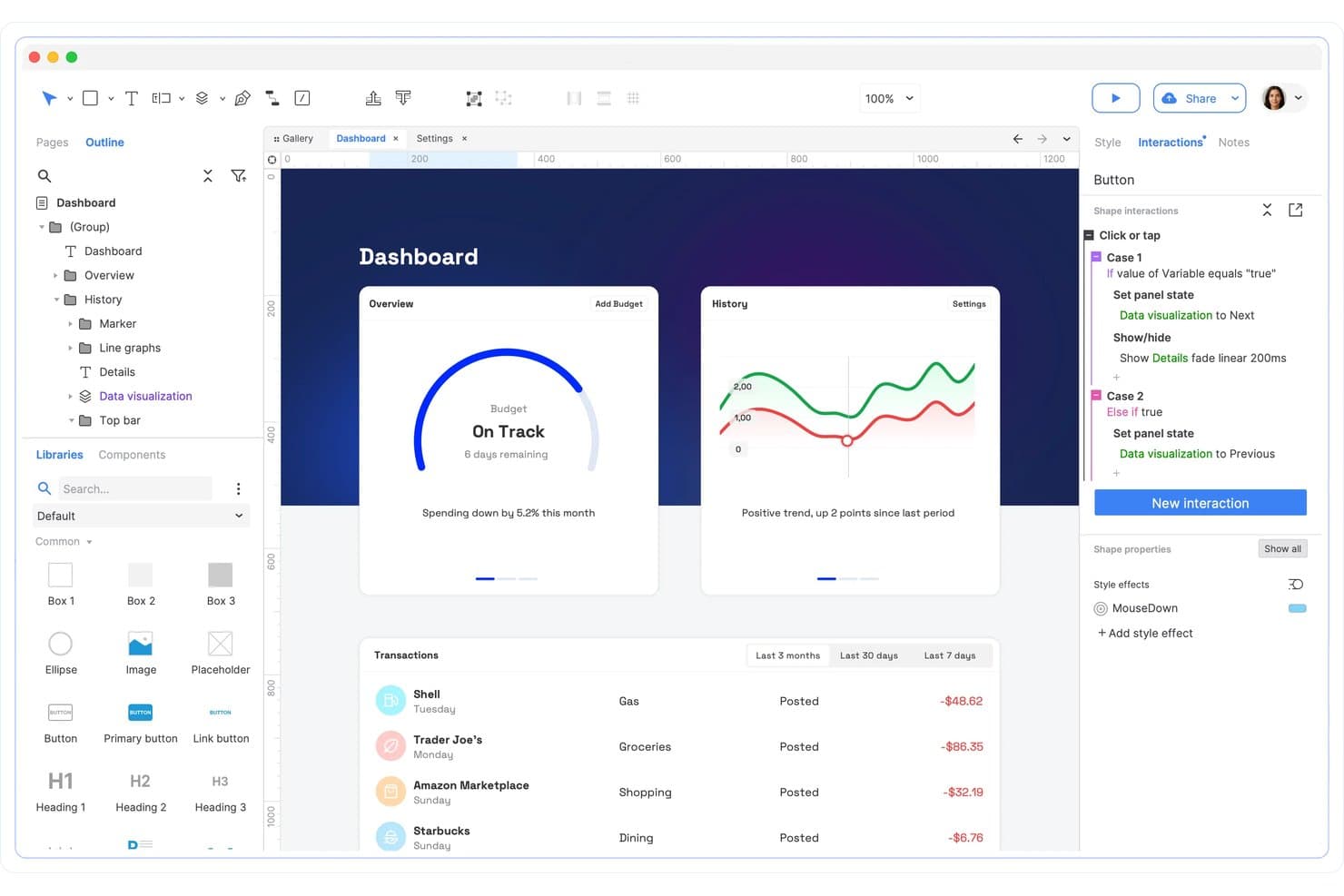
Axure RP supports conditional interactions and panel state logic. Axure RP is a UX design and prototyping tool for product teams that need to map complex user flows, test detailed interactions, and align stakeholders before development begins.
Who Is Axure RP Best For?
UX designers and product teams who need to model conditional workflows, dynamic interfaces, and detailed user interactions before development.
Why I Picked Axure RP
I picked Axure RP because it handles interaction-heavy product concepts that Figma can’t model as deeply. Its conditional logic, variables, and dynamic panels let my team prototype branching onboarding, permissions, and form validation without code. I use it for Best for logic-driven, no-code prototypes when stakeholders need to test realistic workflows before engineering.
Axure RP Key Features
- Adaptive views: Create layouts for different screen sizes and orientations.
- Repeaters: Build sortable, filterable lists from reusable data sets.
- Widget libraries: Save and reuse custom interface components across projects.
- Prototype notes: Add annotations, requirements, and interaction documentation.
Axure RP Integrations
Axure RP offers official integrations with Jira, Confluence, Slack, and Microsoft Teams for embedding prototypes and sharing project activity. It also supports importing design assets from Figma, Sketch, and Adobe XD through dedicated plugins.
Pros and Cons
Pros:
- Detailed interactions validate realistic form behavior
- Repeaters support sortable, filterable data lists
- Conditional logic models branching workflows
Cons:
- Real-time collaboration trails browser-first competitors
- Visual design feels slower than Figma
Learn more about Axure RP : Best for self-hosted, open-source design
- Free plan + 14-day free trial + free demo available
- From $7/user/month
Visit WebsiteCustomer Rating:4.5/5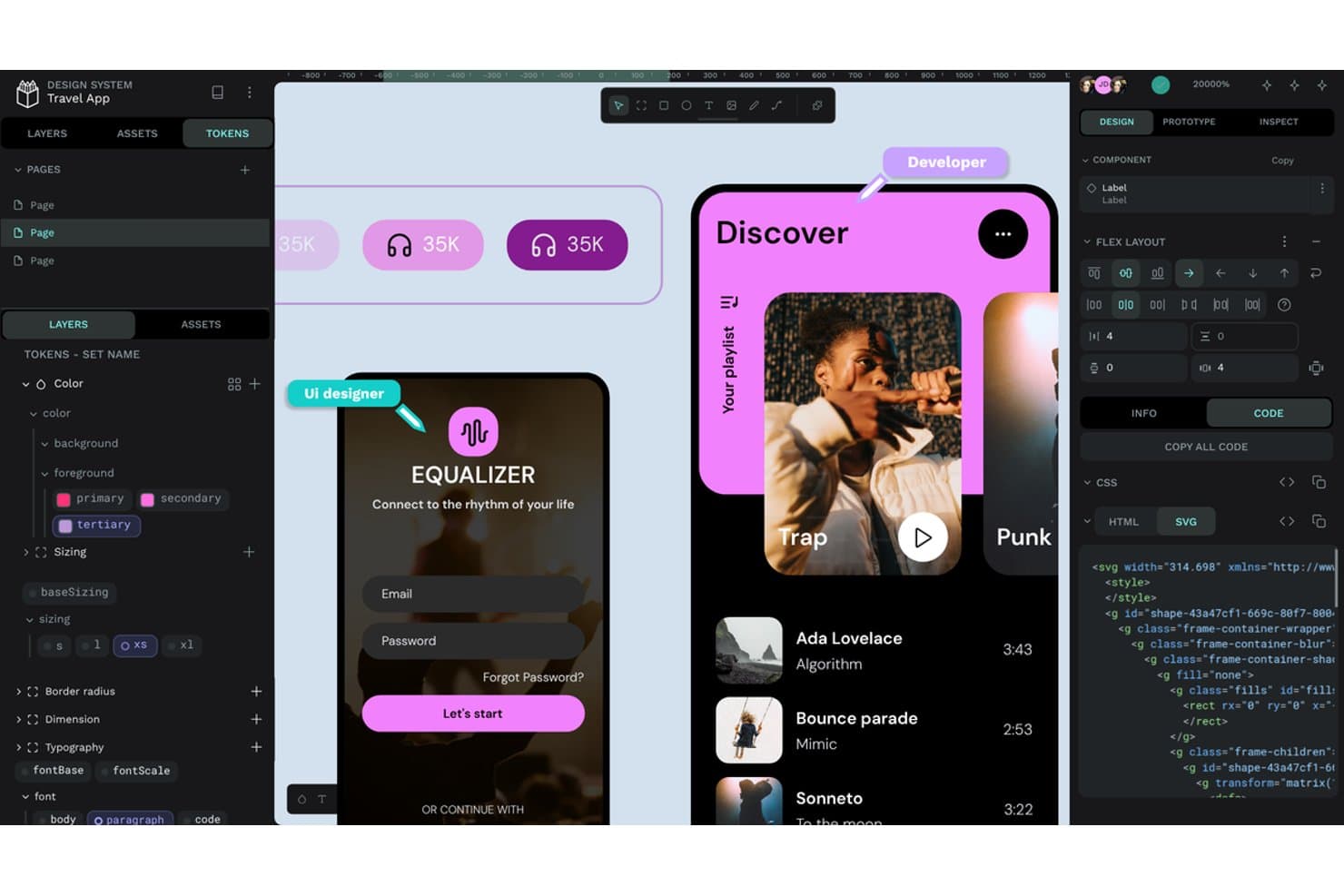
Penpot lets users inspect design tokens, CSS, and SVG code side by side. Penpot is a UX design platform for product teams that need collaborative wireframing, prototyping, and design handoff with greater control over their tools and workflows.
Who Is Penpot Best For?
Penpot suits product teams that need open-source design collaboration and the option to host UX workflows on their own infrastructure.
Why I Picked Penpot
I picked Penpot because it is best for self-hosted, open-source design. I can deploy it on my team’s infrastructure, retain control over project data, and review its source code. Its browser-based boards, SVG workflows, and CSS Grid and Flex Layout support help my team create production-ready interfaces.
Penpot Key Features
- Components: Create reusable interface elements with configurable properties and variants.
- Design Tokens: Define reusable colors, spacing, typography, and other design values.
- Prototyping: Connect screens with interactions, transitions, overlays, and animations.
- Inspect Mode: Review measurements, properties, and implementation details for selected objects.
Penpot Integrations
Penpot doesn’t have clearly documented native integrations with third-party tools. It supports plugins through PenpotHub or direct URLs, plus webhooks for creating custom connections with other services.
Pros and Cons
Pros:
- SVG workflows support developer-friendly design handoff
- CSS Grid and Flex Layout work directly on canvas
- Self-hosted deployment keeps design data under control
Cons:
- Some production workflows remain less mature than Figma’s
- Large files can become noticeably laggy
Learn more about Penpot: Best for macOS-native design workflows
- Free plan + 30-day free trial available
- From $12/user/month (billed annually)
Visit WebsiteCustomer Rating:4.5/5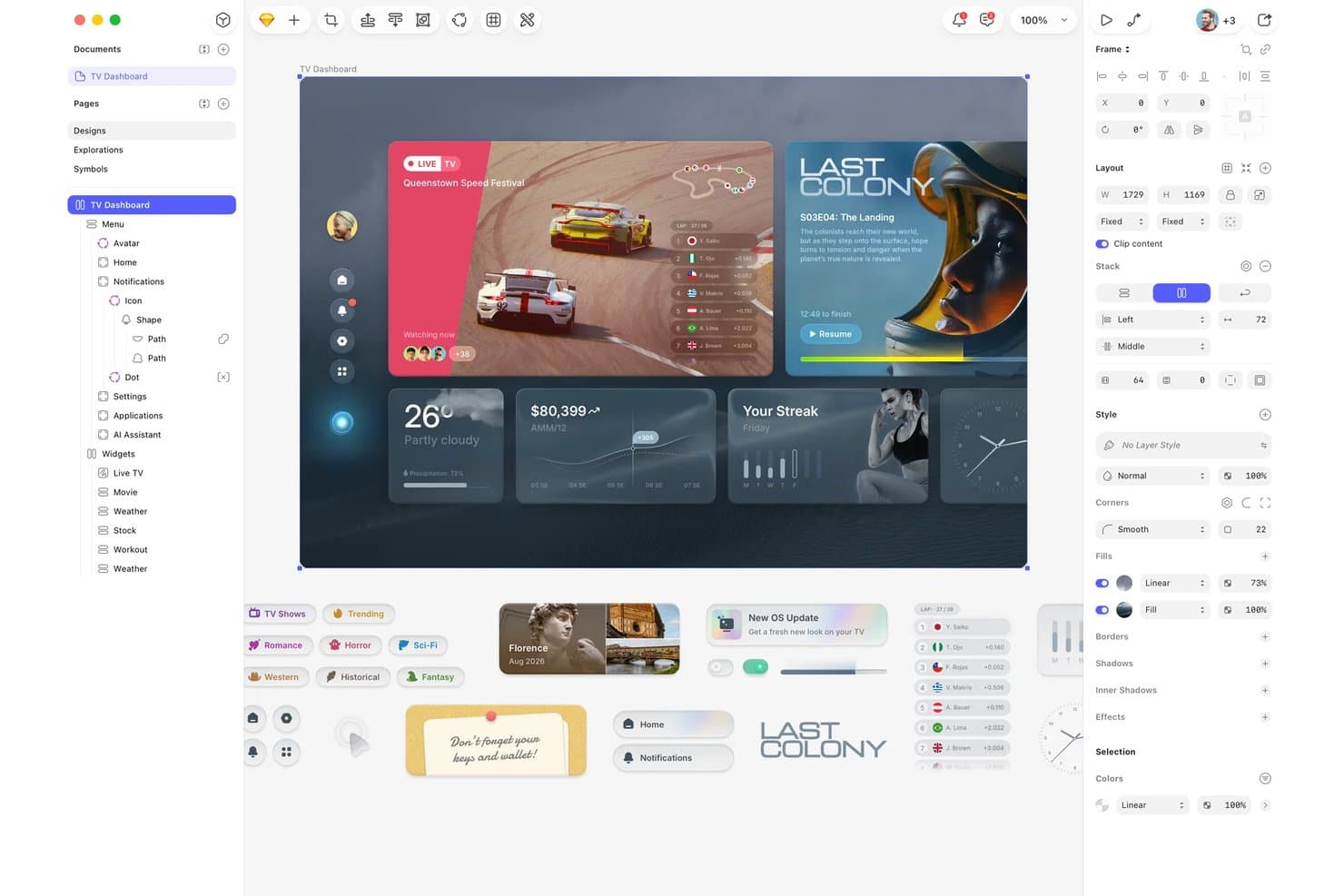
Sketch organizes UI components and layers for TV dashboard design. Sketch gives product and UX teams a focused design platform for creating interfaces, prototypes, and design systems while reducing collaboration friction across research, design, and development.
Who Is Sketch Best For?
Sketch suits product designers and UX teams that want a macOS-native workspace for interface design, prototyping, and design system development.
Why I Picked Sketch
I picked Sketch because its macOS-native app gives my team a focused workspace for interface design. We use symbols, components, and shared libraries to maintain consistent design systems across product screens. Its prototyping and developer handoff features help us move a Mac-based workflow from early flows to implementation.
Sketch Key Features
- Comments: Add feedback directly to designs and resolve discussion threads.
- Version history: Review earlier document versions and restore previous work.
- Workspace permissions: Control who can view, edit, or manage documents.
- Browser access: Open, review, and share designs through Sketch’s web app.
Sketch Integrations
Sketch offers integrations through its plugin ecosystem, including Slack, Jira, Zeplin, ProtoPie, Principle, Frontify, and Brandfolder. It also provides an official JavaScript API and file-format specification for custom integrations.
Pros and Cons
Pros:
- Browser-based inspection helps developers review designs
- Shared libraries support consistent design systems
- Native macOS performance feels fast and responsive
Cons:
- Real-time collaboration trails Figma for larger teams
- Mac app excludes Windows-based designers
 10Best for design-to-dev handoff with AI coding agents
Zeplin
- Free plan + free demo available
- From $12/user/month (billed annually)
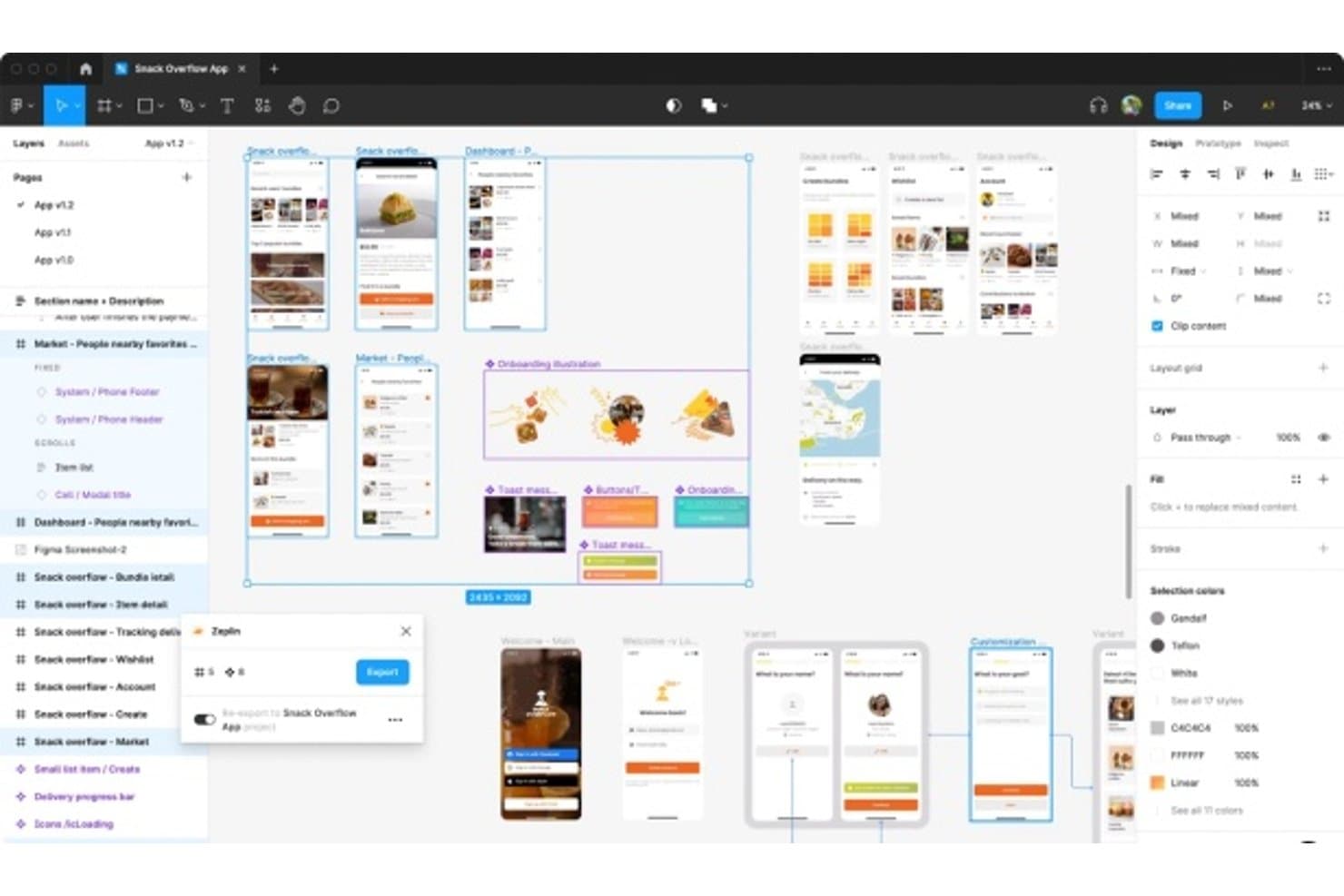
Zeplin bridges design and development with handoff exports. For product teams seeking a Figma alternative, Zeplin is a design collaboration and handoff platform that helps designers, developers, and product managers share specs, assets, and context without losing alignment.
Who Is Zeplin Best For?
Zeplin suits product and engineering teams that need design context, specs, and assets to guide AI coding agents from approved designs.
Why I Picked Zeplin
I picked Zeplin because it gives AI coding agents clear context from approved designs. My team uses its design specs and exported assets to guide implementation without relying on screenshots alone. That makes handoff more precise when developers need to translate a finished interface into working code.
Zeplin Key Features
- Design versioning: Compare screen updates and review changes across versions.
- Styleguides: Organize colors, text styles, spacing, and components in shared libraries.
- Screen annotations: Add notes and discussions directly to individual screens.
- Workflow integrations: Connect projects with tools such as Jira, Slack, and Azure DevOps.
Zeplin Integrations
Zeplin offers official integrations with Jira, Azure DevOps, Slack, Microsoft Teams, Storybook, Trello, and VS Code, plus design publishing integrations for Figma, Sketch, Photoshop, and Adobe XD. It also provides an API and webhooks for custom workflows, with MCP support for AI tools such as Claude, Cursor, and VS Code.
Pros and Cons
Pros:
- Version comparisons clarify approved interface changes
- Screen annotations keep design decisions attached
- Exported specs guide implementation beyond screenshots
Cons:
- Requires separate design tool for creation
- Primarily supports handoff after design completion
Learn more about Zeplin:
Other Figma Alternatives
Here are some additional Figma alternatives that didn’t make it onto my shortlist, but are still worth checking out:
- 11ProtoPieBest for multi-device interaction prototyping
- 12InfragisticsBest for design-to-code handoff across frameworks
- 13JustinmindBest for functional prototypes with usability testing
- 14LunacyBest for offline-first design with private cloud
- 15MarvelBest for no-code prototypes without design skills
- 16MiroBest for real-time collaborative whiteboarding
- 17Adobe XDBest for Creative Cloud-integrated design workflows
- 18Brilliant.designBest for AI-native design-to-code handoff
How I Evaluate Figma Competitors
I split my evaluation into three parts. First—and this carries the most weight—I check whether a tool can build interactive, multi-screen prototypes and support live co-editing across roles. Then I look for standout capabilities like AI-assisted layout generation or embedded user testing. Finally, I consider what's beyond the feature set: seat-based pricing for non-designer collaborators, onboarding for PMs, and integration with tools like Jira or Notion.
Core Functionality (Table Stakes For This List)
When I'm selecting tools for my list, I score each one on a scale from 0 (does not offer the functionality) to 5 (excels in this area) for each core functionality listed below. I then convert the total into a percentage to help assess each tool's overall fit, with extra weight on any functionalities I’ve deemed essential.
- Interface Design & Prototyping (Essential): I look for linked, multi-screen flows with interactions that help a team review a checkout journey or test an onboarding concept.
- Real-Time Collaboration (Essential): I assess whether designers, PMs, and stakeholders can co-edit, comment, and see who’s working in a file during a review.
- Design Systems & Components: Shared libraries, reusable components, and variants matter when teams need consistent navigation or form patterns across product areas.
- Developer Handoff: I check whether developers can inspect measurements, styles, and assets from a design, such as button specs for an implementation ticket.
- Version History & File Management: I look for clear iteration history and practical restore options when a team needs to revisit an earlier direction after feedback.
- Commenting & Feedback: Contextual, threaded comments and resolution tracking help me assess how teams can close feedback loops on specific screens or elements.
Once I have a list of tools that meet the criteria, I consider what sets each platform apart.
Differentiating Factors (What Sets Vendors Apart)
Here's how I compare and contrast different vendors:
Standout Features
I evaluate whether a tool includes AI-assisted design generation, since prompting a layout draft during early discovery saves hours before a team even debates direction. Integrated user testing matters just as much—tools like Maze let you validate a prototype without switching to a separate research platform. I also check for a built-in whiteboarding canvas, which helps PMs map flows and assumptions right next to the screens a designer is shaping.
Beyond Features
I check whether a tool's pricing model charges for viewer seats, since PMs and stakeholders who only leave comments shouldn't inflate your license costs. Integration depth matters too—I look for native connections to Jira or Linear that let you trace a design screen back to a requirement without switching tabs. I also evaluate onboarding friction for non-designers, because a tool your PM can't navigate within a day rarely gets adopted org-wide.
Figma Key Features
Here are some of the key features of Figma to help you contrast and compare what alternative solutions offer:
- Real-time collaboration: Multiple users can work on the same design simultaneously, enhancing teamwork and communication.
- Auto-layout: Facilitates responsive design by automatically resizing and repositioning elements based on available space.
- Design systems: Support the creation and management of reusable components and styles for consistency across projects.
- Prototyping tools: Enable designers to create interactive prototypes to visualize user flows and interactions.
- Version control: Keeps track of design changes, allowing users to revert to previous versions if needed.
- AI capabilities: Figma has several AI features, from copywriting to image generation and resolution enhancement.
- Plugins and integrations: Offers a variety of plugins to extend functionality and integrate with other tools.
- FigJam: A virtual whiteboard for workshops and brainstorming sessions, enhancing collaborative creativity.
- Cross-platform compatibility: Works on both Mac and Windows, making it versatile for different users.
- Smart selection: Enables bulk adjustments to multiple design elements, speeding up repetitive tasks.
- UI kits: Provide a library of pre-made components and styles for quick mockup creation.