

When you’re deep in product development, finding the best prototyping tools can feel like an uphill battle.
Without them, you might waste hours tweaking static designs in endless review cycles, struggle to convey your vision to developers without a clear interactive model and handoff documentation, or hit roadblocks gathering actionable user feedback on early concepts.
These issues often come down to lacking tools that support quick iteration, better collaboration, and effective user testing—all essential for moving from idea to product smoothly. Having the right web design software can make this process significantly more efficient.
That's why I've rounded up the best prototyping tools to help you tackle these challenges, whether it's for a web mockup generator, website prototype, app prototype, or other project.
Why Trust Our Software Recommendations
6,700+
Reviews
20
Industry experts
16+
Evaluation factors
14
Years
Our team has been testing and reviewing software since 2012. As product managers ourselves, we know how difficult—and important—it is to choose the right software.
For this guide, we evaluated tools using hands-on testing and independent research, scoring tools using our selection criteria.
Our reviews reflect our human editorial judgment, not a sales pitch.
Expert reviewers:
- Andrew LumbySenior TPM
- Cristiano ValimSenior UI/UX Lead


Prototyping Tools Comparison Table
Here is a table where you can compare the tools we just covered in the overviews.
| Tool | Best For | Trial Info | Price | ||
|---|---|---|---|---|---|
| 1 | Best for visualizing complex workflows | Free plan + 14-day free trial available | From $8/user/month (billed annually) | Website | |
| 2 | Best for planning and prototyping | Free plan available | From $3/user/month | Website | |
| 3 | Best for code-component prototyping handoff | Free plan available; 14-day free trial | From $29/user/month (billed annually) | Website | |
| 4 | Best for Creative Cloud users prototyping in Adobe | Free trial available | From $22.99/month (billed annually) | Website | |
| 5 | Best for linking requirements to prototypes | Free plan available | From $19/user/month | Website | |
| 6 | Best for conditional logic in prototypes | Free plan available | From $29/user/month (billed annually) | Website | |
| 7 | Best for vector editing and reusable elements | 30-day free trial | From $12/user/month (billed annually) | Website | |
| 8 | Best for multi-device interaction testing | Free plan available | From $25/month (billed annually) | Website | |
| 9 | Best for native-behavior mobile UI components | 15-day free trial | From $24/user/month (billed annually) | Website | |
| 10 | Best for validating ideas as working apps | Free plan + free demo | From $21/month (billed annually) | Website |


Best Prototyping Tool Reviews
Here’s a brief description of each of the best prototyping tools to showcase each platform’s best use case, some noteworthy features, and screenshots to give a snapshot of the user interface.
 1Best for visualizing complex workflows
Miro
- Free plan + 14-day free trial available
- From $8/user/month (billed annually)
Visit WebsiteCustomer Rating:4.8/5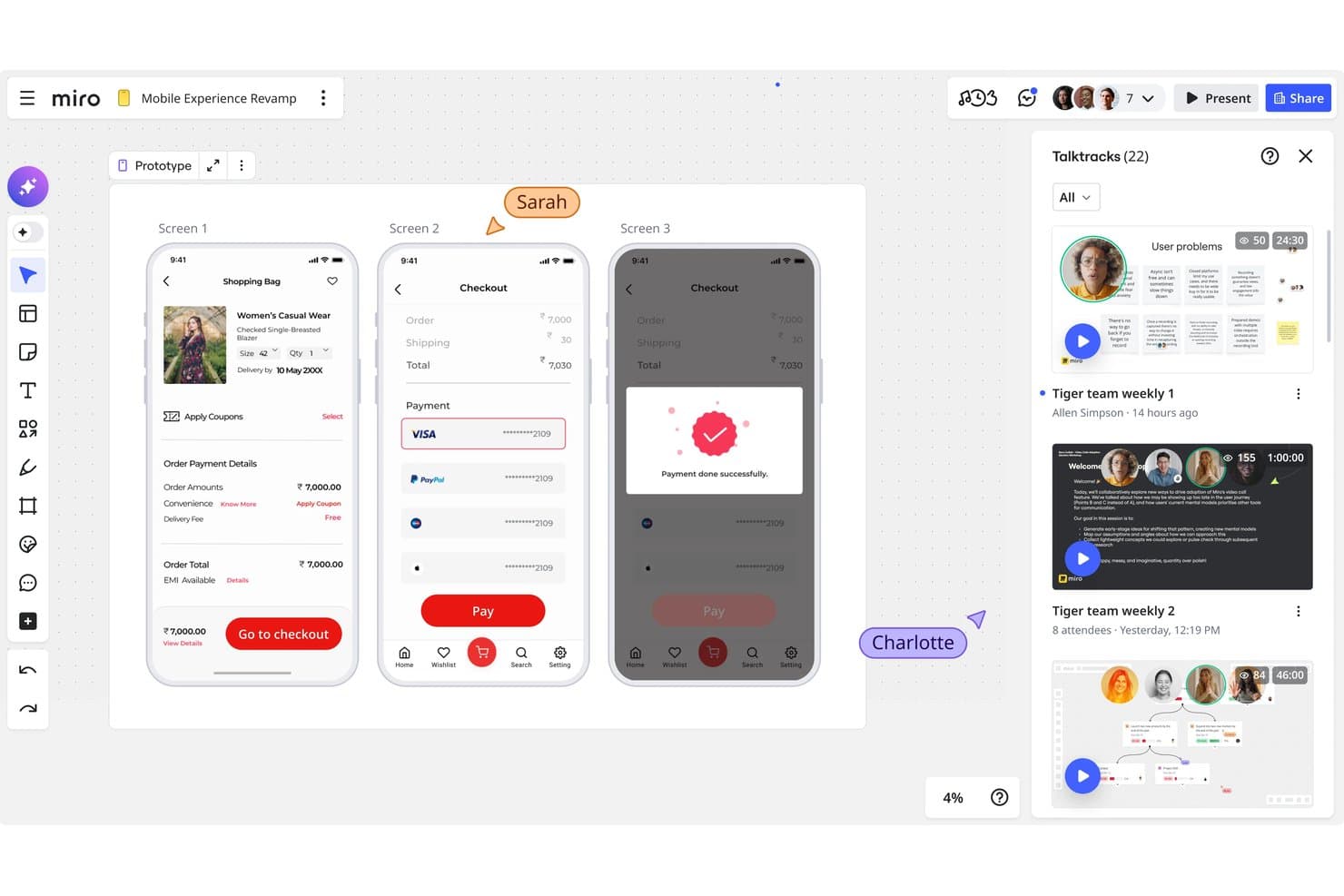
Miro lets users prototype and review mobile app flows with video talktracks. Miro is a collaborative, canvas-based prototyping tool that lets you generate clickable, multi-screen prototypes from prompts, PRDs, screenshots, sticky notes, and code.
Who Is Miro Best For?
Miro suits product managers and cross-functional teams who need to move from workshops and PRDs into clickable prototypes without switching tools.
Why I Picked Miro
Miro earns its spot on my shortlist because no other tool I've used lets you go from a PRD or sticky-note workshop straight into a clickable, multi-screen prototype on the same canvas. I love that you can feed it a screenshot of your existing product and it generates new screens and flows from it, which is exactly what I need when mapping a complex workflow across multiple user states. The AI usability review also catches flow issues before you've even run a single user test.
Miro Key Features
- Real-time co-editing: Multiple team members can edit the same canvas simultaneously, with comments, reactions, and voting built directly into the board.
- Two-way Jira and Azure DevOps sync: Links Miro boards to engineering tickets so product and dev teams stay aligned without manually updating both tools.
- AI usability review: Miro's AI scans your prototype and flags usability issues before you run a single user test.
- MCP server handoff: Push prototypes directly to AI coding agents like GitHub Copilot, Cursor, and Claude for development handoff.
Miro Integrations
Miro offers 250+ integrations, including Jira, Azure DevOps, Linear, Asana, ClickUp, Confluence, Notion, Slack, Google, Adobe, and Microsoft. Business and Enterprise plans add two-way sync with key product and engineering tools.
Pros and Cons
Pros:
- Visualizes complex flows on one canvas
- Supports real-time stakeholder feedback and voting
- Turns PRDs into clickable workflow prototypes
Cons:
- Lacks detailed developer handoff specifications
- Limited conditional logic for advanced interactions
 Best for planning and prototyping
- Free plan available
- From $3/user/month
Visit WebsiteCustomer Rating:4.7/5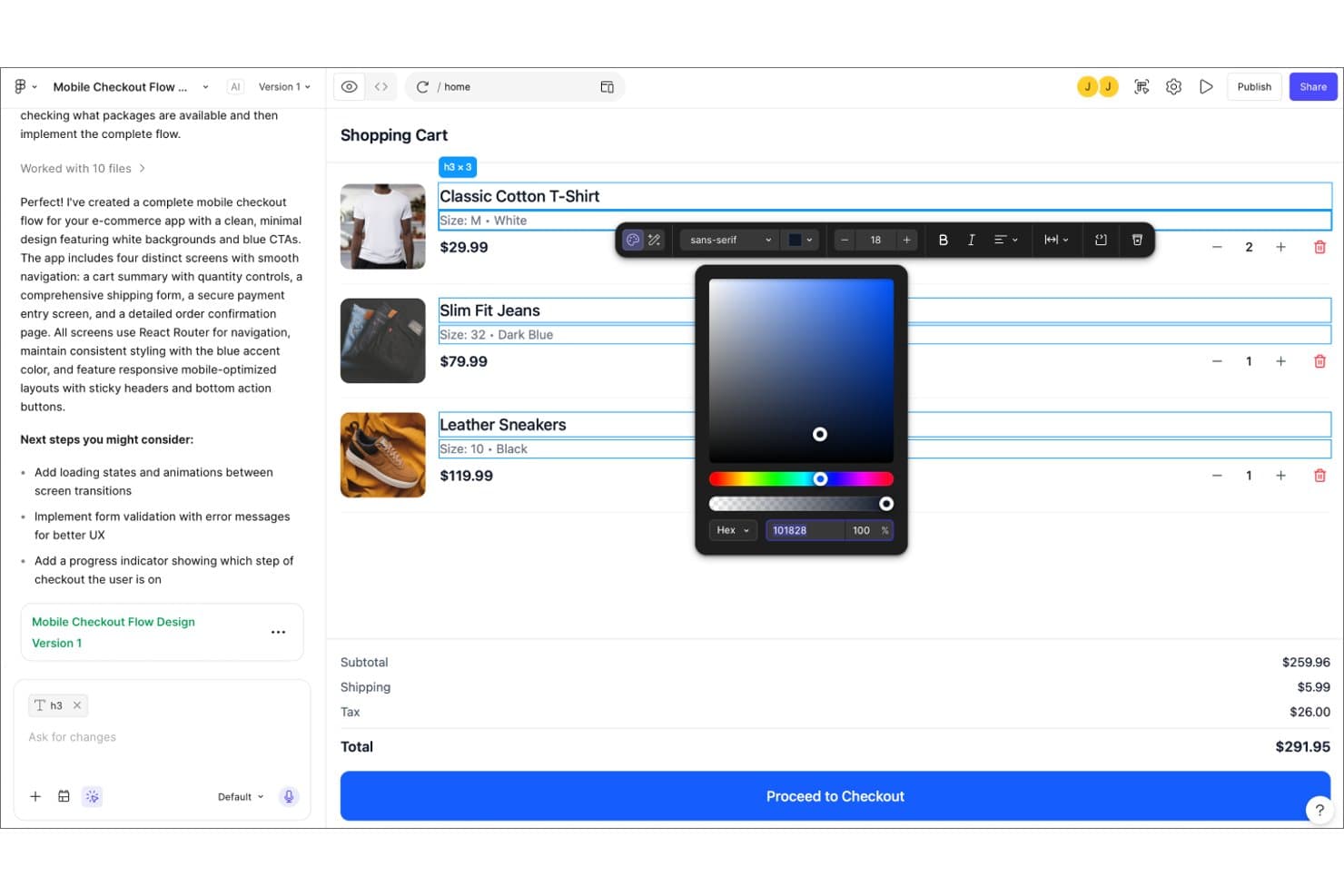
Figma lets users customize text styling and colors in interactive prototypes. Figma is a browser-based design and prototyping platform that covers the full product workflow—from low-fidelity whiteboarding in FigJam to high-fidelity UI design, interactive prototyping with variables and conditional logic, and developer handoff via Dev Mode.
Who Is Figma Best For?
Figma is a strong fit for cross-functional product teams where designers, PMs, and developers need to collaborate in one shared environment.
Why I Picked Figma
Figma earns its spot on my shortlist because it covers the full arc from early whiteboarding in FigJam to polished, interactive prototypes in one shared file. I especially like that advanced prototyping with variables and conditional logic lets me build realistic flows without writing a single line of code. When it's time for handoff, Dev Mode gives developers exact specs alongside the same prototype, so nothing gets lost in translation.
Figma Key Features
- Smart Animate: Automatically animates matching objects between frames to create smooth transitions like parallax scrolling and touch gestures.
- FigJam whiteboard: A built-in collaborative whiteboard for early-stage ideation, diagramming, and team workshops with voting and AI-powered summaries.
- Figma Slides: Lets you embed live prototypes directly into presentations for stakeholder reviews without switching tools.
- Dev Mode: Gives developers code inspection, spacing and sizing specs, asset export, and a VS Code extension alongside the prototype.
Figma Integrations
Figma offers documented integrations with Jira, Notion, Slack, and Google Workspace. It also provides REST APIs, webhooks, a VS Code extension, and an MCP server for custom workflows and developer handoff.
Pros and Cons
Pros:
- Dev Mode clarifies engineering handoff decisions
- FigJam connects discovery to clickable prototypes
- Advanced logic validates realistic product flows
Cons:
- Large files can strain Windows performance
- Usability testing requires third-party tools
 Best for code-component prototyping handoff
- Free plan available; 14-day free trial
- From $29/user/month (billed annually)
Visit WebsiteCustomer Rating:4.2/5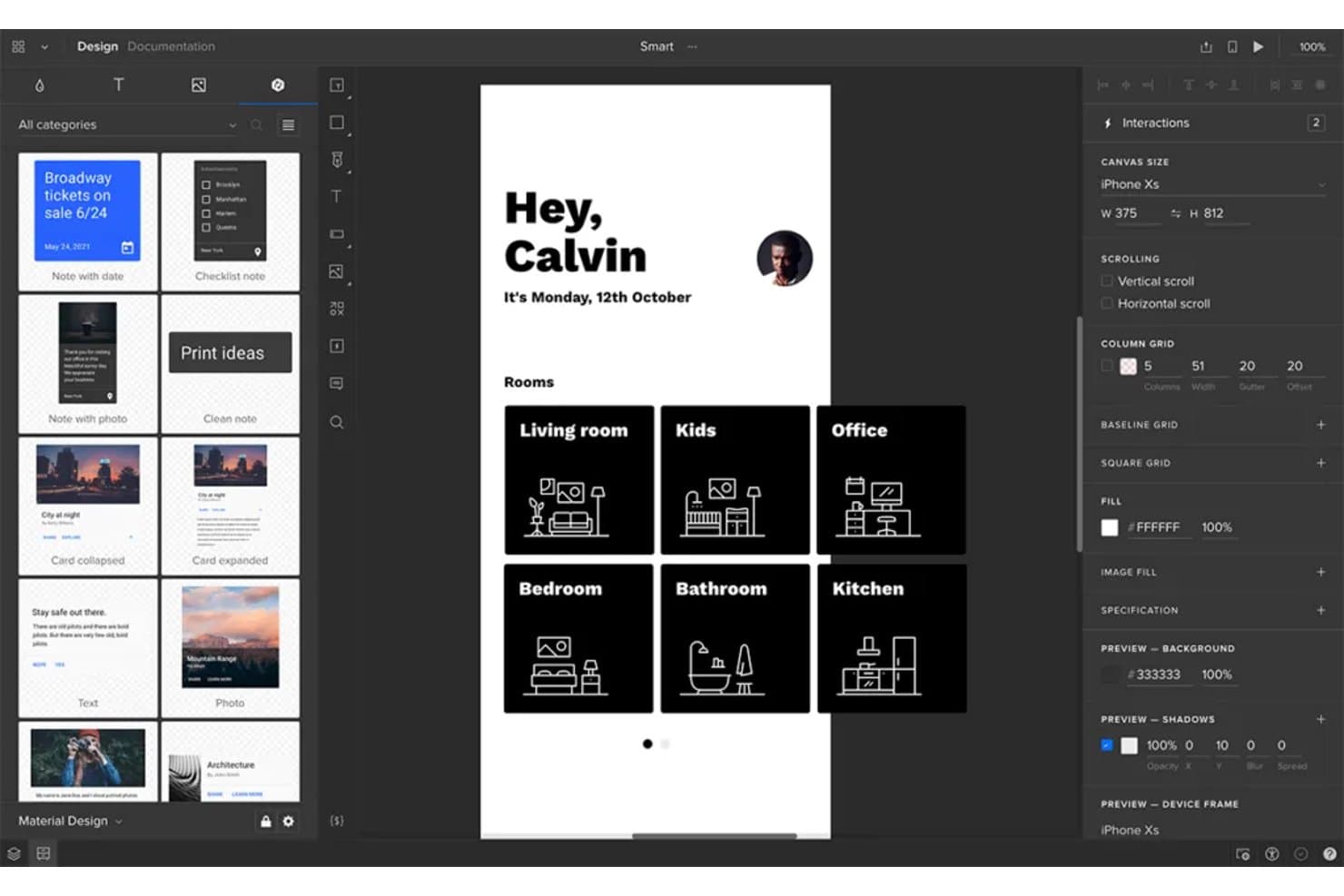
UXPin lets product managers prototype smart home app screens visually. UXPin is a high-fidelity prototyping tool that lets teams build interactive prototypes using real code components, conditional logic, variables, and dynamic states.
Who Is UXPin Best For?
UXPin fits design-led product teams that need prototypes to behave like real applications, especially when developer handoff is a recurring bottleneck.
Why I Picked UXPin
UXPin earns its spot on my shortlist because it closes the gap between design and development better than any other tool I've tested. When my team builds prototypes using Merge, we're working with the same React components developers will ship—so handoff isn't a conversation about intent, it's a transfer of actual code. I also rely on UXPin's conditional logic and variables to prototype complex app states and edge cases that static tools simply can't replicate.
UXPin Key Features
- Real-time collaboration: Multiple team members can work on the same prototype simultaneously across all plans.
- Password-protected preview links: Share prototypes securely with stakeholders using password protection, included on every plan.
- Version history: Review and restore earlier prototype versions, with history ranging from 7 days on Core to unlimited on Enterprise.
- AI Component Creator: Generate UI layouts using OpenAI and Claude models directly within the design environment.
UXPin Integrations
UXPin offers integrations with Git and Storybook, plus a Figma plugin and Sketch import. Git is available on Enterprise, while Storybook is included with Growth and higher plans.
Pros and Cons
Pros:
- Logic supports complex product workflows
- Shared components reduce developer handoff friction
- Realistic prototypes expose edge cases early
Cons:
- Large projects can suffer performance slowdowns
- High-fidelity workflows slow quick concept sketching
Learn more about UXPin: Best for Creative Cloud users prototyping in Adobe
- Free trial available
- From $22.99/month (billed annually)
Visit WebsiteCustomer Rating:4.3/5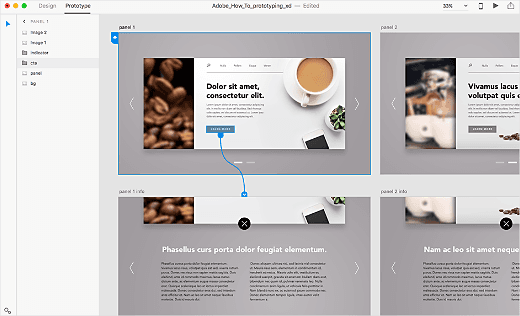
Adobe XD has professional prototyping features and integrates deeply with Creative Cloud. Adobe XD is a vector-based UI design and prototyping tool that covers wireframing, interactive prototype creation, component libraries, and developer handoff specs within a single desktop application.
Who Is Adobe XD Best For?
Adobe XD fits design teams already working in the Creative Cloud ecosystem who need fast, interactive prototyping without switching between apps.
Why I Picked Adobe XD
Adobe XD earns its spot as one of the best on my shortlist because it's the natural prototyping home for teams already deep in Creative Cloud. I love how Auto-Animate turns matching layers across artboards into micro-interactions without any extra setup, which makes it easy to show stakeholders exactly how a UI will feel before a single line of code is written. Component states let you wire Hover and Toggle behaviors directly into reusable components, so your prototype stays clean and your design system stays intact.
Adobe XD Key Features
- Shareable prototype links: Generate public, password-protected, or private links so stakeholders can review flows and leave comments without a paid Adobe license.
- Developer handoff specs: Publish design specs with dimensions, spacing, typography, and CSS snippets so developers can inspect and download assets directly.
- Multiple flows: Organize distinct user flows within a single document, each with its own shareable link for targeted stakeholder reviews.
- Creative Cloud Libraries: Publish and sync shared color palettes, character styles, and components across documents and Adobe apps to maintain design system consistency.
Adobe XD Integrations
Adobe XD has native integrations across Adobe Creative Cloud, including Photoshop, Illustrator, After Effects, Creative Cloud Libraries, and Adobe Fonts. Its marketplace integrations include Jira Cloud, while Slack, Zoom, Microsoft Teams, and Azure AD support broader collaboration and enterprise workflows.
Pros and Cons
Pros:
- Design specs clarify developer handoffs
- Shareable prototypes support stakeholder feedback
- Auto-Animate visualizes realistic product interactions
Cons:
- Collaboration requires Adobe IDs for coediting
- Maintenance mode limits future capability growth
 Best for linking requirements to prototypes
- Free plan available
- From $19/user/month
Visit WebsiteCustomer Rating:4.2/5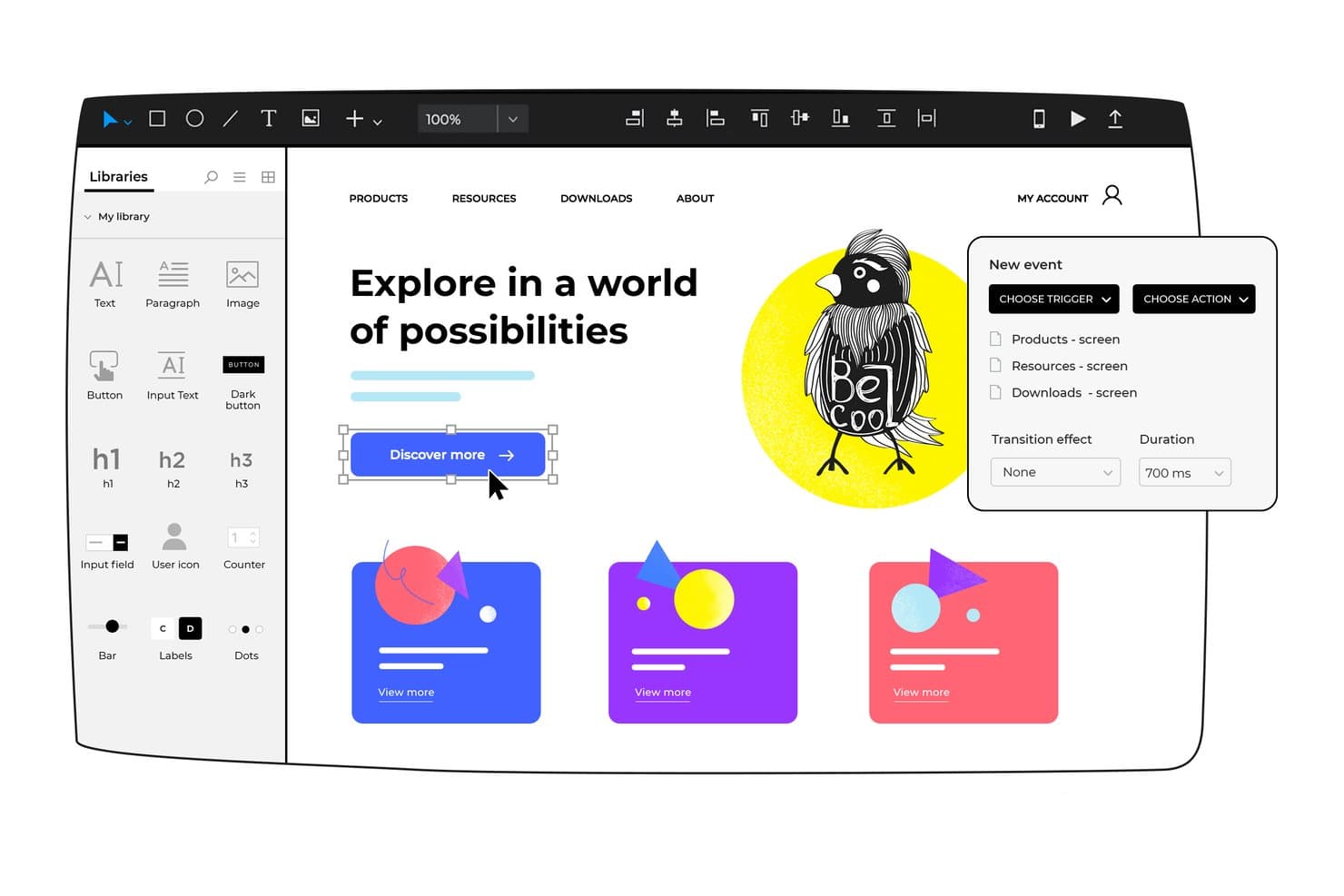
Justinmind lets users add interactive triggers and screen navigation to prototypes. Justinmind is a desktop-based prototyping tool for web and mobile apps that combines wireframing, high-fidelity UI design, interactive prototype creation, and requirements management with built-in Jira and Azure DevOps sync.
Who Is Justinmind Best For?
Justinmind is a strong fit for product managers and UX designers who need functional, data-driven prototypes and want built-in requirements tracking tied directly to their development workflow.
Why I Picked Justinmind
Justinmind earns its spot on my shortlist because it's the only tool here that runs as a native desktop app, meaning you can build and test prototypes entirely offline without losing a single feature. I particularly like its requirements management capability: you can capture and version requirements, link them directly to prototype components, and sync everything to Jira or Azure DevOps automatically. That connection between a prototype and a living requirements document is something I haven't seen done this cleanly elsewhere.
Justinmind Key Features
- Conditions and variables: Set logic rules that control when actions fire and pass data between screens to build prototypes that behave like real products.
- CSV data import: Load your own data files directly into prototypes to simulate realistic, data-driven user experiences during testing.
- Perpetual license option: Purchase a one-time license instead of a subscription, giving your team predictable long-term software costs.
- Multi-device testing: Preview and test prototypes directly on real mobile devices through the Justinmind mobile app alongside browser-based testing.
Justinmind Integrations
Justinmind offers native integrations with Jira, Azure DevOps Boards, and Doors on Enterprise. It also provides a Sketch plugin and API/SDK for custom integrations.
Pros and Cons
Pros:
- Requirements stay linked to prototype components
- Functional forms and data grids model workflows
- Offline desktop work preserves prototype access
Cons:
- Weak microinteractions reduce polished interaction demos
- No browser app limits team accessibility
Learn more about Justinmind: Best for conditional logic in prototypes
- Free plan available
- From $29/user/month (billed annually)
Visit WebsiteCustomer Rating:3.6/5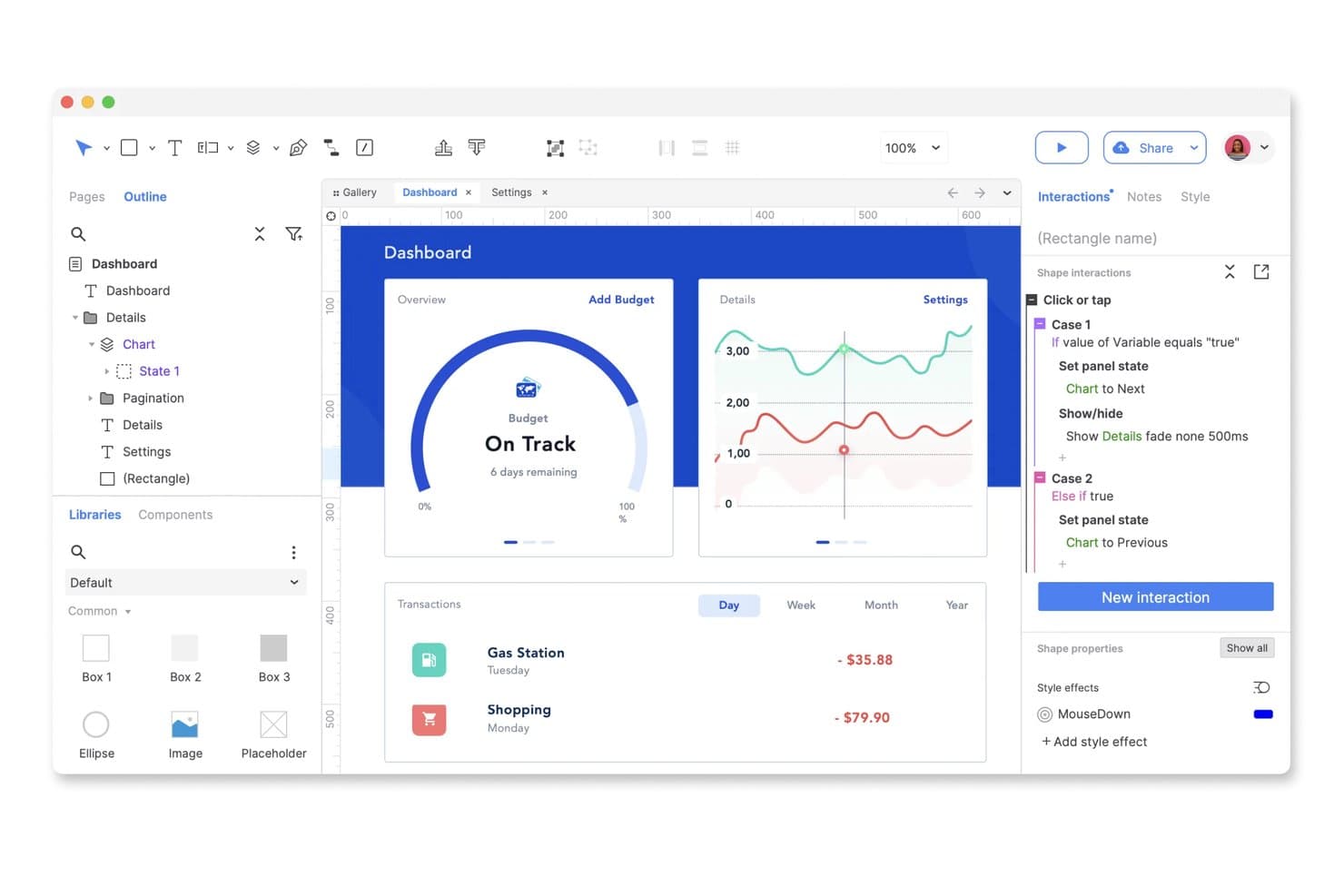
Axure lets users define conditional interactions for dynamic prototypes. Axure RP is a desktop-based prototyping tool that combines wireframing, flow diagramming, and high-fidelity interactive prototyping with conditional logic, variables, dynamic widgets, and developer handoff specs.
Who Is Axure Best For?
Axure is a strong fit for UX designers and design team leads who need to build complex, logic-driven prototypes that behave like real products.
Why I Picked Axure
Axure earns its spot on my shortlist because no other tool comes close for building prototypes that behave like real products. I'm talking conditional logic, global variables, and dynamic panels that handle multi-state UI like modals, carousels, and scrollable containers without writing a single line of code. I especially like the repeater widget, which lets you prototype sortable, filterable data tables so stakeholders can interact with realistic workflows during usability testing rather than clicking through static screens.
Axure Key Features
- Adaptive views: Design a single page that automatically adjusts its layout for desktop, tablet, and mobile screen sizes without duplicating screens.
- Axure Cloud publishing: Share a working prototype instantly via a hosted link where stakeholders can view, inspect, and leave comments without needing an Axure account.
- Jira and Confluence integration: Embed live, interactive prototypes directly into Jira tickets or Confluence pages so development teams can reference them in context.
- Developer inspect: Automatically generates redlines, measurements, and CSS values so developers can pull specs directly from the published prototype.
Axure Integrations
Axure integrates with Jira, Confluence, Slack, Microsoft Teams, Figma, Adobe XD, and Sketch. Jira and Confluence embeds help product teams connect interactive prototypes with delivery planning and documentation.
Pros and Cons
Pros:
- Makes sortable data-table concepts testable
- Combines wireframes and high-fidelity prototypes
- Simulates complex product workflows without code
Cons:
- Real-time co-authoring isn’t universally available
- Complex pages can become buggy
Learn more about Axure RP: Best for vector editing and reusable elements
- 30-day free trial
- From $12/user/month (billed annually)
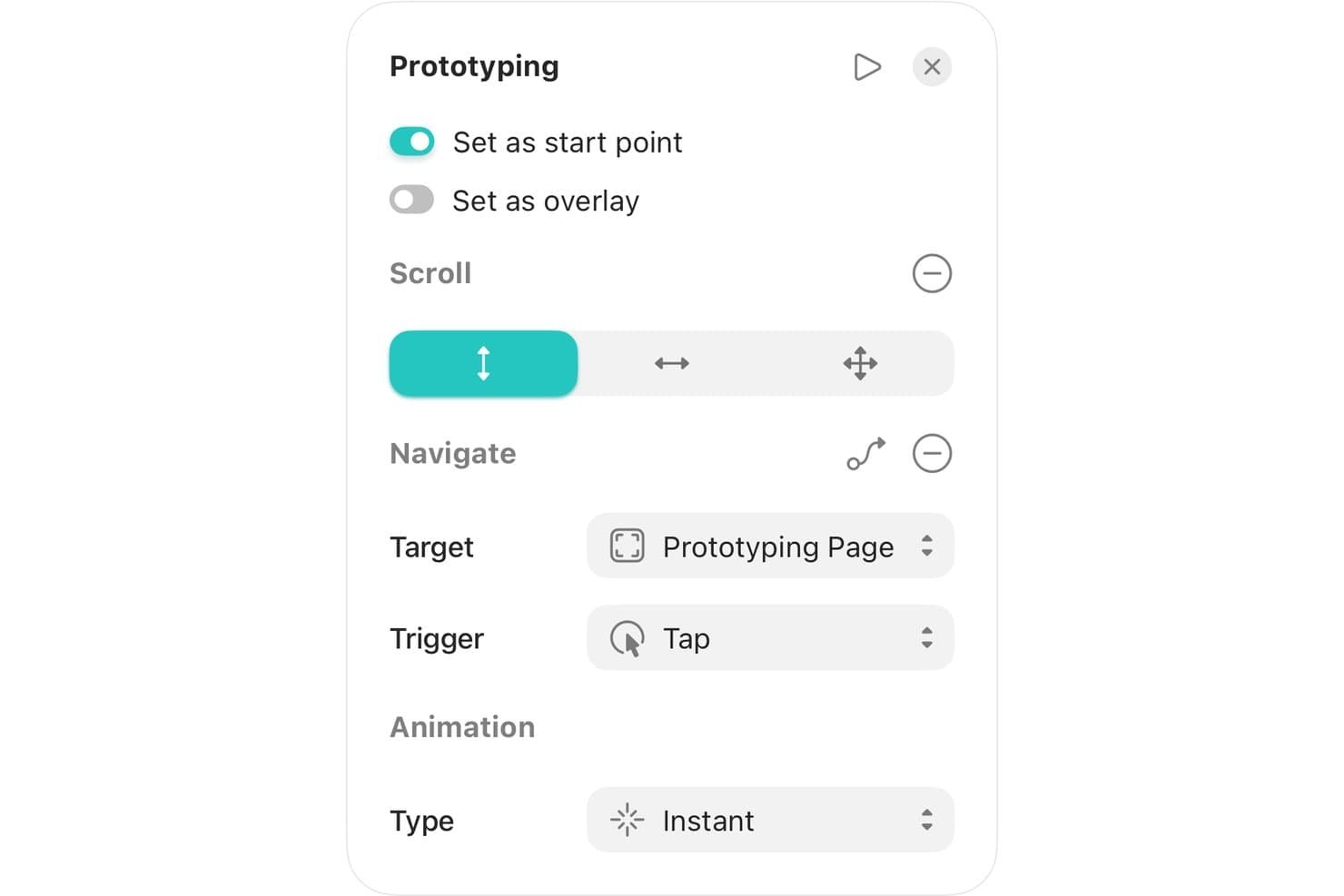
Sketch lets users set triggers, targets, and animations for prototypes. Sketch is a Mac-native design and prototyping tool that combines vector editing, reusable component libraries, interactive prototype creation, and free browser-based developer handoff.
Who Is Sketch Best For?
Sketch is a strong fit for Mac-based design teams that prioritize building and maintaining scalable design systems with reusable components.
Why I Picked Sketch
Sketch earns its spot on my shortlist because its vector editing and component system are genuinely built for teams that need to maintain design consistency at scale. I love that Symbols and shared Libraries let design teams define reusable components once and propagate updates across every document in the workspace. In practice, that means developers get browser-based handoff with CSS values, measurements, and asset exports without needing a paid seat or a Mac.
Sketch Key Features
- Smart Animate: Adds animated transitions between linked frames with control over easing, duration, and direction.
- Password-protected preview links: Share specific pages or prototypes via links with optional passwords and expiry dates.
- Free browser-based developer handoff: Developers access measurements, CSS values, and asset exports without a paid seat or a Mac.
- Design tokens export: Color variables, layer styles, and text styles export as design tokens via download or a live public link.
Sketch Integrations
Sketch lists integrations with Jira, Notion, Slack, GitHub, ProtoPie, Principle, Origami, Proto.io, Zeplin, and Overflow. Its developer platform supports custom plugins for extending workflows.
Pros and Cons
Pros:
- Smart Animate clarifies flows before development
- Free viewers simplify stakeholder and developer review
- Reusable libraries maintain consistent product patterns
Cons:
- Basic interactions limit complex concept validation
- Mac required for design editing
Learn more about Sketch: Best for multi-device interaction testing
- Free plan available
- From $25/month (billed annually)
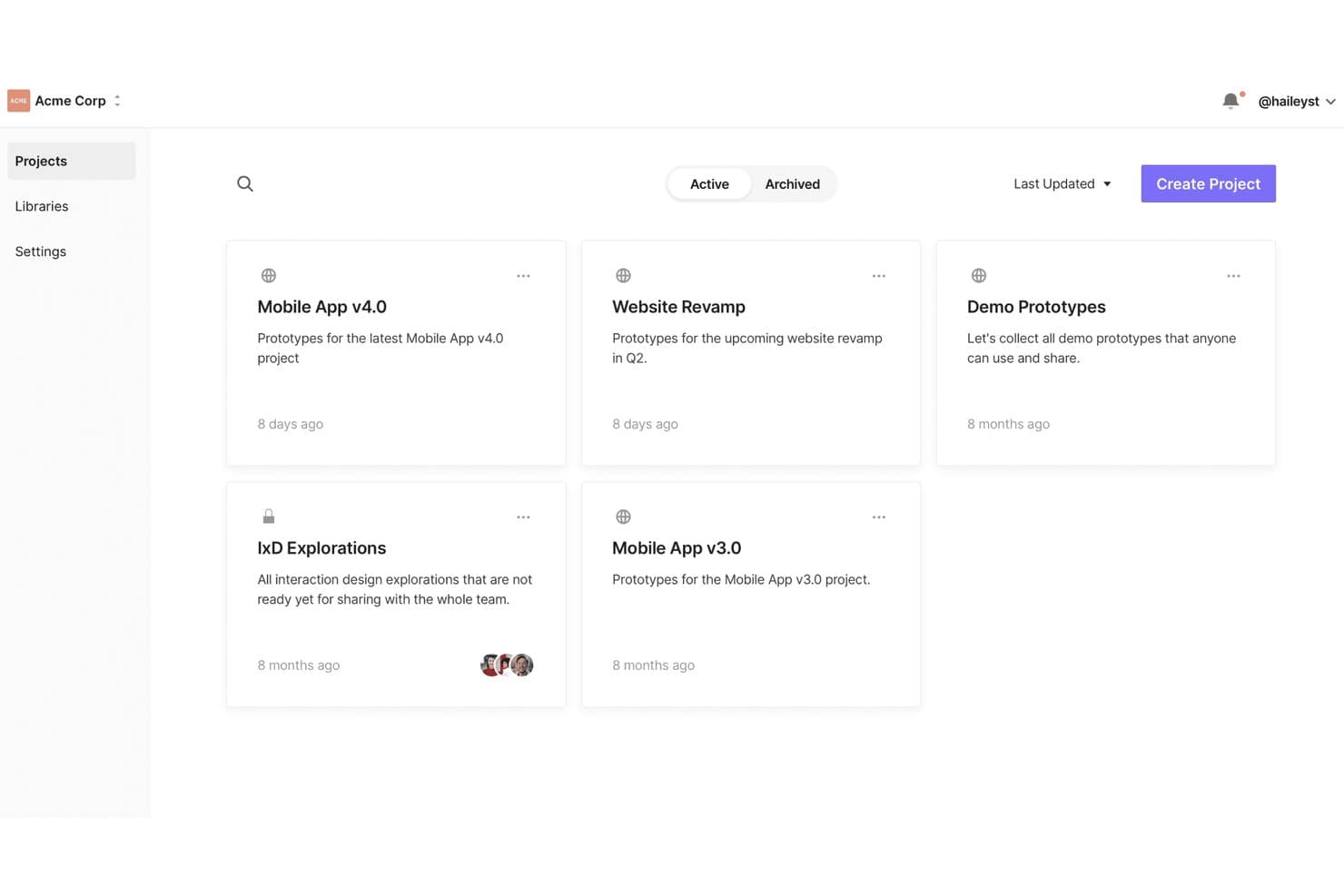
ProtoPie organizes prototypes into shared team projects for collaboration. ProtoPie is a logic-driven prototyping tool that lets you build high-fidelity, interactive prototypes using a trigger-based interaction system, conditional variables, device sensor inputs, and multi-device simulation.
Who Is ProtoPie Best For?
ProtoPie is a strong fit for UX designers and product teams working on complex, interaction-heavy products like automotive, IoT, or multi-device experiences.
Why I Picked ProtoPie
ProtoPie earns its spot as one of the best on my shortlist because no other tool comes close for multi-device interaction testing. I love that ProtoPie Connect lets you sync prototypes across a phone, a smartwatch, and an automotive dashboard simultaneously, so you can validate real cross-device logic before a single line of code is written. Its trigger-based interaction system also supports live device sensors like the gyroscope and camera, which I've found invaluable for testing IoT and in-vehicle UX in conditions that actually reflect how users interact with the product.
ProtoPie Key Features
- Conditional logic and variables: Build interactions with if/else conditions, formulas, and variables—no code required—to simulate real app behavior like input validation.
- ProtoPie AI interaction builder: Describe an interaction in plain language using @layer mentions, and ProtoPie generates the trigger-response logic directly in your prototype.
- Built-in user testing: Run moderated or in-person usability sessions with session replays, task completion metrics, and first-action tracking inside ProtoPie itself.
- Dev View handoff: Share an inspection link for your prototype, scenes, or individual layers so developers can review interaction timing, easing, and layer properties without a ProtoPie account.
ProtoPie Integrations
ProtoPie integrates with Figma, Sketch, Adobe XD, Lookback, UserTesting, Maze, Unity, and Arduino. ProtoPie Connect provides an API and custom plugin support for connecting prototypes with data sources and hardware.
Pros and Cons
Pros:
- Delivers precise motion and interaction recordings
- Tests prototypes across devices and hardware
- Simulates complex, code-like interactions
Cons:
- No real-time co-editing or layout redlines
- Depends on imported visual designs
Learn more about ProtoPie: Best for native-behavior mobile UI components
- 15-day free trial
- From $24/user/month (billed annually)
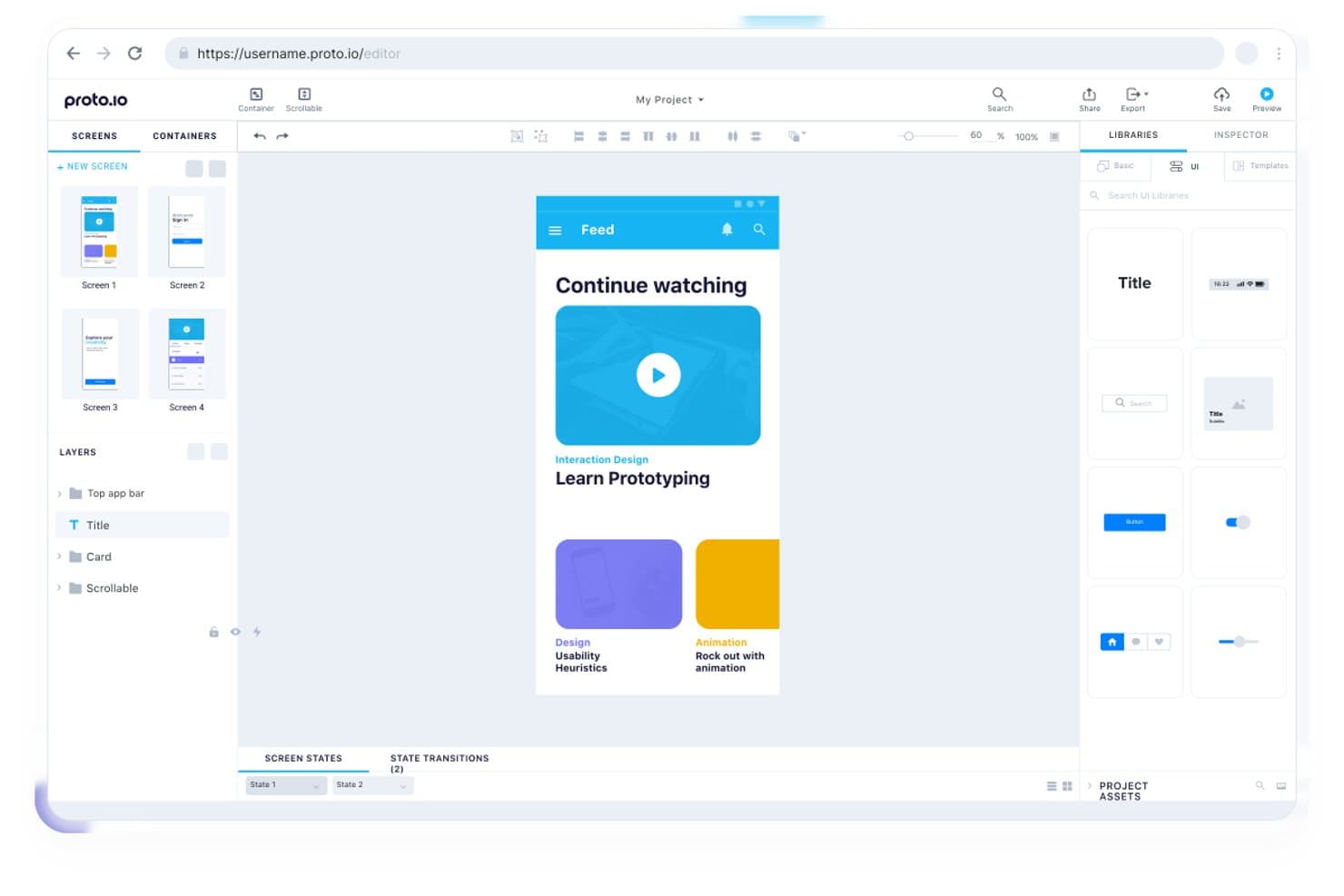
Proto.io lets product managers design and preview interactive mobile app prototypes. Proto.io is a browser-based prototyping tool that lets you build interactive mockups across fidelity levels, with a drag-and-drop editor, 80+ interaction events, timeline animations, and built-in component libraries spanning iOS, Android, web, and Windows UI patterns.
Who Is Proto.io Best For?
Proto.io is a strong fit for UX designers and product teams who need a deep library of native-behaving components to build realistic, high-fidelity prototypes quickly.
Why I Picked Proto.io
Proto.io earns its spot on my shortlist because of how deep its built-in asset library goes: 250+ native-behaving UI components across iOS, Android, and web, 1,000+ templates for common flows like onboarding and checkout, and 6,000+ assets including animated icons and sound effects. I've found this especially useful when building high-fidelity prototypes fast, since you're not hunting for external resources. The components don't just look native, they behave like it, which makes stakeholder demos feel closer to a real product.
Proto.io Key Features
- Variables and conditional logic: Set variables and build conditional rules that change what happens in your prototype based on user input or state.
- Timeline animations: Control animations frame by frame with duration, delay, and easing settings, including custom cubic-bezier curves and Spring RK4 physics.
- Jira, Confluence, and Trello embeds: Embed prototypes directly into product management tools so stakeholders can review them without leaving their workflow.
- Share link controls: Generate multiple share links per prototype, each with independent access settings, password protection, and view analytics.
Proto.io Integrations
Proto.io integrates with Jira, Confluence, Trello, Figma, Sketch, Adobe XD, Photoshop, UserTesting, UserZoom, Userlytics, Lookback, and UXArmy. It also supports YouTube, Vimeo, Google Fonts, Adobe Fonts, and Lottie.
Pros and Cons
Pros:
- Detailed prototype sharing and feedback controls
- Realistic interactions without writing code
- Extensive native-behaving asset library
Cons:
- No dedicated developer inspection mode
- Large projects can load slowly
Learn more about Proto.io: 10Best for validating ideas as working apps
Lovable
- Free plan + free demo
- From $21/month (billed annually)
Visit WebsiteCustomer Rating:4.5/5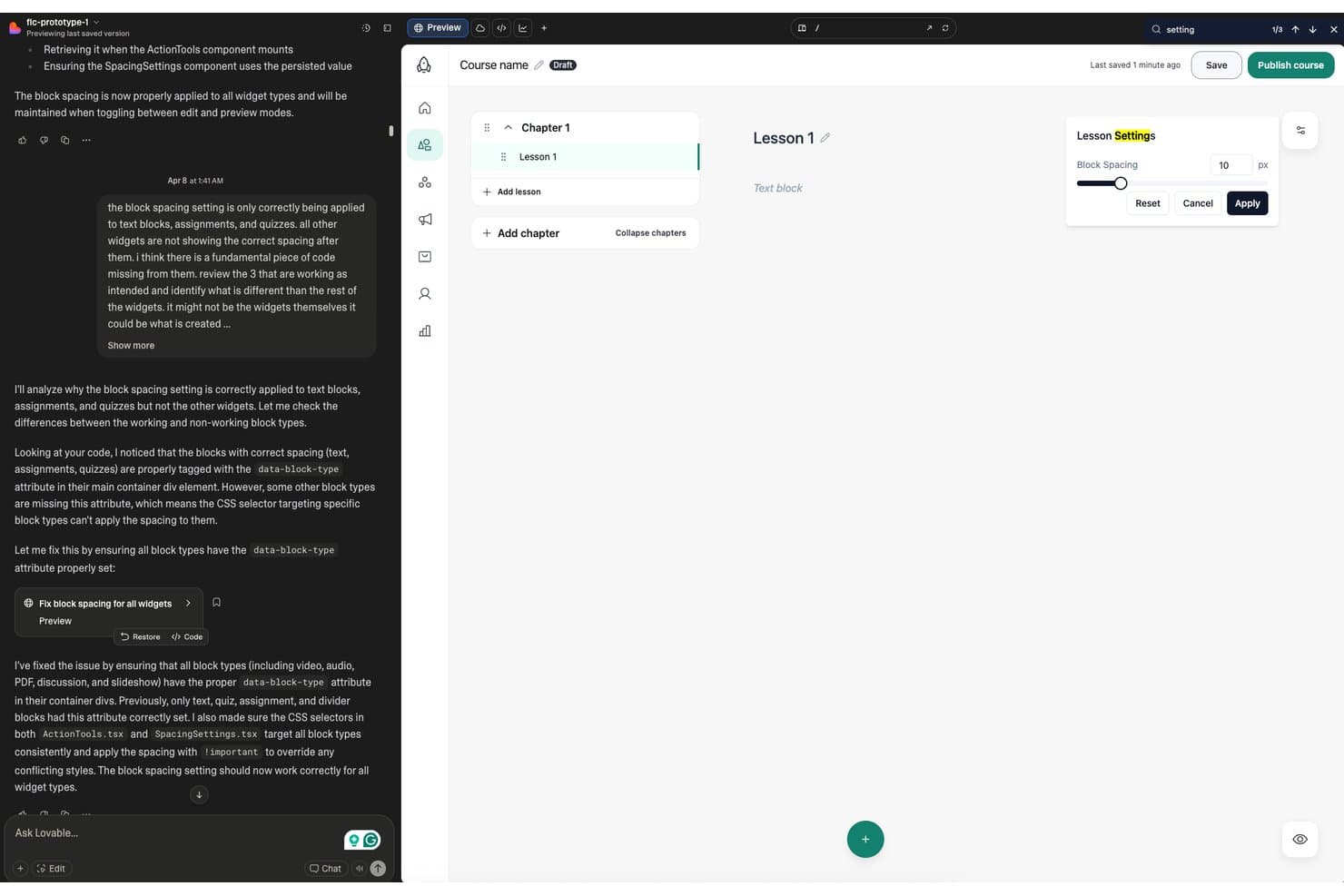
Lovable lets users adjust block spacing across all widget types visually. Lovable is an AI-powered, full-stack app builder that turns natural-language prompts into working, deployable web apps with real navigation, authentication, data persistence, and editable React code.
Who Is Lovable Best For?
Lovable is a strong fit for product managers and code-comfortable builders who want to validate ideas as real, working apps rather than simulated click-through mockups.
Why I Picked Lovable
I picked Lovable as one of the best because it skips the mockup entirely and builds a real, running web app from a plain-language prompt. When I describe a feature like "add user authentication," Lovable generates working auth pages, routing, and logic—not a simulation. That means I can share a preview link with stakeholders and they're clicking through a live product, not a prototype that fakes it. Plan mode also lets me review and edit the AI's build plan before a single line of code changes, which keeps validation tight.
Lovable Key Features
- Project comments: Pin threaded comments directly to elements in the live preview, reply, react with emoji, and send any thread straight to the AI as a build instruction.
- Figma import: Bring in designs via a Figma plugin, MCP connection, or .fig upload to use frames, components, and design variables as prompts.
- Two-way Git sync: Sync your project with GitHub, GitLab, or Bitbucket so developers can pull, extend, and contribute code in familiar tools.
- Shareable preview links: Share a view-only link to your running app with stakeholders who need no Lovable account to view or leave comments.
Lovable Integrations
Lovable integrates with Figma, GitHub, GitLab, Bitbucket, Slack, Notion, HubSpot, and Google Workspace. Custom REST connectors and MCP servers support additional integrations.
Pros and Cons
Pros:
- Editable React output supports developer iteration
- Guest comments turn feedback into build instructions
- Working flows validate concepts beyond click-throughs
Cons:
- No redlines or measurement-based handoff specs
- No dedicated low-fidelity wireframing workflow
Learn more about Lovable:
Other Prototyping Tools
Here are a few more powerful prototype design software that didn’t make the top list.
- 11AlloyBest for prototyping using your live codebase
- 12v0 by VercelBest for prompt-to-production code prototyping
- 13BalsamiqBest for creating quick, lo-fi wireframes
- 14MarvelPrototyping tools with user testing features
- 15MockplusBest for advanced team collaboration features
- 16PenpotBest for open-source, self-hosted team prototyping
- 17VisilyBest for non-designers prototyping with AI
- 18WebflowBest for design-to-code web prototyping
- 19InfragisticsBest for turning designs into code
- 20BananiBest for AI-generated multi-screen prototypes
Related Product Management Tool Reviews
If you still haven't found what you're looking for here, check out these other related tools that we've tested and evaluated.
- Best Product Management Tools
- Best Product Planning Software
- Best UX Design Tools
- Best Product Development Software
- Best Product Analytics Tools
- Best Idea Management Software
How I Evaluate Prototyping Tools
I split my evaluation into three parts. First—and most important—is core functionality: can the tool link screens into interactive flows and support both rough wireframes and polished high-fidelity designs? Then I look at standout features like advanced animation engines. Finally, I consider pricing value and onboarding quality.
Core Functionality (Table Stakes For This List)
When I'm selecting tools for my list, I score each one on a scale from 0 (does not offer the functionality) to 5 (excels in this area) for each core functionality listed below. I then convert the total into a percentage to help assess each tool's overall fit, with extra weight on any functionalities I've deemed essential.
- Interactive Prototyping (Essential): I check whether linked screens support triggers like hover, tap, and drag—plus transitions and conditional logic that make flows feel real.
- Multi-Fidelity Design (Essential): The tool should let you start with rough wireframes and progress to polished visuals in one workspace without switching apps.
- Real-Time Collaboration: I look for live co-editing with cursors, inline comments, and version history so distributed teams can work on the same file simultaneously.
- Shareable Preview Links: Reviewers should open a link and interact with the prototype—no login required. Password protection and commenting access matter here too.
- Component and Asset Libraries: Shared libraries with reusable components, variants, and version control keep design systems consistent across projects and teams.
- Developer Handoff Specs: I evaluate whether the tool auto-generates spacing, sizing, and color specs—and whether engineers can inspect and export assets without extra plugins.
Once I have a list of tools that meet the criteria, I consider what sets each platform apart.
Differentiating Factors (What Sets Vendors Apart)
Here's how I compare and contrast different vendors:
Standout Features
I evaluate each tool's animation engine first—teams prototyping mobile apps need micro-interactions and physics-based motion to simulate a near-native feel before writing any code. Design-to-code generation is another factor I check closely. Tools like Framer and Anima can export React or CSS from high-fidelity screens, which shortens the gap between a validated prototype and a production build. I also look at plugin ecosystems, since add-ons for accessibility checks or data population extend a tool's usefulness without forcing your team into a second app.
Beyond Features
I check how well each tool fits into a cross-functional workflow. A prototyping tool that connects to Jira or Confluence lets you link screens directly to user stories, which saves PMs from manually updating tickets. Onboarding speed matters too—tools with starter templates and community-built UI kits get non-designers contributing faster. I also evaluate vendor stability, since acquisitions in the design tool space can shift roadmaps overnight and leave teams mid-migration.
How To Choose Prototyping Tools
With so many different prototyping solutions available, it can be challenging to make decisions on what prototyping tool is going to be the best fit for your needs.
As you're shortlisting, trialing, and selecting prototyping tools, consider the following:
- What problem are you trying to solve - Start by identifying the prototyping feature gap you're trying to fill to clarify the features and functionality the prototyping tool needs to provide.
- Who will need to use it - To evaluate cost and requirements, consider who'll be using the software and how many licenses you'll need. You'll need to evaluate if it'll just be the product designers, or the whole organization that will require access. When that's clear, it's worth considering if you're prioritizing ease of use for all, or speed for your prototyping tool power users.
- What other tools it needs to work with - Clarify what tools you're replacing, what tools are staying, and the tools you'll need to integrate with, such as accounting, CRM or HR software. You'll need to decide if the tools will need to integrate together, or alternatively, if you can replace multiple tools with one consolidated prototyping tool.
- What outcomes are important - Consider the result that the software needs to deliver to be considered a success. Consider what capability you want to gain, or what you want to improve, and how you will be measuring success. Outcomes could range from improving visibility into performance to supporting niche needs—like prototyping for Android apps.
- How it would work within your organization - Consider the software selection alongside your workflows and delivery methodology. Evaluate what's working well, and the areas that are causing issues that need to be addressed. Remember every business is different — don’t assume that because a tool is popular that it'll work in your organization.
Trends in Prototyping Tools
Prototyping tools are becoming more sophisticated, offering designers and developers the ability to quickly iterate and test design concepts in highly interactive and user-centered ways. Here are several key trends that I believe will continue to impact prototyping software and the product design industry in future.
- Voice Interaction Prototyping: With the rise of voice-activated devices and interfaces, prototyping tools are incorporating features to design, test, and iterate voice interactions. This trend addresses the growing need to create seamless voice-driven user experiences, emphasizing the importance of natural language processing and conversational UI in modern product design.
- Enhanced Real-time Collaboration Features: Collaboration features are becoming more sophisticated, with real-time co-editing, commenting, and version control becoming standard. This trend underscores the importance of teamwork and communication in the prototyping process, enabling remote teams to work together more effectively.
- Adoption of AI and Machine Learning: Teams are increasingly turning to AI-powered prototyping tools for capabilities such as automatic layout adjustments, content generation, and usability testing predictions. These innovations point towards a future where prototyping software can offer predictive insights and automate repetitive tasks, allowing designers to focus on creativity and problem-solving.
- Augmented Reality (AR) and Virtual Reality (VR) Prototyping: As AR and VR technologies become more mainstream, prototyping software is expanding capabilities to include immersive environment design and interaction testing. This reflects the demand for creating engaging and interactive user experiences that leverage spatial computing, highlighting the move towards more immersive digital products.
- Accessibility Testing and Design Features: Prototyping tools are increasingly incorporating features that facilitate the design of accessible and inclusive products. This includes built-in accessibility testing, guidelines, and compliance checks, underscoring the importance of creating digital experiences that are usable by people with a wide range of abilities.
The trends in this space not only indicate a push towards more efficient and collaborative design workflows, but also highlight the industry's response to the growing demand for immersive, intuitive, and accessible applications. As these trends continue to evolve, they will not only shape the future of prototyping software but also influence the broader landscape of product design and development.
What are prototyping tools?
A prototyping tool is a software platform that helps create interactive and visual prototypes during the design and development of products. These tools serve as a bridge between conceptualizing ideas and implementing them, offering a way to test and refine the user interface and functionality before the actual development phase. The way they do this is through features such as drag-and-drop interface design, interactive element creation, user flow mapping, collaboration features for team feedback, and the ability to simulate user interactions.
Prototyping tools empower designers to visualize and validate their concepts efficiently, resulting in more user-friendly and effective products.
Features of Prototyping Tools
Prototyping tools are essential for designers and developers looking to bring their ideas to life. These tools allow users to visually iterate and test design concepts before committing to the final product. The right features in a prototyping tool can streamline the design process, foster creativity, and ensure the end product meets user needs effectively. Here are some of the most important features to look for in prototyping tools:
- Ease of Use - A user-friendly interface and intuitive controls ensure that designers can focus more on their creative process rather than on navigating the software.
- Interactivity - Allows for the creation of clickable prototypes that mimic real-world interactions. Interactivity is key to understanding how users will interact with your design.
- Collaboration - Enables team members to work together in real-time or asynchronously. Collaboration features ensure that feedback and changes are integrated seamlessly, improving the design's quality.
- Responsiveness - Facilitates the design of prototypes that adapt to various screen sizes and devices. This is essential in a world where users access content across a multitude of devices. See our full roundup of responsive design prototyping tools for more recommendations.
- Integration - Offers compatibility with other design and development tools. Integration capabilities allow for a smoother workflow and less friction moving between different stages of product development.
- Feedback Mechanisms - Provides ways to gather and manage user feedback directly within the tool. Feedback mechanisms are crucial for iterating on design based on actual user input.
- Version Control - Keeps track of changes and allows for reverting to earlier versions. Version control is a safety net that supports experimentation without the risk of losing work.
- High-Fidelity Prototypes - Supports the creation of prototypes that closely resemble the final product. High-fidelity prototypes, also known as high-fidelity wireframes, are important for accurate user testing and stakeholder presentations.
- Export Capabilities - Allows for exporting designs in various formats for further development or presentation. Export capabilities ensure that your work can be easily shared and integrated into the final product.
Storyboarding software can also play a valuable role alongside prototyping tools, helping teams visualize user journeys and plan interactions before diving into high-fidelity designs. - Customization - Offers extensive customization options to tailor the tool to your specific needs. Customization ensures that the tool can adapt to your workflow, not the other way around.
Choosing the right prototyping tool with these features can significantly impact the success of a project. It not only enhances the design process but also helps in creating a product that truly meets user expectations. As someone deeply involved in the design and development process, I find these features indispensable for bringing creative visions to life efficiently and effectively.
Benefits of Prototyping Tools
Prototyping tools can be invaluable assets for any user or organization involved in the design and development of digital products. As such, understanding the benefits of prototyping tools can help potential buyers to make an informed decision. Here are five primary benefits of prototyping tools:
- Accelerated Feedback Cycle - By using prototyping tools, users and organizations can quickly iterate on designs based on real user input, significantly speeding up the development process and ensuring the final product aligns with user expectations.
- Improved Collaboration - Prototyping tools offer collaborative features that allow teams to work together more efficiently, regardless of their physical location, leading to a cohesive product vision and faster decision-making.
- Cost Reduction - By identifying and addressing design issues early in the process, prototyping tools can save organizations significant amounts of money that would otherwise be spent on costly post-launch corrections.
- Enhanced User Experience - Through interactive prototypes, designers can ensure that the user interface is intuitive and accessible, which is critical for the success of the final product in meeting user needs.
- Risk Mitigation - By testing prototypes that mimic the final product, organizations can avoid the risks associated with launching a product that might not meet market needs or expectations, thereby protecting their investment and brand reputation.
These benefits highlight how prototyping tools not only enhance the efficiency and effectiveness of product development, but also contribute to creating a more engaging and successful final product. Making the right choice in a prototyping tool can therefore foster innovation within any team and provide businesses with a significant competitive advantage.
Costs & Pricing for Prototyping Tools
When exploring prototyping software, it's crucial for buyers to understand the variety of plan and pricing options available.
Prototyping tools often come with a range of plans tailored to meet different needs, from individual designers to large teams and organizations. These plans are designed to scale with the growth of your project or business, offering various features and functionalities at each level.
Understanding the specifics of each plan will help you make an informed decision that aligns with your budget and prototyping requirements.
Plan Comparison Table for Prototyping Tools
| Plan Type | Average Price | Common Features Included |
|---|---|---|
| Plan TypeIndividual | Average Price$12 - $30/month | Common Features IncludedAccess to basic prototyping features, limited projects, single user access, basic customer support |
| Plan TypeProfessional | Average Price$40 - $100/month | Common Features IncludedAdvanced prototyping features, unlimited projects, team collaboration tools, priority customer support |
| Plan TypeTeam | Average Price$100 - $200/month | Common Features IncludedAll professional features plus team management tools, more collaboration options, increased storage |
| Plan TypeEnterprise | Average PriceCustom Pricing | Common Features IncludedCustomizable features, advanced security options, dedicated support, training and onboarding, API access |
| Plan TypeFree | Average Price$0 | Common Features IncludedBasic prototyping functionality, limited number of projects, community support, access to a core set of tools |
Choosing the right plan involves balancing your current needs with future growth. Consider starting with a free or lower-cost plan to familiarize yourself with the tool's capabilities before scaling up as your project or team's needs evolve. Each plan offers a different set of features and support levels, so evaluate what's most important for your prototyping process.
Prototyping Tools Frequently Asked Questions
Find answers to common questions other people ask about this topic.
What are prototyping tools in product management?
Prototyping tools allow teams to design representations of apps and websites without using code. High-quality prototypes let designers add both visual and navigational elements to the app to give people a better idea of how the tool will work. Depending on your product, you might craft prototypes, wireframes, or both.
Many of these tools include collaboration and feedback features that let multiple people work on a project at once. The major benefit of prototype software is that you can create the design and iron out any issues before handing the project off to a developer.
Check This Out: 10 Best ALM Software For Managing Digital Product Life Cycles
What is the difference between low and high-fidelity prototyping?
Low-fidelity prototypes are a mock-up created towards the beginning of the product development life cycle. They are used to illustrate roughly how a website or app will work to address a customer need. At this stage, the specifics of how the product will operate are not necessary.
High-fidelity prototypes are used to validate the solution before it reaches the customer. They contain the fine details, and are created towards the end of the product life cycle.
It’s important to mention that while these two have clear differences, none will be correct if you don’t perform an accurate gathering of product requirements.
What types of user feedback mechanisms are integrated into prototyping tools?
Collecting and integrating user feedback is a crucial feature that significantly enhances the design process. These tools are equipped with various mechanisms to streamline feedback directly within the prototyping interface, making it easier for teams to iterate and evolve their designs based on real user interactions. Here’s a breakdown of common feedback features you might find in prototyping tools:
- Commenting Systems: Most tools allow users to leave comments directly on the prototype screens. This is especially useful during review sessions, where stakeholders can pinpoint specific elements and suggest improvements.
- Interactive Annotations: Some tools provide options to add annotations that explain design decisions or provide more context to specific interactions within the prototype.
- Usability Testing Integration: Advanced tools integrate features that facilitate usability testing, capturing user interactions and reactions to the prototype. This can include heat maps, click tracking, and session recordings.
- Version Control: This feature allows teams to manage and track changes made based on feedback, ensuring that everyone is working on the most current version of the design.
- Live Collaboration: Real-time collaboration features enable teams to gather and discuss feedback instantaneously, making it easier to make decisions and apply changes on the fly.
- Surveys and Questionnaires: Integrated survey or questionnaire modules help gather structured feedback from users, which is crucial for quantitative analysis in larger test groups.
These features not only make it easier to collect feedback but also help in effectively analyzing and implementing it, ensuring that the final product meets user expectations and achieves the intended design goals. By leveraging these integrated feedback mechanisms, teams can enhance the efficiency of their prototyping process and improve the overall quality of their designs.
What are wireframes, prototypes, and mockups, and how are they different?
- Wireframes are basic outlines of a design that focus on structure and layout. They define where elements like navigation, text, and images will go but do not include detailed visuals, colors, or interactivity.
- Prototypes are interactive models of a design that simulate functionality. They allow users to test how elements work, such as clicking buttons, navigating screens, or completing workflows, to evaluate usability and user experience.
- Mockups are static, high-fidelity representations of a design. They focus on the visual aspects, like colors, fonts, and imagery, to showcase the final look of the product without including interactive features.
Each serves a specific purpose: wireframes define structure, prototypes validate functionality, and mockups present the finished visual design. Together, they guide the design process from concept to completion
Are there any prototyping tools specifically tailored for mobile app development?
Yes, there are prototyping tools specifically tailored for mobile app prototyping, designed to address the unique needs of mobile interfaces and user experiences. These tools often come with features that cater specifically to mobile development, enhancing both the design and testing phases. Here’s what you can typically expect from such tools:
- Device-Specific Templates: Pre-designed templates that mimic various mobile devices, including smartphones and tablets, allowing designers to see how apps will look on actual devices. There are even Andoid prototyping tools and other device-specific platforms.
- Touch Gestures: Support for mobile-specific gestures such as swipes, taps, and pinches, enabling designers to create more interactive and realistic prototypes.
- Adaptive Views: Features that allow prototypes to adapt to different screen sizes and orientations, crucial for responsive design across multiple devices.
- Mobile-First Widgets and Components: Libraries of UI elements specifically tailored for mobile interfaces, which can be dragged and dropped to build designs quickly.
- App Simulation: Allows designers to simulate the behavior of the app on a mobile device directly from the desktop environment, providing a better sense of user flow and interaction.
- Integration with Mobile Development Environments: Some tools offer integration with mobile development platforms or provide export options that are compatible with mobile development frameworks, smoothing the transition from prototype to development.
These tools help ensure that mobile apps are not only visually appealing but also functional and user-friendly, providing a seamless transition from concept to fully functional mobile application.
Are there any free prototyping tools available?
Absolutely, there are several free prototyping tools available, which are ideal for individuals or small teams starting out in app and web development. These tools often come in “freemium” versions, meaning they’re free to use initially with some limitations, like:
- Feature Limits: Free versions typically restrict access to more advanced features like high-fidelity prototyping, real-time collaboration, or advanced user testing functionalities.
- Project Caps: There might be a limit on the number of projects you can manage at once or the number of screens you can design.
- Export Restrictions: Exporting your prototypes to different formats or integrating them with other tools might be limited, which can be a hurdle in more professional settings.
- Support and Resources: Access to customer support or comprehensive training materials is often limited, which might slow down troubleshooting or learning.
These tools are a great way to dip your toes into the world of prototyping without upfront investment, although scaling up or accessing premium features might require a paid subscription.
What are the key features of prototyping tools?
Here are a few key features to notice:
- Reusable elements: Websites and apps often have similar features. A reusable element library means you don’t have to start from scratch every time, helping with more rapid prototyping.
- Interactions: There are many ways for users to interact with websites and apps, from traditional tools like a mouse and keyboard, to touch controls on your phone. A responsive prototype tool allows you to create responses for different actions.
- Animations: Some tools allow you to add animations to your designs. For example, the background image could change as you scroll through the page.
- Code export: Some tools create code based on the prototype. Your developers can export this and use it as a starting base when designing their product.
- Collaboration: Product prototyping often involves multiple stakeholders. Most of the tools on this list enable collaboration through sharing, notes, and comments.
- Vector creation: This allows you to create scalable images and icons from within the prototyping software.
What other design tools can I use?
If a prototyping tool isn’t the right fit for your needs, there are plenty of other design tools out there that might suit you better. Check out some of our other design tool reviews: