

As a product manager, you face constant pressure to deliver projects that not only meet client demands but also adapt to diverse devices and screen sizes. The struggle to keep pace with rapid design changes can be overwhelming, impacting your team’s efficiency and creativity.
Responsive design prototyping tools can simplify the design process, helping your team create adaptable, user-friendly interfaces. In my experience, these tools are essential for bridging the gap between design and development.
In this article, I'll share an unbiased review of the best tools available, focusing on features that address your specific challenges. You'll find insights into how these tools can improve your workflow and boost your team’s productivity.
Why Trust Our Software Recommendations
6,700+
Reviews
20
Industry experts
16+
Evaluation factors
14
Years
Our team has been testing and reviewing software since 2012. As product managers ourselves, we know how difficult—and important—it is to choose the right software.
For this guide, we evaluated tools using hands-on testing and independent research, scoring tools using our selection criteria.
Our reviews reflect our human editorial judgment, not a sales pitch.
Expert reviewers:
- Andrew LumbySenior TPM
- Cristiano ValimSenior UI/UX Lead


Responsive Design Prototyping Tools Comparison Table
This comparison table summarizes pricing details for my top responsive design prototyping tools selections:
| Tool | Best For | Trial Info | Price | ||
|---|---|---|---|---|---|
| 1 | Best for Figma-to-code responsive handoff | Free plan available | From $20/user/month (billed annually) | Website | |
| 2 | Best for prototypes that export real framework code | 7-day free trial | From $14/month (billed annually) | Website | |
| 3 | Best for prototypes that ship as real apps | Free plan available | From $39/month | Website | |
| 4 | Best for dev-team responsive prototyping | Free plan available | From $24/user/month (billed annually) | Website | |
| 5 | Best for production-ready responsive prototyping | Free plan available | From $39/month (billed annually) | Website | |
| 6 | Best for web-based collaboration | Free plan available | From $16/user/month | Website | |
| 7 | Best for design system integration | Free plan + 14-day free trial available | From $29/user/month (billed annually) | Website | |
| 8 | Best for interactive wireframes | Free plan available | From $19/user/month | Website | |
| 9 | Best for versatile macOS vector design | 30-day free trial | From $12/user/month (billed annually) | Website | |
| 10 | Best for complex prototypes | 30-day free trial | From $29/user/month (billed annually) | Website |


Best Responsive Design Prototyping Tool Reviews
Below are my detailed summaries of the best responsive design prototyping tools that made it onto my shortlist. My reviews offer a detailed look at the key features, pros & cons, integrations, and ideal use cases of each tool to help you find the best one for you.
 Best for Figma-to-code responsive handoff
- Free plan available
- From $20/user/month (billed annually)
Visit WebsiteCustomer Rating:4.2/5This rating combines scores from multiple user review sites to reflect overall customer sentiment about the product.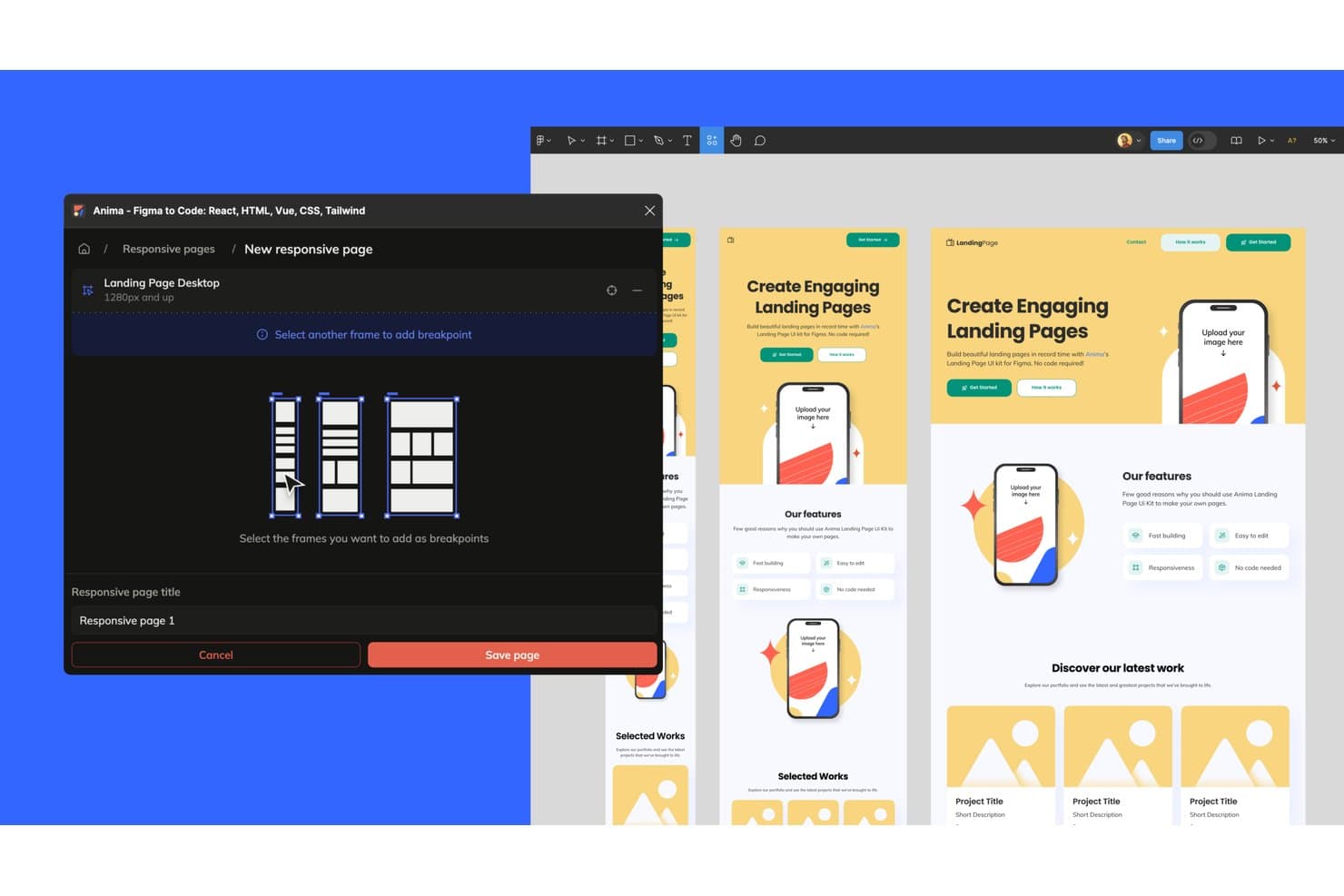
Anima lets users save responsive breakpoints across device sizes. Anima is a design-to-code platform that converts Figma designs into responsive, interactive prototypes and exportable HTML, React, or Vue code, with support for breakpoints, auto layout, and multi-screen flows.
Who Is Anima Best For?
Anima suits front-end developers and product teams who need prototypes that hand off as real, exportable code rather than static specs.
Why I Picked Anima
I picked Anima as one of the best because it's the only tool on this list where the prototype is the code. When you design across separate Figma frames for desktop, tablet, and mobile, Anima converts each frame's width into a CSS media query breakpoint, wiring them into one shareable link. The auto layout-to-Flexbox conversion means responsive behavior isn't approximated; it's structurally accurate. That's a meaningful difference when your handoff needs to be React or Vue, not a static spec.
Anima Key Features
- Multi-framework code export: Export your Figma designs as HTML, React, Vue, or Next.js code with styling options including Tailwind, CSS Modules, and styled-components.
- GitHub push: Send generated code directly to a GitHub repository from within Anima, keeping your codebase and design in sync.
- AI Playground flow builder: Connect screens by typing plain-language prompts in the Flow tab, wiring navigation between screens without writing code.
- Figma design system import: Bring your Figma design system into Anima to generate a live Storybook with variants, states, props, and tokens available across your team.
Anima Integrations
Anima offers documented integrations with Figma and GitHub, plus MCP connectivity for Claude Code, Cursor, and GitHub Copilot. Its API, SDK, and CLI support custom integrations.
Pros and Cons
Pros:
- Prototypes run as exportable real code
- Auto layout translates into CSS Flexbox
- Frame widths become responsive breakpoints
Cons:
- Contributor edits can overwrite changes
- No branching logic or variables
Learn more about Anima: Best for prototypes that export real framework code
- 7-day free trial
- From $14/month (billed annually)
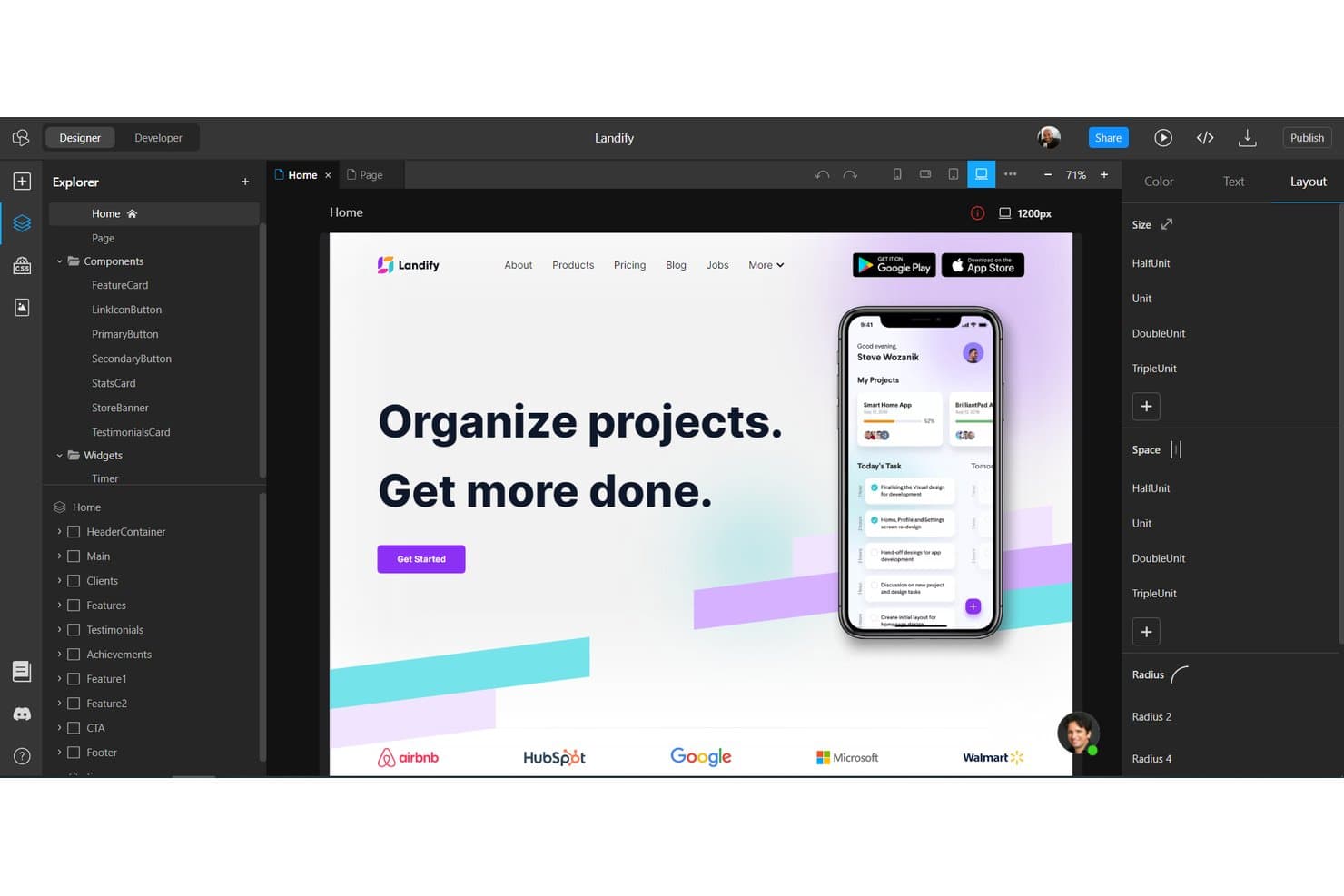
TeleportHQ lets users design responsive layouts with a visual drag-and-drop editor. TeleportHQ is a low-code web builder and prototyping tool that combines a visual editor with real CSS breakpoint controls, reusable components, design tokens, and code export across frameworks like React, Vue, Angular, and HTML.
Who Is TeleportHQ Best For?
TeleportHQ is a strong fit for developer-leaning teams who need prototypes that produce deployable React, Vue, or Angular code rather than static mockups.
Why I Picked TeleportHQ
I picked TeleportHQ as one of the best because it's the only tool on my list where the prototype is the production code. It ships real React, Vue, Angular, and HTML output, not a static mockup you hand off later. I also like that its built-in breakpoint system (991px, 767px, and 479px) lets you style each viewport independently in the visual editor, so what you're previewing accurately reflects production behavior.
TeleportHQ Key Features
- Conditional rendering: Toggle component-level states and events to build interactive UI patterns like tabs, accordions, and mobile menus directly in the editor.
- Live code panel: View generated React, Vue, Angular, or HTML/CSS code update in real time as you make visual edits on the canvas.
- Design tokens: Define and manage reusable color, typography, and spacing tokens across your project to maintain visual consistency at scale.
- Real-time co-editing: Multiple team members can edit the same project simultaneously, with a follow mode that lets you track a collaborator's live selections.
TeleportHQ Integrations
TeleportHQ offers integrations with Figma, GitHub, Vercel, Strapi, Contentful, and Google Analytics. It also connects to REST APIs, Supabase, PostgreSQL, Airtable, Google Sheets, and other data sources.
Pros and Cons
Pros:
- Supports real-time collaborative prototype reviews
- Provides genuine breakpoint-specific visual editing
- Exports working React and Vue prototypes
Cons:
- Offers no inspect mode or device mirroring
- Conditional flows require Developer mode testing
Learn more about TeleportHQ: Best for prototypes that ship as real apps
- Free plan available
- From $39/month
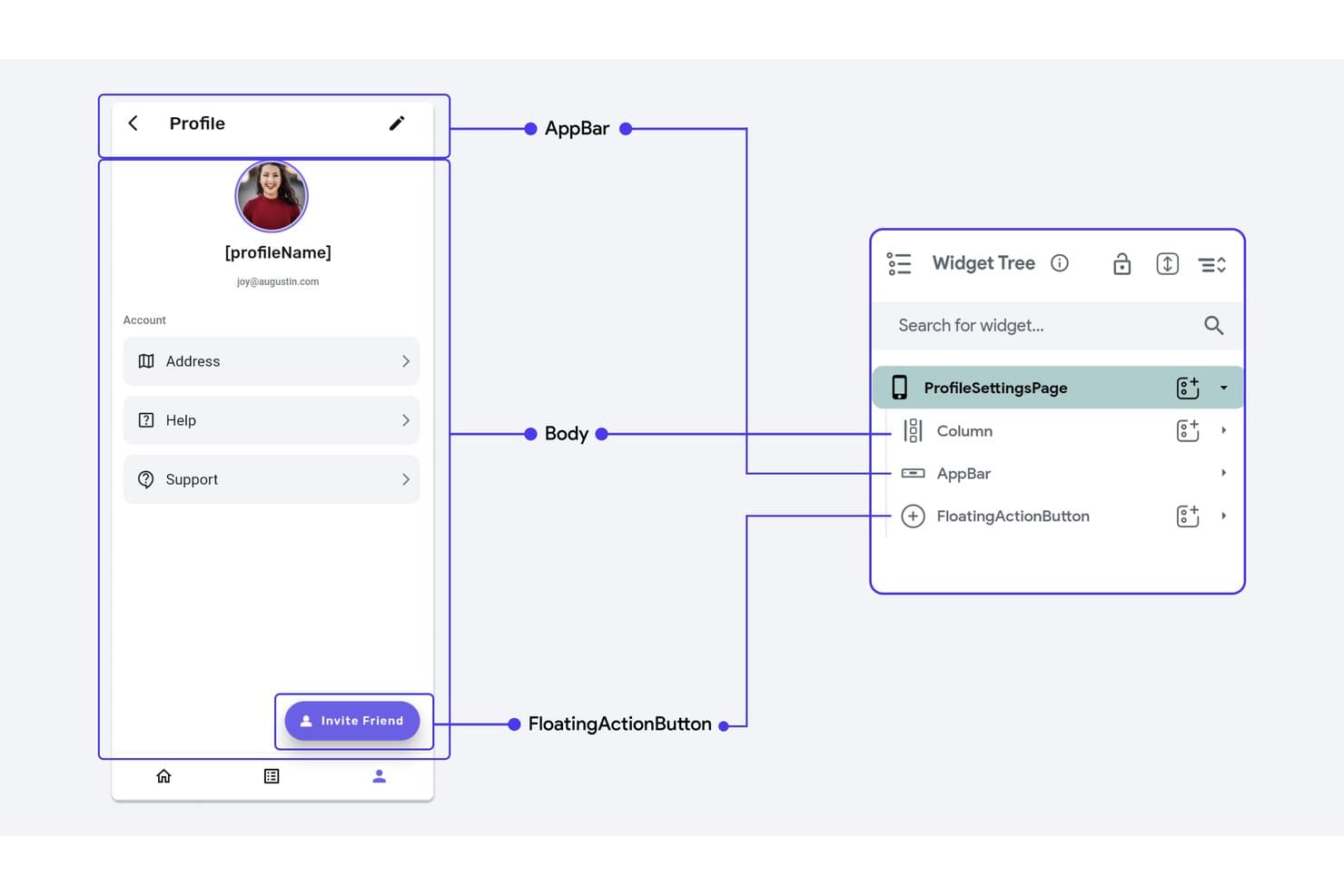
FlutterFlow's widget tree maps scaffold elements for responsive layouts. FlutterFlow is a visual, low-code builder that lets you create responsive prototypes for mobile, web, and desktop using real Flutter logic, conditional flows, and exportable production-ready code.
Who Is FlutterFlow Best For?
FlutterFlow suits product managers and developers who need prototypes that double as shippable apps, not just click-through mockups.
Why I Picked FlutterFlow
I've included FlutterFlow in my top picks because it's the only tool on this list where your prototype can become your actual product. Its Action Flow Editor lets you attach real conditional logic, state variables, and loops to UI elements, so a multi-step onboarding flow you build to test with stakeholders is already production-ready code. I also like that per-breakpoint responsive values and responsive visibility controls let you show entirely different navigation components on mobile versus desktop, not just scaled-down versions of the same layout.
FlutterFlow Key Features
- Action Flow Editor: A node-based visual editor that attaches conditional branches, loops, and state variables to UI triggers like taps, page loads, and gestures.
- Test Mode with QR code: Runs a live web build you can open on a real phone via QR code or shared link, with a debug panel showing live variable values.
- Design system library publishing: Publish your colors, typography, and theme widgets as a versioned library that other projects can import and pin to specific versions.
- FF Designer: A companion AI screen generator that produces editable screens from prompts, which you can copy directly into your FlutterFlow project.
FlutterFlow Integrations
FlutterFlow supports integrations with Firebase, Supabase, REST APIs, Swagger/OpenAPI, Figma, GitHub, and VS Code, plus CLI, Project API, and MCP server support for custom development workflows.
Pros and Cons
Pros:
- Physical-device testing catches layout issues
- Logic-driven flows validate real interactions
- Per-breakpoint controls support responsive layouts
Cons:
- Preview mode omits APIs and authentication
- No inspect panel for design handoff
Learn more about FlutterFlow : Best for dev-team responsive prototyping
- Free plan available
- From $24/user/month (billed annually)
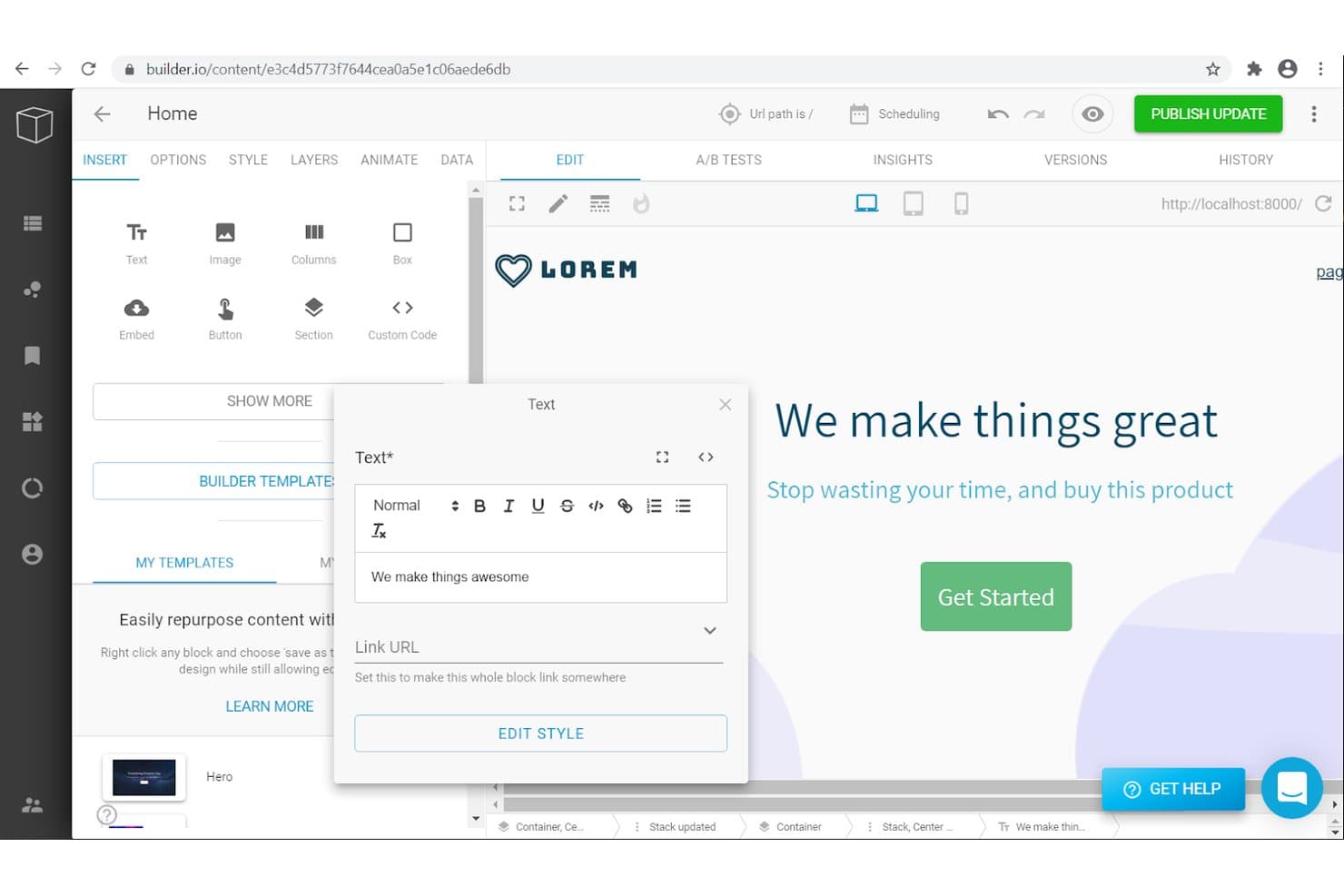
Builder.io lets users edit and prototype responsive text content visually. Builder.io is an AI-assisted visual development platform that lets teams build responsive prototypes as real, running code using their own design system, supported frameworks, and Git-based workflows.
Who Is Builder.io Best For?
Builder.io is a strong fit for front-end developers and technical product teams who want prototypes to double as real, shippable code from day one.
Why I Picked Builder.io
I've included Builder.io in my top picks because it's the only tool on this list where a responsive prototype is actual, runnable code in your own repo from the start. I love that breakpoint styles cascade down by pixel width, so a layout adjustment at tablet size won't silently break your desktop view. When you import multiple Figma frames at once, Builder maps each frame to a real breakpoint, giving dev teams a responsive component built on your existing design tokens rather than a throwaway mockup.
Builder.io Key Features
- Interact mode: A fully working preview environment where you can test user flows, hover states, button logic, and interactive elements against live product data.
- Element-pinned comments: Pin feedback directly to specific components in a branch, with automatic screenshots attached and a "Fix in AI chat" option to hand the comment straight to the AI.
- Design System Intelligence: Scans your repo, npm packages, and Figma files to catalog your components, tokens, and icons, then enforces them through Strict Mode.
- Figma-to-code output: Converts Figma designs into production-ready code across React, Vue, Angular, and Svelte, with Tailwind CSS or CSS Modules styling applied automatically.
Builder.io Integrations
Builder.io offers documented integrations with GitHub, GitLab, Bitbucket, Figma, Slack, Jira, Linear, and more. It also supports APIs and Webhooks.
Pros and Cons
Pros:
- Design tokens guide consistent responsive layouts
- Breakpoint styles cascade across smaller screens
- Prototypes run as production-ready responsive code
Cons:
- Device testing relies on browser previews
- No no-code screen-linking or hotspot builder
Learn more about Builder.io: Best for production-ready responsive prototyping
- Free plan available
- From $39/month (billed annually)
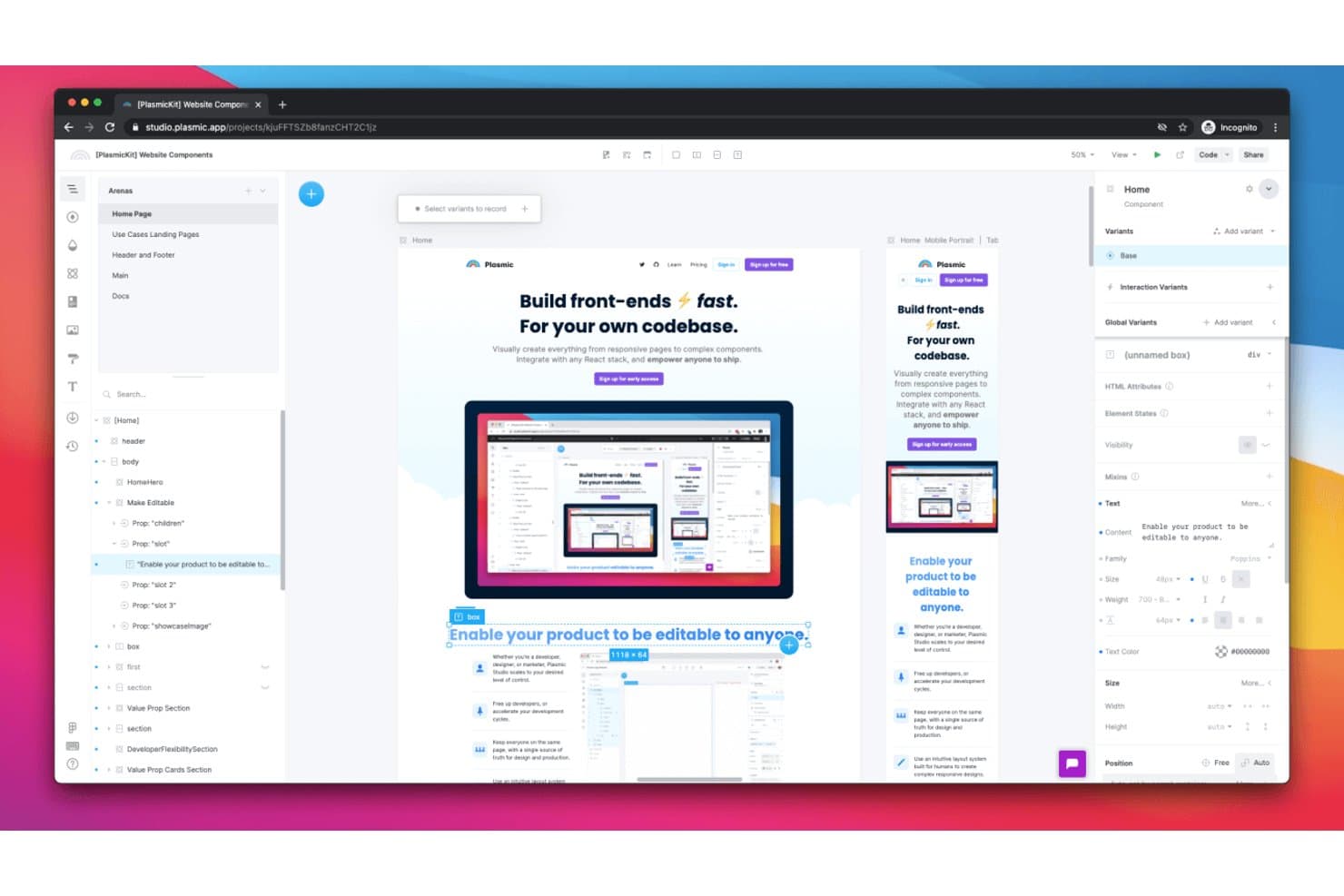
Plasmic lets users design responsive layouts across device sizes visually. Plasmic is an open-source visual builder that lets teams design responsive layouts, define breakpoints, wire up interaction logic, and generate production-ready React code—all within a single environment.
Who Is Plasmic Best For?
Plasmic is a strong fit for front-end developers and product teams who want to design responsive layouts and ship production React code from the same environment.
Why I Picked Plasmic
Plasmic earns its spot on my shortlist because it's the only tool here that closes the gap between responsive prototyping and production code in one environment. I love how screen variants let you define named breakpoints and record per-breakpoint overrides directly on the canvas, so what you see at 768px is exactly what ships. The state and interaction logic goes deep too: I've built conditional visibility, tab switching, and page navigation flows that behave like the finished product, not a simulation.
Plasmic Key Features
- Real-data binding: Connect prototypes directly to live data sources like Supabase, Airtable, or REST APIs so flows reflect actual content, not placeholder text.
- Multiplayer collaboration: Work alongside teammates in real time with shared cursors, in-canvas comment threads, , and role-based access controls.
- Style tokens: Define reusable values for color, spacing, typography, and opacity that map directly to CSS variables in the generated code.
- Codegen and loader sync: Export designs as React components via CLI or pull them at runtime, keeping your codebase in sync as designs change.
Plasmic Integrations
Plasmic offers documented integrations with Figma, GitHub, Vercel, Netlify, Supabase, Airtable, and PostgreSQL, plus REST and GraphQL connectivity. It also supports Zapier, webhooks, and custom integrations on Enterprise.
Pros and Cons
Pros:
- Code-based developer handoff
- Deep state-based interaction logic
- Production-ready responsive layouts
Cons:
- No traditional design specifications
- Limited real-device preview testing
Learn more about Plasmic: Best for web-based collaboration
- Free plan available
- From $16/user/month
Visit WebsiteCustomer Rating:4.7/5This rating combines scores from multiple user review sites to reflect overall customer sentiment about the product.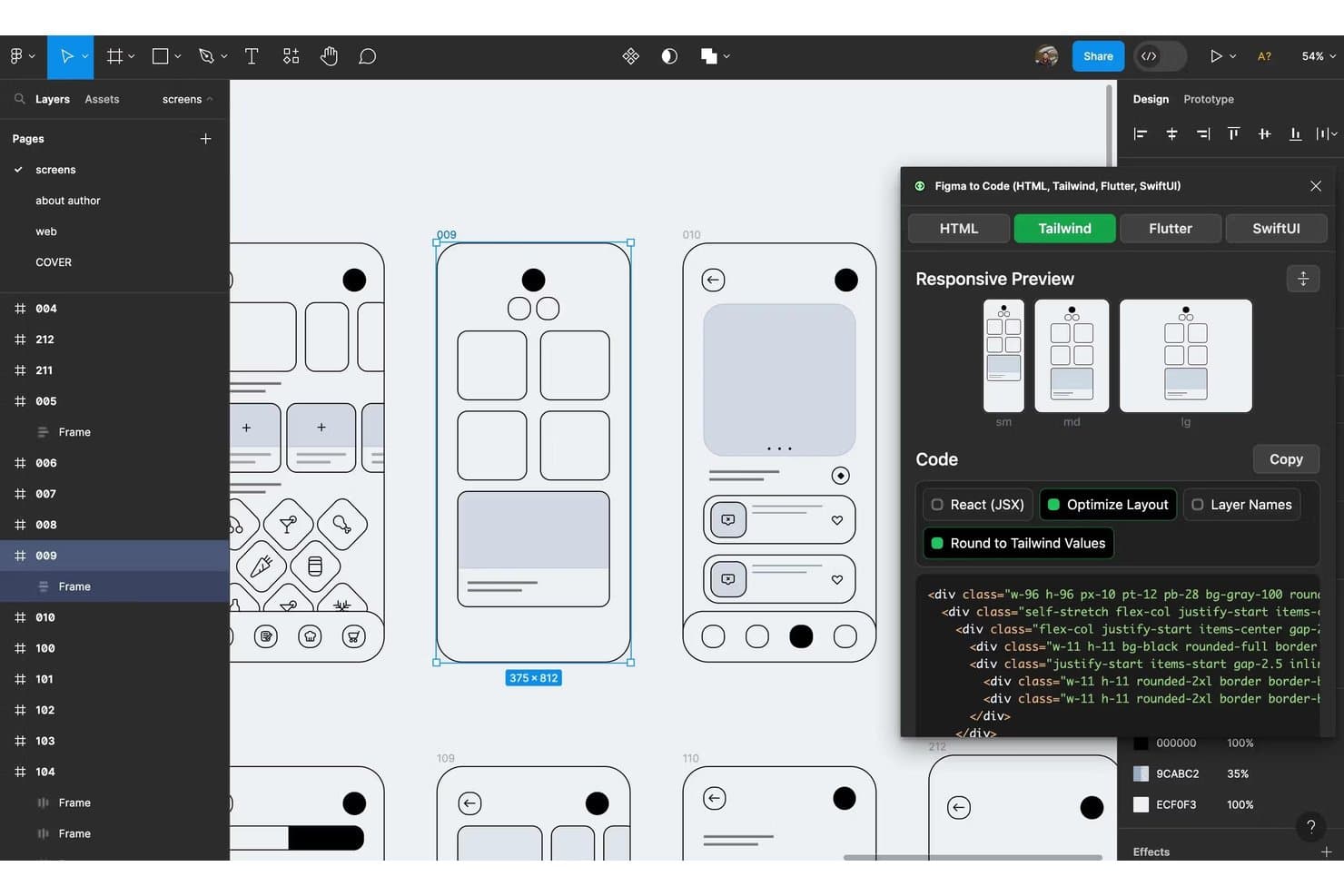
Figma converts designs into responsive Tailwind CSS code instantly. Figma is a browser-based design and prototyping tool that combines interactive prototyping, real-time multiplayer editing, component systems, and developer handoff into a single platform.
Who Is Figma Best For?
Figma is a strong fit for UX/UI designers and front-end developers who need to design, prototype, and hand off work within a single collaborative platform.
Why I Picked Figma
Figma earns its spot on my shortlist because no other tool matches its real-time, browser-based collaboration for design teams working across time zones. I love that multiplayer editing lets designers, developers, and stakeholders co-edit or comment in the same file simultaneously, with no seat required to view or leave feedback. Pair that with Smart Animate and interactive components, and my team can prototype realistic user flows without ever leaving the browser.
Figma Key Features
- Variables and conditional logic: Build complex, multi-state prototype flows using variables, conditional rules, and math expressions across frames.
- Dev Mode with Code Connect: Inspect designs, read auto-generated code snippets, and sync real component code directly to Figma's design specs.
- Figma Make: Generate a working, code-backed prototype or web app from a text prompt, with support for a Supabase backend and direct publishing.
- Auto layout: Create responsive frames that automatically resize and reflow nested elements as content or screen dimensions change.
Figma Integrations
Figma connects with VS Code through its extension, Code Connect, and MCP server, while Supabase supports Figma Make backends. Enterprise teams can use design system APIs for custom integrations.
Pros and Cons
Pros:
- Auto layout adapts nested components
- Advanced logic supports realistic user flows
- Real-time multiplayer design reviews
Cons:
- Large files can experience performance lag
- Limited native breakpoint testing
 Best for design system integration
- Free plan + 14-day free trial available
- From $29/user/month (billed annually)
Visit WebsiteCustomer Rating:4.2/5This rating combines scores from multiple user review sites to reflect overall customer sentiment about the product.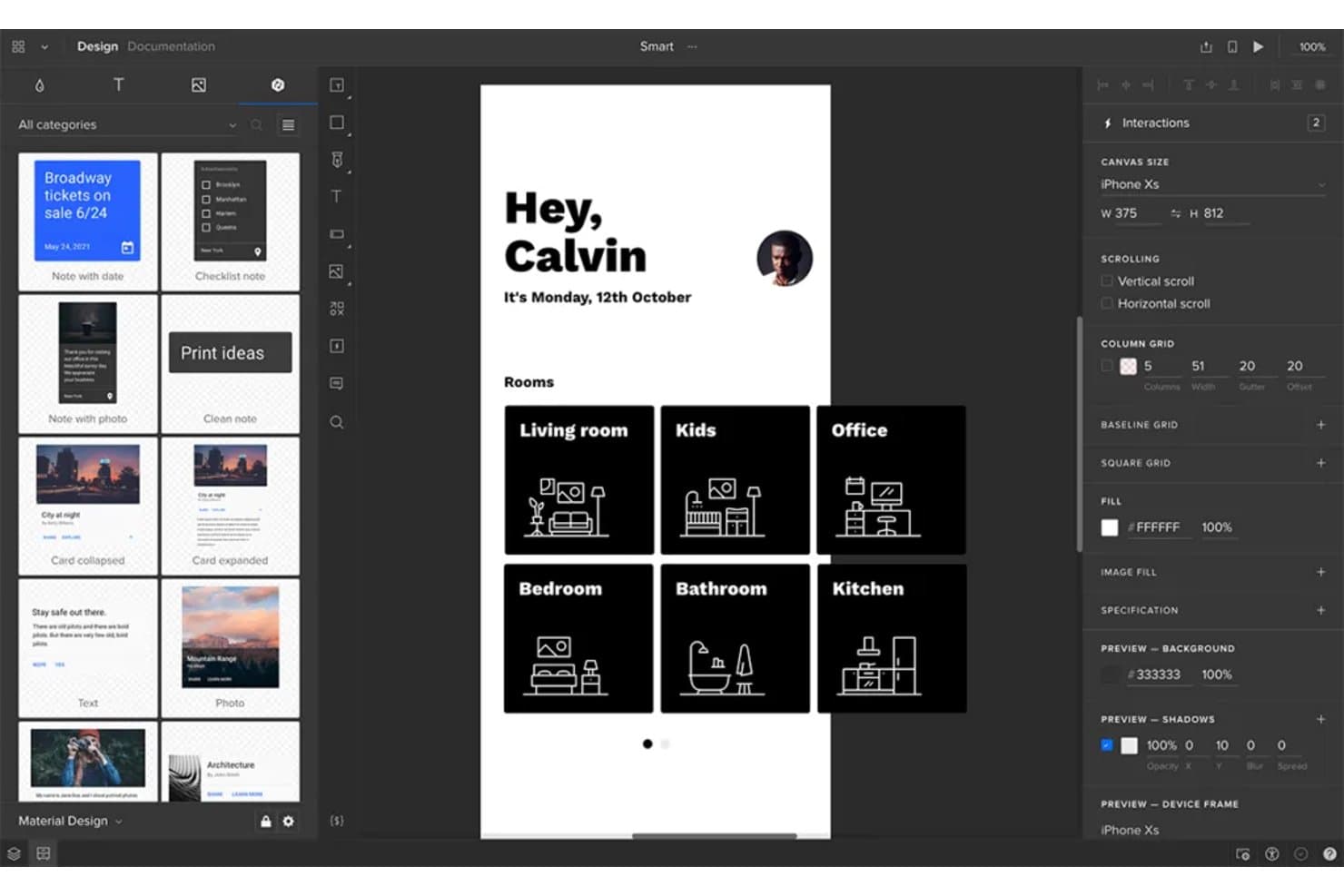
UXPin lets users prototype responsive layouts across device sizes visually. UXPin is a prototyping tool that lets you build interactive prototypes from real coded components, with support for conditional logic, variables, responsive breakpoint previews, and design system integration via Git, Storybook, and npm.
Who Is UXPin Best For?
UXPin is a strong fit for design teams and front-end developers who work within an established design system and need prototypes built from real, coded components.
Why I Picked UXPin
UXPin earns its spot on my shortlist because it's the only prototyping tool where your components are the actual coded components from your product. Through Merge, you can pull in React libraries like MUI, Fluent, or Bootstrap via Git or Storybook, so breakpoint reflow behaves exactly as it would in production. I also like that conditional logic and variables come with the entry-level plan, letting you prototype real decision trees without upgrading.
UXPin Key Features
- Responsive frames: Preview and test prototypes across multiple device sizes and screen widths within a single project, without duplicating your work.
- Built-in component libraries: Core includes MUI; Growth adds Bootstrap, Tailwind, and Ant Design so your team can prototype with real UI frameworks.
- Real-time collaboration: Every plan includes unlimited viewers and commenters, letting stakeholders review and annotate prototypes without needing a paid seat.
- Version history: Track and restore earlier prototype versions, with history extending from 7 days on Core up to unlimited on Enterprise.
UXPin Integrations
UXPin connects to Git, Storybook, and npm through Merge, with MUI, Fluent, Carbon, and Bootstrap libraries for coded-component prototyping. Growth also lists Jira, Slack, and FullStory, while UXPin offers a Figma plugin and Sketch import.
Pros and Cons
Pros:
- Unlimited commenters simplify stakeholder design reviews
- Conditional flows support complex interaction testing
- Real coded components preserve responsive behavior
Cons:
- Native non-code layout reflow remains limited
- Large prototypes can slow during editing
Learn more about UXPin: Best for interactive wireframes
- Free plan available
- From $19/user/month
Visit WebsiteCustomer Rating:4.2/5This rating combines scores from multiple user review sites to reflect overall customer sentiment about the product.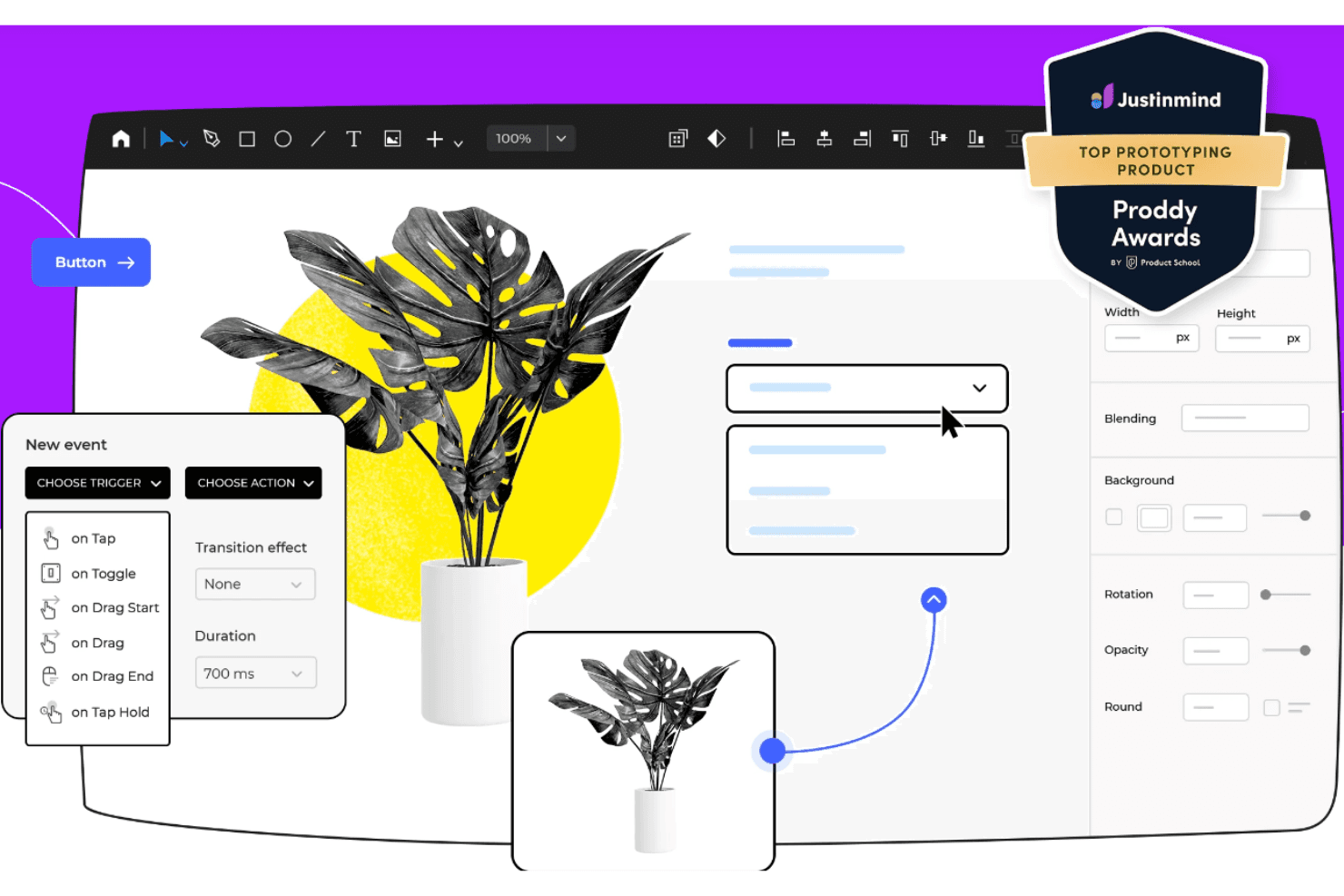
Justinmind enables UX pros to create interactive, lifelike wireframe prototypes. Justinmind is a desktop wireframing and prototyping tool that supports web, iOS, Android, VR, and AR design through interactive, data-driven prototypes built with conditions, variables, working forms, and a library of over 4,000 prebuilt UI components.
Who Is Justinmind Best For?
Justinmind is a strong fit for UX/UI designers and design team leads who need to build and share realistic, interactive wireframes without writing a single line of code.
Why I Picked Justinmind
Justinmind earns its spot on my shortlist because it goes further than static wireframing by letting you wire up real conditional logic, variables, and working forms without writing any code. I particularly like that you can import CSV data into Data Masters and run simulations against actual content, so a prototype behaves like a live product during stakeholder reviews. The 4,000-plus prebuilt UI components across web, iOS, and Android also mean I can build device-specific, interactive wireframes fast.
Justinmind Key Features
- Real-time co-editing: Multiple team members can edit the same prototype simultaneously, with comments and feedback tied to specific components.
- Cross-device preview: Test prototypes on real devices via the Justinmind mobile app or in any browser with native device skins.
- Smart Templates: Reusable headers, footers, and screen layouts stay consistent across your project and update globally when changed.
- Design handoff specs: Developers can inspect asset dimensions and CSS details directly from the prototype without needing a separate handoff tool.
Justinmind Integrations
Justinmind offers integrations with Jira, Azure DevOps, Doors, Sketch, Adobe Photoshop, and Adobe Illustrator. It also provides an API/SDK for custom integrations.
Pros and Cons
Pros:
- Unlimited viewers simplify stakeholder design reviews
- 4,000-plus components speed device-specific wireframes
- Conditions support realistic responsive user flows
Cons:
- Layout reflow lacks detailed auto-layout controls
- Breakpoint customization remains poorly documented
Learn more about Justinmind: Best for versatile macOS vector design
- 30-day free trial
- From $12/user/month (billed annually)
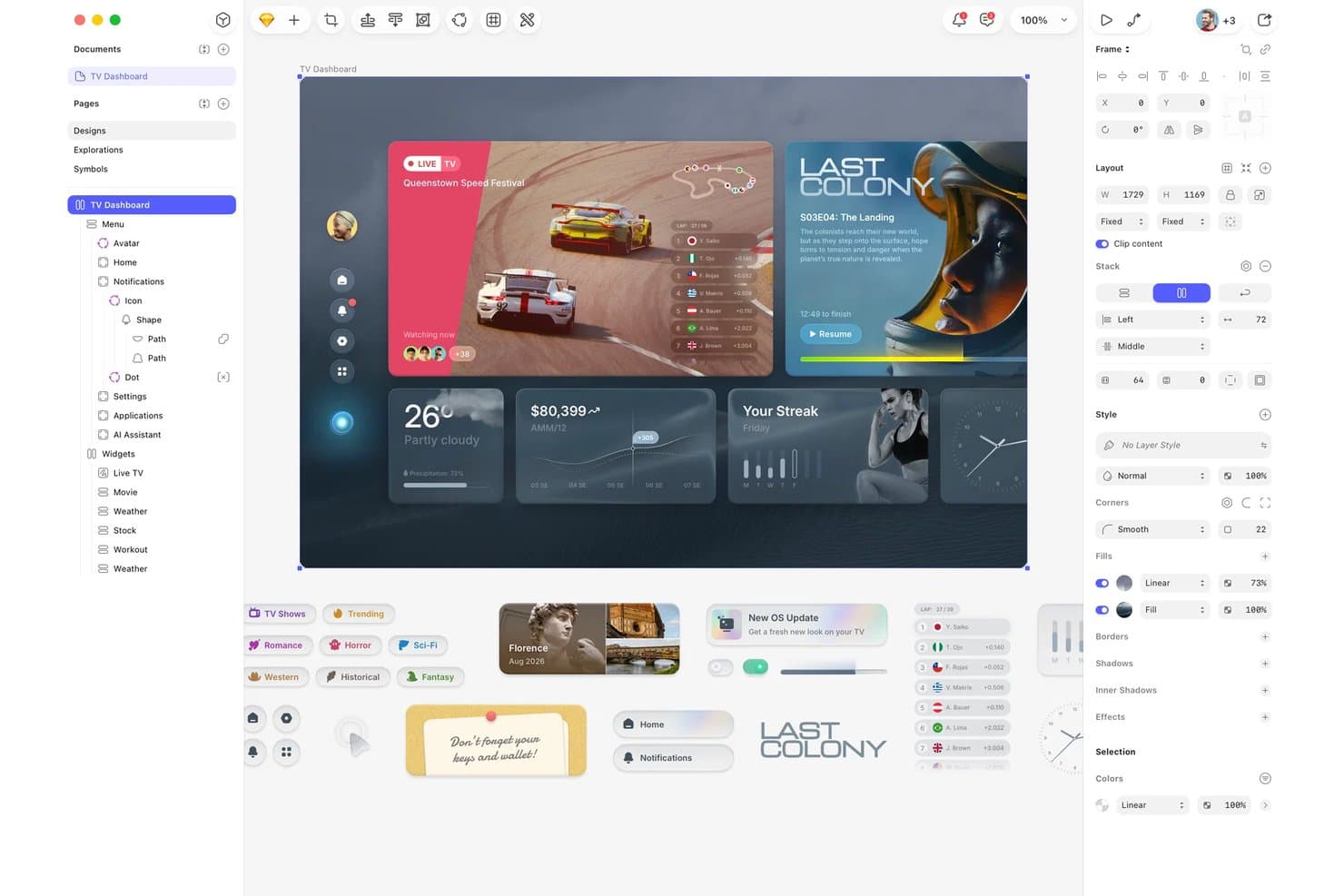
Sketch lets users design responsive TV dashboard layouts with layered components. Sketch is a Mac-native vector design and prototyping tool that combines symbol-based component libraries, auto-layout with Stacks, interactive prototype flows, and browser-based developer handoff.
Who Is Sketch Best For?
Sketch is a strong fit for macOS-based UI/UX designers and design team leads who need a fast, native vector editor with solid component libraries and free developer handoff.
Why I Picked Sketch
Sketch earns its spot on my shortlist because it's the most capable native Mac vector design tool I've worked with for building component-driven UI. I love how Stacks now support percentage sizing and min/max constraints, which means a card component genuinely reflows when its parent Frame resizes across mobile and desktop layouts. Pair that with free browser-based developer handoff, and my team can hand off annotated specs, CSS values, and design tokens without anyone needing a paid seat.
Sketch Key Features
- Frame linking with hotspots: Connect Frames into clickable prototype flows and define precise tap targets using Hotspot layers for more accurate interaction design.
- Smart Animate transitions: Apply animated transitions between Frames with controls for easing, duration, and direction to communicate motion intent to developers.
- Free browser-based developer handoff: Developers inspect measurements, copy CSS values, and download assets directly in a browser at no cost and without a Mac.
- MCP server for code generation: A local MCP server connects Sketch to AI clients like Claude and Cursor to generate code directly from your designs.
Sketch Integrations
Sketch offers documented integrations with GitHub, Jira, Slack, and Notion for sharing or embedding designs. Its local MCP server connects with Claude, Cursor, VS Code, Codex, and other MCP-compatible clients for AI-assisted design-to-code workflows.
Pros and Cons
Pros:
- Smart Animate clarifies interaction intent
- Native Mac editing handles complex files
- Stacks reflow components across parent sizes
Cons:
- Mac-only editing excludes Windows and Linux teams
- No true breakpoint system for responsive testing
Learn more about Sketch:
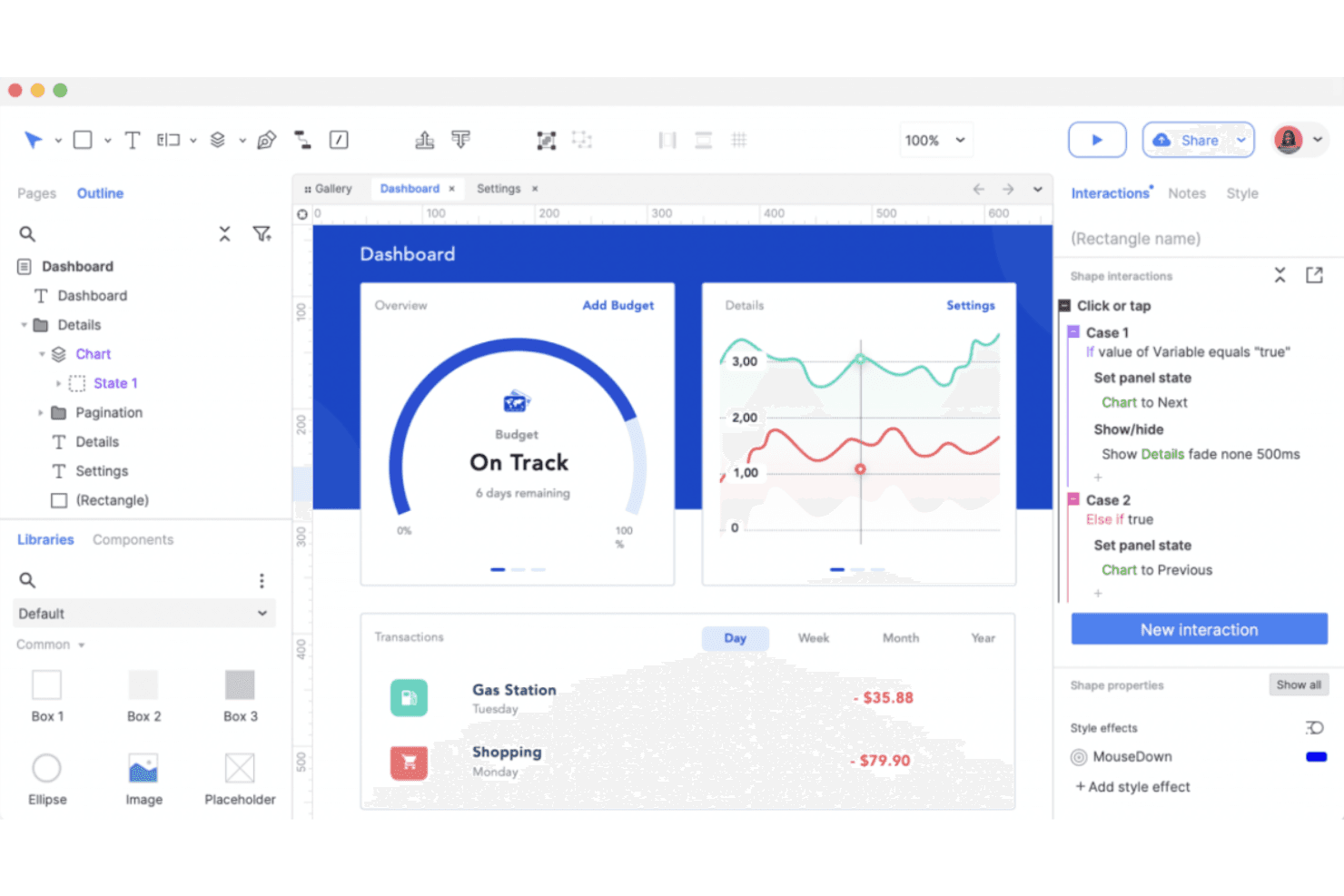
Axure RP builds detailed, interactive prototypes for complex UX needs. Axure RP is a desktop-based prototyping tool that combines wireframing, diagramming, and high-fidelity interactive prototyping with conditional logic, variables, working form widgets, and breakpoint-based adaptive views for responsive design.
Who Is Axure RP Best For?
Axure RP is a strong fit for UX designers and design teams building complex, logic-heavy prototypes for enterprise software and data-intensive applications.
Why I Picked Axure RP
Axure RP earns its spot on my shortlist because no other tool comes close to its conditional logic depth when prototyping complex, data-driven interfaces. I've used its Repeater widget to build sortable, filterable data grids that behave like real product tables, which is something most prototyping tools simply can't replicate. Its Adaptive Views let you define breakpoint-specific layouts with inherited base styles, so desktop, tablet, and mobile views stay consistent without rebuilding from scratch.
Axure RP Key Features
- Adaptive Views: Design desktop, tablet, and mobile layouts on a single page, with each view inheriting styles from the base and loading automatically based on window width.
- Repeater widget: Build sortable, filterable data grids that simulate real product tables, pulling from a built-in data set without any code.
- Free reviewer and developer access: Stakeholders and developers can view, comment on, and inspect prototypes via Axure Cloud at no cost, on every paid plan.
- Design file import: Bring in frames and layers from Figma, Sketch, or Adobe XD as editable widgets to add interactivity to existing design work.
Axure RP Integrations
Axure RP integrates with Jira, Confluence, Slack, Microsoft Teams, Figma, Sketch, and Adobe XD for handoff, embedding, imports, and notifications. No API for custom integrations is documented.
Pros and Cons
Pros:
- Repeater widgets model sortable data grids
- Adaptive Views preview breakpoint-specific layouts
- Simulates complex user flows without code
Cons:
- Check-in workflows slow collaborative design reviews
- Separate views limit fluid responsive reflow
Learn more about Axure RP :
Other Responsive Design Prototyping Tools
Here are some additional responsive design prototyping tools options that didn’t make it onto my shortlist, but are still worth checking out:
- 11Locofy.aiBest for Figma designs that test as real code
- 12FramerBest for interactive design with code
- 13MarvelBest for quick prototypes without a design background
- 14MockplusBest for rapid prototyping
- 15PenpotBest for open-source design-to-dev handoff
- 16Adobe XDBest for Adobe product users
- 17WebflowBest for custom code integration
- 18OrigamiBest for Facebook design teams
- 19ProtoPieBest for sensor-driven and hardware prototyping
- 20Proto.ioBest for interactive mobile prototypes
How I Evaluate Responsive Design Prototyping Tools
I split my evaluation into three parts, with core functionality carrying the most weight: a tool must let you design across breakpoints and link screens into navigable flows. From there, I look for standout features like conditional flow logic. Beyond features, I consider onboarding and pricing value.
Core Functionality (Table Stakes For This List)
When I'm selecting tools for my list, I score each one on a scale from 0 (does not offer the functionality) to 5 (excels in this area) for each core functionality listed below. I then convert the total into a percentage to help assess each tool's overall fit, with extra weight on any functionalities I've deemed essential.
- Responsive Breakpoint Preview (Essential): I check whether layouts adapt fluidly across custom breakpoints, not just a handful of fixed presets like "mobile" and "desktop."
- Interactive Prototyping (Essential): Tools earn higher marks when flows support conditional logic, variables, and micro-interactions rather than simple screen-to-screen taps.
- Component & Layout Reflow: I evaluate how nested auto-layout structures behave when the viewport shifts, since poorly handled reflow breaks every responsive design.
- Design Handoff & Specs: Developer-ready output matters here. I look for auto-generated specs with code snippets, exportable assets, and accurate spacing values.
- Real-Time Collaboration: Teams need more than view-only links. I look for co-editing, threaded comments, and permission controls that support async design reviews.
- Cross-Device Preview & Testing: I check whether you can push a prototype to a physical phone or tablet for live testing, not just resize a browser window.
Once I have a list of tools that meet the criteria, I consider what sets each platform apart.
Differentiating Factors (What Sets Vendors Apart)
Here's how I compare and contrast different vendors:
Standout Features
Conditional flow logic is the first thing I evaluate beyond core functionality. A prototype that branches based on user input—like showing different onboarding paths depending on a form selection—gives PMs far more useful validation data than static tap-throughs. I also check whether a tool syncs with shared design system libraries and tokens, since prototypes that drift from production components create confusion during handoff. Built-in usability testing matters too. Tools like Maze let you capture click paths and task completion rates natively, which removes the friction of stitching together separate research tools mid-sprint.
Beyond Features
I check how pricing scales as teams grow, since per-seat models can spike costs when you add PMs and engineers who only need view or comment access. Tools like Figma and Axure handle this differently, so I compare whether stakeholder seats are free or billed. Onboarding matters just as much. PMs without design backgrounds need guided templates and low-code interaction builders to start prototyping fast, and vendors with structured learning resources cut ramp-up time across cross-functional teams. I also evaluate integration depth with tools like Jira and Slack, because prototype feedback that can't reach a backlog quickly loses its value.
How to Choose Responsive Design Prototyping Tools
It’s easy to get bogged down in long feature lists and complex pricing structures. To help you stay focused as you work through your unique software selection process, here’s a checklist of factors to keep in mind:
| Factor | What to Consider |
| Scalability | Ensure the tool can grow with your team’s needs, supporting larger projects and more users without compromising performance. |
| Integrations | Check if the tool integrates with your existing software stack like Sketch, Figma, or Adobe XD to streamline your workflow. |
| Customizability | Look for options that allow you to tailor the tool to your design processes, such as customizable UI elements or workflows. |
| Ease of Use | Choose a tool with an intuitive interface that minimizes the learning curve, so your team can start designing quickly. |
| Budget | Evaluate the cost against your budget, considering what features are included at each price tier and if there's a free trial or demo available. |
| Security Safeguards | Ensure the tool offers data protection features like encryption and secure access controls to keep your designs safe. |
| Collaboration | Consider tools offering real-time collaboration features, enabling your team to work together efficiently from different locations. |
| Support | Look for customer support options like live chat or community forums to assist you when issues arise or when you need help with the tool. |
Trends in Responsive Design Prototyping Tools
In my research, I sourced countless product updates, press releases, and release logs from different responsive design prototyping tool vendors. Here are some of the emerging trends I’m keeping an eye on:
- Real-time Collaboration: Teams are increasingly able to work on designs simultaneously, enhancing productivity. Tools like Figma have led the way with features that allow multiple users to edit and comment in real-time, making collaboration smoother.
- Design Systems Integration: More tools are supporting design systems, which help maintain consistency across projects. UXPin and Adobe XD offer features that let teams create and manage design systems within the tool, simplifying updates and changes.
- Advanced Animation Capabilities: Prototyping tools are offering more sophisticated animation features, allowing designers to create lifelike interactions. Principle and Framer provide detailed animation controls, enabling prototypes that closely mimic real-world app behavior.
- Voice and Gesture Prototyping: Some tools are now incorporating voice commands and gesture controls into prototypes. Adobe XD, for example, allows designers to simulate voice interactions, providing a more comprehensive testing environment for modern interfaces.
- AI-driven Design Suggestions: AI is being used to offer design recommendations, speeding up the creative process. Tools are beginning to implement AI features that suggest layouts or design elements based on user preferences, although this trend is still emerging.
What Are Responsive Design Prototyping Tools?
Responsive design prototyping tools are software solutions that help designers create and test interactive designs that adapt to different screen sizes. These tools are generally used by UX/UI designers, product managers, and developers to visualize and refine user interfaces. Features like real-time collaboration, advanced animations, and design systems integration help teams work together efficiently, create realistic prototypes, and maintain consistency. Overall, these tools enable teams to deliver user-friendly and adaptable designs that improve user experience across devices.
Features of Responsive Design Prototyping Tools
When selecting responsive design prototyping tools, keep an eye out for the following key features:
- Interactive Prototyping: Create dynamic, clickable prototypes to visualize user interactions, refine designs, and enhance the prototyping process for digital products.
- Responsive Layouts: Automatically adjust designs to various screen sizes, ensuring a consistent experience across mobile apps, tablets, and desktops.
- Real-Time Collaboration: Enable multiple team members to work on the same project simultaneously, improving communication and productivity throughout the app prototyping process.
- Design Systems Integration: Support the creation and management of design systems to maintain consistency and efficiency across digital products and user interfaces.
- Advanced Animations: Add lifelike animations, transitions, and micro-interactions to make prototypes polished and engaging.
- Voice and Gesture Prototyping: Incorporate voice commands and gesture controls into prototypes to reflect modern trends in product design and usability.
- Version Control: Track and manage design changes easily, allowing teams to review previous iterations and keep the prototyping process organized.
- Component Libraries: Utilize pre-designed UI kits and reusable elements to speed up the design process and ensure uniformity across prototypes.
- Mobile Previewing: Test and view prototypes on mobile apps and devices to confirm functionality and optimize the user experience on smaller screens.
- Export Options: Export prototypes in various formats to facilitate collaboration with stakeholders and simplify handoffs during the product design lifecycle.
Benefits of Responsive Design Prototyping Tools
Implementing responsive design prototyping tools provides several benefits for your team and your business. Here are a few you can look forward to from some of the best prototyping tools:
- Improved collaboration: Real-time collaboration features allow team members to work together more effectively, reducing miscommunication and speeding up the design process.
- Enhanced user experience: Responsive layouts ensure designs look and function well on all devices, providing users with a consistent and positive experience and personalized and advanced interactions.
- Faster design iteration: With component libraries and pre-designed elements, your team can quickly test and refine ideas, accelerating the overall design cycle.
- Increased design accuracy: Interactive prototyping and advanced animations help visualize complex interactions, leading to more precise and reliable designs.
- Consistency across projects: Design systems integration maintains uniformity in style and components, ensuring cohesive branding and design language.
- Cost-effective testing: Prototyping on mobile devices allows for early detection of issues, saving time and resources by addressing problems before development.
- Innovative designs: Features like voice and gesture prototyping enable your team to experiment with cutting-edge interactions, keeping your designs modern and competitive.
Costs and Pricing of Responsive Design Prototyping Tools
Selecting responsive design prototyping tools requires an understanding of the various pricing models and plans available. Costs vary based on features, team size, add-ons, and more. The table below summarizes common plans, their average prices, and typical features included in responsive design prototyping tools solutions:
Plan Comparison Table for Responsive Design Prototyping Tools
| Plan Type | Average Price | Common Features |
| Free Plan | $0 | Basic prototyping capabilities, limited storage, and minimal collaboration tools. |
| Personal Plan | $5-$25 /user/month | Interactive prototypes, moderate storage, and basic design export options. |
| Business Plan | $25-$50 /user/month | Advanced animations, team collaboration features, and integration with design systems. |
| Enterprise Plan | $50-$100 /user/month | Customizable workflows, priority support, unlimited storage, and enhanced security features. |
Responsive Design Prototyping Tools FAQs
Here are some answers to common questions about responsive design prototyping tools:
What is the fastest and most cost-effective way to prototype an app?
Rapid prototyping is often the quickest and most economical method. It allows you to quickly create and test versions of your design, making adjustments based on user feedback without heavy upfront costs. Many tools offer features that support this iterative process, helping you refine your app efficiently.
Why is prototyping important for users during system design?
Prototyping helps users and designers visualize the final product, ensuring that all parties have a clear understanding of the intended outcome. It allows for early detection of design issues and provides a chance to gather user feedback before full-scale production. This process saves time and resources in the long run.
Which design tool is commonly used for creating interactive prototypes?
Figma, Adobe XD, and InVision are popular choices for creating interactive prototypes. These tools offer features like clickable elements and animations, which help simulate real user interactions. They enable you to test and improve the user experience before moving to development.
How can you use prototyping tools for responsive designs?
Prototyping tools let you design layouts that adjust to different screen sizes, ensuring a consistent user experience. By using these tools, you can test how your designs look and function on various devices, allowing you to make necessary adjustments early in the design process.
What is a key thing you need to know about responsive design?
Understanding visual hierarchy is crucial in responsive design. It ensures that your content is easily accessible and engaging across different devices. By maintaining a clear structure, you improve usability and user satisfaction, which is vital for retaining users.
Are there any limitations to using prototyping tools?
While prototyping tools are powerful, they may not always fully replicate complex interactions or real-world performance. Some tools might also have a learning curve or lack certain advanced features. It’s essential to choose a tool that aligns with your project needs and team capabilities.