

UI design is where form meets function—it’s the colors, fonts, and visuals that bring a digital product to life, plus the buttons, scrolls, and swipes that make it work. Every pixel plays a role in shaping the user interface design experience.
Nail the design, and users glide through effortlessly. Clunky, awkward tools? Hard pass. That’s where I come in.
With the power bestowed upon me by years of UI design experience (and obsessive perfectionism), I've reviewed and narrowed down the best UI design tools in the biz. Let's jump in!
Why Trust Our Software Recommendations
6,700+
Reviews
20
Industry experts
16+
Evaluation factors
14
Years
Our team has been testing and reviewing software since 2012. As product managers ourselves, we know how difficult—and important—it is to choose the right software.
For this guide, we evaluated tools using hands-on testing and independent research, scoring tools using our selection criteria.
Our reviews reflect our human editorial judgment, not a sales pitch.
Expert reviewers:
- Andrew LumbySenior TPM
- Cristiano ValimSenior UI/UX Lead


User Interface Design Software Comparison Table
| Tool | Best For | Trial Info | Price | ||
|---|---|---|---|---|---|
| 1 | Best for free offline UI design with built-in assets | Free plan + free demo available | From $11.99/user/month (billed annually) | Website | |
| 2 | Best for non-designers generating UI from AI | Free plan available | From $14/user/month | Website | |
| 3 | Best for ecommerce teams shipping direct to web | Free plan available | From $15/month (billed annually) | Website | |
| 4 | Best for logic-driven, high-fidelity prototyping | 30-day free trial | From $29/user/month (billed annually) | Website | |
| 5 | Best for design, whiteboard, and PRD in one workspace | Free plan available | From $4/user/month | Website | |
| 6 | Best for effective cross-functional collaboration | Free plan available | From $16/user/month | Website | |
| 7 | Best for component-driven prototyping | Free plan + 14-day free trial available | From $29/user/month (billed annually) | Website | |
| 8 | Best for open-source, self-hosted UI design | Free plan + 14-day free trial available | From $7/user/month | Website | |
| 9 | Best for gesture and responsive prototype logic | Free plan available | From $19/user/month | Website | |
| 10 | Best for Mac native app and offline functionality | 30-day free trial | From $12/user/month (billed annually) | Website |


Best User Interface Design Software Reviews
Here’s a brief description of each user interface design software with screenshots and standout features.
 Best for free offline UI design with built-in assets
- Free plan + free demo available
- From $11.99/user/month (billed annually)
Visit WebsiteCustomer Rating:4.4/5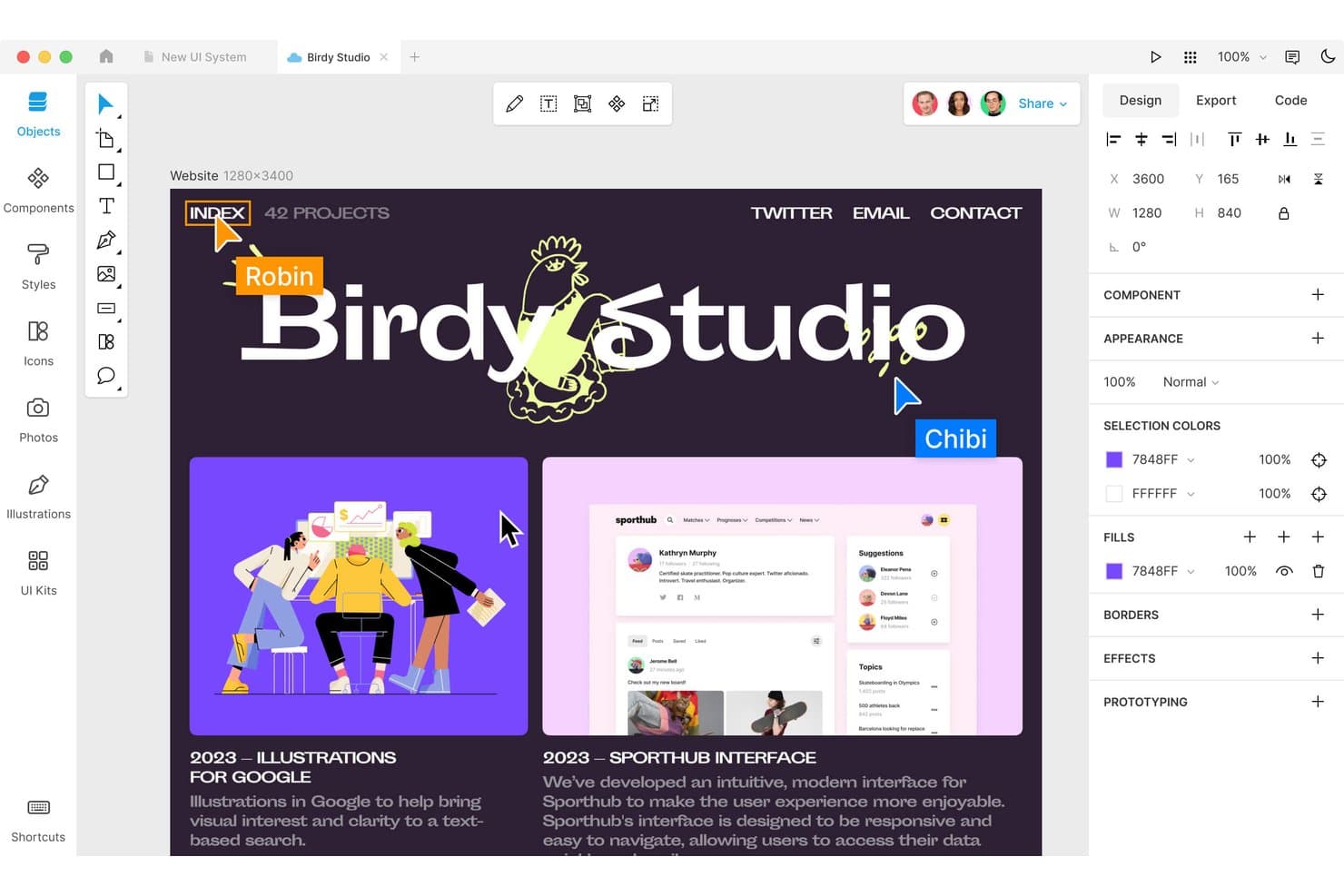
Lunacy lets users design and edit UI layouts with real-time collaboration. Lunacy is a native desktop UI design tool for Windows, macOS, and Linux that covers wireframing, high-fidelity mockups, interactive prototyping, real-time collaboration, and developer handoff—with a built-in library of over 1.5 million icons, photos, and illustrations.
Who Is Lunacy Best For?
Lunacy is a strong fit for UI/UX and product designers who want a capable, free design tool that works offline and doesn't require a cloud subscription to get started.
Why I Picked Lunacy
I've included Lunacy in my top picks because it's the only UI design tool I know that runs natively on Windows, macOS, and Linux with full offline support and a built-in library of over 1.5 million icons, photos, and illustrations. I love that you can open a Sketch or Figma file, drop in platform-specific GUI components, and work through a complete design without touching a browser or paying for assets. The Linked Design feature is particularly useful: push text, color, and layout changes from your canvas directly to a live web page, no redeployment needed.
Lunacy Key Features
- Real-time collaboration: Co-edit cloud documents live with teammates, follow other users in observation mode, and leave threaded text, voice, or sticker comments directly on the canvas.
- Component states and overrides: Define multiple states per component (such as Default, Hover, and Pressed), then override fills, text, images, and auto layout per instance without detaching.
- Prototyping with Smart Animate: Connect frames using hotspots, choose from multiple triggers and actions, and apply Smart Animate or spring transitions for realistic, shareable click-through flows.
- MCP server for developer handoff: A built-in Model Context Protocol server gives AI assistants like Claude Desktop direct access to your selections, color variables, and components to generate production-ready code.
Lunacy Integrations
Lunacy integrates with Claude Desktop and other MCP clients through its MCP server, and supports custom plugins through its MCP-based Plugin API. It also imports Sketch and Figma files, but native Jira, Linear, Slack, and GitHub integrations aren’t documented.
Pros and Cons
Pros:
- Components support states, overrides, and auto layout
- Built-in library accelerates visual asset sourcing
- Works offline across three desktop platforms
Cons:
- Prototype logic lacks documented conditional flows
- Large files can trigger crashes
Learn more about Lunacy: Best for non-designers generating UI from AI
- Free plan available
- From $14/user/month
Visit WebsiteCustomer Rating:4.8/5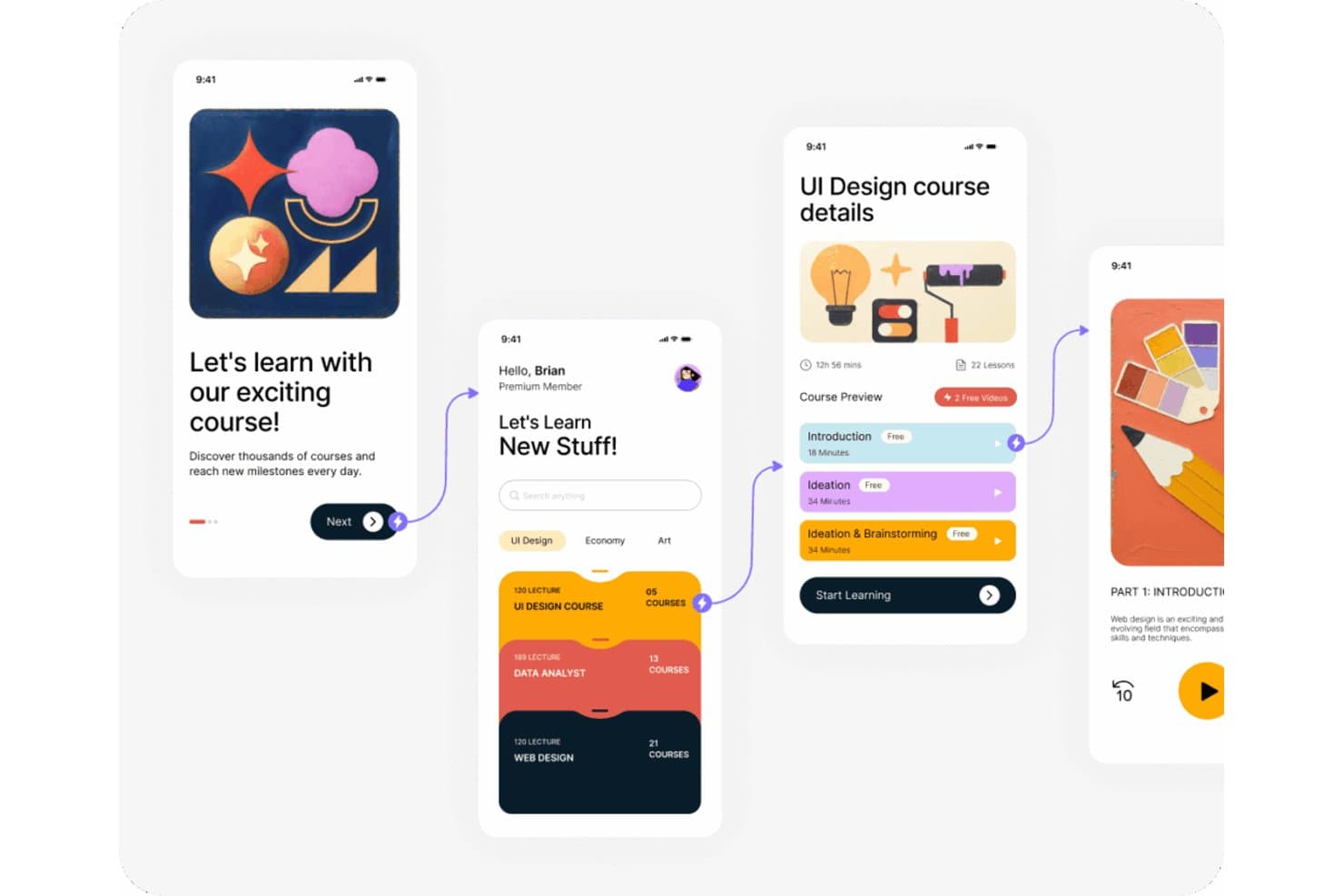
Visily lets users design and preview multi-screen mobile app flows. Visily is an AI-powered UI design tool that covers wireframing, high-fidelity mockups, interactive prototyping, and diagramming, with multimodal AI generation that lets you create designs from text prompts, screenshots, or sketches.
Who Is Visily Best For?
Visily is a strong fit for product managers and cross-functional teams who need to move quickly from concept to clickable prototype without relying on a dedicated designer.
Why I Picked Visily
I picked Visily as one of the best because it's the only UI design tool I've seen where a product manager can paste in a screenshot of a competitor's app and get a fully editable wireframe back in under a minute. That Screenshot to Design feature alone removes the usual bottleneck of waiting on a designer to translate a rough concept into something the team can react to. I also like that its AI Chat Assistant lets you modify designs across multiple screens at once, so when stakeholders push back on a layout in a review, you're not manually updating every screen by hand.
Visily Key Features
- Real-time co-editing: Multiple team members can design on the same canvas simultaneously, with follower mode and cursor chat for in-context communication.
- Inspect Mode: Developers can view precise specs—typography, spacing, colors, and alignment—and copy CSS or Tailwind code directly from any design element.
- Synced Templates: Changes made to a saved template automatically propagate to every instance across your boards, keeping designs consistent without manual updates.
- Auto-Prototype: AI automatically links screens into clickable flows, so you can share a working prototype without manually connecting every interaction.
Visily Integrations
Visily offers documented integrations with Figma, Jira, Notion, and Slack. Its MCP server connects Visily with Cursor, Claude Code, Codex, and Lovable for developer workflows.
Pros and Cons
Pros:
- Inspect Mode provides CSS and Tailwind specs
- Real-time co-editing supports stakeholder feedback
- AI converts screenshots into editable wireframes
Cons:
- Prototypes lack variables and conditional logic
- No auto layout complicates precise positioning
Learn more about Visily: Best for ecommerce teams shipping direct to web
- Free plan available
- From $15/month (billed annually)
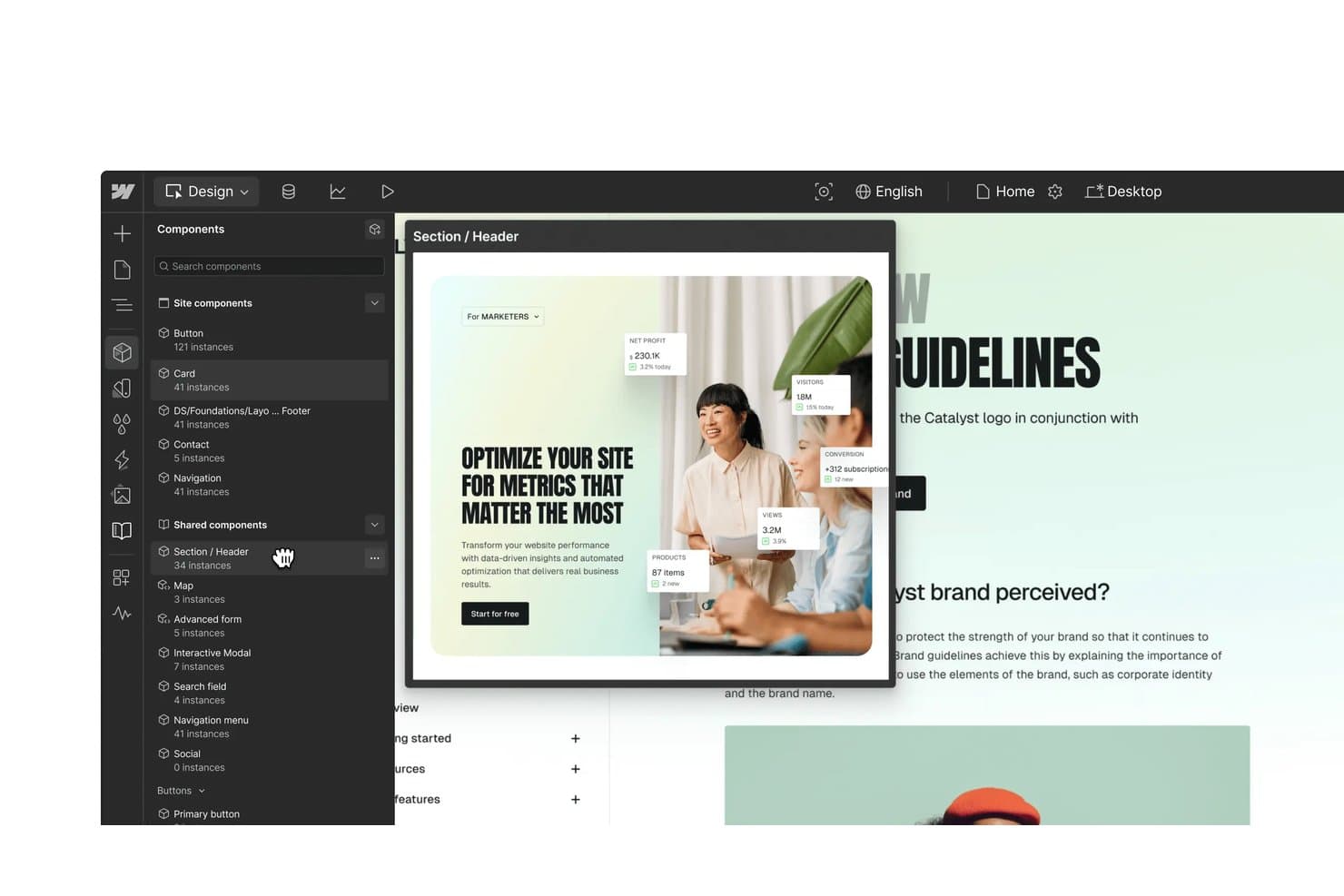
Webflow lets users browse and preview reusable shared components in the designer. Webflow is a visual web design and development platform that combines a no-code design canvas, CMS, ecommerce, hosting, and AI-assisted tools to take websites from design to production without a separate build step.
Who Is Webflow Best For?
Webflow is a strong fit for ecommerce teams that want to design, build, and ship storefronts directly to production without handing off to a separate development team.
Why I Picked Webflow
Webflow earns its spot on my shortlist because it's the only UI design tool that outputs production-ready HTML/CSS/JS directly from the design canvas, making it ideal for ecommerce teams that want to ship storefronts without a separate development handoff. I love how you can design with live CMS content and real product data rather than placeholder text, and the custom checkout and cart design tools mean your storefront looks exactly as designed, pixel for pixel.
Webflow Key Features
- Shared Libraries: Share components, variables, and assets across multiple sites in a Workspace, with designer-controlled approval before updates cascade to connected sites.
- GSAP-powered interactions: A visual timeline editor lets you build scroll, hover, click, and page-load animations with breakpoint-specific controls and reduced-motion accessibility settings.
- Free Reviewer seats: Invite up to 100 stakeholders per Workspace to comment on designs via comment-only links, without requiring a paid Webflow account.
- Version history with restore points: Automatic and manual restore points let you preview any backup in a new tab and roll back with a single click on paid plans.
Webflow Integrations
Webflow integrates with Figma through its plugin, React codebases through DevLink, and GitHub through Webflow Cloud deployments. It also supports APIs, Zapier, and Make.
Pros and Cons
Pros:
- Stakeholders review through free Reviewer seats
- Component system supports props, slots, and variants
- Production-ready web output
Cons:
- Web-only canvas excludes native mobile targets
- No screen-linked prototype flows
Learn more about Webflow: Best for logic-driven, high-fidelity prototyping
- 30-day free trial
- From $29/user/month (billed annually)
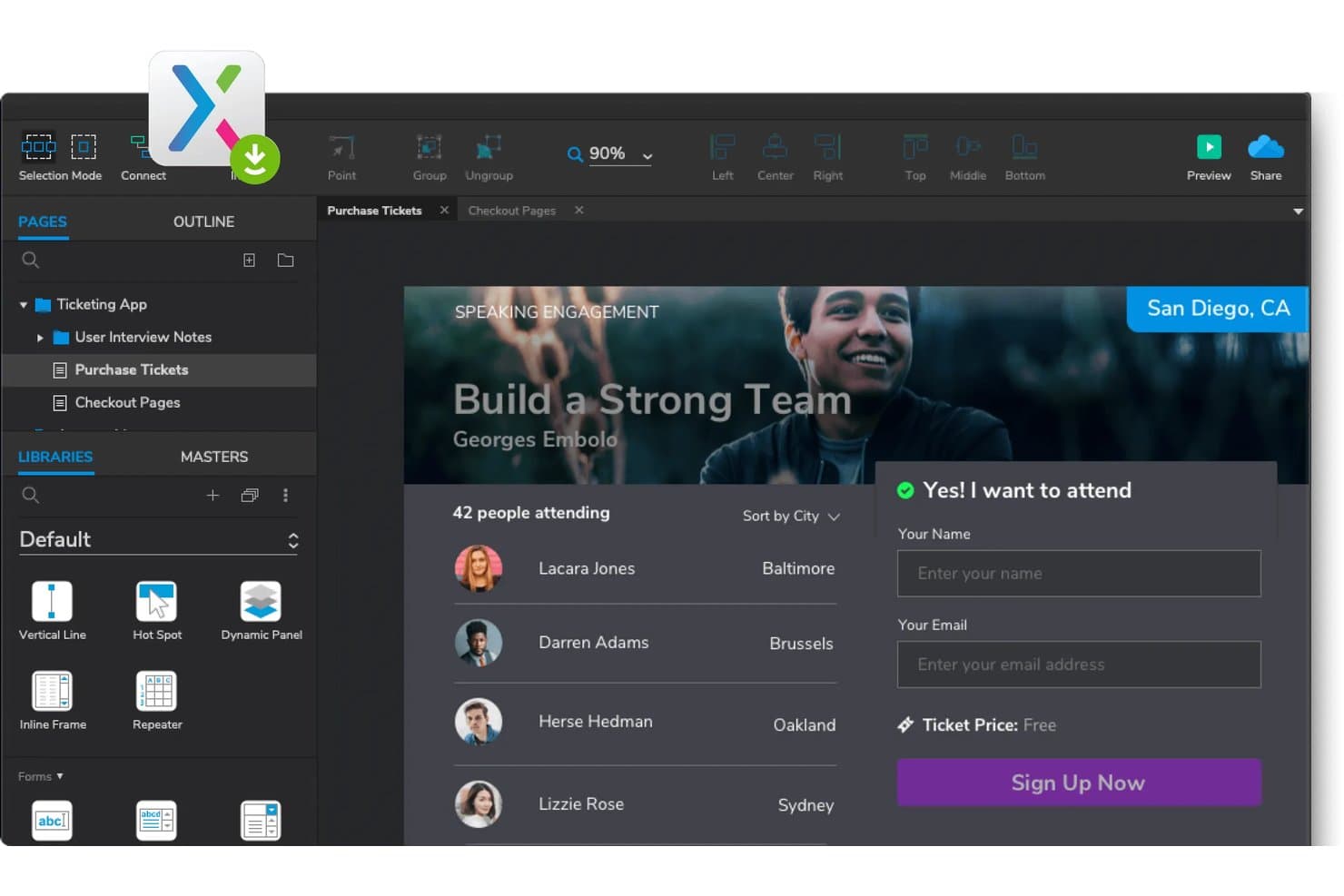
Axure RP lets users prototype interactive ticketing app flows. Axure RP is a desktop-based UI design and prototyping tool that lets you build wireframes, diagrams, documentation, and logic-driven interactive prototypes using conditional logic, variables, and dynamic panels.
Who Is Axure RP Best For?
Axure RP is a strong fit for UX designers and product managers at mid-size to enterprise teams who need prototypes that behave like real products—with working forms, conditional logic, and branching flows.
Why I Picked Axure RP
Axure RP earns its spot as one of the best on my shortlist because no other UI design tool matches its capacity for logic-driven, high-fidelity prototyping. I'm talking about conditional logic, global variables, and dynamic panels that let you build prototypes with real working forms, filterable data tables, and branching flows. I've used repeaters to simulate live data and dynamic panel states to replicate multi-step workflows in a way that feels indistinguishable from the actual product.
Axure RP Key Features
- Adaptive views: Design desktop, tablet, and phone layouts within a single file, with each view inheriting styles and interactions from a base view.
- Axure Cloud Inspect: Automatically generates redlines, CSS snippets, and downloadable assets so developers can pull specs directly from a shared prototype link.
- Team project check-in/check-out: Team edition lets multiple authors work on the same project by checking out individual pages, with revision history logged at every check-in.
- Jira and Confluence embeds: Publish interactive prototypes directly into Jira tickets or Confluence pages, where stakeholders can view, comment, and inspect specs in context.
Axure RP Integrations
Axure RP supports Jira and Confluence embeds, plus plugins for Figma, Sketch, and Adobe XD. Axure Cloud also connects with Slack and Microsoft Teams for project notifications.
Pros and Cons
Pros:
- Adaptive views cover desktop, tablet, and mobile
- Working forms and data repeaters support testing
- Logic-driven prototypes model real product behavior
Cons:
- Page checkouts limit simultaneous editing
- Visual styling trails dedicated UI design tools
Learn more about Axure RP : Best for design, whiteboard, and PRD in one workspace
- Free plan available
- From $4/user/month
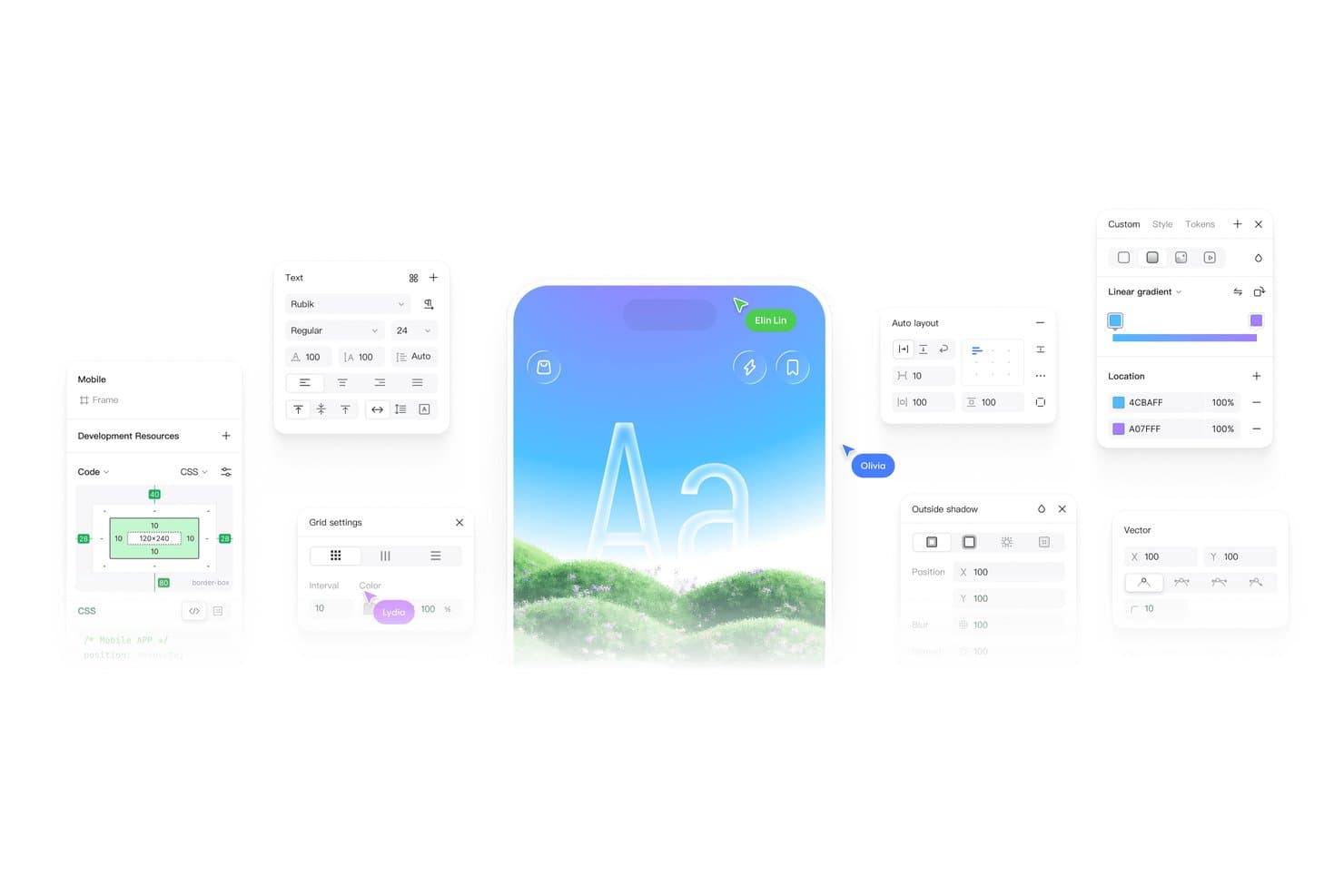
Pixso offers text, grid, shadow, and gradient tools for UI design. Pixso is a UI design platform that combines a vector design canvas, interactive prototyping, multiplayer whiteboarding, and PRD documentation tools in a single workspace.
Who Is Pixso Best For?
Pixso is a strong fit for cross-functional product teams where designers, product managers, and developers need to work in the same tool without jumping between apps.
Why I Picked Pixso
I picked Pixso as one of the best because it's the only tool on my list that genuinely collapses design, whiteboarding, and PRD documentation into a single workspace. I've used the multiplayer whiteboard to run discovery sessions, then moved those insights directly into UI files without ever switching tabs. Pixso's built-in PRD tools and Kanban boards mean product managers and designers are literally working in the same file, which removes a whole layer of handoff friction.
Pixso Key Features
- AI design generation: Converts a text prompt into editable, layered UI screens for web or mobile, with support for multiple revision rounds.
- Role-based seat licensing: Assigns Creator, Developer, or Collaborator seats at different price points, so teams pay only for the access each person actually needs.
- Design-to-code output: Generates scaffolding code in SwiftUI, HTML, Flutter, and Tailwind directly from design files via the Pixso to Code plugin.
- Private and on-premise deployment: Supports intranet, private cloud, or on-premise hosting, which suits teams with strict data residency or compliance requirements.
Pixso Integrations
Native integrations are not currently listed. Its plugin marketplace includes Tokens Studio and Iconify, while no public API or documented Jira, GitHub, GitLab, Storybook, or VS Code integrations are available.
Pros and Cons
Pros:
- Reusable components update across linked instances
- AI generates editable layered interface screens
- Design, whiteboarding, and PRDs share one workspace
Cons:
- Generated code still needs production hardening
- Advanced conditional prototyping remains unclear
Learn more about Pixso: Best for effective cross-functional collaboration
- Free plan available
- From $16/user/month
Visit WebsiteCustomer Rating:4.7/5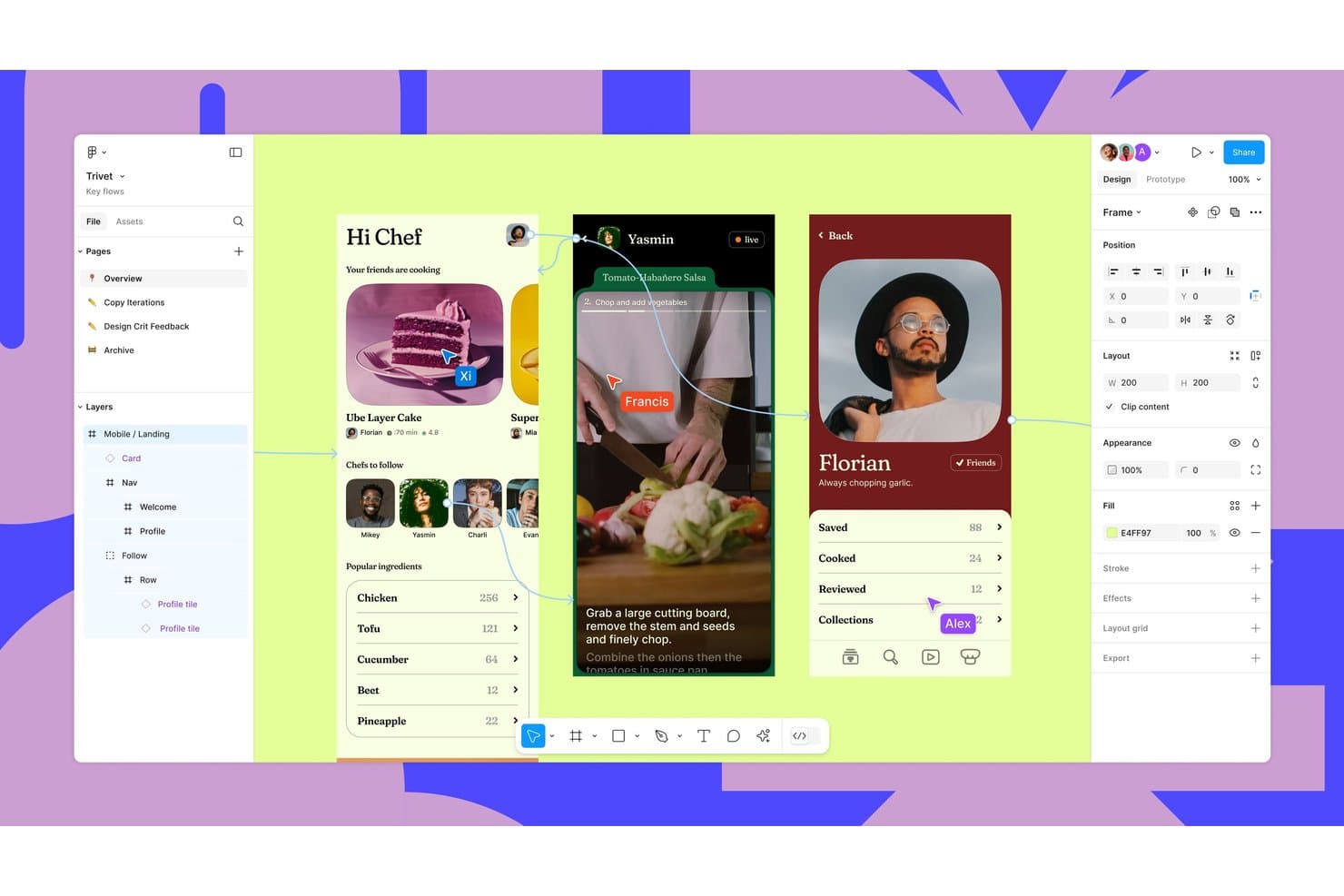
Figma lets users design and prototype mobile app UIs with real-time collaboration. Figma is a browser-based UI design tool that covers wireframing, high-fidelity visual design, interactive prototyping, design systems management, and developer handoff—all within a single multiplayer canvas.
Who Is Figma Best For?
Figma is a strong fit for cross-functional product teams where designers, product managers, and developers need to work in the same space without jumping between tools.
Why I Picked Figma
Figma earns its spot on my shortlist because no other UI design tool makes cross-functional collaboration feel this natural. Multiplayer editing with live cursors lets designers, product managers, and developers work in the same file simultaneously, and free viewer and commenter access means stakeholders never need a paid seat just to give feedback. I also love how Dev Mode connects directly to your codebase via Code Connect, so developers inspect specs and pull real component code without a separate handoff meeting.
Figma Key Features
- Smart Animate: Automatically animates matching layers between frames to simulate transitions like parallax scrolling and touch gestures inside prototypes.
- Variables and conditional logic: Set numeric, string, boolean, or color variables and apply conditional expressions to build complex prototype flows with fewer frames.
- Design Checks: Scans your design against your connected design system and resolves inconsistencies with a single click.
- Figma Make: Converts text prompts, existing designs, or code into interactive, code-backed prototypes that can be published to a live URL.
Figma Integrations
Figma integrates with Jira, GitHub, Storybook, Slack, Microsoft Teams, Zoom, Maze, UserTesting, and Mixpanel. It also supports VS Code, MCP connectors, and Dev resources for linking designs with code, tickets, and component stories.
Pros and Cons
Pros:
- Design systems connect directly to handoff
- Prototypes simulate complex product interactions
- Multiplayer editing aligns cross-functional teams
Cons:
- AI credits complicate experimentation costs
- Large files can cause noticeable lag
 Best for component-driven prototyping
- Free plan + 14-day free trial available
- From $29/user/month (billed annually)
Visit WebsiteCustomer Rating:4.2/5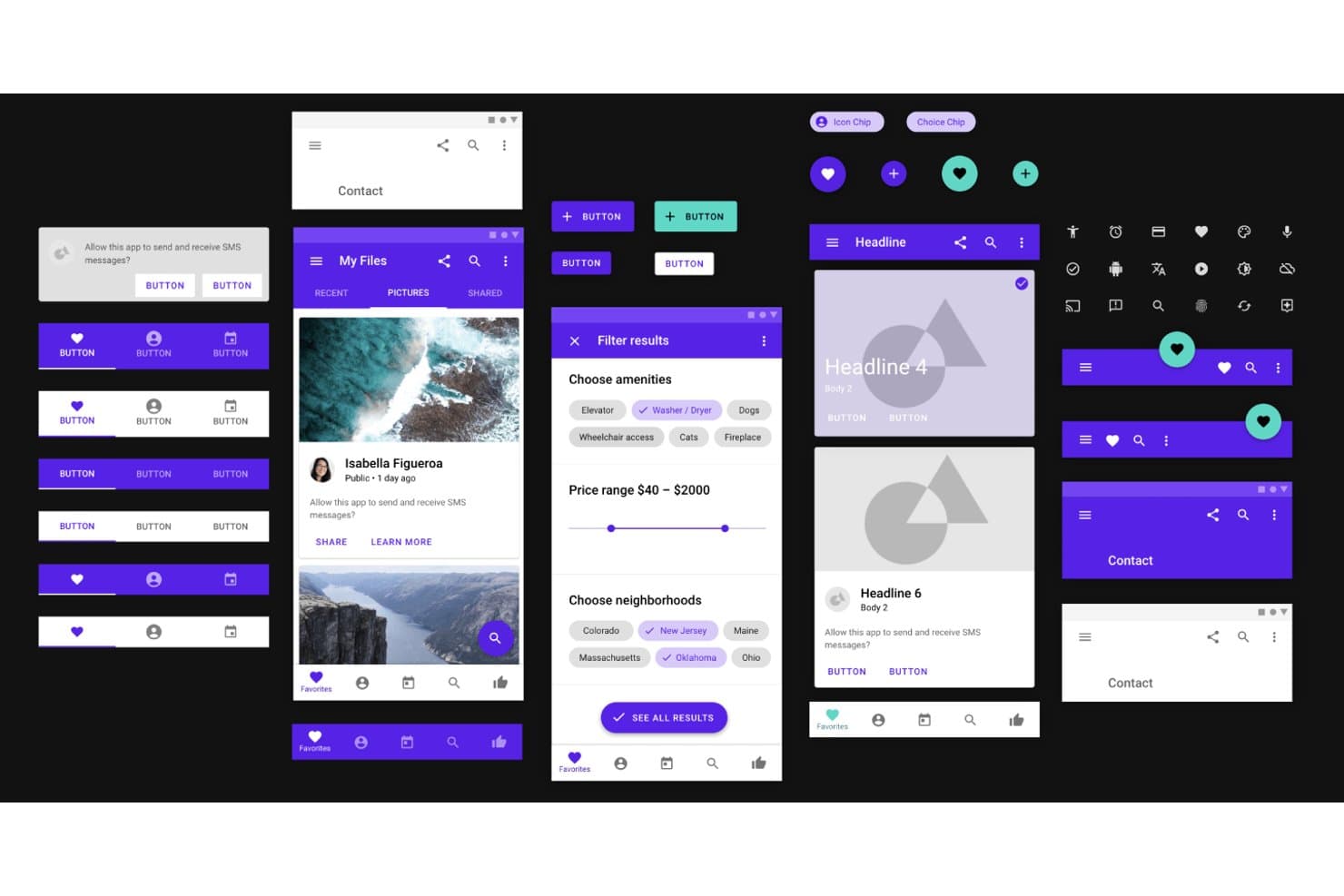
UXPin lets users design with Material Design UI components and prototypes. UXPin is a browser-based UI design tool that combines a visual canvas, interactive prototyping, design system management, and code-component integration via its Merge and Forge workflows.
Who Is UXPin Best For?
UXPin fits UI/UX designers and front-end developers on teams that build with React components and need prototypes that behave like the real product.
Why I Picked UXPin
UXPin earns its spot on my shortlist because its Merge workflow lets you design with real React components pulled directly from your codebase via GitHub, Storybook, or npm. I love that when I drop in a component, it renders with its actual props, variants, and built-in interactivity—tabs, date pickers, and sortable tables behave exactly as they would in production. Forge's AI generation also uses those same coded components, so outputs are JSX-ready rather than static vectors.
UXPin Key Features
- Conditional logic and variables: Set up if/then rules and carry user input across screens to simulate real app behavior in your prototypes.
- Spec mode: Inspect sizing, spacing, typography, and colors, and copy CSS directly from the canvas without any plugins.
- Stakeholder approval workflow: Share private review links where stakeholders can approve or reject designs and leave comments without needing an account.
- Adaptive breakpoints: Preview prototypes across device sizes with auto-switching breakpoints and device frames built into the preview mode.
UXPin Integrations
UXPin offers documented integrations with Figma, Sketch, Photoshop, GitHub, Bitbucket, GitLab, Storybook, npm, Jira Cloud, and Slack. Git integrations require Enterprise, while Storybook is available on Growth and above.
Pros and Cons
Pros:
- Stakeholder approvals simplify feedback collection
- Production components reduce design-development drift
- Prototypes mirror real product behavior
Cons:
- Co-editing locks elements during simultaneous edits
- Advanced interactions require technical setup
Learn more about UXPin: Best for open-source, self-hosted UI design
- Free plan + 14-day free trial available
- From $7/user/month
Visit WebsiteCustomer Rating:4.5/5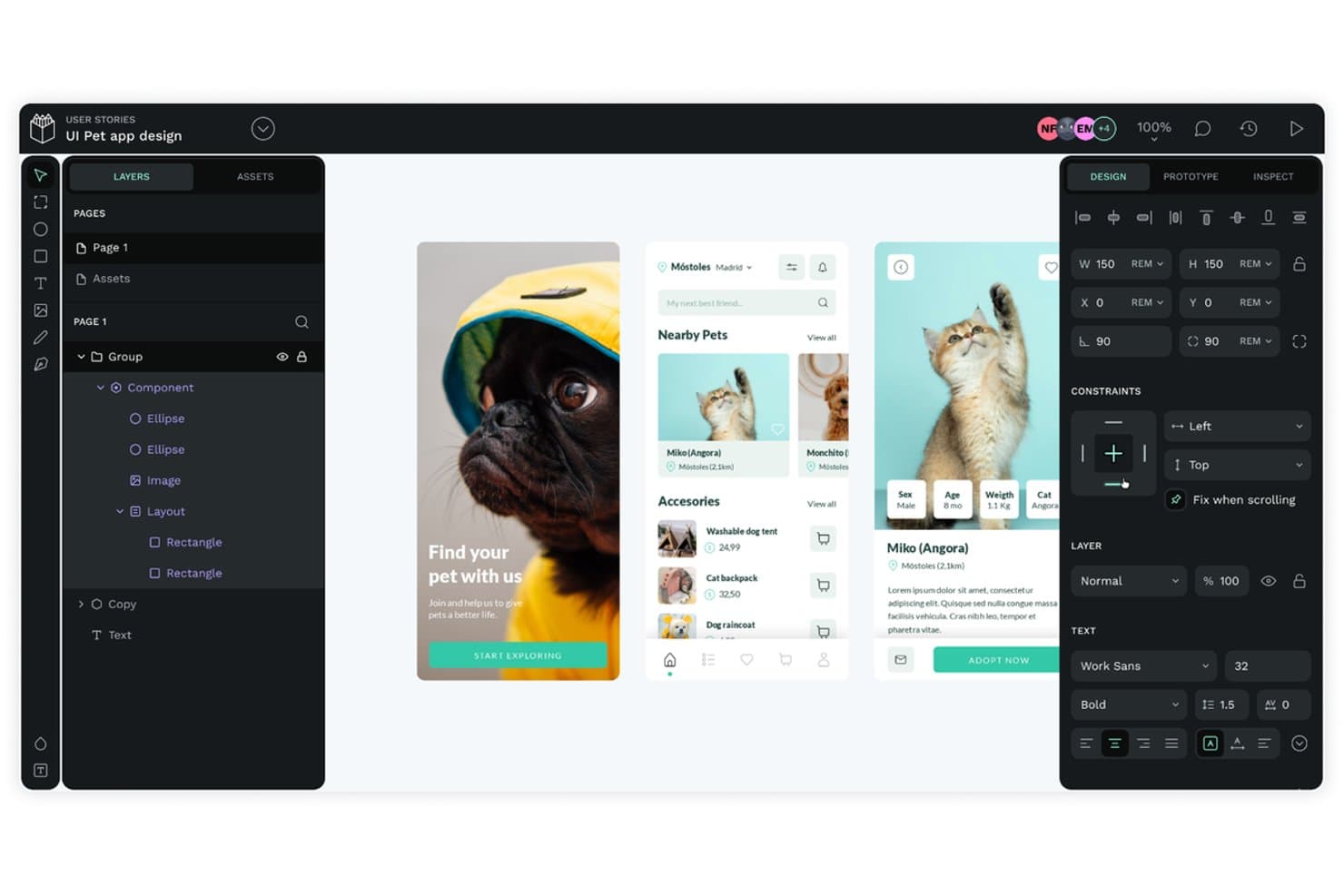
Penpot lets users design mobile app UIs with real-time collaboration tools. Penpot is an open-source UI design tool that covers vector editing, wireframing, interactive prototyping, design systems with native tokens, and developer handoff—all running in the browser with no desktop install required.
Who Is Penpot Best For?
Penpot is a strong fit for UI/UX and product design teams that need full design system capabilities without a SaaS subscription—especially those with security or data-residency requirements that make self-hosting a priority.
Why I Picked Penpot
I've included Penpot in my top picks because it's the only fully open-source UI design tool that lets your team self-host the entire platform, keeping design files and tokens on your own infrastructure. I particularly like its native W3C design tokens and Flex/Grid layouts that map directly to CSS, so handoff isn't a translation exercise. The free MCP server also lets you connect any LLM directly to the canvas without sending data to a vendor.
Penpot Key Features
- Component variants: Group related component states—like primary, secondary, and disabled—into a single, switchable component for consistent design system management.
- Prototype flows: Define multiple starting points on a single page, each with its own shareable link, so you can present different user journeys independently.
- Plugin ecosystem: Install from a library of 125+ plugins, including Iconify, Locofy, and token export tools that deploy directly to GitHub, GitLab, and Azure DevOps.
- Version history with action-level reverts: Pin and name file versions for indefinite retention, and use the Actions log to undo individual changes without rolling back an entire save.
Penpot Integrations
Penpot offers 125+ marketplace plugins, including Locofy, Iconify, GitHub, GitLab, Azure DevOps, and Bitbucket connections. It also provides Webhooks, a Plugin API, and an MCP server for custom design and development workflows.
Pros and Cons
Pros:
- Unlimited viewers support stakeholder feedback
- CSS-like layouts and native design tokens
- Self-hosted open-source design environment
Cons:
- Prototypes lack variables and conditional logic
- Large files can become sluggish
Learn more about Penpot: Best for gesture and responsive prototype logic
- Free plan available
- From $19/user/month
Visit WebsiteCustomer Rating:4.2/5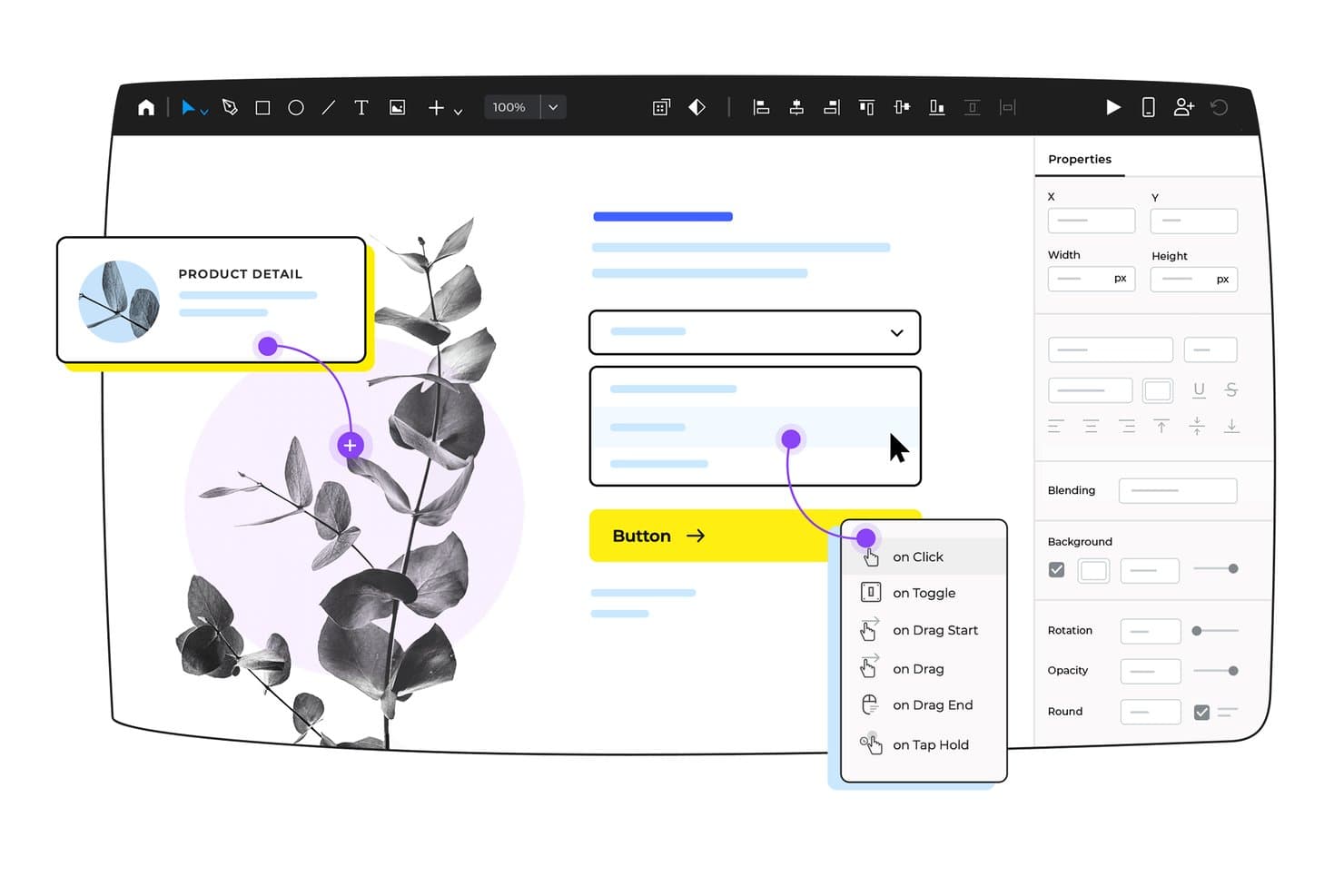
Justinmind lets users add interactive triggers to UI elements easily. Justinmind is a desktop UI design and prototyping tool for Windows and macOS that covers wireframing, high-fidelity mockups, gesture-based interactions, responsive layouts, and data-driven prototype logic.
Who Is Justinmind Best For?
Justinmind is a strong fit for UI/UX and product designers who need to build logic-driven, interactive prototypes that closely simulate real app behavior across web and mobile platforms.
Why I Picked Justinmind
Justinmind earns its spot on my shortlist because of how far its interactive prototyping logic goes compared to most UI design tools. I love that you can attach gesture triggers like swipe, pinch, and rotate directly to mobile prototypes, then layer in breakpoint-driven responsive behavior using liquid layouts and percentage-based sizing. Conditional logic tied to variables lets me simulate real data flows across screens, which I've used to prototype form validation and dynamic content states before a single line of code is written.
Justinmind Key Features
- Data grid and CSV simulation: Populate data lists and grids with real .csv files to drive dynamic, data-driven prototype content.
- 4,000+ interactive UI components: Access pre-built kits for iOS, Android, Bootstrap, Material UI, and major design systems like Salesforce and Atlassian.
- Element masters: Create reusable components that automatically update across every screen when you edit the master.
- Developer handoff panel: Inspect positions, sizes, CSS values, hex colors, and exportable assets directly from any shared prototype.
Justinmind Integrations
Documented integrations include Figma, Sketch, Adobe Photoshop, Adobe Illustrator, Adobe XD, Jira, Azure DevOps, Confluence, Validately, and UserTesting. Justinmind also provides a Java API and SDK for custom plugins.
Pros and Cons
Pros:
- Reusable masters update across every screen
- Supports gestures and responsive breakpoint logic
- Simulates complex app behavior without code
Cons:
- Large prototypes can suffer performance issues
- Desktop-only editing limits flexible collaboration
Learn more about Justinmind: 10Best for Mac native app and offline functionality
Sketch
- 30-day free trial
- From $12/user/month (billed annually)
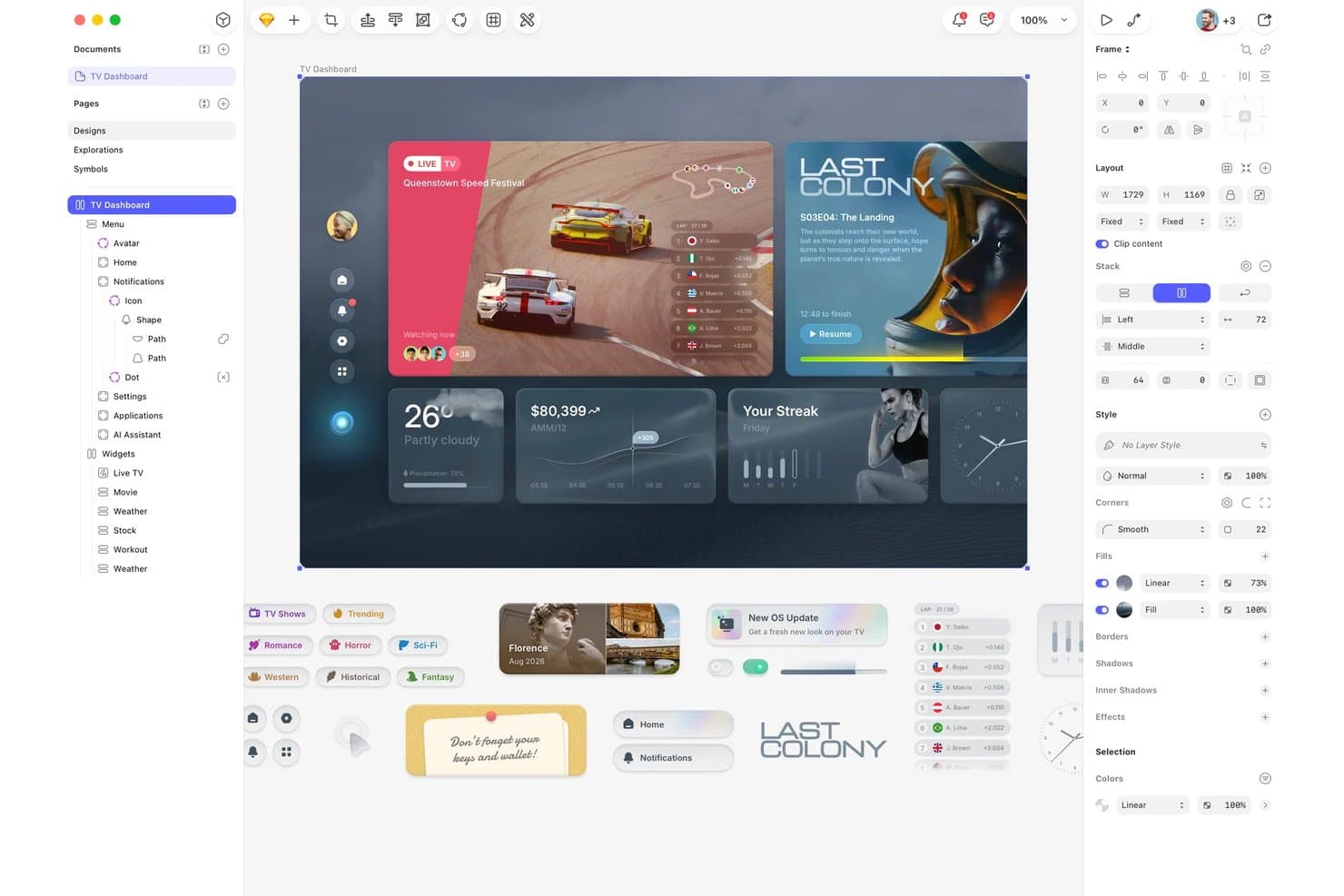
Sketch organizes UI components and layers for TV dashboard design. Sketch is a native macOS UI design tool that combines vector editing, interactive prototyping, reusable component libraries, real-time collaboration, and browser-based developer handoff.
Who Is Sketch Best For?
Sketch is a great fit for UI/UX designers who work primarily on Mac and need a fast, offline-capable design environment without depending on a browser.
Why I Picked Sketch
I've included Sketch in my top picks because it's the only major UI design tool built exclusively for macOS, and that focus shows in how it performs. I can work through an entire design session offline, with local files that never touch a server, and pick up cloud sync only when I need it. Sketch's native Apple Silicon performance also means I'm never waiting on the canvas, even with complex Stacks layouts or large Shared Libraries.
Sketch Key Features
- Shared Libraries: Sync Symbols, Color Variables, Layer Styles, and Text Styles across documents with admin-controlled update rollouts and library swapping.
- Free developer handoff: Developers access browser-based design inspection, CSS copying, asset export, and token export at no cost and without a paid seat.
- MCP server: A locally-run server connects Sketch to AI coding clients like Claude, Cursor, and VS Code Copilot to generate code and audit design systems.
- Design token export: Export Color Variables, Layer Styles, and Text Styles as design tokens via download or a public link that stays current automatically.
Sketch Integrations
Sketch offers native integrations with Unsplash, SVGO Compressor, and its MCP Server. Its JavaScript Developer Platform and API support custom integrations, while marketplace plugins connect Sketch with Jira and Notion.
Pros and Cons
Pros:
- Free browser handoff supports developer inspection
- Shared Libraries keep design systems consistent
- Native Mac performance supports offline design work
Cons:
- Prototypes lack variables and conditional logic
- Mac-only editing excludes Windows and Linux users
Learn more about Sketch:
Other User Interface Design Software
Here are a few more worthwhile options that didn’t make the top tools but are worth your consideration.
- 11Mockitt DesignBest for visualizing flowcharts and mind maps
- 12FramerBest for implementing stack & grid web designs
- 13BalsamiqBest for low-fidelity wireframing with free reviewers
- 14Adobe XDBest for OS-specific UI design kits
- 15UizardBest for AI-inspired design sequences
- 16ProtoPieBest for multi-device and hardware UI prototyping
- 17Proto.ioBest for ready-made iOS and watchOS templates
- 18ZeplinBest for a GitHub-like timeline experience
- 19Mockplus DTBest for shared brand asset libraries across teams
Related Product Management Software Reviews
If you still haven't found what you're looking for here, check out these tools closely related to user interface design software that we've tested and evaluated.
- Best Product Management Tools
- Best Product Planning Software
- Best UX Design Tools
- Best Product Development Software
- Best Product Analytics Tools
- Best Idea Management Software
How I Evaluate User Interface Design Software
I split my evaluation into three parts: core functionality (drawing and arranging screens, linking them into clickable prototypes), standout features (like variables and conditional logic), and beyond-feature factors like licensing model and developer handoff quality. Core functionality carries the most weight.
Core Functionality (Table Stakes For This List)
When I'm selecting tools for my list, I score each one on a scale from 0 (does not offer the functionality) to 5 (excels in this area) for each core functionality listed below. I then convert the total into a percentage to help assess each tool's overall fit, with extra weight on any functionalities I've deemed essential.
- Visual Design Canvas (Essential): I evaluate canvas flexibility, layer management, grid systems, and how well the workspace handles multi-screen projects across mobile, tablet, and desktop layouts.
- Interactive Prototyping (Essential): Each tool gets tested on whether it supports triggers, transitions, conditional logic, and scroll behaviors that actually mimic how a shipped product feels.
- Component & Design Systems: I look for auto-updating components, variant support, and cross-file library sharing so a button change in your system cascades everywhere it's used.
- Real-Time Collaboration: Teams need live co-editing with visible cursors, inline commenting, and feedback resolution—I check how each tool performs when multiple designers work in one file.
- Developer Handoff: I check whether the tool generates accurate spacing, color tokens, and exportable assets or code snippets that engineers can grab without a separate walkthrough.
- Version History: Good version tracking means named checkpoints you can compare and roll back to, not just a basic undo stack that disappears when you close the file.
Once I have a list of tools that meet the criteria, I consider what sets each platform apart.
Differentiating Factors (What Sets Vendors Apart)
Here's how I compare and contrast different vendors:
Standout Features
Variables and conditional logic separate basic clickthrough mockups from prototypes that actually behave like software. I look for tools where I can set a variable on one screen and have it drive what the user sees three taps later—useful for demoing onboarding flows or role-based dashboards in a stakeholder review. A strong plugin ecosystem matters too, since teams inevitably need niche utilities like accessibility checkers or token exporters that no single vendor ships out of the box. I also evaluate cross-platform design support, checking whether a tool lets me define responsive rules once rather than manually resizing every component per breakpoint.
Beyond Features
I check how well each tool fits a cross-functional product team. Some platforms charge per editor but let unlimited viewers comment for free, which matters when PMs and engineers need access without inflating costs. Integration depth is equally important—I look for native connections to tools like Jira or Linear so design work links directly to tickets and sprint boards. I also evaluate SSO support and file permission controls, since teams working on unreleased features need granular access restrictions beyond a simple "share" toggle.
How to Choose User Interface Design Software
With so many different user interface design software solutions available, it can be challenging to make decisions on what user interface design software is going to be the best fit for your needs.
As you're shortlisting, trialing, and selecting user interface design software consider the following:
- What problem are you trying to solve - Start by identifying the user interface design feature gap you're trying to fill to clarify the features and functionality the user interface design software needs to provide.
- Who will need to use it - To evaluate cost and requirements, consider who'll be using the software and how many licenses you'll need. You'll need to evaluate if it'll just be the UI design professionals, or the whole organization that will require access. When that's clear, it's worth considering if you're prioritizing ease of use for all, or speed for your user interface design software power users.
- What other tools it needs to work with - Clarify what tools you're replacing, what tools are staying, and the tools you'll need to integrate with, such as accounting, CRM or HR software. You'll need to decide if the tools will need to integrate together, or alternatively, if you can replace multiple tools with one consolidated user interface design tool.
- What outcomes are important - Consider the result that the software needs to deliver to be considered a success. Consider what capability you want to gain, or what you want to improve, and how you will be measuring success. For example, an outcome could be the ability to get greater visibility into performance. You could compare user interface design software features until you’re blue in the face, but if you aren’t thinking about the outcomes you want to drive, you could be wasting a lot of valuable time.
- How it would work within your organization - Consider the software selection alongside your workflows and delivery methodology. Evaluate what's working well, and the areas that are causing issues that need to be addressed. Remember every business is different — don’t assume that because a tool is popular that it'll work in your organization.
Trends in User Interface Design Software for 2025
In 2025, the continuous evolution of user interface design software reflects a deepening understanding of what designers need to create more engaging, intuitive, and visually appealing interfaces. As such, these trends not only highlight the features and functionalities that are rapidly evolving and in high demand, but also shed light on novel innovations and shifting priorities within the field.
Emerging Trends in UI Design Software
- AI-Powered Design Assistance: AI is playing a bigger role in UI tools, automating tasks, generating vector graphics from text, and offering design suggestions. Adobe Firefly and similar tools are making AI-driven design a standard feature.
- Customizable Dashboards and Adaptive UI Elements: More UI design software is allowing users to rearrange and prioritize elements within their workspace, ensuring quick access to the most relevant tools and data. By analyzing interaction patterns, interfaces can now surface frequently used features, suggest shortcuts, or even reconfigure layouts for efficiency.
- 3D & Layered UI Elements: More design platforms now support 3D elements, blending realistic depth with modern layouts. Microsoft’s Fluent Design System is an example, introducing layered visuals to enhance digital interfaces.
- Cloud-Based Collaboration & Remote Design Tools: Cloud-first platforms like Canva are making teamwork easier with live editing, instant feedback, and cross-platform accessibility. These features support remote teams working together in real time.
Novel and Unusual Functionality
- Voice UI (VUI) and AI-Generated Interactions: As voice technology expands, UI design software is adding tools for creating voice-activated interfaces, making it easier to design experiences for smart devices and accessibility-first applications.
Most Important and In-Demand Features
- Accessibility Tools: More software now includes built-in contrast checking, text readability analysis, and real-time compliance suggestions to help designers create inclusive interfaces.
- Responsive Design & Real-Time Device Previews: With more screen sizes and platforms to consider, UI software is improving live previews and flexible design grids to help designers build adaptable interfaces.
Declining Features
- Static Design Tools: Tools that focus solely on static image creation are becoming less important as the demand for interactive, animated, and dynamic content rises. This shift reflects a broader trend towards more immersive and engaging digital experiences.
By understanding these trends, UI design professionals can better navigate the selection of tools and technologies that will enable them to stay at the forefront of design innovation and meet the evolving expectations of users and stakeholders alike.
What is user interface design software?
User interface design software is a digital tool used to create, edit, and optimize the visual aspects of user interfaces in digital products. Key features include design element libraries, prototyping capabilities, responsive design tools, and export functionalities for development. Overall, these tools encompass a range of functionalities to support the design and development of interfaces that are both visually appealing and functionally effective.
Features of User Interface Design Software
User interface design software plays a crucial role in crafting digital products that are visually appealing, intuitive, and user-friendly. As such, your choice of software can significantly influence the design process, affecting everything from productivity to the final outcome's usability. Here are some key features to look for in user interface design software that can help you to create more effective and engaging interfaces.
1. Vector-Based Design - This feature allows for scalable designs that retain clarity at any size. It's essential for creating crisp and clear interfaces that look good on any device, ensuring that elements can be resized without losing quality.
2. Prototyping Capabilities - Prototyping tools enable designers to create interactive mockups of their interfaces. This allows for testing and refining user experiences early in the design process, making it easier to identify and fix usability issues.
3. Collaboration Tools - Collaboration features facilitate teamwork by allowing multiple designers to work on the same project simultaneously. This improves efficiency and ensures UI consistency across the design, making it easier to maintain a unified look and feel.
4. Comprehensive Asset Libraries - Access to a wide range of assets, such as icons, fonts, and templates, speeds up the design process. It allows designers to easily incorporate various elements into their projects, enhancing the interface's visual appeal.
5. Responsive Design Features - Tools that support responsive design help ensure interfaces look and function well on different screen sizes and devices. This is crucial for creating accessible and user-friendly products in today's multi-device world.
6. User Interface Components - A library of pre-designed UI components, like buttons and sliders, can drastically reduce design time. These components help maintain consistency and can be customized to fit the specific needs of the project.
7. Color and Typography Management - Advanced color and typography tools help designers create harmonious and accessible color schemes and typographic hierarchies. This plays a significant role in the legibility and overall aesthetic of the interface.
8. Version Control - Version control allows designers to track changes over time, making it easier to revert to previous versions or explore different design directions. This feature is invaluable for iterative design processes.
9. User Feedback Integration - The ability to integrate user feedback directly into the design tool helps in refining interfaces based on actual user input. This direct link between user feedback and design adjustments ensures that the interface meets user needs and expectations.
10. Export and Integration Options - Flexible export options and seamless integration with other tools and platforms ensure that designs can be easily handed off to developers or used in presentations. This reduces friction in the design workflow and helps maintain fidelity from design to development.
Choosing the right user interface design software requires careful consideration of these and other features. By prioritizing software that offers comprehensive tools and capabilities, designers can ensure their interfaces are not only visually appealing, but also functional, user-friendly, and adaptable to changing user needs.
Benefits of User Interface Design Software
User interface design software has become an indispensable tool in the digital landscape, offering a myriad of advantages to both individual users and organizations. For potential buyers looking to enhance their design workflow or elevate their product's user experience, understanding the primary benefits of UI design software is essential. Here are five key benefits that these tools provide:
1. Enhanced Productivity - User interface design software often comes with features that automate repetitive tasks and streamline the design process. This leads to significant time savings, allowing designers to focus more on creative aspects and innovation, thereby speeding up project timelines and improving efficiency.
2. Improved Collaboration - Many UI design tools include collaboration features that enable real-time feedback, sharing, and editing among team members, regardless of their location. This fosters a more cohesive and flexible work environment, reducing miscommunications and ensuring that projects are completed more efficiently and effectively.
3. High-Fidelity Prototyping - The ability to create interactive prototypes allows teams to test and refine user experiences early in the design process. This not only improves the final product's usability but also saves time and resources by identifying and addressing issues before development begins.
4. Consistent Branding - With comprehensive asset libraries and style guides, UI design software helps maintain consistency across a product's visual and interactive elements. This consistency strengthens brand identity and ensures a cohesive user experience, which is crucial for user retention and satisfaction.
5. Seamless Handoff to Development - Features like design-to-code export options and integration with development tools streamline the handoff process from design to development. This reduces the risk of misinterpretation and errors, ensuring that the final product closely matches the intended design and functions as expected.
User interface design software not only enhances the quality and efficiency of the design process, but also contributes to the creation of more engaging, user-friendly, and successful digital experiences. Consequently, having the right UI design software can be a key factor in achieving business objectivesand staying ahead of the competition.
Costs & Pricing for User Interface Design Software
When it comes to selecting user interface design software, understanding the array of plan options and their pricing structures is crucial, especially for those with little to no previous experience in using such tools. These software packages typically offer a range of plans to cater to different needs, from individual freelancers to large enterprises, each with its own set of features and price points. Below is a summary of common plan options and their average pricing, designed to help you navigate your choices more effectively.
Plan Comparison Table for User Interface Design Software
| Plan Type | Average Price | Common Features Included |
|---|---|---|
| Plan TypeIndividual | Average Price$12 - $20/month | Common Features IncludedAccess to basic design tools, limited prototype capabilities, 1 user |
| Plan TypeProfessional | Average Price$25 - $60/month | Common Features IncludedAdvanced design and prototyping features, team collaboration tools, integration capabilities, 1-5 users |
| Plan TypeTeam | Average Price$60 - $100/month | Common Features IncludedAll Professional features plus team management tools, shared asset libraries, unlimited users (scaled pricing) |
| Plan TypeEnterprise | Average PriceCustom Pricing | Common Features IncludedCustomizable features, advanced security, dedicated support, training, unlimited users |
| Plan TypeFree | Average Price$0 | Common Features IncludedBasic design tools, limited projects, prototype capabilities |
When considering which plan to choose, it is important to think about both your immediate needs and potential future growth. For those just starting out or working on smaller projects, free UI design software options or individual plans may be sufficient. However, for those working in teams or on more complex projects, professional or team plans offer a more robust set of tools and features. It is also good to keep in mind that the value of software extends beyond its price, encompassing how well it meets your specific requirements and how it can scale with your projects.
User Interface Design Software Frequently Asked Questions
Find answers to common questions other people ask about this topic.
Why is user interface design important?
free UI design software options or individual plans may be sufficient.User interface design involves the design elements influencing your user’s interaction and ultimate experience. User interface design determines your application or website’s overall look and feel. Good UI design stems from good user research and ensures users feel comfortable and enjoy using your digital products. As a result, UI design plays a vital role in customer retention.
What are the key principles of effective UI design?
Mastering the key principles of effective UI design is crucial for creating intuitive and engaging user experiences. Here’s a rundown of the core principles every UI designer should keep top of mind:
- Clarity: The interface should be self-explanatory, making it clear to users how to interact without overwhelming them with too much information or complexity.
- Consistency: Standardize elements and behaviors across the interface to reduce the learning curve and reinforce user intuition. Consistent design doesn’t just look better, it makes the application easier to use and navigate.
- Feedback: Every action should produce a visible response so users know the system is working. Feedback can be as simple as a button changing color when clicked or a progress indicator during file uploads.
- Visual Hierarchy: Strategically use size, color, and layout to guide users through your UI effectively. Important actions should be prominent and draw attention.
- Efficiency: Optimize the number of steps required to perform actions. Use shortcuts for experienced users to make interactions faster.
- Accessibility: Design for all users by considering various abilities, ensuring that everyone can use your product effectively, regardless of their physical or cognitive capabilities.
Remember, the goal of UI design is not just to create something that looks good but to enhance usability. Effective UI design facilitates a smooth interaction between the user and the product, making the complex feel simple.
What are common UI design mistakes that can affect usability?
Avoiding common UI design mistakes is key to enhancing the usability and overall user experience of any product. Here are some frequent slip-ups that can negatively impact usability:
- Overuse of Modal Windows: While modal windows can be effective for critical messages, overusing them disrupts the user’s workflow and can become annoying.
- Inconsistent Interface Elements: Using different styles for similar actions or elements can confuse users, making them relearn parts of the interface repeatedly.
- Poor Form Design: Lengthy forms, unclear instructions, and lack of validation can lead to user frustration and errors during input.
- Lack of Visual Hierarchy: Failing to prioritize content visually can leave users feeling overwhelmed and unsure where to focus, making the interface less intuitive.
- Ignoring Accessibility: Not designing for accessibility limits your user base and can make the interface difficult to use for people with disabilities, like poor contrast ratios or non-navigable by keyboard.
- Complicated Navigation: Over-complicated or deeply nested navigation can make it hard for users to find what they need quickly, increasing the likelihood of user drop-off.
Steering clear of these pitfalls will not only improve the functionality of your UI but also enhance the overall user experience, making sure your design is both efficient and inclusive.
What is the difference between UI and UX design?
The difference between UI and UX lies in the objective they pursue. While User Interface design focuses on how the interface will look like and has the objective of making the product as visually appealing and intuitive as possible, User Experience design focuses on the user’s interaction with the product and has the objective of creating a fluid experience that leads to positive experiences.
Are there any UI design tools specifically for mobile app design?
Absolutely, there are several mobile UI prototyping and design tools that cater to the unique needs and constraints of mobile platforms. These tools help designers create intuitive, efficient, and visually appealing mobile user interfaces. Here’s a rundown of some key features that these specialized tools often include:
- Device-specific templates: Pre-designed templates that fit various mobile devices and screen sizes, including iOS and Android standards.
- Touch gestures: Tools to design and prototype common mobile interactions like swiping, tapping, and pinch-to-zoom.
- Viewport preview: Ability to preview designs on different screen sizes and resolutions directly within the tool.
- Adaptive layouts: Features that allow the UI to adjust seamlessly to different orientations and screen sizes.
- Integration with mobile development environments: Some tools offer the ability to export design elements in formats that are easy to use in mobile development frameworks.
- Accessibility testing: Features to test color contrast, readability, and usability for users with disabilities.
These tools not only facilitate the design process but also bridge the gap between design and development, ensuring a smoother transition from concept to final product. As mobile interfaces continue to evolve, these tools are increasingly incorporating more advanced features like voice interaction design and AR/VR components, which are becoming essential in the mobile UX landscape.
What other design tools can I use?
If UI design tools aren’t quite what you’re looking for, there are a wide range of other design tools available on the market. To learn more about alternate design tools, feel free to check out some of our other software reviews, including: