
10 Best UX/UI Design Software Reviewed in 2026

10 Best UX/UI Design Software Shortlist


As designers, our most important work relationship isn't with our teammates—it's with our UX/UI design software. So much is riding on the quality of a product's user experience that, no matter how close you are to your colleagues, you absolutely must trust your tools to help you execute flawlessly.
How do I know? Because not only have I delivered countless design projects over the years, I've also tried (and judged) countless tools over the same period. In the following article, I've tried to be as objective as possible while rounding up what I believe to be the absolute best UX/UI design tools on the market.
Why Trust Our Software Reviews
We’ve been testing and reviewing product management software since 2020. As product managers ourselves, we know how critical and difficult it is to make the right decision when selecting software.
We invest in deep research to help our audience make better software purchasing decisions. We’ve tested more than 2,000 tools for different product management use cases and written over 1,000 comprehensive software reviews. Learn how we stay transparent & our software review methodology.
The Best UX/UI Design Software Comparison Chart
Here is a table where you can compare all the tools we just covered in the overviews.
| Tool | Best For | Trial Info | Price | ||
|---|---|---|---|---|---|
| 1 | Best with AI-driven UX flows | Free plan available | From $16/month | Website | |
| 2 | Best for dynamic collaboration in design | Free trial + free plan available | From $9/user/month (billed annually) | Website | |
| 3 | Best for extensive design pattern library | Free plan available | From $10/month (billed annually) | Website | |
| 4 | Best for prototyping directly on your live product | Free plan + free demo available | From $20/user/month | Website | |
| 5 | Best for visual collaboration and innovation | 14-day free trial + free plan available | From $8/user/month (billed annually) | Website | |
| 6 | Best for collaborative UX/UI design | Free plan available | From $16/user/month (billed annually) | Website | |
| 7 | Best for quick and easy wireframing | 14-day free trial | From $16/user/month | Website | |
| 8 | Best for auto generating visual sitemaps in seconds | Free plan available | From $19/user/month | Website | |
| 9 | Best for understanding UI/UX impact on users | 14-day free trial + free plan available | From $175/month (billed annually) | Website | |
| 10 | Best for taking control of HTML, JavaScript, and CSS in a visual canvas | Free plan available | From $15/month (billed annually) | Website |

Best UX/UI Design Software Reviews
Here’s a brief description of each UX/UI design software that showcases the tool’s best use case and standout features.

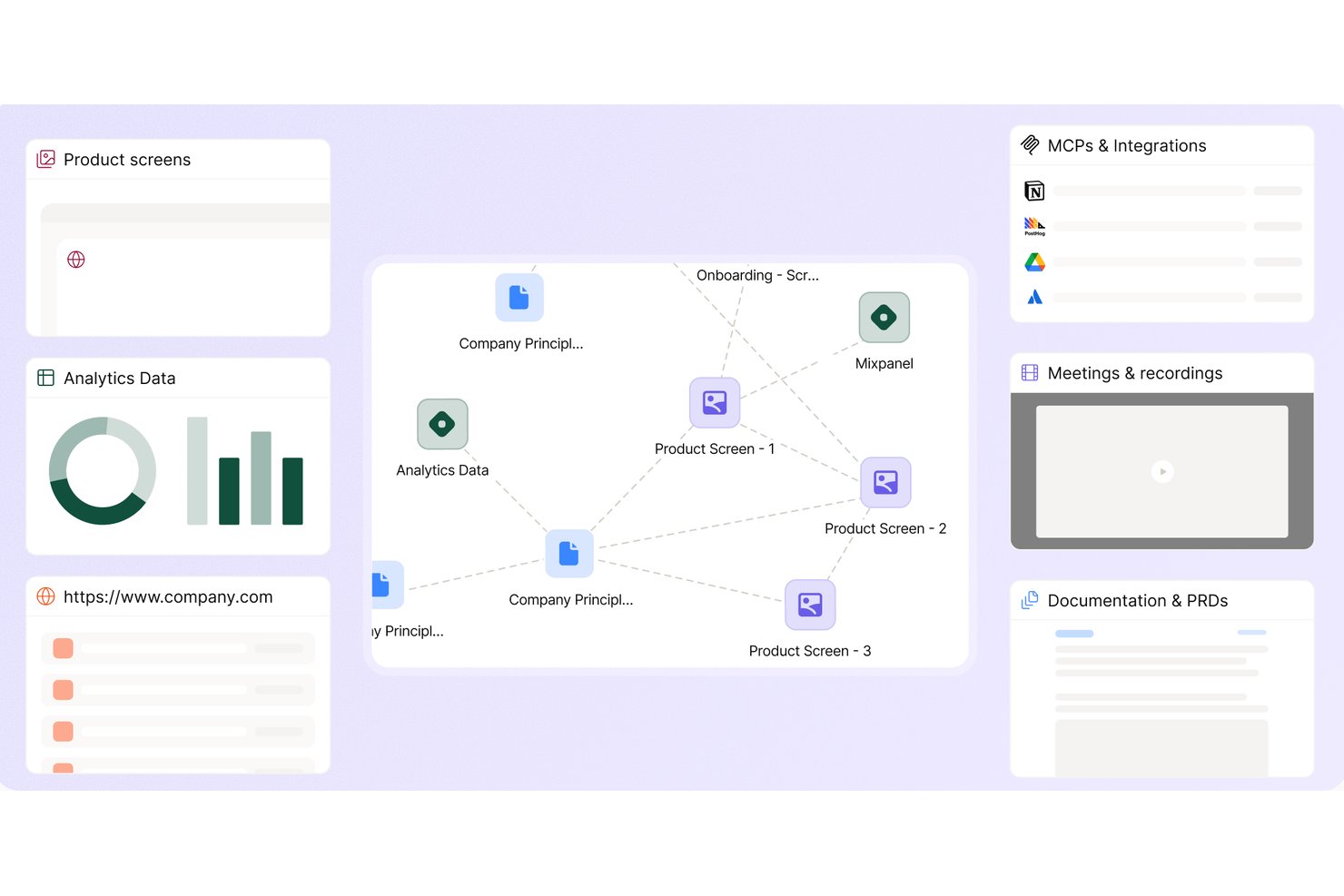
Figr is an AI design agent that ingests your live product screens, docs, and analytics to generate high-fidelity prototypes, UX flows, and design reviews grounded in real product context.
Who Is Figr Best For?
Figr is a strong fit for product managers and designers at software companies who want AI to reason through UX decisions before a single screen is built.
Why I Picked Figr
Figr earns its spot as one of the best on my shortlist because of how it reasons through UX before generating a single screen. I like that it ingests live product screens via Chrome extension, plus PRDs, analytics, and session recordings, into Context Pods that give the AI real product memory to work from. When I ask it to map a flow, it flags edge cases and accessibility issues grounded in what my product actually does, not pulled from a generic pattern library.
Figr Key Features
- Design system intelligence: Enforces tokens, components, and brand rules to maintain visual consistency.
- Figma two-way sync: Allows seamless back-and-forth updates between Figr and Figma design files.
- Context Pods: Centralize PRDs, analytics, and research so product context stays connected to your designs.
- Chrome extension for live product capture: Imports live app screens directly into Figr for rapid mapping and analysis.
Figr Integrations
Figr offers native integrations with Figma, Linear, Confluence, Notion, Granola, Miro, and Storybook. An API is available for custom integrations, and you can connect design systems through GitHub on the Enterprise plan.
Pros and Cons
Pros:
- Connects PRDs, analytics, and live user data
- Flags accessibility and logic gaps in screens
- AI analyzes live product context for UX flows
Cons:
- Developer handoff lacks full inspect mode
- No native vector editing tools

Best for dynamic collaboration in design

For teams looking for a UX/UI design tool that supports creativity and collaboration, Lucidspark provides a virtual whiteboard built for shared work. It’s used across industries, from agile development to project planning, and offers an infinite canvas for brainstorming and mapping ideas. Lucidspark is designed for remote collaboration, allowing teams to work together in real time, make decisions, and stay aligned through its AI features and integrations.
Why I Picked Lucidspark
I picked Lucidspark because it supports active collaboration in UX/UI design through its infinite canvas and AI-driven real-time interaction. The infinite canvas allows teams to brainstorm and prototype without space constraints, which is essential for design work. Its AI features also support clearer communication and faster decision-making, making it a practical choice for teams aiming to streamline their design workflows.
Lucidspark Key Features
In addition to its collaborative strengths, Lucidspark offers several key features that cater to UX/UI design needs:
- Templates: Lucidspark provides a wide range of templates that help teams quickly kickstart their design processes.
- Mind Maps: This feature allows you to visually organize ideas and concepts, essential for structuring user flows and design strategies.
- Interactive Activities: Engage your team with interactive exercises to refine ideas and gather insights during the design phase.
- Resource Library: Access a collection of resources, including training materials, to enhance your team's design skills and project management.
Lucidspark Integrations
Integrations include Microsoft Teams, Google Sheets, Slack, Jira, Asana, Miro, Zoom, Dropbox, Trello, and Confluence.
Pros and Cons
Pros:
- Integrates with Google Drive and Jira
- Real-time collaboration for teams
- Kanban workflow templates available for teams
Cons:
- Annual billing required for access
- Team plans start from $10 monthly per user


Mobbin is a treasure trove for anyone in the UX/UI design field. It compiles a vast collection of mobile app design patterns, helping you draw inspiration from successful apps.
Mobbin stands out for its extensive library of design patterns sourced from top apps. These patterns are meticulously categorized, allowing you to explore various design elements and user flows. This feature makes it easier to gather ideas and insights for your projects, saving you time that would otherwise be spent scouring individual apps.
Another reason to consider Mobbin is its focus on real-world applications. By showcasing design patterns from popular apps, Mobbin provides a practical perspective on what works in the market. This approach ensures you’re not just getting theoretical knowledge but insights grounded in real-world success.
Mobbin Standout Features and Integrations
Features include the ability to browse through a curated collection of screenshots from a wide array of apps, offering a visual feast of design possibilities. Mobbin also updates its library frequently, so you’re always in the loop with the latest design trends. The platform's search functionality allows you to find specific design patterns quickly, making it a handy tool for your design research.
Integrations include Zapier, Stripe, Figma, Vercel, Notion, Supabase, and other essential tools that enhance your design workflow.
Pros and Cons
Pros:
- Integrates with Figma workflows
- Frequently updated with new patterns
- Extensive library of real-world designs
Cons:
- Search accuracy needs improvement
- Limited free access features
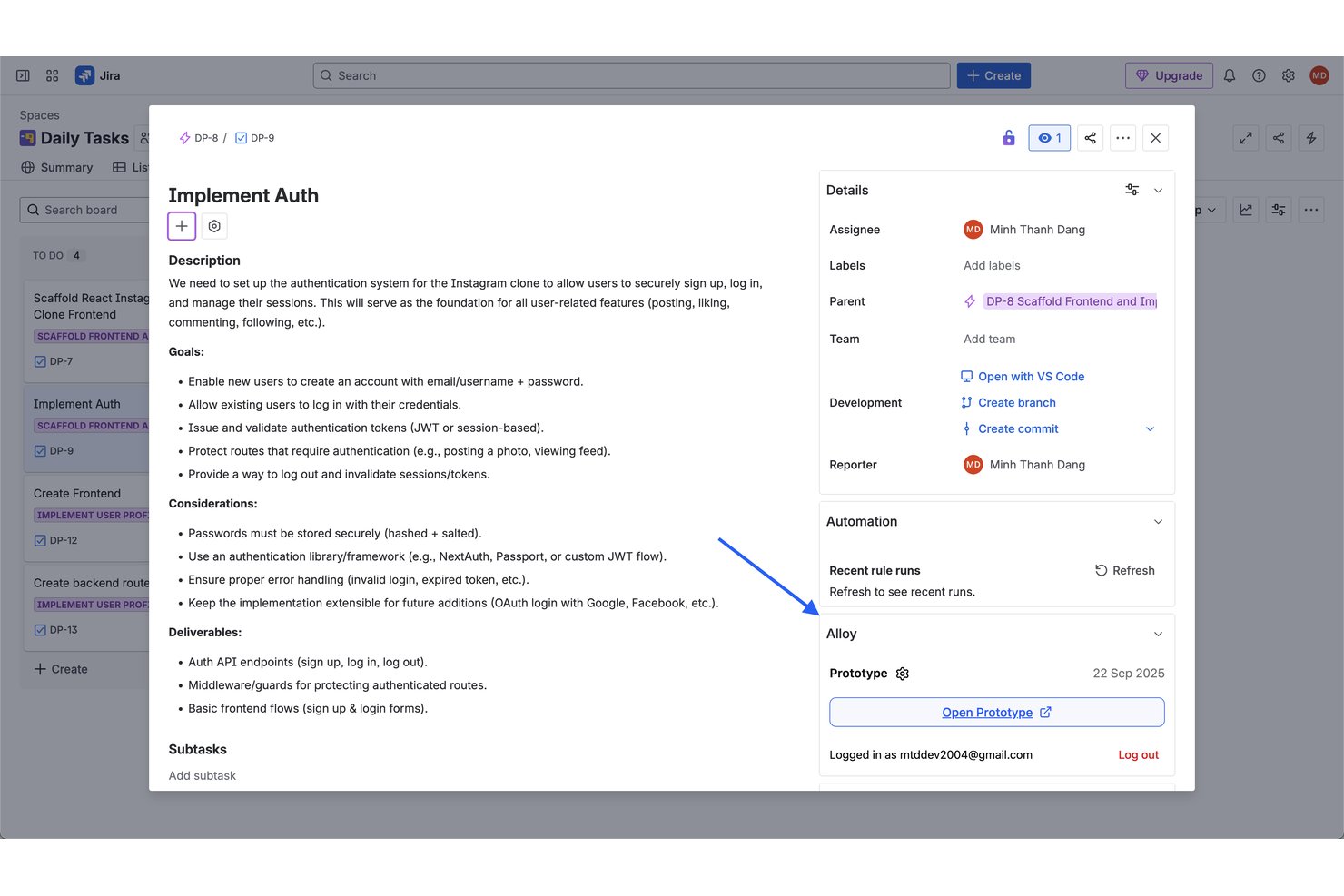
Alloy is an AI prototyping tool that captures your live web product via a Chrome extension and lets you build interactive, high-fidelity prototypes using natural language prompts and visual editing.
Who Is Alloy Best For?
Alloy is a strong fit for product managers at teams with an existing web app who want to prototype ideas without relying on designers or engineers.
Why I Picked Alloy
I picked Alloy as one of the best because no other tool lets you prototype directly on your real, live product. Its Chrome extension captures the live DOM and CSS of any page in one click, so prototypes automatically match your design system without any imports or setup. I also like that its Cloud Agent connects to your codebase, meaning I can take a prototype from idea to a working React output without handing it off to engineering first.
Alloy Key Features
- AI-powered conversation editing: Make design changes through natural language prompts in chat without using a design canvas.
- Inline comments and version history: Add comments directly on prototypes and revisit any previous version generated by Alloy’s AI.
- Reusable skills library: Capture and save interactions or UI changes to use across multiple prototypes for consistency and efficiency.
- 30+ product team integrations: Connect with tools like Jira, Productboard, Slack, Notion, and GitHub to streamline cross-functional workflows.
Alloy Integrations
Alloy offers 30+ native integrations, including Jira, Productboard, Linear, Slack, Notion, Confluence, GitHub, Intercom, Zendesk, and Salesforce, and connects with Zapier. An API is available for custom integrations.
Pros and Cons
Pros:
- No design canvas skills required to prototype
- Outputs real React code, not just mockups
- Prototypes built on your actual live product
Cons:
- No native vector design or illustration tools
- Only works with existing web-based products
Miro
Best for visual collaboration and innovation

Miro is a visual workspace tool that facilitates project management, diagramming, process mapping, and content visualization, which are essential for collaborative and innovative work.
I chose Miro because it provides a comprehensive visual workspace that supports the entire design process, from ideation to prototyping. Its standout features include visual project management, diagramming, process mapping, and content visualization, which are essential for UX/UI design. I believe Miro is best for visual collaboration and innovation because it caters to a wide range of use cases, such as technical diagramming, whiteboarding, and wireframing.
Miro Standout Features and Integrations
Features include real-time collaboration tools, such as sticky notes and comments, an infinite canvas, custom frames and shapes, presentation mode, TalkTrack to record process explanation videos, Miro Assist AI, document and image embedding, voting and polling features, mind mapping tools, screen sharing, timeline and roadmap planning, access control and permissions management.
Integrations include Zoom, Figma, Asana, Microsoft Teams, Jira, Slack, Monday.com, Confluence, Google Drive, Box, Airtable, Notion, Azure, and Webex. Some integrations are limited to paid plans only.
Pros and Cons
Pros:
- Wide range of design features
- Easy to use and implement
- Unlimited planning and brainstorming space
Cons:
- Free tier limitations
- No way to save custom templates
New Product Updates from Miro
Miro Adds Japan Data Residency for Enterprise Customers
Miro has introduced Japan data residency for enterprise customers, offering in-region storage for production data, backups, and metadata, plus in-region compute infrastructure. For more information, visit Miro's official site.

Figma
Best for collaborative UX/UI design

Figma is a collaborative design platform that provides a shared workspace where people across various teams and departments can come together to brainstorm, prototype, and build solutions in real time.
In addition to automatically responsive design layouts for websites, Figma also touts tools they say you won’t find anywhere else, including a modern pen tool that helps users draw in any direction; instant arc designs to design clocks, pie charts, and watch screens; and OpenType for advanced font features to explore branding through text.
Figma hopes their real-time collaboration platform will help team members align early in the project and stay in sync throughout — no matter the scope of the project or industry they’re in. To aid businesses in finding a solution for their needs, they offer several tiers that may support freelancers, startups, and small businesses, as well as larger organizations.
Figma Standout Features and Integrations
Features include advanced drawing tools, plug-ins and widgets, interactive prototypes, sketch import, advanced animations, unlimited viewers, shareable links, and team libraries. Figma offers Mac, PC, and Linux compatibility.
Integrations include Axure, Bubble, Flinto, Framer Web, Maze, Pendo, Principle, ProtoPie, Sprig, and UXtweak. Figma offers integrations for prototyping, user testing, developer handoff, collaboration, and productivity.
Pros and Cons
Pros:
- Stable and fun to work with
- Continuous upgrades for collaboration
- Powerful option for software developers
Cons:
- Limited offline functionality
- Navigation to plug-ins is complex

Balsamiq
Best for quick and easy wireframing

Balsamiq is design software used for rapid wireframing that combines the simplicity of a paper sketch with the power of digital tools. All wireframe designs look like sketches to ensure that stakeholders don’t get distracted by the little details and focus on the overall picture instead.
With Balsamiq, wireframing is more accessible at every level, including for business owners, project managers, business analysts, developers, agencies, and anyone interested in entering the UX field. They offer comprehensive wireframing resources through their Wireframing Academy so anyone can learn the software.
Balsamiq also increases accessibility with a cloud-based app, web-accessible portal, and downloadable desktop version (Mac and Windows). This platform offers support for businesses working on as many as 200 projects at a time.
Balsamiq Standout Features and Integrations
Features include UI components and icons, export to PNG or PDF, drag and drop capabilities, optimized for speed, re-usable symbols, and interactive prototypes.
Integrations include Confluence, Google Drive, Jira, Shift, and Trello.
Pros and Cons
Pros:
- Workflow simulation options
- Quick and easy tools
- No learning curve
Cons:
- Limited integrations
- Single-task platform

Best for auto generating visual sitemaps in seconds

VisualSitemaps does exactly what their name implies, generating visual sitemaps with high-resolution screenshots of any site or web-based app. This makes it easier for designers and developers to perform site audits for SEO, UX, UI, and marketing needs.
To get a visual sitemap, users simply enter a URL, and the cloud-automated software will generate a thumbnail-based architecture of the whole site. Users can then annotate pages for feedback and edit a sitemap based on the original. VisualSitemaps also allows for crawling password-protected websites safely.
VisualSitemaps supports the work of web design directors, UI designers, UX designers, developers, strategists, marketers, and product owners. The software can visualize up to 20,000 pages per month.
VisualSitemaps Standout Features and Integrations
Features include cloud-automated crawling, sitemap editing, visual QA and scheduled crawls, screenshot annotations, export to PDF, crawling password-protected sites, and custom tags. Crawling password-protected sites works through VisualSitemaps' encrypted credentials.
Integrations include Sketch.
Pros and Cons
Pros:
- Ideal for checking out competitors
- Very sleek UI
- Easy to get started
Cons:
- Scraping large websites is time consuming
- Specialized tool

Sprig
Best for understanding UI/UX impact on users

Sprig is an AI-powered platform that helps designers gather and analyze user feedback directly within their products. By capturing real-time insights, you can refine designs, reduce friction, and enhance user experiences.
Sprig’s session replay is designed to show exactly how someone experiences your design, from first click to final action. You can capture specific clips based on user traits or in-product actions, then connect those sessions with survey feedback. This makes it easier to understand the why behind user frustration or drop-off points.
Sprig Standout Features and Integrations
Features include heatmaps that give a clear visual of how users interact with your designs. You can see where people are scrolling, clicking, and hovering, which helps you spot trends and optimize UI elements. You also have the option to collect feedback on UI/UX directly through templated surveys.
Integrations include Mixpanel, Amplitude, Optimizely, LaunchDarkly, Slack, Zapier, Segment, Google Tag Manager, Salesforce, Google Sheets, HubSpot, and Zendesk.
Pros and Cons
Pros:
- In-product testing for quick insights
- Video interviews for rich feedback
- Surveys built into the product
Cons:
- No design tools like wireframing and prototyping
- Limited customization for surveys


This visual web development platform is built to allow users to design, create, and launch a custom website without writing any code. With its completely visual canvas, Webflow translates any design into CSS3, HTML5, and Javascript once it’s ready for publishing or handoff.
Webflow is optimized for more than just building websites, it can also connect with essential marketing tools so teams can collaborate on content, optimize SEO, and build flows with logic. This design platform also offers tons of support and training, as well as the ability to hire a Webflow-endorsed partner to help with any project.
Webflow offers support for both general and ecommerce websites with plans that are ideal for businesses of all sizes. In addition to free plans for solo operations and low-cost plans for small businesses, Webflow also offers custom solutions for those that anticipate massive scaling.
Webflow Standout Features and Integrations
Features include website-building tools, optimization tools, and scaling tools. Website-building tools include no-code design, interactions, CMS, ecommerce, and membership content.
Integrations include accessiBe, BoomTown, CloudFlare, Cognito Forms, Ecwid, Fomo, HubSpot Marketing Hub, LiveAgent, LiveChat, and Shippo.
Pros and Cons
Pros:
- Translates into code after building
- No coding needed
- Very user friendly
Cons:
- A bit of a learning curve
- Confusing pricing structure
Other UX/UI Design Software
Here are a few more worthwhile options that didn’t make the best UX/UI design software list but are worth your consideration.
- Sketch
Design and prototyping app for Macs
- Axure
For building realistic, functional prototypes
- Maze
For customer feedback and insights
- InVision Studio
All-in-one whiteboard solution for design teams
- Flowmapp
For collaboration between UX, strategy, design and development, and clients
- Origami Studio
For free design prototyping and building in Mac
- Framer
For no-code website building with simple publishing
- Justinmind
For responsive design and event interactions
- MockFlow
For small businesses with end-to-end product design needs
- Craft.io
For managing the entire product life cycle
- UXPin
For component-driven prototyping and product design
- Marvel
For prototyping and wireframing of multi-device apps
- Treejack
For evaluating content findability
- Proto.io
For creating fully interactive web and mobile prototypes
- Optimal Workshop
For qualitative research and information architecture


Related Product Management Software Reviews
If you still haven't found what you're looking for here, check out these tools closely related to UX/UI Design Software that we've tested and evaluated.
- Best Product Planning Software
- Best UX Design Tools
- Best Product Development Software
- Best Product Analytics Tools
- Best Idea Management Software
- Best Heatmap Software
How I Evaluate UX/UI Design Software
When I evaluate UX/UI design tools, I separate the non-negotiables—live collaboration, prototyping fidelity, dev handoff—from the differentiators that determine the right fit for a product team.
Core Functionality (Table Stakes For This List)
When I'm selecting tools for my list, I rank each one on a scale from 0 (does not offer the functionality) to 5 (excels in this area) for each core functionality listed below. Then, I calculate the tool's total score into a percentage. Each tool needs to achieve a minimum total score of 75% to be considered for inclusion.
- Wireframing & Mockup Tools: I evaluate whether vector tools, auto-layout, and template libraries support quick iteration from rough wireframes to polished screen mockups.
- Interactive Prototyping: I look for prototyping depth—things like variables, conditional logic, and animation controls that let you simulate real user flows for stakeholder demos.
- Design System Management: Shared component libraries, style tokens, and variant support matter here, especially for teams managing consistency across multiple products.
- Real-Time Collaboration: I check for true multiplayer editing, inline commenting, and shared sessions so PMs and engineers can participate in reviews without exporting files.
- Developer Handoff: Good handoff means auto-generated specs, exportable assets, and code snippets in CSS, Swift, or Kotlin that engineers can actually use during implementation.
- UX Research Integration: I look at whether the tool connects to usability testing platforms or offers native feedback collection, like prototype test links with recording capabilities.
Once I have a list of tools that meet this criteria, I consider what sets each platform apart.
Differentiating Factors (What Sets Vendors Apart)
Here's how I compare and contrast different vendors:
Standout Features
AI-assisted design is a growing differentiator. Tools that generate wireframe layouts, suggest component placements, or auto-fill content placeholders give designers a real head start during early ideation. I also evaluate how far design system management extends beyond shared libraries—token governance and multi-library publishing matter when teams ship across several products. Developer handoff depth is another factor I weigh. A dedicated dev mode with version diffs and framework-specific code output saves engineers from manually recreating specs.
Beyond Features
Integrations shape how well a design tool fits into your existing workflow. I check for native connections to project management tools like Jira or Linear and developer platforms like GitHub or Storybook—these keep design decisions tied to actual sprint work. Platform accessibility also matters. Teams with mixed operating systems need browser-based access or cross-platform apps that perform well with large files. I also consider how pricing scales with team composition, since editor-versus-viewer seat structures can shift costs significantly as your org grows.
How to Choose UX/UI Design Software
With so many different UI/UX design tools available, it can be challenging to make decisions on which solution is the best fit for your needs.
As you're shortlisting, trialing, and selecting UI/UX tools, consider the following:
- What problem are you trying to solve - Start by identifying the UX/UI design feature gap you're trying to fill to clarify the features and functionality the UX/UI design software needs to provide.
- Who will need to use it - To evaluate cost and requirements, consider who'll be using the software and how many licenses you'll need. You'll need to evaluate if it'll just be the UX/UI design professionals, or the whole organization that will require access. When that's clear, it's worth considering if you're prioritizing ease of use for all, or speed for your UX/UI design software power users.
- What other tools it needs to work with - Clarify what tools you're replacing, what tools are staying, and the tools you'll need to integrate with, such as accounting, CRM or HR software. You'll need to decide if the tools will need to integrate together, or alternatively, if you can replace multiple tools with one consolidated UX/UI design tool.
- What outcomes are important - Consider the result that the software needs to deliver to be considered a success. Consider what capability you want to gain, or what you want to improve, and how you will be measuring success. For example, an outcome could be the ability to get greater visibility into performance. You could compare UX/UI design features until you’re blue in the face, but if you aren’t thinking about the outcomes you want to drive, you could be wasting a lot of valuable time.
- How it would work within your organization - Consider the software selection alongside your workflows and delivery methodology. Evaluate what's working well, and the areas that are causing issues that need to be addressed. Remember every business is different — don’t assume that because a tool is popular that it'll work in your organization.
Trends in UX/UI Design Software for 2026
UI/UX design platforms in 2026 is a rapidly changing field, driven by the continuous pursuit of creating more intuitive, engaging, and visually appealing interfaces. Here's a look at the emerging trends for UX/UI design tools and how they're addressing the evolving needs of UX and UI professionals.
- Increased Emphasis on AI and Machine Learning: The most rapidly evolving feature in UX/UI design software is the integration of AI and machine learning technologies. These advancements facilitate more efficient design processes by automating repetitive tasks, generating design suggestions, and enabling predictive user experience outcomes. Tools are also now offering AI-driven analytics to understand user behavior better, thereby enabling designers to create more personalized and user-friendly interfaces.
- Advanced Prototyping and Interaction Tools: As the demand for highly interactive and realistic prototypes grows, design software is responding with more sophisticated prototyping capabilities. These include enhanced animation tools, micro-interactions, and the ability to simulate complex user flows. This functionality is crucial for testing and refining the user experience before development, reducing the need for costly revisions.
- Integration and Collaboration Features: In an increasingly remote work environment, the need for seamless collaboration has never been more important. UX/UI design tools are expanding their collaboration features, allowing team members to work together in real time, share feedback instantly, and maintain UI design consistency across large teams. This trend underscores the importance of teamwork and communication in creating successful digital products.
- Focus on Accessibility and Inclusivity: There's a growing trend towards ensuring digital products are accessible to all users, including those with disabilities. Design software is incorporating more comprehensive accessibility testing tools and guidelines to help designers create interfaces that comply with global accessibility standards. This functionality is not only novel but also reflects a broader societal shift towards inclusivity.
- Decline in Static Design Tools: As the industry moves towards more dynamic, interactive, and user-centric designs, traditional static design tools are becoming less important. The demand has shifted towards software that supports interactive prototyping, real-time collaboration, and comprehensive user testing, indicating a decrease in the need for tools that only offer basic graphic design capabilities.
As technology continues to advance, the tools and features that facilitate UX and UI design are becoming more critical, shaping the future of how digital interfaces are designed and developed. Meanwhile, functionalities that do not support designers' evolving needs are gradually fading from prominence.
What is UX/UI Design Software?
UX/UI design software refers to digital tools and platforms that assist designers in creating a product's prototype, mockup, layout, wireframe, and any other design deliverable that focuses on how the user interacts with a product. Some of the features that make this possible are design element libraries, prototyping capabilities, collaboration tools, and the ability to export design assets for development.
These tools encompass a range of functionalities that play a crucial role in translating design ideas into tangible and functional digital products, ensuring a positive and engaging user experience.
Features of UX/UI Design Software
User Experience (UX) and User Interface (UI) design play a crucial role in the development of digital products, ensuring that they are not only functional but also intuitive and engaging for users. The right UX/UI design software is instrumental in achieving these goals, offering a range of features that facilitate the creation and visualization of interfaces that meet user needs. Here, I spotlights the most important features to look for in such software.
- Vector-Based Design Tools: These allow for the creation of crisp, scalable graphics that look great on any screen size. This feature is essential because it ensures designs remain sharp and professional across all devices, enhancing the visual appeal and functionality of the interface.
- Responsive Design Capabilities: This feature enables designers to create interfaces that adapt seamlessly to different screen sizes and orientations. It's crucial for ensuring that the user experience is consistent and accessible across all devices, from desktops to smartphones.
- Collaboration Tools: These tools support real-time cooperation among team members, which is vital for a cohesive and efficient design process. They allow for immediate feedback and adjustments, ensuring that the final product truly reflects the team’s collective vision and user needs.
- Prototyping and Interaction Tools: Prototyping software with interaction capabilities allows designers to create functional previews of their designs. This is important for testing and refining user flows and interactions before development, saving time and resources in the long run.
- Comprehensive Asset Libraries: Access to a wide range of pre-made assets and templates speeds up the design process and ensures consistency across projects. This feature is crucial for maintaining a high level of quality and coherence in design elements like icons and buttons.
- User Testing Integration: Software that integrates user testing tools facilitates direct feedback from the target audience. This feature is invaluable for understanding user behavior and preferences, allowing designers to make informed decisions that enhance usability and satisfaction.
- Code Export and Handoff Tools: These tools enable designers to convert their designs into code snippets that developers can use, streamlining the handoff process. This feature ensures that the final implementation is faithful to the original design, preserving its aesthetic and functional integrity.
- Accessibility Features: Design software that includes accessibility guidelines and checks helps create interfaces that are usable by people with a wide range of abilities. This is essential for inclusive design, ensuring that products are accessible to as broad an audience as possible.
- Customizable Grids and Layouts: Customizable grids and flexible layout tools aid in creating structured, well-organized designs. They are key for ensuring that the interface is both visually appealing and easy to navigate, contributing to a positive user experience.
P.S., Still exploring the visual direction before diving into layouts and components? Moodboard creator tools can help you define the look and feel of your product before moving into hands-on design. - Integration with Other Design and Development Tools: Seamless integration with other tools in the design and development ecosystem facilitates a smoother workflow. This feature is important for ensuring efficiency and flexibility, allowing designers and developers to use a range of tools without compatibility issues.
Choosing the right UX/UI design software is a pivotal step in the creation of digital products that users love. By prioritizing features that enhance collaboration, efficiency, and user-centered design, you can ensure that your interfaces are both functional and delightful to use.
Benefits of UX/UI Design Software
For organizations looking to elevate their digital presence, investing in a robust UI/UX solution offers numerous advantages. Here are five primary benefits that such software brings to users and organizations alike:
- Enhanced User Satisfaction: By enabling the creation of intuitive and engaging interfaces, UX/UI design software directly contributes to a more satisfying user experience. This increased satisfaction leads to higher retention rates and more positive interactions with the product, benefiting businesses by fostering loyalty and encouraging continued use.
- Increased Productivity: Design software equipped with collaboration tools and templates streamlines the design process, significantly increasing productivity. Teams can work more efficiently, with less time spent on repetitive tasks and more on innovation and refinement, thus accelerating project timelines and reducing time to market.
- Improved Accessibility: The incorporation of accessibility features within UX/UI design software ensures that products are accessible to a wider audience, including those with disabilities. This not only expands the user base but also demonstrates a commitment to inclusivity, enhancing the organization's reputation and compliance with legal standards.
- Cost Efficiency: By integrating prototyping and user testing tools, UX/UI design software allows for early detection of usability issues, preventing costly revisions post-development. This upfront investment in design software reduces long-term costs associated with redesigns and development overhauls, making it a cost-effective solution for businesses.
- Competitive Advantage: High-quality UX/UI design software enables organizations to create products that stand out in the marketplace. Through superior design and user experience, companies can differentiate their offerings, attract more users, and gain a competitive edge, ultimately driving growth and profitability.
Investing in UX/UI design software is a strategic move for organizations aiming to thrive in the digital landscape. It not only enhances the user experience but also brings operational efficiencies and strategic advantages. By choosing the right software, organizations can unlock the full potential of their digital products, creating experiences that users love while achieving business objectives.
Costs & Pricing for UI/UX Design Software
When selecting UX/UI design software, it's pivotal to understand the variety of plan and pricing options available to cater to different needs and budgets. Pricing and plans typically range from free versions with basic features to more advanced enterprise solutions offering extensive capabilities. For software buyers with little to no experience using such software, it's crucial to weigh the features offered against the investment required to find the best fit for your project or organization's needs.
Plan Comparison Table for UI/UX Design Software
| Plan Type | Average Price | Best For | Common Features Included |
|---|---|---|---|
| Individual | $15 - $35/month | Seed/Series A startups with just one or two designers on staff | Access to core design and prototyping tools, single user access, basic collaboration features |
| Professional | $35 - $99/month | Growth-stage startups with growing teams | Advanced prototyping, team collaboration tools, integration with other software, priority support |
| Team | $99 - $200/month | Maturing SMBs | Shared design libraries, real-time collaboration for multiple team members, advanced security features, analytics and reporting |
| Enterprise | Custom pricing | Enterprise organizations | Customizable features, advanced security and compliance, dedicated support, training and onboarding, unlimited users |
| Free | $0 | Pre-seed startups, sole proprietorships | Basic design and prototyping tools, limited projects, community support |
Selecting the right plan involves considering your project's size, the complexity of the designs you intend to create, and the level of collaboration required among your team members. Free versions offer a good starting point for beginners to familiarize themselves with UX/UI design principles, while paid plans provide the advanced features needed for professional and team-based projects.
UX/UI Design Software Frequently Asked Questions
Find answers to common questions other people ask about this topic.
What do UX and UI stand for?
UI stands for User Interface, while UX stands for User Experience. Each of these design tools is an essential facet of customizing software, websites, and products to ensure a positive journey for the end user. With these two types of tools, businesses can create effective, easy-to-use interfaces for their customers.
What is the difference between UI and UX?
The difference between UI (User Interface) and UX (User Experience) lies in their focus areas within the design process of digital products. UI is concerned with the visual and interactive elements of a product’s interface, such as layout, colors, typography, and buttons, while UX focuses on the overall experience a user has with the product, encompassing usability, accessibility, and efficiency of completing desired goals.
While UI deals with the specific details of how the product looks and feels, UX addresses how all the elements and interactions fit together to create a seamless, effective user journey. Together, UI and UX work in harmony to create products that are not only beautiful but also functional and user-friendly.
What are the key features of UX/UI design software?
You want UX/UI design software that supports the different stages of your design process. Take a look at some of the key features below:
- Wireframing: an essential visual guide that blueprints the framework of a website or physical product.
- Prototyping: an early sample or model you can use to test and evaluate functionality and ease of use.
- Visual design: a tool that helps designers explore color, space, typography, and imagery to improve a user’s experience.
- Collaboration tools: a key feature that allows inter-team communication for a more streamlined workflow.
Are there specific tools for specific platforms, such as Windows, MacOS, Linux?
Platform-specific tools in UX/UI design definitely exist, and choosing the right one can sometimes hinge on the operating system you’re using.
For Windows, tools like Adobe XD and Sketch (via third-party solutions that simulate macOS) are quite popular. Adobe XD is particularly favored for its seamless integration with other Adobe Suite products which is great if you’re already within the Adobe ecosystem. Figma also works well on Windows and is browser-based, which makes it super versatile across platforms.
On macOS, Sketch is a staple for many designers due to its comprehensive features tailored to UI design and a vast library of plugins. Adobe XD and Figma are also top choices here, with native support that leverages the smooth macOS interface.
Linux users have slightly fewer options since mainstream tools like Sketch or Adobe XD aren’t directly available. However, tools like Pencil Project are open-source and work across all platforms, including Linux. Figma, again being browser-based, remains a solid choice for Linux users too.
How do these tools support accessibility in design?
Absolutely, ensuring accessibility in design is crucial, and many modern UX/UI tools come equipped with features to help designers create more inclusive products. Here’s a rundown of how these tools typically support accessibility:
- Color Contrast Analyzers: Tools like Adobe XD and Figma include built-in features or plugins that analyze color contrast ratios. This is essential for complying with Web Content Accessibility Guidelines (WCAG) and ensuring that text is legible for users with color vision deficiencies.
- Accessibility Plugins: For instance, Sketch and Adobe XD offer plugins like Stark, which provides a suite of tools to check for accessibility issues such as color blindness simulation and contrast checks.
- Voice Prototyping: Adobe XD supports voice commands and speech playback prototyping, which is a fantastic feature for designing voice-activated interfaces. This caters to users who rely on voice navigation due to physical limitations or preferences.
- Keyboard Navigation Prototypes: Tools often allow designers to create prototypes that mimic keyboard navigation, which is critical for users who do not use a mouse.
- Text Scaling Features: Ensuring that your design is flexible and maintains usability and legibility when text size is scaled up is vital for users with visual impairments. Many tools allow you to test and adapt designs based on text scaling.
- UI Component Libraries: Many design tools come with or allow you to integrate libraries of pre-built components that are designed with accessibility in mind. This can significantly speed up the design process while keeping accessibility front and center.
Using these features effectively allows designers to preemptively tackle accessibility issues, reducing the need for costly revisions and ensuring the product is usable by a wider audience right off the bat. It’s all about building with empathy and inclusivity from the ground up, and these tools are key to making that process as seamless as possible.
How do these tools handle user testing and feedback?
User testing and gathering feedback is a critical part of the UX/UI design process, and most modern design tools are well-equipped to support this phase. Here’s how these tools typically manage user testing and feedback:
- Interactive Prototypes: Tools like Adobe XD, Sketch, and Figma allow designers to create interactive prototypes that mimic the real application or website. This feature is essential for conducting usability tests where you need users to interact with your design as if it were the final product.
- Sharing and Collaboration: These tools offer easy sharing options where you can send a link to your prototype to testers and stakeholders. Feedback can be collected directly on the design with comments. For example, Figma allows multiple users to comment in real time, making it super collaborative.
- Integration with Testing Tools: Many UX/UI tools integrate with external user testing platforms. For instance, Lookback.io and UserTesting.com can be linked with your design tool to facilitate more structured user testing sessions, complete with video recordings and user interviews.
- Version Control: Tools like Abstract (used with Sketch) provide version control, which is incredibly useful when iterating designs based on user feedback. You can track changes over time, revert to previous versions, and compare them side by side.
- Heatmaps and Analytics: Some tools offer plugins or integrations with analytics tools that provide heatmaps, click tracking, and other usage statistics. These insights are gold when refining user interfaces based on how users interact with your design in real-world testing scenarios.
- Accessibility Testing: Plugins like Stark help ensure that your designs meet accessibility standards, which should be part of your testing phase to make sure your product is usable by everyone.
Using these features effectively enables a feedback loop that’s crucial for refining designs based on real user interactions and insights. It’s all about making the design as user-centered as possible, and these tools are key to achieving that.
What other software can I use for product design?
From CAD software for 3D modeling and prototyping to graphic design applications for creating stunning visuals, there is a wide array of software tools available to help product designers bring their ideas to life, including:
Find Ways to Learn More
Good design can be the difference between success and failure for websites and products. Learn how product managers should be using wireframes and how wireframes are different from prototypes.
If you're a UX design pro, you might also benefit from joining a UX design community.
Also, if you’re looking for the latest insights from the experts in the world of product management, sign up for The CPO Club newsletter today.