

AI prototyping tools use generative AI to help you quickly create, iterate, and refine digital product prototypes from initial ideation to final launch. If you’re searching for the best AI prototyping tools, you likely want to speed up product development cycles, reduce manual work, and keep your team focused on high-impact decisions instead of staring at a blank dashboard.
Choosing the right tool can help you bridge the gap between PRDs and functional prototypes—without getting bogged down in repetitive tasks. In this list, you’ll find trusted options that fit a range of workflows, so you can confidently select the best solution for your next web app project.
Why Trust Our Software Recommendations
6,700+
Reviews
20
Industry experts
16+
Evaluation factors
14
Years
Our team has been testing and reviewing software since 2012. As product managers ourselves, we know how difficult—and important—it is to choose the right software.
For this guide, we evaluated tools using hands-on testing and independent research, scoring tools using our selection criteria.
Our reviews reflect our human editorial judgment, not a sales pitch.
Expert reviewers:
- Andrew LumbySenior TPM
- Cristiano ValimSenior UI/UX Lead


AI Prototyping Tool Comparison Table
This comparison table summarizes pricing details for my top AI prototyping tools selections:
| Tool | Best For | Trial Info | Price | ||
|---|---|---|---|---|---|
| 1 | Best for multi-user whiteboarding sessions | Free plan + 14-day free trial available | From $8/user/month (billed annually) | Website | |
| 2 | Best for prototyping using your live codebase | Free plan + free demo available | From $20/user/month | Website | |
| 3 | Best for AI-generated multi-screen wireframe flows | Free plan available | From $9/user/month (billed annually) | Website | |
| 4 | Best for Figma-to-code with two-way sync | Free plan available | From $20/user/month (billed annually) | Website | |
| 5 | Best for code-based design iteration | Free plan available | From $20/month | Website | |
| 6 | Best for reference-based prototype generation | Free plan available | From $14/month | Website | |
| 7 | Best for handling large-scale, complex projects | Free plan available | From $18/month (billed annually) | Website | |
| 8 | Best for importing specs from project management tools | Free plan + free demo | From $21/month (billed annually) | Website | |
| 9 | Best with Figma design system integration | Free plan | From $16/month (billed annually) | Website | |
| 10 | Best for text-to-prototype with PM-focused AI tools | Free plan available | From $10/month (billed annually) | Website |


AI Prototyping Tool Reviews
Below are my detailed summaries of the best AI prototyping tools that made it onto my shortlist. My reviews offer a detailed look at the features, best use cases, and integrations of each tool to help you find the best one for you.
 1Best for multi-user whiteboarding sessions
Miro
- Free plan + 14-day free trial available
- From $8/user/month (billed annually)
Visit WebsiteCustomer Rating:4.8/5
Miro brings product planning, design, and team collaboration together in one shared workspace. Miro helps product, design, and cross-functional teams turn early ideas into visual plans, wireframes, and AI-generated prototypes in one shared workspace. Its infinite canvas, ready-made templates, and collaborative feedback tools make it useful for teams that need to brainstorm, map workflows, and validate product concepts before moving into full design or development.
Who Is Miro Best For?
Miro is a strong fit for product and design teams at mid-size to enterprise companies that need a shared space for cross-functional collaboration and prototyping.
Why I Picked Miro
I picked Miro because it helps product and design teams move from brainstorming to AI-generated prototypes without leaving the same shared canvas. Your team can add sticky notes, sketches, screenshots, and prototype screens in one workspace, which makes it easier to turn early ideas into testable product flows. I like how its real-time collaboration features, including live cursors, comments, and voting, support group prototyping sessions where everyone can give input quickly. Miro’s AI prototyping tools also help you generate and revise screens from prompts or board content, making it a good fit for teams that need to explore concepts before handing work off to design or development.
Miro Key Features
Some other features in Miro support faster prototype creation, testing, and design handoff:
- AI prototype generation: Create multi-screen prototypes from a text prompt, screenshot, URL, or existing board content.
- Interactive preview mode: Share clickable prototype previews so stakeholders can review flows without editing the main canvas.
- Prototyping component library: Build screens faster with pre-built UI components, including navigation bars, dialogs, calendars, and light or dark variants.
- Figma export: Copy completed Miro prototypes into Figma as SVGs while preserving the prototype’s layout structure.
Miro Integrations
Integrations include Jira, Confluence, Figma, Slack, Google Drive, Notion, Microsoft Teams, Zoom, Asana, and Azure DevOps.
Pros and Cons
Pros:
- Generates prototypes from prompts, screenshots, and board content
- Shared canvas supports live feedback during prototyping sessions
- Component library helps teams build clickable flows faster
Cons:
- Advanced AI prototyping requires the Prototypes add-on
- Not built for production-ready code generation workflows
 Best for prototyping using your live codebase
- Free plan + free demo available
- From $20/user/month
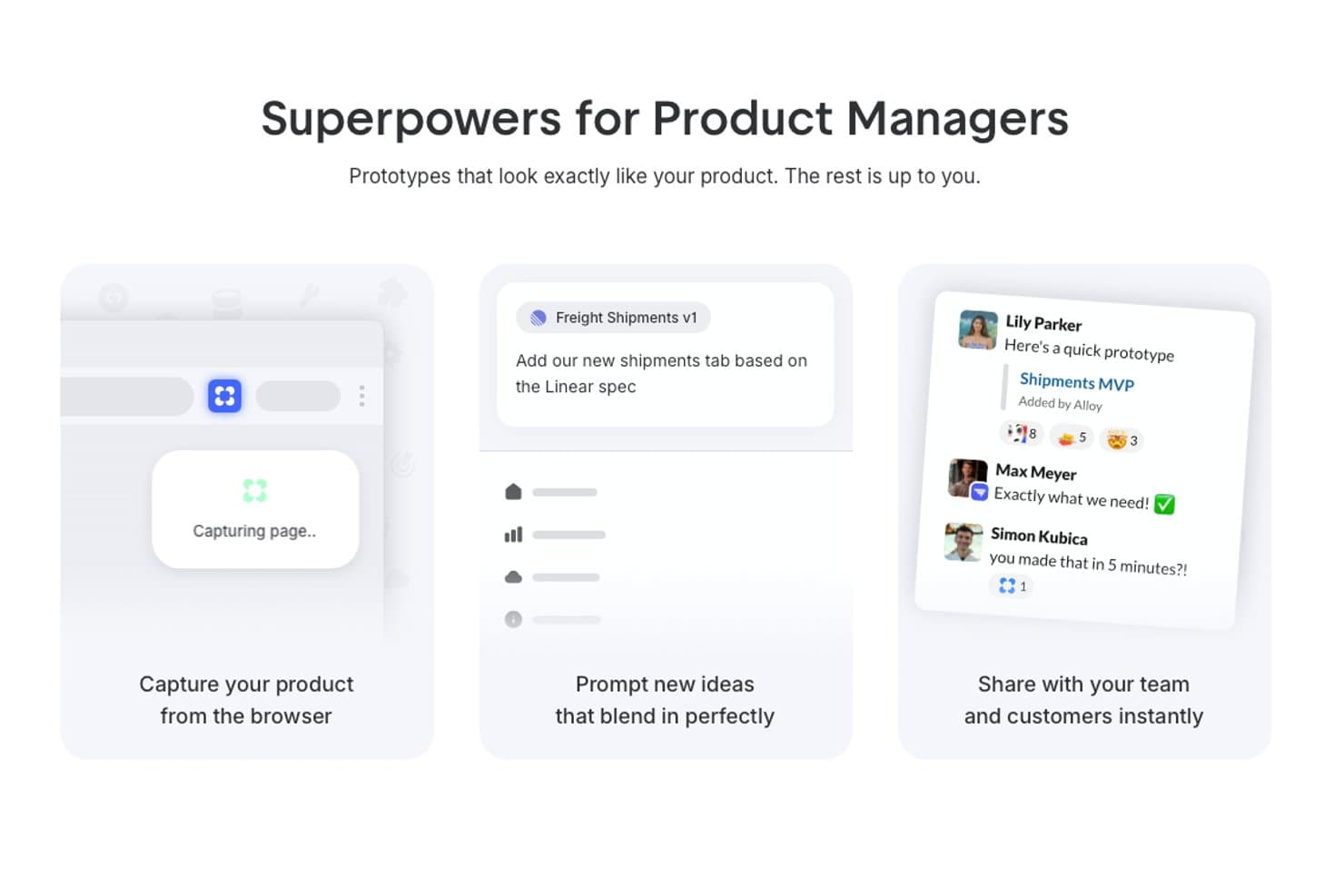
Alloy offers AI-powered prototyping features that let product managers capture their product from a browser, prompt new UI ideas, and share prototypes instantly with their team. Alloy is an AI-powered prototyping platform that lets you build, modify, and test interactive product prototypes directly on top of your actual codebase using conversational prompts.
Who Is Alloy Best For?
Product and UX teams at software companies who need to prototype directly with their existing application’s codebase.
Why I Picked Alloy
I picked Alloy as one of the best because I can prompt changes right inside my product’s live codebase and instantly generate interactive prototypes. My team is able to use our actual components and flows, not disconnected mockups, when prototyping new features.
Alloy Key Features
- Conversational AI editing: Make real-time design edits using text or voice prompts.
- Slack integration: Start or update prototypes directly from team Slack threads.
- Figma export: Export generated prototypes to Figma for further design work.
- Skills library: Save custom AI instructions as reusable actions for repetitive prototyping tasks.
Alloy Integrations
Alloy offers native integration with GitHub, Jira, Notion, Dovetail, Asana, Figma, ClickUp, Trello, Slack, and more. It also provides an API for custom integrations.
Pros and Cons
Pros:
- Allows real-time editing with voice or text
- Generates interactive, production-grade UI flows
- Uses your live codebase for prototyping
Cons:
- Not suited for legacy or non-React stacks
- Limited value for new, code-free prototypes
Learn more about Alloy: Best for AI-generated multi-screen wireframe flows
- Free plan available
- From $9/user/month (billed annually)
Visit WebsiteCustomer Rating:4.3/5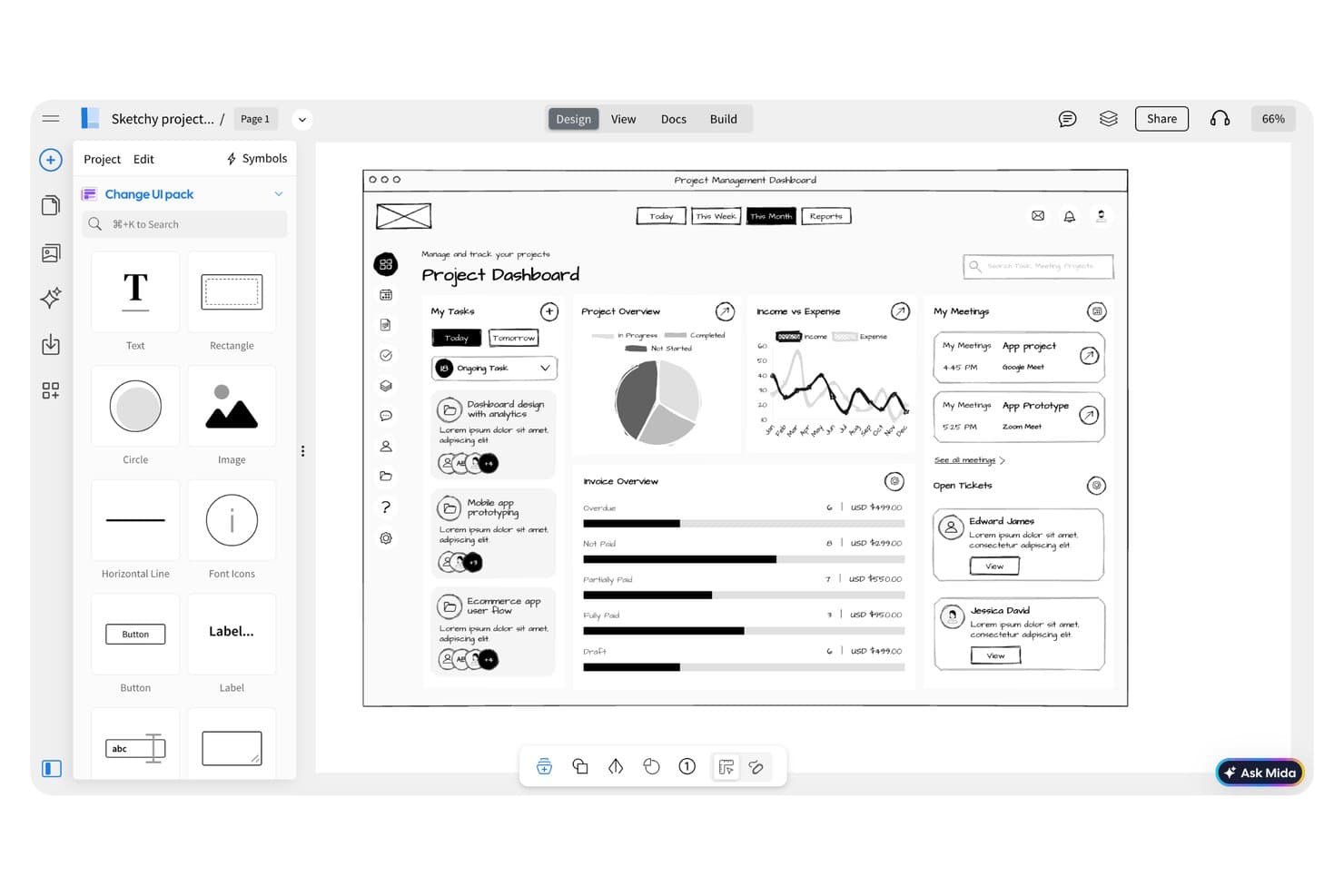
MockFlow lets users wireframe a project dashboard with UI components. MockFlow is a wireframing and prototyping tool that uses AI to generate multi-screen user flows, sitemaps, and low-fidelity mockups from text prompts.
Who Is MockFlow Best For?
MockFlow is a strong fit for UX designers and product teams who need to quickly generate multi-screen wireframe flows without building each screen from scratch.
Why I Picked MockFlow
MockFlow earns its spot on my shortlist because of how it handles multi-screen flow generation from a single text prompt. Instead of building screens one by one, I can describe a user journey and get a connected wireframe flow with navigation logic already mapped. The AI sitemap generator also gives me a structural starting point before any screen-level design begins.
MockFlow Key Features
- Component library: Access a built-in set of pre-made UI elements to drag and drop into wireframes without designing from scratch.
- Real-time collaboration: Invite team members to edit and comment on wireframes simultaneously within a shared workspace.
- Interactive prototyping: Link screens together with clickable hotspots to simulate user navigation flows for stakeholder review.
- Wireframe-to-specification export: Generate design specification documents directly from wireframes to hand off to developers.
MockFlow Integrations
MockFlow offers integrations with Slack, Microsoft Teams, Google Meet, Jira, Confluence, Trello, Google Drive, Google Docs, Microsoft 365, VS Code, Figma, Claude, and Cursor, plus API access for custom integrations.
Pros and Cons
Pros:
- Clickable hotspots support stakeholder walkthroughs
- AI sitemap clarifies product structure early
- Generates connected multi-screen flows from prompts
Cons:
- Generated flows still need manual refinement
- Low-fidelity output limits visual design exploration
Learn more about MockFlow: Best for Figma-to-code with two-way sync
- Free plan available
- From $20/user/month (billed annually)
Visit WebsiteCustomer Rating:4.2/5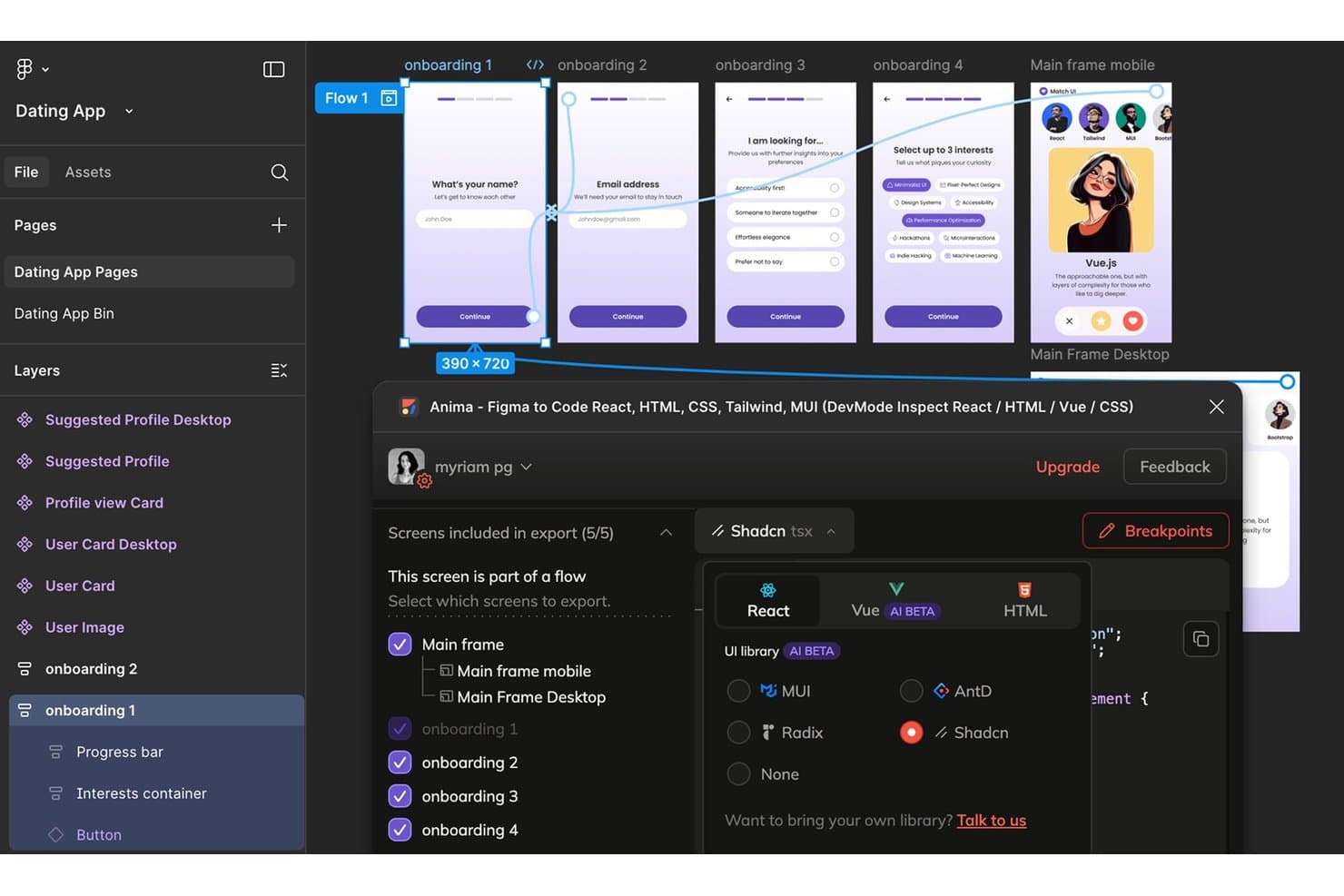
Anima exports multi-screen Figma flows as React, Vue, or HTML code. Anima is an AI prototyping tool that converts Figma designs into production-ready code, offering interactive prototyping, design-to-code generation, and two-way sync between design and development environments.
Who Is Anima Best For?
Anima is a strong fit for product teams and designers who work in Figma and need to hand off production-ready code to developers without losing design fidelity.
Why I Picked Anima
Anima earns its spot on my shortlist because of how cleanly it handles the gap between Figma designs and production code. I love that its two-way sync means design changes in Figma automatically reflect in the generated code, so developers aren't chasing outdated specs. The AI-powered code generation produces React, HTML, and CSS that's actually usable, not throwaway scaffolding.
Anima Key Features
- Interactive prototype builder: Create clickable, animated prototypes directly from your Figma designs without writing any code.
- Multi-framework code export: Export designs as React, HTML, or CSS code that developers can drop into existing projects.
- Component-level code inspection: Developers can inspect individual design components to view and copy the generated code for specific elements.
- Figma plugin integration: Run Anima directly inside Figma so you can generate prototypes and code without switching between tools.
Anima Integrations
Anima offers a native Figma plugin integration for creating prototypes and generating code within Figma.
Pros and Cons
Pros:
- Clickable prototypes from Figma designs
- React, HTML, and CSS exports
- Two-way sync keeps generated code current
Cons:
- Figma-centered workflow limits non-Figma teams
- Generated code may need developer cleanup
Learn more about Anima: Best for code-based design iteration
- Free plan available
- From $20/month
Visit WebsiteCustomer Rating:5/5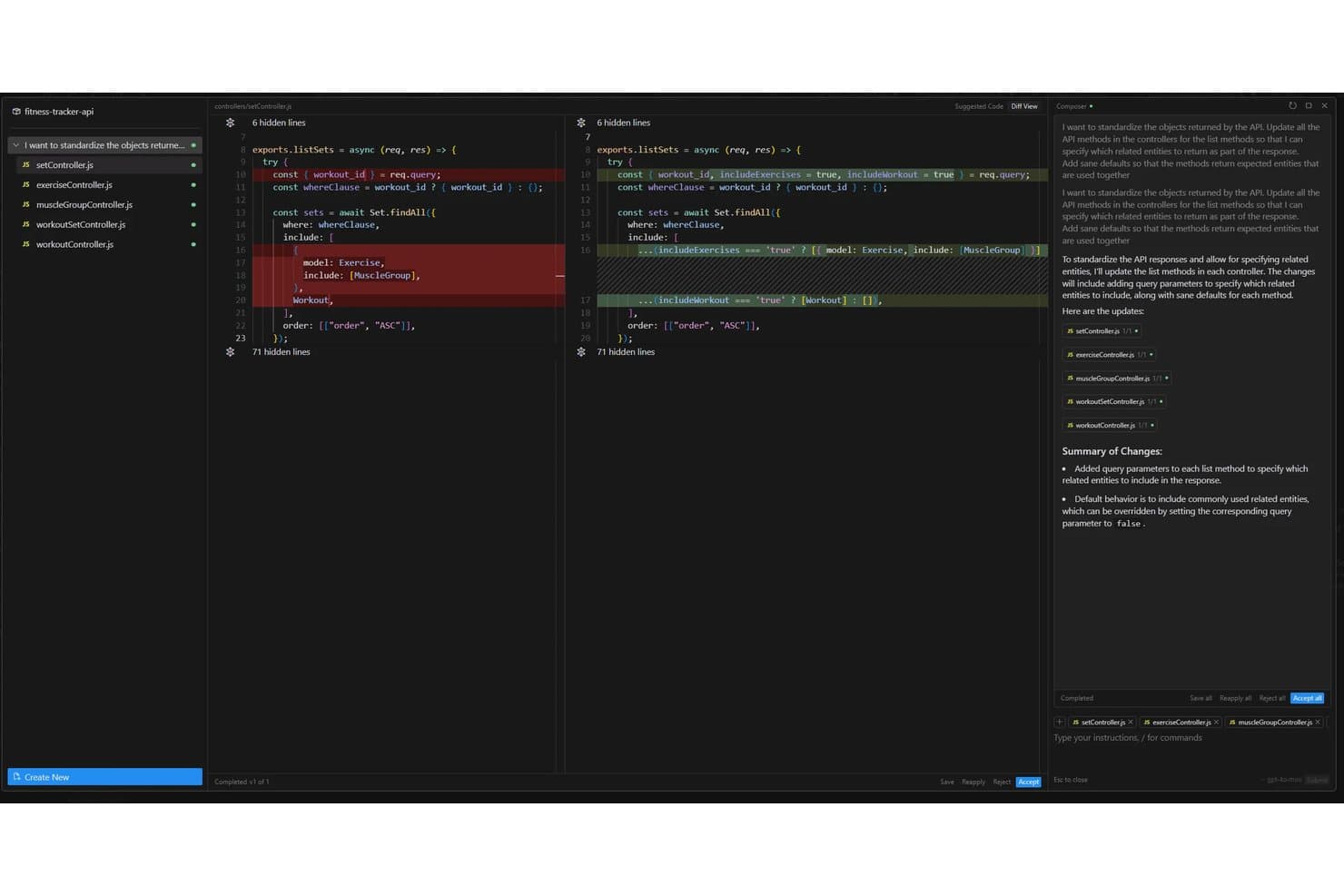
Cursor offers an AI-powered Composer feature that automatically refactors API controller methods across multiple files to standardize response objects with configurable query parameters. Cursor is an AI-powered code editor that lets you build and iterate on UI prototypes directly in code, using natural language prompts, an AI chat interface, and context-aware code generation.
Who Is Cursor Best For?
Cursor is a strong fit for product managers and developers who prototype directly in code and need AI-assisted iteration without switching between design and engineering tools.
Why I Picked Cursor
I picked Cursor as one of the best because it lets you prototype directly in a real codebase rather than faking it in a design tool. I love how its AI chat understands your project's full context, so when you say "make this sidebar collapsible," it generates code that actually fits your existing component structure. Its Composer feature lets you make sweeping, multi-file edits in one prompt, which means you can iterate on a live UI prototype without the usual back-and-forth between design and dev.
Cursor Key Features
- Inline code autocomplete: Cursor predicts and suggests your next line or block of code as you type, based on the surrounding context.
- @-symbol context referencing: You can tag specific files, docs, or web URLs directly in a prompt to give the AI precise context for generating prototype code.
- Terminal integration: A built-in terminal lets you run, test, and debug your prototype without leaving the editor.
- Multi-model AI support: Cursor lets you switch between leading AI models—including Claude and GPT-4o—depending on the task at hand.
Cursor Integrations
Native integrations are not clearly documented.
Pros and Cons
Pros:
- Multi-file changes accelerate interface iteration
- Context-aware edits fit existing component structures
- Prototypes run directly in real codebases
Cons:
- Generated changes still require technical review
- Requires comfort working directly in code
Learn more about Cursor: Best for reference-based prototype generation
- Free plan available
- From $14/month

UX Pilot creates prototypes from references so teams can shape ideas faster. UX Pilot is an AI-powered prototyping tool designed for UX professionals and product teams who want to accelerate early-stage design. It appeals to those who need to generate prototypes based on existing references or design inspiration. The platform helps teams quickly visualize ideas and iterate on concepts without starting from scratch.
Who Is UX Pilot Best For?
UX Pilot is a strong fit for UX designers and product teams at digital agencies or startups who want to generate prototypes using reference designs.
Why I Picked UX Pilot
What drew me to UX Pilot is its ability to generate prototypes directly from reference designs, which is especially valuable for teams that want to build on proven patterns or competitor examples. The tool lets you upload screenshots or URLs of existing products, then uses AI to create editable prototypes that mirror those references.
I find this approach useful for quickly iterating on familiar layouts or benchmarking against industry standards. For anyone who needs to translate inspiration into actionable prototypes without manual recreation, UX Pilot’s reference-based workflow is a clear advantage.
UX Pilot Key Features
Some other features that make UX Pilot stand out for AI prototyping include:
- AI-powered wireframe generation: Instantly create wireframes from text prompts describing your product or feature ideas.
- Multi-screen prototype support: Build and organize entire user flows with multiple connected screens in a single project.
- Component library: Access a built-in library of reusable UI components to speed up prototyping.
- Figma export: Export your prototypes directly to Figma for further design refinement or developer handoff.
UX Pilot Integrations
Integrations include Figma and GitHub.
Pros and Cons
Pros:
- Easy to prompt variations
- Good for UI brainstorming
- Fast AI wireframe creation
Cons:
- No direct dev code exports
- Requires good reference art
Learn more about UX Pilot: 7Best for handling large-scale, complex projects
Bolt
- Free plan available
- From $18/month (billed annually)

Bolt automates planning and tracks dependencies for large, complex projects. Bolt offers an AI-driven platform for teams managing complex product or project workflows. It’s designed for organizations that need to coordinate large-scale initiatives with multiple stakeholders and moving parts. Bolt helps users automate planning, visualize dependencies, and keep projects on track as they scale.
Who Is Bolt Best For?
Bolt is well suited for project managers and operations leads at mid-sized to large organizations running complex, multi-team projects.
Why I Picked Bolt
What drew me to Bolt is how it addresses the unique demands of large-scale, complex projects in AI prototyping. The platform’s AI-powered planning engine helps break down massive initiatives into manageable tasks, automatically mapping dependencies and timelines.
I also appreciate its visual project mapping, which makes it easier to spot bottlenecks and coordinate across multiple teams. These features make Bolt a strong choice for organizations that need to keep ambitious, multi-layered prototyping efforts organized and on track.
Bolt Key Features
Some other features that make Bolt valuable for AI prototyping teams include:
- Automated status reporting: The platform generates real-time progress updates for all stakeholders.
- Role-based permissions: Assign different access levels to team members based on their responsibilities.
- Template library: Access pre-built project templates tailored for various industries and workflows.
- Custom workflow automation: Set up automated triggers and actions to streamline repetitive project management tasks.
Bolt Integrations
Integrations include Figma and GitHub.
Pros and Cons
Pros:
- Great AI chat code editor
- Deployable AI prototypes
- Handles full-stack logic
Cons:
- Overwhelming for designers
- UI design is very basic
Learn more about Bolt: Best for importing specs from project management tools
- Free plan + free demo
- From $21/month (billed annually)
Visit WebsiteCustomer Rating:4.5/5
Lovable converts project specs into prototypes for faster design work. Lovable is an AI-powered prototyping tool designed for product teams and UX professionals who want to accelerate the transition from requirements to interactive prototypes. It stands out for its ability to turn detailed project specs into working prototypes with minimal manual effort. Teams looking to bridge the gap between planning and design may find Lovable especially useful.
Who Is Lovable Best For?
Lovable is a strong fit for product managers and UX teams at SaaS companies who need to quickly convert project management specs into interactive prototypes.
Why I Picked Lovable
What drew me to Lovable is how it directly addresses the challenge of moving specs from project management tools into actionable prototypes. Lovable lets you import requirements and user stories from platforms like Jira or Linear, then uses AI to generate interactive wireframes that reflect those specs.
I find this especially valuable for teams that want to reduce manual translation work and keep prototypes tightly aligned with evolving project documentation. This approach helps ensure that design and development stay in sync from the very start of a project.
Lovable Key Features
Some other features that stood out to me include:
- AI-powered UI component suggestions: The tool recommends relevant UI elements based on your imported specs and user flows.
- Real-time collaborative editing: Multiple team members can edit and comment on prototypes simultaneously within the platform.
- Version history and rollback: You can track changes to prototypes and revert to previous versions as needed.
- Export to Figma and code: Prototypes can be exported directly to Figma or as developer-ready code snippets for faster handoff.
Lovable Integrations
Integrations include Jira, Confluence, Notion, Linear, GitHub, GitLab, Slack, Shopify, Stripe, and Supabase.
Pros and Cons
Pros:
- Creates functional web apps
- Understands project context
- Fast full-stack generation
Cons:
- Subscription can be pricey
- Steep learning curve exists
Learn more about Lovable: Best with Figma design system integration
- Free plan
- From $16/month (billed annually)

Figma Make builds prototypes in Figma so design teams can move ideas faster. Figma Make brings AI-driven prototyping directly into the Figma ecosystem, making it a strong fit for design teams already using Figma for their workflows. Product designers and UX professionals can use it to quickly turn concepts into interactive prototypes without leaving their primary design environment. This tool helps teams reduce manual steps and maintain consistency across projects.
Who Is Figma Make Best For?
Figma Make is a strong choice for design teams and UX professionals working within organizations that already rely on Figma for collaborative product design.
Why I Picked Figma Make
I chose Figma Make because it brings AI-powered prototyping directly into the Figma design system, which is a major advantage for teams already invested in Figma’s ecosystem. The tool uses AI to generate interactive prototypes that automatically align with your existing design tokens, components, and libraries.
This means you can maintain brand consistency and design standards without extra manual work. I also appreciate how Figma Make lets you iterate on prototypes using the same assets and workflows your team already knows.
Figma Make Key Features
Some other features worth noting for teams considering Figma Make include:
- AI-powered user flow generation: Automatically creates user flows based on your project requirements and prompts.
- Real-time collaboration: Multiple team members can work on prototypes simultaneously within the same Figma file.
- Component suggestion engine: Recommends relevant components from your design system as you build out screens.
- Version history tracking: Keeps a detailed log of changes and iterations for easy review and rollback.
Figma Make Integrations
Integrations include Supabase, Figma Sites, Figma Design, FigJam, ProtoPie, Principle, Maze, Framer Web, Pendo, and Bubble.
Pros and Cons
Pros:
- Smooth designer workflows
- Real-time team collaboration
- Generates UI very quickly
Cons:
- Requires premium accounts
- Struggles with deep logic
Learn more about Figma Make: 10Best for text-to-prototype with PM-focused AI tools
Mockitt
- Free plan available
- From $10/month (billed annually)
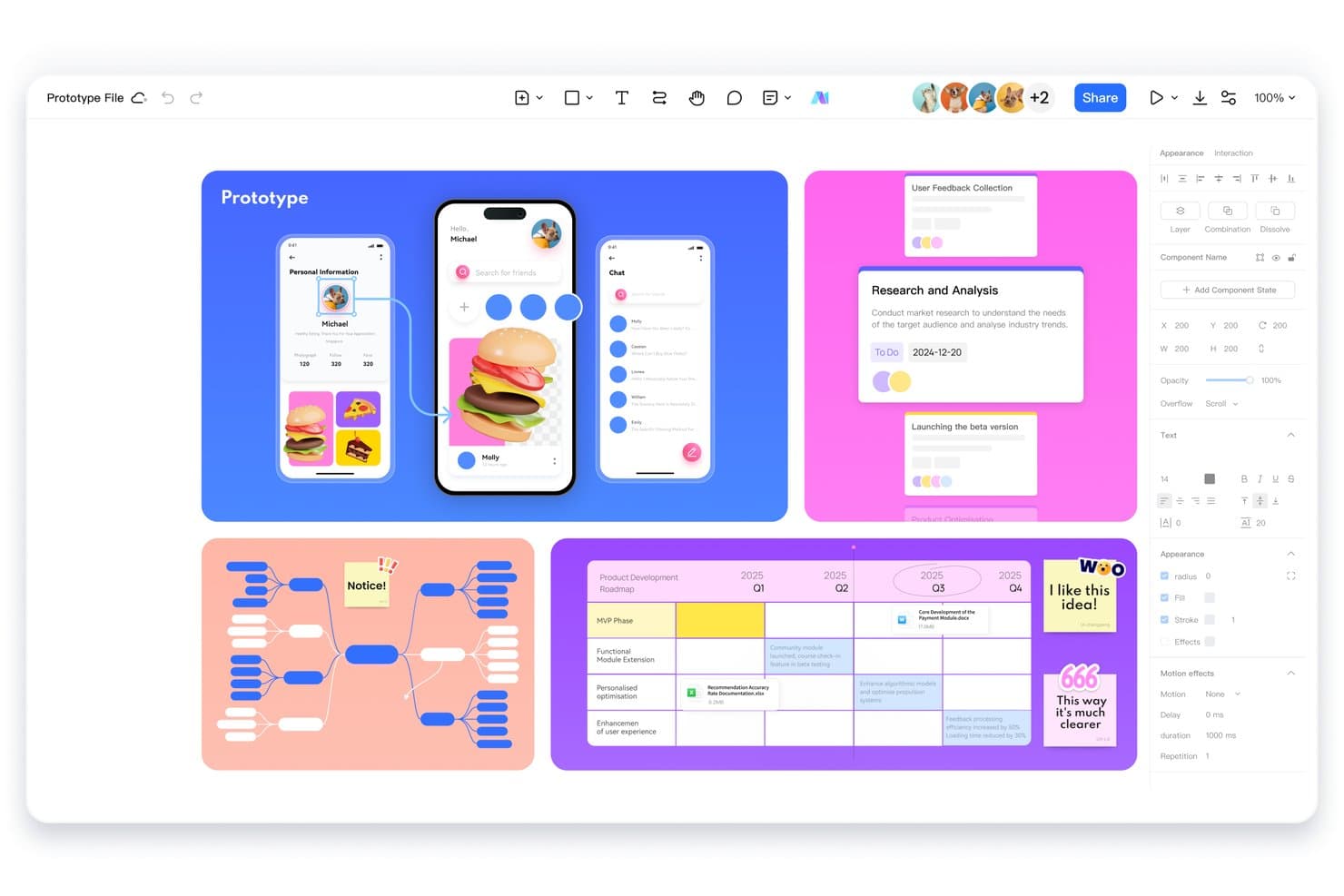
Mockitt lets users design prototypes, mind maps, and roadmaps in one workspace. Mockitt is an AI prototyping tool that lets you generate interactive prototypes from text prompts, alongside wireframing, user flow mapping, and product requirement drafting tools built for product managers.
Who Is Mockitt Best For?
Mockitt is a strong fit for product managers who want to go from idea to interactive prototype without handing off to a designer first.
Why I Picked Mockitt
I picked Mockitt as one of the best because it's built around a text-to-prototype workflow that product managers can actually drive themselves. Type a product brief or feature description, and Mockitt generates an interactive prototype directly from that input. I also like its AI-powered user flow mapping and product requirement drafting tools, which keep the entire discovery-to-prototype process in one place without pulling in a designer at every turn.
Mockitt Key Features
- Real-time collaboration: Multiple team members can edit and comment on prototypes simultaneously within a shared workspace.
- Interactive component library: A built-in library of pre-built UI components lets you drag and drop elements directly into your prototype canvas.
- Clickable prototype sharing: Generate a shareable link to your prototype so stakeholders can click through flows and leave feedback without needing an account.
- Version history: Mockitt tracks changes over time, letting you restore earlier versions of your prototype when needed.
Mockitt Integrations
Mockitt documents an OpenAI-powered ChatGPT integration for AI prototyping. It also supports importing Figma and Sketch files, though these are file imports rather than native integrations.
Pros and Cons
Pros:
- Stakeholders can review shared clickable prototypes
- PM tools connect briefs with flows
- Text prompts produce clickable prototypes quickly
Cons:
- AI output can miss product context
- Generated screens need manual refinement
Learn more about Mockitt:
Other AI Prototyping Tools
Here are some additional AI prototyping tools options that didn’t make it onto my shortlist, but are still worth checking out:
- 11BananiBest for exporting prototypes to Figma or code
- 12RelumeFrom $18/month (billed annually)
- 13Magic PatternsBest for matching prototypes to existing design systems
- 14Tempo LabsBest for visual editing of React codebases
- 15FramerBest for interactive website mockups
- 16v0Best for GitHub and Vercel deploy workflows
How I Evaluate AI Prototyping Tools
To make this list, a tool’s AI needs to handle real product work, like generating screens from prompts or converting sketches into flows. From there, I evaluate three things. Core functionality carries the most weight, like linking screens and editing layouts. Then I look at standout features, like design system awareness, and what a tool offers beyond its feature set, like fit with your team’s workflow.
Core Functionality (Table Stakes For This List)
When I'm selecting tools for my list, I score each one on a scale from 0 (does not offer the functionality) to 5 (excels in this area) for each core functionality listed below. I then convert the total into a percentage to help assess each tool's overall fit, with extra weight on any functionalities I’ve deemed essential.
- AI Design Output (Essential): I look for screens or short flows generated from prompts, sketches, or existing assets, with layouts suited to real product scenarios.
- Interactive Prototypes (Essential): I assess clickable, multi-screen flows with branching paths, navigation states, and interactions that support stakeholder walkthroughs.
- Editable Designs: Generated screens should support practical changes to layout, content, components, and styling after creation.
- Multiple Fidelity Levels: I check whether teams can move from rough wireframes to realistic mockups as product decisions become clearer.
- Component Consistency: I look for reusable components, shared styles, and design-system patterns that remain consistent across screens.
- Export And Handoff: I evaluate share links, design files, specifications, or code outputs that support design reviews and engineering handoff.
Once I have a list of tools that meet the criteria, I consider what sets each platform apart.
Differentiating Factors (What Sets Vendors Apart)
Here's how I compare and contrast different vendors:
Standout Features
I look for multimodal input support because a product manager should be able to sketch on a whiteboard, snap a photo, and get a working screen back. Tools like Uizard and Galileo AI handle this differently, so I check which input types each one actually accepts. Design system awareness matters just as much—I evaluate whether the AI respects your existing tokens and component libraries instead of generating one-off styles that drift from your brand. Prompt-to-variant generation is where I see the biggest payoff during discovery, letting you compare two or three layout directions from a single brief before committing to one.
Beyond Features
I evaluate how fast each tool gets you from idea to something testable—if a PM can't produce a clickable prototype within a single sprint, the tool isn't pulling its weight. Cross-functional workflow fit matters just as much. A tool like Galileo AI or Uizard loses value if its outputs can't move into Figma or a dev handoff without manual rebuilding. I also check whether non-designers can actually use the tool without training, since the real payoff comes when PMs and strategy leads prototype independently.
How to Choose AI Prototyping Tools
It’s easy to get bogged down in long feature lists and complex pricing structures. To help you stay focused as you work through your unique software selection process, here’s a checklist of factors to keep in mind:
| Factor | What to Consider |
|---|---|
| FactorScalability | What to ConsiderWill the tool support your team as it grows? Consider user limits, project caps, and future needs. |
| FactorIntegrations | What to ConsiderDoes it connect natively with your design, code, and collaboration tools? Check for direct support, not just APIs. |
| FactorCustomizability | What to ConsiderCan you adapt workflows, templates, or outputs to fit your process? Beware of rigid, one-size-fits-all solutions. |
| FactorEase of use | What to ConsiderHow quickly can new users become productive? Look for intuitive navigation and minimal training requirements. |
| FactorImplementation and onboarding | What to ConsiderWhat resources are needed to get started? Assess migration support, training materials, and time to first prototype. |
| FactorCost | What to ConsiderAre pricing tiers clear and predictable as usage grows? Watch for hidden fees or costly add-ons. |
| FactorSecurity safeguards | What to ConsiderDoes the tool meet your data privacy and security standards? Ask about encryption, access controls, and compliance. |
| FactorSupport availability | What to ConsiderWhat support channels are offered and during what hours? Consider if you’ll need live help or self-service resources. |
What Are AI Prototyping Tools?
AI prototyping tools are software platforms powered by advanced AI models that help teams quickly design, build, and test interactive product prototypes. To elevate AI design AI products often leverage these tools to automate tasks like generating full-stack code, creating user interfaces, or suggesting ways to optimize layouts, making it easier for both technical and non-technical users to experiment with new ideas.
They support faster iteration, collaboration, and validation of concepts in real-world scenarios before full-scale development begins.
Features
When selecting AI prototyping tools, keep an eye out for the following key features:
- AI-powered code generation: Automatically creates code for UI components or logic based on user input, saving time and reducing manual coding.
- Visual editing interface: Lets users design and modify prototypes through drag-and-drop or point-and-click tools, making prototyping accessible to non-developers.
- Real-time collaboration: Allows multiple team members to work on the same prototype simultaneously, supporting feedback and iteration without delays.
- Design-to-code conversion: Translates design files or mockups directly into working code, bridging the gap between design and development.
- Component library integration: Supports importing and reusing pre-built UI components, speeding up the prototyping process and ensuring consistency.
- Version control support: Tracks changes, manages branches, and enables rollbacks, helping teams manage iterations and collaborate safely.
- Interactive preview and testing: Provides live previews of prototypes with interactive elements, so users can test flows and user experiences before development.
- Third-party tool integrations: Connects with design, code, and project management platforms to streamline workflows and reduce manual handoffs.
- Environment variable management: Lets teams securely manage and update environment-specific settings within the prototyping tool.
- Role-based access controls: Allows admins to set permissions for different users, ensuring the right level of access for each team member.
Benefits
Implementing AI prototyping tools provides several benefits for your team and your business. Here are a few you can look forward to:
- Faster iteration cycles: AI-powered code generation and design-to-code features let teams quickly test and refine ideas without manual coding.
- Broader team collaboration: Real-time editing and visual interfaces enable both technical and non-technical team members to contribute to prototypes.
- Reduced development bottlenecks: Automated workflows and component libraries minimize repetitive tasks, freeing up developers for higher-value work.
- Improved design accuracy: Design-to-code conversion and interactive previews help ensure prototypes closely match final product requirements.
- Streamlined handoff to development: Version control and third-party integrations make it easier to transition prototypes into production-ready code.
- Enhanced security and control: Role-based access and environment variable management protect sensitive data and maintain project integrity.
- Lower prototyping costs: Automation and reusable assets reduce the time and resources needed to create and validate new concepts.
Costs and Pricing
Selecting AI prototyping tools requires an understanding of the various pricing models and plans available. Costs vary based on features, team size, add-ons, and more. The table below summarizes common plans, their average prices, and typical features included in AI prototyping tools solutions:
Plan Comparison Table for AI Prototyping Tools
| Plan Type | Average Price | Common Features |
|---|---|---|
| Plan TypeFree Plan | Average Price$0 | Common FeaturesBasic prototyping tools, limited AI features, single user access, and community support. |
| Plan TypePersonal Plan | Average Price$12-$25/user/month | Common FeaturesAdvanced prototyping, AI code generation, limited integrations, and email support. |
| Plan TypeBusiness Plan | Average Price$30-$100/user/month | Common FeaturesTeam collaboration, real-time editing, version control, expanded integrations, and priority support. |
| Plan TypeEnterprise Plan | Average Price$100+/user/month | Common FeaturesCustom integrations, advanced security, role-based access, dedicated onboarding, and SLA-backed support. |
AI Prototyping Tools FAQs
Here are some answers to common questions about AI prototyping tools:
Can non-technical team members use AI prototyping tools?
Yes, most AI prototyping tools offer visual editors and drag-and-drop interfaces that make it easy for non-technical users to create and modify prototypes. This helps teams collaborate across roles and reduces reliance on developers for early-stage design work.
How do AI prototyping tools speed up the design process?
AI prototyping tools automate repetitive tasks like code generation, UI assembly, and design-to-code conversion. This allows teams to quickly test ideas, iterate on feedback, and move from concept to interactive prototype much faster than manual methods.
Are AI prototyping tools secure for sensitive projects?
Yes, many AI prototyping tools include security safeguards such as encryption, role-based access controls, and compliance with industry standards. Always review a tool’s security documentation to ensure it meets your organization’s requirements before sharing sensitive data.
What integrations should I look for in an AI prototyping tool?
Look for integrations with your existing design tools, code repositories, and project management platforms. Direct connections to Figma, GitHub, Jira, or Slack can help streamline your workflow and reduce manual handoffs between teams.
Do AI prototyping tools support real-time collaboration?
Yes, most leading AI prototyping tools support real-time collaboration, allowing multiple users to work on the same project simultaneously. This feature is valuable for distributed teams and fast-paced design sprints.