

With so many different design feedback solutions available, figuring out which is right for you is tough. You know you want to collect and implement feedback more efficiently, but need to figure out which tool is best. I've got you! In this post I'll help make your choice easy, sharing my personal experiences using dozens of different feedback tools with large design teams and projects, with my picks of the best design feedback tools.
This tool allows us to get feedback in real-time, even using screen recordings or GIFs for clarity. And if you're looking to embed a feedback process into a live website, this tool becomes an indispensable website feedback tool. So, let's explore the best options out there, shall we?
What Is a Design Feedback Tool?
Design feedback tools are digital platforms that help teams collect, analyze, and implement feedback on their designs. The primary purpose of design feedback software is to inform your design process and improve your design outputs by facilitating the feedback cycle. Many of these tools have features to help with feedback solicitation, analytics, and prioritization.
Why Trust Our Software Recommendations
6,700+
Reviews
20
Industry experts
16+
Evaluation factors
14
Years
Our team has been testing and reviewing software since 2012. As product managers ourselves, we know how difficult—and important—it is to choose the right software.
For this guide, we evaluated tools using hands-on testing and independent research, scoring tools using our selection criteria.
Our reviews reflect our human editorial judgment, not a sales pitch.
Expert reviewers:
- Andrew LumbySenior TPM
- Cristiano ValimSenior UI/UX Lead


Design Feedback Tools Comparison Table
| Tool | Best For | Trial Info | Price | ||
|---|---|---|---|---|---|
| 1 | Best for live web and staging feedback with AI triage | Free plan available | From $29/month (billed annually) | Website | |
| 2 | Best for tracking visual design bugs and issues | Free trial available | From $41/month | Website | |
| 3 | Best for collaborative brainstorming and ideation | Free plan + 14-day free trial available | From $8/user/month (billed annually) | Website | |
| 4 | Best for automated version diffing | Free demo + 10-day free trial available | From $249/month | Website | |
| 5 | Best for structured multi-stage creative approvals | 30-day free trial + free plan + free demo available | From $199/month | Website | |
| 6 | Best for multi-format proofing with unlimited guests | Free trial + free demo available | From $12/month (billed annually) | Website | |
| 7 | Best for multi-format assets with no per-seat fees | 14-day free trial | From $99/month | Website | |
| 8 | Best for web design project management | Free plan + free demo available | From $35/user/month | Website | |
| 9 | Best for CPG and packaging label review cycles | 7-day free trial available | From $16/user/month (min. 3 users, billed annually) | Website | |
| 10 | Best for enterprise creative and marketing approvals | 14-day free trial + free plan + free demo available | From $199/month (billed annually) | Website |


The 10 Best Design Feedback Tool Overviews
 Best for live web and staging feedback with AI triage
- Free plan available
- From $29/month (billed annually)
Visit WebsiteCustomer Rating:4.8/5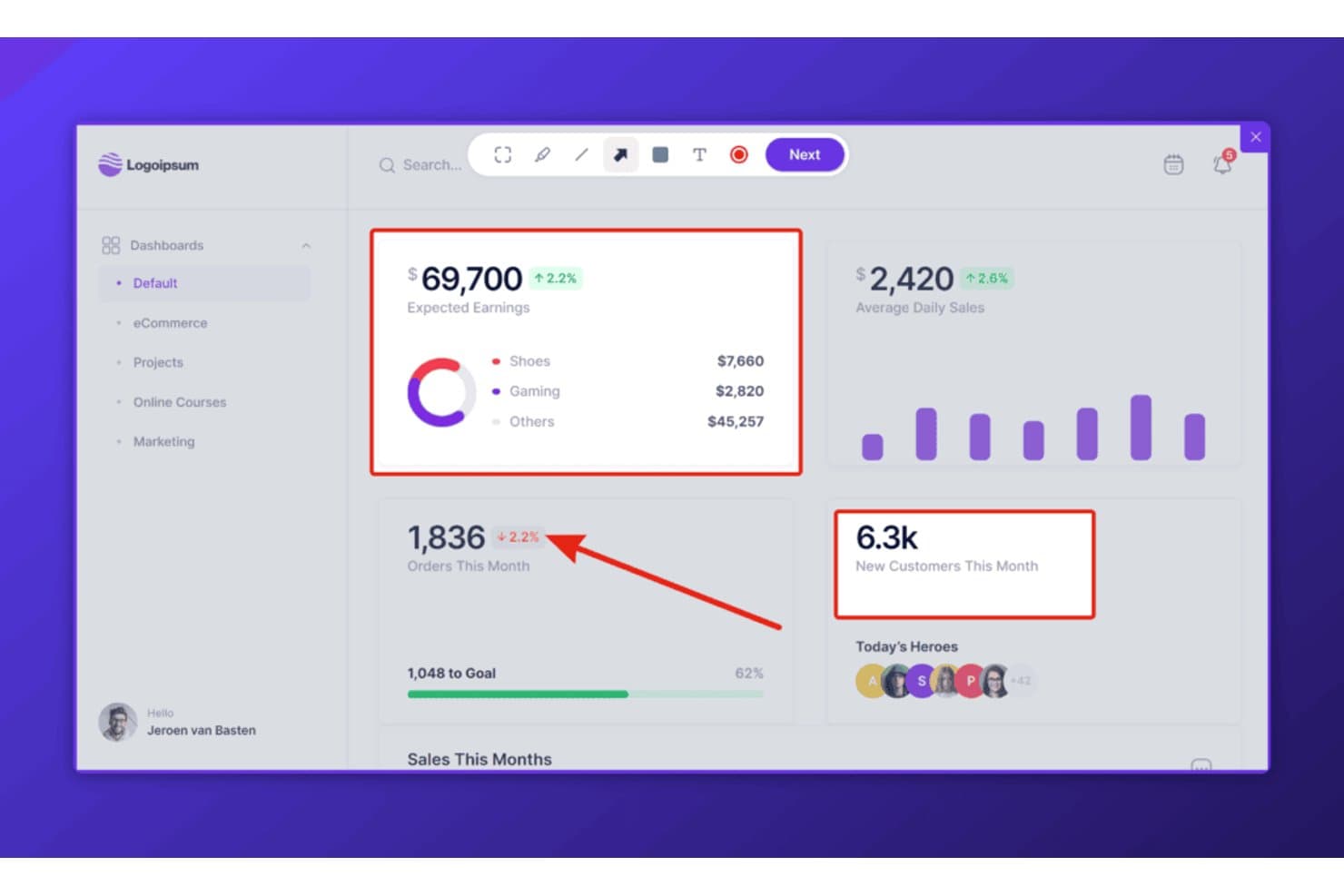
Userback lets users annotate screenshots directly on live dashboards. Userback is a web-based feedback tool that lets teams collect annotated screenshots, video recordings, and session replays directly on live websites, staging environments, and web apps.
Who Is Userback Best For?
Userback is a strong fit for product and engineering teams that need to collect and triage feedback directly on live websites, web apps, or staging environments.
Why I Picked Userback
I picked Userback as one of the best because it's purpose-built for collecting feedback directly on live websites and staging environments, which puts it in a category of its own. The embeddable widget and browser extension let reviewers pin annotated screenshots and record video with audio right on a deployed page, capturing console logs and browser metadata automatically alongside each submission. What really sets it apart is AI triage: Userback's AI Assist categorizes incoming feedback, detects recurring themes, and flags items needing a response, so nothing gets buried.
Userback Key Features
- Embeddable feedback widget: A JavaScript snippet you install on any live site or staging environment to let users submit annotated screenshots and video recordings directly from the page.
- Session replay: Records complete user sessions—capturing clicks, scrolling, rage clicks, and form inputs—for playback alongside submitted feedback items on Business plans and above.
- Two-way sync with dev tools: Connects to Jira, Linear, and ClickUp so that resolving an issue in either platform automatically updates its status in the other.
- Console log and metadata capture: Automatically attaches browser version, OS, screen resolution, URL, console logs, and network requests to every feedback submission for developer context.
Userback Integrations
Userback offers native integrations with Jira, Linear, ClickUp, GitHub, GitLab, Slack, and Microsoft Teams, plus REST API, webhooks, and Zapier support for custom connectivity.
Pros and Cons
Pros:
- AI triage surfaces recurring feedback themes
- Video feedback clarifies complex design issues
- Live website annotations with technical context
Cons:
- No side-by-side design version comparison
- No native Figma or Sketch workflows
Learn more about Userback: Best for tracking visual design bugs and issues
- Free trial available
- From $41/month
Visit WebsiteCustomer Rating:4.8/5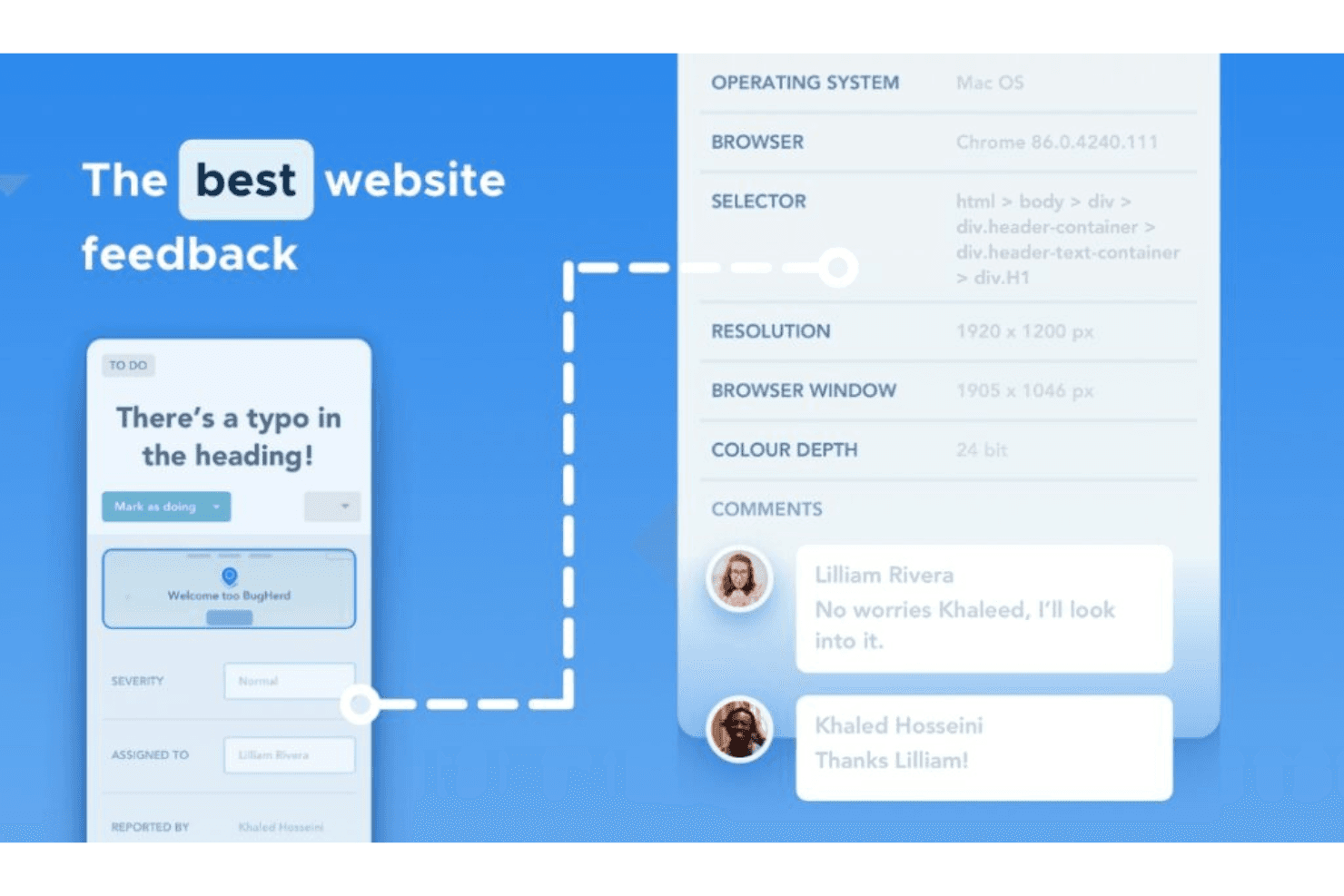
BugHerd provides technical information for bug resolution and handles feedback. BugHerd is a visual bug tracking and website feedback tool that lets teams pin comments directly on live sites, design files, images, and PDFs, with automatic screenshot and browser metadata capture on every submission.
Who Is BugHerd Best For?
BugHerd is a strong fit for product managers and UX/UI designers who need to collect and resolve pinned feedback on live websites or uploaded design files.
Why I Picked BugHerd
I've included BugHerd in my top picks because it's the strongest tool on this list for catching and resolving visual bugs on live websites. When a reviewer clicks a broken element, BugHerd pins the feedback directly to it and automatically captures a screenshot, browser, OS, and screen resolution, so developers get everything they need without a single back-and-forth. I also like its text-edit suggestion feature, which lets reviewers highlight copy on a live page and type a replacement directly, logging the original and proposed text as a task.
BugHerd Key Features
- Two-way PM tool sync: BugHerd connects natively with Jira, Asana, ClickUp, Monday.com, and Linear, syncing tasks, comments, and status in both directions.
- Video feedback recording: Reviewers can record up to one minute of screen and voice feedback, with OS and browser details attached automatically to each submission.
- Public feedback widget: A site-embedded widget lets visitors report issues directly on live pages, with optional email capture for follow-up.
- AI auto-tagging and duplicate detection: BugHerd's AI beta automatically tags incoming tasks and flags similar submissions to help teams spot duplicate reports before they pile up.
BugHerd Integrations
BugHerd offers 21+ native integrations, including Figma, Jira, Asana, ClickUp, Monday.com, Linear, Trello, and GitHub. It also supports custom connections through its REST API and webhooks, plus Zapier.
Pros and Cons
Pros:
- Supports video, image, PDF, and Figma feedback
- Captures screenshots and browser details automatically
- Pins feedback directly onto live websites
Cons:
- Imports Figma screens as static images
- Provides no design version comparison
Learn more about BugHerd: 3Best for collaborative brainstorming and ideation
Miro
- Free plan + 14-day free trial available
- From $8/user/month (billed annually)
Visit WebsiteCustomer Rating:4.8/5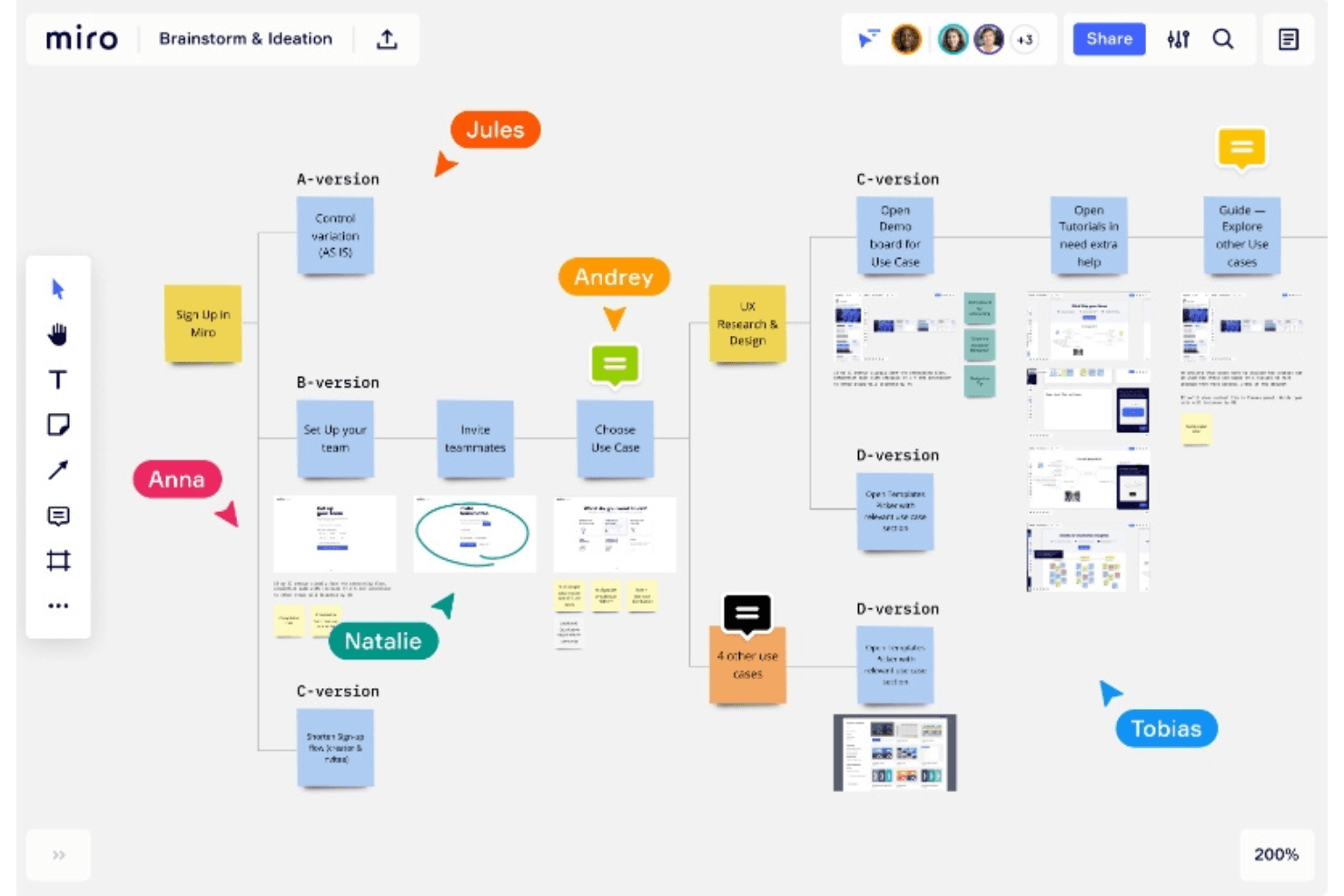
Brainstorm together and envision ideas at the speed of inspiration in Miro. Miro is a collaborative whiteboard platform that supports design feedback through pinned canvas comments, threaded discussions, AI-summarized review threads, and two-way integrations with tools like Jira, Asana, and Figma.
Who Is Miro Best For?
Miro works well for product managers and design directors who need to run cross-functional review cycles inside a tool their whole team already uses.
Why I Picked Miro
I've included Miro in my top picks because it's the tool I reach for when design feedback needs to happen inside the same space where the work is being shaped. The canvas lets teams place sticky notes and pinned comments directly on prototype screens, and Miro AI can summarize long comment threads and convert feedback into backlog items via Flows. When cross-functional stakeholders need to weigh in without a Figma license, Miro's visitor and guest access model keeps the conversation moving.
Miro Key Features
- Conversation summaries: Miro AI condenses long comment threads into short summaries using GPT-4.0, available on all plans.
- Guest access without paid seats: Invited guests on Business and above can view, comment, and mention teammates on private boards without using a paid seat.
- Two-way Jira sync: Jira Cards connect Miro boards to Jira Cloud, Server, and Data Center, syncing edits in both directions via webhooks.
- Board history and versioning: Boards are automatically saved every hour and at session end, with versions stored for 90 days and restorable as a separate board.
Miro Integrations
Miro offers 250+ integrations, including Figma, Adobe XD, Sketch, Jira, Asana, Azure DevOps, Linear, ClickUp, Trello, Slack, and Microsoft Teams. It also provides a REST API, SDKs, MCP server, and Zapier.
Pros and Cons
Pros:
- AI summarizes lengthy review threads
- External reviewers can join through links
- Pinned comments stay attached to visual assets
Cons:
- Comments lack assignees and due dates
- No live-website annotation or browser capture
 Best for automated version diffing
- Free demo + 10-day free trial available
- From $249/month
Visit WebsiteCustomer Rating:4.9/5
No more complex email trails and no more chasing feedback, PageProof streamlines it all. PageProof is an online proofing tool that lets teams annotate, review, and approve creative assets—including static files, live websites, Figma prototypes, HTML emails, video, and audio—within structured, multi-step approval workflows.
Who Is PageProof Best For?
PageProof is a strong fit for marketing and creative teams that manage high volumes of structured review cycles across multiple file types.
Why I Picked PageProof
PageProof earns its spot on my shortlist because of how well it handles version comparison specifically. Smart Compare automatically calculates visual differences between two versions, with a slider or quick-flick toggle and highlight overlays that make it easy to catch even subtle shifts. Smart Check goes further by surfacing hidden metadata changes like fonts, color profiles, and file dimensions during the compare. I've found that combination genuinely useful when reviewing multiple rounds of a campaign asset where small, hard-to-spot changes matter most.
PageProof Key Features
- Multi-format proof creation: Create proofs from static files, live website URLs, Figma prototype links, HTML emails, video, and audio—all within the same workspace.
- Structured multi-step workflows: Assign roles like owner, gatekeeper, and approver across sequential review steps, with decision thresholds and automated reminders at the proof level.
- Comment filtering and export: Filter comments by status, page, commenter, @mentions, keyword, and more, then export the full comment set to CSV.
- Design tool plugins: Review, reply to, and resolve comments directly inside Figma, Adobe InDesign, Photoshop, Illustrator, and other creative apps without leaving your design environment.
PageProof Integrations
PageProof offers native integrations with Figma, Adobe Creative Cloud, Canva, Jira, Asana, monday.com, ClickUp, Trello, Slack, and Microsoft Teams. Enterprise plans add webhooks, an advanced API, and an SDK; Zapier and Make are also supported.
Pros and Cons
Pros:
- Structured approvals preserve comment context
- Live website markup reflects rendered pages
- Automated version diffing catches subtle changes
Cons:
- Large documents can trigger occasional glitches
- Comment status lacks assignees and due dates
Learn more about PageProof: Best for structured multi-stage creative approvals
- 30-day free trial + free plan + free demo available
- From $199/month
Visit WebsiteCustomer Rating:4.7/5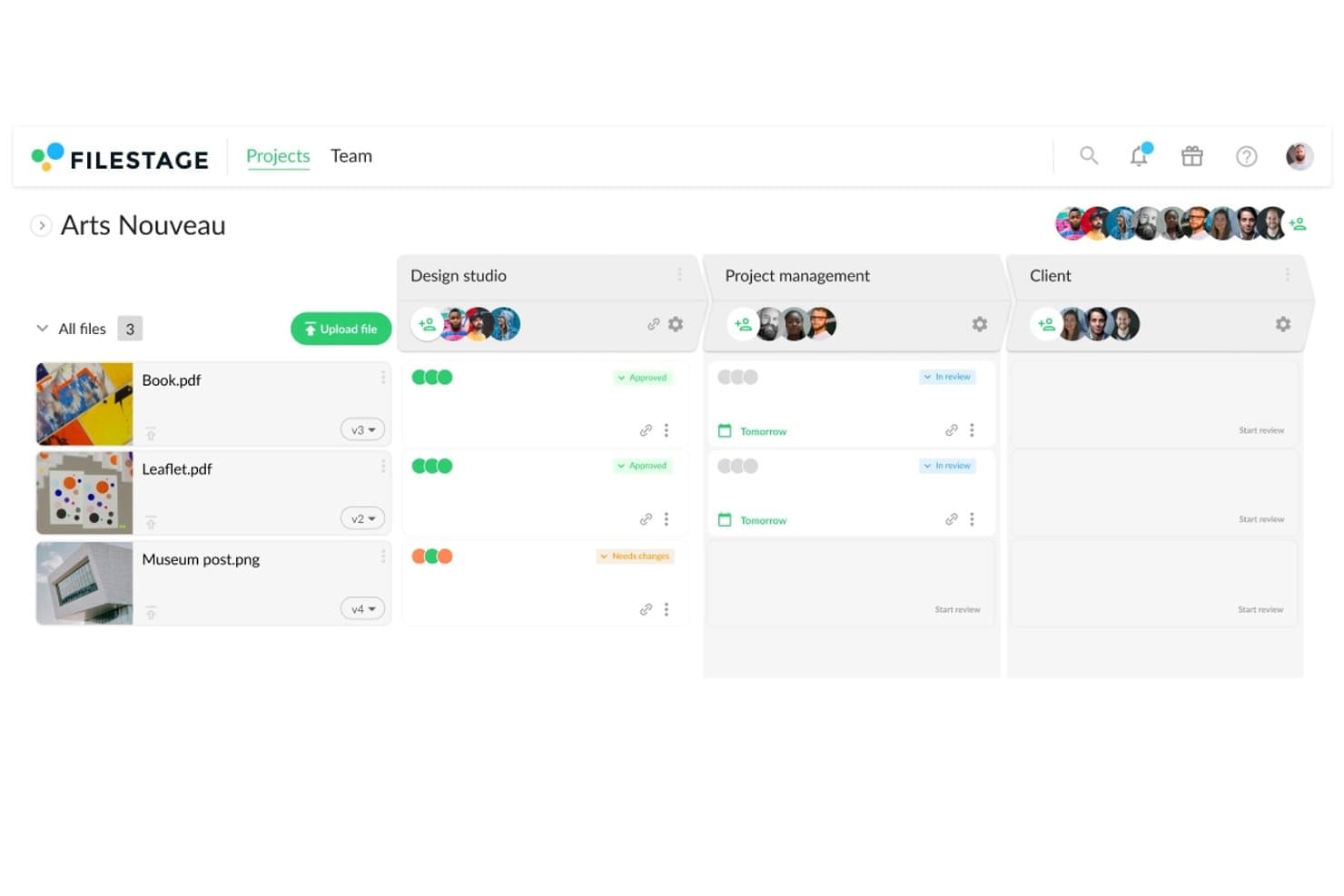
Filestage tracks design file approval status across reviewer groups. Filestage is an online proofing and creative review platform that supports pinned annotation, staged reviewer workflows, version comparison, and feedback consolidation across images, video, documents, and live websites.
Who Is Filestage Best For?
Filestage is a strong fit for creative and marketing teams that manage multi-stage approval workflows with external stakeholders, clients, or regulated reviewers.
Why I Picked Filestage
Filestage earns its spot on my shortlist because of how well it handles structured, multi-stage creative approvals. I love that you can build separate reviewer groups, so design goes to internal stakeholders first, then to legal, then to the client, each in sequence. Paired with staged review decisions and exportable PDF audit reports, every approval cycle is fully traceable.
Filestage Key Features
- Live website and prototype review: Import any URL to comment directly on a rendered live site or interactive prototype, with each comment automatically saving a screenshot, screen size, and browser details.
- Unlimited guest reviewers: External stakeholders can access and annotate files on any plan via a shared link, with no account required.
- Adobe plugin integrations: Native plugins for Premiere Pro, After Effects, InDesign, and Photoshop let creative teams send files to Filestage and sync feedback without leaving their tools.
- AI-powered Review Agents: Automated agents check files for grammar, compliance, forbidden terms, required logos, and barcodes on Business and Enterprise plans.
Filestage Integrations
Filestage offers native integrations with Adobe Premiere Pro, After Effects, InDesign, Photoshop, Google Drive, Dropbox, and monday.com. It also provides a Jira marketplace app, webhooks, a REST API on Business and higher, and Zapier.
Pros and Cons
Pros:
- Guests review without creating accounts
- Staged approvals separate design, legal, clients
- Pin comments to exact visual locations
Cons:
- No automatic image difference detection
- Resolved comments stay hidden from guests
Learn more about Filestage: Best for multi-format proofing with unlimited guests
- Free trial + free demo available
- From $12/month (billed annually)
Visit WebsiteCustomer Rating:4.7/5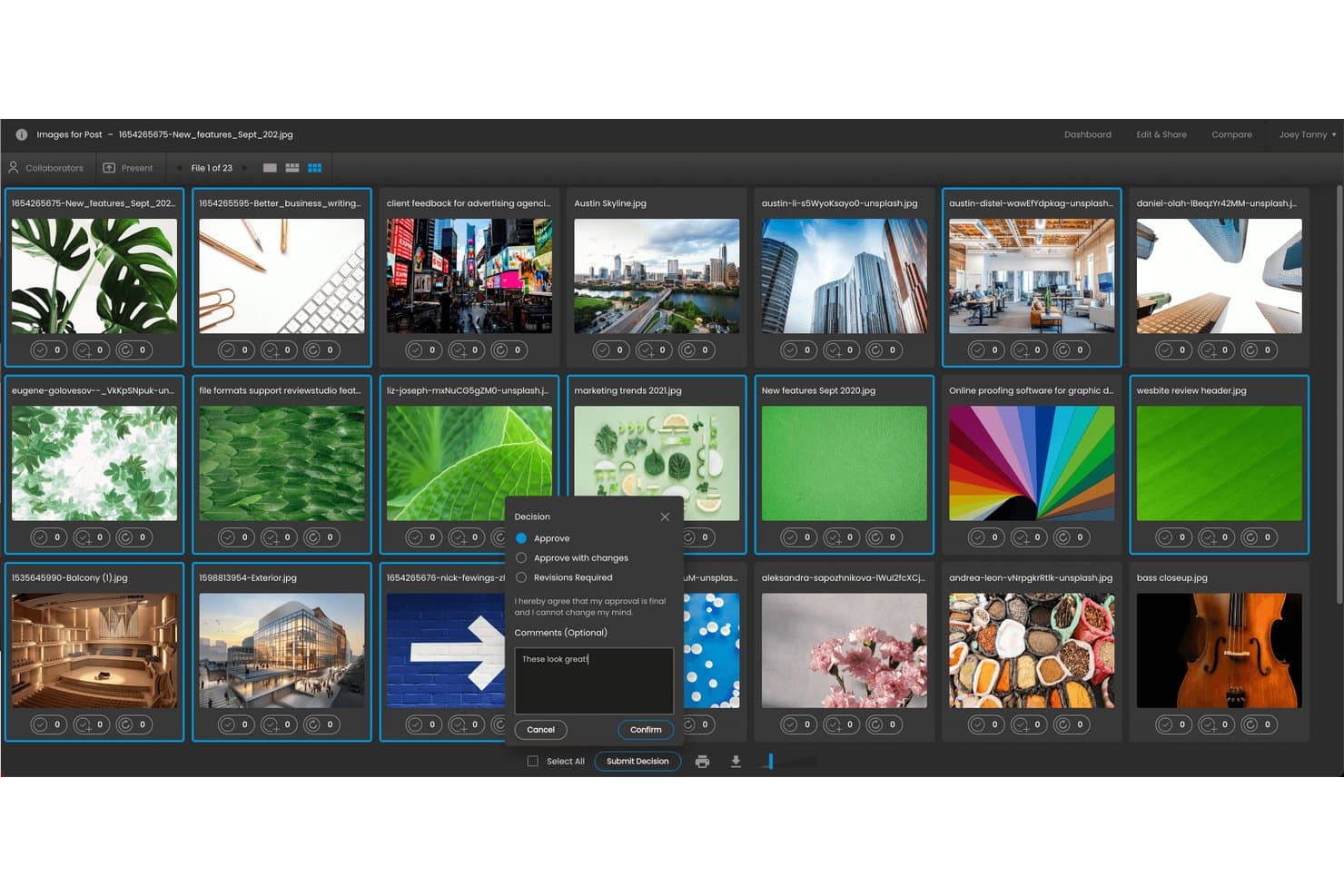
ReviewStudio lets users approve files and add comments in one step. ReviewStudio is an online proofing and design feedback tool that supports annotation, version comparison, and approval workflows across images, video, PDFs, audio, 3D files, and live websites.
Who Is ReviewStudio Best For?
ReviewStudio suits creative agencies and marketing teams that review a wide mix of file types—video, PDF, images, and live websites—with clients or external stakeholders who shouldn't need a paid account.
Why I Picked ReviewStudio
I picked ReviewStudio as one of the best because no other tool on my shortlist handles as many file types while keeping external reviewers completely free. I love how live website annotation works here: reviewers switch between Interact mode to click through a real page and Annotate mode to drop pinned comments, all through a live URL proxy. Pair that with unlimited guests on every plan, including the free tier, and client review rounds stop being a seat-counting headache.
ReviewStudio Key Features
- Side-by-side compare mode: View any two file versions simultaneously with synced pan, zoom, and video playback to spot differences across revisions.
- Automated diff highlighting: Toggle a diff overlay in compare mode to highlight pixel-level differences in red between two same-size files.
- Multi-stage approval workflows: Build branching workflows with per-stage deadlines, custom goals, and checklist requirements reviewers must complete before approving.
- PM tool integrations: Native connections to Asana, Monday.com, and Wrike sync review tasks and approvals directly into your existing project management setup.
ReviewStudio Integrations
ReviewStudio offers native integrations with Asana, monday.com, Wrike, and Kantata, plus an Adobe Photoshop plugin. It also supports Make, an API with webhooks, and Zapier.
Pros and Cons
Pros:
- Version diffing clarifies revision changes
- Live website markup captures interactive feedback
- Unlimited guests simplify external review rounds
Cons:
- Mobile canvas can feel glitchy
- Tasks lack an in-progress status
Learn more about ReviewStudio: Best for multi-format assets with no per-seat fees
- 14-day free trial
- From $99/month
Visit WebsiteCustomer Rating:4.3/5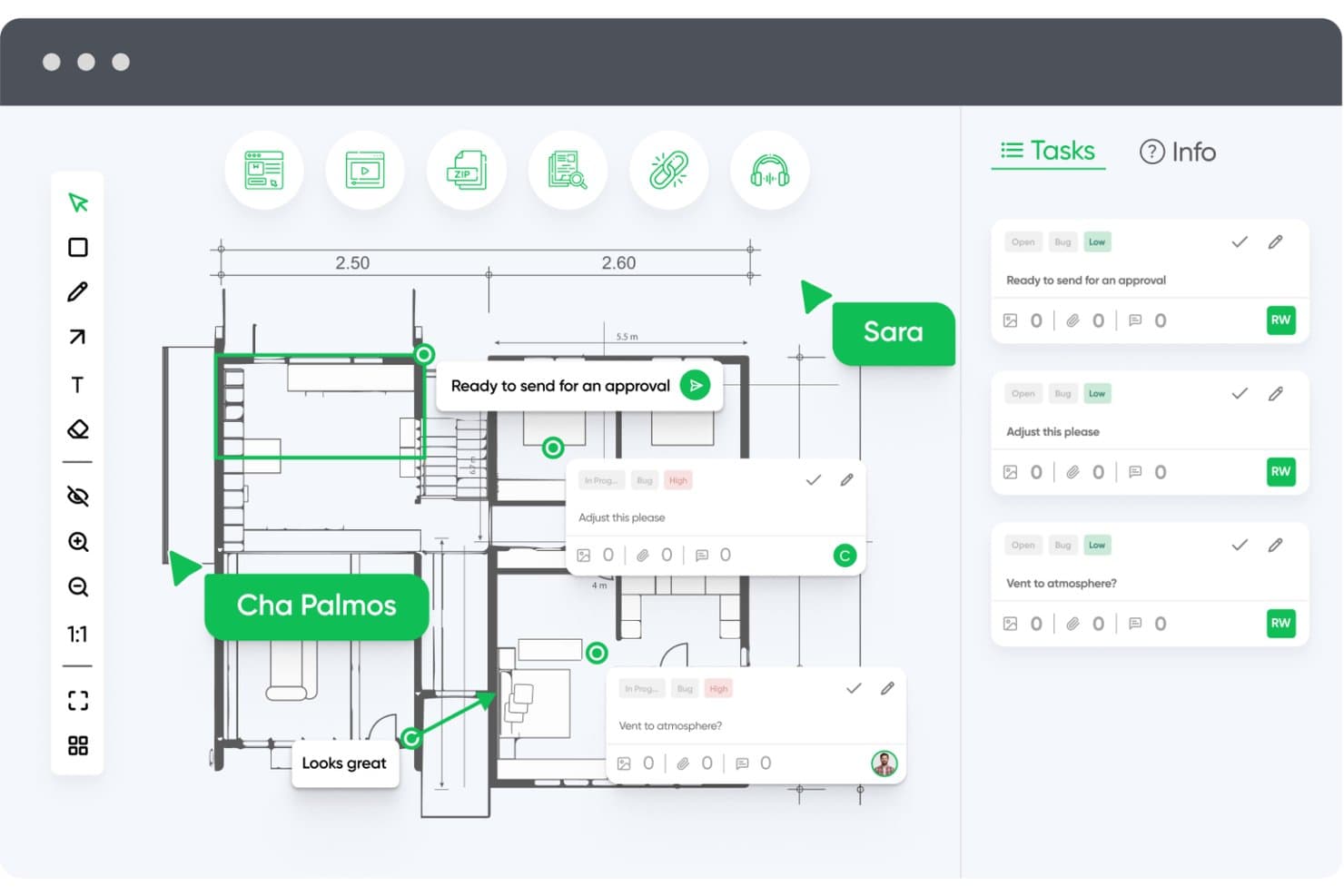
zipBoard lets users annotate floor plans and manage feedback tasks in one place. zipBoard is a visual markup and feedback tool that lets teams annotate live websites, PDFs, images, videos, and SCORM files—turning comments into trackable tasks with assignees, statuses, and Kanban views.
Who Is zipBoard Best For?
zipBoard suits product managers and creative directors who need to review multiple asset types—websites, PDFs, videos, and SCORM files—without paying per seat.
Why I Picked zipBoard
I picked zipBoard as one of the best because it's the only tool on my list that lets you review live websites, PDFs, videos, and SCORM files in one workspace without charging per seat. I especially like that guest reviewers can annotate directly on a live staging URL, leaving pinned comments with automatic browser and resolution metadata captured, without ever creating an account. Comments convert into assignable tasks with statuses, due dates, and a Kanban view, so nothing gets lost across asset types.
zipBoard Key Features
- Live website annotation: Paste any live or staging URL into zipBoard and leave pinned comments, draw shapes, and add markup directly on the page without exporting anything.
- Time-stamped video commenting: Reviewers can leave comments tied to specific moments in a video, keeping feedback precise and easy to act on.
- Device mode emulation: Switch between screen sizes within the review environment to annotate and test how designs look at different resolutions.
- Custom task statuses: Admins can create organization-level statuses beyond the defaults, with AI-suggested options tailored to your project type.
zipBoard Integrations
zipBoard offers integrations with Jira, Wrike, Slack, Microsoft Teams, Outlook, Procore, and LambdaTest. It also supports custom connections through its developer API and Zapier.
Pros and Cons
Pros:
- No-login reviewers simplify stakeholder feedback
- Live website annotations capture browser context
- Multi-format asset reviews in one workspace
Cons:
- Comment bubbles can obscure screen details
- Manual version comparisons lack visual diffs
Learn more about zipBoard: Best for web design project management
- Free plan + free demo available
- From $35/user/month
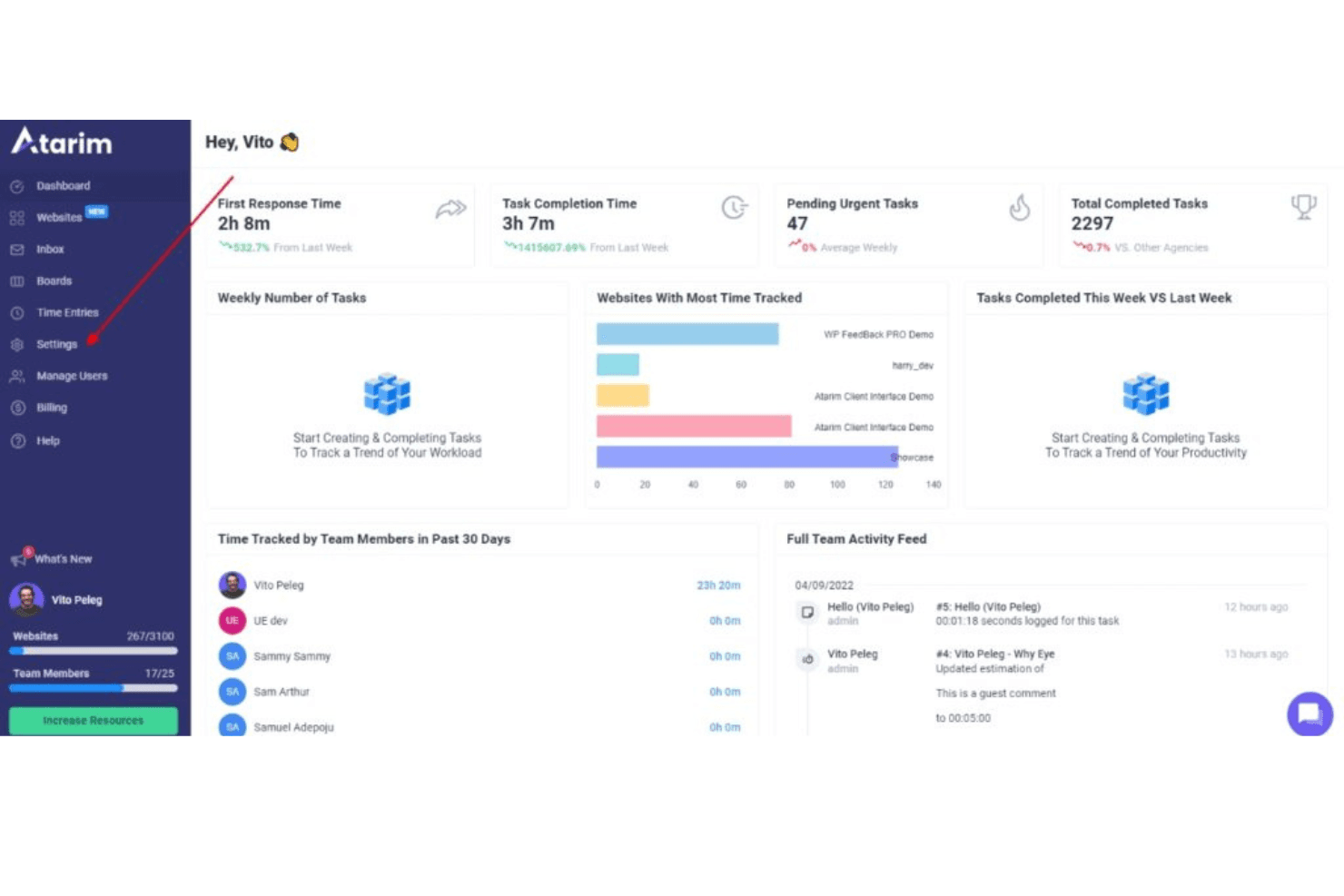
Here's the dashboard settings in Atarim. You can access the dashboard settings by clicking on the navigation bar. Atarim is a visual feedback and web design collaboration tool that lets teams and clients leave pinned comments on live websites, staging environments, design files, and PDFs, with built-in task tracking, approval workflows, and integrations with tools like Jira, Asana, and Figma.
Who Is Atarim Best For?
Atarim is a strong fit for web agencies managing client feedback across multiple live sites, staging environments, and WordPress builds.
Why I Picked Atarim
I picked Atarim as one of the best because it's the only tool I've used that lets you pin feedback directly onto a live website or staging environment, with every comment automatically creating a task with a screenshot attached. For web design project management specifically, that means no more copying feedback from emails into a tracker. I also like that it handles the full review cycle: tasks carry statuses, priorities, assignees, and due dates, and clients can formally approve individual pages with a recorded timestamp.
Atarim Key Features
- Guest commenting: Clients can leave pinned feedback using just a name and email, with no account or software install required.
- Responsive breakpoint review: Fixed desktop, tablet, and mobile views let you capture feedback at specific screen sizes, with the breakpoint recorded on each task.
- Figma plugin: Push frames and new design versions from Figma directly into Atarim, and carry existing Figma comments across into the task workflow.
- Two-way project management sync: Tasks sync bidirectionally with Asana, Jira, Trello, and Basecamp, so closing a task in one tool closes it in the other.
Atarim Integrations
Atarim offers native integrations with Figma, Asana, Jira, Trello, and Basecamp. It also supports Make, webhooks, a REST API, and Zapier for custom integrations.
Pros and Cons
Pros:
- Supports client approvals with recorded timestamps
- Converts comments into trackable tasks
- Pins feedback directly onto live websites
Cons:
- Guest reviewers receive no email notifications
- Version comparison lacks documented visual diffs
Learn more about Atarim: Best for CPG and packaging label review cycles
- 7-day free trial available
- From $16/user/month (min. 3 users, billed annually)
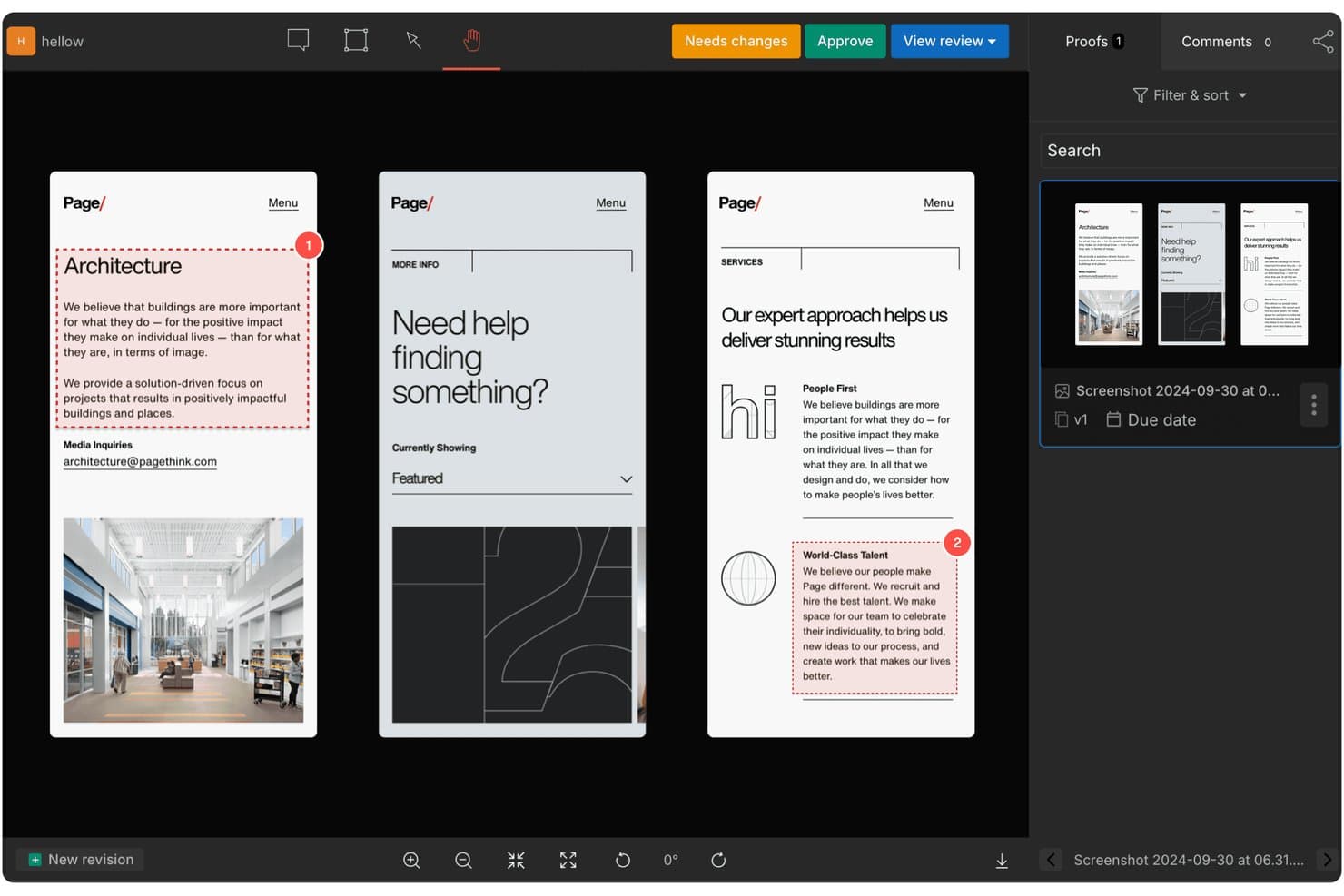
GoVisually lets users review and approve designs with numbered annotations. GoVisually is a design feedback and proofing tool that supports annotation on images, PDFs, and video, with version comparison, approval workflows, and AI-powered label compliance checks built for packaging and CPG review cycles.
Who Is GoVisually Best For?
GoVisually is a strong fit for packaging and CPG teams that need to manage label compliance, artwork approvals, and multi-stakeholder review cycles in one place.
Why I Picked GoVisually
GoVisually earns its spot on my shortlist because no other tool I've tested matches its depth for packaging label review cycles. I love that the AI compliance suite checks labels against 50+ regulatory frameworks, from FDA to EU and Brazil, automatically catching text, color, and layout changes before they become costly print errors. Pair that with Time Machine's full revision timeline and four compare modes including a color-highlighted Diff view, and you have a tool built for the exact high-stakes, multi-stakeholder approval loops CPG teams run every day.
GoVisually Key Features
- PDF text markup: Highlight, replace, or strike through text directly on PDFs so reviewers can call out exact copy changes without guesswork.
- Guest reviewer access: External stakeholders can comment and approve using just their name and email, with no account required.
- Bird's-eye dashboard: A proof-level overview displays every proof's status, due dates, and overdue items across your active projects in one view.
- Adobe Creative Cloud plugin: Designers can share files, view comment threads, and check approval status without leaving Photoshop, Illustrator, or InDesign.
GoVisually Integrations
GoVisually has three documented native integrations: Adobe Creative Cloud, Asana, and Slack. It also supports Zapier and offers an API for custom integrations.
Pros and Cons
Pros:
- External reviewers avoid account creation
- Four modes compare design revisions
- Specialized CPG label compliance checks
Cons:
- Individual comments lack assignees
- Website reviews require beta captures
Learn more about GoVisually: 10Best for enterprise creative and marketing approvals
Ziflow
- 14-day free trial + free plan + free demo available
- From $199/month (billed annually)
Visit WebsiteCustomer Rating:4.6/5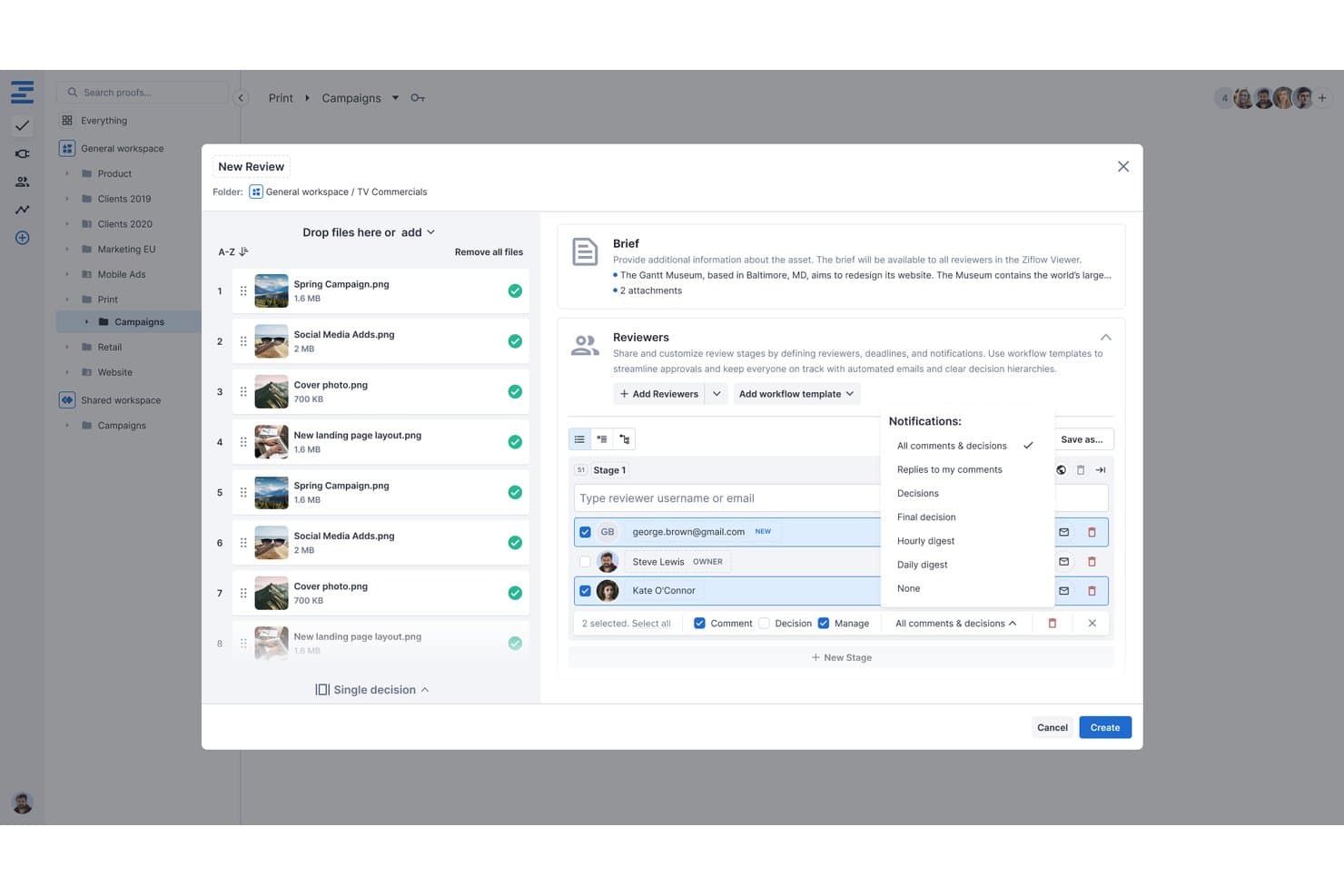
Ziflow lets users configure reviewers, notifications, and stages during proof creation. Ziflow is an online proofing platform built for creative and marketing teams that supports annotation, multi-stage approval workflows, version comparison, and live website review across images, video, audio, HTML5, and documents.
Who Is Ziflow Best For?
Ziflow is a strong fit for creative directors and marketing ops teams that manage high volumes of asset reviews across multiple stakeholders and approval stages.
Why I Picked Ziflow
Ziflow earns its spot as one of the best on my shortlist because it's purpose-built for the kind of high-volume, multi-stakeholder approval workflows that enterprise creative and marketing teams actually run. I love its multi-stage workflow engine, which lets you sequence or parallelize approval stages with gating, deadlines, and automated routing so nothing stalls in someone's inbox. Auto Compare is another standout: it highlights pixel-level differences between proof versions, catching text shifts and color changes across static assets and video without manual side-by-side squinting.
Ziflow Key Features
- Live website proofing: Reviewers can annotate directly on a live URL or a static snapshot, with proxy controls to manage how the site loads.
- Guest reviewer access: Unlimited external reviewers can view, comment, and approve proofs from an emailed link without needing a Ziflow account or paid seat.
- Multi-asset and campaign proofs: Multiple files, including images, video, audio, and HTML5, can be grouped into a single proof for consolidated feedback across a campaign.
- Comment labels and filters: Reviewers can tag comments with custom labels and filter threads by reviewer, stage, label, or status to keep feedback organized across large projects.
Ziflow Integrations
Ziflow documents integrations with Figma, Adobe Creative Cloud, Final Cut Pro X, Jira Cloud, Asana, monday.com, Dropbox, Google Drive, SharePoint, and Slack. It also offers a REST API, webhooks, intake forms, and Zapier.
Pros and Cons
Pros:
- Unlimited guest reviews avoid seat bottlenecks
- Multi-stage approvals keep campaigns moving
- Frame-level markup across diverse asset types
Cons:
- Resolved-only status obscures ongoing work
- Static Figma proofs miss prototype interactions
Learn more about Ziflow:
Other Design Feedback Tools
Below is a list of additional design feedback tools that I shortlisted but did not make it to the top 10. Definitely worth checking them out.
- 11RuttlBest for annotating live sites across device sizes
- 12YbugBest for live-site bug reports routed to PM tools
- 13FigmaBest for scalable design systems
- 14Frame.ioBest for video and creative asset review cycles
- 15StreamWorkBest for approval workflows
- 16Marker.ioBest for live-site feedback routed to dev trackers
- 17PastelBest for client sign-off on live websites
- 18ZeplinGood for seamless designer-developer handoffs
- 19MarkUp.ioBest for multi-format feedback without seat limits
- 20WorkflowBest for client feedback without reviewer sign-ups
How I Evaluate Design Feedback Tools
I split my evaluation into three parts: core functionality first (and it carries the most weight)—can the tool pin comments directly on visuals and centralize all feedback in one place? Then I look at standout features like live website annotation, and finally consider onboarding ease and pricing transparency.
Core Functionality (Table Stakes For This List)
When I'm selecting tools for my list, I score each one on a scale from 0 (does not offer the functionality) to 5 (excels in this area) for each core functionality listed below. I then convert the total into a percentage to help assess each tool's overall fit, with extra weight on any functionalities I've deemed essential.
- Visual Annotation (Essential): I check whether reviewers can pin comments directly on images, prototypes, and live websites rather than describing issues in a separate document.
- Centralized Feedback Threads (Essential): Every comment, reply, and attachment should live in one searchable place tied to the asset—no more digging through email chains or Slack messages.
- Feedback Status Tracking: I look for open, in-progress, and resolved states on each comment so design leads can see at a glance how many items remain before sign-off.
- Version Comparison: Teams iterate constantly, so I evaluate whether a tool lets you compare two or more design versions side by side with visual diff highlighting.
- Guest Reviewer Access: Clients and executives rarely want another login. I check how easily external stakeholders can view assets and leave comments without a paid seat.
- Design and PM Integrations: I look at native connections with tools like Figma, Jira, and Asana to confirm feedback can sync into your existing workflows without manual copy-paste.
Once I have a list of tools that meet the criteria, I consider what sets each platform apart.
Differentiating Factors (What Sets Vendors Apart)
Here's how I compare and contrast different vendors:
Standout Features
Live website annotation is the first thing I evaluate beyond table stakes. Static mockups miss real rendering quirks, so I look for tools that let reviewers pin comments on interactive pages at specific breakpoints. AI-summarized feedback is equally valuable when a design collects dozens of threads—I check whether the tool can distill those into a prioritized list a design lead can act on during triage. I also look at automated screenshot diffing, since catching unintended visual regressions between iterations without manual side-by-side comparison saves hours on fast-moving sprints.
Beyond Features
I evaluate how well each tool bridges design and engineering by checking whether resolved comments auto-create tickets in systems like Jira or Linear. That bi-directional sync matters because product teams shouldn't manually copy feedback into sprint backlogs. I also look at guest access controls—clients and executives reviewing early prototypes need link-based entry without a paid seat, but the tool still needs granular permissions like link expiration and view-only modes to protect sensitive work. Finally, I consider how pricing scales as reviewer counts grow, since a tool that fits a five-person squad can become costly once cross-functional stakeholders pile in.
People Also Ask
What are the benefits of using a design feedback tool?
Using a design feedback tool can greatly enhance the productivity and efficiency of your design process. Here are five key benefits:
- Enhanced Collaboration: These tools allow designers, developers, and stakeholders to collaborate in real-time, making the design process more efficient.
- Clear Communication: They provide a unified platform where feedback can be given directly on the designs, eliminating misunderstandings and improving the clarity of communication.
- Streamlined Workflow: These tools often come with project management features, helping you keep track of progress and manage tasks effectively.
- Interactive Prototyping: Many design feedback tools offer prototyping capabilities, enabling you to create interactive models of your design for testing and demonstration purposes.
- Easy Handoff: They can automatically generate design specs and assets in a format that’s easy for developers to work with, simplifying the transition from design to development.
How much do design feedback tools cost?
The pricing of design feedback tools varies greatly depending on their features, the size of your team, and your specific needs.
What are the typical pricing models for design feedback tools?
Design feedback tools typically follow a subscription-based pricing model. This means you pay a regular fee (monthly or annually) for access to the tool. Some offer a tiered pricing model where the cost increases with more features or users.
What is the typical range of pricing for design feedback tools?
Pricing can range from free for very basic tools or ones offering a limited free tier, up to several hundred dollars per month for enterprise-grade solutions. For small to medium-sized teams, you can expect to pay anywhere from $20 to $100 per user per month.
Which are the cheapest and most expensive design feedback tools?
Among the tools covered in this list, UserGuiding and Conceptboard offer some of the lowest-priced plans, starting from around $20/user/month. On the higher end, tools like UserZoom and UserTesting can cost several hundred dollars per month, depending on the package and user count.
Are there any free design feedback tools?
Yes, some tools like InVision and Framer offer free plans, but they are often quite limited in terms of features and user capacity. These free plans can be a good starting point for individuals or small teams with limited budgets. However, as your team grows and your needs become more complex, you might need to consider a paid plan.
Other Feedback Software Reviews
Summary
In summary, the right design feedback tool for you will largely depend on your specific needs, team size, and budget. From tracking visual design bugs with BugHerd, to online proofing and reviewing with PageProof, to interactive prototyping with InVision, there is a myriad of tools available, each with its unique selling propositions and pricing models.
Key Takeaways
- Define Your Needs: Understanding your team's specific needs and work processes is crucial in selecting the right tool. Evaluate what core functionalities, key features, and usability aspects are important to your design process.
- Consider the Pricing: Pricing models of design feedback tools can vary significantly. While considering your budget, remember to look for a tool that delivers value for money in terms of its features and capabilities.
- Trial and Choose: Most tools offer free trials or free versions. It can be beneficial to test out a few before making a final decision. This allows you to gauge the tool's compatibility with your workflow, and the ease of onboarding for your team.