

Görünüşe göre sayısız tel kafesleme çözümü mevcut; bu nedenle hangisinin sizin için en iyisi olduğunu belirlemek zor olabilir. Geliştirme sürecine önemli kaynaklar ayırmadan önce tasarım konseptlerini hızlıca taslak hâline getirip paylaşmak ve geri bildirim toplamak istiyorsunuz, ancak hangi aracın ihtiyaçlarınıza en uygun olduğunu bulmanız gerekiyor. Ben sizin için bunu hallettim! Bu yazıda, farklı ürünleri yönetme deneyimimden yararlanarak ve düzinelerce farklı tasarım aracı kullanarak en iyi tel kafes araçlarından oluşan bu kısa listeyi hazırladım.
Why Trust Our Software Recommendations
6,700+
Reviews
20
Industry experts
16+
Evaluation factors
14
Years
Our team has been testing and reviewing software since 2012. As product managers ourselves, we know how difficult—and important—it is to choose the right software.
For this guide, we evaluated tools using hands-on testing and independent research, scoring tools using our selection criteria.
Our reviews reflect our human editorial judgment, not a sales pitch.
Expert reviewers:
- Andrew LumbySenior TPM
- Cristiano ValimSenior UI/UX Lead


Tel Kafes Yazılımları Karşılaştırma Tablosu
Bu karşılaştırma tablosu, en iyi tel kafes yazılımı seçimlerimin fiyatlandırma ayrıntılarını özetlemektedir:
Score legend (out of 5)
- Excellent4.5–5
- Good4–4.4
- Average3–3.9
- Below average2–2.9
- Poor1–1.9
Sorted by: Default
| Tool | Starting Price | Website | |||||||
|---|---|---|---|---|---|---|---|---|---|
Best for AI-assisted layout generation | 2.3 out of 5 | 3 | 2 | 3 | 3 | 1 | 2 | $10/month Free plan + free trial available | Website |
Best for remote teams building wireframes asynchronously | 3.5 out of 5 | 5 | 3 | 4 | 4 | 2 | 3 | $8/user/month Free plan + 14-day trial available | Book Demo |
Best for sketch-to-screen AI wireframing | 3.8 out of 5 | 4 | 3 | 3 | 4 | 5 | 4 | $39/month Free plan available | Website |
Best for non-designers wireframing with AI | 3.8 out of 5 | 3 | 4 | 4 | 4 | 5 | 3 | $14/user/month Free plan available | Website |
Best for turning low-fi sketches into interactive flows | 4.0 out of 5 | 3 | 4 | 5 | 4 | 4 | 4 | $4.95/user/month Free plan + 30-day free trial + free demo available | Website |
Best for drag-and-drop wireframe kits | 4.7 out of 5 | 5 | 4 | 4 | 5 | 5 | 5 | $3/user/month Free plan available | Website |
Best for real-time collaboration | 4.0 out of 5 | 5 | 4 | 3 | 4 | 3 | 5 | $49/user/month Free plan + 14-day free trial + demo available | Website |
Best for open-source design-to-dev handoff | 3.7 out of 5 | 4 | 3 | 3 | 4 | 4 | 4 | $7/user/month Free plan + 14-day free trial + free demo available | Website |
Best for clickable wireframes with working logic | 3.8 out of 5 | 3 | 4 | 4 | 4 | 4 | 4 | $19/user/month Free plan + 10-day trial available | Website |
Best for realistic usability testing | 4.2 out of 5 | 2 | 5 | 4 | 4 | 5 | 5 | $29/user/month Free plan + 30-day free trial available | Website |


En İyi Tel Kafesleme Yazılımı Çözümlerine Genel Bakış
Her tel kafesleme sisteminin en uygun kullanım alanını, dikkat çeken bazı özelliklerini ve kullanıcı arayüzünün genel görünümünü sunan ekran görüntülerini göstermek için her birinin kısa açıklamasını burada bulabilirsiniz.
 Best for AI-assisted layout generation
- Free plan + free trial available
- From $10/month (billed annually)
Visit WebsiteCustomer Rating:4.4/5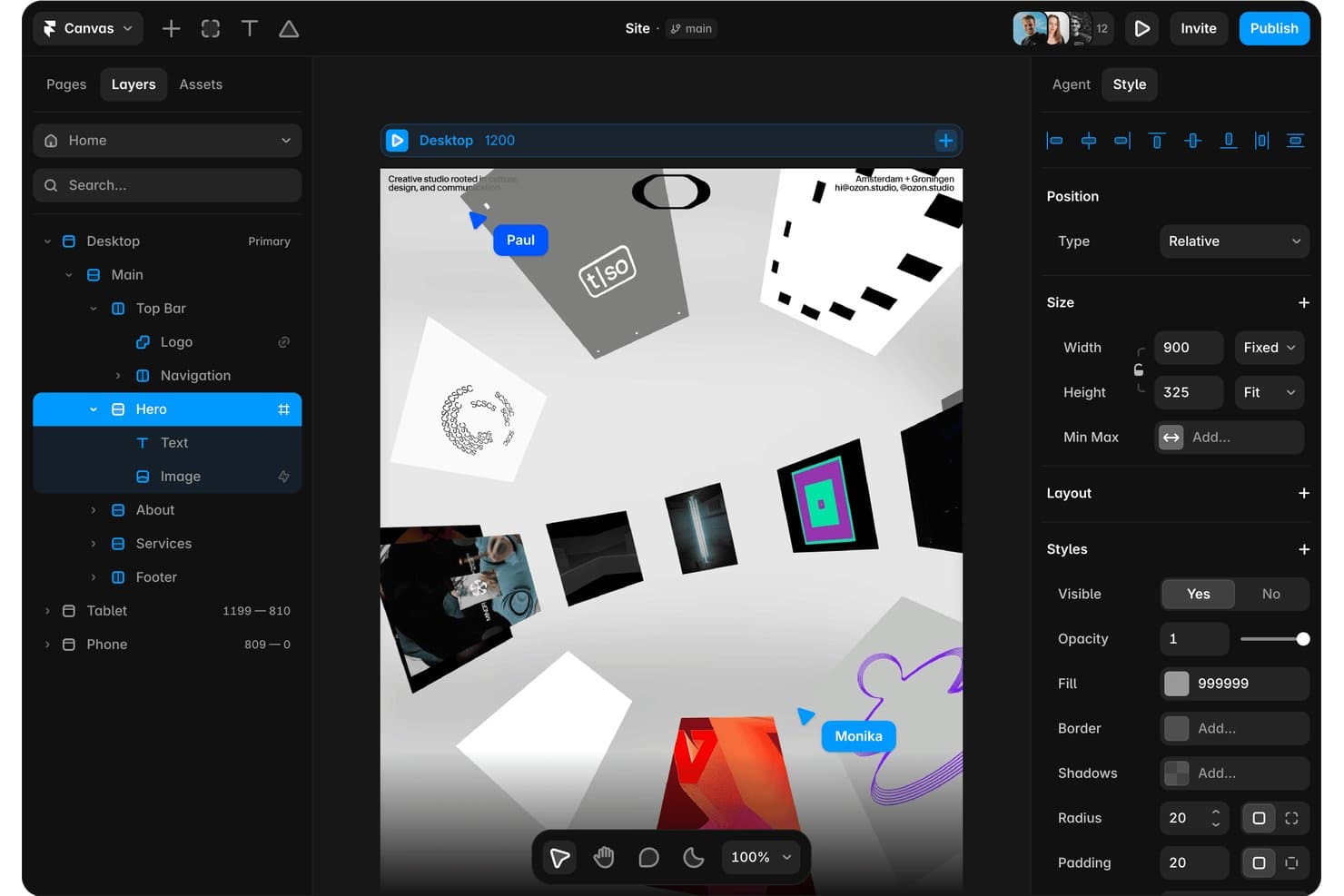
Framer lets users design and edit website layouts visually in real time. Framer is an AI website builder and design tool that lets you generate editable, responsive layouts from text prompts, refine them on a visual canvas, and publish them directly from the same platform.
Who Is Framer Best For?
Framer suits designers and web teams who want to move from a text prompt to a publish-ready, responsive layout without switching between tools.
Why I Picked Framer
I've included Framer in my top picks because its AI layout generation lets you go from a text prompt to a fully editable, responsive page in one tool. I love that the output isn't a locked template: every layer stays editable, so you can refine typography, spacing, and breakpoints directly on the canvas. A review agent also flags contrast issues, missing alt text, and style inconsistencies before you publish.
Framer Key Features
- AI review agent: Scans your design for contrast issues, missing alt text, typos, and style inconsistencies before you publish.
- Responsive breakpoint controls: Adjust layouts across screen sizes directly on the canvas without writing any code.
- Reusable component library: Access and apply shared design system components, styles, and spacing across your project for visual consistency.
- Branching and staging: Create separate branches of your site to test changes and review them in a staging environment before pushing live.
Framer Integrations
Framer documents integrations with Notion, WordPress, GitHub, Slack, Claude Code, Codex, Cursor, and terminal workflows. It also supports plugins, overrides, and a server API for custom integrations.
Pros and Cons
Pros:
- Publishes polished interactive website concepts
- Supports responsive breakpoint iteration
- Generates editable layouts from text prompts
Cons:
- Provides no visual flow mapping
- Skips low-fidelity wireframing workflows
 2Best for remote teams building wireframes asynchronously
Miro
- Free plan + 14-day trial available
- From $8/user/month (billed annually)
Visit WebsiteCustomer Rating:4.8/5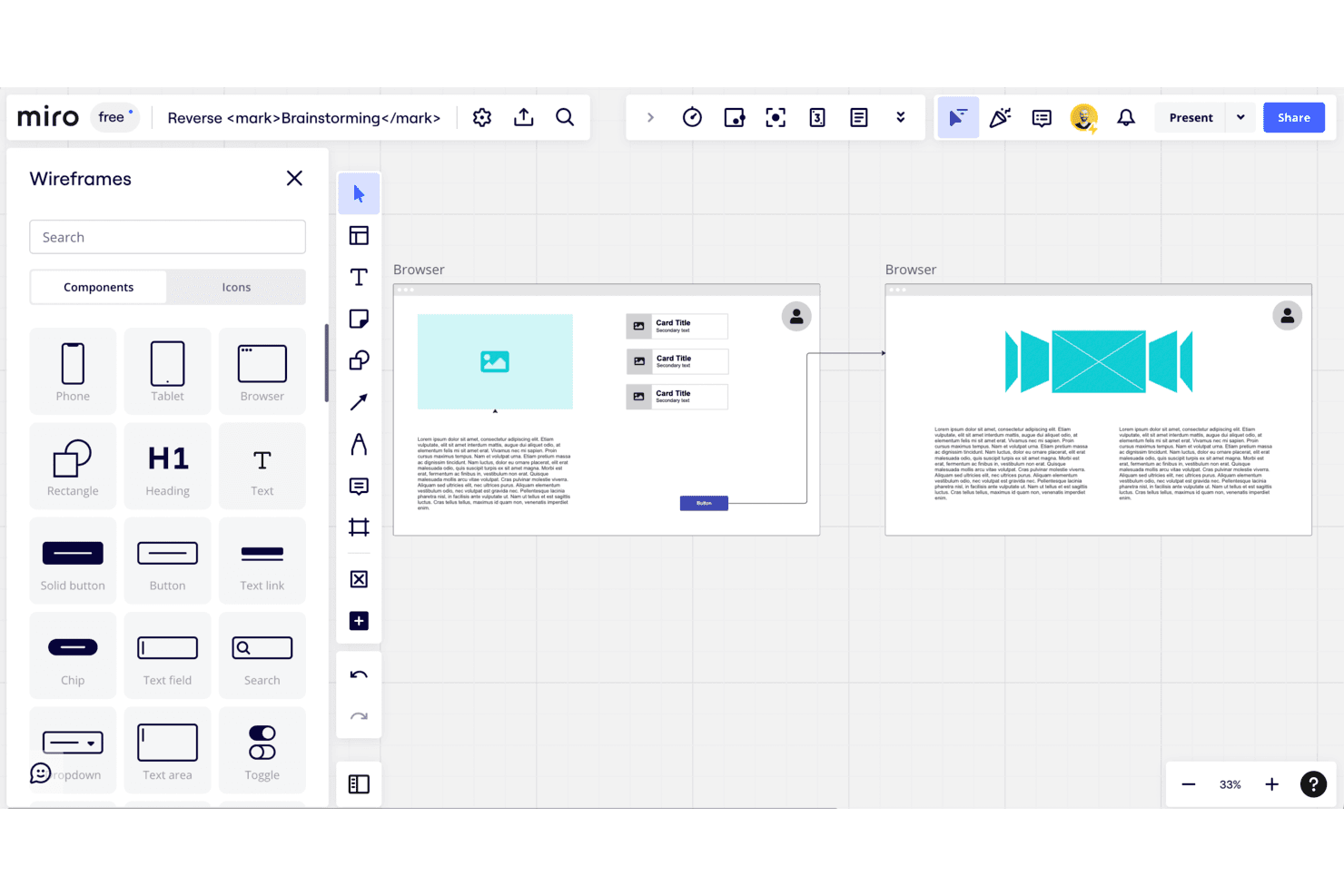
Miro offers a wide range of pre-built templates and widgets that can be customized to suit your specific needs. Miro is a visual workspace that combines low-fidelity wireframing, user flow mapping, and real-time collaboration tools on an infinite canvas, with AI-powered layout generation and a built-in UI component library for web and mobile.
Who Is Miro Best For?
Miro fits distributed product and design teams that need to align stakeholders around early-stage concepts without coordinating live meeting times.
Why I Picked Miro
Miro earns its spot on my shortlist because its async-first collaboration is built for distributed teams who can't always review wireframes live together. I love that comments, voting, and attach directly to frames, so a stakeholder in a different time zone can leave feedback on a three-step checkout flow without scheduling a meeting. Pairing that with AI-generated wireframe layouts from plain-language prompts means my team can go from idea to reviewable concept fast.
Miro Key Features
- AI wireframe generation: Miro's AI Sidekicks convert plain-language prompts into wireframe layouts directly on the canvas.
- Prototyping library: A built-in UI component library includes buttons, forms, icons, and navigation elements for both web and mobile.
- Two-way project management sync: Miro syncs bidirectionally with Jira, Asana, Linear, ClickUp, and Azure DevOps on the Business plan.
- Visitor editing links: Starter plan boards can be shared via a public link that allows editing without requiring a Miro account.
Miro Integrations
Miro offers 250+ integrations, including Figma, Adobe XD, Jira, Asana, Linear, ClickUp, Azure DevOps, Slack, Google, and Microsoft. Business adds two-way sync with Jira, Asana, Linear, ClickUp, and Azure DevOps.
Pros and Cons
Pros:
- Research, flows, and wireframes share one canvas
- Prompt-based generation creates first-pass layouts
- Async feedback stays attached to wireframes
Cons:
- Manual arrows limit complex flow mapping
- High-fidelity design requires another tool
 Best for sketch-to-screen AI wireframing
- Free plan available
- From $39/month (billed annually)
Visit WebsiteCustomer Rating:4.6/5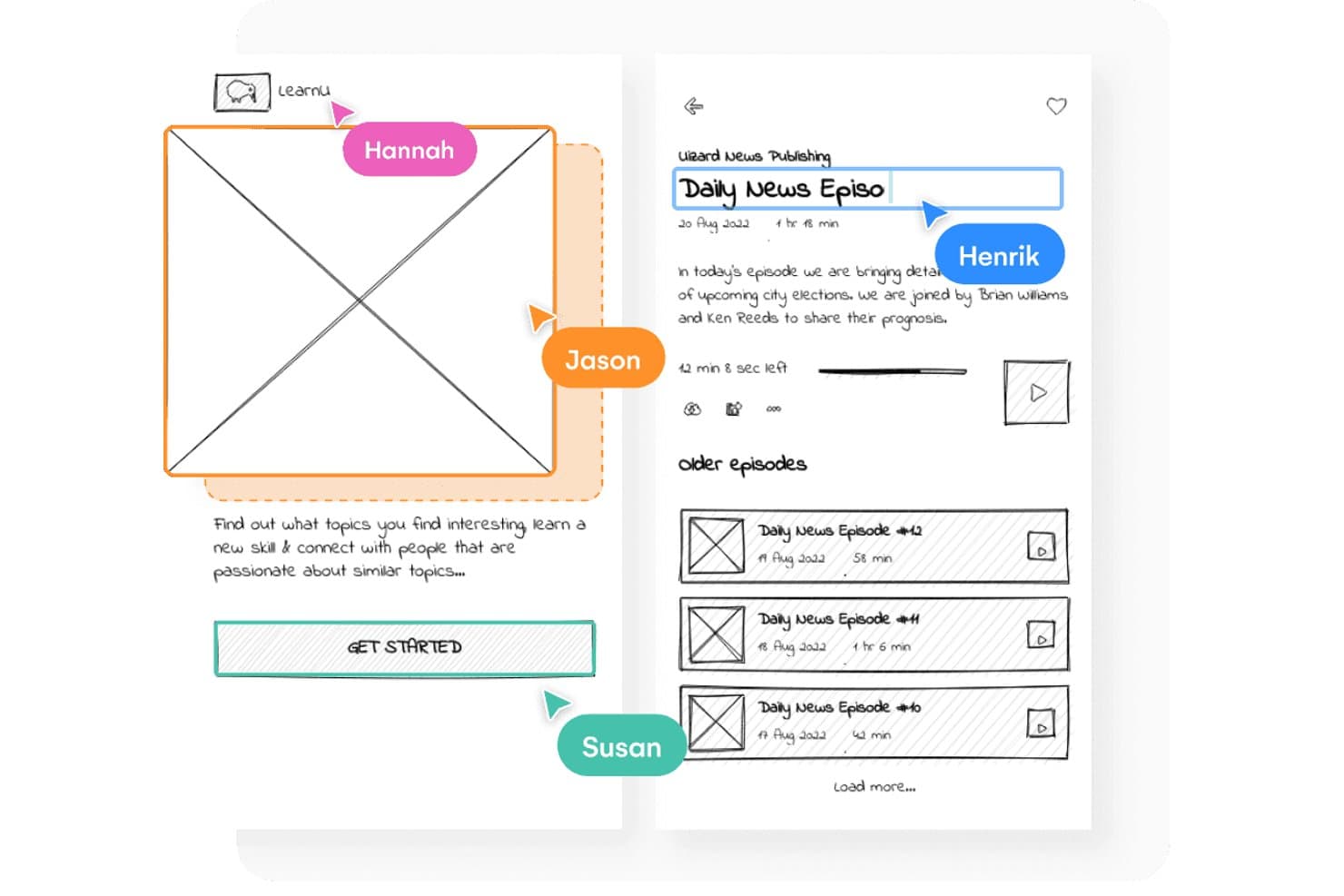
Uizard supports real-time multiplayer collaboration on wireframes. Uizard is a browser-based wireframing and prototyping tool that combines drag-and-drop layout building with AI-powered design generation, sketch scanning, and one-click switching between low-fidelity wireframes and high-fidelity mockups.
Who Is Uizard Best For?
Uizard is a strong fit for product managers and startup founders who need to turn ideas into testable wireframes without relying on a dedicated design team.
Why I Picked Uizard
Uizard earns its spot on my shortlist because of how fast it moves a rough idea into a working, editable prototype. I love the Wireframe Scanner, which turns a hand-drawn sketch into a digital design you can immediately refine, and the one-click Wireframe Mode switch that flips any screen between low-fi and high-fi without rebuilding it. The Autodesigner 2.0 feature lets you describe a multi-screen app in plain text and get an editable prototype back in seconds.
Uizard Key Features
- Screenshot scanner: Upload any existing app or website screenshot and Uizard converts it into a fully editable mockup you can rework from scratch.
- Real-time multiplayer collaboration: Multiple team members can edit the same canvas simultaneously, with unlimited free viewers and commenters on every plan.
- React and CSS developer handoff: Export your designs as React components and CSS code directly from the Pro plan, giving developers ready-to-use output.
- Predictive attention heatmaps: Uizard generates AI-powered heatmaps that show where users are likely to focus on any given screen.
Uizard Integrations
Native integrations are not currently listed. It supports React and CSS export, public links, web embeds, and JPG, PNG, and PDF exports.
Pros and Cons
Pros:
- Supports real-time stakeholder review and commenting
- Switches between low and high fidelity
- Converts hand sketches into editable screens
Cons:
- Free tier restricts projects and screens
- Some reviewers report lost work
Learn more about Uizard: Best for non-designers wireframing with AI
- Free plan available
- From $14/user/month
Visit WebsiteCustomer Rating:4.8/5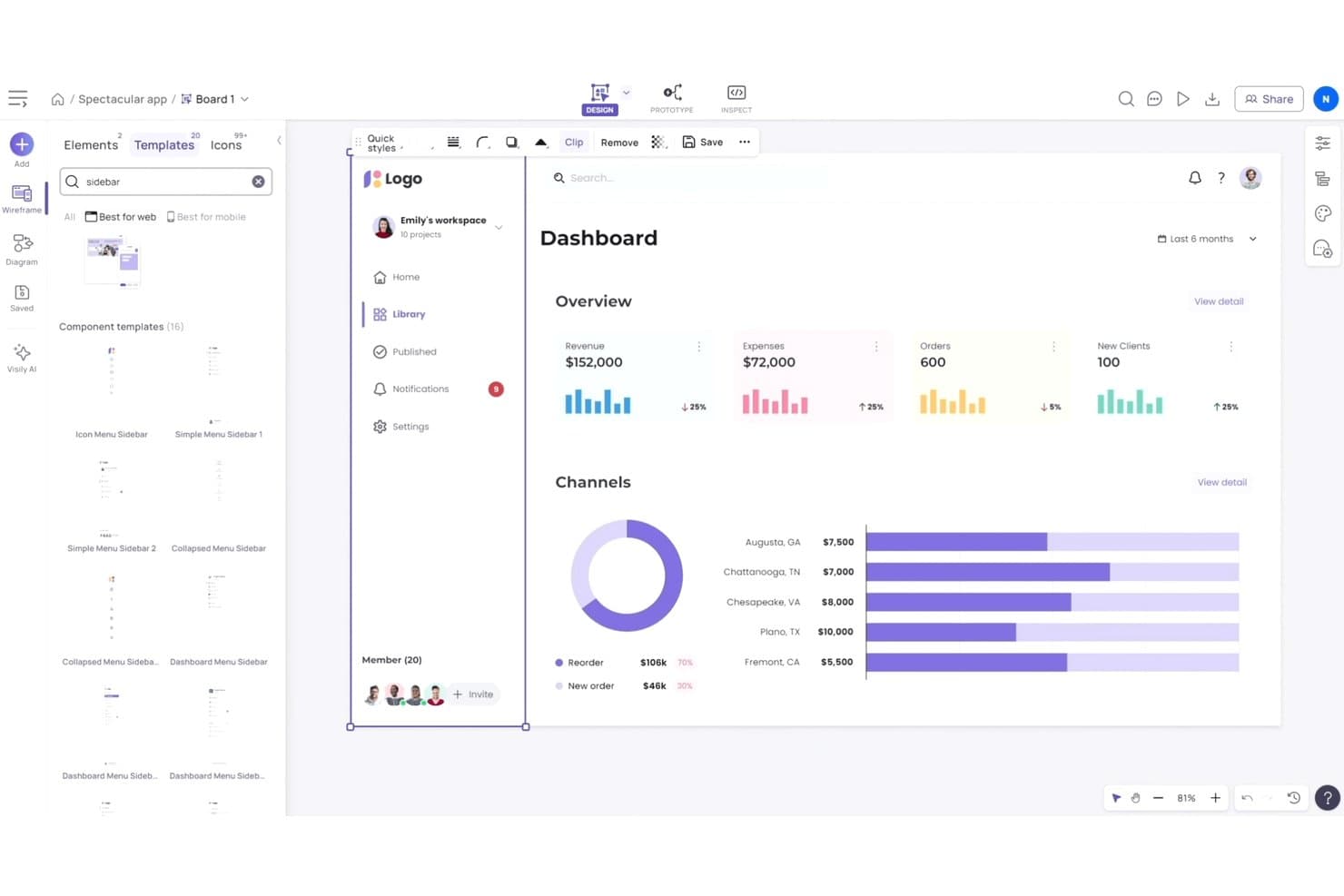
Visily offers ready-made sidebar templates for rapid wireframing. Visily is an AI-powered wireframing and prototyping tool that lets you generate screens from text prompts, sketches, or screenshots, and switch between low- and high-fidelity outputs—all without a design background.
Who Is Visily Best For?
Visily is a strong fit for product managers and startup founders who need to move from idea to wireframe quickly, without relying on a dedicated designer.
Why I Picked Visily
I picked Visily as one of the best because its AI generation features genuinely close the gap for product managers and founders who need wireframes without a designer on hand. You can paste a screenshot of a competitor's app or describe a screen in plain text, and Visily produces an editable layout in seconds. I also like that every plan, including the free tier, includes a fidelity switch, so you can move from a rough low-fidelity sketch to a high-fidelity mockup without rebuilding anything from scratch.
Visily Key Features
- Real-time co-design: Multiple team members can edit the same canvas simultaneously, with cursor chat and commenting built in.
- Interactive prototyping: Link screens together to create clickable prototypes directly within Visily, available on every plan including free.
- Figma import and export: Bring existing Figma files into Visily or export your Visily designs to Figma for production handoff, available on Pro and higher.
- Diagram AI: Convert flow diagrams and sketches into editable UI screens automatically, without manual redrawing.
Visily Integrations
Visily lists integrations with Figma, Notion, Jira, and Slack, plus a Figma plugin and MCP server.
Pros and Cons
Pros:
- Supports clickable prototypes across every plan
- Switches between low- and high-fidelity wireframes
- Generates wireframes from prompts, sketches, screenshots
Cons:
- Complex prototypes and animations remain limited
- Complex AI outputs need manual cleanup
Learn more about Visily: Best for turning low-fi sketches into interactive flows
- Free plan + 30-day free trial + free demo available
- From $4.95/user/month (billed annually)
Visit WebsiteCustomer Rating:4.5/5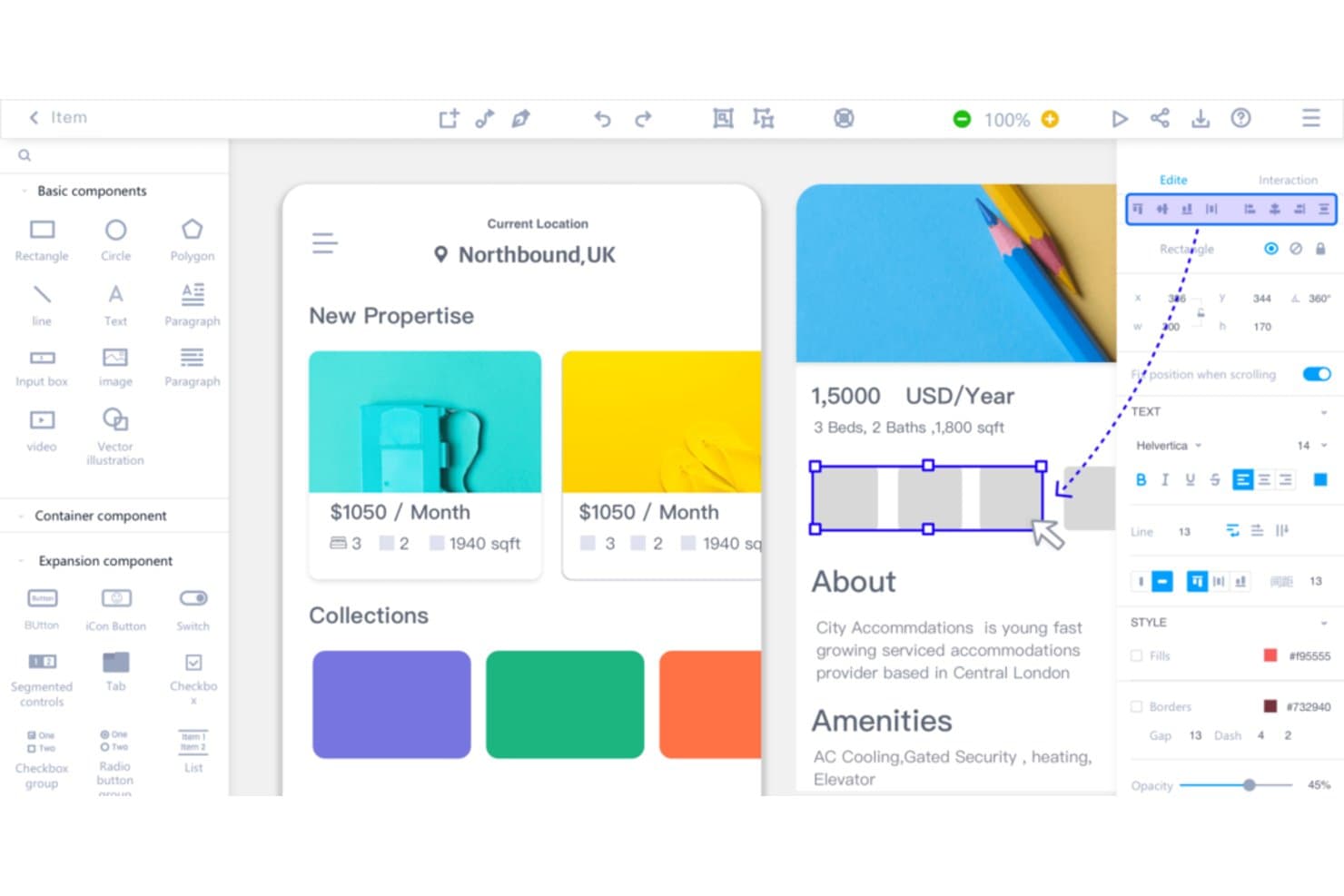
Mockplus helps teams create detailed wireframes using drag-and-drop components. Mockplus RP is a wireframing and prototyping tool that supports low-, medium-, and high-fidelity design in one canvas, with a drag-and-drop interface, 3,000+ UI components, and built-in flow mapping for web, iOS, and Android.
Who Is Mockplus Best For?
Mockplus RP is a strong fit for product managers and non-designer practitioners who need to move quickly from rough concept sketches to shareable, interactive prototypes.
Why I Picked Mockplus
Mockplus RP earns its spot on my shortlist because it's one of the few wireframing tools that genuinely bridges rough sketches and interactive prototypes without forcing you to switch tools mid-process. I love how link points connect widgets to screens in seconds, letting you map out an onboarding or checkout flow visually before a single pixel is polished. The built-in flowchart and navigation map view makes the logic between screens immediately clear to anyone reviewing the prototype.
Mockplus Key Features
- Multi-fidelity canvas: Design low-, medium-, and high-fidelity prototypes on a single canvas without switching tools.
- 3,000+ UI components: Choose from a library of icons and widgets covering Web, iOS, Android, and Material Design styles.
- Axure file import: Import existing Axure RP files with up to 95% of UI and interaction details preserved and editable.
- Responsive artboard presets: Design once using device-specific artboard presets that adapt layouts across desktop, tablet, and mobile.
Mockplus Integrations
Mockplus RP integrates with Mockplus Cloud and supports plugins for Sketch, Photoshop, Adobe XD, Figma, and Axure.
Pros and Cons
Pros:
- Axure imports preserve editable interaction details
- 3,000-plus components speed interface exploration
- Bridges rough sketches to interactive flows
Cons:
- Support can be slow after license activation
- Advanced interactions remain limited for complex prototypes
Learn more about Mockplus: Best for drag-and-drop wireframe kits
- Free plan available
- From $3/user/month
Visit WebsiteCustomer Rating:4.7/5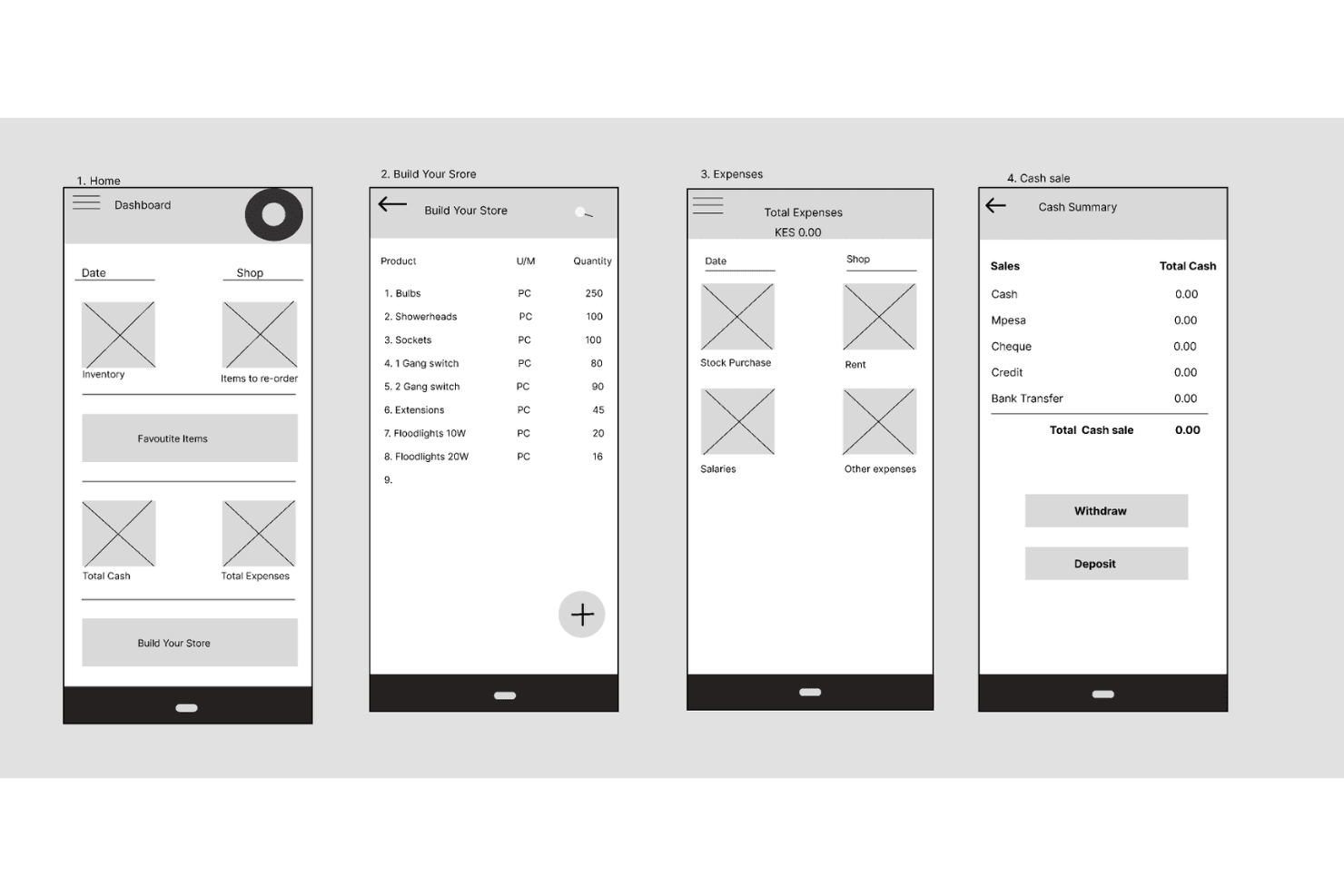
Figma helps teams create low-fidelity wireframes to map mobile app layouts, navigation, and user flows before development. Figma is a browser-based design tool that covers wireframing, prototyping, and developer handoff in one canvas, with drag-and-drop layout building, a large community library of wireframe kits, real-time multiplayer editing, and AI-assisted layout generation.
Who Is Figma Best For?
Figma is a strong fit for UX/UI designers and cross-functional product teams who need one tool to take wireframes all the way through to developer handoff.
Why I Picked Figma
Figma earns its spot on my shortlist because the Community library gives you instant access to production-ready wireframe kits, including Lo-fi Wireframe Kits and mobile kits for both Android and iOS, so you're not building from scratch. I also love that AI wireframe generation lets you describe a layout in a text prompt and get editable frames back in seconds. From there, Figma Make turns those static wireframes into clickable user flows, all without leaving the canvas.
Figma Key Features
- Real-time multiplayer editing: Multiple teammates can edit the same file simultaneously, with comments, mentions, and audio conversations built into the canvas.
- Dev Mode handoff: Developers can inspect designs, view annotations, compare changes, and export assets directly, with a VS Code extension and MCP Server included.
- FigJam whiteboard: A built-in whiteboard for user flow mapping, diagramming, and early brainstorming, with voting, timers, and 24-hour open sessions for guests.
- Multi-fidelity design support: You can move from rough low-fidelity layouts using basic shapes and placeholders to detailed, interactive prototypes without switching tools.
Figma Integrations
Figma connects with Supabase, Microsoft PowerPoint, and more, plus developer workflows through its VS Code extension and MCP Server. Its APIs support custom integrations.
Pros and Cons
Pros:
- Multiplayer editing supports stakeholder feedback
- Low-fidelity layouts evolve into prototypes
- Reusable kits accelerate initial wireframing
Cons:
- Some common UI patterns require custom work
- Wireframing feels difficult for beginners
 Best for real-time collaboration
- Free plan + 14-day free trial + demo available
- From $49/user/month
Visit WebsiteCustomer Rating:4.2/5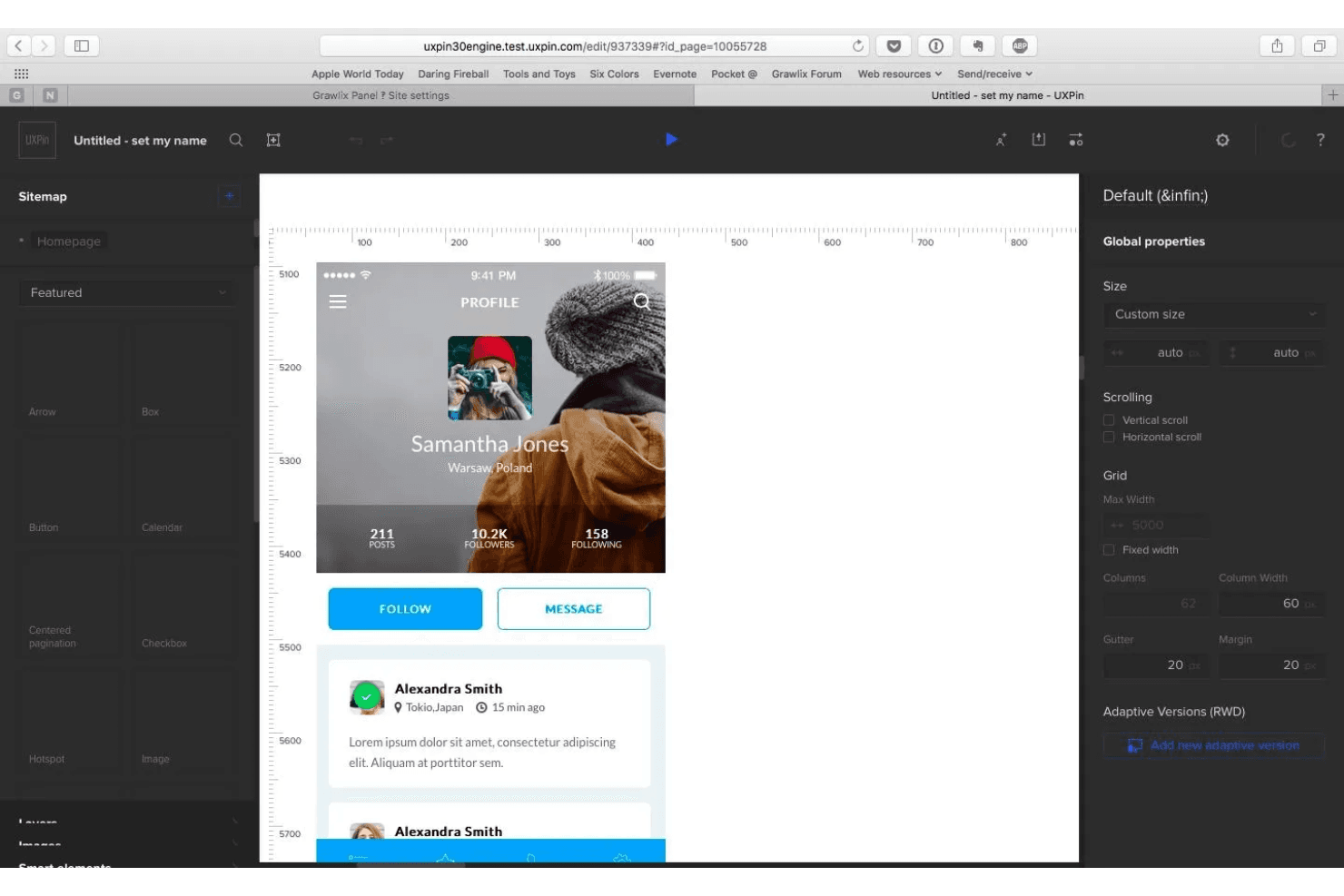
UXPin helps teams design wireframes, prototypes, and interactive layouts together. UXPin is a canvas-based wireframing and prototyping tool that lets you design everything from low-fidelity layouts to high-fidelity, interactive prototypes using real coded React components.
Who Is UXPin Best For?
UXPin is a strong fit for UX/UI designers and developers on cross-functional teams who need to co-edit designs, share live prototypes with stakeholders, and hand off production-ready code.
Why I Picked UXPin
UXPin earns its spot on my shortlist because real-time co-editing isn't an add-on here—it's baked into every plan. I love that multiple designers can work on the same canvas simultaneously, with live cursors showing who's doing what, while stakeholders leave in-context comments and trigger approval workflows without needing a seat. What makes this genuinely useful is that those shared prototypes are built from real React components, so the feedback your team gives is on something that behaves like the actual product.
UXPin Key Features
- Forge AI generation: Generate UI from a text prompt or screenshot using real React components, then iterate conversationally or switch to manual editing.
- Multi-fidelity canvas: Design wireframes and high-fidelity layouts in one canvas, moving from rough structure to production-level detail without switching tools.
- Developer code export: Export clean React/JSX code with dependencies, or open it directly in StackBlitz or CodeSandbox for immediate development use.
- Color blindness simulator: Preview designs across different color vision deficiencies to catch accessibility issues before handoff.
UXPin Integrations
UXPin supports the Figma plugin and Sketch import, plus Storybook on Growth and Git on Enterprise. Exported React/JSX opens in StackBlitz or CodeSandbox, while Forge supports OpenAI and Anthropic models.
Pros and Cons
Pros:
- Stakeholder comments simplify design reviews
- Interactive flows mirror production behavior
- Real-time co-editing supports shared wireframing
Cons:
- Code-centric controls may overwhelm beginners
- High-fidelity workflows slow quick sketches
Learn more about UXPin: Best for open-source design-to-dev handoff
- Free plan + 14-day free trial + free demo available
- From $7/user/month
Visit WebsiteCustomer Rating:4.5/5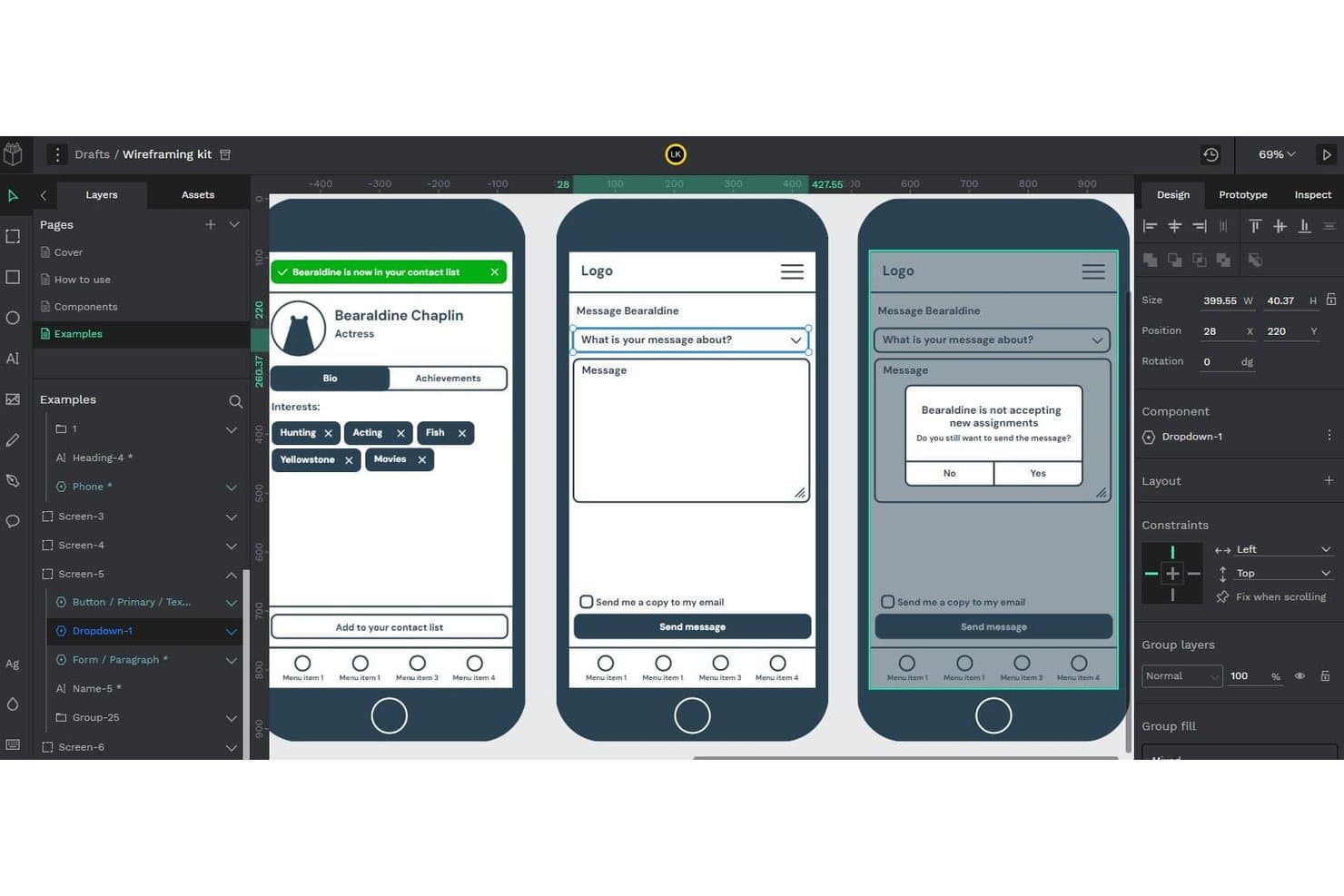
Penpot offers ready-made wireframe components for rapid app prototyping. Penpot is an open-source design platform that covers wireframing, UI design, interactive prototyping, and developer handoff through native CSS Flex/Grid layouts and a built-in Code Inspect tab.
Who Is Penpot Best For?
Penpot is a strong fit for design and development teams that want a free, self-hostable tool with native CSS handoff and no per-seat costs.
Why I Picked Penpot
Penpot earns its spot on my shortlist because it's the only wireframing tool here where design and developer handoff are genuinely inseparable from the start. I love that its canvas uses real CSS Flex and Grid rules, so when a developer opens the Code Inspect tab, they're reading actual CSS, HTML, and SVG outputs rather than approximations. That means a wireframe I build in Penpot can move directly into production without translation losses between design intent and code.
Penpot Key Features
- Real-time multi-user editing: Multiple team members can work on the same file simultaneously, with a built-in read-only mode for stakeholder review.
- Interactive prototyping: Link screens and add interactions to simulate product behavior for user testing and stakeholder walkthroughs.
- Design tokens: Define and apply native design tokens across components and shared libraries to maintain consistency across your design system.
- MCP Server integration: Connect any AI agent or LLM to your Penpot files to support design-to-code, code-to-design, and component generation workflows.
Penpot Integrations
Penpot supports integrations through its MCP Server, and Penpot Hub plugins. It also offers a public API and open CSS, HTML, SVG, and JSON formats for custom developer workflows.
Pros and Cons
Pros:
- Self-hosting supports stricter data requirements
- Wireframes evolve into polished interactive prototypes
- CSS-ready layouts reduce handoff mismatches
Cons:
- Advanced prototype states remain less mature
- Large files can trigger noticeable performance issues
Learn more about Penpot: Best for clickable wireframes with working logic
- Free plan + 10-day trial available
- From $19/user/month
Visit WebsiteCustomer Rating:4.2/5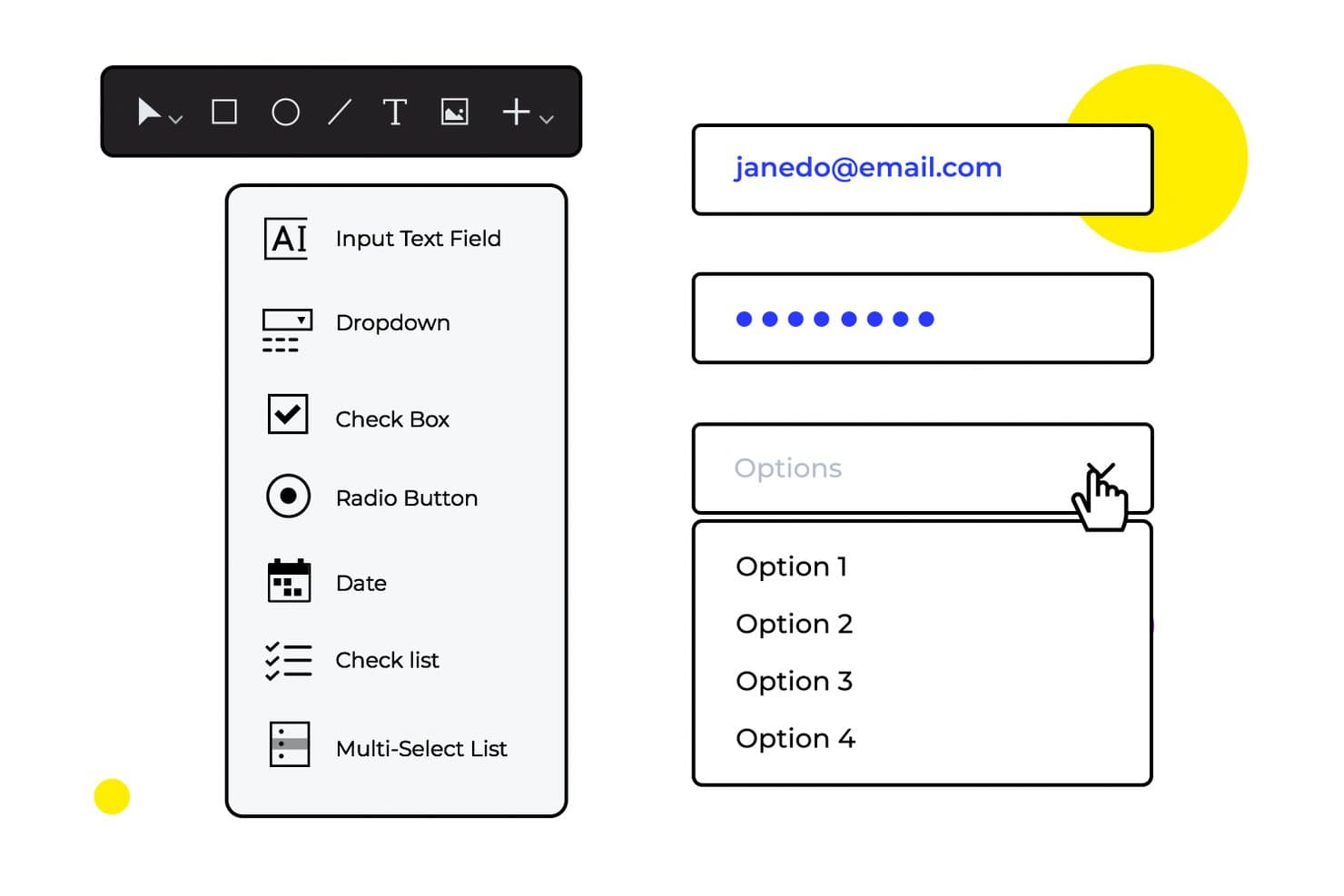
Justinmind lets users add form inputs like dropdowns and checkboxes to wireframes. Justinmind is a desktop wireframing and prototyping tool for macOS and Windows that spans low-fidelity wireframes to high-fidelity interactive simulations, with drag-and-drop layout building, conditional logic, working forms, and data-driven prototyping.
Who Is Justinmind Best For?
Justinmind is a strong fit for UX/UI designers who need to build and test interactive prototypes with real logic—not just static screens.
Why I Picked Justinmind
Justinmind earns its spot on my shortlist because it lets you wire up conditional logic, working form validation, and data-driven lists directly inside your prototype—no handoff to a separate tool required. I especially like that you can import a CSV file through Data Masters and watch your data grid populate in the simulation, which makes stakeholder reviews feel far more convincing than a static mock. That depth of working logic, built right into the wireframing layer, is what sets it apart.
Justinmind Key Features
- Multi-fidelity design support: Switch between low-fidelity black-and-white wireframes and high-fidelity UI with animations and transitions, all within a single project.
- Masters and smart templates: Define reusable component groups—like headers and footers—so a single edit updates every screen that uses them.
- Real-time co-editing and comments: Team members can edit simultaneously and leave threaded comments pinned to specific components, with labels and color categories.
- Cross-platform UI kits: Access device-specific component libraries for iOS and Android, plus responsive web layouts, to prototype across platforms without building from scratch.
Justinmind Integrations
Justinmind integrates with Jira and Azure DevOps Boards, and offers plugins for Sketch, Adobe XD, and Figma. It also provides an API and SDK for custom plugins.
Pros and Cons
Pros:
- Supports low- and high-fidelity prototypes
- Data grids simulate realistic product workflows
- Clickable wireframes include conditional logic
Cons:
- Interface can feel clunky during navigation
- Desktop installation limits browser-first collaboration
Learn more about Justinmind: 10Best for realistic usability testing
Axure RP
- Free plan + 30-day free trial available
- From $29/user/month (billed annually)
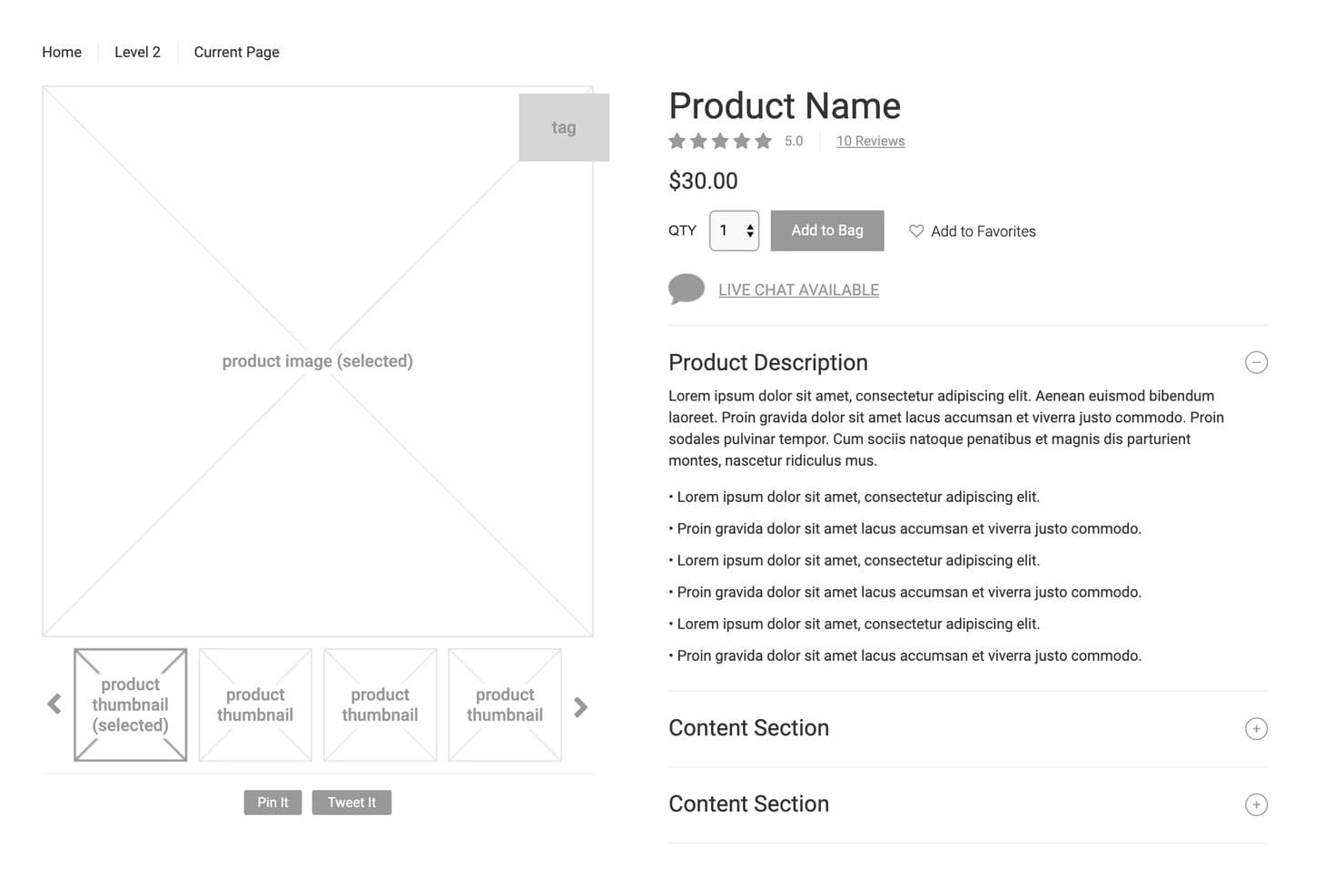
Axure RP lets users design detailed product page wireframes. Axure RP is a desktop-based wireframing and prototyping tool that lets you build everything from low-fidelity layouts to fully interactive, logic-driven prototypes with conditional interactions, flow diagrams, and developer handoff specs.
Who Is Axure RP Best For?
Axure RP is a strong fit for UX designers and product teams who need to build and test complex, logic-driven prototypes without writing code.
Why I Picked Axure RP
Axure RP earns its spot on my shortlist because it's one of the few wireframing tools that lets you build prototypes realistic enough to run actual usability tests. I love that you can layer in conditional logic, variables, and working form controls so a prototype behaves like a live product. That means test participants interact with real dropdowns, dynamic panels, and branching flows rather than static mockups, which produces far more reliable usability data.
Axure RP Key Features
- Adaptive views: Design for desktop, tablet, and mobile on a single page, with the prototype automatically displaying the correct layout per device.
- Developer handoff tools: Axure Cloud generates automated redlines, CSS inspection, and asset export so developers can pull specs directly.
- Check-out/check-in co-authoring: Team members edit shared files by checking out individual pages, with full version history and one-click restore.
- Jira and Confluence embedding: Paste an Axure Cloud link to display a live, interactive prototype directly inside a Jira ticket or Confluence page.
Axure RP Integrations
Axure RP offers seven documented integrations with Jira, Confluence, Slack, Microsoft Teams, Figma, Sketch, and Adobe XD. Jira and Confluence support embedded interactive prototypes, while design plugins transfer frames or artboards into Axure RP.
Pros and Cons
Pros:
- Developer-ready specs reduce handoff ambiguity
- Conditional logic maps complex user flows
- Realistic prototypes support credible usability testing
Cons:
- Page checkouts prevent live co-editing
- Desktop editor feels dated and crowded
Learn more about Axure RP :
Doğru Maket ve Prototipleme Yazılımını seçmek için uzman yardımına mı ihtiyacınız var?
Tüm okuyucularımıza (evet, size de!) Crozdesk’in yazılım danışmanlarına erişim sunmak için Crozdesk.com ile iş birliği yaptık. İhtiyaçlarınızı paylaşmak için aşağıdaki formu kullanmanız yeterli; danışmanlar sizinle herhangi bir ücret veya taahhüt olmaksızın iletişime geçecektir. Ardından şirketinize en uygun tedarikçilerden oluşan kısa bir listeyle eşleştirilecek ve bağlantı kurulacak; ayrıca özel yazılım indirimlerine erişebileceksiniz!
Diğer Seçenekler
En iyi listesine giremeyen ancak değerlendirmenize değer birkaç seçenek daha şunlardır.
- 11MoqupsBest for wireframe and template mockups
- 12Wireframe.ccBest for no-signup, distraction-free low-fi sketching
- 13LucidchartBest for mapping wireframes and user flows together
- 14BalsamiqBest for wireframing that feeds directly into dev tools
- 15Aha!Best for wireframing tied to product roadmaps
- 16WhimsicalBest for low-fi wireframing in a docs workspace
- 17Adobe XDBest for UX design handoff in the Adobe ecosystem
- 18SketchBest for wireframe kits and resources
- 19FluidUIBest for prototyping and sharing wireframes fast
- 20CacooBest for collaborative wireframing in the cloud
- 21MockFlowBest for AI-assisted features
- 22NinjaMockBest for creating wireframes in minutes
İlgili UX Aracı İncelemeleri
UX ve ürün yönetimi alanlarındaki en iyi yazılım incelemelerimizden bazılarını burada derledik:
- En İyi Ürün Yönetimi Araçları
- En İyi Ürün Planlama Yazılımları
- En İyi Ürün Geliştirme Yazılımları
- En İyi Ürün Analitiği Araçları
- En İyi Fikir Yönetimi Yazılımları
- En İyi Isı Haritası Yazılımları
How I Evaluate Wireframing Tools
My evaluation splits into three parts. Core functionality carries the most weight: I look for drag-and-drop canvas building and a solid UI element library. Then I consider standout features like AI wireframe generation, and finally, pricing value and onboarding quality.
Core Functionality (Table Stakes For This List)
When I'm selecting tools for my list, I score each one on a scale from 0 (does not offer the functionality) to 5 (excels in this area) for each core functionality listed below. I then convert the total into a percentage to help assess each tool's overall fit, with extra weight on any functionalities I've deemed essential.
- Drag-and-Drop Building (Essential): I check whether placing and resizing elements feels precise, with snapping, alignment guides, and grid support that keeps layouts clean.
- UI Element Library (Essential): A strong set of reusable components like buttons, form fields, nav bars, and cards tells me the tool can handle real wireframing speed.
- Multi-Fidelity Support: I look for tools that let you start with grayscale boxes and scale up to detailed mockups without switching platforms mid-project.
- Linking and Flow Mapping: Connecting screens into navigation paths matters. I evaluate how well each tool visualizes multi-step user flows across an entire app or site.
- Real-Time Collaboration: Teams need to comment, edit, and review together. I check for live cursors, threaded comments, and reliable simultaneous editing across users.
- Exportable or Shareable Output: I evaluate sharing options like interactive prototype links, PDF exports, and developer handoff specs that make stakeholder reviews easier.
Once I have a list of tools that meet the criteria, I consider what sets each platform apart.
Differentiating Factors (What Sets Vendors Apart)
Here's how I compare and contrast different vendors:
Standout Features
AI wireframe generation is a big differentiator right now. I evaluate whether a tool can turn a text prompt or rough sketch into a usable layout, which cuts hours off early ideation. Cross-platform templates also matter. When your team is designing for iOS, Android, and responsive web simultaneously, pre-configured device frames in tools like Figma or Axure save real time. I also check for built-in user testing hooks, since running usability feedback directly on a prototype beats exporting to a separate tool every time.
Beyond Features
I evaluate how well each tool fits into an existing product and dev ecosystem. Integration with Jira, Confluence, or Slack determines whether wireframes stay connected to your backlog or end up siloed. Stakeholder review workflows also matter. I check for shareable links with controlled permissions, threaded comments, and version history so PMs can run async feedback rounds with executives who'll never open an editor. Finally, I consider onboarding friction, since most stakeholders contributing to wireframes aren't trained designers and need to be productive on day one.
Tel Kafesleme Yazılımı Nasıl Seçilir?
Bu kadar çok farklı tel kafesleme çözümü mevcutken, ihtiyaçlarınıza en uygun tel kafes araçlarının hangileri olacağına karar vermek zor olabilir.
Tel kafes araçlarını kısa listeye alırken, denerken ve seçerken şunları göz önünde bulundurun:
- Hangi sorunu çözmeye çalışıyorsunuz - Tel çerçeveleme aracının sunması gereken özellikleri ve işlevleri netleştirmek için, öncelikle gidermeye çalıştığınız tel çerçeveleme özelliği eksikliğini belirleyin.
- Kimlerin kullanması gerekecek - Maliyeti ve gereksinimleri değerlendirmek için yazılımı kimlerin kullanacağını ve kaç lisansa ihtiyaç duyacağınızı göz önünde bulundurun. Erişime yalnızca UX tasarımcılarının mı yoksa tüm kuruluşun mu ihtiyaç duyacağını değerlendirmeniz gerekir. Bu netleştikten sonra, herkes için kullanım kolaylığına mı yoksa uzman kullanıcılarınız için hıza mı öncelik verdiğinizi düşünmeye değer.
- Hangi diğer araçlarla birlikte çalışması gerekiyor - Hangi araçların yerine geçeceğinizi, hangi araçları kullanmaya devam edeceğinizi ve ürün yönetimi veya kullanıcı testi yazılımı gibi hangi araçlarla entegrasyon sağlamanız gerektiğini netleştirin. Ayrıca araçların birbiriyle entegre olması gerekip gerekmediğine veya birden fazla aracı tek bir birleşik tel çerçeveleme aracıyla değiştirip değiştiremeyeceğinize karar vermeniz gerekir.
- Hangi sonuçlar önemli - Başarılı sayılabilmesi için yazılımın sunması gereken sonucu göz önünde bulundurun. Hangi yeteneği kazanmak veya neyi geliştirmek istiyorsunuz ve başarıyı nasıl ölçeceksiniz? Farklı tel çerçeveleme araçlarının özelliklerini gözünüz kararana kadar karşılaştırabilirsiniz; ancak elde etmek istediğiniz sonuçları düşünmüyorsanız, çok değerli zamanınızı boşa harcıyor olabilirsiniz.
- Kuruluşunuz içinde nasıl çalışacağı - Yazılım seçimini iş akışlarınız ve teslimat metodolojinizle birlikte değerlendirin. Nelerin iyi çalıştığını ve ele alınması gereken sorunlara yol açan alanları değerlendirin. Her işletmenin farklı olduğunu unutmayın — bir aracın popüler olması, kuruluşunuzda işe yarayacağı anlamına gelmez.
Tel Çerçeveleme Araçlarındaki Trendler
Tel çerçeveleme araçlarının dünyası, UX tasarımcılarının ve ürün yöneticilerinin değişen ihtiyaçları doğrultusunda dikkat çekici dönüşümlere tanık oluyor. En hızlı gelişen ve popüler araçların güncellemeleri, basın bültenleri ve sürüm günlükleri, ürün tasarımı ve geliştirmenin geleceğine bir pencere açıyor. İşte bu trendlerin genel görünümü:
- Prototiplerde Artan Etkileşim: Tel çerçeveleri ve prototipleri mümkün olduğunca etkileşimli hâle getirmeye yönelik belirgin bir trend var. Araçlar artık daha gelişmiş animasyonlar ve dinamik öğeler içeriyor; bu da tasarımcıların nihai ürünü yakından taklit eden tel çerçeveleri oluşturmasına olanak tanıyor. Bu durum, geliştirme başlamadan önce paydaşların kullanıcı etkileşimi akışlarını somut biçimde anlamasına duyulan ihtiyaca yanıt veriyor.
- Yapay Zekâ Destekli Tasarım Önerileri: En yeni özelliklerden bazıları yapay zekâ destekli tasarım önerilerini ve içerik oluşturmayı içeriyor. Bu özellikler, yerleşim iyileştirmeleri önermek, metin içeriği oluşturmak ve hatta tel çerçevenin bağlamına göre tasarım öğeleri önermek için makine öğrenimini kullanıyor. Bu yenilikçi yaklaşım, tel çerçeveleme sürecini hızlandırmayı ve yaratıcılığı artırmayı amaçlıyor.
- Yapay Zekâ Destekli Fikir Geliştirme: Birçok araç, kabataslak fikirleri veya metin istemlerini tamamen oluşturulmuş tel çerçevelere dönüştürme olanağı sunarak yapay zekâyı bir adım ileri taşıyor. Bu sayede tasarımcılar yaratıcı süreçlerini başlatabiliyor ve birden fazla tasarım konseptini keşfedebiliyor.
- Erişilebilirlik Özellikleri: Engelli kullanıcılar da dâhil olmak üzere tüm kullanıcıların tasarımlara erişebilmesini sağlamaya yardımcı olan özellikler yoğun talep görüyor. Buna, çeşitli kullanıcı deneyimlerini simüle edebilen ve erişilebilirlik standartlarına uygunluk konusunda geri bildirim sağlayabilen araçlar da dâhil.
- Statik Tel Çerçevelerin Gerilemesi: Yalnızca statik tel çerçeveleme özellikleri sunan araçlara olan talep azalıyor. Sektör daha etkileşimli ve dinamik tasarımlara yöneldikçe, tüm kullanıcı deneyimini aktarmayan statik tel çerçevelere duyulan ihtiyaç da azalıyor.
Tel çerçeveleme araçları gelişmeye devam ettikçe ürün tasarımı ve geliştirme sürecinin daha ayrılmaz bir parçası hâline geliyor; UX tasarımcılarının ve ürün yöneticilerinin değişen ihtiyaçlarını yansıtıyor ve bu ihtiyaçlara uyum sağlıyor.
Tel Çerçeve Araçları Nedir?
Tel çerçeve araçları, bir tasarım ekibinin ürünün bileşenleri ve üst düzey işlevleri hakkında görüşmeleri kolaylaştıran üst düzey taslaklarını oluşturmasına yardımcı olan yazılımlardır. Çeşitli önceden oluşturulmuş tasarım öğeleri, sürükle ve bırak işlevi ve temel sayfa yapıları oluşturma olanağı gibi özellikleri bünyesinde barındıran bu araçlar, tasarım ekiplerinin bir ürünün temel yapısını ve yerleşimini ana hatlarıyla belirtmesine yardımcı olur ve sonraki tasarım ve geliştirme çalışmaları için görsel bir kılavuz sağlar.
Tel Çerçeveleme Araçlarının Özellikleri
Bu araçlarda doğru özellikleri belirlemek, seçim sürecinin önemli bir parçasıdır. Araştırmam sırasında aradığım başlıca özellikler şunlardır:
- İş Birliği Özellikleri: Ekip üyelerinin tel çerçeveler üzerinde eş zamanlı çalışmasını, geri bildirimleri doğrudan araç içinde paylaşmasını ve tüm paydaşları süreçten haberdar etmesini sağlar.
- Önceden Tasarlanmış Öğeler Kütüphanesi: Kullanıma hazır çok çeşitli kullanıcı arayüzü öğeleri ve simgeleri sunarak zamandan tasarruf sağlar ve tel çerçeveler arasında tutarlılık oluşturur.
- Etkileşimli Prototipleme: Tasarımcıların tel çerçevelere etkileşimler ve animasyonlar eklemesine olanak tanıyarak son kullanıcı deneyimini görselleştirmeyi kolaylaştırır.
- Sürüm Kontrolü: Değişiklikleri takip eder ve önceki sürümlere geri dönülmesine olanak tanır; bu özellik, yinelemeleri yönetmek ve bir projenin geçmişini korumak açısından kritik öneme sahiptir.
- Duyarlı Tasarım Özellikleri: Farklı ekran boyutlarına uyum sağlayan tel çerçeveler oluşturulmasına olanak tanıyarak tasarımların tüm cihazlarda esnek ve kullanılabilir olmasını sağlar.
- Dışa Aktarma ve Paylaşma Seçenekleri: Tel çerçeveleri dışa aktarmak için çeşitli biçimler ve bunları paydaşlarla paylaşmak için araçlar sunarak iletişimi ve geri bildirimi kolaylaştırır.
- Tasarım ve Geliştirme Araçlarıyla Entegrasyon: Tel çerçeve oluşturmadan yüksek doğruluklu tasarımlara ve geliştirmeye sorunsuz geçiş yapılmasını sağlayarak ürün oluşturma sürecini kolaylaştırır.
- Kullanıcı Testi İşlevselliği: Kullanılabilirlik testlerinin doğrudan tel çerçeve oluşturma aracından gerçek kullanıcılarla gerçekleştirilmesi için seçenekler sunarak tasarım fikirlerinin erken aşamada doğrulanmasına yardımcı olur.
- Yapay Zekâ ile Hızlı Yineleme: Orijinal dosyalarınızı mı kaybettiniz veya güncellenmiş bir biçime mi ihtiyacınız var? Bazı yapay zekâ tel çerçeve oluşturma araçları artık mevcut tasarımları düzenlenebilir tel çerçevelere dönüştürebiliyor. Bu sayede tasarımcılar sıfırdan başlamak yerine mevcut kullanıcı arayüzü öğelerini değiştirerek daha hızlı yineleme yapabiliyor; bu da değerli bir zaman tasarrufu sağlıyor.
İhtiyaçlarınızı karşılayacak doğru özellik kombinasyonunu kapsayan bir tel çerçeve oluşturma aracı seçmek, ürün geliştirme süreciniz için sağlam bir temel oluşturur. Bu işlevler yalnızca tel çerçeve oluşturma sürecini kolaylaştırmakla kalmaz, aynı zamanda iş birliğini teşvik eder, yaratıcılığı artırır ve daha kullanıcı odaklı bir tasarım yaklaşımına olanak tanır.
Tel Çerçeve Yazılımının Faydaları
Tel çerçeve oluşturma araçları, dijital ürün tasarımının ilk aşamalarında kritik bir rol oynar ve kullanıcıların ve kuruluşların fikirlerini verimli bir şekilde kavramsallaştırmasına ve yinelemesine olanak tanır. Bu araçlar aşağıdakiler de dahil olmak üzere çeşitli avantajlar sunar:
- Kolaylaştırılmış Tasarım Süreci: Tel çerçeve oluşturma araçları, tasarım oluşturma ve tasarım üzerinde yineleme yapma sürecini basitleştirerek tasarımcıların fikirleri hızlı bir şekilde görselleştirmesine ve düzenlemeler yapmasına olanak tanır. Bu verimlilik, ürün geliştirmenin ilk aşamalarında değerli zaman kazandırır ve ekiplerin kavramları ve işlevleri iyileştirmeye odaklanmasını sağlar.
- Geliştirilmiş İş Birliği: Bu araçlar genellikle gerçek zamanlı iş birliğini, geri bildirimi ve paylaşımı destekleyen özelliklerle birlikte gelir. Bu durum, ekiplerin konumlarından bağımsız olarak birlikte çalışmasını kolaylaştırır ve tüm paydaşların tasarım sürecine katkıda bulunabilmesini sağlayarak ürün geliştirmeye yönelik daha kapsayıcı ve kapsamlı bir yaklaşımı teşvik eder.
- Fikirlerin Açık Bir Şekilde İletilmesi: Tel çerçeve oluşturma araçları, bir ürünün düzeninin ve işlevselliğinin görsel bir temsilini sunarak kullanıcıların fikirlerini daha etkili bir şekilde ifade etmesine yardımcı olur. Bu açıklık, ekip üyelerini ve paydaşları ortak bir vizyon etrafında hizalamak, karar alma sürecini kolaylaştırmak ve yanlış anlaşılmaları azaltmak için gereklidir.
- Uygun Maliyetli Revizyonlar: Tel çerçevelerde değişiklik yapmak, tamamen geliştirilmiş ürünleri revize etmekten önemli ölçüde daha az maliyetli ve daha az zaman alıcıdır. Bu esneklik, ekiplerin geliştirme sürecinin ilerleyen aşamalarında büyük değişikliklerin sonuçları hakkında endişelenmeden farklı yaklaşımları denemesine ve tasarımlarını iyileştirmesine olanak tanır.
- Geliştirilmiş Kullanıcı Deneyimi: Tel çerçeve oluşturma araçları, erken aşamada kullanıcı testi ve geri bildirimi yapılmasını sağlayarak tasarımcıların kullanılabilirlik sorunlarını ürüne yerleşmeden önce belirlemesine ve gidermesine olanak tanır. Baştan itibaren kullanıcı deneyimine odaklanılması, hedef kitlenin ihtiyaçlarını daha iyi karşılayan ve daha yüksek kaliteli nihai ürünlerin ortaya çıkmasını sağlar.
Dijital ortam gelişmeye devam ettikçe bu araçlar, yalnızca teknik açıdan uygulanabilir değil, aynı zamanda kullanıcı ihtiyaçları ve iş hedefleriyle de güçlü biçimde örtüşen ürünler geliştirmek isteyen herkes için vazgeçilmez olmaya devam edecektir.
Tel Çerçeve Oluşturma Araçlarının Maliyetleri ve Fiyatlandırması
Tel çerçeve oluşturma araçları genellikle çeşitli planlar ve fiyatlandırma seçenekleri sunar. Bunlar, bireysel tasarımcılar ve küçük projeler için ücretsiz tel çerçeve oluşturma araçlarından, karmaşık uygulamalar üzerinde iş birliği yapan daha büyük ekipler için ücretli planlara kadar uzanır. Bu planların yapılarını ve ortalama maliyetlerini anlamak, projenizin gereksinimlerine ve bütçe kısıtlamalarına en uygun olanı seçmenize yardımcı olacaktır.
Tel Çerçeve Oluşturma Araçları İçin Plan Karşılaştırma Tablosu
Aşağıda, tel çerçeve oluşturma araçlarında yaygın olarak bulunan fiyatlandırma ve plan yapılarını gösteren bir tablo yer almaktadır:
| Plan Türü | Ortalama Fiyat | Yaygın Özellikler |
|---|---|---|
| Plan TürüÜcretsiz | Ortalama Fiyat$0 | Yaygın ÖzelliklerTemel tel kafes oluşturma özellikleri, Sınırlı şablonlar, Tek kullanıcı |
| Plan TürüBireysel | Ortalama Fiyat$10 - $20/ay | Yaygın ÖzelliklerGelişmiş tel kafes oluşturma özellikleri, Daha fazla şablon, Tek kullanıcı |
| Plan TürüEkip | Ortalama Fiyat$40 - $100/ay | Yaygın Özelliklerİş birliği araçları, Sınırsız şablonlar, Çok kullanıcılı erişim |
| Plan TürüKurumsal | Ortalama FiyatÖzel Fiyatlandırma | Yaygın ÖzelliklerGelişmiş güvenlik özellikleri, Özel destek, Özelleştirilebilir şablonlar, Sınırsız kullanıcı |
Hangi planın seçileceğini değerlendirirken yazılım alıcıları, projelerinin kapsamını her planın özellikleri ve sınırlamalarıyla karşılaştırmalıdır. Yalnızca mevcut ihtiyaçlarınıza uyan değil, projeleriniz büyüdükçe gelişim için de alan sunan bir planı tercih edin.
Tel Kafes Araçları SSS
İşte diğer kişilerin bu konu hakkında sorduğu yaygın soruların yanıtları.
Tel kafes nedir?
Tel kafes, ister web sayfaları, ister mobil uygulamalar veya gelişmiş web uygulamaları için olsun, sizin ve çalışma arkadaşlarınızın oluşturduğunuz şeyin yapısı hakkında düşünmenize yardımcı olan şematik bir taslak veya plandır. Tel kafes; odağı düzen, bilgi mimarisi ve üst düzey işlevsellik gibi büyük yapısal konulara kaydırmaya yardımcı olur.
Tel kafes araçlarını kullanmanın faydaları nelerdir?
Tel kafes araçları, web siteleri veya mobil uygulamalar gibi dijital arayüzlerin ön tasarımlarını ya da taslaklarını oluşturmak için tasarımcılar ve geliştiriciler tarafından yaygın olarak kullanılır. Tel kafes araçlarını kullanmanın bazı faydaları şunlardır:
- Fikirleri görselleştirme: Tel kafesler, fikirlerin ve kavramların görsel bir temsilini sunarak tasarımcıların ve müşterilerin bir web sitesinin veya uygulamanın genel yapısını ve düzenini daha iyi anlamasına yardımcı olur.
- İletişim: Tel kafesler, tasarımcılar, geliştiriciler ve müşteriler arasında bir iletişim aracı görevi görür. Fikirleri ve kavramları aktarmanın açık ve özlü bir yolunu sunar.
- Zamandan tasarruf: Tasarımcılar tel kafesler oluşturarak farklı tasarım fikirlerini ve düzenlerini kodlama gerektirmeden hızlıca test edebilir. Değişiklikler geliştirme süreci başlamadan önce yapılabildiğinden bu, uzun vadede zaman kazandırabilir.
- Maliyet açısından verimli: Tel kafesler, geliştirme sürecine yatırım yapmadan önce bir tasarımın prototipini oluşturmanın maliyet açısından verimli bir yoludur. Bu, tasarımcıların olası sorunları erkenden belirleyip düzeltmesine olanak tanıyarak daha sonra yapılacak maliyetli revizyon ihtiyacını en aza indirir.
- Kullanıcı testi: Tel kafesler, kullanıcı testleri gerçekleştirmek için kullanılabilir. Böylece tasarımcılar tasarım hakkında geri bildirim toplayabilir ve geliştirme aşamasına geçmeden önce gerekli değişiklikleri yapabilir.
- İş birliği: Tel kafes araçları genellikle birden fazla ekip üyesinin aynı proje üzerinde eş zamanlı çalışmasına olanak tanıyan iş birliği özellikleri sunar. Bu, verimliliği ve üretkenliği artırmanın yanı sıra ekip çalışmasını ve iletişimi de destekleyebilir.
Tel kafes araçlarının temel özellikleri nelerdir?
Tel kafes araçlarını değerlendirirken aramanız gereken özellikler şunlardır.
- Sürükle ve bırak: tasarımcıların tel kafesleri kolayca oluşturup değiştirebilmesi için kullanıcı arayüzü öğelerini kolayca ekleme veya taşıma olanağı
- Etkileşimli öğeler: kullanıcıların, çalışma arkadaşlarının tasarımın çeşitli yönlerine tıklayıp bunları test edebileceği etkileşimli prototipler oluşturmasına olanak tanır
- Geri bildirim ve iş birliği araçları: ekip üyelerinin yorum eklemesine, dosya eklemesine ve tasarımları işaretlemesine olanak tanıyan özellikler
- Ayrıntı düzeyleri: düşük ayrıntı düzeyinden yüksek ayrıntı düzeyine kadar farklı tel kafes türleri oluşturma seçeneği
- Revizyon geçmişi: önceki tasarım sürümlerine kolay erişim ve gerektiğinde bunlara geri dönme olanağı
- Sunum araçları: temel tel kafesleri müşteri sunumları için profesyonel sunumlara dönüştürme
- Şablonlar: tel kafesi ve tasarım sürecini hızlandırmak için yeniden kullanılabilen standart bileşenler ve semboller
- Eklentiler: yazılım eklentileri, bileşenleri ve uzantıları yükleyerek ek işlevler ekleme olanağı
Ne zaman tel kafes oluşturmalıyım?
Tel kafesler, uygulamalar veya web siteleri gibi dijital varlıkları tasarlama sürecinin ilk adımıdır. Ürünün nasıl görüneceğine dair temel bir görselleştirme sunarlar. Kullanıcı arayüzü tasarımcıları ve kullanıcı arayüzü mühendisleri, ürün fikirlerini tartışılabilecek ve geliştirilebilecek görsel temsillere dönüştürmek için bunları kullanır.
Tel kafesler her türden ürünün geliştirilmesinde kapsamlı biçimde kullanılır. Ürün “gerçek dünyaya” ait bir ürün olsa bile çevrim içi mağaza veya üyelik ödülleri uygulaması gibi ilişkili dijital bileşenleri bulunabilir. Bu da tel kafes oluşturmayı günümüzde ürün tasarımının temel bir adımı hâline getirir.
Tel kafes ile prototip arasındaki fark nedir?
Tel kafes ve prototip, ürünün nasıl görüneceğini temsil etmenin görsel yollarıdır. Bazen birbirleriyle karıştırılsalar da aralarındaki 3 temel fark şunlardır.
- Prototiplerin aksine tel kafeslerin ayrıntı düzeyi düşük olduğundan oluşturulmaları daha hızlıdır.
- Tel kafes yalnızca çok üst düzey bir görünüm sunarken prototip, nihai ürüne daha yakın bir sürümü gösterir.
- Tel kafes, görsel yer tutucular olarak yapısal öğeleri kullanırken prototip nihai tasarımı içerir.
Aralarındaki farkları daha ayrıntılı öğrenmek için prototipleme ve tel kafes oluşturma karşılaştırması makalemizi okuyun.
Tel kafes UX nedir?
Tel kafes UX, yazılım tasarımının yapı taşıdır. Farklı veri bloklarının ekranda nerede görüneceğini görsel olarak gösterir. Bu aşamada markalama veya tasarım içermez ve yalnızca öğelerin temel düzenini aktarmayı amaçlar.