

10 migliori strumenti UX per i team di prodotto nel 2026

10 Elenco dei migliori strumenti UX


La progettazione UX è una disciplina articolata che copre ogni fase del ciclo di sviluppo del prodotto, dalla scoperta delle esigenze degli utenti alla realizzazione di esperienze curate. Con un ambito così ampio, nessun singolo strumento può occuparsi di tutto. Per questo, i progettisti UX si affidano a un insieme diversificato di strumenti, adattato a compiti e flussi di lavoro specifici.
Che si tratti di mappare i percorsi degli utenti, creare wireframe, condurre test di usabilità o collaborare con gli sviluppatori, disporre degli strumenti giusti può fare la differenza tra un processo di progettazione valido e uno eccellente. Questa raccolta mette in evidenza i migliori strumenti UX disponibili oggi. Basandomi sulle mie esperienze personali con decine di strumenti diversi, utilizzati da team più grandi e per prodotti diversificati, ho classificato ogni strumento in base a ciò che sa fare meglio, per aiutarti a trovare esattamente ciò di cui hai bisogno in ogni fase del tuo flusso di lavoro.
Perché Fidarsi delle Nostre Recensioni Software
Testiamo e recensiamo software per il product management dal 2020. Come product manager sappiamo quanto sia fondamentale e difficile fare la scelta giusta in termini di software. Investiamo in una ricerca approfondita per aiutare il nostro pubblico a prendere decisioni migliori sugli acquisti di software. Abbiamo testato oltre 2.000 strumenti per diversi casi d’uso e scritto più di 1.000 recensioni approfondite.Scopri come assicuriamo la trasparenza & la nostra metodologia di recensione software.
Tabella comparativa dei migliori strumenti UX
Ecco una tabella che puoi utilizzare per confrontare i software appena descritti nelle panoramiche.
| Tool | Best For | Trial Info | Price | ||
|---|---|---|---|---|---|
| 1 | Ideale per l'analisi AI dei feedback | Demo gratuita disponibile | Prezzo su richiesta | Website | |
| 2 | Il miglior strumento per raccogliere feedback UX contestuali | Prova di 10 giorni | A partire da $56/mese | Website | |
| 3 | Ideale per ispirazione nel design mobile e web | Piano gratuito disponibile | Da $10/mese (fatturazione annuale) | Website | |
| 4 | Il miglior strumento UX per ideazione visiva e mappatura dei flussi utente | Piano gratuito disponibile | A partire da $8/membro/mese (fatturazione annuale) | Website | |
| 5 | Miglior strumento UX per la collaborazione tra membri del team | Piano gratuito disponibile | Da $16/utente/mese (fatturazione annuale) | Website | |
| 6 | Miglior strumento UX per l'ottimizzazione del tasso di conversione | Prova gratuita di 30 giorni + demo gratuita disponibile | Da $350/100k utenti/mese | Website | |
| 7 | Il miglior strumento UX per creare rapidamente schemi strutturali a bassa fedeltà | È disponibile una prova gratuita di 14 giorni | A partire da $16/utente/mese (con fatturazione annuale) | Website | |
| 8 | Miglior strumento UX per design UI e UX | Piano gratuito + demo gratuita disponibile | Da $12/mese (fatturato annualmente) | Website | |
| 9 | Ideale per raccogliere e analizzare insight sull'esperienza utente su larga scala con l'IA | Prova gratuita di 14 giorni + piano free disponibile | Da $175/mese (fatturazione annuale) | Website | |
| 10 | Il miglior strumento UX sia per designer individuali che per team | Prova gratuita di 30 giorni | Prezzo su richiesta | Website |

Panoramica dei 10 migliori strumenti UX
Ecco una breve descrizione di ogni strumento UX, con il caso d’uso migliore e le funzionalità più rilevanti.

Ideale per l'analisi AI dei feedback
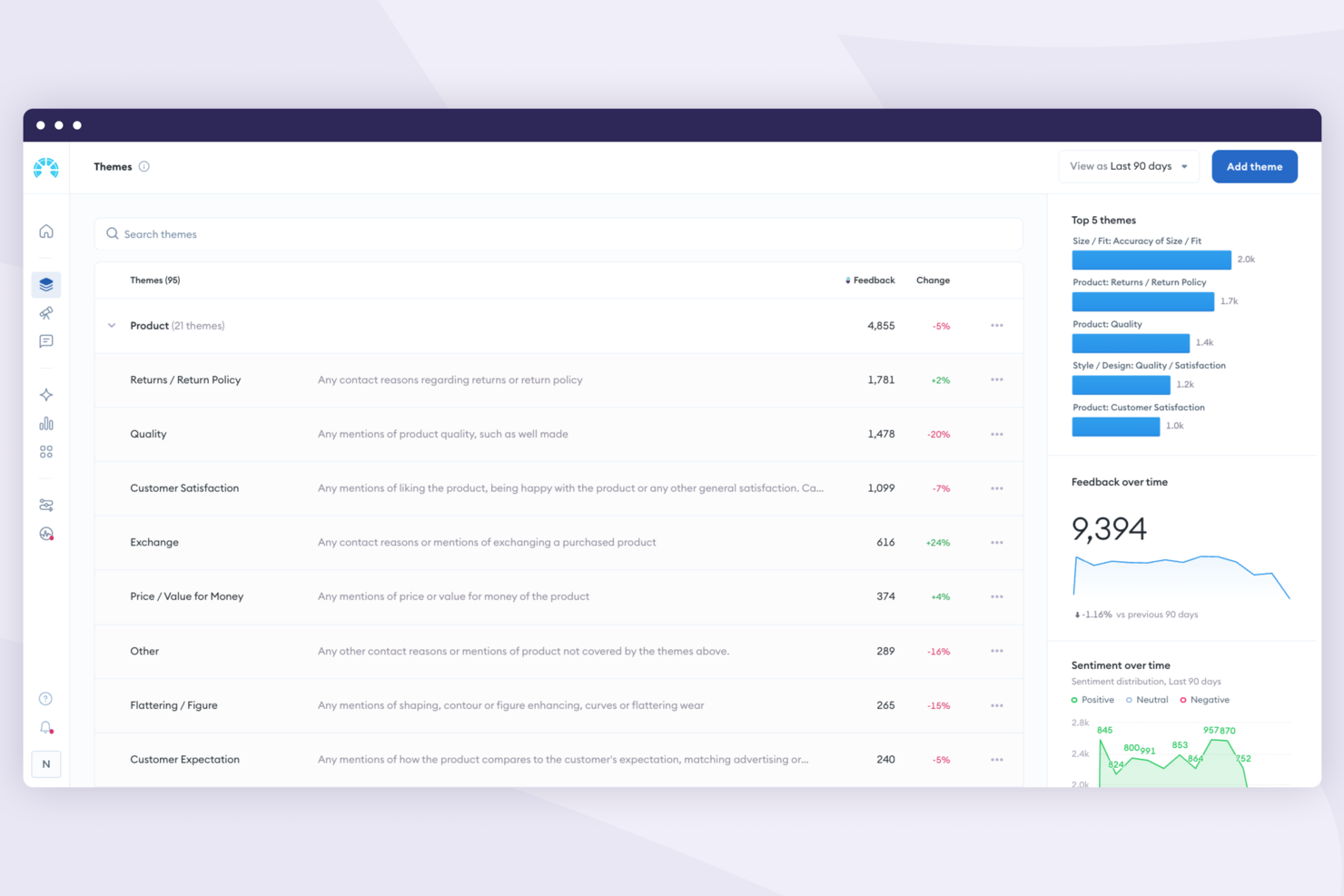
Chattermill è una piattaforma di analisi del feedback dei clienti basata sull'intelligenza artificiale che unifica i feedback provenienti da sondaggi, recensioni, ticket di supporto e social media in un'unica dashboard per l'analisi.
Per Chi è Ideale Chattermill?
Chattermill è particolarmente adatto ai team aziendali dedicati all'esperienza cliente e agli insight, che devono analizzare grandi volumi di feedback non strutturati su più canali.
Perché Ho Scelto Chattermill
Lyra AI di Chattermill va molto oltre il semplice punteggio di sentimento. Utilizza un'analisi del sentimento basata sugli aspetti per rilevare emozioni sfumate a livello di frase — quindi, se un utente dice 'l'app si blocca al momento del checkout', il sistema segnala sia un problema tecnico che un problema nell'esperienza di acquisto contemporaneamente. Mi piace anche la funzione di rilevamento delle anomalie, che monitora costantemente il feedback e avvisa il tuo team quando il sentimento su un argomento specifico cala o aumenta inaspettatamente. Un segnale in tempo reale di questo tipo è davvero difficile da replicare con un'analisi manuale.
Caratteristiche Principali di Chattermill
- Cassetta postale unificata per i feedback: Raccogli i feedback da sondaggi, ticket di supporto, recensioni e social media in un'unica visualizzazione per un'analisi cross-canale.
- Dashboard personalizzate: Crea e configura dashboard per monitorare i temi specifici, i punteggi di sentiment e i KPI CX che il tuo team tiene maggiormente sotto controllo.
- Segmentazione dei clienti: Filtra e analizza i feedback per coorte di clienti, regione o area di prodotto per confrontare il sentiment tra diversi gruppi di utenti.
- Analisi dei punteggi NPS/CSAT: Suddividi i punteggi NPS e CSAT per tema per individuare esattamente quali aree del prodotto o touchpoint stanno influenzando i punteggi positivamente o negativamente.
Pros and Cons
Pros:
- Accesso illimitato per la collaborazione in tutta l'organizzazione
- Creatore di temi personalizzati per insight specifici UX
- Avvisi in tempo reale per problemi UX emergenti
Cons:
- La precisione dell'analisi del sentiment può variare in base alla lingua
- Richiede un grande volume di dati per ottenere i migliori risultati

Il miglior strumento per raccogliere feedback UX contestuali
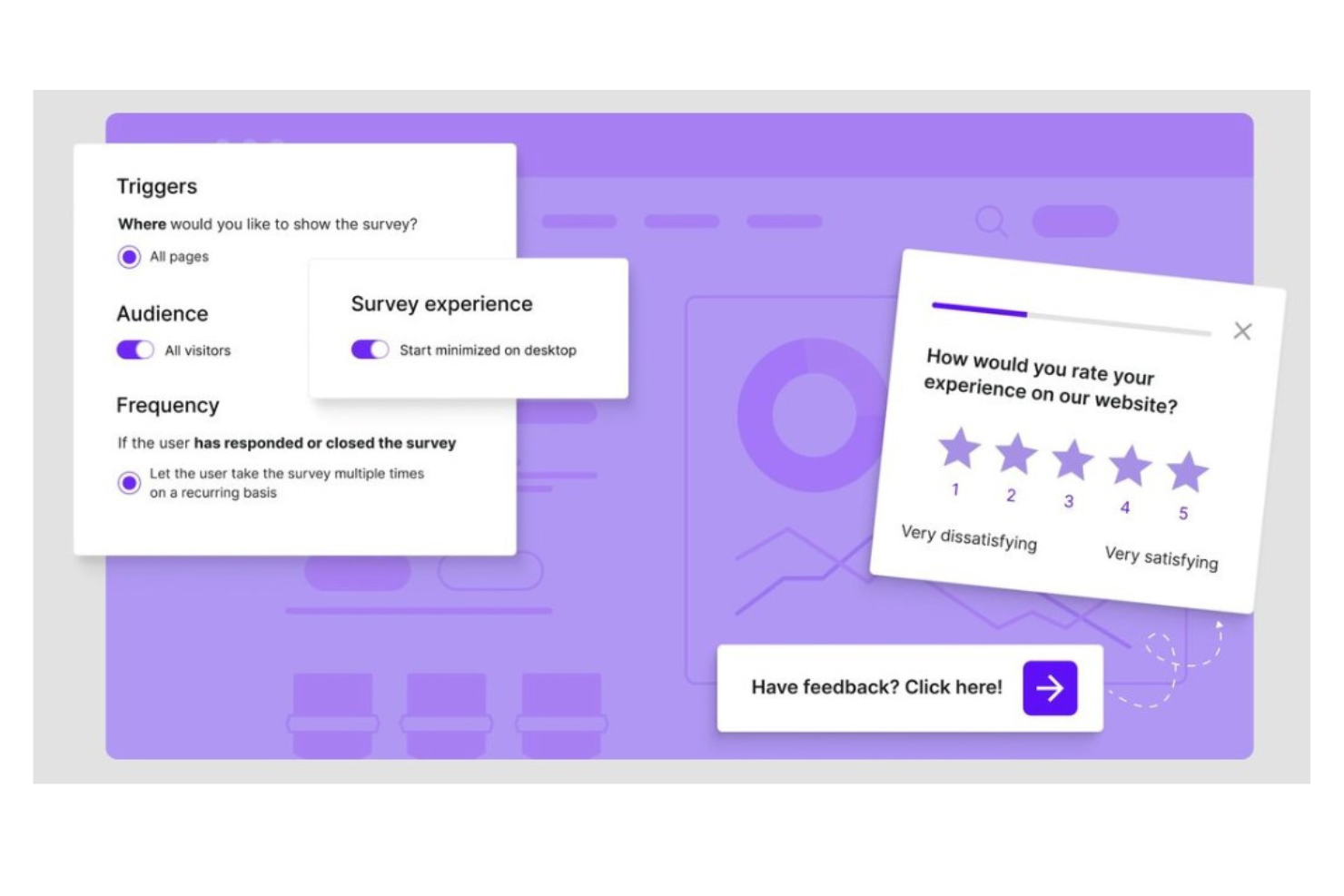
Survicate è una piattaforma di sondaggi multicanale che ti permette di raccogliere, organizzare e analizzare il feedback degli utenti tramite sondaggi all'interno del prodotto, sul sito web, su app mobile e via email.
Per chi è ideale Survicate?
Survicate è particolarmente adatto ai team di prodotto e UX di aziende SaaS che hanno bisogno di raccogliere feedback degli utenti direttamente all'interno del loro prodotto o sito web.
Perché ho scelto Survicate
Ho scelto Survicate perché ti consente di indirizzare i sondaggi in modo preciso in base al comportamento degli utenti e agli eventi in-app. Invece di inviare a tutti la stessa domanda, posso attivare un sondaggio nel momento in cui qualcuno completa un'azione specifica, come terminare l'onboarding o incontrare uno stato di errore. L'Assistente di Ricerca con IA di Survicate mi permette anche di interrogare le risposte raccolte in linguaggio naturale, ottenendo così insight UX senza dover analizzare manualmente i dati grezzi.
Caratteristiche principali di Survicate
- Distribuzione multicanale dei sondaggi: Esegui sondaggi all'interno del tuo prodotto, sul tuo sito web, su applicazioni mobile o via email da un'unica piattaforma.
- Monitoraggio NPS, CSAT e CES: Monitora nel tempo le principali metriche di soddisfazione tramite dashboard integrate e modelli di sondaggio predefiniti.
- Research Hub: Centralizza i feedback da più fonti di sondaggi in un unico posto per identificare modelli tra diversi touchpoint UX.
- Domande di follow-up con IA: Genera automaticamente domande di approfondimento sulla base di risposte aperte per raccogliere feedback qualitativo più approfondito.
Pros and Cons
Pros:
- Offre punteggi NPS e CSAT in tempo reale
- Facile da configurare e usare
- Può raccogliere risposte parziali
Cons:
- Alcuni problemi con l'eliminazione del feedback
- Il servizio di assistenza clienti potrebbe essere migliorato
New Product Updates from Survicate

Survicate MCP Support Now Available
Survicate now supports MCP, letting teams use AI tools like Claude, ChatGPT, and Slack to explore survey results, analyze responses and insights, and draft new surveys. For more information, visit Survicate's official site.
 .
.
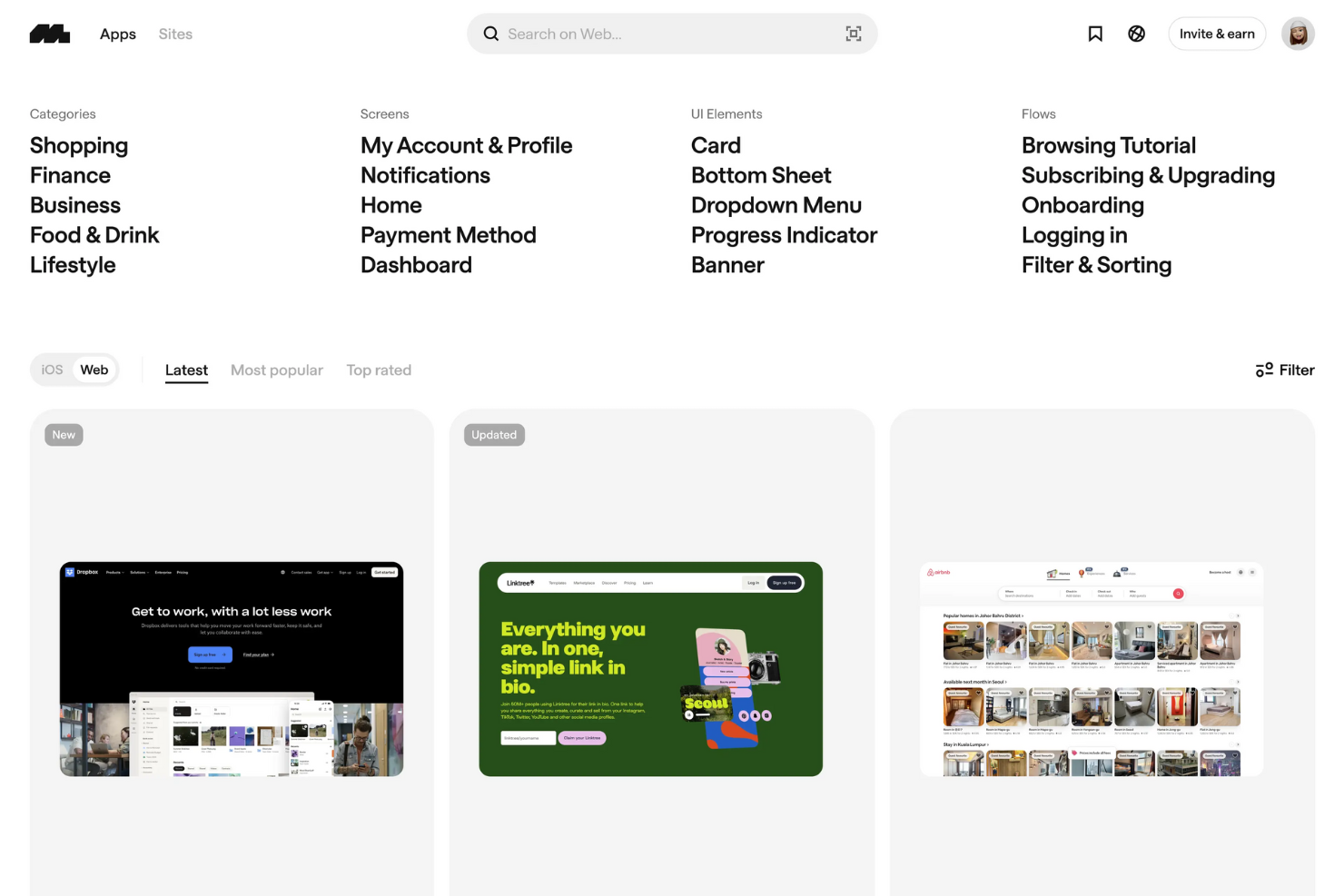
Mobbin è una libreria di riferimento UI e UX che offre ai designer l'accesso a una collezione ricercabile di schermate di app reali, flussi utente e pattern di interfaccia su piattaforme mobile e web.
Per chi è ideale Mobbin?
Mobbin è particolarmente adatto a UX designer e designer di prodotto che necessitano di riferimenti UI reali nella progettazione di esperienze mobile e web.
Perché ho scelto Mobbin
Mobbin si guadagna il posto tra i migliori della mia lista perché è la libreria di riferimento UI reale più completa che abbia incontrato per il design mobile e web. Quando lavoro a un nuovo flusso di onboarding o a un pattern di navigazione, posso cercare nella libreria di Mobbin, che conta oltre 300.000 schermate di app, per vedere come i migliori prodotti affrontano realmente questi casi. Apprezzo anche la modalità prototipo, che mi permette di esplorare flussi utente completi passo dopo passo, incluse transizioni e micro-interazioni, per capire come si collegano le schermate prima di iniziare a progettare.
Funzionalità chiave di Mobbin
- Copia in Figma: Esporta qualsiasi schermata o raccolta direttamente in Figma da usare come riferimento senza dover scaricare manualmente.
- Ricerca di testo negli screenshot: Cerca parole o frasi specifiche presenti all'interno degli screenshot delle app per trovare momenti UI precisi.
- Raccolte salvate: Organizza schermate e flussi in raccolte etichettate per progetti in corso o come riferimento per il team.
- Filtri avanzati: Filtra le schermate per tipo di elemento UI, piattaforma, categoria o tipo di flusso per affinare i risultati.
Pros and Cons
Pros:
- Libreria vasta con oltre 500.000 schermate
- Si integra con il plugin Figma
- Permette analisi dettagliate dei flussi utente
Cons:
- Alcune funzionalità disponibili solo a pagamento
- Copertura limitata di app di nicchia
Miro
Il miglior strumento UX per ideazione visiva e mappatura dei flussi utente
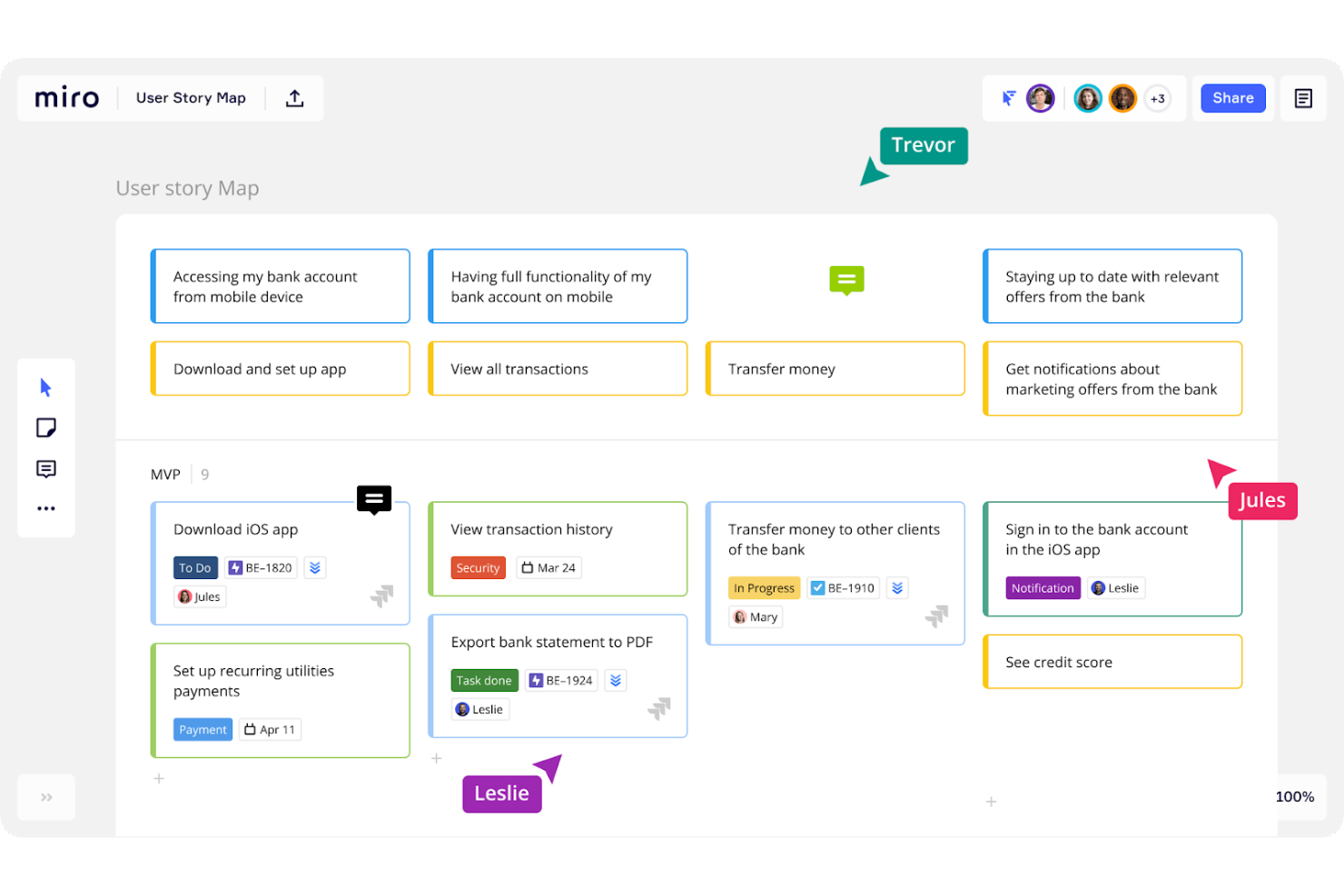
Miro è una piattaforma con una canvas infinita che combina l'uso di lavagne condivise, wireframing, creazione di diagrammi e ricerca collaborativa sul design in un unico spazio di lavoro visivo.
Per chi è pensato Miro?
Miro è ideale per designer UX, team di prodotto e ricercatori di design che necessitano di uno spazio visivo comune per la collaborazione tra diverse funzioni aziendali.
Perché ho scelto Miro
Ho scelto Miro perché la sua canvas infinita offre ai team UX uno spazio flessibile dove passare da idee grezze a flussi utente strutturati senza dover cambiare strumento. In particolare, apprezzo gli strumenti di creazione di diagrammi e flowchart, che permettono di mappare i percorsi utente con nodi collegati, punti decisionali e swimlane tutto in un unico posto. I template UX integrati in Miro—come le mappe di empatia e i service blueprint—mi permettono anche di passare subito da una lavagna vuota a una sessione di ideazione operativa.
Caratteristiche principali di Miro
- Strumenti di wireframing: Un set dedicato di componenti UI e forme per creare wireframe a bassa fedeltà direttamente sulla canvas.
- Talktrack: Una funzione asincrona di registrazione video che consente di narrare e annotare una presentazione della board affinché gli stakeholder possano rivederla autonomamente.
- Strumenti di voto e facilitazione: Votazione a punti integrata, timer e strumenti di reazione per organizzare design sprint strutturati e sessioni collaborative di prioritizzazione.
- Miro AI: Un livello di intelligenza artificiale che genera diagrammi, raggruppa gli sticky notes per tema e riassume il contenuto della board in base a prompt scritti.
Pros and Cons
Pros:
- Facile da usare
- Vasta libreria di template e widget predefiniti
- Offre numerose funzionalità di collaborazione in tempo reale
Cons:
- Personalizzazioni limitate
- Non ideale per la creazione di prototipi ad alta fedeltà
New Product Updates from Miro
Miro Adds Japan Data Residency for Enterprise Customers
Miro has introduced Japan data residency for enterprise customers, offering in-region storage for production data, backups, and metadata, plus in-region compute infrastructure. For more information, visit Miro's official site.

Figma
Miglior strumento UX per la collaborazione tra membri del team
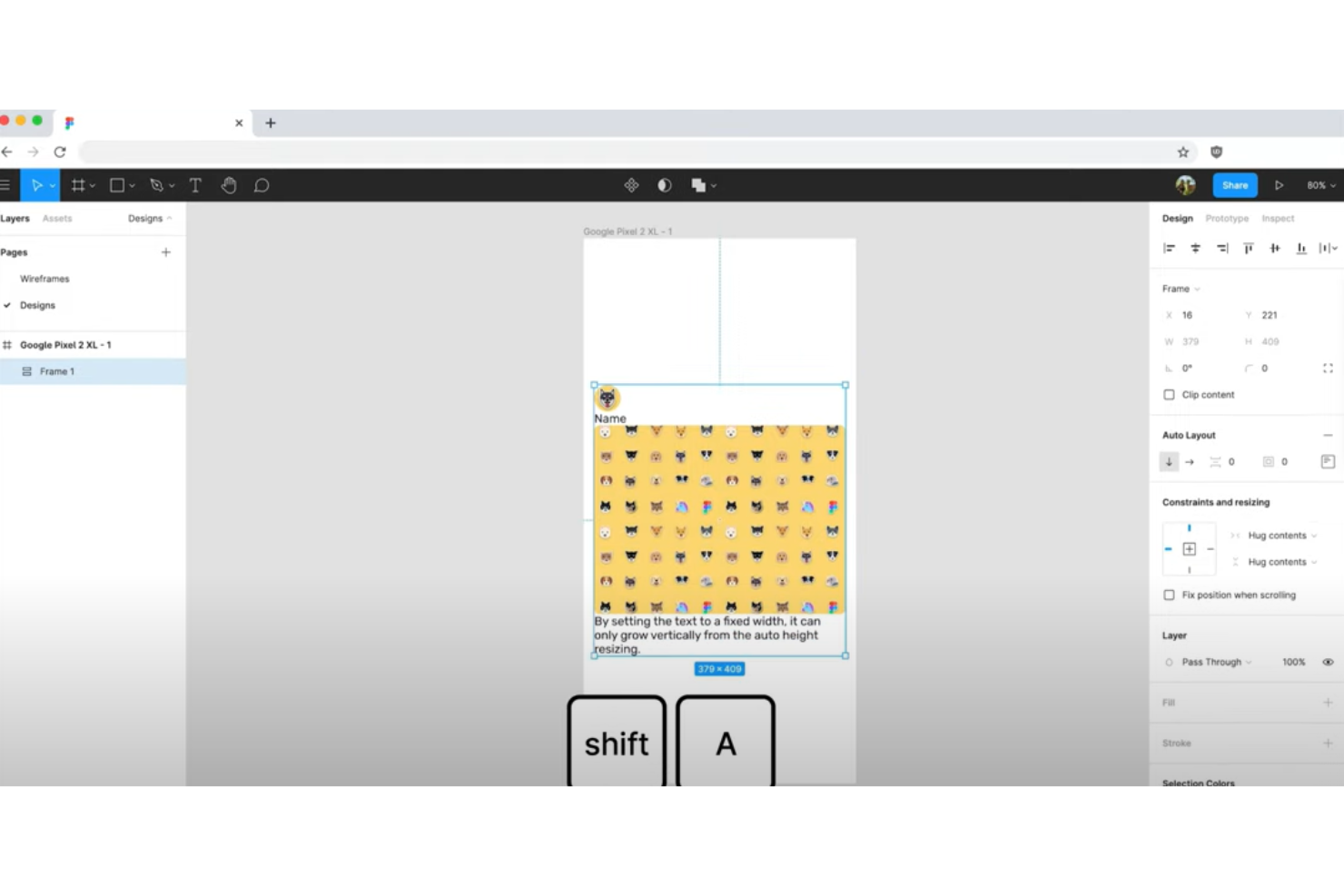
Figma è una piattaforma di progettazione UX e di prodotto basata su browser che copre wireframing, progettazione UI ad alta fedeltà, prototipazione interattiva, sistemi di design e consegna agli sviluppatori—tutto all'interno di un unico strumento.
Per chi è migliore Figma?
Figma è una scelta ideale per designer UX, designer di prodotto e team di prodotto che lavorano a stretto contatto con sviluppatori e stakeholder durante l'intero processo di progettazione.
Perché ho scelto Figma
Figma si guadagna un posto tra i migliori nella mia shortlist perché l'editing multiplayer in tempo reale è integrato in ogni file di default. Il mio team può lavorare nello stesso frame contemporaneamente, lasciare commenti contestuali direttamente sugli elementi di design e risolvere i feedback senza mai cambiare strumento. Inoltre, amo FigJam per il whiteboarding collaborativo nelle fasi iniziali di scoperta, dove il mio team mappa i flussi utente e svolge workshop di design insieme in tempo reale.
Funzionalità principali di Figma
- Prototipazione interattiva: Crea prototipi cliccabili e animati direttamente dai tuoi file di design utilizzando animazioni intelligenti, sovrapposizioni e logica condizionale per test realistici del flusso utente.
- Dev Mode: Fornisce agli sviluppatori una vista dedicata dei file di design con snippet di codice, annotazioni sulle spaziature ed esportazione delle risorse—senza richiedere una licenza di editor completa.
- Librerie di componenti: Crea componenti UI riutilizzabili con varianti e proprietà che il tuo team può pubblicare e condividere tra i progetti per assicurare coerenza nel design.
- Auto layout: Progetta frame che si ridimensionano e si riorganizzano automaticamente in base ai contenuti, rendendo semplice la creazione di design responsivi e il mantenimento delle regole di spaziatura.
Pros and Cons
Pros:
- La versione gratuita offre diverse funzionalità
- Software basato su cloud
- Buona interfaccia
Cons:
- Occasionali tempi di inattività
- Richiede un computer potente

Miglior strumento UX per l'ottimizzazione del tasso di conversione
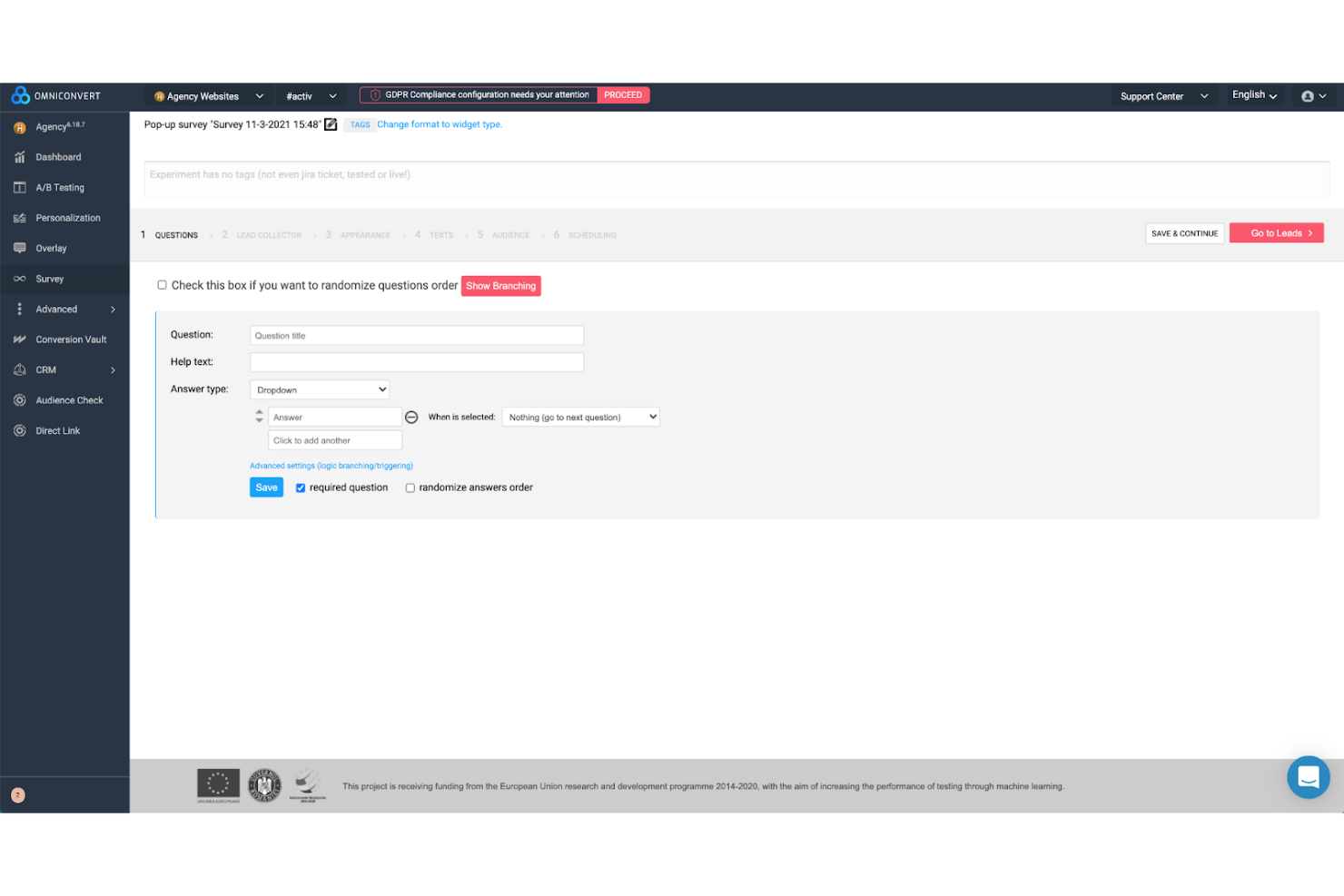
Omniconvert è una piattaforma di ottimizzazione del tasso di conversione che combina test A/B, personalizzazione del sito web, sondaggi comportamentali e segmentazione avanzata del pubblico per aiutarti a comprendere e agire in base al modo in cui gli utenti interagiscono con il tuo sito.
Per chi è consigliato Omniconvert?
Omniconvert è particolarmente indicato per team di ecommerce e marketing che eseguono esperimenti continui sul sito web e necessitano di collegare direttamente i test ai risultati di fatturato.
Perché ho scelto Omniconvert
Ho scelto Omniconvert come uno dei migliori perché il suo motore di test A/B consente di eseguire esperimenti su pagine live senza modificare il codice—quindi il mio team può testare cambi di layout, posizioni dei CTA e varianti di copy confrontandoli con il comportamento reale degli utenti. Mi affido anche ai suoi trigger per sondaggi comportamentali, che si attivano sull'intento di uscita o sulla profondità di scorrimento per raccogliere feedback nei momenti di reale attrito. Il livello di segmentazione mi permette poi di collegare questi insight a fonti di traffico o tipi di dispositivo specifici.
Funzionalità principali di Omniconvert
- Personalizzazione web: Modifica i contenuti della pagina in tempo reale per diversi segmenti di visitatori in base al comportamento, alla fonte di traffico o ad attributi personalizzati.
- Creatore di overlay: Crea e attiva overlay sul sito—popup, banner o moduli incorporati—basati su azioni dell'utente o condizioni della sessione.
- Sondaggi NPS: Raccogli dati Net Promoter Score direttamente sul sito per monitorare il sentiment dei clienti su pagine specifiche o in momenti post-conversione.
- Editore visuale: Apporta modifiche front-end agli elementi della pagina utilizzando un'interfaccia WYSIWYG senza necessità di supporto da parte degli sviluppatori.
Pros and Cons
Pros:
- Facile da configurare
- Eccellente assistenza clienti e risorse
- Analisi e reportistica complete
Cons:
- Integrazioni limitate
- L'interfaccia utente necessita di miglioramenti

Balsamiq
Il miglior strumento UX per creare rapidamente schemi strutturali a bassa fedeltà
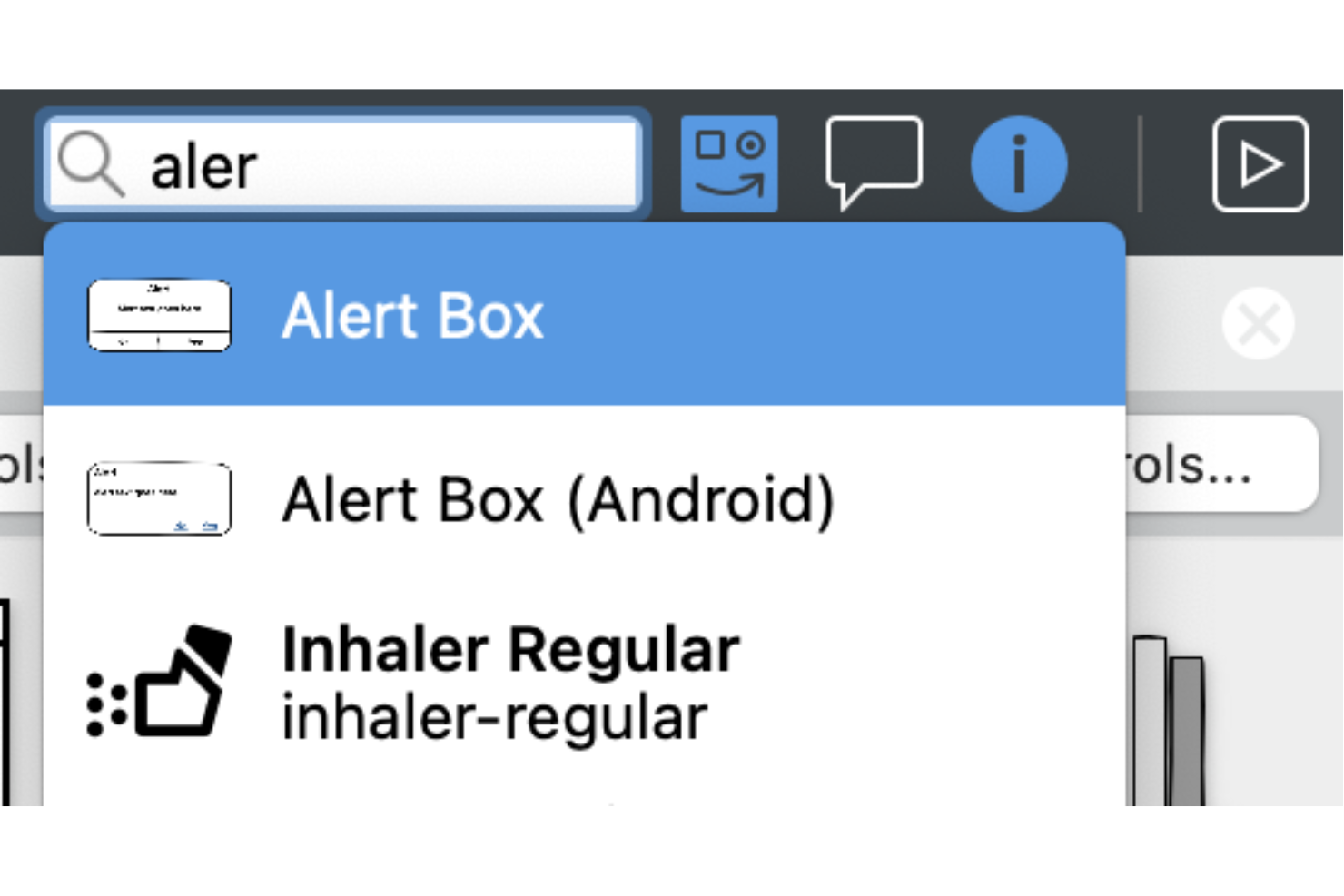
Balsamiq è uno strumento per la creazione di schemi strutturali e prototipi che consente ai team UX di abbozzare idee per le interfacce utilizzando una libreria di componenti con funzionalità di trascinamento, generazione assistita dall’IA e collegamenti interattivi, il tutto in un ambiente volutamente a bassa fedeltà e dallo stile abbozzato.
Per chi è più adatto Balsamiq?
Balsamiq è ideale per progettisti UX, responsabili di prodotto e sviluppatori che hanno bisogno di abbozzare e comunicare i concetti delle interfacce nelle prime fasi del processo di progettazione.
Perché ho scelto Balsamiq
Balsamiq si è guadagnato un posto tra i migliori della mia selezione perché nessun altro strumento eguaglia il suo impegno nella creazione di schemi strutturali a bassa fedeltà. Adoro il fatto che la resa dallo stile abbozzato sia intenzionale: mantiene l’attenzione dei portatori di interesse sui layout e sulla struttura, invece che sui colori o sui caratteri. Nella pratica, posso attingere a una libreria predefinita di componenti dell’interfaccia utente e collegare le schermate tra loro per creare un prototipo interattivo senza dover mai utilizzare uno strumento di progettazione. La funzionalità di IA di Balsamiq mi consente inoltre di generare uno schema strutturale iniziale a partire da un’istruzione testuale o da un’immagine dello schermo, riducendo notevolmente il tempo necessario per elaborare i concetti nelle prime fasi.
Funzionalità principali di Balsamiq
- Collaborazione in tempo reale: Lavora contemporaneamente agli schemi strutturali insieme ai tuoi colleghi e lascia commenti contestuali direttamente sugli elementi di progettazione.
- Simboli riutilizzabili: Salva i componenti personalizzati dell’interfaccia utente come simboli per riutilizzarli in più schemi strutturali e mantenere la coerenza in tutto il progetto.
- Modalità presentazione: Passa a una visualizzazione pulita e priva di distrazioni per illustrare gli schemi strutturali ai portatori di interesse senza l’interfaccia di modifica.
- Opzioni di esportazione: Esporta gli schemi strutturali come file PNG o PDF per condividerli con i membri del team che non dispongono di un profilo Balsamiq.
Pros and Cons
Pros:
- Facile da imparare
- Piani tariffari convenienti
- Offre funzionalità di collaborazione in tempo reale
Cons:
- Opzioni di esportazione limitate
- Opzioni di personalizzazione limitate

Marvel
Miglior strumento UX per design UI e UX
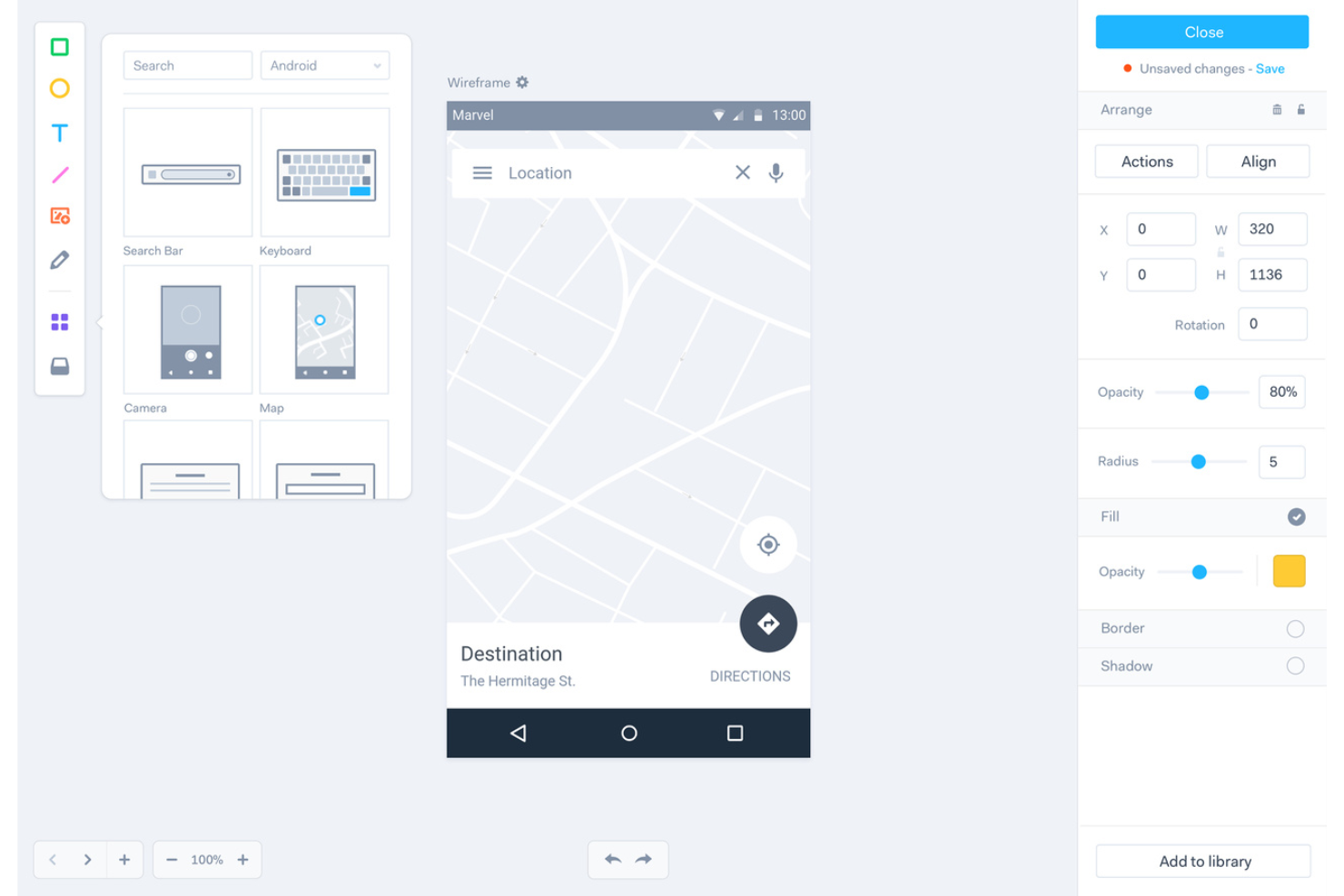
Marvel è una piattaforma di progettazione UX basata su browser che copre l'intero flusso di lavoro del design, dalla creazione di wireframe e design dell'interfaccia utente alla prototipazione interattiva, test utente e trasferimento agli sviluppatori.
Per chi è più adatto Marvel?
Marvel è adatto a designer UX, designer di prodotto e team di progettazione che necessitano di un unico strumento per portare un prodotto dal primo concept fino al prototipo pronto per lo sviluppo.
Perché ho scelto Marvel
Ho scelto Marvel tra i migliori perché copre entrambi i lati del processo di design, così non è necessario passare da uno strumento all'altro. Dal lato UI, offre uno strumento di design basato su browser con librerie di squadra per asset di brand condivisi e una libreria integrata di foto stock e icone. Dal lato UX, trasforma questi design in prototipi interattivi con hotspot e supporto per gesture, quindi consente di eseguire sessioni di test utente che registrano schermo, audio e video di utenti reali che navigano nel tuo prototipo.
Caratteristiche principali di Marvel
- Wireframing: Crea wireframe a bassa fedeltà utilizzando template predefiniti dimensionati per desktop, mobile e tablet.
- Trasferimento agli sviluppatori: Genera automaticamente specifiche di design, inclusi misurazioni, font e valori colore, che gli sviluppatori possono consultare direttamente tramite un link condiviso.
- POP (Prototyping on Paper): Fotografa schizzi fatti a mano e trasformali in prototipi interattivi cliccabili usando l'app mobile di Marvel.
- Anteprima su più dispositivi: Visualizza in anteprima e testa i tuoi design in tempo reale direttamente sul dispositivo per cui stai progettando, inclusi iOS e Android.
Pros and Cons
Pros:
- Compatibile con Windows, Linux, Android e Apple
- Backup automatici
- Facile da usare
Cons:
- Manca di organizzazione
- Il piano gratuito offre funzionalità limitate

Sprig
Ideale per raccogliere e analizzare insight sull'esperienza utente su larga scala con l'IA
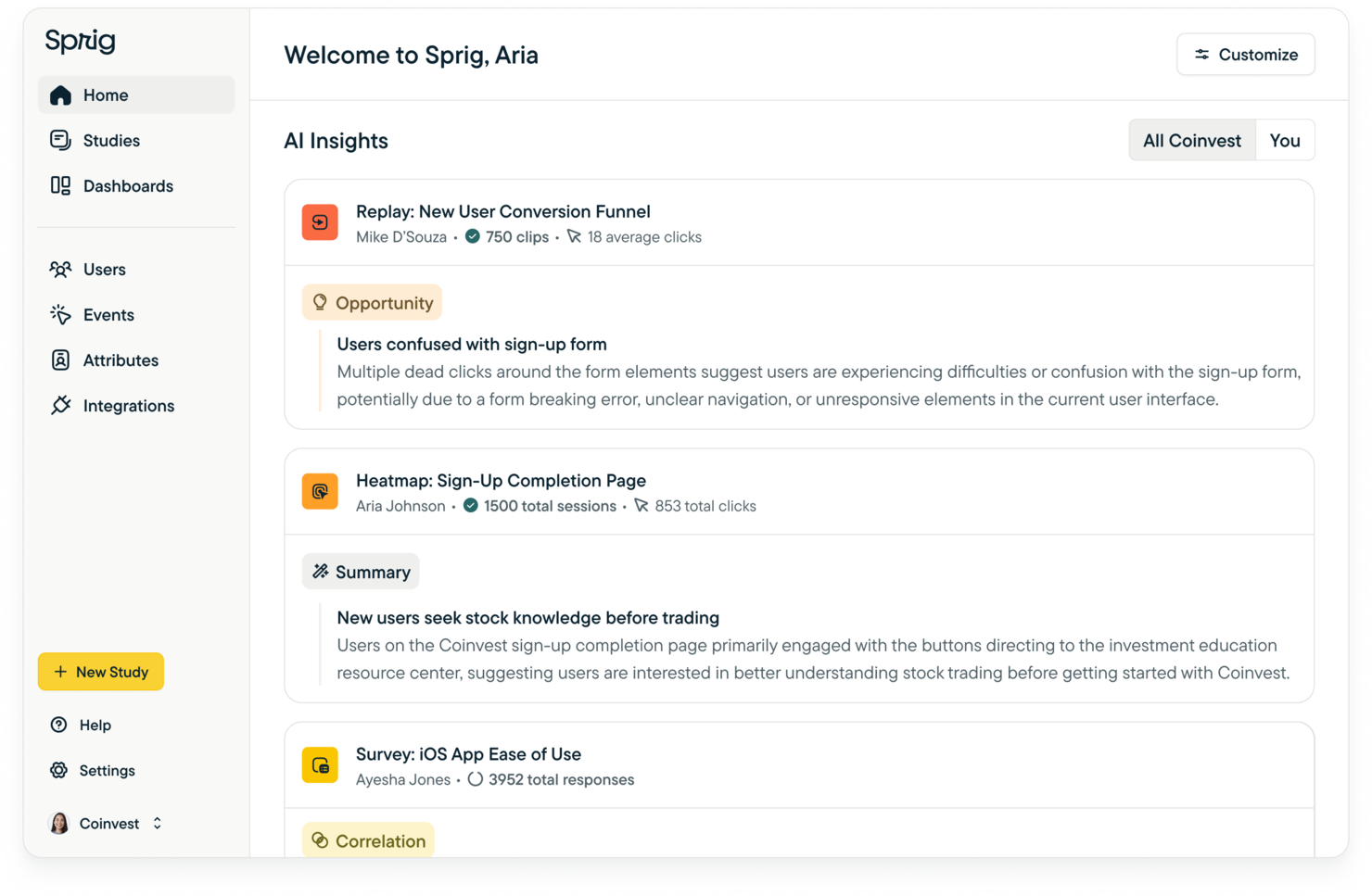
Sprig è una piattaforma di ricerca utente potenziata dall'IA che copre l'intero ciclo di vita dei sondaggi, dalla progettazione degli studi al deployment omnicanale, fino al fielding adattivo e alla sintesi automatica delle insight, con strumenti aggiuntivi per la misurazione dell'esperienza, il test dei concept e la ricerca sui percorsi utente.
Per chi è ideale Sprig?
Sprig è particolarmente indicato per i team di prodotto e UX di aziende di medie e grandi dimensioni che hanno bisogno di condurre ricerche continue su vasti bacini di utenti.
Perché ho scelto Sprig
Ho scelto Sprig tra i migliori perché la sua architettura di agenti IA rivoluziona il modo in cui i team UX gestiscono la ricerca su larga scala. L'agente Synthesize è un elemento distintivo: trasforma le risposte ai sondaggi, strutturate e a risposta aperta, in narrazioni pronte per la presentazione basate su rilevamento di pattern tra i segmenti. L'agente Field adatta le domande in tempo reale in base alle risposte dei partecipanti, evitando i limiti dei moduli statici che non colgono le sfumature necessarie.
Funzionalità principali di Sprig
- Session replay e heatmap: Registra e visualizza come gli utenti navigano nel tuo prodotto, inclusi click map e comportamento di scorrimento, per individuare dove si verificano frizioni.
- Test di concept e prototipi: Carica design o mockup e raccogli feedback strutturati dagli utenti prima che venga scritto codice.
- Misurazione dell'esperienza: Monitora NPS, CSAT e altri indicatori di salute nel tempo, con spiegazioni generate dall'IA su cosa determina le variazioni degli indici.
- Deployment omnicanale dei sondaggi: Lancia i sondaggi direttamente nel prodotto, via email, SMS o su panel esterni per raggiungere gli utenti ovunque si trovino.
Pros and Cons
Pros:
- Analisi guidata dall'IA
- Supporto multilingue
- Possibilità di condurre studi longitudinali
Cons:
- Personalizzazione limitata
- Ritardo occasionale nell'elaborazione del feedback in tempo reale

Adobe XD
Il miglior strumento UX sia per designer individuali che per team
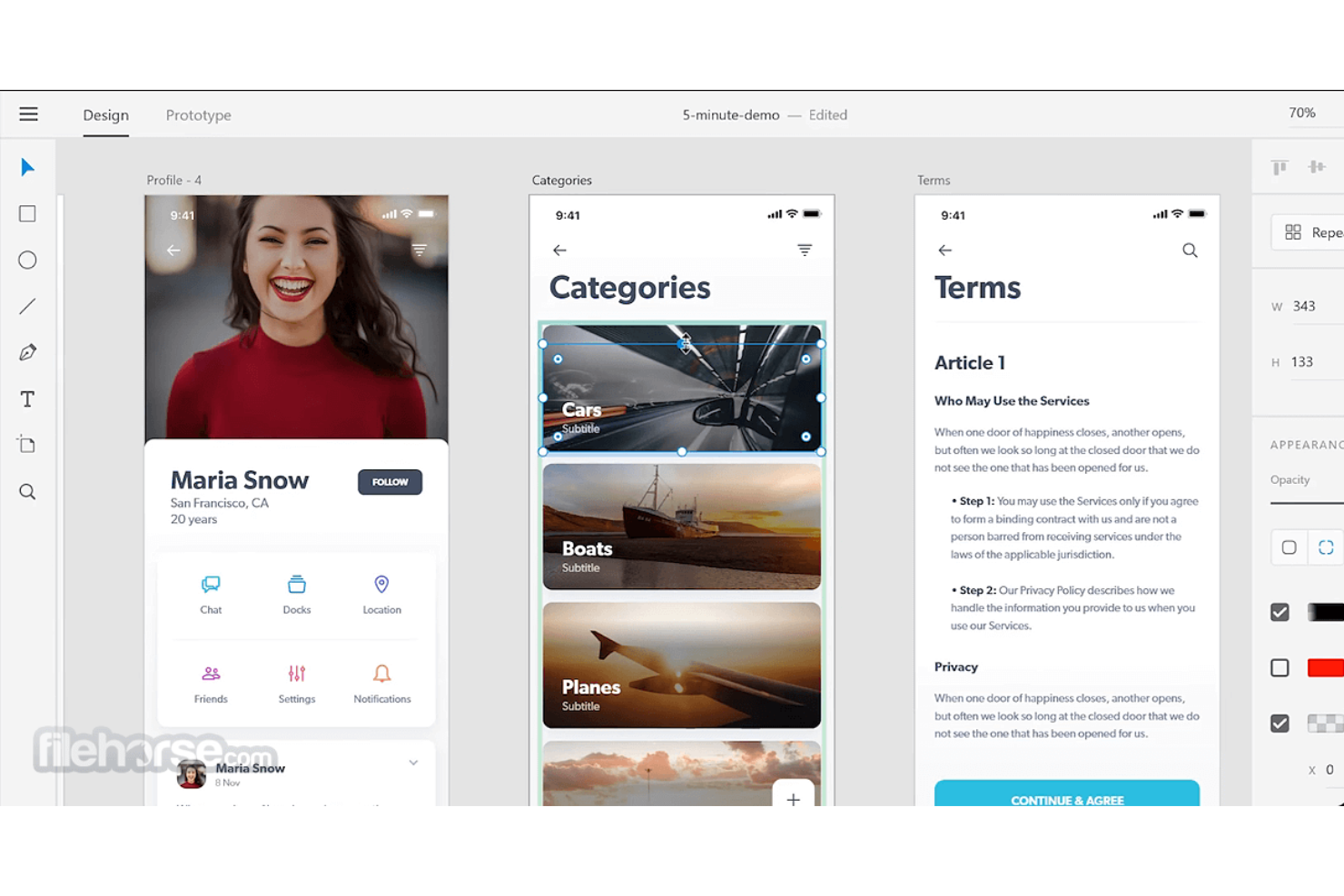
Adobe XD è uno strumento di design UI/UX basato su vettori di Adobe, pensato per progettare, prototipare e condividere esperienze web e mobile, con coediting integrato, transizioni auto-animate, griglie ripetute e specifiche di design condivisibili.
Per chi è Adobe XD?
Adobe XD è ideale per designer UI/UX e team di progettazione che lavorano già all'interno dell'ecosistema Adobe Creative Cloud.
Perché scegliere Adobe XD
Adobe XD copre l'intero flusso di lavoro dalla progettazione alla consegna senza cambiare strumenti. I designer singoli possono usare griglie ripetute e auto-animate per prototipare rapidamente, mentre i team beneficiano del coediting e delle specifiche di design condivise che tengono tutti sincronizzati sulla stessa area di lavoro. Apprezzo in particolare il fatto che le specifiche di design generino automaticamente valori CSS, iOS e Android direttamente dai tuoi componenti, riducendo il ping pong tra designer e sviluppatori.
Caratteristiche principali di Adobe XD
- Stati dei componenti: Definisci più stati di interazione (hover, premuto, disabilitato) per ogni componente direttamente all'interno del file di design.
- Ridimensionamento reattivo: Regola e scala automaticamente gli elementi del design quando ridimensioni un'area di lavoro per adattarla a diverse dimensioni di schermo.
- Gruppi di scorrimento: Designa aree fisse e scorrevoli all'interno di una singola area di lavoro per simulare il reale comportamento di scorrimento delle app nei prototipi.
- Librerie di design: Memorizza e condividi colori, stili di caratteri e componenti riutilizzabili su più file di progetto.
Pros and Cons
Pros:
- Aggiornamenti regolari e rilascio di nuove funzionalità
- Integrazione nativa con altri strumenti di Adobe Creative Cloud
- Potenti strumenti di prototipazione con elementi interattivi e animazioni
Cons:
- Richiede un computer potente
- Curva di apprendimento ripida per i nuovi utenti
Altre opzioni
Ecco alcune altre opzioni interessanti che non sono rientrate nell’elenco dei migliori strumenti UX, ma che vale la pena prendere in considerazione.
- Sketch
Migliore strumento UX per l'intero processo di design
- Maze
Miglior strumento UX per il test utente e la creazione di design iterativi
- Axure
Miglior strumento UX per creare prototipi interattivi di siti web e applicazioni mobili
- Flowmapp
Migliore strumento UX per creare rappresentazioni visive dell'architettura di siti web e app
- Framer
Il miglior strumento UX per creare design basati su codice


Come ho scelto i migliori strumenti UX
Ecco una panoramica di come ho selezionato i migliori strumenti UX. Per prima cosa, ho analizzato gli strumenti UX con le valutazioni degli utenti più alte. Poi ho esaminato le recensioni degli utenti per comprenderne l'esperienza con il software.
Ho utilizzato i miei anni di esperienza nella gestione e nella progettazione dei prodotti per stabilire i parametri con cui ho valutato ogni strumento. Di seguito sono riportati i criteri di selezione che ho utilizzato per recensire gli strumenti presentati in questo articolo.
Come Valuto gli Strumenti UX
Valuto gli strumenti UX su due livelli: le capacità di base—prototipazione, collaborazione e consegna agli sviluppatori—che ogni strumento deve avere, e i fattori differenzianti che rendono uno strumento quello giusto.
Funzionalità Principali (Requisiti Fondamentali per Questa Lista)
Quando seleziono gli strumenti per la mia lista, valuto ciascuno su una scala da 0 (non offre la funzionalità) a 5 (eccelle in questa area) per ognuna delle funzionalità principali elencate di seguito. Poi calcolo il punteggio totale dello strumento come percentuale. Ogni strumento deve raggiungere un punteggio totale minimo del 75% per essere preso in considerazione per l'inclusione.
- Wireframing & Prototipazione: Cerco strumenti che permettano di costruire tutto, dai veloci wireframe a bassa fedeltà fino ai prototipi interattivi con transizioni, stati al passaggio del mouse e aree cliccabili.
- Collaborazione nel Design: Co-editing in tempo reale e commenti in thread sono importanti qui, soprattutto per i team PM-designer che revisionano insieme i flussi in uno spazio condiviso.
- Testing di Usabilità & Feedback: Valuto se lo strumento permette di raccogliere input dagli utenti tramite registrazioni, sondaggi, heatmap o test basati su task su prototipi o prodotti live.
- Mappatura dei Flussi Utente & Journey: La capacità di mappare percorsi utente end-to-end o task flow aiuta PM e designer ad allinearsi sulla struttura del prodotto prima di immergersi nelle schermate.
- Handoff del Design & Specifiche per Sviluppatori: Controllo la presenza di modalità inspect, snippet CSS o di codice auto-generati e asset esportabili che gli sviluppatori possono scaricare senza dover scrivere su Slack.
- Design System & Librerie di Componenti: Componenti riutilizzabili, librerie condivise e supporto alle varianti aiutano i team di prodotto a mantenere coerenza tra funzionalità, pagine e piattaforme.
Una volta che ho una lista di strumenti che soddisfa questi criteri, considero ciò che distingue ogni piattaforma.
Fattori Differenzianti (Cosa Distingue i Fornitori)
Ecco come confronto i vari fornitori:
Funzionalità Distintive
L'assistenza alla progettazione basata su AI è un importante elemento differenziante. Strumenti come Figma e Uizard offrono generazione di layout tramite prompt che può ridurre di ore le prime fasi di ideazione. Anche la logica di prototipazione avanzata è importante: variabili, flussi condizionali ed espressioni consentono ai PM di creare demo che sembrano prodotti reali senza coinvolgere subito gli sviluppatori. I checker integrati per l'accessibilità, che segnalano rapporti di contrasto e violazioni WCAG durante la fase di design, aiutano i team a intercettare problemi di inclusività prima della consegna e non dopo il lancio.
Oltre le Funzionalità
Le integrazioni definiscono quanto bene uno strumento UX si inserisce nello stack esistente. Verifico la presenza di connettori nativi con strumenti come Jira, Slack e GitHub, poiché flussi di lavoro di consegna interrotti creano veri colli di bottiglia. Anche i modelli di prezzo variano molto: alcuni addebitano solo per editor mentre i viewer sono gratis, opzione adatta a team misti di PM e designer. Per le aziende, valuto SSO, provisioning SCIM e conformità SOC 2, soprattutto quando i file di design includono dati di prodotto sensibili o ricerche proprietarie che richiedono maggiori controlli sugli accessi.
Come scegliere gli strumenti UX
È facile perdersi in lunghi elenchi di funzionalità e strutture di prezzo complesse. Per aiutarti a rimanere concentrato mentre affronti il tuo processo di selezione del software, unico nel suo genere, ecco un elenco dei fattori da tenere presenti:
| Fattore | Cosa considerare |
|---|---|
| Scalabilità | Assicurati che lo strumento possa crescere insieme al tuo team. Cerca opzioni in grado di supportare un numero crescente di utenti o progetti. |
| Integrazioni | Verifica se lo strumento si integra con gli altri software che utilizzi, come Slack, Jira o Adobe Creative Suite, per migliorare l'efficienza del flusso di lavoro. |
| Personalizzabilità | Determina se lo strumento ti consente di adattare le funzionalità alle tue specifiche esigenze di progettazione, ad esempio tramite modelli o flussi di lavoro personalizzati. |
| Facilità d'uso | Valuta l'interfaccia utente e la curva di apprendimento. Uno strumento dovrebbe essere intuitivo, riducendo il tempo dedicato alla formazione. |
| Budget | Considera il costo complessivo, incluse eventuali commissioni nascoste. Cerca opzioni UX gratuite o piani tariffari flessibili adatti ai limiti del tuo budget. |
| Misure di sicurezza | Assicurati che lo strumento sia conforme agli standard di protezione dei dati e offra funzionalità come la crittografia e aggiornamenti di sicurezza regolari per proteggere i tuoi progetti. |
| Collaborazione | Cerca funzionalità che supportino la collaborazione del team, come la modifica o i commenti in tempo reale, per semplificare la comunicazione. |
| Supporto | Valuta la disponibilità e la qualità dell'assistenza clienti, inclusi chat dal vivo, posta elettronica e basi di conoscenza, per ricevere aiuto quando si verificano problemi. |
Quali sono gli strumenti UX?
Uno strumento UX è un'applicazione software che aiuta i designer UX a creare, prototipare e testare le interfacce utente. Questi strumenti svolgono un ruolo fondamentale nel processo di progettazione UX, fornendo le funzionalità necessarie per garantire un approccio incentrato sull'utente allo sviluppo dei prodotti digitali. Queste funzionalità includono capacità di creazione di wireframe, funzionalità di prototipazione, mappatura dei flussi utente, integrazione dei test di usabilità e funzionalità di collaborazione.
Gli strumenti UX svolgono un ruolo cruciale nel trasformare le idee di design in prototipi tangibili e funzionali, promuovendo un approccio incentrato sull'utente allo sviluppo dei prodotti digitali.
Tendenze negli strumenti UX
Nella mia ricerca, ho raccolto innumerevoli aggiornamenti di prodotto, comunicati stampa e registri delle versioni provenienti da diversi fornitori di strumenti UX. Ecco alcune delle tendenze emergenti che sto tenendo d'occhio:
- Integrazione dell'IA: sempre più strumenti utilizzano l'IA per migliorare i processi di progettazione, offrendo funzionalità come la prototipazione automatizzata e suggerimenti di design.
- Realtà virtuale (VR): la VR sta diventando sempre più comune nella progettazione UX, consentendo esperienze di prototipazione immersive.
- Collaborazione da remoto: con la diffusione del lavoro da remoto, gli strumenti si stanno concentrando su funzionalità di collaborazione migliori. Figma eccelle in questo ambito grazie alle sue funzionalità di collaborazione in tempo reale.
- Feedback biometrico: alcuni strumenti stanno esplorando i dati biometrici per orientare le decisioni progettuali. Ciò include l'uso di tecnologie di tracciamento oculare e rilevamento delle emozioni per raccogliere il feedback degli utenti.
- Focus sulla sostenibilità: è in crescita la tendenza verso pratiche di progettazione sostenibili. Gli strumenti stanno integrando funzionalità per aiutare i designer a creare prodotti ecologici ed efficienti dal punto di vista energetico.
Funzionalità degli strumenti UX
Quando selezioni gli strumenti UX, concentrati sulle funzionalità che supportano direttamente le esigenze specifiche della progettazione UX in ogni fase del ciclo di sviluppo del prodotto. Ecco le funzionalità più importanti e specifiche per la UX da considerare:
- Prototipazione per esperienze interattive:
Cerca strumenti che consentano di creare prototipi interattivi e cliccabili che imitino il comportamento del prodotto finale. Questa funzionalità dovrebbe supportare flussi utente, transizioni e animazioni per aiutare gli stakeholder e gli utenti a sperimentare il design prima dello sviluppo. Strumenti diffusi come Figma, Axure e Framer eccellono in questo ambito. - Collaborazione progettata per i team UX:
Gli strumenti di collaborazione in tempo reale sono essenziali per i team che lavorano su flussi utente, wireframe o prototipi. Funzionalità come spazi di lavoro condivisi, controllo delle versioni e discussioni nei commenti, pensate per le attività UX, possono aiutare i team ad allinearsi in modo efficiente. Strumenti come Miro e InVision offrono solide opzioni di collaborazione, inclusa l'integrazione con i flussi di lavoro per la raccolta dei feedback sul design. - Integrazione dei test con gli utenti:
Gli strumenti con funzionalità integrate per i test di usabilità o con integrazioni fluide con piattaforme di test (ad es. Maze, Survicate) sono fondamentali per raccogliere informazioni utili. Cerca funzionalità come test basati su attività, registrazione delle sessioni, mappe di calore e strumenti per sondaggi, per analizzare il modo in cui gli utenti interagiscono con i tuoi prototipi. - Strumenti per wireframe nella fase iniziale del design:
Gli strumenti incentrati sulla creazione di wireframe a bassa fedeltà, come Balsamiq o MockFlow, sono perfetti per abbozzare le idee iniziali. Questi strumenti dovrebbero includere componenti trascinabili, librerie riutilizzabili e la possibilità di condividere i wireframe per raccogliere feedback nelle prime fasi. - Anteprime del design multipiattaforma:
La possibilità di visualizzare in anteprima i design su dispositivi diversi è fondamentale. Cerca strumenti di design UX che consentano di simulare le esperienze utente su interfacce desktop, tablet e mobile direttamente dalla piattaforma di design. Figma e Adobe XD sono due popolari strumenti di prototipazione per design responsivi, noti per offrire queste anteprime responsive in modo fluido. - Esigenze specifiche e casi d'uso di nicchia:
Sebbene molti strumenti UX diano priorità alle anteprime multipiattaforma e alle funzionalità generiche, alcuni team potrebbero aver bisogno del supporto per casi d'uso più specializzati. La prototipazione per Android, ad esempio, è un ambito più circoscritto, ma esistono strumenti dedicati che rispondono specificamente alle esigenze di questo ambiente. Queste soluzioni di nicchia possono essere particolarmente preziose per i team che progettano all'interno di uno specifico ecosistema del sistema operativo o contesto hardware. - Modelli UX predefiniti:
I modelli specifici per la UX, come mappe del percorso utente, diagrammi di flusso o modelli per le personas, possono far risparmiare tempo e stimolare processi di design migliori. Strumenti come Flowmapp sono specializzati in modelli adattati ai deliverable UX. - Strumenti per i test di accessibilità:
Gli strumenti UX che includono funzionalità per i test di accessibilità sono sempre più importanti. Funzionalità come verificatori del contrasto cromatico, emulatori di lettori di schermo o suggerimenti sulla conformità alle WCAG possono aiutare a garantire che i tuoi design siano inclusivi. Strumenti come Stark (plugin per Figma e Sketch) rispondono a questa esigenza. - Design UX potenziato dall'IA:
Le funzionalità di IA negli strumenti UX dovrebbero concentrarsi sull'automazione di attività specifiche della UX, come il suggerimento di miglioramenti al design, la generazione automatica di flussi o la previsione del comportamento degli utenti sulla base dei dati. Strumenti come Framer utilizzano l'IA per suggerire layout migliori, facilitando le iterazioni rapide. - Funzionalità per il passaggio allo sviluppo:
Una funzionalità utile per i team UX, gli strumenti per sviluppatori UI come Zeplin, UXPin e Figma forniscono specifiche dettagliate del design, frammenti di codice CSS e opzioni per l'esportazione delle risorse, garantendo un passaggio fluido ai team di sviluppo.
Limitando la scelta agli strumenti con queste funzionalità specifiche per la UX, puoi ottimizzare i flussi di lavoro del design e concentrarti sulla realizzazione di soluzioni incentrate sull'utente in ogni fase del ciclo di vita del prodotto. Gli strumenti UX giusti colmano il divario tra ideazione, collaborazione, test e sviluppo, aiutandoti a creare design di grande impatto.
Vantaggi degli strumenti UX
L'implementazione degli strumenti UX offre diversi vantaggi al tuo team e alla tua azienda. Ecco alcuni dei vantaggi che puoi aspettarti:
- Collaborazione migliorata: le funzionalità di collaborazione in tempo reale aiutano il tuo team a lavorare insieme in modo più efficace, riducendo i problemi di comunicazione.
- Prototipazione più rapida: gli strumenti di prototipazione consentono di creare e testare rapidamente le idee di design, accelerando il processo di sviluppo.
- Informazioni sugli utenti più approfondite: le funzionalità di test con gli utenti forniscono feedback preziosi che aiutano a perfezionare i design per soddisfare meglio le esigenze degli utenti.
- Efficienza dei costi: i modelli di design e l'integrazione dell'IA riducono il tempo dedicato alle attività ripetitive, facendo risparmiare risorse.
- Maggiore flessibilità: le opzioni di personalizzazione consentono di adattare gli strumenti ai requisiti specifici del progetto, offrendo un controllo maggiore.
- Maggiore sicurezza: le funzionalità di sicurezza proteggono i dati del tuo design, garantendo la conformità agli standard di protezione dei dati.
- Creatività ampliata: il supporto alla realtà virtuale e il feedback biometrico aprono nuove strade per soluzioni di design innovative.
Costi e prezzi degli strumenti UX
La selezione degli strumenti UX richiede la comprensione dei vari modelli e piani tariffari disponibili. I costi variano in base alle funzionalità, alle dimensioni del team, ai componenti aggiuntivi e ad altri fattori. La tabella seguente riassume i piani più comuni, i relativi prezzi medi e le funzionalità tipicamente incluse nelle soluzioni per strumenti UX:
Tabella comparativa dei piani per gli strumenti UX
| Tipo di piano | Prezzo medio | Funzionalità comuni |
|---|---|---|
| Piano gratuito | $0 | Prototipazione di base, collaborazione limitata e accesso al supporto della community. |
| Piano personale | $10-$30/utente/mese | Prototipazione avanzata, archiviazione dei progetti personali e integrazioni di base. |
| Piano aziendale | $30-$50/utente/mese | Collaborazione del team, funzionalità di test con gli utenti e supporto clienti prioritario. |
| Piano per grandi aziende | $50+/utente/mese | Personalizzazione completa, gestione dedicata dell'account e funzionalità di sicurezza avanzate. |
Domande frequenti sui migliori strumenti UX
Trova le risposte alle domande più comuni che altre persone pongono su questo argomento.
Quali sono gli strumenti UX?
Gli strumenti UX sono applicazioni software o piattaforme che aiutano designer e ricercatori a creare e valutare le esperienze utente per i prodotti digitali, come siti web e app mobili. Questi strumenti offrono funzionalità che supportano vari aspetti del processo di progettazione, tra cui wireframing, prototipazione, test utente, progettazione UX, e analisi.
Gli strumenti UX giusti possono aiutare il tuo team a semplificare il processo di progettazione e sviluppo e a fornire prodotti di qualità superiore, quindi è importante scegliere le migliori opzioni disponibili.
Quali sono i vantaggi degli strumenti UX?
Le ricerche mostrano che i siti web a caricamento lento causano 2 miliardi di dollari di perdite nelle vendite ogni anno. Questo dimostra che trascurare l’esperienza utente comporta perdite enormi.
Tuttavia, integrare gli strumenti UX nel flusso di lavoro della gestione del prodotto porterà diversi vantaggi e potrebbe proteggerti dalle vendite perse. Vediamo 6 vantaggi fondamentali:
- Maggiore efficienza: gli strumenti UX automatizzano molte attività di progettazione e offrono funzionalità come componenti di design riutilizzabili, modelli predefiniti e interfacce con trascinamento che fanno risparmiare tempo e semplificano il processo di progettazione.
- Collaborazione: gli strumenti UX forniscono funzionalità di collaborazione in tempo reale che consentono a designer, ricercatori e stakeholder di lavorare insieme a un progetto, condividere feedback e apportare aggiornamenti in tempo reale.
- Individuazione precoce dei problemi: funzionalità come i test utente e la prototipazione consentono ai designer di individuare potenziali problemi di usabilità nelle fasi iniziali del processo di progettazione, riducendo il rischio di costose riprogettazioni.
- Maggiore coerenza del design: gli strumenti UX forniscono librerie di design, guide di stile e sistemi di design che aiutano a mantenere la coerenza nella progettazione e garantiscono un’identità del marchio uniforme in tutti i punti di contatto.
- Feedback utente attuabile: offrono funzionalità come sondaggi, mappe di calore e monitoraggio dei clic che forniscono feedback accurati e attuabili da parte degli utenti, consentendo ai designer di prendere decisioni più consapevoli.
- Maggiore coinvolgimento e soddisfazione degli utenti: funzionalità come i test utente e le analisi aiutano i designer a comprendere il comportamento, le preferenze e i punti critici degli utenti, permettendo loro di creare esperienze più coinvolgenti e soddisfacenti.
Quali sono i 6 tipi di strumenti UX?
I principali tipi di strumenti UX includono i seguenti:
- Strumenti di prototipazione: sono software che aiutano gli utenti a creare rappresentazioni visive interattive e cliccabili di un sito web o di un’applicazione, mostrando quale sarà l’aspetto e la sensazione del design.
- Strumenti di wireframing: i wireframe sono schizzi o schemi di base di un sito web o di un’applicazione che mostrano il layout e la struttura dell’interfaccia utente. Gli strumenti di wireframing consentono ai designer di creare e modificare rapidamente questi schizzi.
- Strumenti di progettazione: questi strumenti aiutano a creare design e mockup ad alta fedeltà di un sito web o di un’applicazione utilizzando elementi grafici come icone, tipografia e immagini.
- Strumenti per i test di usabilità: questi strumenti aiutano a testare l’usabilità di un sito web o di un’applicazione, includendo azioni come completare un’attività o fornire feedback sul design.
- Strumenti per la ricerca UX: questi strumenti aiutano a raccogliere dati e informazioni sugli utenti che orientano la progettazione e lo sviluppo dei prodotti digitali.
- Strumenti per la documentazione UX: questi strumenti aiutano a documentare tutti i passaggi della progettazione UX e del prodotto.
Conclusione
Spero che questo elenco dei migliori strumenti UX ti sia stato utile. Restando nell’ambito della progettazione della gestione del prodotto, ti consiglio di leggere il nostro articolo su come i responsabili di prodotto dovrebbero utilizzare le strutture grafiche preliminari. Ti sarà inoltre utile imparare a creare il documento perfetto dei requisiti di prodotto.
Elenchi di strumenti correlati:
- Strumenti di progettazione UX per sviluppatori di prodotto
- Software per la progettazione di prodotti
- Software per la progettazione collaborativa
Se desideri saperne di più su questi strumenti e sulle ultime notizie e sui consigli per la gestione dei prodotti, iscriviti alla newsletter di The CPO Club.