

10 migliori strumenti per sviluppatori dell’interfaccia utente per ingegneri front-end nel 2026

10 La selezione dei migliori strumenti per sviluppatori UI


Con così tante soluzioni UI diverse disponibili, capire quale sia quella giusta per te è difficile. Sai di voler gestire il processo di sviluppo della tua UI in modo più efficiente, ma devi capire quale strumento sia il migliore. Ci penso io! In questo articolo ti aiuterò a rendere semplice la tua scelta, condividendo le mie esperienze personali nell'utilizzo di decine di strumenti diversi per sviluppatori con team e progetti di grandi dimensioni, insieme alle mie scelte tra i migliori strumenti per sviluppatori UI.
Ottimizzano il processo di brainstorming, migliorano la collaborazione all'interno del tuo team di progettazione e semplificano la creazione di prodotti digitali. Puoi persino trovare software di progettazione che offre un piano gratuito, eliminando di fatto i vincoli di budget. Con lo strumento giusto per la progettazione delle interfacce e solidi strumenti di test, i test di usabilità diventano semplici. Questi strumenti alleviano le difficoltà legate alla realizzazione di una progettazione fluida dell'interfaccia utente. Quindi, se desideri potenziare il tuo processo di progettazione UI, prenditi un momento per esplorare le opzioni che presenterò. Potrebbero essere proprio ciò che stai cercando.
Che cos'è uno strumento per sviluppatori UI?
Gli strumenti per sviluppatori UI vengono utilizzati per progettare, prototipare e testare le interfacce utente per diverse piattaforme digitali, come siti web, applicazioni mobili e applicazioni software. Questi strumenti offrono diverse funzionalità che possono ottimizzare il processo di progettazione, favorire la collaborazione, garantire la coerenza del design e migliorare l'esperienza utente complessiva.
Professionisti come i progettisti UI/UX, gli sviluppatori front-end e i progettisti di prodotto utilizzano regolarmente questi strumenti per creare interfacce interattive, intuitive e visivamente accattivanti con cui gli utenti interagiscono. Dalla definizione del layout di un sito web alla messa a punto degli elementi interattivi di un'app mobile, gli strumenti per sviluppatori UI sono fondamentali per creare esperienze digitali funzionali e piacevoli per l'utente finale.
Perché Fidarsi delle Nostre Recensioni Software
Testiamo e recensiamo software per il product management dal 2020. Come product manager sappiamo quanto sia fondamentale e difficile fare la scelta giusta in termini di software. Investiamo in una ricerca approfondita per aiutare il nostro pubblico a prendere decisioni migliori sugli acquisti di software. Abbiamo testato oltre 2.000 strumenti per diversi casi d’uso e scritto più di 1.000 recensioni approfondite.Scopri come assicuriamo la trasparenza & la nostra metodologia di recensione software.
| Tool | Best For | Trial Info | Price | ||
|---|---|---|---|---|---|
| 1 | Ideale per la pianificazione dello sviluppo UI | Piano gratuito disponibile | Da $8/membro/mese (fatturazione annuale) | Website | |
| 2 | Ideale per ispirazione UI reale | Piano gratuito disponibile | Da $10/mese (fatturati annualmente) | Website | |
| 3 | Ideale per semplicità e rapidità nel wireframing | Prova gratuita di 14 giorni disponibile | Da $16/utente/mese (fatturazione annuale) | Website | |
| 4 | Ideale per integrare progettazione e prototipazione in un unico strumento | Prova gratuita di 30 giorni | Prezzi su richiesta | Website | |
| 5 | Ideale per il test automatico dell'usabilità | Piano gratuito disponibile | Da $14/mese (fatturazione annuale) | Website | |
| 6 | Ideale per implementare il Material Design di Google | Offre sia versioni gratuite che premium | Da $249/licenza/anno (fatturato annualmente) | Website | |
| 7 | Ideale per prototipazione interattiva | Prova gratuita + piano gratuito disponibile | A partire da $10/mese (fatturati annualmente) | Website | |
| 8 | Ideale come playground per sviluppatori front-end e editor di codice | Piano gratuito + demo gratuita disponibile | Da $8/mese (fatturazione annuale) | Website | |
| 9 | Ideale per la progettazione grafica e la creazione di contenuti facile da usare | Piano gratuito disponibile | A partire da $12/mese (fatturati annualmente) | Website | |
| 10 | Ideale per componenti React personalizzabili | Not available | Website |

Panoramica dei 10 migliori strumenti per sviluppatori UI
Miro
Ideale per la pianificazione dello sviluppo UI

Miro è uno spazio di lavoro collaborativo online che offre strumenti visivi per la gestione dei progetti e la collaborazione, consentendo ai team di pianificare ed eseguire progetti in un unico luogo. Con funzionalità come la creazione di diagrammi, la visualizzazione di contenuti e dati e l'intelligenza artificiale, Miro offre una soluzione completa per permettere ai team di lavorare insieme e concretizzare le proprie idee.
Perché ho scelto Miro:
Sebbene Miro non sia uno strumento per il vero e proprio design dell'interfaccia utente o per la programmazione, eccelle nella pianificazione e nella collaborazione, che sono fasi fondamentali nello sviluppo UI. Il suo spazio di lavoro visivo offre una varietà di funzionalità per aiutare gli sviluppatori UI in attività come brainstorming, mappatura dei processi e wireframing. Fornisce una piattaforma per la collaborazione e mette a disposizione modelli e risorse per diagrammi tecnici e lavagne digitali.
Caratteristiche distintive e integrazioni:
Le funzionalità di Miro includono una tela infinita e un'ampia libreria di strumenti per il wireframing che consentono agli sviluppatori di creare dettagliati mockup a bassa fedeltà, flussi utente e layout. Inoltre, le capacità di collaborazione in tempo reale di Miro permettono ai membri del team di lavorare simultaneamente sulla stessa lavagna, favorendo feedback immediati, discussioni e miglioramenti iterativi.
Le integrazioni includono Slack, Microsoft Teams, Jira, Trello, Asana, Google Drive, Dropbox, OneDrive, Zoom, Microsoft Office, Notion, Confluence, Salesforce, Airtable, Zapier e molte altre.
Pros and Cons
Pros:
- Varietà di modelli predefiniti
- Collaborazione in tempo reale
- Le bacheche infinite sono altamente personalizzabili
Cons:
- Funzionalità offline limitate
- Alcune integrazioni sono disponibili solo nei piani di fascia alta
New Product Updates from Miro
Miro Adds Japan Data Residency for Enterprise Customers
Miro has introduced Japan data residency for enterprise customers, offering in-region storage for production data, backups, and metadata, plus in-region compute infrastructure. For more information, visit Miro's official site.

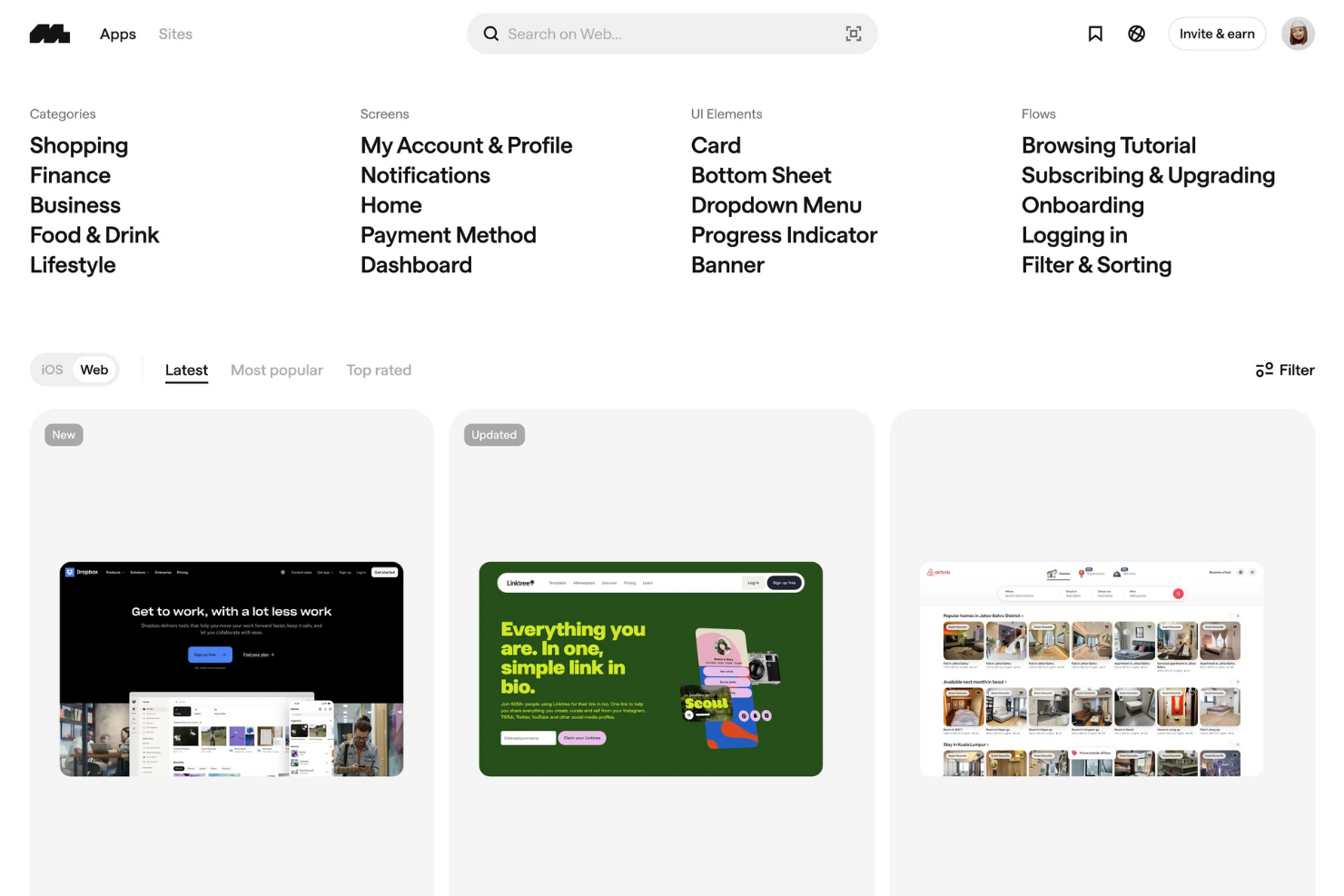
Mobbin è uno strumento dinamico per sviluppatori UI, che offre un'ampia libreria di schemi di design e screenshot tratti da popolari applicazioni mobile e web. È una ricca fonte di ispirazione, aiutando sviluppatori e designer a rimanere aggiornati con le ultime tendenze UI/UX.
Perché ho scelto Mobbin:
Ho scelto Mobbin per la sua estesa libreria di oltre 500.000 schermate e 1.000 app, offrendo una grande ispirazione attraverso schemi e flussi UI reali. La possibilità di accedere a dettagliati flussi utente direttamente all'interno dell'ambiente di design lo rende prezioso per progetti complessi, aiutandoti a creare soluzioni intuitive, visivamente accattivanti e incentrate sull’utente.
Funzionalità e integrazioni principali:
Le funzionalità includono la possibilità di cercare e filtrare tra una vasta gamma di elementi di design, permettendoti di trovare rapidamente la giusta ispirazione. Mobbin offre anche un plugin Figma che consente di integrare direttamente le ispirazioni di design nei tuoi progetti, facilitando l’incorporazione di nuove idee. Inoltre, puoi esplorare prototipi interattivi che offrono una comprensione più profonda di come diversi componenti UI lavorano insieme per creare una user experience coesa.
Le integrazioni includono Figma, Zapier, Stripe, Vercel, Notion, Supabase e altro ancora.
Pros and Cons
Pros:
- Ampia libreria di ispirazioni di design
- Integrazione tramite plugin Figma
- Funzionalità di ricerca e filtraggio efficiente
Cons:
- La precisione della ricerca può essere migliorata
- Funzionalità limitata nella visualizzazione delle immagini

Balsamiq
Ideale per semplicità e rapidità nel wireframing
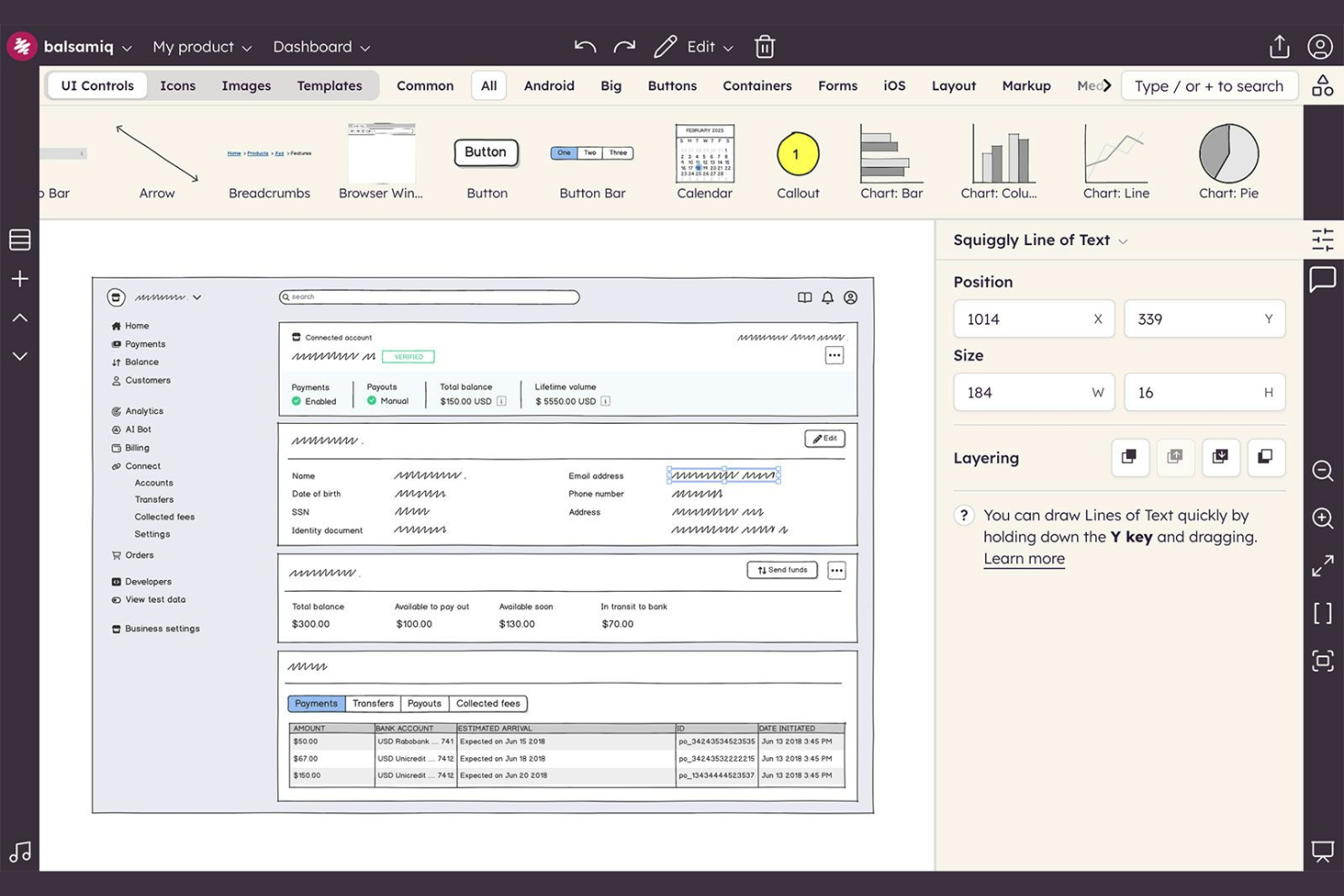
Balsamiq è uno strumento di wireframing a bassa fedeltà che utilizza un'estetica disegnata a mano per aiutare i team a schizzare layout di interfacce utente, mappare i flussi degli utenti e comunicare concetti d'interfaccia prima di passare a una progettazione ad alta fedeltà.
Per chi è ideale Balsamiq?
Balsamiq è particolarmente adatto a product manager, analisti di business e progettisti UX che hanno bisogno di schizzare e comunicare idee di interfacce nelle fasi iniziali del processo di design.
Perché ho scelto Balsamiq
Ho incluso Balsamiq tra le mie scelte principali perché è imbattibile nel trasferire rapidamente le idee dalla testa a uno schermo condiviso, prima ancora di progettare i dettagli. L'estetica volutamente disegnata a mano della sua libreria UI è una caratteristica voluta: comunica “questo non è definitivo”, cosa che secondo me mantiene il feedback degli stakeholder concentrato sulla struttura e non sugli aspetti visivi. Inoltre, Balsamiq AI permette di inserire un prompt approssimativo o uno screenshot e ottenere immediatamente un wireframe funzionante su cui iterare.
Funzionalità principali di Balsamiq
- Collegamenti: Collega le schermate dei wireframe per creare prototipi cliccabili e navigabili per le presentazioni agli stakeholder.
- Simboli: Crea componenti UI riutilizzabili e salvali in una libreria condivisa da usare in più mockup.
- Collaborazione in tempo reale: Più membri del team possono modificare lo stesso progetto contemporaneamente su Balsamiq Cloud.
- Opzioni di esportazione: Esporta i wireframe come file PNG o PDF per condividerli con stakeholder esterni allo strumento.
Integrazioni di Balsamiq
Balsamiq offre un piccolo set di integrazioni native con Slack, Trello, Confluence e Jira. Fornisce inoltre un server MCP che collega i tuoi wireframe a strumenti di intelligenza artificiale come Claude, ChatGPT, Cursor e VS Code per attività come la generazione di codice e l'analisi del design. Non è disponibile un'API tradizionale né il supporto a Zapier.
Pros and Cons
Pros:
- Ampia libreria di componenti UI predefiniti
- Lo stile a schizzo mantiene il feedback concentrato sul layout
- Anche i non-designer possono creare wireframe velocemente
Cons:
- Nessuna transizione a design ad alta fedeltà
- Interattività limitata per prototipi complessi

Adobe XD
Ideale per integrare progettazione e prototipazione in un unico strumento
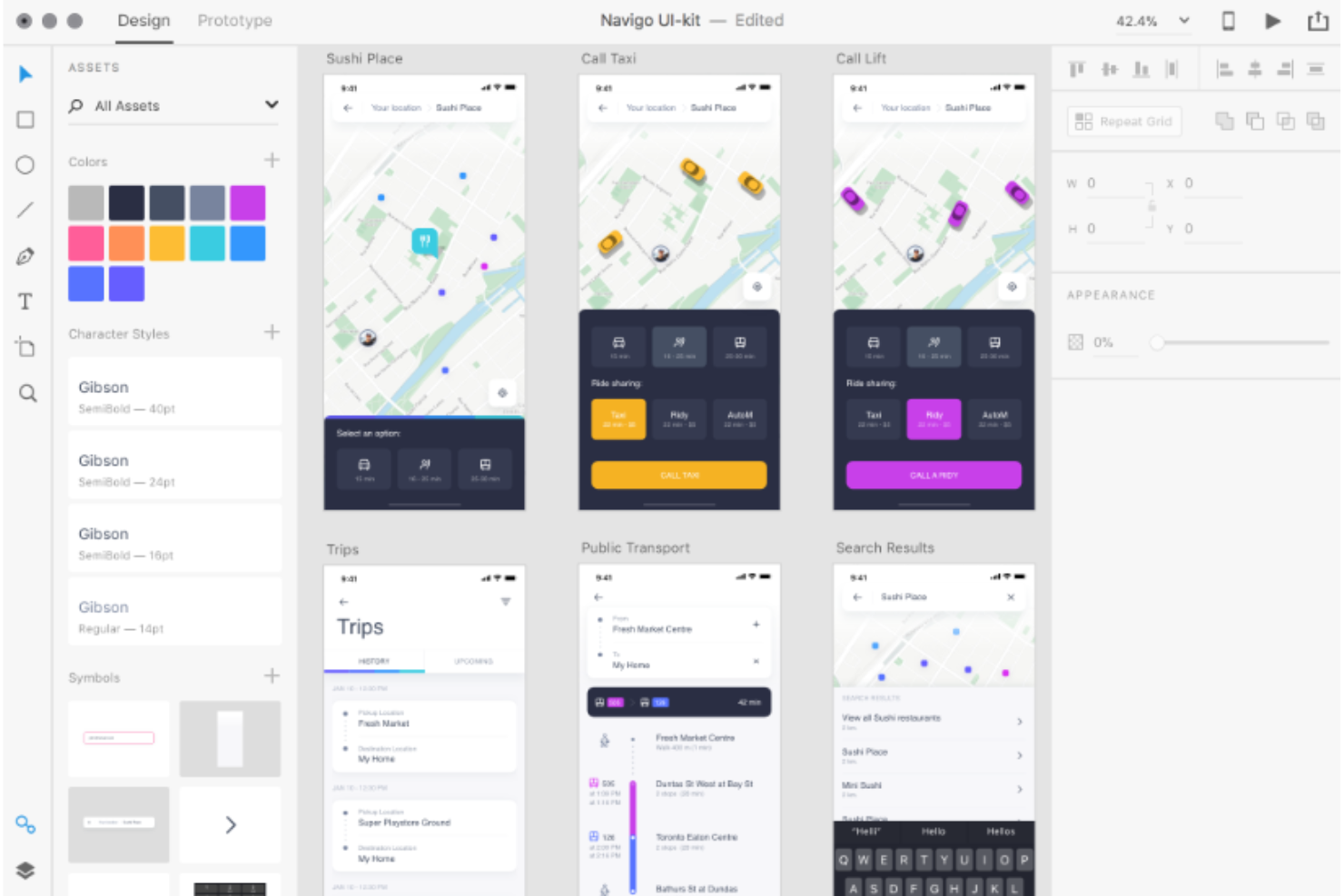
Adobe XD è uno strumento versatile per il design e la prototipazione sviluppato da Adobe Systems. Permette ai designer di creare interfacce utente per app web e app mobili. Essendo uno strumento che integra design e prototipazione, Adobe XD assicura un flusso di lavoro semplificato, rendendolo ideale per la creazione di prototipi interattivi e animati.
Perché ho scelto Adobe XD:
Durante il mio processo di valutazione, ho scelto Adobe XD perché fonde progettazione dell'interfaccia e prototipazione in un unico flusso di lavoro. La fluidità tra progettazione e prototipazione in un unico ambiente rende più semplice l'intero processo, e questa caratteristica unica è ciò che distingue Adobe XD dagli altri strumenti. Inoltre, il suo set di strumenti completo lo rende ideale per creare prototipi ad alta fedeltà che sembrano veri e propri prodotti.
Funzionalità principali & integrazioni:
Le principali funzionalità di Adobe XD includono un editor di progettazione intuitivo, una modalità prototipo per aggiungere interattività e la possibilità di condividere i prototipi per ricevere feedback e test. Il suo strumento 'Griglia ripetuta' è anche eccezionale per progettare rapidamente elementi ripetitivi come elenchi o gallerie fotografiche.
Per quanto riguarda le integrazioni, Adobe XD è compatibile con altri software Adobe come Photoshop e Illustrator. Inoltre, offre plugin per collegarsi con altri strumenti popolari come Slack, JIRA e Microsoft Teams, facilitando una collaborazione più semplice e la raccolta di feedback.
Pros and Cons
Pros:
- Unisce design dell'interfaccia e prototipazione in un unico strumento.
- Integrazione fluida con altre applicazioni Adobe e strumenti di terze parti popolari.
- Consente di condividere e raccogliere feedback direttamente sui prototipi.
Cons:
- Può essere meno conveniente per team di grandi dimensioni.
- Richiede un periodo di apprendimento, soprattutto per chi non è già familiare con l'ecosistema Adobe.
- Versione gratuita limitata rispetto ad altri strumenti di progettazione.


UX Pilot è una piattaforma di design UX/UI alimentata da intelligenza artificiale che genera wireframe, schermate ad alta fedeltà e componenti di sistemi di design a partire da prompt testuali, schizzi o importazioni di PRD.
A chi è destinato UX Pilot?
UX Pilot è ideale per startup e team di prodotto snelli che devono passare rapidamente dal concetto a schermate UI testabili, senza un team di design dedicato.
Perché ho scelto UX Pilot
Ho scelto UX Pilot tra i migliori per la sua revisione del design basata su AI e le funzionalità di heatmap dell'attenzione. Si può caricare qualsiasi schermata e il sistema segnala immediatamente errori di spaziatura, gerarchia e accessibilità prima che venga scritto qualsiasi codice. La heatmap dell'attenzione mostra esattamente dove gli utenti si concentreranno maggiormente, così posso subito vedere se una CTA passa inosservata. Questo tipo di feedback visivo automatizzato, senza dover reclutare tester né usare uno strumento a parte, lo rende la scelta più chiara per il testing automatico dell'usabilità tra quelli che ho analizzato.
Funzionalità chiave di UX Pilot
- Builder di prototipi interattivi: Collega le schermate con frecce per simulare la navigazione, il comportamento di scorrimento e le interazioni a fisarmonica direttamente sulla canvas.
- Generatore di flowchart: Descrivi in testo semplice un flusso di lavoro o un processo decisionale e UX Pilot lo trasforma in un diagramma strutturato e modificabile.
- Clonazione di siti web: Carica uno screenshot o incolla un URL per ricreare un layout esistente come file di design modificabile.
- Esportazione dal design al codice: Esporta le schermate UI finite come codice HTML/CSS o React/Tailwind per fornire agli sviluppatori una base strutturale di partenza.
Integrazioni di UX Pilot
L'integrazione principale di UX Pilot è con Figma, disponibile come plugin Figma Community che consente di esportare le schermate generate direttamente nei tuoi file Figma e di importare i componenti Figma già in uso in UX Pilot. A livello enterprise, è disponibile l'accesso API personalizzato. Il supporto a Zapier non è chiaramente documentato.
Pros and Cons
Pros:
- Output quasi pronto per la produzione da singoli prompt
- I flussi multi-schermo restano visivamente coerenti
- L'arricchimento dei prompt perfeziona le istruzioni in automatico
Cons:
- I crediti vengono consumati anche con modifiche non riuscite
- Incoerente con linee guida di brand specifiche

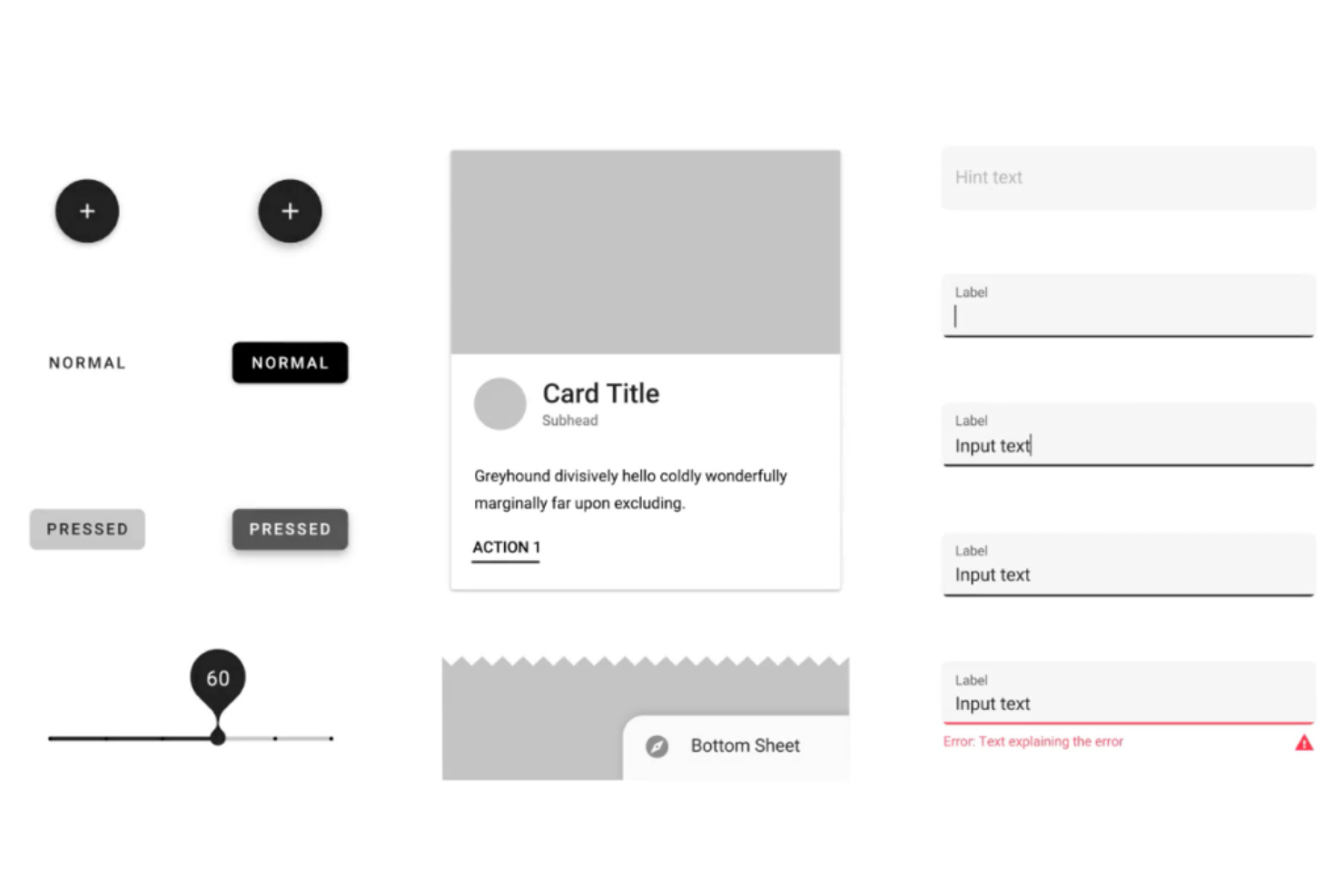
Material-UI è un popolare framework UI per React che implementa la filosofia Material Design di Google. Offre un'ampia gamma di componenti UI che consentono di costruire applicazioni web esteticamente gradevoli e ricche di funzionalità. Il suo allineamento con la filosofia di design di Google lo rende lo strumento ideale per implementare il Material Design.
Perché ho scelto Material-UI:
Ho trovato Material-UI interessante grazie alla sua profonda integrazione con l'ecosistema React e il Material Design di Google. La decisione di includerlo in questa lista è stata motivata dalla sua vasta libreria di componenti e dalla coerenza con l'estetica moderna e minimalista del Material Design. Per questo motivo, l'ho considerato il miglior strumento per implementare il Material Design di Google.
Caratteristiche distintive e integrazioni:
I punti di forza di Material-UI sono la sua ampia libreria di componenti pre-progettati, le opzioni di personalizzazione e gli aggiornamenti costanti. Non si tratta solo di design; le sue capacità di integrazione con altre tecnologie chiave, come React, Vue e Angular, lo rendono ancora più robusto e adattabile.
Pros and Cons
Pros:
- Ampia selezione di componenti pre-progettati.
- Profonda integrazione con l'ecosistema React.
- Allineamento con il Material Design di Google.
Cons:
- Il prezzo può essere elevato per la versione premium.
- Curva di apprendimento per i principianti.
- La personalizzazione può richiedere una comprensione più approfondita della libreria.
Framer
Ideale per prototipazione interattiva
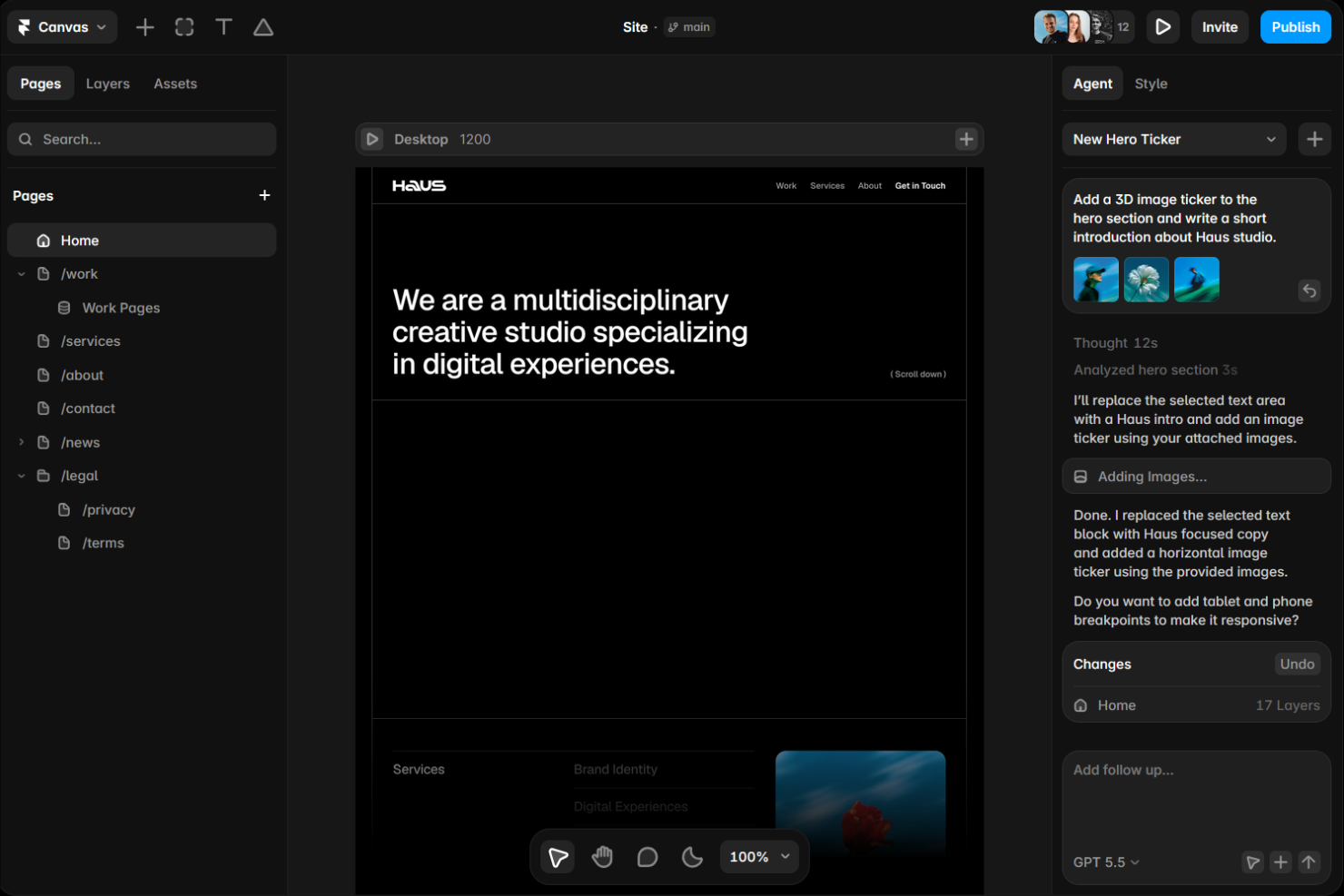
Framer è uno strumento di progettazione e prototipazione basato sul web che consente ai team di creare prototipi interattivi, ad alta fedeltà, utilizzando veri componenti di codice, animazioni guidate da CSS e layout responsivi che possono essere pubblicati direttamente come siti web live.
Per chi è ideale Framer?
Framer è la scelta naturale per designer di prodotto e startup orientate al design che hanno bisogno di trasformare un prototipo dal concetto a un'esperienza web prodotta e pronta per la pubblicazione.
Perché ho scelto Framer
Framer merita il suo posto nella mia lista perché nessun altro strumento si avvicina tanto alla qualità delle interazioni di livello produttivo già nella fase di prototipazione. Utilizzo Smart Components per costruire elementi UI con stato, varianti e trigger, affinché le interazioni sembrino reali invece che semplici mockup cliccabili. Le animazioni integrate basate sulla fisica e gli effetti di scorrimento mi permettono di prototipare micro-interazioni senza scrivere una sola riga di codice.
Caratteristiche principali di Framer
- Breakpoint responsivi: Imposta breakpoint personalizzati per desktop, tablet e mobile e visualizza in anteprima le variazioni del layout su tutte le dimensioni dello schermo da un'unica area di lavoro.
- CMS integrato: Crea collezioni di contenuti, definisci campi personalizzati e collega dati live direttamente agli elementi del design senza uscire dall'editor.
- Componenti di codice: Inserisci componenti React personalizzati direttamente sulla tela, mescolando elementi basati su codice e visuali nello stesso prototipo.
- Pubblicazione con un clic: Pubblica il tuo design come sito web live e ospitato con dominio personalizzato, con Framer che si occupa di ottimizzazione delle prestazioni e hosting.
Integrazioni Framer
Framer offre integrazioni tramite il suo marketplace di plugin e il centro assistenza, inclusi plugin per Notion, Google Sheets, Google Search Console, HubSpot, Shopify, Figma, Cal.com, Unsplash e Rive. L'invio di moduli può connettersi a Slack, Zapier e Integromat tramite Formspark. Framer offre anche una Server API e una Plugin API per integrazioni personalizzate.
Pros and Cons
Pros:
- Area di lavoro simile a Figma con controllo pixel-perfect
- Pubblica i progetti come siti ospitati dal vivo
- Esportazione del codice React dai progetti visuali
Cons:
- Il CMS non offre campi relazionali avanzati
- L'editor rallenta su pagine molto animate

CodePen
Ideale come playground per sviluppatori front-end e editor di codice


Canva
Ideale per la progettazione grafica e la creazione di contenuti facile da usare

Altri strumenti degni di nota per sviluppatori UI
Di seguito è riportato un elenco di ulteriori strumenti per sviluppatori UI che ho selezionato, ma che non sono rientrati tra i primi 10. Vale sicuramente la pena dare loro un’occhiata.
- Awwwards
Ideale per trovare fonti di ispirazione per il web design
- Sketch2React
Ideale per convertire i design Sketch in codice React
- Ant Design
Ideale per framework completi di interfaccia utente basati su React


Come Valuto gli Strumenti per Sviluppatori UI
Divido la mia valutazione in due livelli: le capacità di base—come le librerie di componenti, l'esportazione del codice e la prototipazione—che qualificano uno strumento, e i fattori differenzianti che distinguono le opzioni migliori.
Funzionalità di Base (Requisiti Fondamentali per Questa Lista)
Quando seleziono gli strumenti per la mia lista, attribuisco a ciascuno di essi un punteggio da 0 (non offre la funzionalità) a 5 (eccelle in quest'area) per ogni funzionalità di base elencata di seguito. Poi, calcolo il punteggio totale dello strumento come percentuale. Ogni strumento deve raggiungere un punteggio totale minimo del 65% per essere considerato per l'inclusione.
- Libreria di Componenti UI: Valuto l'ampiezza e la personalizzazione dei componenti pre-costruiti, dai pulsanti e modali fino a tabelle dati complesse e modelli di navigazione.
- Prototipazione Interattiva: Ogni strumento dovrebbe permettere la creazione di flussi cliccabili con transizioni e stati, così che i PM possano validare una sequenza di checkout o una procedura di onboarding prima della consegna.
- Generazione ed Esportazione del Codice: Verifico se lo strumento produce codice pulito e utilizzabile in framework come React, Vue o Angular, invece di markup generico che gli sviluppatori dovrebbero riscrivere.
- Gestione del Design System: I team che mantengono set di token condivisi e librerie di componenti su più prodotti hanno bisogno di una gestione centralizzata degli stili e del tracciamento delle versioni.
- Collaborazione in Tempo Reale: Cerco la modifica multi-utente, i commenti in linea e la cronologia delle versioni che permettano a prodotto, design e ingegneria di lavorare insieme in un unico spazio.
- Anteprima e Test Responsivi: Lo strumento dovrebbe supportare breakpoint configurabili e visualizzazione su diversi dispositivi in modo da poter vedere come una dashboard o una landing page si adatta a varie dimensioni dello schermo.
Una volta che ho una lista di strumenti che soddisfano i criteri, considero ciò che distingue ogni piattaforma.
Fattori Differenzianti (Cosa Distingue i Fornitori)
Ecco come confronto e metto a confronto diversi fornitori:
Funzionalità di Spicco
Presto particolare attenzione alla generazione UI assistita dall’IA, che è un fattore differenziante. Essere in grado di descrivere un pannello di impostazioni in linguaggio naturale e ricevere subito un layout funzionante fa risparmiare ore di lavoro manuale ai PM. Anche la verifica dell’accessibilità integrata è importante, visto che gli strumenti che segnalano rapporti di contrasto o etichette ARIA mancanti durante la progettazione prevengono problemi costosi dopo il lancio. Ricerco anche specifiche dettagliate per il passaggio agli sviluppatori, dove linee guida generate automaticamente e asset esportabili forniscono agli ingegneri tutto ciò che serve senza scambi continui.
Oltre le Funzionalità
La compatibilità con il framework è una delle prime cose che verifico. Uno strumento che esporta React ma non Vue non è adatto ai team che hanno scelto uno stack specifico. Valuto inoltre quanto bene ogni piattaforma si integra nel flusso di lavoro generale del prodotto—la sincronizzazione con Figma per i contributi di design e l’invio di issue a Jira o Linear riduce l’attrito nei passaggi. Anche la struttura dei prezzi conta, soprattutto per i PM che devono coinvolgere gli stakeholder. Gli strumenti che offrono accessi gratuiti o a basso costo per i soli lettori facilitano il coinvolgimento di dirigenti e ingegneri senza aumentare i costi.
Domande più comuni sugli strumenti per sviluppatori UI (FAQ)
Quali sono i vantaggi dell'utilizzo degli strumenti per sviluppatori UI?
L’utilizzo degli strumenti per sviluppatori UI offre numerosi vantaggi, tra cui i seguenti:
- Efficienza: Questi strumenti offrono un modo efficiente per creare, testare e ripetere rapidamente i progetti, accelerando notevolmente il processo di progettazione.
- Collaborazione: La maggior parte degli strumenti per sviluppatori UI consente la collaborazione in tempo reale, permettendo ai membri del team di collaborare facilmente, indipendentemente dalla loro posizione.
- Coerenza: Grazie a funzionalità come le librerie di componenti e i sistemi di progettazione, questi strumenti garantiscono la coerenza in tutti i progetti, offrendo un’esperienza utente più uniforme.
- Prototipazione: Gli strumenti UI consentono di creare prototipi interattivi, semplificando i test di usabilità e permettendo di raccogliere feedback prima di passare allo sviluppo.
- Passaggio dalla progettazione allo sviluppo: Molti strumenti facilitano la transizione dalla progettazione allo sviluppo generando automaticamente specifiche e risorse per gli sviluppatori.
Quanto costano gli strumenti per sviluppatori UI?
Il costo degli strumenti per sviluppatori UI può variare notevolmente in base alle loro funzionalità, alla complessità e agli utenti di riferimento. Alcuni strumenti sono gratuiti, alcuni prevedono modelli di abbonamento mensile o annuale, mentre altri applicano un costo una tantum per la licenza.
Quali sono i modelli di prezzo degli strumenti per sviluppatori UI?
La maggior parte degli strumenti per sviluppatori UI adotta un modello di prezzo freemium o basato su abbonamento. Gli strumenti freemium offrono gratuitamente le funzionalità essenziali, con la possibilità di passare a una versione premium per accedere a funzionalità avanzate. Gli strumenti basati su abbonamento offrono generalmente diversi livelli di prezzo in base al numero di utenti, alla quantità di spazio di archiviazione o al livello di funzionalità.
Qual è la fascia di prezzo tipica degli strumenti per sviluppatori UI?
La fascia di prezzo tipica degli strumenti per sviluppatori UI può variare da $0 a $100 per utente al mese, a seconda delle funzionalità dello strumento, delle sue caratteristiche e del pubblico di utenti di riferimento.
Quali sono gli strumenti per sviluppatori UI più economici e più costosi?
Lo strumento per sviluppatori UI più economico sarebbe uno che offre un piano gratuito, come Figma. Tuttavia, per usufruire di funzionalità più avanzate e supportare team più numerosi sarebbe necessario un abbonamento premium. All’altra estremità dello spettro, grazie alle loro funzionalità avanzate, alla robustezza e alle ampie librerie, strumenti come Adobe XD e Sketch possono essere più costosi. Adobe XD e Sketch possono essere più costosi, grazie alle loro funzionalità avanzate, alla robustezza e alle ampie librerie.
Sono disponibili opzioni gratuite per lo sviluppo UI?
Sì, diversi strumenti per lo sviluppo UI offrono opzioni gratuite. Strumenti come Figma, Adobe XD e Sketch mettono a disposizione piani gratuiti con funzionalità di base. Tuttavia, per usufruire di funzionalità aggiuntive o supportare team più numerosi potrebbe essere necessario passare a un piano a pagamento.
Altre recensioni correlate agli strumenti per sviluppatori UI
- Strumenti per la prototipazione di app mobili
- Software per lo sviluppo dei prodotti
- Strumenti per la prototipazione rapida
- Strumenti per la progettazione UX
Cosa ne pensi?
Questa è la panoramica dei miei strumenti preferiti per gli sviluppatori di interfacce utente. Spero che questa guida ti abbia fornito spunti utili e indicazioni preziose nella ricerca dello strumento perfetto. Ma ricorda che questo settore è in continua evoluzione e potrebbero esserci altri strumenti fantastici che devo ancora includere in questa guida.