

10 Migliori Strumenti di Prototipazione UI Recensiti nel 2026

Elenco dei Migliori Strumenti di Prototipazione UI


I migliori strumenti di prototipazione UI aiutano product manager, designer e sviluppatori a trasformare rapidamente le idee in mockup interattivi, validare i concetti in anticipo e collaborare tra i team.
Quando lavori sotto scadenze strette con requisiti complessi, feedback di design poco chiari o flussi di lavoro disorganizzati possono rallentare il progresso e comportare costosi rifacimenti. Lo strumento giusto facilita il passaggio di consegne, supporta l’iterazione in tempo reale e garantisce che tutti restino allineati dal concept fino al prodotto finale.
Dopo aver testato e confrontato direttamente diversi strumenti, ho selezionato le opzioni che offrono il miglior equilibrio tra velocità, usabilità e funzionalità, così che il tuo team possa passare dalla visione a un design validato con sicurezza.
Perché Fidarsi delle Nostre Recensioni Software
Testiamo e recensiamo software per il product management dal 2020. Come product manager sappiamo quanto sia fondamentale e difficile fare la scelta giusta in termini di software. Investiamo in una ricerca approfondita per aiutare il nostro pubblico a prendere decisioni migliori sugli acquisti di software. Abbiamo testato oltre 2.000 strumenti per diversi casi d’uso e scritto più di 1.000 recensioni approfondite.Scopri come assicuriamo la trasparenza & la nostra metodologia di recensione software.
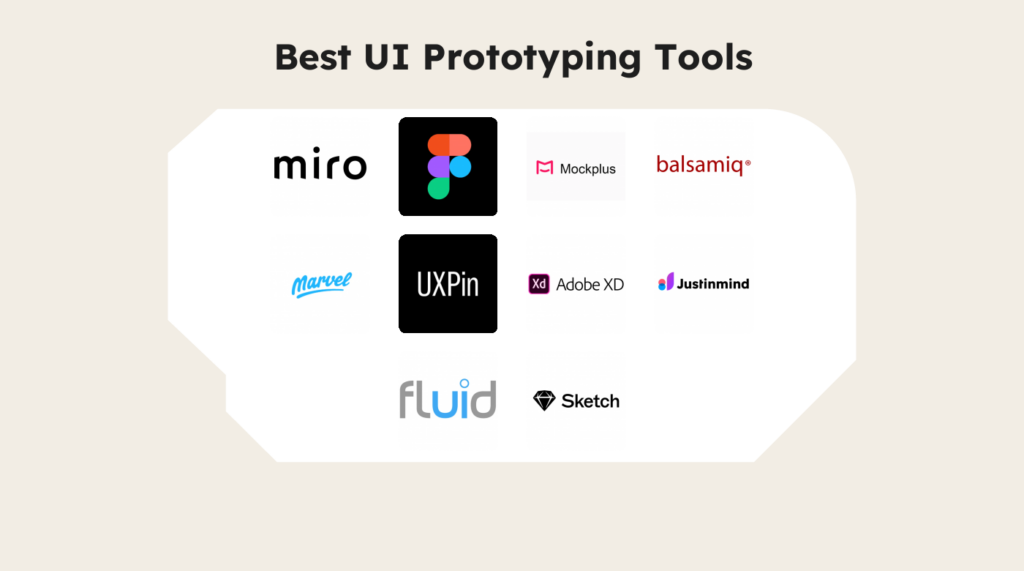
Riepilogo dei Migliori Strumenti di Prototipazione UI
Questa tabella comparativa riassume i dettagli sui prezzi delle mie migliori scelte di strumenti di prototipazione UI per aiutarti a trovare quello più adatto al tuo budget e alle esigenze della tua azienda.
| Tool | Best For | Trial Info | Price | ||
|---|---|---|---|---|---|
| 1 | Il migliore per la prototipazione usando la tua base di codice live | Piano gratuito + demo gratuita disponibile | A partire da $20/utente/mese | Website | |
| 2 | Ideale per la mappatura visiva dei progetti | Piano gratuito disponibile | Da $8/membro/mese (fatturazione annuale) | Website | |
| 3 | Ideale per la collaborazione in tempo reale | Piano gratuito disponibile | Da $16/utente/mese (fatturazione annuale) | Website | |
| 4 | Ideale per la collaborazione di squadra | Piano gratuito disponibile | Da $12,45/utente/mese (fatturazione annuale) | Website | |
| 5 | Ideale per wireframe a bassa fedeltà | Prova gratuita di 14 giorni disponibile | Da $16/utente/mese (fatturato annualmente) | Website | |
| 6 | Ideale per semplicità e facilità d'uso | Piano gratuito + demo gratuita disponibile | Da $12/mese (fatturato annualmente) | Website | |
| 7 | Ideale per l'integrazione di sistemi di design | Prova gratuita di 14 giorni + demo gratuita disponibile | Da $49/mese (fatturato annualmente) | Website | |
| 8 | Ideale per wireframe web e mobile | Piano gratuito disponibile | A partire da $19/utente/mese | Website | |
| 9 | Ideale per la prototipazione rapida | Piano gratuito + demo gratuita disponibile | Da $8.25/mese (fatturato annualmente) | Website | |
| 10 | Ideale per l'integrazione con la suite Adobe | Prova gratuita di 30 giorni | Prezzi su richiesta | Website |

Recensioni dei Migliori Strumenti di Prototipazione UI
Di seguito trovi le mie valutazioni dettagliate sui migliori strumenti di prototipazione UI che sono entrati nel mio elenco. Le mie recensioni offrono una panoramica su funzionalità chiave, pro e contro, integrazioni e casi d’uso ideali di ciascuno strumento per aiutarti a trovare quello più adatto a te.

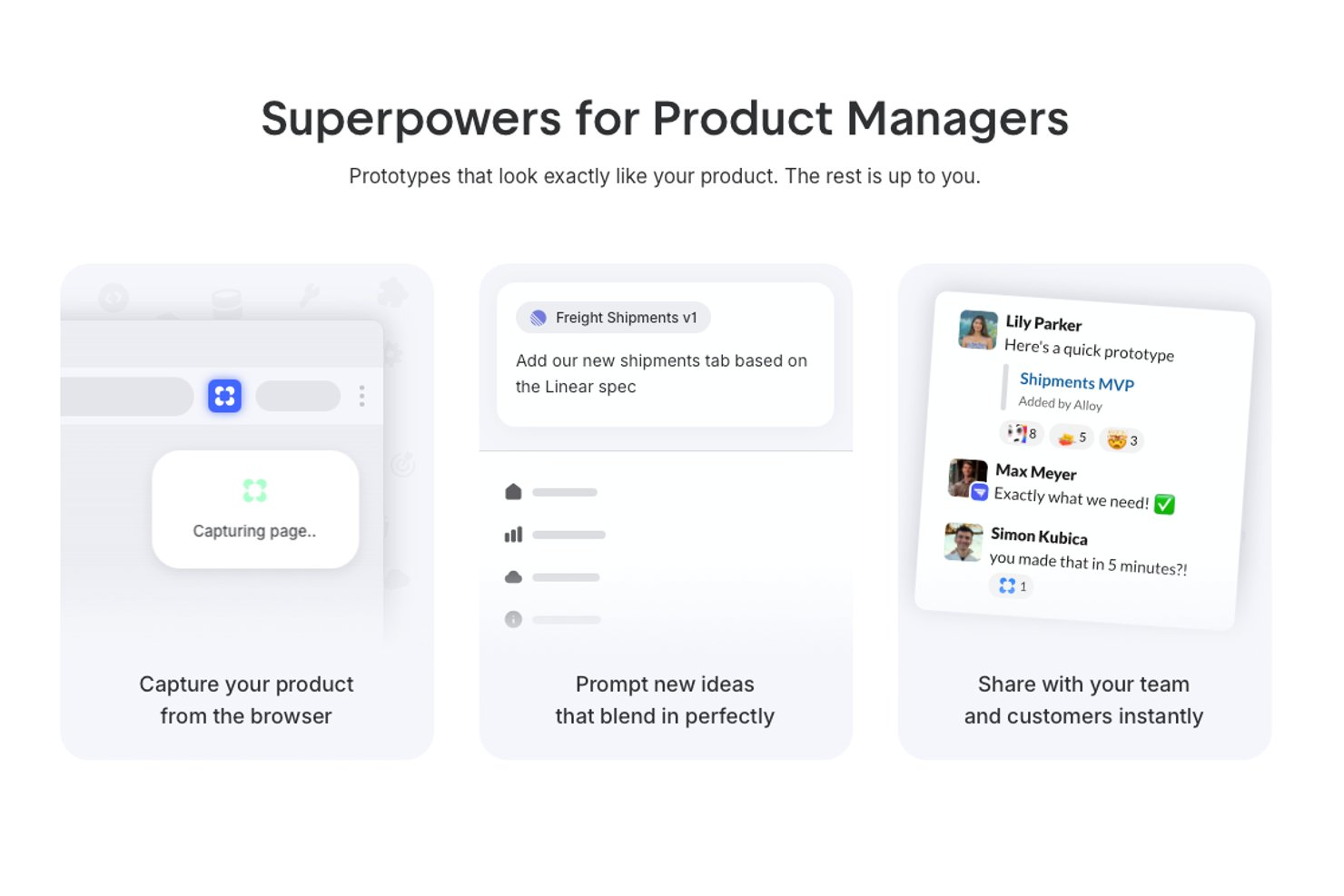
Alloy è uno strumento di prototipazione per team di prodotto che consente la creazione di prototipi UI interattivi direttamente dalla tua applicazione web e dal tuo codice esistenti, combinando l'editing in tempo reale con funzionalità di collaborazione.
Per chi è pensato Alloy?
Progettato per product manager e designer di aziende software con applicazioni web consolidate e basi di codice esistenti.
Perché ho scelto Alloy
Ho scelto Alloy come uno dei migliori perché permette al mio team di prototipare con la nostra base di codice live, riflettendo componenti e logiche UI reali. Utilizzo Alloy per testare le interazioni utilizzando il codice di produzione effettivo, così i nostri prototipi hanno l'aspetto e il comportamento del prodotto finito.
Caratteristiche principali di Alloy
- Integrazione con Slack: Avvia rapidamente prototipi e condividi sessioni direttamente dalle conversazioni Slack.
- Riconoscimento della libreria di componenti: Identifica e riutilizza istantaneamente i tuoi componenti UI esistenti per mockup coerenti.
- Controlli di condivisione delle sessioni: Gestisci l'accesso con impostazioni di condivisione per team, dominio o pubbliche per ogni prototipo.
- Esportazione in Figma: Esporta i prototipi di Alloy in file Figma per ulteriori raffinamenti di design o collaborazioni.
Integrazioni di Alloy
Alloy offre integrazioni native con Slack, GitHub e Figma e mette a disposizione un'API per integrazioni personalizzate.
Pros and Cons
Pros:
- I prototipi utilizzano i componenti reali del prodotto
- Invio istantaneo dei prototipi come pull request
- Le modifiche riflettono la logica e i dati reali dell'app
Cons:
- Nessuna tradizionale tela UI vettoriale
- Richiede una base di codice live per tutte le funzionalità
Miro
Ideale per la mappatura visiva dei progetti

Miro è una piattaforma di collaborazione visiva per team di prodotto, designer UX e stakeholder che hanno bisogno di trasformare idee iniziali in concept UI testabili. La sua tela infinita combina wireframing, prototipazione interattiva, schermate generate dall'IA, commenti e collaborazione in tempo reale, così il tuo team può rivedere i flussi e raccogliere feedback prima dell'avvio dello sviluppo.
Per chi è ideale Miro?
Miro è perfetto per team cross-funzionali—soprattutto prodotto, design e engineering—che necessitano di uno spazio condiviso per mappare, pianificare e prototipare insieme.
Perché ho scelto Miro
Ho scelto Miro perché consente al tuo team di costruire prototipi UI nello stesso spazio di lavoro dove si tracciano i percorsi utente, si raccolgono ricerche e si pianificano idee di prodotto. Puoi disporre wireframe accanto a note, diagrammi e feedback su una tela infinita, poi usare linee di collegamento per mostrare come gli utenti si spostano tra le schermate. Mi piace che questo mantenga il prototipo collegato al contesto di ogni scelta progettuale, il che aiuta gli stakeholder a comprendere perché è stato creato un determinato layout o flusso. Miro è perfetto per team di prodotto, UX e cross-funzionali che hanno bisogno di prototipazione collaborativa prima di passare al design ad alta fedeltà o allo sviluppo.
Funzionalità chiave di Miro
Miro include anche strumenti di prototipazione che aiutano il tuo team a passare più rapidamente da concept grezzi a flussi UI cliccabili.
- Generazione di wireframe con IA: Genera layout wireframe da prompt testuali con Miro AI, poi modifica i componenti direttamente sulla tela.
- Anteprima interattiva del prototipo: Testa elementi UI cliccabili, inclusi pulsanti, menu a tendina e slider, in modalità Anteprima.
- Libreria di componenti UI: Usa elementi UI integrati, icone e template di schermata per creare prototipi a bassa fedeltà più velocemente.
- Co-editing in tempo reale: Permetti ai membri del team di commentare, annotare e modificare la stessa board contemporaneamente.
Integrazioni di Miro
Le integrazioni includono Jira, Google Drive, Slack, Microsoft Teams, Zoom, Asana, Confluence, Notion, Trello e GitHub.
Pros and Cons
Pros:
- Componenti UI integrati velocizzano la prototipazione a bassa fedeltà
- Linee di collegamento supportano flussi prototipo multi-schermo cliccabili
- L'IA genera prototipi modificabili da prompt o contenuti sulla tela
Cons:
- I componenti avanzati non sono disponibili senza il componente aggiuntivo
- Le anteprime completamente interattive richiedono il componente aggiuntivo Prototypes
New Product Updates from Miro
Miro Adds Japan Data Residency for Enterprise Customers
Miro has introduced Japan data residency for enterprise customers, offering in-region storage for production data, backups, and metadata, plus in-region compute infrastructure. For more information, visit Miro's official site.

Figma
Ideale per la collaborazione in tempo reale
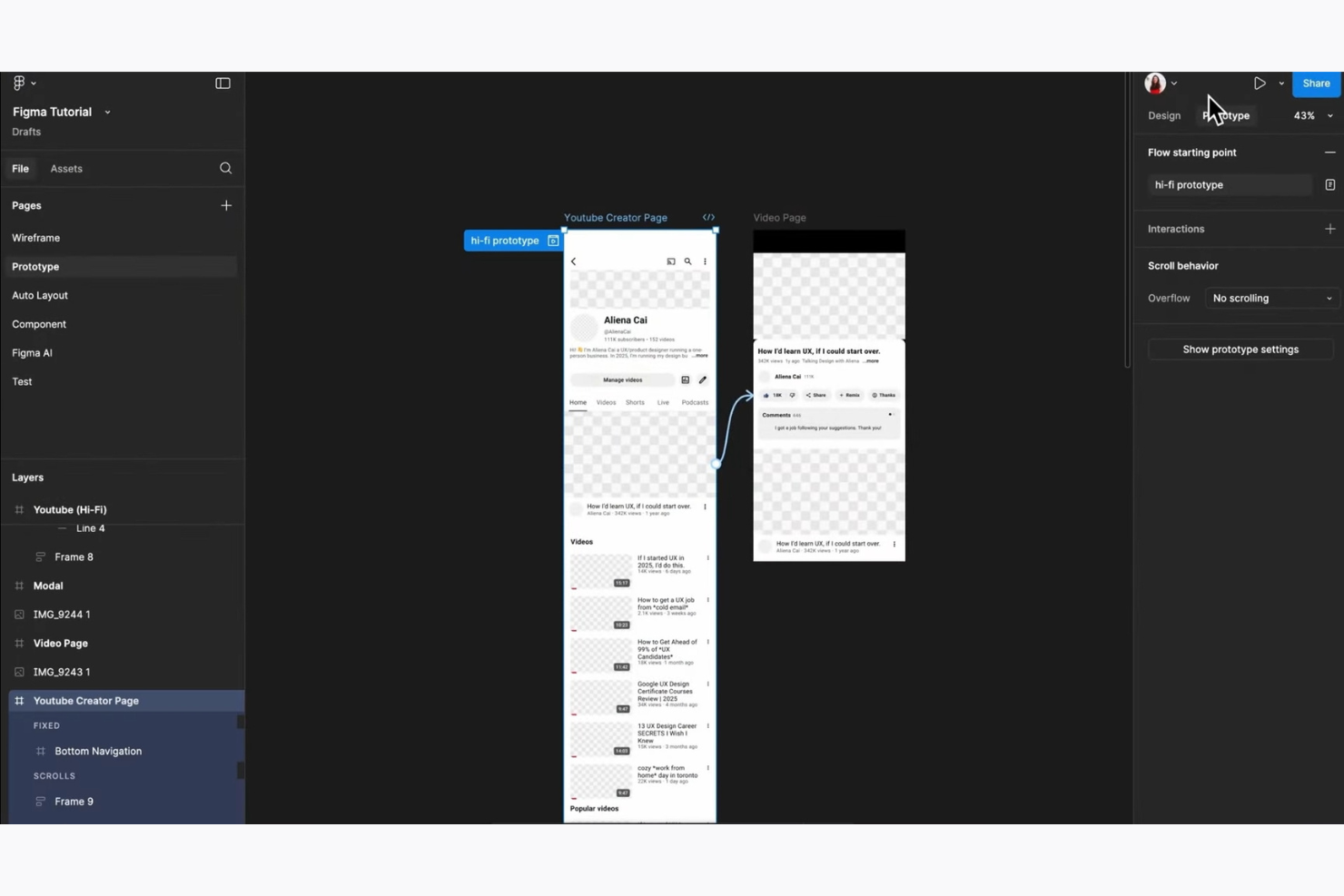
Figma è una piattaforma di design collaborativa per creare prototipi UI interattivi, permettendo mockup cliccabili e realistici che mostrano i flussi utente e il comportamento dell’interfaccia prima dello sviluppo. Consente ai team di collegare schermate, definire interazioni e visualizzare in anteprima i design su diversi dispositivi per validare le idee e perfezionare l’usabilità in anticipo.
Perché ho scelto Figma: Gli strumenti di prototipazione di Figma permettono di trasformare rapidamente design statici in esperienze interattive. Puoi collegare schermate con transizioni, aggiungere animazioni e regolare i dettagli delle interazioni in tempo reale collaborando con il tuo team. L’integrazione nativa con lo spazio di lavoro del design significa che puoi aggiornare i layout e vedere subito le modifiche riflesse nel prototipo, accelerando l’iterazione e garantendo feedback accurati durante le revisioni.
Funzionalità e integrazioni degne di nota:
Funzionalità includono auto-layout per design responsivi e vettori di rete per illustrazioni flessibili. Strumenti di prototipazione avanzati permettono la creazione di design interattivi. Un’ampia libreria di risorse permette di velocizzare il processo di progettazione.
Le integrazioni includono Slack, Microsoft Teams, Jira, Trello, Asana, Google Drive, Dropbox, Zeplin, Notion e Abstract.
Pros and Cons
Pros:
- Supporta più utenti simultanei
- Offre librerie di design molto ampie
- Facile da usare per principianti
Cons:
- Prestazioni rallentate con file di grandi dimensioni
- Necessita di apprendimento per funzionalità avanzate

Mockplus
Ideale per la collaborazione di squadra

Mockplus è uno strumento di prototipazione pensato per designer e team di prodotto che hanno bisogno di creare prototipi interattivi in modo rapido. Offre una piattaforma per il design collaborativo, consentendo ai team di lavorare insieme in modo efficiente sulle interfacce utente.
Perché ho scelto Mockplus: Mockplus supporta la prototipazione UI con un editor drag-and-drop e una libreria di componenti e icone predefinite. Puoi collegare rapidamente le schermate, aggiungere interazioni e creare flussi utente realistici per progetti web e mobile. Funzionalità integrate di condivisione e test rendono semplice raccogliere feedback e perfezionare i prototipi con il tuo team.
Funzionalità distintive & integrazioni:
Funzionalità includono un editor drag-and-drop che semplifica il processo di progettazione. Mockplus offre una vasta gamma di componenti e icone predefinite per accelerare la prototipazione. Puoi condividere e testare i prototipi rapidamente, facilitando la raccolta di feedback dal tuo team.
Integrazioni includono Sketch, Adobe XD, Figma, Axure, Jira, Confluence, Trello, Asana, Slack e Microsoft Teams.
Pros and Cons
Pros:
- Supporta la collaborazione in tempo reale tra i membri del team
- Configurazione rapida con drag-and-drop
- Fornisce componenti predefiniti
Cons:
- Funzionalità avanzate di prototipazione limitate
- Problemi di prestazioni con progetti di grandi dimensioni

Balsamiq
Ideale per wireframe a bassa fedeltà
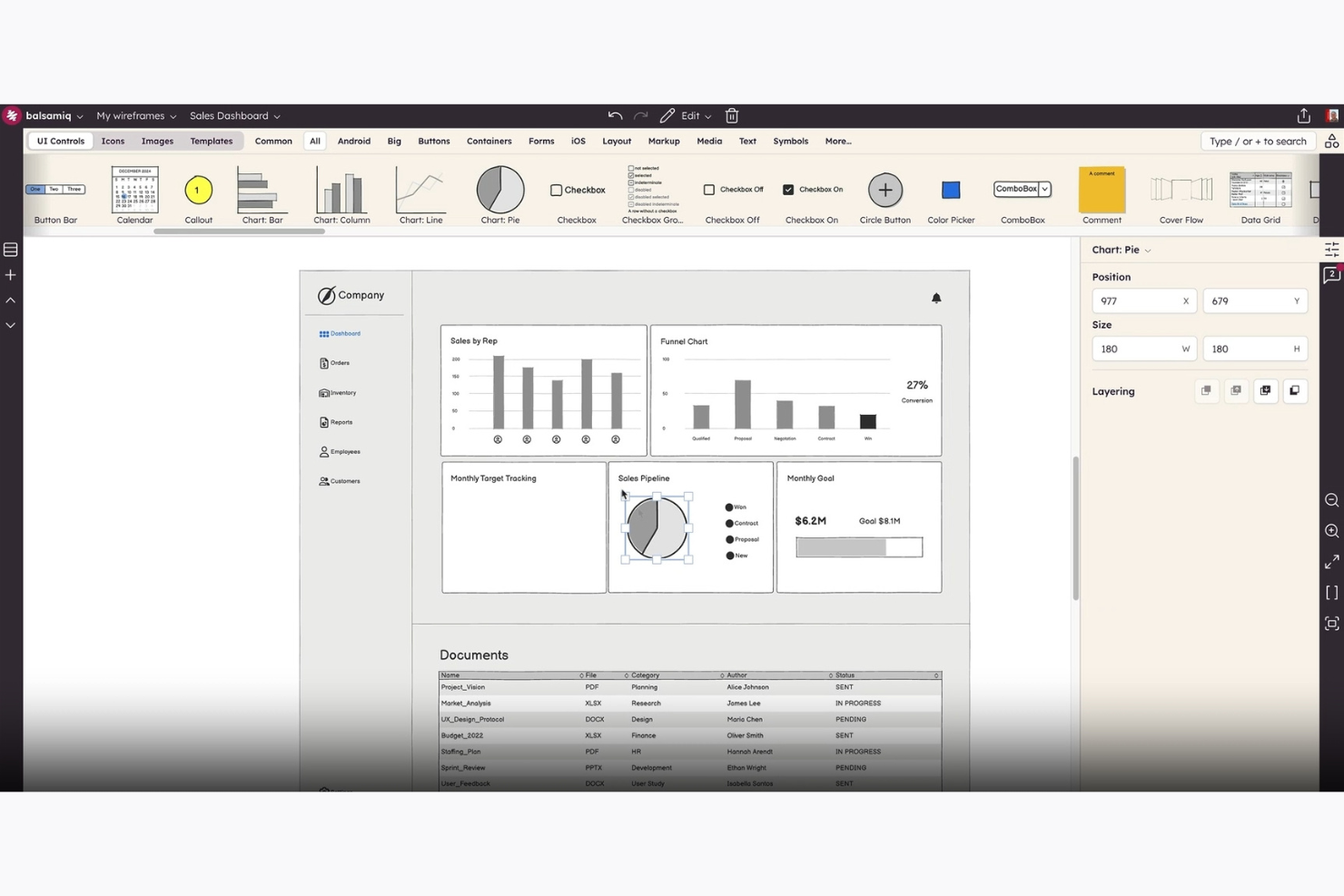
Balsamiq è una piattaforma di wireframing focalizzata sul prototipaggio dell'interfaccia utente per un design rapido e a bassa fedeltà. Aiuta i designer UX e i team a schizzare rapidamente layout di interfacce, visualizzare i flussi di lavoro e iterare sulle idee senza essere distratti dai dettagli visivi.
Perché ho scelto Balsamiq: Balsamiq è specializzato nella creazione di prototipi UI a bassa fedeltà che aiutano a visualizzare i flussi utente nelle prime fasi del processo di design. La sua interfaccia drag-and-drop e i componenti UI integrati rendono semplice assemblare e collegare le schermate. Questo consente ai team di testare e perfezionare le interazioni prima di investire tempo nella progettazione ad alta fedeltà.
Caratteristiche principali & integrazioni:
Caratteristiche includono un'interfaccia drag-and-drop che semplifica la disposizione degli elementi nel wireframe. Lo strumento offre una libreria di componenti UI, che facilita la creazione di mockup. Il design in stile schizzo di Balsamiq mantiene l'attenzione sulla funzionalità invece che sull'estetica.
Integrazioni includono Confluence, Jira, Trello, Google Drive, Dropbox, Slack, FogBugz, XWiki, Basecamp e Notion.
Pros and Cons
Pros:
- Facile e rapido da imparare e utilizzare
- Interfaccia drag-and-drop semplice
- Ampia libreria di componenti UI
Cons:
- Limitato a progetti a bassa fedeltà
- Non adatto per mockup dettagliati

Marvel
Ideale per semplicità e facilità d'uso
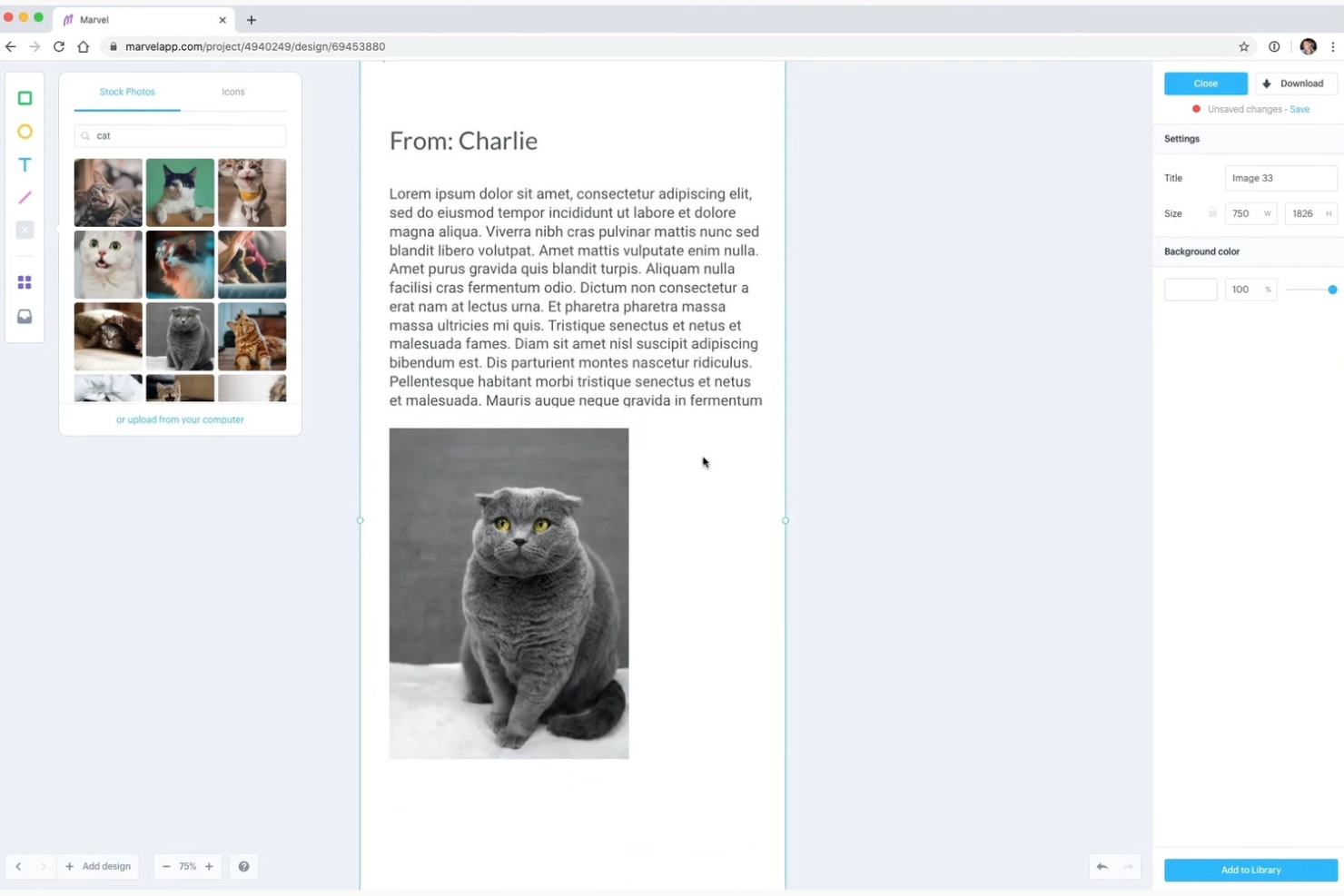
Marvel è uno strumento di design e prototipazione pensato per designer e team che hanno bisogno di una piattaforma facile da usare per creare prototipi interattivi. Offre un'interfaccia intuitiva per trasformare rapidamente le idee in prototipi cliccabili.
Perché ho scelto Marvel: L'interfaccia intuitiva di Marvel rende semplice costruire prototipi UI interattivi senza una curva di apprendimento ripida. Puoi collegare rapidamente le schermate, aggiungere transizioni e simulare flussi utente per dare vita ai tuoi design. Gli strumenti integrati di user testing ti permettono di raccogliere feedback direttamente sui prototipi, semplificando il processo di iterazione.
Caratteristiche principali e integrazioni:
Le funzionalità includono la possibilità di effettuare user testing e raccogliere feedback direttamente dai tuoi prototipi. La modalità design dello strumento offre un ambiente pulito per creare wireframe e prototipi. Puoi facilmente creare prototipi cliccabili grazie alla sua interfaccia drag-and-drop.
Le integrazioni includono Slack, Jira, Trello, Confluence, Sketch, Dropbox, Google Drive, Microsoft Teams, Asana e Zapier.
Pros and Cons
Pros:
- Facile da imparare e utilizzare
- Creazione rapida di prototipi
- Supporta user testing
Cons:
- Non adatto a progetti complessi
- Documentazione poco dettagliata

UXPin
Ideale per l'integrazione di sistemi di design

UXPin è uno strumento di prototipazione progettato per i team che devono integrare sistemi di design nel loro flusso di lavoro. Si rivolge a designer UX e sviluppatori che mirano a creare prototipi coerenti e interattivi.
Perché ho scelto UXPin: UXPin ti permette di costruire prototipi di interfacce utente altamente interattivi con dati reali, rendendo i flussi utente più realistici. Il suo supporto per le interazioni condizionali consente di simulare comportamenti complessi e stati dinamici. La collaborazione in tempo reale assicura che il tuo team possa affinare e testare i prototipi insieme.
Funzionalità e integrazioni principali:
Funzionalità includono la possibilità di incorporare dati reali nei tuoi prototipi, migliorando il realismo dei tuoi progetti. UXPin supporta le interazioni condizionali, permettendo di creare flussi utente dinamici. Lo strumento offre anche collaborazione in tempo reale, facilitando il lavoro di squadra.
Integrazioni includono Sketch, Adobe XD, Jira, Slack, Microsoft Teams, Trello, Google Drive, Dropbox, Zeplin e Storybook.
Pros and Cons
Pros:
- Ottimo supporto ai sistemi di design
- Si integra con dati reali
- Supporta interazioni condizionali
Cons:
- Curva di apprendimento ripida per principianti
- Richiede conoscenze tecniche per le funzionalità avanzate

Ideale per wireframe web e mobile
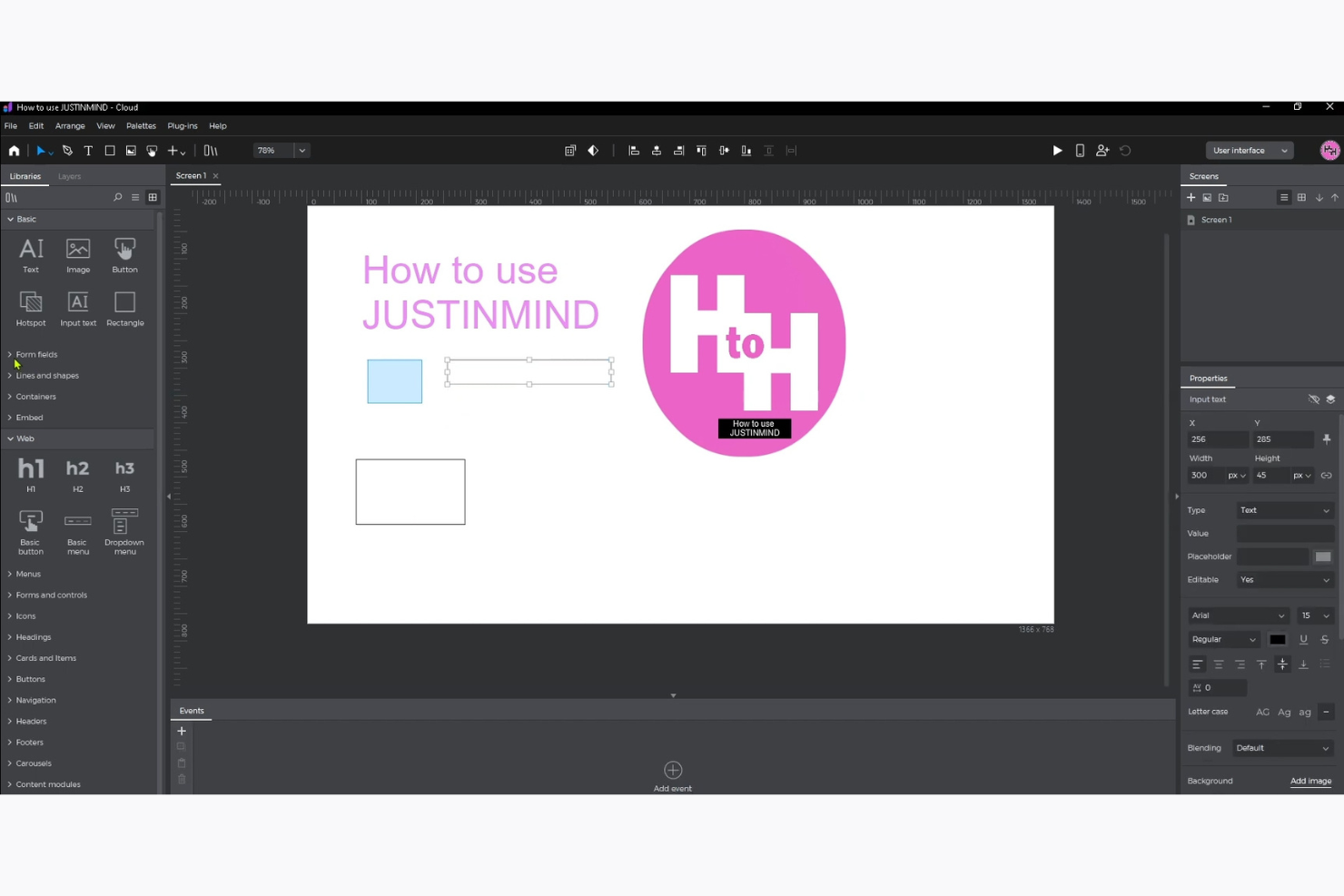
Justinmind è uno strumento di prototipazione progettato per UX designer e sviluppatori che hanno bisogno di creare wireframe interattivi per applicazioni web e mobile. Fornisce un ambiente intuitivo per costruire prototipi dettagliati che simulano le reali interazioni degli utenti.
Perché ho scelto Justinmind: Justinmind offre strumenti di prototipazione dettagliati sia per il web che per il mobile, consentendo di creare esperienze UI realistiche e interattive. La sua interfaccia drag-and-drop e le librerie UI predefinite permettono di collegare schermate, aggiungere interazioni e progettare i flussi utente rapidamente. Puoi simulare transizioni e comportamenti per testare l'usabilità prima che inizi lo sviluppo.
Caratteristiche principali e integrazioni:
Caratteristiche includono un'interfaccia drag-and-drop che semplifica il processo di progettazione. Lo strumento mette a disposizione librerie UI predefinite, consentendo di assemblare rapidamente gli elementi dell'interfaccia. È possibile simulare interazioni e transizioni, facendo sembrare i prototipi applicazioni reali.
Integrazioni includono Sketch, Adobe XD, Jira, Microsoft TFS, Azure DevOps, Google Drive, Dropbox, Slack, Trello e Microsoft Teams.
Pros and Cons
Pros:
- Supporta wireframe sia web che mobile
- Ampie librerie UI predefinite
- Consente la simulazione di interazioni e transizioni
Cons:
- Le prestazioni possono rallentare con file di grandi dimensioni
- Flessibilità limitata nella personalizzazione delle micro-interazioni e dei temi UI

Fluid UI
Ideale per la prototipazione rapida
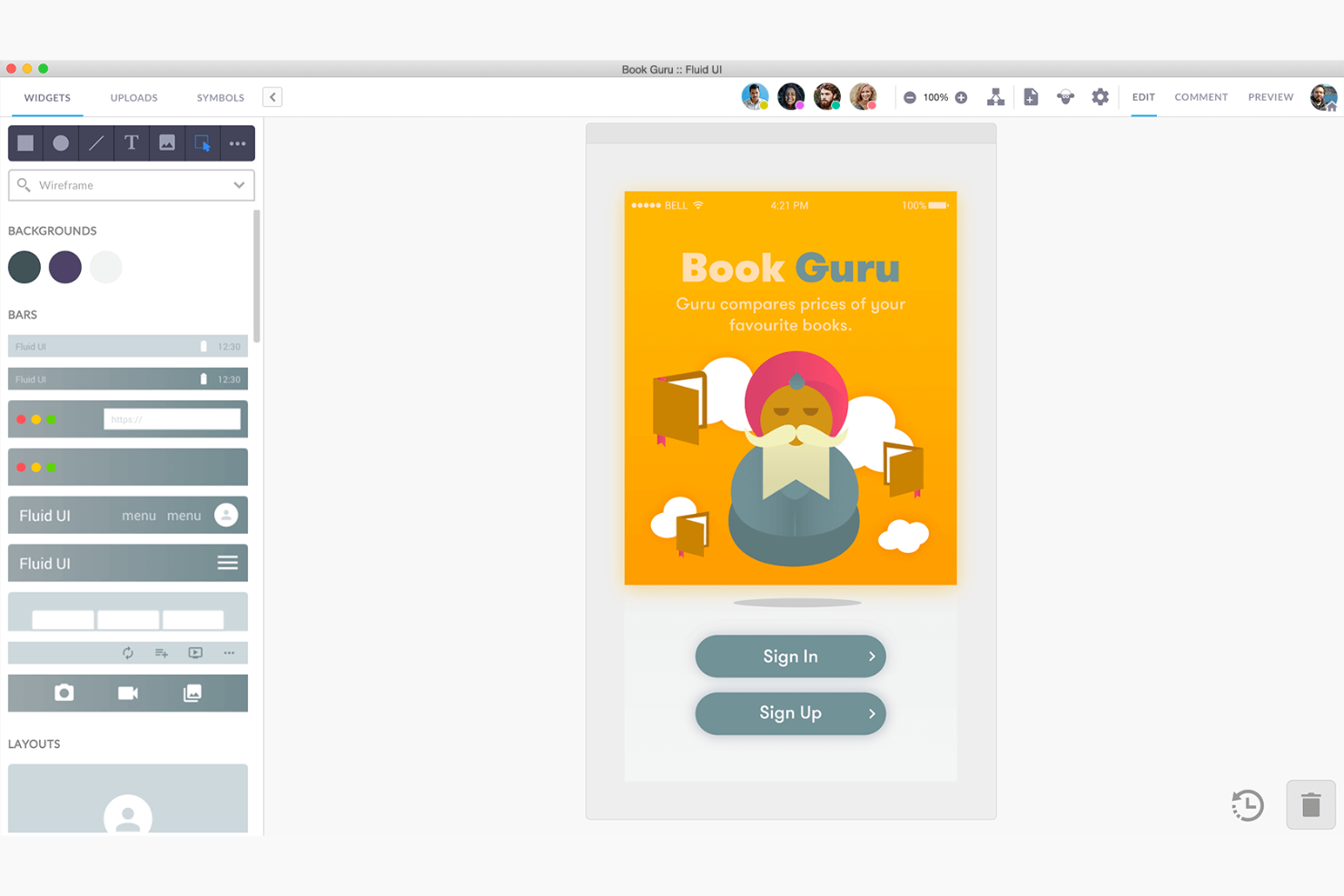
Fluid UI è uno strumento di prototipazione pensato per designer UX e UI che hanno bisogno di creare prototipi in modo rapido ed efficiente. Permette ai team di progettare e testare interfacce utente in un ambiente collaborativo.
Perché ho scelto Fluid UI: La prototipazione rapida è una caratteristica chiave, che consente di creare e iterare sui design velocemente. L'editor intuitivo dello strumento ti aiuta a costruire interfacce senza dover scrivere codice. Fluid UI offre una libreria di componenti predefiniti, velocizzando il processo di progettazione. Puoi anche testare i prototipi in tempo reale, raccogliendo feedback immediato dal tuo team.
Funzionalità principali & integrazioni:
Le funzionalità includono un editor facile da usare che rende la creazione delle interfacce semplice. Lo strumento fornisce una libreria di componenti predefiniti per aiutarti a progettare rapidamente. Le capacità di test in tempo reale ti permettono di raccogliere subito feedback e iterare rapidamente sui tuoi design.
Le integrazioni includono Slack, Trello, Google Drive, Dropbox, Jira, Confluence, Sketch, Figma, Adobe XD e Asana.
Pros and Cons
Pros:
- Offre componenti predefiniti
- Ideale per iterazioni di design veloci
- Non è richiesta programmazione per i prototipi
Cons:
- Capacità di animazione di base
- Può risultare limitante per design complessi

Adobe XD
Ideale per l'integrazione con la suite Adobe
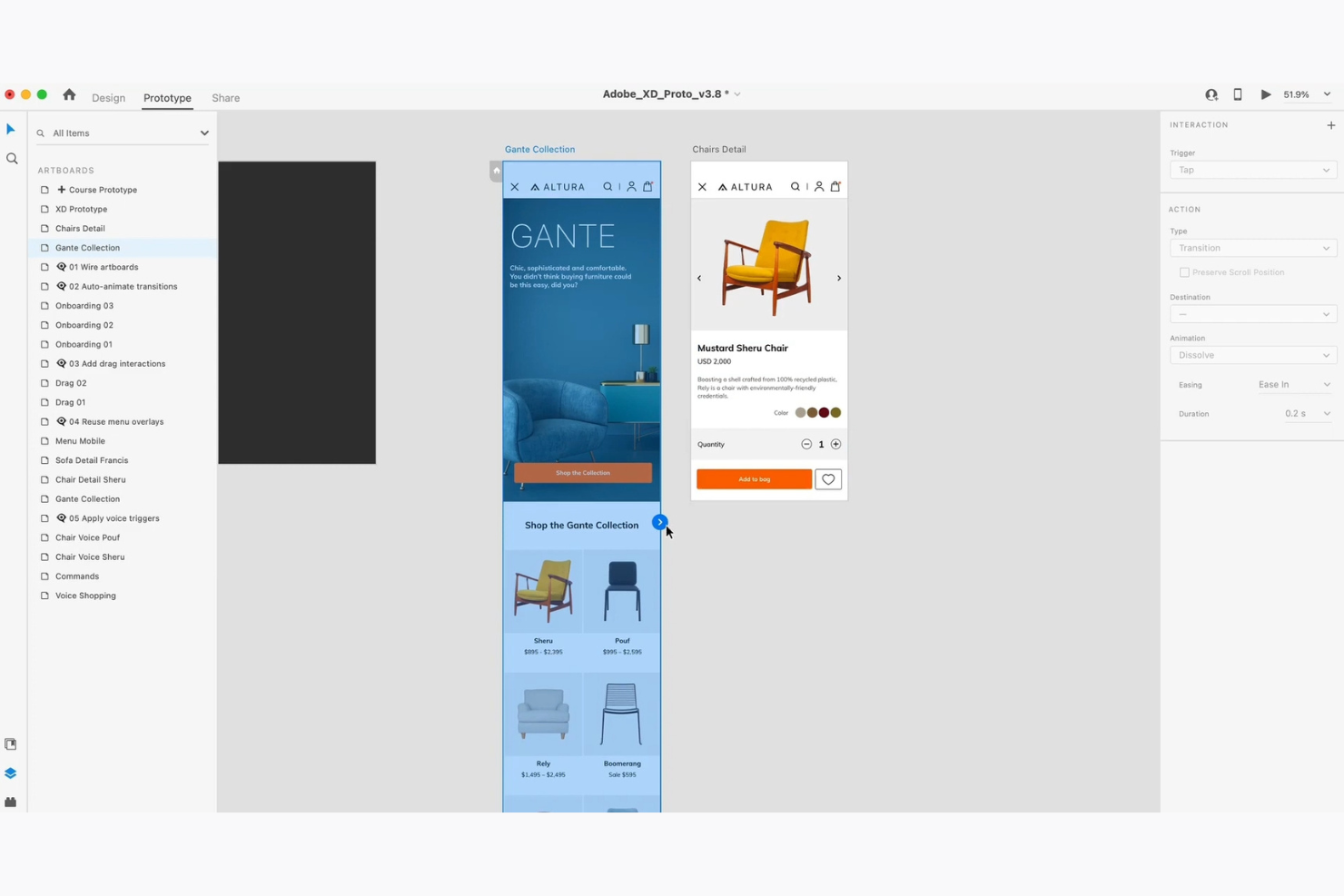
Adobe XD è uno strumento di design basato su vettori, creato per realizzare prototipi UI interattivi in modo rapido ed efficiente. Permette ai designer di collegare le schermate, definire le interazioni e visualizzare i flussi utente per testare la funzionalità prima dello sviluppo.
Perché ho scelto Adobe XD: Le sue funzioni di prototipazione consentono di creare esperienze realistiche e cliccabili con supporto per animazioni, transizioni e interazioni vocali. Puoi aggiornare facilmente i design e vedere immediatamente i cambiamenti riflessi nel prototipo, semplificando feedback e iterazione. La co-moderazione migliora ulteriormente la collaborazione, permettendo ai team di perfezionare insieme i prototipi in tempo reale.
Funzionalità e integrazioni principali:
Funzionalità includono la possibilità di prototipare con comandi vocali, aggiungendo una nuova dimensione al design interattivo. Puoi utilizzare la griglia ripetuta per creare e modificare rapidamente elementi ripetuti. La co-moderazione permette a più membri del team di lavorare sullo stesso progetto contemporaneamente.
Integrazioni includono Adobe Creative Cloud, Slack, Jira, Microsoft Teams, Zeplin, Trello, Google Drive, Dropbox, Asana e Abstract.
Pros and Cons
Pros:
- Supporta la prototipazione vocale
- Co-moderazione per collaborazione in tempo reale
- Flessibilità di design vettoriale
Cons:
- Richiede un abbonamento Adobe per tutte le funzionalità
- Supporto limitato per plugin di terze parti
Altri Strumenti di Prototipazione UI
Ecco alcune ulteriori opzioni di strumenti di prototipazione UI che non sono entrate nel mio elenco, ma che vale comunque la pena considerare:


Come Valuto gli Strumenti di Prototipazione UI
Divido la mia valutazione tra i requisiti di base—come la prototipazione interattiva e la consegna agli sviluppatori—e i fattori differenzianti che separano gli strumenti pensati per i team di prodotto dalle app di design generiche.
Funzionalità di Base (Requisiti Fondamentali per Questa Lista)
Quando seleziono gli strumenti per la mia lista, assegno a ciascuno un punteggio su una scala da 0 (non offre la funzionalità) a 5 (eccelle in quest'area) per ciascuna funzionalità di base elencata di seguito. Poi calcolo il punteggio totale dello strumento trasformandolo in percentuale. Ogni strumento deve ottenere un punteggio totale minimo del 75% per essere considerato.
- Prototipazione Interattiva: Valuto quanto bene uno strumento gestisce flussi multi-schermo con trigger reali, transizioni e logica condizionale—come simulare un flusso di checkout con stati diversi per utenti registrati e ospiti.
- Canvas di Design UI: La superficie di design è importante. Cerco editing vettoriale, auto-layout e controlli per frame responsivi che permettano di costruire schermate da zero invece di limitarsi a disporre risorse importate.
- Componenti e Librerie Riutilizzabili: I team che mantengono un design system hanno bisogno di componenti con varianti, stili condivisi e librerie di team. Verifico se è possibile aggiornare lo stile di un pulsante una sola volta e vedere la modifica propagarsi su tutte le schermate.
- Collaborazione in Tempo Reale: I team di prodotto co-modificano costantemente, quindi valuto se uno strumento supporta l'editing live multiplayer, i commenti in linea e la cronologia delle versioni—proprio come ci si aspetterebbe nello spazio di lavoro di Figma o Sketch.
- Consegna agli Sviluppatori: Guardo a modalità di ispezione, esportazione di asset e generazione di snippet di codice. Un product manager dovrebbe poter condividere un link al prototipo e consentire agli sviluppatori di recuperare misure, colori e spaziature senza la necessità di un documento di specifiche separato.
- Condivisione del Prototipo & User Testing: I link condivisibili con riproduzione interattiva sono la base. Oltre a ciò, verifico la presenza di link protetti da password, opzioni di embedding e funzionalità integrate di feedback o di test di usabilità per convalidare i design con utenti reali.
Una volta che ho una lista di strumenti che soddisfano questi criteri, considero cosa distingue ogni piattaforma.
Fattori Differenzianti (Cosa Distingue i Fornitori)
Ecco come metto a confronto i diversi fornitori:
Funzionalità Distintive
La generazione di design basata su AI è un grande elemento differenziante. Gli strumenti che trasformano un prompt testuale o uno schizzo approssimativo in un layout funzionale fanno risparmiare ore ai product manager nelle prime fasi di ideazione. Cerco anche funzionalità integrate di ricerca utente come usabilità testing o registrazione delle sessioni, che permettono di convalidare un prototipo senza dover cambiare piattaforma. Anche le integrazioni tra design e sviluppo contano. Quando un prototipo è collegato direttamente a ticket Jira o sincronizzato con Storybook, si colma il divario tra ciò che viene progettato e ciò che viene realizzato.
Oltre le Funzionalità
La curva di apprendimento è importante, soprattutto per i product manager che non sono designer di formazione. Valuto se uno strumento offre template, UI kit e risorse di onboarding che permettano anche ai non-designer di essere produttivi da subito. Anche l'ecosistema di integrazioni è fondamentale. Uno strumento di prototipazione che si connette a Jira, Slack o Confluence si integra naturalmente nei flussi di lavoro di prodotto esistenti. Considero anche come prezzi e licenze si adattano alla scala. Alcuni strumenti fanno pagare per ogni editor mentre i visualizzatori sono gratuiti, il che cambia i calcoli per team cross-funzionali ampi in cui la maggior parte degli stakeholder deve solo rivedere e commentare.
Come Scegliere uno Strumento di Prototipazione UI
È facile perdersi tra lunghe liste di funzionalità e strutture di prezzo complesse. Per aiutarti a restare concentrato durante il processo di selezione del software più adatto alle tue esigenze, ecco una checklist di fattori da tenere in considerazione:
| Fattore | Cosa Considerare |
| Scalabilità | Quanto lo strumento crescerà col tuo team? Valuta se il software può gestire un aumento di progetti o utenti senza problemi di prestazioni. Opta per soluzioni che offrano piani scalabili o funzionalità aggiuntive. |
| Integrazioni | Lo strumento si sincronizza col software che già usi? Verifica la compatibilità con strumenti di design, software di gestione progetti e piattaforme di comunicazione. In questo modo ottieni un flusso di lavoro fluido ed eviti silos di dati. |
| Personalizzazione | Puoi adattarlo alle esigenze del tuo team? Valuta se permette flussi di lavoro personalizzati, template e ruoli utente. Una buona personalizzazione migliora efficienza e soddisfazione. |
| Semplicità d’uso | Quanto è intuitivo per il tuo team? Considera la curva di apprendimento e se è necessaria formazione. Un’interfaccia user-friendly riduce i tempi di onboarding e aumenta il tasso di adozione. |
| Implementazione e onboarding | Quali risorse servono per iniziare? Valuta tempi e sforzi richiesti per la configurazione. Controlla se sono disponibili materiali formativi, supporto e assistenza per l’onboarding. Una buona implementazione riduce i disagi. |
| Costo | Lo strumento rientra nel tuo budget? Confronta i piani tariffari e considera il costo totale di proprietà, incluse eventuali spese aggiuntive. Cerca modelli di prezzo flessibili in linea coi tuoi vincoli finanziari. |
| Sicurezza | Come protegge i tuoi dati? Verifica le misure di sicurezza adottate come crittografia, controllo degli accessi e conformità agli standard di settore. Una solida sicurezza è essenziale per proteggere le informazioni sensibili. |
Cosa Sono gli Strumenti di Prototipazione UI?
Gli strumenti di prototipazione UI sono soluzioni software che aiutano designer e team a creare modelli interattivi di interfacce utente. Questi strumenti sono comunemente utilizzati da UX designer, product manager e sviluppatori per visualizzare e testare idee di design prima della fase di sviluppo.
Interfacce drag-and-drop, componenti interattivi e funzionalità di collaborazione in tempo reale facilitano iterazioni rapide di design, raccolta di feedback e allineamento del team. In generale, questi strumenti migliorano il processo di progettazione incrementando la comunicazione e riducendo i rischi di sviluppo.
Caratteristiche degli Strumenti di Prototipazione UI
Quando scegli uno strumento di prototipazione UI, tieni d'occhio le seguenti caratteristiche fondamentali:
- Componenti interattivi: Permettono di creare elementi dinamici che simulano le reali interazioni degli utenti, aiutando a visualizzare efficacemente le esperienze d'uso.
- Editor drag-and-drop: Semplifica il processo di progettazione, permettendo agli utenti di disporre e testare rapidamente gli elementi dell'interfaccia senza scrivere codice.
- Collaborazione in tempo reale: Consente ai membri del team di lavorare insieme simultaneamente, fornendo feedback immediato e accelerando il processo di design.
- Integrazione con sistemi di design: Garantisce coerenza tra i progetti incorporando linee guida e componenti di design già definiti.
- Funzionalità di user testing: Facilita la raccolta di feedback dagli utenti reali per migliorare i progetti e aumentarne l'usabilità.
- Interazioni condizionali: Supporta la creazione di flussi utente complessi consentendo esiti differenti in base alle azioni degli utenti.
- Componenti predefiniti: Offre una libreria di elementi di design pronti all'uso, velocizzando la fase di prototipazione e assicurando uniformità.
- Condivisione dei prototipi: Semplifica la distribuzione dei prototipi agli stakeholder per revisione e feedback.
- Integrazione dei dati: Permette di utilizzare dati reali nei prototipi, rendendo i progetti più realistici e funzionali.
- Funzioni di animazione: Fornisce strumenti per aggiungere transizioni e animazioni, migliorando l'aspetto visivo e l'interattività dei prototipi.
Vantaggi degli Strumenti di Prototipazione UI
Implementare strumenti di prototipazione UI offre numerosi vantaggi per il tuo team e la tua azienda. Ecco alcuni benefici che puoi aspettarti:
- Collaborazione migliorata: Le funzionalità di collaborazione in tempo reale consentono al team di lavorare in modo efficiente, riducendo fraintendimenti e accelerando il processo di design.
- Iterazioni più rapide: Editor drag-and-drop e componenti predefiniti permettono rapidi aggiustamenti e iterazioni, aiutandoti a perfezionare i progetti velocemente.
- Maggiore feedback dagli utenti: Le funzionalità di user testing consentono di raccogliere preziose informazioni dagli utenti reali, migliorando l'usabilità complessiva dei progetti.
- Design coerente: L'integrazione con sistemi di design assicura che i progetti mantengano un aspetto uniforme e allineato alle linee guida del brand.
- Minori rischi di sviluppo: I prototipi interattivi aiutano a visualizzare le interazioni complesse in anticipo, riducendo il rischio di modifiche in fase di sviluppo.
- Aumento della creatività: Funzioni di animazione e interazioni condizionali permettono di esplorare soluzioni creative, migliorando l'esperienza utente.
- Comunicazione efficiente: Le opzioni di condivisione del prototipo facilitano la presentazione delle idee agli stakeholder, assicurando che tutti siano allineati sulla direzione del progetto.
Costi e Prezzi degli Strumenti di Prototipazione UI
La scelta degli strumenti di prototipazione UI richiede una comprensione dei diversi modelli di prezzo disponibili. I costi variano in base a funzionalità, numero di utenti, componenti aggiuntivi e altri fattori. La tabella seguente riassume i piani più comuni, i prezzi medi e le funzionalità tipiche offerte dalle soluzioni di prototipazione UI:
Tabella Comparativa dei Piani per Strumenti di Prototipazione UI
| Tipo di Piano | Prezzo Medio | Funzionalità Comuni |
| Piano Gratuito | $0 | Strumenti di prototipazione base, componenti limitati e supporto della community. |
| Piano Personale | $10-$30/ utente/mese | Funzionalità di prototipazione complete, accesso a template e collaborazione limitata. |
| Piano Business | $30-$60/ utente/mese | Collaborazione di team, integrazione con sistemi di design e funzionalità avanzate di prototipazione. |
| Piano Enterprise | $60-$100/ utente/mese | Workflow personalizzabili, supporto dedicato e funzionalità avanzate di sicurezza. |
FAQ sugli strumenti di prototipazione UI
Ecco alcune risposte alle domande più comuni sugli strumenti di prototipazione UI:
In che modo gli strumenti di prototipazione UI supportano la collaborazione?
Gli strumenti di prototipazione UI spesso includono funzionalità come la collaborazione in tempo reale, che permette a più membri del team di lavorare contemporaneamente su un progetto. Questo aiuta a mantenere tutti allineati e accelera il ciclo di feedback. Il tuo team può vedere le modifiche in tempo reale e fornire input direttamente, migliorando il processo di progettazione complessivo.
Gli strumenti di prototipazione UI possono gestire flussi utente complessi?
Sì, molti strumenti di prototipazione UI sono dotati di funzioni per gestire flussi utente complessi tramite interazioni condizionali e avanzate capacità di animazione. Questi strumenti ti consentono di simulare percorsi utente dettagliati e di testare come gli utenti interagiranno con il tuo design. Questo è particolarmente utile per progetti con percorsi utente complessi.
Cosa dovrei considerare quando scelgo uno strumento di prototipazione UI per il mio team?
Quando selezioni uno strumento di prototipazione UI, valuta fattori come la scalabilità, l’integrazione con il software esistente e la facilità d’uso. Rifletti sulle esigenze specifiche e i flussi di lavoro del tuo team. È anche importante valutare il supporto alla collaborazione e la capacità di gestire progetti complessi.
Le versioni gratuite degli strumenti di prototipazione UI sono sufficienti per un uso professionale?
u003cspan style=u0022font-weight: 400u0022u003eLe versioni gratuite possono essere un buon punto di partenza per piccoli progetti o per uso individuale, ma spesso presentano limitazioni come funzionalità ridotte e meno opzioni di collaborazione. Per un utilizzo professionale, specialmente in team più grandi, potresti aver bisogno di un piano a pagamento per accedere a funzionalità avanzate e a tutte le potenzialità dello strumento.u003c/spanu003e
Come si integrano gli strumenti di prototipazione UI con altri software?
La maggior parte degli strumenti di prototipazione UI offre integrazioni con i più diffusi software di design e gestione dei progetti, come Sketch, Adobe XD e Jira. Questo garantisce un flusso di lavoro fluido tra le varie piattaforme, permettendo di importare ed esportare facilmente i design e collaborare in modo efficace con i membri del team.
A quali misure di sicurezza dovrei prestare attenzione in uno strumento di prototipazione UI?
La sicurezza è fondamentale, soprattutto se gestisci dati sensibili. Cerca strumenti che offrano crittografia, controlli di accesso e conformità agli standard di settore. È importante assicurarsi che lo strumento scelto abbia solide misure di sicurezza per proteggere i tuoi dati e quelli dei tuoi clienti.
Cosa succede ora:
Se stai ricercando strumenti di prototipazione UI, contatta gratuitamente un consulente SoftwareSelect per ricevere consigli.
Compili un modulo e avrai una breve chiamata per approfondire le tue esigenze. Riceverai poi una shortlist di software da valutare. Ti supporteranno anche durante l’intero processo di acquisto, comprese le negoziazioni sul prezzo.