

The best UI automation tools streamline software testing by reducing manual errors, accelerating release cycles, and giving teams confidence in product quality. Without them, product managers face delays from repetitive test cases, inconsistent results across browsers or devices, and wasted engineering hours fixing issues that could have been caught earlier.
The right platform automates these steps, integrates with your workflow, and frees your team to focus on delivering features. After testing multiple tools across fast-moving product teams, I’ve identified the most reliable options to help you improve accuracy, speed, and collaboration.
Why Trust Our Software Recommendations
6,700+
Reviews
20
Industry experts
16+
Evaluation factors
14
Years
Our team has been testing and reviewing software since 2012. As product managers ourselves, we know how difficult—and important—it is to choose the right software.
For this guide, we evaluated tools using hands-on testing and independent research, scoring tools using our selection criteria.
Our reviews reflect our human editorial judgment, not a sales pitch.
Expert reviewers:
- Andrew LumbySenior TPM
- Cristiano ValimSenior UI/UX Lead


UI Automation Tools Comparison Table
This comparison table summarizes pricing details for my top UI automation tools selections:
| Tool | Best For | Trial Info | Price | ||
|---|---|---|---|---|---|
| 1 | Best for AI-managed test suite with flake guarantees | Free demo available | From 1¢/AI credit | Website | |
| 2 | Best for real-device cross-browser testing at scale | Free trial available | From $29/user/month (billed annually) | Website | |
| 3 | Best for plain-English test authoring at scale | Free plan + 14-day free trial + free demo available | Pricing upon request | Website | |
| 4 | Best for web, API, and mobile testing in one platform | Free plan + 30-day free trial + free demo available | From $180/seat/month | Website | |
| 5 | Best for cloud-native continuous testing | Free demo available | Pricing upon request | Website | |
| 6 | Best for large-scale test management in enterprises | Free demo available | Pricing upon request | Website | |
| 7 | Best for enterprise continuous testing at scale | Free trial + free demo available | Pricing upon request | Website | |
| 8 | Best for AI-driven end-to-end test automation | 14-day free trial + free demo available | Pricing upon request | Website | |
| 9 | Best for developer-friendly cross-browser automation | Free plan available | Free, open-source | Website | |
| 10 | Best for scriptless testing | 14-day free trial + free demo available | From $3,598/year (billed annually) | Website |


Best UI Automation Tool Reviews
Below are my detailed summaries of the best UI automation tools that made it onto my shortlist. My reviews offer a detailed look at the key features, pros & cons, integrations, and ideal use cases of each tool to help you find the best one for you.
 Best for AI-managed test suite with flake guarantees
- Free demo available
- From 1¢/AI credit
Visit WebsiteCustomer Rating:4.9/5This rating combines scores from multiple user review sites to reflect overall customer sentiment about the product.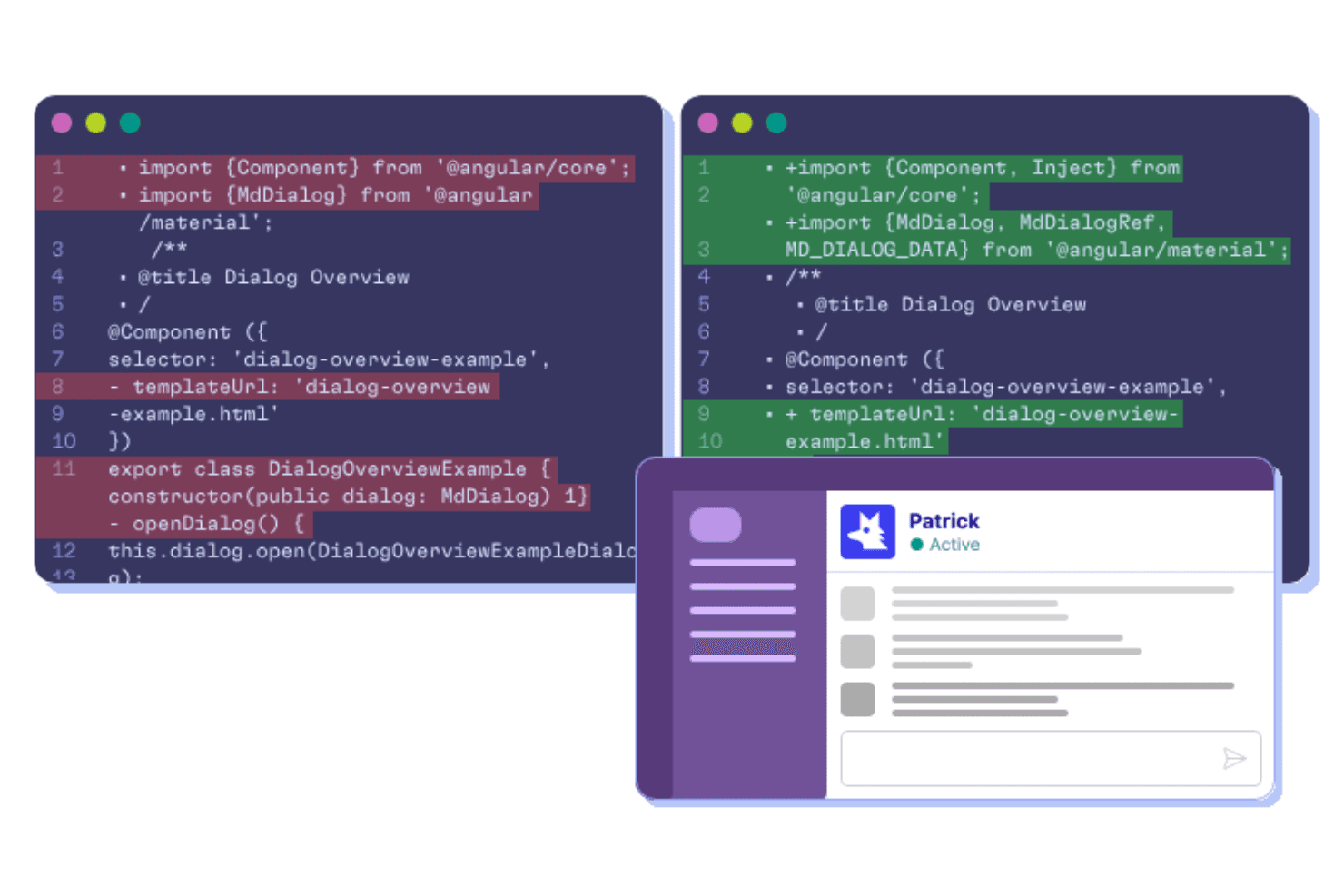
QA Wolf supports UI automation by helping teams create, maintain, and troubleshoot automated end-to-end tests as application code changes. QA Wolf is a UI test automation platform that combines AI-driven test creation, cloud-based parallel execution, and an optional fully managed service for building and maintaining end-to-end test suites across web, mobile, and Electron apps.
Who Is QA Wolf Best For?
QA Wolf is a strong fit for QA engineers and test managers at scaling software teams who need AI-driven test coverage without the overhead of building and maintaining the infrastructure themselves.
Why I Picked QA Wolf
I picked QA Wolf as one of the best because its AI-managed service is the only option I've seen that backs a full test suite with a Zero Flake Guarantee and a 24-hour maintenance SLA. Automation AI doesn't just flag broken tests; it reproduces the failure, identifies the root cause, and rewrites the Playwright or Appium code automatically. Mapping AI can explore your app and generate 200+ test cases without any human input, then adjust those tests as you ship new features.
QA Wolf Key Features
- Parallel test execution: Run unlimited tests simultaneously, each in its own isolated container with pre-warmed environments to cut startup time to milliseconds.
- Visual regression testing: Capture pixel-level screenshot comparisons with adjustable tolerances across web and native mobile to catch unintended UI changes.
- Run Rules: Configure test order, dependencies, and multi-user workflows without writing custom orchestration scripts.
- CI/CD triggers: Kick off test runs via deploy webhook, REST API, CLI, or the
@qawolf/ci-sdk, with results reporting back as GitHub or GitLab checks.
QA Wolf Integrations
QA Wolf has native integrations with GitHub, GitLab, CircleCI, TestRail, Xray, Zephyr, Qase.io, Jira, Linear, and Azure DevOps Boards. It also supports REST API, webhooks,
@qawolf/ci-sdk, CLI, and GitHub Actions for CI/CD workflows.Pros and Cons
Pros:
- Handles complex mobile and multi-user workflows
- Isolated containers support unlimited parallel runs
- AI repairs nearly all flaky tests
Cons:
- Mobile testing requires managed service
- Dashboards can obscure failure signals
Learn more about QA Wolf: Best for real-device cross-browser testing at scale
- Free trial available
- From $29/user/month (billed annually)
Visit WebsiteCustomer Rating:4.5/5This rating combines scores from multiple user review sites to reflect overall customer sentiment about the product.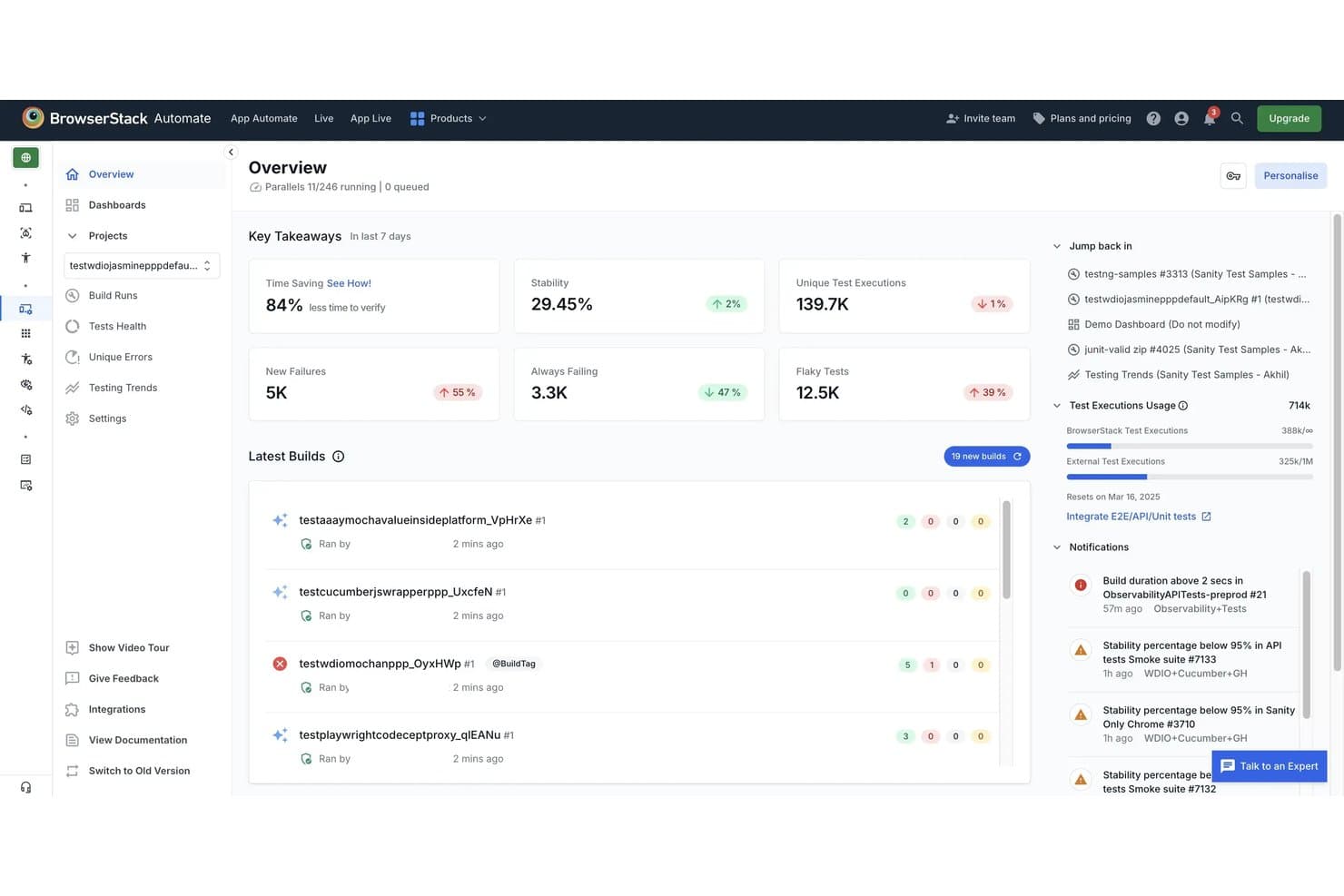
BrowserStack helps teams monitor UI automation runs, test stability, failures, and flaky tests from one dashboard. BrowserStack is a cloud-based UI automation platform that runs test scripts across real devices and browsers, supporting frameworks like Selenium, Playwright, Cypress, and Appium alongside low-code and AI-assisted test creation tools.
Who Is BrowserStack Best For?
BrowserStack is a strong fit for QA and DevOps teams that need to run automated tests across a wide range of real browsers and devices without maintaining their own infrastructure.
Why I Picked BrowserStack
BrowserStack earns its spot as one of the best on my shortlist because no other tool comes close to its real-device and browser coverage: 35,000+ real devices and 3,500+ browser combinations, all without maintaining a single piece of hardware. I love that parallel execution scales to run thousands of tests simultaneously, with customer examples like 20,000 tests completing in two hours. The AI-powered Test Failure Analysis Agent automatically sorts failures into product, automation, or environment issues, cutting triage time significantly.
BrowserStack Key Features
- Test Failure Analysis Agent: Automatically categorizes test failures into product, automation, or environment issues to speed up root-cause investigation.
- 46 CI/CD integrations: Connects with Jenkins, GitHub Actions, GitLab CI, Azure Pipelines, CircleCI, and more to fit tests directly into your existing pipeline.
- Percy visual regression testing: Uses AI-based visual comparisons to detect layout shifts, DOM changes, and CSS differences across builds.
- Quality Gates: Lets you set rules that block or allow merges and deployments based on test stability, new failures, and flakiness thresholds.
BrowserStack Integrations
BrowserStack lists integrations across multiple products, including Jenkins, GitHub Actions, GitLab, Azure Pipelines, CircleCI, Jira, GitHub, Slack, and Microsoft Teams. A REST API supports custom CI/CD integrations.
Pros and Cons
Pros:
- Detailed videos and logs speed debugging
- Parallel execution cuts regression cycles
- Real-device coverage across browsers and devices
Cons:
- Self-healing supports only Selenium and Cypress
- Peak-time queues slow test sessions
Learn more about BrowserStack: Best for plain-English test authoring at scale
- Free plan + 14-day free trial + free demo available
- Pricing upon request
Visit WebsiteCustomer Rating:4.8/5This rating combines scores from multiple user review sites to reflect overall customer sentiment about the product.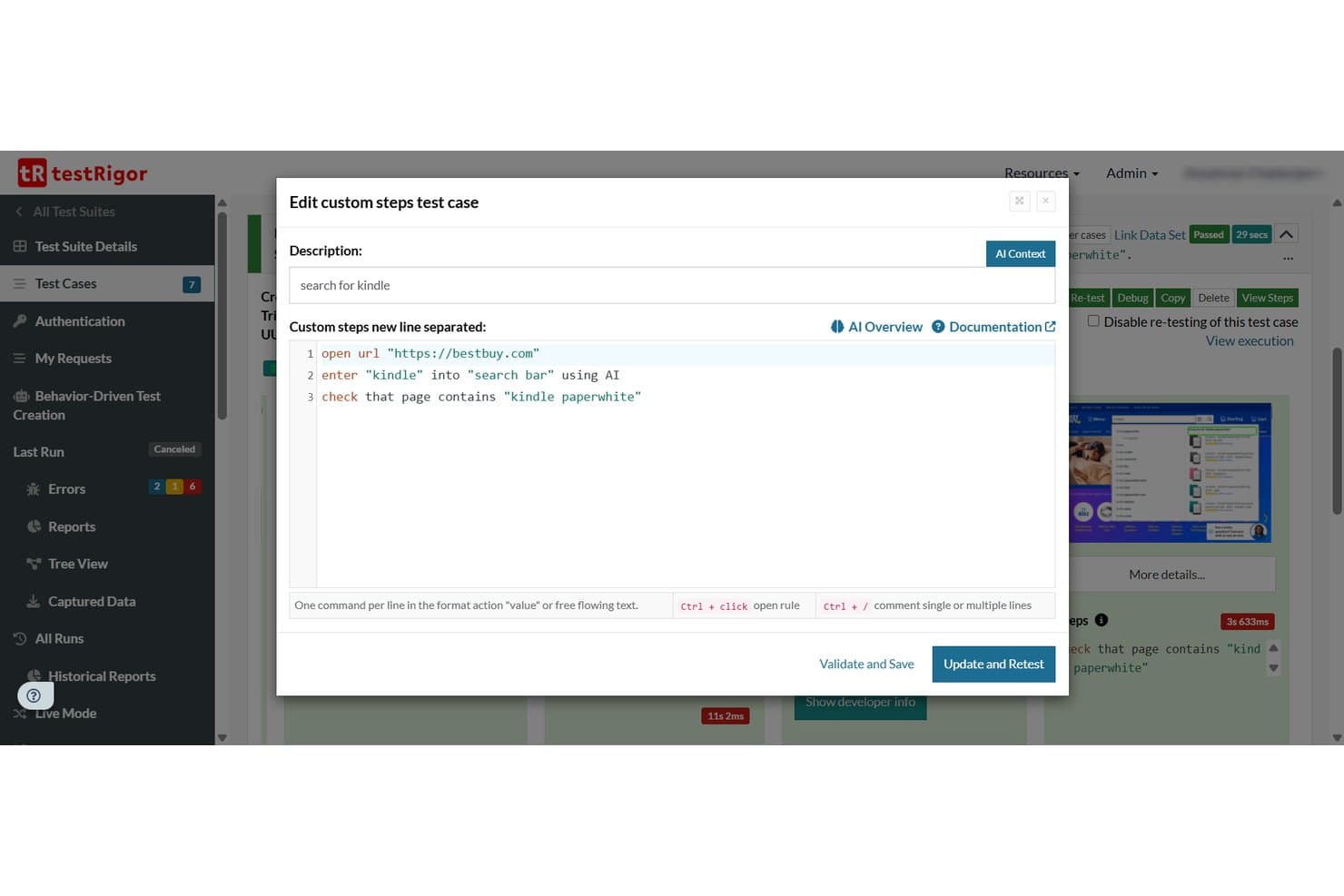
testRigor lets users write plain-English test steps for UI automation. testRigor is a UI automation testing platform that supports web, mobile, desktop, API, and email testing through plain-English test scripts, AI-generated test cases, and cross-environment execution across thousands of browser, device, and OS combinations.
Who Is testRigor Best For?
testRigor is a strong fit for QA teams and product managers who need to build and scale test coverage without relying on engineers to write or maintain every test.
Why I Picked testRigor
testRigor earns its spot on my shortlist because it lets non-engineers write real end-to-end tests in plain English, like
click "Add to cart"orcheck that page contains "Order confirmed", without touching a single selector. I also like that you can paste a Jira ticket or user story directly into testRigor and get a runnable test suite out of it, which genuinely cuts the time from spec to coverage. On top of that, one test can chain web, mobile, API, email, and SMS steps together, so you're not juggling separate tools for each surface.testRigor Key Features
- Visual regression testing: Compare screens pixel-by-pixel against previous versions or stored baselines, with configurable tolerance levels and severity classifications.
- Parallel test execution: Run up to 10,000 parallel servers simultaneously, with configurable batch sizes and team-based server allocation on Enterprise plans.
- API and database testing: Execute API calls, run SQL queries against MySQL, PostgreSQL, Oracle, and MongoDB, and validate downloaded file contents within your test flows.
- Production behavior-based test generation: A JavaScript library captures anonymized usage data from your live app and automatically generates tests for your most frequent user flows.
testRigor Integrations
testRigor offers documented integrations with GitHub Actions, GitLab, Jenkins, Azure DevOps, CircleCI, BrowserStack, LambdaTest, SauceLabs, Jira, and TestRail. It also supports custom integrations through its CLI and API.
Pros and Cons
Pros:
- Parallel execution supports large regression suites
- Cross-platform coverage spans web, mobile, desktop
- Plain-English scripts reduce locator maintenance
Cons:
- Occasional reruns and crashes disrupt execution
- Debugging failures can lack sufficient visibility
Learn more about testRigor: Best for web, API, and mobile testing in one platform
- Free plan + 30-day free trial + free demo available
- From $180/seat/month
Visit WebsiteCustomer Rating:4.4/5This rating combines scores from multiple user review sites to reflect overall customer sentiment about the product.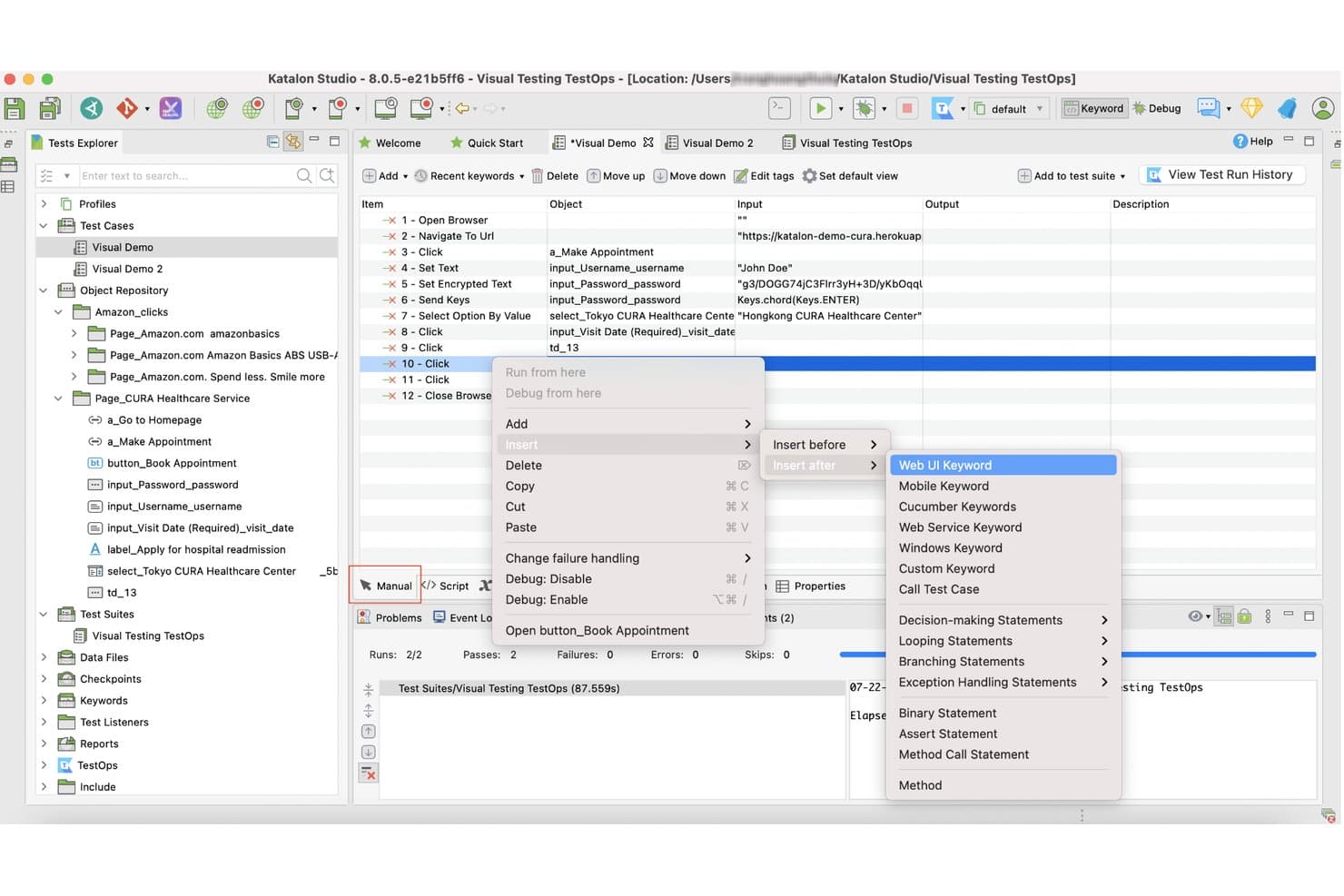
Katalon Studio lets users insert Web UI keywords via right-click context menu. Katalon Studio is a UI automation testing platform that supports web, mobile (iOS and Android), API, and Windows desktop testing from a single IDE, with no-code recorders, full Groovy/Java scripting, and built-in AI-assisted test creation.
Who Is Katalon Studio Best For?
Katalon Studio is a strong fit for QA engineers and test managers on mixed-skill teams who need to cover web, mobile, API, and desktop testing without juggling multiple tools.
Why I Picked Katalon Studio
I picked Katalon Studio as one of the best because it genuinely consolidates web, mobile, API, and Windows desktop testing into a single project, so I'm not context-switching between tools mid-sprint. I particularly like the no-code recorder paired with full Groovy/Java scripting, which means both manual testers and engineers can contribute to the same suite. The two-layer self-healing (classic locator fallback, then AI-assisted analysis with human approval) keeps tests alive through UI changes without requiring a full rewrite.
Katalon Studio Key Features
- AI test generation: Creates test cases automatically from Jira tickets or written requirements, supporting both low-code authoring and natural-language test steps.
- Visual regression testing: Compares UI screenshots against baselines using pixel-level, layout, or text-content analysis, with configurable sensitivity and a review workflow for each difference.
- TestOps traceability: Links requirements, test runs, defects, and releases into a single view, giving test managers real-time release-readiness data.
- Real-device cloud grid: Runs tests on actual iOS and Android devices with advanced mobile simulation, including GPS spoofing, network throttling, and camera injection.
Katalon Studio Integrations
Katalon Studio offers native integrations with Jenkins, GitHub Actions, GitLab, Azure DevOps, Jira, Slack, TestRail, BrowserStack, LambdaTest, and Selenium Grid. It also supports integrations with Postman, SoapUI, and SQL Server.
Pros and Cons
Pros:
- Provides human-reviewed self-healing suggestions
- Supports no-code through Groovy and Java
- Covers web, mobile, API, and desktop
Cons:
- AI image healing can be unreliable
- Resource-heavy suites can slow or crash
Learn more about Katalon Studio: Best for cloud-native continuous testing
- Free demo available
- Pricing upon request
Visit WebsiteCustomer Rating:4.4/5This rating combines scores from multiple user review sites to reflect overall customer sentiment about the product.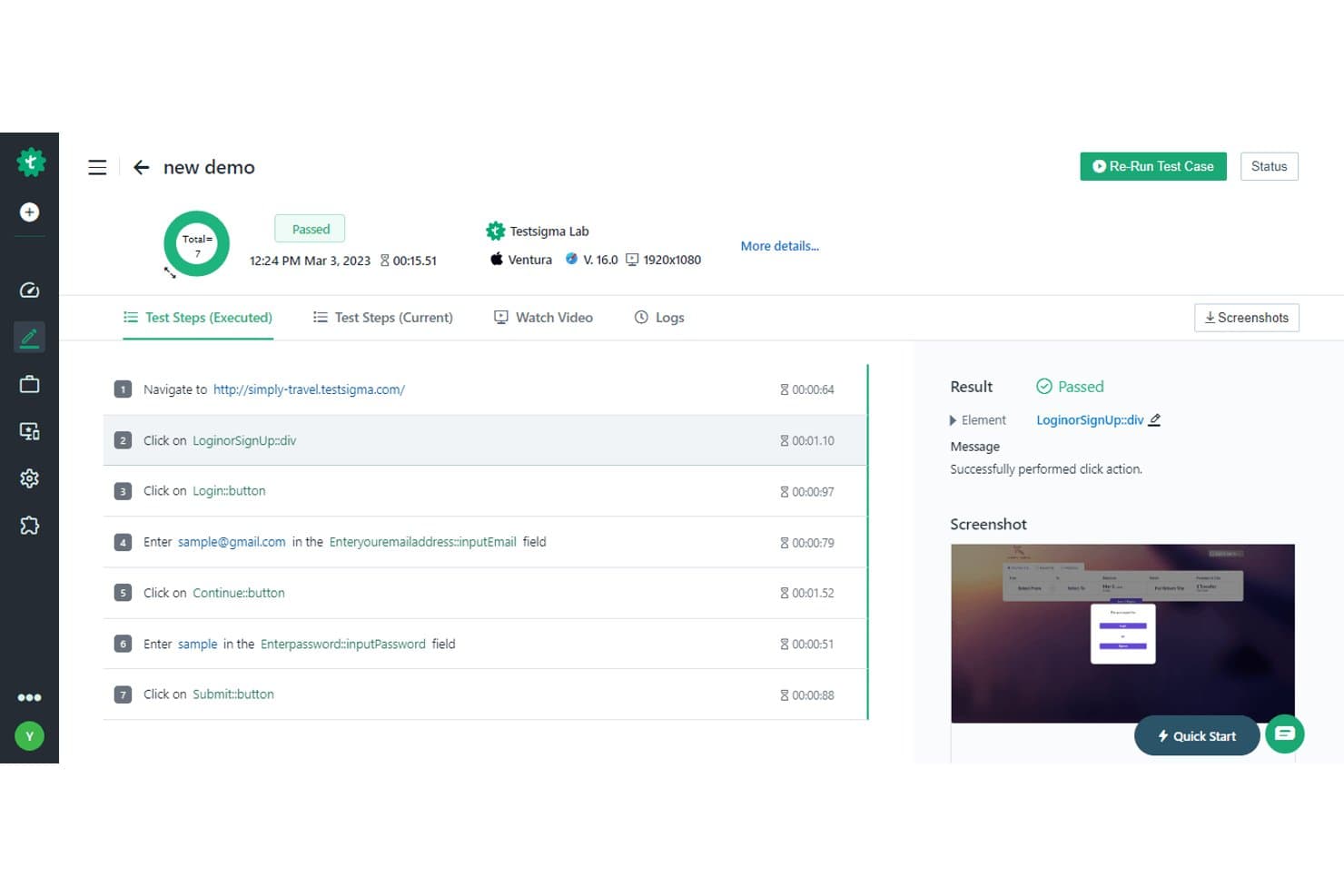
Testsigma displays detailed test step results with pass/fail status and screenshots. Testsigma is a cloud-native UI automation testing platform that supports web, mobile, desktop, API, Salesforce, and SAP testing through a combination of plain-English test creation, AI-driven test generation, and built-in CI/CD integrations.
Who Is Testsigma Best For?
Testsigma is a strong fit for QA and DevOps teams that need to run continuous, automated tests across web, mobile, and API layers within active CI/CD pipelines.
Why I Picked Testsigma
Testsigma earns its spot on my list because it's built from the ground up for cloud-native continuous testing, not retrofitted for it. I love that the Atto AI agents handle the full test lifecycle: generating tests from Jira stories or Figma designs, healing broken locators automatically, and producing a release confidence score that combines pass rate, coverage, and critical-path risk into one actionable number. That last feature alone makes it easier to gate releases in a live CI/CD pipeline without manual sign-off.
Testsigma Key Features
- Visual regression testing: Compares screenshots at each test step and lets you limit comparisons to specific page areas or elements.
- API testing: Supports REST, SOAP, and GraphQL, with test generation from Postman collections and Swagger/OpenAPI specs.
- Test data management: Stores positive and negative data sets in one place, with support for runtime variables, randomized data, and AI-generated test data.
- Cross-platform coverage: Runs tests across web, mobile (iOS and Android), Windows desktop, Salesforce, and SAP from a single platform.
Testsigma Integrations
Testsigma offers 30+ native integrations on Pro and 40+ on Enterprise, including Jenkins, GitHub Actions, Azure DevOps, Jira, Slack, Microsoft Teams, BrowserStack, Sauce Labs, and LambdaTest. Its REST API supports custom CI/CD workflows and environment-targeted test execution.
Pros and Cons
Pros:
- Diagnoses failures with visual evidence
- Covers web, mobile, APIs, and desktop
- Generates tests from Jira and Figma
Cons:
- Large test runs may execute slowly
- Complex workflows can challenge automation
Learn more about Testsigma: Best for large-scale test management in enterprises
- Free demo available
- Pricing upon request
Visit WebsiteCustomer Rating:4.2/5This rating combines scores from multiple user review sites to reflect overall customer sentiment about the product.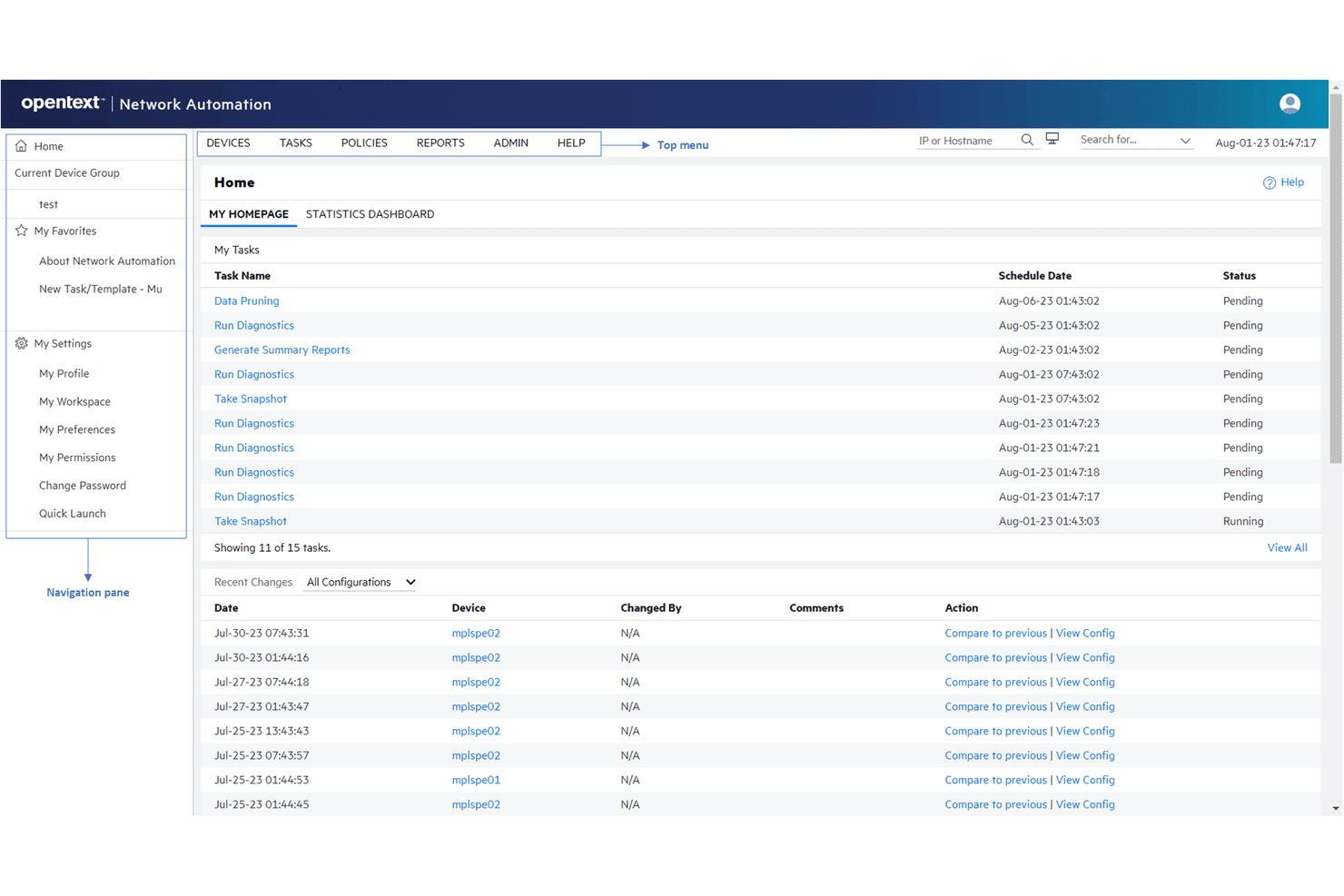
OpenText delivers functional, performance, and load testing for enterprises. OpenText Functional Testing is a UI automation platform that covers web, desktop, mobile, API, and enterprise app testing—with scripting in Python and VBScript, a real-device lab, model-based testing, and built-in test management tools like AQM and SDM.
Who Is OpenText Best For?
OpenText is a strong fit for enterprise QA and test engineering teams that need to manage large-scale test programs across legacy, desktop, and modern web environments from a single vendor.
Why I Picked OpenText
OpenText earns its spot on my shortlist because no other tool covers large-scale enterprise test management as thoroughly from a single vendor. I like that AQM provides requirements-driven test planning with full traceability matrices and audit trails, which matters when you're managing thousands of test assets across regulated environments. The Autonomous Tester in Core SDP can execute existing manual tests without any scripting, cutting the overhead for teams running high-volume regression programs at scale.
OpenText Key Features
- Python and VBScript scripting: Write test scripts in either Python or VBScript, with support for data-driven testing and modular, reusable components.
- Real-device lab: Run tests on real Android and iOS devices, emulators, and cloud browsers, with built-in accessibility testing and AWS Device Farm access.
- CI/CD pipeline plugins: Connect directly to Jenkins, Azure DevOps, GitHub Actions, GitLab, and Harness CI with ready-made plugins and integrations.
- Autonomous Tester: Execute existing manual, Gherkin/BDD, and MBT tests automatically without writing any scripts.
OpenText Integrations
OpenText offers native integrations with Jenkins, Azure DevOps, GitHub Actions, GitLab, Git, and Docker. Functional Testing Lab also supports Selenium, and Appium.
Pros and Cons
Pros:
- Unifies UI, API, mobile, and governance
- Supports large-scale parallel regression execution
- Covers legacy and modern enterprise applications
Cons:
- VBScript dependence persists alongside Python support
- Long runs can become slow or unstable
Learn more about OpenText: Best for enterprise continuous testing at scale
- Free trial + free demo available
- Pricing upon request
Visit WebsiteCustomer Rating:4.2/5This rating combines scores from multiple user review sites to reflect overall customer sentiment about the product.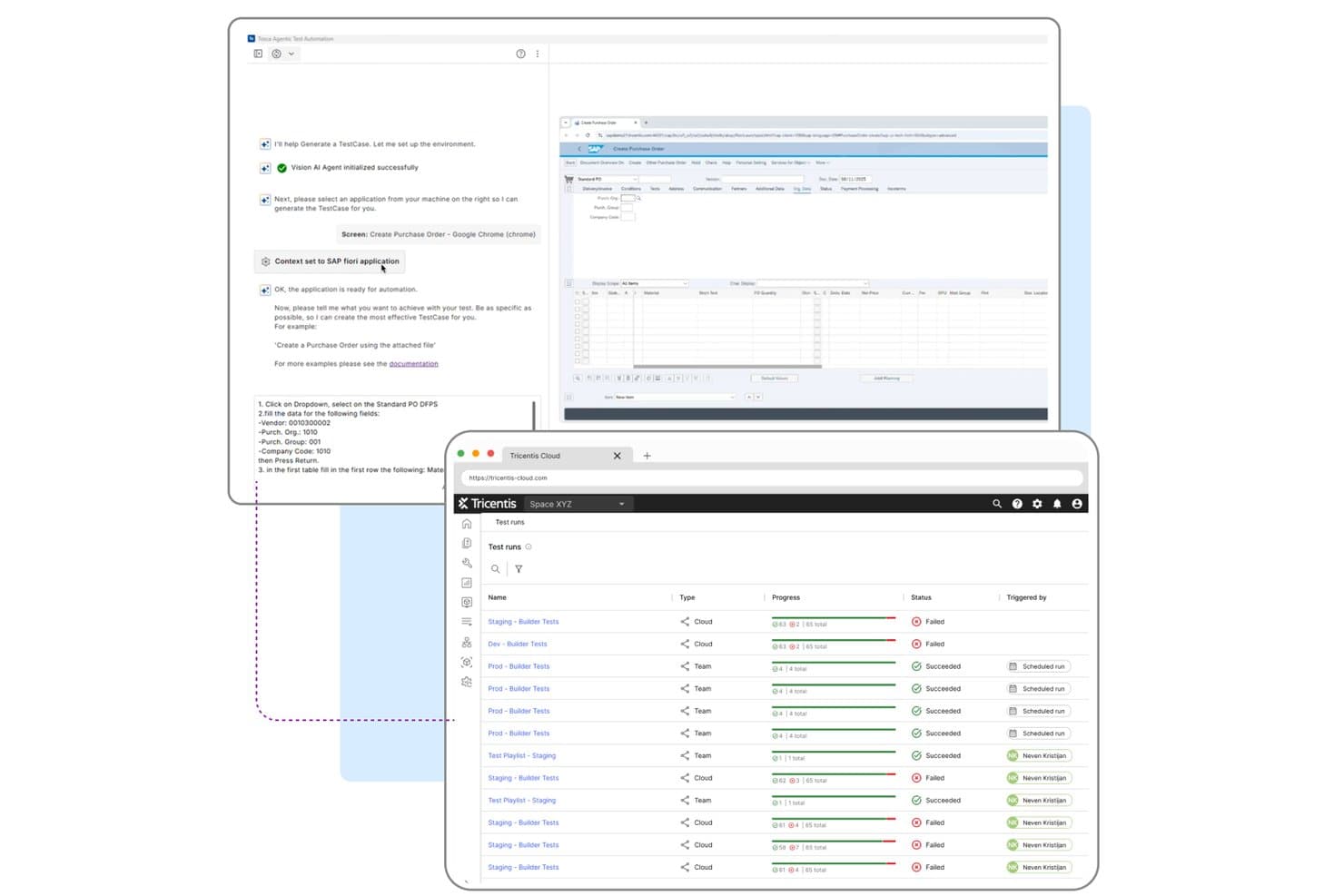
Tricentis Tosca automates UI test creation and tracks cloud test run results. Tricentis Tosca is a model-based UI automation platform that covers web, desktop, mobile, and enterprise apps—including SAP, Oracle, Salesforce, and Workday—with codeless test creation, AI-driven test generation, self-healing, and parallel execution at scale.
Who Is Tricentis Tosca Best For?
Tosca is a strong fit for QA teams at large enterprises that need to automate testing across SAP, Oracle, Salesforce, or Workday alongside web, desktop, and mobile apps in a single platform.
Why I Picked Tricentis Tosca
Tricentis Tosca earns its spot on my shortlist because no other tool handles enterprise app ecosystems—SAP, Oracle, Salesforce, Workday—alongside web, desktop, and mobile in a single platform the way Tosca does. I'm particularly impressed by the Elastic Execution Grid, which runs thousands of tests in parallel across cloud, on-prem, or hybrid agents without manual load balancing. The Agentic Test Automation feature also stands out to me: you describe a test in plain language and Tosca generates it, merging the result with your existing assets automatically.
Tricentis Tosca Key Features
- Vision AI recognition: Identifies UI controls by visual attributes—type, label, position, and color—so tests run on any technology, including Citrix and VMware remote desktops.
- Self-healing test execution: Automatically repairs broken test steps using weighted or combination matching, then flags healed steps in the execution log for review.
- Model-based test architecture: Stores test logic in reusable modules separate from application code, so a single fix to a shared module updates every test that references it.
- Tosca Query Language (TQL) AI queries: Converts plain-language questions into TQL queries to locate unused, duplicate, or failing tests across your workspace.
Tricentis Tosca Integrations
Tricentis Tosca integrates with Jenkins, qTest, Sauce Labs, BrowserStack, LambdaTest, and Perfecto. Its REST API and CLI support custom CI/CD connections, including Azure DevOps workflows.
Pros and Cons
Pros:
- Runs thousands of tests in parallel
- Reusable models reduce regression maintenance
- Covers SAP, Oracle, Salesforce, and Workday
Cons:
- Cloud reports expire after 30 days
- Complex setup challenges smaller QA teams
Learn more about Tricentis Tosca: 8Best for AI-driven end-to-end test automation
Mabl
- 14-day free trial + free demo available
- Pricing upon request
Visit WebsiteCustomer Rating:4.2/5This rating combines scores from multiple user review sites to reflect overall customer sentiment about the product.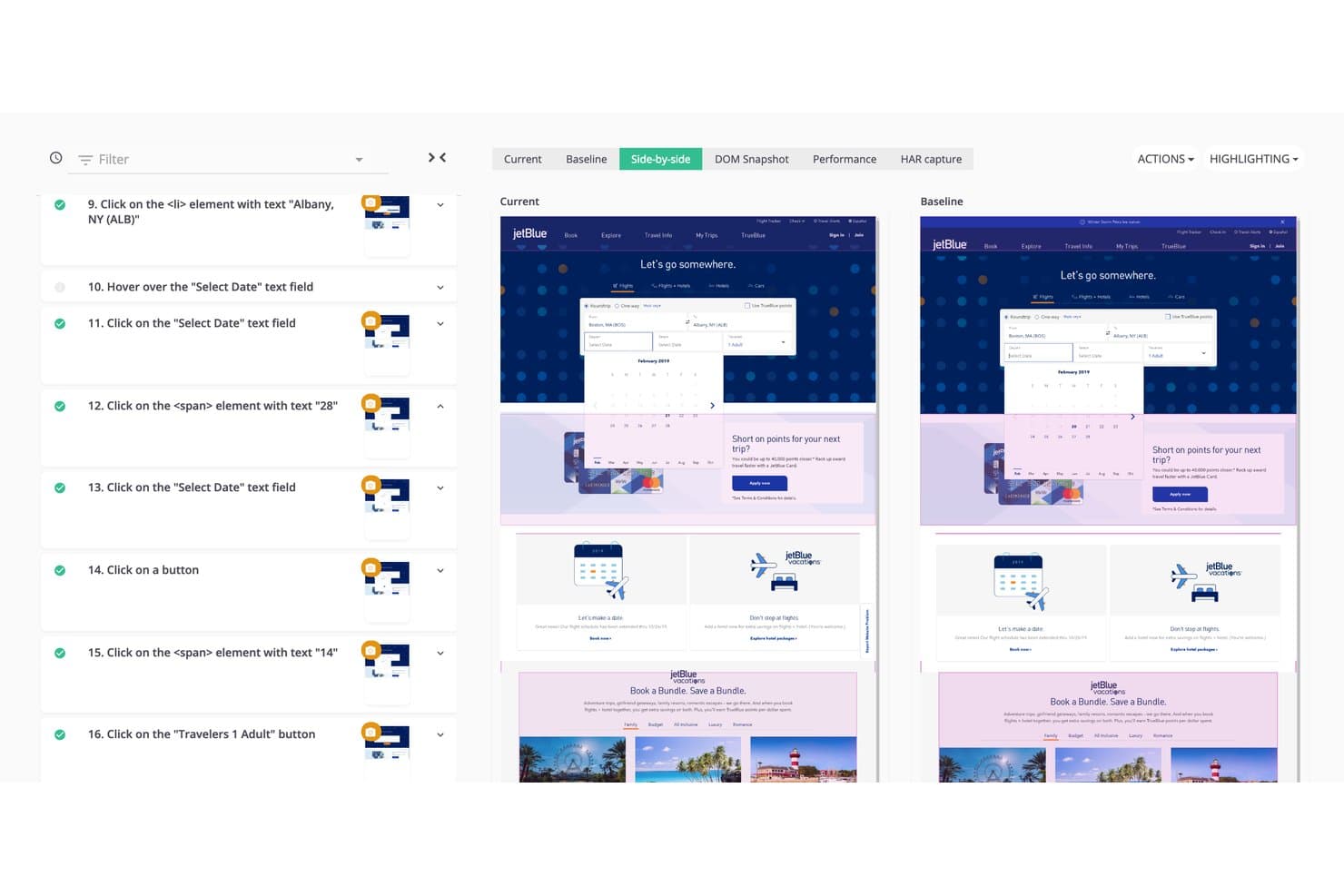
Mabl lets users compare current vs. baseline UI screenshots side by side. Mabl is an AI-driven test automation platform that combines agentic test authoring, low-code recording, cross-browser execution, self-healing maintenance, and built-in API, visual, and mobile testing in a single suite.
Who Is Mabl Best For?
Mabl is a strong fit for QA and DevOps teams that need to scale end-to-end test coverage across web and mobile without growing their maintenance burden.
Why I Picked Mabl
Mabl earns its spot on my shortlist because its agentic test authoring genuinely changes how fast a team can build end-to-end coverage. I love that you can describe a test in plain language, and the agent writes the steps, runs them, and reworks anything that fails before saving. The Adaptive Auto-Healing layer then handles UI changes automatically, using multiple AI models to update locators without you touching the test.
Mabl Key Features
- Unlimited cloud concurrency: Run browser, API, and mobile tests in parallel across all environments at no extra cost.
- Auto TFA (automatic test failure analysis): Analyzes each failed test to identify root cause and labels it as a real regression, app change, or noise.
- Visual regression testing: Compares baseline and current screenshots side by side, flagging UI changes with bounding boxes for review.
- Cross-browser execution: Tests run across Chrome, Edge, Firefox, and Safari from a single test, with no browser-specific code required.
Mabl Integrations
Mabl offers native integrations with GitHub Actions, GitLab, Jenkins, Azure Pipelines, Bitbucket, Jira, TestRail, Slack, Microsoft Teams, and Postman, plus a REST API and CLI for custom CI/CD workflows.
Pros and Cons
Pros:
- Cross-browser execution supports broad UI coverage
- Auto-healing reduces locator maintenance work
- Agentic authoring expands coverage quickly
Cons:
- Trainer consumes substantial computer memory
- Cloud test execution can run slowly
Learn more about Mabl: Best for developer-friendly cross-browser automation
- Free plan available
- Free, open-source
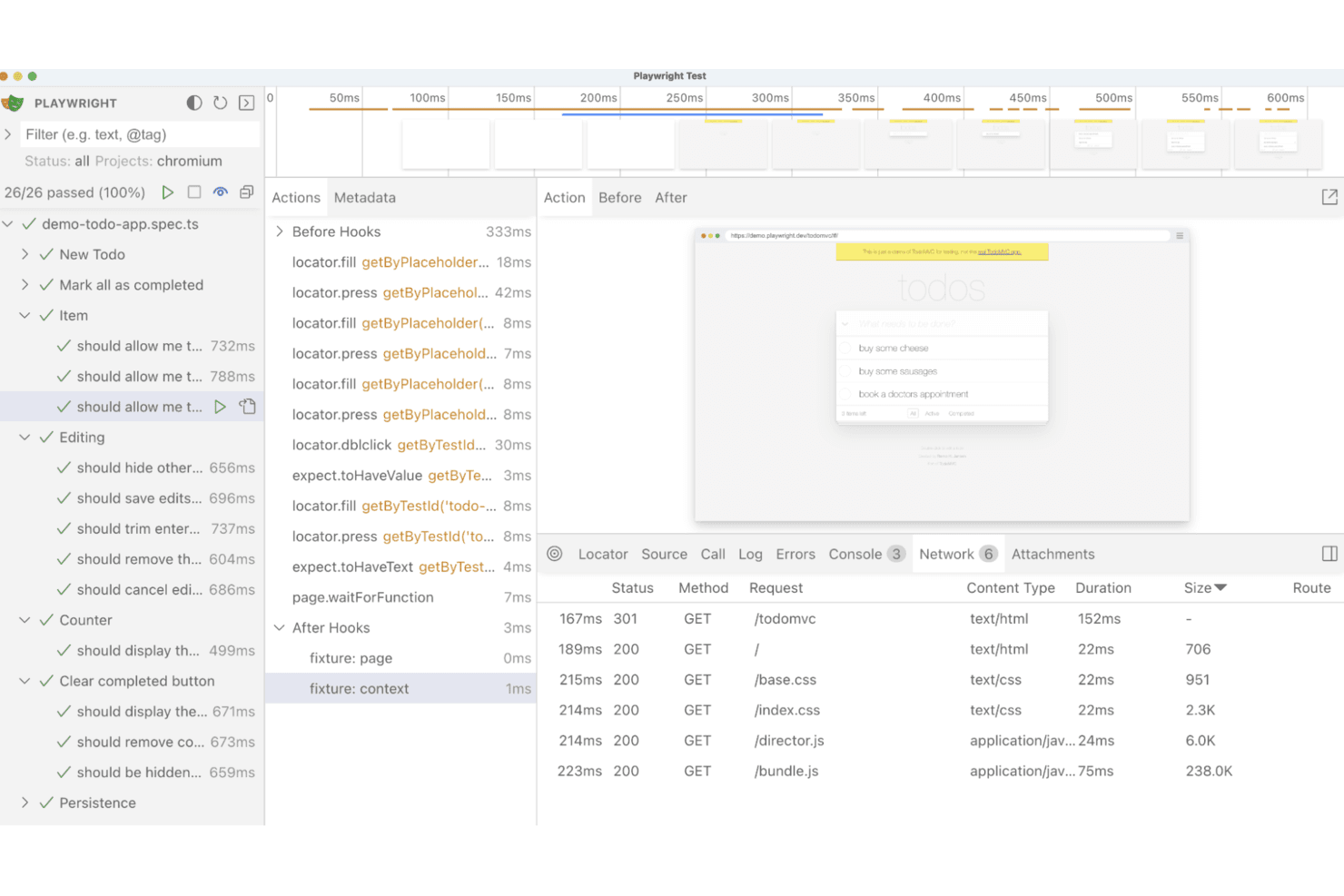
Playwright supports cross-browser automation for end-to-end application testing. Playwright is an open-source UI automation framework from Microsoft that supports cross-browser test scripting, parallel execution, visual regression testing, API testing, and network mocking across Chromium, Firefox, and WebKit.
Who Is Playwright Best For?
Playwright is built for QA automation engineers and DevOps engineers who write and maintain test code and need reliable cross-browser coverage wired into CI/CD pipelines.
Why I Picked Playwright
Playwright earns its spot on my shortlist because it's the most developer-native cross-browser automation framework I've worked with. I love that a single config covers Chromium, Firefox, and WebKit, plus branded Chrome and Edge, without any extra setup. Its Trace Viewer is genuinely useful: after a failed CI run, I can step through a full DOM timeline, network requests, and console logs to pinpoint exactly what broke.
Playwright Key Features
- AI test agents: Three agents—Planner, Generator, and Healer—help you draft test plans, generate test files, and repair failing tests against a live app.
- Network interception and mocking: Intercept, modify, or replay network requests using
page.routeor recorded HAR files, including WebSocket mocking. - Visual regression testing:
toHaveScreenshot()compares page renders against pixel-level baselines, with configurable thresholds and ARIA snapshot comparisons. - API testing fixture: A built-in
requestfixture lets you write standalone API tests or combine HTTP calls with UI test steps to set up and verify app state.
Playwright Integrations
Playwright documents integrations with GitHub Actions, Azure Pipelines, CircleCI, Jenkins, Bitbucket Pipelines, Docker, and the VS Code extension. It supports custom connectivity through JUnit, JSON, and custom reporter outputs.
Pros and Cons
Pros:
- Parallel workers shorten regression test cycles
- Trace Viewer accelerates failed-test diagnosis
- Cross-browser coverage includes Chromium, Firefox, WebKit
Cons:
- Mobile coverage relies mainly on emulation
- Recorded tests still require code maintenance
Learn more about Playwright: Best for scriptless testing
- 14-day free trial + free demo available
- From $3,598/year (billed annually)
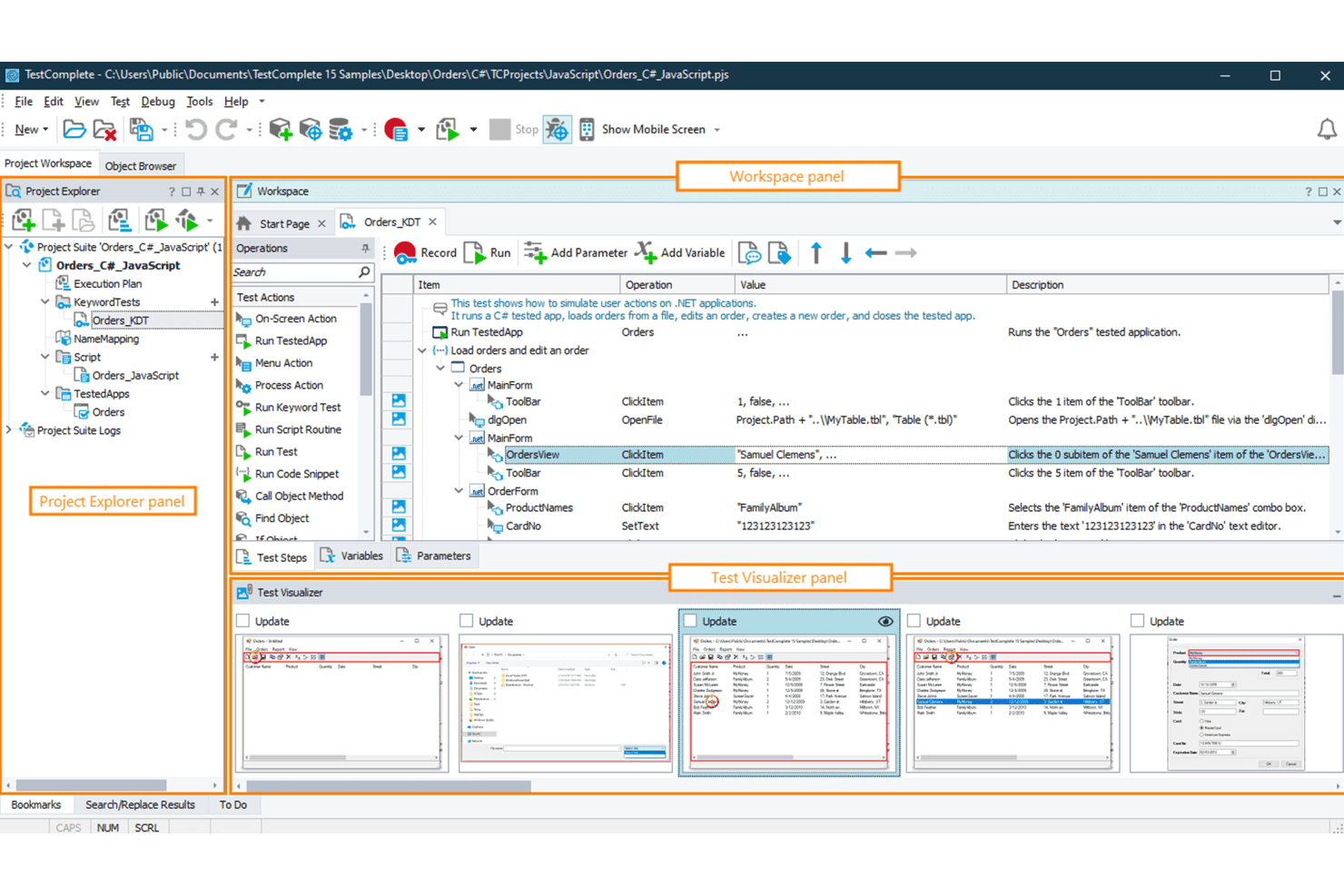
TestComplete enables scriptless automated UI testing for desktop, web, and mobile. TestComplete is a UI automation testing tool from SmartBear that supports scriptless record-and-replay, keyword-driven, BDD, and scripted test creation across desktop, web, and mobile applications.
Who Is TestComplete Best For?
TestComplete is a strong fit for QA automation engineers and test managers at enterprises that need to cover desktop, web, and mobile apps from a single tool.
Why I Picked TestComplete
TestComplete earns its spot on my shortlist because its scriptless capabilities go deeper than basic record and replay. I love that keyword-driven tests let you build out complex UI scenarios, including handling unwanted pop-ups or database access, without writing a single line of code. When your suite outgrows that, one click converts any test to Python or JavaScript. It's one of the few tools that covers desktop, web, and mobile from a single authoring environment without forcing you to switch products.
TestComplete Key Features
- Selenium WebDriver import: Run existing Selenium scripts written in JUnit or TestNG directly inside TestComplete without rewriting them.
- Name Mapping object repository: Store and manage how UI objects are identified across your entire test suite in one centralized location.
- CI/CD pipeline integration: Connect TestComplete to Jenkins, Azure DevOps, GitHub Actions, TeamCity, and Bamboo via a CLI or REST API.
- Cross-platform mobile testing: Test iOS and Android apps on real or virtual devices, including React Native, Flutter, and SwiftUI apps, without jailbreaking.
TestComplete Integrations
TestComplete offers native integrations with Jenkins, Azure DevOps, GitHub Actions, TeamCity, Bamboo, Jira, Zephyr Enterprise, Selenium, and Appium. Its CLI and REST API support CI/CD workflows and custom integrations.
Pros and Cons
Pros:
- Supports legacy desktop controls and packaged applications
- Covers desktop, web, and mobile applications
- Scriptless tests convert to Python or JavaScript
Cons:
- Codeless suites often require scripting at scale
- Windows authoring limits platform flexibility
Learn more about TestComplete:
Other UI Automation Tools
Here are some additional UI automation tools options that didn’t make it onto my shortlist, but are still worth checking out:
- 11LeapworkBest for no-code automation
- 12Sahi ProBest for testing legacy and complex web apps
- 13Sauce LabsBest for cross-browser and real-device test execution
- 14CypressBest for fast test execution
- 15SquishBest for cross-platform GUI testing
- 16ApplitoolsBest for AI-powered visual validation
- 17Ranorex StudioBest for mixed no-code and C# desktop testing
- 18Robot FrameworkBest for keyword-driven testing
How I Evaluate UI Automation Tools
I split my evaluation into three parts. Core functionality carries the most weight: I look for tools that record and script flows, run tests across browsers and devices, and fit CI/CD pipelines. Then I consider visual regression testing, screenshot comparisons, onboarding, support, and pricing value beyond features.
Core Functionality (Table Stakes For This List)
When I'm selecting tools for my list, I score each one on a scale from 0 (does not offer the functionality) to 5 (excels in this area) for each core functionality listed below. I then convert the total into a percentage to help assess each tool's overall fit, with extra weight on any functionalities I’ve deemed essential.
- Test Creation (Essential): I look for recording, scripting, and visual builders that support reusable checkout, login, and account-management tests.
- Cross-Environment Execution (Essential): I check coverage across major browsers, operating systems, screen sizes, and mobile or desktop environments.
- CI/CD Integration: I assess pipeline triggers, command-line support, and reporting for pull requests, scheduled runs, and release gates.
- Test Maintenance: I look for selector updates, change detection, and self-healing options when layouts or UI elements change.
- Reporting and Insights: I evaluate pass/fail detail, screenshots, logs, traces, and failure context that help teams diagnose broken flows.
- Parallel Execution: I check whether teams can distribute suites across workers or environments without creating unreliable test results.
Once I have a list of tools that meet the criteria, I consider what sets each platform apart.
Differentiating Factors (What Sets Vendors Apart)
Here's how I compare and contrast different vendors:
Standout Features
Visual regression testing is the first thing I check because functional tests miss layout shifts, font changes, and broken spacing that users notice immediately. I look for pixel-level screenshot comparisons across builds, not just pass/fail assertions. AI test generation also matters—tools that convert plain-language prompts into executable tests let product managers sketch new flows without writing code. Beyond the UI layer, I evaluate API and backend testing support, since a checkout button can pass a click test while the payment call silently fails underneath.
Beyond Features
I evaluate how easily non-engineers can adopt each tool. If a product manager can't build and maintain a test without filing engineering tickets, the tool won't scale beyond QA. I also check pricing transparency—some vendors bundle cloud device access or parallel runs into base plans, while others charge per add-on, which quietly doubles your total cost. Vendor support matters too, especially for teams without dedicated QA staff who need fast onboarding help and reliable documentation to troubleshoot on their own.
How to Choose UI Automation Tools
It’s easy to get bogged down in long feature lists and complex pricing structures. To help you stay focused as you work through your unique software selection process, here’s a checklist of factors to keep in mind:
| Factor | What to Consider |
|---|---|
| FactorScalability | What to ConsiderCan the tool grow with your team? Consider whether it supports increasing test cases and users without performance loss. Assess if it handles large-scale projects. |
| FactorIntegrations | What to ConsiderDoes it work with your existing tools? Check for compatibility with CI/CD pipelines, version control systems, and bug trackers to fit smoothly into workflows. |
| FactorCustomizability | What to ConsiderCan you tailor it to your needs? Look for options to customize test scripts, dashboards, and reports to match your team's processes and requirements. |
| FactorEase of use | What to ConsiderHow user-friendly is it? Evaluate if the interface is intuitive and if users can quickly learn and navigate without extensive training or support. |
| FactorImplementation and onboarding | What to ConsiderHow long will it take to get started? Consider the time and resources needed for setup and whether there are guides, tutorials, and support during onboarding. |
| FactorCost | What to ConsiderIs it within your budget? Compare pricing models, including subscription fees and any hidden costs for additional features or users, to determine affordability. |
| FactorSecurity safeguards | What to ConsiderDoes it protect your data? Ensure the tool complies with security standards and offers features like encryption and access controls to safeguard information. |
| FactorSupport availability | What to ConsiderWhat help is available? Look for 24/7 support, dedicated account managers, and multiple support channels to resolve issues quickly when they arise. |
What Are UI Automation Tools?
UI automation tools are software solutions that automate the testing of the user interfaces of applications. These tools are commonly used by QA testers, developers, and product managers to ensure applications function correctly and provide value by improving testing efficiency and accuracy.
Features like automated test execution, cross-browser compatibility, and detailed reporting help with reducing manual testing effort, ensuring interface consistency, and providing actionable insights. Overall, these tools enhance the quality and reliability of software applications by automating repetitive testing tasks.
Features of UI Automation Tools
When selecting UI automation tools for software testing, keep an eye on features that improve efficiency and accuracy across your test suite:
- Automated test execution: Runs tests automatically, reducing manual effort and supporting continuous integration in software development.
- Cross-browser compatibility: Validates applications across Chrome, Firefox, and other browsers to ensure consistent performance.
- Self-healing capabilities: Adjusts to changes in UI elements, minimizing debugging needs and lowering test maintenance.
- Parallel test execution: Allows multiple tests to run at once on different operating systems, including Linux, accelerating delivery.
- Scriptless test creation: Low-code options make it easier for teams to design tests without advanced coding in Python or Ruby.
- AI-powered visual testing: Detects subtle differences in user interactions and ensures visual accuracy across devices and emulators.
- Detailed reporting: Provides real-time insights into test results, helping identify issues faster.
- Integration with CI/CD pipelines: Fits directly into existing automation frameworks and software development workflows.
- Customizable dashboards: Extensible reporting views can be tailored to specific projects, aiding collaboration.
- Playback and IDE support: Record-and-playback options combined with IDE integration give teams flexibility in managing and editing test cases.
Benefits of UI Automation Tools
Implementing UI automation tools provides several benefits for your team and your business. Here are a few you can look forward to:
- Increased efficiency: Automated testing shortens test cycles and reduces repetitive manual tasks.
- Improved accuracy: Features like self-healing tests and Selenium WebDriver support ensure consistent, reliable execution.
- Enhanced coverage: Cross-browser testing on Chrome, Firefox, and across multiple operating systems boosts application reliability.
- Faster release cycles: Parallel test execution and CI/CD integration speed up deployments.
- Better insights: Detailed reporting and real-time dashboards provide actionable data for debugging.
- Ease of use: Scriptless, low-code test creation enables more team members to participate without deep programming skills.
- Consistent quality: AI-driven comparisons maintain UI integrity, ensuring user interactions remain seamless across HTML layouts, emulators, and devices.
Costs and Pricing of UI Automation Tools
Selecting UI automation tools requires an understanding of the various pricing models and plans available. Costs vary based on features, team size, add-ons, and more. The table below summarizes common plans, their average prices, and typical features included in UI automation tools solutions:
Plan Comparison Table for UI Automation Tools
| Plan Type | Average Price | Common Features |
|---|---|---|
| Plan TypeFree Plan | Average Price$0/user/month | Common FeaturesBasic test execution, limited reporting, and community support. |
| Plan TypePersonal Plan | Average Price$5-$25/user/month | Common FeaturesAutomated test execution, cross-browser testing, and basic analytics. |
| Plan TypeBusiness Plan | Average Price$50-$100/user/month | Common FeaturesParallel test execution, detailed reporting, and integration with CI/CD pipelines. |
| Plan TypeEnterprise Plan | Average Price$150-$300/user/month | Common FeaturesCustomizable dashboards, advanced security features, and dedicated customer support. |
UI Automation Tools FAQs
Here are some answers to common questions about UI automation tools:
Can UI automation tools handle mobile app testing?
Yes, many UI automation tools support mobile app testing. Ensure the tool you select is compatible with the platforms you need, like iOS or Android. Look for features like device emulation and real-device testing to ensure full coverage.
What are the common challenges in implementing UI automation?
Common challenges include maintaining test scripts as the application evolves, integrating the tool with existing systems, and ensuring cross-browser compatibility. Plan for regular updates and choose a tool with strong support and documentation to mitigate these issues.
How can I ensure my automated tests are reliable?
To ensure reliability, use robust test design practices like data-driven testing and parameterization. Regularly update your tests to reflect application changes and use tools with self-healing capabilities to minimize maintenance efforts.
Are there any security concerns with using UI automation tools?
Security concerns can arise if the tool accesses sensitive data during testing. Choose tools that offer secure data handling features like encryption and access controls. Always review the tool’s security policies and compliance with industry standards.
How do UI automation tools integrate with CI/CD pipelines?
Most UI automation tools support integration with CI/CD pipelines through plugins or APIs. This integration allows you to automate testing as part of your development workflow, ensuring faster feedback and more efficient release cycles.