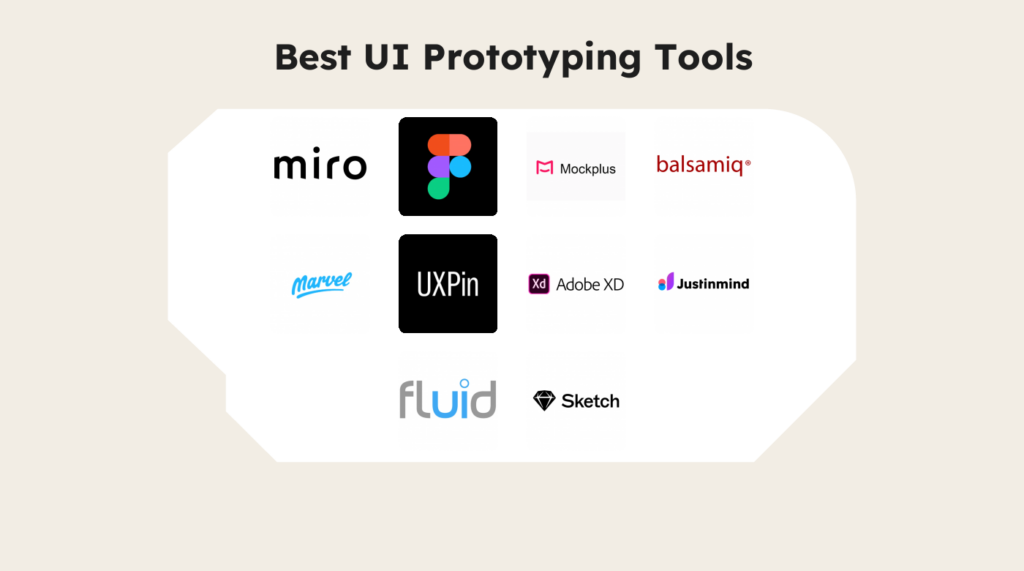

As melhores ferramentas de prototipagem de UI ajudam gestores de produto, designers e programadores a transformar rapidamente ideias em protótipos interativos, validar conceitos numa fase inicial e colaborar entre equipas.
Quando trabalha com prazos apertados e requisitos complexos, um feedback de design pouco claro ou fluxos de trabalho desarticulados podem atrasar o progresso e levar a retrabalho dispendioso. A ferramenta certa facilita transições mais simples, permite iterações em tempo real e garante que todos se mantêm alinhados desde o conceito até à versão final.
Após testes práticos e uma comparação, selecionei opções que equilibram rapidez, facilidade de utilização e funcionalidade para ajudar a sua equipa a passar da visão ao design validado com confiança.
Why Trust Our Software Recommendations
6,700+
Reviews
20
Industry experts
16+
Evaluation factors
14
Years
Our team has been testing and reviewing software since 2012. As product managers ourselves, we know how difficult—and important—it is to choose the right software.
For this guide, we evaluated tools using hands-on testing and independent research, scoring tools using our selection criteria.
Our reviews reflect our human editorial judgment, not a sales pitch.
Expert reviewers:
- Andrew LumbySenior TPM
- Cristiano ValimSenior UI/UX Lead


Tabela de comparação de ferramentas de prototipagem de UI
Esta tabela de comparação resume os detalhes de preços das minhas principais escolhas de ferramentas de prototipagem de UI.
| Tool | Best For | Trial Info | Price | ||
|---|---|---|---|---|---|
| 1 | Best for visual project mapping | Free plan + 14-day free trial + free demo available | From $8/user/month (billed annually) | Website | |
| 2 | Best for real-time collaboration | Free plan available | From $3/user/month | Website | |
| 3 | Best for offline design work | Free plan + free demo available | From $11.99/user/month (billed annually) | Website | |
| 4 | Best for free real-time team co-editing | Free plan + 30-day free trial + free demo available | From $4.95/user/month (billed annually) | Website | |
| 5 | Best for near-production visual prototyping | Free plan available | From $15/month (billed annually) | Website | |
| 6 | Best for interactive animations | Free plan + free trial available | From $10/month (billed annually) | Website | |
| 7 | Best for design-to-code component sync | Free plan + 14-day free trial + demo available | From $49/user/month | Website | |
| 8 | Best for open-source design | Free plan + 14-day free trial + free demo available | From $7/user/month | Website | |
| 9 | Best for web and mobile wireframes | Free plan + 10-day trial available | From $19/user/month | Website | |
| 10 | Best for macOS users | Free plan + 30-day free trial available | From $12/user/month (billed annually) | Website |


Análises das melhores ferramentas de prototipagem de UI
Abaixo encontram-se os meus resumos detalhados das melhores ferramentas de prototipagem de UI que entraram na minha lista restrita. As minhas análises apresentam uma visão detalhada das principais funcionalidades, vantagens & desvantagens, integrações e casos de utilização ideais de cada ferramenta, para ajudar a encontrar a melhor opção para si.
 1Best for visual project mapping
Miro
- Free plan + 14-day free trial + free demo available
- From $8/user/month (billed annually)
Visit WebsiteCustomer Rating:4.8/5
Miro brings product planning, design, and team collaboration together in one shared workspace. Miro is a visual collaboration platform for product teams, UX designers, and stakeholders who need to turn early ideas into testable UI concepts. Its infinite canvas combines wireframing, interactive prototyping, AI-generated screens, comments, and real-time collaboration, so your team can review flows and gather feedback before development starts.
Who Is Miro Best For?
Miro is a strong fit for cross-functional teams—particularly product, design, and engineering—who need a shared space to map, plan, and prototype together.
Why I Picked Miro
I picked Miro because it lets your team build UI prototypes in the same workspace where you map user journeys, collect research, and plan product ideas. You can place wireframes beside notes, diagrams, and feedback on an infinite canvas, then use connector lines to show how users move between screens. I like that this keeps your prototype tied to the context behind each design choice, which helps stakeholders understand why a layout or flow was created. Miro is a strong fit for product, UX, and cross-functional teams that need collaborative prototyping before moving into high-fidelity design or development.
Miro Key Features
Miro also includes prototyping tools that help your team move from rough concepts to clickable UI flows faster.
- AI wireframe generation: Generate wireframe layouts from text prompts with Miro AI, then edit components directly on the canvas.
- Interactive prototype preview: Test clickable UI elements, including buttons, dropdowns, and sliders, in Preview mode.
- UI component library: Use built-in UI elements, icons, and screen templates to create low-fidelity prototypes faster.
- Real-time co-editing: Let team members comment, annotate, and edit the same board at the same time.
Miro Integrations
Integrations include Jira, Google Drive, Slack, Microsoft Teams, Zoom, Asana, Confluence, Notion, Trello, and GitHub.
Pros and Cons
Pros:
- AI generates editable prototypes from prompts or canvas content
- Connector lines support clickable multi-screen prototype flows
- Built-in UI components speed up low-fidelity prototyping
Cons:
- Fully interactive previews require the Prototypes add-on
- Advanced components are not available without the add-on
 Best for real-time collaboration
- Free plan available
- From $3/user/month
Visit WebsiteCustomer Rating:4.7/5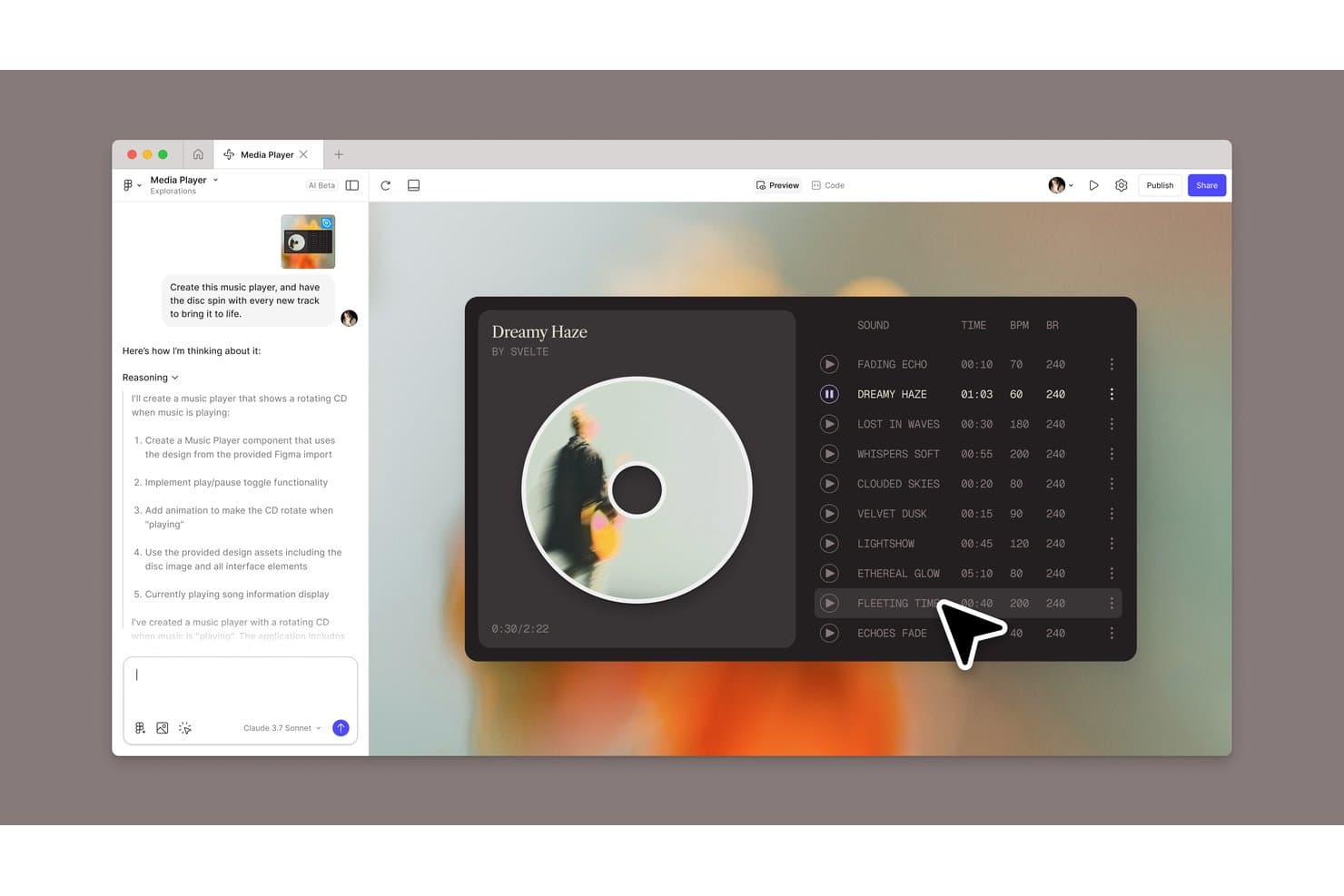
Figma lets users build interactive music player prototypes with AI assistance. Figma is a browser-based UI design and prototyping tool that combines interactive prototyping, vector design, component libraries, and developer handoff in a single file.
Who Is Figma Best For?
Figma fits cross-functional product teams—designers, PMs, and developers—who need to design, prototype, and hand off work without switching tools.
Why I Picked Figma
Figma earns its spot on my shortlist because no other prototyping tool matches its real-time collaboration depth. Live co-editing with visible cursors means my team and I can work in the same file simultaneously, leaving comments directly on specific elements instead of chasing feedback through email threads. Shared component libraries keep everyone building from the same source, and branching lets us explore design directions without disrupting the main file.
Figma Key Features
- Smart animate: Automatically animates matching layers between frames to create transition effects like parallax scrolling and gesture-based interactions.
- Variables and conditional logic: Set numeric, string, and boolean variables with conditional expressions to power complex prototype interactions without additional frames.
- Dev Mode: Gives developers annotated specs, code snippets, and Code Connect mappings that link design components directly to production code.
- Figma Make: Turns a text prompt or existing design file into a coded, interactive prototype or web app without writing production code manually.
Figma Integrations
Figma offers native integrations with Jira, Confluence, Slack, Microsoft Teams, Notion, Asana, Trello, and Productboard. It also supports REST API and Zapier connectivity for custom workflows.
Pros and Cons
Pros:
- Dev Mode clarifies implementation details
- Conditional logic supports realistic product flows
- Real-time co-editing keeps feedback contextual
Cons:
- User testing requires separate tools
- Offline functionality remains severely limited
 Best for offline design work
- Free plan + free demo available
- From $11.99/user/month (billed annually)
Visit WebsiteCustomer Rating:4.4/5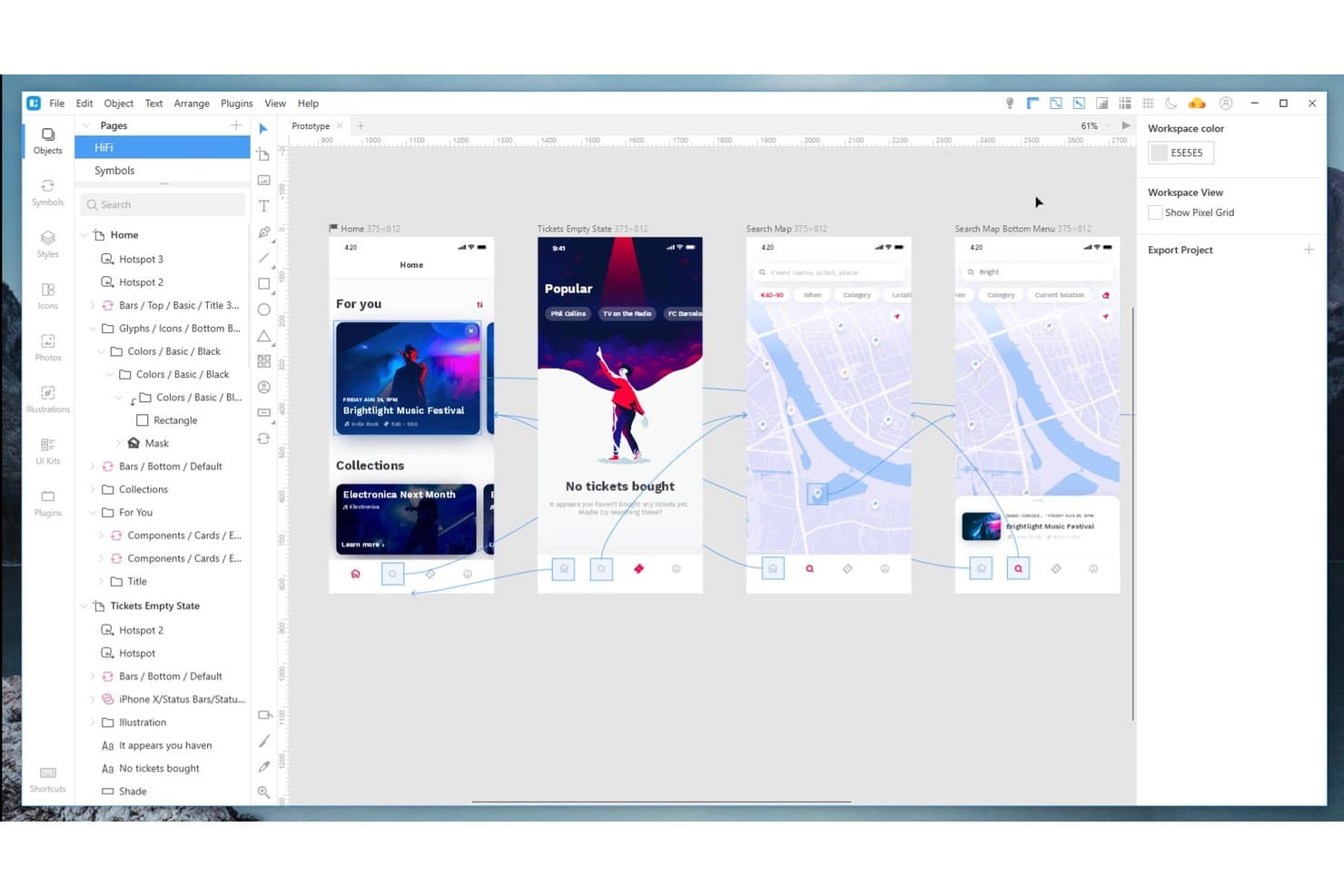
Lunacy lets users link screens and preview interactive prototypes visually. Lunacy is a native desktop UI design and prototyping tool for Windows, macOS, and Linux that supports vector editing, interactive prototyping, real-time collaboration, and a built-in library of icons, illustrations, and photos.
Who Is Lunacy Best For?
Lunacy suits UX/UI and product designers who need a full-featured design and prototyping tool that works without an internet connection.
Why I Picked Lunacy
I picked Lunacy as one of the best because it's the only tool on this list that runs as a true native desktop app on Windows, macOS, and Linux, letting you design and prototype without any internet connection. Local documents work fully offline, so if you're building flows on a flight or in a restricted-network environment, you're never blocked. I also like that Smart Animate and Spring animations are baked into the prototyping layer, giving motion-rich transitions without needing a separate tool.
Lunacy Key Features
- Real-time co-editing: Cloud documents support live collaboration for up to 10 simultaneous editors, with observer mode to follow another user's canvas.
- Multi-trigger prototyping: Hotspots support triggers including on click, on drag, while hovering, key press, and after delay, connecting frames across any page.
- Built-in asset library: Over 1.18 million icons, 71,000+ illustrations, and 140,000+ photos are available directly inside the tool, along with Apple, Microsoft, and Google UI kits.
- Code panel: A dedicated panel generates CSS and HTML output for any selected layer, giving developers inspectable specs without a third-party handoff tool.
Lunacy Integrations
Lunacy doesn't have any native integrations. It supports Sketch files and connects indirectly with Avocode, Zeplin, Abstract, and Simpli through Sketch-format compatibility, plus an MCP API for custom AI integrations.
Pros and Cons
Pros:
- Smart Animate and Spring add motion
- Built-in graphics speed up interface concepting
- Offline-first native apps across three desktop platforms
Cons:
- Cloud documents required for collaboration features
- Large files can trigger slowdowns or freezes
Learn more about Lunacy: Best for free real-time team co-editing
- Free plan + 30-day free trial + free demo available
- From $4.95/user/month (billed annually)
Visit WebsiteCustomer Rating:4.5/5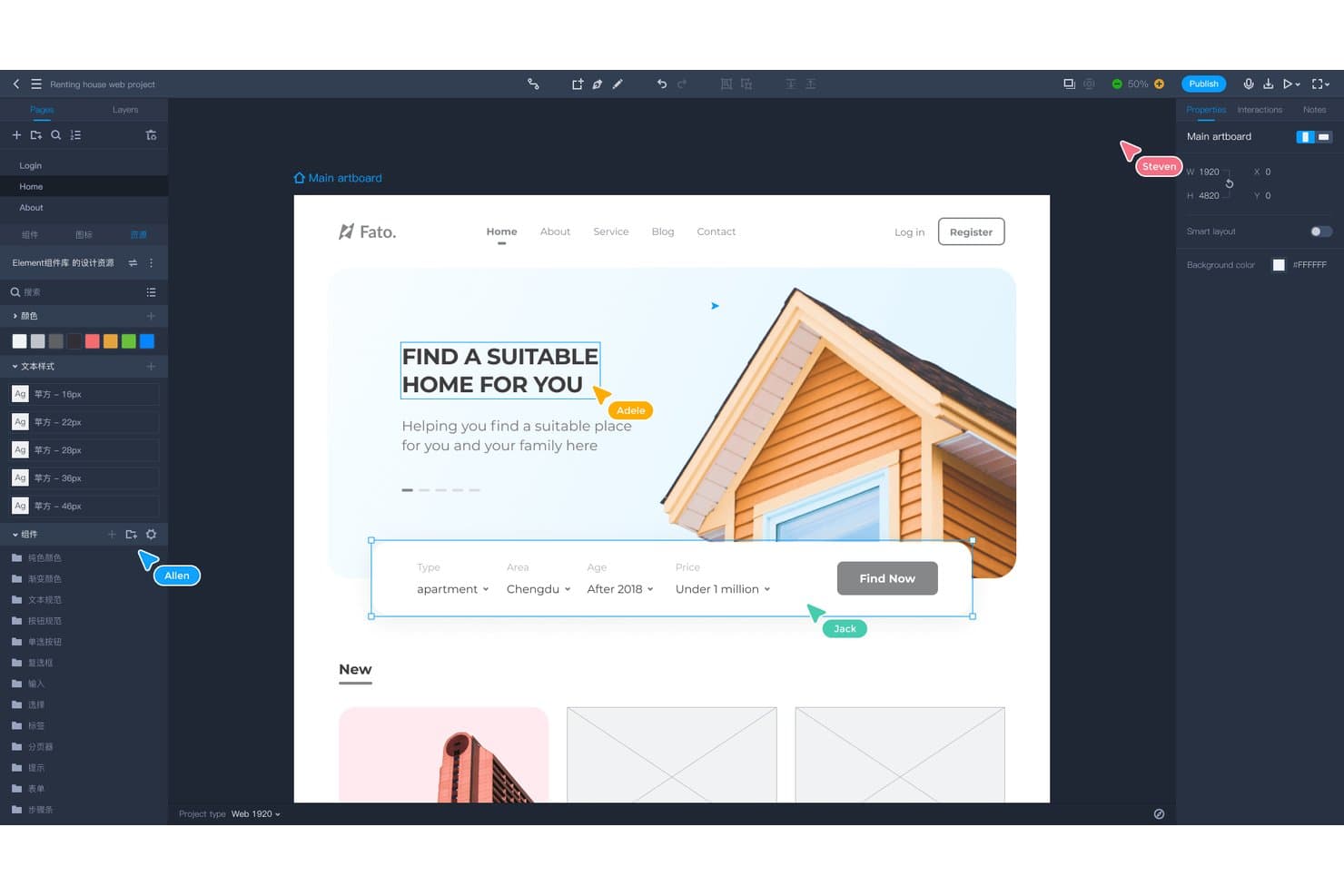
Mockplus supports real-time multi-user collaboration on web UI prototypes. Mockplus RP is a web-based UI prototyping tool that combines drag-to-link interactive prototyping, vector design, component libraries, and real-time team co-editing with developer handoff via auto-generated specs and code snippets.
Who Is Mockplus Best For?
Mockplus RP is a strong fit for cross-functional product teams—especially those with PMs and designers working side by side—who need real-time co-editing without paying for it.
Why I Picked Mockplus
Mockplus RP earns its spot on my shortlist because it's the only tool I've found that gives teams real-time co-editing on the same screens at no cost, supporting up to 10 users on its free plan. I love that this includes shared asset libraries and version history, so a PM and designer can prototype together without worrying about overwriting each other's work. Conflict-free co-design on a free tier is genuinely rare in this category.
Mockplus Key Features
- Drag-to-link prototyping: Connect screens and components by dragging a link point to a target, creating interactive flows without writing any code.
- Vector editing canvas: Design with a pen tool, Bezier curves, Boolean operations, and SVG import directly inside the prototyping environment.
- Axure file import: Import existing Axure projects with approximately 95% of UI elements and interactions preserved and editable.
- Stakeholder sharing via link or QR code: Share prototypes through a single link or QR code, with optional password protection on paid plans.
Mockplus Integrations
Mockplus integrates with Figma, Sketch, Adobe XD, Photoshop, Axure, Slack, Jira, Confluence, and Lark through plugins or Mockplus Cloud.
Pros and Cons
Pros:
- Built-in libraries accelerate interface prototyping
- Axure imports retain editable interactions
- Real-time co-editing supports small teams
Cons:
- Free tier limits prototype capacity
- Advanced logic lacks variables and conditions
Learn more about Mockplus: Best for near-production visual prototyping
- Free plan available
- From $15/month (billed annually)
Visit WebsiteCustomer Rating:4.4/5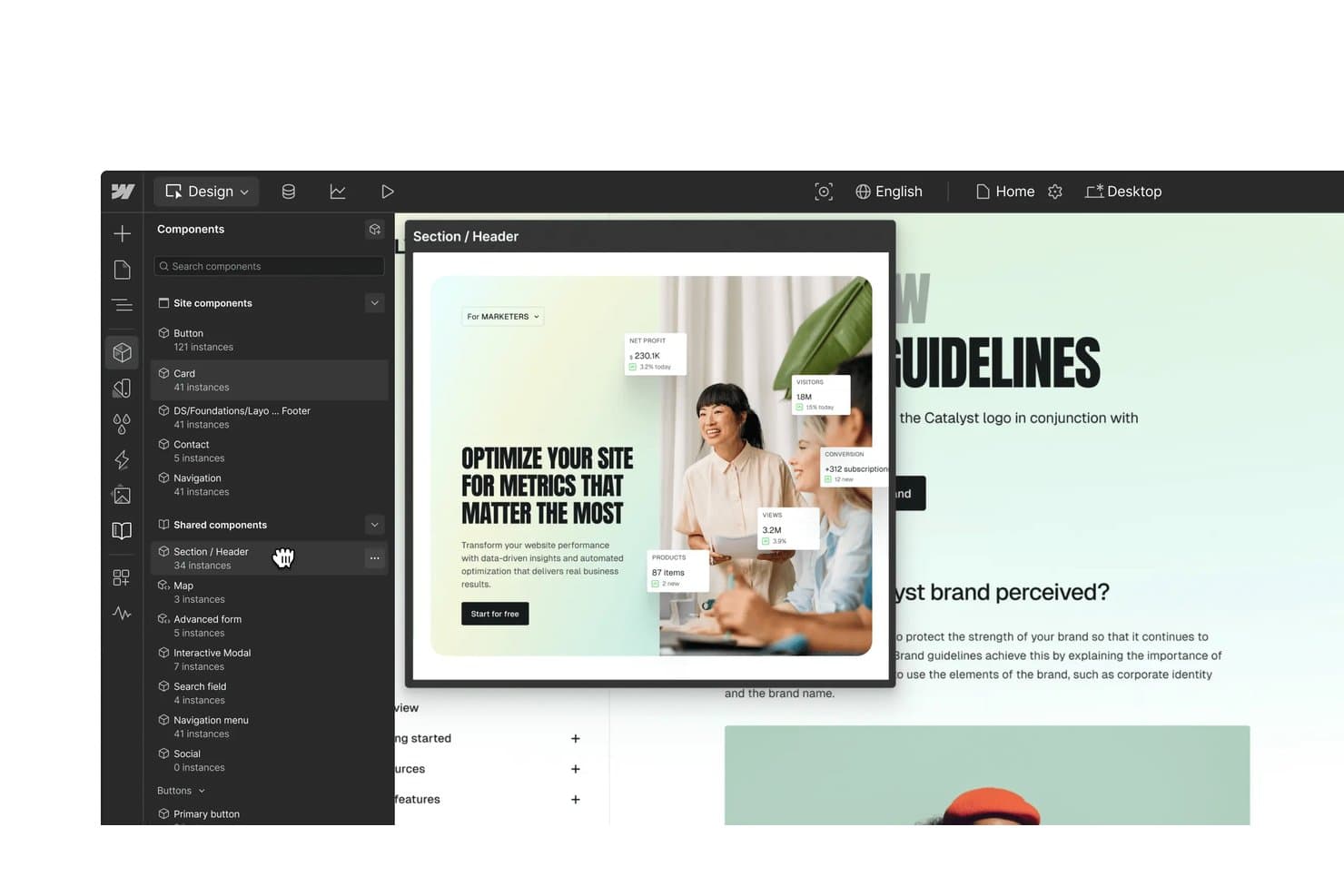
Webflow lets users browse and preview reusable shared components visually. Webflow is a visual web design and development platform that lets you build responsive, production-ready sites on a drag-and-drop HTML/CSS canvas, with built-in CMS, GSAP-powered animations, component libraries, and real-time collaboration tools.
Who Is Webflow Best For?
Webflow is a strong fit for product designers and front-end developers who need prototypes that look and behave like the real thing.
Why I Picked Webflow
Webflow earns its spot on my shortlist because it's the only tool here that produces real HTML and CSS on the canvas, meaning your prototype is the production site. I love how GSAP-powered animations, live CMS data, and DevLink's two-way React sync let product designers share a working staging URL instead of a static mockup. When I need stakeholders reviewing actual scroll-triggered interactions on real content, Webflow is where I go.
Webflow Key Features
- Shared Libraries: Share components, color and spacing tokens, and assets across all sites in a Workspace, with cascading updates each site reviews before accepting.
- GSAP-powered animation timeline: Build scroll-triggered, hover, and click animations with SplitText, Staggers, and ScrollTrigger directly on the canvas.
- DevLink two-way React sync: Export Webflow components as production-ready React code and pull codebase components back into the canvas via the command line.
- AI Site Builder: Generate full sites and design systems from a text prompt, with an AI Assistant that adds page sections using your existing design system.
Webflow Integrations
Webflow has a wide range of marketplace apps, including Figma to Webflow, Relume, HubSpot, Google Analytics, Microsoft Clarity, and Airtable. DevLink, Webflow Cloud, Webflow APIs, and Zapier support developer and workflow connectivity.
Pros and Cons
Pros:
- Delivers live content for realistic prototypes
- Supports advanced GSAP-powered interaction design
- Produces responsive, production-ready HTML and CSS
Cons:
- Requires technical skills for quick concept validation
- Lacks frame-linking and visual conditional logic
Learn more about Webflow: Best for interactive animations
- Free plan + free trial available
- From $10/month (billed annually)
Visit WebsiteCustomer Rating:4.4/5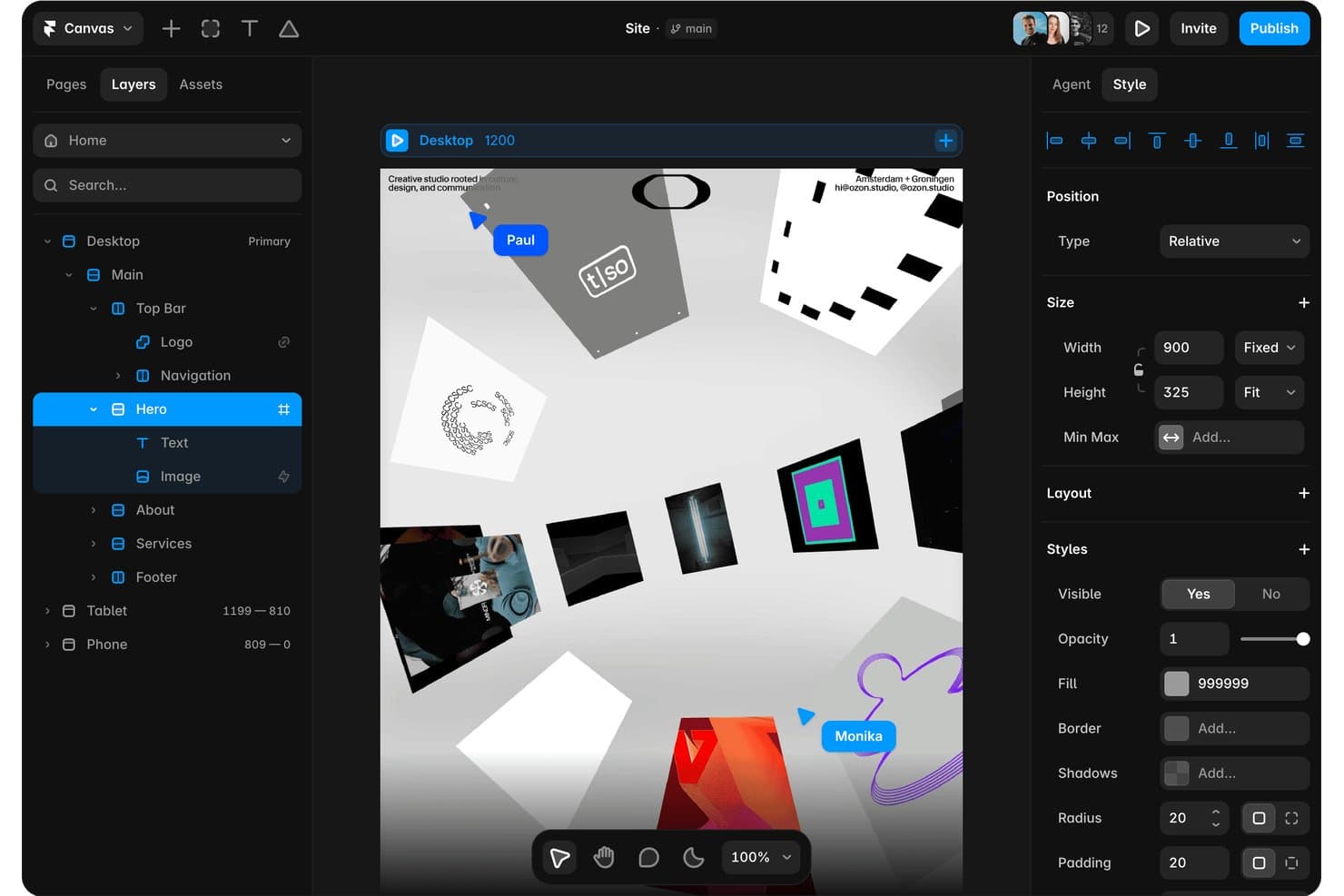
Framer lets users edit layers, styles, and layout in a visual canvas. Framer is a web-based UI prototyping and publishing tool that combines a visual design canvas, state-based interactions, an advanced animation engine, real-time collaboration, and AI-assisted design generation.
Who Is Framer Best For?
Framer is a strong fit for UX/UI and product designers building web experiences who want production-grade animations and a design-to-publish workflow in a single tool.
Why I Picked Framer
Framer earns its spot on my shortlist because its animation engine is genuinely in a class of its own. I love that scroll effects, state-based triggers, and hover interactions all render as real browser behavior, not simulations, so what I'm prototyping is functionally identical to the shipped product. You can animate text character by character, wire drag-and-loop effects on a single layer, or use the AI agent to build an animated sticky navbar from a text prompt without manually connecting a single state.
Framer Key Features
- Figma import: A plugin transfers your Figma layers and structure directly into Framer, preserving layout so you can continue building without rebuilding from scratch.
- Real-time branching: Teams can work in parallel branches, preview each branch via a unique staging URL, and merge with a logged changelog on the Pro plan.
- AI design review: Built-in AI scans your project for contrast issues, missing alt text, typos, and inconsistent styles before you publish or share.
- Working forms and CMS data: Framer supports live form submissions and connected CMS content, so prototypes display realistic data rather than static placeholder copy.
Framer Integrations
Framer offers documented integrations with Google Analytics, Google Tag Manager, Hotjar, HubSpot Forms, Typeform, Mailchimp, and Intercom. Marketplace plugins support Figma Sync, GitHub Sync, and React Export, while the Plugins API and Server API support custom connections.
Pros and Cons
Pros:
- Working forms and CMS enable realistic prototypes
- Branch previews support parallel design decisions
- Production-grade animations mirror shipped web behavior
Cons:
- Developer handoff lacks inspectable design specifications
- Native app flows fit less naturally
 Best for design-to-code component sync
- Free plan + 14-day free trial + demo available
- From $49/user/month
Visit WebsiteCustomer Rating:4.2/5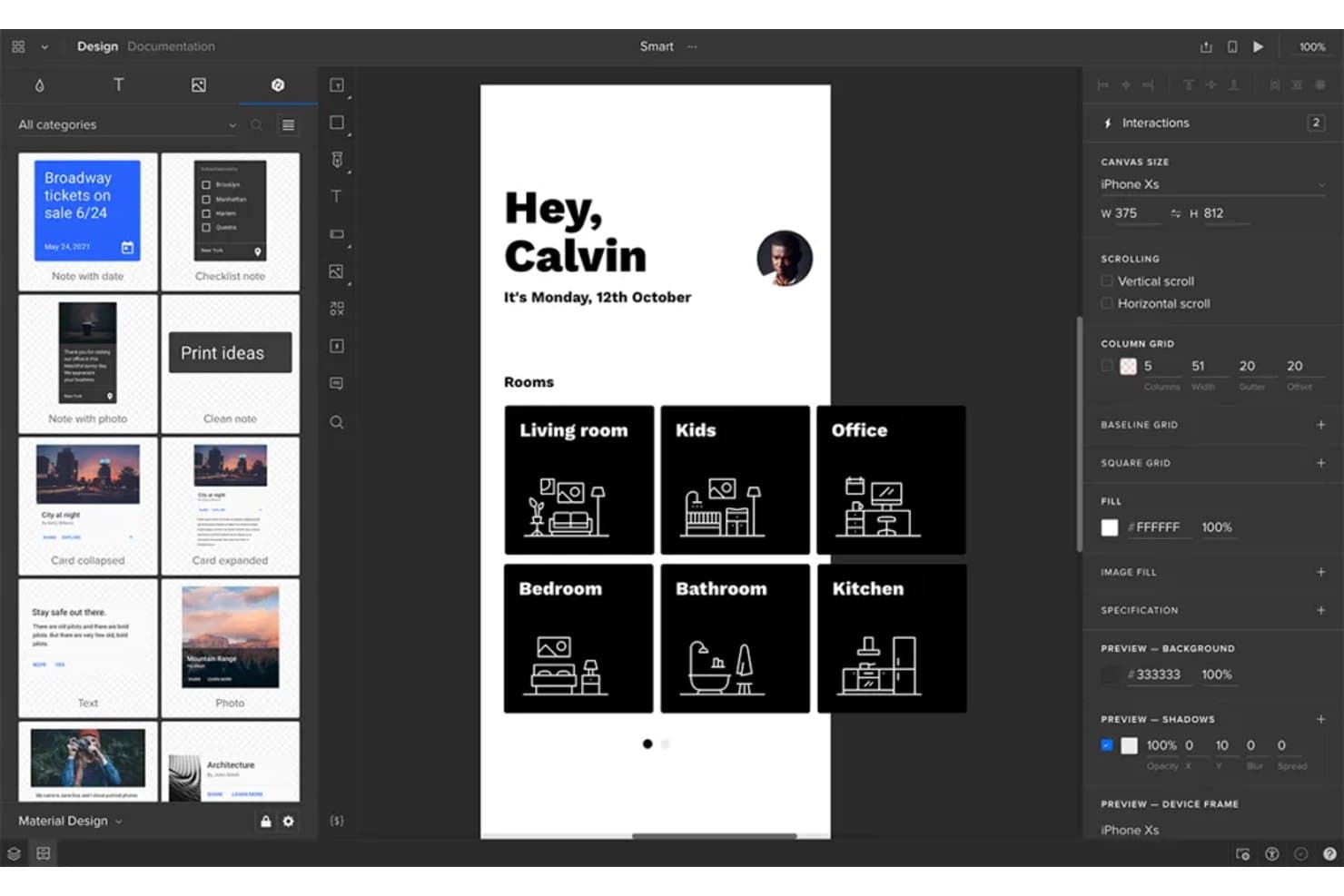
UXPin lets users prototype room-based smart home app screens. UXPin is a browser-based UI prototyping tool that combines an interactive design canvas, code-backed component libraries, AI-assisted UI generation, and developer handoff features including spec mode and React code export.
Who Is UXPin Best For?
UXPin is a strong fit for product design teams where designers and front-end developers need to work from the same component library.
Why I Picked UXPin
UXPin earns its spot on my shortlist because of Merge, its code-backed component system that lets designers place real React components, complete with their actual props and states, directly on the canvas. I love that when developers update a component in Storybook or a Git-synced library, it updates in the prototype automatically, so design and production UI never drift apart. Spec mode then outputs real CSS and JSX, not just redlines.
UXPin Key Features
- Conditional logic builder: Set if/else interactions using operators like "contains," "matches regex," and "is empty" to create prototypes that respond to real user input.
- Approval workflow: Send stakeholders a unique preview link by email so they can approve, reject, or comment on designs without needing a UXPin account.
- WCAG contrast checker: A built-in accessibility tool checks color contrast against WCAG 2.0 AA and AAA standards directly on the canvas.
- UXPin Mirror: A companion iOS and Android app that streams your prototype live to a real device for on-device preview and testing.
UXPin Integrations
UXPin offers integrations with Storybook, GitHub, Bitbucket, Figma, Sketch, Jira, Slack, FullStory, and more.
Pros and Cons
Pros:
- Approval links simplify stakeholder sign-off
- Deep conditional logic supports realistic flows
- Production components reduce design-to-code drift
Cons:
- Large files can experience performance slowdowns
- Advanced interactions require technical fluency
Learn more about UXPin: Best for open-source design
- Free plan + 14-day free trial + free demo available
- From $7/user/month
Visit WebsiteCustomer Rating:4.5/5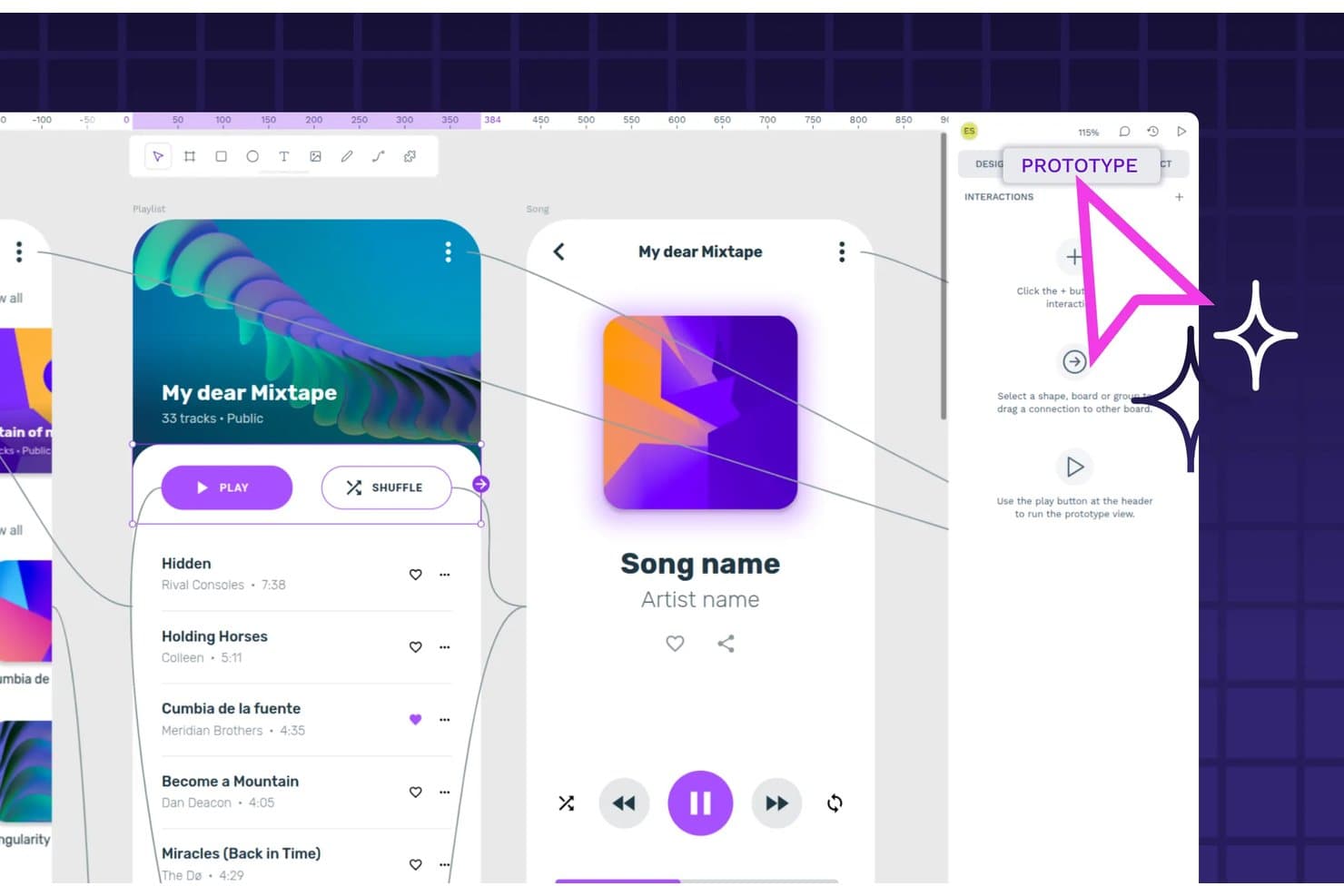
Penpot lets users link screens and define interactions in prototype mode. Penpot is an open-source UI design and prototyping tool that offers a vector canvas, component libraries with design tokens, interactive prototype flows, real-time collaboration, and developer handoff with code output.
Who Is Penpot Best For?
Penpot is a strong fit for cross-functional product teams that want full design and prototyping capabilities without a SaaS vendor dependency.
Why I Picked Penpot
I picked Penpot as one of the best because it's the only tool on this list built fully in the open, meaning you can self-host it, inspect its source code, and never worry about a vendor changing pricing or shutting down. Its CSS Grid and Flex layouts map directly to real code, so when I hand off to a developer, the Inspect panel produces actual HTML and CSS rather than a loose approximation. Native W3C-standard design tokens, exportable as JSON, round out a handoff workflow that genuinely closes the gap between design and production.
Penpot Key Features
- Multi-screen prototype flows: Link boards across screens with click, hover, and delay triggers, then share each flow via its own link directly from View mode.
- MCP server for AI workflows: A free, open-source MCP server connects Penpot to any compatible AI agent, supporting design-to-code, token automation, and Figma migration tasks.
- Plugin manager: Install community-built or custom plugins from PenpotHub or a JSON URL to extend Penpot's core functionality without leaving the editor.
- W3C design token support: Create, import, and export design tokens in JSON format with multi-set and theme support, keeping your design system in sync with code.
Penpot Integrations
Native integrations are not clearly documented. Penpot supports custom connections through its REST API, webhooks, Plugin API, and free open-source MCP Server, with compatibility for Claude Desktop, OpenAI Codex, Cursor, and VS Code.
Pros and Cons
Pros:
- Native tokens connect prototypes with design systems
- CSS-aligned layouts improve developer handoff
- Open-source control supports self-hosted design workflows
Cons:
- Prototype logic lacks variables and conditions
- Rendering slows down on complex files
Learn more about Penpot: Best for web and mobile wireframes
- Free plan + 10-day trial available
- From $19/user/month
Visit WebsiteCustomer Rating:4.2/5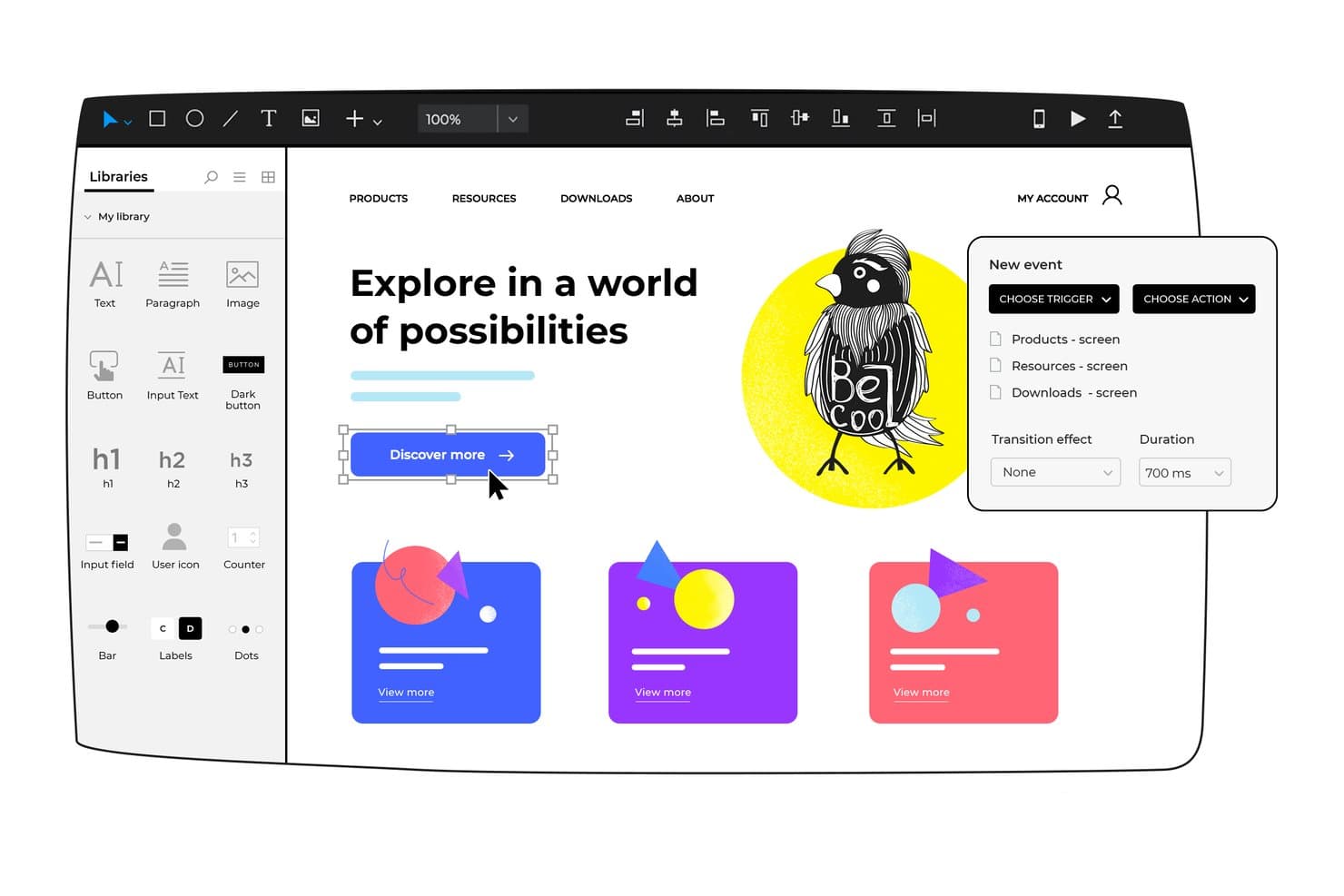
Justinmind lets users add interactive triggers and actions to prototypes. Justinmind is a desktop-based UI prototyping tool that lets you build interactive, high-fidelity prototypes with advanced logic—conditions, variables, data simulation, and working forms—alongside real-time collaboration, component libraries, and developer handoff.
Who Is Justinmind Best For?
Justinmind is a strong fit for UX designers and product managers who need to build logic-driven, data-rich prototypes that go well beyond simple click-throughs.
Why I Picked Justinmind
I picked Justinmind as one of the best because it handles logic-driven web and mobile wireframes at a depth most tools can't match. I love how conditions and variables let you wire up real decision logic, so a prototype can show different screens based on form input rather than just linking screens together. Its Data Masters feature lets you import CSV data, meaning I can simulate a populated dashboard or data table before a single line of code is written.
Justinmind Key Features
- Masters: Reusable component groups that push updates to every screen simultaneously when you edit the source.
- Real device testing: Preview and interact with prototypes on physical iOS and Android devices via companion viewer apps.
- Design handoff panel: Exposes CSS properties, spacing, hex colors, and asset exports to developers without requiring a separate handoff tool.
- Jira and Azure DevOps integration: Links UI elements directly to work items and requirements, keeping design and development tracking in sync.
Justinmind Integrations
Justinmind offers integrations with Figma, Sketch, Adobe XD, Photoshop, Illustrator, Jira, Azure DevOps, Confluence, and Crazy Egg. It also provides an API and SDK for custom integrations and outputs.
Pros and Cons
Pros:
- Offline editing suits controlled design environments
- CSV data populates realistic interface states
- Logic-heavy prototypes support realistic testing
Cons:
- Advanced interactions take time to master
- Desktop installation slows spontaneous collaboration
Learn more about Justinmind: 10Best for macOS users
Sketch
- Free plan + 30-day free trial available
- From $12/user/month (billed annually)
Visit WebsiteCustomer Rating:4.5/5
Sketch organizes layered UI screens for seamless app prototyping. Sketch is a native macOS UI design and prototyping tool that combines vector editing, interactive prototyping, reusable component libraries, and browser-based developer handoff.
Who Is Sketch Best For?
Sketch is a strong fit for UX/UI designers and product designers who work primarily on Mac and want a fast, native design environment with solid prototyping and developer handoff built in.
Why I Picked Sketch
Sketch earns its spot on my shortlist because it's built from the ground up for macOS, and that native foundation is something I genuinely notice in daily use. The app runs locally, works fully offline, and syncs edits when you reconnect, which matters when you're on a flight or in a spotty-wifi client site. I also like that Smart Animate handles position, size, and rotation transitions between same-named layers without any extra setup, making multi-screen flows feel polished fast.
Sketch Key Features
- Symbols with overrides: Reusable design components that let you customize text, images, and layer properties per instance without breaking the source Symbol.
- Browser-based Inspect mode: A free, browser-accessible handoff view where developers can copy CSS values, check colors in multiple formats, and export assets without a paid seat.
- Shareable Previews with password protection: Share selected pages or prototypes via a link with optional password and expiry date controls.
- Local MCP server: A privacy-first server that connects AI coding tools like Claude and Cursor directly to your Sketch documents for design-to-code workflows.
Sketch Integrations
Sketch offers integrations with Slack, Jira, Notion, and GitHub, plus marketplace integrations with ProtoPie, Zeplin, and Overflow. Its JavaScript plugin API and local MCP server support custom design-to-code workflows.
Pros and Cons
Pros:
- Browser Inspect clarifies developer intent
- Smart Animate polishes flows quickly
- Native macOS prototyping runs offline
Cons:
- No variables limits complex interaction testing
- Mac-only editing excludes cross-platform teams
Outras ferramentas de prototipagem de UI
Eis algumas opções adicionais de ferramentas de prototipagem de UI que não entraram na minha lista restrita, mas que ainda vale a pena conhecer:
- 11Axure RP Best for advanced prototyping
- 12AlloyBest with prototyping using your live codebase
- 13MockFlowBest for AI-generated wireframes and PRD handoff
- 14Fluid UIBest for flat-rate team prototyping access
- 15MarvelBest for simplicity and ease of use
- 16Adobe XDBest for integration with the Adobe suite
- 17VisilyBest for AI-driven concept-to-prototype handoff
- 18ProtoPieBest for logic-driven interaction prototyping
- 19Proto.ioBest for mobile app prototypes
- 20MoqupsBest for online diagramming
Related Reviews
How I Evaluate UI Prototyping Tools
I split my evaluation into three parts, giving core functionality the most weight: link screens into clickable flows and arrange UI layouts. Next, I consider standout features like AI-generated screens. Finally, I look at support, onboarding, and pricing value.
Core Functionality (Table Stakes For This List)
When I'm selecting tools for my list, I score each one on a scale from 0 (does not offer the functionality) to 5 (excels in this area) for each core functionality listed below. I then convert the total into a percentage to help assess each tool's overall fit, with extra weight on any functionalities I’ve deemed essential.
- Interactive Prototyping (Essential): I look for linked screens, transitions, and interaction options that can represent realistic paths, such as account setup or checkout.
- Visual Design Canvas (Essential): I evaluate how easily teams can arrange and refine screens, including control over layout, typography, and UI details.
- Components & Assets: I check for reusable components and shared libraries that help teams apply consistent UI patterns across multiple screens.
- Real-Time Collaboration: I consider whether teammates can co-edit, comment, and review together while exploring a flow or refining a wireframe.
- Developer Handoff: I look for inspectable specs and accessible assets that help developers translate a prototype’s spacing, styles, and interface details.
- Sharing & Feedback: I assess link sharing and feedback options, such as comments on a prototype that stakeholders can review asynchronously.
Once I have a list of tools that meet the criteria, I consider what sets each platform apart.
Differentiating Factors (What Sets Vendors Apart)
Here's how I compare and contrast different vendors:
Standout Features
I look for an advanced animation engine that goes beyond basic screen transitions. Tools with smart animate, physics-based motion, and micro-interaction timing let teams prototype flows that feel native—like a swipe-to-dismiss card or a spring-loaded menu. I also evaluate each tool's plugin and API ecosystem, since teams often need to connect prototyping work to design tokens, content sources, or CI pipelines. A built-in user testing panel is another differentiator I check; running unmoderated tests without leaving the tool shortens the feedback loop between prototype and insight.
Beyond Features
I evaluate how quickly non-designers can start building. Product managers and researchers often need to mock up a flow without waiting on a designer, so I check for starter templates, guided onboarding, and community resources that shorten ramp-up time. Pricing structure matters too—many tools charge per editor, but cross-functional teams need dozens of free viewer seats for stakeholder reviews. I also look at integrations with tools like Jira, Slack, and Storybook, since embedding a prototype link in a sprint ticket beats a screenshot every time.
Como escolher uma ferramenta de prototipagem de UI
É fácil perder-se em listas extensas de funcionalidades e estruturas de preços complexas. Para se manter concentrado enquanto analisa o seu processo específico de seleção de software, eis uma lista de verificação dos fatores a ter em conta:
| Fator | O que considerar |
| Escalabilidade | Até que ponto a ferramenta crescerá com a sua equipa? Verifique se o software consegue lidar com um aumento do número de projetos ou utilizadores sem problemas de desempenho. Procure opções que ofereçam planos escaláveis ou funcionalidades adicionais. |
| Integrações | A ferramenta sincroniza com o seu conjunto de software atual? Verifique a compatibilidade com ferramentas de design, software de gestão de projetos e plataformas de comunicação. Isso garante um fluxo de trabalho simples e evita silos de dados. |
| Personalização | Pode adaptar a ferramenta às necessidades da sua equipa? Avalie se a ferramenta permite fluxos de trabalho, modelos ou funções de utilizador personalizados. A personalização pode melhorar a eficiência e a satisfação dos utilizadores. |
| Facilidade de utilização | Quão intuitiva é a ferramenta para a sua equipa? Tenha em conta a curva de aprendizagem e se é necessária formação. Uma interface fácil de utilizar reduz o tempo de integração e aumenta as taxas de adoção. |
| Implementação e integração inicial | Que recursos são necessários para começar? Avalie o tempo e o esforço necessários para a configuração. Verifique se estão disponíveis materiais de formação, suporte e assistência à integração inicial. Uma implementação simples minimiza as perturbações. |
| Custo | A ferramenta enquadra-se no seu orçamento? Compare os planos de preços e considere o custo total de propriedade, incluindo taxas ou encargos adicionais. Procure modelos de preços flexíveis que se adaptem às suas limitações financeiras. |
| Medidas de segurança | Como protege a ferramenta os seus dados? Analise as medidas de segurança implementadas, como encriptação, controlos de acesso e conformidade com as normas do setor. Uma segurança robusta é essencial para proteger informações sensíveis. |
O que são as ferramentas de prototipagem de UI?
As ferramentas de prototipagem de UI são soluções de software que ajudam designers e equipas a criar modelos interativos de interfaces de utilizador. Estas ferramentas são normalmente utilizadas por designers de UX, gestores de produto e programadores para visualizar e testar ideias de design antes do desenvolvimento.
As interfaces de arrastar e largar, os componentes interativos e as funcionalidades de colaboração em tempo real ajudam a realizar iterações rápidas de design, recolher feedback e alinhar a equipa. De um modo geral, estas ferramentas melhoram o processo de design ao aperfeiçoarem a comunicação e reduzirem os riscos de desenvolvimento.
Funcionalidades das ferramentas de prototipagem de UI
Ao selecionar ferramentas de prototipagem de UI, tenha em atenção as seguintes funcionalidades principais:
- Componentes interativos: Permitem criar elementos dinâmicos que imitam interações reais dos utilizadores, ajudando a visualizar eficazmente as experiências de utilização.
- Editor de arrastar e largar: Simplifica o processo de design, permitindo aos utilizadores organizar e testar rapidamente elementos da interface sem programação.
- Colaboração em tempo real: Permite que os membros da equipa trabalhem em conjunto simultaneamente, fornecendo feedback instantâneo e acelerando o processo de design.
- Integração com sistemas de design: Garante a consistência entre projetos através da incorporação de diretrizes e componentes de design estabelecidos.
- Funcionalidades de teste com utilizadores: Facilitam a recolha de feedback de utilizadores reais para aperfeiçoar os designs e melhorar a usabilidade.
- Interações condicionais: Permitem criar fluxos de utilização complexos, possibilitando diferentes resultados com base nas ações dos utilizadores.
- Componentes pré-construídos: Disponibilizam uma biblioteca de elementos de design prontos a utilizar, acelerando a fase de prototipagem e garantindo a uniformidade.
- Partilha de protótipos: Simplifica o processo de distribuição de protótipos às partes interessadas para análise e recolha de feedback.
- Integração de dados: Permite utilizar dados reais nos protótipos, tornando os designs mais realistas e funcionais.
- Funcionalidades de animação: Disponibilizam ferramentas para adicionar transições e animações, melhorando o apelo visual e a interatividade dos protótipos.
Vantagens das ferramentas de prototipagem de UI
A implementação de ferramentas de prototipagem de UI proporciona várias vantagens à sua equipa e à sua empresa. Eis algumas que pode esperar:
- Colaboração melhorada: As funcionalidades de colaboração em tempo real permitem que a sua equipa trabalhe em conjunto de forma eficiente, reduzindo mal-entendidos e acelerando o processo de design.
- Iterações mais rápidas: Os editores de arrastar e largar e os componentes pré-construídos permitem realizar ajustes e iterações rápidas, ajudando a aperfeiçoar os designs rapidamente.
- Feedback dos utilizadores melhorado: As funcionalidades de teste com utilizadores permitem recolher informações valiosas de utilizadores reais, melhorando a usabilidade geral dos seus designs.
- Designs consistentes: A integração com sistemas de design garante que os seus projetos mantêm uma aparência e uma experiência uniformes, em conformidade com as diretrizes da sua marca.
- Redução dos riscos de desenvolvimento: Os protótipos interativos ajudam a visualizar antecipadamente interações complexas, minimizando o risco de retrabalho durante o desenvolvimento.
- Maior criatividade: As funcionalidades de animação e as interações condicionais permitem explorar soluções criativas, melhorando a experiência do utilizador.
- Comunicação eficiente: As funcionalidades de partilha de protótipos facilitam a apresentação de ideias às partes interessadas, garantindo que todos estão alinhados quanto à direção do projeto.
Custos e preços das ferramentas de prototipagem de UI
A seleção de ferramentas de prototipagem de UI exige uma compreensão dos vários modelos de preços e planos disponíveis. Os custos variam consoante as funcionalidades, o tamanho da equipa, os complementos, entre outros fatores. A tabela abaixo resume os planos comuns, os respetivos preços médios e as funcionalidades normalmente incluídas nas soluções de ferramentas de prototipagem de UI:
Tabela de comparação de planos de ferramentas de prototipagem de UI
| Tipo de plano | Preço médio | Funcionalidades comuns |
| Plano gratuito | $0 | Ferramentas básicas de prototipagem, componentes limitados e apoio da comunidade. |
| Plano pessoal | $10-$30/ utilizador/mês | Funcionalidades completas de prototipagem, acesso a modelos e colaboração limitada. |
| Plano empresarial | $30-$60/ utilizador/mês | Colaboração em equipa, integração com sistemas de design e funcionalidades avançadas de prototipagem. |
| Plano para empresas | $60-$100/ utilizador/mês | Fluxos de trabalho personalizáveis, apoio dedicado e funcionalidades de segurança reforçadas. |
Perguntas frequentes sobre ferramentas de prototipagem de UI
Aqui estão algumas respostas a perguntas comuns sobre ferramentas de prototipagem de UI:
Como é que as ferramentas de prototipagem de UI apoiam a colaboração?
As ferramentas de prototipagem de UI incluem frequentemente funcionalidades como a colaboração em tempo real, que permite a vários membros da equipa trabalharem simultaneamente num projeto. Isto ajuda a manter todos alinhados e acelera o ciclo de feedback. A sua equipa pode ver as alterações em tempo real e dar contributos diretamente, melhorando o processo geral de design.
As ferramentas de prototipagem de UI conseguem lidar com fluxos de utilizador complexos?
Sim, muitas ferramentas de prototipagem de UI estão preparadas para lidar com fluxos de utilizador complexos através de funcionalidades como interações condicionais e capacidades avançadas de animação. Estas ferramentas permitem simular percursos detalhados dos utilizadores e testar a forma como estes irão interagir com o seu design. Isto é especialmente útil para projetos com percursos de utilizador complexos.
O que devo considerar ao escolher uma ferramenta de prototipagem de UI para a minha equipa?
Ao selecionar uma ferramenta de prototipagem de UI, considere fatores como a escalabilidade, a integração com o seu conjunto de software existente e a facilidade de utilização. Pense nas necessidades e nos fluxos de trabalho específicos da sua equipa. É também importante avaliar o suporte da ferramenta para a colaboração e a sua capacidade de lidar com projetos complexos.
As versões gratuitas das ferramentas de prototipagem de UI são suficientes para utilização profissional?
As versões gratuitas podem ser um bom ponto de partida para projetos pequenos ou para utilização individual, mas incluem frequentemente limitações, como menos funcionalidades e menos opções de colaboração. Para utilização profissional, especialmente em equipas maiores, poderá precisar de um plano pago para aceder a funcionalidades avançadas e a todas as capacidades.
Como é que as ferramentas de prototipagem de UI se integram com outro software?
A maioria das ferramentas de prototipagem de UI oferece integrações com software popular de design e gestão de projetos, como o Sketch, o Adobe XD e o Jira. Isto garante um fluxo de trabalho simples entre diferentes plataformas, permitindo importar e exportar designs facilmente e colaborar de forma eficaz com os membros da equipa.
Que medidas de segurança devo procurar numa ferramenta de prototipagem de UI?
A segurança é crucial, especialmente se estiver a lidar com dados sensíveis. Procure ferramentas que ofereçam encriptação, controlos de acesso e conformidade com as normas do setor. É importante garantir que a ferramenta escolhida dispõe de medidas de segurança robustas para proteger os seus dados e as informações dos seus clientes.