

UX tasarımı, kullanıcı ihtiyaçlarını ortaya çıkarmaktan özenle hazırlanmış deneyimler sunmaya kadar ürün geliştirme döngüsünün her aşamasını kapsayan çok yönlü bir disiplindir. Böylesine geniş bir kapsam söz konusu olduğunda, hiçbir araç her işin üstesinden tek başına gelemez. Bunun yerine UX tasarımcıları, belirli görevlere ve iş akışlarına göre uyarlanmış çeşitli araçlardan oluşan bir araç setine güvenir.
Kullanıcı yolculuklarını haritalandırıyor, tel çerçeveler oluşturuyor, kullanılabilirlik testleri yürütüyor veya geliştiricilerle iş birliği yapıyor olun, doğru araçlara sahip olmak iyi bir tasarım süreciyle harika bir tasarım süreci arasındaki farkı yaratabilir. Bu derlemede günümüzde kullanılabilen en iyi UX araçları öne çıkarılıyor. Büyük ekipler ve çeşitli ürünlerle onlarca farklı aracı kullanarak edindiğim kişisel deneyimler doğrultusunda, iş akışınızın her aşamasında tam olarak ihtiyacınız olanı bulmanıza yardımcı olmak için her aracı en iyi yaptığı işe göre kategorilere ayırdım.
Why Trust Our Software Recommendations
6,700+
Reviews
20
Industry experts
16+
Evaluation factors
14
Years
Our team has been testing and reviewing software since 2012. As product managers ourselves, we know how difficult—and important—it is to choose the right software.
For this guide, we evaluated tools using hands-on testing and independent research, scoring tools using our selection criteria.
Our reviews reflect our human editorial judgment, not a sales pitch.
Expert reviewers:
- Andrew LumbySenior TPM
- Cristiano ValimSenior UI/UX Lead


UX Araçları Karşılaştırma Tablosu
Bu karşılaştırma tablosu, yukarıda ele alınan UX araçlarını hızlıca karşılaştırmanıza olanak tanır.
Score legend (out of 5)
- Excellent4.5–5
- Good4–4.4
- Average3–3.9
- Below average2–2.9
- Poor1–1.9
Sorted by: Default
| Tool | Starting Price | Website | |||||||
|---|---|---|---|---|---|---|---|---|---|
Best for AI analysis of feedback | Not rated | 1 | 3 | 3 | Not rated | 1 | Not rated | Pricing upon request Free demo available | Website |
Best survey tool for collecting contextual UX feedback | Not rated | 1 | 4 | 2 | Not rated | Not rated | Not rated | $114/month 10-day free trial | Website |
Best for mobile and web design inspiration | 1.2 out of 5 | 1 | 1 | 2 | 1 | 1 | 1 | $10/month Free plan available | Website |
Best UX tool for visual ideation and mapping user flows | 2.8 out of 5 | 2 | 2 | 5 | 2 | 3 | 3 | $8/user/month Free plan + 14-day trial available | Book Demo |
Best for open-source, self-hosted UX design | 3.3 out of 5 | 4 | 1 | 4 | 4 | 3 | 4 | $7/user/month Free plan + 14-day free trial + free demo available | Website |
Best UX tool for collaboration with team members | 4.3 out of 5 | 5 | 2 | 5 | 5 | 4 | 5 | $3/user/month Free plan available | Website |
Best for prototypes built on real code components | 3.8 out of 5 | 4 | 2 | 5 | 4 | 3 | 5 | $49/user/month Free plan + 14-day free trial + demo available | Website |
Best UX tool for both individual designers and teams | 3.3 out of 5 | 4 | 1 | 4 | 3 | 3 | 5 | $91.99/month Free trial available | Website |
Best UX tool for the entire design process | 3.3 out of 5 | 4 | 1 | 4 | 4 | 3 | 4 | $12/user/month 30-day free trial available | Website |
Best for logic-heavy interactive prototyping | 3.3 out of 5 | 4 | 1 | 4 | 3 | 3 | 5 | $29/user/month 30-day free trial | Website |


En İyi 10 UX Aracına Genel Bakış
Her UX aracının en iyi kullanım alanını ve öne çıkan özelliklerini gösteren kısa açıklaması burada yer alıyor.
 Best for AI analysis of feedback
- Free demo available
- Pricing upon request
Visit WebsiteCustomer Rating:4.4/5
Chattermill dashboard showing AI-powered theme analysis and customer feedback trends. Chattermill is an AI-powered customer feedback analytics platform that unifies feedback from surveys, reviews, support tickets, and social media into a single dashboard for analysis.
Who Is Chattermill Best For?
Chattermill is a strong fit for enterprise customer experience and insights teams that need to analyze large volumes of unstructured feedback across multiple channels.
Why I Picked Chattermill
Chattermill's Lyra AI goes far deeper than standard sentiment scoring. It uses aspect-based sentiment analysis to detect nuanced emotions at the phrase level—so when a user says "the app crashes at checkout," the system flags both a technical issue and a purchase experience problem simultaneously. I also like the anomaly detection feature, which monitors feedback continuously and alerts your team when sentiment around a specific topic drops or spikes unexpectedly. That kind of real-time signal is genuinely hard to replicate with manual analysis.
Chattermill Key Features
- Unified feedback inbox: Pull feedback from surveys, support tickets, reviews, and social media into a single view for cross-channel analysis.
- Custom dashboards: Build and configure dashboards to track the specific themes, sentiment scores, and CX metrics your team monitors most.
- Customer segmentation: Filter and analyze feedback by customer cohort, region, or product area to compare sentiment across different user groups.
- NPS/CSAT scoring analysis: Break down NPS and CSAT scores by theme to pinpoint exactly which product areas or touchpoints are driving ratings up or down.
Pros and Cons
Pros:
- Real-time alerts for emerging UX issues
- Custom theme builder for UX-specific insights
- Unlimited user access for organization-wide collaboration
Cons:
- Requires significant data volume for best results
- Sentiment analysis accuracy can vary by language
Learn more about Chattermill: Best survey tool for collecting contextual UX feedback
- 10-day free trial
- From $114/month (billed annually)
Visit WebsiteCustomer Rating:4.6/5
You can set up your surveys to run important touchpoints using Survicate's Triggers feature. Survicate is a multichannel survey platform that lets you collect, organize, and analyze user feedback through in-product, website, mobile app, and email surveys.
Who Is Survicate Best For?
Survicate is a strong fit for product and UX teams at SaaS companies who need to capture user feedback directly inside their product or website.
Why I Picked Survicate
I picked Survicate because it lets you target surveys precisely based on user behavior and in-app events. Instead of blasting all users with the same question, I can trigger a survey the moment someone completes a specific action, like finishing onboarding or hitting an error state. Survicate's AI Research Assistant also lets me query collected responses in plain language, so I'm pulling UX insights without manually combing through raw data.
Survicate Key Features
- Multi-channel survey deployment: Run surveys inside your product, on your website, in mobile apps, or via email from a single platform.
- NPS, CSAT, and CES tracking: Monitor key satisfaction metrics over time with built-in dashboards and pre-built survey templates.
- Research Hub: Centralize feedback from multiple survey sources in one place to identify patterns across different UX touchpoints.
- AI follow-up questions: Automatically generate follow-up questions based on open-ended responses to capture deeper qualitative feedback.
Pros and Cons
Pros:
- Can capture partial responses
- Easy to set up and use
- Offers real-time NPS and cSAT scoring
Cons:
- Customer support services could be improved
- Some issues with feedback deletion
Learn more about Survicate: Best for mobile and web design inspiration
- Free plan available
- From $10/month (billed annually)

Mobbin showcases thousands of curated app screens and user flow examples for design analysis. Mobbin is a UI and UX reference library that gives designers access to a searchable collection of real-world app screens, user flows, and UI patterns across mobile and web platforms.
Who Is Mobbin Best For?
Mobbin is a natural fit for UX designers and product designers who need real-world UI reference when designing mobile and web experiences.
Why I Picked Mobbin
Mobbin earns its spot as one of the best on my shortlist because it's the most thorough real-world UI reference library I've come across for mobile and web design. When I'm working on a new onboarding flow or navigation pattern, I can search Mobbin's library of over 300,000 app screens to see how top products actually handle it. I also love the prototype mode, which lets me walk through full user flows step by step, including transitions and micro-interactions, to understand how screens connect before I start designing.
Mobbin Key Features
- Copy to Figma: Export any screen or collection directly into Figma to use as design references without manual downloading.
- Text-in-screenshot search: Search for specific words or phrases that appear inside app screenshots to find exact UI moments.
- Saved collections: Organize screens and flows into labeled collections for ongoing projects or team reference.
- Advanced filtering: Filter screens by UI element type, platform, category, or flow type to narrow results.
Pros and Cons
Pros:
- Enables detailed user flow analysis
- Integrates with Figma plugin
- Extensive library with 500k+ screens
Cons:
- Limited coverage of niche apps
- Some features locked behind paywall
Learn more about Mobbin: 4Best UX tool for visual ideation and mapping user flows
Miro
- Free plan + 14-day trial available
- From $8/user/month (billed annually)
Visit WebsiteCustomer Rating:4.8/5
Miro's collaborative whiteboard allows teams to work remotely in real-time, facilitating brainstorming, planning, and design processes. Miro is an infinite canvas platform that combines whiteboarding, wireframing, diagramming, and collaborative design research in a single visual workspace.
Who Is Miro Best For?
Miro is a great fit for UX designers, product teams, and design researchers who need a shared visual space for cross-functional collaboration.
Why I Picked Miro
I picked Miro because its infinite canvas gives UX teams a flexible space to move from raw ideas to structured user flows without switching tools. I particularly like the diagramming and flowchart tools, which let me map out user journeys with connected nodes, decision points, and swimlanes in one place. Miro's built-in UX templates—like empathy maps and service blueprints—also let me go from a blank board to a working ideation session right away.
Miro Key Features
- Wireframing tools: A dedicated set of UI components and shapes for building low-fidelity wireframes directly on the canvas.
- Talktrack: An async video recording feature that lets you narrate and annotate a board walkthrough for stakeholders to review on their own time.
- Voting and facilitation tools: Built-in dot voting, timers, and reaction tools for running structured design sprints and collaborative prioritization sessions.
- Miro AI: An AI layer that generates diagrams, clusters sticky notes by theme, and summarizes board content based on written prompts.
Pros and Cons
Pros:
- Easy to use
- Vast library of pre-built templates and widgets
- Offers several real-time collaboration features
Cons:
- Limited customizations
- Not ideal for building high-fidelity prototypes
 Best for open-source, self-hosted UX design
- Free plan + 14-day free trial + free demo available
- From $7/user/month
Visit WebsiteCustomer Rating:4.5/5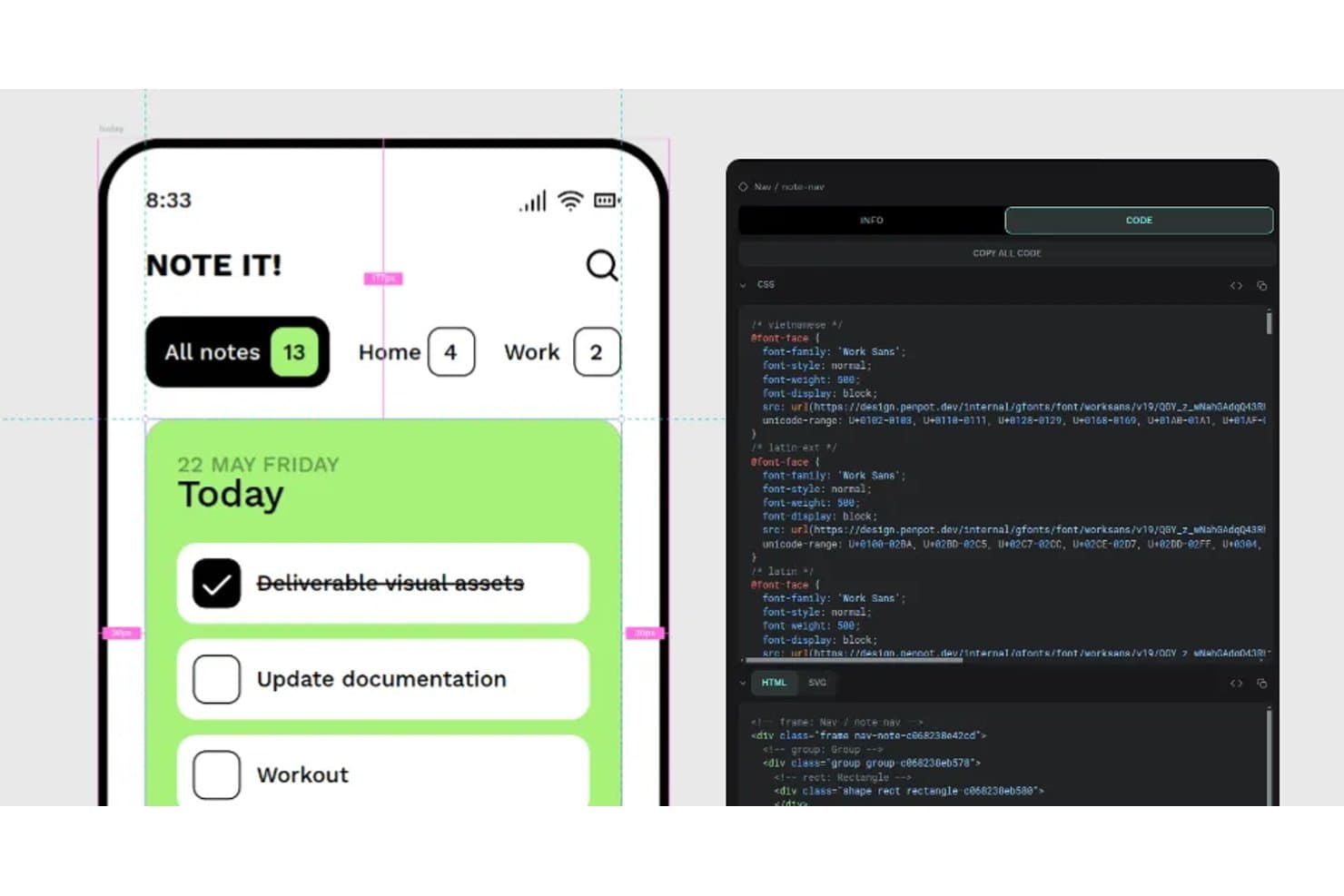
Penpot lets users inspect designs and export CSS code side by side. Penpot is an open-source, browser-based UX design platform built on web standards that covers vector interface design, Flex and CSS Grid layout, prototyping, design system management, and developer handoff.
Who Is Penpot Best For?
Penpot is a strong fit for UX/UI and product designers who need a fully featured, open-source design platform they can self-host or use free in the cloud without sacrificing core tooling.
Why I Picked Penpot
Penpot earns its spot on my shortlist because it's the only fully featured, open-source UX design platform you can self-host on your own infrastructure, including air-gapped environments. I love that its Flex and CSS Grid layout tools map directly to real CSS rules, so what designers build translates cleanly to code without manual redlining. Native W3C design tokens are built in, meaning no plugin required to define, theme, and export tokens across your design system.
Penpot Key Features
- Real-time co-editing: Multiple team members can edit the same file simultaneously, with no limits on team size or invitations.
- Prototyping flows: Define multiple starting points per page, each with its own shareable link, to support different devices and user journeys.
- Version history with pinned versions: Save and name specific versions to preserve them indefinitely, with the ability to restore or preview any past version.
- Plugin ecosystem: Access around 125 community-built plugins, including Iconify for icons, contrast checkers, and framework-specific code export tools.
Penpot Integrations
Penpot offers around 125 marketplace integrations and plugins, including Figma, Miro, Locofy, DeepL, Iconify, and Tailwind. It also provides REST/RPC APIs, webhooks, GitHub connectivity through plugins, and an MCP Server for Claude Desktop, Cursor, VS Code, and OpenAI Codex.
Pros and Cons
Pros:
- Native W3C design tokens
- CSS-mapped Flex and Grid layouts
- Self-hosts in air-gapped environments
Cons:
- Large files can strain performance
- No structured usability testing tools
Learn more about Penpot: Best UX tool for collaboration with team members
- Free plan available
- From $3/user/month
Visit WebsiteCustomer Rating:4.7/5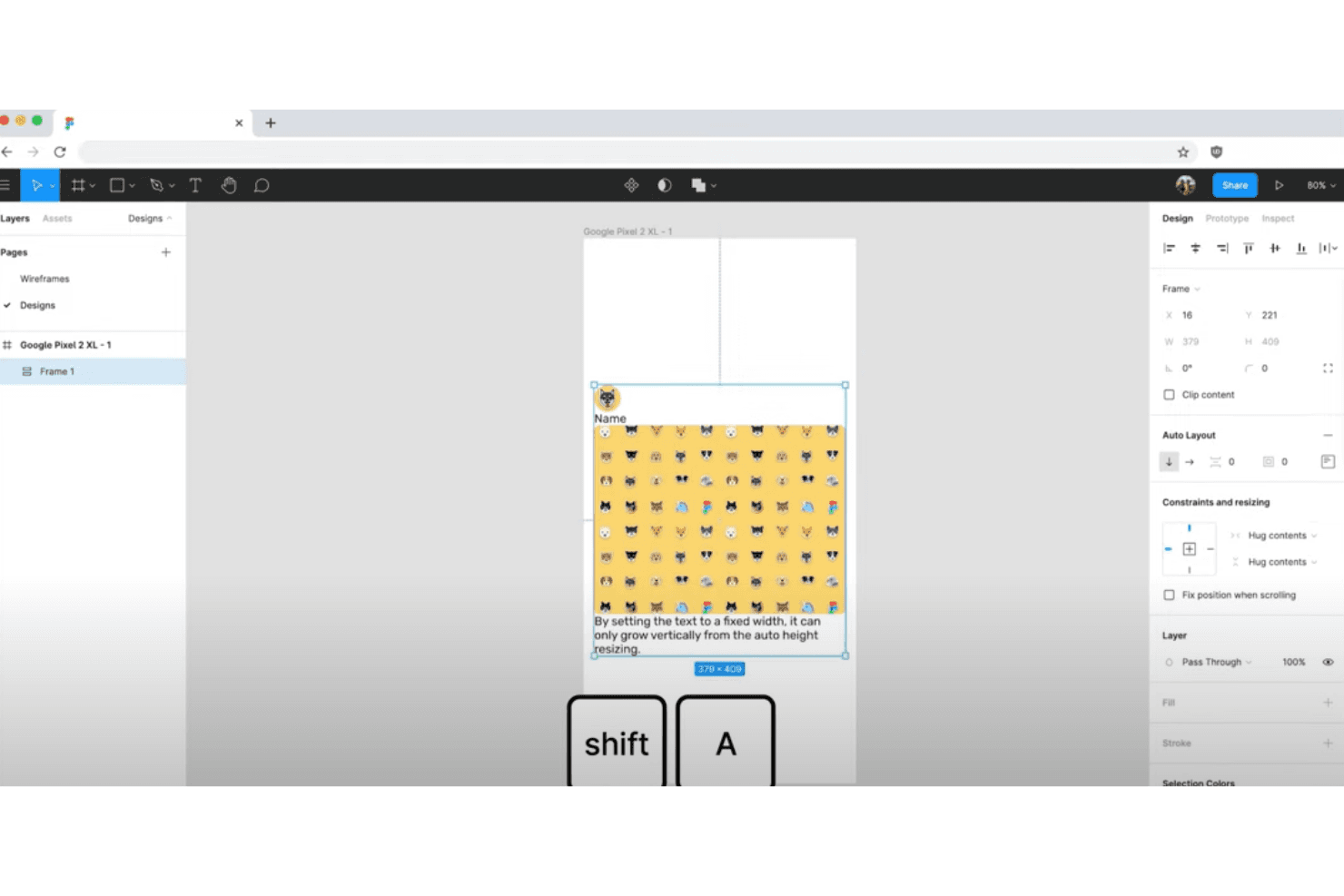
The Auto Layout feature helps designers automate layout tasks. Figma is a browser-based UX and product design platform that combines interface design, interactive prototyping, design system management, developer handoff, and built-in whiteboarding in a single tool.
Who Is Figma Best For?
Figma is the go-to choice for UX/UI and product design teams who need to co-edit, prototype, and hand off work to developers—all in one place.
Why I Picked Figma
Figma earns its spot as one of the best on my shortlist because real-time multiplayer editing is genuinely where it shines. I've watched entire design teams co-edit the same file simultaneously, with cursor chat and live commenting keeping feedback loops tight. Branch reviews let teammates compare changes side by side before merging, which keeps design iterations clean without the chaos of versioned file exports.
Figma Key Features
- Design system checks: Automatically compare your design against your component library and fix mismatches in a single click.
- Dev Mode: Inspect layers and generate CSS, iOS, Android, and React code snippets directly from the canvas for developer handoff.
- FigJam whiteboard: A built-in collaborative whiteboard with 300+ templates, including affinity diagrams and customer journey maps.
- Variable modes: Define and switch between design tokens for themes, breakpoints, and states across your entire component library.
Figma Integrations
Figma integrates with Jira, Confluence, Slack, Microsoft Teams, GitHub, Storybook, Maze, UserTesting, UXtweak, and Zapier. Its REST API, webhooks, plugin API, and widget API support custom integrations.
Pros and Cons
Pros:
- Developer handoff exposes implementation details early
- Design systems connect tokens, components, and modes
- Real-time co-editing keeps review cycles short
Cons:
- Large files can become slow and memory-heavy
- Native usability testing remains unavailable
 Best for prototypes built on real code components
- Free plan + 14-day free trial + demo available
- From $49/user/month
Visit WebsiteCustomer Rating:4.2/5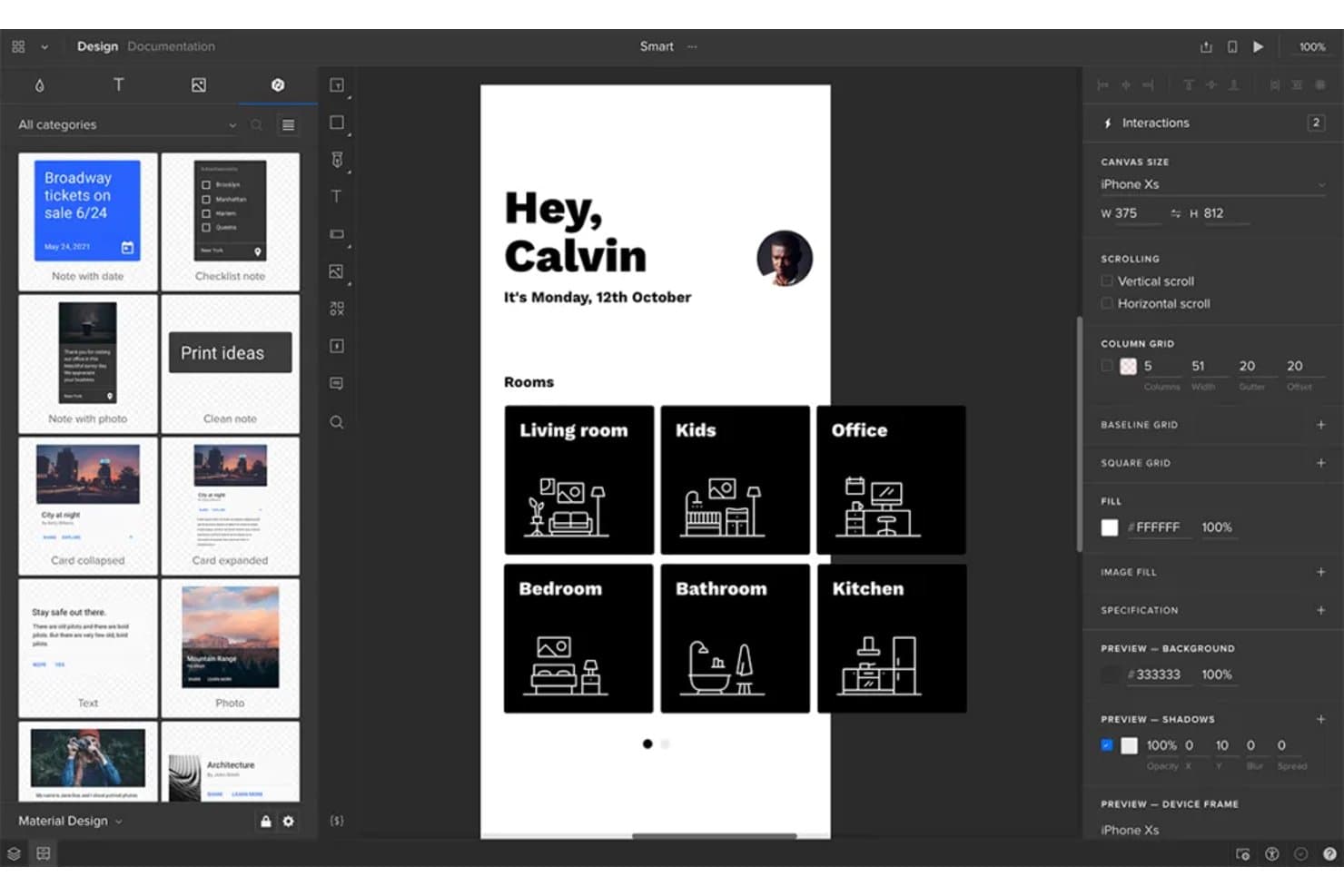
UXPin lets users design and prototype mobile app interfaces visually. UXPin is a UX design and prototyping tool that lets you build interactive prototypes with real coded components, manage design systems, and collaborate with teams through comments, approvals, and developer handoff.
Who Is UXPin Best For?
UXPin suits UX and product designers who need high-fidelity, code-backed prototypes that accurately reflect the final product.
Why I Picked UXPin
I picked UXPin as one of the best because it's the only tool I've used where your prototype is literally built from the same React components shipping in production. Features like Merge let you sync your component library directly from Git or Storybook, so a designer working with MUI or shadcn/ui is prototyping with the real thing, not a vector approximation. I also love that conditional logic, variables, and expressions let you model validated forms and branching flows that actually behave like the live app.
UXPin Key Features
- Stakeholder approval workflow: Send approval requests to external stakeholders via private preview links, then track approve/reject responses directly from your dashboard.
- Built-in accessibility checker: A WCAG AA/AAA contrast checker and an eight-type color-blindness simulator are included natively, with no plugins required.
- Forge AI generation: Generate UI from text prompts or images, with output as JSX tied to your own synced component library rather than generic components.
- Jira integration: Attach prototypes directly to Jira Cloud issues, surfacing the cover image, preview, comment count, and Spec links without leaving your issue tracker.
UXPin Integrations
UXPin offers documented integrations with Figma, Sketch, GitHub, Bitbucket, Storybook, npm, Jira Cloud, Slack, FullStory, StackBlitz, and CodeSandbox. These connections support design imports, coded components, issue tracking, collaboration, session recording, and developer handoff.
Pros and Cons
Pros:
- Approval workflows keep stakeholder decisions traceable
- Validated forms and branching flows behave realistically
- Production components mirror shipped code
Cons:
- Structured user research requires external tools
- Complex expressions slow early prototyping
Learn more about UXPin: Best UX tool for both individual designers and teams
- Free trial available
- From CAD $91.99/month
Visit WebsiteCustomer Rating:4.3/5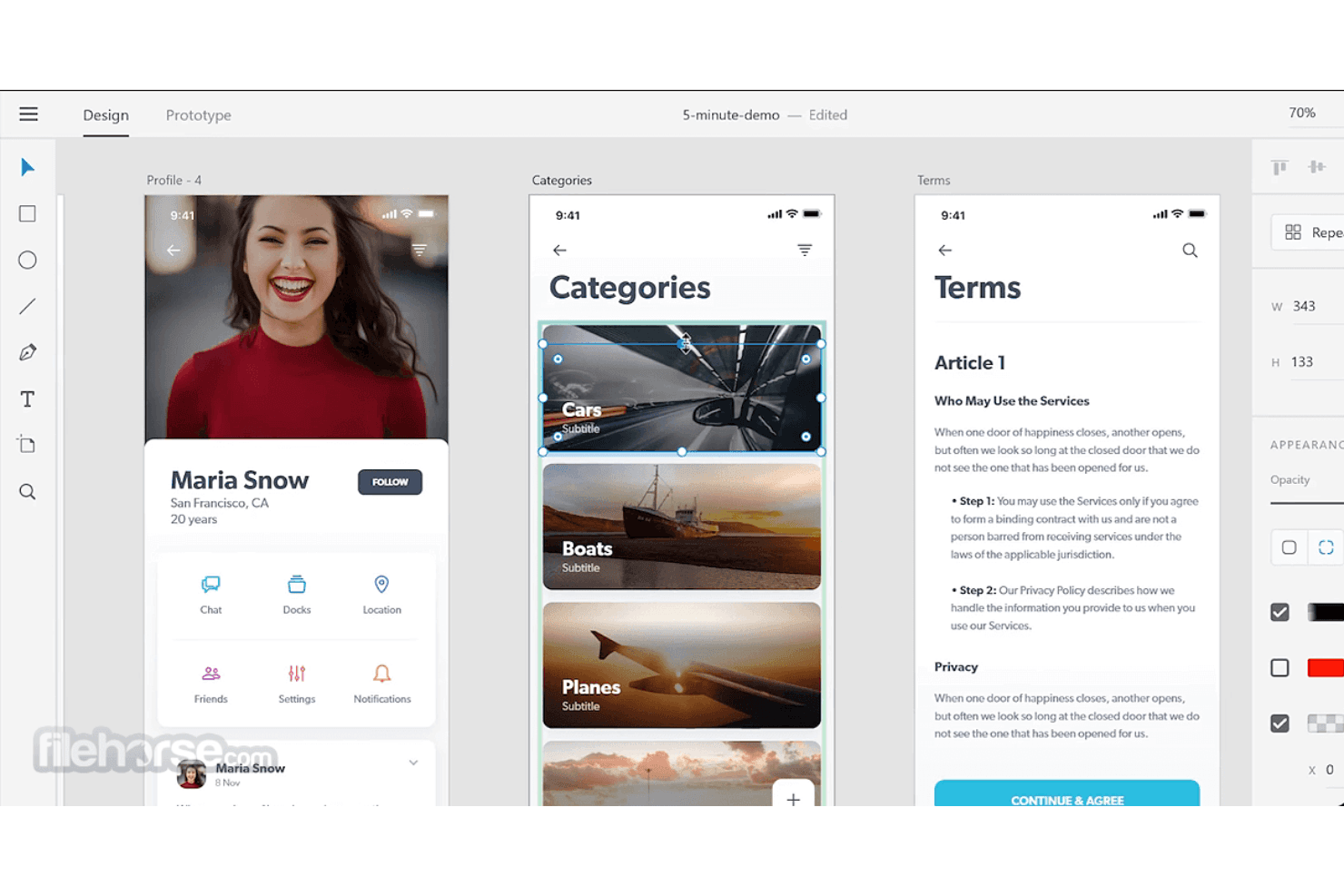
Adobe XD allows users to create and prototype user interfaces for web and mobile applications. Adobe XD is a native desktop design tool for macOS and Windows that covers interface design, prototyping with Auto-Animate and voice triggers, real-time coediting, and developer handoff with auto-generated specs.
Who Is Adobe XD Best For?
Adobe XD fits UX and product designers who are already embedded in the Creative Cloud ecosystem and need a native desktop tool for interface design and prototyping.
Why I Picked Adobe XD
Adobe XD earns its spot as one of the best on my shortlist because it covers the full design-to-prototype pipeline natively, for solo designers and teams alike. I particularly like Auto-Animate, which lets you build micro-interactions like swipe and ripple effects simply by matching layer names across artboards. Real-time coediting on cloud documents means a team can work in the same file simultaneously, while share presets keep handoff to developers clean with auto-generated specs and CSS snippets.
Adobe XD Key Features
- Voice prototyping: Add voice commands as interaction triggers and use a built-in text-to-speech engine to play spoken responses back within your prototype.
- Multiple flows: Set up separate user journeys within a single document, each with its own home artboard and unique shareable link.
- Responsive resize: Automatically apply layout constraints to elements so designs adapt across different screen sizes without manual repositioning.
- Jira integration: Attach prototypes and design specs directly to Jira issues via the Adobe XD for Jira app, with options for public, private, or password-protected links.
Adobe XD Integrations
Adobe XD connects with Photoshop, Illustrator, After Effects, Creative Cloud Libraries, and Azure AD. The Adobe XD for Jira app is a marketplace integration, while Slack and Zoom are supported through plugins.
Pros and Cons
Pros:
- Native offline work suits desktop teams
- Voice and gamepad triggers broaden prototypes
- Auto-Animate speeds polished interaction demos
Cons:
- No structured usability testing or research tools
- Maintenance mode limits future product investment
 Best UX tool for the entire design process
- 30-day free trial available
- From $12/user/month (billed annually)
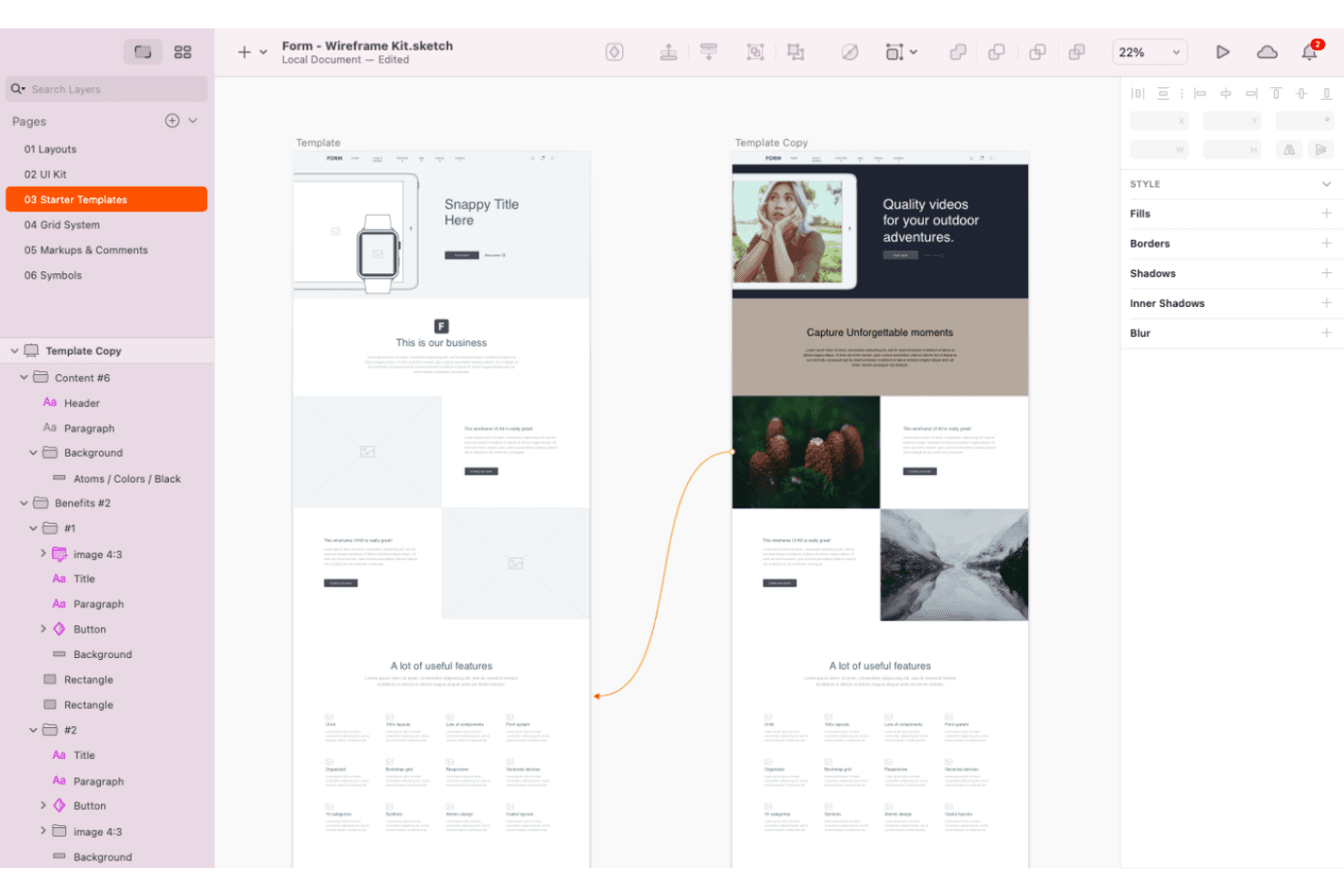
Sketch starter templates are pre-designed UI templates that provide a starting point for designers to create their custom designs. Sketch is a native macOS UX design tool that covers vector editing, layout, prototyping, design system management, and free browser-based developer handoff in one application.
Who Is Sketch Best For?
Sketch is the strongest fit for UI/UX and product designers working on Mac who need a fast, native design environment with mature design system tooling and free developer handoff.
Why I Picked Sketch
Sketch earns its spot as one of the best because it's one of the few tools that genuinely covers the full design lifecycle without forcing you to stitch together separate apps. I love that its native macOS editor handles everything from vector work and auto-layout to multi-screen prototyping with Smart Animate transitions, while the free browser-based Inspect mode gives developers CSS and Swift values at no extra cost. Its governed Libraries with controlled update rollouts also make it a strong choice when you're maintaining a live design system across a team.
Sketch Key Features
- Local MCP server: A built-in MCP server connects your Mac app directly to AI coding clients like Claude, Cursor, and VS Code Copilot for design-to-code workflows—no external AI subscription needed.
- Stacks (auto-layout): Sketch's auto-layout system supports padding, spacing, wrapping, relative sizing, min/max constraints, and negative gaps for building responsive UI components.
- Color Variables and token export: Define reusable color tokens across your design, then export them in multiple formats or publish a public link that stays in sync with your Library.
- Enterprise security controls: Professional and above plans include SAML SSO, SCIM provisioning, BYOK encryption via AWS KMS, and a Private Cloud option with US/EU data residency.
Sketch Integrations
Sketch offers a small set of documented integrations, including native Slack integration and plugins or link-based connections for Jira, GitHub, Notion, Zeplin, Anima, and Useberry. Its JavaScript API, Developer Platform, and local MCP server support custom workflows.
Pros and Cons
Pros:
- Free browser handoff serves non-design stakeholders
- Governed Libraries support scalable design systems
- Native offline macOS design and prototyping
Cons:
- No native user research or usability testing
- Mac-only editing limits cross-platform collaboration
Learn more about Sketch:
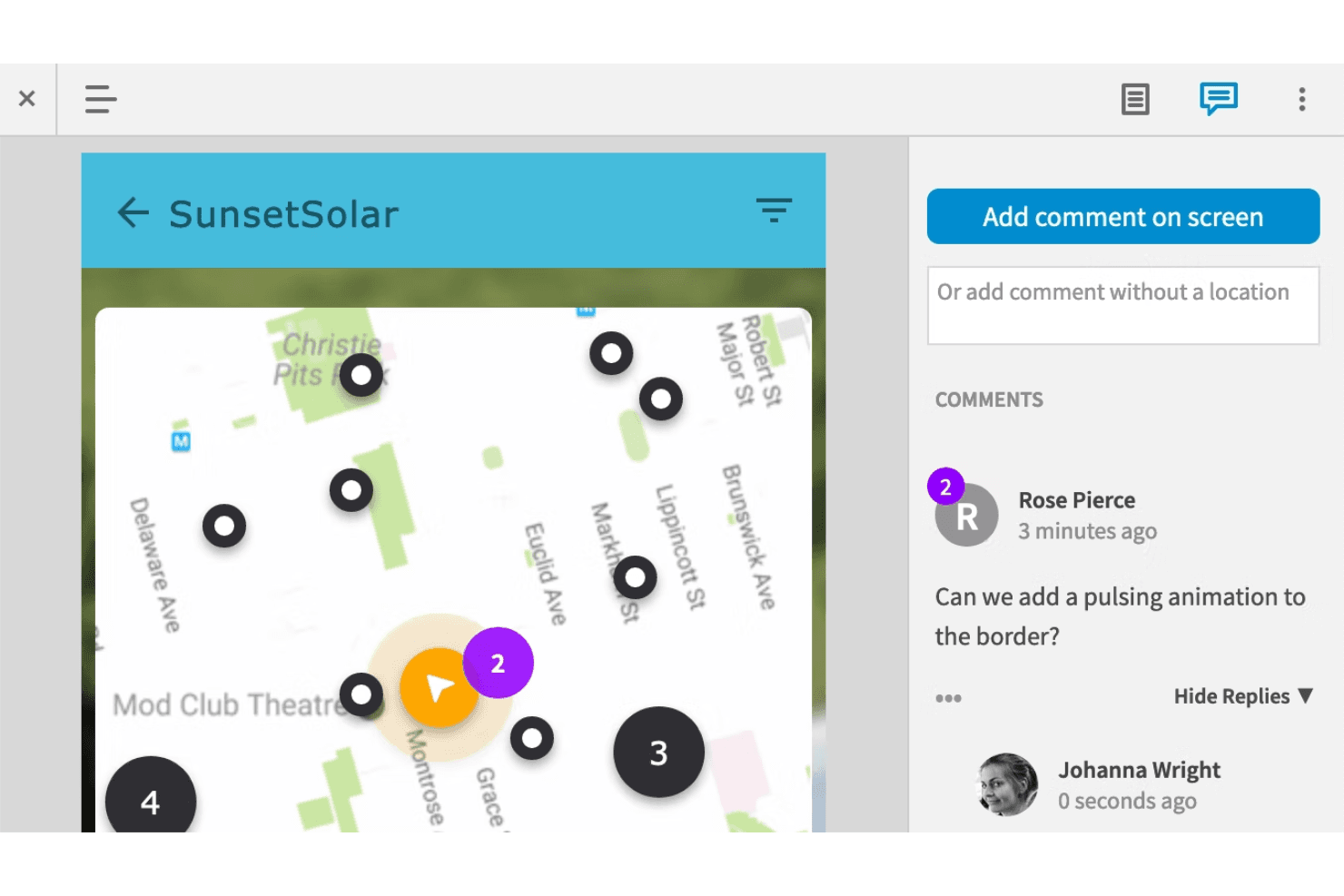
Axure RP’s commenting feature allows collaborators to provide feedback on prototypes and designs. Axure is a desktop-based UX prototyping tool that combines high-fidelity interactive prototyping, wireframing, flow diagramming, and design documentation with a cloud platform for sharing, collaboration, and handoff.
Who Is Axure Best For?
Axure is a strong fit for UX/UI designers and product designers at mid-size to enterprise organizations who need to prototype complex, logic-driven interactions that simpler tools can't replicate.
Why I Picked Axure
I picked Axure as one of the best because no other UX tool comes close for logic-heavy interactive prototyping. I'm talking about real conditional logic, global variables, and repeater widgets that render sortable, filterable data grids, all without a line of code. When I need a prototype that behaves like a working product, with typed form inputs, multi-state dynamic panels, and adaptive layouts that shift between desktop and mobile automatically, Axure is where I go.
Axure Key Features
- Adaptive views: Design desktop, tablet, and mobile layouts in a single file, with the right layout displaying automatically based on screen size.
- Inspect view: Axure Cloud generates automatic redlines, CSS declarations, and downloadable assets so developers can pull specs without a separate handoff tool.
- Whiteboards and Documents: Real-time co-editing canvas for flow diagrams, journey maps, sticky notes, and structured spec documents alongside your prototypes.
- MCP server integration: Axure's experimental MCP servers give AI coding tools like Claude Code and Cursor read access to your RP files and Cloud content to generate code and documentation.
Axure Integrations
Axure offers documented integrations with Jira, Confluence, Slack, Microsoft Teams, Figma, Sketch, and Adobe XD, plus experimental MCP connectivity with Claude Code, Cursor, VS Code, and other compatible tools.
Pros and Cons
Pros:
- Offline desktop work suits enterprise teams
- Data-driven tables support realistic workflows
- Logic-heavy prototypes feel close to production
Cons:
- Check-in collaboration limits live multiplayer editing
- No native usability testing or research synthesis
Learn more about Axure:
Diğer Seçenekler
En iyi UX araçları listesine giremeyen, ancak değerlendirmenizde fayda bulunan birkaç seçenek daha burada yer alıyor.
- 11JustinmindBest for prototyping with logic, data, and PM specs
- 12ProtoPieBest for hardware and multi-device prototyping
- 13FramerBest UX tool for creating code-based designs
- 14WebflowBest for launching responsive sites from design
En İyi UX Araçlarını Nasıl Seçtim?
En iyi UX araçlarını nasıl seçtiğime dair ayrıntılar şöyle. Öncelikle, kullanıcı puanları yüksek olan UX araçlarını araştırdım. Ardından, kullanıcıların yazılımla ilgili deneyimlerini anlamak için incelemelerini tek tek gözden geçirdim.
Her aracı değerlendirdiğim ölçütleri belirlemek için ürün yönetimi ve ürün tasarımı alanlarındaki yıllara dayanan deneyimimden yararlandım. Aşağıda, bu makaledeki araçları incelerken kullandığım seçim kriterleri yer alıyor.
How I Evaluate UX Tools
I split my evaluation into three parts: core functionality (whether a tool can build interactive prototypes and support real-time team feedback), standout features (native developer handoff), and beyond-feature factors like pricing model and onboarding support. Core functionality carries the most weight.
Core Functionality (Table Stakes For This List)
When I'm selecting tools for my list, I score each one on a scale from 0 (does not offer the functionality) to 5 (excels in this area) for each core functionality listed below. I then convert the total into a percentage to help assess each tool's overall fit, with extra weight on any functionalities I've deemed essential.
- Design & Prototyping (Essential): I check whether a tool supports interactive, multi-screen prototypes with transitions and logic—not just static mockups you'd outgrow in a sprint.
- Collaboration & Feedback (Essential): Real-time co-editing and threaded comments matter here, especially for async teams where stakeholder review cycles can stall progress.
- User Testing & Research: I look for built-in usability testing methods like unmoderated sessions or card sorts, plus analytics that surface actionable patterns rather than raw recordings.
- Design System Management: Shared component libraries with variants and style tokens are what I evaluate, since maintaining consistency across products falls apart without proper governance.
- Handoff & Documentation: Auto-generated specs, exportable assets, and code snippets are the baseline. Tools like Figma and Zeplin approach this differently, so I compare how cleanly each one fits into a dev workflow.
- Version Control & History: I look for named checkpoints and the ability to branch or restore earlier iterations, which matters most when multiple designers touch the same file.
Once I have a list of tools that meet the criteria, I consider what sets each platform apart.
Differentiating Factors (What Sets Vendors Apart)
Here's how I compare and contrast different vendors:
Standout Features
I evaluate whether a tool offers a native developer mode that auto-generates framework-specific code like React or CSS. This cuts handoff friction when engineers can inspect and extract specs without a separate plugin. Built-in whiteboarding is another factor I check, since teams that can brainstorm journey maps and then refine designs in one workspace skip the context-switching between Miro and their design tool. I also look at each platform's plugin ecosystem to see how easily teams can extend core functionality with accessibility checkers, icon libraries, or content tools.
Beyond Features
Pricing model matters here because viewer and commenter seat costs add up fast once you loop in stakeholders for review cycles. I check whether a tool charges per editor or caps free viewers, since that shapes how broadly your team can collaborate without inflating the budget. Integration depth with your existing dev and product stack is equally important—I look for native connections to Jira, Slack, and GitHub so design output feeds directly into delivery workflows. I also evaluate onboarding support, especially template libraries and vendor-led training, which shortens time-to-value when rolling out a new tool across cross-functional teams.
UX Araçları Nasıl Seçilir?
Uzun özellik listeleri ve karmaşık fiyatlandırma yapılarına takılıp kalmak kolaydır. Kendinize özgü yazılım seçimi sürecinizi yürütürken odağınızı korumanıza yardımcı olmak için aklınızda bulundurmanız gereken faktörleri içeren bir kontrol listesi hazırladık:
| Faktör | Dikkat Edilmesi Gerekenler |
|---|---|
| FaktörÖlçeklenebilirlik | Dikkat Edilmesi GerekenlerAracın ekibinizle birlikte büyüyebildiğinden emin olun. Artan kullanıcı veya proje sayılarına uyum sağlayan seçenekleri değerlendirin. |
| FaktörEntegrasyonlar | Dikkat Edilmesi GerekenlerAracın iş akışı verimliliğini artırmak için Slack, Jira veya Adobe Creative Suite gibi kullandığınız diğer yazılımlarla entegre olup olmadığını kontrol edin. |
| FaktörÖzelleştirilebilirlik | Dikkat Edilmesi GerekenlerAracın özel şablonlar veya iş akışları gibi özellikleri, belirli tasarım ihtiyaçlarınıza uyacak şekilde uyarlamanıza izin verip vermediğini belirleyin. |
| FaktörKullanım Kolaylığı | Dikkat Edilmesi GerekenlerKullanıcı arayüzünü ve öğrenme sürecini değerlendirin. Bir araç sezgisel olmalı ve eğitim için harcanan zamanı azaltmalıdır. |
| FaktörBütçe | Dikkat Edilmesi GerekenlerGizli ücretler de dahil olmak üzere toplam maliyeti göz önünde bulundurun. Bütçe kısıtlarınıza uyan ücretsiz UX seçeneklerini veya esnek fiyatlandırma planlarını değerlendirin. |
| FaktörGüvenlik Önlemleri | Dikkat Edilmesi GerekenlerAracın veri koruma standartlarına uyduğundan ve tasarımlarınızı korumak için şifreleme ve düzenli güvenlik güncellemeleri gibi özellikler sunduğundan emin olun. |
| Faktörİş Birliği | Dikkat Edilmesi Gerekenlerİletişimi kolaylaştırmak için gerçek zamanlı düzenleme veya yorum yapma gibi ekip iş birliğini destekleyen özellikleri arayın. |
| FaktörDestek | Dikkat Edilmesi GerekenlerSorunlar ortaya çıktığında size yardımcı olması için canlı sohbet, e-posta ve bilgi bankaları dahil olmak üzere müşteri desteğinin erişilebilirliğini ve kalitesini değerlendirin. |
UX araçları nedir?
UX aracı, UX tasarımcılarının kullanıcı arayüzleri oluşturmasına, prototip hazırlamasına ve test etmesine yardımcı olan bir yazılım uygulamasıdır. Bu araçlar, dijital ürün geliştirmede kullanıcı odaklı bir yaklaşım sağlamak için gerekli özellikleri ve işlevleri sunarak UX tasarım sürecinde önemli bir rol oynar. Bu özellikler arasında tel çerçeve oluşturma yetenekleri, prototip oluşturma işlevleri, kullanıcı akışı haritalama, kullanılabilirlik testi entegrasyonu ve iş birliği özellikleri bulunur.
UX araçları, tasarım fikirlerini somut ve işlevsel prototiplere dönüştürmede önemli bir rol oynayarak dijital ürün geliştirmede kullanıcı odaklı bir yaklaşımı destekler.
UX Araçlarındaki Trendler
Araştırmam sırasında farklı UX aracı sağlayıcılarından sayısız ürün güncellemesi, basın bülteni ve sürüm günlüğü inceledim. Takip ettiğim yeni trendlerden bazıları şunlar:
- AI Entegrasyonu: Daha fazla araç, tasarım süreçlerini geliştirmek için AI kullanıyor ve otomatik prototip oluşturma ve tasarım önerileri gibi özellikler sunuyor.
- Sanal Gerçeklik (VR): VR, UX tasarımında daha yaygın hale geliyor ve sürükleyici prototip oluşturma deneyimleri sağlıyor.
- Uzaktan İş Birliği: Uzaktan çalışmanın yaygınlaşmasıyla birlikte araçlar, daha iyi iş birliği özelliklerine odaklanıyor. Figma, gerçek zamanlı iş birliği özellikleriyle bu alanda öne çıkıyor.
- Biyometrik Geri Bildirim: Bazı araçlar, tasarım kararlarına yön vermek için biyometrik verileri araştırıyor. Buna, kullanıcı geri bildirimi toplamak amacıyla göz izleme ve duygu algılama teknolojilerinin kullanılması da dahil.
- Sürdürülebilirliğe Odaklanma: Sürdürülebilir tasarım uygulamalarına yönelik büyüyen bir trend var. Araçlar, tasarımcıların çevre dostu ve enerji verimli ürünler oluşturmasına yardımcı olacak özellikleri bünyelerine katıyor.
UX Araçlarının Özellikleri
UX araçlarını seçerken, ürün geliştirme döngüsünün her aşamasında UX tasarımının özel ihtiyaçlarını doğrudan destekleyen özelliklere odaklanın. Dikkate alınması gereken en kritik ve UX'e özgü özellikler şunlardır:
- Etkileşimli Deneyimler için Prototip Oluşturma:
Son ürünün davranışını taklit eden tıklanabilir, etkileşimli prototipler oluşturmanıza olanak tanıyan araçları arayın. Bu özellik; paydaşların ve kullanıcıların geliştirme öncesinde tasarımı deneyimleyebilmesine yardımcı olmak için kullanıcı akışlarını, geçişleri ve animasyonları desteklemelidir. Figma, Axure ve Framer gibi popüler araçlar bu alanda öne çıkar. - UX Ekipleri için Tasarlanmış İş Birliği:
Kullanıcı akışları, tel çerçeveler veya prototipler üzerinde çalışan ekipler için gerçek zamanlı iş birliği araçları çok önemlidir. Paylaşılan çalışma alanları, sürüm kontrolü ve UX görevlerine uyarlanmış yorum dizileri gibi özellikler, ekiplerin verimli bir şekilde uyum sağlamasına yardımcı olabilir. Miro ve InVision gibi araçlar, tasarım geri bildirimi iş akışlarıyla entegrasyon da dâhil olmak üzere güçlü iş birliği seçenekleri sunar. - Kullanıcı Testi Entegrasyonu:
Dahili kullanılabilirlik testlerine veya test platformlarıyla (ör. Maze, Survicate) sorunsuz entegrasyonlara sahip araçlar, içgörü toplamak için hayati önem taşır. Prototiplerinizle kullanıcıların nasıl etkileşim kurduğunu analiz etmek için görev tabanlı test, oturum kaydı, ısı haritaları ve anket özellikleri gibi seçenekleri arayın. - Erken Tasarım için Tel Çerçeve Oluşturma Araçları:
Balsamiq veya MockFlow gibi düşük ayrıntı düzeyli tel çerçeve oluşturmaya odaklanan araçlar, ilk fikirleri taslak hâline getirmek için idealdir. Bu araçlar sürükleyip bırakılabilir bileşenler, yeniden kullanılabilir kitaplıklar ve erken geri bildirim için tel çerçeveleri paylaşma olanağı içermelidir. - Platformlar Arası Tasarım Önizlemeleri:
Tasarımları farklı cihazlarda önizleyebilme olanağı kritik önem taşır. Tasarım platformundan doğrudan masaüstü, tablet ve mobil arayüzlerdeki kullanıcı deneyimlerini simüle etmenize olanak tanıyan UX tasarım araçlarını arayın. Figma ve Adobe XD, bu duyarlı önizlemeleri sorunsuz bir şekilde sunmalarıyla bilinen iki popüler duyarlı tasarım prototipleme aracıdır. - Özel İhtiyaçlar ve Niş Kullanım Alanları:
Birçok UX aracı platformlar arası önizlemelere ve genel amaçlı özelliklere öncelik verirken bazı ekiplerin daha özel kullanım alanları için desteğe ihtiyacı olabilir. Örneğin Android prototipleme daha dar kapsamlı bir odak noktasıdır; ancak özellikle bu ortama hizmet eden özel araçlar vardır. Bu niş çözümler, belirli bir işletim sistemi ekosistemi veya donanım bağlamı içinde tasarım yapan ekipler için özellikle değerli olabilir. - Önceden Oluşturulmuş UX Şablonları:
Kullanıcı yolculuğu haritaları, akış diyagramları veya persona şablonları gibi UX'e özel şablonlar zamandan tasarruf sağlayabilir ve daha iyi tasarım süreçlerine ilham verebilir. Flowmapp gibi araçlar, UX çıktıları için uyarlanmış şablonlar konusunda uzmanlaşır. - Erişilebilirlik Testi Araçları:
Erişilebilirlik testi özellikleri içeren UX araçları giderek daha önemli hâle geliyor. Renk kontrastı denetleyicileri, ekran okuyucu emülatörleri veya WCAG uyumluluğu ipuçları gibi özellikler, tasarımlarınızın kapsayıcı olmasını sağlamaya yardımcı olabilir. Stark (Figma ve Sketch eklentisi) gibi araçlar bu ihtiyacı karşılar. - UX için Yapay Zekâ Destekli Tasarım:
UX araçlarındaki yapay zekâ özellikleri; tasarım iyileştirmeleri önerme, akışları otomatik olarak oluşturma veya verilere dayanarak kullanıcı davranışını tahmin etme gibi UX'e özgü görevleri otomatikleştirmeye odaklanmalıdır. Framer gibi araçlar daha iyi düzenler önermek için yapay zekâyı kullanır ve hızlı bir şekilde yineleme yapmayı kolaylaştırır. - Geliştiriciye Teslim Özellikleri:
UX ekipleri için kullanışlı bir özellik olan UI geliştirici araçları, Zeplin, UXPin ve Figma gibi araçlarla geliştirme ekiplerine sorunsuz teslim sağlamak için ayrıntılı tasarım belirtimleri, CSS kod parçacıkları ve varlık dışa aktarma seçenekleri sunar.
Seçiminizi bu UX'e özel özelliklere sahip araçlarla daraltarak tasarım iş akışlarınızı optimize edebilir ve ürün yaşam döngüsünün her aşamasında kullanıcı odaklı çözümler sunmaya odaklanabilirsiniz. Doğru UX araçları; fikir oluşturma, iş birliği, test ve geliştirme arasındaki boşluğu kapatarak etkili tasarımlar oluşturmanıza yardımcı olur.
UX Araçlarının Faydaları
UX araçlarını uygulamak ekibiniz ve işletmeniz için çeşitli faydalar sağlar. Yararlanabileceğiniz avantajlardan bazıları şunlardır:
- Geliştirilmiş iş birliği: Gerçek zamanlı iş birliği özellikleri, iletişim kopukluklarını azaltarak ekibinizin daha etkili bir şekilde birlikte çalışmasına yardımcı olur.
- Daha hızlı prototipleme: Prototipleme araçları, tasarım fikirlerini hızlı bir şekilde oluşturup test etmenize olanak tanıyarak geliştirme sürecini hızlandırır.
- Geliştirilmiş kullanıcı içgörüleri: Kullanıcı testi özellikleri, tasarımları kullanıcı ihtiyaçlarını daha iyi karşılayacak şekilde geliştirmenize yardımcı olan değerli geri bildirimler sağlar.
- Maliyet verimliliği: Tasarım şablonları ve yapay zekâ entegrasyonu, tekrarlayan görevlere harcanan zamanı azaltarak kaynak tasarrufu sağlar.
- Artırılmış esneklik: Özelleştirme seçenekleri, araçları belirli proje gereksinimlerine uyarlamanıza olanak tanıyarak daha fazla kontrol sağlar.
- Daha iyi güvenlik: Güvenlik özellikleri tasarım verilerinizi koruyarak veri koruma standartlarına uyumluluk sağlar.
- Genişletilmiş yaratıcılık: Sanal gerçeklik desteği ve biyometrik geri bildirim, yenilikçi tasarım çözümleri için yeni olanaklar sunar.
UX Araçlarının Maliyetleri ve Fiyatlandırması
UX araçlarını seçmek, mevcut çeşitli fiyatlandırma modellerini ve planları anlamayı gerektirir. Maliyetler özelliklere, ekip büyüklüğüne, eklentilere ve diğer unsurlara göre değişir. Aşağıdaki tablo, UX aracı çözümlerinde yaygın olan planları, ortalama fiyatlarını ve genellikle dâhil edilen özellikleri özetlemektedir:
UX Araçları için Plan Karşılaştırma Tablosu
| Plan Türü | Ortalama Fiyat | Yaygın Özellikler |
|---|---|---|
| Plan TürüÜcretsiz Plan | Ortalama Fiyat$0 | Yaygın ÖzelliklerTemel prototipleme, sınırlı iş birliği ve topluluk desteğine erişim. |
| Plan TürüBireysel Plan | Ortalama Fiyat$10-$30/kullanıcı/ay | Yaygın ÖzelliklerGelişmiş prototipleme, kişisel proje depolama alanı ve temel entegrasyonlar. |
| Plan Türüİşletme Planı | Ortalama Fiyat$30-$50/kullanıcı/ay | Yaygın ÖzelliklerEkip iş birliği, kullanıcı testi özellikleri ve öncelikli müşteri desteği. |
| Plan TürüKurumsal Plan | Ortalama Fiyat$50+/kullanıcı/ay | Yaygın ÖzelliklerTam özelleştirme, özel hesap yönetimi ve gelişmiş güvenlik özellikleri. |
En İyi UX Araçları SSS
Bu konu hakkında başkalarının sorduğu yaygın soruların yanıtlarını bulun.
UX araçları nedir?
UX araçları; web siteleri ve mobil uygulamalar gibi dijital ürünler için kullanıcı deneyimleri oluşturmalarına ve değerlendirmelerine yardımcı olan yazılım uygulamaları veya platformlardır. Bu araçlar tel çerçeve oluşturma, prototip oluşturma, kullanıcı testi, UX tasarımı, ve analizler dahil olmak üzere tasarım sürecinin çeşitli yönlerini destekleyen özellikler sunar.
Doğru UX araçları, ekibinizin tasarım ve geliştirme sürecini kolaylaştırmasına ve daha yüksek kaliteli ürünler sunmasına yardımcı olabilir; bu nedenle mevcut en iyi seçenekleri seçmek önemlidir.
UX araçlarının faydaları nelerdir?
Araştırmalar, yavaş yüklenen web sitelerinin her yıl 2 milyar dolar satış kaybına neden olduğunu gösteriyor. Bu durum, kullanıcı deneyimini ihmal etmenin büyük kayıplara yol açtığını gösterir.
Ancak UX araçlarını ürün yönetimi iş akışınıza dahil etmek çeşitli faydalar sağlayabilir ve satış kayıplarını önlemenize yardımcı olabilir. Şimdi 6 temel faydaya göz atalım:
- Artan verimlilik: UX araçları birçok tasarım görevini otomatikleştirir ve yeniden kullanılabilir tasarım bileşenleri, önceden tasarlanmış şablonlar ve zaman kazandırarak tasarım sürecini kolaylaştıran sürükle ve bırak arayüzleri gibi özellikler sunar.
- İş birliği: UX araçları; tasarımcıların, araştırmacıların ve paydaşların bir proje üzerinde birlikte çalışmasını, geri bildirim paylaşmasını ve gerçek zamanlı olarak güncellemeler yapmasını sağlayan gerçek zamanlı iş birliği özellikleri sunar.
- Sorunların erken tespiti: Kullanıcı testi ve prototip oluşturma gibi özellikler, tasarımcıların olası kullanılabilirlik sorunlarını tasarım sürecinin erken aşamalarında belirlemesini sağlayarak maliyetli yeniden tasarımların riskini azaltır.
- Daha iyi tasarım tutarlılığı: UX araçları; tasarımda tutarlılığın korunmasına ve tüm temas noktalarında birleşik bir marka kimliği sağlanmasına yardımcı olan tasarım kitaplıkları, stil kılavuzları ve tasarım sistemleri sunar.
- Eyleme geçirilebilir kullanıcı geri bildirimi: Anketler, ısı haritaları ve tıklama takibi gibi özellikler sunarak kullanıcılardan doğru ve eyleme geçirilebilir geri bildirimler alınmasını sağlar; bu da tasarımcıların daha bilinçli kararlar vermesine olanak tanır.
- Geliştirilmiş kullanıcı etkileşimi ve memnuniyeti: Kullanıcı testi ve analizler gibi özellikler, tasarımcıların kullanıcı davranışlarını, tercihlerini ve sorun yaşadıkları noktaları anlamasına yardımcı olarak daha ilgi çekici ve tatmin edici deneyimler oluşturmalarını sağlar.
6 tür UX aracı nedir?
Başlıca UX aracı türleri şunlardır:
- Prototip oluşturma araçları: Kullanıcıların bir web sitesinin veya uygulamanın tasarımının nasıl görüneceğini ve hissettireceğini gösteren etkileşimli, tıklanabilir görsel temsiller oluşturmasına yardımcı olan yazılımlardır.
- Tel çerçeve oluşturma araçları: Tel çerçeveler, kullanıcı arayüzünün düzenini ve yapısını gösteren bir web sitesinin veya uygulamanın temel taslakları ya da ana hatlarıdır. Tel çerçeve oluşturma araçları, tasarımcıların bu taslakları hızlı bir şekilde oluşturup yinelemesine olanak tanır.
- Tasarım araçları: Bu araçlar; simgeler, tipografi ve görseller gibi grafik öğeleri kullanarak bir web sitesinin veya uygulamanın yüksek ayrıntı düzeyine sahip tasarımlarını ve maketlerini oluşturmaya yardımcı olur.
- Kullanılabilirlik testi araçları: Bu araçlar, bir web sitesinin veya uygulamanın kullanılabilirliğini test etmeye yardımcı olur. Bu testler bir görevi tamamlamak veya tasarım hakkında geri bildirim sağlamak gibi eylemleri içerebilir.
- UX araştırma araçları: Bu araçlar, dijital ürünlerin tasarımına ve geliştirilmesine yön veren kullanıcı verilerinin ve içgörülerinin toplanmasına yardımcı olur.
- UX dokümantasyon araçları: Bu araçlar, UX ve ürün tasarımıyla ilgili tüm adımların belgelenmesine yardımcı olur.