

Free UI design tools are software platforms that let you create, prototype, and collaborate on user interfaces without paying upfront—either through a free plan or a free trial. If you’re searching for ways to design interfaces, test ideas, or work with your team without committing to a paid subscription, you need options that balance usability, collaboration, and feature access at no cost.
This list will help you quickly compare the top free UI design tools for 2026, so you can find the right fit for your workflow, whether you’re wireframing, prototyping, or building interactive mockups.
Why Trust Our Software Recommendations
6,700+
Reviews
20
Industry experts
16+
Evaluation factors
14
Years
Our team has been testing and reviewing software since 2012. As product managers ourselves, we know how difficult—and important—it is to choose the right software.
For this guide, we evaluated tools using hands-on testing and independent research, scoring tools using our selection criteria.
Our reviews reflect our human editorial judgment, not a sales pitch.
Expert reviewers:
- Andrew LumbySenior TPM
- Cristiano ValimSenior UI/UX Lead


Free UI Design Tools Comparison Table
| Tool | Best For | Trial Info | Price | ||
|---|---|---|---|---|---|
| 1 | Best for real-time team collaboration | Free plan available | From $3/user/month | Website | |
| 2 | Best for native Windows design workflows | Free plan + free demo available | From $11.99/user/month (billed annually) | Website | |
| 3 | Best for non-designer mockups with AI prompts | Free plan available | From $14/user/month | Website | |
| 4 | Best for prototyping with coded components | Free plan + 14-day free trial available | From $29/user/month (billed annually) | Website | |
| 5 | Best with open-source team environments | Free plan + 14-day free trial available | From $7/user/month | Website | |
| 6 | Best for AI-assisted design-to-live-site publishing | Free plan available | From $10/month (billed annually) | Website | |
| 7 | Best for macOS vector editing workflows | 30-day free trial | From $12/user/month (billed annually) | Website | |
| 8 | Best for mobile app interface animation | 15-day free trial + free plan available | From $29/month | Website | |
| 9 | Best for wireframing without a design background | Free plan available | From $9/user/month (billed annually) | Website | |
| 10 | Best for cross-platform design handoff | Free plan available | From $4/user/month | Website |


Free UI Design Tools Reviews
Below are my detailed summaries of free UI design tools that made it onto my shortlist. My reviews offer a detailed look at the features, best use cases, and pricing of each tool to help you find the best one for you.
 Best for real-time team collaboration
- Free plan available
- From $3/user/month
Visit WebsiteCustomer Rating:4.7/5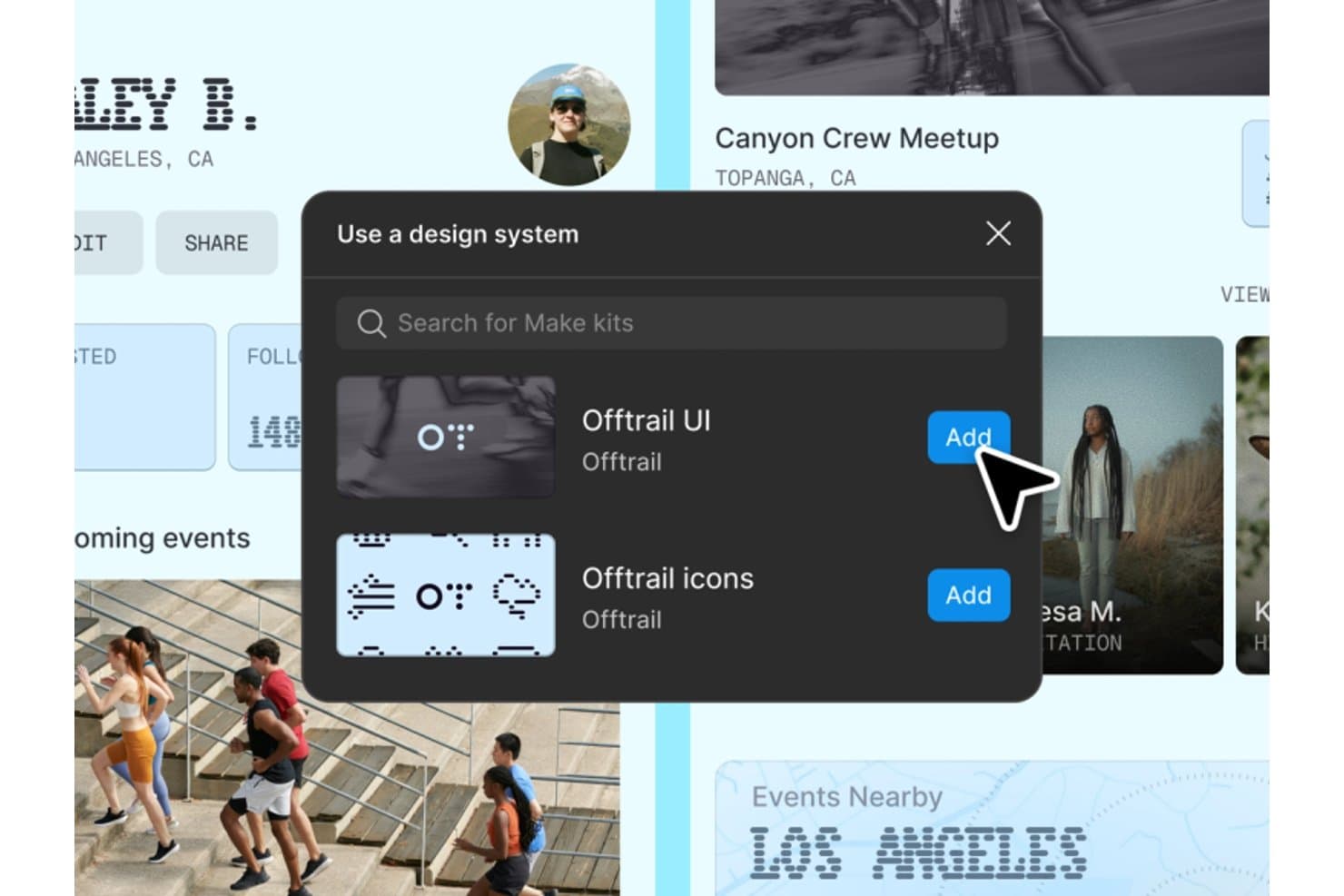
Figma lets users add free UI kits and icon sets via design system panels. Figma is a free UI design tool with an infinite vector canvas, components, variables, interactive prototypes, browser-based editing, comments, and AI-assisted Figma Make workflows.
Who Is Figma Best For?
UI/UX designers and startup teams that need to create, review, and iterate on interfaces together in a browser will find Figma a strong fit.
Why I Picked Figma
I picked Figma because its infinite multiplayer canvas lets my team co-edit wireframes and interface screens with live cursors, comments, and cursor chat. We use shareable prototype links to gather feedback from stakeholders without requiring editor access. That combination makes Figma best for real-time team collaboration.
Figma Key Features
- Auto layout: Create responsive frames that resize and reflow as content changes.
- Interactive prototyping: Add triggers, overlays, Smart Animate transitions, and interactive components.
- Community assets: Browse free UI kits, wireframes, icon sets, templates, and plugins.
- Figma Make: Generate code-backed prototypes and web apps from text prompts.
Figma Integrations
Figma offers native integrations with Jira, Slack, Asana, Microsoft Teams, Confluence, GitHub, and Storybook. GitHub and Storybook connectivity supports developer handoff, while Jira and Slack help teams coordinate design reviews.
What's Free?
Figma offers a free-forever Starter plan, rather than only a time-limited trial. It includes unlimited drafts and collaborators, but limits teams to three collaborative design files, three FigJam files, one project, and 30-day version history.
Pros and Cons
Pros:
- Shareable prototypes support stakeholder feedback
- Extensive community assets speed wireframing
- Real-time co-editing supports quick design reviews
Cons:
- Cross-file component sharing remains unavailable
- Three-file limit constrains ongoing projects
 Best for native Windows design workflows
- Free plan + free demo available
- From $11.99/user/month (billed annually)
Visit WebsiteCustomer Rating:4.4/5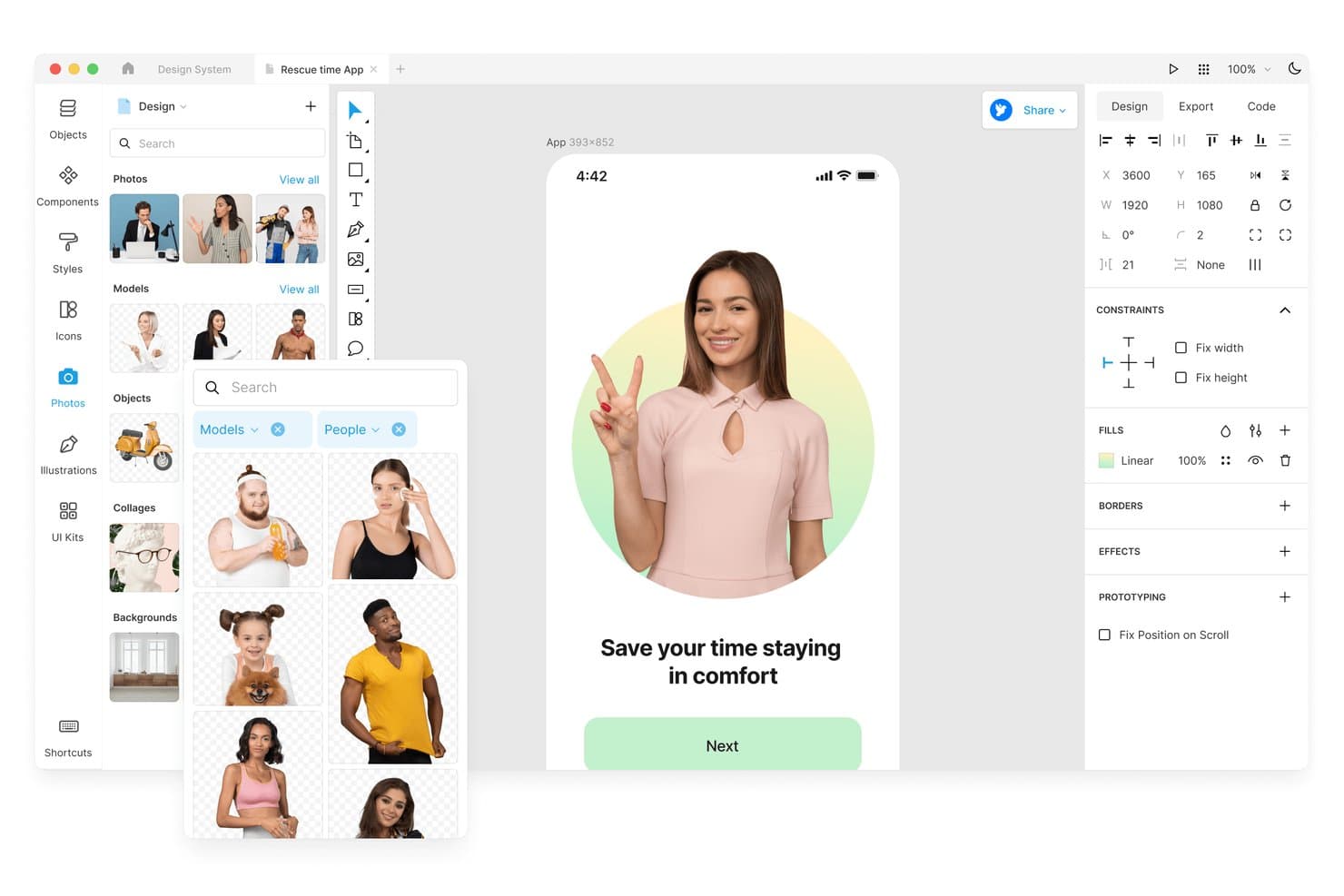
Lunacy lets users browse and insert stock photos directly into designs. Lunacy is a free UI design tool with a vector canvas, components, auto layout, prototyping, built-in UI kits and graphics, real-time collaboration, and code-focused export across desktop and web apps.
Who Is Lunacy Best For?
Lunacy suits UI/UX designers and front-end developers who want a free, native Windows workflow with built-in assets and code-focused handoff.
Why I Picked Lunacy
I picked Lunacy because it’s best for native Windows design workflows, with a desktop app that works offline instead of relying on a browser. I use its built-in UI kits and components to shape interface screens, then check CSS, XAML, JSON, or SVG in the Code tab for developer handoff. I can move a Windows mockup from frames and components into developer-ready output without changing tools.
Lunacy Key Features
- Interactive prototyping: Create hotspots with triggers, overlays, animations, and scroll behaviors.
- Real-time collaboration: Invite up to 10 co-editors to cloud documents.
- Color variables: Organize reusable colors with themes and variable groups.
- File compatibility: Open and save Sketch files, import Figma files, and use the open
.freeformat.
Lunacy Integrations
Lunacy’s native integrations are not clearly documented. It supports file-based workflows with Figma, Adobe XD, Zeplin, Abstract, and Simpli.
What's Free?
Lunacy has a free-forever plan with a full single-user license for its native Windows, macOS, and Linux apps. Cloud documents support up to 10 co-editors, while larger teams and advanced collaboration needs require a paid plan.
Pros and Cons
Pros:
- Offline editing protects local documents
- Built-in assets speed interface mockups
- Native Windows performance on older hardware
Cons:
- Cloud document limits constrain ongoing collaboration
- Free assets require attribution and low resolution
Learn more about Lunacy: Best for non-designer mockups with AI prompts
- Free plan available
- From $14/user/month
Visit WebsiteCustomer Rating:4.8/5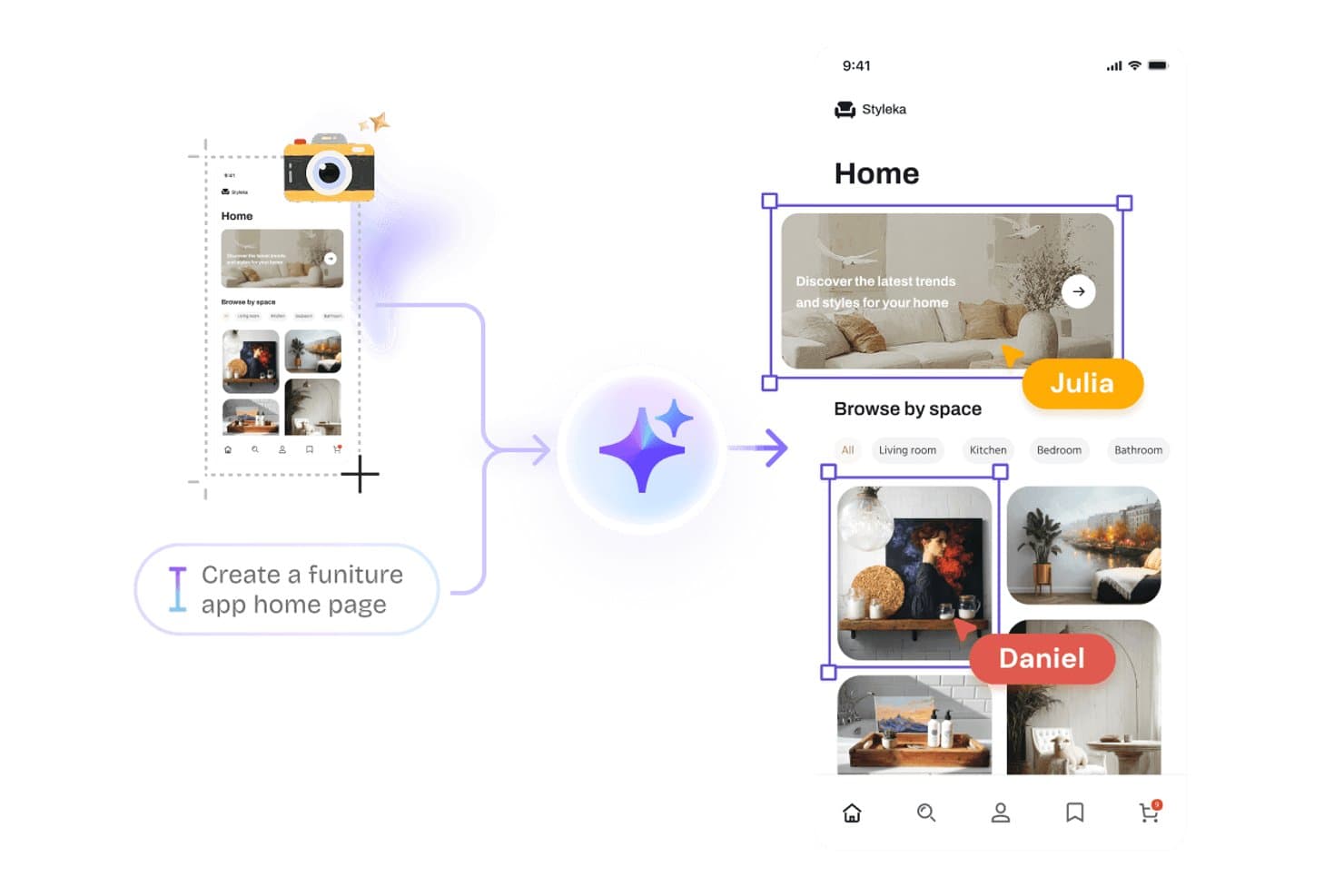
Visily lets users generate UI designs from text prompts using AI. Visily is a browser-based UI design tool for wireframes, mockups, prototypes, and diagrams, combining AI-generated editable screens, drag-and-drop components, interactive flows, and real-time collaboration.
Who Is Visily Best For?
Product managers, startup founders, and cross-functional teams that need to turn early ideas into shareable prototypes without relying on a dedicated designer.
Why I Picked Visily
I picked Visily because it’s best for non-designer mockups with AI prompts. I can turn text prompts, screenshots, sketches, or diagrams into editable UI screens, then refine components through inline AI chat. Auto-Prototyping, overlays, hover states, and drag triggers help me test product flows before involving engineering.
Visily Key Features
- Real-time co-editing: Edit boards together with comments, cursor chat, and follower mode.
- Template library: Choose from more than 1,500 templates for apps, websites, diagrams, and workflows.
- Inspect mode: View dimensions, typography, spacing, colors, CSS, Tailwind variables, and downloadable assets.
- Grid layouts: Organize screens with configurable rows and gridlines for structured interface planning.
Visily Integrations
Visily offers native integration with Figma. Pro and Business plans also include an MCP server for connecting AI coding agents.
What's Free?
Visily’s Starter plan is free forever, with 300 AI credits per workspace each month. It includes two editable boards, up to 2,500 elements per board, and up to 50 workspace members, but excludes private boards, Figma import and export, code export, MCP, and guest viewers or editors.
Pros and Cons
Pros:
- Enables real-time co-editing with comments and cursor chat
- Supports hover, drag, overlays, and animated transitions
- Converts prompts and screenshots into editable mockups
Cons:
- Reusable components lack confirmed variants and master components
- Vector editing lacks paths and Boolean operations
Learn more about Visily: Best for prototyping with coded components
- Free plan + 14-day free trial available
- From $29/user/month (billed annually)
Visit WebsiteCustomer Rating:4.2/5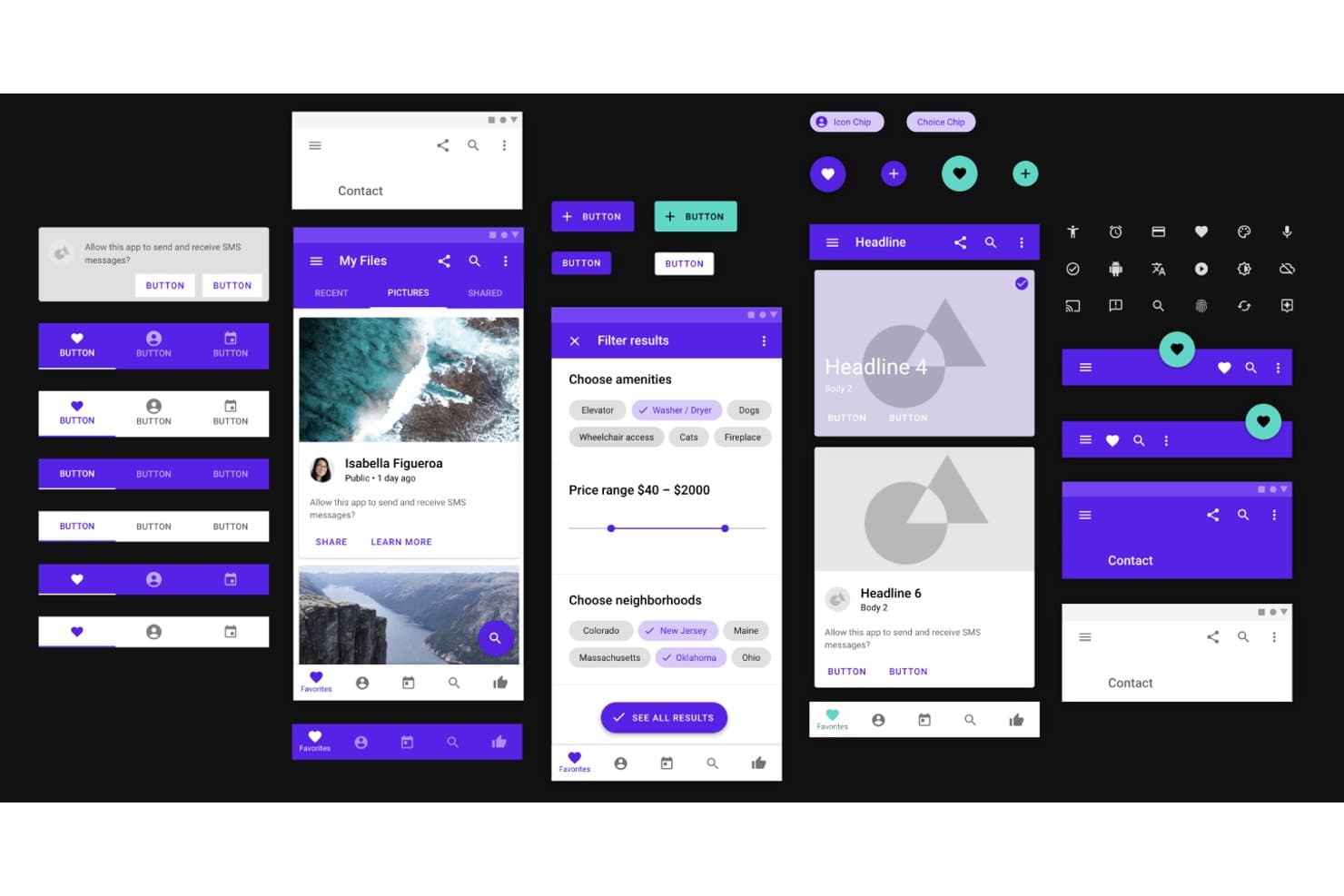
UXPin provides ready-made Material Design UI components for prototyping. UXPin is a free UI design tool with a vector canvas, interactive prototyping, reusable components, AI-assisted interface creation, code-backed libraries, and developer handoff features.
Who Is UXPin Best For?
UXPin suits UI/UX designers and front-end developers who need high-fidelity prototypes built with code-backed components.
Why I Picked UXPin
I picked UXPin because it’s best for prototyping with coded components, bringing React, Storybook, and npm-based elements into interface designs. I use Merge with MUI components to test realistic product flows instead of approximating controls. Its states, variables, conditional logic, and API requests also support prototypes that behave like working applications.
UXPin Key Features
- Vector editing: Create interfaces with pen, pencil, shape, and SVG tools.
- Interactive form elements: Add functional inputs, buttons, checkboxes, and select lists.
- Responsive breakpoints: Preview adaptive layouts across different device views.
- Accessibility tools: Check color contrast and simulate common color-vision deficiencies.
UXPin Integrations
UXPin lists integrations with Figma, Sketch, Storybook, Jira, Slack, FullStory, Adobe Fonts, and Google Fonts. Merge also connects to Git and npm, while API requests support data-driven prototypes.
What's Free?
UXPin offers a free-forever plan after its 14-day free trial, with access limited to two prototypes, 50 AI credits per month, GPT-5 mini, and 20 MUI components. Paid plans are required for advanced features such as conditional logic, expressions, Storybook integration, and additional coded libraries.
Pros and Cons
Pros:
- Detailed handoff specs support developer review
- Logic-rich prototypes model application behavior
- Real form controls support realistic usability testing
Cons:
- Large projects can load slowly
- Free offering restricts long-term experimentation
Learn more about UXPin: Best with open-source team environments
- Free plan + 14-day free trial available
- From $7/user/month
Visit WebsiteCustomer Rating:4.5/5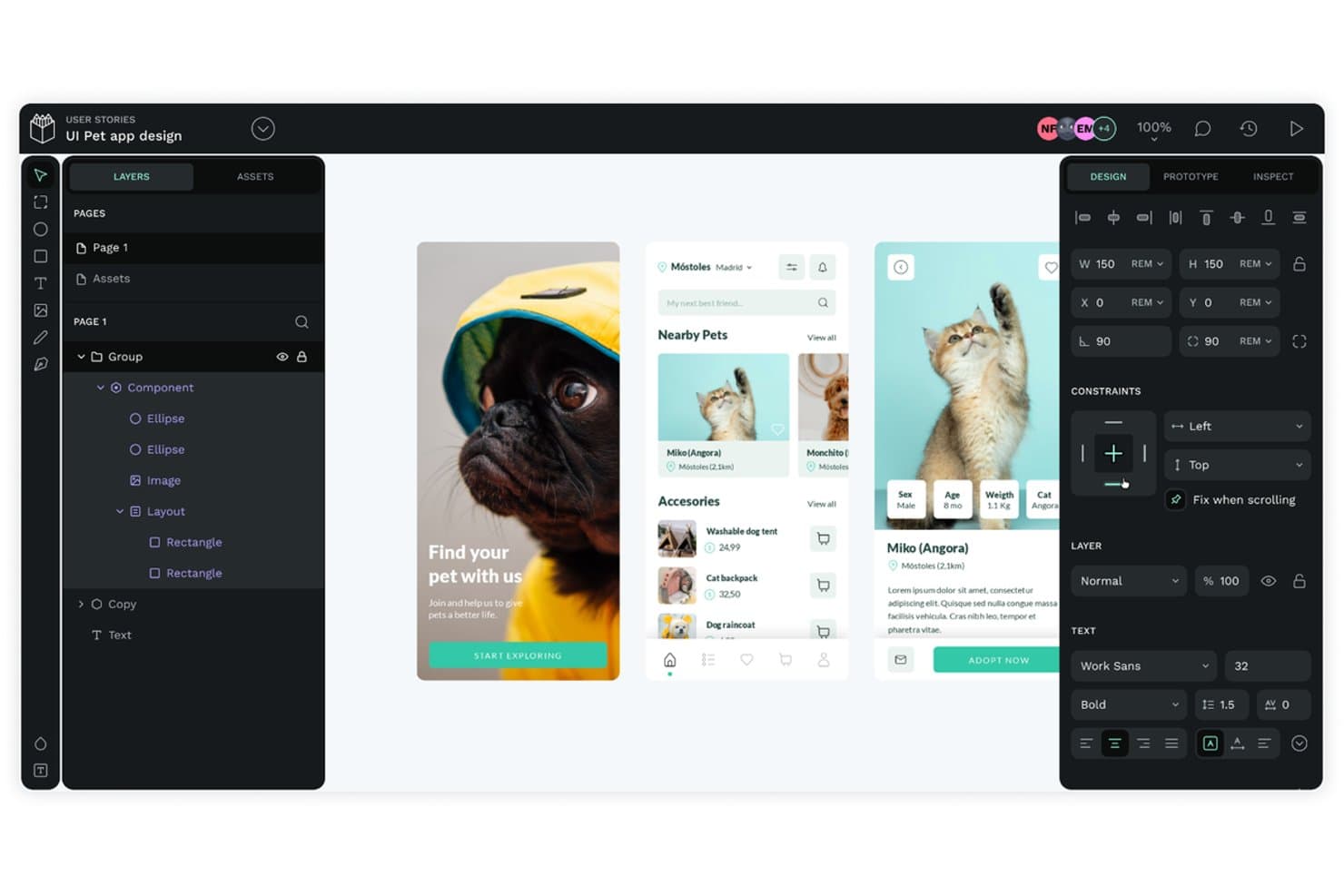
Penpot lets users design mobile app UIs with flex layout tools. Penpot is a free UI design tool with an SVG-based canvas, CSS Flex and Grid layouts, reusable components and design tokens, interactive prototypes, real-time collaboration, and developer handoff tools.
Who Is Penpot Best For?
Penpot suits product teams that want CSS-based UI design, shared design systems, and open-source or self-hosted collaboration.
Why I Picked Penpot
I picked Penpot because it brings open-source collaboration into serious UI design work. My team can self-host projects, build interfaces on an SVG canvas, and use CSS Flex and Grid layouts that translate directly to frontend implementation. Shared components, variants, and W3C design tokens help us maintain a consistent design system across product screens.
Penpot Key Features
- Interactive prototyping: Connect screens with triggers, overlays, actions, and animated transitions.
- Penpot Hub: Access community libraries, UI kits, icon sets, and research templates.
- Inspect mode: View measurements, copy CSS, inspect markup, and export design assets.
- Multi-format export: Export designs as PNG, JPEG, WEBP, SVG, or PDF.
Penpot Integrations
Native integrations are not clearly documented; Penpot supports plugins for Iconify, Tailwind, Locofy, and Figma-to-Penpot migration, plus Adobe XD imports. It also offers webhooks and REST/open API.
What’s Free?
Penpot offers a free-forever plan, not just a trial, with unlimited files and teams. The cloud plan supports up to eight team members, unlimited viewers, 10 GB of storage, and seven-day version history and file recovery; paid plans add larger limits and advanced administration.
Pros and Cons
Pros:
- Free self-hosting supports unlimited users
- Native W3C design token support
- CSS-based Flex and Grid layouts
Cons:
- Prototypes lack conditional logic and variables
- Real-time editing can become sluggish
Learn more about Penpot: Best for AI-assisted design-to-live-site publishing
- Free plan available
- From $10/month (billed annually)
Visit WebsiteCustomer Rating:4.4/5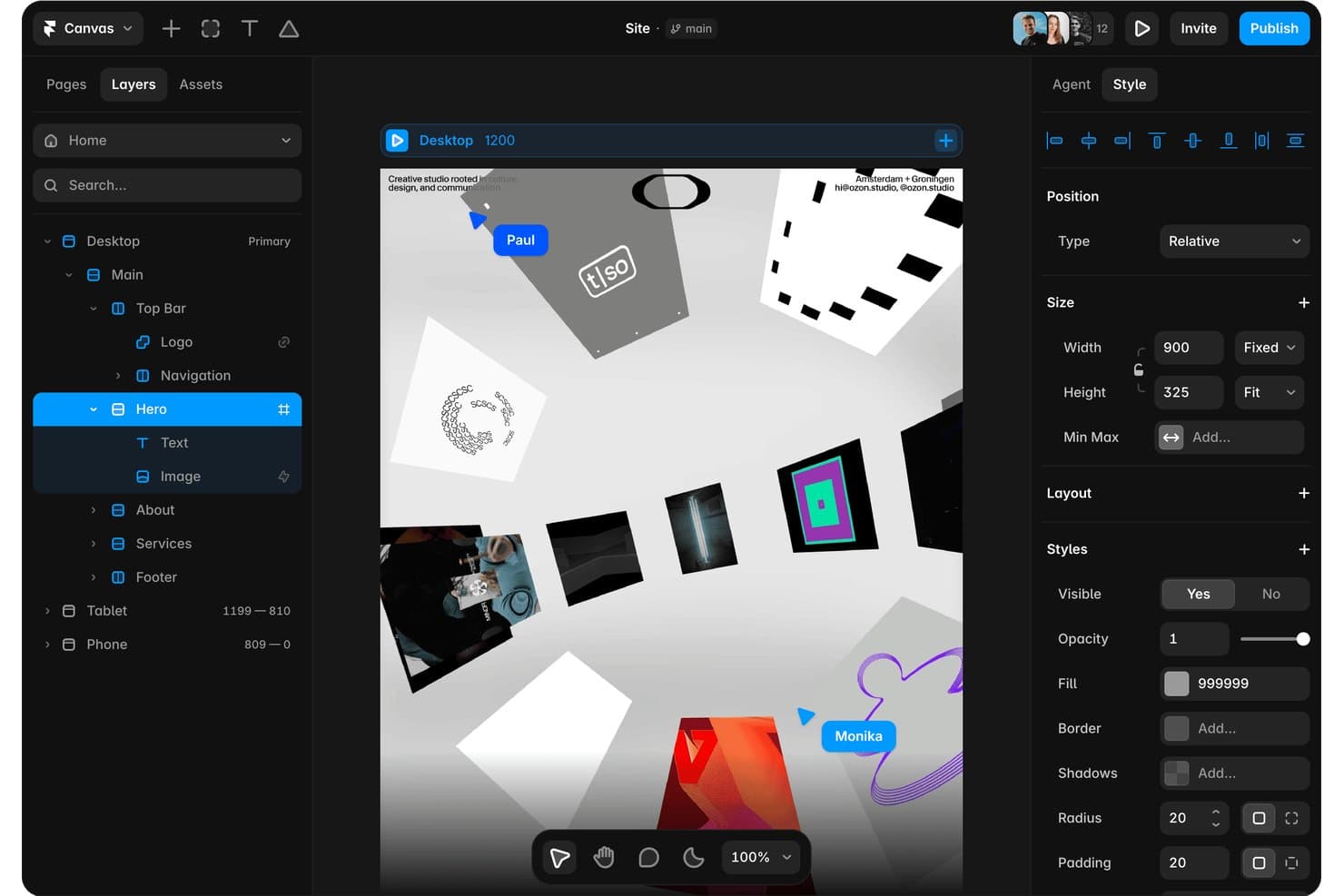
Framer lets users design and layer components visually with real-time collaboration. Framer is a free UI design tool with a vector canvas for wireframes, high-fidelity interfaces, interactive prototypes, reusable components, team collaboration, and live website publishing.
Who Is Framer Best For?
Framer suits UI/UX designers, startup founders, and solopreneurs who want to turn AI-assisted concepts into polished, publishable websites.
Why I Picked Framer
I picked Framer because it connects free UI design with AI-assisted design-to-live-site publishing. I use its AI Design Agent to turn reference images or URLs into editable layouts, then apply responsive breakpoints and interactions on the vector canvas. Publishing that prototype as a live, responsive website lets me validate concepts without rebuilding them elsewhere.
Framer Key Features
- Reusable components: Create variants and component variables for repeatable interface elements.
- Real-time collaboration: Use multiplayer cursors, pinned comments, and threaded discussions.
- Templates and plugins: Browse community templates and plugins for UI assets and workflows.
- Figma import: Transfer frames, layers, and visual structure through the official plugin.
Framer Integrations
Framer offers marketplace integrations with Figma, WordPress, Tally Forms, and Framer Commerce through plugins.
What's Free?
Framer offers a free-forever plan with design tools, 500 monthly AI credits, 10 CMS collections, and up to 1,000 pages. It supports up to three editors and includes a Framer domain, 1 GB bandwidth, and 5 MB file uploads, but custom domains require a paid plan.
Pros and Cons
Pros:
- Pinned comments support focused design reviews
- Live prototypes validate ideas without rebuilding
- AI turns references into editable layouts
Cons:
- Website focus limits native app workflows
- Developer handoff lacks native inspection tools
 Best for macOS vector editing workflows
- 30-day free trial
- From $12/user/month (billed annually)
Visit WebsiteCustomer Rating:4.5/5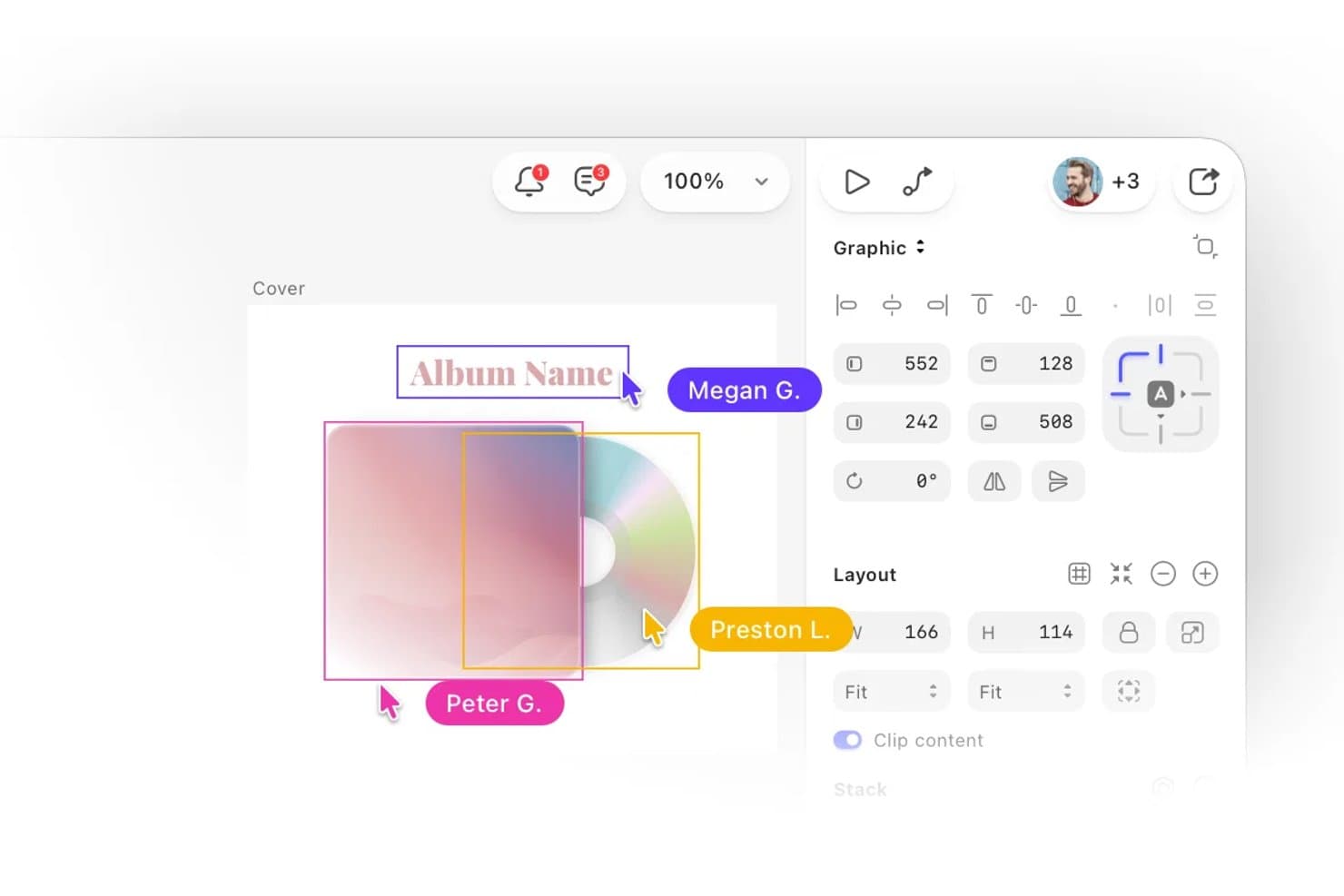
Sketch lets users collaborate in real time on UI design projects. Sketch is a UI design tool for macOS that combines vector editing, prototyping, reusable Symbols, team collaboration, and browser-based developer handoff, with free Viewers and a 30-day trial instead of ongoing free editing.
Who Is Sketch Best For?
Mac-based UI designers who need precise vector editing, reusable components, and browser-based developer handoff.
Why I Picked Sketch
I picked Sketch for its Best for macOS vector editing workflows positioning. Its native editor combines boolean operations, nested frames, and Stacks for precise interface layouts. I also use Smart Animate and overlays to test mobile flows, while browser-based handoff lets developers inspect designs without a Mac. Free access is limited to Viewers and a 30-day trial.
Sketch Key Features
- Symbols and Libraries: Reuse nested components, shared styles, and Color Variables across documents.
- Free Viewers: Invite unlimited viewers to comment, inspect designs, download assets, and play prototypes.
- Design Templates: Start with Apple, Microsoft Fluent, Google Material, macOS, and browser mockup resources.
- Offline Editing: Save files locally and continue designing without an internet connection.
Sketch Integrations
Sketch supports integrations with Slack, Jira, Notion, GitHub, Unsplash, ProtoPie, Zeplin, Principle, Origami, and Overflow. Its extension ecosystem also includes accessibility tools such as Stark and AdeeApp, plus the Sketch MCP Server for AI-assisted workflows.
What's Free?
Sketch offers a 30-day free trial rather than a free-forever editing plan. After the trial, editing requires a paid subscription, while free Viewers can inspect designs, comment, download assets, and play prototypes without editing access.
Pros and Cons
Pros:
- Reusable Symbols support consistent interface systems
- Free browser handoff supports developer inspection
- Native Mac vector editing remains smooth
Cons:
- Mac-only editing excludes cross-platform teams
- Long-term free editing isn't available
 Best for mobile app interface animation
- 15-day free trial + free plan available
- From $29/month
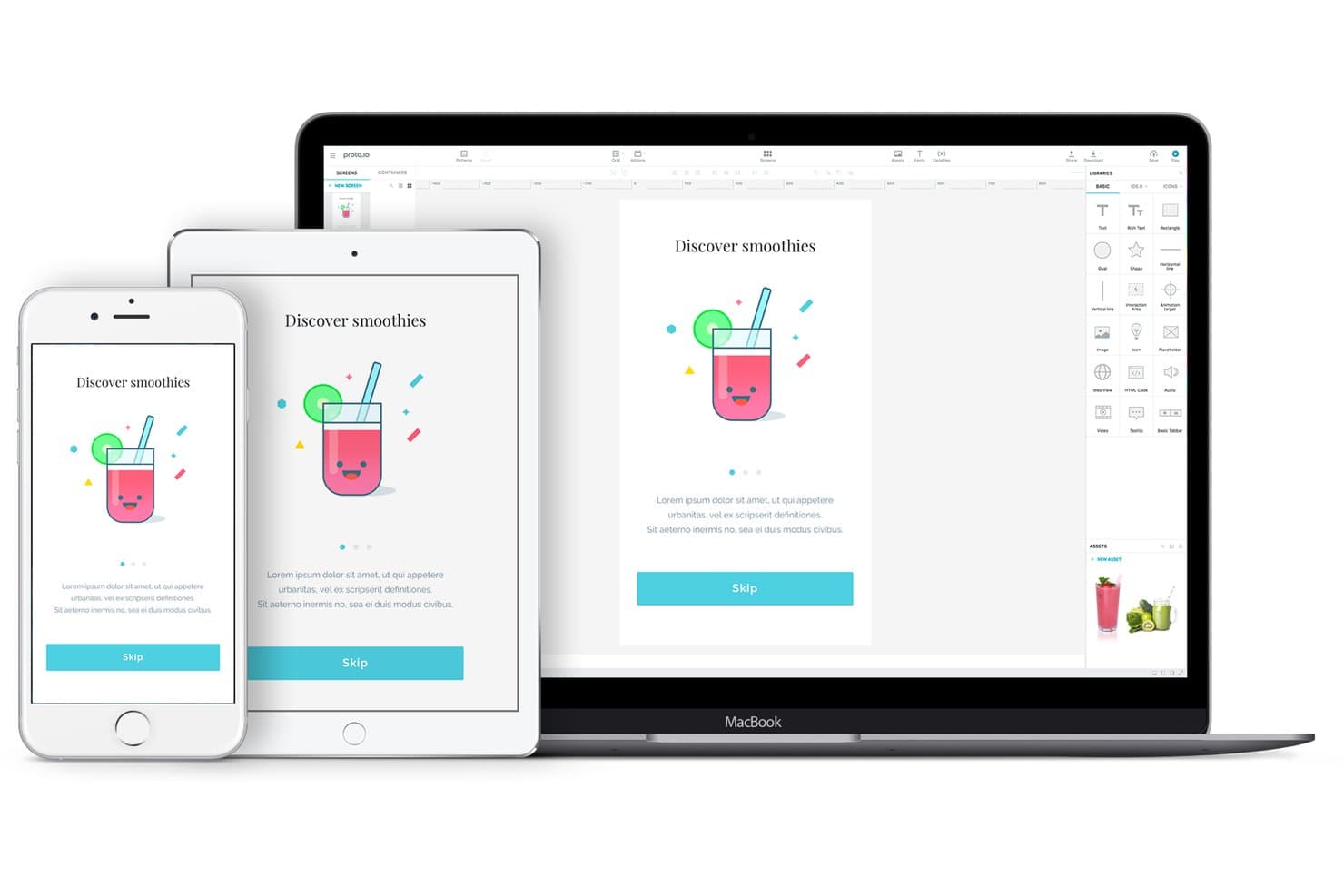
Proto.io previews designs across iPhone, iPad, and MacBook simultaneously. Proto.io is a browser-based UI prototyping tool with a limited free plan, offering no-code screen design, native-style components, animated interactions, variables, comments, device previews, and HTML, PNG, and PDF exports.
Who Is Proto.io Best For?
Product managers and startup founders can use Proto.io to test mobile app flows with realistic gestures, animations, and no-code interactions.
Why I Picked Proto.io
I picked Proto.io for mobile app interface animation because I can prototype gestures, screen transitions, and touch responses without code. Its 80-plus events, timeline animations, custom easing, and Lottie support help me recreate app interactions for user testing. Variables and conditional logic let me test flows such as onboarding, form validation, and personalized states.
Proto.io Key Features
- Browser-based editor: Create prototypes without installing desktop software.
- Native UI components: Use 250-plus iOS, Android, web, Windows, and watchOS elements.
- Design imports: Import layered files from Figma, Sketch, Adobe XD, and Photoshop.
- Prototype sharing: Share live or snapshot links with threaded comments and password protection.
Proto.io Integrations
Proto.io offers integrations with Figma, Sketch, Adobe XD, Photoshop, Jira, Confluence, Trello, UserTesting, UserZoom, Userlytics, Lookback, and UXArmy. Design imports preserve layers, while Jira, Confluence, and Trello support product workflow reviews.
What's Free?
Proto.io offers a 15-day free trial with all prototyping features, unlimited projects, and users, without requiring a credit card. After the trial, you can downgrade to a free plan with limited options, or your account will be deleted if you take no action.
Pros and Cons
Pros:
- Extensive native-style components and templates
- Timeline animations support realistic app flows
- Detailed mobile gestures and touch interactions
Cons:
- No simultaneous editing for design teams
- No pen tool for precise vector design
Learn more about Proto.io: Best for wireframing without a design background
- Free plan available
- From $9/user/month (billed annually)
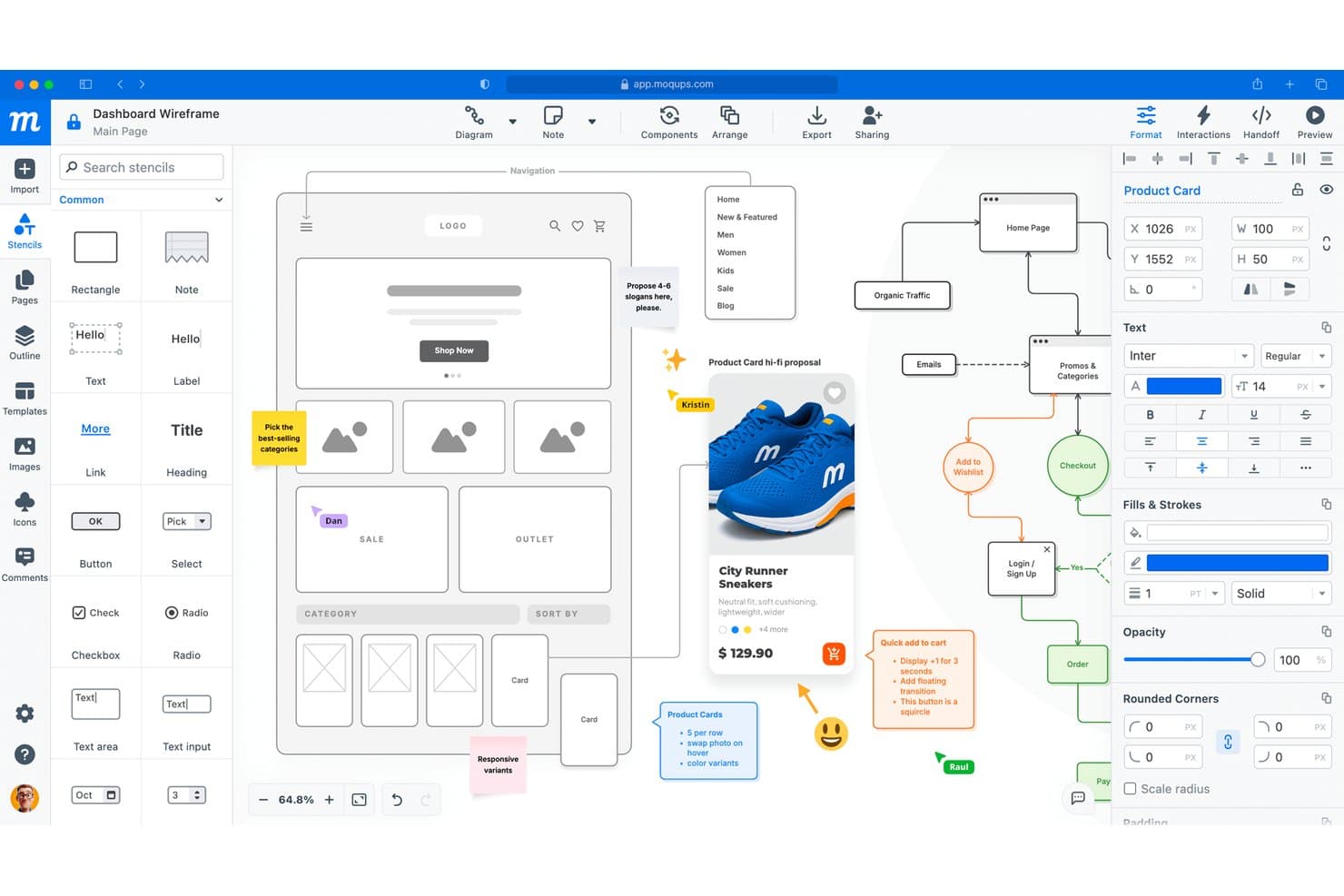
Moqups lets users design wireframes with collaborative annotations and feedback. Moqups is a browser-based UI design tool with a free plan for wireframes, mockups, diagrams, and clickable prototypes, combining stencil-based screen design with templates, reusable components, stakeholder comments, and CSS/JSX handoff.
Who Is Moqups Best For?
Product managers and startup founders who need quick wireframes, clickable prototypes, and stakeholder feedback without advanced design skills.
Why I Picked Moqups
I picked Moqups for wireframing without a design background because its stencil-based canvas and 150+ templates turn product ideas into usable screens quickly. I use UI kits, layout grids, and reusable components to map flows without drawing every element from scratch. Clickable hotspots and object interactions help me test concepts before investing in high-fidelity design.
Moqups Key Features
- CSS/JSX export: Export selected objects for developer handoff.
- Pinned comments: Add feedback directly to designs and objects.
- Page interactions: Link screens to pages or external URLs.
- Jira and Confluence integration: Embed projects in Atlassian workspaces.
Moqups Integrations
Moqups offers native integrations with Jira Cloud, Confluence Cloud, Slack, Google Drive, Dropbox, Box, and Trello.
What's Free?
Moqups offers a free-forever plan with no time limit. It allows two active projects, 400 objects per project, 25 MB of image storage, and up to seven guests, but excludes team roles, private projects, project permissions, archiving, and PNG, PDF, or HTML exports.
Pros and Cons
Pros:
- CSS and JSX exports aid handoff
- Clickable hotspots support quick validation
- Templates accelerate wireframe creation
Cons:
- Basic interactions limit advanced prototypes
- Free projects and objects cap growth
Learn more about Moqups:
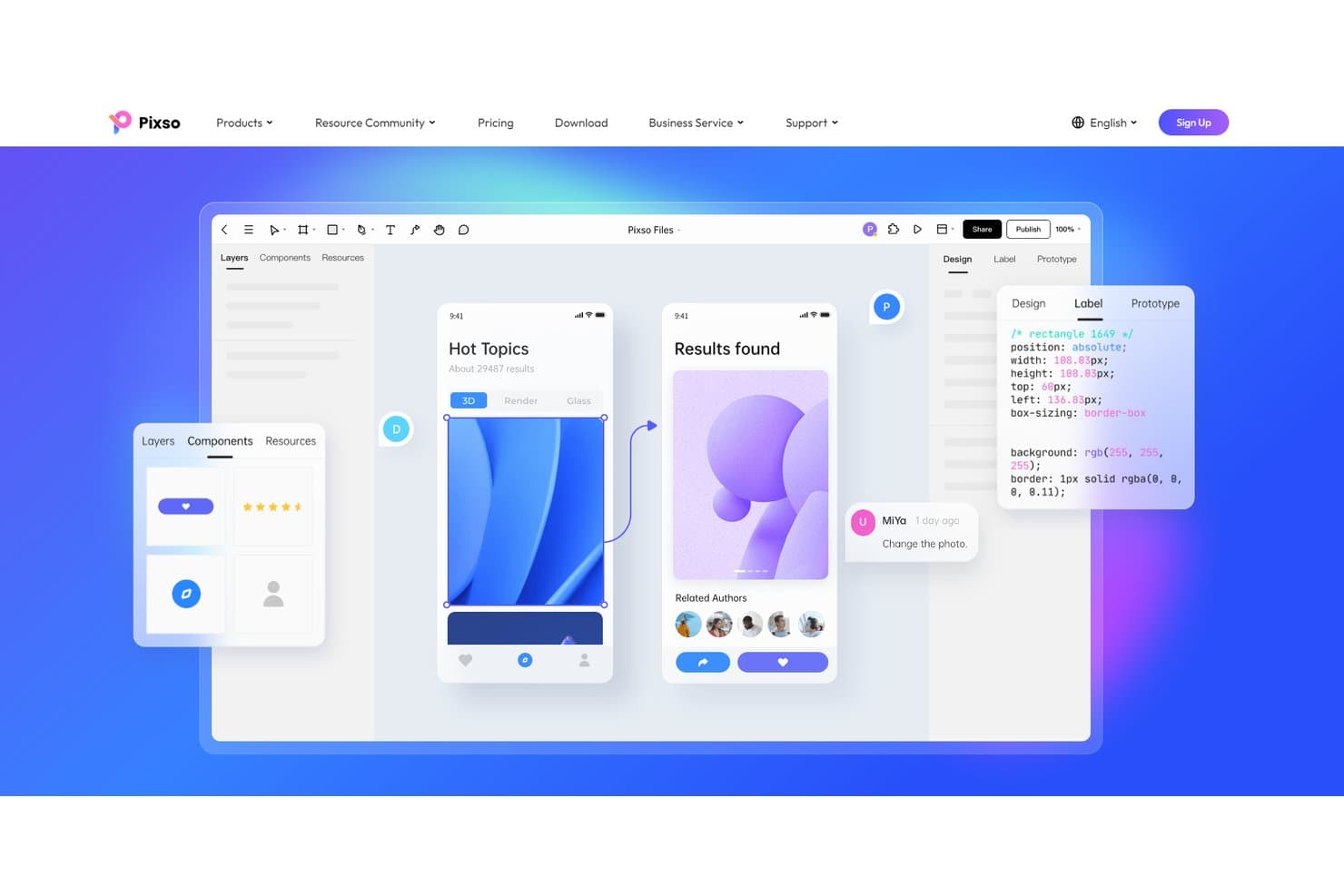
Pixso lets users design, prototype, and inspect UI with CSS code export. Pixso is a free UI design platform with vector editing, interactive prototyping, reusable components, collaborative whiteboards, design systems, and developer handoff tools for CSS, iOS, Android, SwiftUI, and HTML.
Who Is Pixso Best For?
UI/UX designers and front-end developers who need shared design workspaces with CSS, iOS, Android, SwiftUI, and HTML handoff.
Why I Picked Pixso
I picked Pixso because its cross-platform design handoff connects interface work with implementation. I use its Dev view for CSS, iOS, and Android reference code, then export SwiftUI or HTML through Design to Code. Its unit conversion and pinned developer annotations help translate responsive screens into build-ready specifications.
Pixso Key Features
- Vector editing: Create interfaces with pen tools, boolean operations, grids, and auto layout.
- Interactive prototyping: Add triggers, overlays, transitions, scrolling, videos, and GIFs.
- Component libraries: Build reusable components with variants, properties, shared styles, and version control.
- Real-time collaboration: Co-edit designs, add visual comments, and manage file permissions.
Pixso Integrations
Pixso connects to Cursor, VS Code, Windsurf, and Claude Code through Pixso MCP for AI-assisted handoff. It also offers a public Plugin API and plugins such as Tokens Studio, Phosphor Icons, and Pexels.
What's Free?
Pixso offers a free-forever plan with unlimited free viewer seats. Version history retention and some advanced features depend on your plan, so editing and collaboration needs may require paid seats.
Pros and Cons
Pros:
- Prototype triggers include overlays and gestures
- Unlimited viewers simplify stakeholder reviews
- Cross-platform handoff supports developer collaboration
Cons:
- Imported designs may need manual fixes
- Free plan restricts ongoing project work
Learn more about Pixso:
Other Free UI Design Tools
Here are some additional free UI design tools that didn’t make it onto my shortlist, but are still worth checking out:
- 11PlasmicBest for design-to-code handoff on dev teams
- 12v0 by VercelBest for prompt-to-deployed app prototyping
- 13MockFlowBest for planning user journeys visually
- 14CanvaBest for non-designer mockups with templates
- 15MarvelBest for quick stakeholder prototype sign-off
- 16MiroBest for brainstorming that feeds into mockups
- 17MockplusBest for Axure-style prototyping without design skills
- 18ProtoPieBest for sensor-driven interaction prototyping
- 19Quant UXBest for prototype testing without extra tools
How I Evaluate Free UI Design Tools
First, I define what counts as free. For UI design tools, it means a free-forever plan, not a trial, with usable design and prototyping access; limits must be clear. From there, I split my evaluation into three parts: core functionality, which carries the most weight, like creating vector screens and linking flows; standout features, like stakeholder commenting; and beyond features, like free-plan scalability.
Core Functionality (Table Stakes For This List)
In addition to my free plan requirements, I use a scoring system to select tools for my list. I score each one on a scale from 0 (does not offer the functionality) to 5 (excels in this area) for each core functionality listed below, based on what's available on the free plan. I then convert the total into a percentage to help assess each tool's overall fit, with extra weight on any functionalities I've deemed essential.
- Vector-Based Design Canvas (Essential): I look for frames, artboards, layers, grids, and precise vector editing for multi-screen product interfaces.
- Prototyping & Interactions (Essential): I evaluate linked screens, click or hover triggers, transitions, and flows that support user testing or stakeholder reviews.
- Component Reusability: Reusable buttons, icons, text styles, and variants should support consistent screens and practical design system work.
- Real-Time Collaboration: I check whether teammates can comment, review, or co-edit designs while discussing a checkout flow or feature concept.
- Design Templates & Assets: Templates, UI kits, icons, and community assets should help teams explore common product patterns without starting from scratch.
- Export & Handoff: I look for asset exports, measurements, colors, and inspection details that help developers translate approved screens into code.
Once I have a list of tools that meet the criteria, I consider what sets each platform apart.
Differentiating Factors (What Sets Vendors Apart)
Here's how I compare and contrast different vendors:
Standout Features
I look for shareable prototype links that let you send a clickable flow to a VP or test participant without requiring them to create an account. Cross-platform browser access matters just as much—when your engineer runs Linux and your stakeholder uses a tablet, nobody should be blocked. I also evaluate community template marketplaces, since a pre-built onboarding kit in Figma or Penpot can cut hours off early discovery work.
Beyond Features
I evaluate how quickly a PM can go from blank canvas to testable prototype without designer support. Tools like Uizard let you drag pre-built components onto a screen in minutes, which matters when you need a clickable flow ready for a sprint review. I also check free-plan collaborator caps and file limits, since a three-person startup and a ten-person product team hit those ceilings very differently. Data portability is another factor—I look for straightforward SVG or PNG export so your work isn't locked to one platform if priorities shift.
How to Choose Free UI Design Tools
It’s easy to get bogged down in long feature lists and complex pricing structures. To help you stay focused as you work through your unique software selection process, here’s a checklist of factors to keep in mind:
| Factor | What to Consider |
| Scalability | Will the tool support your team as it grows, or will you quickly outgrow the free plan’s limits? |
| Integrations | Does the tool connect natively with your existing design, project management, or file storage apps? |
| Customizability | Can you adapt the tool’s workflows, templates, or libraries to match your team’s unique process? |
| Ease of use | Will new users be able to start designing quickly, or will they need significant training? |
| Implementation and onboarding | How long will it take to get your team up and running, and what resources are available to help? |
| Cost | Are there hidden costs, upgrade requirements, or usage caps that could impact your budget later? |
| Security safeguards | Does the tool offer adequate data protection, user permissions, and compliance for your needs? |
| Support availability | If you run into issues, can you access timely help through chat, email, or a knowledge base? |
What Are Free UI Design Tools?
Free UI design tools are software platforms that let users create, edit, and share user interface mockups or prototypes without requiring payment. These tools typically offer core design features such as drag-and-drop components, basic collaboration, and export options. Free UI design tools help individuals and teams visualize digital products, test ideas, and communicate design concepts before development, making them accessible for early-stage projects or those with limited budgets.
Features of Free UI Design Tools
Let’s go over the features commonly found in UI design tools, and which ones are usually included in free vs. paid plans.
Typically Free UI Design Tool Features
- Drag-and-drop editor: Build wireframes or mockups by dragging interface elements onto a canvas, making it easy to visualize layouts without coding.
- Basic component library: Access a set of standard UI elements like buttons, input fields, and icons to quickly assemble screens.
- Export to image or PDF: Save and share your designs as PNG or PDF files for feedback or documentation.
- Single-user access: Use the tool individually without team collaboration features, suitable for solo designers or early-stage projects.
- Limited project storage: Create and store a small number of projects or files, often with caps on the number of active designs.
- Commenting or annotation: Add notes or comments to designs to clarify ideas or gather feedback from others.
- Template selection: Start with pre-made templates for common screen types, helping speed up the design process.
- Basic version history: Access a simple history of changes to revert to previous versions if needed.
Typically Paid UI Design Tool Features
- Real-time team collaboration: Work simultaneously with multiple users on the same design, supporting distributed teams and faster iteration.
- Advanced prototyping: Add interactive elements, transitions, and animations to create clickable prototypes that simulate real app behavior.
- Custom component libraries: Build and manage reusable design systems or branded UI kits for consistency across projects.
- Unlimited project storage: Store an unrestricted number of projects, files, and assets without worrying about hitting usage limits.
- Role-based permissions: Control who can view, edit, or comment on designs, supporting secure collaboration in larger organizations.
- Integration with third-party tools: Connect directly to project management, development, or cloud storage platforms for smoother workflows.
- Priority customer support: Access faster response times, dedicated support channels, or onboarding assistance for paid users.
- Advanced export options: Export designs in additional formats, such as SVG or code snippets, to streamline handoff to developers.
- Design handoff tools: Generate specifications, assets, and style guides automatically to help developers implement designs accurately.
Benefits of Free UI Design Tools
Implementing free UI design tools provides several benefits for your team and your business. Here are a few you can look forward to:
- Lower upfront costs: Start designing user interfaces without committing to paid plans, making it easier to experiment or prototype on a budget.
- Faster project kickoffs: Use built-in templates and drag-and-drop editors to quickly create and share mockups, helping teams move from ideas to visuals in less time.
- Accessible collaboration: Share designs and gather feedback using commenting or annotation features, even when working with distributed or cross-functional teams.
- Reduced onboarding time: Simple interfaces and guided tutorials help new users get started quickly, minimizing delays in the design process.
- No vendor lock-in: Try multiple tools or switch platforms without financial risk, since you’re not tied to long-term contracts or subscriptions.
- Supports early-stage projects: Free plans allow startups or small teams to validate ideas and iterate on designs before investing in advanced features or paid upgrades.
- Encourages experimentation: Limited project storage and basic export options make it easy to test different layouts or concepts without worrying about costs.
Costs and Pricing of UI Design Tools
I realize you came to this article looking for the best UI design tool options that are available for free. However, since free plans only offer limited features, there's a good chance you'll need to scale your plan up in the future.
The table below summarizes common plans, their average prices, and typical features included in UI design tools:
Plan Comparison Table for UI Design Tools
| Plan Type | Average Price | Common Features |
| Free Plan | $0 | Basic component library, drag-and-drop editor, limited project storage, single-user access, and basic export options. |
| Personal Plan | $5-$15/user/month | Unlimited projects, larger storage, basic prototyping, priority support, and access to more templates. |
| Business Plan | $15-$30/user/month | Team collaboration, advanced prototyping, custom component libraries, integrations, and role-based permissions. |
| Enterprise Plan | $30-$60/user/month | Advanced security, SSO, audit logs, dedicated account management, custom onboarding, and compliance features. |
Free UI Design Tools FAQs
Here are some answers to common questions about free UI design tools:
Are free UI design tools suitable for professional projects?
Yes, free UI design tools can be used for professional projects, especially in early stages or for small teams. However, you may encounter feature or storage limits that require upgrading as your project grows or your needs become more complex.
Can I collaborate with others using free UI design tools?
Yes, many free UI design tools offer basic collaboration features like commenting or sharing links. For real-time multi-user editing or advanced permissions, you’ll usually need a paid plan.
What limitations should I expect with free UI design tools?
Free plans often limit the number of projects, storage space, export formats, or access to advanced prototyping and integration features. Review each tool’s free tier details to ensure it meets your minimum requirements.
Is my data secure when using free UI design tools?
Most reputable free UI design tools provide basic security safeguards, but advanced features like SSO, audit logs, or compliance certifications are typically reserved for paid plans. Always check the provider’s privacy policy and security documentation.
Can I migrate my designs to another tool later?
Yes, most UI design tools let you export your work in standard formats like PNG, PDF, or SVG. However, some advanced features or editable files may not transfer perfectly, so plan ahead if you expect to switch platforms.