
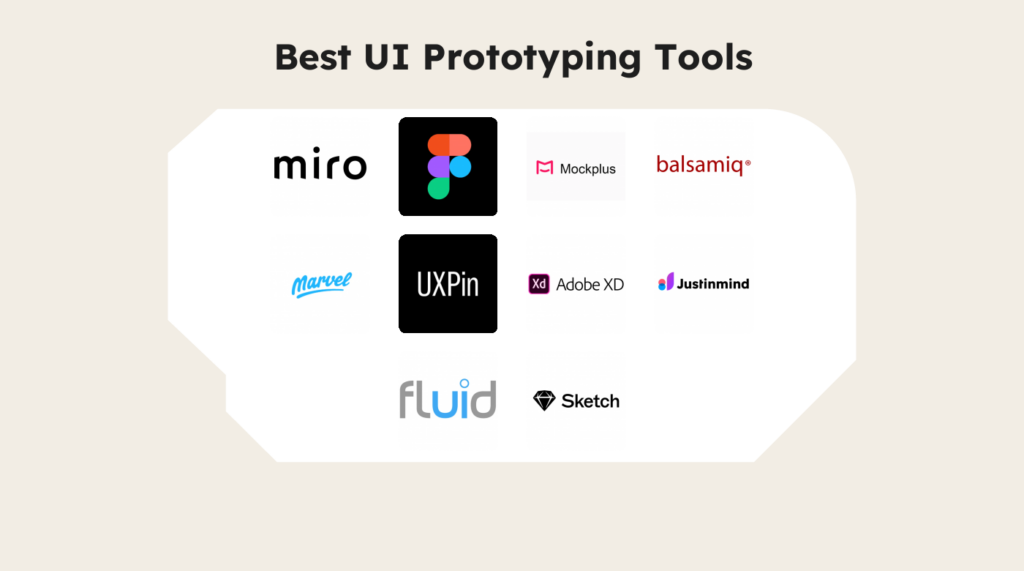
10 Best UI Prototyping Tools Reviewed in 2026

Best UI Prototyping Tools Shortlist


The best UI prototyping tools help product managers, designers, and developers quickly turn ideas into interactive mockups, validate concepts early, and collaborate across teams.
When you’re working under tight deadlines with complex requirements, unclear design feedback or disjointed workflows can stall progress and lead to costly rework. The right tool facilitates smoother handoffs, supports real-time iteration, and ensures everyone stays aligned from concept to final build.
After hands-on testing and comparison, I’ve shortlisted options that balance speed, usability, and functionality to help your team move from vision to validated design with confidence.
Why Trust Our Software Reviews
We’ve been testing and reviewing product management software since 2020. As product managers ourselves, we know how critical and difficult it is to make the right decision when selecting software.
We invest in deep research to help our audience make better software purchasing decisions. We’ve tested more than 2,000 tools for different product management use cases and written over 1,000 comprehensive software reviews. Learn how we stay transparent & our software review methodology.
Best UI Prototyping Tools Summary
This comparison chart summarizes pricing details for my top UI prototyping tool selections to help you find the best one for your budget and business needs.
| Tool | Best For | Trial Info | Price | ||
|---|---|---|---|---|---|
| 1 | Best with prototyping using your live codebase | Free plan + free demo available | From $20/user/month | Website | |
| 2 | Best for visual project mapping | Free plan available | From $8/user/month (billed annually) | Website | |
| 3 | Best for real-time collaboration | Free plan available | From $16/user/month (billed annually) | Website | |
| 4 | Best for team collaboration | Free plan available | From $12.45/user/month (billed annually) | Website | |
| 5 | Best for low-fidelity wireframes | 14-day free trial | From $16/user/month | Website | |
| 6 | Best for simplicity and ease of use | Free plan + free demo available | From $12/month (billed annually) | Website | |
| 7 | Best for design system integration | 14-day free trial + free demo available | From $49/month (billed annually) | Website | |
| 8 | Best for integration with the Adobe suite | 30-day free trial | Pricing upon request | Website | |
| 9 | Best for web and mobile wireframes | Free plan available | From $19/user/month | Website | |
| 10 | Best for rapid prototyping | Free plan + free demo available | From $8.25/month (billed annually) | Website |

Best UI Prototyping Tool Reviews
Below are my detailed summaries of the best UI prototyping tools that made it onto my shortlist. My reviews offer a detailed look at the key features, pros & cons, integrations, and ideal use cases of each tool to help you find the best one for you.

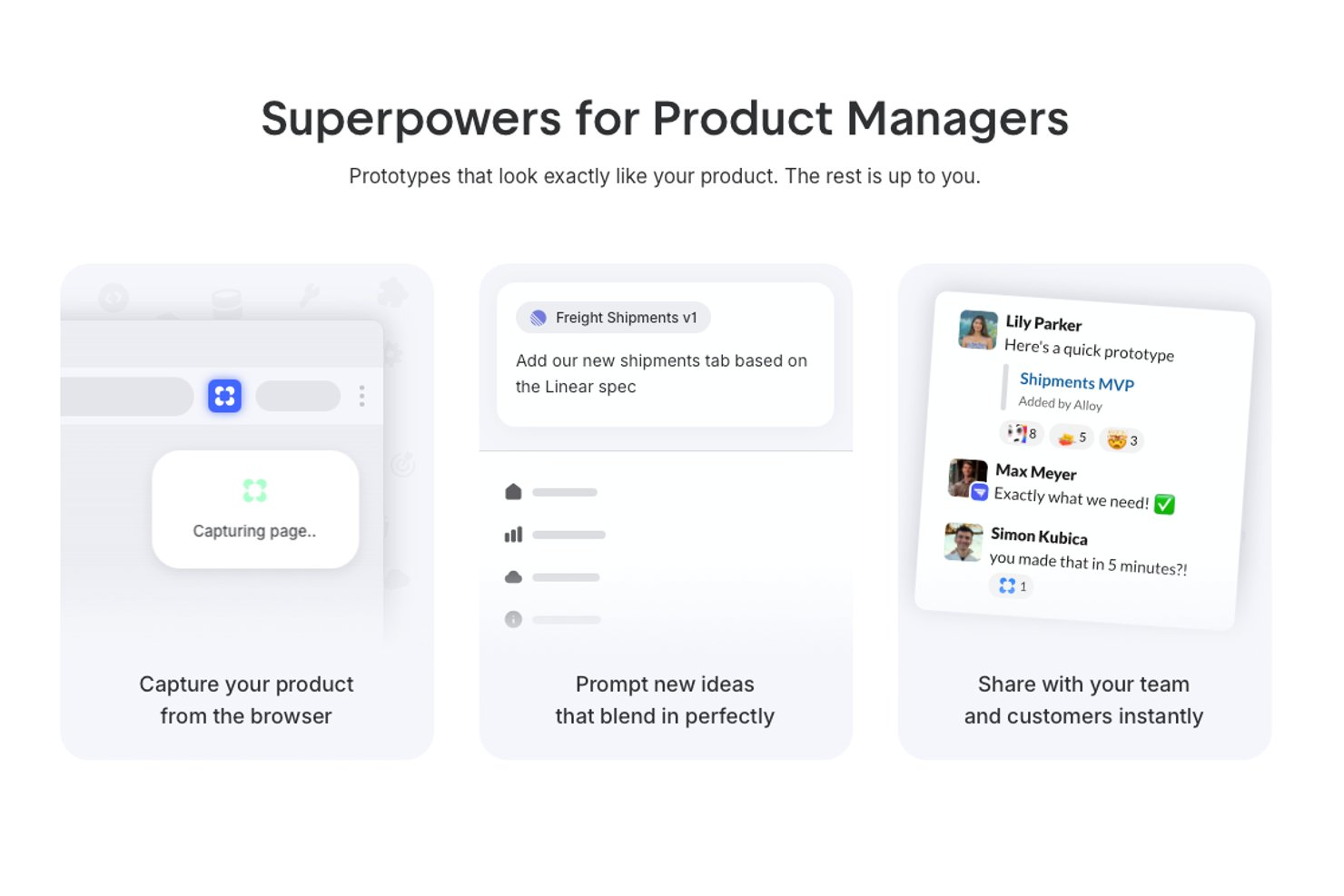
Alloy is a prototyping tool for product teams that enables the creation of interactive UI prototypes directly from your existing live web app and codebase, combining real-time editing with collaboration features.
Who Is Alloy Best For?
Designed for product managers and designers at software companies with established web applications and codebases.
Why I Picked Alloy
I picked Alloy as one of the best because it lets my team prototype with our live codebase, reflecting real UI components and logic. I use Alloy to test interactions using actual production code, so our prototypes look and behave like the finished product.
Alloy Key Features
- Slack integration: Quickly trigger prototypes and share sessions directly from Slack conversations.
- Component library recognition: Instantly identifies and reuses your existing UI components for consistent mockups.
- Session sharing controls: Manage access with team, domain, or public sharing settings for each prototype.
- Figma export: Export Alloy prototypes to Figma files for further design refinement or collaboration.
Alloy Integrations
Alloy offers native integrations with Slack, GitHub, and Figma, and provides an API for custom integrations.
Pros and Cons
Pros:
- Edits reflect real app logic and data
- Instantly push prototypes as pull requests
- Prototypes use actual product components
Cons:
- Requires live codebase for full features
- No traditional vector UI canvas
Miro
Best for visual project mapping

Miro is a visual collaboration platform for product teams, UX designers, and stakeholders who need to turn early ideas into testable UI concepts. Its infinite canvas combines wireframing, interactive prototyping, AI-generated screens, comments, and real-time collaboration, so your team can review flows and gather feedback before development starts.
Who Is Miro Best For?
Miro is a strong fit for cross-functional teams—particularly product, design, and engineering—who need a shared space to map, plan, and prototype together.
Why I Picked Miro
I picked Miro because it lets your team build UI prototypes in the same workspace where you map user journeys, collect research, and plan product ideas. You can place wireframes beside notes, diagrams, and feedback on an infinite canvas, then use connector lines to show how users move between screens. I like that this keeps your prototype tied to the context behind each design choice, which helps stakeholders understand why a layout or flow was created. Miro is a strong fit for product, UX, and cross-functional teams that need collaborative prototyping before moving into high-fidelity design or development.
Miro Key Features
Miro also includes prototyping tools that help your team move from rough concepts to clickable UI flows faster.
- AI wireframe generation: Generate wireframe layouts from text prompts with Miro AI, then edit components directly on the canvas.
- Interactive prototype preview: Test clickable UI elements, including buttons, dropdowns, and sliders, in Preview mode.
- UI component library: Use built-in UI elements, icons, and screen templates to create low-fidelity prototypes faster.
- Real-time co-editing: Let team members comment, annotate, and edit the same board at the same time.
Miro Integrations
Integrations include Jira, Google Drive, Slack, Microsoft Teams, Zoom, Asana, Confluence, Notion, Trello, and GitHub.
Pros and Cons
Pros:
- AI generates editable prototypes from prompts or canvas content
- Connector lines support clickable multi-screen prototype flows
- Built-in UI components speed up low-fidelity prototyping
Cons:
- Fully interactive previews require the Prototypes add-on
- Advanced components are not available without the add-on
New Product Updates from Miro
Miro Adds Japan Data Residency for Enterprise Customers
Miro has introduced Japan data residency for enterprise customers, offering in-region storage for production data, backups, and metadata, plus in-region compute infrastructure. For more information, visit Miro's official site.

Figma
Best for real-time collaboration

Figma is a collaborative design platform for creating interactive UI prototypes, enabling realistic, clickable mockups that demonstrate user flows and interface behavior before development. It lets teams connect screens, define interactions, and preview designs across devices to validate ideas and refine usability early.
Why I picked Figma: Figma’s prototyping tools let you quickly transform static designs into interactive experiences. You can link screens with transitions, add animations, and adjust interaction details in real time while collaborating with your team. Its native integration with the design workspace means you can update layouts and immediately see changes reflected in the prototype, speeding up iteration and ensuring accurate feedback during reviews.
Standout features & integrations:
Features include auto-layout for responsive design and vector networks for flexible illustration. Robust prototyping tools enable the creation of interactive designs. A vast library of design assets helps speed up the design process.
Integrations include Slack, Microsoft Teams, Jira, Trello, Asana, Google Drive, Dropbox, Zeplin, Notion, and Abstract.
Pros and Cons
Pros:
- Easy to use for beginners
- Offers extensive design libraries
- Supports multiple simultaneous users
Cons:
- Requires learning for advanced features
- Performance lags with large files

Mockplus
Best for team collaboration

Mockplus is a prototyping tool aimed at designers and product teams who need to create interactive prototypes quickly. It offers a platform for collaborative design, allowing teams to work together efficiently on user interfaces.
Why I picked Mockplus: Mockplus supports UI prototyping with a drag-and-drop editor and a library of pre-designed components and icons. You can quickly link screens, add interactions, and create realistic user flows for web and mobile projects. Built-in sharing and testing features make it easy to gather feedback and refine prototypes with your team.
Standout features & integrations:
Features include a drag-and-drop editor that simplifies the design process. Mockplus offers a wide range of pre-designed components and icons to accelerate prototyping. You can share and test prototypes quickly, making it easy to gather feedback from your team.
Integrations include Sketch, Adobe XD, Figma, Axure, Jira, Confluence, Trello, Asana, Slack, and Microsoft Teams.
Pros and Cons
Pros:
- Provides pre-designed components
- Quick design setup with drag-and-drop
- Supports real-time team collaboration
Cons:
- Performance issues with large projects
- Limited advanced prototyping features

Balsamiq
Best for low-fidelity wireframes

Balsamiq is a wireframing platform focused on UI prototyping for fast, low-fidelity design. It helps UX designers and teams quickly sketch interface layouts, visualize workflows, and iterate on ideas without getting distracted by visual details.
Why I picked Balsamiq: Balsamiq specializes in creating low-fidelity UI prototypes that help visualize user flows early in the design process. Its drag-and-drop interface and built-in UI components make it easy to assemble and connect screens. This allows teams to test and refine interactions before investing time in high-fidelity design.
Standout features & integrations:
Features include a drag-and-drop interface that simplifies arranging elements on your wireframe. The tool provides a library of UI components, making it easy to build mockups. Balsamiq's sketch-style design keeps your focus on functionality rather than aesthetics.
Integrations include Confluence, Jira, Trello, Google Drive, Dropbox, Slack, FogBugz, XWiki, Basecamp, and Notion.
Pros and Cons
Pros:
- Extensive UI component library
- Simple drag-and-drop interface
- Quick to learn and use
Cons:
- Not suitable for detailed mockups
- Limited to low-fidelity designs

Marvel
Best for simplicity and ease of use

Marvel is a design and prototyping tool aimed at designers and teams who need an easy-to-use platform for creating interactive prototypes. It provides a straightforward interface for quickly turning ideas into clickable prototypes.
Why I picked Marvel: Marvel’s intuitive interface makes it easy to build interactive UI prototypes without a steep learning curve. You can quickly link screens, add transitions, and simulate user flows to bring designs to life. Built-in user testing tools let you gather feedback directly on prototypes, streamlining the iteration process.
Standout features & integrations:
Features include user testing capabilities that allow you to gather feedback directly from your prototypes. The tool's design mode offers a clean environment for creating wireframes and prototypes. You can easily create clickable prototypes with its drag-and-drop interface.
Integrations include Slack, Jira, Trello, Confluence, Sketch, Dropbox, Google Drive, Microsoft Teams, Asana, and Zapier.
Pros and Cons
Pros:
- Supports user testing
- Quick prototype creation
- Easy to learn and use
Cons:
- Lacks detailed documentation
- Not suitable for complex designs

UXPin
Best for design system integration

UXPin is a prototyping tool designed for teams that need to integrate design systems into their workflow. It caters to UX designers and developers aiming to create consistent and interactive prototypes.
Why I picked UXPin: UXPin enables you to build highly interactive UI prototypes with real data, making user flows more realistic. Its support for conditional interactions lets you simulate complex behaviors and dynamic states. Real-time collaboration ensures your team can refine and test prototypes together.
Standout features & integrations:
Features include the ability to incorporate real data into your prototypes, which enhances the realism of your designs. UXPin supports conditional interactions, allowing you to create dynamic user flows. The tool also offers real-time collaboration, making it easy for your team to work together.
Integrations include Sketch, Adobe XD, Jira, Slack, Microsoft Teams, Trello, Google Drive, Dropbox, Zeplin, and Storybook.
Pros and Cons
Pros:
- Supports conditional interactions
- Integrates with real data
- Excellent design system support
Cons:
- Requires technical knowledge for advanced features
- Steep learning curve for beginners

Adobe XD
Best for integration with the Adobe suite

Adobe XD is a vector-based design tool built for creating interactive UI prototypes quickly and efficiently. It enables designers to link screens, define interactions, and preview user flows to test functionality before development.
Why I picked Adobe XD: Its prototyping features allow you to create realistic, clickable experiences with support for animations, transitions, and voice interactions. You can easily update designs and see changes reflected in the prototype instantly, streamlining feedback and iteration. Coediting further enhances collaboration, letting teams refine prototypes together in real time.
Standout features & integrations:
Features include the ability to prototype with voice commands, which adds a new dimension to interactive design. You can use the repeat grid to quickly create and adjust repeating elements. Coediting allows multiple team members to work on the same project simultaneously.
Integrations include Adobe Creative Cloud, Slack, Jira, Microsoft Teams, Zeplin, Trello, Google Drive, Dropbox, Asana, and Abstract.
Pros and Cons
Pros:
- Vector-based design flexibility
- Coediting for real-time collaboration
- Supports voice prototyping
Cons:
- Limited third-party plugin support
- Requires Adobe subscription for full features

Best for web and mobile wireframes

Justinmind is a prototyping tool designed for UX designers and developers who need to create interactive wireframes for web and mobile applications. It provides an intuitive environment for building detailed prototypes that simulate real user interactions.
Why I picked Justinmind: Justinmind offers detailed prototyping tools for both web and mobile, allowing you to create realistic, interactive UI experiences. Its drag-and-drop interface and pre-built UI libraries make it easy to link screens, add interactions, and design user flows quickly. You can simulate transitions and behaviors to test usability before development begins.
Standout features & integrations:
Features include a drag-and-drop interface that simplifies the design process. The tool provides pre-built UI libraries, allowing you to quickly assemble interface elements. You can simulate interactions and transitions, making your prototypes feel like real applications.
Integrations include Sketch, Adobe XD, Jira, Microsoft TFS, Azure DevOps, Google Drive, Dropbox, Slack, Trello, and Microsoft Teams.
Pros and Cons
Pros:
- Allows interaction and transition simulation
- Extensive pre-built UI libraries
- Supports both web and mobile wireframes
Cons:
- Limited flexibility in customizing microinteractions and UI themes
- Performance can lag with large files

Fluid UI
Best for rapid prototyping

Fluid UI is a prototyping tool designed for UX and UI designers who need to create prototypes quickly and efficiently. It enables teams to design and test user interfaces in a collaborative environment.
Why I picked Fluid UI: Rapid prototyping is a key feature, allowing you to create and iterate on designs quickly. The tool's intuitive editor helps you build interfaces without needing to code. Fluid UI offers a library of pre-built components, speeding up the design process. You can also test prototypes in real-time, gathering immediate feedback from your team.
Standout features & integrations:
Features include a user-friendly editor that makes building interfaces straightforward. The tool provides a library of pre-built components to help you design quickly. Real-time testing capabilities allow you to gather feedback instantly and iterate on your designs.
Integrations include Slack, Trello, Google Drive, Dropbox, Jira, Confluence, Sketch, Figma, Adobe XD, and Asana.
Pros and Cons
Pros:
- No coding required for prototypes
- Ideal for fast design iterations
- Offers pre-built components
Cons:
- Can feel restrictive for complex designs
- Basic animation capabilities
Other UI Prototyping Tools
Here are some additional UI prototyping tools options that didn’t make it onto my shortlist, but are still worth checking out:
- Sketch
For macOS users
- Axure RP
For advanced prototyping
- Proto.io
For mobile app prototypes
- Moqups
For online diagramming
- Framer
For interactive animations
- Canva
For non-designers
- Lunacy
For offline design work
- Penpot
For open-source design
- Affinity Designer
For vector design
- Principle
For macOS animations
- Flinto
For animated transitions
- Zeplin
For developer handoff
- Origami Studio
For Facebook-like prototypes
- Gravity Designer
For cross-platform design


How I Evaluate UI Prototyping Tools
I split my evaluation into baseline requirements—like interactive prototyping and developer handoff—and the differentiators that separate tools built for product teams from general design apps.
Core Functionality (Table Stakes For This List)
When I'm selecting tools for my list, I rank each one on a scale from 0 (does not offer the functionality) to 5 (excels in this area) for each core functionality listed below. Then, I calculate the tool's total score into a percentage. Each tool needs to achieve a minimum total score of 75% to be considered for inclusion.
- Interactive Prototyping: I evaluate how well a tool handles multi-screen flows with real triggers, transitions, and conditional logic—like simulating a checkout flow with different states for logged-in versus guest users.
- UI Design Canvas: The design surface matters. I look for vector editing, auto-layout, and responsive frame controls that let you build screens from scratch rather than just arrange imported assets.
- Reusable Components & Libraries: Teams maintaining a design system need components with variants, shared styles, and team libraries. I check whether you can update a button style once and see it propagate across every screen.
- Real-Time Collaboration: Product teams co-edit constantly, so I evaluate whether a tool supports live multiplayer editing, inline commenting, and version history—similar to what you'd expect in Figma or Sketch's workspace.
- Developer Handoff: I look at inspect modes, exportable assets, and code snippet generation. A product manager should be able to share a prototype link and have engineers pull measurements, colors, and spacing without a separate spec doc.
- Prototype Sharing & User Testing: Shareable links with interactive playback are the baseline. Beyond that, I check for password-protected links, embed options, and any built-in feedback or usability testing features for validating designs with real users.
Once I have a list of tools that meet this criteria, I consider what sets each platform apart.
Differentiating Factors (What Sets Vendors Apart)
Here's how I compare and contrast different vendors:
Standout Features
AI-powered design generation is a big differentiator. Tools that turn a text prompt or rough sketch into a workable layout save product managers hours during early ideation. I also look for built-in user research features like usability testing or session recording that let you validate a prototype without switching to a separate platform. Design-to-dev integrations matter too. When a prototype links directly to Jira tickets or syncs with Storybook, it closes the gap between what's designed and what gets built.
Beyond Features
Learning curve matters, especially for product managers who aren't trained designers. I evaluate whether a tool offers templates, UI kits, and onboarding resources that get non-designers productive fast. Integration ecosystem is equally important. A prototyping tool that connects to Jira, Slack, or Confluence fits naturally into existing product workflows. I also consider how pricing and seat structures scale. Some tools charge per editor while viewers are free, which changes the math for large cross-functional teams where most stakeholders only need to review and comment.
How to Choose UI Prototyping Tool
It’s easy to get bogged down in long feature lists and complex pricing structures. To help you stay focused as you work through your unique software selection process, here’s a checklist of factors to keep in mind:
| Factor | What to Consider |
| Scalability | How well will the tool grow with your team? Consider if the software can handle an increase in projects or users without performance issues. Look for options that offer scalable plans or add-on features. |
| Integrations | Does the tool sync with your existing software stack? Check for compatibility with design tools, project management software, and communication platforms. This ensures a smooth workflow and avoids data silos. |
| Customizability | Can you tailor the tool to fit your team's needs? Evaluate if the tool allows for custom workflows, templates, or user roles. Customizability can improve efficiency and user satisfaction. |
| Ease of use | How intuitive is the tool for your team? Consider the learning curve and whether training is required. A user-friendly interface reduces onboarding time and increases adoption rates. |
| Implementation and onboarding | What resources are needed to get started? Assess the time and effort required for setup. Check for available training materials, support, and onboarding assistance. A smooth implementation minimizes disruption. |
| Cost | Does the tool fit within your budget? Compare pricing plans and consider the total cost of ownership, including additional fees or charges. Look for flexible pricing models that align with your financial constraints. |
| Security safeguards | How does the tool protect your data? Investigate the security measures in place, such as encryption, access controls, and compliance with industry standards. Strong security is essential to protect sensitive information. |
What Are UI Prototyping Tools?
UI prototyping tools are software solutions that help designers and teams create interactive models of user interfaces. These tools are commonly used by UX designers, product managers, and developers to visualize and test design ideas before development.
Drag-and-drop interfaces, interactive components, and real-time collaboration features help with rapid design iterations, feedback collection, and team alignment. Overall, these tools enhance the design process by improving communication and reducing development risks.
Features of UI Prototyping Tools
When selecting UI prototyping tools, keep an eye out for the following key features:
- Interactive components: Enable the creation of dynamic elements that mimic real user interactions, helping to visualize user experiences effectively.
- Drag-and-drop editor: Simplifies the design process, allowing users to quickly arrange and test interface elements without coding.
- Real-time collaboration: Allows team members to work together simultaneously, providing instant feedback and speeding up the design process.
- Design system integration: Ensures consistency across projects by incorporating established design guidelines and components.
- User testing capabilities: Facilitates the collection of feedback from actual users to refine designs and improve usability.
- Conditional interactions: Supports the creation of complex user flows by allowing different outcomes based on user actions.
- Pre-built components: Offers a library of ready-to-use design elements, speeding up the prototyping phase and ensuring uniformity.
- Prototype sharing: Simplifies the process of distributing prototypes to stakeholders for review and feedback.
- Data integration: Allows the use of real data in prototypes, making designs more realistic and functional.
- Animation capabilities: Provides tools to add transitions and animations, enhancing the visual appeal and interactivity of prototypes.
Benefits of UI Prototyping Tools
Implementing UI prototyping tools provides several benefits for your team and your business. Here are a few you can look forward to:
- Improved collaboration: Real-time collaboration features allow your team to work together efficiently, reducing misunderstandings and speeding up the design process.
- Faster iterations: Drag-and-drop editors and pre-built components enable quick adjustments and iterations, helping you refine designs rapidly.
- Enhanced user feedback: User testing capabilities let you gather valuable insights from real users, improving the overall usability of your designs.
- Consistent designs: Design system integration ensures your projects maintain a uniform look and feel, aligning with your brand's guidelines.
- Reduced development risks: Interactive prototypes help visualize complex interactions early, minimizing the risk of rework during development.
- Increased creativity: Animation capabilities and conditional interactions allow you to explore creative solutions, enhancing the user experience.
- Efficient communication: Prototype sharing features make it easy to present ideas to stakeholders, ensuring everyone is aligned on the project's direction.
Costs and Pricing of UI Prototyping Tools
Selecting UI prototyping tools requires an understanding of the various pricing models and plans available. Costs vary based on features, team size, add-ons, and more. The table below summarizes common plans, their average prices, and typical features included in UI prototyping tools solutions:
Plan Comparison Table for UI Prototyping Tools
| Plan Type | Average Price | Common Features |
| Free Plan | $0 | Basic prototyping tools, limited components, and community support. |
| Personal Plan | $10-$30/ user/month | Full prototyping capabilities, access to templates, and limited collaboration. |
| Business Plan | $30-$60/ user/month | Team collaboration, design system integration, and advanced prototyping features. |
| Enterprise Plan | $60-$100/ user/month | Customizable workflows, dedicated support, and enhanced security features. |
UI Prototyping Tools FAQs
Here are some answers to common questions about UI prototyping tools:
How do UI prototyping tools support collaboration?
UI prototyping tools often include features like real-time collaboration, which allows multiple team members to work on a project simultaneously. This helps keep everyone aligned and speeds up the feedback loop. Your team can see changes in real-time and provide input directly, enhancing the overall design process.
Can UI prototyping tools handle complex user flows?
Yes, many UI prototyping tools are equipped to handle complex user flows through features like conditional interactions and advanced animation capabilities. These tools allow you to simulate detailed user journeys and test how users will interact with your design. This is especially useful for projects with intricate user paths.
What should I consider when choosing a UI prototyping tool for my team?
When selecting a UI prototyping tool, consider factors such as scalability, integration with your existing software stack, and ease of use. Think about your team’s specific needs and workflows. It’s also important to evaluate the tool’s support for collaboration and its ability to handle complex projects.
Are free versions of UI prototyping tools sufficient for professional use?
Free versions can be a good starting point for small projects or individual use, but they often come with limitations like reduced features and fewer collaboration options. For professional use, especially in larger teams, you might need a paid plan to access advanced features and full capabilities.
How do UI prototyping tools integrate with other software?
Most UI prototyping tools offer integrations with popular design and project management software, such as Sketch, Adobe XD, and Jira. This ensures a smooth workflow across different platforms, allowing you to import and export designs easily and collaborate effectively with team members.
What security measures should I look for in a UI prototyping tool?
Security is crucial, especially if you’re handling sensitive data. Look for tools that offer encryption, access controls, and compliance with industry standards. It’s important to ensure that the tool you choose has robust security measures to protect your data and your clients’ information.
What’s Next:
If you're in the process of researching UI prototyping tools, connect with a SoftwareSelect advisor for free recommendations.
You fill out a form and have a quick chat where they get into the specifics of your needs. Then you'll get a shortlist of software to review. They'll even support you through the entire buying process, including price negotiations.