Managing a mobile app project can be overwhelming. You face tight deadlines, complex user requirements, and the need to collaborate effectively with your team. Mobile app design software helps simplify these challenges by offering tools that make web design and prototyping easier.
In my experience, choosing the right software can make a significant difference in your workflow. That's why I've tested and reviewed various options to bring you an unbiased list of top picks.
In this article, you'll find insights into each tool's unique features and how they can benefit your team. Whether you're looking for collaboration, prototyping with mockup generators, or user testing capabilities, I've got you covered. Let's dive into the best mobile app design software available today.
Why Trust Our Software Recommendations
6,700+
Reviews
20
Industry experts
16+
Evaluation factors
14
Years
Our team has been testing and reviewing software since 2012. As product managers ourselves, we know how difficult—and important—it is to choose the right software.
For this guide, we evaluated tools using hands-on testing and independent research, scoring tools using our selection criteria.
Our reviews reflect our human editorial judgment, not a sales pitch.
Expert reviewers:
- Andrew LumbySenior TPM
- Cristiano ValimSenior UI/UX Lead


Mobile App Design Software Comparison Table
This comparison table summarizes pricing details for my top mobile app design software selections:
| Tool | Best For | Trial Info | Price | ||
|---|---|---|---|---|---|
| 1 | Best for cross-functional design handoff | Free plan available | From $3/user/month | Website | |
| 2 | Best for AI-generated wireframes without design skills | Free plan available | From $14/user/month | Website | |
| 3 | Best for prototyping mobile apps from scratch | Free plan available | From $24.90/user/month (billed annually) | Website | |
| 4 | Best for code-backed mobile design systems | Free plan + 14-day free trial available | From $29/user/month (billed annually) | Website | |
| 5 | Best for Adobe Creative Cloud prototyping | Free trial available | From $22.99/month (billed annually) | Website | |
| 6 | Best for open-source app UI and dev handoff | Free plan + 14-day free trial available | From $7/user/month | Website | |
| 7 | Best for functional wireframes with working forms | Free plan available | From $19/user/month | Website | |
| 8 | Best for macOS-native UI design | Free plan available; 30-day free trial | From $12/user/month (billed annually) | Website | |
| 9 | Best for logic-driven mobile wireframing | 30-day free trial | From $29/user/month (billed annually) | Website | |
| 10 | Best for sensor-driven interaction prototyping | Free plan available | From $25/month (billed annually) | Website |


Best Mobile App Design Software Review
Below are my detailed summaries of the best mobile app design software that made it onto my shortlist. My reviews offer a detailed look at the key features, pros & cons, integrations, and ideal use cases of each tool to help you find the best one for you.
 Best for cross-functional design handoff
- Free plan available
- From $3/user/month
Visit WebsiteCustomer Rating:4.7/5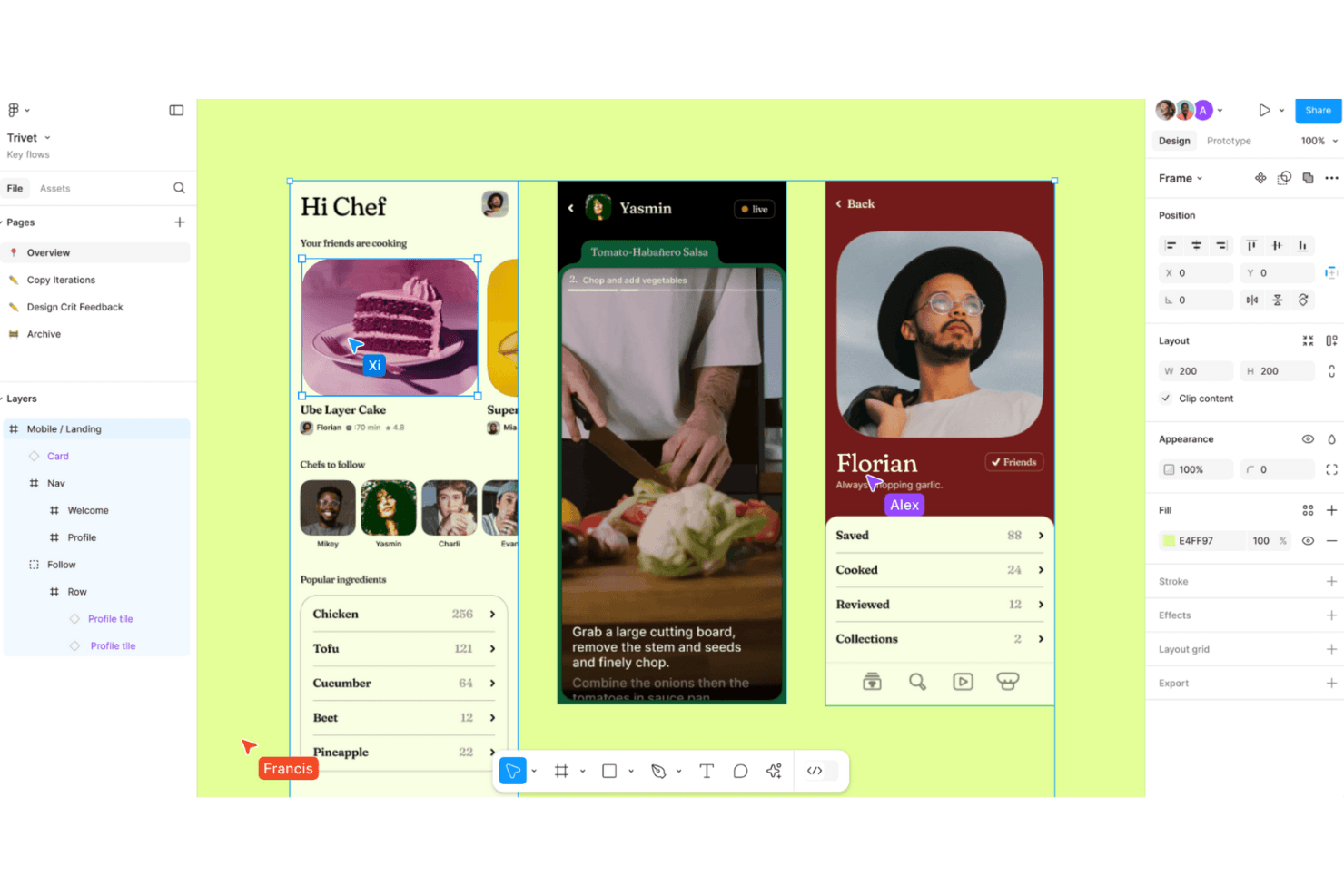
Figma enables collaborative design workflows with real-time editing and prototyping for seamless creativity. Figma is a browser-based UI design tool that combines screen design, interactive prototyping, design system management, and developer handoff in a single collaborative environment.
Who Is Figma Best For?
Figma is a strong fit for cross-functional product teams where designers, product managers, and developers need to collaborate on app design without switching tools.
Why I Picked Figma
Figma earns its spot on my shortlist because no other tool collapses the gap between design and development the way it does. Dev Mode generates iOS and Android code snippets directly from your design layers, and Code Connect maps those layers to real production components in your codebase. I also love that product managers, QA, and other stakeholders can comment and inspect specs without needing a paid seat, which makes cross-functional handoff genuinely frictionless.
Figma Key Features
- Smart Animate: Automatically animates matching layers between frames to create realistic transitions, parallax effects, and touch gestures in prototypes.
- Interactive components: Switch between component variants automatically, reducing the number of frames needed to represent animated states.
- Variable modes: Define and apply multiple themes, such as light and dark mode, across your designs using a single set of variables.
- Figma Mirror: View and play desktop frames on a real iOS or Android device in real time through the Figma mobile app.
Figma Integrations
Figma connects with Slack, Jira, Notion, Google Workspace, GitHub, and Storybook, with a VS Code extension for developer workflows. Its REST API, plugins, webhooks, Code Connect, and MCP Server support custom design-to-development integrations.
Pros and Cons
Pros:
- Developer specs connect designs to implementation
- Prototypes support complex conditional user flows
- Real-time multiplayer keeps app reviews aligned
Cons:
- Mobile app cannot edit design files
- Large files can cause noticeable performance slowdowns
 Best for AI-generated wireframes without design skills
- Free plan available
- From $14/user/month
Visit WebsiteCustomer Rating:4.8/5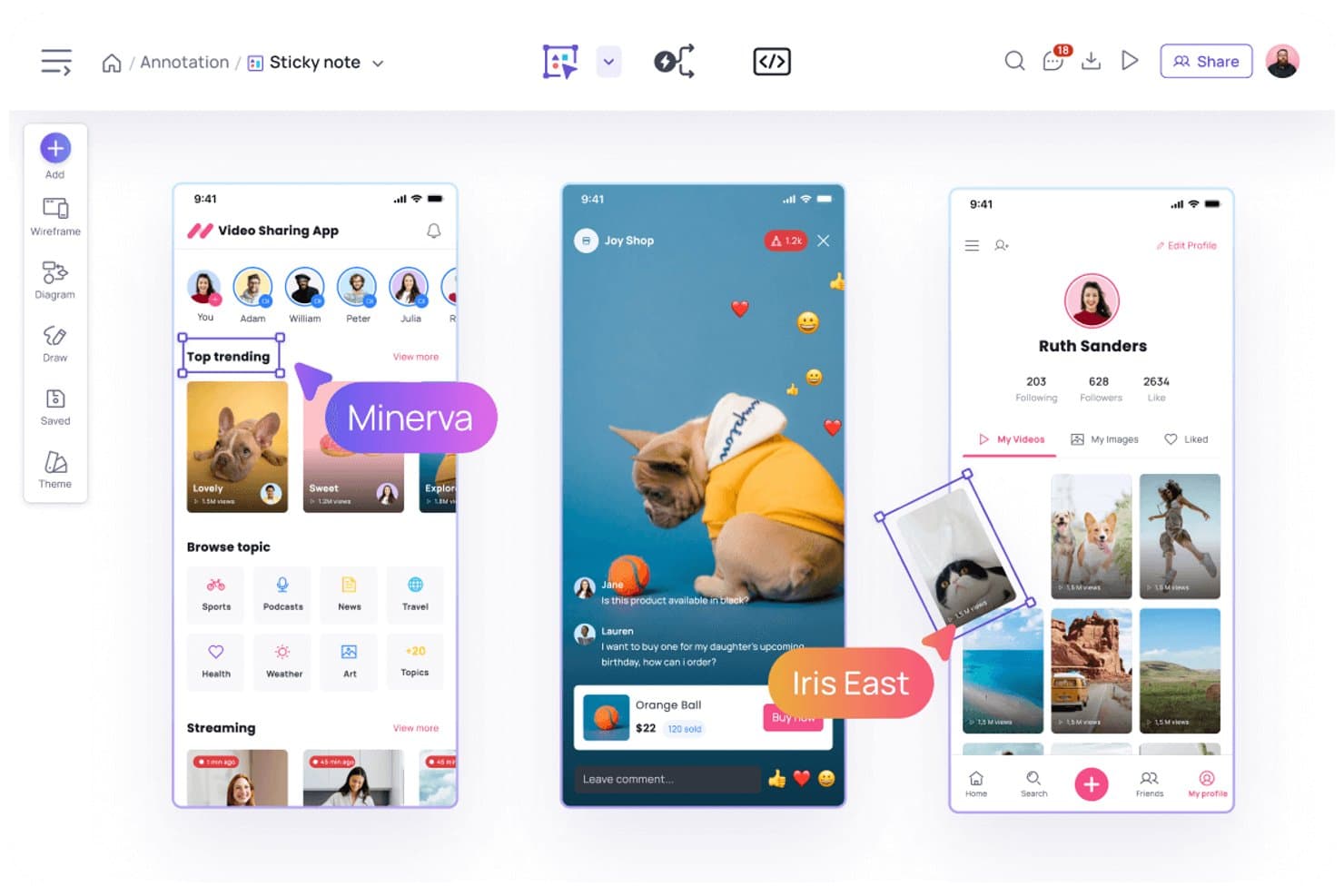
Visily lets users annotate designs with sticky notes and comments. Visily is a browser-based AI design tool that lets you create mobile and web app wireframes, mockups, and interactive prototypes using text prompts, screenshots, sketches, or templates.
Who Is Visily Best For?
Visily is a strong fit for product managers and non-designers who need to turn ideas into wireframes and prototypes quickly, without relying on a dedicated design team.
Why I Picked Visily
I picked Visily as one of the best because it's the only tool on my list where you can go from a rough sketch or a screenshot to a structured mobile wireframe in seconds, no design background required. I love how the AI UI Design Generator handles multiple input types: paste in a screenshot of an existing app, describe a screen in plain text, or draw a rough diagram, and Visily converts it into an editable wireframe. Auto-Prototype then links those screens into a clickable flow automatically, without any manual wiring.
Visily Key Features
- Fidelity switching: Toggle between high-fidelity and low-fidelity views instantly, keeping all elements in place while only the visual style changes.
- Smart Components: Prebuilt, editable UI elements—like nav bars, cards, tables, and charts—that can be broken down into individual parts or populated with CSV data.
- Real-time collaboration: Co-edit boards simultaneously with teammates using cursor chat, commenting, emoji reactions, and follower mode.
- Inspect Mode: View element specs, CSS and Tailwind properties, pixel spacing, and exportable assets directly from any design board.
Visily Integrations
Visily offers integrations with Figma, Jira, Slack, and Notion. Its MCP server connects to Claude Code, Codex, Cursor, Gemini CLI, ChatGPT, and Lovable for developer handoff.
Pros and Cons
Pros:
- Inspect Mode provides detailed developer specifications
- Auto-Prototype creates linked mobile app flows
- AI converts screenshots and sketches into wireframes
Cons:
- Manual adjustments replace missing auto-layout capabilities
- No native device-specific mobile simulators
Learn more about Visily: Best for prototyping mobile apps from scratch
- Free plan available
- From $24.90/user/month (billed annually)
Visit WebsiteCustomer Rating:4.5/5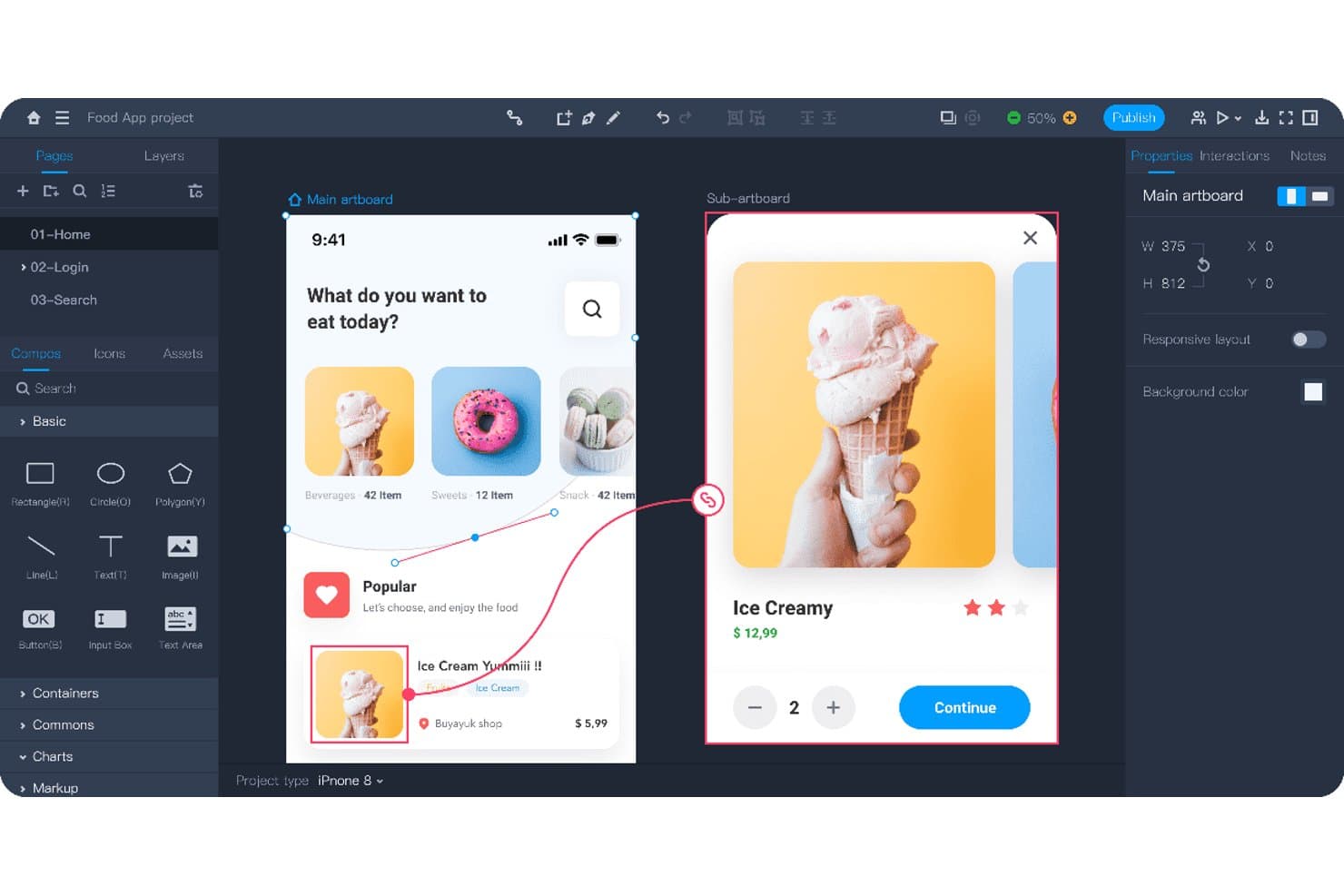
Mockplus lets users design and prototype mobile app screens interactively. Mockplus RP is a browser-based prototyping and wireframing tool that combines drag-and-drop screen design, interactive prototype building, flowcharts, and real-time team collaboration across web, iOS, and Android projects.
Who Is Mockplus Best For?
Mockplus RP is a strong fit for UX/UI designers who need to go from blank canvas to testable mobile prototype without a steep learning curve or a high price tag.
Why I Picked Mockplus
I picked Mockplus RP as one of the best because it's built specifically for taking a mobile app from zero to testable prototype, and it shows in the details. I love that preset iOS, Android, and Material Design artboards let you skip the blank-canvas friction, while a library of 3,000+ UI components means you're building real screens, not placeholders. Component states (hover, pressed, selected, and custom) combined with tap, swipe, and slide gesture interactions let me simulate actual mobile UX flows without writing a line of code.
Mockplus Key Features
- Flowchart and sitemap builder: Drag-and-drop user flow and sitemap diagrams that connect directly to your artboards.
- Axure import: Import existing Axure projects with up to 95% of details preserved and fully editable in Mockplus RP.
- Real-time co-editing: Teams of up to 10 users can design together simultaneously on the free plan, with comments and activity feeds included.
- QR code preview sharing: Share prototypes instantly via QR code so stakeholders can review designs on a real mobile device.
Mockplus RP Integrations
Through Mockplus Cloud, Mockplus RP integrates with Figma, Sketch, Adobe XD, Photoshop, Axure, Slack, Jira, Confluence, and Lark. No public API or GitHub integration is documented.
Pros and Cons
Pros:
- Axure imports preserve editable details
- Real-time co-design supports stakeholder feedback
- Rapid screen creation from templates
Cons:
- Design systems need separate product
- Prototype logic requires rebuilding in code
Learn more about Mockplus: Best for code-backed mobile design systems
- Free plan + 14-day free trial available
- From $29/user/month (billed annually)
Visit WebsiteCustomer Rating:4.2/5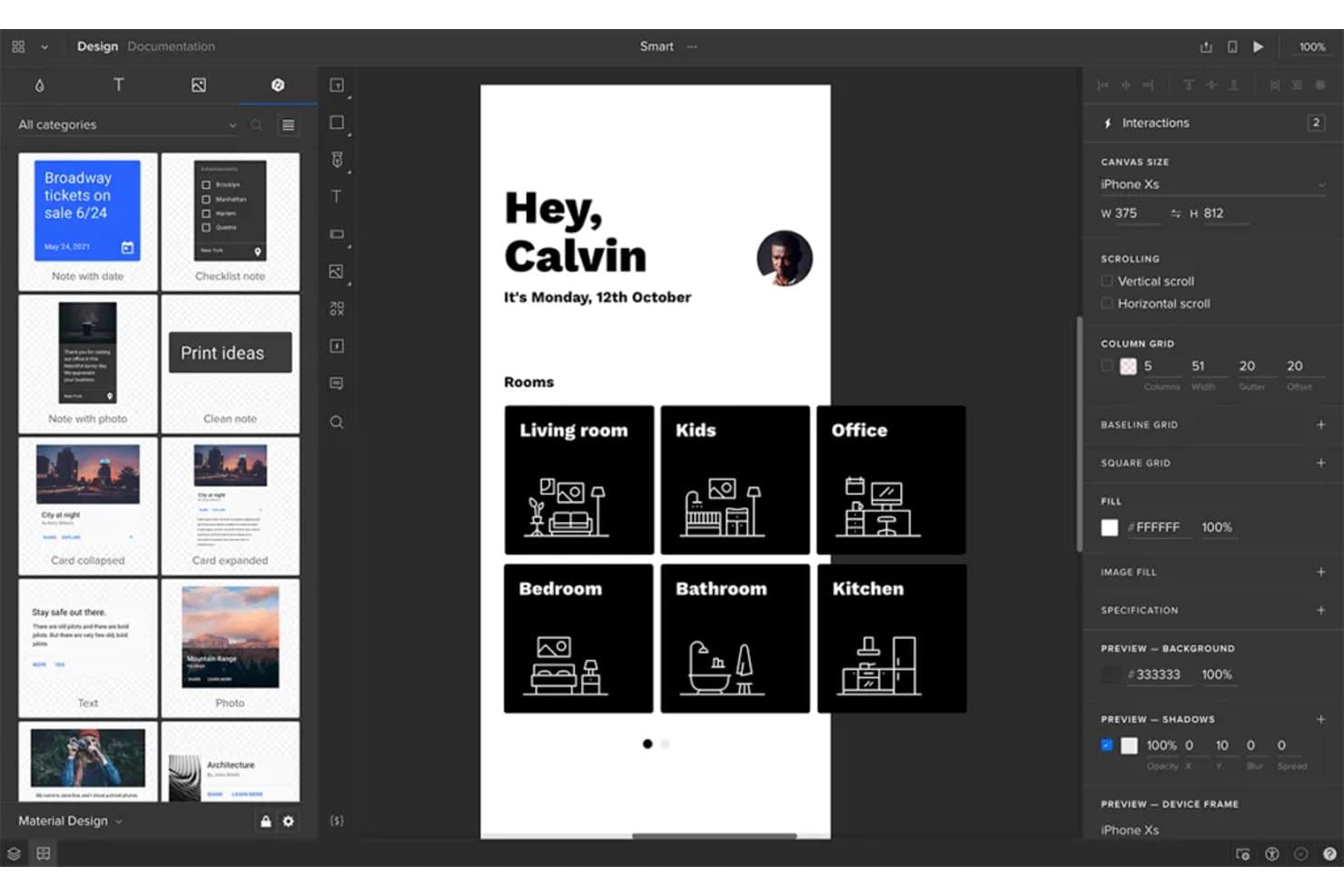
UXPin lets users design and prototype mobile app screens visually. UXPin is a browser-based mobile app design tool that combines wireframing, high-fidelity prototyping, and code-backed design systems built on real React components synced from Git, Storybook, or npm.
Who Is UXPin Best For?
UXPin is a strong fit for UX/UI designers and front-end developers who need design systems backed by real production components.
Why I Picked UXPin
UXPin earns its spot on my shortlist because it's the only mobile app design tool where your prototypes run on actual production React components, not vector replicas. I love how Merge pulls components directly from Git, Storybook, or npm so your design system and codebase stay in sync by default. When a developer updates a component, every design instance updates too, which eliminates the drift that makes most handoffs painful.
UXPin Key Features
- Mobile gesture triggers: UXPin supports tap, swipe, press and hold, touch down, and touch up interactions for building realistic mobile prototypes.
- UXPin Mirror: Scan a QR code to preview live prototypes on real iOS or Android devices, with the canvas updating on your phone as you edit.
- Conditional logic and variables: Set up if/else interactions, regex validation, and expressions to create prototypes that respond dynamically to user input.
- Developer handoff specs: UXPin auto-generates CSS, dimensions, and element notes that developers can inspect and copy directly from a shared preview link.
UXPin Integrations
UXPin integrates with Storybook, npm, Figma, Sketch, Jira, Slack, FullStory, StackBlitz, and CodeSandbox. Enterprise plans add Git integration for GitHub and Bitbucket.
Pros and Cons
Pros:
- Live device previews update as designs change
- Advanced logic models real app behavior
- Production components keep prototypes aligned with code
Cons:
- Design tokens remain limited beyond colors
- React-centric workflows limit native mobile coverage
Learn more about UXPin: Best for Adobe Creative Cloud prototyping
- Free trial available
- From $22.99/month (billed annually)
Visit WebsiteCustomer Rating:4.3/5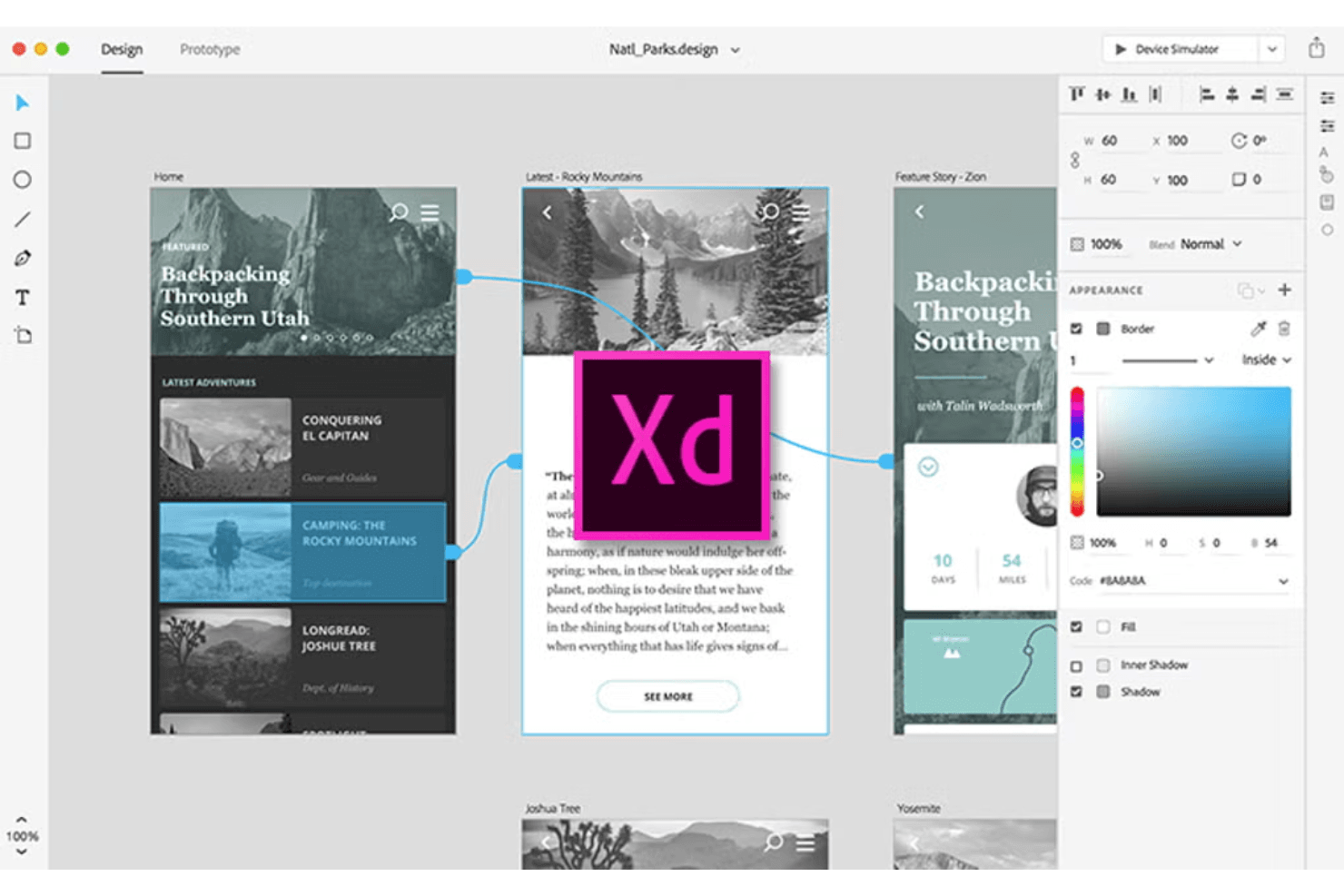
Adobe XD supports UI/UX design with interactive prototypes. Adobe XD is a desktop-based UI/UX design tool that covers screen design, interactive prototyping, component libraries, and developer handoff within the Adobe Creative Cloud ecosystem.
Who Is Adobe XD Best For?
Adobe XD fits UX/UI designers and product designers who are already working within the Adobe Creative Cloud ecosystem and want a familiar, fast tool for building interactive prototypes.
Why I Picked Adobe XD
I picked Adobe XD as one of the best because it's the natural home for prototyping when your team already lives in Creative Cloud. Auto-Animate lets you wire up micro-interactions between artboards using matched layer names, so swipe gestures and ripple effects feel close to native without extra tooling. Component states add Hover and Toggle behaviors automatically, which means interactive flows come together fast when you're validating a mobile UI before handing off specs.
Adobe XD Key Features
- UI kits: Access pre-built iOS, Android, and Windows UI kits directly from the File menu to jump-start mobile screen design.
- Repeat grid: Select any element or group and tile it into a repeatable grid pattern, then drag to resize rows and columns instantly.
- Multiple flows: Organize and share distinct user flows from a single document without creating separate prototype files.
- Live mobile preview: Connect iOS or Android devices via USB to see your designs update in real time as you edit on desktop.
Adobe XD Integrations
Documented integrations include Photoshop, Illustrator, After Effects, Creative Cloud Libraries, and Adobe Asset Link. Marketplace plugins connect Adobe XD with Jira, Slack, and Zoom, while third-party plugins support code export.
Pros and Cons
Pros:
- Multiple flows simplify stakeholder review
- Live USB previews expose mobile behavior early
- Auto-Animate supports native-feeling microinteractions
Cons:
- Collaboration lacks presence indicators and granular permissions
- Maintenance mode limits long-term product viability
 Best for open-source app UI and dev handoff
- Free plan + 14-day free trial available
- From $7/user/month
Visit WebsiteCustomer Rating:4.5/5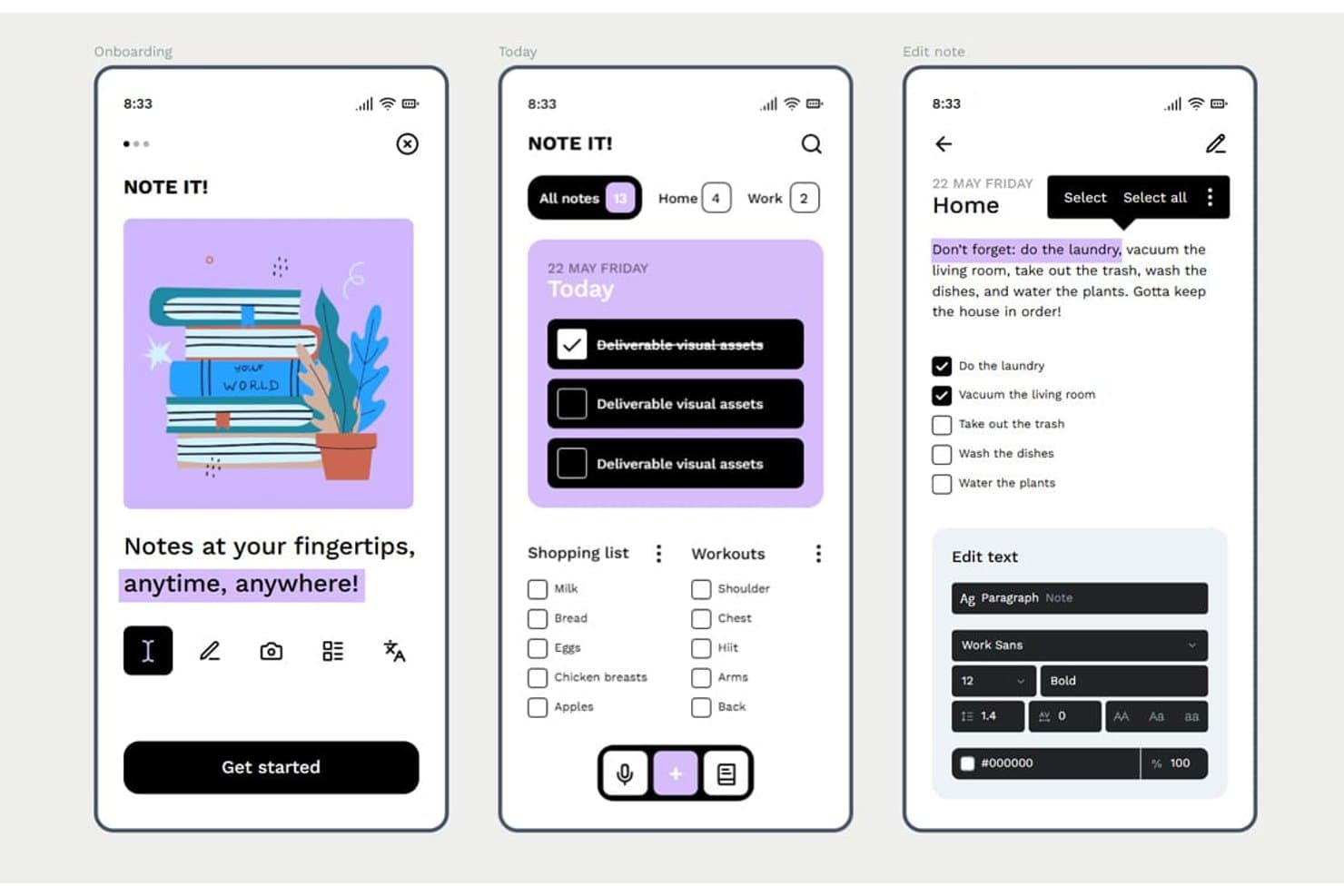
Penpot lets users design mobile app screens with rich text and task UIs. Penpot is an open-source, browser-based UI design tool that offers vector editing, Flex and CSS Grid layout, component libraries with design tokens, interactive prototyping, and developer handoff through an Inspect mode and Code tab.
Who Is Penpot Best For?
Penpot is a strong fit for UX/UI designers and front-end developers who need a free, open-source design tool with CSS-native layouts and built-in developer handoff.
Why I Picked Penpot
I've included Penpot in my top picks because it's the only open-source design tool with native CSS Flex and Grid layouts, which means the specs your developers see in the Code tab map directly to how they'll build the UI. I also like that design tokens follow the W3C DTCG format, so a color or spacing change in a token set cascades across components automatically. That combination of layout fidelity and token-driven components makes Penpot a strong fit for teams maintaining a mobile UI design system alongside a live codebase.
Penpot Key Features
- Boolean operations: Combine, subtract, intersect, or exclude vector shapes to build custom UI elements and icons directly on the canvas.
- Shared component libraries: Publish design assets across files and teams so all collaborators always pull from the same up-to-date components.
- Multiplayer editing with comments: Edit files simultaneously with teammates and leave threaded comments with replies, notifications, and read/unread tracking.
- Version history with pinned saves: Manually pin named versions alongside autosaved history to restore or preview earlier states of a file.
Penpot Integrations
Penpot supports integrations with GitHub, GitLab, Slack, and Storybook through its REST/RPC APIs and webhooks. It also offers a free, open-source MCP server for design-to-code workflows and custom integrations.
Pros and Cons
Pros:
- Native tokens support consistent design systems
- CSS-native layouts simplify developer handoff
- Open-source design control
Cons:
- No adaptive mobile device previewing
- Prototyping lacks gestures and conditional logic
Learn more about Penpot: Best for functional wireframes with working forms
- Free plan available
- From $19/user/month
Visit WebsiteCustomer Rating:4.2/5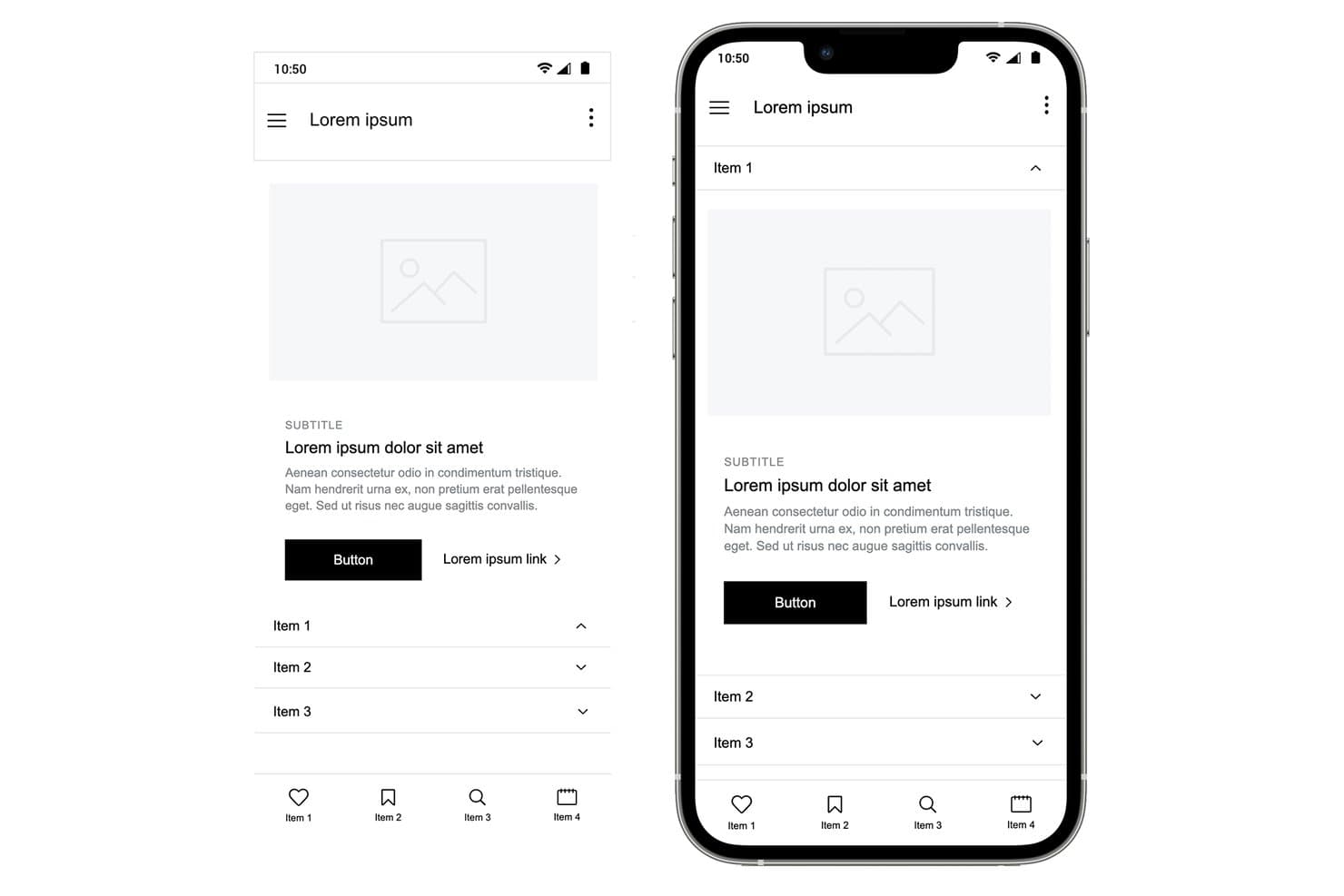
Justinmind lets users design mobile wireframes with accordion menus and nav bars. Justinmind is a desktop-based UI design and prototyping tool for web and mobile apps that covers wireframing, interactive prototyping, user flows, and developer handoff specifications.
Who Is Justinmind Best For?
Justinmind is a strong fit for UX designers and product managers who need to prototype realistic, data-driven interactions—especially working forms—without writing code.
Why I Picked Justinmind
I picked Justinmind as one of the best because its functional wireframing capabilities go well beyond basic click-through prototypes. I love that you can build form fields with real validation logic, populate data grids from a CSV file using Data Masters, and wire up conditional business rules, all without writing a single line of code. In practice, that means my team can simulate a working loan application or onboarding flow that behaves like the real thing before any developer writes a line of code.
Justinmind Key Features
- iOS and Android UI kits: Access 4,000+ prebuilt components for iOS and Android, including an iOS 18 UI library and current device frames like iPhone 16 and Galaxy S25.
- Mobile gesture support: Wire up tap, swipe, pinch, scroll, and rotate interactions to simulate native mobile app behavior in your prototype.
- On-device preview app: Use the Justinmind Viewer app on iPhone, iPad, or Android to test your prototype live via QR code scanning.
- Figma and Sketch import: Bring in existing design files from Figma or Sketch and continue building your prototype without starting from scratch.
Justinmind Integrations
Justinmind offers native integrations with Jira and Azure DevOps, plus the Justinmind+ for Confluence add-on. It also supports Figma and Sketch imports and provides an API/SDK for custom integrations.
Pros and Cons
Pros:
- Mobile gestures and device previews improve validation
- CSV-backed data grids support realistic testing
- Functional forms simulate real app logic
Cons:
- Advanced interactions require higher-tier plans
- Desktop-only editing limits distributed design collaboration
Learn more about Justinmind: Best for macOS-native UI design
- Free plan available; 30-day free trial
- From $12/user/month (billed annually)
Visit WebsiteCustomer Rating:4.5/5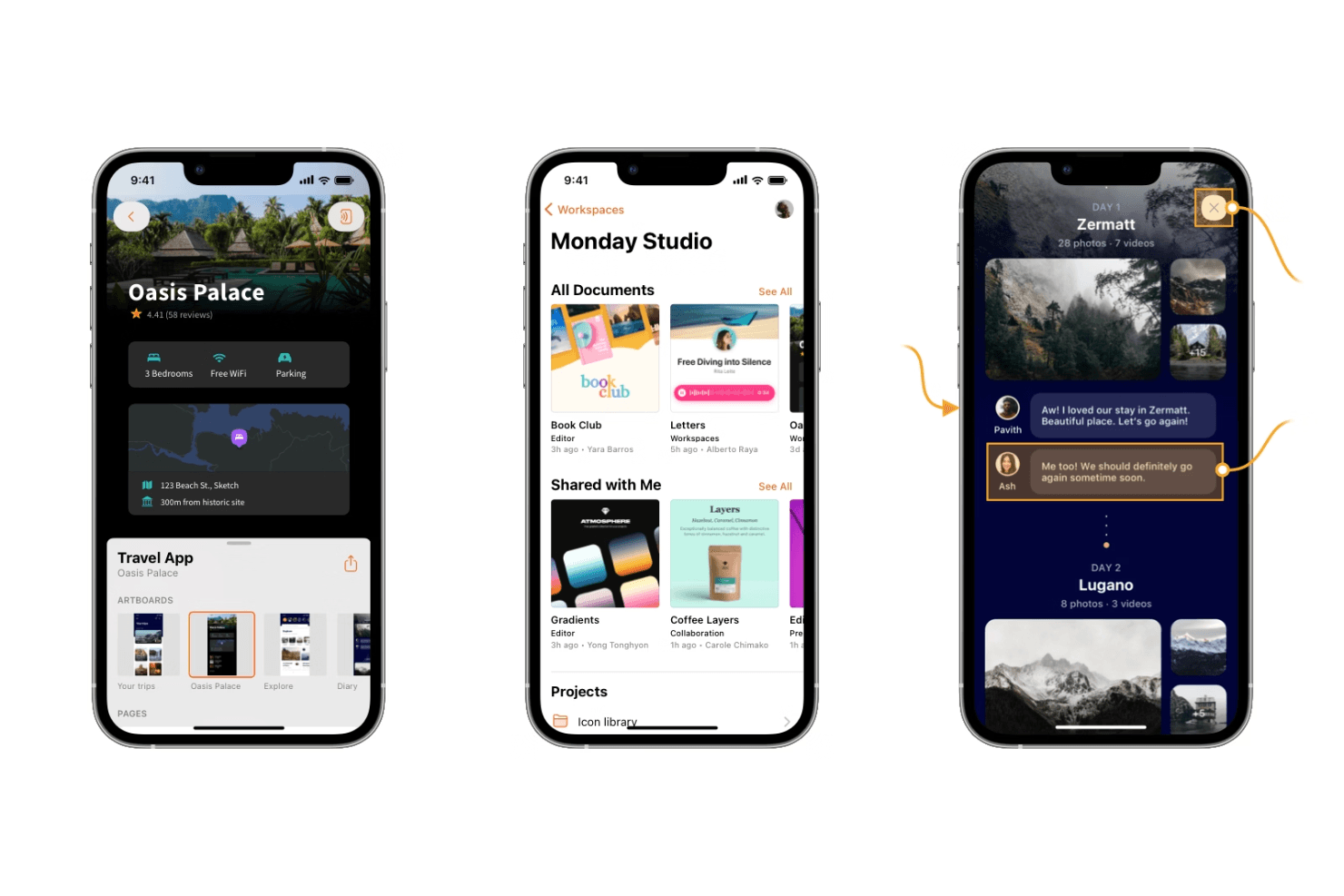
Sketch offers powerful design tools for creating sleek, modern mobile interfaces. Sketch is a macOS-native UI design tool that combines vector editing, auto-layout, interactive prototyping, design system management, and developer handoff in a single offline-capable editor.
Who Is Sketch Best For?
Sketch is the go-to choice for UI and product designers who work primarily on macOS and build iOS-focused mobile app interfaces.
Why I Picked Sketch
Sketch earns its spot on my shortlist because it's the most refined macOS-native editor available for UI design work. I love how Stacks auto-layout handles padding, distribution, and wrapping natively in the Mac app, which speeds up building mobile screens considerably. The vector tools, smooth corners, and P3 color support also make iOS-style UI feel genuinely native to design in Sketch.
Sketch Key Features
- Free developer handoff: Developers can inspect layers, copy CSS and SwiftUI color values, measure between elements, and export assets directly in the browser—no paid seat required.
- MCP server with AI integration: A built-in, local-only MCP server connects Sketch to Claude, Cursor, and other AI coding tools, letting agents read frames and generate implementation-ready code.
- Workspace Libraries with admin controls: Admins can manage who updates or uses a shared component library and control when updates roll out across the team.
- Design tokens export: Color Variables, Layer Styles, and Text Styles can be exported as CSS or JSON, or shared via a live public token link that stays current automatically.
Sketch Integrations
Sketch offers integrations with Slack, Jira, Notion, Zeplin, ProtoPie, Principle, Proto.io, and Origami, plus an open JavaScript API for custom extensions.
Pros and Cons
Pros:
- Private AI supports design-to-code workflows
- Free developer handoff supports unlimited developers
- Native offline Mac editor
Cons:
- No Android preview app complicates testing
- Mac-only editor limits cross-platform teams
 Best for logic-driven mobile wireframing
- 30-day free trial
- From $29/user/month (billed annually)
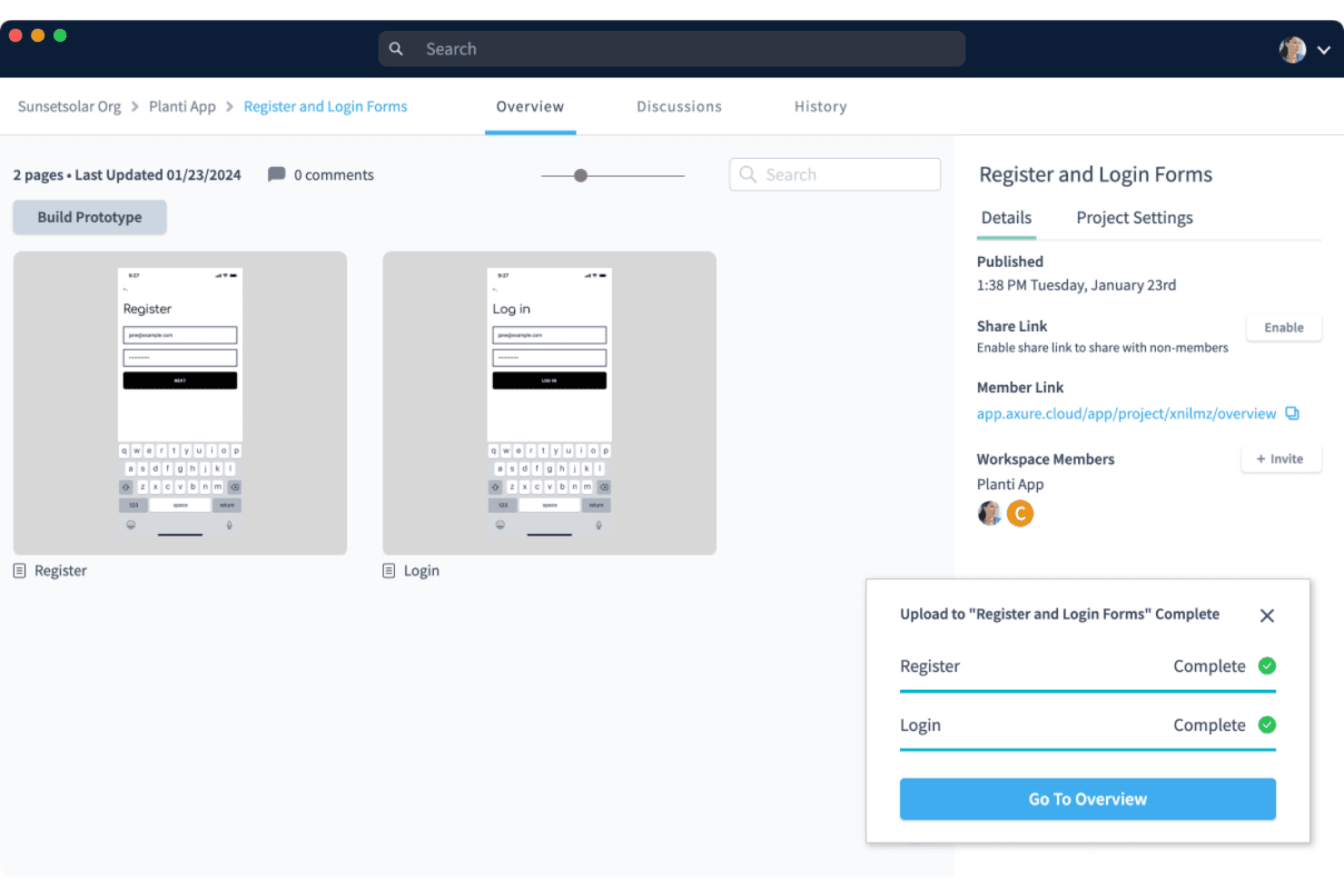
Axure RP supports wireframing and prototyping with a clean, user-friendly interface for building interactive designs. Axure RP is a desktop-based wireframing and prototyping tool that lets you build interactive mockups using conditional logic, variables, dynamic panels, and adaptive views for multiple screen sizes.
Who Is Axure RP Best For?
Axure RP is a strong fit for UX designers and product designers who need to prototype complex, logic-driven mobile app flows without writing code.
Why I Picked Axure RP
I've included Axure RP in my top picks because no other tool on this list matches its depth of interaction logic for mobile wireframing. I can build dynamic panels with multiple states to simulate swipeable carousels or conditional nav flows, add real variables, and wire up working form inputs without touching code. For complex mobile app flows where click-through prototypes simply don't cut it, Axure RP handles the logic that other tools can't.
Axure RP Key Features
- Adaptive views: Create alternate versions of a single page for different screen sizes, with device presets for iOS, Android, and desktop that auto-display the correct view in the browser.
- Free reviewer accounts: Stakeholders and developers can view, comment on, and inspect prototypes at no extra cost, with access to redlines, measurements, and CSS via Axure Cloud Inspect.
- Repeater widgets: Build data-driven tables and grids that users can sort and filter directly within a running prototype.
- Check-in/check-out team authoring: Team plan users can check out pages to edit offline, then check in with notes, with automatic style merging and full version history.
Axure RP Integrations
Axure RP has seven documented integrations, including Jira, Confluence, Slack, Microsoft Teams, Figma, Sketch, and Adobe XD. These support prototype embedding, activity notifications, and importing or hosting design content in Axure Cloud.
Pros and Cons
Pros:
- Adapts layouts across multiple screen sizes
- Supports working forms and filterable data
- Simulates complex mobile flows without code
Cons:
- Mobile previews lack native OS simulation
- Requires desktop installation for authoring
Learn more about Axure RP : 10Best for sensor-driven interaction prototyping
ProtoPie
- Free plan available
- From $25/month (billed annually)
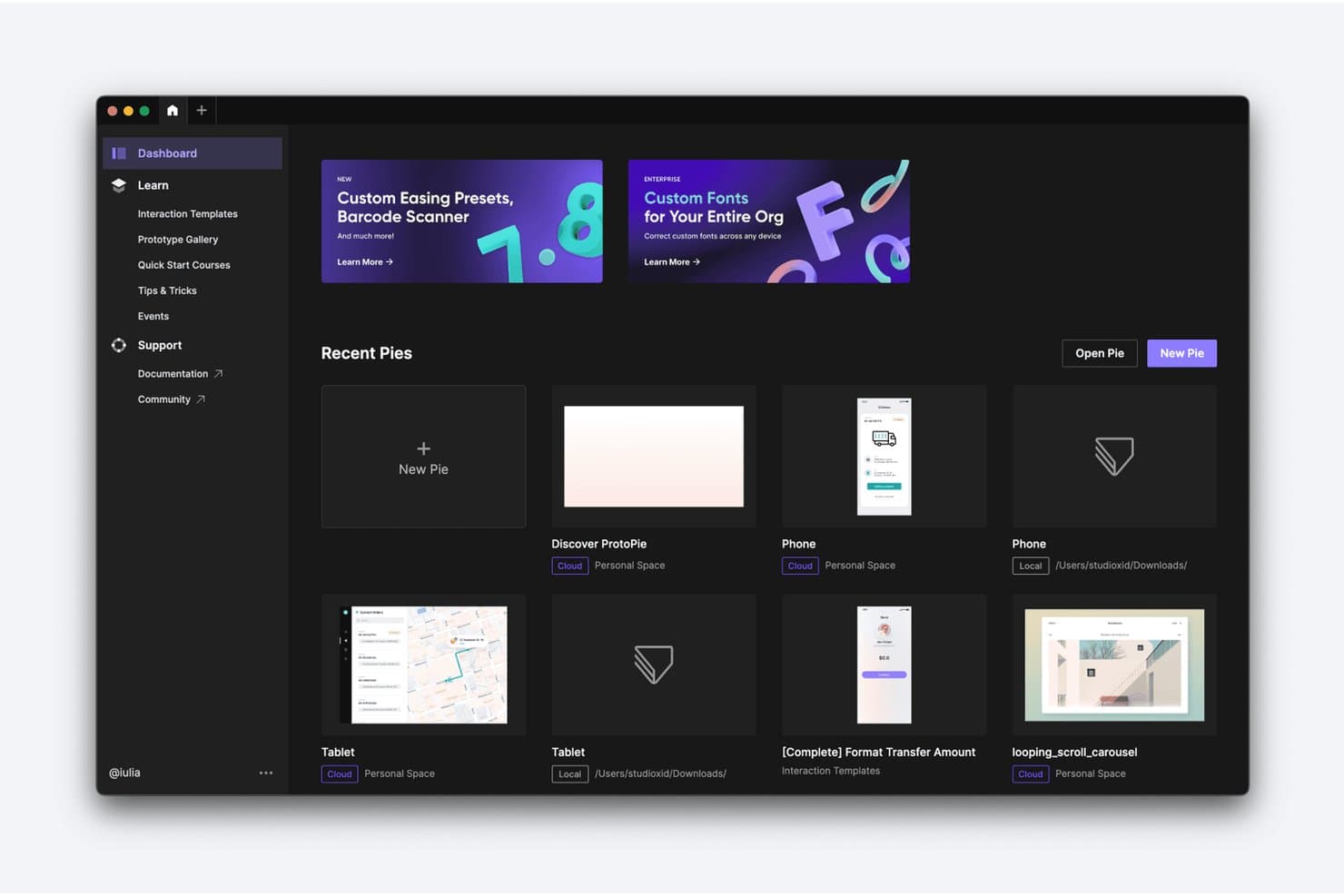
ProtoPie lets users manage and organize prototypes from a central dashboard. ProtoPie is a high-fidelity interactive prototyping tool that lets you layer conditional logic, variables, device sensors, voice triggers, and multi-device communication onto screens imported from Figma, Sketch, or Adobe XD.
Who Is ProtoPie Best For?
ProtoPie is a strong fit for UX and product designers who need to prototype gesture-based, sensor-driven, or multi-device interactions that standard design tools can't replicate.
Why I Picked ProtoPie
ProtoPie earns its spot on my shortlist because no other tool I've tested comes close for sensor-driven interaction prototyping. I've used it to build prototypes that respond to a phone's gyroscope and compass in real time, something Figma's prototyping simply can't do. Its conditional logic and variable system let you wire up branching flows and error states that behave like the real app, and the free Player app delivers those interactions on an actual iOS or Android device, sensors included.
ProtoPie Key Features
- Multi-device communication: Link two or more devices running ProtoPie Player so they send and receive data from each other in real time during prototype testing.
- ProtoPie MCP: Exports your prototype's triggers, variables, and formulas as structured data that AI coding agents like Cursor and Claude Code can read directly.
- Interaction recordings: Auto-generates frame-by-frame playback of user flows, capturing easing, delay, and layer properties so developers can inspect every interaction detail.
- ProtoPie Connect add-on: Connects prototypes to external hardware, APIs, and platforms like Unity and Unreal for testing interactions beyond standard mobile screens.
ProtoPie Integrations
ProtoPie integrates with Figma, Sketch, and Adobe XD through plugins, plus Claude Code, Cursor, VS Code, and Codex through ProtoPie MCP. ProtoPie Connect supports APIs, Unity, Unreal, Arduino, and custom Socket.IO plugins.
Pros and Cons
Pros:
- Frame-by-frame handoff clarifies motion behavior
- Conditional logic models complex app states
- Sensor prototypes behave authentically on devices
Cons:
- Complex interaction setup demands practice
- Screen design requires importing elsewhere
Learn more about ProtoPie:
Other Mobile App Design Software
Here are some additional mobile app design software options that didn’t make it onto my shortlist, but are still worth checking out:
- 11Proto.ioBest for pre-dev app behavior simulation
- 12FramerBest for AI-assisted web-to-app design iteration
- 13MockFlowBest for wireframe-to-dev token handoff
- 14BalsamiqBest for early-stage mobile app wireframing
- 15Fluid UIBest for quick stakeholder feedback on mobile flows
- 16MarvelBest for in-prototype usability testing
- 17UizardBest for AI-generated app screen mockups
- 18PrincipleBest for USB-mirrored iOS animation prototyping
- 19MoqupsBest for wireframing without design experience
- 20Origami StudioBest for near-native iOS interaction prototyping
How I Evaluate Mobile App Design Software
I split my evaluation into three parts, with the most weight on core functionality: creating mobile screens, linking realistic flows, and previewing them on devices. Next, I look for standout features such as design tokens. Finally, I consider beyond-feature fit, including onboarding, support, and pricing as teams grow.
Core Functionality (Table Stakes For This List)
When I'm selecting tools for my list, I score each one on a scale from 0 (does not offer the functionality) to 5 (excels in this area) for each core functionality listed below. I then convert the total into a percentage to help assess each tool's overall fit, with extra weight on any functionalities I’ve deemed essential.
- Screen Design (Essential): I look for precise layout and editing controls to create connected mobile screens, from a simple sign-up form to a complex settings page.
- Interactive Prototyping (Essential): I assess whether flows can represent realistic taps, gestures, transitions, and states, such as validation errors in a registration flow.
- Design Systems: I check for reusable components and shared styles, and whether updates carry through screens so interface patterns stay consistent.
- Developer Handoff: I look for inspectable measurements, specs, and exportable assets that help developers build screens as designed.
- Real-Time Collaboration: I consider how teams can co-edit, comment, and review the same file while discussing a flow or screen.
- Device Preview: I check whether interactive designs can be previewed on mobile device sizes or screens to assess layouts and behavior.
Once I have a list of tools that meet the criteria, I consider what sets each platform apart.
Differentiating Factors (What Sets Vendors Apart)
Here's how I compare and contrast different vendors:
Standout Features
I look for auto-layout engines that adapt components when content or screen sizes change, since a button that breaks when its label grows from "Save" to "Save and Continue" signals a brittle design system. Version history with branching is equally important—I check whether a team can fork a flow, test a redesigned onboarding sequence, and merge or roll back without overwriting production files. I also evaluate each tool's plugin and API ecosystem, because connecting design data to issue trackers or code repositories cuts repetitive handoff work.
Beyond Features
I check how each tool fits into sprint-based workflows—whether it connects to Jira, Slack, or GitHub so design updates flow into tickets without manual re-linking. Scaling matters too: a three-person startup needs fast, low-overhead licensing, while a 50-seat product org needs permission tiers and governed design libraries. I also evaluate onboarding quality, because a tool that ships strong templates and docs gets cross-functional teammates contributing faster than one that assumes deep design fluency.
How to Choose Mobile App Design Software
It’s easy to get bogged down in long feature lists and complex pricing structures. To help you stay focused as you work through your unique software selection process, here’s a checklist of factors to keep in mind:
| Factor | What to Consider |
| Scalability | Ensure the software can grow with your team. Look for solutions that support an increasing number of users, projects, and complexity without performance issues. |
| Integrations | Check if the tool integrates with other software your team uses, like project management tools, communication platforms, and development environments. |
| Customizability | Look for tools that allow you to tailor the interface and features to fit your workflow. Consider options that let you create custom components or templates. |
| Ease of Use | Choose software with a user-friendly interface that your team can quickly learn. Look for features like drag-and-drop functionality and intuitive navigation. |
| Budget | Consider both initial costs and long-term expenses. Ensure the pricing aligns with your budget, and evaluate if the features justify the cost. |
| Security Safeguards | Ensure the software complies with industry security standards to protect your data. Look for features like data encryption, user authentication, and regular updates. |
| Collaboration | Evaluate how well the tool supports team collaboration. Look for real-time editing, commenting, and feedback options to enhance teamwork. |
| Support | Consider the availability and quality of customer support. Look for options that offer 24/7 assistance, comprehensive documentation, and active community forums. |
Trends in Mobile App Design Software
In my research, I sourced countless product updates, press releases, and release logs from different mobile app design software vendors. Here are some of the emerging trends I’m keeping an eye on:
- Real-time collaboration: Teams increasingly need to work together in real-time, regardless of location. Software like Figma allows multiple users to edit designs simultaneously, making collaboration more efficient and reducing miscommunication.
- Augmented reality (AR) integration: AR features are becoming more prevalent in design tools, allowing designers to create immersive experiences. This trend supports industries like retail and gaming, where visualizing products in real environments is beneficial.
- Voice user interface (VUI) design: As voice-activated devices grow in popularity, tools are adapting to support VUI design. Adobe XD, for example, includes features for prototyping voice interactions, helping designers create more inclusive and modern user experiences.
- Design systems management: More tools now offer features to manage and maintain design systems, ensuring consistency across projects. UXPin provides design system libraries that help teams keep design elements uniform and up-to-date.
- AI-driven design suggestions: AI is beginning to play a role in suggesting design improvements, generating mockups, and automating repetitive tasks. Some tools are incorporating AI to help designers optimize layouts and color schemes, saving time and enhancing creativity.
What Is Mobile App Design Software?
- Real-time collaboration: Work simultaneously with teammates across different platforms—whether on mac, Windows, or mobile devices—to update designs, provide feedback, and avoid version control issues.
- Interactive prototyping: Simulate user interactions with dynamic prototypes that mimic app behavior. Tools like InVision make it easy to test usability and get stakeholder feedback early in the process.
- Design systems management: Maintain visual and functional consistency with centralized libraries of reusable components, fonts, and design templates that can scale across projects.
- Drag-and-drop interface: Ideal for users without coding experience, this feature lets designers build layouts and modify elements visually—making it accessible whether you're designing for Android or Apple devices.
- Augmented reality integration: Create immersive app experiences by previewing how digital elements interact with the real world, particularly useful for product previews or location-based apps.
- Voice user interface design: Accommodate the rise of voice-first experiences by designing and testing voice interactions directly within your mobile app UI.
- Advanced animation tools: Bring designs to life with transitions, gestures, and animations that help visualize how the app will respond to user input.
- User testing capabilities: Collect real-time insights from testers to evaluate usability and identify pain points before launch—essential for refining both web design and mobile flows.
- AI-driven design suggestions: Use built-in intelligence to automate repetitive tasks, improve layouts, and inspire creativity with smart recommendations.
- Export design assets: Easily transfer files and design elements to developers, ensuring alignment between your design platform and the production environment, whether it's for the App Store, Google Play, or internal deployment.
Features of Mobile App Design Software
When selecting mobile app design software, keep an eye out for the following key features:
- Intuitive interface: Enable designers to quickly prototype and iterate without a steep learning curve.
- Cross-platform compatibility: Allow users to design for both iOS and Android simultaneously, streamlining development.
- Real-time collaboration: Support multiple users working together on the same project for faster feedback and iteration.
- Responsive design tools: Ensure layouts automatically adapt to different screen sizes and device orientations.
- Component libraries: Provide reusable UI elements to maintain consistency and speed up the design process.
- Interactive prototyping: Let designers simulate app interactions and user flows without writing code.
- Version control: Track design changes and allows rollback to previous versions when needed.
- Developer handoff tools: Generate design specs and assets to simplify the transition from design to development.
- Third-party integrations: Connect with other tools like Slack, Jira, or usability testing platforms to enhance workflow.
- Cloud storage and sync: Ensure access to designs from any device and backs up work automatically.
Benefits of Mobile App Design Software
Implementing mobile app design software provides several benefits for your team and your business. Here are a few you can look forward to:
- Improved collaboration: Real-time editing features enable your team to work together efficiently, no matter where they are.
- Faster prototyping: Drag-and-drop interfaces and interactive app prototyping tools allow you to quickly create and test app designs.
- Consistent design: Design systems management ensures that all your projects maintain a uniform look and feel.
- Enhanced creativity: AI-driven design suggestions and advanced animation tools help spark new ideas and refine existing designs.
- Better user engagement: User testing capabilities let you gather feedback to create designs that resonate with your audience.
- Increased accessibility: Features like voice user interface design make your apps more inclusive and modern.
- Seamless development handoff: Export design assets easily to ensure a smooth transition from design to mobile app development.
Costs and Pricing of Mobile App Design Software
Selecting mobile app design software requires an understanding of the various pricing models and plans available. Costs vary based on features, team size, add-ons, and more. The table below summarizes common plans, their average prices, and typical features included in mobile app design software solutions:
Plan Comparison Table for Mobile App Design Software
| Plan Type | Average Price | Common Features |
| Free Plan | $0 | Basic prototyping, limited storage, and community support. |
| Personal Plan | $5-$25/user/ month | Advanced prototyping, custom templates, and email support. |
| Business Plan | $25-$50/ user/month | Team collaboration tools, design systems management, and priority support. |
| Enterprise Plan | $50-$100/ user/month | Custom integrations, dedicated account management, and enhanced security features. |
Mobile App Design Software FAQs
Here are some answers to common questions about mobile app design software:
What is the key factor to consider when designing for mobile apps?
The key factor is simplicity. Your design should be intuitive and easy for users to understand without excessive guidance. Focus on clear navigation and ensure the app performs as users expect. This helps improve user satisfaction and reduces frustration.
What is the difference between an app developer and an app designer?
An app developer focuses on building the app to be fast, secure, and efficient. The designer, on the other hand, ensures the app is visually appealing and easy to navigate. Both roles are crucial for creating a successful app that meets user needs and expectations.
What are the five important questions to ask a client before building their app?
Ask about the app’s purpose, desired features, target audience, budget, and any design constraints. Understanding these aspects helps you align the design with client expectations and ensures the app serves its intended function effectively.
How do you choose the right mobile app design software?
When selecting a mobile app designt tool, consider factors like ease of use, available features, integration capabilities, and scalability. Evaluate the software’s ability to meet your specific product design needs and ensure it supports collaboration within your design team.
What are the common challenges faced in mobile app design?
Common challenges include maintaining a consistent user experience across different devices, ensuring app performance, and keeping the design intuitive. Balancing aesthetics with functionality is also important to meet user expectations.
How can mobile app design software improve team collaboration?
Many tools offer real-time collaboration features, allowing team members to work on designs simultaneously. This reduces miscommunication and speeds up the design process, ensuring everyone is aligned and can contribute effectively.