

10 Strumenti gratuiti per la progettazione dell’interfaccia utente nel 2026

Elenco degli strumenti gratuiti per la progettazione UI


Gli strumenti gratuiti per la progettazione UI sono piattaforme software che consentono di creare, prototipare e collaborare sulle interfacce utente senza pagare in anticipo, tramite un piano gratuito o una prova gratuita. Se stai cercando un modo per progettare interfacce, testare idee o lavorare con il tuo team senza impegnarti in un abbonamento a pagamento, ti servono opzioni che bilancino usabilità, collaborazione e accesso alle funzionalità senza costi.
Questo elenco ti aiuterà a confrontare rapidamente i migliori strumenti gratuiti per la progettazione UI del 2026, così potrai trovare quello più adatto al tuo flusso di lavoro, che tu stia creando strutture schematiche, prototipi o modelli interattivi.
Perché Fidarsi delle Nostre Recensioni Software
Testiamo e recensiamo software per il product management dal 2020. Come product manager sappiamo quanto sia fondamentale e difficile fare la scelta giusta in termini di software. Investiamo in una ricerca approfondita per aiutare il nostro pubblico a prendere decisioni migliori sugli acquisti di software. Abbiamo testato oltre 2.000 strumenti per diversi casi d’uso e scritto più di 1.000 recensioni approfondite.Scopri come assicuriamo la trasparenza & la nostra metodologia di recensione software.
Riepilogo degli strumenti gratuiti per la progettazione UI
| Tool | Best For | Trial Info | Price | ||
|---|---|---|---|---|---|
| 1 | Ideale per la prototipazione rapida con modelli | Piano gratuito disponibile | Da $12/mese (fatturazione annuale) | Website | |
| 2 | Ideale per la collaborazione in tempo reale del team | Piano gratuito disponibile | Da $16/utente/mese (fatturato annualmente) | Website | |
| 3 | Ideale per combinare wireframe e flowchart | Piano gratuito disponibile | Da $10/editor/mese (fatturato annualmente) | Website | |
| 4 | Ideale per flussi di lavoro di progettazione nativi su Windows | Piano gratuito disponibile | Da $11.99/utente/mese (fatturato annualmente) | Website | |
| 5 | Ideale per mockup a bassa fedeltà in stile schizzo | Prova gratuita di 14 giorni disponibile | Da $16/utente/mese (fatturazione annuale) | Website | |
| 6 | Ideale per pianificare visivamente i percorsi utente | Piano gratuito disponibile | Da $14/utente/mese (fatturazione annuale) | Website | |
| 7 | Ideale per ambienti di team open-source | Piano gratuito e prova gratuita di 14 giorni disponibili | Da $7/utente/mese | Website | |
| 8 | Ideale per la diagrammazione di flussi di lavoro complessi | Gratuito | Gratuito | Website | |
| 9 | Ideale per wireframing senza distrazioni | Piano gratuito disponibile | Gratuito | Website | |
| 10 | Ideale per wireframe desktop offline | Not available | Gratuito e open source | Website |
Recensioni degli strumenti gratuiti per la progettazione UI
Di seguito sono riportati i miei riepiloghi dettagliati degli strumenti gratuiti per la progettazione UI inclusi nel mio elenco. Le mie recensioni offrono una panoramica dettagliata delle funzionalità, dei casi d’uso migliori e dei prezzi di ogni strumento, per aiutarti a trovare quello più adatto a te.
Canva
Ideale per la prototipazione rapida con modelli
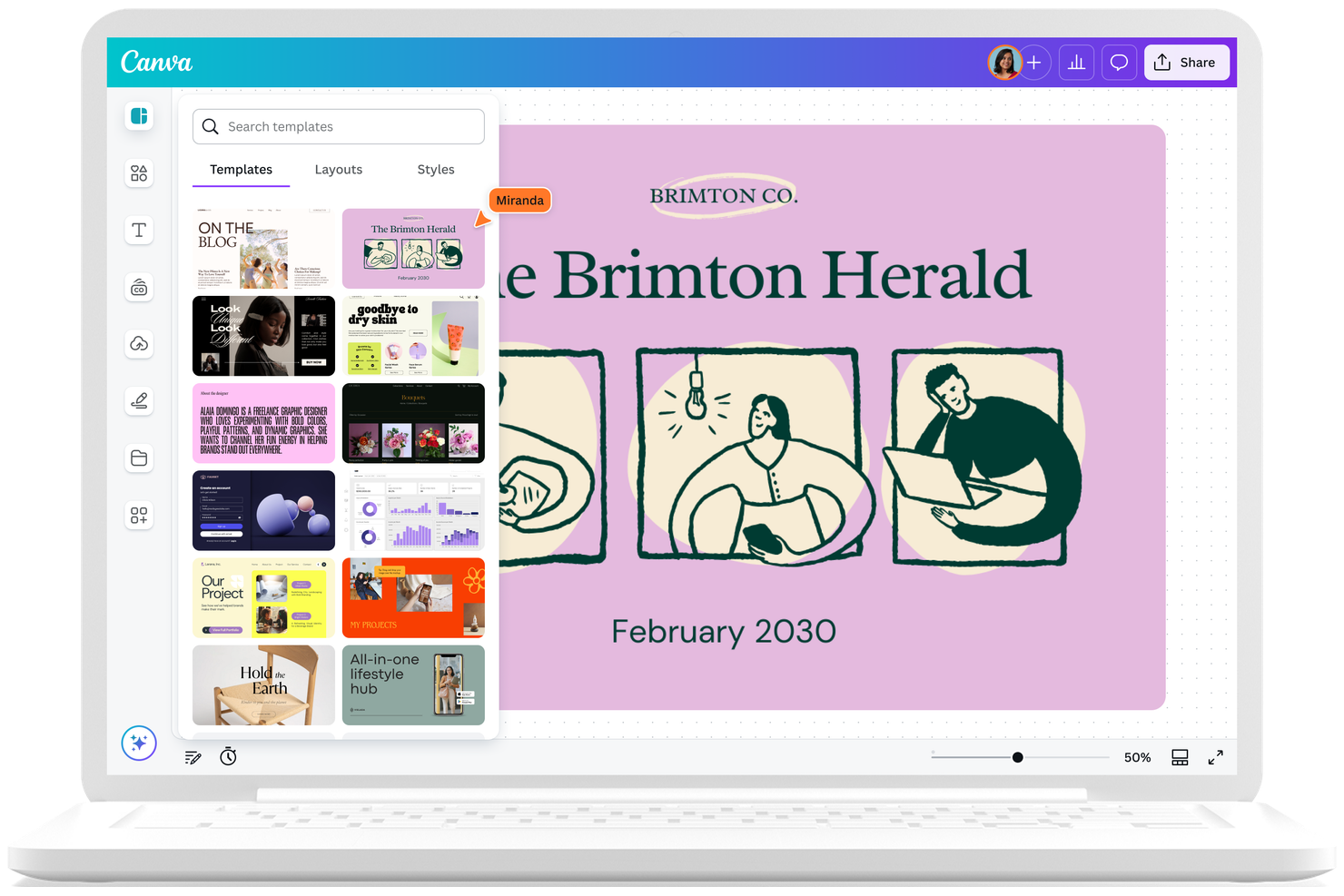
Se vuoi passare rapidamente dall'idea all'interfaccia, lo strumento di progettazione UI di Canva offre un approccio basato su modelli che è facile da imparare. Uno dei migliori strumenti per principianti, è adatto a team di marketing, piccole imprese o chiunque abbia bisogno di un software di design intuitivo senza una curva di apprendimento ripida. Canva si distingue per la sua vasta libreria di modelli, forme, font, strumenti di design e un editor drag-and-drop, che rende semplice visualizzare e condividere rapidamente concetti di UI. Se stai cercando uno strumento di prototipazione adatto ai principianti, Canva propone sicuramente un'interfaccia utente molto intuitiva.
Perché ho scelto Canva
Ho scelto Canva per questa lista perché il suo workflow basato su modelli rende la prototipazione rapida accessibile praticamente a chiunque. La piattaforma offre un'ampia gamma di template UI predefiniti, così puoi assemblare rapidamente schermate e layout senza dover partire da zero. Mi piace anche che l'editor drag-and-drop di Canva ti permette di personalizzare gli elementi e sperimentare con idee diverse in pochi minuti. Per i team o i singoli che necessitano di visualizzare i concetti velocemente, l'approccio di Canva alla prototipazione spicca tra gli strumenti gratuiti di design UI.
Funzionalità principali di Canva
Altre funzionalità interessanti dello strumento di design UI di Canva includono:
- Strumenti di collaborazione: Più utenti possono commentare, modificare e lavorare sullo stesso progetto in tempo reale.
- Libreria di asset: Accesso a una vasta raccolta di icone, immagini ed elementi UI direttamente nell'editor.
- Opzioni di esportazione: Scarica i design in vari formati, inclusi PNG, JPG e PDF, per una facile condivisione o presentazione.
- Cronologia delle versioni: Tieni traccia delle modifiche e ripristina versioni precedenti del tuo design quando necessario.
Integrazioni di Canva
Le integrazioni includono Google Drive, Dropbox, OneDrive, Google Photos, Instagram, Facebook, Slack, HubSpot, Mailchimp e LinkedIn.
Cosa è gratis?
Canva offre un piano gratuito per sempre che include l'accesso al suo strumento di design UI, ai template e a una vasta gamma di asset di base. Alcuni template premium, elementi e funzionalità avanzate sono disponibili solo nei piani a pagamento.
Pros and Cons
Pros:
- Ampia libreria di modelli UI per progetti di prototipazione rapida
- Collaborazione in tempo reale che supporta flussi di lavoro di design di squadra
- Libreria di asset integrata che include icone, immagini ed elementi UI
Cons:
- Troppo basilare per i product designer, con funzionalità di prototipazione limitate rispetto ad altri strumenti UI dedicati
- Nessun supporto per stati avanzati dei componenti o sistemi di design UX

Figma
Ideale per la collaborazione in tempo reale del team
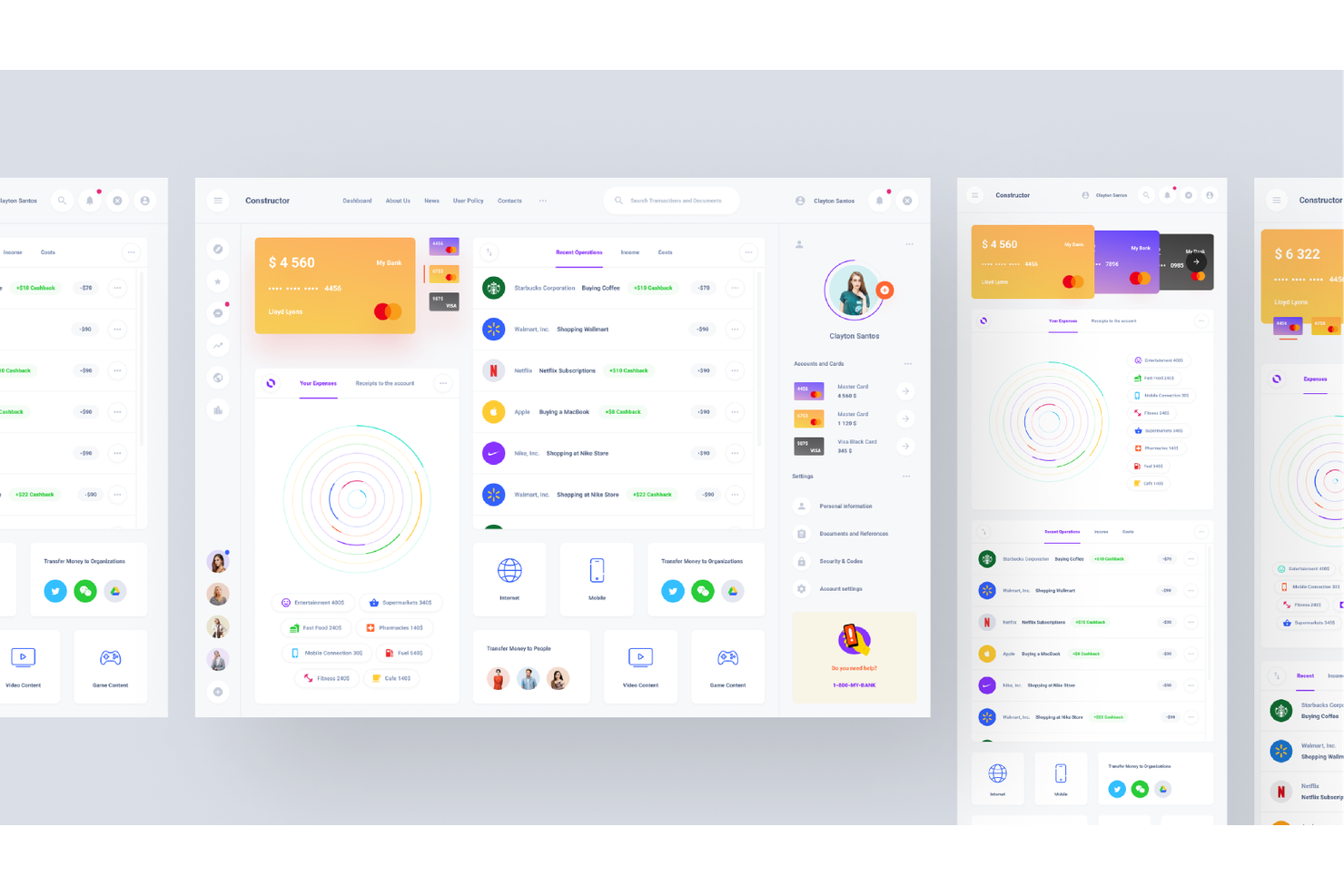
Se hai bisogno di uno strumento di progettazione UI che faciliti la collaborazione in tempo reale del team, Figma è una delle migliori scelte. È particolarmente utile per team di progettazione, product manager e agenzie che desiderano lavorare insieme ai progetti da qualsiasi luogo. Figma aiuta i team a co-modificare i design, condividere feedback istantanei e mantenere tutti allineati durante tutto il processo di progettazione.
Perché ho scelto Figma
Ciò che distingue Figma tra gli strumenti gratuiti di progettazione UI è la collaborazione in tempo reale. L'ho scelto perché più utenti possono lavorare contemporaneamente sullo stesso file di design, il che aiuta i team a rimanere sincronizzati e ad essere più rapidi. Le funzionalità di commenti integrati e di cronologia delle versioni consentono a tutti di fornire feedback e monitorare le modifiche senza uscire dalla piattaforma. Questo rende Figma una scelta solida per i team che hanno bisogno di progettare, revisionare e iterare insieme, sia che lavorino nello stesso ufficio sia da remoto.
Funzionalità principali di Figma
Oltre alla collaborazione in tempo reale, Figma offre diverse altre funzionalità che supportano il lavoro di progettazione UI:
- Auto Layout: Questa funzione ti permette di creare cornici e componenti dinamici che si ridimensionano e si adattano automaticamente man mano che aggiungi o modifichi i contenuti.
- Cronologia delle versioni: Puoi visualizzare, nominare e ripristinare versioni precedenti dei file di design, rendendo semplice tenere traccia delle modifiche nel tempo.
- Librerie di componenti: Figma ti consente di creare e condividere componenti riutilizzabili tra progetti e team per elementi UI coerenti.
- Supporto ai plugin: Puoi estendere le funzionalità di Figma con un'ampia gamma di plugin per attività come inserimento di icone, controllo dell'accessibilità e passaggio alla fase di sviluppo.
Integrazioni Figma
Le integrazioni includono Asana, Dropbox, Flinto, Maze, Microsoft Teams, Notion, Slack, Sprig, Trello, Zeplin e altri.
Cosa è gratuito?
Figma offre un piano gratuito per sempre che include file illimitati, collaboratori illimitati e fino a tre progetti Figma e tre FigJam. Il piano gratuito limita la cronologia delle versioni a 30 giorni e limita alcune funzionalità avanzate e i controlli di amministrazione.
Pros and Cons
Pros:
- La co-modifica in tempo reale consente a più utenti di progettare insieme
- Il piano gratuito supporta file e collaboratori illimitati per piccoli team
- Accesso via browser senza necessità di installazione o restrizioni sul dispositivo
Cons:
- Il piano gratuito limita la cronologia delle versioni a 30 giorni
- Le funzionalità avanzate di design system richiedono un piano a pagamento

Ideale per combinare wireframe e flowchart
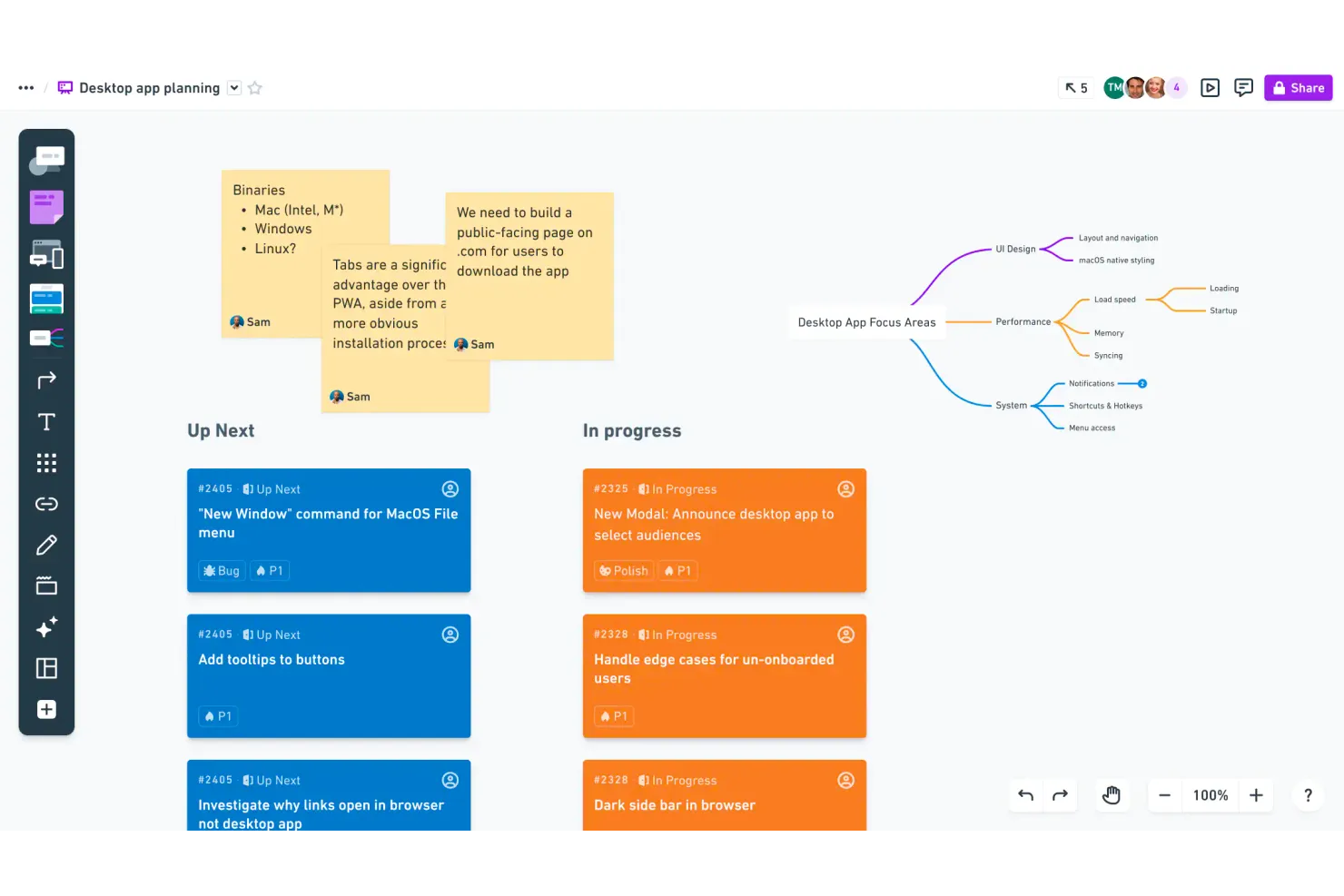
Se cerchi uno strumento che unisca wireframing e creazione di flowchart in un unico ambiente di lavoro, Whimsical merita attenzione. È pensato per team di prodotto, designer UX e chiunque abbia bisogno di rappresentare idee in modo visivo e collaborativo. Whimsical ti permette di passare rapidamente da wireframe a flowchart, facilitando la connessione tra i flussi utente e i layout delle interfacce in un solo progetto.
Perché ho scelto Whimsical
Ciò che mi ha attirato di Whimsical è il modo in cui combina wireframe e flowchart in un unico spazio di lavoro unificato. Questo approccio è particolarmente utile per i team che necessitano di mappare sia i flussi utente che i layout delle interfacce fianco a fianco, senza dover cambiare strumento.
Gli elementi wireframe drag-and-drop di Whimsical e le forme per i flowchart consentono di passare rapidamente dal brainstorming al design strutturato. Per chi cerca un tool UI gratuito che supporti sia la mappatura dei processi che la pianificazione delle interfacce, Whimsical offre un set di funzionalità mirate che soddisfano entrambe le esigenze contemporaneamente.
Caratteristiche principali di Whimsical
Altre funzionalità di Whimsical lo rendono un'opzione flessibile per il lavoro di UI design:
- Sticky Notes: Aggiungi note adesive colorate alle tue bacheche per idee rapide o feedback.
- Mappe Mentali: Crea mappe mentali ramificate per organizzare in modo visivo concetti e richieste di progetto.
- Commenti e menzioni: Tagga i membri del team e lascia commenti in thread direttamente sugli elementi di design.
- Libreria di template: Accedi a una raccolta di template preimpostati per wireframe, flowchart e diagrammi.
Integrazioni Whimsical
Le integrazioni includono Slack.
Cosa è gratuito?
Whimsical offre un piano gratuito per sempre che include fino a 3 bacheche e visualizzatori illimitati. Il piano gratuito limita il numero di bacheche attive che puoi creare e non include opzioni di esportazione avanzate o template premium.
Pros and Cons
Pros:
- Combina wireframe, flowchart, mappe mentali e note adesive in un unico strumento
- Offre un piano gratuito con bacheche limitate per privati e piccoli team
- Collaborazione in tempo reale che supporta commenti e menzioni sui design
Cons:
- Il piano gratuito limita il numero di bacheche che puoi creare
- Manca di funzionalità avanzate di prototipazione e animazione interattiva

Lunacy
Ideale per flussi di lavoro di progettazione nativi su Windows
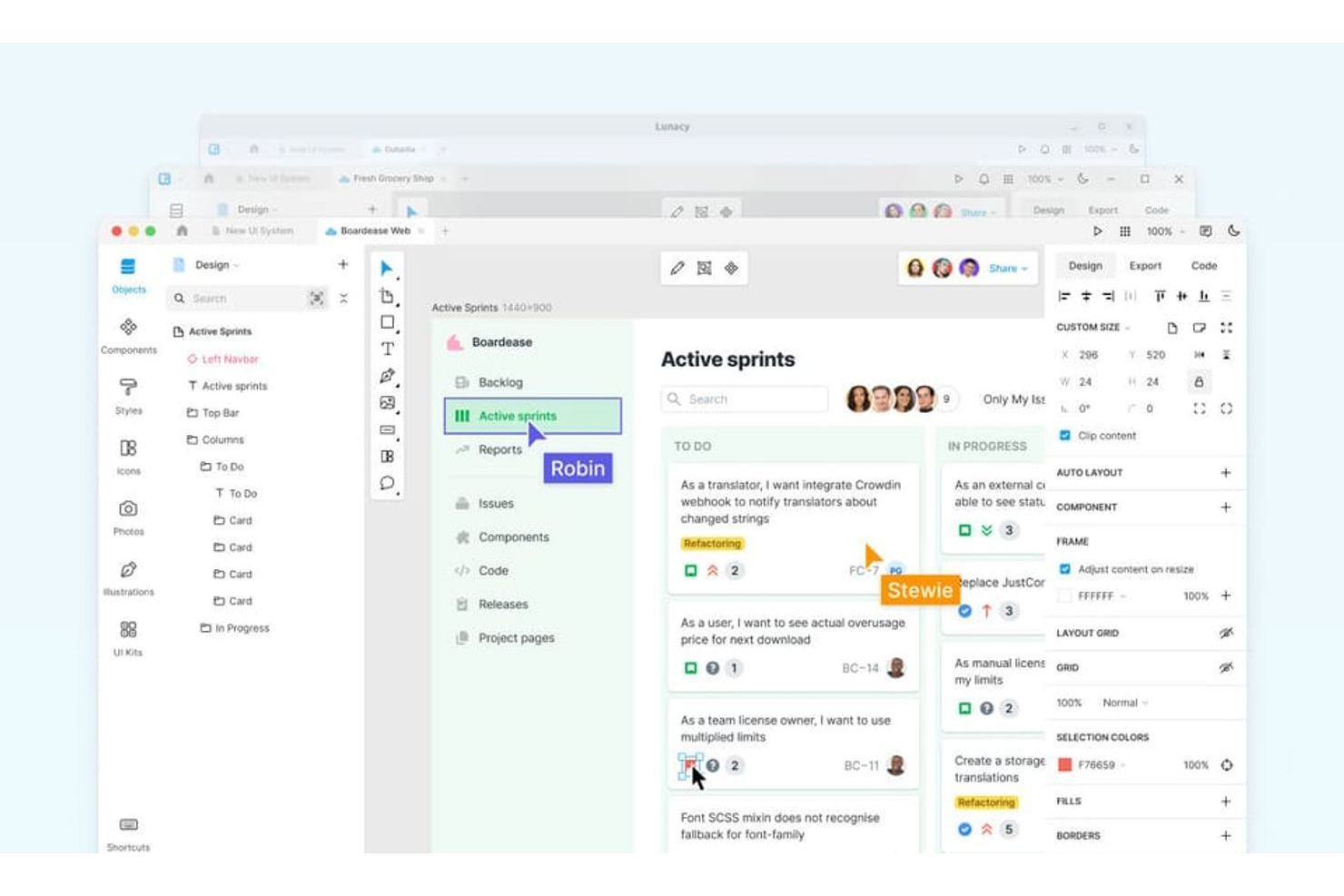
Se stai cercando uno strumento di progettazione UI gratuito creato specificamente per Windows, Lunacy merita di essere considerato. È pensato per designer e team che desiderano un'esperienza nativa su Windows con accesso offline e risorse di progettazione integrate. Lunacy ti aiuta a lavorare in modo efficiente senza fare affidamento su strumenti basati su browser o una connessione internet costante.
Perché ho scelto Lunacy
Lunacy si distingue perché è uno dei pochi strumenti di progettazione UI gratuiti realizzati specificamente per Windows, un grande vantaggio per i team che vogliono un'esperienza desktop nativa. Ho scelto Lunacy per questa lista poiché funziona senza problemi senza necessità di una connessione internet e sfrutta appieno le risorse di sistema di Windows.
Lo strumento include anche risorse di progettazione integrate come icone, foto e illustrazioni, così non devi uscire dall'app per trovare risorse creative. Per i designer che lavorano su Windows e che desiderano un flusso di lavoro veloce, offline e tutto in un unico posto, Lunacy è una scelta eccellente.
Funzionalità principali di Lunacy
Altre funzionalità rendono Lunacy un'opzione flessibile per il lavoro gratuito di progettazione UI:
- Compatibilità con file Sketch: Apri, modifica e salva file Sketch direttamente in Lunacy senza conversione.
- Strumenti basati su IA: Accedi a funzioni IA per rimozione dello sfondo, upscaling delle immagini e generazione di avatar.
- Interfaccia multilingue: Lavora in oltre 20 lingue con supporto alla localizzazione integrato.
- Cronologia delle versioni: Tieni traccia delle modifiche e ripristina versioni precedenti dei tuoi file di progettazione.
Lunacy attualmente non elenca integrazioni native.
Cosa è gratuito?
Lunacy offre un piano gratuito per sempre senza limiti di utenti o progetti. Tutte le funzionalità principali di progettazione, le risorse integrate e l'accesso offline sono inclusi senza restrizioni.
Pros and Cons
Pros:
- Applicazione Windows completamente nativa con capacità di modifica offline
- Supporta l'apertura e la modifica dei file Sketch in modo nativo
- Include risorse integrate gratuite come icone, foto e illustrazioni
Cons:
- Le funzionalità di collaborazione sono meno avanzate degli strumenti basati su browser
- Manca di integrazioni dirette con le principali piattaforme di terze parti

Balsamiq
Ideale per mockup a bassa fedeltà in stile schizzo
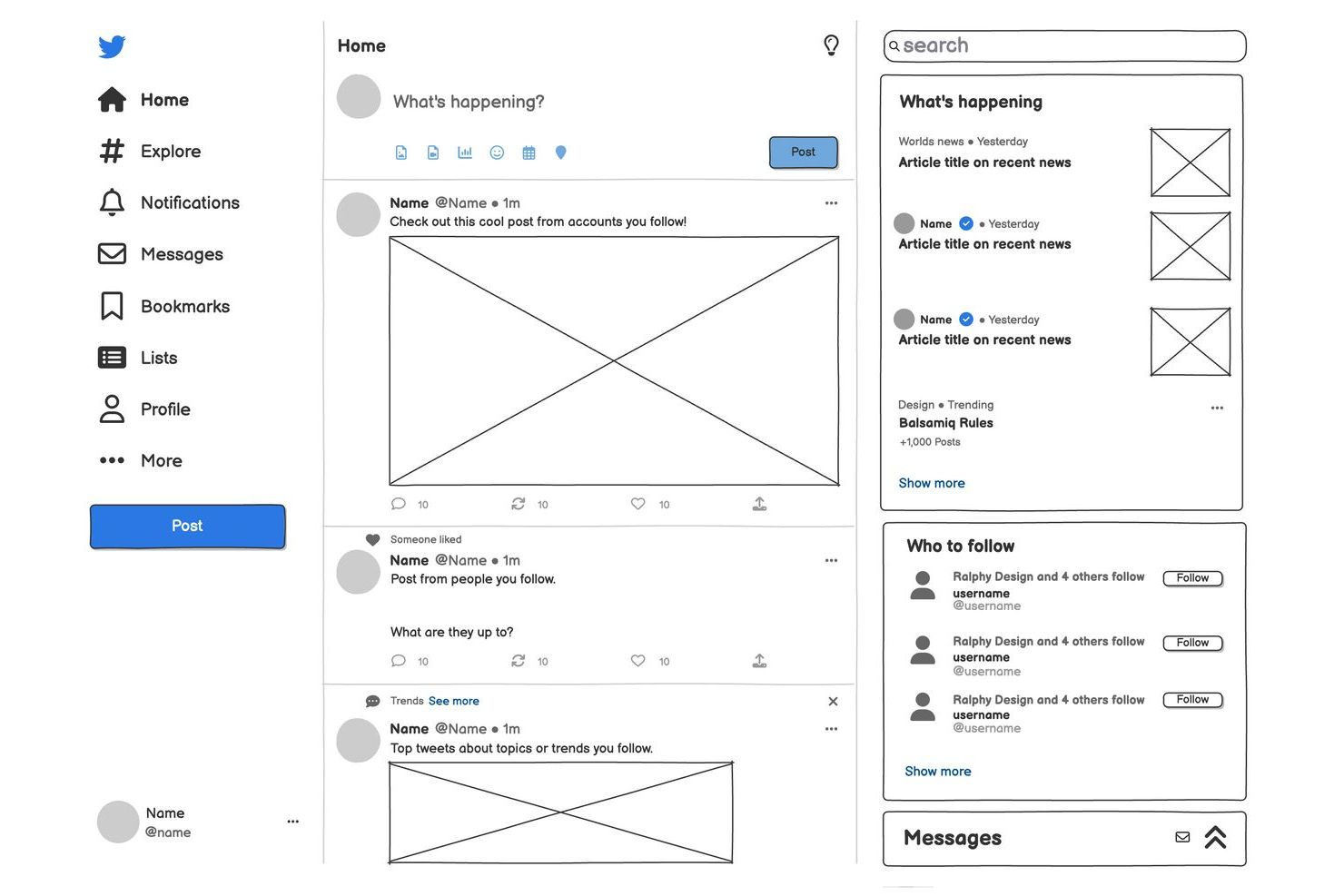
Se desideri uno strumento che ti aiuti a schizzare rapidamente idee per interfacce, Balsamiq merita sicuramente una prova. È pensato per product manager, designer UX e chiunque abbia bisogno di creare mockup a bassa fedeltà, in stile disegnato a mano, senza perdersi nei dettagli. Balsamiq rende facile concentrarsi su struttura e flusso, aiutando i team a comunicare i concetti nelle prime fasi del processo di progettazione.
Perché ho scelto Balsamiq
Ciò che distingue Balsamiq tra gli strumenti gratuiti per il design delle interfacce utente è l’attenzione ai mockup a bassa fedeltà in stile schizzo, che aiutano i team a mantenere il focus su layout e struttura invece che sui dettagli visivi. Ho scelto Balsamiq perché la sua libreria di componenti drag-and-drop e l’aspetto disegnato a mano rendono semplice comunicare le prime idee e ricevere feedback prima di investire tempo nel design ad alta fedeltà.
L’interfaccia semplice dello strumento incoraggia iterazioni rapide e collaborazione, particolarmente utile per product manager e designer UX che lavorano su concetti iniziali. Per chi vuole mantenere il processo di progettazione agile e incentrato sui flussi utente, Balsamiq rappresenta una soluzione diretta.
Funzionalità principali di Balsamiq
Altre funzionalità rendono Balsamiq una scelta pratica per la progettazione di interfacce nelle fasi iniziali:
- Simboli riutilizzabili: Crea e gestisci simboli personalizzati da usare su più mockup per mantenere la coerenza.
- Opzioni di esportazione: Esporta i wireframe in formato PNG o PDF per condivisione e documentazione.
- Strumenti di collaborazione: Invita altri membri del team a commentare direttamente sui mockup e a revisionare le iterazioni.
- Cronologia delle versioni: Accedi alle versioni precedenti dei tuoi wireframe per monitorare le modifiche e ripristinare se necessario.
Integrazioni di Balsamiq
Le integrazioni includono Jira, Confluence, Google Drive e altro ancora.
Cosa è gratuito?
Balsamiq offre una prova gratuita di 14 giorni con accesso completo a tutte le funzionalità. Al termine della prova, per continuare a utilizzare il servizio è necessario un abbonamento a pagamento, e non è disponibile un piano gratuito permanente.
Pros and Cons
Pros:
- Libreria di componenti UI integrata che copre elementi comuni di web e app
- Esportazione rapida in PNG o PDF per condividere i mockup con altri
- La funzione Simboli permette di riutilizzare elementi di design tra diversi progetti
Cons:
- Nessun piano gratuito permanente, disponibile solo una prova gratuita limitata
- Manca la prototipazione interattiva o la possibilità di creare mockup cliccabili

MockFlow
Ideale per pianificare visivamente i percorsi utente
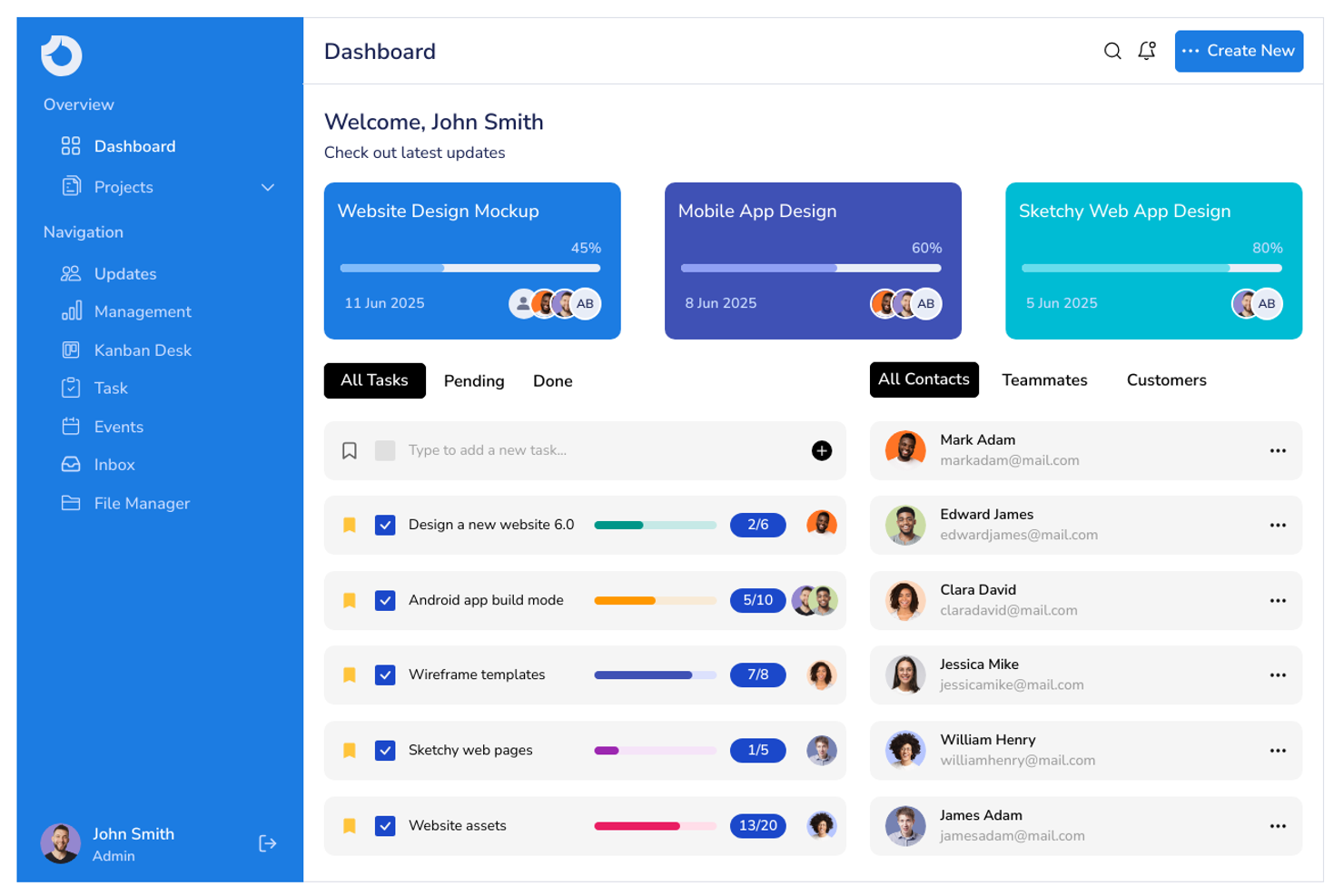
Se hai bisogno di uno strumento focalizzato sulla pianificazione visiva del percorso utente, MockFlow è stato progettato proprio per questo scopo. È adatto a product manager, designer UX e team che desiderano mappare flussi e wireframe prima di passare alla progettazione ad alta fedeltà. MockFlow ti aiuta a schizzare, organizzare e condividere rapidamente i percorsi utente, facilitando l'allineamento dei team nelle prime fasi del processo di progettazione.
Perché ho scelto MockFlow
Quello che distingue MockFlow è il suo focus sulla pianificazione visiva dei percorsi utente, un aspetto spesso trascurato da altri strumenti gratuiti per il design UI. Ho scelto MockFlow perché ti permette di creare diagrammi di flusso, wireframe e mappe di percorso tutto in un unico posto, così puoi visualizzare l’intera esperienza utente prima di passare ai dettagli del design. L’interfaccia drag-and-drop dello strumento e i modelli preimpostati rendono facile mappare flussi complessi e condividerli con il tuo team. Per chiunque abbia bisogno di comunicare visivamente e in modo collaborativo i percorsi utente, MockFlow offre un set di funzionalità mirato che risponde direttamente a questa esigenza.
Funzionalità principali di MockFlow
Oltre ai suoi strumenti di mappatura visiva dei percorsi, MockFlow offre diverse altre funzionalità a supporto del lavoro di design UI:
- Design Spaces: Organizza wireframe, documenti e risorse correlate all'interno di uno stesso workspace di progetto.
- UI Packs: Accedi a una libreria di componenti UI e modelli predefiniti per una prototipazione più rapida.
- Collaborazione in tempo reale: Invita i membri del team a modificare e commentare i design contemporaneamente.
- Storico delle revisioni: Tieni traccia delle modifiche e ripristina versioni precedenti dei tuoi wireframe secondo necessità.
Integrazioni di MockFlow
Le integrazioni includono Slack, Google Workspace, JIRA, Trello, Microsoft Teams e altre ancora.
Cosa è gratuito?
MockFlow offre un piano gratuito per sempre con progetti illimitati e funzionalità base di wireframing. Il piano gratuito limita le opzioni di esportazione, restringe l’accesso ad alcuni pacchetti UI premium e non include le funzionalità avanzate di collaborazione o integrazione.
Pros and Cons
Pros:
- Offre uno strumento dedicato alla mappatura del percorso utente insieme al wireframing
- Include una vasta libreria di UI packs e modelli per prototipazione veloce
- Fornisce uno storico delle revisioni per tracciare e ripristinare i cambiamenti di design
Cons:
- Le opzioni di esportazione sono limitate con il piano gratuito rispetto a quelli a pagamento
- L’interfaccia può sembrare datata rispetto a strumenti di design più recenti

Penpot
Ideale per ambienti di team open-source
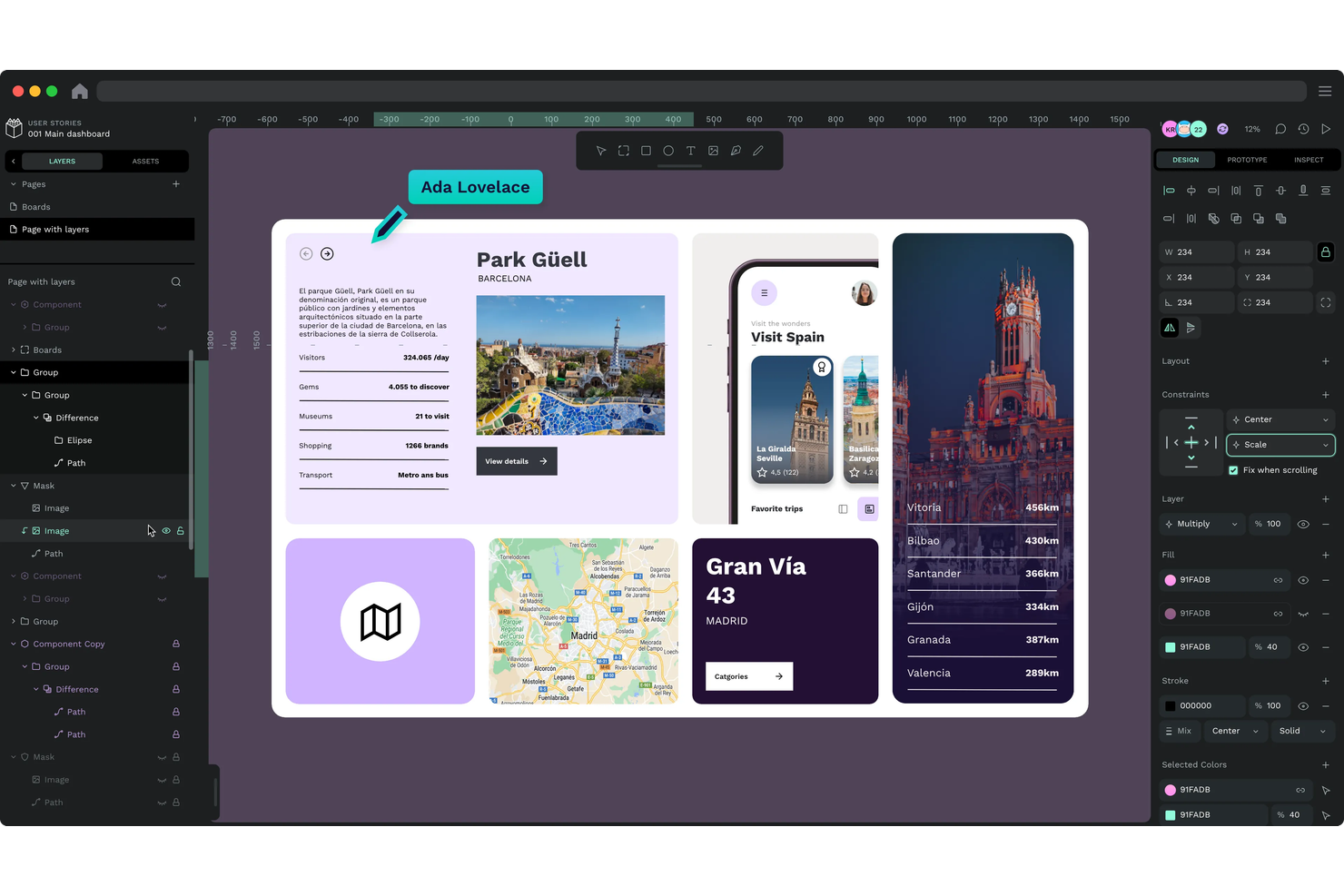
Se cerchi uno strumento di progettazione UI gratuito, open-source e pensato per la collaborazione, Penpot merita sicuramente attenzione. È particolarmente interessante per i team di design e sviluppo che desiderano trasparenza, flessibilità e controllo sul proprio ambiente di lavoro. Penpot aiuta i team che valorizzano gli standard aperti e vogliono personalizzare o ospitare autonomamente la loro piattaforma di progettazione.
Perché ho scelto Penpot
Quello che mi ha colpito di Penpot è il suo essere costruito da zero per ambienti di lavoro open-source di team, una rarità tra i tool di progettazione UI gratuiti. Penpot permette ai team di ospitare autonomamente la piattaforma, concedendo il pieno controllo su dati e flussi di lavoro—un aspetto particolarmente prezioso per organizzazioni con esigenze stringenti di sicurezza o personalizzazione.
Apprezzo anche il supporto agli standard aperti come SVG e CSS, che facilita la collaborazione tra designer e sviluppatori senza vincoli a formati proprietari. Per i team che ricercano trasparenza, flessibilità e la possibilità di contribuire allo sviluppo dello strumento, Penpot si conferma una scelta solida.
Funzionalità principali di Penpot
Altre funzionalità rendono Penpot un'opzione flessibile per il lavoro di progettazione UI gratuita:
- Librerie di componenti: Crea, gestisci e riutilizza componenti di design su più progetti.
- Prototipazione interattiva: Crea prototipi interattivi con collegamenti, transizioni e hotspot.
- Strumenti di collaborazione di team: Invita membri del team, assegna ruoli e commenta direttamente sui design.
- Cronologia delle versioni: Accedi alle versioni precedenti dei tuoi file e ripristina le modifiche quando necessario.
Integrazioni di Penpot
Le integrazioni includono Figma.
Cosa è gratuito?
Penpot offre un piano gratuito per sempre senza limiti di utenti o progetti. Tutte le funzionalità principali di progettazione e prototipazione sono incluse, e gli utenti possono scegliere tra distribuzione in cloud o auto-ospitata senza restrizioni.
Pros and Cons
Pros:
- Piattaforma completamente open-source senza limitazioni di funzionalità per gli utenti gratuiti
- Supporta la collaborazione in tempo reale tra team di design
- Esporta i design in SVG, PDF e PNG senza filigrane
Cons:
- Manca di funzionalità di prototipazione avanzate
- Libreria limitata di componenti e template UI predefiniti

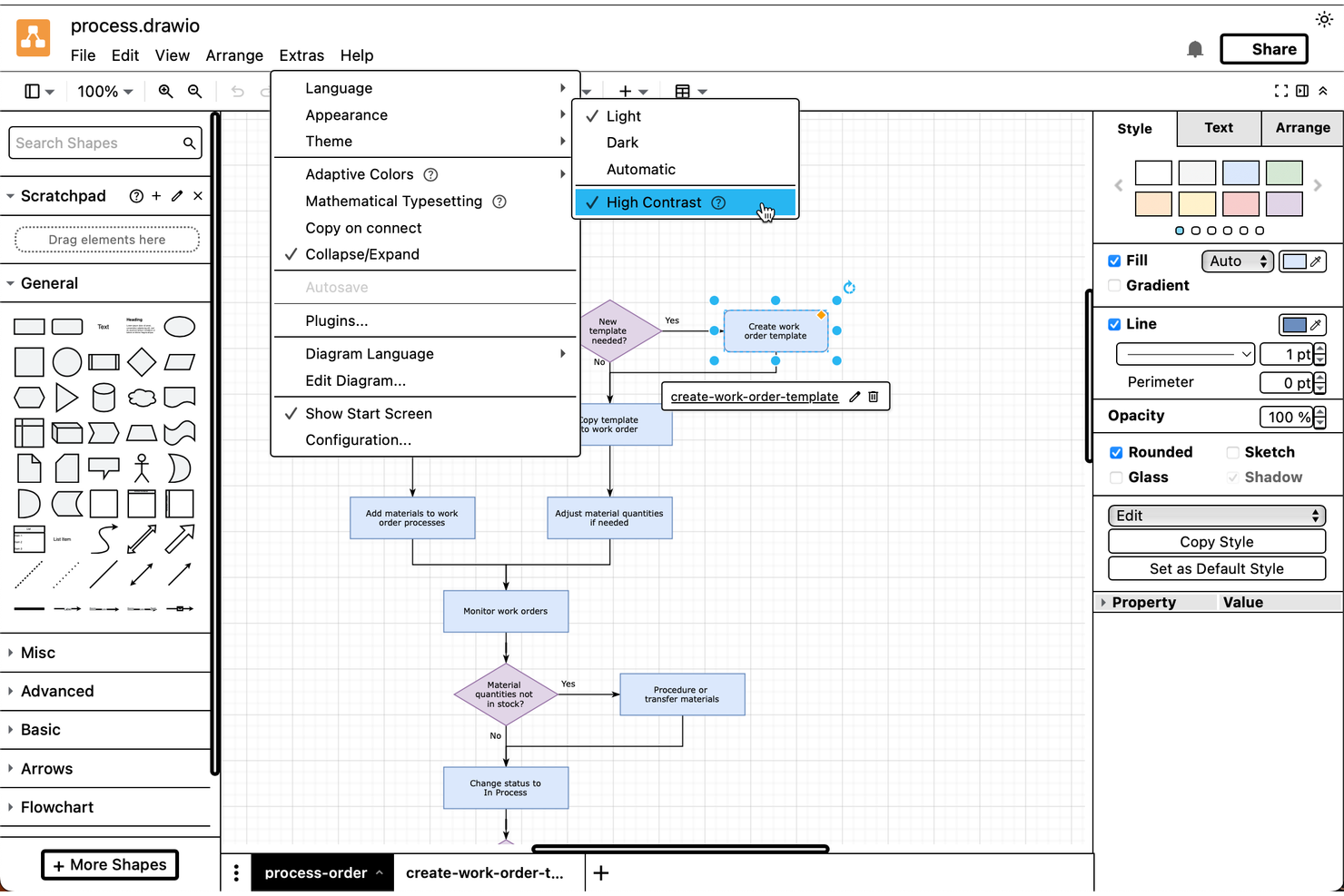
Se hai bisogno di uno strumento gratuito per mappare flussi di lavoro complessi, Draw.io è un'opzione valida. È particolarmente utile per i team IT, di ingegneria o di operations che devono visualizzare processi dettagliati o architetture di sistema. La piattaforma si distingue per le sue funzioni di diagrammazione flessibili e per la capacità di gestire progetti intricati e multilivello.
Perché ho scelto Draw.io
Ciò che distingue Draw.io per me è la sua capacità di gestire flussi di lavoro complessi, cosa in cui molti strumenti gratuiti di UI design fanno fatica. L'ho scelto perché consente di creare diagrammi multilivello con forme nidificate, connettori ed etichette personalizzate, rendendo semplice la mappatura di processi dettagliati o flussi di sistema.
Lo strumento supporta anche una dimensione illimitata della tela e permette di organizzare gli elementi in livelli, così anche i diagrammi più complessi restano chiari e gestibili. Per chiunque abbia bisogno di visualizzare flussi di lavoro o architetture complicate, Draw.io offre la flessibilità e la profondità che gli strumenti di wireframing più semplici non riescono a fornire.
Caratteristiche principali di Draw.io
Altre funzionalità rendono Draw.io una scelta versatile per progettare interfacce utente gratuitamente:
- Libreria di template: Accedi a una vasta gamma di modelli predefiniti per diagrammi di flusso, diagrammi di rete e wireframe.
- Set di forme e icone: Usa ampie raccolte di forme e icone per rappresentare diversi elementi e sistemi dell'interfaccia utente.
- Integrazione con il cloud storage: Salva e sincronizza i diagrammi direttamente su Google Drive, OneDrive o Dropbox.
- Cronologia delle versioni: Tieni traccia delle modifiche e ripristina le versioni precedenti dei tuoi diagrammi secondo necessità.
Integrazioni di Draw.io
Le integrazioni includono Google Drive, Microsoft OneDrive, SharePoint, Atlassian Confluence, Jira, GitHub, GitLab, Dropbox, Notion e Nextcloud.
Cosa è gratuito?
Draw.io offre un piano gratuito per sempre senza limiti di utenti o restrizioni sulle funzionalità. Tutte le funzionalità core di diagrammazione, i template e le opzioni di esportazione sono disponibili senza costi.
Pros and Cons
Pros:
- Completamente gratuito, senza restrizioni sulle funzionalità né pubblicità
- Supporta l'esportazione dei diagrammi in diversi formati, inclusi SVG e PDF
- Offre una vasta gamma di template per UI e diagrammi di flussi di lavoro
Cons:
- L'interfaccia può sembrare affollata quando si lavora su diagrammi di grandi dimensioni
- Manca di funzioni avanzate di prototipazione o di UI interattiva

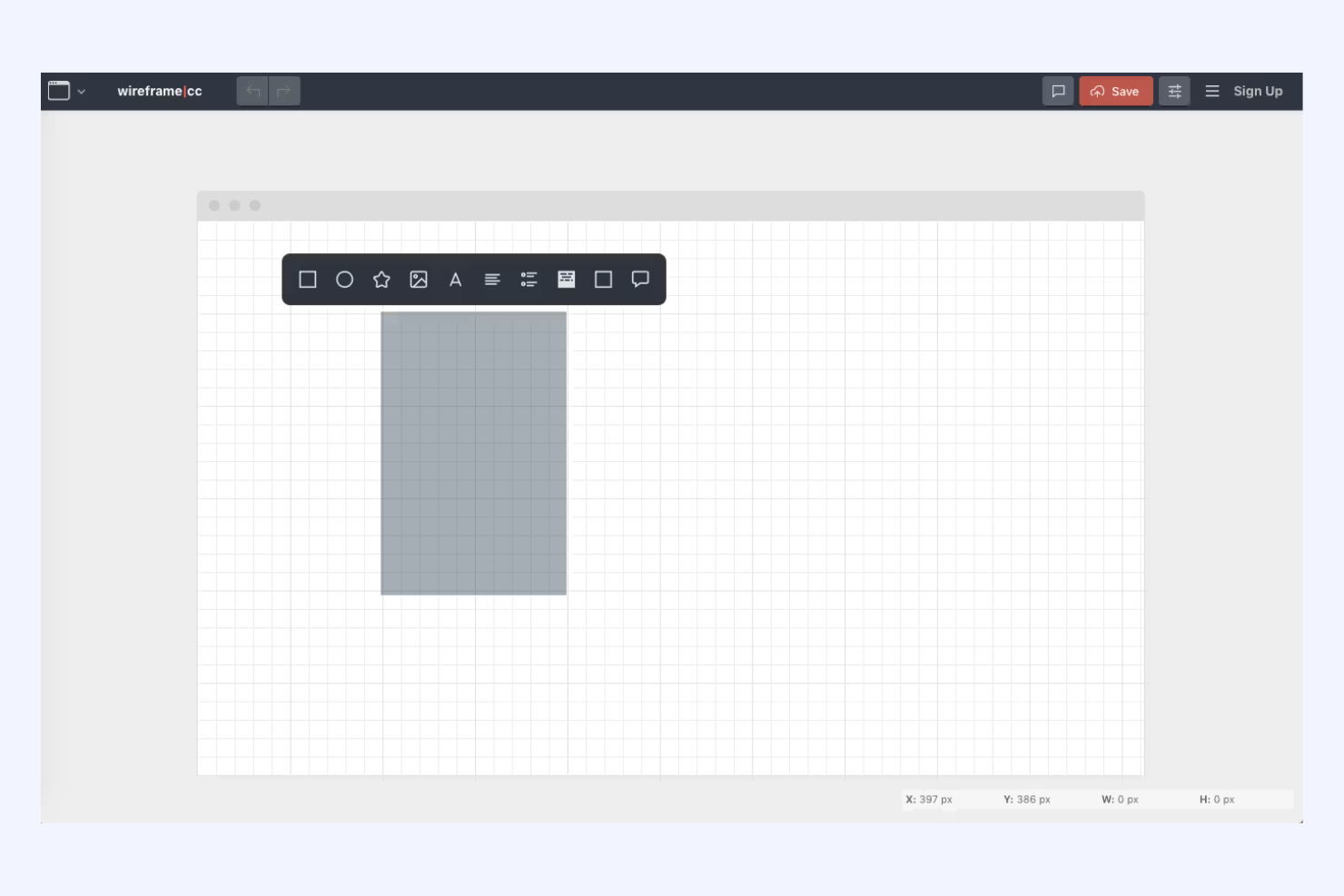
Se desideri uno strumento di wireframing che mantenga le cose semplici e focalizzate, Wireframe.cc merita sicuramente una prova. È pensato per designer UX, product manager e chiunque abbia bisogno di abbozzare idee senza distrazioni. L'interfaccia minimalista ti aiuta a creare rapidamente wireframe puliti, facilitando la comunicazione dei concetti senza essere ostacolati da funzionalità superflue.
Perché ho scelto Wireframe.cc
Ciò che mi ha colpito di Wireframe.cc è la sua attenzione al wireframing senza distrazioni, una caratteristica rara tra gli strumenti gratuiti di UI design. L'interfaccia è volutamente minimale, così vedi solo gli strumenti essenziali per abbozzare le idee, nulla di più. Mi piace il fatto che puoi creare e modificare gli elementi rapidamente con semplici clic e trascinamenti, mantenendo il focus su layout e struttura invece di perdersi tra i menu. Questo rende Wireframe.cc un'ottima scelta per chi desidera fare brainstorming o comunicare concetti senza complessità inutili.
Caratteristiche principali di Wireframe.cc
Altre caratteristiche rendono Wireframe.cc una soluzione pratica per la progettazione UI gratuita:
- Wireframe monofoglio: crea e condividi wireframe semplici senza gestire più pagine o schermate.
- Strumenti di annotazione: aggiungi note direttamente ai tuoi wireframe per chiarire decisioni di design o requisiti.
- Esporta in PNG o PDF: scarica i tuoi wireframe in formati comuni per condividerli o documentarli facilmente.
- Prototipi cliccabili: collega elementi dei wireframe per simulare una navigazione di base tra schermate.
Integrazioni Wireframe.cc
Wireframe.cc attualmente non elenca integrazioni native.
Cosa è gratuito?
Wireframe.cc offre un piano gratuito per sempre che ti permette di creare e condividere wireframe a singola pagina senza registrazione. La versione gratuita non include funzionalità come progetti multipagina, wireframe privati o la possibilità di esportare i progetti in PDF, che sono disponibili solo nei piani a pagamento.
Pros and Cons
Pros:
- Interfaccia minimalista che mantiene il focus solo sulla struttura del wireframe
- Non è necessario avere un account per creare e condividere wireframe di base
- Opzioni di esportazione rapida in PNG e PDF per una facile condivisione
Cons:
- Nessun supporto per wireframe multipagina o progetti complessi
- Mancano funzionalità di collaborazione in tempo reale o di modifica di gruppo

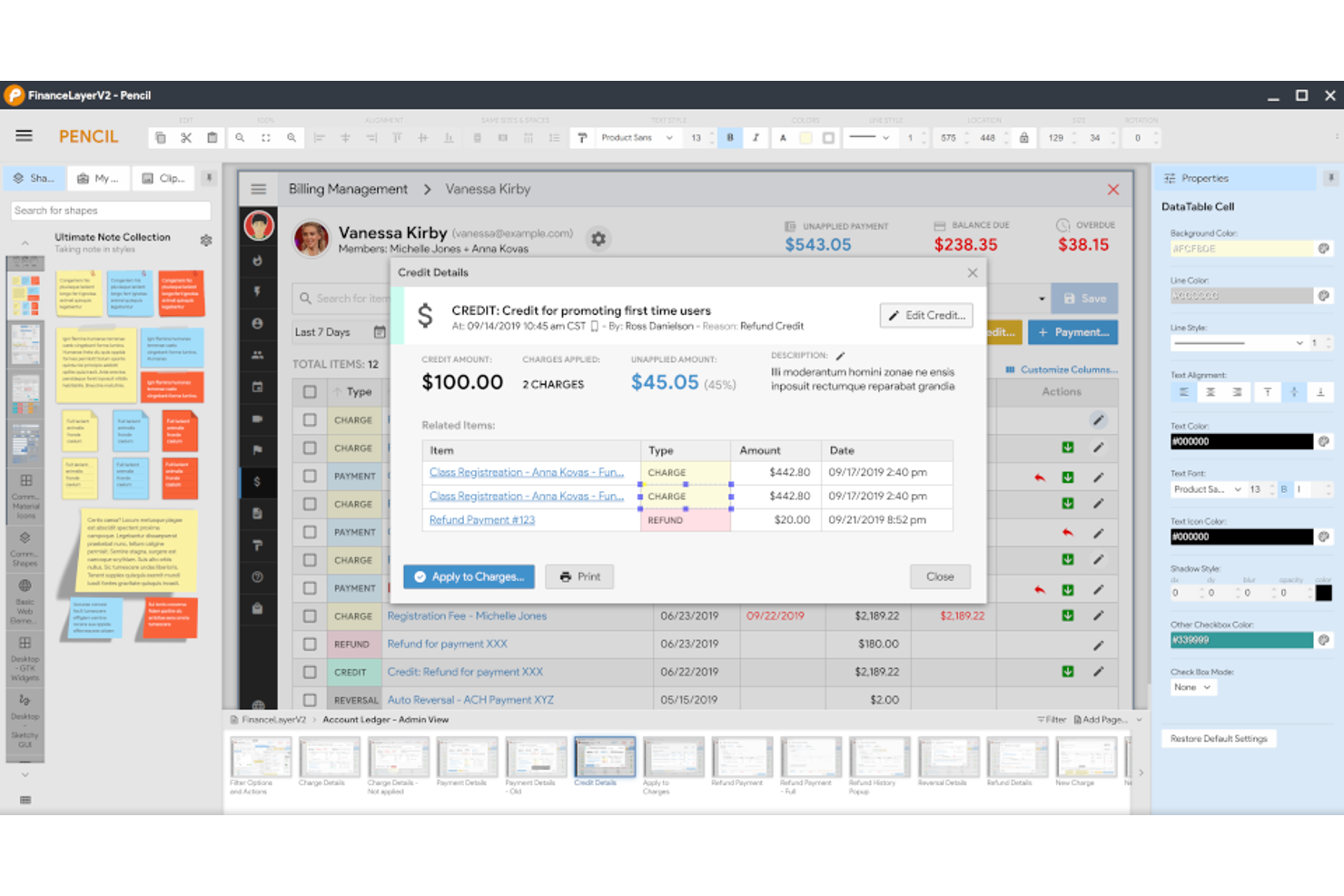
Se cerchi uno strumento gratuito per il design dell'interfaccia utente che funzioni completamente offline, Pencil Project è una scelta da considerare. È pensato per designer, sviluppatori e team che vogliono creare wireframe e mockup senza dipendere dal cloud. Pencil Project si distingue per il suo approccio basato su desktop, rendendolo una scelta vincente per progetti incentrati sulla privacy o in ambienti con connettività Internet limitata.
Perché ho scelto Pencil Project
Ciò che rende unico Pencil Project è la possibilità di funzionare completamente offline, una caratteristica rara tra gli strumenti gratuiti per il design UI. In questo modo, è ideale per ambienti sicuri o per utenti con connettività limitata. Il software open source include una gamma di collezioni di forme e stencil integrati per interfacce desktop e mobile, consentendo di assemblare rapidamente layout dettagliati. Pencil Project supporta inoltre l'esportazione in diversi formati, utile quando hai bisogno di condividere il lavoro fuori dall'app.
Funzionalità principali di Pencil Project
Altre funzionalità utili di Pencil Project per il lavoro gratuito di UI design includono:
- Supporto alla creazione di diagrammi: Crea flowchart e diagrammi insieme ai wireframe, utilizzando connettori e forme predefinite.
- Browser clipart: Accedi a un browser di clipart integrato per aggiungere elementi visivi direttamente ai tuoi design.
- Collezione di forme personalizzate: Importa o crea le tue collezioni di forme per ampliare gli elementi di design disponibili.
- Supporto ai documenti multipagina: Organizza wireframe e mockup su più pagine all'interno di un unico file di progetto.
Integrazioni di Pencil Project
Attualmente Pencil Project non offre integrazioni native, sebbene la sua base di codice open source consenta agli sviluppatori di estendere o personalizzare lo strumento.
Cosa è gratuito?
Pencil Project è completamente gratuito e open source, senza limiti di tempo né restrizioni sulle funzionalità. Puoi utilizzare tutte le funzioni, le opzioni di esportazione e gli stencil senza pagare o creare un account.
Pros and Cons
Pros:
- Stencil integrati per elementi UI web, mobile e desktop
- Supporto ai documenti multipagina per organizzare progetti complessi
- Esporta in formato PNG, PDF, SVG e OpenOffice
Cons:
- Nessuna collaborazione in tempo reale o funzionalità di condivisione cloud
- Prototipazione interattiva limitata rispetto agli strumenti web-based
Altri strumenti gratuiti per la progettazione UI
Ecco alcuni altri strumenti gratuiti per la progettazione UI che non sono stati inclusi nel mio elenco, ma che vale comunque la pena provare:


Come Valuto gli Strumenti Gratuiti di UI Design
Divido la mia valutazione in requisiti di base—come un vero piano gratuito e prototipazione interattiva—e fattori distintivi che separano gli strumenti pensati per i PM da quelli pensati per i designer.
Funzionalità Principali (Requisiti Fondamentali per Questa Lista)
Quando seleziono gli strumenti per la mia lista, valuto ciascuno su una scala da 0 (non offre la funzionalità) a 5 (eccelle in questo ambito) per ogni funzionalità principale indicata di seguito. Poi calcolo il punteggio totale dello strumento in percentuale. Ogni strumento deve raggiungere un punteggio minimo totale del 65% per essere considerato per l'inclusione.
- Piano Veramente Gratuito: Verifico se uno strumento offre un piano gratuito perpetuo che supporta lavoro reale—come costruire e condividere un prototipo cliccabile—anziché una semplice prova che scade prima della fine di uno sprint.
- Wireframing & Creazione Mockup: Ogni strumento dovrebbe permettere di trascinare elementi UI, icone e forme per costruire qualsiasi cosa, da un wireframe grezzo a un layout di schermo rifinito, senza bisogno di software separati.
- Prototipazione Interattiva: Collegare le schermate tra loro per simulare un flusso utente—ad esempio, mostrare a uno stakeholder una sequenza di checkout—viene valutato sia per la profondità che per la facilità di configurazione.
- Collaborazione in Tempo Reale: Il lavoro di prodotto è trasversale, quindi cerco la possibilità di modifica multi-utente live e commenti grazie ai quali PM, ingegneri e designer possono revisionare lo stesso file e lasciare feedback nel contesto.
- Librerie di Componenti & Asset: Bottoni, barre di navigazione e campi modulo riutilizzabili fanno risparmiare ore. Strumenti come Figma e Penpot lo gestiscono con librerie di componenti condivise, così valuto come ciascun tool supporti un riutilizzo di design coerente.
- Esportazione & Consegna agli Sviluppatori: Verifico se è possibile generare link condivisibili, esportare in formati standard o fornire specifiche CSS e di spaziatura affinché lo sviluppo possa partire dal design senza dover indovinare i dettagli tra vari passaggi.
Una volta che ho una lista di strumenti che rispettano questi criteri, considero cosa distingue ogni piattaforma.
Fattori di Differenziazione (Cosa Distingue i Fornitori)
Ecco come confronto e metto a confronto i diversi fornitori:
Funzionalità Distintive
La generazione di design assistita da intelligenza artificiale è un forte elemento distintivo—valuto se un PM può digitare un prompt e ottenere un layout usabile senza partire da una tela vuota. Anche la creazione di diagrammi di flusso utente è importante, perché mappare un onboarding multi-step insieme alle schermate mantiene il contesto in un solo posto. Valuto inoltre la profondità della cronologia delle versioni, poiché nel product discovery spesso si diramano più direzioni prima di convergere su una specifica finale.
Oltre le Funzionalità
Considero quanto bene uno strumento si integra con l'ecosistema di prodotto più ampio—collegare un prototipo direttamente a una ticket su Jira o Linear evita ai PM di dover incrociare manualmente design e specifiche. Anche la curva di apprendimento è importante, soprattutto per i product manager che aprono uno strumento di design poche volte a settimana anziché ogni giorno. L'accesso cross-platform è un altro fattore che valuto, dato che gli strumenti basati su browser permettono a uno stakeholder di entrare in una revisione da qualsiasi dispositivo senza installare software.
Come scegliere gli strumenti gratuiti per la progettazione UI
È facile perdersi in lunghi elenchi di funzionalità e strutture di prezzo complesse. Per aiutarti a rimanere concentrato mentre affronti il tuo specifico processo di selezione del software, ecco un elenco di fattori da tenere a mente:
| Fattore | Cosa considerare |
| Scalabilità | Lo strumento supporterà il tuo team durante la crescita oppure supererai rapidamente i limiti del piano gratuito? |
| Integrazioni | Lo strumento si collega nativamente alle app di progettazione, gestione dei progetti o archiviazione dei file che già utilizzi? |
| Personalizzazione | Puoi adattare i flussi di lavoro, i modelli o le librerie dello strumento al processo specifico del tuo team? |
| Semplicità d'uso | I nuovi utenti potranno iniziare rapidamente a progettare oppure avranno bisogno di una formazione significativa? |
| Implementazione e avvio | Quanto tempo servirà per rendere operativo il tuo team e quali risorse sono disponibili per offrire assistenza? |
| Costo | Esistono costi nascosti, requisiti per passare a un piano superiore o limiti di utilizzo che potrebbero incidere in seguito sul tuo budget? |
| Misure di sicurezza | Lo strumento offre una protezione dei dati, autorizzazioni utente e conformità adeguate alle tue esigenze? |
| Disponibilità dell'assistenza | Se riscontri problemi, puoi ottenere rapidamente assistenza tramite chat, email o una base di conoscenza? |
Cosa sono gli strumenti gratuiti per la progettazione UI?
Gli strumenti gratuiti per la progettazione UI sono piattaforme software che consentono agli utenti di creare, modificare e condividere modelli o prototipi di interfacce utente senza richiedere un pagamento. Questi strumenti offrono generalmente funzionalità di progettazione di base, come componenti con trascinamento, collaborazione di base e opzioni di esportazione. Gli strumenti gratuiti per la progettazione UI aiutano singoli utenti e team a visualizzare prodotti digitali, testare idee e comunicare concetti di progettazione prima dello sviluppo, risultando accessibili per i progetti nelle fasi iniziali o per chi dispone di budget limitati.
Funzionalità degli strumenti gratuiti per la progettazione UI
Esaminiamo le funzionalità comunemente presenti negli strumenti di progettazione dell'interfaccia utente e quali sono solitamente incluse nei piani gratuiti rispetto a quelli a pagamento.
Funzionalità generalmente gratuite degli strumenti di progettazione dell'interfaccia utente
- Editor con trascinamento: Crea wireframe o mockup trascinando gli elementi dell'interfaccia su una tela, così da visualizzare facilmente i layout senza scrivere codice.
- Libreria di componenti di base: Accedi a un insieme di elementi standard dell'interfaccia utente, come pulsanti, campi di input e icone, per assemblare rapidamente le schermate.
- Esportazione in immagine o PDF: Salva e condividi i tuoi progetti come file PNG o PDF per ricevere feedback o creare documentazione.
- Accesso per singolo utente: Utilizza lo strumento individualmente senza funzionalità di collaborazione in team, una soluzione adatta ai designer indipendenti o ai progetti nelle fasi iniziali.
- Archiviazione limitata dei progetti: Crea e archivia un numero ridotto di progetti o file, spesso con limiti sul numero di design attivi.
- Commenti o annotazioni: Aggiungi note o commenti ai progetti per chiarire le idee o raccogliere feedback da altre persone.
- Selezione di modelli: Inizia con modelli predefiniti per i tipi di schermata più comuni, accelerando il processo di progettazione.
- Cronologia di base delle versioni: Accedi a una semplice cronologia delle modifiche per ripristinare, se necessario, le versioni precedenti.
Funzionalità generalmente a pagamento degli strumenti di progettazione dell'interfaccia utente
- Collaborazione in team in tempo reale: Lavora contemporaneamente con più utenti sullo stesso progetto, supportando i team distribuiti e iterazioni più rapide.
- Prototipazione avanzata: Aggiungi elementi interattivi, transizioni e animazioni per creare prototipi cliccabili che simulano il comportamento reale delle app.
- Librerie di componenti personalizzate: Crea e gestisci sistemi di progettazione riutilizzabili o kit di interfacce utente personalizzati per garantire coerenza tra i progetti.
- Archiviazione illimitata dei progetti: Archivia un numero illimitato di progetti, file e risorse senza preoccuparti di raggiungere i limiti di utilizzo.
- Autorizzazioni basate sui ruoli: Controlla chi può visualizzare, modificare o commentare i progetti, supportando la collaborazione sicura nelle organizzazioni più grandi.
- Integrazione con strumenti di terze parti: Collegati direttamente alle piattaforme di gestione dei progetti, sviluppo o archiviazione cloud per rendere più fluidi i flussi di lavoro.
- Assistenza clienti prioritaria: Accedi a tempi di risposta più rapidi, canali di supporto dedicati o assistenza durante l'avvio per gli utenti a pagamento.
- Opzioni di esportazione avanzate: Esporta i progetti in formati aggiuntivi, come SVG o frammenti di codice, per semplificare il passaggio di consegne agli sviluppatori.
- Strumenti per il passaggio di consegne del design: Genera automaticamente specifiche, risorse e guide di stile per aiutare gli sviluppatori a implementare accuratamente i progetti.
Vantaggi degli strumenti gratuiti di progettazione dell'interfaccia utente
L'implementazione di strumenti gratuiti di progettazione dell'interfaccia utente offre diversi vantaggi al tuo team e alla tua azienda. Eccone alcuni:
- Costi iniziali inferiori: Inizia a progettare interfacce utente senza sottoscrivere piani a pagamento, rendendo più semplice sperimentare o creare prototipi con un budget limitato.
- Avvio più rapido dei progetti: Utilizza i modelli integrati e gli editor con trascinamento per creare e condividere rapidamente i mockup, aiutando i team a trasformare le idee in elementi visivi in meno tempo.
- Collaborazione accessibile: Condividi i progetti e raccogli feedback utilizzando le funzionalità di commento o annotazione, anche quando lavori con team distribuiti o interfunzionali.
- Riduzione dei tempi di onboarding: Interfacce semplici e tutorial guidati aiutano i nuovi utenti a iniziare rapidamente, riducendo al minimo i ritardi nel processo di progettazione.
- Assenza di vincoli verso un fornitore: Prova diversi strumenti o cambia piattaforma senza rischi finanziari, poiché non sei vincolato a contratti o abbonamenti a lungo termine.
- Supporto ai progetti nelle fasi iniziali: I piani gratuiti consentono alle startup o ai piccoli team di convalidare le idee e apportare iterazioni ai progetti prima di investire in funzionalità avanzate o upgrade a pagamento.
- Incoraggiamento alla sperimentazione: L'archiviazione limitata dei progetti e le opzioni di esportazione di base facilitano la sperimentazione di layout o concetti diversi senza preoccuparsi dei costi.
Costi e prezzi degli strumenti di progettazione dell'interfaccia utente
Mi rendo conto che sei arrivato a questo articolo cercando le migliori opzioni di strumenti gratuiti per la progettazione dell'interfaccia utente. Tuttavia, poiché i piani gratuiti offrono solo funzionalità limitate, è molto probabile che in futuro dovrai passare a un piano superiore.
La tabella seguente riassume i piani più comuni, i relativi prezzi medi e le funzionalità tipicamente incluse negli strumenti di progettazione dell'interfaccia utente:
Tabella comparativa dei piani per gli strumenti di progettazione dell'interfaccia utente
| Tipo di piano | Prezzo medio | Funzionalità comuni |
| Piano gratuito | $0 | Libreria di componenti di base, editor con trascinamento, spazio di archiviazione limitato per i progetti, accesso per un singolo utente e opzioni di esportazione di base. |
| Piano personale | $5-$15/utente/mese | Progetti illimitati, maggiore spazio di archiviazione, prototipazione di base, assistenza prioritaria e accesso a un numero maggiore di modelli. |
| Piano aziendale | $15-$30/utente/mese | Collaborazione in team, prototipazione avanzata, librerie di componenti personalizzate, integrazioni e autorizzazioni basate sui ruoli. |
| Piano aziendale | $30-$60/utente/mese | Sicurezza avanzata, SSO, registri di audit, gestione dedicata dell'account, onboarding personalizzato e funzionalità per la conformità. |
Domande frequenti sugli strumenti gratuiti di progettazione dell'interfaccia utente
Ecco alcune risposte alle domande comuni sugli strumenti gratuiti di progettazione dell’interfaccia utente:
Gli strumenti gratuiti di progettazione dell'interfaccia utente sono adatti ai progetti professionali?
Sì, gli strumenti gratuiti di progettazione dell’interfaccia utente possono essere utilizzati per progetti professionali, soprattutto nelle fasi iniziali o dai team di piccole dimensioni. Tuttavia, potresti incontrare limitazioni relative alle funzionalità o allo spazio di archiviazione che richiedono un upgrade man mano che il progetto cresce o le tue esigenze diventano più complesse.
Posso collaborare con altre persone utilizzando strumenti gratuiti di progettazione dell'interfaccia utente?
Sì, molti strumenti gratuiti di progettazione dell’interfaccia utente offrono funzionalità di collaborazione di base, come i commenti o la condivisione di link. Per la modifica in tempo reale da parte di più utenti o per autorizzazioni avanzate, di solito è necessario un piano a pagamento.
Quali limitazioni devo aspettarmi dagli strumenti gratuiti di progettazione dell'interfaccia utente?
I piani gratuiti spesso limitano il numero di progetti, lo spazio di archiviazione, i formati di esportazione o l’accesso alle funzionalità avanzate di prototipazione e integrazione. Esamina i dettagli del piano gratuito di ogni strumento per assicurarti che soddisfi i tuoi requisiti minimi.
I miei dati sono al sicuro quando utilizzo strumenti gratuiti di progettazione dell'interfaccia utente?
La maggior parte degli strumenti gratuiti affidabili di progettazione dell’interfaccia utente offre misure di sicurezza di base, ma le funzionalità avanzate come SSO, i registri di audit o le certificazioni di conformità sono generalmente riservate ai piani a pagamento. Consulta sempre l’informativa sulla privacy e la documentazione sulla sicurezza del fornitore.
Posso trasferire in seguito i miei progetti a un altro strumento?
Sì, la maggior parte degli strumenti di progettazione dell’interfaccia utente consente di esportare il lavoro in formati standard come PNG, PDF o SVG. Tuttavia, alcune funzionalità avanzate o i file modificabili potrebbero non essere trasferiti perfettamente, quindi pianifica in anticipo se prevedi di cambiare piattaforma.
Cosa succede ora:
Se stai cercando strumenti gratuiti di progettazione dell'interfaccia utente, contatta gratuitamente un consulente di SoftwareSelect per ricevere consigli personalizzati.
Compili un modulo e fai una breve conversazione durante la quale il consulente approfondirà le tue esigenze specifiche. In seguito riceverai una rosa ristretta di software da valutare. Ti accompagnerà inoltre durante l'intero processo di acquisto, comprese le trattative sul prezzo.