
As ferramentas gratuitas de design de interfaces são plataformas de software que permitem criar, prototipar e colaborar no desenvolvimento de interfaces de utilizador sem pagamentos iniciais — através de um plano gratuito ou de um período experimental gratuito. Se procura formas de conceber interfaces, testar ideias ou trabalhar com a sua equipa sem subscrever um plano pago, precisa de opções que equilibrem facilidade de utilização, colaboração e acesso a funcionalidades sem custos.
Esta lista irá ajudá-lo a comparar rapidamente as principais ferramentas gratuitas de design de interfaces para 2026, para que possa encontrar a opção mais adequada ao seu fluxo de trabalho, quer esteja a criar wireframes, protótipos ou maquetas interativas.
Why Trust Our Software Recommendations
6,700+
Reviews
20
Industry experts
16+
Evaluation factors
14
Years
Our team has been testing and reviewing software since 2012. As product managers ourselves, we know how difficult—and important—it is to choose the right software.
For this guide, we evaluated tools using hands-on testing and independent research, scoring tools using our selection criteria.
Our reviews reflect our human editorial judgment, not a sales pitch.
Expert reviewers:
- Andrew LumbySenior TPM
- Cristiano ValimSenior UI/UX Lead


Tabela comparativa de ferramentas gratuitas de design de interfaces
| Tool | Best For | Trial Info | Price | ||
|---|---|---|---|---|---|
| 1 | Best for real-time team collaboration | Free plan available | From $3/user/month | Website | |
| 2 | Best for native Windows design workflows | Free plan + free demo available | From $11.99/user/month (billed annually) | Website | |
| 3 | Best for non-designer mockups with AI prompts | Free plan available | From $14/user/month | Website | |
| 4 | Best for prototyping with coded components | Free plan + 14-day free trial + demo available | From $49/user/month | Website | |
| 5 | Best with open-source team environments | Free plan + 14-day free trial + free demo available | From $7/user/month | Website | |
| 6 | Best for AI-assisted design-to-live-site publishing | Free plan + free trial available | From $10/month (billed annually) | Website | |
| 7 | Best for macOS vector editing workflows | Free plan + 30-day free trial available | From $12/user/month (billed annually) | Website | |
| 8 | Best for mobile app interface animation | 15-day free trial | From $24/user/month (billed annually) | Website | |
| 9 | Best for wireframing without a design background | Free plan available | From $9/user/month (billed annually) | Website | |
| 10 | Best for cross-platform design handoff | Free plan + free trial available | From $4/user/month | Website |


Análises de ferramentas gratuitas de design de interfaces
Seguem-se os meus resumos detalhados das ferramentas gratuitas de design de interfaces que entraram na minha lista. As minhas análises apresentam uma visão detalhada das funcionalidades, dos melhores casos de utilização e dos preços de cada ferramenta, para o ajudar a encontrar a mais adequada para si.
 Best for real-time team collaboration
- Free plan available
- From $3/user/month
Visit WebsiteCustomer Rating:4.7/5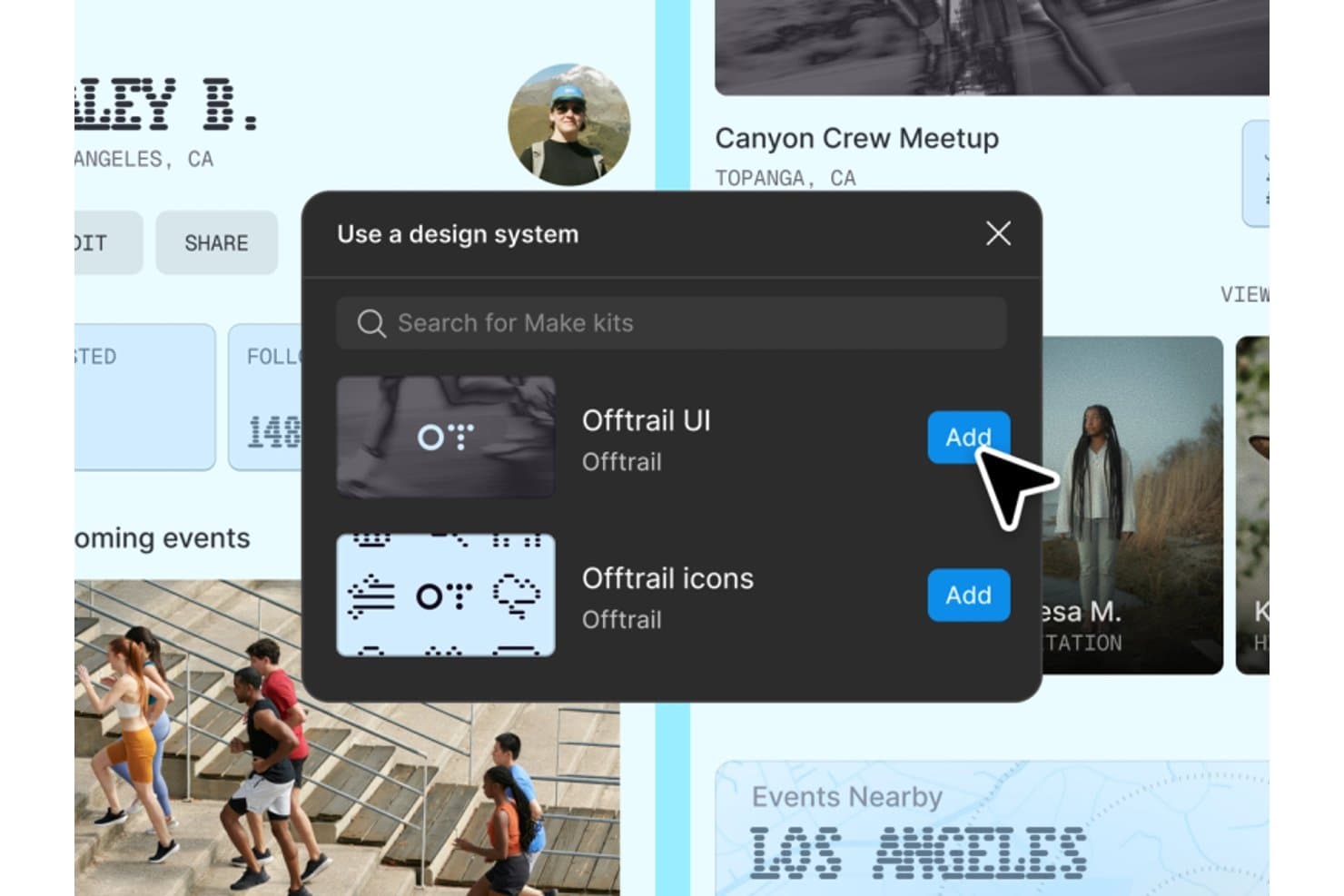
Figma lets users add free UI kits and icon sets via design system panels. Figma is a free UI design tool with an infinite vector canvas, components, variables, interactive prototypes, browser-based editing, comments, and AI-assisted Figma Make workflows.
Who Is Figma Best For?
UI/UX designers and startup teams that need to create, review, and iterate on interfaces together in a browser will find Figma a strong fit.
Why I Picked Figma
I picked Figma because its infinite multiplayer canvas lets my team co-edit wireframes and interface screens with live cursors, comments, and cursor chat. We use shareable prototype links to gather feedback from stakeholders without requiring editor access. That combination makes Figma best for real-time team collaboration.
Figma Key Features
- Auto layout: Create responsive frames that resize and reflow as content changes.
- Interactive prototyping: Add triggers, overlays, Smart Animate transitions, and interactive components.
- Community assets: Browse free UI kits, wireframes, icon sets, templates, and plugins.
- Figma Make: Generate code-backed prototypes and web apps from text prompts.
Figma Integrations
Figma offers native integrations with Jira, Slack, Asana, Microsoft Teams, Confluence, GitHub, and Storybook. GitHub and Storybook connectivity supports developer handoff, while Jira and Slack help teams coordinate design reviews.
What's Free?
Figma offers a free-forever Starter plan, rather than only a time-limited trial. It includes unlimited drafts and collaborators, but limits teams to three collaborative design files, three FigJam files, one project, and 30-day version history.
Pros and Cons
Pros:
- Shareable prototypes support stakeholder feedback
- Extensive community assets speed wireframing
- Real-time co-editing supports quick design reviews
Cons:
- Cross-file component sharing remains unavailable
- Three-file limit constrains ongoing projects
 Best for native Windows design workflows
- Free plan + free demo available
- From $11.99/user/month (billed annually)
Visit WebsiteCustomer Rating:4.4/5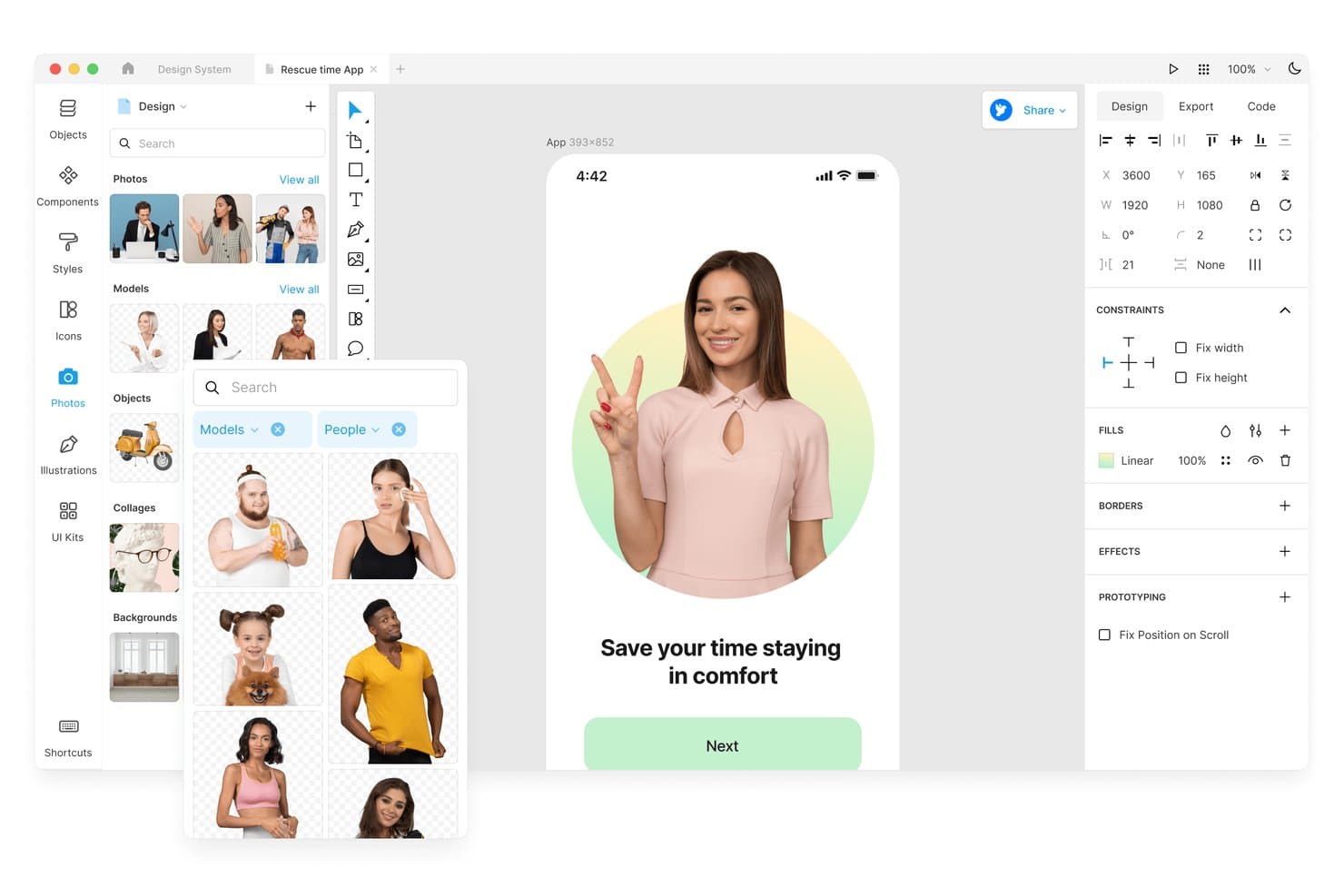
Lunacy lets users browse and insert stock photos directly into designs. Lunacy is a free UI design tool with a vector canvas, components, auto layout, prototyping, built-in UI kits and graphics, real-time collaboration, and code-focused export across desktop and web apps.
Who Is Lunacy Best For?
Lunacy suits UI/UX designers and front-end developers who want a free, native Windows workflow with built-in assets and code-focused handoff.
Why I Picked Lunacy
I picked Lunacy because it’s best for native Windows design workflows, with a desktop app that works offline instead of relying on a browser. I use its built-in UI kits and components to shape interface screens, then check CSS, XAML, JSON, or SVG in the Code tab for developer handoff. I can move a Windows mockup from frames and components into developer-ready output without changing tools.
Lunacy Key Features
- Interactive prototyping: Create hotspots with triggers, overlays, animations, and scroll behaviors.
- Real-time collaboration: Invite up to 10 co-editors to cloud documents.
- Color variables: Organize reusable colors with themes and variable groups.
- File compatibility: Open and save Sketch files, import Figma files, and use the open
.freeformat.
Lunacy Integrations
Lunacy’s native integrations are not clearly documented. It supports file-based workflows with Figma, Adobe XD, Zeplin, Abstract, and Simpli.
What's Free?
Lunacy has a free-forever plan with a full single-user license for its native Windows, macOS, and Linux apps. Cloud documents support up to 10 co-editors, while larger teams and advanced collaboration needs require a paid plan.
Pros and Cons
Pros:
- Offline editing protects local documents
- Built-in assets speed interface mockups
- Native Windows performance on older hardware
Cons:
- Cloud document limits constrain ongoing collaboration
- Free assets require attribution and low resolution
Learn more about Lunacy: Best for non-designer mockups with AI prompts
- Free plan available
- From $14/user/month
Visit WebsiteCustomer Rating:4.8/5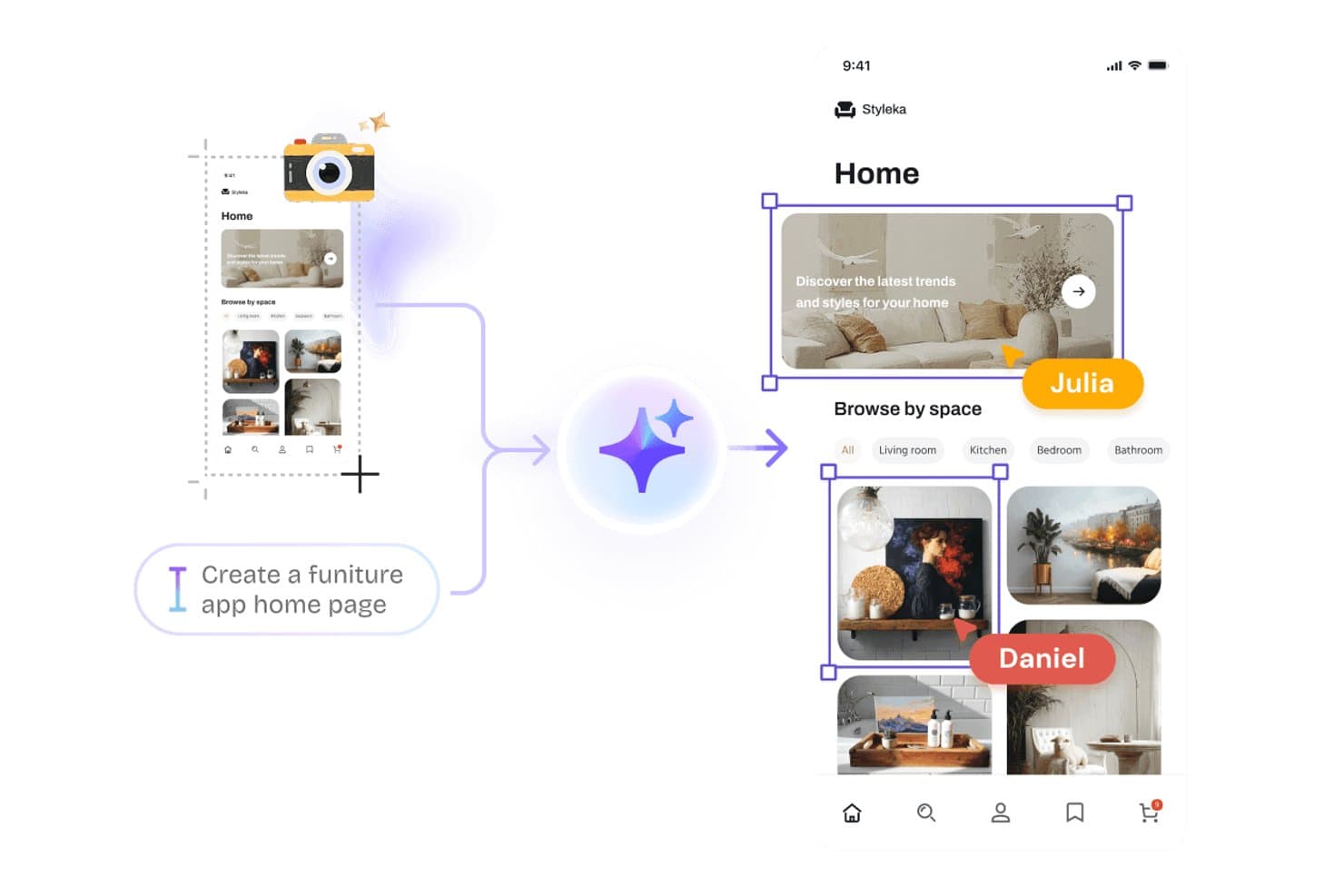
Visily lets users generate UI designs from text prompts using AI. Visily is a browser-based UI design tool for wireframes, mockups, prototypes, and diagrams, combining AI-generated editable screens, drag-and-drop components, interactive flows, and real-time collaboration.
Who Is Visily Best For?
Product managers, startup founders, and cross-functional teams that need to turn early ideas into shareable prototypes without relying on a dedicated designer.
Why I Picked Visily
I picked Visily because it’s best for non-designer mockups with AI prompts. I can turn text prompts, screenshots, sketches, or diagrams into editable UI screens, then refine components through inline AI chat. Auto-Prototyping, overlays, hover states, and drag triggers help me test product flows before involving engineering.
Visily Key Features
- Real-time co-editing: Edit boards together with comments, cursor chat, and follower mode.
- Template library: Choose from more than 1,500 templates for apps, websites, diagrams, and workflows.
- Inspect mode: View dimensions, typography, spacing, colors, CSS, Tailwind variables, and downloadable assets.
- Grid layouts: Organize screens with configurable rows and gridlines for structured interface planning.
Visily Integrations
Visily offers native integration with Figma. Pro and Business plans also include an MCP server for connecting AI coding agents.
What's Free?
Visily’s Starter plan is free forever, with 300 AI credits per workspace each month. It includes two editable boards, up to 2,500 elements per board, and up to 50 workspace members, but excludes private boards, Figma import and export, code export, MCP, and guest viewers or editors.
Pros and Cons
Pros:
- Enables real-time co-editing with comments and cursor chat
- Supports hover, drag, overlays, and animated transitions
- Converts prompts and screenshots into editable mockups
Cons:
- Reusable components lack confirmed variants and master components
- Vector editing lacks paths and Boolean operations
Learn more about Visily: Best for prototyping with coded components
- Free plan + 14-day free trial + demo available
- From $49/user/month
Visit WebsiteCustomer Rating:4.2/5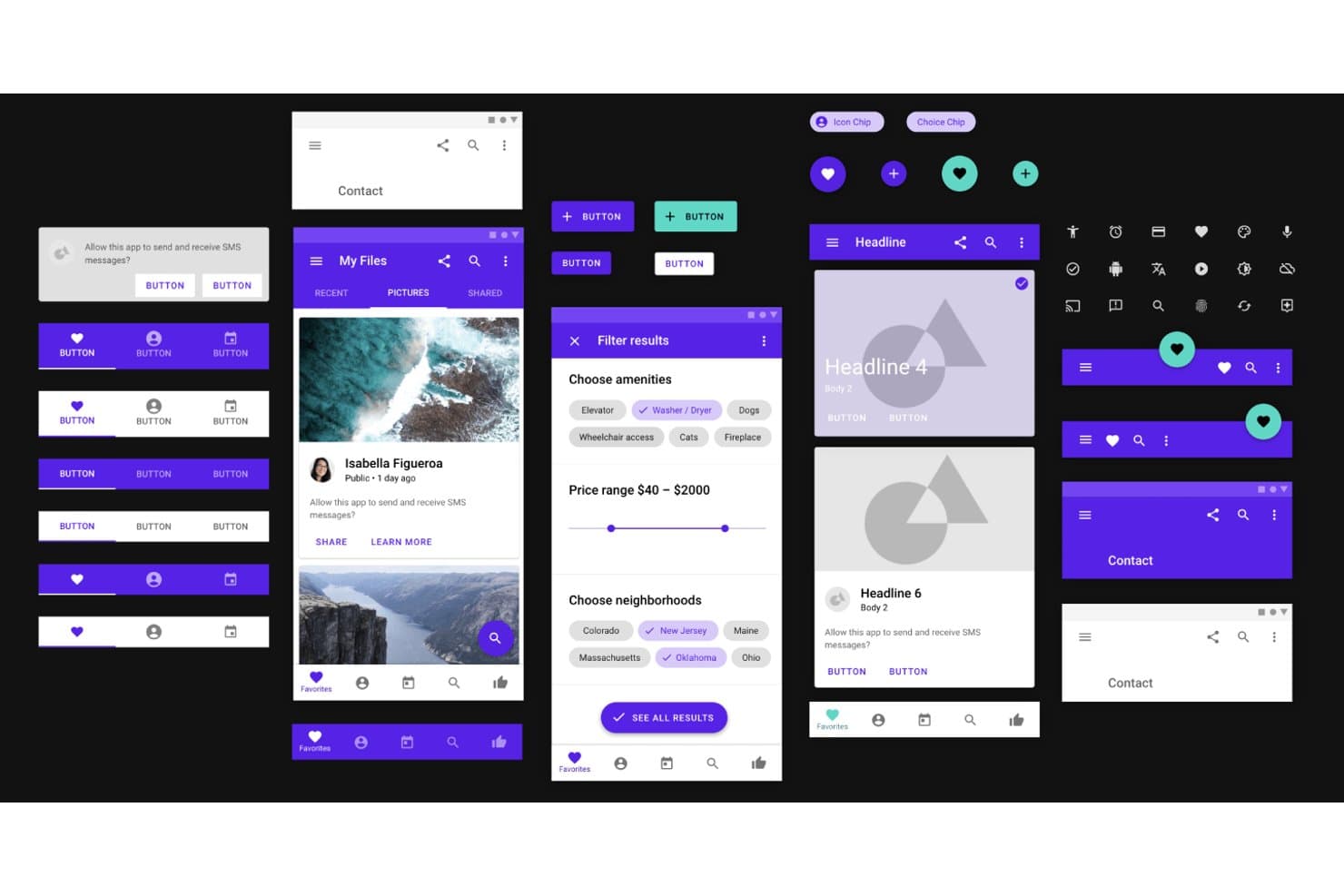
UXPin provides ready-made Material Design UI components for prototyping. UXPin is a free UI design tool with a vector canvas, interactive prototyping, reusable components, AI-assisted interface creation, code-backed libraries, and developer handoff features.
Who Is UXPin Best For?
UXPin suits UI/UX designers and front-end developers who need high-fidelity prototypes built with code-backed components.
Why I Picked UXPin
I picked UXPin because it’s best for prototyping with coded components, bringing React, Storybook, and npm-based elements into interface designs. I use Merge with MUI components to test realistic product flows instead of approximating controls. Its states, variables, conditional logic, and API requests also support prototypes that behave like working applications.
UXPin Key Features
- Vector editing: Create interfaces with pen, pencil, shape, and SVG tools.
- Interactive form elements: Add functional inputs, buttons, checkboxes, and select lists.
- Responsive breakpoints: Preview adaptive layouts across different device views.
- Accessibility tools: Check color contrast and simulate common color-vision deficiencies.
UXPin Integrations
UXPin lists integrations with Figma, Sketch, Storybook, Jira, Slack, FullStory, Adobe Fonts, and Google Fonts. Merge also connects to Git and npm, while API requests support data-driven prototypes.
What's Free?
UXPin offers a free-forever plan after its 14-day free trial, with access limited to two prototypes, 50 AI credits per month, GPT-5 mini, and 20 MUI components. Paid plans are required for advanced features such as conditional logic, expressions, Storybook integration, and additional coded libraries.
Pros and Cons
Pros:
- Detailed handoff specs support developer review
- Logic-rich prototypes model application behavior
- Real form controls support realistic usability testing
Cons:
- Large projects can load slowly
- Free offering restricts long-term experimentation
Learn more about UXPin: Best with open-source team environments
- Free plan + 14-day free trial + free demo available
- From $7/user/month
Visit WebsiteCustomer Rating:4.5/5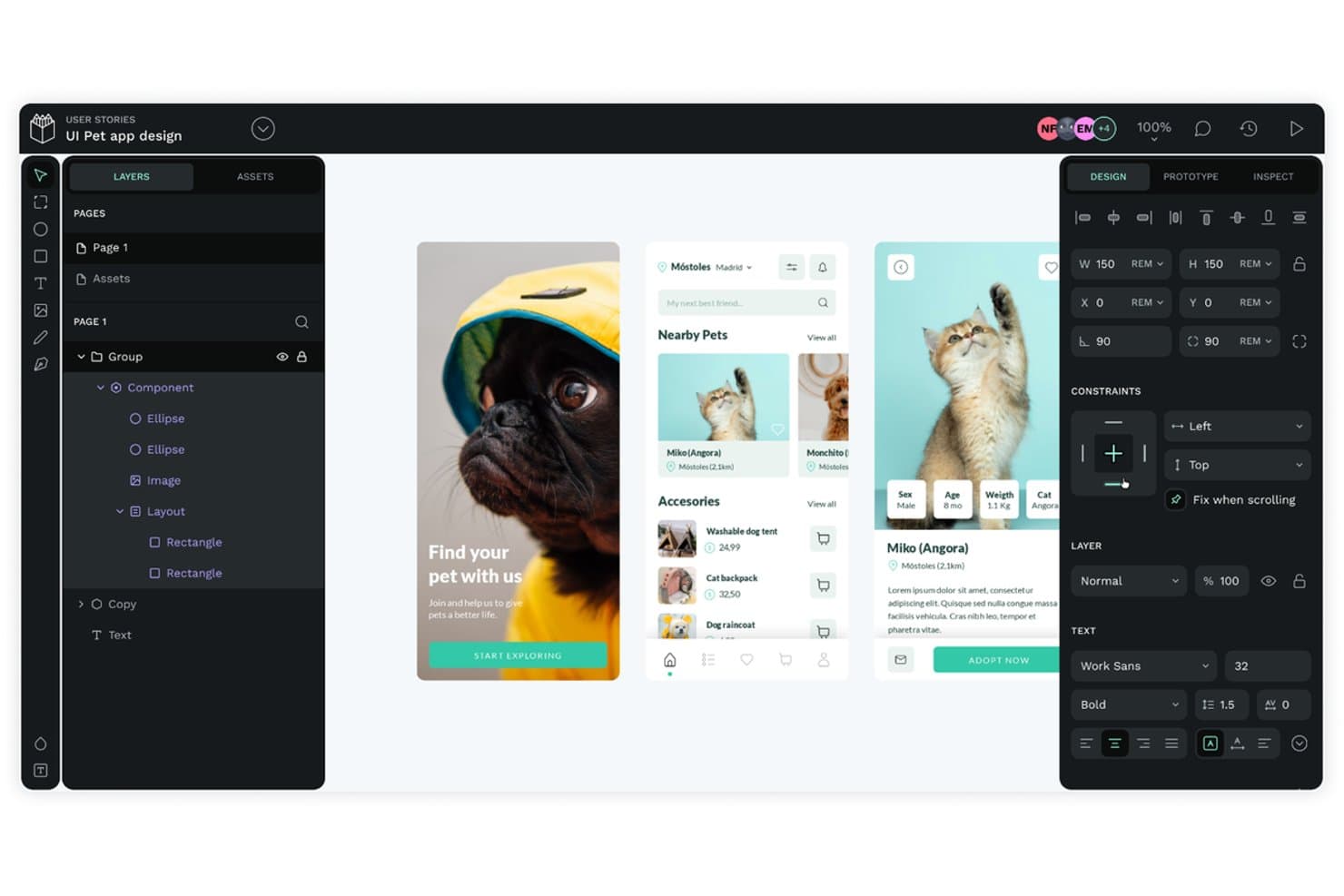
Penpot lets users design mobile app UIs with flex layout tools. Penpot is a free UI design tool with an SVG-based canvas, CSS Flex and Grid layouts, reusable components and design tokens, interactive prototypes, real-time collaboration, and developer handoff tools.
Who Is Penpot Best For?
Penpot suits product teams that want CSS-based UI design, shared design systems, and open-source or self-hosted collaboration.
Why I Picked Penpot
I picked Penpot because it brings open-source collaboration into serious UI design work. My team can self-host projects, build interfaces on an SVG canvas, and use CSS Flex and Grid layouts that translate directly to frontend implementation. Shared components, variants, and W3C design tokens help us maintain a consistent design system across product screens.
Penpot Key Features
- Interactive prototyping: Connect screens with triggers, overlays, actions, and animated transitions.
- Penpot Hub: Access community libraries, UI kits, icon sets, and research templates.
- Inspect mode: View measurements, copy CSS, inspect markup, and export design assets.
- Multi-format export: Export designs as PNG, JPEG, WEBP, SVG, or PDF.
Penpot Integrations
Native integrations are not clearly documented; Penpot supports plugins for Iconify, Tailwind, Locofy, and Figma-to-Penpot migration, plus Adobe XD imports. It also offers webhooks and REST/open API.
What’s Free?
Penpot offers a free-forever plan, not just a trial, with unlimited files and teams. The cloud plan supports up to eight team members, unlimited viewers, 10 GB of storage, and seven-day version history and file recovery; paid plans add larger limits and advanced administration.
Pros and Cons
Pros:
- Free self-hosting supports unlimited users
- Native W3C design token support
- CSS-based Flex and Grid layouts
Cons:
- Prototypes lack conditional logic and variables
- Real-time editing can become sluggish
Learn more about Penpot: Best for AI-assisted design-to-live-site publishing
- Free plan + free trial available
- From $10/month (billed annually)
Visit WebsiteCustomer Rating:4.4/5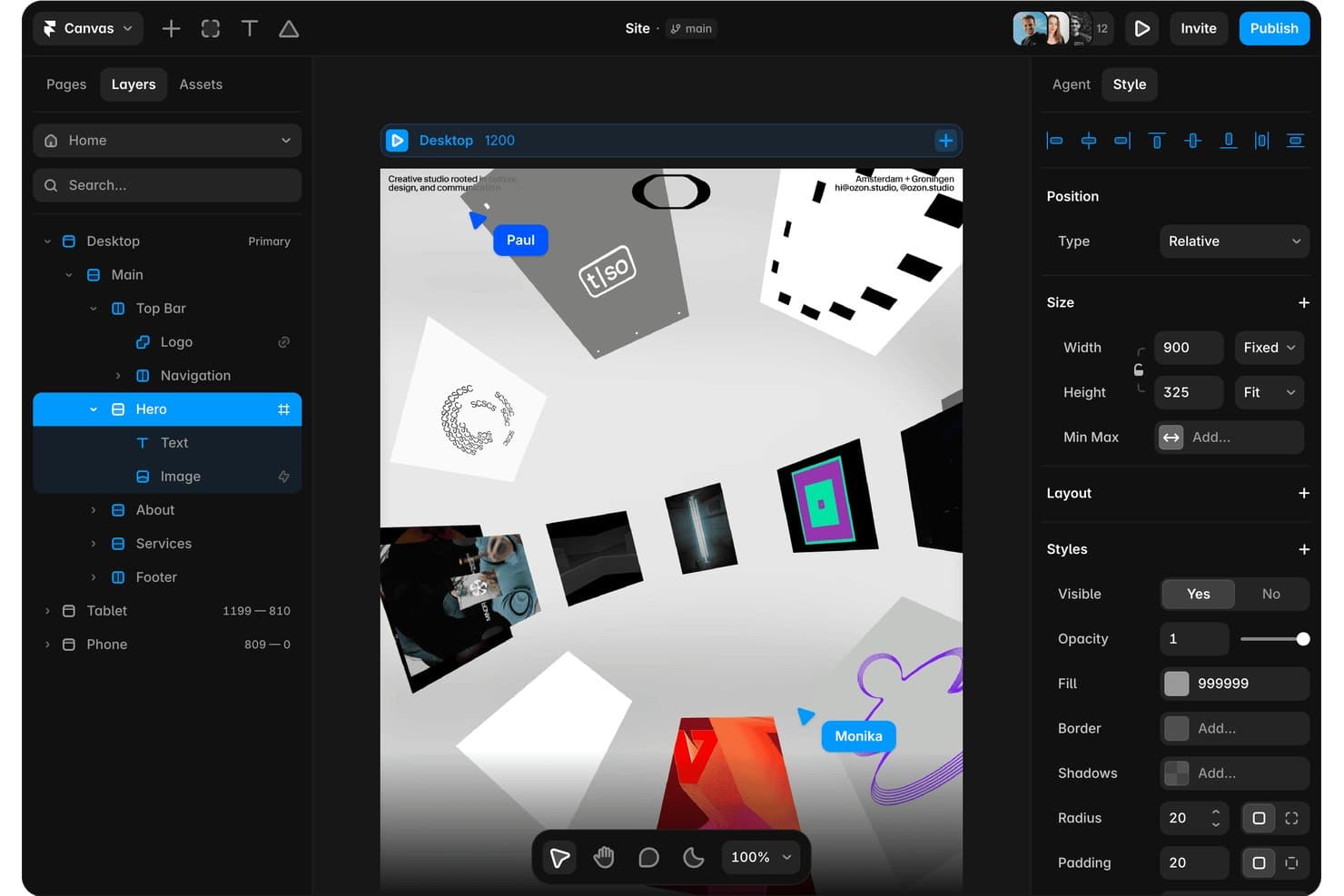
Framer lets users design and layer components visually with real-time collaboration. Framer is a free UI design tool with a vector canvas for wireframes, high-fidelity interfaces, interactive prototypes, reusable components, team collaboration, and live website publishing.
Who Is Framer Best For?
Framer suits UI/UX designers, startup founders, and solopreneurs who want to turn AI-assisted concepts into polished, publishable websites.
Why I Picked Framer
I picked Framer because it connects free UI design with AI-assisted design-to-live-site publishing. I use its AI Design Agent to turn reference images or URLs into editable layouts, then apply responsive breakpoints and interactions on the vector canvas. Publishing that prototype as a live, responsive website lets me validate concepts without rebuilding them elsewhere.
Framer Key Features
- Reusable components: Create variants and component variables for repeatable interface elements.
- Real-time collaboration: Use multiplayer cursors, pinned comments, and threaded discussions.
- Templates and plugins: Browse community templates and plugins for UI assets and workflows.
- Figma import: Transfer frames, layers, and visual structure through the official plugin.
Framer Integrations
Framer offers marketplace integrations with Figma, WordPress, Tally Forms, and Framer Commerce through plugins.
What's Free?
Framer offers a free-forever plan with design tools, 500 monthly AI credits, 10 CMS collections, and up to 1,000 pages. It supports up to three editors and includes a Framer domain, 1 GB bandwidth, and 5 MB file uploads, but custom domains require a paid plan.
Pros and Cons
Pros:
- Pinned comments support focused design reviews
- Live prototypes validate ideas without rebuilding
- AI turns references into editable layouts
Cons:
- Website focus limits native app workflows
- Developer handoff lacks native inspection tools
 Best for macOS vector editing workflows
- Free plan + 30-day free trial available
- From $12/user/month (billed annually)
Visit WebsiteCustomer Rating:4.5/5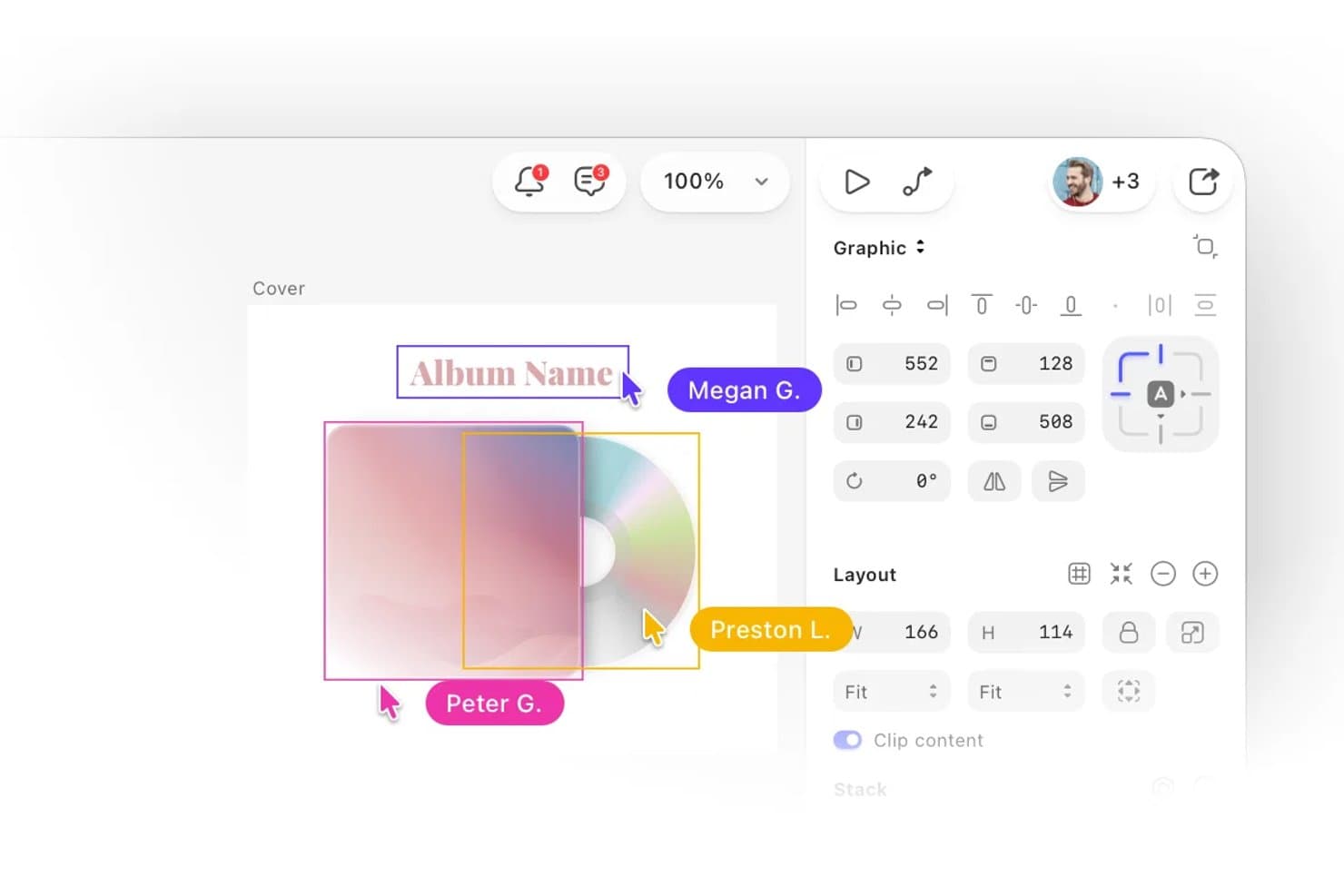
Sketch lets users collaborate in real time on UI design projects. Sketch is a UI design tool for macOS that combines vector editing, prototyping, reusable Symbols, team collaboration, and browser-based developer handoff, with free Viewers and a 30-day trial instead of ongoing free editing.
Who Is Sketch Best For?
Mac-based UI designers who need precise vector editing, reusable components, and browser-based developer handoff.
Why I Picked Sketch
I picked Sketch for its Best for macOS vector editing workflows positioning. Its native editor combines boolean operations, nested frames, and Stacks for precise interface layouts. I also use Smart Animate and overlays to test mobile flows, while browser-based handoff lets developers inspect designs without a Mac. Free access is limited to Viewers and a 30-day trial.
Sketch Key Features
- Symbols and Libraries: Reuse nested components, shared styles, and Color Variables across documents.
- Free Viewers: Invite unlimited viewers to comment, inspect designs, download assets, and play prototypes.
- Design Templates: Start with Apple, Microsoft Fluent, Google Material, macOS, and browser mockup resources.
- Offline Editing: Save files locally and continue designing without an internet connection.
Sketch Integrations
Sketch supports integrations with Slack, Jira, Notion, GitHub, Unsplash, ProtoPie, Zeplin, Principle, Origami, and Overflow. Its extension ecosystem also includes accessibility tools such as Stark and AdeeApp, plus the Sketch MCP Server for AI-assisted workflows.
What's Free?
Sketch offers a 30-day free trial rather than a free-forever editing plan. After the trial, editing requires a paid subscription, while free Viewers can inspect designs, comment, download assets, and play prototypes without editing access.
Pros and Cons
Pros:
- Reusable Symbols support consistent interface systems
- Free browser handoff supports developer inspection
- Native Mac vector editing remains smooth
Cons:
- Mac-only editing excludes cross-platform teams
- Long-term free editing isn't available
 Best for mobile app interface animation
- 15-day free trial
- From $24/user/month (billed annually)
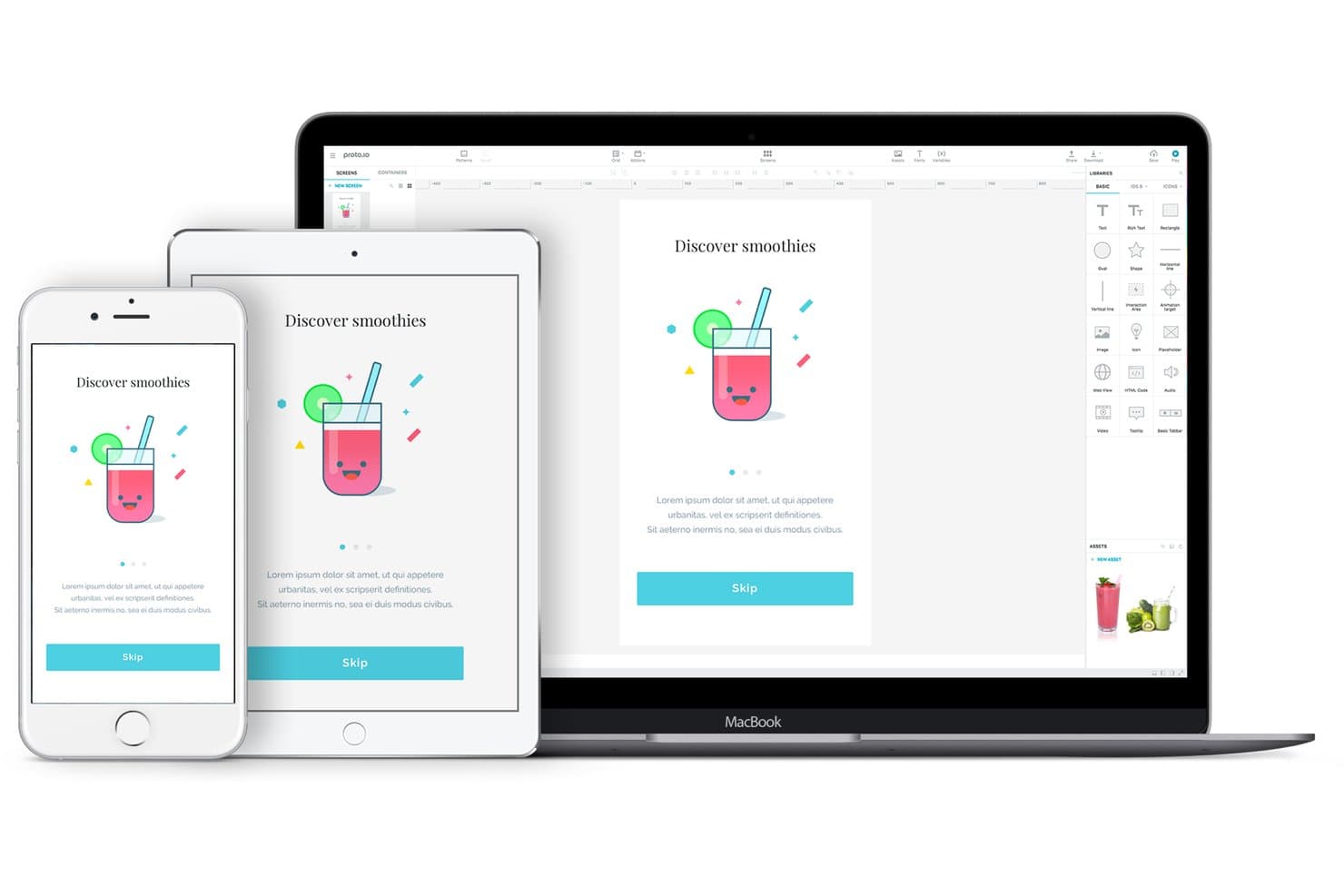
Proto.io previews designs across iPhone, iPad, and MacBook simultaneously. Proto.io is a browser-based UI prototyping tool with a limited free plan, offering no-code screen design, native-style components, animated interactions, variables, comments, device previews, and HTML, PNG, and PDF exports.
Who Is Proto.io Best For?
Product managers and startup founders can use Proto.io to test mobile app flows with realistic gestures, animations, and no-code interactions.
Why I Picked Proto.io
I picked Proto.io for mobile app interface animation because I can prototype gestures, screen transitions, and touch responses without code. Its 80-plus events, timeline animations, custom easing, and Lottie support help me recreate app interactions for user testing. Variables and conditional logic let me test flows such as onboarding, form validation, and personalized states.
Proto.io Key Features
- Browser-based editor: Create prototypes without installing desktop software.
- Native UI components: Use 250-plus iOS, Android, web, Windows, and watchOS elements.
- Design imports: Import layered files from Figma, Sketch, Adobe XD, and Photoshop.
- Prototype sharing: Share live or snapshot links with threaded comments and password protection.
Proto.io Integrations
Proto.io offers integrations with Figma, Sketch, Adobe XD, Photoshop, Jira, Confluence, Trello, UserTesting, UserZoom, Userlytics, Lookback, and UXArmy. Design imports preserve layers, while Jira, Confluence, and Trello support product workflow reviews.
What's Free?
Proto.io offers a 15-day free trial with all prototyping features, unlimited projects, and users, without requiring a credit card. After the trial, you can downgrade to a free plan with limited options, or your account will be deleted if you take no action.
Pros and Cons
Pros:
- Extensive native-style components and templates
- Timeline animations support realistic app flows
- Detailed mobile gestures and touch interactions
Cons:
- No simultaneous editing for design teams
- No pen tool for precise vector design
Learn more about Proto.io: Best for wireframing without a design background
- Free plan available
- From $9/user/month (billed annually)
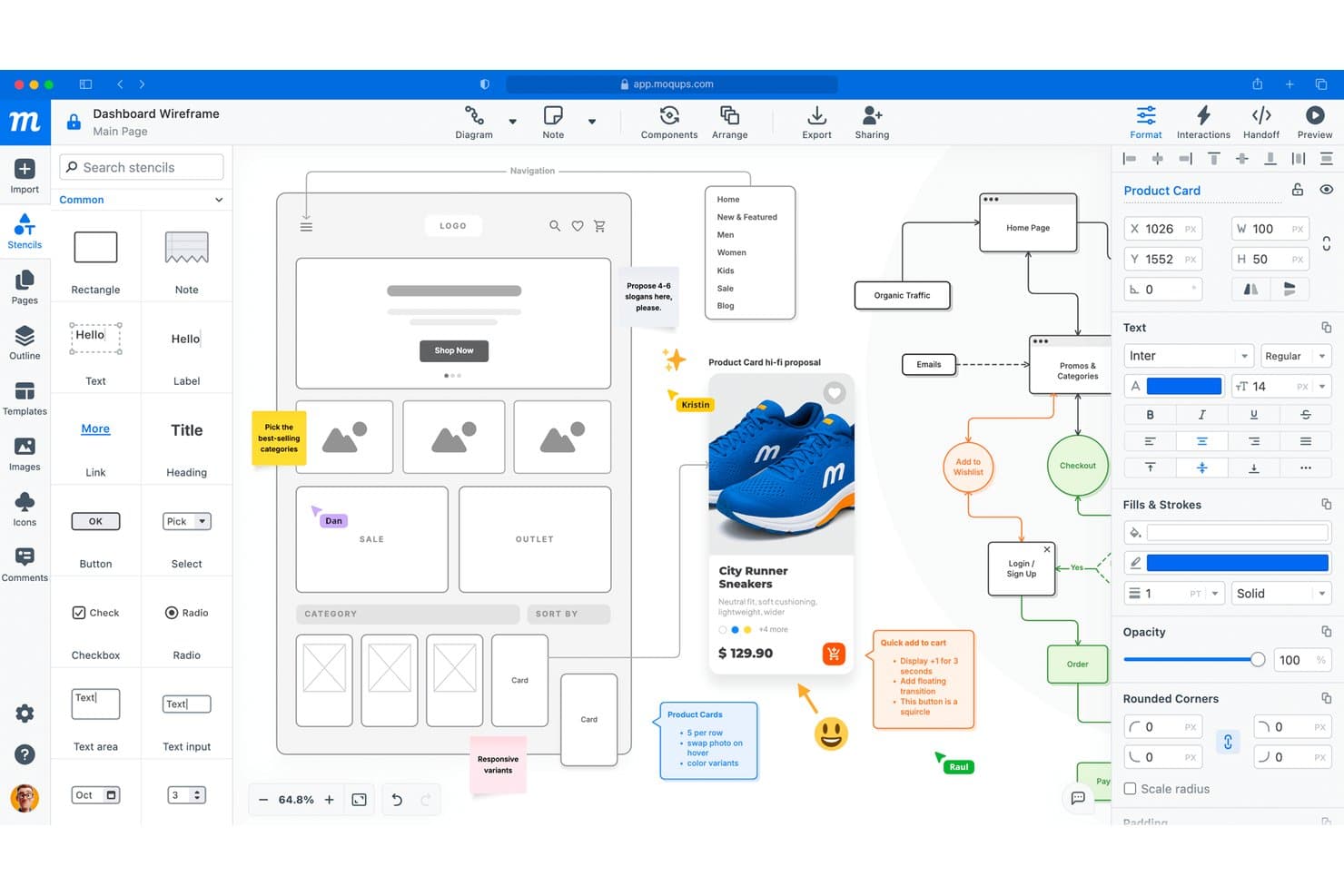
Moqups lets users design wireframes with collaborative annotations and feedback. Moqups is a browser-based UI design tool with a free plan for wireframes, mockups, diagrams, and clickable prototypes, combining stencil-based screen design with templates, reusable components, stakeholder comments, and CSS/JSX handoff.
Who Is Moqups Best For?
Product managers and startup founders who need quick wireframes, clickable prototypes, and stakeholder feedback without advanced design skills.
Why I Picked Moqups
I picked Moqups for wireframing without a design background because its stencil-based canvas and 150+ templates turn product ideas into usable screens quickly. I use UI kits, layout grids, and reusable components to map flows without drawing every element from scratch. Clickable hotspots and object interactions help me test concepts before investing in high-fidelity design.
Moqups Key Features
- CSS/JSX export: Export selected objects for developer handoff.
- Pinned comments: Add feedback directly to designs and objects.
- Page interactions: Link screens to pages or external URLs.
- Jira and Confluence integration: Embed projects in Atlassian workspaces.
Moqups Integrations
Moqups offers native integrations with Jira Cloud, Confluence Cloud, Slack, Google Drive, Dropbox, Box, and Trello.
What's Free?
Moqups offers a free-forever plan with no time limit. It allows two active projects, 400 objects per project, 25 MB of image storage, and up to seven guests, but excludes team roles, private projects, project permissions, archiving, and PNG, PDF, or HTML exports.
Pros and Cons
Pros:
- CSS and JSX exports aid handoff
- Clickable hotspots support quick validation
- Templates accelerate wireframe creation
Cons:
- Basic interactions limit advanced prototypes
- Free projects and objects cap growth
Learn more about Moqups:
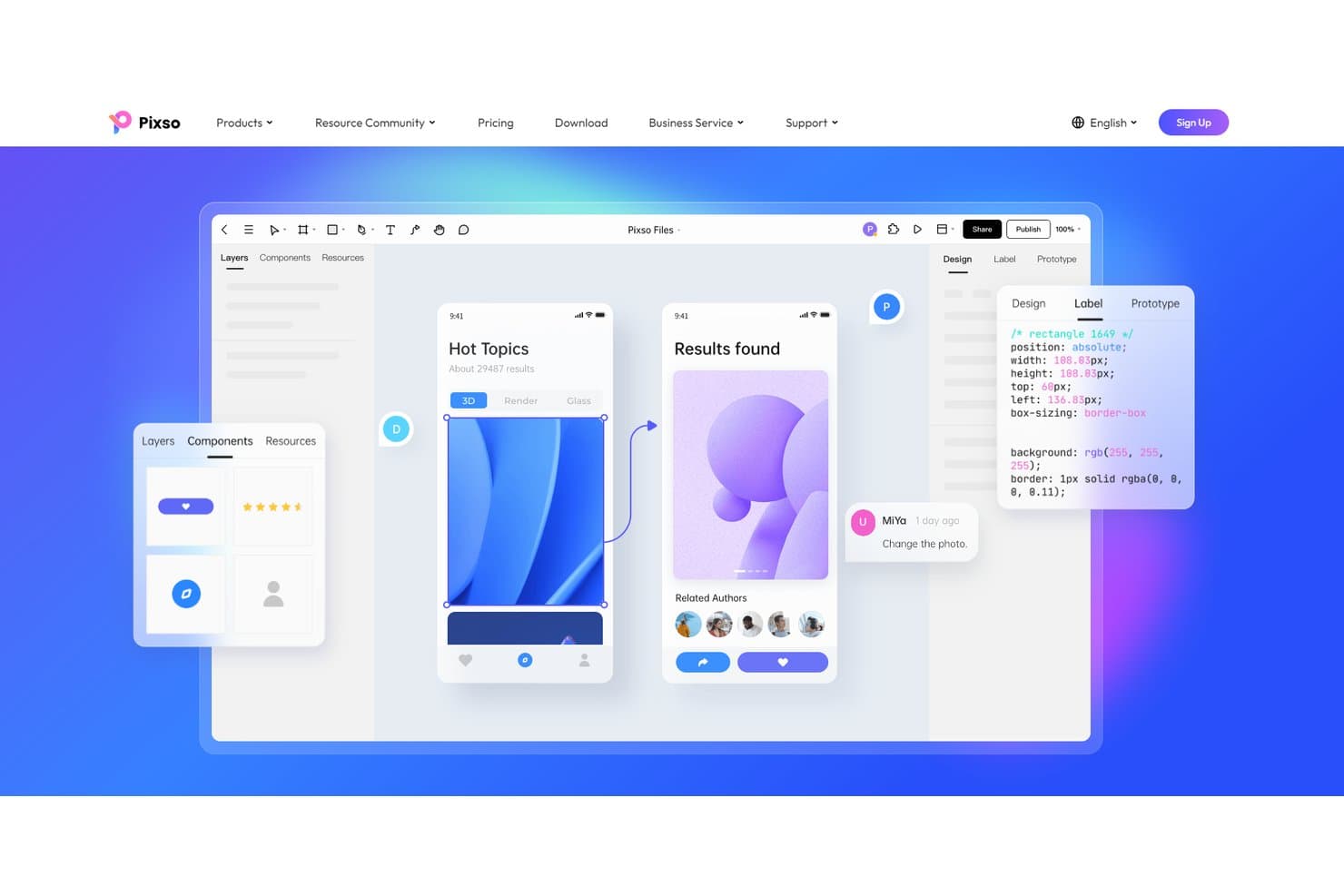
Pixso lets users design, prototype, and inspect UI with CSS code export. Pixso is a free UI design platform with vector editing, interactive prototyping, reusable components, collaborative whiteboards, design systems, and developer handoff tools for CSS, iOS, Android, SwiftUI, and HTML.
Who Is Pixso Best For?
UI/UX designers and front-end developers who need shared design workspaces with CSS, iOS, Android, SwiftUI, and HTML handoff.
Why I Picked Pixso
I picked Pixso because its cross-platform design handoff connects interface work with implementation. I use its Dev view for CSS, iOS, and Android reference code, then export SwiftUI or HTML through Design to Code. Its unit conversion and pinned developer annotations help translate responsive screens into build-ready specifications.
Pixso Key Features
- Vector editing: Create interfaces with pen tools, boolean operations, grids, and auto layout.
- Interactive prototyping: Add triggers, overlays, transitions, scrolling, videos, and GIFs.
- Component libraries: Build reusable components with variants, properties, shared styles, and version control.
- Real-time collaboration: Co-edit designs, add visual comments, and manage file permissions.
Pixso Integrations
Pixso connects to Cursor, VS Code, Windsurf, and Claude Code through Pixso MCP for AI-assisted handoff. It also offers a public Plugin API and plugins such as Tokens Studio, Phosphor Icons, and Pexels.
What's Free?
Pixso offers a free-forever plan with unlimited free viewer seats. Version history retention and some advanced features depend on your plan, so editing and collaboration needs may require paid seats.
Pros and Cons
Pros:
- Prototype triggers include overlays and gestures
- Unlimited viewers simplify stakeholder reviews
- Cross-platform handoff supports developer collaboration
Cons:
- Imported designs may need manual fixes
- Free plan restricts ongoing project work
Learn more about Pixso:
Outras ferramentas gratuitas de design de interfaces
Eis algumas ferramentas gratuitas adicionais de design de interfaces que não entraram na minha lista, mas que vale a pena conhecer:
- 11PlasmicBest for design-to-code handoff on dev teams
- 12v0 by VercelBest for prompt-to-deployed app prototyping
- 13MockFlowBest for planning user journeys visually
- 14CanvaBest for non-designer mockups with templates
- 15MarvelBest for quick stakeholder prototype sign-off
- 16MiroBest for brainstorming that feeds into mockups
- 17MockplusBest for Axure-style prototyping without design skills
- 18ProtoPieBest for sensor-driven interaction prototyping
- 19Quant UXBest for prototype testing without extra tools
How I Evaluate Free UI Design Tools
First, I define what counts as free. A UI design tool qualifies if it offers a long-term free plan, not just a time-limited trial. I weigh core functionality most heavily, such as laying out vector screens and linking clickable prototypes; standout features, like stakeholder comments; and beyond-feature fit, including free-plan team limits.
Core Functionality (Table Stakes For This List)
In addition to my free plan requirements, I use a scoring system to select tools for my list. I score each one on a scale from 0 (does not offer the functionality) to 5 (excels in this area) for each core functionality listed below, based on what's available on the free plan. I then convert the total into a percentage to help assess each tool's overall fit, with extra weight on any functionalities I've deemed essential.
- Vector Canvas (Essential): I look for precise frame, shape, layer, and alignment controls for laying out screens across a multi-step product flow.
- Prototyping & Interactions (Essential): I evaluate whether you can link screens and demonstrate key actions, such as moving from sign-up to account setup.
- Component Reuse: I check whether shared buttons, icons, and text styles can be reused and updated across screens.
- Real-Time Collaboration: I look for free-plan options to comment, co-edit, or review a draft with design, product, and engineering teammates.
- Templates & Assets: I consider whether built-in UI kits, templates, or icons give you a useful starting point for common product screens.
- Export & Handoff: I assess whether developers can inspect measurements, colors, and assets or export files needed to build the designed screens.
Once I have a list of tools that meet the criteria, I consider what sets each platform apart.
Differentiating Factors (What Sets Vendors Apart)
Here's how I compare and contrast different vendors:
Standout Features
I look for shareable prototype links that let PMs send a clickable flow to stakeholders without requiring logins. A quick link to a sign-up prototype can replace a meeting. I also evaluate no-code mockup speed—drag-and-drop kits in tools like Figma or Penpot help non-designers produce polished screens fast. Browser-based access matters too, since it removes install barriers for cross-functional reviewers on any device.
Beyond Features
I evaluate how quickly a PM can go from a blank canvas to a testable prototype without waiting on a designer. Tools like Figma and Penpot offer starter files that cut ramp-up time during sprint planning. I also check whether free-plan collaborator caps fit a typical cross-functional pod, since hitting a seat limit mid-review stalls feedback. File portability matters too—I look for open export formats so teams aren't locked in if needs change.
Como escolher ferramentas gratuitas de design de interfaces
É fácil perder-se em listas extensas de funcionalidades e estruturas de preços complexas. Para o ajudar a manter-se concentrado enquanto analisa o seu processo específico de seleção de software, eis uma lista de verificação dos fatores a ter em conta:
| Fator | O que considerar |
| Escalabilidade | A ferramenta irá acompanhar o crescimento da sua equipa ou irá ultrapassar rapidamente os limites do plano gratuito? |
| Integrações | A ferramenta liga-se de forma nativa às aplicações de design, gestão de projetos ou armazenamento de ficheiros que já utiliza? |
| Personalização | Pode adaptar os fluxos de trabalho, modelos ou bibliotecas da ferramenta para corresponder ao processo específico da sua equipa? |
| Facilidade de utilização | Os novos utilizadores conseguirão começar rapidamente a criar designs ou precisarão de formação significativa? |
| Implementação e integração inicial | Quanto tempo será necessário para pôr a sua equipa a trabalhar e que recursos estão disponíveis para ajudar? |
| Custo | Existem custos ocultos, requisitos de atualização ou limites de utilização que possam afetar o seu orçamento mais tarde? |
| Medidas de segurança | A ferramenta oferece proteção de dados, permissões de utilizador e conformidade adequadas às suas necessidades? |
| Disponibilidade do suporte | Se surgir algum problema, pode obter ajuda atempada através de chat, e-mail ou de uma base de conhecimentos? |
O que são ferramentas gratuitas de design de interfaces?
As ferramentas gratuitas de design de interfaces são plataformas de software que permitem aos utilizadores criar, editar e partilhar maquetas ou protótipos de interfaces de utilizador sem exigir qualquer pagamento. Estas ferramentas disponibilizam normalmente funcionalidades de design essenciais, como componentes de arrastar e largar, colaboração básica e opções de exportação. As ferramentas gratuitas de design de interfaces ajudam indivíduos e equipas a visualizar produtos digitais, testar ideias e comunicar conceitos de design antes do desenvolvimento, tornando-as acessíveis para projetos em fase inicial ou com orçamentos limitados.
Funcionalidades das ferramentas gratuitas de design de interfaces
Vejamos as funcionalidades normalmente disponíveis nas ferramentas de design de UI e quais são geralmente incluídas nos planos gratuitos e pagos.
Funcionalidades normalmente gratuitas das ferramentas de design de UI
- Editor de arrastar e largar: Crie wireframes ou maquetes arrastando elementos da interface para uma tela, facilitando a visualização dos esquemas sem necessidade de programação.
- Biblioteca básica de componentes: Aceda a um conjunto de elementos de UI padrão, como botões, campos de entrada e ícones, para montar rapidamente ecrãs.
- Exportação para imagem ou PDF: Guarde e partilhe os seus designs como ficheiros PNG ou PDF para obter comentários ou criar documentação.
- Acesso para um único utilizador: Utilize a ferramenta individualmente, sem funcionalidades de colaboração em equipa, sendo adequada para designers independentes ou projetos em fase inicial.
- Armazenamento limitado de projetos: Crie e armazene um pequeno número de projetos ou ficheiros, frequentemente com limites quanto ao número de designs ativos.
- Comentários ou anotações: Adicione notas ou comentários aos designs para esclarecer ideias ou recolher opiniões de outras pessoas.
- Seleção de modelos: Comece com modelos pré-criados para tipos de ecrã comuns, ajudando a acelerar o processo de design.
- Histórico básico de versões: Aceda a um histórico simples das alterações para voltar a versões anteriores, se necessário.
Funcionalidades normalmente pagas das ferramentas de design de UI
- Colaboração de equipa em tempo real: Trabalhe simultaneamente com vários utilizadores no mesmo design, apoiando equipas distribuídas e iterações mais rápidas.
- Prototipagem avançada: Adicione elementos interativos, transições e animações para criar protótipos clicáveis que simulam o comportamento de uma aplicação real.
- Bibliotecas de componentes personalizadas: Crie e gira sistemas de design reutilizáveis ou kits de UI de marca para garantir consistência entre projetos.
- Armazenamento ilimitado de projetos: Armazene um número ilimitado de projetos, ficheiros e recursos sem se preocupar com limites de utilização.
- Permissões baseadas em funções: Controle quem pode visualizar, editar ou comentar os designs, apoiando uma colaboração segura em organizações de maior dimensão.
- Integração com ferramentas de terceiros: Ligue-se diretamente a plataformas de gestão de projetos, desenvolvimento ou armazenamento na nuvem para obter fluxos de trabalho mais eficientes.
- Suporte prioritário ao cliente: Beneficie de tempos de resposta mais rápidos, canais de suporte dedicados ou assistência durante a integração para utilizadores pagos.
- Opções avançadas de exportação: Exporte designs em formatos adicionais, como SVG ou fragmentos de código, para simplificar a entrega aos programadores.
- Ferramentas de entrega de designs: Gere automaticamente especificações, recursos e guias de estilo para ajudar os programadores a implementar os designs com precisão.
Benefícios das ferramentas gratuitas de design de UI
A implementação de ferramentas gratuitas de design de UI proporciona vários benefícios à sua equipa e à sua empresa. Eis alguns dos benefícios que pode esperar:
- Custos iniciais mais baixos: Comece a criar interfaces de utilizador sem aderir a planos pagos, facilitando a experimentação ou a prototipagem com um orçamento limitado.
- Inícios de projeto mais rápidos: Utilize modelos integrados e editores de arrastar e largar para criar e partilhar rapidamente maquetes, ajudando as equipas a passar das ideias aos elementos visuais em menos tempo.
- Colaboração acessível: Partilhe designs e recolha opiniões através de funcionalidades de comentários ou anotações, mesmo quando trabalha com equipas distribuídas ou multifuncionais.
- Redução do tempo de integração: Interfaces simples e tutoriais orientados ajudam os novos utilizadores a começar rapidamente, minimizando atrasos no processo de design.
- Ausência de dependência do fornecedor: Experimente várias ferramentas ou mude de plataforma sem risco financeiro, uma vez que não está vinculado a contratos ou subscrições de longa duração.
- Suporte para projetos em fase inicial: Os planos gratuitos permitem que as startups ou pequenas equipas validem ideias e façam iterações nos designs antes de investirem em funcionalidades avançadas ou atualizações pagas.
- Incentivo à experimentação: O armazenamento limitado de projetos e as opções básicas de exportação facilitam o teste de diferentes esquemas ou conceitos sem preocupações com os custos.
Custos e preços das ferramentas de design de UI
Compreendo que chegou a este artigo à procura das melhores opções de ferramentas de design de UI disponíveis gratuitamente. No entanto, como os planos gratuitos oferecem apenas funcionalidades limitadas, é bastante provável que precise de atualizar o seu plano no futuro.
A tabela abaixo resume os planos comuns, os seus preços médios e as funcionalidades normalmente incluídas nas ferramentas de design de UI:
Tabela de comparação de planos para ferramentas de design de UI
| Tipo de plano | Preço médio | Funcionalidades comuns |
| Plano gratuito | $0 | Biblioteca de componentes básica, editor de arrastar e largar, armazenamento limitado de projetos, acesso para um único utilizador e opções básicas de exportação. |
| Plano pessoal | $5-$15/utilizador/mês | Projetos ilimitados, maior capacidade de armazenamento, prototipagem básica, suporte prioritário e acesso a mais modelos. |
| Plano empresarial | $15-$30/utilizador/mês | Colaboração em equipa, prototipagem avançada, bibliotecas de componentes personalizadas, integrações e permissões baseadas em funções. |
| Plano empresarial de grande escala | $30-$60/utilizador/mês | Segurança avançada, SSO, registos de auditoria, gestão dedicada de contas, integração personalizada e funcionalidades de conformidade. |
Perguntas frequentes sobre ferramentas gratuitas de design de UI
Eis algumas respostas a perguntas comuns sobre ferramentas gratuitas de design de UI:
As ferramentas gratuitas de design de UI são adequadas para projetos profissionais?
Sim, as ferramentas gratuitas de design de UI podem ser utilizadas em projetos profissionais, especialmente nas fases iniciais ou por equipas pequenas. No entanto, poderá encontrar limitações de funcionalidades ou armazenamento que exigem uma atualização à medida que o projeto cresce ou as suas necessidades se tornam mais complexas.
Posso colaborar com outras pessoas utilizando ferramentas gratuitas de design de UI?
Sim, muitas ferramentas gratuitas de design de UI oferecem funcionalidades básicas de colaboração, como comentários ou partilha de ligações. Para edição multiutilizador em tempo real ou permissões avançadas, normalmente precisará de um plano pago.
Que limitações devo esperar das ferramentas gratuitas de design de UI?
Os planos gratuitos limitam frequentemente o número de projetos, o espaço de armazenamento, os formatos de exportação ou o acesso a funcionalidades avançadas de prototipagem e integração. Consulte os detalhes do nível gratuito de cada ferramenta para garantir que cumpre os seus requisitos mínimos.
Os meus dados estão seguros quando utilizo ferramentas gratuitas de design de UI?
A maioria das ferramentas gratuitas de design de UI com boa reputação disponibiliza salvaguardas de segurança básicas, mas as funcionalidades avançadas, como SSO, registos de auditoria ou certificações de conformidade, estão normalmente reservadas aos planos pagos. Consulte sempre a política de privacidade e a documentação de segurança do fornecedor.
Posso migrar os meus designs para outra ferramenta mais tarde?
Sim, a maioria das ferramentas de design de UI permite exportar o trabalho em formatos padrão, como PNG, PDF ou SVG. No entanto, algumas funcionalidades avançadas ou ficheiros editáveis poderão não ser transferidos na perfeição, pelo que deve planear antecipadamente se prevê mudar de plataforma.