
Ücretsiz kullanıcı arayüzü tasarım araçları, peşin ödeme yapmadan (ücretsiz bir plan veya ücretsiz deneme aracılığıyla) kullanıcı arayüzleri oluşturmanıza, prototip hazırlamanıza ve bunlar üzerinde iş birliği yapmanıza olanak tanıyan yazılım platformlarıdır. Ücretli bir aboneliğe bağlı kalmadan arayüzler tasarlamanın, fikirleri test etmenin veya ekibinizle çalışmanın yollarını arıyorsanız, kullanılabilirlik, iş birliği ve özelliklere ücretsiz erişim arasında denge kuran seçeneklere ihtiyacınız vardır.
Bu liste, 2026'nın en iyi ücretsiz kullanıcı arayüzü tasarım araçlarını hızlıca karşılaştırmanıza yardımcı olur. Böylece ister tel kafes oluşturuyor, ister prototip hazırlıyor, ister etkileşimli maketler geliştiriyor olun, iş akışınıza en uygun seçeneği bulabilirsiniz.
Why Trust Our Software Recommendations
6,700+
Reviews
20
Industry experts
16+
Evaluation factors
14
Years
Our team has been testing and reviewing software since 2012. As product managers ourselves, we know how difficult—and important—it is to choose the right software.
For this guide, we evaluated tools using hands-on testing and independent research, scoring tools using our selection criteria.
Our reviews reflect our human editorial judgment, not a sales pitch.
Expert reviewers:
- Andrew LumbySenior TPM
- Cristiano ValimSenior UI/UX Lead


Ücretsiz Kullanıcı Arayüzü Tasarım Araçları Karşılaştırma Tablosu
Score legend (out of 5)
- Excellent4.5–5
- Good4–4.4
- Average3–3.9
- Below average2–2.9
- Poor1–1.9
Sorted by: Default
| Tool | Starting Price | Website | |||||||
|---|---|---|---|---|---|---|---|---|---|
Best for real-time team collaboration | 3.7 out of 5 | 2 | 2 | 4 | 5 | 4 | 5 | $3/user/month Free plan available | Website |
Best for native Windows design workflows | 3.3 out of 5 | 3 | 4 | 3 | 3 | 3 | 4 | $11.99/user/month Free plan + free demo available | Website |
Best for non-designer mockups with AI prompts | 3.2 out of 5 | 3 | 2 | 4 | 4 | 4 | 2 | $14/user/month Free plan available | Website |
Best for prototyping with coded components | 3.8 out of 5 | 4 | 4 | 2 | 3 | 5 | 5 | $49/user/month Free plan + 14-day free trial + demo available | Website |
Best with open-source team environments | 4.0 out of 5 | 3 | 5 | 3 | 4 | 4 | 5 | $7/user/month Free plan + 14-day free trial + free demo available | Website |
Best for AI-assisted design-to-live-site publishing | 3.3 out of 5 | 1 | 3 | 3 | 4 | 4 | 5 | $10/month Free plan + free trial available | Website |
Best for macOS vector editing workflows | 4.0 out of 5 | 5 | 4 | 2 | 4 | 4 | 5 | $12/user/month Free plan + 30-day free trial available | Website |
Best for mobile app interface animation | 2.8 out of 5 | 1 | 2 | 2 | 5 | 5 | 2 | $24/user/month 15-day free trial | Website |
Best for wireframing without a design background | 3.2 out of 5 | 4 | 3 | 2 | 4 | 3 | 3 | $9/user/month Free plan available | Website |
Best for cross-platform design handoff | 4.5 out of 5 | 5 | 5 | 4 | 4 | 4 | 5 | $4/user/month Free plan + free trial available | Website |


Ücretsiz Kullanıcı Arayüzü Tasarım Araçları İncelemeleri
Aşağıda, kısa listeme giren ücretsiz kullanıcı arayüzü tasarım araçlarının ayrıntılı özetlerini bulabilirsiniz. İncelemelerim, size en uygun aracı bulmanıza yardımcı olmak için her aracın özelliklerine, en uygun kullanım alanlarına ve fiyatlandırmasına ayrıntılı bir bakış sunar.
 Best for real-time team collaboration
- Free plan available
- From $3/user/month
Visit WebsiteCustomer Rating:4.7/5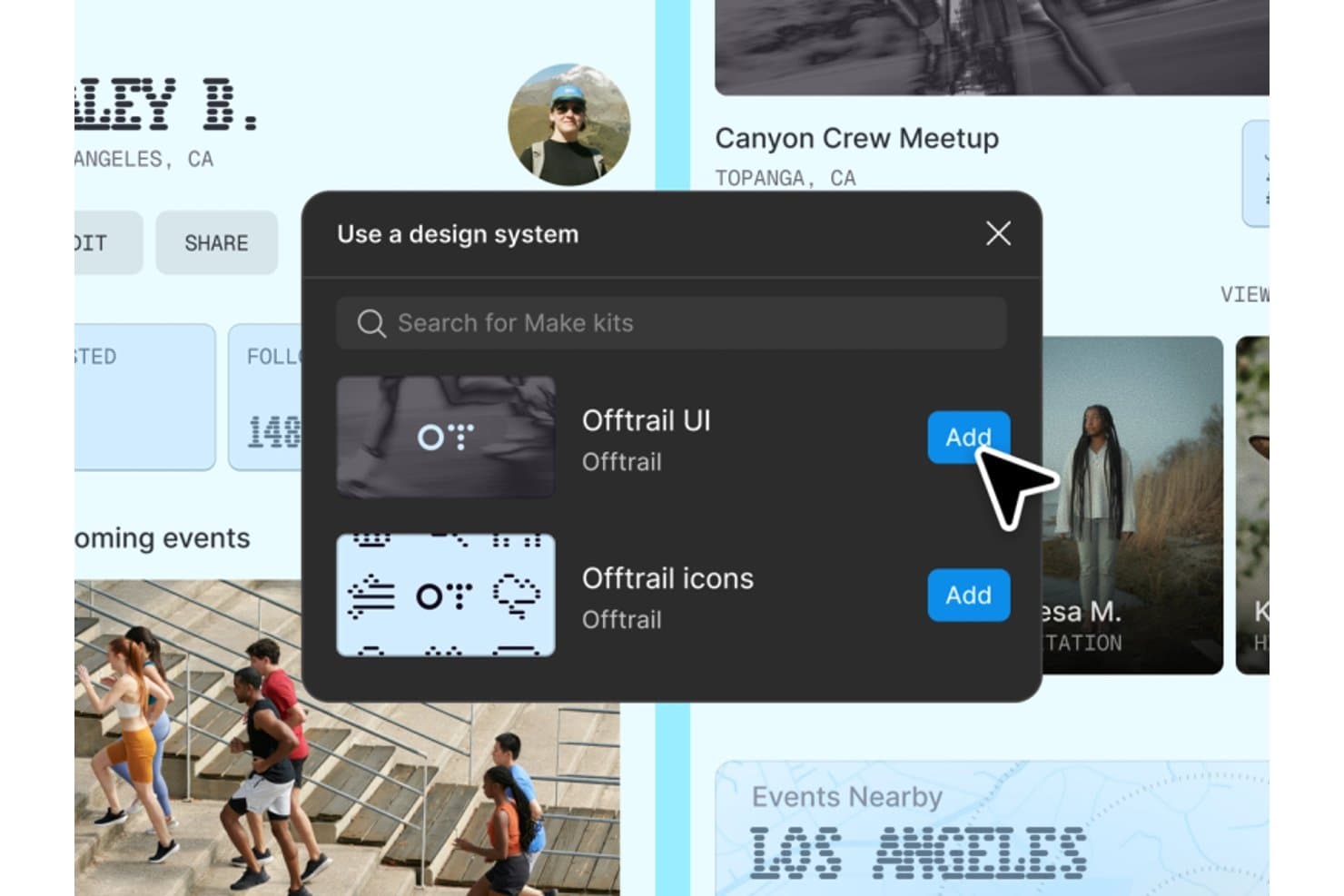
Figma lets users add free UI kits and icon sets via design system panels. Figma is a free UI design tool with an infinite vector canvas, components, variables, interactive prototypes, browser-based editing, comments, and AI-assisted Figma Make workflows.
Who Is Figma Best For?
UI/UX designers and startup teams that need to create, review, and iterate on interfaces together in a browser will find Figma a strong fit.
Why I Picked Figma
I picked Figma because its infinite multiplayer canvas lets my team co-edit wireframes and interface screens with live cursors, comments, and cursor chat. We use shareable prototype links to gather feedback from stakeholders without requiring editor access. That combination makes Figma best for real-time team collaboration.
Figma Key Features
- Auto layout: Create responsive frames that resize and reflow as content changes.
- Interactive prototyping: Add triggers, overlays, Smart Animate transitions, and interactive components.
- Community assets: Browse free UI kits, wireframes, icon sets, templates, and plugins.
- Figma Make: Generate code-backed prototypes and web apps from text prompts.
Figma Integrations
Figma offers native integrations with Jira, Slack, Asana, Microsoft Teams, Confluence, GitHub, and Storybook. GitHub and Storybook connectivity supports developer handoff, while Jira and Slack help teams coordinate design reviews.
What's Free?
Figma offers a free-forever Starter plan, rather than only a time-limited trial. It includes unlimited drafts and collaborators, but limits teams to three collaborative design files, three FigJam files, one project, and 30-day version history.
Pros and Cons
Pros:
- Shareable prototypes support stakeholder feedback
- Extensive community assets speed wireframing
- Real-time co-editing supports quick design reviews
Cons:
- Cross-file component sharing remains unavailable
- Three-file limit constrains ongoing projects
 Best for native Windows design workflows
- Free plan + free demo available
- From $11.99/user/month (billed annually)
Visit WebsiteCustomer Rating:4.4/5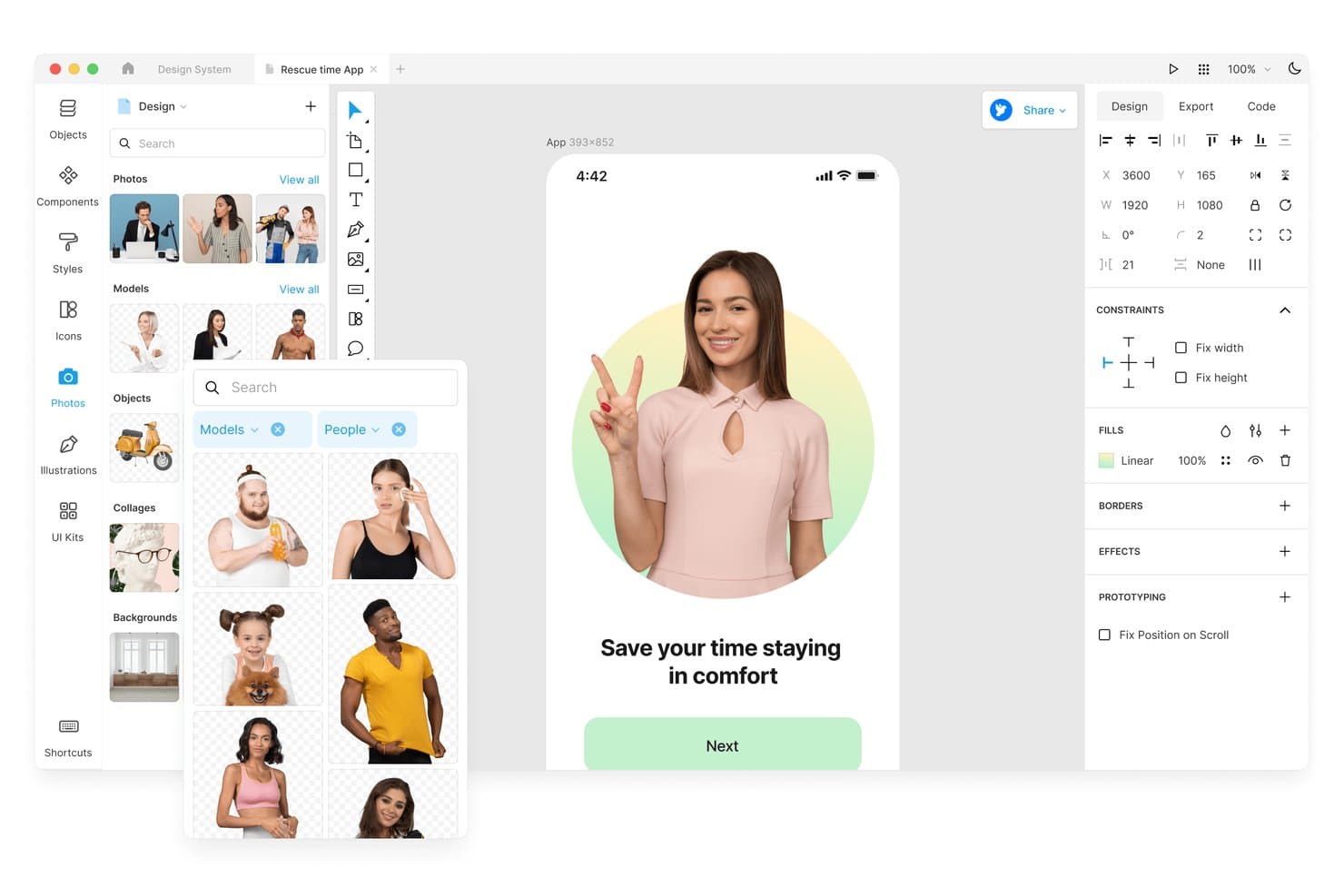
Lunacy lets users browse and insert stock photos directly into designs. Lunacy is a free UI design tool with a vector canvas, components, auto layout, prototyping, built-in UI kits and graphics, real-time collaboration, and code-focused export across desktop and web apps.
Who Is Lunacy Best For?
Lunacy suits UI/UX designers and front-end developers who want a free, native Windows workflow with built-in assets and code-focused handoff.
Why I Picked Lunacy
I picked Lunacy because it’s best for native Windows design workflows, with a desktop app that works offline instead of relying on a browser. I use its built-in UI kits and components to shape interface screens, then check CSS, XAML, JSON, or SVG in the Code tab for developer handoff. I can move a Windows mockup from frames and components into developer-ready output without changing tools.
Lunacy Key Features
- Interactive prototyping: Create hotspots with triggers, overlays, animations, and scroll behaviors.
- Real-time collaboration: Invite up to 10 co-editors to cloud documents.
- Color variables: Organize reusable colors with themes and variable groups.
- File compatibility: Open and save Sketch files, import Figma files, and use the open
.freeformat.
Lunacy Integrations
Lunacy’s native integrations are not clearly documented. It supports file-based workflows with Figma, Adobe XD, Zeplin, Abstract, and Simpli.
What's Free?
Lunacy has a free-forever plan with a full single-user license for its native Windows, macOS, and Linux apps. Cloud documents support up to 10 co-editors, while larger teams and advanced collaboration needs require a paid plan.
Pros and Cons
Pros:
- Offline editing protects local documents
- Built-in assets speed interface mockups
- Native Windows performance on older hardware
Cons:
- Cloud document limits constrain ongoing collaboration
- Free assets require attribution and low resolution
Learn more about Lunacy: Best for non-designer mockups with AI prompts
- Free plan available
- From $14/user/month
Visit WebsiteCustomer Rating:4.8/5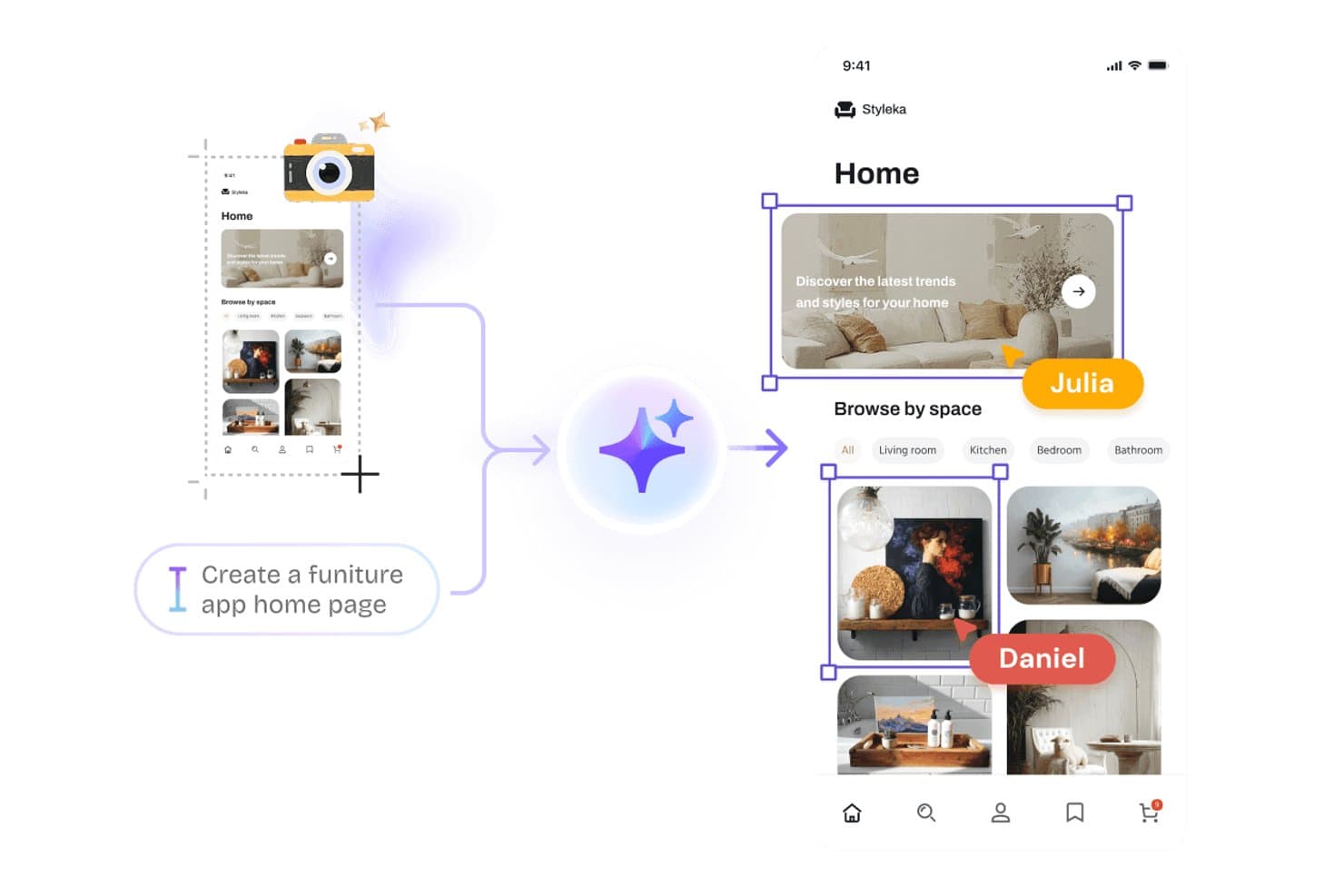
Visily lets users generate UI designs from text prompts using AI. Visily is a browser-based UI design tool for wireframes, mockups, prototypes, and diagrams, combining AI-generated editable screens, drag-and-drop components, interactive flows, and real-time collaboration.
Who Is Visily Best For?
Product managers, startup founders, and cross-functional teams that need to turn early ideas into shareable prototypes without relying on a dedicated designer.
Why I Picked Visily
I picked Visily because it’s best for non-designer mockups with AI prompts. I can turn text prompts, screenshots, sketches, or diagrams into editable UI screens, then refine components through inline AI chat. Auto-Prototyping, overlays, hover states, and drag triggers help me test product flows before involving engineering.
Visily Key Features
- Real-time co-editing: Edit boards together with comments, cursor chat, and follower mode.
- Template library: Choose from more than 1,500 templates for apps, websites, diagrams, and workflows.
- Inspect mode: View dimensions, typography, spacing, colors, CSS, Tailwind variables, and downloadable assets.
- Grid layouts: Organize screens with configurable rows and gridlines for structured interface planning.
Visily Integrations
Visily offers native integration with Figma. Pro and Business plans also include an MCP server for connecting AI coding agents.
What's Free?
Visily’s Starter plan is free forever, with 300 AI credits per workspace each month. It includes two editable boards, up to 2,500 elements per board, and up to 50 workspace members, but excludes private boards, Figma import and export, code export, MCP, and guest viewers or editors.
Pros and Cons
Pros:
- Enables real-time co-editing with comments and cursor chat
- Supports hover, drag, overlays, and animated transitions
- Converts prompts and screenshots into editable mockups
Cons:
- Reusable components lack confirmed variants and master components
- Vector editing lacks paths and Boolean operations
Learn more about Visily: Best for prototyping with coded components
- Free plan + 14-day free trial + demo available
- From $49/user/month
Visit WebsiteCustomer Rating:4.2/5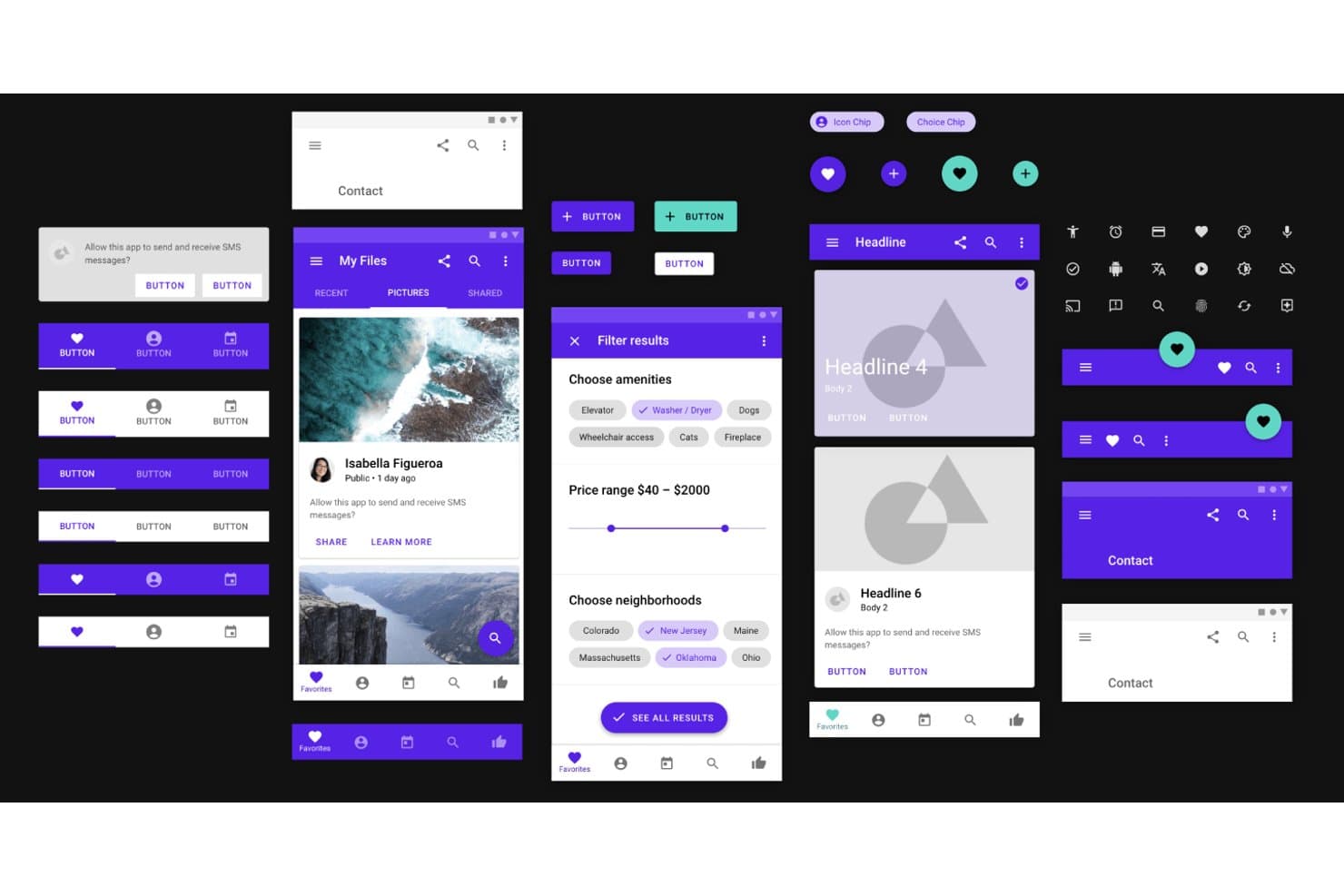
UXPin provides ready-made Material Design UI components for prototyping. UXPin is a free UI design tool with a vector canvas, interactive prototyping, reusable components, AI-assisted interface creation, code-backed libraries, and developer handoff features.
Who Is UXPin Best For?
UXPin suits UI/UX designers and front-end developers who need high-fidelity prototypes built with code-backed components.
Why I Picked UXPin
I picked UXPin because it’s best for prototyping with coded components, bringing React, Storybook, and npm-based elements into interface designs. I use Merge with MUI components to test realistic product flows instead of approximating controls. Its states, variables, conditional logic, and API requests also support prototypes that behave like working applications.
UXPin Key Features
- Vector editing: Create interfaces with pen, pencil, shape, and SVG tools.
- Interactive form elements: Add functional inputs, buttons, checkboxes, and select lists.
- Responsive breakpoints: Preview adaptive layouts across different device views.
- Accessibility tools: Check color contrast and simulate common color-vision deficiencies.
UXPin Integrations
UXPin lists integrations with Figma, Sketch, Storybook, Jira, Slack, FullStory, Adobe Fonts, and Google Fonts. Merge also connects to Git and npm, while API requests support data-driven prototypes.
What's Free?
UXPin offers a free-forever plan after its 14-day free trial, with access limited to two prototypes, 50 AI credits per month, GPT-5 mini, and 20 MUI components. Paid plans are required for advanced features such as conditional logic, expressions, Storybook integration, and additional coded libraries.
Pros and Cons
Pros:
- Detailed handoff specs support developer review
- Logic-rich prototypes model application behavior
- Real form controls support realistic usability testing
Cons:
- Large projects can load slowly
- Free offering restricts long-term experimentation
Learn more about UXPin: Best with open-source team environments
- Free plan + 14-day free trial + free demo available
- From $7/user/month
Visit WebsiteCustomer Rating:4.5/5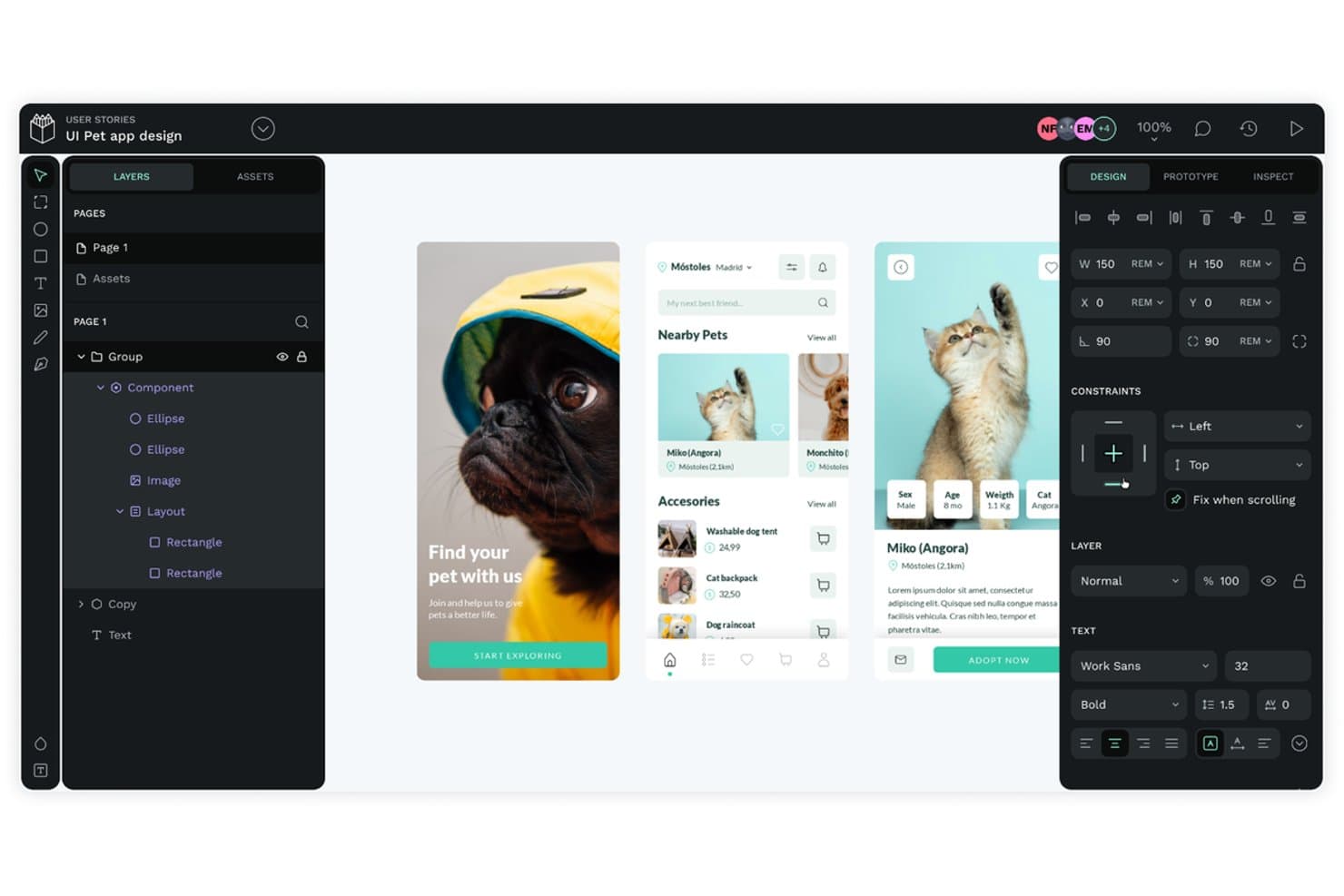
Penpot lets users design mobile app UIs with flex layout tools. Penpot is a free UI design tool with an SVG-based canvas, CSS Flex and Grid layouts, reusable components and design tokens, interactive prototypes, real-time collaboration, and developer handoff tools.
Who Is Penpot Best For?
Penpot suits product teams that want CSS-based UI design, shared design systems, and open-source or self-hosted collaboration.
Why I Picked Penpot
I picked Penpot because it brings open-source collaboration into serious UI design work. My team can self-host projects, build interfaces on an SVG canvas, and use CSS Flex and Grid layouts that translate directly to frontend implementation. Shared components, variants, and W3C design tokens help us maintain a consistent design system across product screens.
Penpot Key Features
- Interactive prototyping: Connect screens with triggers, overlays, actions, and animated transitions.
- Penpot Hub: Access community libraries, UI kits, icon sets, and research templates.
- Inspect mode: View measurements, copy CSS, inspect markup, and export design assets.
- Multi-format export: Export designs as PNG, JPEG, WEBP, SVG, or PDF.
Penpot Integrations
Native integrations are not clearly documented; Penpot supports plugins for Iconify, Tailwind, Locofy, and Figma-to-Penpot migration, plus Adobe XD imports. It also offers webhooks and REST/open API.
What’s Free?
Penpot offers a free-forever plan, not just a trial, with unlimited files and teams. The cloud plan supports up to eight team members, unlimited viewers, 10 GB of storage, and seven-day version history and file recovery; paid plans add larger limits and advanced administration.
Pros and Cons
Pros:
- Free self-hosting supports unlimited users
- Native W3C design token support
- CSS-based Flex and Grid layouts
Cons:
- Prototypes lack conditional logic and variables
- Real-time editing can become sluggish
Learn more about Penpot: Best for AI-assisted design-to-live-site publishing
- Free plan + free trial available
- From $10/month (billed annually)
Visit WebsiteCustomer Rating:4.4/5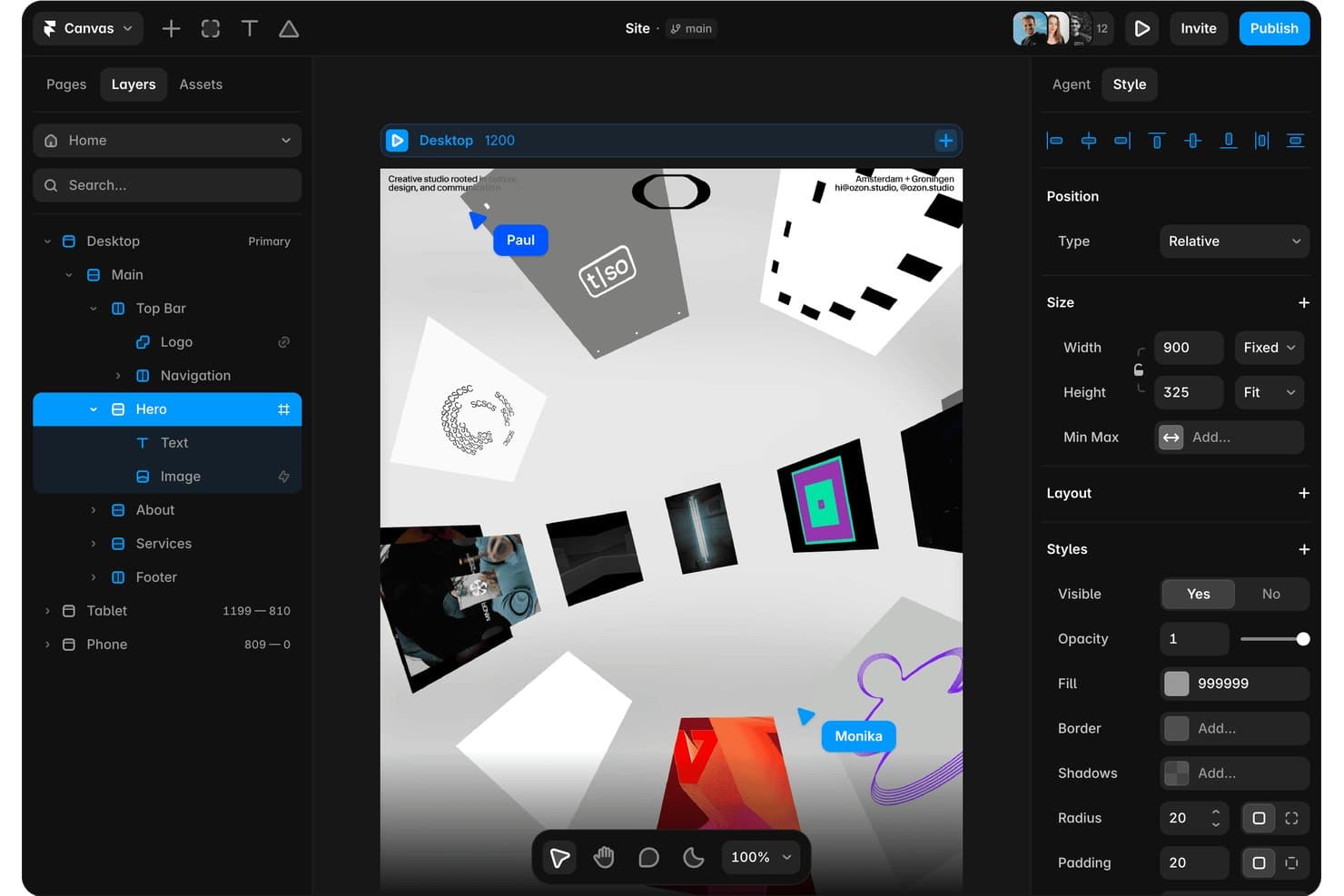
Framer lets users design and layer components visually with real-time collaboration. Framer is a free UI design tool with a vector canvas for wireframes, high-fidelity interfaces, interactive prototypes, reusable components, team collaboration, and live website publishing.
Who Is Framer Best For?
Framer suits UI/UX designers, startup founders, and solopreneurs who want to turn AI-assisted concepts into polished, publishable websites.
Why I Picked Framer
I picked Framer because it connects free UI design with AI-assisted design-to-live-site publishing. I use its AI Design Agent to turn reference images or URLs into editable layouts, then apply responsive breakpoints and interactions on the vector canvas. Publishing that prototype as a live, responsive website lets me validate concepts without rebuilding them elsewhere.
Framer Key Features
- Reusable components: Create variants and component variables for repeatable interface elements.
- Real-time collaboration: Use multiplayer cursors, pinned comments, and threaded discussions.
- Templates and plugins: Browse community templates and plugins for UI assets and workflows.
- Figma import: Transfer frames, layers, and visual structure through the official plugin.
Framer Integrations
Framer offers marketplace integrations with Figma, WordPress, Tally Forms, and Framer Commerce through plugins.
What's Free?
Framer offers a free-forever plan with design tools, 500 monthly AI credits, 10 CMS collections, and up to 1,000 pages. It supports up to three editors and includes a Framer domain, 1 GB bandwidth, and 5 MB file uploads, but custom domains require a paid plan.
Pros and Cons
Pros:
- Pinned comments support focused design reviews
- Live prototypes validate ideas without rebuilding
- AI turns references into editable layouts
Cons:
- Website focus limits native app workflows
- Developer handoff lacks native inspection tools
 Best for macOS vector editing workflows
- Free plan + 30-day free trial available
- From $12/user/month (billed annually)
Visit WebsiteCustomer Rating:4.5/5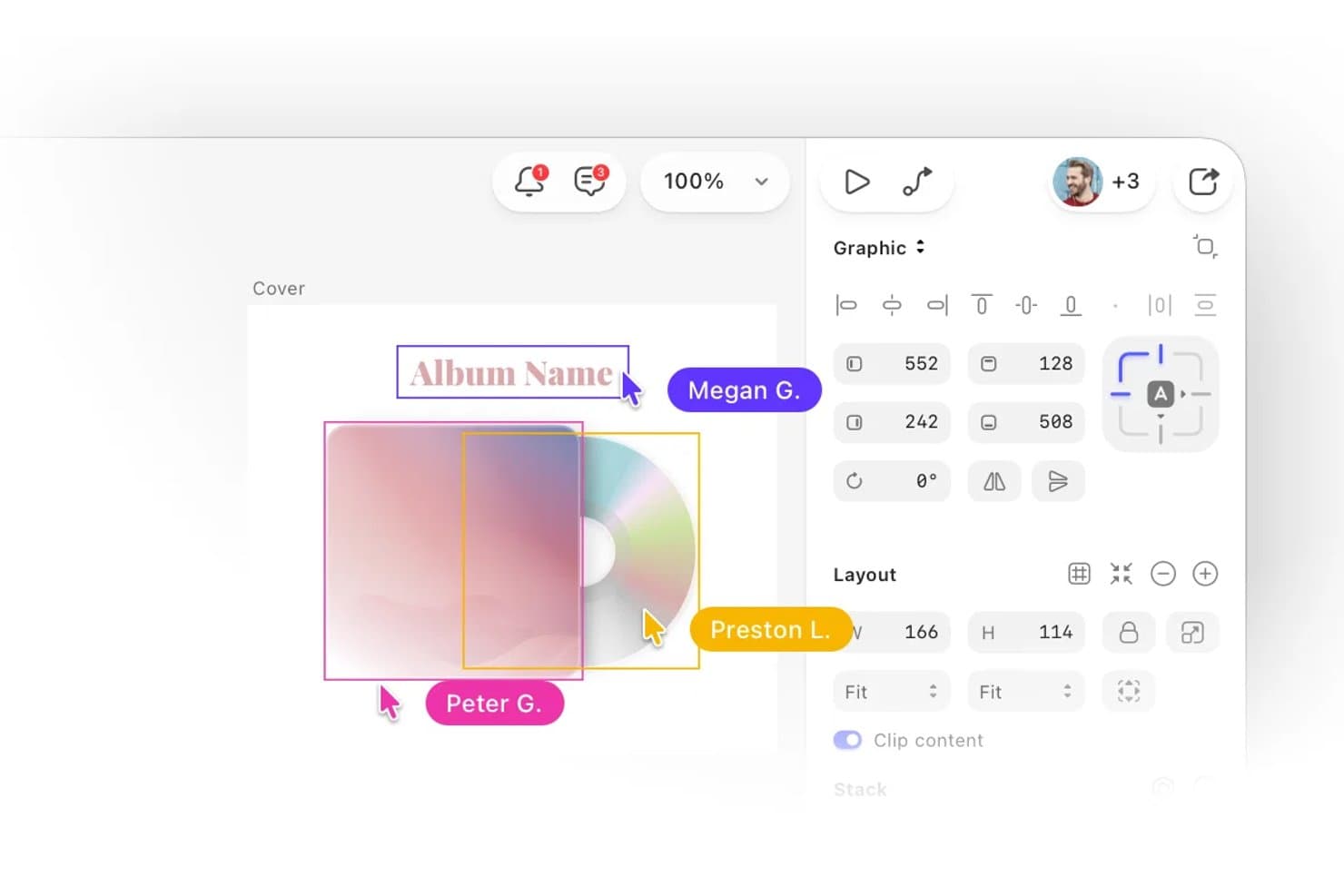
Sketch lets users collaborate in real time on UI design projects. Sketch is a UI design tool for macOS that combines vector editing, prototyping, reusable Symbols, team collaboration, and browser-based developer handoff, with free Viewers and a 30-day trial instead of ongoing free editing.
Who Is Sketch Best For?
Mac-based UI designers who need precise vector editing, reusable components, and browser-based developer handoff.
Why I Picked Sketch
I picked Sketch for its Best for macOS vector editing workflows positioning. Its native editor combines boolean operations, nested frames, and Stacks for precise interface layouts. I also use Smart Animate and overlays to test mobile flows, while browser-based handoff lets developers inspect designs without a Mac. Free access is limited to Viewers and a 30-day trial.
Sketch Key Features
- Symbols and Libraries: Reuse nested components, shared styles, and Color Variables across documents.
- Free Viewers: Invite unlimited viewers to comment, inspect designs, download assets, and play prototypes.
- Design Templates: Start with Apple, Microsoft Fluent, Google Material, macOS, and browser mockup resources.
- Offline Editing: Save files locally and continue designing without an internet connection.
Sketch Integrations
Sketch supports integrations with Slack, Jira, Notion, GitHub, Unsplash, ProtoPie, Zeplin, Principle, Origami, and Overflow. Its extension ecosystem also includes accessibility tools such as Stark and AdeeApp, plus the Sketch MCP Server for AI-assisted workflows.
What's Free?
Sketch offers a 30-day free trial rather than a free-forever editing plan. After the trial, editing requires a paid subscription, while free Viewers can inspect designs, comment, download assets, and play prototypes without editing access.
Pros and Cons
Pros:
- Reusable Symbols support consistent interface systems
- Free browser handoff supports developer inspection
- Native Mac vector editing remains smooth
Cons:
- Mac-only editing excludes cross-platform teams
- Long-term free editing isn't available
 Best for mobile app interface animation
- 15-day free trial
- From $24/user/month (billed annually)
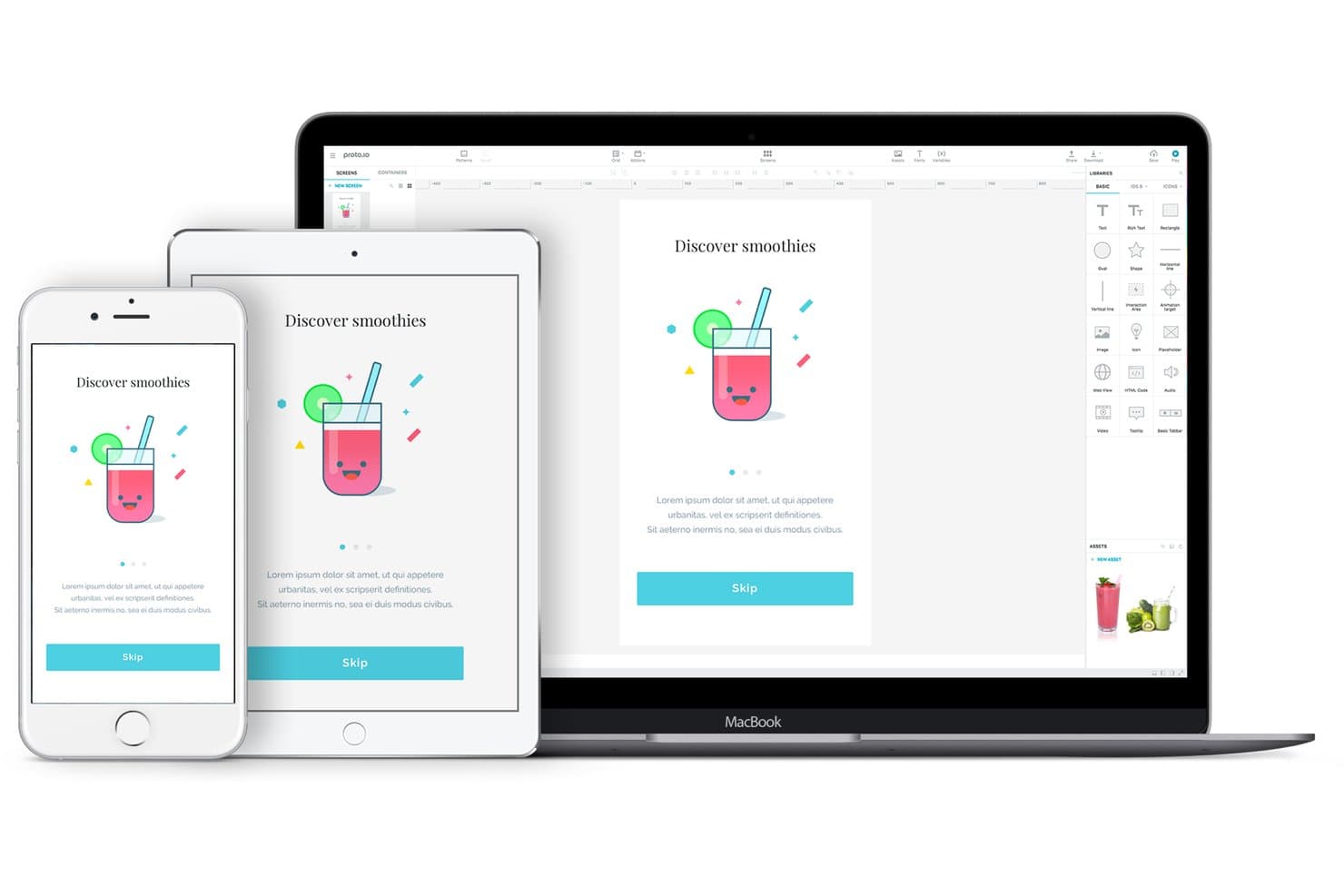
Proto.io previews designs across iPhone, iPad, and MacBook simultaneously. Proto.io is a browser-based UI prototyping tool with a limited free plan, offering no-code screen design, native-style components, animated interactions, variables, comments, device previews, and HTML, PNG, and PDF exports.
Who Is Proto.io Best For?
Product managers and startup founders can use Proto.io to test mobile app flows with realistic gestures, animations, and no-code interactions.
Why I Picked Proto.io
I picked Proto.io for mobile app interface animation because I can prototype gestures, screen transitions, and touch responses without code. Its 80-plus events, timeline animations, custom easing, and Lottie support help me recreate app interactions for user testing. Variables and conditional logic let me test flows such as onboarding, form validation, and personalized states.
Proto.io Key Features
- Browser-based editor: Create prototypes without installing desktop software.
- Native UI components: Use 250-plus iOS, Android, web, Windows, and watchOS elements.
- Design imports: Import layered files from Figma, Sketch, Adobe XD, and Photoshop.
- Prototype sharing: Share live or snapshot links with threaded comments and password protection.
Proto.io Integrations
Proto.io offers integrations with Figma, Sketch, Adobe XD, Photoshop, Jira, Confluence, Trello, UserTesting, UserZoom, Userlytics, Lookback, and UXArmy. Design imports preserve layers, while Jira, Confluence, and Trello support product workflow reviews.
What's Free?
Proto.io offers a 15-day free trial with all prototyping features, unlimited projects, and users, without requiring a credit card. After the trial, you can downgrade to a free plan with limited options, or your account will be deleted if you take no action.
Pros and Cons
Pros:
- Extensive native-style components and templates
- Timeline animations support realistic app flows
- Detailed mobile gestures and touch interactions
Cons:
- No simultaneous editing for design teams
- No pen tool for precise vector design
Learn more about Proto.io: Best for wireframing without a design background
- Free plan available
- From $9/user/month (billed annually)
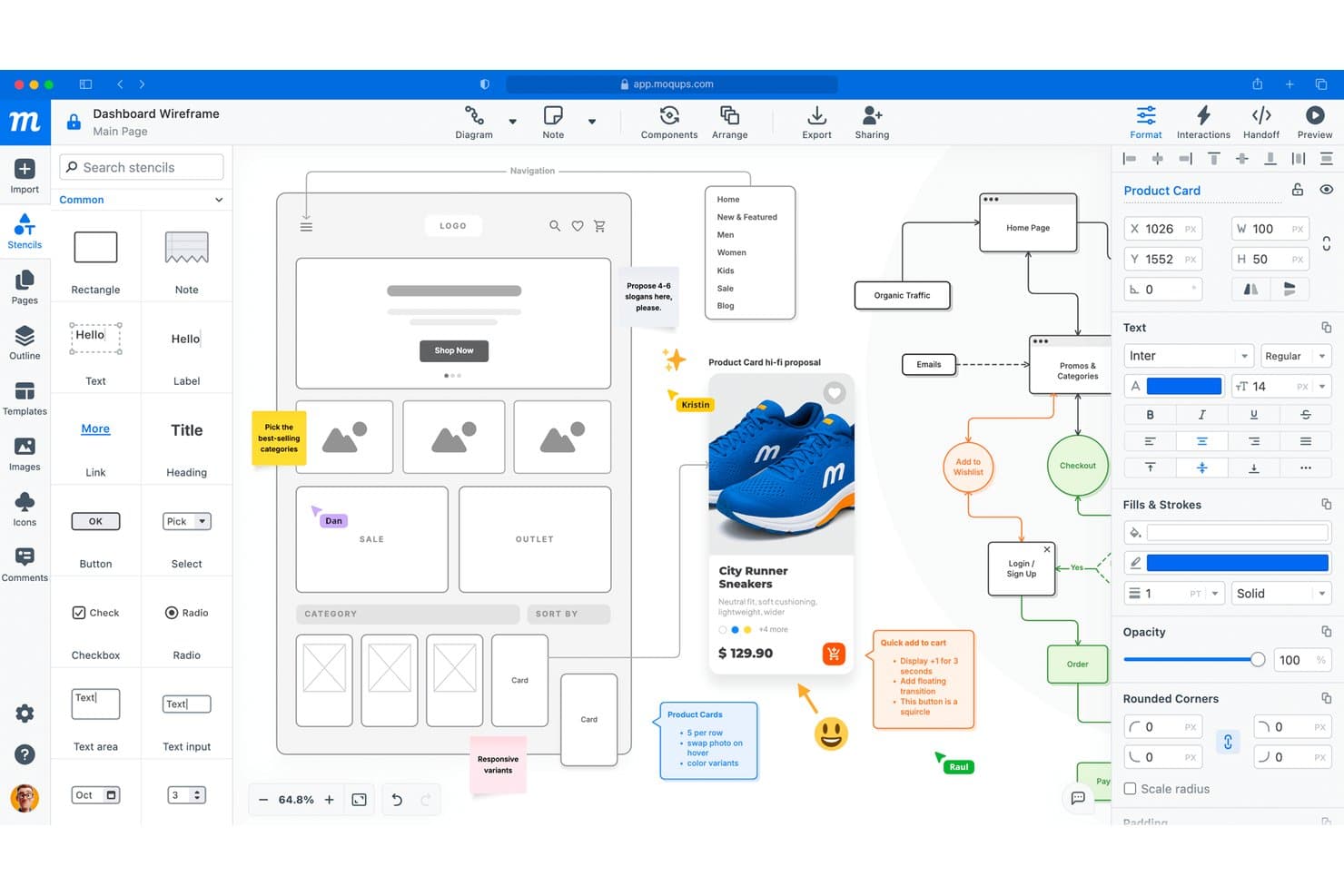
Moqups lets users design wireframes with collaborative annotations and feedback. Moqups is a browser-based UI design tool with a free plan for wireframes, mockups, diagrams, and clickable prototypes, combining stencil-based screen design with templates, reusable components, stakeholder comments, and CSS/JSX handoff.
Who Is Moqups Best For?
Product managers and startup founders who need quick wireframes, clickable prototypes, and stakeholder feedback without advanced design skills.
Why I Picked Moqups
I picked Moqups for wireframing without a design background because its stencil-based canvas and 150+ templates turn product ideas into usable screens quickly. I use UI kits, layout grids, and reusable components to map flows without drawing every element from scratch. Clickable hotspots and object interactions help me test concepts before investing in high-fidelity design.
Moqups Key Features
- CSS/JSX export: Export selected objects for developer handoff.
- Pinned comments: Add feedback directly to designs and objects.
- Page interactions: Link screens to pages or external URLs.
- Jira and Confluence integration: Embed projects in Atlassian workspaces.
Moqups Integrations
Moqups offers native integrations with Jira Cloud, Confluence Cloud, Slack, Google Drive, Dropbox, Box, and Trello.
What's Free?
Moqups offers a free-forever plan with no time limit. It allows two active projects, 400 objects per project, 25 MB of image storage, and up to seven guests, but excludes team roles, private projects, project permissions, archiving, and PNG, PDF, or HTML exports.
Pros and Cons
Pros:
- CSS and JSX exports aid handoff
- Clickable hotspots support quick validation
- Templates accelerate wireframe creation
Cons:
- Basic interactions limit advanced prototypes
- Free projects and objects cap growth
Learn more about Moqups:
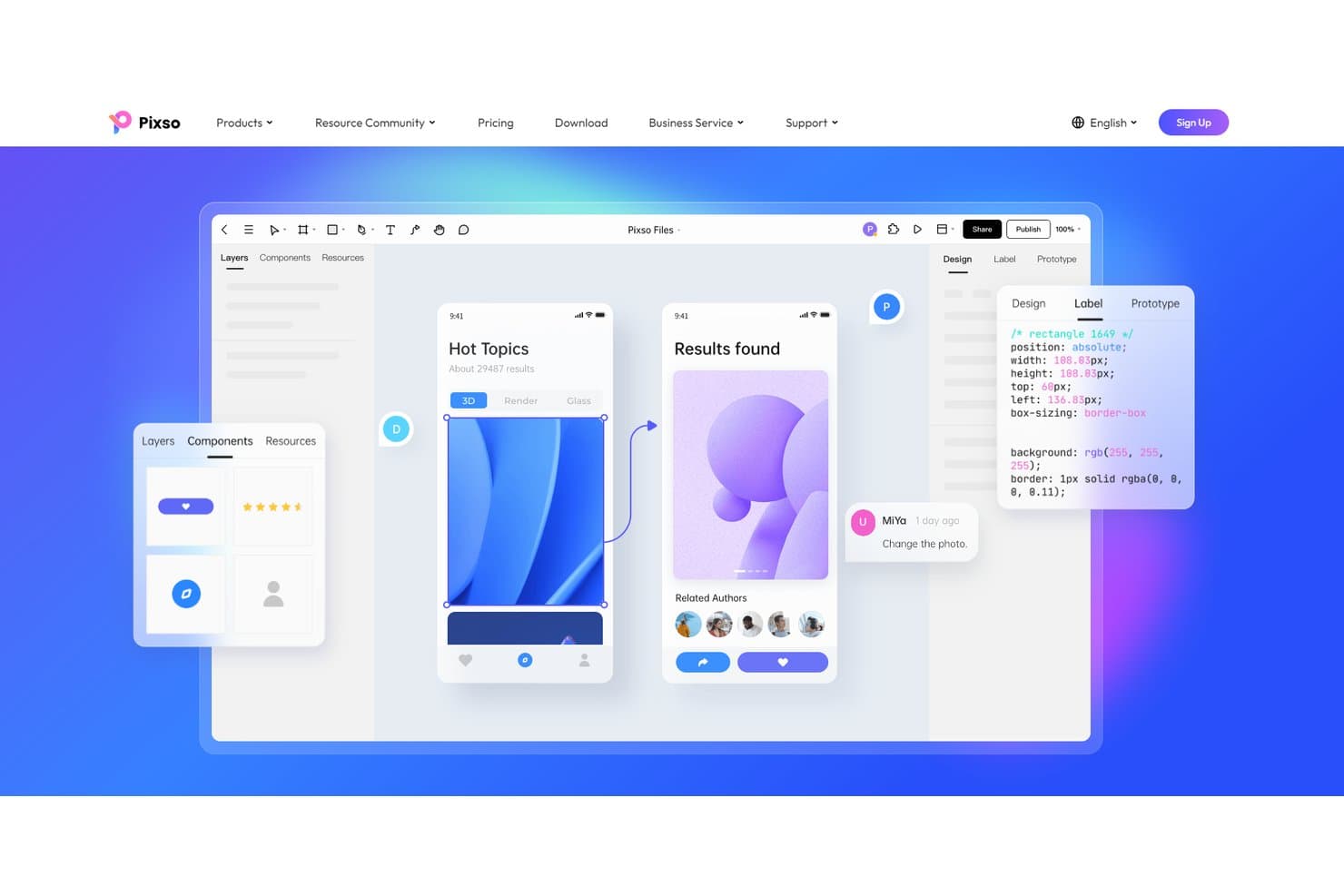
Pixso lets users design, prototype, and inspect UI with CSS code export. Pixso is a free UI design platform with vector editing, interactive prototyping, reusable components, collaborative whiteboards, design systems, and developer handoff tools for CSS, iOS, Android, SwiftUI, and HTML.
Who Is Pixso Best For?
UI/UX designers and front-end developers who need shared design workspaces with CSS, iOS, Android, SwiftUI, and HTML handoff.
Why I Picked Pixso
I picked Pixso because its cross-platform design handoff connects interface work with implementation. I use its Dev view for CSS, iOS, and Android reference code, then export SwiftUI or HTML through Design to Code. Its unit conversion and pinned developer annotations help translate responsive screens into build-ready specifications.
Pixso Key Features
- Vector editing: Create interfaces with pen tools, boolean operations, grids, and auto layout.
- Interactive prototyping: Add triggers, overlays, transitions, scrolling, videos, and GIFs.
- Component libraries: Build reusable components with variants, properties, shared styles, and version control.
- Real-time collaboration: Co-edit designs, add visual comments, and manage file permissions.
Pixso Integrations
Pixso connects to Cursor, VS Code, Windsurf, and Claude Code through Pixso MCP for AI-assisted handoff. It also offers a public Plugin API and plugins such as Tokens Studio, Phosphor Icons, and Pexels.
What's Free?
Pixso offers a free-forever plan with unlimited free viewer seats. Version history retention and some advanced features depend on your plan, so editing and collaboration needs may require paid seats.
Pros and Cons
Pros:
- Prototype triggers include overlays and gestures
- Unlimited viewers simplify stakeholder reviews
- Cross-platform handoff supports developer collaboration
Cons:
- Imported designs may need manual fixes
- Free plan restricts ongoing project work
Learn more about Pixso:
Diğer Ücretsiz Kullanıcı Arayüzü Tasarım Araçları
Kısa listeme girmeyen ancak yine de göz atmaya değer bazı ek ücretsiz kullanıcı arayüzü tasarım araçları şunlardır:
- 11PlasmicBest for design-to-code handoff on dev teams
- 12v0 by VercelBest for prompt-to-deployed app prototyping
- 13MockFlowBest for planning user journeys visually
- 14CanvaBest for non-designer mockups with templates
- 15MarvelBest for quick stakeholder prototype sign-off
- 16MiroBest for brainstorming that feeds into mockups
- 17MockplusBest for Axure-style prototyping without design skills
- 18ProtoPieBest for sensor-driven interaction prototyping
- 19Quant UXBest for prototype testing without extra tools
How I Evaluate Free UI Design Tools
First, I define what counts as free. A UI design tool qualifies if it offers a long-term free plan, not just a time-limited trial. I weigh core functionality most heavily, such as laying out vector screens and linking clickable prototypes; standout features, like stakeholder comments; and beyond-feature fit, including free-plan team limits.
Core Functionality (Table Stakes For This List)
In addition to my free plan requirements, I use a scoring system to select tools for my list. I score each one on a scale from 0 (does not offer the functionality) to 5 (excels in this area) for each core functionality listed below, based on what's available on the free plan. I then convert the total into a percentage to help assess each tool's overall fit, with extra weight on any functionalities I've deemed essential.
- Vector Canvas (Essential): I look for precise frame, shape, layer, and alignment controls for laying out screens across a multi-step product flow.
- Prototyping & Interactions (Essential): I evaluate whether you can link screens and demonstrate key actions, such as moving from sign-up to account setup.
- Component Reuse: I check whether shared buttons, icons, and text styles can be reused and updated across screens.
- Real-Time Collaboration: I look for free-plan options to comment, co-edit, or review a draft with design, product, and engineering teammates.
- Templates & Assets: I consider whether built-in UI kits, templates, or icons give you a useful starting point for common product screens.
- Export & Handoff: I assess whether developers can inspect measurements, colors, and assets or export files needed to build the designed screens.
Once I have a list of tools that meet the criteria, I consider what sets each platform apart.
Differentiating Factors (What Sets Vendors Apart)
Here's how I compare and contrast different vendors:
Standout Features
I look for shareable prototype links that let PMs send a clickable flow to stakeholders without requiring logins. A quick link to a sign-up prototype can replace a meeting. I also evaluate no-code mockup speed—drag-and-drop kits in tools like Figma or Penpot help non-designers produce polished screens fast. Browser-based access matters too, since it removes install barriers for cross-functional reviewers on any device.
Beyond Features
I evaluate how quickly a PM can go from a blank canvas to a testable prototype without waiting on a designer. Tools like Figma and Penpot offer starter files that cut ramp-up time during sprint planning. I also check whether free-plan collaborator caps fit a typical cross-functional pod, since hitting a seat limit mid-review stalls feedback. File portability matters too—I look for open export formats so teams aren't locked in if needs change.
Ücretsiz Kullanıcı Arayüzü Tasarım Araçları Nasıl Seçilir?
Uzun özellik listeleri ve karmaşık fiyatlandırma yapıları içinde kaybolmak kolaydır. Size özgü yazılım seçimi süreciniz üzerinde çalışırken odağınızı korumanıza yardımcı olmak için göz önünde bulundurmanız gereken faktörlerin bir kontrol listesini aşağıda bulabilirsiniz:
| Faktör | Nelere Dikkat Edilmeli? |
| Ölçeklenebilirlik | Araç, ekibiniz büyüdükçe onu destekleyecek mi, yoksa ücretsiz planın sınırlarını kısa sürede aşacak mısınız? |
| Entegrasyonlar | Araç, mevcut tasarım, proje yönetimi veya dosya depolama uygulamalarınıza yerel olarak bağlanabiliyor mu? |
| Özelleştirilebilirlik | Aracın iş akışlarını, şablonlarını veya kütüphanelerini ekibinizin kendine özgü sürecine uyacak şekilde uyarlayabilir misiniz? |
| Kullanım kolaylığı | Yeni kullanıcılar hızlı bir şekilde tasarlamaya başlayabilecek mi, yoksa kapsamlı bir eğitime mi ihtiyaç duyacaklar? |
| Uygulama ve işe alıştırma | Ekibinizin çalışmaya başlaması ne kadar sürecek ve yardımcı olmak için hangi kaynaklar mevcut? |
| Maliyet | Daha sonra bütçenizi etkileyebilecek gizli maliyetler, yükseltme gereksinimleri veya kullanım sınırları var mı? |
| Güvenlik önlemleri | Araç, ihtiyaçlarınız için yeterli veri koruması, kullanıcı izinleri ve uyumluluk seçenekleri sunuyor mu? |
| Destek erişilebilirliği | Sorunlarla karşılaşırsanız sohbet, e-posta veya bilgi tabanı üzerinden zamanında yardım alabiliyor musunuz? |
Ücretsiz Kullanıcı Arayüzü Tasarım Araçları Nedir?
Ücretsiz kullanıcı arayüzü tasarım araçları, kullanıcıların ödeme yapmasını gerektirmeden kullanıcı arayüzü maketleri veya prototipleri oluşturmasına, düzenlemesine ve paylaşmasına olanak tanıyan yazılım platformlarıdır. Bu araçlar genellikle sürükle ve bırak bileşenleri, temel iş birliği ve dışa aktarma seçenekleri gibi temel tasarım özellikleri sunar. Ücretsiz kullanıcı arayüzü tasarım araçları, bireylerin ve ekiplerin dijital ürünleri görselleştirmesine, fikirleri test etmesine ve geliştirme öncesinde tasarım kavramlarını iletmesine yardımcı olur; bu da onları erken aşamadaki projeler veya sınırlı bütçeye sahip olanlar için erişilebilir kılar.
Ücretsiz Kullanıcı Arayüzü Tasarım Araçlarının Özellikleri
UI tasarım araçlarında yaygın olarak bulunan özellikleri ve bunların ücretsiz ve ücretli planlarda genellikle hangilerinin sunulduğunu inceleyelim.
Genellikle Ücretsiz Olan UI Tasarım Aracı Özellikleri
- Sürükle ve bırak düzenleyicisi: Arayüz öğelerini bir tuvale sürükleyerek tel kafesler veya maketler oluşturun; böylece kod yazmadan yerleşimleri kolayca görselleştirebilirsiniz.
- Temel bileşen kitaplığı: Ekranları hızlıca oluşturmak için düğmeler, giriş alanları ve simgeler gibi standart UI öğelerinden oluşan bir sete erişin.
- Görüntü veya PDF olarak dışa aktarma: Geri bildirim veya belgeleme amacıyla tasarımlarınızı PNG ya da PDF dosyaları olarak kaydedin ve paylaşın.
- Tek kullanıcı erişimi: Ekip iş birliği özellikleri olmadan aracı bireysel olarak kullanın; bu özellik, tek başına çalışan tasarımcılar veya başlangıç aşamasındaki projeler için uygundur.
- Sınırlı proje depolama alanı: Genellikle etkin tasarım sayısına sınırlama getirilen az sayıda proje veya dosya oluşturun ve depolayın.
- Yorum yapma veya açıklama ekleme: Fikirleri netleştirmek ya da başkalarından geri bildirim almak için tasarımlara not veya yorum ekleyin.
- Şablon seçimi: Yaygın ekran türleri için hazır şablonlarla başlayarak tasarım sürecini hızlandırın.
- Temel sürüm geçmişi: Gerektiğinde önceki sürümlere geri dönmek için basit bir değişiklik geçmişine erişin.
Genellikle Ücretli Olan UI Tasarım Aracı Özellikleri
- Gerçek zamanlı ekip iş birliği: Dağıtık ekipleri ve daha hızlı yinelemeyi destekleyerek aynı tasarım üzerinde birden fazla kullanıcıyla eş zamanlı çalışın.
- Gelişmiş prototipleme: Gerçek uygulama davranışını taklit eden tıklanabilir prototipler oluşturmak için etkileşimli öğeler, geçişler ve animasyonlar ekleyin.
- Özel bileşen kitaplıkları: Projeler genelinde tutarlılık sağlamak için yeniden kullanılabilir tasarım sistemleri veya markalı UI kitleri oluşturun ve yönetin.
- Sınırsız proje depolama alanı: Kullanım sınırlarına ulaşma endişesi taşımadan sınırsız sayıda proje, dosya ve varlık depolayın.
- Role dayalı izinler: Daha büyük kuruluşlarda güvenli iş birliğini desteklemek için tasarımları kimlerin görüntüleyebileceğini, düzenleyebileceğini veya yorumlayabileceğini kontrol edin.
- Üçüncü taraf araçlarla entegrasyon: Daha sorunsuz iş akışları için proje yönetimi, geliştirme veya bulut depolama platformlarına doğrudan bağlanın.
- Öncelikli müşteri desteği: Ücretli kullanıcılar için daha hızlı yanıt sürelerine, özel destek kanallarına veya işe alıştırma yardımına erişin.
- Gelişmiş dışa aktarma seçenekleri: Geliştiricilere teslim sürecini kolaylaştırmak için tasarımları SVG veya kod parçacıkları gibi ek biçimlerde dışa aktarın.
- Tasarım teslim araçları: Geliştiricilerin tasarımları doğru şekilde uygulamasına yardımcı olmak için özellikleri, varlıkları ve stil kılavuzlarını otomatik olarak oluşturun.
Ücretsiz UI Tasarım Araçlarının Faydaları
Ücretsiz UI tasarım araçlarını kullanmak ekibiniz ve işletmeniz için çeşitli faydalar sağlar. Yararlanabileceğiniz bazı avantajlar şunlardır:
- Daha düşük başlangıç maliyetleri: Ücretli planlara bağlı kalmadan kullanıcı arayüzleri tasarlamaya başlayarak bütçeniz dâhilinde deneme yapmayı veya prototip oluşturmayı kolaylaştırın.
- Daha hızlı proje başlangıçları: Maketleri hızlıca oluşturup paylaşmak için yerleşik şablonları ve sürükle ve bırak düzenleyicilerini kullanın; böylece ekiplerin fikirlerden görsellere daha kısa sürede geçmesini sağlayın.
- Erişilebilir iş birliği: Dağıtık veya farklı departmanlardan oluşan ekiplerle çalışırken bile yorum yapma ya da açıklama ekleme özelliklerini kullanarak tasarımları paylaşın ve geri bildirim toplayın.
- Daha kısa işe alıştırma süresi: Basit arayüzler ve yönlendirmeli eğitimler, yeni kullanıcıların hızlıca başlamasına yardımcı olarak tasarım sürecindeki gecikmeleri en aza indirir.
- Satıcı bağımlılığının olmaması: Uzun vadeli sözleşmelere veya aboneliklere bağlı olmadığınız için birden fazla aracı deneyin ya da finansal risk almadan platform değiştirin.
- Başlangıç aşamasındaki projeleri destekler: Ücretsiz planlar, girişimlerin veya küçük ekiplerin gelişmiş özelliklere ya da ücretli yükseltmelere yatırım yapmadan önce fikirleri doğrulamasına ve tasarımlar üzerinde yineleme yapmasına olanak tanır.
- Denemeyi teşvik eder: Sınırlı proje depolama alanı ve temel dışa aktarma seçenekleri, maliyetler konusunda endişelenmeden farklı yerleşimleri veya kavramları test etmeyi kolaylaştırır.
UI Tasarım Araçlarının Maliyetleri ve Fiyatlandırması
Bu makaleye ücretsiz olarak kullanılabilen en iyi UI tasarım aracı seçeneklerini aradığınız için geldiğinizi biliyorum. Ancak ücretsiz planlar yalnızca sınırlı özellikler sunduğundan, gelecekte planınızı yükseltmeniz gerekme olasılığı oldukça yüksektir.
Aşağıdaki tablo, UI tasarım araçlarında yaygın olarak sunulan planları, bunların ortalama fiyatlarını ve genellikle dâhil edilen özellikleri özetlemektedir:
UI Tasarım Araçları İçin Plan Karşılaştırma Tablosu
| Plan Türü | Ortalama Fiyat | Yaygın Özellikler |
| Ücretsiz Plan | $0 | Temel bileşen kitaplığı, sürükle ve bırak düzenleyici, sınırlı proje depolama alanı, tek kullanıcı erişimi ve temel dışa aktarma seçenekleri. |
| Bireysel Plan | $5-$15/kullanıcı/ay | Sınırsız proje, daha geniş depolama alanı, temel prototipleme, öncelikli destek ve daha fazla şablona erişim. |
| İşletme Planı | $15-$30/kullanıcı/ay | Ekip iş birliği, gelişmiş prototipleme, özel bileşen kitaplıkları, entegrasyonlar ve rol tabanlı izinler. |
| Kurumsal Plan | $30-$60/kullanıcı/ay | Gelişmiş güvenlik, SSO, denetim günlükleri, özel hesap yönetimi, özel başlangıç süreci ve uyumluluk özellikleri. |
Ücretsiz Kullanıcı Arayüzü Tasarım Araçları Hakkında SSS
Ücretsiz kullanıcı arayüzü tasarım araçları hakkında sık sorulan bazı soruların yanıtlarını burada bulabilirsiniz:
Ücretsiz kullanıcı arayüzü tasarım araçları profesyonel projeler için uygun mudur?
Evet, ücretsiz kullanıcı arayüzü tasarım araçları, özellikle ilk aşamalardaki veya küçük ekiplerin yer aldığı profesyonel projelerde kullanılabilir. Ancak projeniz büyüdükçe veya ihtiyaçlarınız daha karmaşık hâle geldikçe yükseltme gerektiren özellik ya da depolama sınırlamalarıyla karşılaşabilirsiniz.
Ücretsiz kullanıcı arayüzü tasarım araçlarını kullanarak başkalarıyla iş birliği yapabilir miyim?
Evet, birçok ücretsiz kullanıcı arayüzü tasarım aracı yorum yapma veya bağlantı paylaşma gibi temel iş birliği özellikleri sunar. Gerçek zamanlı çok kullanıcılı düzenleme veya gelişmiş izinler için genellikle ücretli bir plana ihtiyacınız olur.
Ücretsiz kullanıcı arayüzü tasarım araçlarında ne tür sınırlamalarla karşılaşmayı beklemeliyim?
Ücretsiz planlar genellikle proje sayısını, depolama alanını, dışa aktarma biçimlerini veya gelişmiş prototipleme ve entegrasyon özelliklerine erişimi sınırlar. Minimum gereksinimlerinizi karşıladığından emin olmak için her aracın ücretsiz katman ayrıntılarını inceleyin.
Ücretsiz kullanıcı arayüzü tasarım araçlarını kullanırken verilerim güvende mi?
Saygın ücretsiz kullanıcı arayüzü tasarım araçlarının çoğu temel güvenlik önlemleri sağlar; ancak SSO, denetim günlükleri veya uyumluluk sertifikaları gibi gelişmiş özellikler genellikle ücretli planlara ayrılmıştır. Sağlayıcının gizlilik politikasını ve güvenlik belgelerini her zaman kontrol edin.
Tasarımlarımı daha sonra başka bir araca taşıyabilir miyim?
Evet, kullanıcı arayüzü tasarım araçlarının çoğu çalışmalarınızı PNG, PDF veya SVG gibi standart biçimlerde dışa aktarmanıza olanak tanır. Ancak bazı gelişmiş özellikler veya düzenlenebilir dosyalar kusursuz şekilde aktarılamayabilir. Bu nedenle platform değiştirmeyi bekliyorsanız önceden plan yapın.