

Navigating the world of UX design can be daunting, especially when budgets are tight. You need tools that help your team design effectively without breaking the bank. That's where free UX software comes into play.
In my experience testing and reviewing software, I've found that free solutions can meet many of your needs, from prototyping to collaboration. These tools alleviate the pain of high costs while still offering essential features.
In this article, I'll share my top picks for free UX software. I'll give you an unbiased, well-researched review so you can choose the right tool for your team. Whether you're a startup or a small business, there's something here for you.
Why Trust Our Software Recommendations
6,700+
Reviews
20
Industry experts
16+
Evaluation factors
14
Years
Our team has been testing and reviewing software since 2012. As product managers ourselves, we know how difficult—and important—it is to choose the right software.
For this guide, we evaluated tools using hands-on testing and independent research, scoring tools using our selection criteria.
Our reviews reflect our human editorial judgment, not a sales pitch.
Expert reviewers:
- Andrew LumbySenior TPM
- Cristiano ValimSenior UI/UX Lead


Free UX Software Comparison Table
This comparison table summarizes pricing details for my top Free UX software selections:
| Tool | Best For | Trial Info | Price | ||
|---|---|---|---|---|---|
| 1 | Best for cross-functional UX workshops and flows | Free plan available | From $16/user/month | Website | |
| 2 | Best for AI sketch-to-prototype without coding | Free plan available | From $39/month (billed annually) | Website | |
| 3 | Best for non-designer wireframing and prototyping | Free plan available | From $24.90/user/month (billed annually) | Website | |
| 4 | Best for code-backed prototype depth | Free plan + 14-day free trial available | From $29/user/month (billed annually) | Website | |
| 5 | Best for non-designer wireframing with PM teams | Free plan available | From $9/user/month (billed annually) | Website | |
| 6 | Best for cross-functional design file access | Free plan available | From $16/user/month | Website | |
| 7 | Best for offline-first UI design on any OS | Free plan + free demo available | From $11.99/user/month (billed annually) | Website | |
| 8 | Best for open-source design-to-dev handoff | Free plan + 14-day free trial available | From $7/user/month | Website | |
| 9 | Best for high-fidelity functional prototyping | Free plan available | From $19/user/month | Website | |
| 10 | Best for all-in-one UI/UX prototyping | Free plan available | From $4/user/month | Website |


Best Free UX Software Reviews
Below are my detailed summaries of the best free UX software that made it onto my shortlist. My reviews offer a detailed look at the key features, pros and cons, integrations, and ideal use cases of each tool to help you find the best one for you. While some of these tools offer a completely free version, others offer a free trial period. I’ve added a note about what’s free in each of my reviews.
 Best for cross-functional UX workshops and flows
- Free plan available
- From $16/user/month
Visit WebsiteCustomer Rating:4.7/5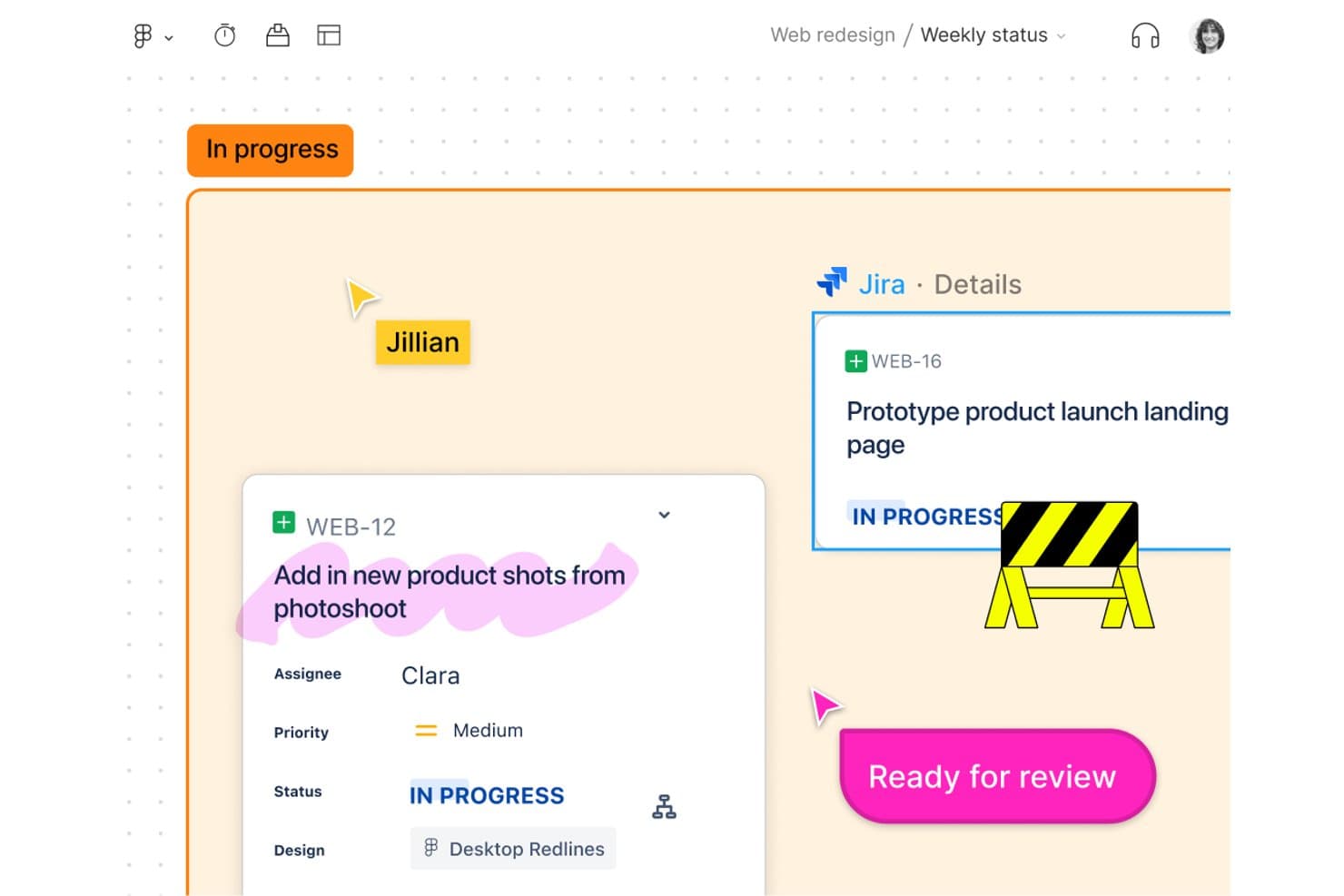
FigJam links Jira tasks directly to design boards for team tracking. FigJam is an online whiteboarding platform built for UX workshops and journey mapping, offering an infinite canvas, real-time collaboration tools, templates, and seamless integration with the Figma ecosystem.
Who Is FigJam Best For?
Product managers and cross-functional teams who need a simple, collaborative space for mapping user journeys, running workshops, and aligning on project flows.
Why I Picked FigJam
I picked FigJam as one of the best because cross-functional workshops and journey mapping are a breeze using its real-time multiplayer boards, voting sessions, and 300-plus ready-made templates. My team uses Open Sessions to invite clients and stakeholders without accounts, which keeps everyone engaged in the process from idea to flowchart.
FigJam Key Features
- Open Sessions guest access: Invite anyone to collaborate on a board for 24 hours without creating a Figma account.
- Integrated audio calls and Spotlight: Start live voice sessions and guide attention to a specific area on the canvas using the Spotlight tool.
- CSV table import and conversion: Bring in CSV data to create tables or quickly turn info into sticky notes.
- Figma Community widgets and plugins: Extend boards with interactive add-ons, voting tools, and custom widgets built by the Figma Community.
FigJam Integrations
FigJam offers native integrations with Asana and Jira, letting you create and manage tasks directly on your whiteboard. You can also extend boards using Figma Community widgets and plugins, and import content from tools like Miro, Mural, Lucid, and Google Jamboard.
What's Free?
FigJam offers a free-forever plan that includes up to 3 FigJam files, unlimited collaborators, and basic features for whiteboarding and teamwork. Some integrations, advanced widgets, and admin controls require a paid plan.
Pros and Cons
Pros:
- Real-time boards for cross-functional workshops
- Huge library of journey mapping templates
- Unlimited collaborators with no-login guest access
Cons:
- Capped to 3 active boards on free plan
- No native interactive prototyping features
Learn more about FigJam: Best for AI sketch-to-prototype without coding
- Free plan available
- From $39/month (billed annually)
Visit WebsiteCustomer Rating:4.6/5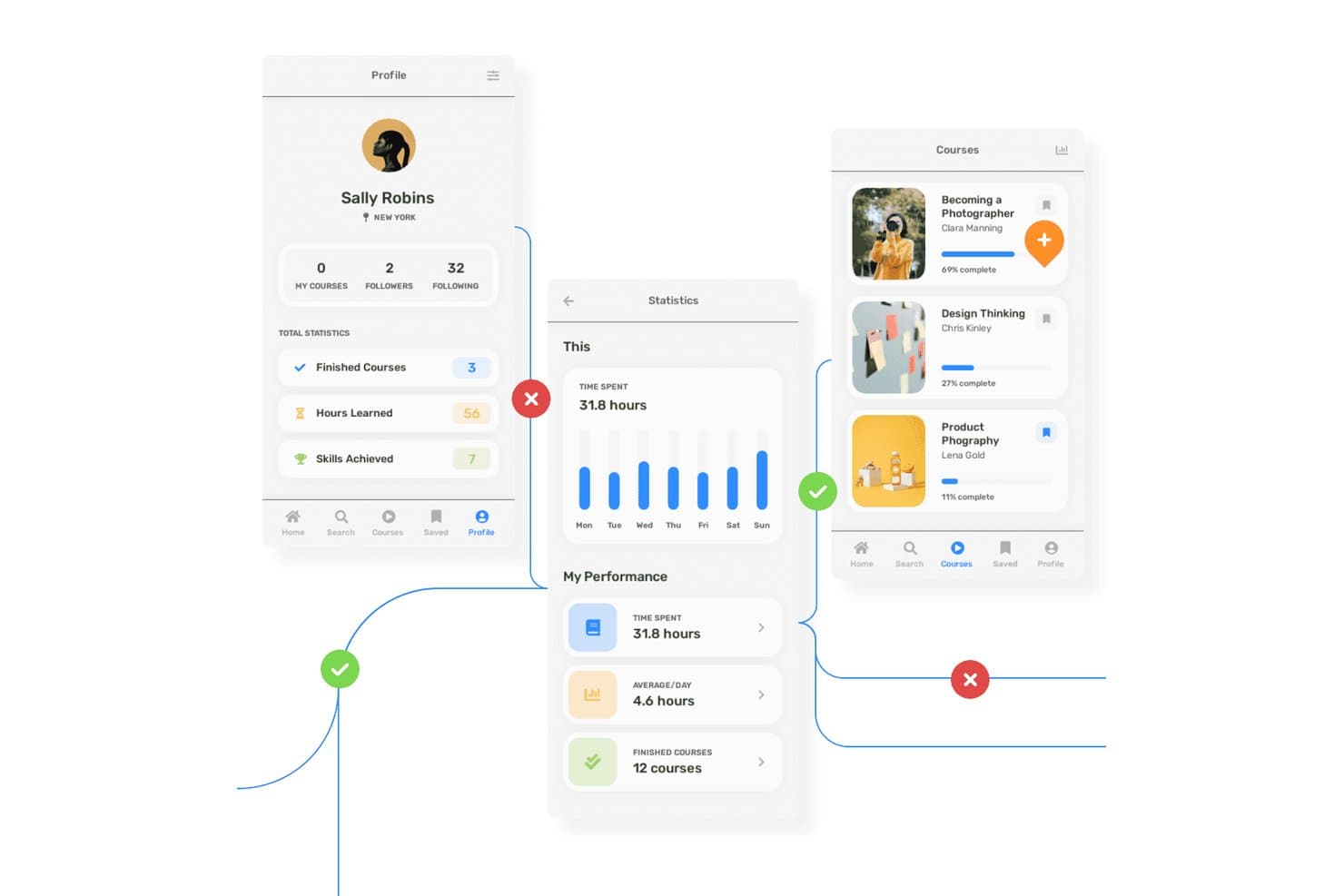
Uizard lets users prototype multi-screen learning app flows with annotations. Uizard is a browser-based UX design tool that lets you create wireframes, mockups, interactive prototypes, and AI-generated design concepts with real-time team collaboration.
Who Is Uizard Best For?
Uizard is a great match for product managers and teams who need quick, AI-powered prototypes to support stakeholder feedback and early validation without advanced design expertise.
Why I Picked Uizard
I picked Uizard because my team can turn hand-drawn sketches or app screenshots into interactive prototypes using its AI-powered scanners. The one-click wireframe and mockup toggle lets us jump rapidly from low- to high-fidelity designs, which is perfect for early user flows. I rely on its AI Autodesigner to generate multi-screen layouts from plain text, speeding up concept validation without coding.
Uizard Key Features
- Wireframe mode toggle: Instantly switch between wireframe and high-fidelity mockup views for any screen.
- Screenshot scanner: Turn existing app or website screenshots into editable prototypes using AI.
- Real-time multiplayer editing: Collaborate with your team live on the same project without version conflicts.
- AI attention heatmap: Visualize where users are likely to focus on your interface with an AI-generated heatmap.
Uizard Integrations
Uizard offers integrations with Figma via its community plugin, imports from Sketch and Adobe XD through PNG/JPG + AI conversion, and allows React/CSS code export on paid plans. No public API or native Zapier support is documented.
What's Free?
Uizard offers a free-forever plan with no time limit. The free plan supports up to 3 projects, 10 screens per project, and includes real-time collaboration, but it restricts some advanced AI features and exports.
Pros and Cons
Pros:
- Unlimited free viewers can comment on prototypes
- Instantly toggle between wireframe and mockup views
- AI converts sketches into clickable prototypes
Cons:
- Free export limited to low-resolution files
- Only AI-predicted heatmaps for usability feedback
Learn more about Uizard: Best for non-designer wireframing and prototyping
- Free plan available
- From $24.90/user/month (billed annually)
Visit WebsiteCustomer Rating:4.5/5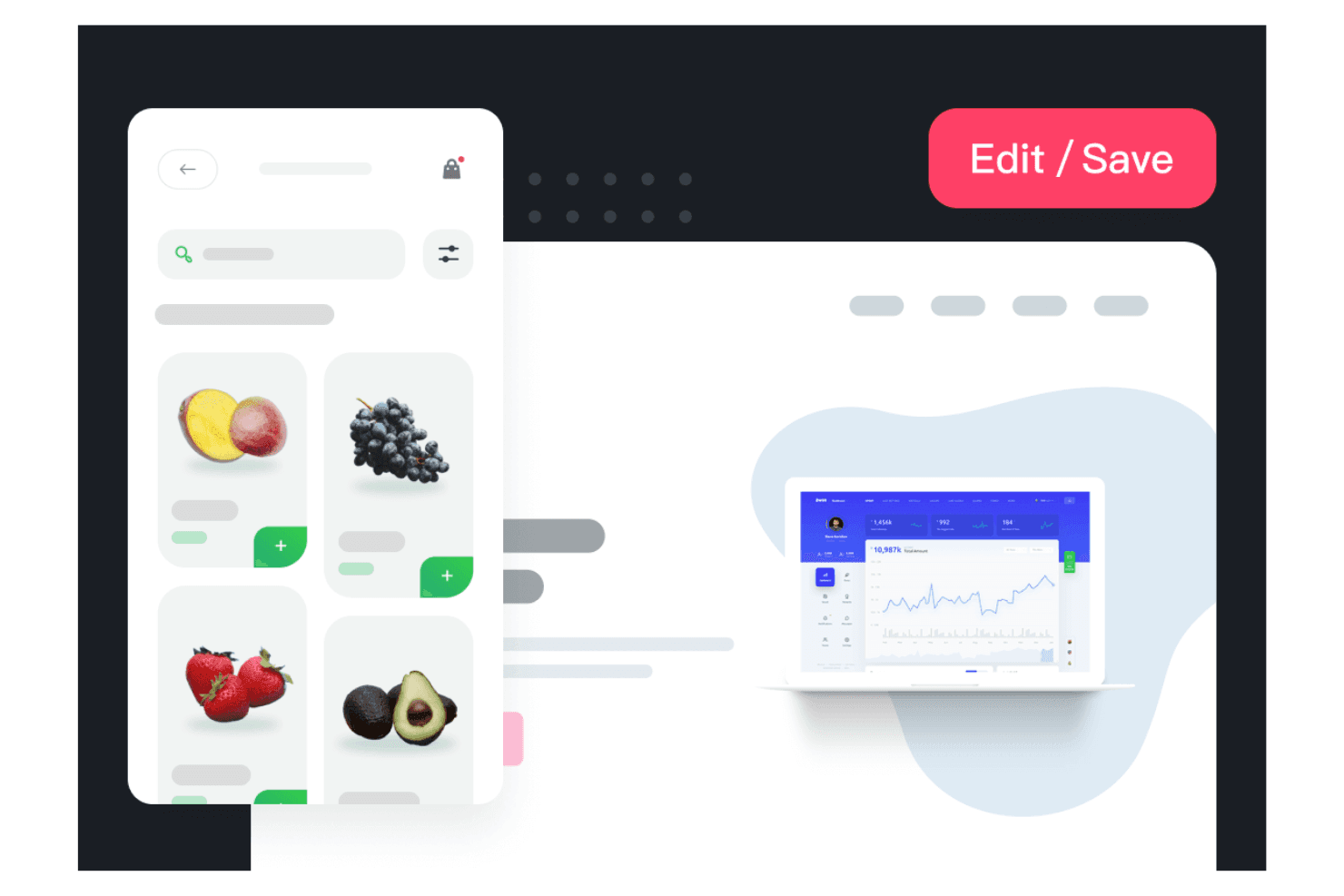
Mockplus allows your team to create visual designs quickly. Mockplus is a browser-based UX design platform offering wireframing, prototyping, UI design, and developer handoff tools across its RP, Cloud, and DT products, with real-time collaboration and large template libraries.
Who Is Mockplus Best For?
Teams looking for a browser-based platform to create and review wireframes or prototypes together with minimal design training or onboarding.
Why I Picked Mockplus
I picked Mockplus because I can quickly turn ideas into interactive wireframes and prototypes with ready-made templates, over 3,000 prebuilt components, and real-time collaboration. My teams use its free Team plan to co-design flows side by side without design experience or a steep onboarding.
Mockplus Key Features
- Real-time co-editing: Multiple team members can work together live on the same prototype without version conflicts.
- Component and asset libraries: Access over 3,000 built-in icons and components, plus shared reusable asset libraries for your projects.
- Third-party design imports: Import designs directly from Figma, Sketch, Adobe XD, and Axure to speed up onboarding and migration.
- Role-based access control: Set different permission levels and manage user access for collaboration within teams.
Mockplus Integrations
Mockplus offers native integrations with Figma, Sketch, Adobe XD, Photoshop, Axure, Slack, Jira, Confluence, and Lark. It connects directly to Mockplus Cloud for review and handoff workflows, supporting design imports and collaboration with these key tools.
What's Free?
Mockplus offers a free-forever Team plan that lets up to 10 users collaborate on 3 projects with unlimited reviewers. This plan includes real-time co-editing but limits the number of projects and some advanced features like role management and version history.
Pros and Cons
Pros:
- Fast turnaround from idea to prototype
- Over 3,000 prebuilt components and icons
- Real-time co-design for up to 10 users
Cons:
- Export options locked behind paid plans
- No usability testing features included
Learn more about Mockplus: Best for code-backed prototype depth
- Free plan + 14-day free trial available
- From $29/user/month (billed annually)
Visit WebsiteCustomer Rating:4.2/5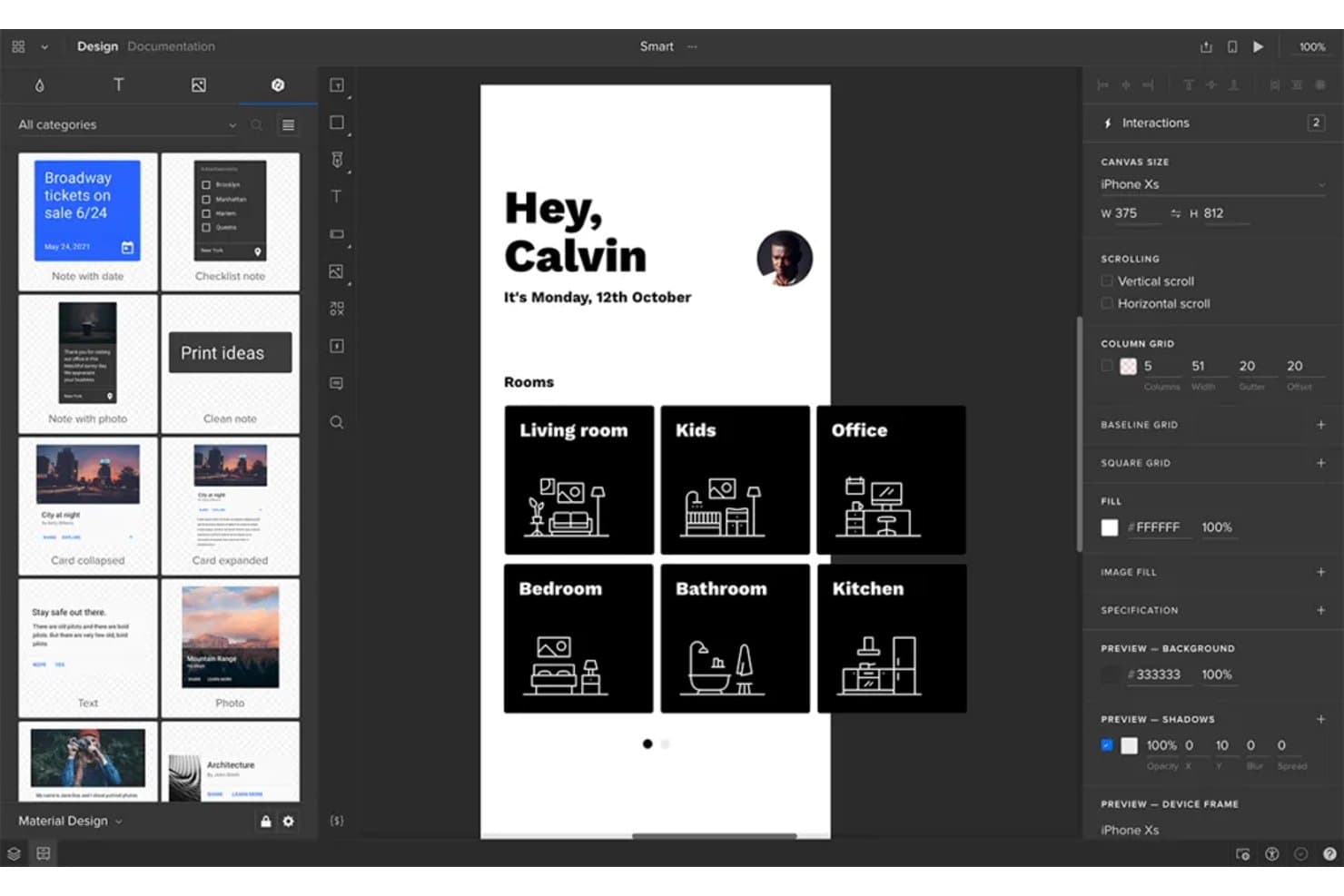
UXPin lets users prototype mobile app screens with real interactions. UXPin is a browser-based UX prototyping platform offering code-backed wireframes, interactive design with real states and components, and built-in collaboration tools.
Who Is UXPin Best For?
UXPin is a solid fit for UX/UI designers at product-focused teams who need advanced prototyping, code-backed components, and stakeholder-ready previews.
Why I Picked UXPin
I picked UXPin because I think its code-backed prototyping lets my team build near-production prototypes with real states, conditional logic, and advanced component libraries. We've been able to test complex user journeys, validate edge cases, and create rich interactive previews before writing a line of production code.
UXPin Key Features
- Real-time co-editing: Multiple team members can work simultaneously on the same design in the browser.
- Figma and Sketch import: Easily bring in design files from Figma or Sketch for rapid iteration.
- AI component creator: Generate code-backed layouts and UI elements from text prompts using built-in AI models.
- Mobile preview apps: Preview and test your prototypes live on iOS and Android devices as you design.
UXPin Integrations
UXPin offers integrations with Figma (via plugin), Sketch, Slack, Jira, and FullStory. It supports custom coded component imports through Git, npm, and Storybook on paid plans. Mirror apps support iOS and Android preview. An API is available for custom integrations.
What's Free?
UXPin offers a free-forever plan with limited features. The free plan typically restricts you to one prototype and fewer advanced features than paid tiers, so it’s best for trying out the platform or handling simple projects.
Pros and Cons
Pros:
- Enables free interactive previews on mobile devices
- Allows browser-based real-time design collaboration
- Builds high-fidelity, code-backed prototypes for free
Cons:
- Only two prototypes allowed on free tier
- Free plan restricts export and acceptance workflows
Learn more about UXPin: Best for non-designer wireframing with PM teams
- Free plan available
- From $9/user/month (billed annually)
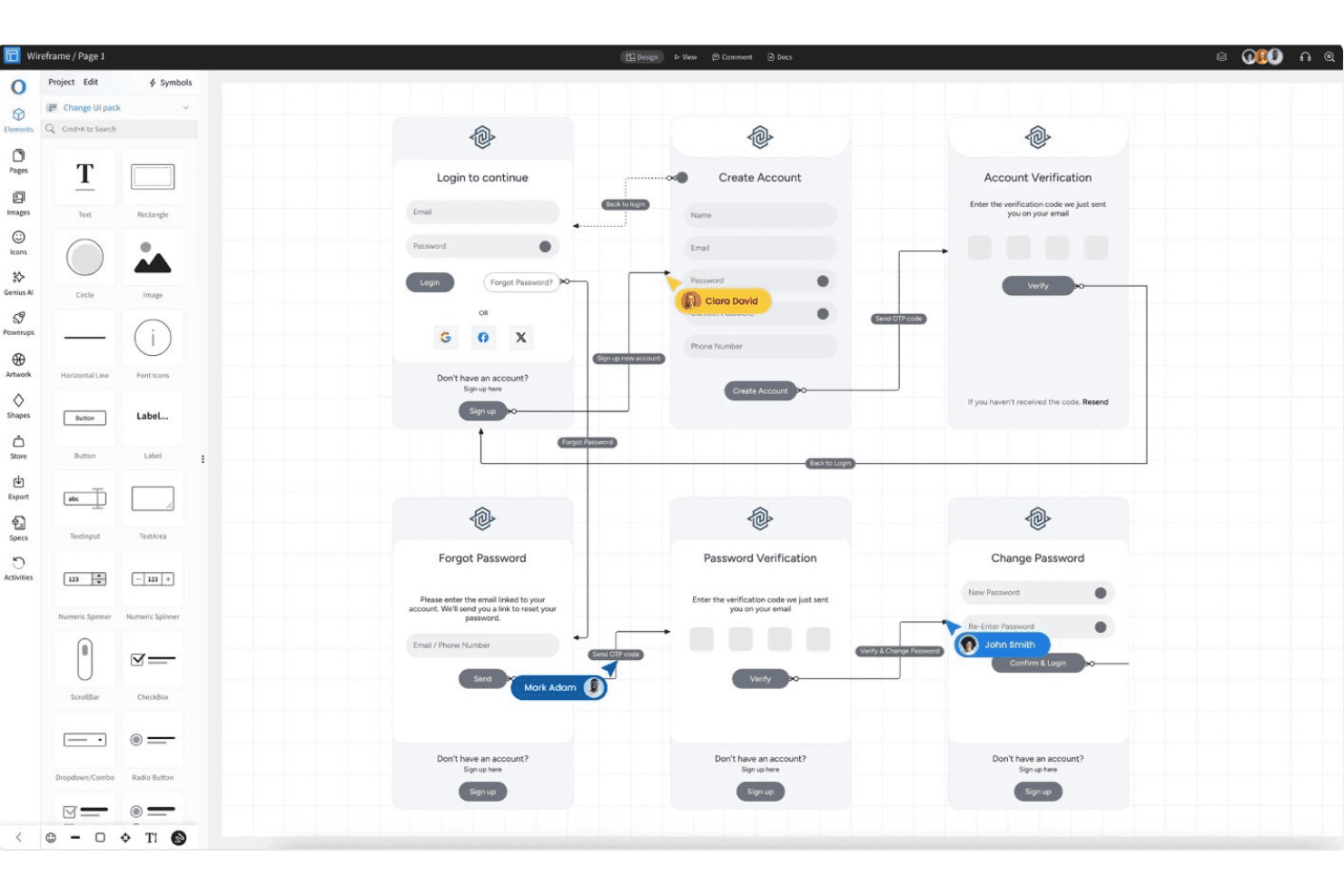
MockFlow aligns faster and maintains consistency for quick exporting. MockFlow is a browser-based UX design platform that focuses on fast wireframing, collaborative brainstorming, template-driven UI ideation, real-time feedback, and reusability through symbols and master pages.
Who Is MockFlow Best For?
MockFlow is a solid choice for product managers and non-designers at startups or nonprofits who need fast, collaborative wireframing and UI ideation.
Why I Picked MockFlow
I picked MockFlow because I appreciate how quickly I can build detailed wireframes using 1,000+ components, reusable symbols, and master pages. The template library and AI text-to-wireframe feature help my team brainstorm ideas fast. Presentation mode and multi-user review tools make it easy to align PMs and non-designers.
MockFlow Key Features
- Importable UI components: Upload and use developer-made components with Tailwind CSS support for more customized wireframes.
- AI design assistant: Use text-to-wireframe, screenshot-to-wireframe, and AI-generated UI elements to speed up initial concepts.
- Free reviewer seats: Invite up to five reviewers on the free plan without using up paid or editor seats.
- Cloud diagramming toolkits: Access built-in AWS, Azure, and Google Cloud architecture icons for technical diagram creation.
MockFlow Integrations
MockFlow offers native integrations with Slack, Microsoft Teams, Office 365, Google Drive, Trello, Atlassian Jira and Confluence, Notion, Fathom, Google Meet, and Figma (Max tier). It also supports API-based connections and AI assistants like Claude and ChatGPT.
What's Free?
MockFlow offers a free-forever plan that includes unlimited basic wireframes, one project, and up to five free reviewer seats. The free plan limits integrations and advanced features, so you’ll need to upgrade for more projects or editor seats.
Pros and Cons
Pros:
- Symbols and master pages support reuse
- Free reviewer seats aid cross-team feedback
- AI-powered text-to-wireframe speeds up drafting
Cons:
- Prototyping limited to basic on-screen actions
- Free plan prohibits commercial business use
Learn more about MockFlow: Best for cross-functional design file access
- Free plan available
- From $16/user/month
Visit WebsiteCustomer Rating:4.7/5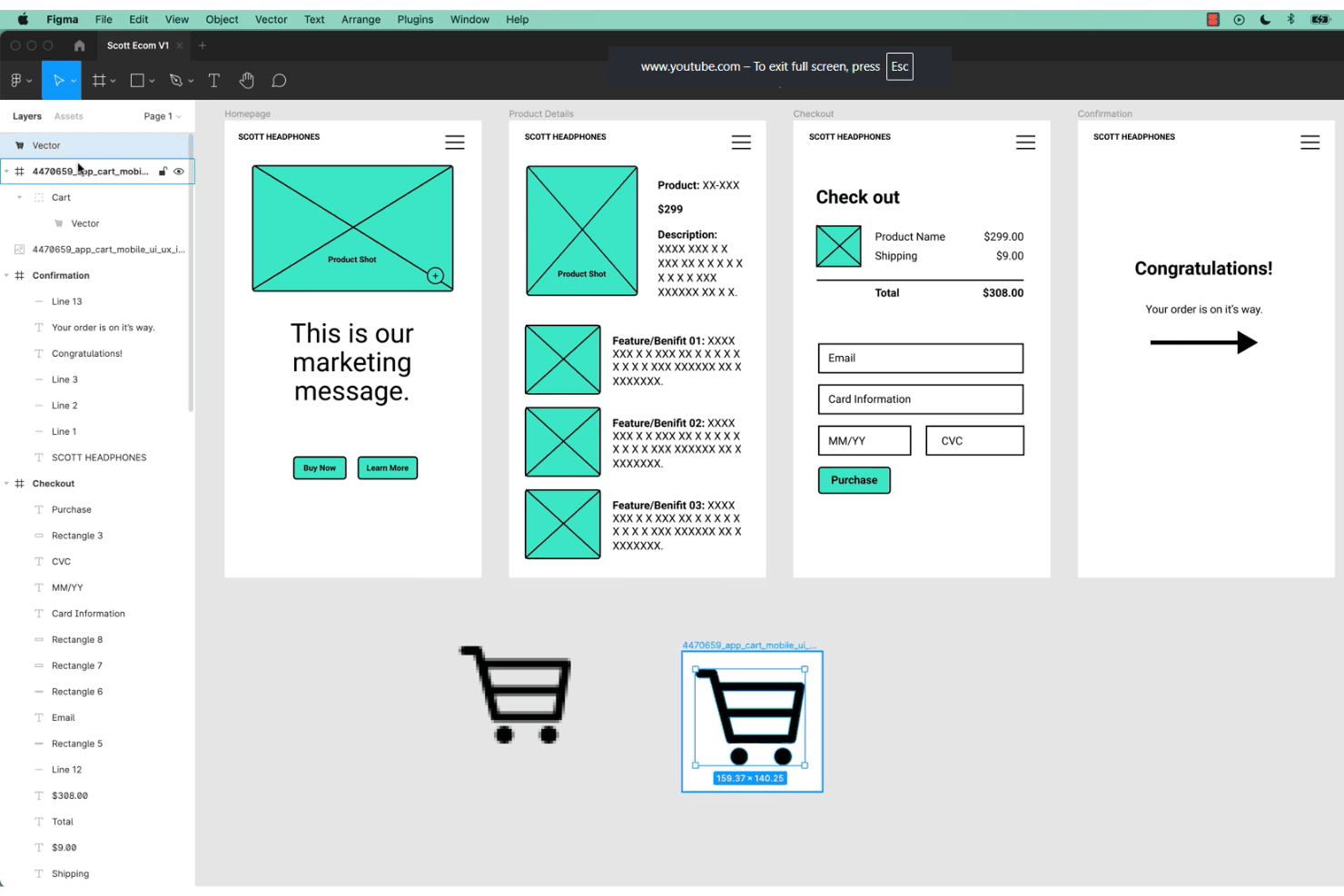
Figma allows teams to collaborate on UX design and prototyping in real time. Figma is a browser-based UX/UI design platform that combines professional-grade vector editing, no-code prototyping, real-time collaboration, and reusable component systems for creating and sharing interface designs.
Who Is Figma Best For?
Cross-functional teams that need browser-based UI design and real-time collaboration without seat limits for viewers or stakeholders.
Why I Picked Figma
Figma earns its spot as one of my top picks because I rely on its browser-based collaboration to let product teams, designers, and stakeholders edit and review interface designs together—no app install or seat limit for viewers. The real-time multiplayer canvas, live feedback, and unlimited free viewers make design file access genuinely cross-functional.
Figma Key Features
- Component variants: Support multiple visual states and interactions within a single component to simplify file management.
- Interactive prototyping: Build clickable prototypes with triggers, animated transitions, and real device frame previews, all within the design file.
- FigJam whiteboard: Collaborate on research synthesis, journey maps, and user flows using a dedicated digital whiteboard tool.
- Community resource hub: Access thousands of free UI kits, templates, and plugins contributed by the Figma user community.
Figma Integrations
Figma offers over 40 integrations, including Slack, Jira, GitHub, Notion, Google Workspace, Microsoft Teams, Maze, UXtweak, UserTesting, Asana, and Trello. It also provides an open REST API and a plugin marketplace for custom and third-party integrations.
What's Free?
Figma offers a free-forever Starter plan that lets you design unlimited files with up to two editors and unlimited viewers. Some advanced features, like team libraries and audio conversations, are restricted to paid plans.
Pros and Cons
Pros:
- Extensive free library of UI templates
- Unlimited free viewers with comment permissions
- Real-time multiplayer editing for all users
Cons:
- No built-in usability testing features
- Free plan limits co-edited team files
 Best for offline-first UI design on any OS
- Free plan + free demo available
- From $11.99/user/month (billed annually)
Visit WebsiteCustomer Rating:4.4/5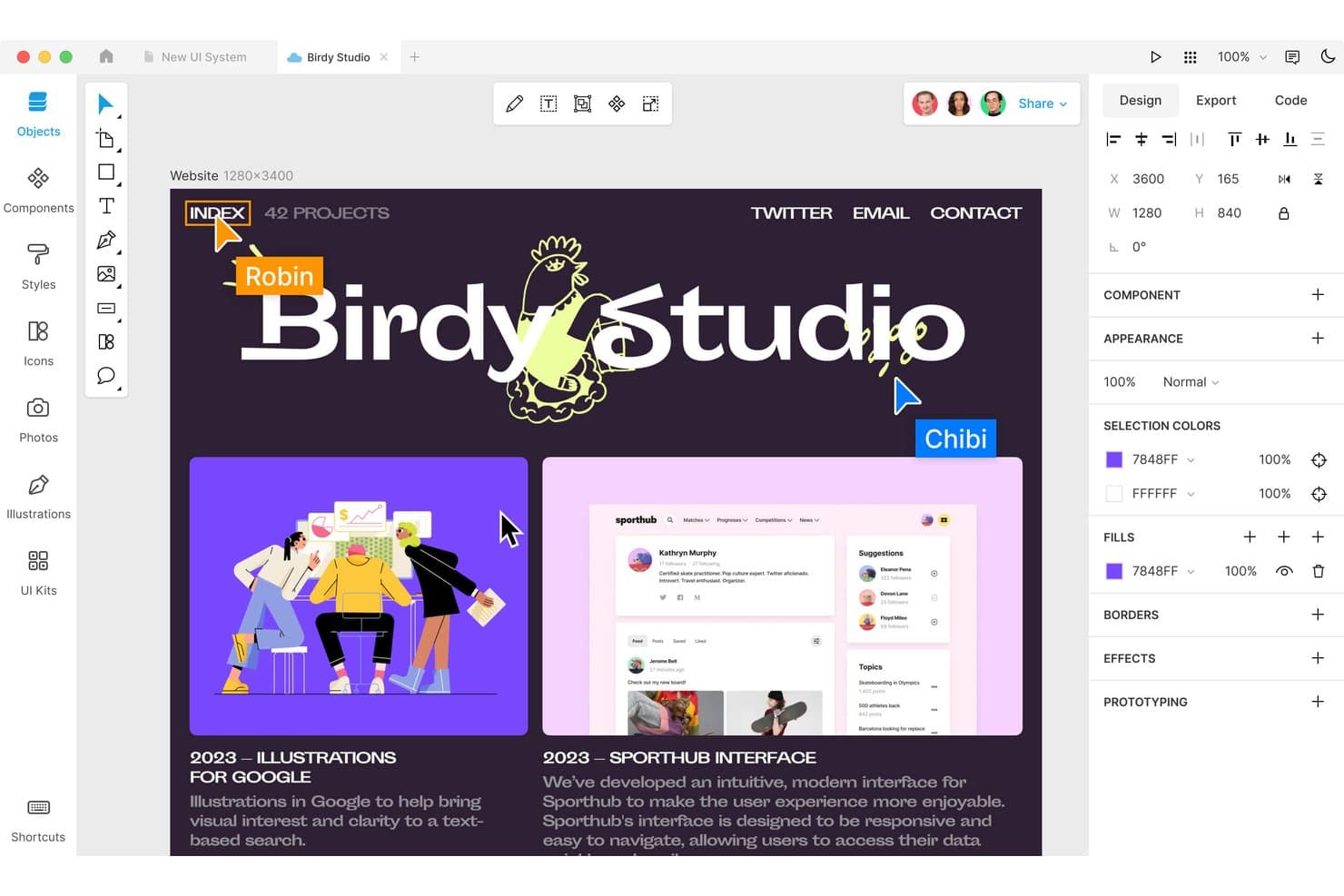
Lunacy lets users design and collaborate on web layouts in real time. Lunacy is a cross-platform UI and UX design tool that offers a full-featured vector canvas, prototyping, reusable components, and real-time collaboration, all in a desktop application with cloud document support.
Who Is Lunacy Best For?
Freelance designers and teams who want a free, offline UI design tool that works on Windows, macOS, and Linux desktops.
Why I Picked Lunacy
I picked Lunacy because I rely on its offline-first workflow that runs natively on Windows, macOS, and Linux. The built-in 1.5M-asset library and AI tools speed up UI design without needing an internet connection. I can prototype interactions, build reusable components, and export developer handoff assets from a single, fast desktop app.
Lunacy Key Features
- Frame-based prototyping: Set up interactive flows with hotspots, triggers, and animated transitions in your designs.
- Built-in asset library: Access over 1.5 million icons, illustrations, and photos directly within the editor.
- Component editor: Create, nest, and manage reusable design components with variants and overrides.
- Export code preview: Instantly generate and view CSS, XAML, JSON, or SVG code for selected design elements.
Lunacy Integrations
Lunacy supports Sketch file compatibility for open/edit/save workflows, Figma file import, and export to Adobe XD via Sketch files. It offers integration with Avocode, Zeplin, Abstract, and Simpli, plus a developer API and a local plugin framework for custom automation.
What's Free?
Lunacy offers a free-forever plan with core design, prototyping, and asset library features for unlimited users. The free version includes desktop access, but some advanced collaboration tools and extra cloud storage require a paid upgrade.
Pros and Cons
Pros:
- Full-featured vector design and prototyping
- Huge built-in asset library with AI tools
- Runs offline on Windows, macOS, and Linux
Cons:
- No built-in usability testing or analytics
- No browser-based editor for editing
Learn more about Lunacy: Best for open-source design-to-dev handoff
- Free plan + 14-day free trial available
- From $7/user/month
Visit WebsiteCustomer Rating:4.5/5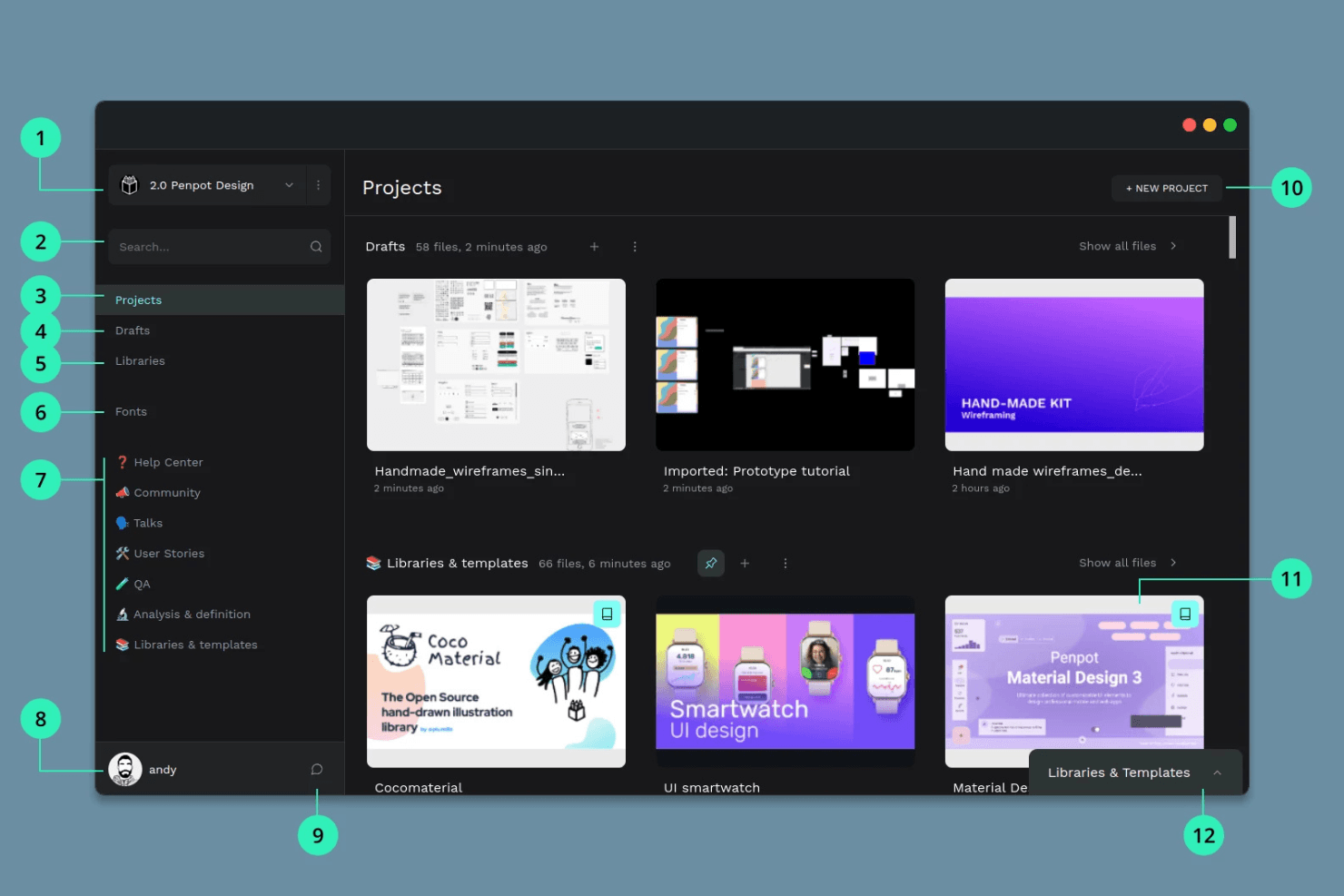
Penpot provides open-source collaboration for teams using various systems. Penpot is a browser-based open-source UX and UI design platform for creating wireframes, interactive prototypes, reusable components, and design systems with real-time team collaboration and developer handoff tools.
Who Is Penpot Best For?
UX and product teams who need open-source design, prototyping, and developer handoff tools without vendor lock-in.
Why I Picked Penpot
I picked Penpot as one of the best because its open-source platform combines a browser-based vector canvas with real CSS Flex/Grid layout tools. I like that my team can prototype flows with interactive triggers and share presentation links for developer handoff, all while keeping files fully portable thanks to an open standard format.
Penpot Key Features
- Real-time multiplayer editing: Multiple users can edit the same file together for live collaboration.
- Component variants: Build reusable components with multiple variants to accelerate design workflows.
- Native CSS Flex and Grid layouts: Apply real CSS layout models without code to mirror production-ready UI structure.
- Inspect mode for developer handoff: Developers can view and copy CSS, HTML, and SVG code plus measurements without a paid seat.
Penpot Integrations
Penpot supports 125+ marketplace integrations through Penpot Hub, including Iconify, Feather Icons, Lucide Icons, Locofy Lightning (for code export to React, Vue, Angular, and GitHub/VS Code sync), and Miro. It also offers an open API, outbound webhooks, and supports custom DesignOps workflows.
What's Free?
Penpot offers a free-forever plan with unlimited users, unlimited files, and full access to design and prototyping features. The free plan also includes real-time collaboration and developer handoff tools without restrictions, though advanced workspace controls are only in paid tiers.
Pros and Cons
Pros:
- Multiplayer editing and developer inspect mode
- Native CSS Flex and Grid layout tools
- Fully open source with self-hosting option
Cons:
- Performance lags with complex or large files
- No built-in usability testing tools
Learn more about Penpot: Best for high-fidelity functional prototyping
- Free plan available
- From $19/user/month
Visit WebsiteCustomer Rating:4.2/5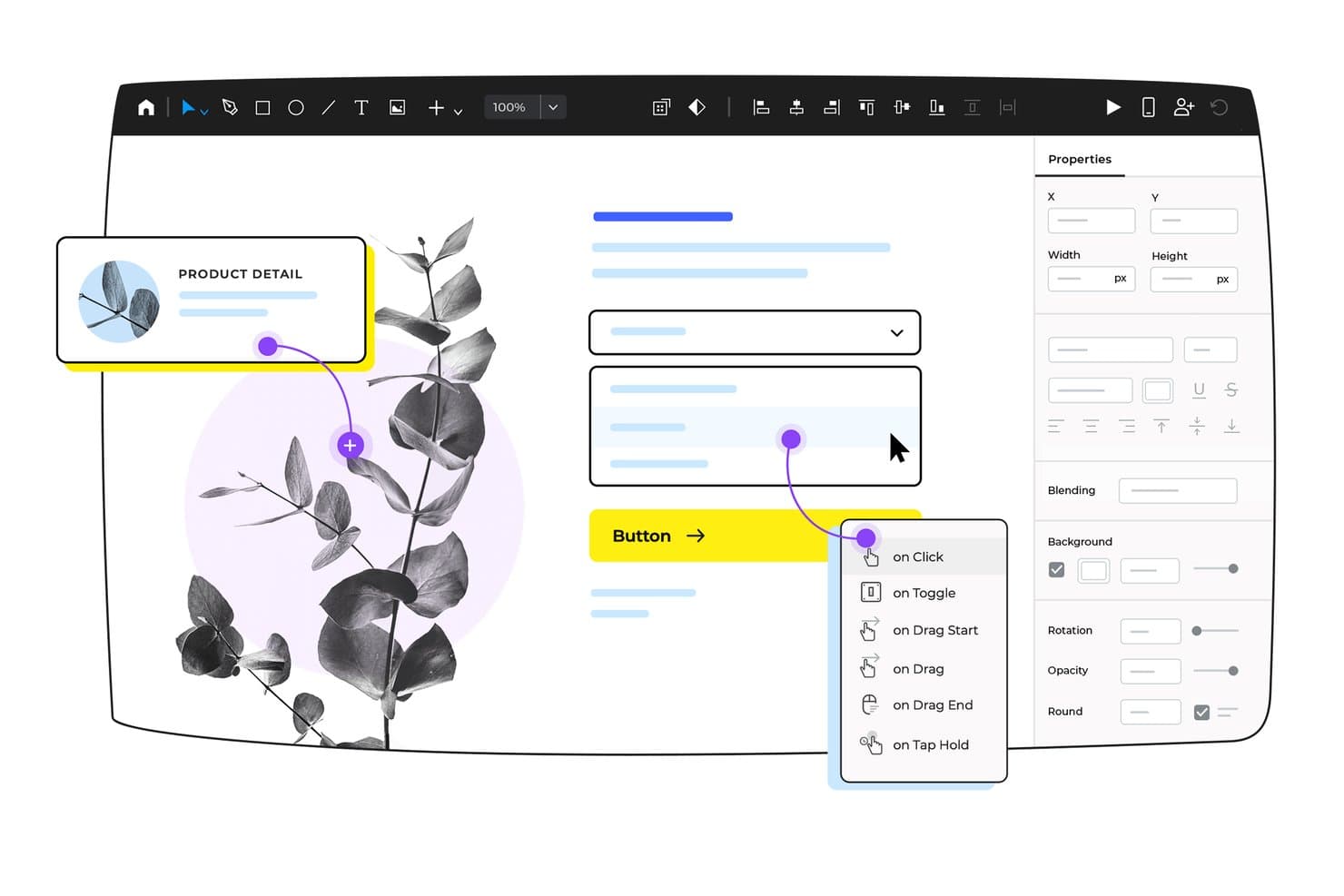
Justinmind lets users add interactive triggers to UI elements visually. Justinmind is a desktop UX design and prototyping platform for teams who need vector drawing tools, interactive components, data-driven forms, and advanced user flow mapping in a dedicated app built for high-fidelity web and mobile interface work.
Who Is Justinmind Best For?
Product teams and designers who need detailed, functional prototypes to validate and document high-fidelity user flows in a dedicated desktop app.
Why I Picked Justinmind
I included Justinmind because I get near-production fidelity when prototyping advanced user flows, full logic, and dynamic data. I’ve built prototypes using its 4,000+ UI components, drag-and-drop conditions, and real-data forms to validate requirements before handing work to engineering. My team can map out entire flows and simulate real app functionality with just one tool.
Justinmind Key Features
- Large UI component library: Choose from over 4,000 ready-made widgets for web, iOS, and Android interfaces.
- Design templates collection: Access pre-built templates for mobile apps, dashboards, and interactive components.
- Data-driven prototyping: Import .csv files to create realistic data grids and forms for clickable prototypes.
- Developer handoff mode: Inspect CSS styles, export assets, and generate specification documents for handoff.
Justinmind Integrations
Justinmind offers native integrations with Figma, Sketch, Adobe XD, Adobe Photoshop, Jira, Confluence, Azure DevOps, UserTesting, and UserZoom. It also provides an API and SDK for custom integrations and plugin development.
What's Free?
Justinmind offers a free-forever plan with basic prototyping features. You’ll need a paid plan to access developer handoff, advanced integrations, and full collaboration tools.
Pros and Cons
Pros:
- Unlimited screens and viewers on free plan
- Large library of web and mobile templates
- Near-production fidelity with complex interactions
Cons:
- No HTML export or advanced logic free
- Free tier capped at one project
Learn more about Justinmind:
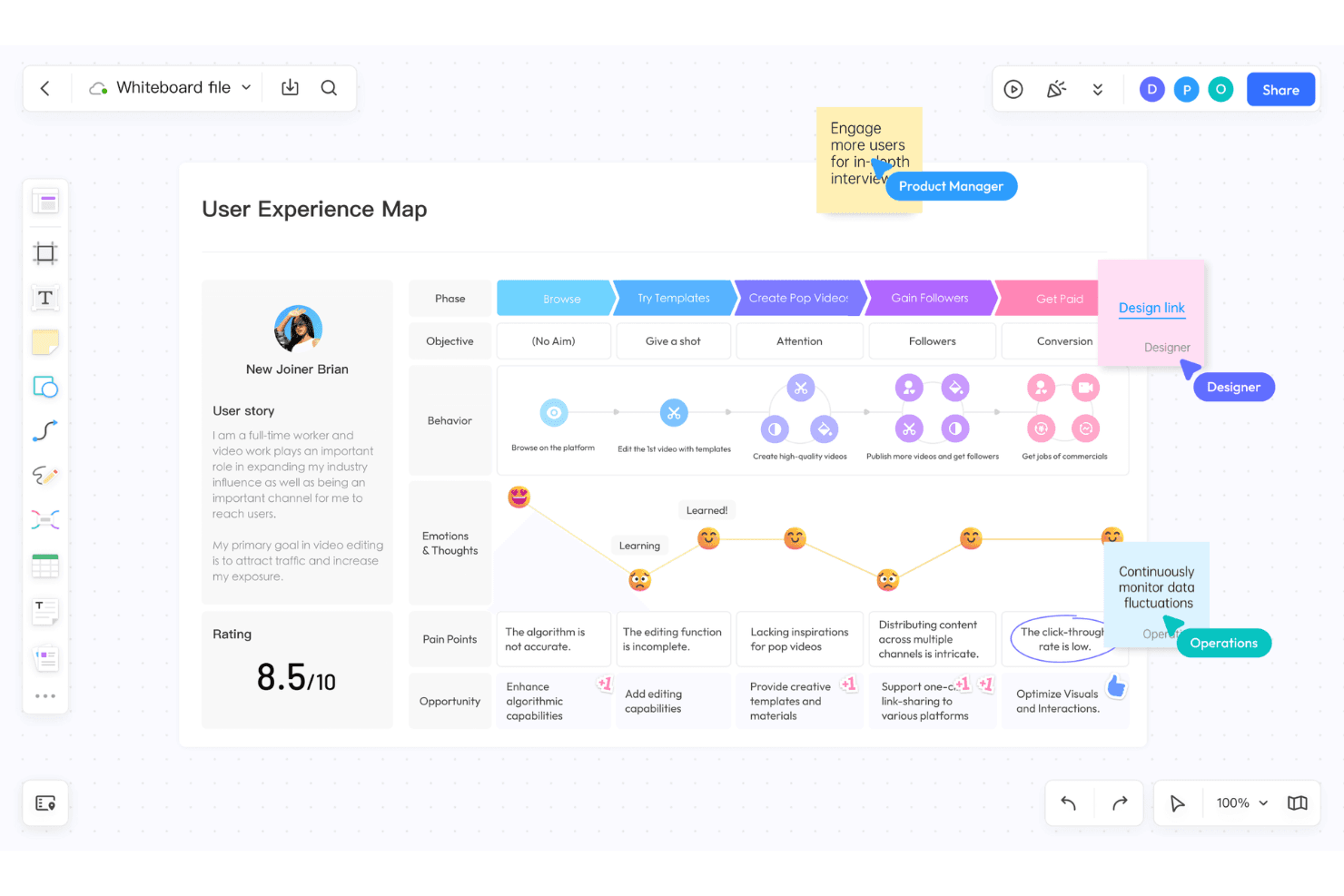
Pixso integrates UI/UX design, digital whiteboards, and AI elements. Pixso is a browser-based UX/UI design platform that unifies vector editing, prototyping, collaborative whiteboarding, component libraries, and developer handoff in one space.
Who Is Pixso Best For?
Pixso is a strong fit for cross-functional product teams and UX/UI designers who want browser-based prototyping and whiteboarding in one tool.
Why I Picked Pixso
I picked Pixso because my team can handle UI design, prototyping, and discovery workshops in one browser workspace. I like using its whiteboard for user journeys alongside the design canvas, then turning flows into interactive prototypes with animations, overlays, and variables ready for developer handoff.
Pixso Key Features
- Whiteboard module: Offers an infinite canvas for brainstorming, mind maps, and user journey mapping.
- Real-time multiplayer editing: Lets teams co-edit designs at the same time with cursor presence and comments.
- Component and style libraries: Enables creation, management, and update of shared reusable design elements.
- Figma, Sketch, and XD import: Supports direct file imports for easy migration from other design platforms.
Pixso Integrations
Pixso supports imports from Figma, Sketch, Adobe XD, Axure, and SVG files, with asset export to PDF, PNG, JPG, and SVG. It features a plugin marketplace with tools for code export and design utilities but does not document native integrations with external SaaS tools.
What's Free?
Pixso offers a free-forever plan that lets you create unlimited files and projects with up to 3 team members. The free plan does not include advanced management features or support for larger teams, but it’s well suited for trying out the platform and handling small design projects.
Pros and Cons
Pros:
- Real-time multiplayer cursor editing
- Built-in whiteboard for discovery workshops
- Imports Figma, Sketch, and XD files
Cons:
- File limit restricts free team projects
- No dedicated usability testing features
Learn more about Pixso:
Other Free UX Software
Here are some additional UX software options that also offer free plans or trials. While these tools didn’t make it onto my shortlist, they’re still worth checking out:
- 11MiroBest for cross-functional UX design reviews
- 12FramerBest for design-to-publish without handoff
- 13MarvelBest for prototyping to dev handoff in one link
- 14WhimsicalBest for lo-fi flows with unlimited free guests
- 15VisilyBest for AI-driven wireframes without design skills
- 16MoqupsBest for all-in-one wireframes and online mockups
Related Reviews
How I Evaluate Free UX Software
First, I define what counts as free. A tool qualifies only if it offers a long-term free plan—not just a trial—since UX software supports ongoing design and testing work, not one-time projects. From there, I split evaluation into two layers: the core functionality a tool must have to make the list, and the differentiating factors that separate one option from another.
Core Functionality (Table Stakes For This List)
In addition to my free offer requirements, I also use a scoring system to select tools for my list. Here's how it works:
When I'm selecting tools for my list, I rank each one on a scale from 0 (does not offer the functionality) to 5 (excels in this area) for each core functionality listed below. I then calculate the tool's total score into a percentage, and use that to help me assess its overall fit for the list.
- Prototyping tools: I check whether you can link screens with clickable hotspots and add transitions that simulate a real user flow, not just static slides.
- Design canvas: The workspace needs to support shapes, text, images, and layout controls so you can move from rough wireframes to polished mockups in one place.
- Collaboration features: I look for commenting, shared editing, or review links that let product managers and developers give feedback without creating a separate account.
- Component reusability: Reusable buttons, nav bars, and form fields that update across every screen when you edit the source save hours during iteration cycles.
- Usability testing support: I evaluate whether the tool lets you share a prototype link and collect structured feedback, click data, or task completion results from real users.
- Export and handoff: Developers need shareable links or downloadable assets with enough detail to build from, so I check for spec views, asset export, and code snippets.
Once I have a list of tools that meet the criteria, I consider what sets each platform apart.
Differentiating Factors (What Sets Vendors Apart)
Here's how I compare and contrast different vendors:
Standout Features
I look for built-in feedback widgets that let stakeholders pin comments directly on a prototype screen. This cuts out the back-and-forth of screenshots in chat threads during sprint reviews. Multiplayer cursors matter just as much—when a PM and engineer can co-edit a file live, alignment happens in minutes instead of async cycles. I also evaluate each tool's community template library, since free wireframe kits and journey map starters help teams skip blank-canvas paralysis and move straight into validation.
Beyond Features
I check how easily non-designers can navigate the tool without training. A PM should open a shared link, leave feedback, and exit in minutes—not sit through onboarding videos. Free plans also cap active files or editors, so I evaluate whether a growing team will hit those limits mid-sprint. Finally, I look at export options. Tools like Figma and Penpot let you download assets or raw files, which protects your work if you later switch platforms or lose access to a free account.
How To Choose Free UX Software
Complex feature lists and pricing structures can make it hard to figure out what you’re really getting from free UX software. To help you stay focused as you work through your software selection process, here are some factors to keep in mind:
| Factor | What To Consider |
|---|---|
| FactorFree Offer Scope | What To ConsiderCheck what’s included in the free plan. Does it cover essential features such as wireframing and prototyping, or are these locked behind paywalls? |
| FactorScalability | What To ConsiderConsider whether the tool can grow with your team. Will it support more users and projects as your needs expand? |
| FactorIntegrations | What To ConsiderConfirm the software integrates with tools your team already uses, such as Slack, Atlassian Jira, or Google Drive, to organize workflows. |
| FactorEase of Use | What To ConsiderLook for an intuitive interface that minimizes the learning curve, allowing your team to start designing quickly without extensive training. |
| FactorCollaboration | What To ConsiderEvaluate the tool’s collaboration features. Can team members work simultaneously and provide real-time feedback on projects? |
| FactorCustomization | What To ConsiderDetermine if the software allows for customization of templates and components to suit your team’s unique design needs. |
| FactorSupport | What To ConsiderCheck the availability of customer support options, such as live chat, email, or forums, to assist your team when issues arise. |
| FactorSecurity | What To ConsiderVerify the tool meets your organization’s data security requirements, especially if handling sensitive project information. |
What Is Free UX Software?
UX software is a type of tool designed to help designers and developers create user experiences through wireframing, prototyping, and design collaboration. Typically, free offerings include basic versions of these tools with limited features or trial periods. Professionals such as UI/UX designers, product managers, and developers use these tools to elevate design processes and improve user satisfaction. Features such as real-time collaboration, intuitive interfaces, and integration with other tools support efficient design workflows and team collaboration.
Features
Let’s go over the features commonly found in UX software and which ones are usually included in free vs. paid plans.
Typically Free UX Software Features
- Wireframing tools: Allow users to create basic layouts and structures for their designs, helping visualize the user interface.
- Drag-and-drop interface: Simplifies the design process by enabling easy placement and adjustment of elements without coding.
- Template library: Provides pre-designed templates to jumpstart projects and save time on design setup.
- Real-time collaboration: Allows team members to work together on projects simultaneously, improving communication and efficiency.
- Basic prototyping: Enables users to create simple interactive prototypes to test user flows and gather feedback.
- Export options: Allow users to save and share designs in various formats for further development or presentation.
Typically Paid UX Software Features
- Advanced prototyping: Offers more complex interactions and animations to create high-fidelity prototypes that closely mimic final products.
- Customizable components: Let users create and modify design elements to fit specific project needs, providing flexibility.
- Version control: Provides a system to track changes and manage different design iterations, maintaining consistency and organization.
- User testing tools: Allow for gathering user feedback through integrated testing features to improve design validation.
- Analytics and reporting: Offer understanding of design performance and user behavior, aiding in data-driven decision-making.
- Integration with external tools: Supports consummate workflows by connecting with other software, such as project management or communication tools.
Benefits
Implementing free UX software provides several benefits for your team and your business. Here are a few you can look forward to:
- Cost savings: Free plans allow your team to access essential design tools without the financial commitment, reducing expenses.
- Increased collaboration: Real-time collaboration features help your team work together efficiently, even when remote.
- Quick prototyping: Basic prototyping tools enable fast creation of interactive designs, helping speed up the development process.
- Accessibility: Cloud-based solutions let your team access design projects from anywhere, supporting flexible work arrangements.
- Ease of use: Intuitive interfaces and drag-and-drop functionality simplify the design process, making it accessible to non-designers.
- Resource optimization: Pre-built templates and components save time and effort, allowing your team to focus on creativity and innovation.
Costs & Pricing
I realize you came to this article looking for the best UX software options that are available for free. However, since free plans only offer limited features, there's a good chance you'll need to scale your plan up in the future.
The table below summarizes common plans, their average prices, and typical features included in UX software solutions:
Plan Comparison Table for UX Software
| Plan Type | Average Price | Common Features |
|---|---|---|
| Plan TypeFree Plan | Average Price$0 | Common FeaturesBasic wireframing tools, drag-and-drop interface, limited templates, basic prototyping, and real-time collaboration. |
| Plan TypePersonal Plan | Average Price$4-$10/user/month | Common FeaturesAll free features, additional templates, upgraded prototyping options, limited integrations, and export options. |
| Plan TypeBusiness Plan | Average Price$10-$30/user/month | Common FeaturesAll personal features, advanced prototyping, custom branding, team collaboration tools, and more integrations. |
| Plan TypeEnterprise Plan | Average Price$24+/user/month | Common FeaturesAll business features, priority support, advanced security, custom analytics, and dedicated account management. |
Free UX Software FAQs
Here are some answers to common questions about free UX software:
How is project data secured in free UX tools now?
Most free UX platforms use cloud hosting, so start by reviewing their privacy policy, security certifications, and data residency details. Confirm whether projects are encrypted in transit and at rest, and who can access stored files. Use workspace roles, single sign-on where available, and disable public links for sensitive work. Regularly export backups, delete unused projects, and confirm that contracts or NDAs cover any design assets shared through these tools online.
What if our team suddenly outgrows a free UX plan?
When your team outgrows a free UX plan, first review usage limits such as active projects, file storage, editors, and guests. Map which advanced features you truly need, such as design systems, permissions, or integrations. Then compare upgrade tiers against your roadmap and headcount forecasts. Before upgrading, clean old files and agree to internal naming rules so the transition feels like an intentional system upgrade rather than a messy, rushed response to hitting hard limits.
Can I mix several free UX tools in one workflow?
Yes, combining several free UX tools is common, but it helps to assign each tool a clear job. For example, use one platform for low-fidelity wireframes, another for interactive prototypes, and a third for UX research storage or feedback boards. Define your source of truth for final designs, document handoff steps for developers, and schedule regular housekeeping so assets don’t fragment across overlapping workspaces and personal accounts as projects steadily grow.
How can non-designers learn free UX tools quickly?
Start with one free UX tool and create a simple, realistic practice project, such as redesigning a form your team already uses. Share short internal Loom videos or screenshots showing key actions: adding frames, linking screens, leaving comments, and exporting files. Pair non-designers with a UX buddy for weekly reviews, and celebrate small wins. A clear glossary and quick-reference checklist will reduce intimidation and accelerate their confidence using design software.
What metrics show free UX tools improve products?
Look beyond designer happiness and track measurable outcomes. Monitor prototype review cycle time, the number of iterations before stakeholder sign-off, and bugs related to UX issues after release. Compare task completion rates and support tickets before and after adopting the tools. You can also survey users and internal teams about clarity and usability, then tie those scores to business metrics such as conversion, retention, and feature adoption across sprints and releases.
Can free UX tools work well with a weak internet?
Free UX tools are usually cloud-based, so a weak internet connection mainly hurts collaboration and large file syncing. Test each platform on your typical connection by loading big projects, exporting assets, and joining live comments or workshops. Encourage teammates to close bandwidth-heavy apps during design sessions and keep offline notes or sketches ready. As a backup, set up scheduled sync times from home or coworking spaces with stronger connectivity during critical launches.