

Web design software for Mac, whether a standard website builder or an advanced ai website builder, refers to digital tools that let you design, prototype, and build web pages directly on your MacOS device. If you’re searching for the right Website design platform, you likely want software that fits your creative process, supports collaboration, and works smoothly with your Mac’s native features.
With so many options—each offering different workflows, integrations, and design capabilities—it’s tough to know where to start or when to upgrade.
This guide will help you compare the best website builder choices and their new features for 2026, so you can confidently select the perfect fit for your needs and team.
Why Trust Our Software Recommendations
6,700+
Reviews
20
Industry experts
16+
Evaluation factors
14
Years
Our team has been testing and reviewing software since 2012. As product managers ourselves, we know how difficult—and important—it is to choose the right software.
For this guide, we evaluated tools using hands-on testing and independent research, scoring tools using our selection criteria.
Our reviews reflect our human editorial judgment, not a sales pitch.
Expert reviewers:
- Andrew LumbySenior TPM
- Cristiano ValimSenior UI/UX Lead


Web Design Software Comparison Table
This comparison table summarizes pricing details for my top web design software Mac selections:
| Tool | Best For | Trial Info | Price | ||
|---|---|---|---|---|---|
| 1 | Best for design-to-publish team collaboration | Free plan available | From $16/user/month | Website | |
| 2 | Best for freelancer and agency site handover | Free plan available | From $17/month (billed annually) | Website | |
| 3 | Best for Adobe Creative Cloud web coding | 7-day free trial | From $22.99/month (billed annually) | Website | |
| 4 | Best for Bootstrap-based Mac site creation | Free plan available | From $112.99 one-time | Website | |
| 5 | Best for multi-page editing workflows | Free trial available | From $12/user/month | Website | |
| 6 | Best for agency client billing and white-labeling | 14-day free trial + free demo available | From $25/month | Website | |
| 7 | Best for visual HTML and CSS control without code | Free plan available | From $14/month (billed annually) | Website | |
| 8 | Best for Mac-native Tailwind site building | Free trial available | From $99/year (billed annually) | Website | |
| 9 | Best for grid-free drag-and-drop canvas design | Free plan available | From $6.75/month (billed annually) | Website | |
| 10 | Best for freeform canvas site building on Mac | 14-day free trial | From $59.99/year (billed annually) | Website |





Web Design Software Mac Reviews
Below are my detailed summaries of web design software for Mac that made it onto my shortlist. My reviews offer a detailed look at the features, best use cases, and integrations of each platform to help you find the best one for you.
 Best for design-to-publish team collaboration
- Free plan available
- From $16/user/month
Visit WebsiteCustomer Rating:4.7/5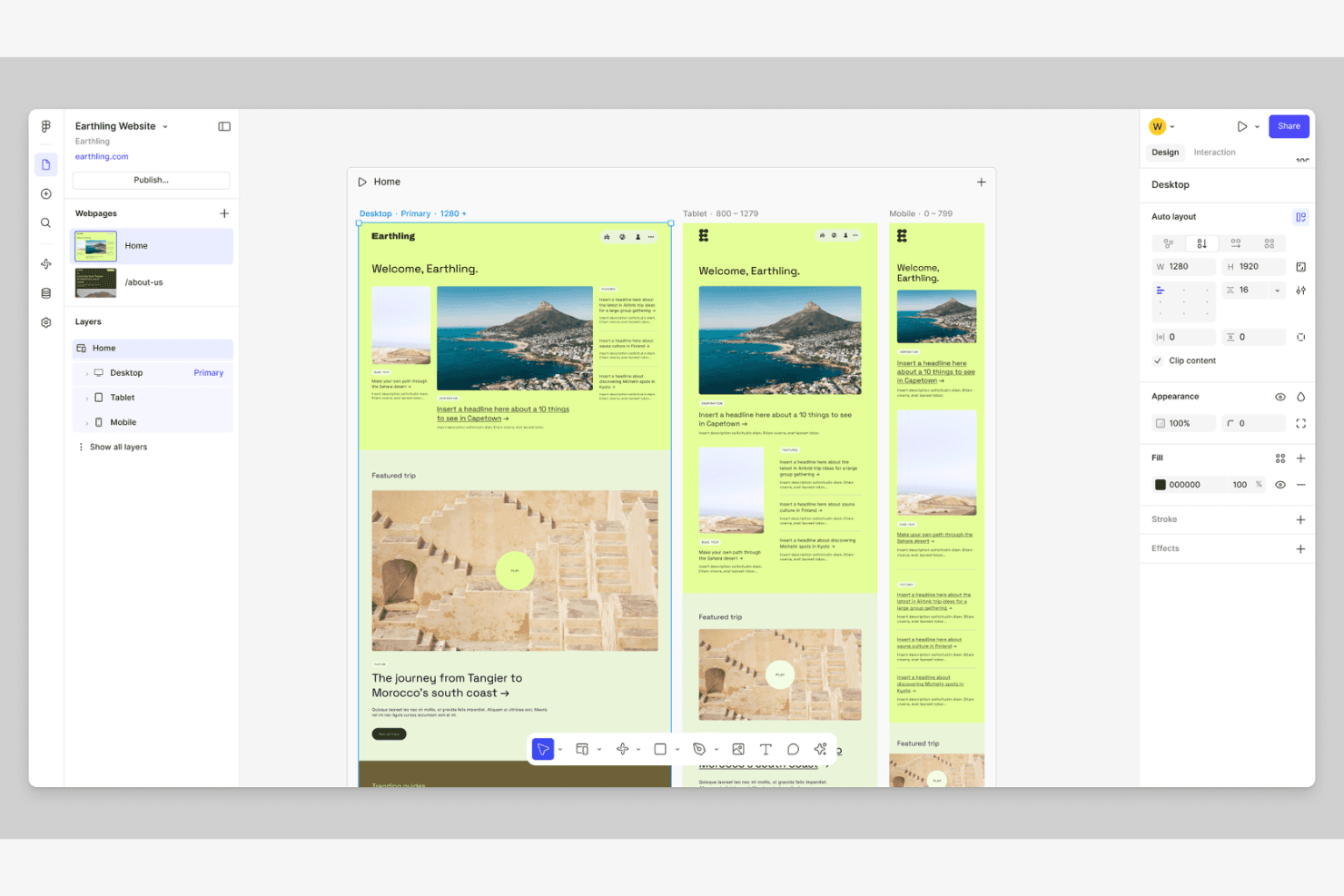
Figma enhances teamwork for designers on prototypes and design systems. Figma is a cloud-based design and web publishing platform that combines a vector design canvas, drag-and-drop site builder, AI-assisted prototyping, and real-time co-editing into a single tool for Mac.
Who Is Figma Best For?
Figma works best for design and marketing teams that need to move from prototype to published site without switching tools.
Why I Picked Figma
Figma earns its spot as one of the best on my shortlist because it's the only Mac tool where my team can design, prototype, and publish a live site without ever leaving the same canvas. I love that Figma Sites lets you copy frames directly from a Design file and publish them as responsive pages, with dedicated breakpoint controls for desktop, tablet, and mobile. Real-time co-editing with live cursors means designers, marketers, and stakeholders can review and refine the same file simultaneously, cutting approval cycles significantly.
Figma Key Features
- CMS with data binding: Build collections of content items, create CMS pages with per-item URLs, and repeat designs across lists using live-updating, spreadsheet-style fields.
- Dev Mode with Code Connect: Inspect CSS and React snippets, map design components to production components, and connect AI coding agents via an MCP server.
- Design system libraries: Share components, variables, and styles across teams, with organization-wide libraries and in-app analytics on Enterprise plans.
- Apple Silicon desktop app: Run Figma natively on Intel and Apple Silicon Macs with system font access, trackpad haptics, split-tab view, and multiple windows.
Figma Integrations
Figma offers native integrations with GitHub, Jira, Confluence, Storybook, GitLab, VS Code, Slack, Microsoft Teams, Google Workspace, and Notion. Its REST API, plugin API, and Zapier support custom workflows.
Pros and Cons
Pros:
- Responsive breakpoint controls support device layouts
- Design files publish directly as websites
- Native Mac app supports Apple Silicon
Cons:
- Beta status limits complex production websites
- Sites lacks native HTML/CSS export
 2Best for freelancer and agency site handover
Wix
- Free plan available
- From $17/month (billed annually)
Visit WebsiteCustomer Rating:4.4/5
Wix integrates with business apps and marketing platforms. Wix is a browser-based web design platform that combines drag-and-drop editing, AI-assisted site generation, built-in hosting, and a dedicated agency-focused editor (Wix Studio) with real-time co-editing, custom breakpoints, and client handover tools.
Who Is Wix Best For?
Wix is a strong fit for freelancers and agencies who need to design, manage, and hand off client sites without juggling separate hosting or deployment tools.
Why I Picked Wix
I've included Wix in my top picks because Wix Studio is genuinely built around agency and freelancer workflows, specifically the handover process. Client handover kits, real-time co-editing with on-canvas comments, and shareable design libraries let you manage the full client journey inside one platform. I also like that Figma imports translate directly into Studio, so moving from mockup to live site doesn't require rebuilding from scratch.
Wix Key Features
- Custom breakpoints: Studio lets you add up to six custom pixel breakpoints per page, giving you precise control over how layouts adapt across screen sizes.
- Figma import: A dedicated plugin lets you bring Figma designs directly into Wix Studio, so you can move from mockup to live site without rebuilding layouts from scratch.
- No-code CMS with data binding: Connect content collections to dynamic page templates without writing code, with CMS item limits scaling from 1,500 on Basic to 10M on Elite.
- Version history: Every save and publish is logged with a timestamp and collaborator email, letting you browse, name, and restore previous site states at any point.
Wix Integrations
Wix supports marketplace integrations through Wix App Market, including QuickBooks Online, Klaviyo, Trustpilot, TikTok Ads, Usercentrics, and Base44. It also connects with Figma, GitHub, Headless APIs, and Zapier.
Pros and Cons
Pros:
- Supports client handoff and real-time collaboration
- Offers precise responsive breakpoint controls
- Works fully in Safari on macOS
Cons:
- Cannot export sites or code elsewhere
- No native Mac app or offline editing
Learn more about Wix: Best for Adobe Creative Cloud web coding
- 7-day free trial
- From $22.99/month (billed annually)
Visit WebsiteCustomer Rating:4.1/5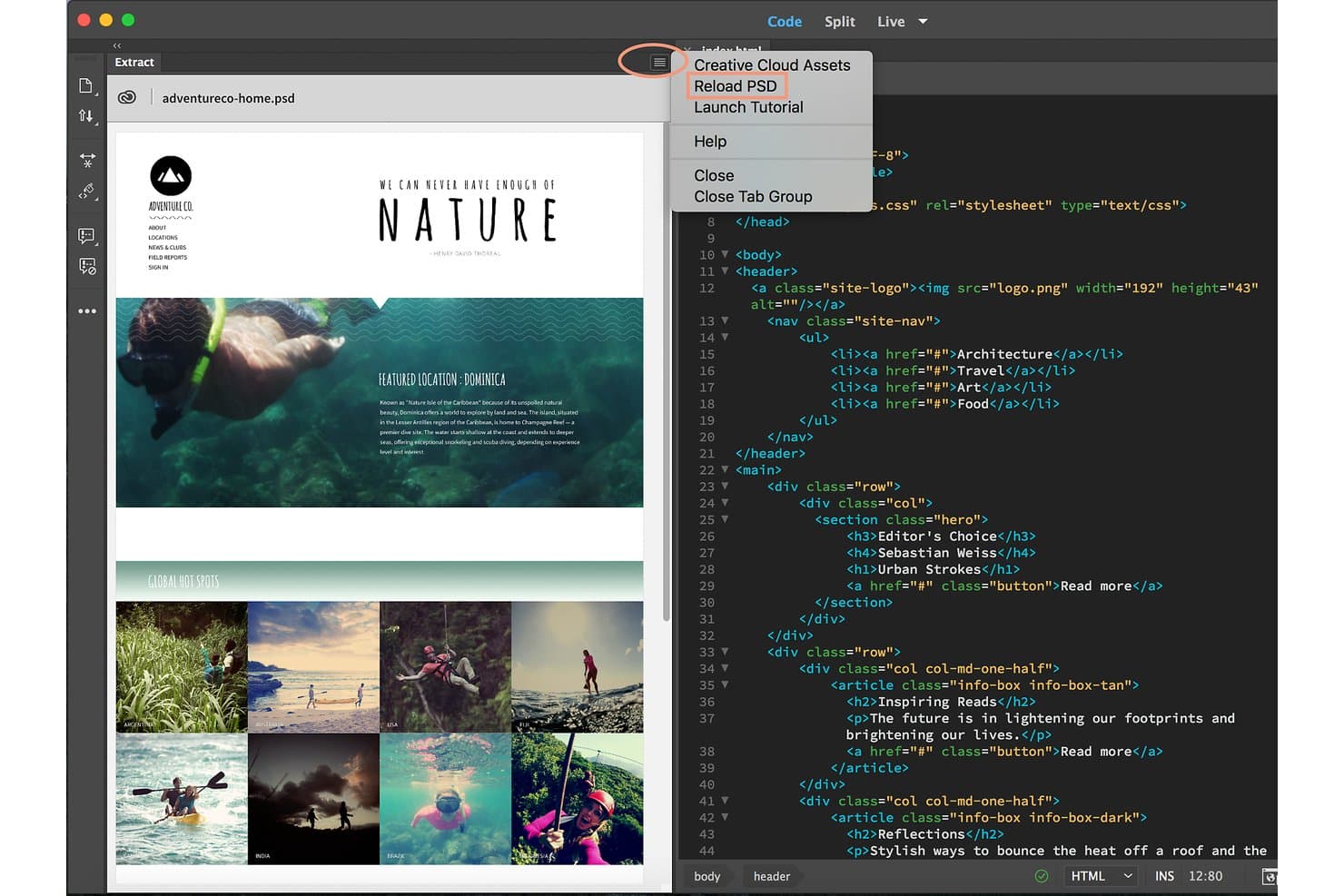
Adobe Dreamweaver lets users reload PSD files from a dropdown menu. Adobe Dreamweaver is a web design and coding tool that combines a visual Live View editor with a full code environment, supporting HTML, CSS, JavaScript, and Bootstrap for building and publishing standard, file-based websites on macOS.
Who Is Adobe Dreamweaver Best For?
Adobe Dreamweaver is a strong fit for front-end developers and creative professionals already working within the Adobe Creative Cloud ecosystem.
Why I Picked Adobe Dreamweaver
Adobe Dreamweaver earns its spot on my shortlist because it's the only web design tool built directly into the Adobe Creative Cloud ecosystem, letting you pull assets from Photoshop, Illustrator, and Adobe Stock without leaving your workflow. I particularly like the Bootstrap 5.3.8 support, which includes visual, color-coded media-query breakpoints you can snap to instantly in Live View. The built-in Git panel also lets you commit, push, and pull without switching to a separate terminal, which keeps code-focused workflows clean on macOS.
Adobe Dreamweaver Key Features
- Visual CSS Designer: A dedicated panel for editing layouts and styles visually, including within Bootstrap documents, without writing CSS manually.
- FTP/SFTP publishing with auto-upload: Connects to remote servers over FTP, FTPS, SFTP, WebDAV, and RDS, with an option to upload files automatically on save.
- Dreamweaver Templates (.dwt): Reusable page layouts with locked and editable regions that push updates to every page built from that template when changed.
- Live View drag-and-drop insertion: Lets you drag elements from the Insert panel directly into position in Live View, with visual guides to assist placement.
Adobe Dreamweaver Integrations
Adobe Dreamweaver integrates with Adobe Creative Cloud, including Photoshop, Illustrator, Adobe Stock, Adobe Fonts, and Creative Cloud Libraries. It also supports GitHub and other Git hosts through its built-in Git panel, plus FTP, FTPS, SFTP, WebDAV, and RDS connections.
Pros and Cons
Pros:
- Visual breakpoints support responsive layouts
- Produces portable HTML, CSS, and JavaScript
- Native Apple Silicon support
Cons:
- Requires separate hosting and domain services
- Design canvas feels outdated and code-centric
Learn more about Adobe Dreamweaver: Best for Bootstrap-based Mac site creation
- Free plan available
- From $112.99 one-time
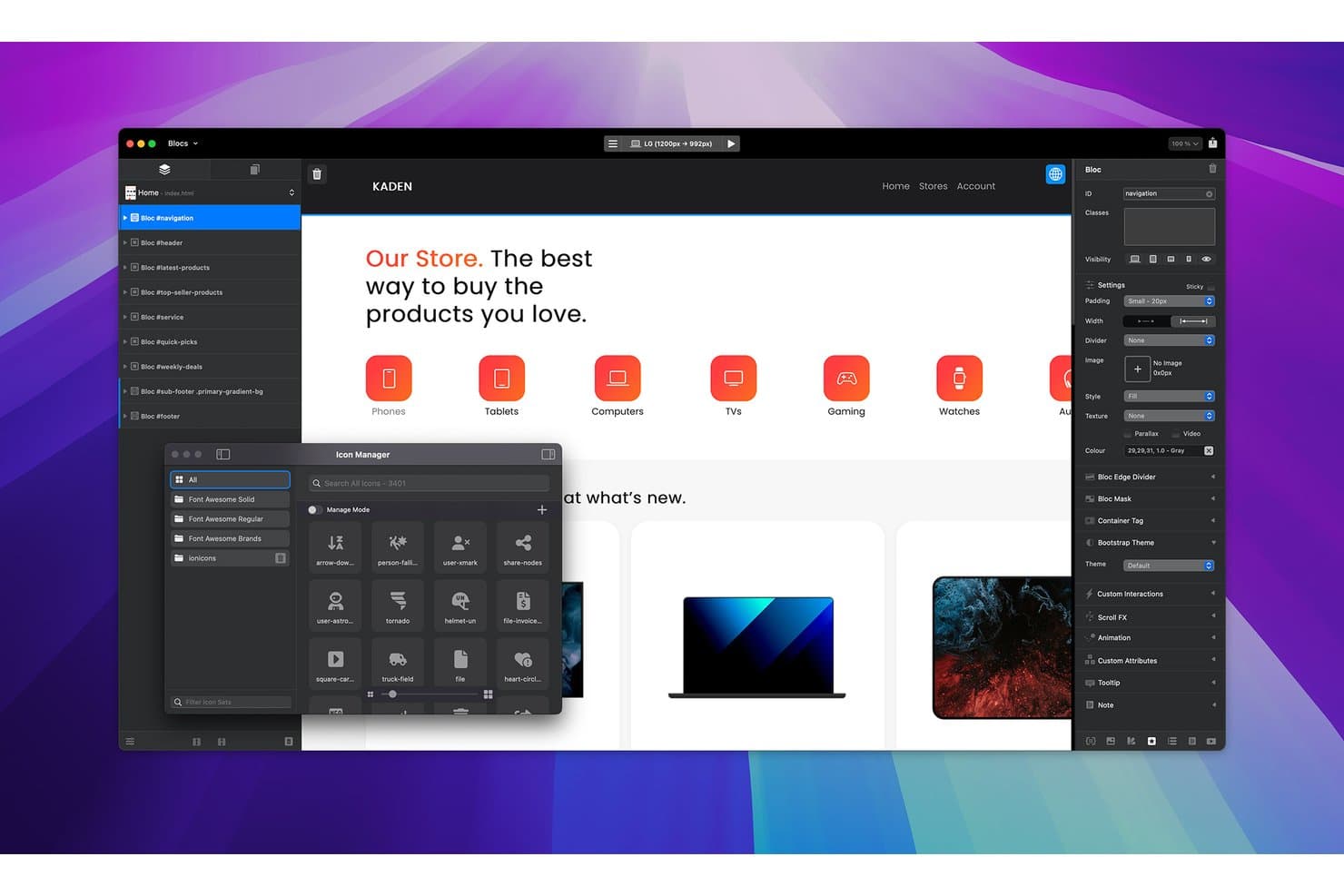
Blocs lets users browse and insert icons via the Icon Manager panel. Blocs is a native Mac web design app that lets you build, style, and publish Bootstrap-based websites through a drag-and-drop canvas, with visual controls for responsive layouts, CSS class editing, and static or WordPress theme export.
Who Is Blocs Best For?
Blocs is a strong fit for freelance web designers and front-end developers who build and deliver client sites entirely on Mac.
Why I Picked Blocs
I picked Blocs as one of the best because it's the only Mac-native visual builder that outputs clean Bootstrap 5 HTML/CSS/JS without locking you into a proprietary hosting environment. The Class Editor gives you genuine CSS control—covering transforms, transitions, and blend modes—straight from the canvas, so you're not wrestling with code exports after the fact. The WordPress Theme Builder (Plus) adds real depth, letting you build full themes with custom post types and loop controls, all visually.
Blocs Key Features
- Scroll FX and preset animations: Apply parallax scrolling effects and choose from built-in CSS animations to add motion to page elements without writing any code.
- Auto Backup Vault: Blocs automatically saves versioned backups of your project and tracks time spent editing, letting you restore earlier states at any point.
- FTP/SFTP Publish Manager: Publish directly to any host using FTP, SFTP, or SSL-secured connections, with saved server profiles and selective file upload over SFTP.
- WordPress Theme Builder: Build full WordPress themes visually, including custom post types, custom fields, and loop controls, then export them without touching PHP.
Blocs Integrations
Blocs integrates with WordPress, Bootstrap 4 and 5, Google Fonts, Adobe Fonts, OpenAI ChatGPT, and Apple Intelligence. It also supports marketplace add-ons through Blocs Store, FTP/SFTP publishing, and custom connections through its developer API.
Pros and Cons
Pros:
- Visual class editor supports detailed CSS control
- Exports clean Bootstrap HTML, CSS, and JavaScript
- Native macOS app works fully offline
Cons:
- No real-time collaboration, comments, or branching
- Four fixed breakpoints limit responsive precision
Learn more about Blocs:
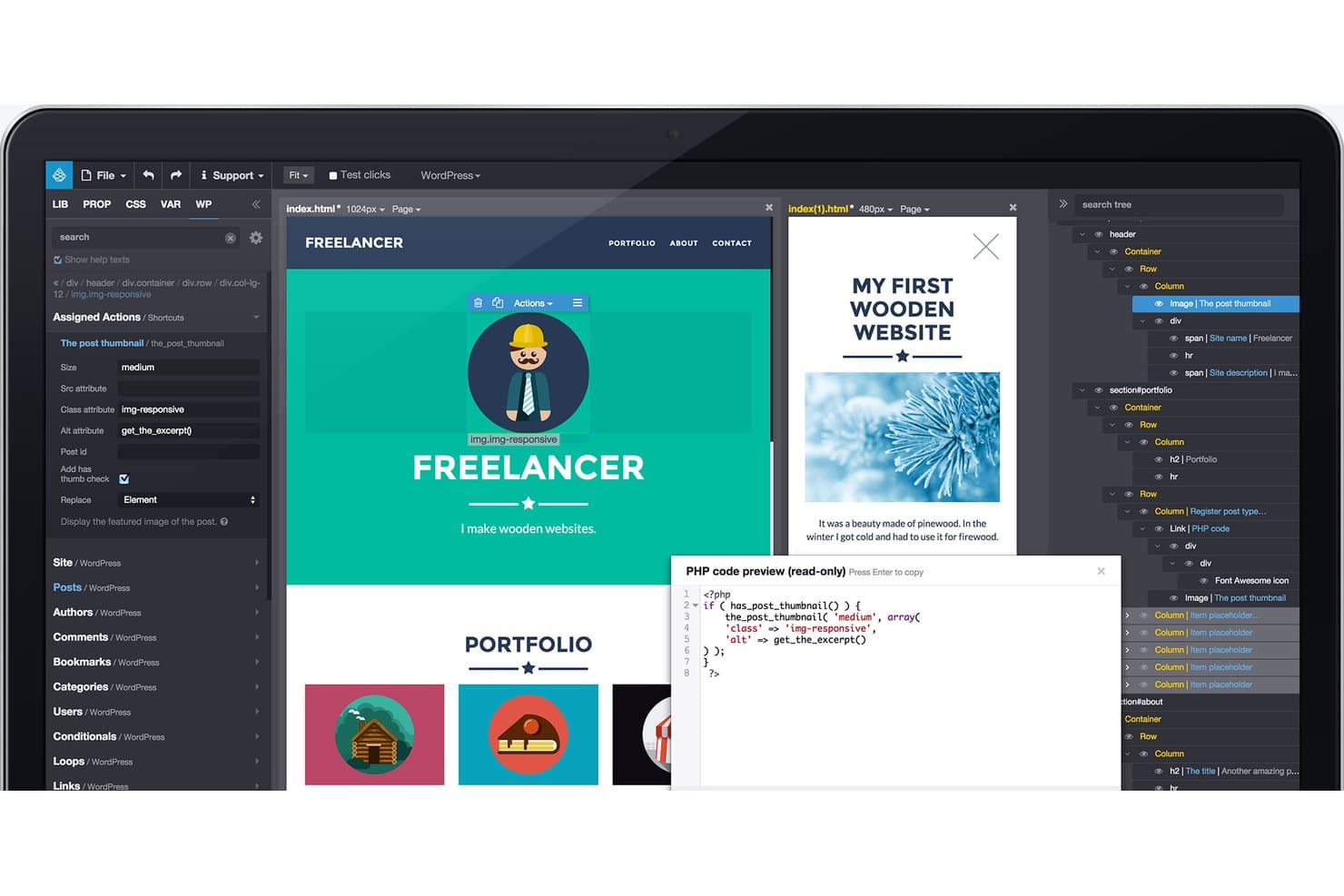
Pinegrow lets users visually bind WordPress PHP actions to HTML elements. Pinegrow is a desktop web design tool for macOS that lets front-end developers visually edit standard HTML, CSS, and JavaScript files across multi-page projects, with support for Bootstrap, Tailwind CSS, WordPress theme building, and responsive layout controls.
Who Is Pinegrow Best For?
Pinegrow is a strong fit for front-end developers who need to manage and edit multi-page projects without giving up ownership of their code.
Why I Picked Pinegrow
Pinegrow earns its spot on my shortlist because of how well it handles multi-page editing workflows, specifically through master pages that let you update a shared header or footer once and push that change across every page in your project. I also like the side-by-side page views that stay in sync, and the global find-and-replace across files, which makes managing large site builds on macOS genuinely practical. It's built for front-end developers who want visual tools without giving up clean, standard HTML and CSS files they fully own.
Pinegrow Key Features
- Live Preview with QR code: Launches a built-in web server so you can open your page on a real phone or tablet by scanning a QR code during editing.
- CSS Grid visual editor: Lets you build and adjust CSS Grid layouts directly on the canvas without writing grid properties by hand.
- VS Code integration: Syncs your Pinegrow project with VS Code so you can switch between the visual editor and your code editor without leaving your workflow.
- AI Assistant: Connects to your own OpenAI, Anthropic, or OpenRouter API key to generate, transform, and audit HTML and CSS directly inside the editor.
Pinegrow Integrations
Pinegrow integrates with Bootstrap, Tailwind CSS, WordPress, WooCommerce, Vue, VS Code, GitHub, Netlify, Cloudflare Pages, and SFTP. It also supports AI connections through OpenAI, Anthropic, OpenRouter, Codex, Claude Code, and MCP.
Pros and Cons
Pros:
- Synced previews support responsive testing
- Clean HTML/CSS preserves developer ownership
- Master pages simplify multi-page site updates
Cons:
- Limited templates constrain beginner starting points
- Requires HTML/CSS knowledge from the outset
Learn more about Pinegrow: 6Best for agency client billing and white-labeling
Duda
- 14-day free trial + free demo available
- From $25/month
Visit WebsiteCustomer Rating:4.6/5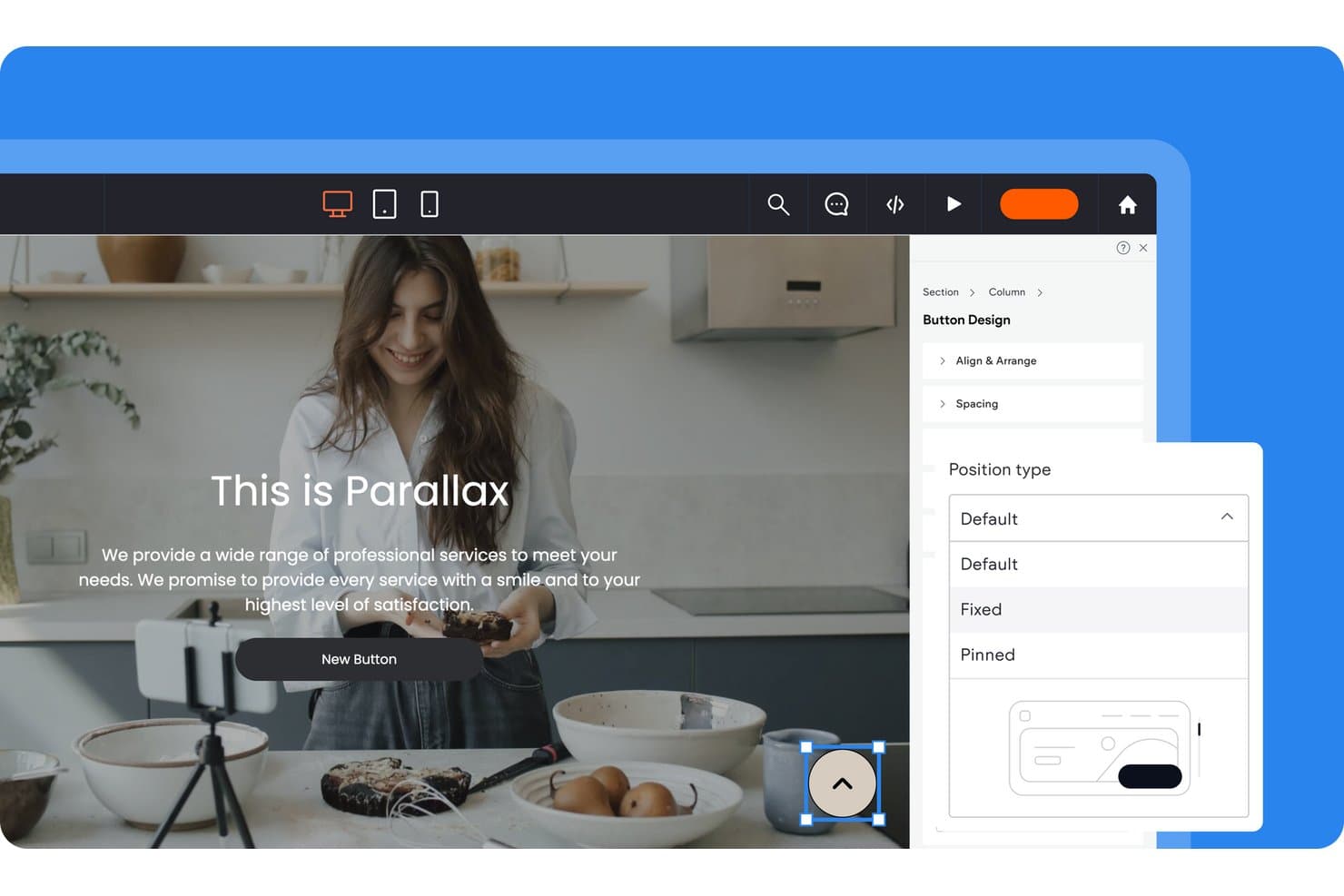
Duda lets users control button position types via a design panel. Duda is a browser-based website builder with a drag-and-drop visual editor, AI site generation, responsive layout controls, built-in hosting, and a full suite of client management tools including white-labeling, billing, and role-based permissions.
Who Is Duda Best For?
Duda is a strong fit for web design agencies that manage multiple client sites and need built-in billing, white-labeling, and client approval workflows.
Why I Picked Duda
I've included Duda in my top picks because its built-in client billing and white-labeling tools are genuinely unmatched for agencies managing multiple client sites. I particularly like how client billing runs directly through the platform via Stripe, letting you set up recurring payments and auto-publish or unpublish sites based on payment status. The white-label setup lets you rebrand the entire editor, dashboard, login page, and client emails so clients never see Duda's name.
Duda Key Features
- DudaFlex visual editor: A CSS Grid and Flexbox-based drag-and-drop canvas with snapping, a layers panel, and per-device editing controls for desktop, tablet, and mobile layouts.
- AI site generation: The AI Assistant builds full sites, sections, copy, and SEO metadata from a client brief or onboarding form, with an AI Widget Builder for generating custom elements from code.
- Dynamic pages and collections: Connect internal databases or external sources like Google Sheets and Airtable to build content-driven pages at scale without custom development.
- Version history and backups: Automatic backups trigger on publish, developer mode use, and layout changes, with up to 50 automatic and 50 manual named backups you can preview before restoring.
Duda Integrations
Duda offers marketplace integrations including Google Search Console, SimplyBook.me, Termly, Dropbox, Google Drive, YouTube, and Vimeo. It connects to Google Sheets, Airtable, and APIs for dynamic content, with REST, JavaScript, webhooks, and Zapier support.
Pros and Cons
Pros:
- Automatic backups protect published site changes
- Agency billing and white-labeling simplify client delivery
- Works natively through supported Mac browsers
Cons:
- Exported code hinders developer handoffs
- No native macOS application
Learn more about Duda: Best for visual HTML and CSS control without code
- Free plan available
- From $14/month (billed annually)
Visit WebsiteCustomer Rating:4.4/5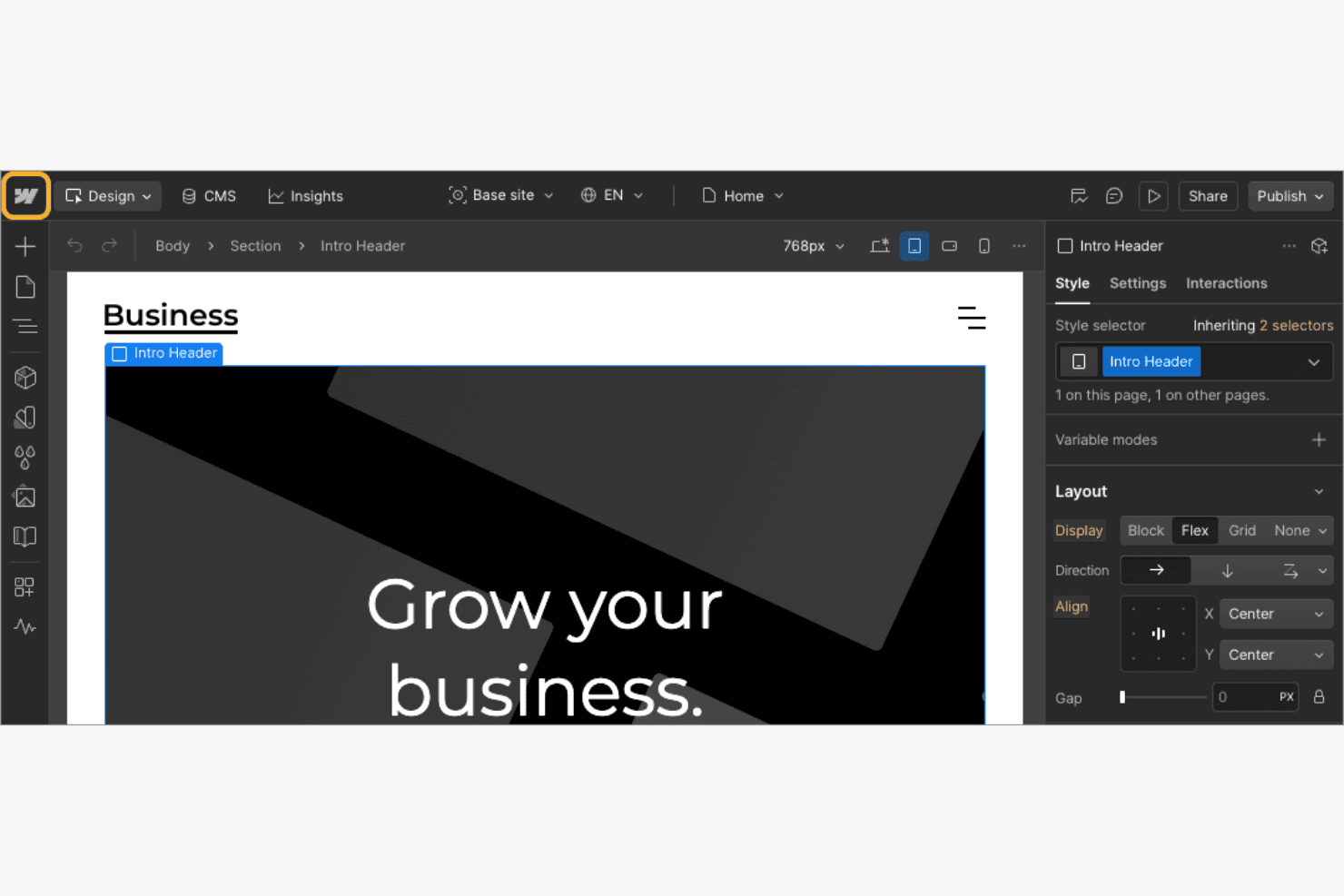
Webflow streamlines site creation and deployment for designers. Webflow is a browser-based web design platform that lets you build, style, and publish websites through a visual canvas with direct control over HTML, CSS, Flexbox, Grid, animations, and CMS content.
Who Is Webflow Best For?
Webflow is a strong fit for freelance designers and creative teams who want pixel-level control over layouts and styles without writing CSS by hand.
Why I Picked Webflow
Webflow earns its spot on my shortlist because it gives you genuine CSS-level control—Flexbox, Grid, absolute positioning—directly on a visual canvas, with no code required. I love how the Designer lets you work with real CMS data bound to your layout, so what you see while building is exactly what publishes. The breakpoint system, with its side-by-side Expand Canvas view, makes responsive design feel precise rather than guesswork.
Webflow Key Features
- Interactions and animations editor: Build scroll-based animations and multi-step interactions visually using a GSAP-powered timeline, with no code required.
- CMS data binding: Connect live Collection data directly to your design canvas so layouts display real content as you build.
- Template marketplace: Browse free and paid community-built templates across categories like portfolios, ecommerce, and blogs, with pre-built CMS collections and animations included.
- Design system component libraries: Create reusable components with style variables for color, typography, and spacing, then share them across projects via shared libraries.
Webflow Integrations
Webflow has 412 marketplace apps, including Figma to Webflow, Relume, HubSpot, Google Analytics, and Zapier. REST and Designer APIs support custom integrations, while DevLink connects React components.
Pros and Cons
Pros:
- Managed hosting includes backups and SSL
- Responsive breakpoints support precise mobile layouts
- Mac browsers access the full designer
Cons:
- Exported sites exclude CMS and form functionality
- No native Mac app or offline editing
Learn more about Webflow:- Best for Mac-native Tailwind site building
- Free trial available
- From $99/year (billed annually)
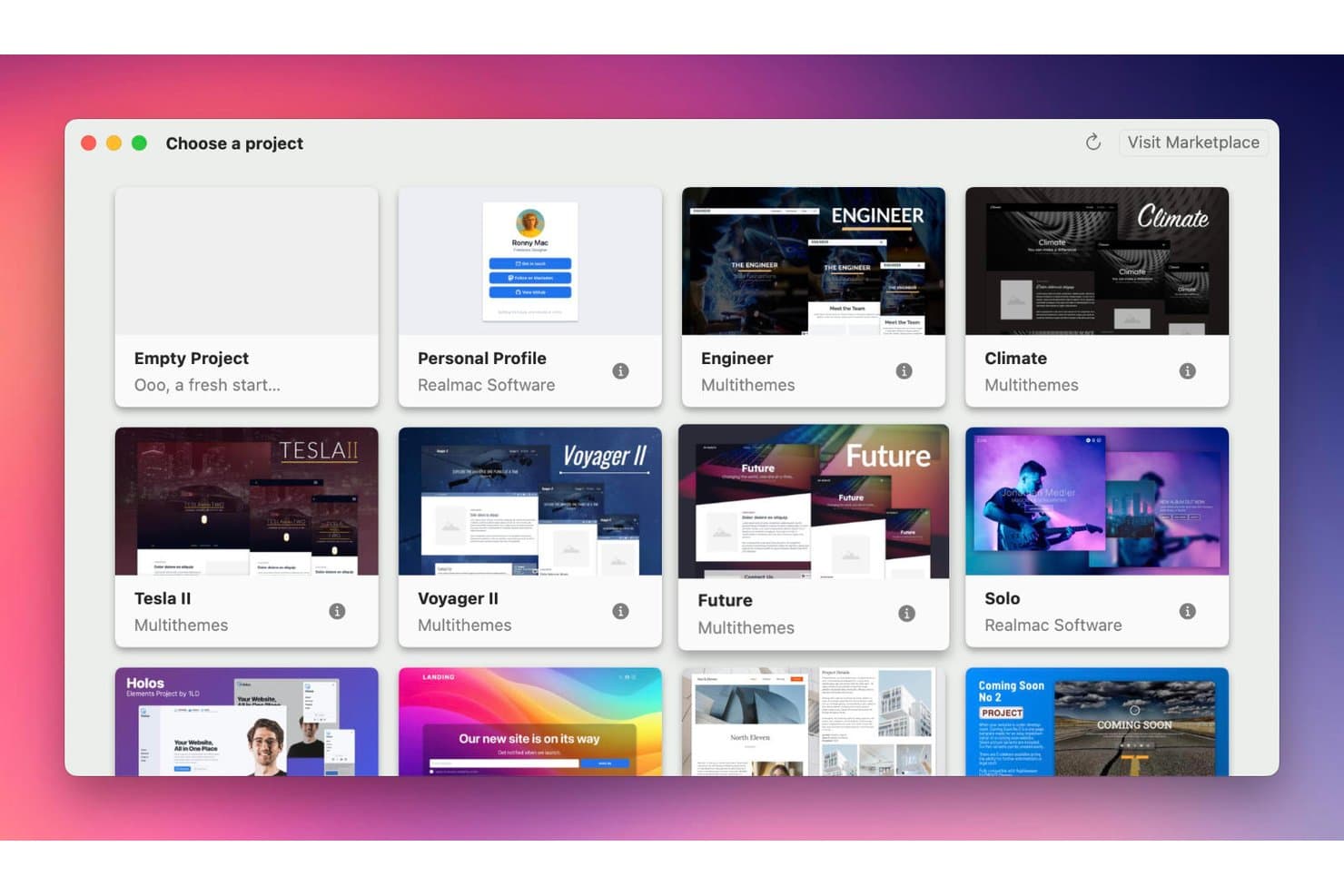
RapidWeaver lets users choose from templates to start a project. RapidWeaver Elements is a Mac-native, no-code website builder that uses a Tailwind CSS-based visual canvas, built-in CMS, FTP/SFTP publishing, and a component library to design and deploy sites directly from macOS.
Who Is RapidWeaver Best For?
RapidWeaver Elements is a strong fit for Mac-based freelance web designers and front-end developers who want a native, no-code Tailwind workflow without switching to a browser-based tool.
Why I Picked RapidWeaver
RapidWeaver Elements earns its spot on my shortlist because it's the only Mac-native site builder I've found that uses Tailwind CSS as its actual visual canvas, not just as an export option. I like how the Node Browser exposes the full Tailwind class structure while you design, so you're building real, production-ready markup from the start. Global Templates and Theme Studio let you lock in breakpoints, fonts, and colors once across the entire site.
RapidWeaver Key Features
- Built-in FTP/SFTP publishing: Publish directly to FTP, SFTP, Amazon S3, or a local folder without leaving the app, with support for saving multiple destinations as bookmarks.
- Online CMS editor: Clients can edit site content in a browser from any device without needing a Mac or access to the desktop app.
- AI Assistant: Connect your own OpenAI or Anthropic API key to generate layouts, write content, build custom components, and run SEO checks.
- Native macOS file manager: A Finder-like Resources Manager lets you organize project files and folders directly within the app, with full offline support.
RapidWeaver Integrations
RapidWeaver connects with Google Sheets, OpenAI, Anthropic, YouTube, Vimeo, and Amazon S3, with FTP/SFTP publishing. Its developer API, JSON REST API, and webhooks support custom integrations.
Pros and Cons
Pros:
- Browser CMS enables client content updates
- Tailwind canvas generates clean responsive HTML
- Native offline editing with Finder-like file management
Cons:
- Online CMS edits risk republishing overwrites
- Mac-only projects limit cross-platform collaboration
Learn more about RapidWeaver:  Best for grid-free drag-and-drop canvas design
- Free plan available
- From $6.75/month (billed annually)
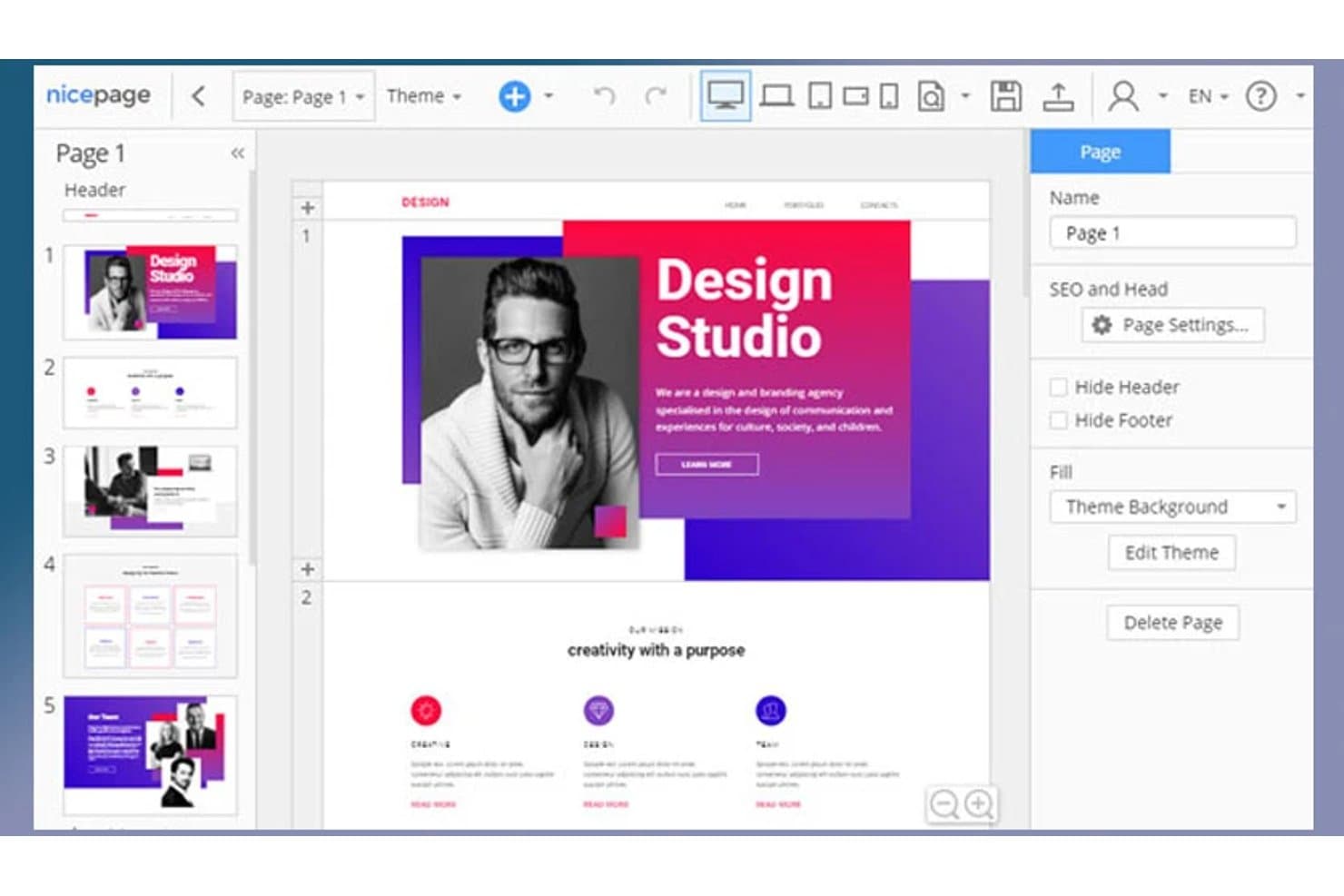
Nicepage lets users design multi-page websites with a visual editor. Nicepage is a web design software for Mac that offers a freehand drag-and-drop canvas editor, a library of 15,000+ templates, HTML/CSS/WordPress/Joomla export, and built-in AI design tools.
Who Is Nicepage Best For?
Nicepage is a strong fit for freelance designers and small business owners who want full layout freedom without paying subscription prices typical of larger website builders.
Why I Picked Nicepage
I picked Nicepage as one of the best because its grid-free canvas lets you place elements anywhere on the page, the way you'd arrange objects in a design tool like XD or Figma, rather than snapping everything into a rigid column structure. I especially like the precision controls built into that freehand editor: on-screen distance guides, a measuring tool, and percentage-based widths that give you real layout control. On a Mac, the native Apple Silicon app handles all of this offline, so you can design without a browser tab open.
Nicepage Key Features
- AI page builder: Generates full page layouts, blocks, and text from a prompt, with every output editable in the drag-and-drop editor.
- Multi-format export: Exports your project as static HTML/CSS/JS, a WordPress theme, or a Joomla template from a single design file.
- Offline Mac desktop app: A native Apple Silicon and Intel app lets you build and edit sites without an internet connection.
- User roles and collaboration: Assign Designer, Content Editor, or Content Viewer roles to control who can edit or view each site.
Nicepage Integrations
Nicepage supports WordPress, Joomla, WooCommerce, VirtueMart, PayPal, Stripe, Google Sheets, Mailchimp, Google Analytics, and Google Tag Manager. It has no public API, so custom integrations require exported code or supported form destinations.
Pros and Cons
Pros:
- Exports layouts beyond the Mac app
- Native Mac app works offline
- Freehand canvas supports precise layout control
Cons:
- Interface feels dated and confusing
- Responsive layouts need manual device fixes
Learn more about Nicepage:- 10Best for freeform canvas site building on Mac
Sitely
- 14-day free trial
- From $59.99/year (billed annually)
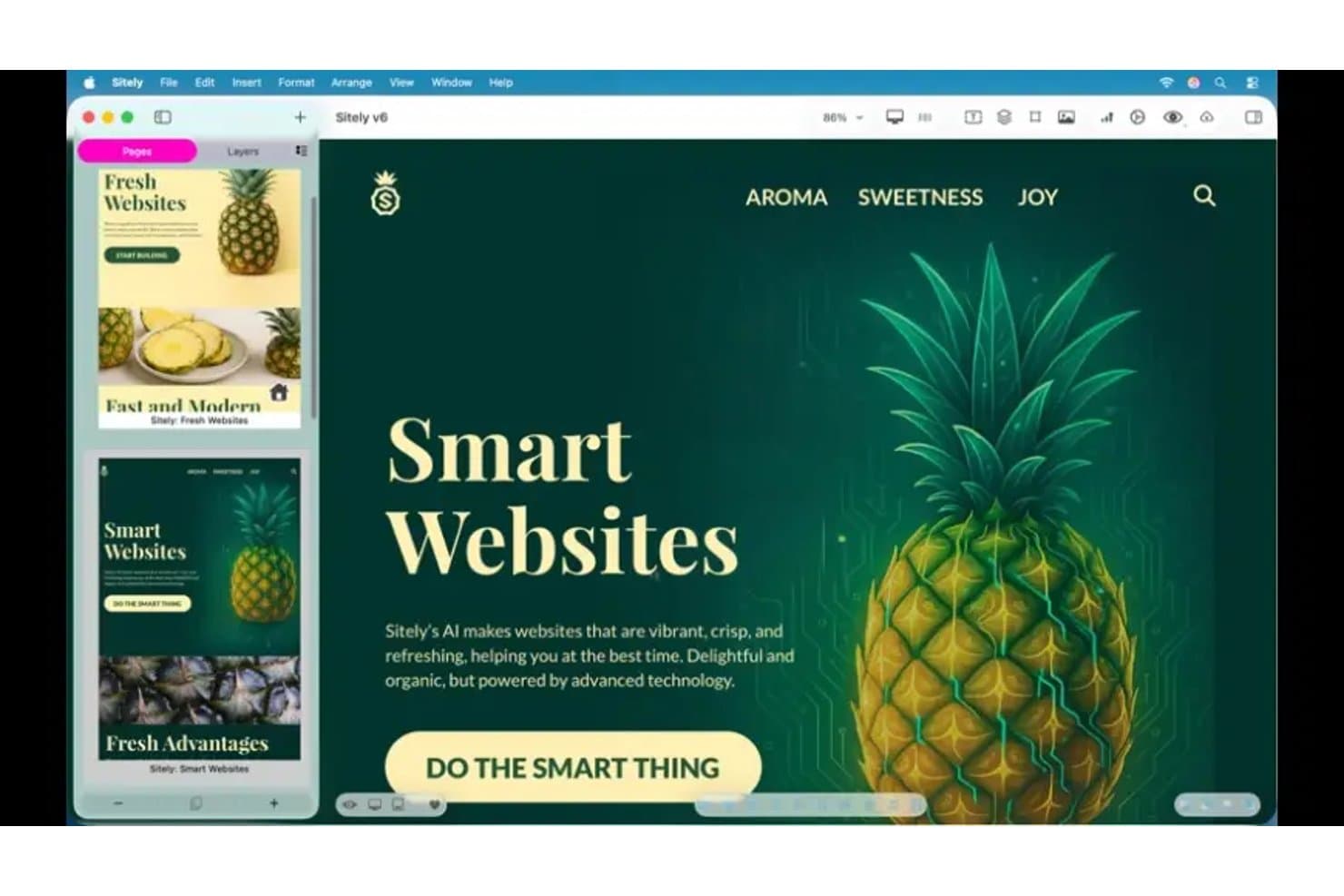
Sitely lets users design multi-page websites with AI-powered templates. Sitely is a native Mac web design app that combines a freeform drag-and-drop canvas, AI-assisted site generation, built-in business elements like forms and payments, and direct FTP publishing.
Who Is Sitely Best For?
Sitely is a strong fit for freelance web designers and solo business owners on Mac who want to build visually polished sites without writing code.
Why I Picked Sitely
I picked Sitely as one of the best because its freeform canvas is genuinely unlike anything else in the Mac web design space. You're not snapping elements into predefined rows or template zones. You're placing, layering, and animating content exactly where you want it, with tools like masks, gradients, and a keyframe editor for 3D models. I also love that Magic Box lets you describe a custom widget, like a calculator or animated background, and generates it on the spot without touching code.
Sitely Key Features
- AI website generator: Enter a business name and description, and Sitely builds a full site outline with layouts, royalty-free images, and synced menus using OpenAI.
- Built-in payment and booking elements: Accept payments via PayPal, Stripe, or Snipcart and add table or property booking widgets directly on the canvas.
- Per-device layout controls: Set separate layouts, grid column counts, and text styles for desktop, tablet, and mobile with a side-by-side preview mode.
- FTP/SFTP publishing: Publish directly to any web host via FTP, FTPS, or SFTP, with automatic change detection so only updated files upload.
Sitely Integrations
Sitely offers native integrations with PayPal, Stripe, Snipcart, Ecwid, Gumroad, Paddle, Google Analytics, Google Tag Manager, Google Calendar, and Figma. It also supports Sketch imports and embeds content from YouTube, Vimeo, Instagram, and Google Maps.
Pros and Cons
Pros:
- Built-in AI accelerates initial site creation
- Freeform canvas supports layered visual design
- Native Mac and iPad experience
Cons:
- No collaboration or version history features
- Responsive layouts require manual device adjustments
Learn more about Sitely:
Other Web Design Software Mac
Here are some additional web design software Mac options that didn’t make it onto my shortlist, but are still worth checking out:
- 11FramerBest for scroll-triggered motion on Mac
- 12SquarespaceBest for designer-made template variety
- 13WordPressBest for managed WordPress hosting on Mac
- 14SparkleBest for code-free visual design on Mac
- 15Hostinger HorizonsBest for all-in-one hosting and site building
- 16MobiriseBest for free offline site building on Mac
- 17WebstudioBest for API-driven dynamic site building
- 18EverWebBest for one-time licensed Mac site building
How I Evaluate Web Design Software For Mac
I split my evaluation into three parts, giving most weight to core functionality: build responsive pages, preview mobile layouts, and export HTML/CSS. Next, I look for design-system components or real-time co-editing. Finally, I consider onboarding, support, pricing, and workflow fit.
Core Functionality (Table Stakes For This List)
When I'm selecting tools for my list, I score each one on a scale from 0 (does not offer the functionality) to 5 (excels in this area) for each core functionality listed below. I then convert the total into a percentage to help assess each tool’s overall fit, with extra weight on any functionalities I’ve deemed essential.
- Visual Design Canvas (Essential): I look for drag-and-drop control over grids, layers, and custom elements when shaping client-ready page layouts.
- Responsive Layout Controls (Essential): I evaluate breakpoint controls and device previews, including how navigation, type, and spacing adapt from desktop to mobile.
- macOS Compatibility: I check for a fully functional Mac experience, including native file handling, reliable performance, and consistent feature access.
- Code Export: I assess whether the tool produces usable HTML and CSS for deployment, developer handoff, and later customization.
- Publishing & Hosting: I look for direct publishing, FTP or SFTP support, and practical workflows for launching and updating client sites.
- Templates & Assets: I review starter templates, reusable components, and assets that support common business, portfolio, and campaign pages.
Once I have a list of tools that meet the criteria, I consider what sets each platform apart.
Differentiating Factors (What Sets Vendors Apart)
Here's how I compare and contrast different vendors:
Standout Features
I look for design system components—reusable symbols, variables, and style libraries—that keep mockups consistent when a product team manages dozens of pages. Real-time co-editing matters just as much, because a PM, designer, and engineer reviewing the same canvas at once can cut sign-off cycles from days to minutes. I also evaluate each tool's plugin and integration ecosystem, checking for connections to Jira, Slack, or Zapier that let the tool fit into existing workflows instead of creating a silo.
Beyond Features
I evaluate how each tool fits into existing product pipelines—whether it connects to Jira, GitHub, or Slack without forcing workarounds. A tool that adds friction between design and dev handoff costs more than its subscription. I also check pricing models, since per-seat costs balloon fast when developers and stakeholders need even comment-only access. Free tiers help validate a tool's fit before you commit budget across a full product team.
How to Choose Web Design Software Mac
It’s easy to get bogged down in long feature lists and complex pricing structures. To help you stay focused as you work through your unique software selection process, here’s a checklist of factors to keep in mind:
| Factor | What to Consider |
|---|---|
| FactorScalability | What to ConsiderWill the tool support your team as it grows? Consider user limits, project caps, and collaboration needs for future expansion. |
| FactorIntegrations | What to ConsiderDoes the software connect with your existing design, development, and communication tools? Check for native integrations with Figma, Slack, or Jira. |
| FactorCustomizability | What to ConsiderCan you tailor the workspace, templates, or workflows to match your team’s processes and branding requirements? Open-source web design software can offer control by letting you modify the underlying code. |
| FactorEase of use | What to ConsiderHow quickly can new users become productive? Look for intuitive interfaces and minimal training requirements, especially for mixed-skill teams. |
| FactorImplementation and onboarding | What to ConsiderWhat resources are available for setup and migration? Assess the availability of tutorials, onboarding support, and import tools for existing projects. |
| FactorCost | What to ConsiderAre the pricing tiers aligned with your budget and feature needs? Watch for hidden fees, required add-ons, or user-based pricing that could increase costs. |
| FactorSecurity safeguards | What to ConsiderDoes the tool offer encryption, access controls, and compliance with data privacy standards? Evaluate how sensitive design assets and client data are protected. |
| FactorSupport availability | What to ConsiderWhat support channels are offered, and during what hours? Consider if you need live chat, phone, or email support, and whether help is available in your time zone. |
What Is Web Design Software Mac?
Web design software Mac refers to applications built for MacOS—such as Sparkle or local Wordpress environments—that enable users to design, prototype, and build responsive websites or web interfaces. These user-friendly tools support visual layout creation, performance optimization, interactive prototyping, and asset export, all tailored for Mac hardware and workflows.
They help designers, developers, and teams collaborate on web development projects from concept to handoff, ensuring compatibility with Apple’s operating system and design standards across both Mac and iPad.
Features
When selecting web design software Mac, keep an eye out for the following key features:
- Drag-and-drop editor: Lets you visually arrange elements on the canvas without writing code, making layout adjustments quick and accessible for all skill levels.
- Responsive design tools: Allows you to create layouts that automatically adapt to different screen sizes, ensuring your website looks good on desktops, tablets, and phones.
- Asset export options: Enables you to export images, icons, and other design assets in multiple formats and resolutions for use in development.
- Interactive prototyping: Lets you build clickable prototypes with transitions and interactions, so you can test user flows before development begins.
- Design system support: Provides tools to create and manage reusable components, color palettes, and typography styles for consistent branding across projects.
- Collaboration features: Offers real-time commenting, sharing, and version history so teams can work together and track changes efficiently.
- Code export or inspection: Gives you access to CSS, HTML, or other code snippets generated from your designs, helping bridge the gap between design and development.
- Template library: Supplies a collection of pre-built layouts and UI elements to speed up the design process and inspire new ideas.
Benefits
Implementing web design software Mac provides several benefits for your team and your business. Here are a few you can look forward to:
- Optimized MacOS performance: These tools are designed to run smoothly on Mac hardware, taking advantage of system resources and native interface conventions.
- Faster design-to-development handoff: Built-in asset export, code inspection, and collaboration features help teams move projects from design to development with fewer errors.
- Consistent branding: Design system support and reusable components ensure your team maintains visual consistency across all web projects.
- Improved team collaboration: Real-time commenting, sharing, and version control features make it easier for teams to work together and track changes.
- Flexible prototyping: Interactive prototyping tools allow you to test user flows and gather feedback before committing to development.
- Adaptability for multiple devices: Responsive design tools help you create layouts that look great on desktops, tablets, and smartphones.
- Streamlined onboarding: Access to templates, tutorials, and intuitive interfaces helps new users get up to speed quickly.
Costs and Pricing
Selecting web design software Mac requires an understanding of the various pricing models and plans available. Costs vary based on features, team size, add-ons, and more. The table below summarizes common plans, their average prices, and typical features included in web design software Mac solutions:
Plan Comparison Table for Web Design Software Mac
| Plan Type | Average Price | Common Features |
|---|---|---|
| Plan TypeFree Plan | Average Price$0 | Common FeaturesBasic design tools, limited templates, single user access, and community support. |
| Plan TypePersonal Plan | Average Price$9-$29/month | Common FeaturesFull design features, asset export, responsive layouts, limited collaboration, and email support. |
| Plan TypeBusiness Plan | Average Price$19-$119/month | Common FeaturesTeam collaboration, version history, advanced prototyping, design system tools, and priority support. |
| Plan TypeEnterprise Plan | Average Price$75+/month | Common FeaturesCustom integrations, enhanced security, admin controls, onboarding assistance, and dedicated support. |
Web Design Software Mac FAQs
Here are some answers to common questions about web design software Mac:
Can I use web design software Mac for both design and development?
Yes, many web design software Mac solutions support both visual design and basic front-end development. You can create layouts, prototype interactions, and export assets or code snippets for developers. However, for advanced coding or backend work, you may need additional development tools.
Do web design software Mac tools support collaboration with Windows users?
Yes, most modern web design software Mac tools offer cloud-based collaboration features that work across operating systems. Team members on Windows can access shared projects, comment, and contribute through web browsers or compatible desktop apps.
What file formats can I export from web design software Mac?
You can typically export assets in formats like PNG, JPG, SVG, and PDF. Some tools also allow exporting CSS, HTML, or design tokens for development handoff. Always check the export options to ensure compatibility with your workflow and development stack.
Is it possible to migrate projects from other design tools to web design software Mac?
Yes, many web design software Mac solutions support importing files from popular tools like Figma, Sketch, or Adobe XD. Look for import guides or migration tools to help transfer your existing projects with minimal loss of fidelity.
How do I ensure my web designs are accessible using web design software Mac?
Use built-in accessibility checkers, color contrast tools, and semantic structure features provided by the software. Review your designs for keyboard navigation, readable fonts, and sufficient contrast to meet accessibility standards such as WCAG.