
Enquanto gestor de produto, conheço em primeira mão a importância da prototipagem rápida. É entusiasmante ver as ideias ganharem forma rapidamente e recolher feedback inicial das partes interessadas ou dos utilizadores. Mas quando as ferramentas não estão à altura da tarefa, o desenvolvimento de produtos pode estagnar e as coisas podem descontrolar-se rapidamente.
Pode perder horas a lidar com interfaces pouco práticas ou falhar prazos apertados porque a ferramenta de prototipagem não funcionou bem com o fluxo de trabalho existente da sua equipa. Pior ainda, os ciclos de feedback podem parar quando partilhar designs parece dar mais trabalho do que vale a pena.
Ao olhar para trás, percebi que muitos destes problemas se deviam à falta de acesso às ferramentas de prototipagem rápida certas, capazes de se adaptar ao ritmo acelerado do desenvolvimento de produtos e às exigências do design de UX.
Foi por isso que reuni as melhores ferramentas para prototipagem rápida. Estas soluções vão ajudá-lo a dar vida rapidamente aos conceitos, simplificar o feedback e manter a sua equipa concentrada na criação de experiências de utilizador excelentes. Continue a ler para encontrar a solução mais adequada às suas necessidades e fluxos de trabalho.
Why Trust Our Software Recommendations
6,700+
Reviews
20
Industry experts
16+
Evaluation factors
14
Years
Our team has been testing and reviewing software since 2012. As product managers ourselves, we know how difficult—and important—it is to choose the right software.
For this guide, we evaluated tools using hands-on testing and independent research, scoring tools using our selection criteria.
Our reviews reflect our human editorial judgment, not a sales pitch.
Expert reviewers:
- Andrew LumbySenior TPM
- Cristiano ValimSenior UI/UX Lead


Tabela de comparação: ferramentas de prototipagem rápida
Eis uma tabela que pode utilizar para comparar todas as ferramentas que acabámos de abordar nas sínteses.
| Tool | Best For | Trial Info | Price | ||
|---|---|---|---|---|---|
| 1 | Best for visual product roadmaps | Free plan + 14-day free trial + free demo available | From $8/user/month (billed annually) | Website | |
| 2 | Best for open-source design and dev handoff | Free plan + 14-day free trial + free demo available | From $7/user/month | Website | |
| 3 | Best for prototyping live e-commerce storefronts | Free plan available | From $15/month (billed annually) | Website | |
| 4 | Best for game UI prototyping with gamepad input | Free plan + free demo available | From $25/user/month | Website | |
| 5 | Best for mixed teams prototyping without design skills | Free plan available | From $9/user/month (billed annually) | Website | |
| 6 | Best for codeless and advanced transitions | Free plan available | From $3/user/month | Website | |
| 7 | Best for prototyping with real code components | Free plan + 14-day free trial + demo available | From $49/user/month | Website | |
| 8 | Best for hand-built responsive breakpoints | Free plan + 10-day trial available | From $19/user/month | Website | |
| 9 | Best for Mac-native design and prototyping | 30-day free trial available | From $12/user/month (billed annually) | Website | |
| 10 | Best for logic-driven interactive prototyping | Free plan + 30-day free trial available | From $29/user/month (billed annually) | Website |


Sínteses das 10 melhores ferramentas de prototipagem rápida
Vamos ao que interessa. Eis as melhores ferramentas de prototipagem, com capturas de ecrã para poder pré-visualizar a interface de utilizador.
 1Best for visual product roadmaps
Miro
- Free plan + 14-day free trial + free demo available
- From $8/user/month (billed annually)
Visit WebsiteCustomer Rating:4.8/5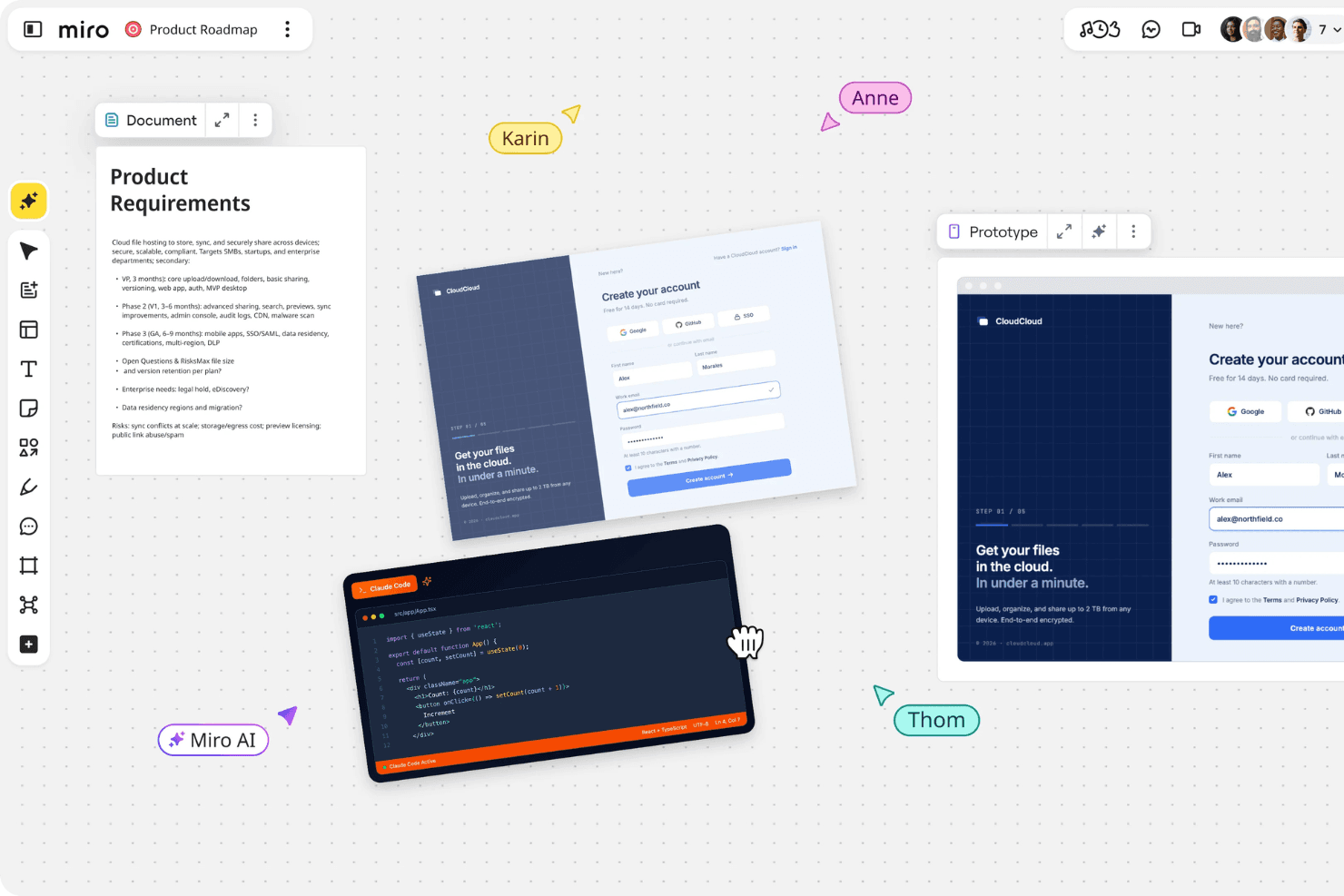
Miro brings product planning, design, and team collaboration together in one shared workspace. Miro is a visual collaboration platform that combines an infinite canvas, AI-assisted screen generation, and a prototyping library to help teams wireframe, mock up, and link screens alongside roadmaps, research, and PRDs.
Who Is Miro Best For?
Miro suits product managers and cross-functional teams who need to ideate, align, and validate concepts on a shared canvas before moving into high-fidelity design.
Why I Picked Miro
I picked Miro as one of the best because it's the only tool that lets you build a visual product roadmap and generate prototype screens on the same canvas, with AI pulling context directly from your PRDs, sticky notes, and research artifacts. I love how the Roadmap Strategist Sidekick connects timelines and backlog dependencies to the same board where early screens live. The UX Researcher Sidekick then reviews those screens for usability issues and produces revised versions automatically.
Miro Key Features
- Prototyping library: A built-in library of reusable UI elements, icons, buttons, forms, and navigation components for building prototype screens directly on the canvas.
- UX Researcher Sidekick: An AI agent that reviews prototype screens for usability and accessibility issues, then generates revised screens with fixes applied.
- Multi-format device preview: Generate and preview prototype screens in mobile, tablet, or desktop formats within the same canvas environment.
- Two-way project management sync: Native two-way sync with Jira, Azure DevOps, Linear, and Asana keeps backlog and delivery data connected to your prototype workspace.
Miro Integrations
Miro offers 250+ integrations, including Figma, Adobe XD, Jira, Confluence, Slack, Microsoft Teams, Google Workspace, and ServiceNow. It also provides REST APIs, Web SDKs, Enterprise APIs, and two-way sync with Jira, Azure DevOps, Linear, Asana, and ClickUp.
Pros and Cons
Pros:
- Stakeholders can comment and compare versions
- AI generates screens from research context
- Roadmaps and prototypes share one canvas
Cons:
- Developer handoff lacks inspectable design specs
- Click-through interactions lack conditional logic
 Best for open-source design and dev handoff
- Free plan + 14-day free trial + free demo available
- From $7/user/month
Visit WebsiteCustomer Rating:4.5/5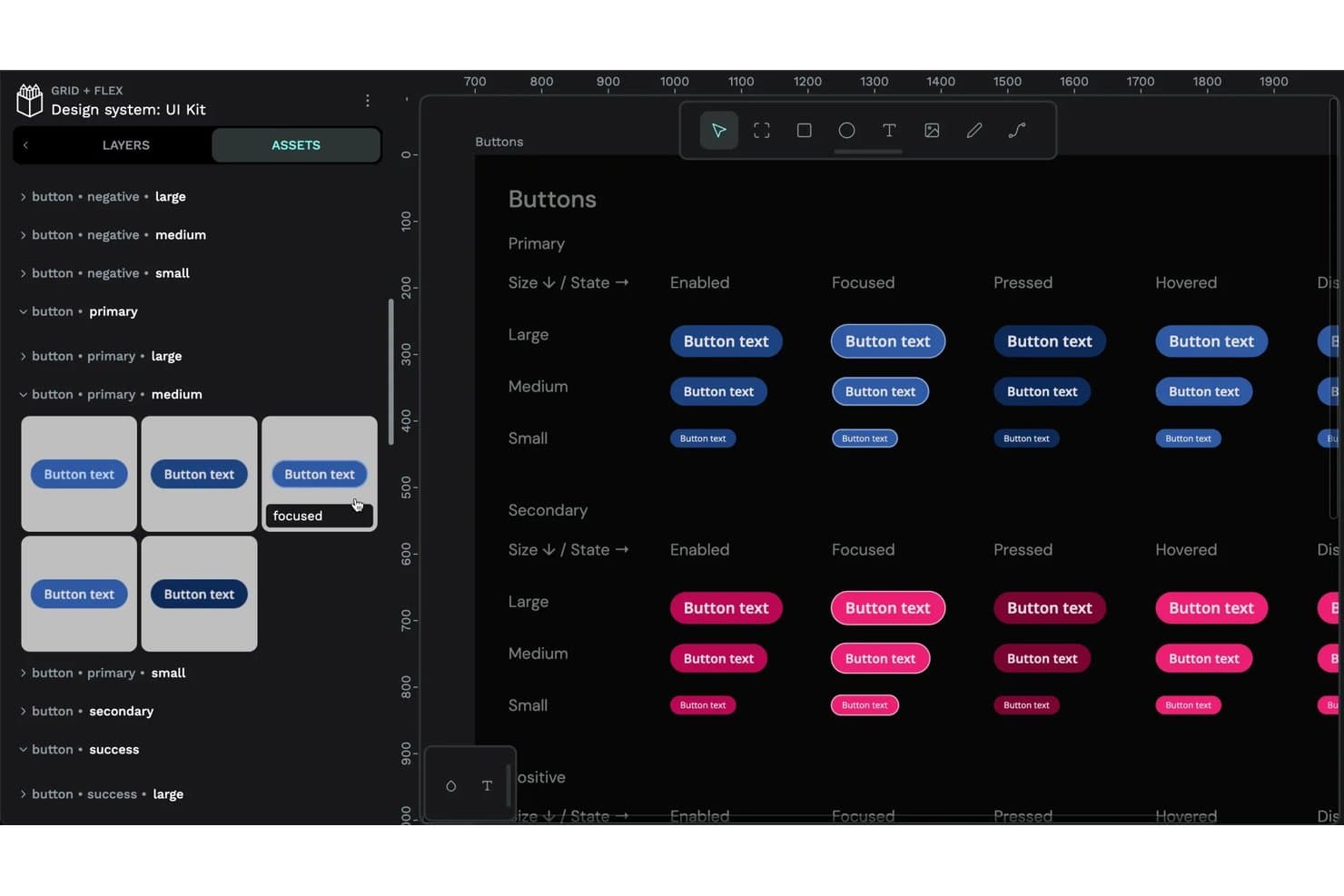
Penpot organizes reusable button components by state and size in one view. Penpot is an open-source design and prototyping tool built on SVG that covers vector editing, Flex and CSS Grid layout, component libraries with W3C design tokens, interactive prototyping, and developer handoff with auto-generated CSS, HTML, and SVG code.
Who Is Penpot Best For?
Penpot is a strong fit for design and engineering teams that want a self-hostable, open-source alternative to Figma with tight design-to-code handoff built in.
Why I Picked Penpot
Penpot earns its spot on my shortlist because it's the only open-source design tool that treats developer handoff as a core feature, not an afterthought. The Inspect mode auto-generates real CSS, HTML, and SVG from your designs, so developers get usable specs rather than a static export. I also love that native W3C design tokens are built directly into the canvas, meaning token changes propagate through components and into code without a third-party plugin bridge.
Penpot Key Features
- Flex and CSS Grid layout: Design responsive screens using CSS Flex and Grid directly on the canvas, so layouts translate accurately into production code.
- Interactive prototype flows: Define multiple starting points per file and link boards with triggers like on-click, hover, and after-delay to simulate distinct user journeys.
- Shareable flow links: Generate a unique link for each prototype flow, letting stakeholders review specific journeys without accessing the full design file.
- Wireframing kits: Access built-in wireframe components and board size presets to quickly build lo-fi layouts before moving to high-fidelity design.
Penpot Integrations
Penpot has no clearly documented native integrations with Jira, Slack, or Notion. It supports plugins, webhooks, REST API access, MCP Server connections, and a Figma migration exporter.
Pros and Cons
Pros:
- Shareable flows connect reviews to Inspect
- Native W3C tokens support reusable systems
- CSS Flex and Grid translate to code
Cons:
- Large files can become resource-heavy
- No variables or conditional prototype logic
Learn more about Penpot: Best for prototyping live e-commerce storefronts
- Free plan available
- From $15/month (billed annually)
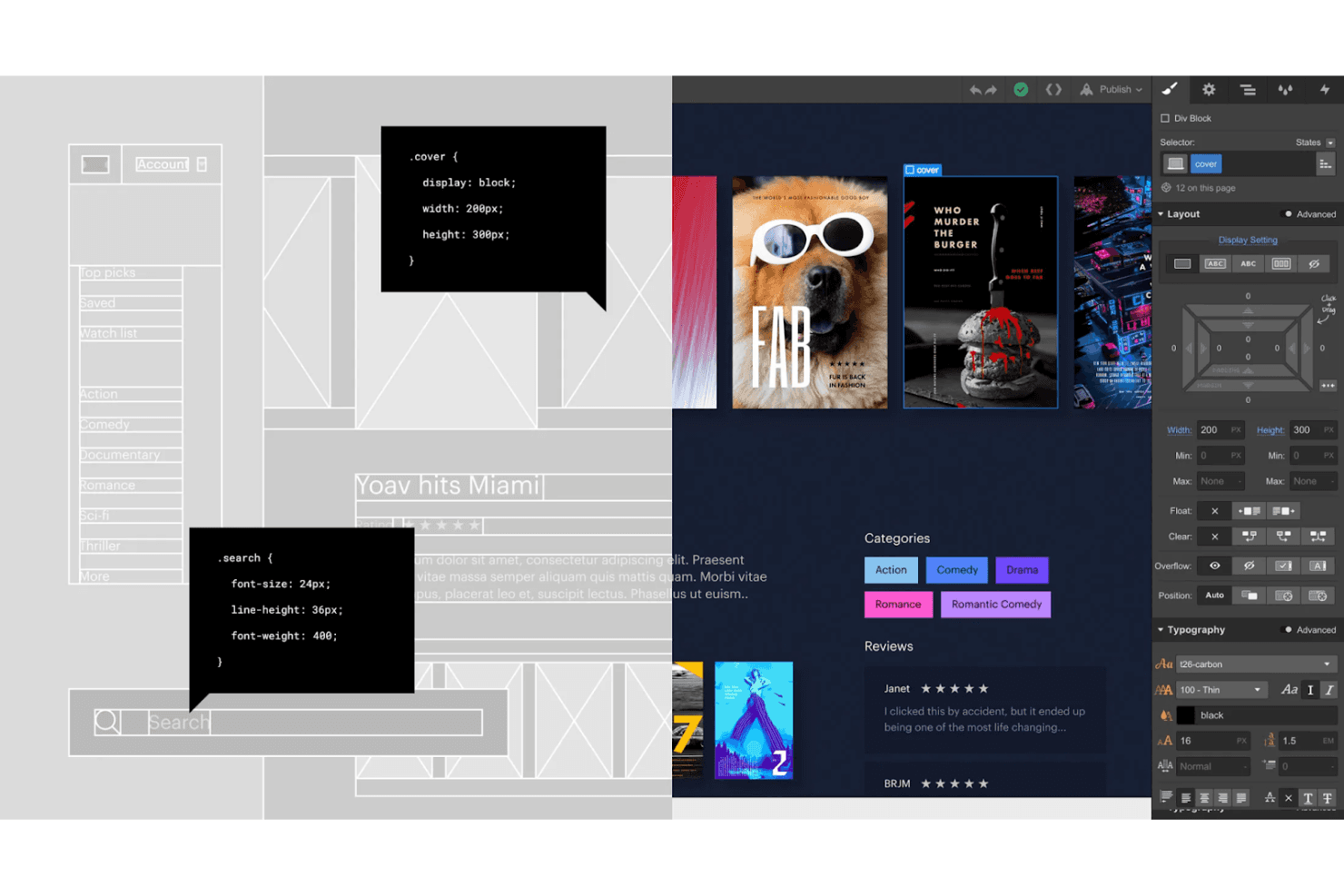
Leverage Webflow’s no-code features to create a fully functional website prototype. Webflow is a visual website builder that lets you design, build, and publish production-ready sites using a no-code canvas, with support for real CMS data, ecommerce functionality, GSAP-powered animations, and component-based design systems.
Who Is Webflow Best For?
Webflow fits front-end developers and design-forward teams building ecommerce experiences who want their prototype to ship as the final product.
Why I Picked Webflow
Webflow earns its spot on my shortlist because it's the only tool where your e-commerce prototype is also a functioning storefront. I love that you can build real product pages with live inventory, a working cart, and actual checkout flows powered by Stripe or PayPal, so stakeholders aren't clicking through a simulation. The GSAP-powered interactions editor lets me add scroll animations and page transitions directly on the canvas, and the Figma-to-Webflow plugin keeps my design system in sync throughout.
Webflow Key Features
- AI Site Builder: Turns a text prompt into a multi-page site with a full design system, built on Webflow's Flowkit CSS framework.
- DevLink: Exports Webflow components as React code and syncs style and variable updates directly back to your codebase.
- Shared Libraries: Lets you share components, variables, and assets across multiple sites, with each site reviewing updates before accepting them.
- MCP server: Connects AI tools like Claude, Cursor, and ChatGPT to your Webflow layouts, components, styles, and interactions.
Webflow Integrations
Webflow offers native Figma integration, React connectivity through DevLink, and Webflow Cloud support for Next.js and Astro. It also supports REST APIs, MCP, and Zapier for custom integrations and workflow automation.
Pros and Cons
Pros:
- Supports reusable components across site systems
- Produces production-ready layouts for handoff
- Validates real cart and checkout journeys
Cons:
- Requires building pages before testing concepts
- No dedicated wireframe or flow simulation
Learn more about Webflow: Best for game UI prototyping with gamepad input
- Free plan + free demo available
- From $25/user/month
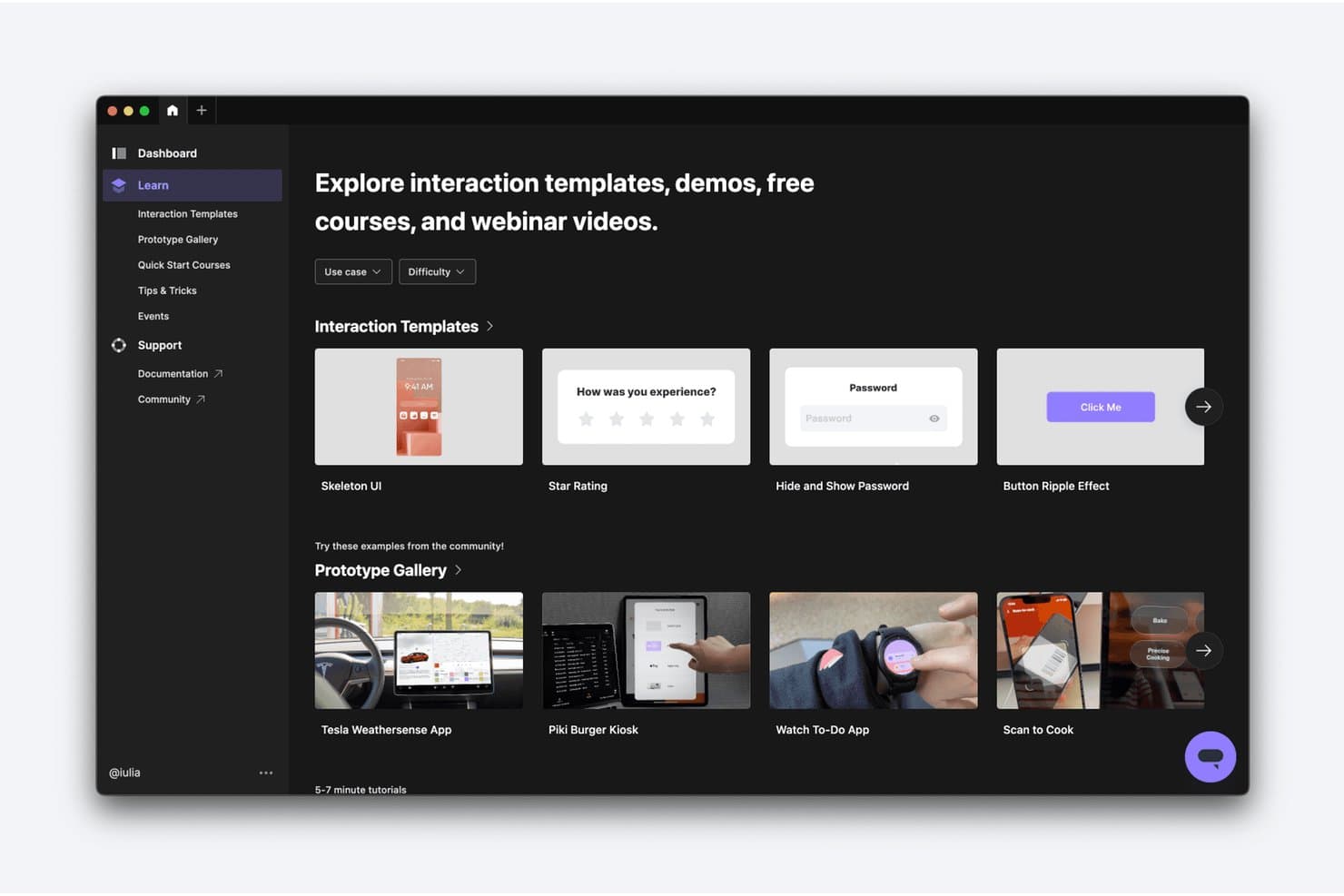
ProtoPie offers ready-made interaction templates and community prototypes to learn from. ProtoPie is a high-fidelity interactive prototyping tool that lets you build logic-driven prototypes with conditional interactions, variables, hardware input, and multi-device support—without writing code.
Who Is ProtoPie Best For?
ProtoPie is a strong fit for UX designers and UI developers who need to prototype complex, logic-driven interactions—especially teams building game or interactive product experiences.
Why I Picked ProtoPie
ProtoPie earns its spot on my shortlist because it's the only prototyping tool I've seen with native gamepad support through ProtoPie Connect, letting your team test game UI with a real controller instead of a mouse. I also love how it handles game logic before a single line of code is written: you can build conditional branching, real-time AR/VR interfaces, and even embed Unity layers directly into a prototype. The Jam City team put it best—proving an interaction concept early saves both time and money in development.
ProtoPie Key Features
- AI-generated interaction logic: ProtoPie AI converts natural-language prompts into editable trigger-and-response logic that's aware of your current scene, selected layers, and existing variables.
- Multi-device and sensor input: Prototypes can respond to voice, camera, multi-touch, and native device sensors across mobile, tablet, smartwatch, TV, and car interfaces.
- Automatic developer handoff specs: Interaction recordings auto-generate specs—including triggers, durations, delays, and easing—that update automatically when the prototype changes.
- Team component libraries: Pro and Enterprise plans give teams shared libraries of nested, overridable components that can be swapped or customized at any level.
ProtoPie Integrations
ProtoPie offers documented integrations with Figma, Sketch, Adobe XD, Unity, UserTesting, Maze, and Useberry. ProtoPie Connect also supports API integrations, custom plugins, bridge apps, and gamepad hardware.
Pros and Cons
Pros:
- Auto-generated specs clarify developer implementation details
- Conditional logic models complex gameplay interactions
- Gamepad input supports authentic game interface testing
Cons:
- Advanced variables challenge first-time users
- Imported designs slow early concept exploration
Learn more about ProtoPie: Best for mixed teams prototyping without design skills
- Free plan available
- From $9/user/month (billed annually)
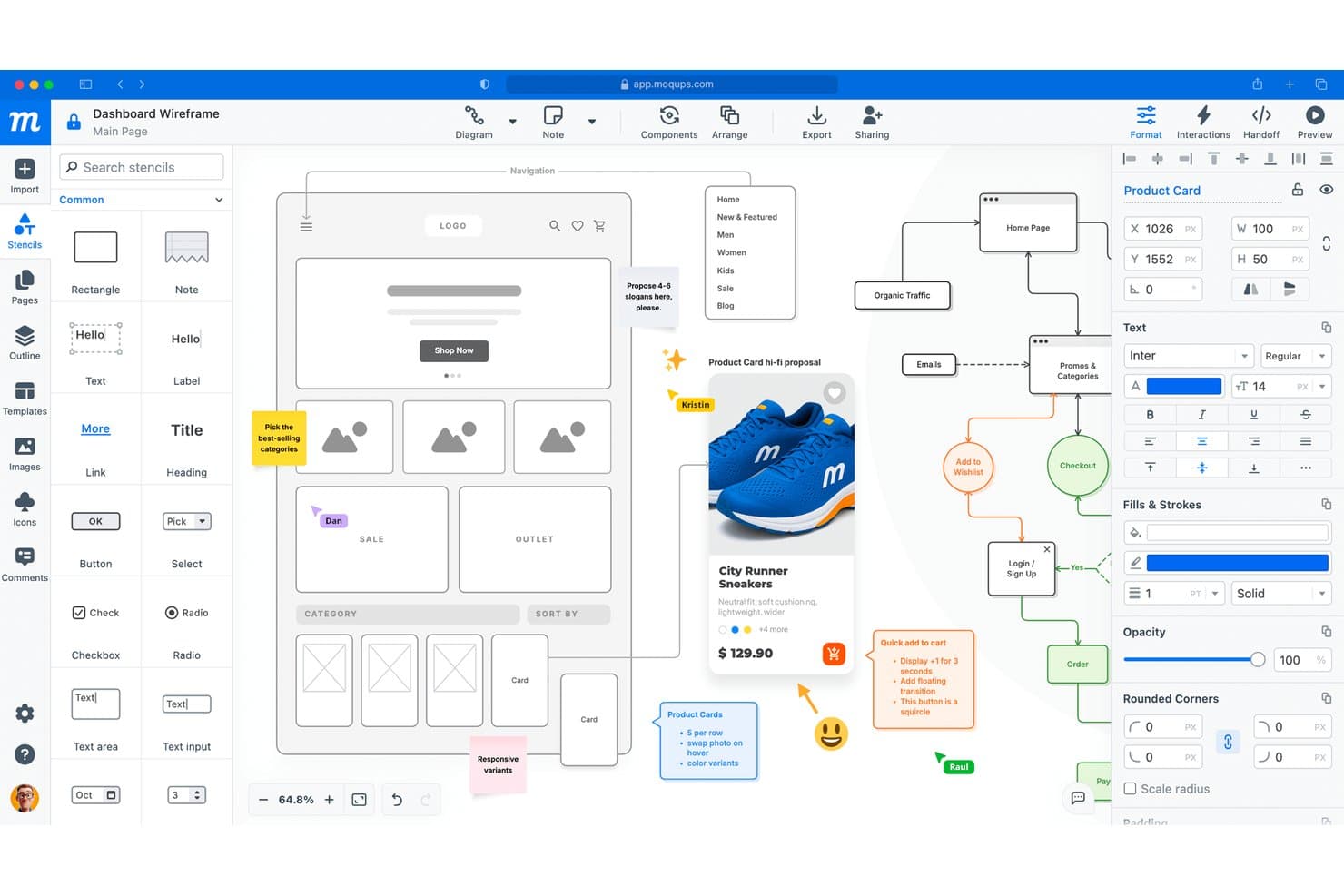
Moqups lets users build and annotate wireframes with team comments. Moqups is a browser-based prototyping tool that combines wireframing, mockups, diagramming, whiteboards, and interactive prototypes in a single workspace.
Who Is Moqups Best For?
Moqups is a strong fit for cross-functional product teams where not everyone has a design background but everyone needs to contribute to wireframes, diagrams, and prototypes.
Why I Picked Moqups
I've included Moqups in my top picks because it's one of the few prototyping tools where a product manager, a developer, and a designer can all work in the same canvas without anyone needing a design background. Its browser extension turns live webpages or AI-generated layouts into editable wireframes in seconds, which means a PM can import a competitor's UI and start sketching changes immediately. Colored comments pinned to specific objects also make cross-functional feedback far less chaotic than a shared doc.
Moqups Key Features
- Stencil kits: Pre-built iOS 26 and Material Design 3 component sets with light and dark mode support for consistent screen layouts.
- Offline HTML export: Exports your full project as an interactive HTML file that preserves all interactions and comments without needing a Moqups account.
- Resize constraints: Anchors elements to edges or the center of a group so layouts stay intact when resized across desktop, tablet, and mobile viewports.
- Jira and Confluence embeds: Links Moqups projects directly inside Jira issues and Confluence pages so developers and PMs review designs in context.
Moqups Integrations
Moqups offers documented integrations with Jira, Confluence Cloud, Google Drive, Slack, Dropbox, Box, and Trello. It also supports one-way Figma imports, Balsamiq imports, and SAML/SCIM connections with Okta, OneLogin, and Microsoft Azure AD.
Pros and Cons
Pros:
- Pins feedback directly to prototype elements
- Supports clickable flows and object interactions
- Imports webpages into editable wireframes
Cons:
- Synced components lack a shared library
- Omits variables and conditional logic
Learn more about Moqups: Best for codeless and advanced transitions
- Free plan available
- From $3/user/month
Visit WebsiteCustomer Rating:4.7/5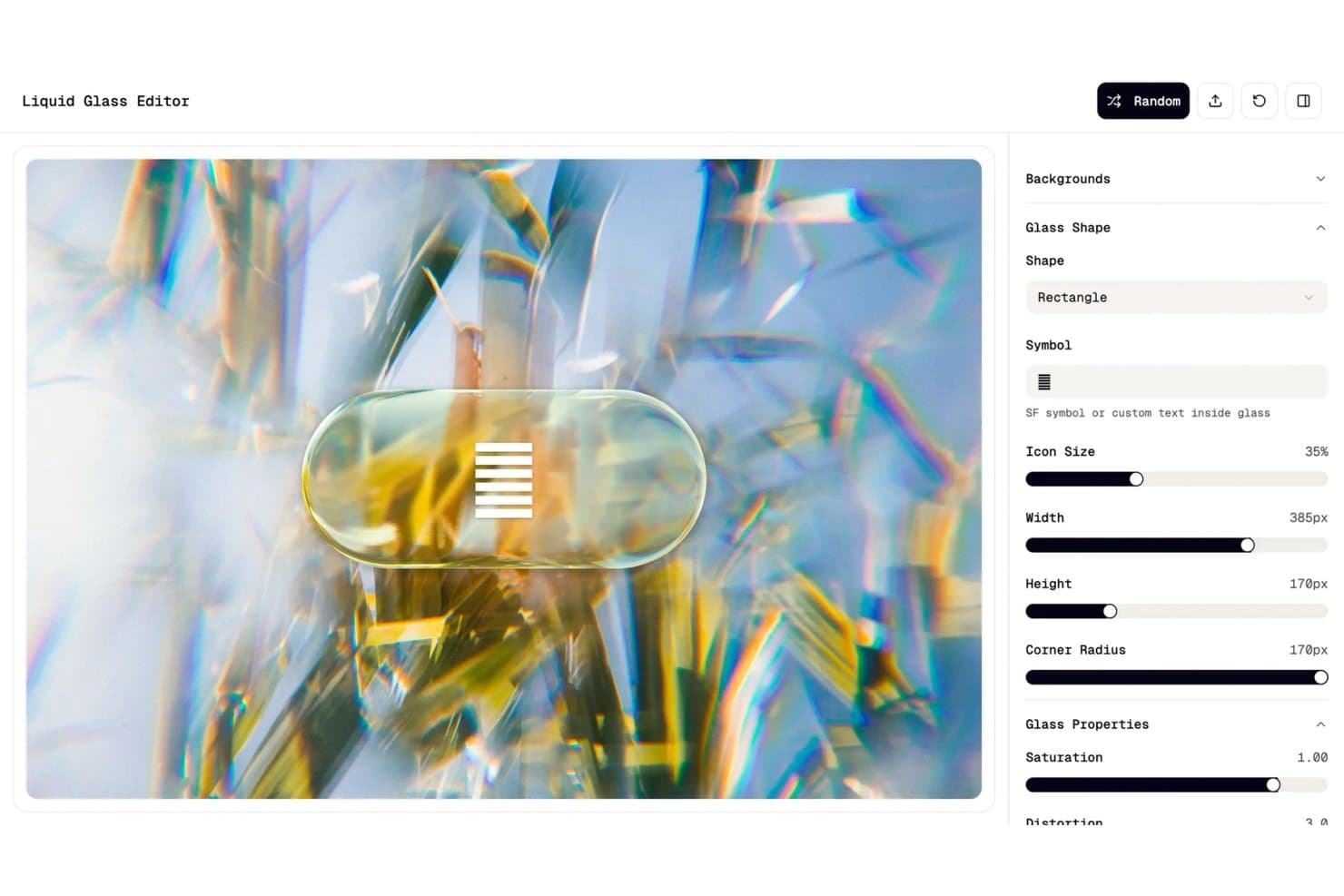
Figma lets users design liquid glass UI elements with real-time controls. Figma is a browser-based design and prototyping tool that covers wireframing, high-fidelity UI design, interactive prototyping, and developer handoff in a single canvas.
Who Is Figma Best For?
Figma is a strong fit for cross-functional product teams—designers, PMs, and developers—who want to move from concept to interactive prototype without switching tools.
Why I Picked Figma
Figma earns its spot on my shortlist because no other tool matches its depth of codeless, advanced transitions. Smart Animate automatically interpolates matching layers between frames, so interactions like parallax scrolling or gesture-based navigation look production-ready without writing a line of code. I also rely on interactive components and variables with conditional logic to prototype multi-state UI flows, like a checkout sequence that responds to user input, all within a single canvas.
Figma Key Features
- Figma Make: Generate code-backed, interactive prototypes from text prompts, images, or attached designs without starting from scratch.
- Mobile mirroring: Preview and test prototypes on real iOS or Android devices in real time via the Figma mobile app or figma.com/mirror.
- Variables and variable modes: Define reusable values across designs and switch between modes to prototype themes, localization, or dark/light states.
- Dev Mode: Inspect layers for code snippets, link design components to production code via Code Connect, and review changes side by side.
Figma Integrations
Figma integrates with Maze, UserTesting, Sprig, UXtweak, GitHub, Jira, Storybook, Slack, Notion, and Microsoft Teams. Its REST API, plugins, widgets, and Zapier support custom connectivity.
Pros and Cons
Pros:
- Real-device previews support usability testing
- Variables model conditional product states
- Advanced transitions without writing code
Cons:
- Cloud dependence complicates unreliable connections
- Large files can lag on older machines
 Best for prototyping with real code components
- Free plan + 14-day free trial + demo available
- From $49/user/month
Visit WebsiteCustomer Rating:4.2/5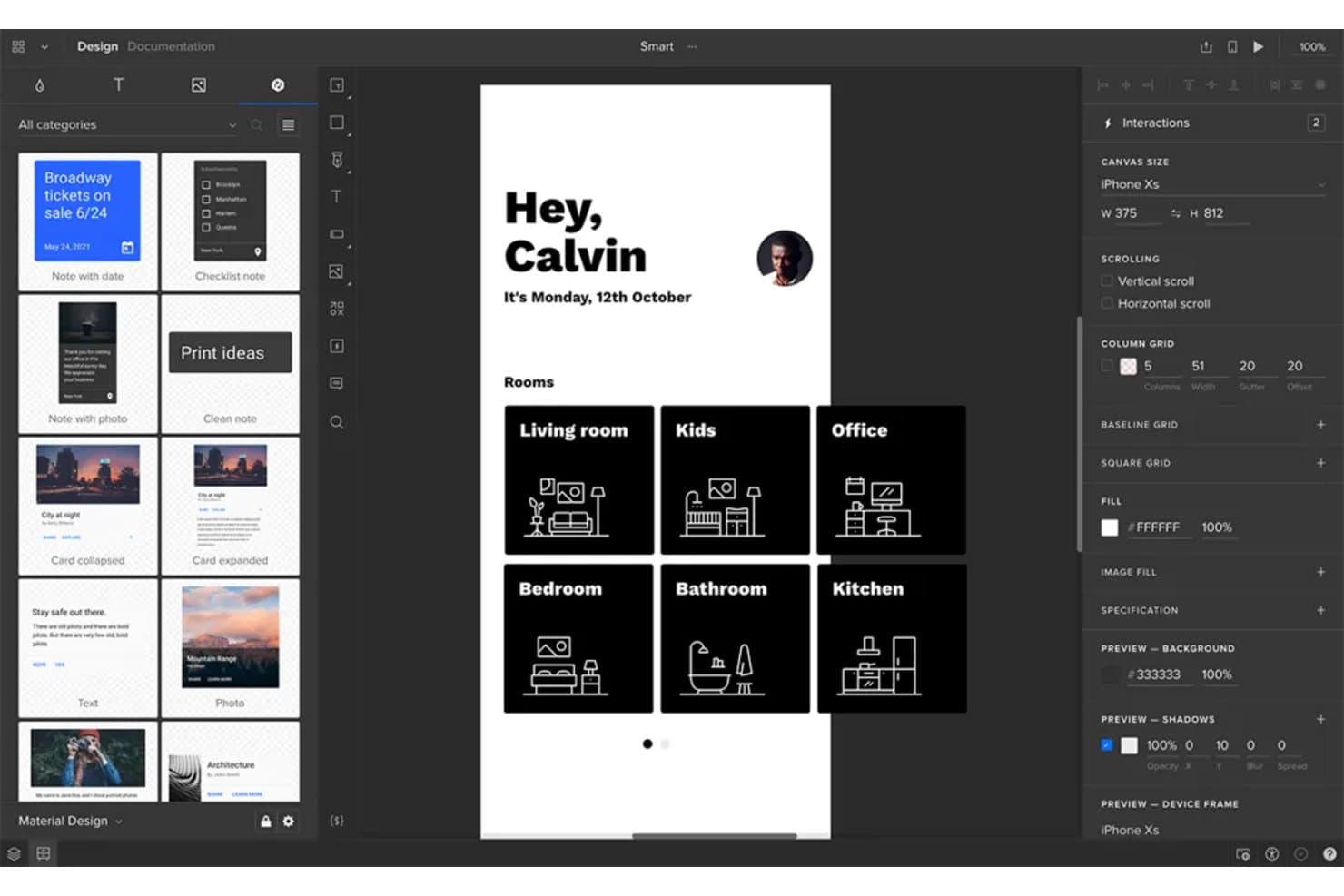
UXPin lets users prototype smart home app screens with interactive room controls. UXPin is a prototyping and design platform that lets you build interactive prototypes using real code components, with support for wireframing, high-fidelity design, AI-assisted UI generation, and developer handoff.
Who Is UXPin Best For?
UXPin is a strong fit for design and product teams that need prototypes to reflect real code components, not just static mockups.
Why I Picked UXPin
I picked UXPin as one of the best because it's the only prototyping tool where designers work directly with real code components, not copies of them. With Merge, your prototype uses the same React components your engineers ship, so what stakeholders approve is what developers build. I also love that Forge can turn a rough wireframe screenshot into a fully interactive UI in minutes, complete with conditional logic and variables that carry user input across screens.
UXPin Key Features
- Conditional logic and variables: Set conditions and carry user input across screens to simulate realistic, data-driven user flows.
- Device preview mirroring: Stream your prototype live to iOS and Android devices as you edit, so you can test real interactions on real hardware.
- No-account stakeholder commenting: Share a preview link and let reviewers leave comments without creating a UXPin account.
- Storybook integration: Connect your Storybook instance so designers can pull in components from Vue, Angular, or React directly into the canvas.
UXPin Integrations
UXPin integrates with Figma, Sketch, GitHub, Bitbucket, Storybook, npm, Jira, Slack, and FullStory. It also connects to StackBlitz and CodeSandbox for developer workflows.
Pros and Cons
Pros:
- Handoff includes specifications and production-ready code
- Variables and logic support complex user flows
- Real components produce more realistic prototypes
Cons:
- Large projects can experience occasional slowdowns
- React-focused workflows require developer involvement
Learn more about UXPin: Best for hand-built responsive breakpoints
- Free plan + 10-day trial available
- From $19/user/month
Visit WebsiteCustomer Rating:4.2/5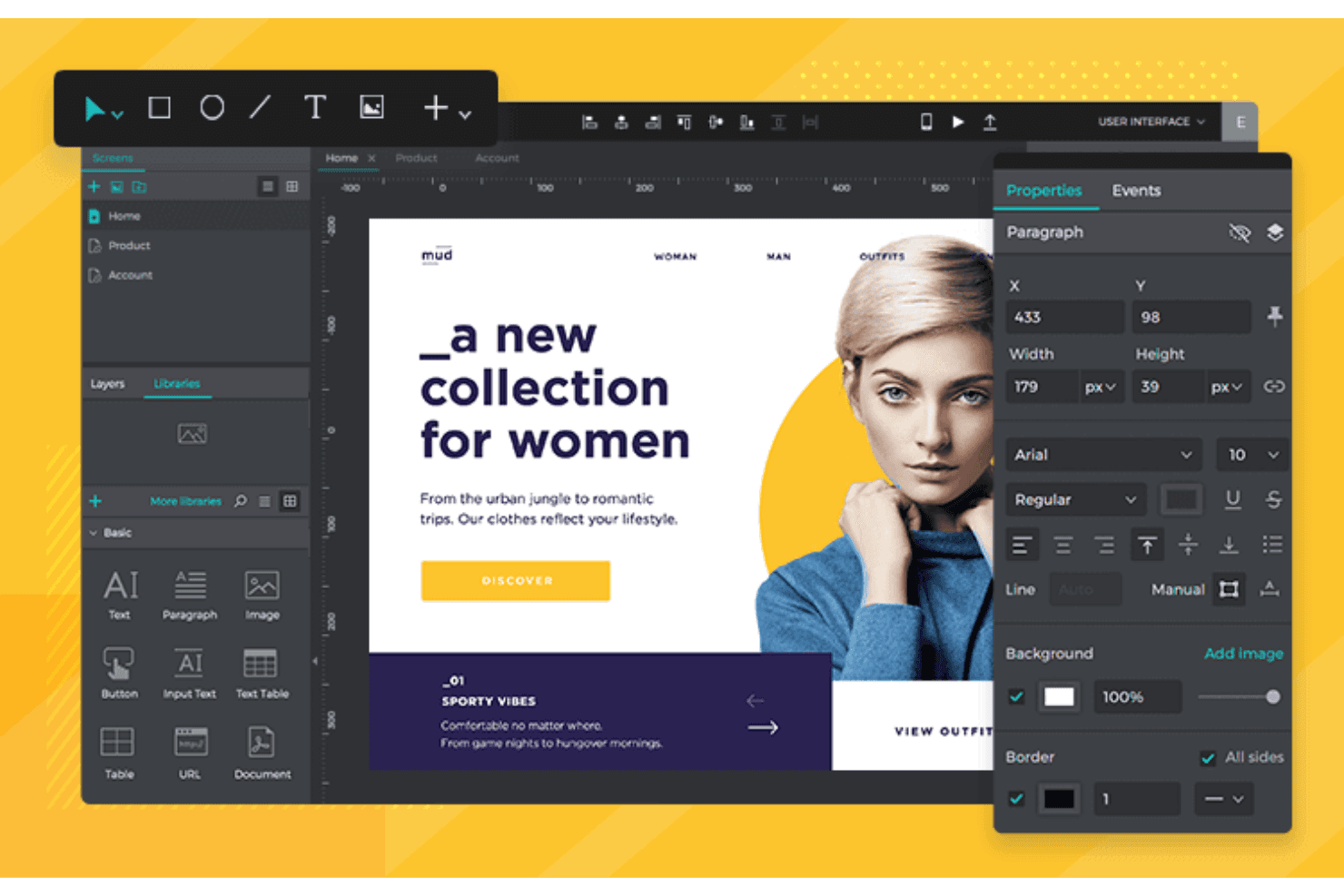
With Justinmind, your responsive prototyping becomes a walk in the park thanks to codeless liquid layouts and breakpoints. Justinmind is a desktop-based rapid prototyping tool that supports interactive prototype creation across wireframe and high-fidelity levels, with vector design tools, conditional logic, data-driven simulations, responsive breakpoints, and built-in UI kits for web and mobile.
Who Is Justinmind Best For?
Justinmind fits UX designers and front-end developers who need to hand-build responsive breakpoints and test data-driven interactive prototypes without writing code.
Why I Picked Justinmind
Justinmind earns its spot on my shortlist because of how precisely it handles responsive breakpoints. I like that you build breakpoints by hand using "On Window Resize" triggers paired with "Window Width" conditions, which gives you real control over when and how layouts shift across screen sizes. Pair that with percentage-based sizing and pinned elements, and I've been able to prototype genuinely fluid layouts that behave like production builds.
Justinmind Key Features
- Data masters: Import .csv files to fill prototypes with real data, enabling data-driven simulations across screens and states.
- Conditional logic builder: Set up expression-based conditions that control when interactions trigger, without writing any code.
- User flows module: Diagram screen-to-screen navigation with decisions, actions, and connectors, then simulate restricted prototype flows.
- Design handoff panel: Viewers and developers can inspect CSS specs, element positions, hex values, and exportable assets directly in the browser.
Justinmind Integrations
Justinmind integrates with Figma, Sketch, Adobe XD, Illustrator, Photoshop, InVision, Jira, Confluence, Azure DevOps, and Doors. Its API and SDK support custom integrations.
Pros and Cons
Pros:
- User flows map and restrict navigation paths
- Data masters simulate realistic populated product states
- Hand-built breakpoints support fluid responsive prototypes
Cons:
- Desktop editor limits access for non-designers
- Responsive layouts require manual event-based configuration
Learn more about Justinmind: Best for Mac-native design and prototyping
- 30-day free trial available
- From $12/user/month (billed annually)
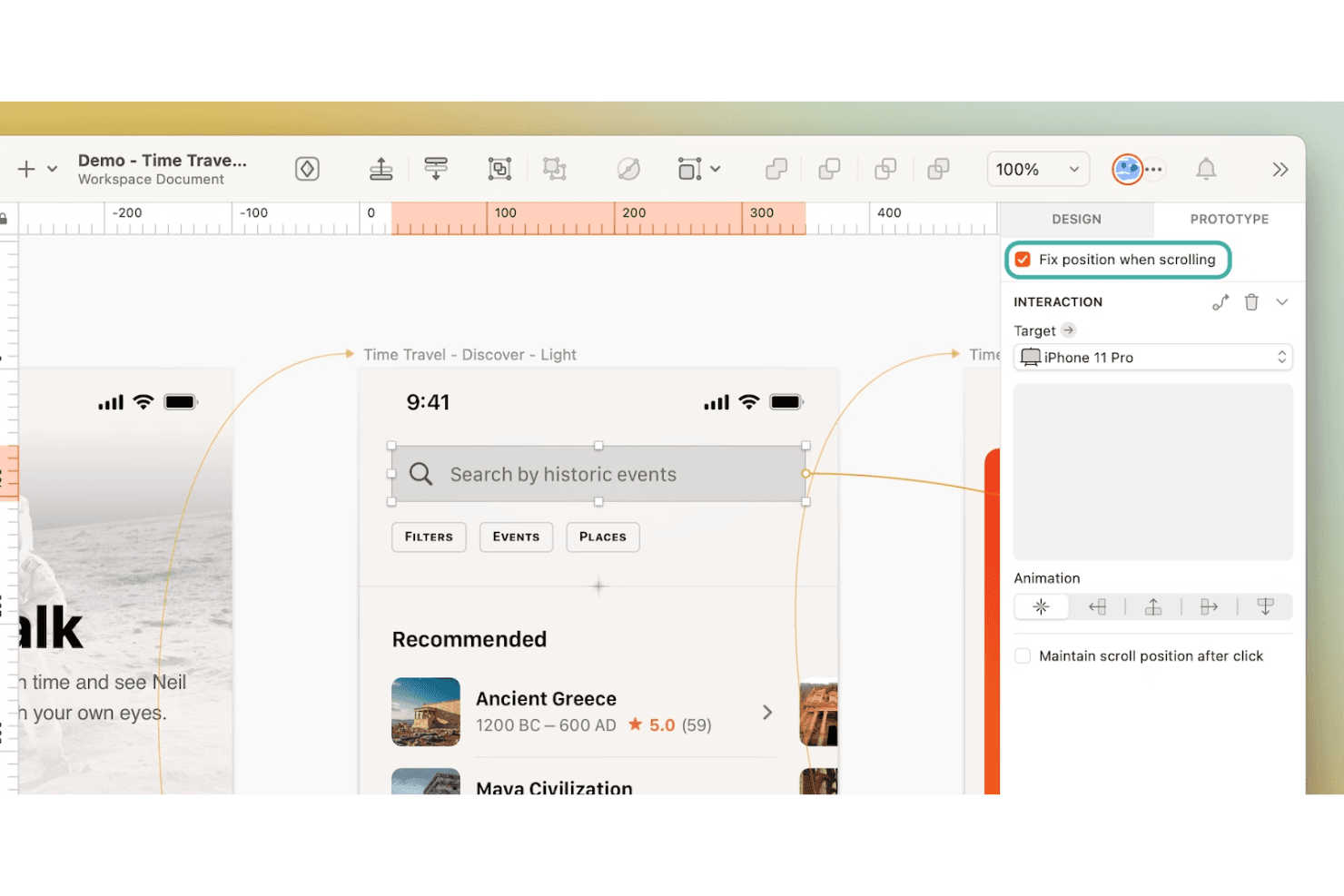
Add interactive elements like scrolling lock and animations in a few clicks. Sketch is a Mac-native UI design and prototyping tool that gives designers an infinite canvas, a vector editor, reusable component libraries, interactive prototyping with Smart Animate, and free browser-based developer handoff.
Who Is Sketch Best For?
Sketch is built for product designers and UI/UX teams working on Mac who need a fast, polished environment for building high-fidelity designs and interactive prototypes.
Why I Picked Sketch
Sketch earns its spot on my shortlist because the native macOS editor is genuinely fast in a way browser-based tools aren't, especially on Apple Silicon. I love how Smart Animate lets me string together polished, physics-aware transitions between frames without any extra configuration, and the Symbols library keeps component updates propagating across every screen instantly. The built-in MCP server also lets me pipe in Claude or Cursor to generate screens directly from a codebase, which cuts early-stage prototyping time considerably.
Sketch Key Features
- Hotspots and triggers: Draw clickable areas over any layer and assign tap, hover, press, or toggle interactions to control how your prototype responds.
- Overlays: Add modals, menus, and dialogs as overlay frames with backdrop blur or color, custom alignment, and stacking support.
- Scrolling frames: Set scroll areas to run vertically, horizontally, or both, with fixed elements like headers and footers that stay in place during playback.
- Free browser-based developer handoff: Developers can measure spacing, copy CSS, export assets, and access design tokens in any browser at no extra cost.
Sketch Integrations
Sketch lists integrations with ProtoPie, Principle, Origami, Proto.io, Overflow, Zeplin, Jira, Slack, Notion, and Miro. Its developer API supports custom plugins, while the MCP Server connects to Claude, Cursor, and other compatible AI clients.
Pros and Cons
Pros:
- Browser handoff clarifies implementation intent
- Smart Animate creates polished transitions quickly
- Native macOS canvas supports rapid iteration
Cons:
- No variables limit data-driven prototype testing
- Mac-only editing excludes cross-platform collaborators
Learn more about Sketch: 10Best for logic-driven interactive prototyping
Axure RP
- Free plan + 30-day free trial available
- From $29/user/month (billed annually)
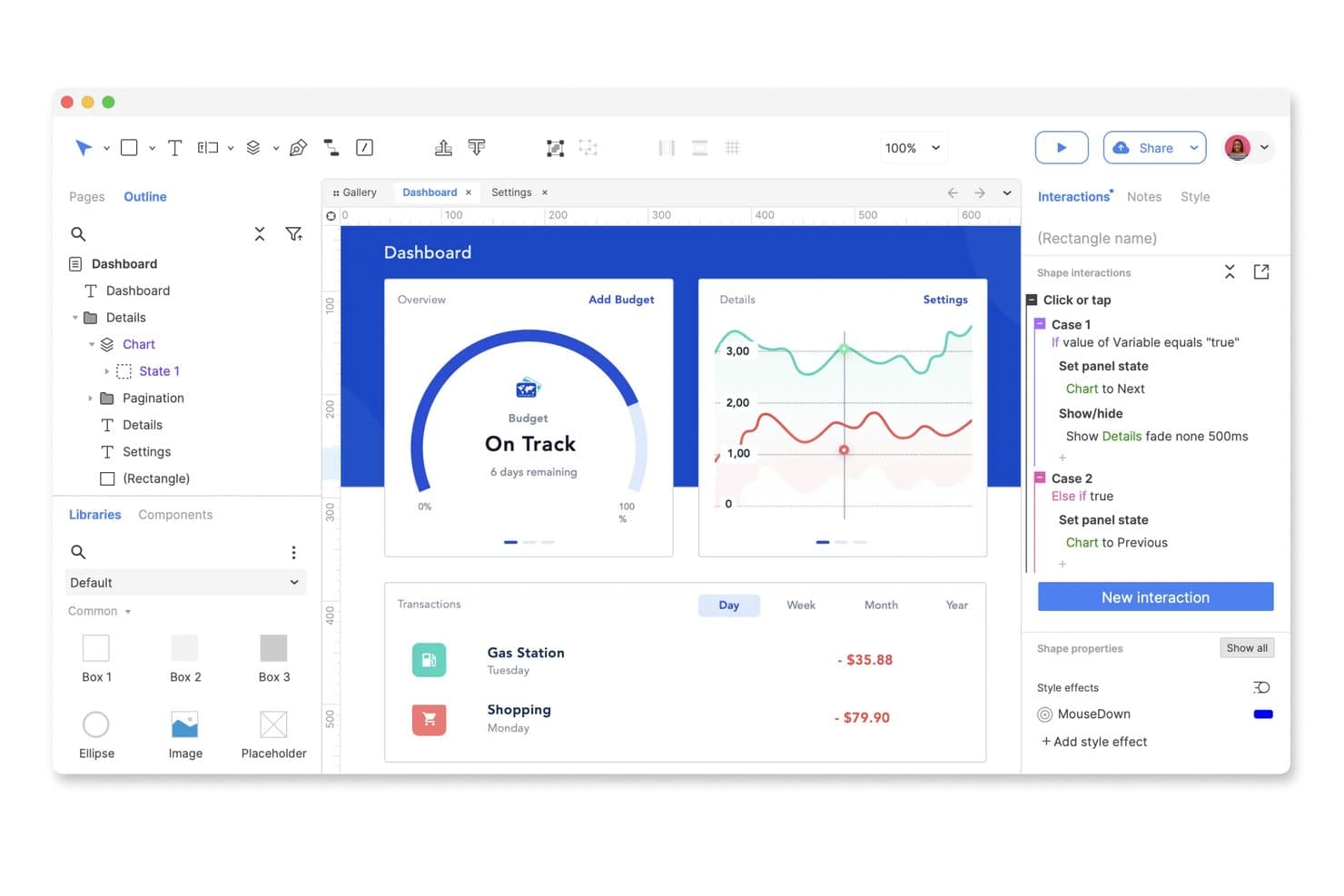
Axure RP lets users build interactive prototypes with conditional logic. Axure RP is a desktop-based prototyping tool that combines wireframing, diagramming, and interactive prototyping through conditional logic, variables, dynamic panels, and data-driven repeater widgets.
Who Is Axure RP Best For?
Axure RP is the go-to choice for UX teams and product managers who need to prototype complex interactions, conditional logic, and data-driven flows that simpler tools can't handle.
Why I Picked Axure RP
Axure RP earns its spot on my shortlist because no other prototyping tool matches its depth of conditional logic and data-driven interactions. I've built prototypes with sortable, filterable repeater widgets that simulate real database behavior, which is something Figma simply can't replicate. Its variable system and dynamic panels let you prototype complex multi-state flows that hold up under real usability testing conditions.
Axure RP Key Features
- Repeater widget: A data-driven widget that builds tables and grids you can sort and filter within a running prototype.
- Adaptive views: Lets you design desktop, tablet, and phone layouts on a single page, with the correct view loading automatically.
- One-click Cloud publishing: Publishes your prototype to a shareable link instantly, with unlimited free reviewer access included.
- Jira and Confluence integration: Embed live prototypes directly into Jira tickets and Confluence pages for in-context developer review.
Axure RP Integrations
Axure RP has documented integrations with Jira, Confluence, Slack, Microsoft Teams, Figma, Sketch, and Adobe XD. Its experimental MCP server connects Axure Cloud whiteboards and documents with Claude Code, Visual Studio Code, and Cursor.
Pros and Cons
Pros:
- Wireframes scale into high-fidelity prototypes
- Repeaters simulate sortable, filterable data flows
- Conditional logic supports realistic usability tests
Cons:
- Advanced interactions require substantial onboarding time
- RP lacks auto-layout and containers
Learn more about Axure RP :
Outras opções
Eis mais algumas opções interessantes que não entraram na lista das melhores ferramentas de prototipagem rápida:
- 11Magic PatternsBest for prototyping from PRDs with your design system
- 12FramerBest for creating interactive website prototypes
- 13MarvelBest for hotspot-based clickable prototypes
- 14MockplusBest for offline prototyping with a perpetual license
- 15Adobe XDBest for content-aware layout prototyping
- 16VisilyBest for AI mockups from text, sketches, or photos
- 17UizardBest for AI-generated prototypes from text or sketches
- 18Proto.ioBest for UI kits with native-behaving components
- 19LovableBest for prototyping with full-stack AI generation
- 20v0Best for prototyping with production-ready code
How I Evaluate Rapid Prototyping Tools
I split my evaluation into three parts, giving the most weight to core functionality: link screens into realistic flows, build layouts, and share clickable prototypes for feedback. Next, I look for differentiators such as responsive previews or conditional logic. Finally, I consider beyond-feature factors like onboarding, team fit, security, and pricing value.
Core Functionality (Table Stakes For This List)
When I'm selecting tools for my list, I score each one on a scale from 0 (does not offer the functionality) to 5 (excels in this area) for each core functionality listed below. I then convert the total into a percentage to help assess each tool's overall fit, with extra weight on any functionalities I’ve deemed essential.
- Interactive Prototyping (Essential): I look for linked screens, useful transitions, and conditional paths that let a tester complete a realistic sign-up or checkout flow.
- Design & Layout (Essential): I assess whether teams can create layouts at sketch or polished fidelity, with grids and responsive controls for key screen sizes.
- Components & Assets: Reusable, linked components matter when a shared navigation bar or button changes; I check whether edits carry through instances and variants.
- Review & Feedback: I check that a shareable prototype supports in-context comments, so reviewers can flag a confusing step without separate notes.
- Multi-Fidelity Support: I look for a practical path from rough wireframes to detailed screens in one workspace, without rebuilding the flow for usability feedback.
- Developer Handoff: For delivery, I evaluate whether developers can inspect measurements, styles, and exportable assets tied to the screens they’ll build.
Once I have a list of tools that meet the criteria, I consider what sets each platform apart.
Differentiating Factors (What Sets Vendors Apart)
Here's how I compare and contrast different vendors:
Standout Features
Conditional logic and variables separate surface-level click-throughs from prototypes that actually mimic real product behavior. I evaluate whether a tool lets me build branching flows—like a pricing page that adjusts based on a user's selected plan—so stakeholders react to realistic scenarios, not static screens. I also check for device and responsive preview, since a checkout flow that works on desktop can fall apart on mobile. Design system integration matters too; tools like ProtoPie and Axure that sync with Figma or Sketch libraries keep prototypes consistent without manual asset duplication.
Beyond Features
I evaluate how quickly a non-designer can go from blank canvas to testable prototype, since that speed-to-concept gap determines whether "rapid" is real or marketing. Cross-functional team fit matters just as much—I check whether PMs, engineers, and designers can work in the same file with role-based permissions that prevent accidental edits during a stakeholder review. For teams handling unreleased product concepts, I also look for enterprise-grade controls like SSO and SOC 2 compliance, which tools like Axure and Figma handle differently depending on plan tier.
O que é uma ferramenta de prototipagem rápida?
Uma ferramenta de prototipagem rápida é uma solução de software que permite criar rapidamente protótipos funcionais para produtos digitais ou físicos. Através de funcionalidades como arrastar e largar, suporte para vários elementos interativos, colaboração em tempo real e a possibilidade de gerar protótipos para vários dispositivos, estas ferramentas centram-se em proporcionar uma forma rápida e eficiente de os designers e programadores transformarem as suas ideias em protótipos concretos, promovendo a iteração rápida e os testes com utilizadores.
As principais vantagens da utilização de ferramentas de prototipagem rápida incluem iterações de design mais rápidas, redução do tempo de colocação no mercado e a possibilidade de recolher feedback dos utilizadores numa fase inicial do processo de desenvolvimento.
Funcionalidades das ferramentas de prototipagem rápida
Ao selecionar ferramentas de prototipagem rápida, esteja atento às seguintes funcionalidades essenciais:
- Design interativo: Permite aos utilizadores criar protótipos com elementos clicáveis, facilitando a visualização das interações dos utilizadores.
- Colaboração em tempo real: Permite que os membros da equipa trabalhem em simultâneo, melhorando a comunicação e acelerando o processo de design.
- Capacidades de integração: Liga-se a outras ferramentas de software, simplificando os fluxos de trabalho e mantendo a consistência entre plataformas.
- Suporte para RA e RV: Permite a criação de protótipos em realidade aumentada e realidade virtual, ajudando as equipas a avaliar os designs em ambientes imersivos.
- Design de interfaces de voz: Facilita a criação de protótipos para dispositivos ativados por voz, acompanhando as tendências modernas das interfaces de utilizador.
- Personalização: Disponibiliza opções para adaptar a ferramenta às necessidades específicas de cada projeto, melhorando a experiência do utilizador e o alinhamento com a estratégia geral de desenvolvimento do produto.
- Facilidade de utilização: Inclui uma interface intuitiva, reduzindo a curva de aprendizagem e tornando-a acessível a todos os membros da equipa.
- Recolha de feedback: Inclui ferramentas para recolher contributos das partes interessadas e dos utilizadores, apoiando o processo de design iterativo.
- Medidas de segurança: Protege dados de design sensíveis através de encriptação e funcionalidades de conformidade, garantindo a segurança das informações.
- Tecnologias detalhadas de impressão 3D: A prototipagem rápida tornou-se sinónimo de fabrico aditivo e impressão 3D, sendo os métodos comuns os seguintes:
- FDM (Modelação por Deposição Fundida): Económica para modelos básicos e protótipos em fase inicial. Ideal para criar designs simples com termoplásticos.
- SLA (Estereolitografia): Produz peças de alta resolução e precisão, com acabamentos de superfície suaves, sendo ideal para protótipos de alta fidelidade e designs que exigem tolerâncias rigorosas.
- SLS (Sinterização Seletiva por Laser): Produz protótipos funcionais e resistentes, adequados para testes rigorosos, utilizando materiais em pó como o nylon.
Vantagens das ferramentas de prototipagem rápida
- Iterações de design mais rápidas: Crie e teste protótipos rapidamente, reduzindo o tempo dedicado a revisões e acelerando o ciclo de desenvolvimento.
- Colaboração melhorada: As funcionalidades de colaboração em tempo real melhoram o trabalho em equipa e a comunicação, conduzindo a designs mais coesos e inovadores.
- Poupança de custos: Identifique falhas de design numa fase inicial do processo, minimizando alterações dispendiosas e reduzindo o risco de atrasos no projeto.
- Experiência do utilizador melhorada: Recolha feedback através de protótipos interativos para aperfeiçoar as interfaces de utilizador, resultando em produtos mais fáceis de utilizar.
- Maior envolvimento das partes interessadas: Partilhe protótipos facilmente para manter as partes interessadas informadas, promovendo a adesão e alinhando os objetivos do projeto.
- Maior flexibilidade: As ferramentas personalizáveis adaptam-se a vários requisitos de projeto, permitindo que as equipas respondam a necessidades de design específicas.
- Preparação para o futuro: Mantenha-se competitivo tirando partido de funcionalidades avançadas, como o suporte para RA e RV, garantindo que os seus designs correspondem às expectativas modernas.
Outras perguntas frequentes
Encontre respostas para perguntas comuns que outras pessoas fazem sobre este tema.
O que é a prototipagem rápida?
A prototipagem rápida é uma representação rápida da sua ideia de produto, com funcionalidades e características básicas, para testar, recolher feedback e mudar de direção. Ao criar rapidamente um protótipo, pode validar a ideia e fazer ajustes para aperfeiçoar o produto final que irá alcançar os resultados pretendidos. Muitos gestores de produto confundem um protótipo com o MVP. No entanto, não é esse o caso. Consulte o nosso curso intensivo sobre MVP para saber mais.
Quando deve ser utilizada a prototipagem rápida?
Em suma, um protótipo ajuda a responder à pergunta: “Esta ideia vai funcionar?” Curiosamente, pode utilizar a prototipagem rápida em qualquer fase do processo de desenvolvimento de produto. O segredo é iterar sobre os protótipos o número de vezes necessário para validar completamente a sua ideia de produto.
Quais são os principais tipos de métodos de prototipagem rápida?
Os métodos de prototipagem rápida podem ser amplamente categorizados em fabrico aditivo, fabrico subtrativo e métodos híbridos. Cada tipo é adequado a aplicações específicas e oferece vantagens únicas:\r\n\u003col\u003e\r\n \t\u003cli\u003e\u003cstrong\u003eFabrico aditivo (impressão 3D):\u003c/strong\u003e\r\n\u003cul\u003e\r\n \t\u003cli\u003e\u003cstrong\u003eAplicações:\u003c/strong\u003e Ideal para criar modelos detalhados, protótipos de engenharia e realizar testes funcionais. É habitualmente utilizado em setores como os cuidados de saúde, o setor automóvel e os bens de consumo.\u003c/li\u003e\r\n \t\u003cli\u003e\u003cstrong\u003eVantagens:\u003c/strong\u003e Económico para geometrias complexas, reduz o desperdício de material e permite tempos de execução mais rápidos.\u003c/li\u003e\r\n\u003c/ul\u003e\r\n\u003c/li\u003e\r\n \t\u003cli\u003e\u003cstrong\u003eFabrico subtrativo (ferramentas CNC):\u003c/strong\u003e\r\n\u003cul\u003e\r\n \t\u003cli\u003e\u003cstrong\u003eAplicações:\u003c/strong\u003e Utilizado para criar protótipos físicos precisos a partir de materiais sólidos, como metais, plásticos ou madeira. Adequado para setores que necessitam de protótipos robustos e funcionais.\u003c/li\u003e\r\n \t\u003cli\u003e\u003cstrong\u003eVantagens:\u003c/strong\u003e Elevada precisão, acabamento superficial superior e compatibilidade com uma vasta gama de materiais.\u003c/li\u003e\r\n\u003c/ul\u003e\r\n\u003c/li\u003e\r\n \t\u003cli\u003e\u003cstrong\u003eMétodos híbridos:\u003c/strong\u003e\r\n\u003cul\u003e\r\n \t\u003cli\u003e\u003cstrong\u003eAplicações:\u003c/strong\u003e Combinam técnicas aditivas e subtrativas para tirar partido das vantagens de ambos os métodos. São frequentemente utilizados para protótipos de elevada precisão e prontos para produção.\u003c/li\u003e\r\n \t\u003cli\u003e\u003cstrong\u003eVantagens:\u003c/strong\u003e Flexíveis e capazes de lidar com conceções complexas, mantendo a durabilidade.\u003c/li\u003e\r\n\u003c/ul\u003e\r\n\u003c/li\u003e\r\n\u003c/ol\u003e
Qual é a diferença entre prototipagem e prototipagem rápida?
A diferença está na velocidade. Com tantas aplicações e sítios Web a serem criados todos os dias, é fundamental que os membros das equipas de produto testem, validem e desenvolvam produtos digitais rapidamente. Para garantir que a sua energia e o seu tempo seguem na direção certa, a prototipagem rápida ajuda a obter rapidamente feedback sobre as suas ideias de produto.
Como são utilizadas as ferramentas CNC na prototipagem rápida?
As ferramentas CNC desempenham um papel fundamental no \u003cstrong\u003efabrico subtrativo\u003c/strong\u003e, em que o material é removido para dar forma a um protótipo. As principais ferramentas CNC incluem:\r\n\u003cul\u003e\r\n \t\u003cli\u003e\u003cstrong\u003eMaquinação CNC:\u003c/strong\u003e Remove material utilizando uma ferramenta rotativa (fresagem) ou uma peça rotativa (torno) para obter cortes e acabamentos precisos.\u003c/li\u003e\r\n \t\u003cli\u003e\u003cstrong\u003eCortadores a laser:\u003c/strong\u003e Utilizam lasers de alta potência para gravar ou cortar vários materiais com uma precisão excecional.\u003c/li\u003e\r\n \t\u003cli\u003e\u003cstrong\u003eCortadores por jato de água:\u003c/strong\u003e Utilizam água a alta pressão misturada com abrasivos para cortar materiais duros, como metal e pedra, sem gerar calor.\u003c/li\u003e\r\n\u003c/ul\u003e\r\n\u0026nbsp;