De beste verktøyene for prototyping av brukergrensesnitt hjelper produktledere, designere og utviklere med raskt å gjøre ideer om til interaktive prototyper, validere konsepter tidlig og samarbeide på tvers av team.
Når du arbeider med stramme tidsfrister og komplekse krav, kan uklare tilbakemeldinger på design eller oppsplittede arbeidsflyter bremse fremdriften og føre til kostbart omarbeid. Det riktige verktøyet legger til rette for smidigere overleveringer, støtter iterasjon i sanntid og sørger for at alle er samkjørte fra konsept til ferdig løsning.
Etter praktisk testing og sammenligning har jeg valgt ut alternativer som balanserer hastighet, brukervennlighet og funksjonalitet, slik at teamet ditt kan gå fra visjon til validert design med trygghet.
Why Trust Our Software Recommendations
6,700+
Reviews
20
Industry experts
16+
Evaluation factors
14
Years
Our team has been testing and reviewing software since 2012. As product managers ourselves, we know how difficult—and important—it is to choose the right software.
For this guide, we evaluated tools using hands-on testing and independent research, scoring tools using our selection criteria.
Our reviews reflect our human editorial judgment, not a sales pitch.
Expert reviewers:
- Andrew LumbySenior TPM
- Cristiano ValimSenior UI/UX Lead


Sammenligningstabell for verktøy for prototyping av brukergrensesnitt
Denne sammenligningstabellen oppsummerer prisopplysningene for mine beste utvalgte verktøy for prototyping av brukergrensesnitt.
| Tool | Best For | Trial Info | Price | ||
|---|---|---|---|---|---|
| 1 | Best with prototyping using your live codebase | Free plan + free demo available | From $20/user/month | Website | |
| 2 | Best for visual project mapping | Free plan + 14-day free trial available | From $8/user/month (billed annually) | Website | |
| 3 | Best for real-time collaboration | Free plan available | From $3/user/month | Website | |
| 4 | Best for offline design work | Free plan + free demo available | From $11.99/user/month (billed annually) | Website | |
| 5 | Best for free real-time team co-editing | Free plan available | From $24.90/user/month (billed annually) | Website | |
| 6 | Best for interactive animations | Free plan available | From $10/month (billed annually) | Website | |
| 7 | Best for near-production visual prototyping | Free plan available | From $15/month (billed annually) | Website | |
| 8 | Best for design-to-code component sync | Free plan + 14-day free trial available | From $29/user/month (billed annually) | Website | |
| 9 | Best for open-source design | Free plan + 14-day free trial available | From $7/user/month | Website | |
| 10 | Best for web and mobile wireframes | Free plan available | From $19/user/month | Website |


Anmeldelser av de beste verktøyene for prototyping av brukergrensesnitt
Nedenfor finner du mine detaljerte oppsummeringer av de beste verktøyene for prototyping av brukergrensesnitt som kom med på kortlisten. Anmeldelsene mine gir et detaljert innblikk i de viktigste funksjonene, fordelene og ulempene, integrasjonene og de ideelle bruksområdene for hvert verktøy, slik at du kan finne det som passer best for deg.
 Best with prototyping using your live codebase
- Free plan + free demo available
- From $20/user/month
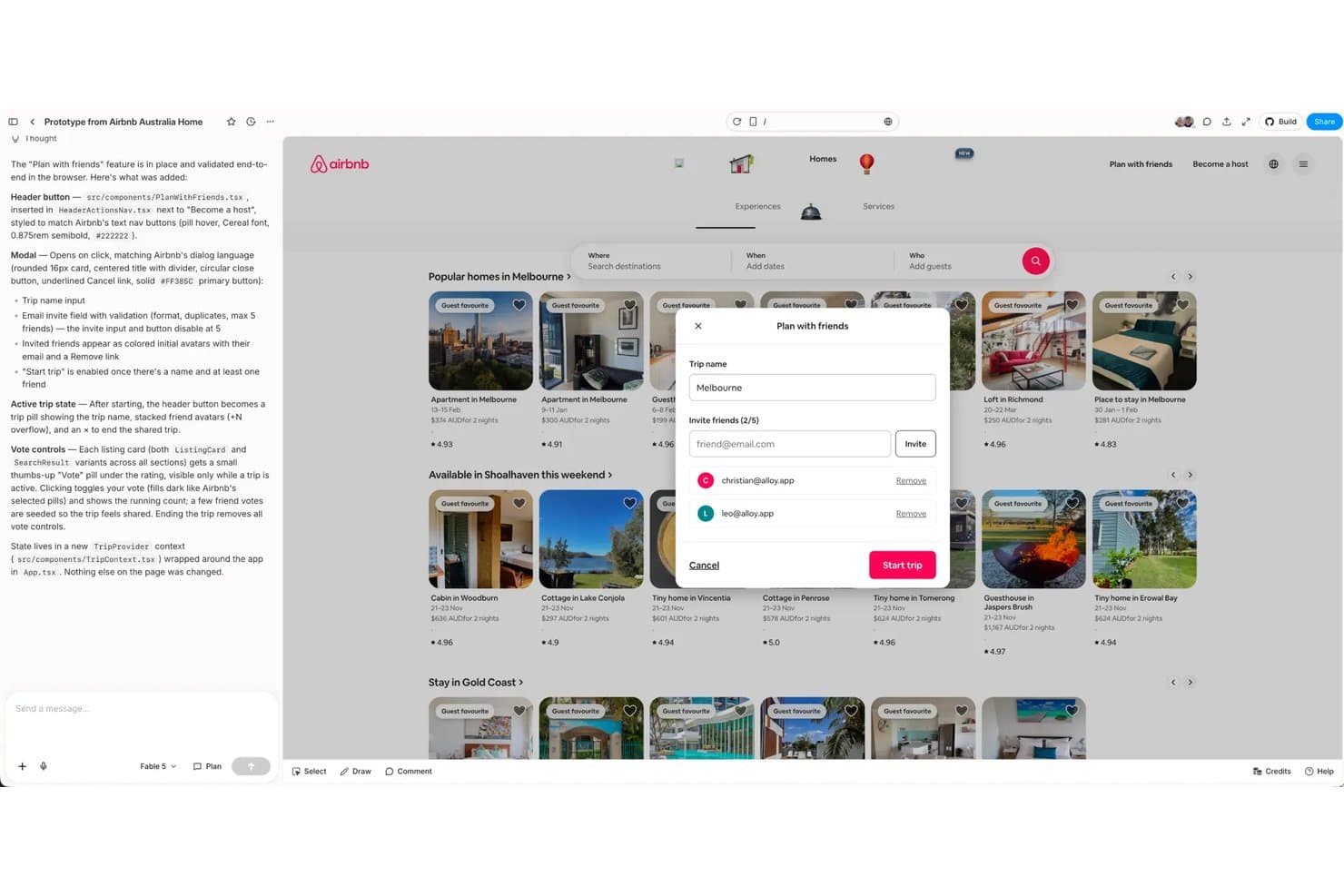
Alloy lets users prototype collaborative trip-planning features with modal dialogs. Alloy is a browser-based AI prototyping tool that lets you build interactive prototypes by capturing your live web app or connecting a GitHub codebase, then editing through a chat-driven interface with visual editing, stakeholder sharing, and GitHub pull request generation.
Who Is Alloy Best For?
Alloy is a strong fit for product managers and engineers who want to prototype directly on top of a live web app or GitHub codebase rather than building mockups from scratch.
Why I Picked Alloy
I picked Alloy as one of the best because it's the only prototyping tool I've used that starts from your actual running product rather than a blank canvas. You capture a live web app with a browser extension, then describe changes in chat, and Alloy edits the real UI in a live preview. For teams iterating on an existing product, Codebase Sessions take this further: connect a GitHub repo, and Alloy spins up the full app in a cloud sandbox so your prototype behaves exactly like production, then lets you open a pull request directly from the session.
Alloy Key Features
- Capture flows: Record multi-step user flows like onboarding or checkout with a browser extension, then edit the entire sequence through chat.
- Stakeholder sharing: Share prototypes via public or private link with unlimited viewers, including a clean full-screen demo mode that hides the Alloy interface.
- PM tool integrations: Connect directly with Jira, Linear, Productboard, and Slack to turn existing tickets and threads into prototype sessions.
- Great Question integration: Send prototypes for unmoderated usability tests with a pool of over 3 million participants, with recordings and click maps included.
Alloy Integrations
Alloy offers 30+ native integrations, including Jira, and Intercom. It also supports an API access for custom integrations on Enterprise.
Pros and Cons
Pros:
- Captures multi-step flows for realistic validation
- Codebase sessions shorten prototype-to-production handoff
- Prototypes reflect your actual product UI
Cons:
- AI-generated interactions depend heavily on prompting
- No freeform canvas for original interface design
Learn more about Alloy: 2Best for visual project mapping
Miro
- Free plan + 14-day free trial available
- From $8/user/month (billed annually)
Visit WebsiteCustomer Rating:4.8/5
Miro brings product planning, design, and team collaboration together in one shared workspace. Miro is a visual collaboration platform for product teams, UX designers, and stakeholders who need to turn early ideas into testable UI concepts. Its infinite canvas combines wireframing, interactive prototyping, AI-generated screens, comments, and real-time collaboration, so your team can review flows and gather feedback before development starts.
Who Is Miro Best For?
Miro is a strong fit for cross-functional teams—particularly product, design, and engineering—who need a shared space to map, plan, and prototype together.
Why I Picked Miro
I picked Miro because it lets your team build UI prototypes in the same workspace where you map user journeys, collect research, and plan product ideas. You can place wireframes beside notes, diagrams, and feedback on an infinite canvas, then use connector lines to show how users move between screens. I like that this keeps your prototype tied to the context behind each design choice, which helps stakeholders understand why a layout or flow was created. Miro is a strong fit for product, UX, and cross-functional teams that need collaborative prototyping before moving into high-fidelity design or development.
Miro Key Features
Miro also includes prototyping tools that help your team move from rough concepts to clickable UI flows faster.
- AI wireframe generation: Generate wireframe layouts from text prompts with Miro AI, then edit components directly on the canvas.
- Interactive prototype preview: Test clickable UI elements, including buttons, dropdowns, and sliders, in Preview mode.
- UI component library: Use built-in UI elements, icons, and screen templates to create low-fidelity prototypes faster.
- Real-time co-editing: Let team members comment, annotate, and edit the same board at the same time.
Miro Integrations
Integrations include Jira, Google Drive, Slack, Microsoft Teams, Zoom, Asana, Confluence, Notion, Trello, and GitHub.
Pros and Cons
Pros:
- AI generates editable prototypes from prompts or canvas content
- Connector lines support clickable multi-screen prototype flows
- Built-in UI components speed up low-fidelity prototyping
Cons:
- Fully interactive previews require the Prototypes add-on
- Advanced components are not available without the add-on
 Best for real-time collaboration
- Free plan available
- From $3/user/month
Visit WebsiteCustomer Rating:4.7/5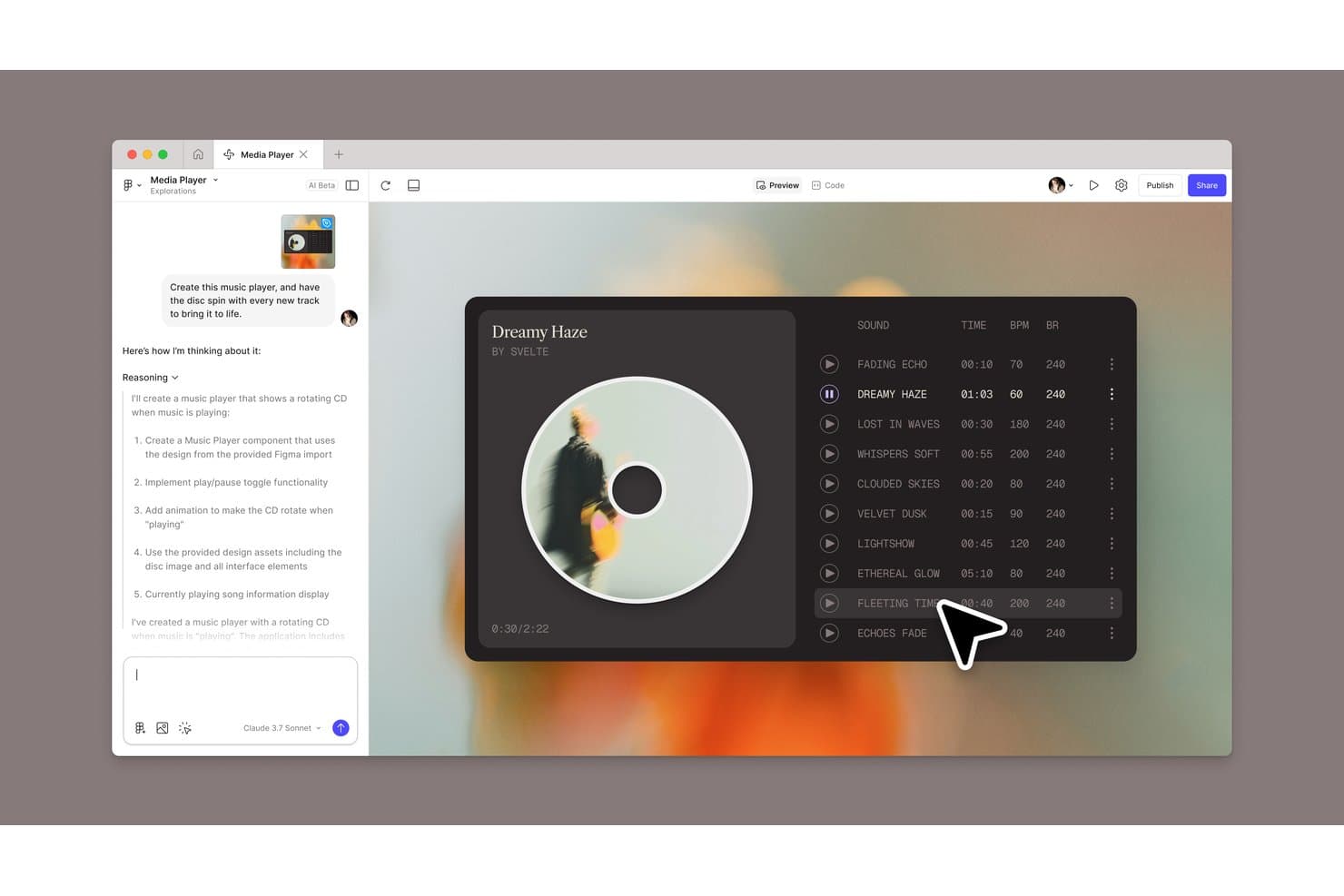
Figma lets users build interactive music player prototypes with AI assistance. Figma is a browser-based UI design and prototyping tool that combines interactive prototyping, vector design, component libraries, and developer handoff in a single file.
Who Is Figma Best For?
Figma fits cross-functional product teams—designers, PMs, and developers—who need to design, prototype, and hand off work without switching tools.
Why I Picked Figma
Figma earns its spot on my shortlist because no other prototyping tool matches its real-time collaboration depth. Live co-editing with visible cursors means my team and I can work in the same file simultaneously, leaving comments directly on specific elements instead of chasing feedback through email threads. Shared component libraries keep everyone building from the same source, and branching lets us explore design directions without disrupting the main file.
Figma Key Features
- Smart animate: Automatically animates matching layers between frames to create transition effects like parallax scrolling and gesture-based interactions.
- Variables and conditional logic: Set numeric, string, and boolean variables with conditional expressions to power complex prototype interactions without additional frames.
- Dev Mode: Gives developers annotated specs, code snippets, and Code Connect mappings that link design components directly to production code.
- Figma Make: Turns a text prompt or existing design file into a coded, interactive prototype or web app without writing production code manually.
Figma Integrations
Figma offers native integrations with Jira, Confluence, Slack, Microsoft Teams, Notion, Asana, Trello, and Productboard. It also supports REST API and Zapier connectivity for custom workflows.
Pros and Cons
Pros:
- Dev Mode clarifies implementation details
- Conditional logic supports realistic product flows
- Real-time co-editing keeps feedback contextual
Cons:
- User testing requires separate tools
- Offline functionality remains severely limited
 Best for offline design work
- Free plan + free demo available
- From $11.99/user/month (billed annually)
Visit WebsiteCustomer Rating:4.4/5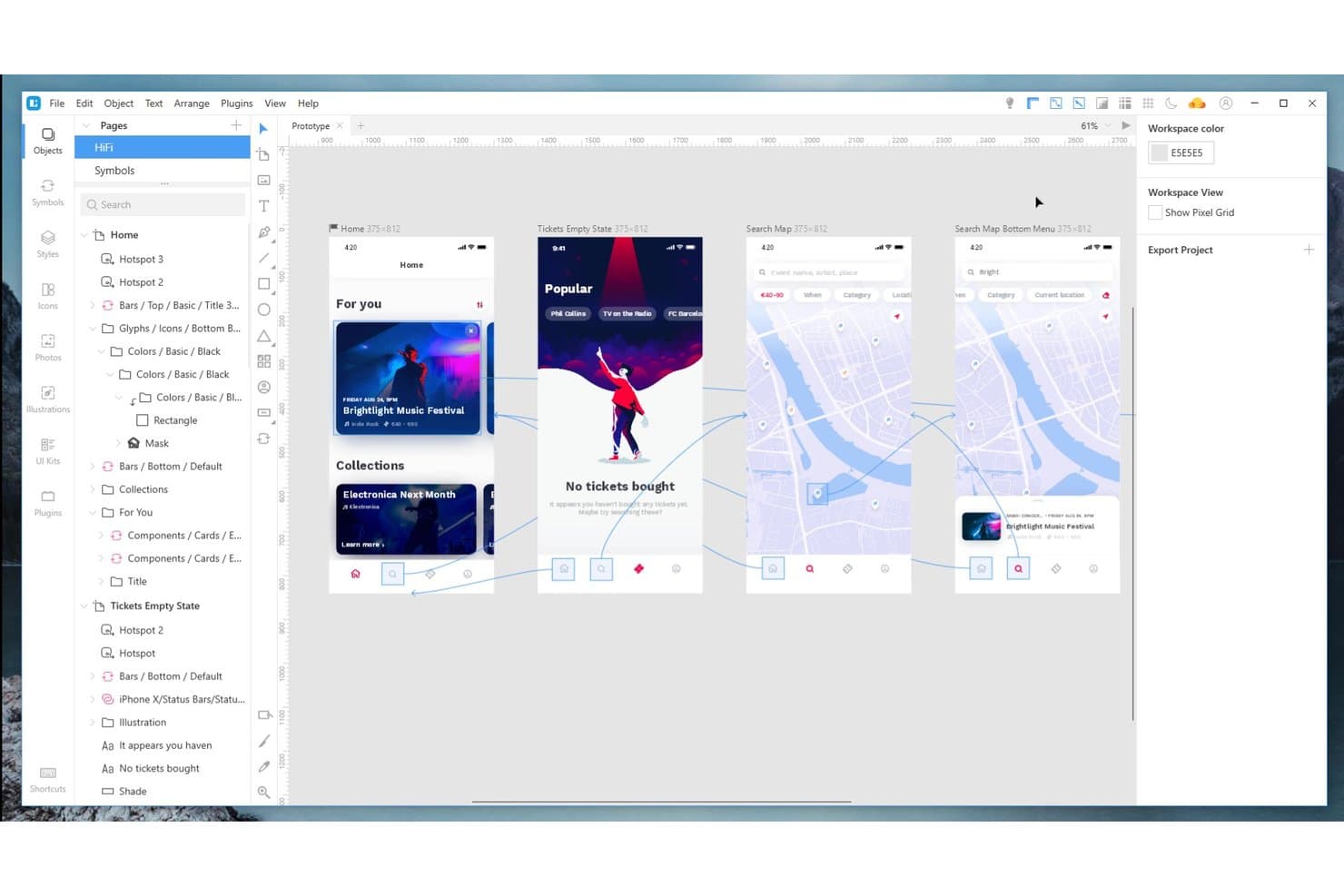
Lunacy lets users link screens and preview interactive prototypes visually. Lunacy is a native desktop UI design and prototyping tool for Windows, macOS, and Linux that supports vector editing, interactive prototyping, real-time collaboration, and a built-in library of icons, illustrations, and photos.
Who Is Lunacy Best For?
Lunacy suits UX/UI and product designers who need a full-featured design and prototyping tool that works without an internet connection.
Why I Picked Lunacy
I picked Lunacy as one of the best because it's the only tool on this list that runs as a true native desktop app on Windows, macOS, and Linux, letting you design and prototype without any internet connection. Local documents work fully offline, so if you're building flows on a flight or in a restricted-network environment, you're never blocked. I also like that Smart Animate and Spring animations are baked into the prototyping layer, giving motion-rich transitions without needing a separate tool.
Lunacy Key Features
- Real-time co-editing: Cloud documents support live collaboration for up to 10 simultaneous editors, with observer mode to follow another user's canvas.
- Multi-trigger prototyping: Hotspots support triggers including on click, on drag, while hovering, key press, and after delay, connecting frames across any page.
- Built-in asset library: Over 1.18 million icons, 71,000+ illustrations, and 140,000+ photos are available directly inside the tool, along with Apple, Microsoft, and Google UI kits.
- Code panel: A dedicated panel generates CSS and HTML output for any selected layer, giving developers inspectable specs without a third-party handoff tool.
Lunacy Integrations
Lunacy doesn't have any native integrations. It supports Sketch files and connects indirectly with Avocode, Zeplin, Abstract, and Simpli through Sketch-format compatibility, plus an MCP API for custom AI integrations.
Pros and Cons
Pros:
- Smart Animate and Spring add motion
- Built-in graphics speed up interface concepting
- Offline-first native apps across three desktop platforms
Cons:
- Cloud documents required for collaboration features
- Large files can trigger slowdowns or freezes
Learn more about Lunacy: Best for free real-time team co-editing
- Free plan available
- From $24.90/user/month (billed annually)
Visit WebsiteCustomer Rating:4.5/5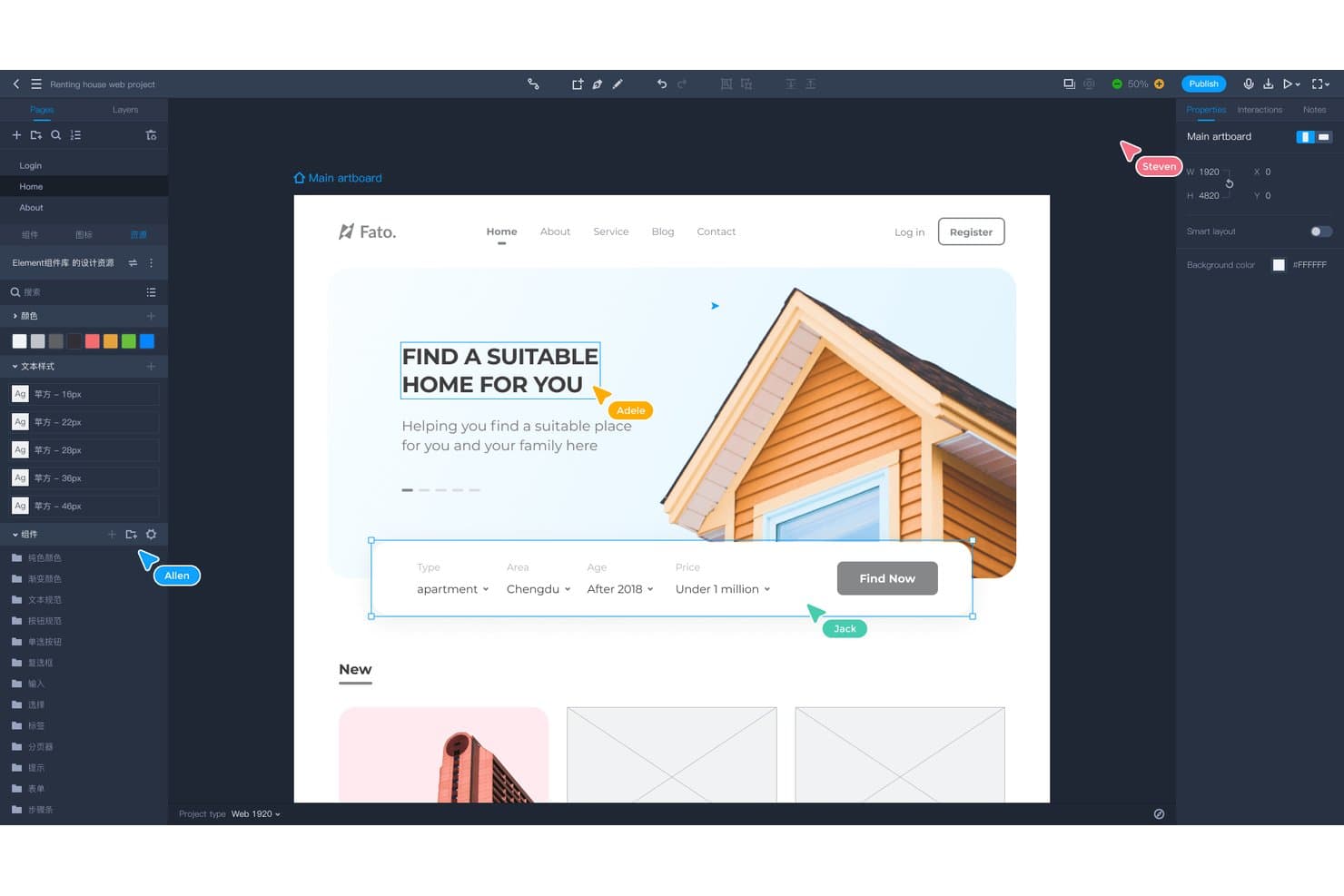
Mockplus supports real-time multi-user collaboration on web UI prototypes. Mockplus RP is a web-based UI prototyping tool that combines drag-to-link interactive prototyping, vector design, component libraries, and real-time team co-editing with developer handoff via auto-generated specs and code snippets.
Who Is Mockplus Best For?
Mockplus RP is a strong fit for cross-functional product teams—especially those with PMs and designers working side by side—who need real-time co-editing without paying for it.
Why I Picked Mockplus
Mockplus RP earns its spot on my shortlist because it's the only tool I've found that gives teams real-time co-editing on the same screens at no cost, supporting up to 10 users on its free plan. I love that this includes shared asset libraries and version history, so a PM and designer can prototype together without worrying about overwriting each other's work. Conflict-free co-design on a free tier is genuinely rare in this category.
Mockplus Key Features
- Drag-to-link prototyping: Connect screens and components by dragging a link point to a target, creating interactive flows without writing any code.
- Vector editing canvas: Design with a pen tool, Bezier curves, Boolean operations, and SVG import directly inside the prototyping environment.
- Axure file import: Import existing Axure projects with approximately 95% of UI elements and interactions preserved and editable.
- Stakeholder sharing via link or QR code: Share prototypes through a single link or QR code, with optional password protection on paid plans.
Mockplus Integrations
Mockplus integrates with Figma, Sketch, Adobe XD, Photoshop, Axure, Slack, Jira, Confluence, and Lark through plugins or Mockplus Cloud.
Pros and Cons
Pros:
- Built-in libraries accelerate interface prototyping
- Axure imports retain editable interactions
- Real-time co-editing supports small teams
Cons:
- Free tier limits prototype capacity
- Advanced logic lacks variables and conditions
Learn more about Mockplus: Best for interactive animations
- Free plan available
- From $10/month (billed annually)
Visit WebsiteCustomer Rating:4.4/5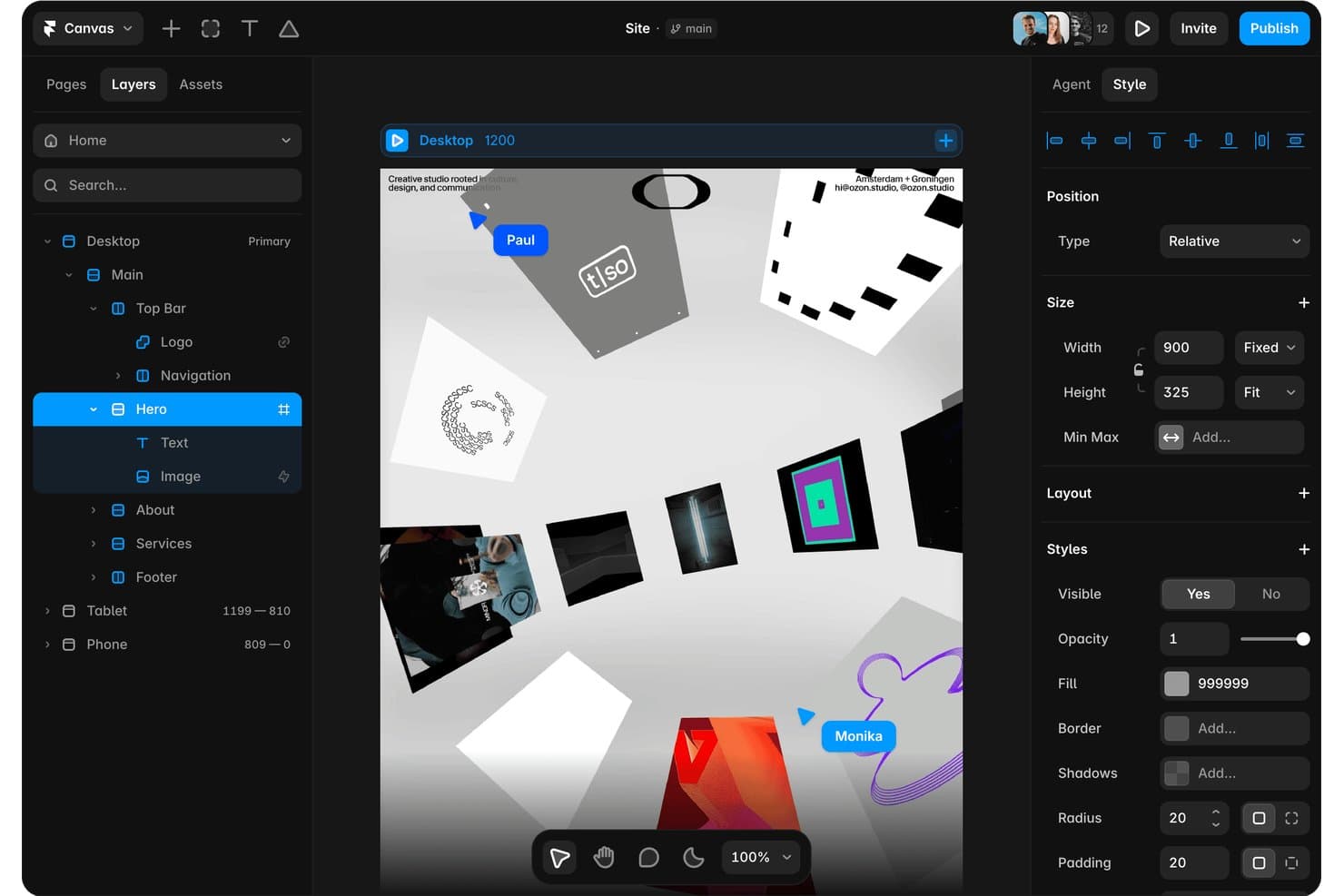
Framer lets users edit layers, styles, and layout in a visual canvas. Framer is a web-based UI prototyping and publishing tool that combines a visual design canvas, state-based interactions, an advanced animation engine, real-time collaboration, and AI-assisted design generation.
Who Is Framer Best For?
Framer is a strong fit for UX/UI and product designers building web experiences who want production-grade animations and a design-to-publish workflow in a single tool.
Why I Picked Framer
Framer earns its spot on my shortlist because its animation engine is genuinely in a class of its own. I love that scroll effects, state-based triggers, and hover interactions all render as real browser behavior, not simulations, so what I'm prototyping is functionally identical to the shipped product. You can animate text character by character, wire drag-and-loop effects on a single layer, or use the AI agent to build an animated sticky navbar from a text prompt without manually connecting a single state.
Framer Key Features
- Figma import: A plugin transfers your Figma layers and structure directly into Framer, preserving layout so you can continue building without rebuilding from scratch.
- Real-time branching: Teams can work in parallel branches, preview each branch via a unique staging URL, and merge with a logged changelog on the Pro plan.
- AI design review: Built-in AI scans your project for contrast issues, missing alt text, typos, and inconsistent styles before you publish or share.
- Working forms and CMS data: Framer supports live form submissions and connected CMS content, so prototypes display realistic data rather than static placeholder copy.
Framer Integrations
Framer offers documented integrations with Google Analytics, Google Tag Manager, Hotjar, HubSpot Forms, Typeform, Mailchimp, and Intercom. Marketplace plugins support Figma Sync, GitHub Sync, and React Export, while the Plugins API and Server API support custom connections.
Pros and Cons
Pros:
- Working forms and CMS enable realistic prototypes
- Branch previews support parallel design decisions
- Production-grade animations mirror shipped web behavior
Cons:
- Developer handoff lacks inspectable design specifications
- Native app flows fit less naturally
 Best for near-production visual prototyping
- Free plan available
- From $15/month (billed annually)
Visit WebsiteCustomer Rating:4.4/5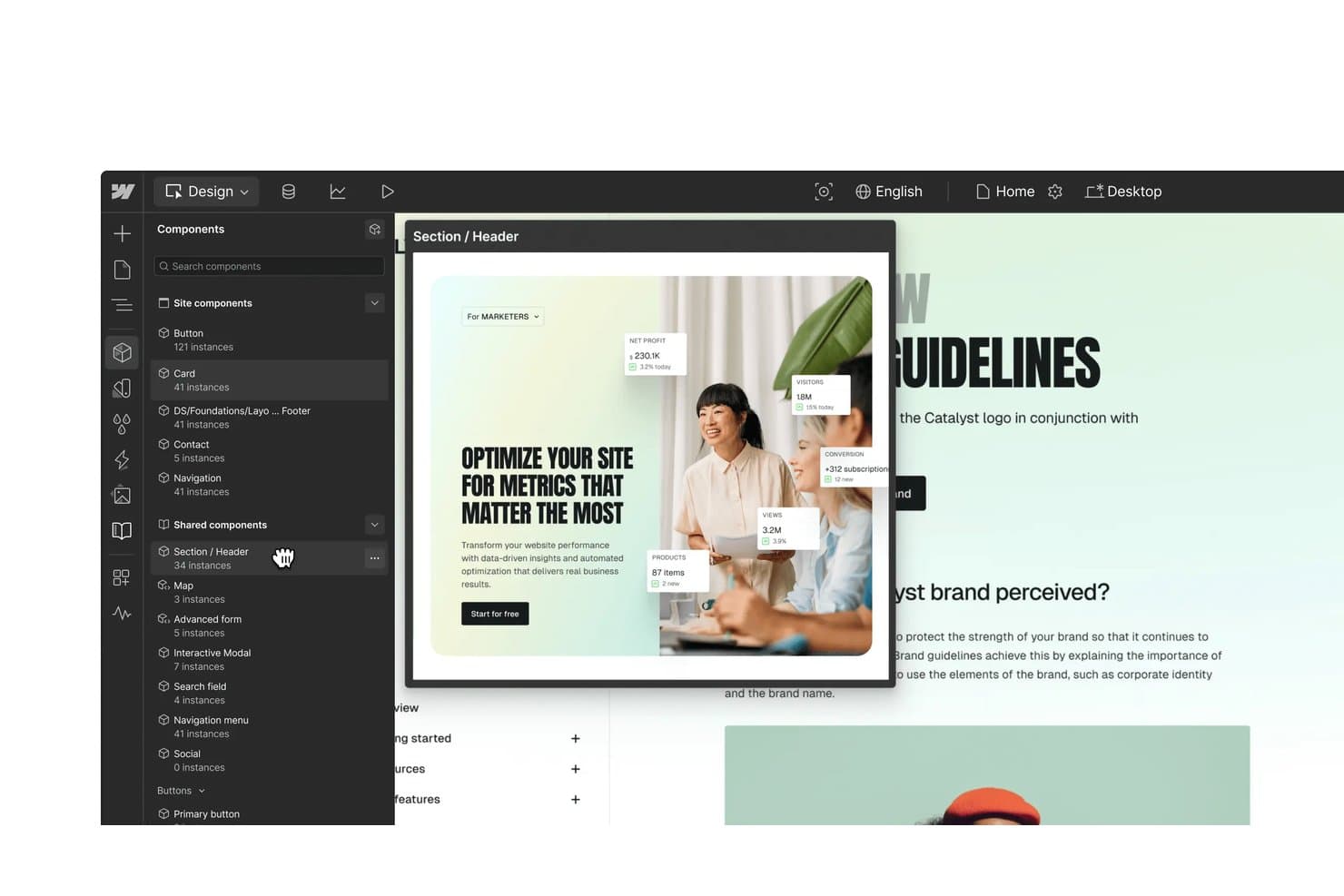
Webflow lets users browse and preview reusable shared components visually. Webflow is a visual web design and development platform that lets you build responsive, production-ready sites on a drag-and-drop HTML/CSS canvas, with built-in CMS, GSAP-powered animations, component libraries, and real-time collaboration tools.
Who Is Webflow Best For?
Webflow is a strong fit for product designers and front-end developers who need prototypes that look and behave like the real thing.
Why I Picked Webflow
Webflow earns its spot on my shortlist because it's the only tool here that produces real HTML and CSS on the canvas, meaning your prototype is the production site. I love how GSAP-powered animations, live CMS data, and DevLink's two-way React sync let product designers share a working staging URL instead of a static mockup. When I need stakeholders reviewing actual scroll-triggered interactions on real content, Webflow is where I go.
Webflow Key Features
- Shared Libraries: Share components, color and spacing tokens, and assets across all sites in a Workspace, with cascading updates each site reviews before accepting.
- GSAP-powered animation timeline: Build scroll-triggered, hover, and click animations with SplitText, Staggers, and ScrollTrigger directly on the canvas.
- DevLink two-way React sync: Export Webflow components as production-ready React code and pull codebase components back into the canvas via the command line.
- AI Site Builder: Generate full sites and design systems from a text prompt, with an AI Assistant that adds page sections using your existing design system.
Webflow Integrations
Webflow has a wide range of marketplace apps, including Figma to Webflow, Relume, HubSpot, Google Analytics, Microsoft Clarity, and Airtable. DevLink, Webflow Cloud, Webflow APIs, and Zapier support developer and workflow connectivity.
Pros and Cons
Pros:
- Delivers live content for realistic prototypes
- Supports advanced GSAP-powered interaction design
- Produces responsive, production-ready HTML and CSS
Cons:
- Requires technical skills for quick concept validation
- Lacks frame-linking and visual conditional logic
Learn more about Webflow: Best for design-to-code component sync
- Free plan + 14-day free trial available
- From $29/user/month (billed annually)
Visit WebsiteCustomer Rating:4.2/5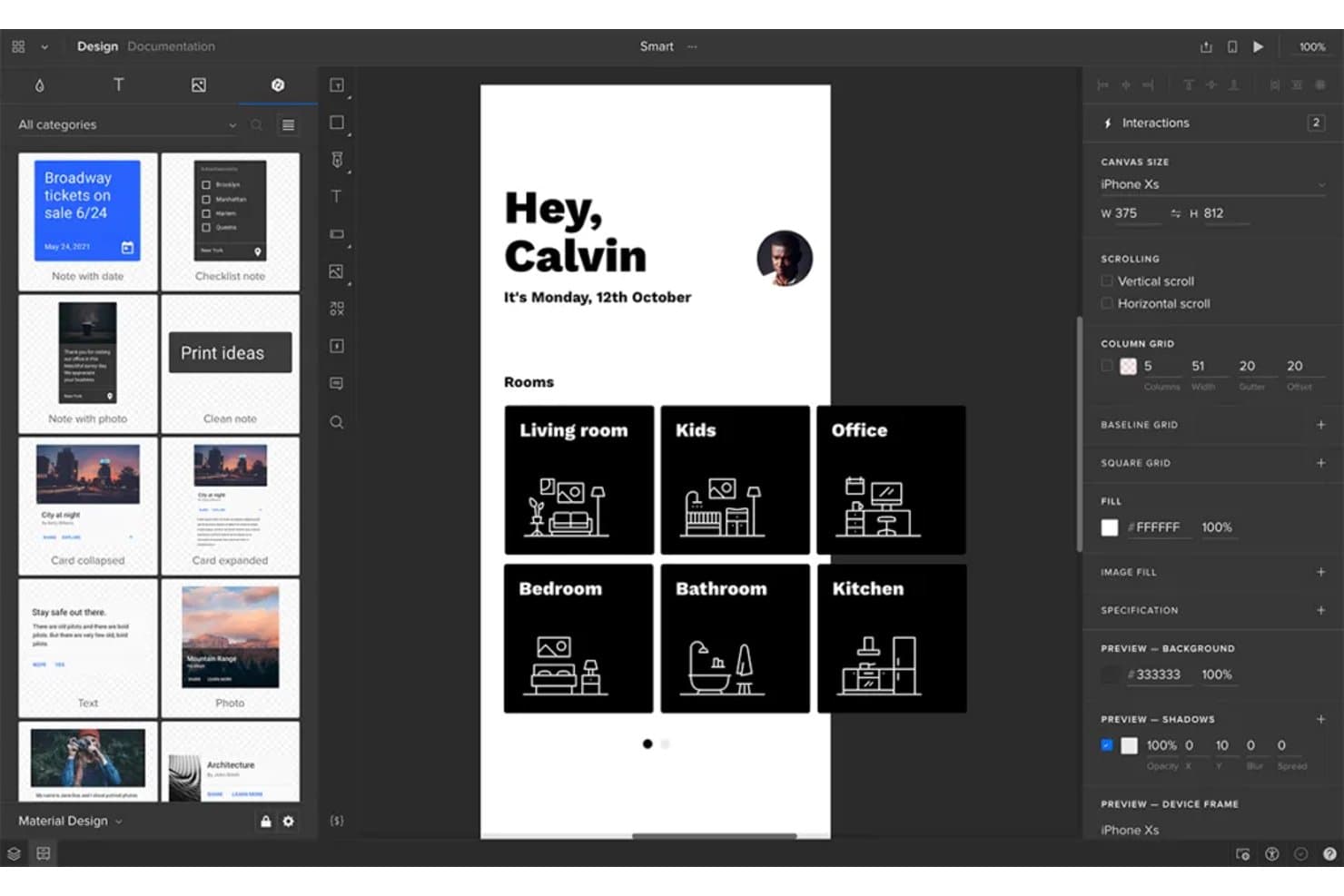
UXPin lets users prototype room-based smart home app screens. UXPin is a browser-based UI prototyping tool that combines an interactive design canvas, code-backed component libraries, AI-assisted UI generation, and developer handoff features including spec mode and React code export.
Who Is UXPin Best For?
UXPin is a strong fit for product design teams where designers and front-end developers need to work from the same component library.
Why I Picked UXPin
UXPin earns its spot on my shortlist because of Merge, its code-backed component system that lets designers place real React components, complete with their actual props and states, directly on the canvas. I love that when developers update a component in Storybook or a Git-synced library, it updates in the prototype automatically, so design and production UI never drift apart. Spec mode then outputs real CSS and JSX, not just redlines.
UXPin Key Features
- Conditional logic builder: Set if/else interactions using operators like "contains," "matches regex," and "is empty" to create prototypes that respond to real user input.
- Approval workflow: Send stakeholders a unique preview link by email so they can approve, reject, or comment on designs without needing a UXPin account.
- WCAG contrast checker: A built-in accessibility tool checks color contrast against WCAG 2.0 AA and AAA standards directly on the canvas.
- UXPin Mirror: A companion iOS and Android app that streams your prototype live to a real device for on-device preview and testing.
UXPin Integrations
UXPin offers integrations with Storybook, GitHub, Bitbucket, Figma, Sketch, Jira, Slack, FullStory, and more.
Pros and Cons
Pros:
- Approval links simplify stakeholder sign-off
- Deep conditional logic supports realistic flows
- Production components reduce design-to-code drift
Cons:
- Large files can experience performance slowdowns
- Advanced interactions require technical fluency
Learn more about UXPin: Best for open-source design
- Free plan + 14-day free trial available
- From $7/user/month
Visit WebsiteCustomer Rating:4.5/5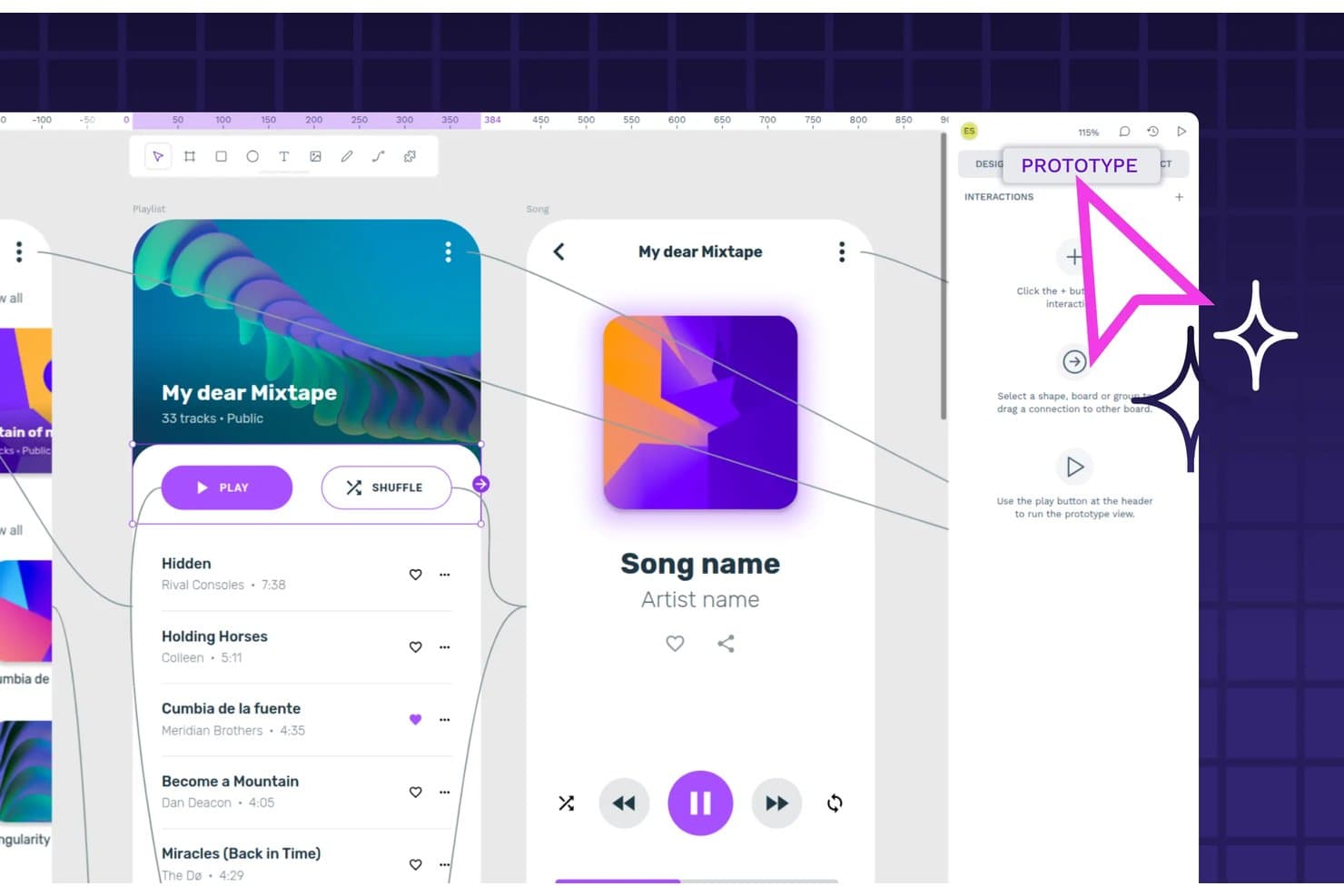
Penpot lets users link screens and define interactions in prototype mode. Penpot is an open-source UI design and prototyping tool that offers a vector canvas, component libraries with design tokens, interactive prototype flows, real-time collaboration, and developer handoff with code output.
Who Is Penpot Best For?
Penpot is a strong fit for cross-functional product teams that want full design and prototyping capabilities without a SaaS vendor dependency.
Why I Picked Penpot
I picked Penpot as one of the best because it's the only tool on this list built fully in the open, meaning you can self-host it, inspect its source code, and never worry about a vendor changing pricing or shutting down. Its CSS Grid and Flex layouts map directly to real code, so when I hand off to a developer, the Inspect panel produces actual HTML and CSS rather than a loose approximation. Native W3C-standard design tokens, exportable as JSON, round out a handoff workflow that genuinely closes the gap between design and production.
Penpot Key Features
- Multi-screen prototype flows: Link boards across screens with click, hover, and delay triggers, then share each flow via its own link directly from View mode.
- MCP server for AI workflows: A free, open-source MCP server connects Penpot to any compatible AI agent, supporting design-to-code, token automation, and Figma migration tasks.
- Plugin manager: Install community-built or custom plugins from PenpotHub or a JSON URL to extend Penpot's core functionality without leaving the editor.
- W3C design token support: Create, import, and export design tokens in JSON format with multi-set and theme support, keeping your design system in sync with code.
Penpot Integrations
Native integrations are not clearly documented. Penpot supports custom connections through its REST API, webhooks, Plugin API, and free open-source MCP Server, with compatibility for Claude Desktop, OpenAI Codex, Cursor, and VS Code.
Pros and Cons
Pros:
- Native tokens connect prototypes with design systems
- CSS-aligned layouts improve developer handoff
- Open-source control supports self-hosted design workflows
Cons:
- Prototype logic lacks variables and conditions
- Rendering slows down on complex files
Learn more about Penpot: Best for web and mobile wireframes
- Free plan available
- From $19/user/month
Visit WebsiteCustomer Rating:4.2/5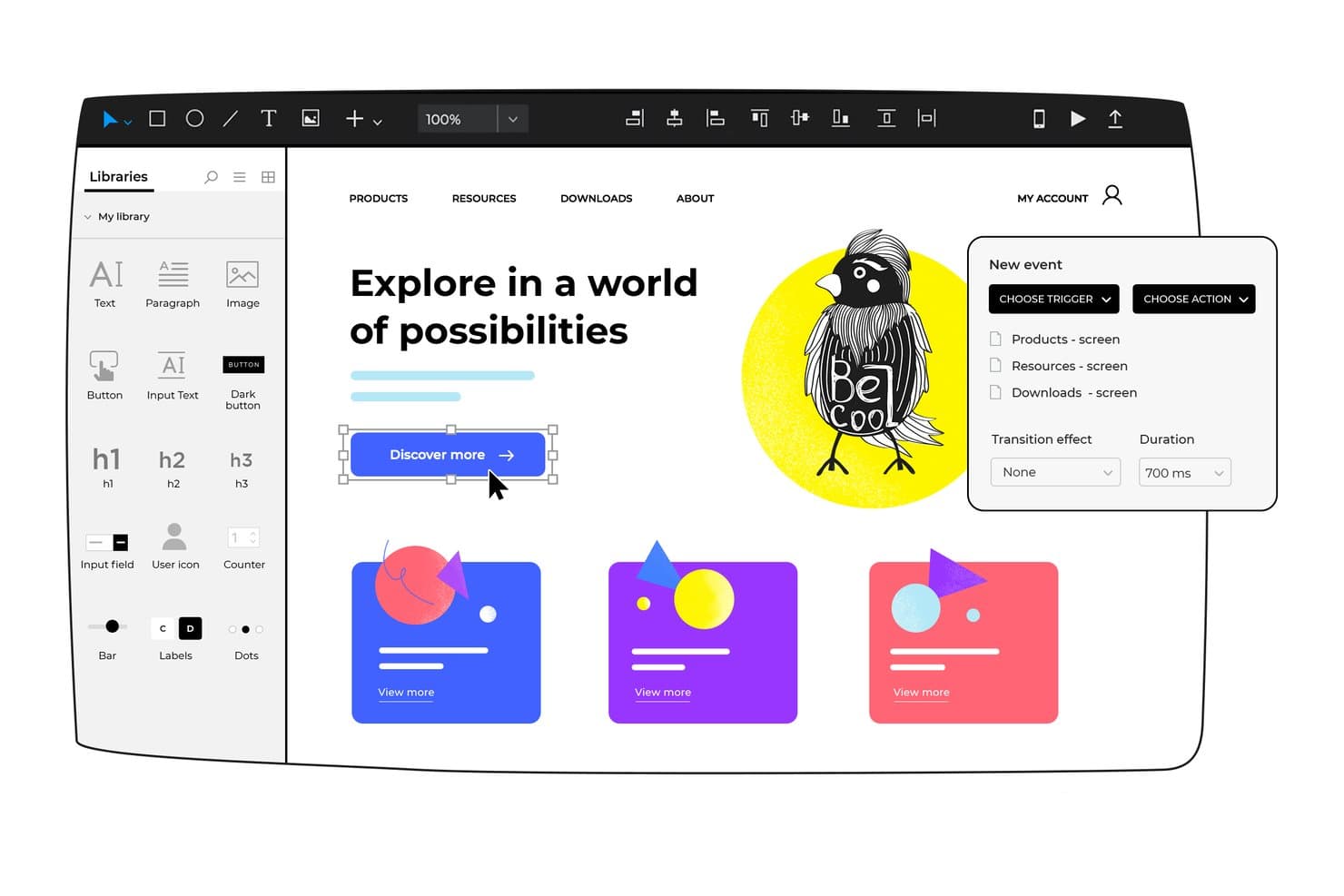
Justinmind lets users add interactive triggers and actions to prototypes. Justinmind is a desktop-based UI prototyping tool that lets you build interactive, high-fidelity prototypes with advanced logic—conditions, variables, data simulation, and working forms—alongside real-time collaboration, component libraries, and developer handoff.
Who Is Justinmind Best For?
Justinmind is a strong fit for UX designers and product managers who need to build logic-driven, data-rich prototypes that go well beyond simple click-throughs.
Why I Picked Justinmind
I picked Justinmind as one of the best because it handles logic-driven web and mobile wireframes at a depth most tools can't match. I love how conditions and variables let you wire up real decision logic, so a prototype can show different screens based on form input rather than just linking screens together. Its Data Masters feature lets you import CSV data, meaning I can simulate a populated dashboard or data table before a single line of code is written.
Justinmind Key Features
- Masters: Reusable component groups that push updates to every screen simultaneously when you edit the source.
- Real device testing: Preview and interact with prototypes on physical iOS and Android devices via companion viewer apps.
- Design handoff panel: Exposes CSS properties, spacing, hex colors, and asset exports to developers without requiring a separate handoff tool.
- Jira and Azure DevOps integration: Links UI elements directly to work items and requirements, keeping design and development tracking in sync.
Justinmind Integrations
Justinmind offers integrations with Figma, Sketch, Adobe XD, Photoshop, Illustrator, Jira, Azure DevOps, Confluence, and Crazy Egg. It also provides an API and SDK for custom integrations and outputs.
Pros and Cons
Pros:
- Offline editing suits controlled design environments
- CSV data populates realistic interface states
- Logic-heavy prototypes support realistic testing
Cons:
- Advanced interactions take time to master
- Desktop installation slows spontaneous collaboration
Learn more about Justinmind:
Andre verktøy for prototyping av brukergrensesnitt
Her er noen flere alternativer for verktøy for prototyping av brukergrensesnitt som ikke kom med på kortlisten min, men som likevel er verdt å se nærmere på:
- 11SketchBest for macOS users
- 12Axure RP Best for advanced prototyping
- 13MockFlowBest for AI-generated wireframes and PRD handoff
- 14Fluid UIBest for flat-rate team prototyping access
- 15MarvelBest for simplicity and ease of use
- 16Adobe XDBest for integration with the Adobe suite
- 17VisilyBest for AI-driven concept-to-prototype handoff
- 18ProtoPieBest for logic-driven interaction prototyping
- 19Proto.ioBest for mobile app prototypes
- 20MoqupsBest for online diagramming
How I Evaluate UI Prototyping Tools
I split my evaluation into three parts, weighting core functionality most: link screens, simulate flows, and arrange UI elements. Next, I look for AI-assisted design and advanced animation, such as editable prompt-based screens. Finally, I consider onboarding, support, access, and pricing value.
Core Functionality (Table Stakes For This List)
When I'm selecting tools for my list, I score each one on a scale from 0 (does not offer the functionality) to 5 (excels in this area) for each core functionality listed below. I then convert the total into a percentage to help assess each tool's overall fit, with extra weight on any functionalities I’ve deemed essential.
- Interactive Prototyping (Essential): I look for linked screens, states, triggers, and transitions that can represent signup, checkout, and other multi-step flows.
- Visual Design Canvas (Essential): The canvas should support precise layouts, typography, responsive constraints, and UI states for web and mobile concepts.
- Component & Asset Libraries: I assess reusable components, shared libraries, overrides, and asset updates across screens or connected files.
- Real-Time Collaboration: I consider live co-editing, presence indicators, comments, notifications, and version history during reviews with product and engineering.
- Developer Handoff: I look for inspectable spacing, styles, dimensions, assets, and code details that developers can reference during implementation.
- Stakeholder Sharing & Feedback: I evaluate share links, permissions, embedded prototypes, annotations, and threaded feedback for stakeholder reviews.
Once I have a list of tools that meet the criteria, I consider what sets each platform apart.
Differentiating Factors (What Sets Vendors Apart)
Here's how I compare and contrast different vendors:
Standout Features
I look for AI-assisted design generation that goes beyond auto-layout suggestions—tools like Figma and Uizard let you convert text prompts into editable screens, which helps PMs sketch out flows without waiting on a designer. An advanced animation engine also matters when you need to communicate micro-interactions or transition timing to engineering. I evaluate whether a tool supports offline desktop work, since browser-only apps stall teams with unreliable connectivity. Finally, I check for a plugin and API ecosystem that connects prototyping into existing workflows.
Beyond Features
I evaluate how each tool's licensing model handles view-only seats, since PMs, engineers, and stakeholders often outnumber editors. A generous viewer tier in tools like Figma or Axure keeps collaboration costs predictable as teams grow. I also check for native integrations with Jira, Slack, and Storybook so prototypes stay connected to backlogs and component libraries without manual exports. Cross-platform availability matters too—distributed teams need real-time sync across macOS, Windows, and web browsers to keep reviews on track.
Slik velger du et verktøy for prototyping av brukergrensesnitt
Det er lett å gå seg vill i lange funksjonslister og komplekse prismodeller. For å hjelpe deg med å holde fokus mens du går gjennom den unike prosessen din for valg av programvare, får du her en sjekkliste over faktorer du bør ha i bakhodet:
| Faktor | Hva du bør vurdere |
| Skalerbarhet | Hvor godt vil verktøyet vokse sammen med teamet ditt? Vurder om programvaren kan håndtere en økning i antall prosjekter eller brukere uten ytelsesproblemer. Se etter alternativer som tilbyr skalerbare abonnementer eller tilleggsfunksjoner. |
| Integrasjoner | Synkroniserer verktøyet med den eksisterende programvarestakken din? Sjekk om det er kompatibelt med designverktøy, prosjektstyringsprogramvare og kommunikasjonsplattformer. Dette sikrer en smidig arbeidsflyt og unngår datasiloer. |
| Tilpasningsmuligheter | Kan du tilpasse verktøyet til teamets behov? Vurder om verktøyet tillater tilpassede arbeidsflyter, maler eller brukerroller. Tilpasningsmuligheter kan forbedre effektiviteten og brukertilfredsheten. |
| Brukervennlighet | Hvor intuitivt er verktøyet for teamet ditt? Vurder læringskurven og om opplæring er nødvendig. Et brukervennlig grensesnitt reduserer tiden det tar å komme i gang og øker bruksgraden. |
| Implementering og oppstart | Hvilke ressurser trengs for å komme i gang? Vurder tiden og innsatsen som kreves for oppsettet. Se etter tilgjengelig opplæringsmateriell, brukerstøtte og hjelp med oppstart. En smidig implementering begrenser forstyrrelser. |
| Kostnad | Passer verktøyet innenfor budsjettet ditt? Sammenlign prisplaner og vurder de totale eierkostnadene, inkludert ekstra gebyrer eller kostnader. Se etter fleksible prismodeller som samsvarer med de økonomiske rammene dine. |
| Sikkerhetstiltak | Hvordan beskytter verktøyet dataene dine? Undersøk sikkerhetstiltakene som er på plass, for eksempel kryptering, tilgangskontroller og samsvar med bransjestandarder. God sikkerhet er avgjørende for å beskytte sensitiv informasjon. |
Hva er verktøy for UI-prototyping?
Verktøy for UI-prototyping er programvareløsninger som hjelper designere og team med å lage interaktive modeller av brukergrensesnitt. Disse verktøyene brukes vanligvis av UX-designere, produktledere og utviklere for å visualisere og teste designideer før utviklingen starter.
Dra-og-slipp-grensesnitt, interaktive komponenter og funksjoner for samarbeid i sanntid bidrar til raske designiterasjoner, innsamling av tilbakemeldinger og samkjøring av teamet. Alt i alt forbedrer disse verktøyene designprosessen ved å styrke kommunikasjonen og redusere utviklingsrisikoen.
Funksjoner i verktøy for UI-prototyping
Når du velger verktøy for UI-prototyping, bør du se etter følgende viktige funksjoner:
- Interaktive komponenter: Gjør det mulig å lage dynamiske elementer som etterligner ekte brukerinteraksjoner, og bidrar til å visualisere brukeropplevelser på en effektiv måte.
- Dra-og-slipp-redigeringsverktøy: Forenkler designprosessen og gjør det mulig å raskt plassere og teste grensesnittelementer uten programmering.
- Samarbeid i sanntid: Gjør det mulig for teammedlemmer å arbeide sammen samtidig, gi umiddelbare tilbakemeldinger og fremskynde designprosessen.
- Integrasjon med designsystemer: Sikrer konsistens på tvers av prosjekter ved å innlemme etablerte designretningslinjer og komponenter.
- Funksjoner for brukertesting: Tilrettelegger for innsamling av tilbakemeldinger fra faktiske brukere, slik at design kan forbedres og brukervennligheten økes.
- Betingede interaksjoner: Støtter oppretting av komplekse brukerflyter ved å tillate ulike utfall basert på brukerhandlinger.
- Forhåndsbygde komponenter: Tilbyr et bibliotek med ferdige designelementer som fremskynder prototypingsfasen og sikrer ensartethet.
- Deling av prototyper: Forenkler prosessen med å distribuere prototyper til interessenter for gjennomgang og tilbakemeldinger.
- Dataintegrasjon: Gjør det mulig å bruke reelle data i prototyper, slik at designene blir mer realistiske og funksjonelle.
- Animasjonsfunksjoner: Tilbyr verktøy for å legge til overganger og animasjoner, noe som forbedrer prototypenes visuelle uttrykk og interaktivitet.
Fordeler med verktøy for UI-prototyping
Implementering av verktøy for UI-prototyping gir flere fordeler for teamet og virksomheten din. Her er noen av fordelene du kan se frem til:
- Bedre samarbeid: Funksjoner for samarbeid i sanntid gjør det mulig for teamet å arbeide effektivt sammen, redusere misforståelser og fremskynde designprosessen.
- Raskere iterasjoner: Dra-og-slipp-redigeringsverktøy og forhåndsbygde komponenter muliggjør raske justeringer og iterasjoner, slik at du kan forbedre designene raskt.
- Bedre tilbakemeldinger fra brukere: Funksjoner for brukertesting lar deg innhente verdifull innsikt fra reelle brukere, noe som forbedrer den generelle brukervennligheten til designene dine.
- Ensartede design: Integrasjon med designsystemer sikrer at prosjektene dine opprettholder et enhetlig utseende og enhetlig følelse, i tråd med merkevarens retningslinjer.
- Redusert utviklingsrisiko: Interaktive prototyper bidrar til å visualisere komplekse interaksjoner tidlig, slik at risikoen for omarbeiding under utviklingen minimeres.
- Økt kreativitet: Animasjonsfunksjoner og betingede interaksjoner lar deg utforske kreative løsninger og forbedre brukeropplevelsen.
- Effektiv kommunikasjon: Funksjoner for deling av prototyper gjør det enkelt å presentere ideer for interessenter, slik at alle er samkjørte om prosjektets retning.
Kostnader og priser for verktøy for UI-prototyping
Valg av verktøy for UI-prototyping krever en forståelse av de ulike prismodellene og abonnementene som er tilgjengelige. Kostnadene varierer basert på funksjoner, teamstørrelse, tillegg og mer. Tabellen nedenfor oppsummerer vanlige abonnementer, gjennomsnittsprisene deres og typiske funksjoner som er inkludert i løsninger for UI-prototyping:
Sammenligningstabell for abonnementer for verktøy for UI-prototyping
| Abonnementstype | Gjennomsnittspris | Vanlige funksjoner |
| Gratisabonnement | $0 | Grunnleggende prototypingsverktøy, begrenset antall komponenter og støtte fra fellesskapet. |
| Personlig abonnement | $10-$30/ bruker/måned | Fullstendige prototypingfunksjoner, tilgang til maler og begrenset samarbeid. |
| Bedriftsabonnement | $30-$60/ bruker/måned | Teamsamarbeid, integrasjon med designsystemer og avanserte prototypingfunksjoner. |
| Storbedriftsabonnement | $60-$100/ bruker/måned | Tilpassbare arbeidsflyter, dedikert støtte og forbedrede sikkerhetsfunksjoner. |
Vanlige spørsmål om verktøy for UI-prototyping
Her er noen svar på vanlige spørsmål om verktøy for UI-prototyping:
Hvordan legger verktøy for UI-prototyping til rette for samarbeid?
Verktøy for UI-prototyping inneholder ofte funksjoner som samarbeid i sanntid, slik at flere teammedlemmer kan arbeide med et prosjekt samtidig. Dette bidrar til å holde alle samkjørte og fremskynder tilbakemeldingssløyfen. Teamet kan se endringer i sanntid og gi innspill direkte, noe som forbedrer den samlede designprosessen.
Kan verktøy for UI-prototyping håndtere komplekse brukerflyter?
Ja, mange verktøy for UI-prototyping er utstyrt for å håndtere komplekse brukerflyter gjennom funksjoner som betingede interaksjoner og avanserte animasjonsmuligheter. Disse verktøyene lar deg simulere detaljerte brukerreiser og teste hvordan brukere vil samhandle med designet ditt. Dette er spesielt nyttig for prosjekter med kompliserte brukerbaner.
Hva bør jeg vurdere når jeg velger et verktøy for UI-prototyping til teamet mitt?
Når du velger et verktøy for UI-prototyping, bør du vurdere faktorer som skalerbarhet, integrasjon med den eksisterende programvarestakken og brukervennlighet. Tenk på teamets spesifikke behov og arbeidsflyter. Det er også viktig å vurdere verktøyets støtte for samarbeid og evne til å håndtere komplekse prosjekter.
Er gratisversjoner av verktøy for UI-prototyping tilstrekkelige for profesjonell bruk?
Gratisversjoner kan være et godt utgangspunkt for små prosjekter eller individuell bruk, men de har ofte begrensninger som færre funksjoner og færre samarbeidsmuligheter. For profesjonell bruk, spesielt i større team, kan det hende du trenger et betalt abonnement for å få tilgang til avanserte funksjoner og full funksjonalitet.
Hvordan integreres verktøy for UI-prototyping med annen programvare?
De fleste verktøy for UI-prototyping tilbyr integrasjoner med populære design- og prosjektstyringsverktøy, som Sketch, Adobe XD og Jira. Dette sikrer en smidig arbeidsflyt på tvers av ulike plattformer, slik at du enkelt kan importere og eksportere design og samarbeide effektivt med teammedlemmer.
Hvilke sikkerhetstiltak bør jeg se etter i et verktøy for UI-prototyping?
Sikkerhet er avgjørende, spesielt hvis du håndterer sensitive data. Se etter verktøy som tilbyr kryptering, tilgangskontroller og samsvar med bransjestandarder. Det er viktig å sikre at verktøyet du velger, har robuste sikkerhetstiltak for å beskytte dataene dine og kundenes informasjon.