

In qualità di responsabile di prodotto, devi affrontare la pressione costante di realizzare progetti che non solo soddisfino le richieste dei clienti, ma che si adattino anche a dispositivi e dimensioni dello schermo diversi. La difficoltà di stare al passo con i rapidi cambiamenti della progettazione può essere opprimente, compromettendo l’efficienza e la creatività del tuo team.
Gli strumenti di prototipazione della progettazione responsiva possono semplificare il processo di progettazione, aiutando il tuo team a creare interfacce adattabili e facili da usare. In base alla mia esperienza, questi strumenti sono essenziali per colmare il divario tra progettazione e sviluppo.
In questo articolo condividerò una recensione imparziale dei migliori strumenti disponibili, concentrandomi sulle funzionalità che rispondono alle tue esigenze specifiche. Scoprirai come questi strumenti possono migliorare il tuo flusso di lavoro e aumentare la produttività del tuo team.
Perché fidarsi dei nostri consigli sui software
6,700+
Reviews
20
Industry experts
16+
Evaluation factors
14
Years
Il nostro team testa e recensisce software dal 2012. In quanto product manager noi stessi, sappiamo quanto sia difficile — e importante — scegliere il software giusto.
Per questa guida, abbiamo valutato gli strumenti attraverso test pratici e ricerche indipendenti, assegnando un punteggio agli strumenti in base ai nostri criteri di selezione.
Le nostre recensioni riflettono il nostro giudizio editoriale umano, non un discorso di vendita.
Revisori esperti:
- Andrew LumbySenior TPM
- Cristiano ValimSenior UI/UX Lead


Tabella comparativa degli strumenti di prototipazione della progettazione responsiva
Questa tabella comparativa riassume i dettagli sui prezzi della mia selezione dei migliori strumenti di prototipazione della progettazione responsiva:
| Tool | Best For | Trial Info | Price | ||
|---|---|---|---|---|---|
| 1 | Ideale per il passaggio reattivo da Figma al codice | Piano gratuito disponibile | A partire da $20/utente/mese (con fatturazione annuale) | Website | |
| 2 | Prova gratuita di 7 giorni | A partire da $14/mese (fatturato annualmente) | Website | ||
| 3 | Piano gratuito disponibile | A partire da $29.25/mese (fatturato annualmente) | Website | ||
| 4 | Ideale per la prototipazione reattiva dei team di sviluppo | Piano gratuito disponibile | A partire da $24/utente/mese (con fatturazione annuale) | Website | |
| 5 | Piano gratuito disponibile | A partire da $39/mese (con fatturazione annuale) | Website | ||
| 6 | Ideale per la collaborazione basata sul web | Piano gratuito disponibile | A partire da 16 $/utente/mese (con fatturazione annuale) | Website | |
| 7 | Ideale per l'integrazione del sistema di progettazione | Prova gratuita di 14 giorni | A partire da $29/postazione/mese (fatturato annualmente) | Website | |
| 8 | Ideale per wireframe interattivi | Piano gratuito disponibile | A partire da $19/utente/mese | Website | |
| 9 | Ideale per la progettazione vettoriale versatile su macOS | Prova gratuita di 30 giorni | A partire da $12/utente/mese (fatturati annualmente) | Website | |
| 10 | Ideale per prototipi complessi | Piano gratuito disponibile | A partire da $29/utente/mese (con fatturazione annuale) | Website |


Recensioni dei migliori strumenti di prototipazione della progettazione responsiva
Di seguito sono riportati i miei riepiloghi dettagliati dei migliori strumenti di prototipazione della progettazione responsiva inclusi nel mio elenco. Le mie recensioni offrono uno sguardo approfondito alle funzionalità principali, ai pro e contro, alle integrazioni e ai casi d’uso ideali di ogni strumento, per aiutarti a trovare quello più adatto a te.
 Ideale per il passaggio reattivo da Figma al codice
- Piano gratuito disponibile
- A partire da $20/utente/mese (con fatturazione annuale)
Visit WebsiteCustomer Rating:4.2/5This rating combines scores from multiple user review sites to reflect overall customer sentiment about the product.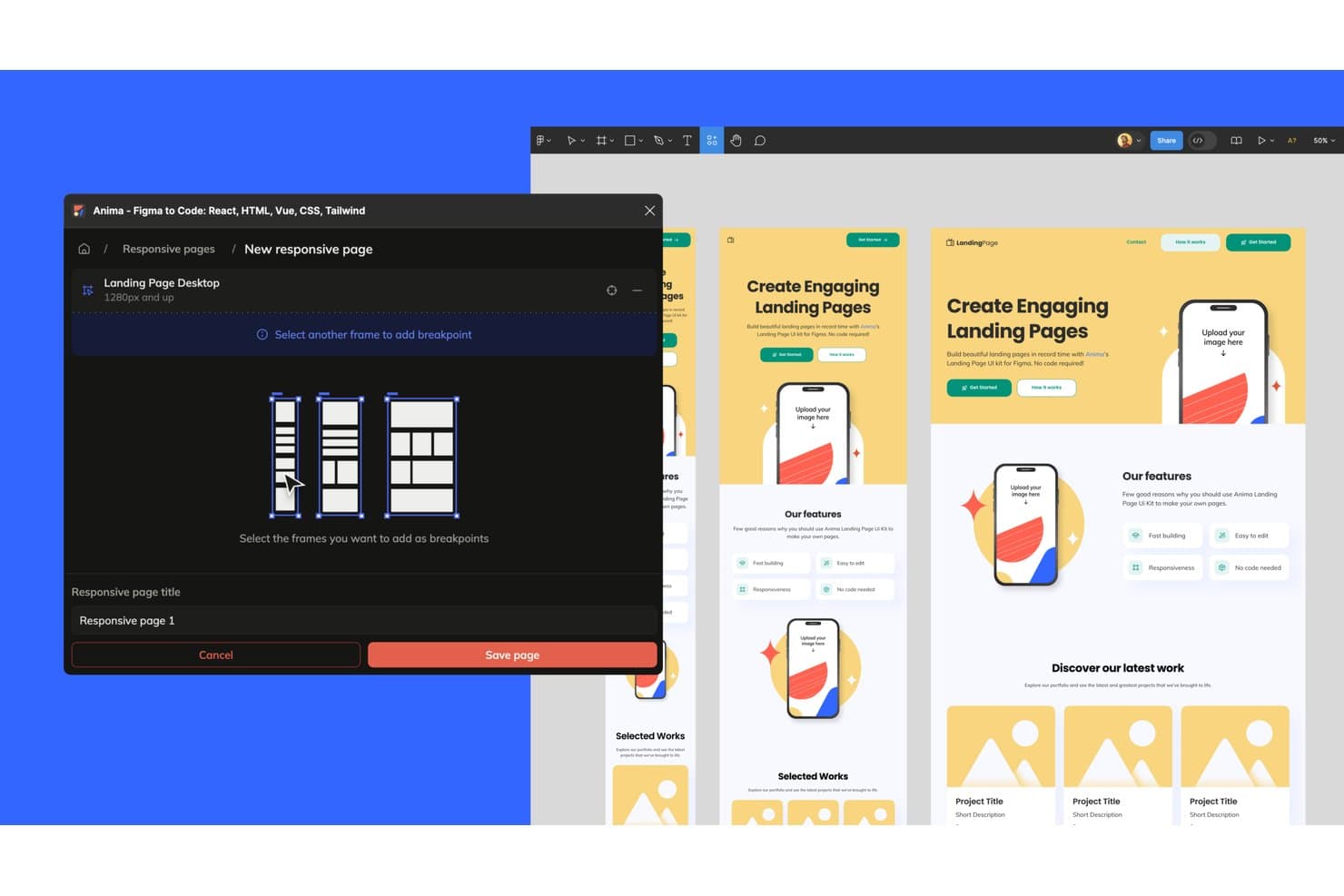
Anima consente agli utenti di salvare punti di interruzione reattivi per diverse dimensioni dello schermo. Anima è una piattaforma di progettazione dal design al codice che converte i progetti Figma in prototipi reattivi e interattivi e in codice HTML, React o Vue esportabile, con supporto per punti di interruzione, layout automatico e flussi multi-schermata.
Per chi è più indicata Anima?
Anima è adatta agli sviluppatori front-end e ai team di prodotto che hanno bisogno di prototipi trasferibili come codice reale ed esportabile, anziché come specifiche statiche.
Perché ho scelto Anima
Ho scelto Anima come uno dei migliori strumenti perché è l'unico di questo elenco in cui il prototipo è il codice. Quando progetti utilizzando frame Figma separati per desktop, tablet e dispositivi mobili, Anima converte la larghezza di ogni frame in un punto di interruzione delle media query CSS, collegandoli in un unico link condivisibile. La conversione da layout automatico a Flexbox significa che il comportamento reattivo non viene approssimato, ma è strutturalmente accurato. Questa è una differenza significativa quando il passaggio di consegne deve avvenire in React o Vue, non tramite una specifica statica.
Funzionalità principali di Anima
- Esportazione del codice per più framework: Esporta i tuoi progetti Figma come codice HTML, React, Vue o Next.js con opzioni di stile tra cui Tailwind, CSS Modules e styled-components.
- Invio a GitHub: Invia il codice generato direttamente a un repository GitHub dall'interno di Anima, mantenendo sincronizzati il codice e il design.
- Generatore di flussi AI Playground: Collega le schermate digitando richieste in linguaggio naturale nella scheda Flow, configurando la navigazione tra le schermate senza scrivere codice.
- Importazione del sistema di progettazione Figma: Importa il tuo sistema di progettazione Figma in Anima per generare uno Storybook aggiornato con varianti, stati, proprietà e token disponibili per tutto il team.
Integrazioni di Anima
Anima offre integrazioni documentate con Figma e GitHub, oltre alla connettività MCP per Claude Code, Cursor e GitHub Copilot. Le sue API, il suo SDK e la sua CLI supportano integrazioni personalizzate.
Pros and Cons
Pros:
- Le larghezze dei frame diventano punti di interruzione reattivi
- Il layout automatico viene convertito in CSS Flexbox
- I prototipi vengono eseguiti come codice reale esportabile
Cons:
- Nessuna logica di ramificazione o variabile
- Le modifiche dei collaboratori possono sovrascrivere quelle esistenti
Learn more about Anima:
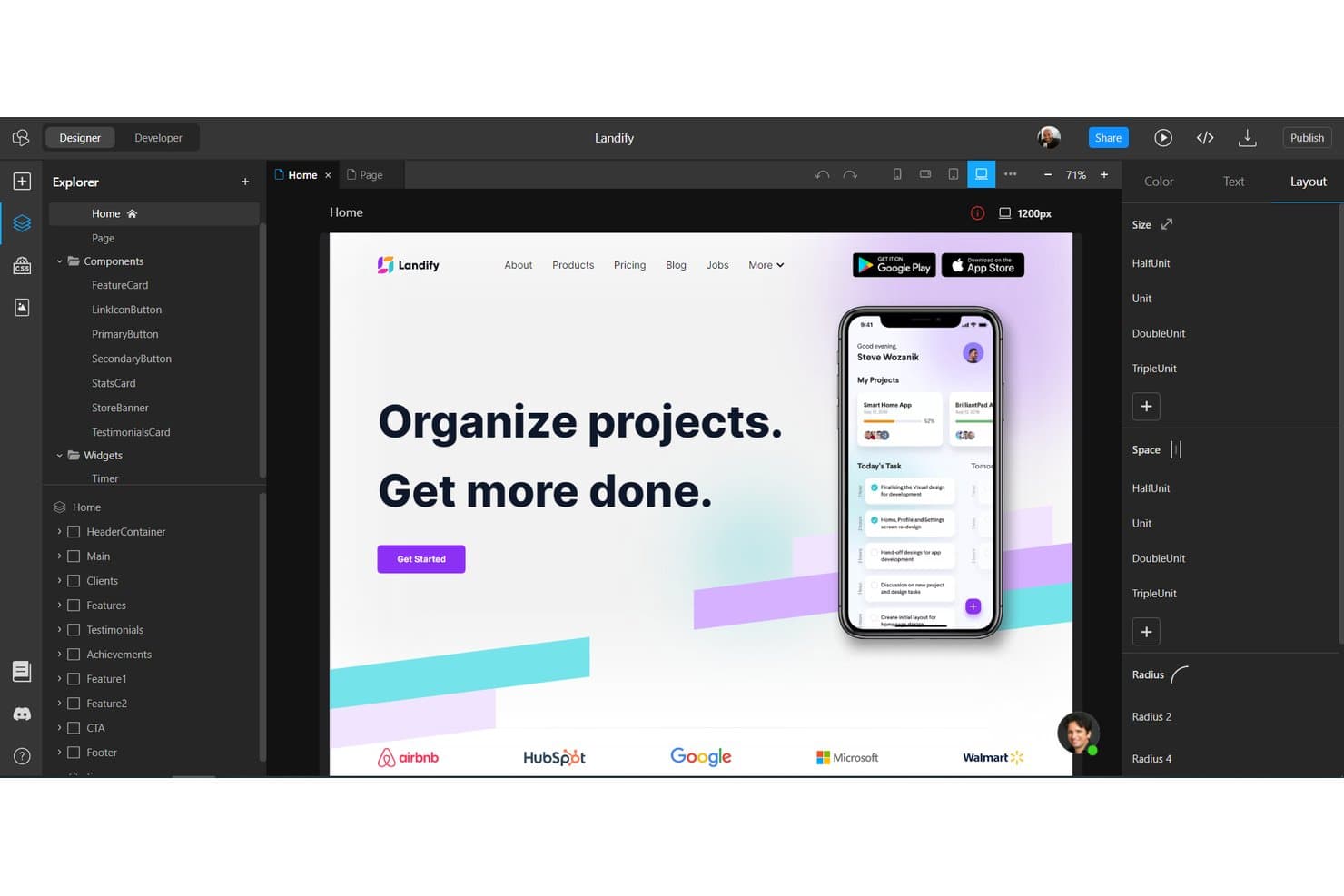
TeleportHQ consente agli utenti di progettare impaginazioni responsivi con un editor visuale trascina e rilascia. TeleportHQ è un creatore web low-code e uno strumento di prototipazione che combina un editor visuale con controlli reali dei punti di interruzione CSS, componenti riutilizzabili, token di progettazione ed esportazione del codice per strutture come React, Vue, Angular e HTML.
Per chi è più adatto TeleportHQ?
TeleportHQ è particolarmente adatto ai team con una forte componente di sviluppo che hanno bisogno di prototipi in grado di produrre codice React, Vue o Angular distribuibile, anziché semplici modelli statici.
Perché ho scelto TeleportHQ
Ho scelto TeleportHQ come uno dei migliori perché è l'unico strumento della mia lista in cui il prototipo è il codice di produzione. Fornisce un risultato reale in React, Vue, Angular e HTML, non un modello statico da consegnare in un secondo momento. Mi piace anche il fatto che il suo sistema integrato di punti di interruzione (991px, 767px e 479px) consenta di applicare stili indipendenti a ogni finestra di visualizzazione nell'editor visuale, così ciò che si visualizza in anteprima riflette accuratamente il comportamento in produzione.
Funzionalità principali di TeleportHQ
- Rendering condizionale: Attiva o disattiva stati ed eventi a livello di componente per creare direttamente nell'editor pattern di interfaccia interattivi come schede, pannelli a fisarmonica e menu per dispositivi mobili.
- Pannello del codice in tempo reale: Visualizza il codice React, Vue, Angular o HTML/CSS generato aggiornarsi in tempo reale mentre apporti modifiche visive sulla tela.
- Token di progettazione: Definisci e gestisci token riutilizzabili per colori, tipografia e spaziatura in tutto il progetto, così da mantenere la coerenza visiva su larga scala.
- Modifica collaborativa in tempo reale: Più membri del team possono modificare contemporaneamente lo stesso progetto, con una modalità di tracciamento che consente di seguire le selezioni in tempo reale di un collaboratore.
Integrazioni di TeleportHQ
TeleportHQ offre integrazioni con Figma, GitHub, Vercel, Strapi, Contentful e Google Analytics. Si connette inoltre ad API REST, Supabase, PostgreSQL, Airtable, Google Sheets e altre fonti di dati.
Pros and Cons
Pros:
- Esporta prototipi React e Vue funzionanti
- Offre una modifica visiva autentica e specifica per ogni punto di interruzione
- Supporta revisioni collaborative dei prototipi in tempo reale
Cons:
- I flussi condizionali richiedono test in modalità sviluppatore
- Non offre una modalità di ispezione né la duplicazione dello schermo del dispositivo
Learn more about TeleportHQ:
- Piano gratuito disponibile
- A partire da $29.25/mese (fatturato annualmente)
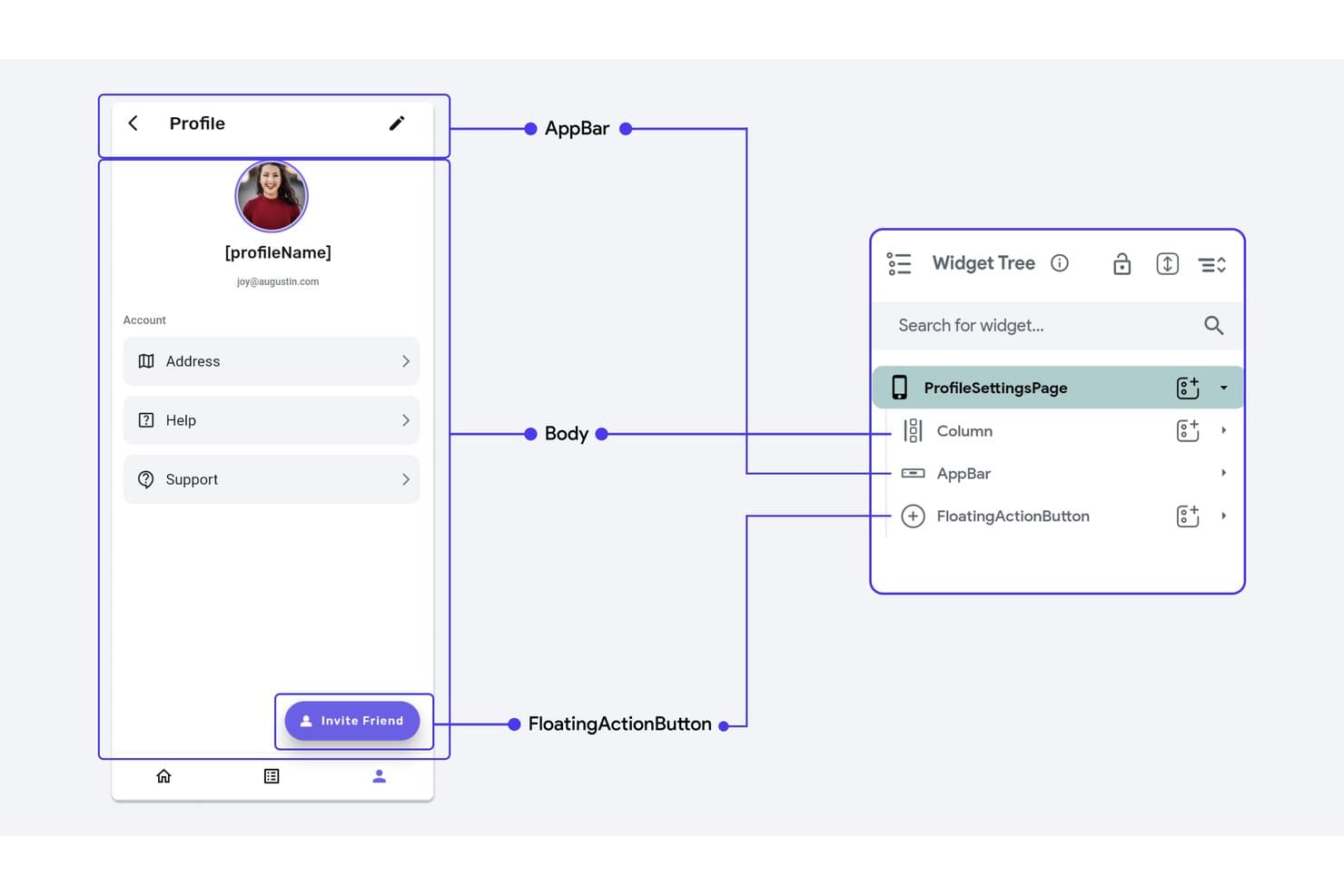
L'albero dei widget di FlutterFlow mappa gli elementi dello scaffold per layout responsivi. FlutterFlow è un builder visivo a basso codice che consente di creare prototipi responsivi per dispositivi mobili, web e desktop utilizzando logica Flutter reale, flussi condizionali e codice pronto per la produzione ed esportabile.
Per chi è più adatto FlutterFlow?
FlutterFlow è adatto a product manager e sviluppatori che hanno bisogno di prototipi che possano diventare app pronte per la distribuzione, non semplici mockup navigabili.
Perché ho scelto FlutterFlow
Ho incluso FlutterFlow tra le mie scelte principali perché è l'unico strumento di questo elenco in cui il prototipo può diventare il prodotto vero e proprio. Il suo Editor del flusso delle azioni consente di associare logica condizionale reale, variabili di stato e cicli agli elementi dell'interfaccia, così un flusso di onboarding in più passaggi creato per essere testato con gli stakeholder è già composto da codice pronto per la produzione. Mi piace anche il fatto che i valori responsivi per ogni punto di interruzione e i controlli di visibilità responsiva consentano di mostrare componenti di navigazione completamente diversi su dispositivi mobili e desktop, invece di semplici versioni ridimensionate dello stesso layout.
Funzionalità principali di FlutterFlow
- Editor del flusso delle azioni: Un editor visivo basato su nodi che associa rami condizionali, cicli e variabili di stato a trigger dell'interfaccia come tocchi, caricamenti delle pagine e gesti.
- Modalità di test con codice QR: Esegue una versione web attiva che puoi aprire su un telefono reale tramite codice QR o link condiviso, con un pannello di debug che mostra i valori delle variabili in tempo reale.
- Pubblicazione della libreria del sistema di progettazione: Pubblica colori, tipografia e widget del tema come libreria con versioni, che altri progetti possono importare e bloccare su versioni specifiche.
- FF Designer: Un generatore di schermate basato sull'IA che crea schermate modificabili a partire da prompt, che puoi copiare direttamente nel tuo progetto FlutterFlow.
Integrazioni di FlutterFlow
FlutterFlow supporta integrazioni con Firebase, Supabase, API REST, Swagger/OpenAPI, Figma, GitHub e VS Code, oltre al supporto per CLI, Project API e server MCP per flussi di sviluppo personalizzati.
Pros and Cons
Pros:
- I controlli per ogni punto di interruzione supportano i layout responsivi
- I flussi basati sulla logica convalidano le interazioni reali
- I test su dispositivi fisici individuano i problemi di layout
Cons:
- Nessun pannello di ispezione per il passaggio alla progettazione
- La modalità anteprima omette le API e l'autenticazione
Learn more about FlutterFlow : Ideale per la prototipazione reattiva dei team di sviluppo
- Piano gratuito disponibile
- A partire da $24/utente/mese (con fatturazione annuale)
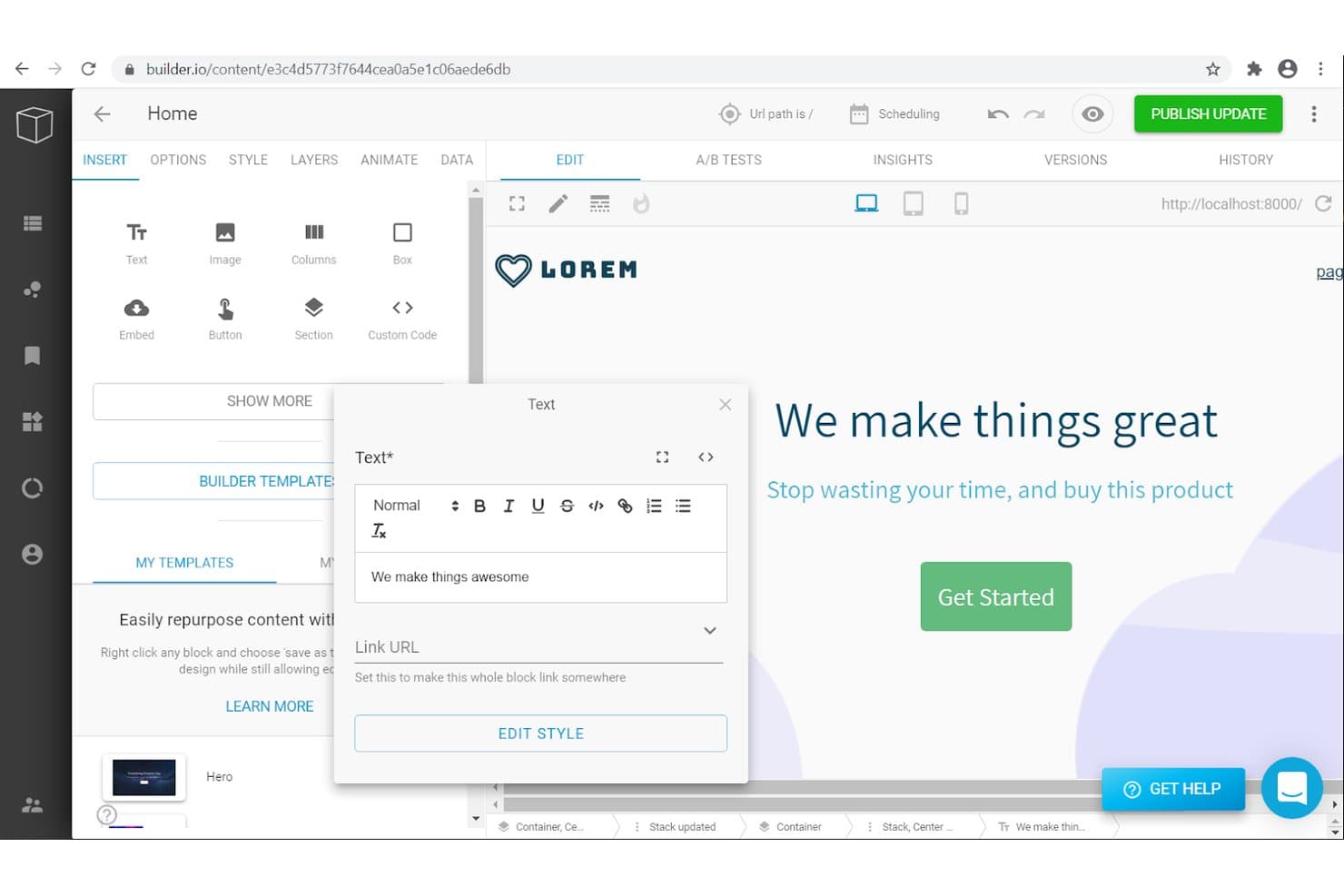
Builder.io consente agli utenti di modificare e prototipare visivamente contenuti testuali reattivi. Builder.io è una piattaforma di sviluppo visivo assistita dall'intelligenza artificiale che consente ai team di creare prototipi reattivi come codice reale ed eseguibile, utilizzando il proprio sistema di progettazione, i framework supportati e flussi di lavoro basati su Git.
Per chi è più indicato Builder.io?
Builder.io è particolarmente adatto agli sviluppatori front-end e ai team di prodotto tecnici che desiderano che i prototipi siano anche codice reale pronto per la distribuzione fin dal primo giorno.
Perché ho scelto Builder.io
Ho incluso Builder.io tra le mie migliori scelte perché è l'unico strumento di questo elenco in cui un prototipo reattivo è codice effettivo ed eseguibile nel proprio repository fin dall'inizio. Apprezzo il fatto che gli stili dei punti di interruzione si applichino a cascata in base alla larghezza in pixel, così una modifica al layout per le dimensioni dei tablet non compromette silenziosamente la visualizzazione desktop. Quando importi più frame di Figma contemporaneamente, Builder associa ogni frame a un punto di interruzione reale, offrendo ai team di sviluppo un componente reattivo basato sui token di progettazione esistenti invece di un semplice mockup usa e getta.
Funzionalità principali di Builder.io
- Modalità interattiva: Un ambiente di anteprima completamente funzionante in cui puoi testare flussi utente, stati al passaggio del mouse, logica dei pulsanti ed elementi interattivi con dati di prodotto in tempo reale.
- Commenti associati agli elementi: Aggiungi feedback direttamente a componenti specifici in un ramo, con schermate acquisite automaticamente e un'opzione 'Risolvi nella chat AI' per inoltrare il commento direttamente all'intelligenza artificiale.
- Intelligenza del sistema di progettazione: Analizza il tuo repository, i pacchetti npm e i file Figma per catalogare componenti, token e icone, quindi li applica tramite la Modalità rigorosa.
- Output da Figma a codice: Converte i progetti Figma in codice pronto per la produzione per React, Vue, Angular e Svelte, applicando automaticamente lo stile con Tailwind CSS o Moduli CSS.
Integrazioni di Builder.io
Builder.io offre integrazioni documentate con GitHub, GitLab, Bitbucket, Figma, Slack, Jira, Linear e altri strumenti. Supporta inoltre API e webhook.
Pros and Cons
Pros:
- I prototipi vengono eseguiti come codice reattivo pronto per la produzione
- Gli stili dei punti di interruzione si applicano a cascata sugli schermi più piccoli
- I token di progettazione guidano layout reattivi coerenti
Cons:
- Nessuno strumento senza codice per collegare schermate o creare punti sensibili
- Il test sui dispositivi si basa sulle anteprime del browser
Learn more about Builder.io:
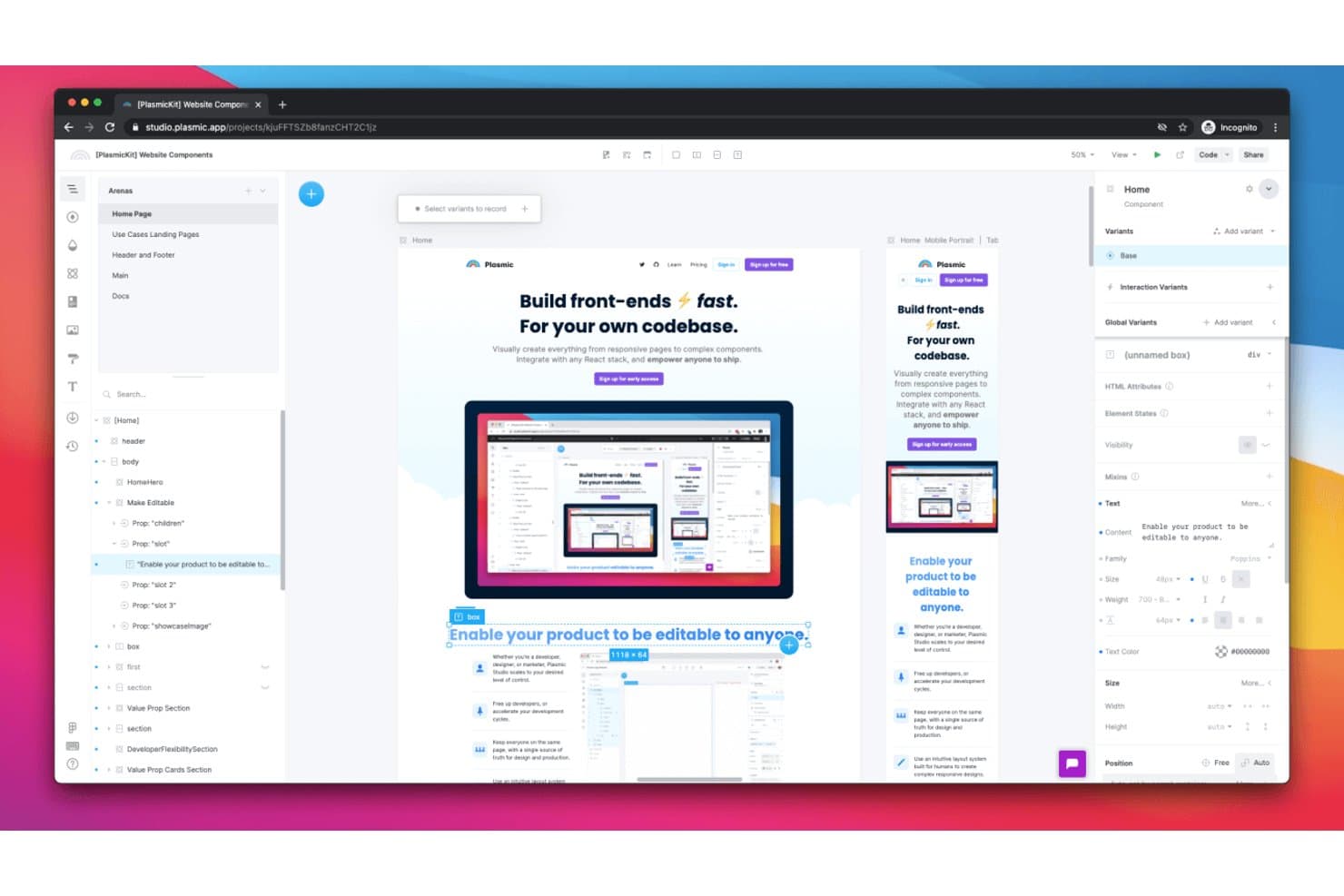
Plasmic consente agli utenti di progettare visivamente layout reattivi per diverse dimensioni dello schermo. Plasmic è un builder visivo open-source che consente ai team di progettare layout reattivi, definire breakpoint, configurare la logica delle interazioni e generare codice React pronto per la produzione, tutto all'interno di un unico ambiente.
Per chi è più adatto Plasmic?
Plasmic è particolarmente adatto agli sviluppatori front-end e ai team di prodotto che desiderano progettare layout reattivi e distribuire codice React pronto per la produzione dallo stesso ambiente.
Perché ho scelto Plasmic
Plasmic si è guadagnato un posto nella mia rosa ristretta perché è l'unico strumento qui presente che colma il divario tra la prototipazione reattiva e il codice pronto per la produzione in un unico ambiente. Adoro il modo in cui le varianti dello schermo consentono di definire breakpoint denominati e registrare override specifici per breakpoint direttamente sulla canvas, così ciò che si vede a 768px è esattamente ciò che viene distribuito. Anche la logica degli stati e delle interazioni è molto approfondita: ho creato flussi di visibilità condizionale, cambio di schede e navigazione tra pagine che si comportano come il prodotto finito, non come una simulazione.
Funzionalità principali di Plasmic
- Collegamento a dati reali: collega i prototipi direttamente a fonti di dati in tempo reale come Supabase, Airtable o API REST, in modo che i flussi riflettano contenuti reali e non testo segnaposto.
- Collaborazione multiplayer: lavora insieme ai membri del team in tempo reale con cursori condivisi, thread di commenti sulla canvas e controlli degli accessi basati sui ruoli.
- Token di stile: definisci valori riutilizzabili per colore, spaziatura, tipografia e opacità che corrispondono direttamente alle variabili CSS nel codice generato.
- Sincronizzazione del generatore di codice e del loader: esporta i design come componenti React tramite CLI oppure caricali in fase di esecuzione, mantenendo la base di codice sincronizzata man mano che i design cambiano.
Integrazioni di Plasmic
Plasmic offre integrazioni documentate con Figma, GitHub, Vercel, Netlify, Supabase, Airtable e PostgreSQL, oltre alla connettività REST e GraphQL. Supporta inoltre Zapier, i webhook e le integrazioni personalizzate nel piano Enterprise.
Pros and Cons
Pros:
- Layout reattivi pronti per la produzione
- Logica delle interazioni basata sugli stati, molto approfondita
- Passaggio di consegne basato sul codice
Cons:
- Test limitati dell'anteprima su dispositivi reali
- Nessuna specifica di design tradizionale
Learn more about Plasmic: Ideale per la collaborazione basata sul web
- Piano gratuito disponibile
- A partire da 16 $/utente/mese (con fatturazione annuale)
Visit WebsiteCustomer Rating:4.7/5This rating combines scores from multiple user review sites to reflect overall customer sentiment about the product.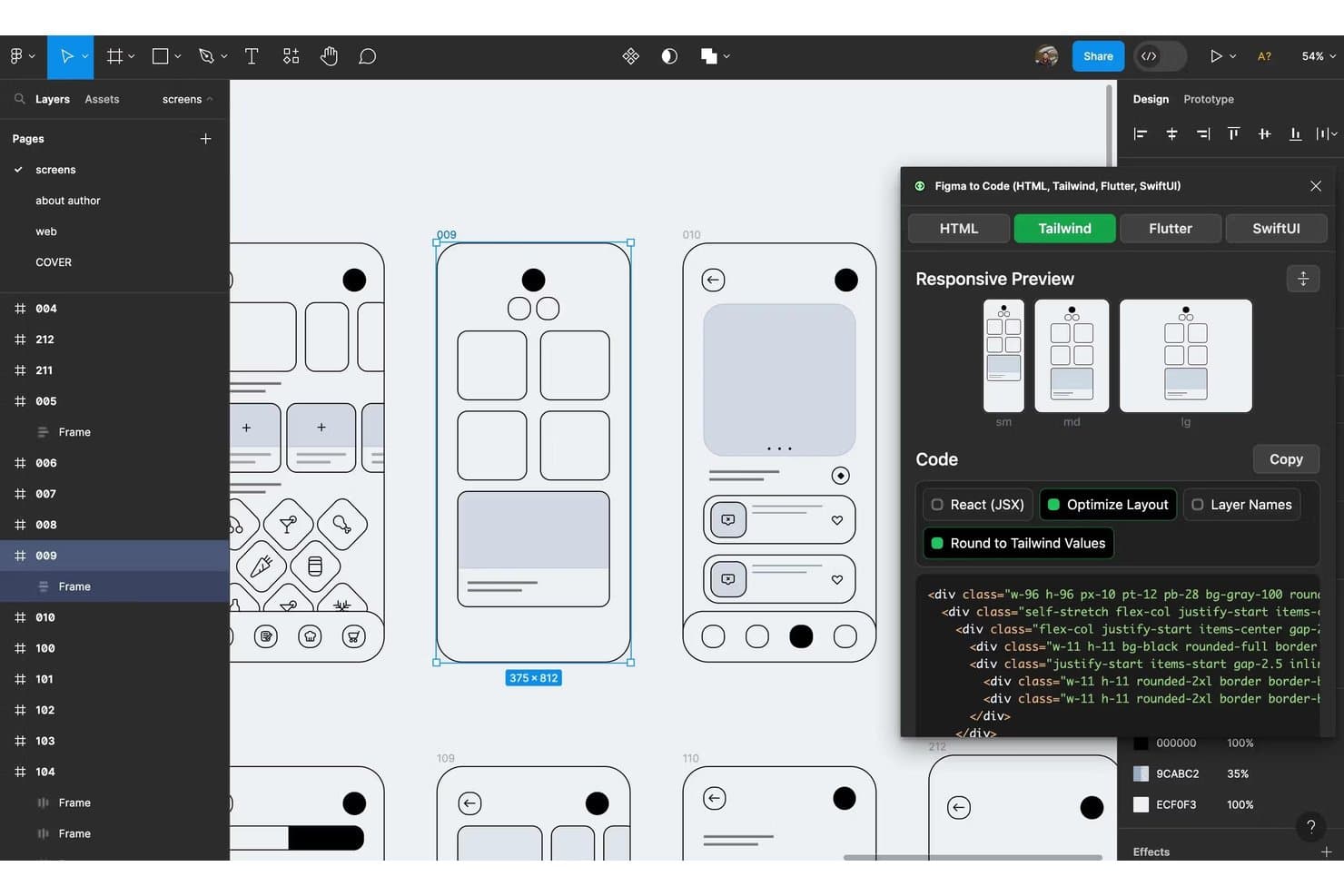
Figma converte istantaneamente i progetti in codice Tailwind CSS reattivo. Figma è uno strumento di progettazione e prototipazione basato su browser che combina prototipazione interattiva, modifica collaborativa in tempo reale, sistemi di componenti e passaggio di consegne agli sviluppatori in un'unica piattaforma.
Per chi è più adatto Figma?
Figma è particolarmente adatto a designer UX/UI e sviluppatori front-end che hanno bisogno di progettare, creare prototipi e passare il lavoro ad altri all'interno di un'unica piattaforma collaborativa.
Perché ho scelto Figma
Figma si è guadagnato un posto nella mia rosa di strumenti preferiti perché nessun altro strumento eguaglia la sua collaborazione in tempo reale basata su browser per i team di progettazione che lavorano in fusi orari diversi. Apprezzo molto il fatto che la modifica collaborativa consenta a designer, sviluppatori e parti interessate di modificare o commentare contemporaneamente lo stesso file, senza che sia necessaria una licenza per visualizzarlo o lasciare feedback. Abbinando questa funzione a Smart Animate e ai componenti interattivi, il mio team può creare prototipi di flussi utente realistici senza mai uscire dal browser.
Funzionalità principali di Figma
- Variabili e logica condizionale: Crea flussi di prototipi complessi e con più stati usando variabili, regole condizionali ed espressioni matematiche tra i frame.
- Dev Mode con Code Connect: Ispeziona i progetti, leggi frammenti di codice generati automaticamente e sincronizza direttamente il codice reale dei componenti con le specifiche di progettazione di Figma.
- Figma Make: Genera un prototipo funzionante basato sul codice o un'app web a partire da un prompt testuale, con supporto per un backend Supabase e pubblicazione diretta.
- Layout automatico: Crea frame reattivi che ridimensionano e ridispongono automaticamente gli elementi nidificati quando cambiano i contenuti o le dimensioni dello schermo.
Integrazioni di Figma
Figma si connette a VS Code tramite la sua estensione, Code Connect e il server MCP, mentre Supabase supporta i backend di Figma Make. I team aziendali possono utilizzare le API dei sistemi di progettazione per integrazioni personalizzate.
Pros and Cons
Pros:
- Revisioni di progettazione collaborative in tempo reale
- La logica avanzata supporta flussi utente realistici
- Il layout automatico adatta i componenti nidificati
Cons:
- Test limitati dei breakpoint nativi
- I file di grandi dimensioni possono causare rallentamenti delle prestazioni
 Ideale per l'integrazione del sistema di progettazione
- Prova gratuita di 14 giorni
- A partire da $29/postazione/mese (fatturato annualmente)
Visit WebsiteCustomer Rating:4.2/5This rating combines scores from multiple user review sites to reflect overall customer sentiment about the product.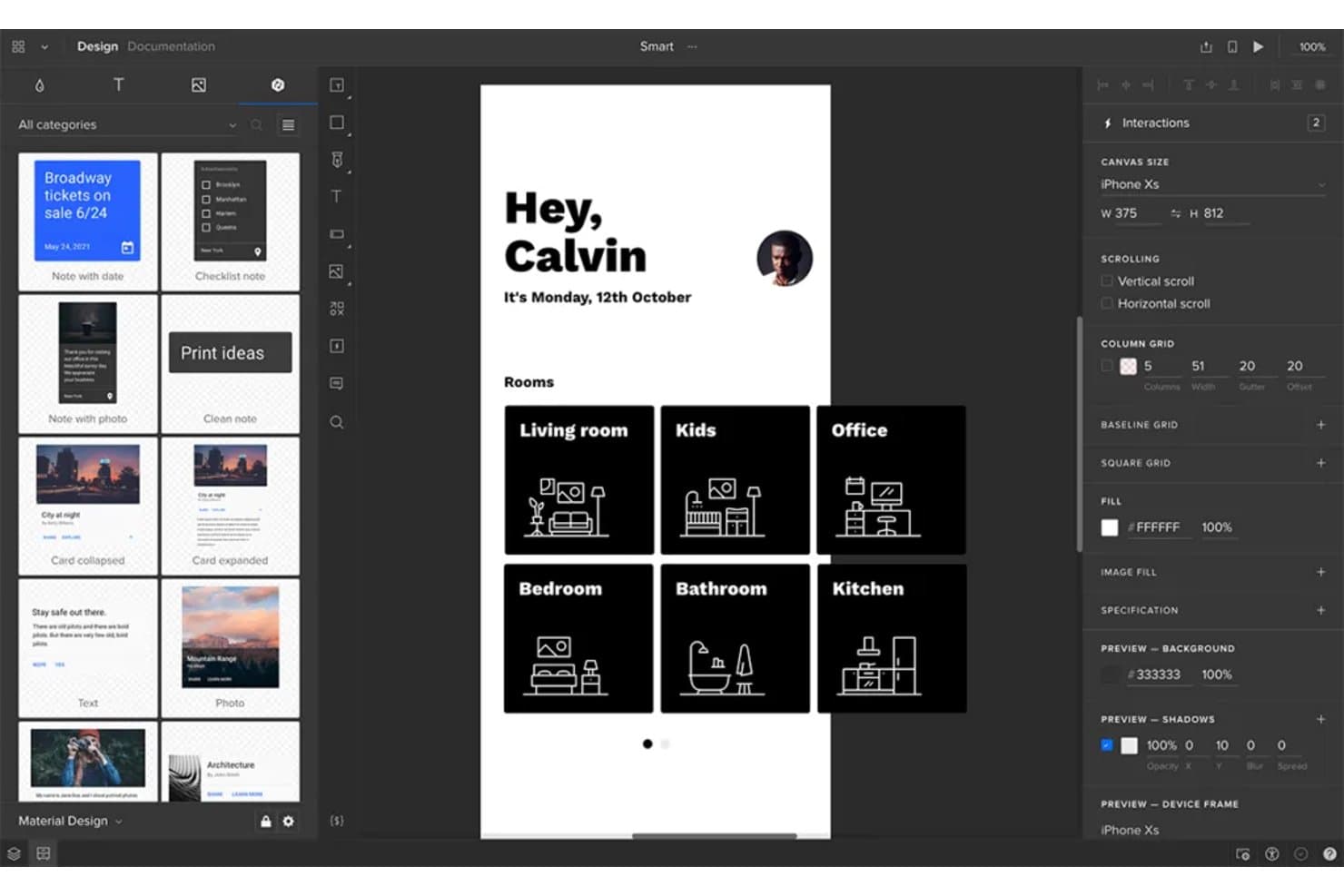
UXPin consente agli utenti di prototipare visivamente layout responsive su dispositivi di diverse dimensioni. UXPin è uno strumento di prototipazione che consente di creare prototipi interattivi a partire da componenti reali scritti in codice, con supporto per la logica condizionale, le variabili, le anteprime dei breakpoint responsive e l'integrazione con i sistemi di progettazione tramite Git, Storybook e npm.
Per chi è più adatto UXPin?
UXPin è particolarmente adatto ai team di progettazione e agli sviluppatori front-end che lavorano all'interno di un sistema di progettazione consolidato e hanno bisogno di creare prototipi a partire da componenti reali scritti in codice.
Perché ho scelto UXPin
UXPin si è guadagnato un posto nella mia selezione perché è l'unico strumento di prototipazione in cui i componenti utilizzati sono gli stessi componenti scritti in codice del tuo prodotto. Attraverso Merge, puoi importare librerie React come MUI, Fluent o Bootstrap tramite Git o Storybook, così il riadattamento ai breakpoint si comporta esattamente come in produzione. Apprezzo anche il fatto che la logica condizionale e le variabili siano incluse nel piano base, consentendoti di prototipare veri alberi decisionali senza dover effettuare un upgrade.
Funzionalità principali di UXPin
- Cornici responsive: visualizza e testa i prototipi su più dimensioni di dispositivi e larghezze dello schermo all'interno di un singolo progetto, senza duplicare il lavoro.
- Librerie di componenti integrate: il piano Core include MUI; Growth aggiunge Bootstrap, Tailwind e Ant Design, così il tuo team può prototipare con veri framework dell'interfaccia utente.
- Collaborazione in tempo reale: ogni piano include un numero illimitato di visualizzatori e commentatori, consentendo agli stakeholder di esaminare e annotare i prototipi senza dover acquistare una licenza.
- Cronologia delle versioni: monitora e ripristina le versioni precedenti dei prototipi, con una cronologia che va da 7 giorni nel piano Core a illimitata nel piano Enterprise.
Integrazioni di UXPin
UXPin si connette a Git, Storybook e npm tramite Merge, con librerie MUI, Fluent, Carbon e Bootstrap per la prototipazione con componenti scritti in codice. Growth include inoltre Jira, Slack e FullStory, mentre UXPin offre un plugin per Figma e l'importazione da Sketch.
Pros and Cons
Pros:
- I componenti reali scritti in codice preservano il comportamento responsive
- I flussi condizionali supportano test complessi delle interazioni
- Un numero illimitato di commentatori semplifica le revisioni di progettazione da parte degli stakeholder
Cons:
- I prototipi di grandi dimensioni possono rallentare durante la modifica
- Il riadattamento nativo del layout senza codice rimane limitato
Learn more about UXPin: Ideale per wireframe interattivi
- Piano gratuito disponibile
- A partire da $19/utente/mese
Visit WebsiteCustomer Rating:4.2/5This rating combines scores from multiple user review sites to reflect overall customer sentiment about the product.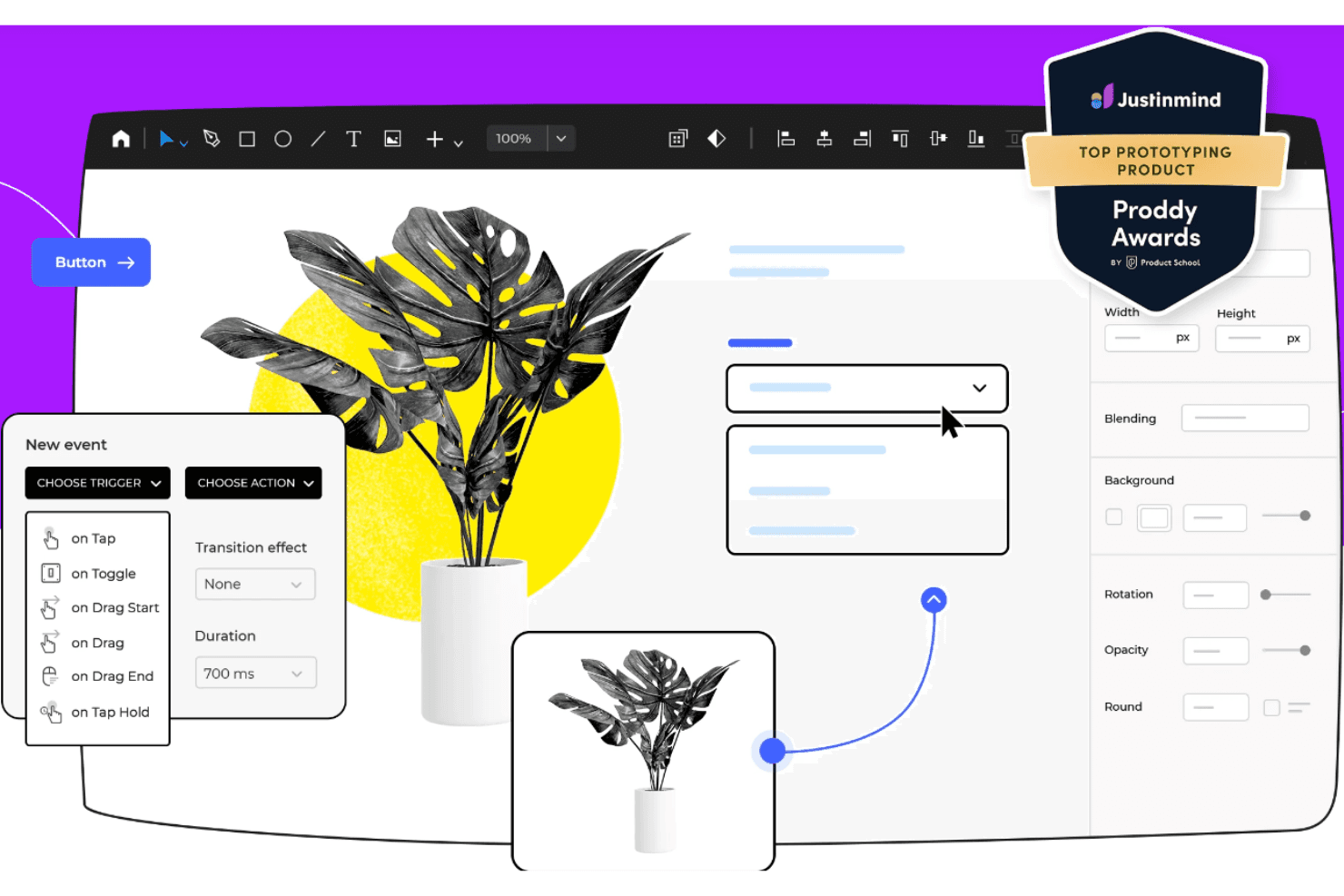
Justinmind consente ai professionisti UX di creare prototipi di wireframe interattivi e realistici. Justinmind è uno strumento desktop per la creazione di wireframe e prototipi che supporta la progettazione per il web, iOS, Android, VR e AR attraverso prototipi interattivi basati sui dati, realizzati con condizioni, variabili, moduli funzionanti e una libreria di oltre 4.000 componenti dell'interfaccia utente predefiniti.
Per chi è più adatto Justinmind?
Justinmind è particolarmente adatto ai designer UX/UI e ai responsabili dei team di progettazione che devono creare e condividere wireframe realistici e interattivi senza scrivere una sola riga di codice.
Perché ho scelto Justinmind
Justinmind è entrato nella mia rosa dei candidati perché va oltre la creazione di wireframe statici, consentendo di configurare logiche condizionali reali, variabili e moduli funzionanti senza scrivere codice. Apprezzo in particolare la possibilità di importare dati CSV nei Master dei dati ed eseguire simulazioni basate su contenuti reali, così che durante le revisioni con gli stakeholder un prototipo si comporti come un prodotto in produzione. Inoltre, gli oltre 4.000 componenti dell'interfaccia utente predefiniti per web, iOS e Android mi permettono di creare rapidamente wireframe interattivi specifici per ogni dispositivo.
Funzionalità principali di Justinmind
- Co-modifica in tempo reale: più membri del team possono modificare contemporaneamente lo stesso prototipo, con commenti e feedback associati a componenti specifici.
- Anteprima su più dispositivi: testa i prototipi su dispositivi reali tramite l'app mobile Justinmind o in qualsiasi browser con gusci nativi dei dispositivi.
- Modelli intelligenti: intestazioni, piè di pagina e layout delle schermate riutilizzabili rimangono coerenti in tutto il progetto e si aggiornano globalmente quando vengono modificati.
- Specifiche per il passaggio alla progettazione: gli sviluppatori possono controllare direttamente dal prototipo le dimensioni delle risorse e i dettagli CSS senza dover utilizzare uno strumento separato per il passaggio alla progettazione.
Integrazioni di Justinmind
Justinmind offre integrazioni con Jira, Azure DevOps, Doors, Sketch, Adobe Photoshop e Adobe Illustrator. Fornisce inoltre un'API/SDK per le integrazioni personalizzate.
Pros and Cons
Pros:
- Le condizioni supportano flussi utente reattivi realistici
- Oltre 4.000 componenti velocizzano la creazione di wireframe specifici per dispositivo
- I visualizzatori illimitati semplificano le revisioni della progettazione con gli stakeholder
Cons:
- La personalizzazione dei punti di interruzione è ancora documentata in modo insufficiente
- Il riadattamento del layout non offre controlli dettagliati per il layout automatico
Learn more about Justinmind: Ideale per la progettazione vettoriale versatile su macOS
- Prova gratuita di 30 giorni
- A partire da $12/utente/mese (fatturati annualmente)
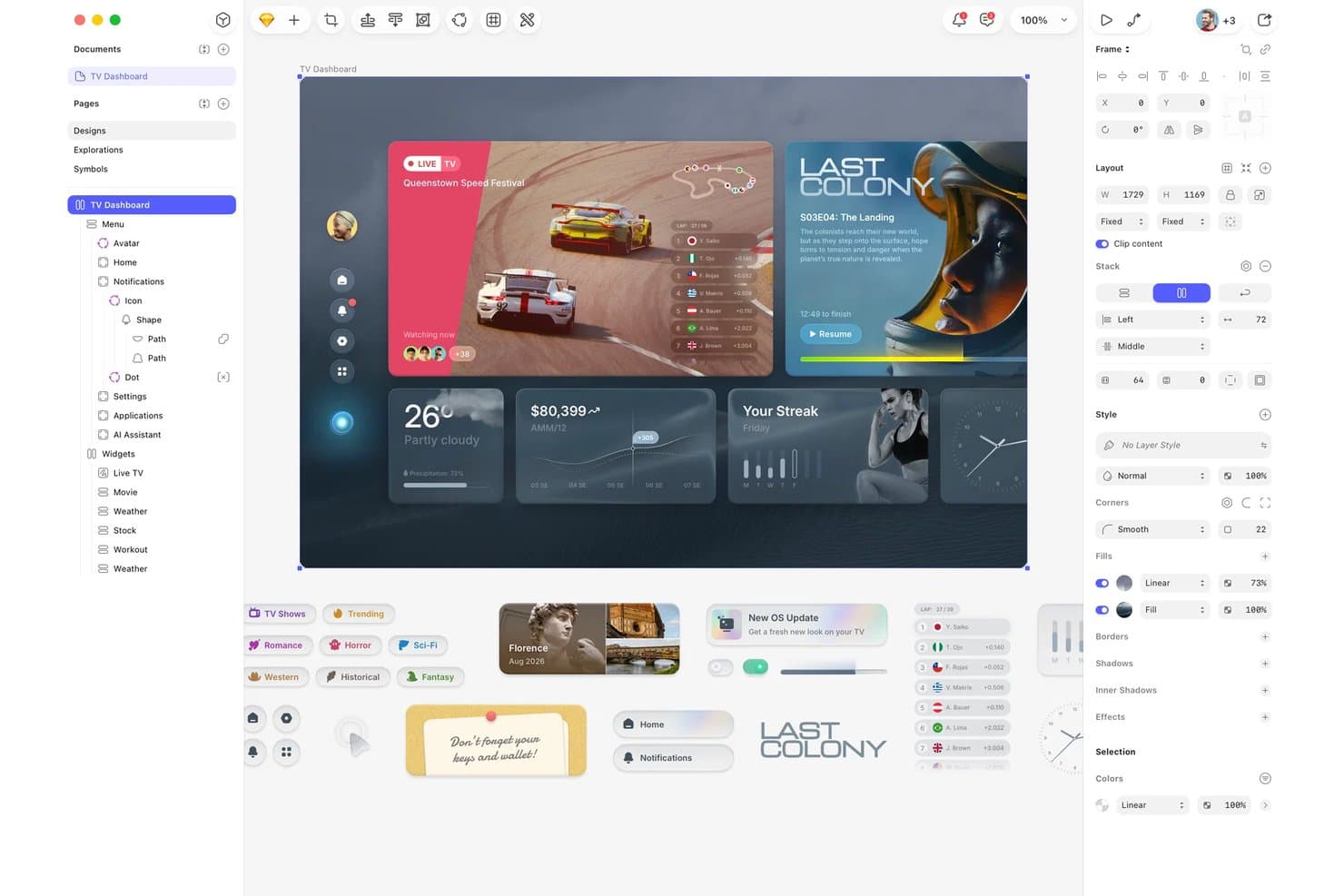
Sketch consente agli utenti di progettare layout reattivi per cruscotti TV con componenti sovrapposti. Sketch è uno strumento nativo per Mac dedicato alla progettazione e alla prototipazione vettoriale, che combina librerie di componenti basate su simboli, layout automatici con Stacks, flussi di prototipi interattivi e passaggio di consegne agli sviluppatori tramite browser.
Per chi è più adatto Sketch?
Sketch è ideale per i designer UI/UX che lavorano su macOS e per i responsabili dei team di progettazione che necessitano di un editor vettoriale nativo e veloce, con solide librerie di componenti e un passaggio di consegne gratuito agli sviluppatori.
Perché ho scelto Sketch
Sketch si è guadagnato un posto nella mia selezione perché è lo strumento nativo per la progettazione vettoriale su Mac più completo che abbia utilizzato per creare interfacce basate su componenti. Mi piace molto il fatto che Stacks supporti ora il dimensionamento percentuale e i vincoli min/max: ciò significa che un componente scheda si ridimensiona davvero quando il suo Frame principale cambia dimensioni tra layout per dispositivi mobili e desktop. Abbinando questa funzione al passaggio di consegne gratuito agli sviluppatori tramite browser, il mio team può fornire specifiche annotate, valori CSS e token di progettazione senza che nessuno debba disporre di un abbonamento a pagamento.
Caratteristiche principali di Sketch
- Collegamento dei Frame con hotspot: Collega i Frame per creare flussi di prototipi cliccabili e definisci aree di tocco precise utilizzando i livelli Hotspot, per una progettazione delle interazioni più accurata.
- Transizioni Smart Animate: Applica transizioni animate tra i Frame, con controlli per andamento, durata e direzione, così da comunicare agli sviluppatori l’intento del movimento.
- Passaggio di consegne gratuito agli sviluppatori tramite browser: Gli sviluppatori possono esaminare le misure, copiare i valori CSS e scaricare le risorse direttamente dal browser, senza costi e senza bisogno di un Mac.
- Server MCP per la generazione del codice: Un server MCP locale collega Sketch a client di intelligenza artificiale come Claude e Cursor per generare codice direttamente dai tuoi progetti.
Integrazioni di Sketch
Sketch offre integrazioni documentate con GitHub, Jira, Slack e Notion per condividere o incorporare i progetti. Il suo server MCP locale si collega a Claude, Cursor, VS Code, Codex e altri client compatibili con MCP per flussi di lavoro di progettazione assistiti dall’intelligenza artificiale e conversione da progetto a codice.
Pros and Cons
Pros:
- Stacks ridimensiona i componenti in base alle dimensioni del contenitore principale
- La modifica nativa su Mac gestisce file complessi
- Smart Animate rende più chiaro l’intento delle interazioni
Cons:
- Non esiste un vero sistema di punti di interruzione per i test reattivi
- La modifica esclusiva su Mac esclude i team che utilizzano Windows e Linux
Learn more about Sketch: 10Ideale per prototipi complessi
Axure RP
- Piano gratuito disponibile
- A partire da $29/utente/mese (con fatturazione annuale)
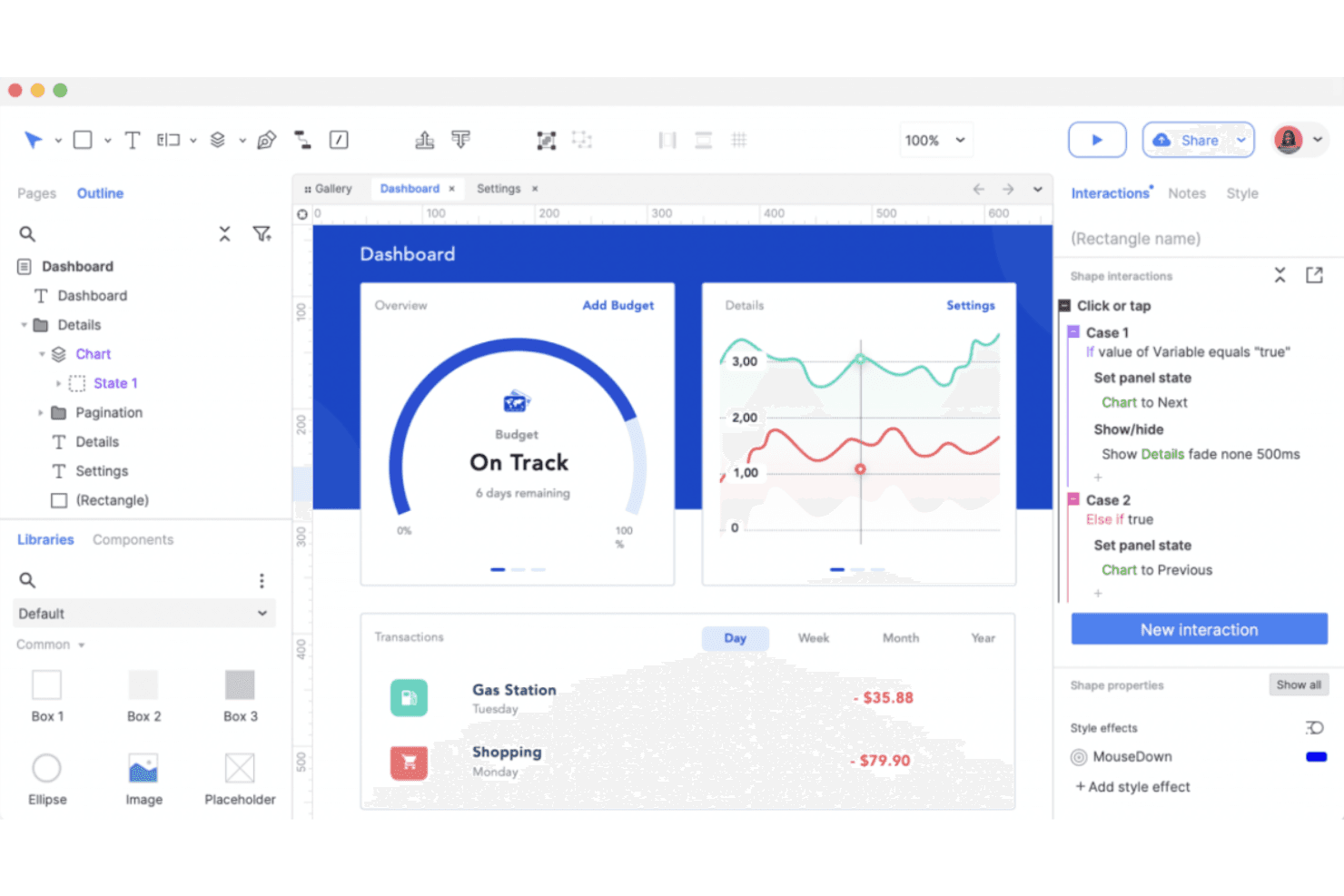
Axure RP crea prototipi dettagliati e interattivi per esigenze UX complesse. Axure RP è uno strumento di prototipazione basato su computer che combina la creazione di wireframe, diagrammi e prototipi interattivi ad alta fedeltà con logica condizionale, variabili, widget per moduli funzionanti e viste adattive basate su punti di interruzione per la progettazione responsiva.
Per chi è più adatto Axure RP?
Axure RP è una scelta ideale per i designer UX e i team di progettazione che realizzano prototipi complessi e ricchi di logica per software aziendali e applicazioni ad alta intensità di dati.
Perché ho scelto Axure RP
Axure RP si è guadagnato un posto nella mia lista ristretta perché nessun altro strumento si avvicina alla profondità della sua logica condizionale nella prototipazione di interfacce complesse e basate sui dati. Ho utilizzato il suo widget per la ripetizione per creare griglie di dati ordinabili e filtrabili che si comportano come vere tabelle di prodotto, una funzionalità che la maggior parte degli strumenti di prototipazione semplicemente non riesce a replicare. Le sue viste adattive consentono di definire impaginazioni specifiche per ogni punto di interruzione con stili di base ereditati, così le viste per computer, tablet e dispositivi mobili rimangono coerenti senza doverle ricostruire da zero.
Funzionalità principali di Axure RP
- Viste adattive: Progetta impaginazioni per computer, tablet e dispositivi mobili su un'unica pagina, con ogni vista che eredita gli stili dalla base e si carica automaticamente in base alla larghezza della finestra.
- Widget per la ripetizione: Crea griglie di dati ordinabili e filtrabili che simulano vere tabelle di prodotto, utilizzando un insieme di dati integrato senza alcun codice.
- Accesso gratuito per revisori e sviluppatori: Le parti interessate e gli sviluppatori possono visualizzare, commentare e ispezionare i prototipi tramite Axure Cloud senza costi aggiuntivi, con qualsiasi piano a pagamento.
- Importazione di file di progettazione: Importa riquadri e livelli da Figma, Sketch o Adobe XD come widget modificabili per aggiungere interattività a lavori di progettazione esistenti.
Integrazioni di Axure RP
Axure RP si integra con Jira, Confluence, Slack, Microsoft Teams, Figma, Sketch e Adobe XD per il passaggio in sviluppo, gli incorporamenti, le importazioni e le notifiche. Non è documentata alcuna API per integrazioni personalizzate.
Pros and Cons
Pros:
- Simula flussi utente complessi senza codice
- Le viste adattive consentono di visualizzare in anteprima impaginazioni specifiche per ogni punto di interruzione
- I widget per la ripetizione modellano griglie di dati ordinabili
Cons:
- Le viste separate limitano il riadattamento responsivo fluido
- I flussi di approvazione rallentano le revisioni collaborative della progettazione
Learn more about Axure RP :
Altri strumenti di prototipazione della progettazione responsiva
Ecco alcune opzioni aggiuntive di strumenti di prototipazione della progettazione responsiva che non sono state incluse nel mio elenco, ma che vale comunque la pena prendere in considerazione:
- 11Locofy.aiIdeale per i progetti Figma che vengono testati come codice reale
- 12FramerIdeale per la progettazione interattiva con codice
- 13MarvelIdeale per prototipi rapidi senza esperienza di design
- 14MockplusIdeale per la prototipazione rapida
- 15PenpotIdeale per il passaggio dalla progettazione allo sviluppo open source
- 16Adobe XDIdeale per utenti di prodotti Adobe
- 17WebflowIdeale per l'integrazione di codice personalizzato
- 18OrigamiIdeale per i team di progettazione di Facebook
- 19
Come valuto gli strumenti di prototipazione del design responsive
Suddivido la mia valutazione in tre parti, attribuendo il maggior peso alle funzionalità fondamentali: uno strumento deve permettere di progettare tra diversi breakpoint e collegare le schermate in flussi navigabili. Dopodiché, cerco funzionalità distintive come la logica condizionale dei flussi. Oltre alle funzionalità, considero l'onboarding e il rapporto qualità-prezzo.
Funzionalità fondamentali (requisiti essenziali per questo elenco)
Quando seleziono gli strumenti da includere nel mio elenco, assegno a ciascuno un punteggio su una scala da 0 (non offre la funzionalità) a 5 (eccelle in quest'area) per ogni funzionalità fondamentale elencata di seguito. Converto quindi il totale in una percentuale per contribuire a valutare l'idoneità complessiva di ciascuno strumento, attribuendo un peso aggiuntivo a tutte le funzionalità che ho considerato essenziali.
- Anteprima dei breakpoint responsive (essenziale): verifico se i layout si adattano fluidamente tra breakpoint personalizzati, non solo attraverso una manciata di preset fissi come "mobile" e "desktop".
- Prototipazione interattiva (essenziale): gli strumenti ottengono valutazioni più alte quando i flussi supportano logica condizionale, variabili e micro-interazioni, anziché semplici tocchi da una schermata all'altra.
- Ridisposizione di componenti e layout: valuto come si comportano le strutture di layout automatico nidificate quando cambia l'area di visualizzazione, poiché una ridisposizione gestita male compromette ogni design responsive.
- Passaggio del design e specifiche: in questo caso è importante un output pronto per gli sviluppatori. Cerco specifiche generate automaticamente con frammenti di codice, risorse esportabili e valori di spaziatura accurati.
- Collaborazione in tempo reale: i team hanno bisogno di più dei semplici link in sola visualizzazione. Cerco co-modifica, commenti in thread e controlli delle autorizzazioni che supportino revisioni asincrone del design.
- Anteprima e test su più dispositivi: verifico se è possibile inviare un prototipo a uno smartphone o tablet fisico per effettuare test dal vivo, non soltanto ridimensionare la finestra di un browser.
Una volta ottenuto un elenco di strumenti che soddisfano i criteri, considero ciò che distingue ogni piattaforma.
Fattori distintivi (ciò che differenzia i fornitori)
Ecco come confronto e metto in contrapposizione i diversi fornitori:
Funzionalità distintive
La logica condizionale dei flussi è la prima cosa che valuto oltre alle funzionalità fondamentali. Un prototipo che si dirama in base all'input dell'utente, ad esempio mostrando percorsi di onboarding diversi a seconda della selezione in un modulo, offre ai responsabili di prodotto dati di convalida molto più utili rispetto a semplici percorsi di esplorazione tramite tocchi. Verifico anche se uno strumento si sincronizza con librerie e token condivisi del sistema di design, poiché i prototipi che si discostano dai componenti di produzione creano confusione durante il passaggio agli sviluppatori. Anche i test di usabilità integrati sono importanti. Strumenti come Maze permettono di acquisire nativamente i percorsi dei clic e i tassi di completamento delle attività, eliminando la difficoltà di collegare strumenti di ricerca separati a metà dello sprint.
Oltre le funzionalità
Verifico come variano i prezzi con la crescita dei team, poiché i modelli per postazione possono far aumentare rapidamente i costi quando si aggiungono responsabili di prodotto e ingegneri che hanno bisogno soltanto dell'accesso alla visualizzazione o ai commenti. Strumenti come Figma e Axure gestiscono questo aspetto in modo diverso, quindi confronto se le postazioni per gli stakeholder siano gratuite o a pagamento. L'onboarding è altrettanto importante. I responsabili di prodotto senza una formazione nel design hanno bisogno di modelli guidati e strumenti per creare interazioni con poco codice, così da iniziare rapidamente a realizzare prototipi, mentre i fornitori con risorse didattiche strutturate riducono i tempi di apprendimento nei team interfunzionali. Valuto anche la profondità delle integrazioni con strumenti come Jira e Slack, perché il feedback sui prototipi che non riesce a raggiungere rapidamente un backlog perde presto il suo valore.
Come scegliere gli strumenti di prototipazione della progettazione responsiva
È facile perdersi in lunghi elenchi di funzionalità e strutture tariffarie complesse. Per aiutarti a rimanere concentrato mentre affronti il tuo processo di selezione del software, unico nel suo genere, ecco una lista di controllo dei fattori da tenere a mente:
| Fattore | Cosa considerare |
| Scalabilità | Assicurati che lo strumento possa crescere insieme alle esigenze del tuo team, supportando progetti più grandi e un numero maggiore di utenti senza compromettere le prestazioni. |
| Integrazioni | Verifica se lo strumento si integra con il software che già utilizzi, come Sketch, Figma o Adobe XD, per ottimizzare il flusso di lavoro. |
| Personalizzazione | Cerca opzioni che ti consentano di adattare lo strumento ai tuoi processi di progettazione, come elementi dell’interfaccia utente o flussi di lavoro personalizzabili. |
| Semplicità d’uso | Scegli uno strumento con un’interfaccia intuitiva che riduca al minimo la curva di apprendimento, così il tuo team potrà iniziare rapidamente a progettare. |
| Budget | Valuta il costo rispetto al tuo budget, considerando quali funzionalità sono incluse in ogni fascia di prezzo e se è disponibile una prova gratuita o una demo. |
| Misure di sicurezza | Assicurati che lo strumento offra funzionalità di protezione dei dati, come la crittografia e controlli di accesso sicuri, per mantenere al sicuro i tuoi progetti. |
| Collaborazione | Prendi in considerazione strumenti che offrono funzionalità di collaborazione in tempo reale, consentendo al tuo team di lavorare insieme in modo efficiente da luoghi diversi. |
| Assistenza | Cerca opzioni di assistenza clienti come chat dal vivo o forum della comunità, per ricevere supporto quando si verificano problemi o hai bisogno di aiuto con lo strumento. |
Tendenze negli strumenti di prototipazione della progettazione responsiva
Nella mia ricerca, ho raccolto innumerevoli aggiornamenti sui prodotti, comunicati stampa e registri delle versioni di diversi fornitori di strumenti di prototipazione per il design responsivo. Ecco alcune delle tendenze emergenti che sto tenendo d’occhio:
- Collaborazione in tempo reale: i team possono sempre più lavorare contemporaneamente sui progetti, migliorando la produttività. Strumenti come Figma hanno aperto la strada con funzionalità che consentono a più utenti di modificare e commentare in tempo reale, rendendo la collaborazione più fluida.
- Integrazione dei sistemi di design: sempre più strumenti supportano i sistemi di design, che aiutano a mantenere la coerenza tra i progetti. UXPin e Adobe XD offrono funzionalità che consentono ai team di creare e gestire i sistemi di design all’interno dello strumento, semplificando aggiornamenti e modifiche.
- Funzionalità avanzate di animazione: gli strumenti di prototipazione offrono funzionalità di animazione sempre più sofisticate, consentendo ai designer di creare interazioni realistiche. Principle e Framer forniscono controlli dettagliati per le animazioni, permettendo di realizzare prototipi che imitano da vicino il comportamento delle app nel mondo reale.
- Prototipazione vocale e gestuale: alcuni strumenti stanno integrando nei prototipi i comandi vocali e i controlli gestuali. Adobe XD, ad esempio, consente ai designer di simulare le interazioni vocali, offrendo un ambiente di test più completo per le interfacce moderne.
- Suggerimenti di design basati sull’IA: l’IA viene utilizzata per offrire consigli di design, accelerando il processo creativo. Gli strumenti stanno iniziando a implementare funzionalità di IA che suggeriscono layout o elementi di design in base alle preferenze degli utenti, sebbene questa tendenza sia ancora agli inizi.
Cosa sono gli strumenti di prototipazione per il design responsivo?
Gli strumenti di prototipazione per il design responsivo sono soluzioni software che aiutano i designer a creare e testare progetti interattivi capaci di adattarsi a diverse dimensioni dello schermo. Questi strumenti vengono generalmente utilizzati da designer UX/UI, product manager e sviluppatori per visualizzare e perfezionare le interfacce utente. Funzionalità come la collaborazione in tempo reale, le animazioni avanzate e l’integrazione dei sistemi di design aiutano i team a lavorare in modo efficiente, creare prototipi realistici e mantenere la coerenza. Nel complesso, questi strumenti consentono ai team di realizzare design intuitivi e adattabili, migliorando l’esperienza utente su tutti i dispositivi.
Funzionalità degli strumenti di prototipazione per il design responsivo
Quando scegli gli strumenti di prototipazione per il design responsivo, presta attenzione alle seguenti funzionalità chiave:
- Prototipazione interattiva: crea prototipi dinamici e cliccabili per visualizzare le interazioni degli utenti, perfezionare i design e migliorare il processo di prototipazione dei prodotti digitali.
- Layout responsivi: adatta automaticamente i design alle diverse dimensioni dello schermo, garantendo un’esperienza coerente su app mobili, tablet e computer desktop.
- Collaborazione in tempo reale: consente a più membri del team di lavorare contemporaneamente sullo stesso progetto, migliorando la comunicazione e la produttività durante tutto il processo di prototipazione delle app.
- Integrazione dei sistemi di design: supporta la creazione e la gestione dei sistemi di design per mantenere coerenza ed efficienza tra i prodotti digitali e le interfacce utente.
- Animazioni avanzate: aggiungi animazioni realistiche, transizioni e micro-interazioni per rendere i prototipi curati e coinvolgenti.
- Prototipazione vocale e gestuale: integra comandi vocali e controlli gestuali nei prototipi per riflettere le tendenze moderne nella progettazione e nell’usabilità dei prodotti.
- Controllo delle versioni: monitora e gestisci facilmente le modifiche ai design, consentendo ai team di rivedere le iterazioni precedenti e mantenere organizzato il processo di prototipazione.
- Librerie di componenti: utilizza kit di interfaccia utente predefiniti ed elementi riutilizzabili per accelerare il processo di design e garantire uniformità tra i prototipi.
- Anteprima su dispositivi mobili: testa e visualizza i prototipi su app e dispositivi mobili per verificare la funzionalità e ottimizzare l’esperienza utente sugli schermi più piccoli.
- Opzioni di esportazione: esporta i prototipi in diversi formati per facilitare la collaborazione con gli stakeholder e semplificare i passaggi di consegna durante il ciclo di vita della progettazione del prodotto.
Vantaggi degli strumenti di prototipazione per il design responsivo
L’implementazione di strumenti di prototipazione per il design responsivo offre diversi vantaggi al tuo team e alla tua azienda. Ecco alcuni dei vantaggi che puoi aspettarti da alcuni dei migliori strumenti di prototipazione:
- Collaborazione migliorata: le funzionalità di collaborazione in tempo reale consentono ai membri del team di lavorare insieme in modo più efficace, riducendo le incomprensioni e accelerando il processo di progettazione.
- Esperienza utente migliorata: i layout reattivi garantiscono che i progetti abbiano un aspetto e un funzionamento ottimali su tutti i dispositivi, offrendo agli utenti un'esperienza coerente e positiva, oltre a interazioni personalizzate e avanzate.
- Iterazione più rapida del design: grazie alle librerie di componenti e agli elementi predefiniti, il team può testare e perfezionare rapidamente le idee, accelerando il ciclo complessivo di progettazione.
- Maggiore accuratezza del design: la prototipazione interattiva e le animazioni avanzate aiutano a visualizzare interazioni complesse, portando a progetti più precisi e affidabili.
- Coerenza tra i progetti: l'integrazione dei sistemi di design mantiene uniformità nello stile e nei componenti, garantendo un'immagine coordinata del marchio e un linguaggio di design coerente.
- Test convenienti: la prototipazione sui dispositivi mobili consente di rilevare tempestivamente i problemi, risparmiando tempo e risorse grazie alla risoluzione delle criticità prima dello sviluppo.
- Design innovativi: funzionalità come la prototipazione vocale e gestuale permettono al team di sperimentare interazioni all'avanguardia, mantenendo i progetti moderni e competitivi.
Costi e prezzi degli strumenti di prototipazione del design reattivo
La scelta degli strumenti di prototipazione del design reattivo richiede una conoscenza dei vari modelli di prezzo e dei piani disponibili. I costi variano in base alle funzionalità, alle dimensioni del team, ai componenti aggiuntivi e ad altri fattori. La tabella seguente riassume i piani più comuni, i relativi prezzi medi e le funzionalità generalmente incluse nelle soluzioni di strumenti di prototipazione del design reattivo:
Tabella comparativa dei piani per gli strumenti di prototipazione del design reattivo
| Tipo di piano | Prezzo medio | Funzionalità comuni |
| Piano gratuito | $0 | Funzionalità di base per la prototipazione, spazio di archiviazione limitato e strumenti di collaborazione minimi. |
| Piano personale | $5-$25 /utente/mese | Prototipi interattivi, spazio di archiviazione moderato e opzioni di base per l'esportazione dei design. |
| Piano aziendale | $25-$50 /utente/mese | Animazioni avanzate, funzionalità di collaborazione del team e integrazione con i sistemi di design. |
| Piano per grandi aziende | $50-$100 /utente/mese | Flussi di lavoro personalizzabili, supporto prioritario, spazio di archiviazione illimitato e funzionalità di sicurezza avanzate. |
Domande frequenti sugli strumenti di prototipazione per il design responsivo
Ecco alcune risposte alle domande comuni sugli strumenti di prototipazione per il design responsivo:
Qual è il modo più rapido ed economico per creare un prototipo di un'app?
La prototipazione rapida è spesso il metodo più veloce ed economico. Consente di creare e testare rapidamente versioni del proprio design, apportando modifiche sulla base del feedback degli utenti senza costi iniziali elevati. Molti strumenti offrono funzionalità che supportano questo processo iterativo, aiutandoti a perfezionare la tua app in modo efficiente.
Perché la prototipazione è importante per gli utenti durante la progettazione di un sistema?
La prototipazione aiuta utenti e designer a visualizzare il prodotto finale, garantendo che tutte le parti coinvolte abbiano una chiara comprensione del risultato previsto. Consente di individuare tempestivamente i problemi di design e offre l’opportunità di raccogliere il feedback degli utenti prima della produzione su larga scala. Questo processo consente di risparmiare tempo e risorse nel lungo periodo.
Quale strumento di design viene comunemente utilizzato per creare prototipi interattivi?
Figma, Adobe XD e InVision sono scelte popolari per la creazione di prototipi interattivi. Questi strumenti offrono funzionalità come elementi cliccabili e animazioni, che aiutano a simulare le interazioni reali degli utenti. Consentono di testare e migliorare l’esperienza utente prima di passare allo sviluppo.
Come si possono utilizzare gli strumenti di prototipazione per i design responsivi?
Gli strumenti di prototipazione consentono di progettare layout che si adattano a diverse dimensioni dello schermo, garantendo un’esperienza utente coerente. Utilizzando questi strumenti, puoi testare l’aspetto e il funzionamento dei tuoi design su vari dispositivi, apportando così le modifiche necessarie nelle prime fasi del processo di progettazione.
Qual è un aspetto fondamentale da conoscere sul design responsivo?
Comprendere la gerarchia visiva è fondamentale nel design responsivo. Garantisce che i contenuti siano facilmente accessibili e coinvolgenti su dispositivi diversi. Mantenendo una struttura chiara, migliori l’usabilità e la soddisfazione degli utenti, aspetti essenziali per fidelizzarli.
Esistono limitazioni nell'utilizzo degli strumenti di prototipazione?
Sebbene gli strumenti di prototipazione siano potenti, non sempre riescono a replicare completamente interazioni complesse o le prestazioni nel mondo reale. Alcuni strumenti potrebbero inoltre richiedere un periodo di apprendimento o non disporre di determinate funzionalità avanzate. È essenziale scegliere uno strumento in linea con le esigenze del progetto e le capacità del team.