

Mockup tools can help save enormous amounts of time. As a former product manager, I recall having several brainstorming or product ideation meetings. Preparing product mockups before these meetings helped me add concrete depth to my ideas. Additionally, product mockups help garner valuable feedback from various stakeholders before the development process begins.
Irrespective of the type of product you manage, be it a website, mobile application, or something physical like apparel, a mockup helps nail your expectations for the final version of your product.
I’m going to help you level up your game and rock your next product ideation meeting. There are many mockup tools out there, and it can get overwhelming to choose one. As a result, I created this list of the ten best mockup tools for product managers. Stay tuned as I dive into each tool and assist you in picking the right one.
If you have general questions about how mockup tools work, glance at my People Also Ask section below. Or, if you’d like to know how I developed this list, see How I Selected the Best Mockup Tools below instead.
Why Trust Our Software Recommendations
6,700+
Reviews
20
Industry experts
16+
Evaluation factors
14
Years
Our team has been testing and reviewing software since 2012. As product managers ourselves, we know how difficult—and important—it is to choose the right software.
For this guide, we evaluated tools using hands-on testing and independent research, scoring tools using our selection criteria.
Our reviews reflect our human editorial judgment, not a sales pitch.
Expert reviewers:
- Andrew LumbySenior TPM
- Cristiano ValimSenior UI/UX Lead


Mockup Tools Comparison Table
This comparison table summarizes pricing details for my top mockup tools selections:
| Tool | Best For | Trial Info | Price | ||
|---|---|---|---|---|---|
| 1 | Best for mobile app wireframes and dev handoff | Free plan available | From $9/user/month (billed annually) | Website | |
| 2 | Best for Adobe CC-native design handoff | Free trial available | From $22.99/month (billed annually) | Website | |
| 3 | Best for open-source, self-hosted mockup design | Free plan + 14-day free trial available | From $7/user/month | Website | |
| 4 | Best for mapping flows before wireframing | Free plan available | From $6/user/month (billed annually) | Website | |
| 5 | Best for Mac-native design-to-dev handoff | 30-day free trial | From $12/user/month (billed annually) | Website | |
| 6 | Best for collaborative interface design | Free plan available | From $16/user/month | Website | |
| 7 | Best for AI-generated mockups without design skills | Free plan available | From $14/user/month | Website | |
| 8 | Best for wireframe-to-handoff in one workspace | Free plan available | From $24.90/user/month (billed annually) | Website | |
| 9 | Best for mockups built from live URLs | Free plan + 14-day free trial available | From $29/user/month (billed annually) | Website | |
| 10 | Best for responsive web mockup design | Free plan available | From $19/user/month | Website |


Best Mockup Tools Review
Below are my detailed summaries of the best mockup tools that made it onto my shortlist. My reviews offer a detailed look at the key features, pros & cons, integrations, and ideal use cases of each tool to help you find the best one for you.
 Best for mobile app wireframes and dev handoff
- Free plan available
- From $9/user/month (billed annually)
Visit WebsiteCustomer Rating:4.3/5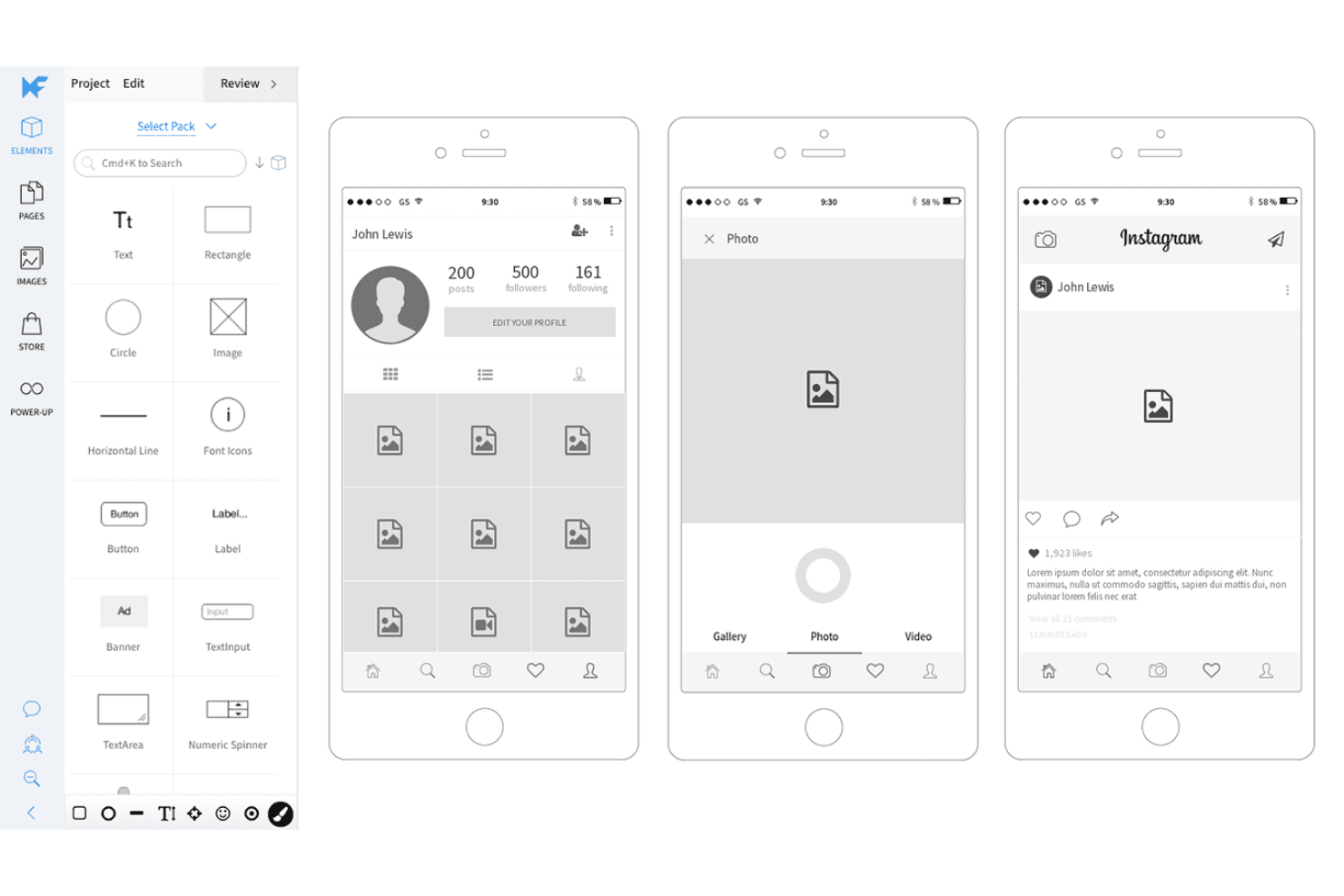
MockFlow has a rich library of mobile app focussed buttons and elements for you to ideate a smartphone application product idea quickly. MockFlow is a cloud-based wireframing and visual ideation platform that combines a drag-and-drop UI editor, mobile UI kits, AI-assisted wireframe generation, and developer handoff tools including code export and Specs mode.
Who Is MockFlow Best For?
MockFlow is a great fit for product managers and startup founders who need to go from mobile app concept to developer-ready wireframe without relying on a dedicated designer.
Why I Picked MockFlow
MockFlow earns its spot on my shortlist because its mobile UI kits are the most current I've seen in a wireframing tool, with ready-to-use iOS 26 Liquid Glass and Android 17 component sets that reflect what developers are actually building against. I also rely on Specs mode for dev handoff: it auto-generates a style guide with CSS variables, JSON design tokens, and a Tailwind config directly from your wireframes. Build mode then exports those wireframes as working React, Vue, or Next.js code, so the gap between mockup and first build is genuinely narrow.
MockFlow Key Features
- Mida AI assistant: Generates editable wireframes from a text prompt, screenshot, or URL, and can create new screens based on your existing wireframes to keep styling consistent.
- Design Suggestions: Reviewers can propose visual edits on a wireframe without altering the original, letting you compare versions side by side and accept changes in one click.
- MCP server integration: Connects AI coding assistants like Claude, Cursor, and VS Code Copilot directly to MockFlow, letting you build wireframes from PRDs, codebases, or Jira epics.
- Flow mode: Maps user flows between screens directly on the canvas, so you can plan navigation paths alongside your wireframe layouts.
MockFlow Integrations
MockFlow offers 20+ native Board Connectors, including Jira, Slack, Trello, Microsoft Teams, Google Drive, Linear, Asana, Notion, and GitHub. It also connects with Figma and AI coding assistants through MCP, including Claude, Cursor, and VS Code Copilot.
Pros and Cons
Pros:
- AI generates editable wireframes from screenshots
- Specs mode clarifies developer handoff
- Current mobile UI kits speed app mockups
Cons:
- Large projects can feel sluggish
- Simple prototypes lack conditional logic
Learn more about MockFlow: Best for Adobe CC-native design handoff
- Free trial available
- From $22.99/month (billed annually)
Visit WebsiteCustomer Rating:4.3/5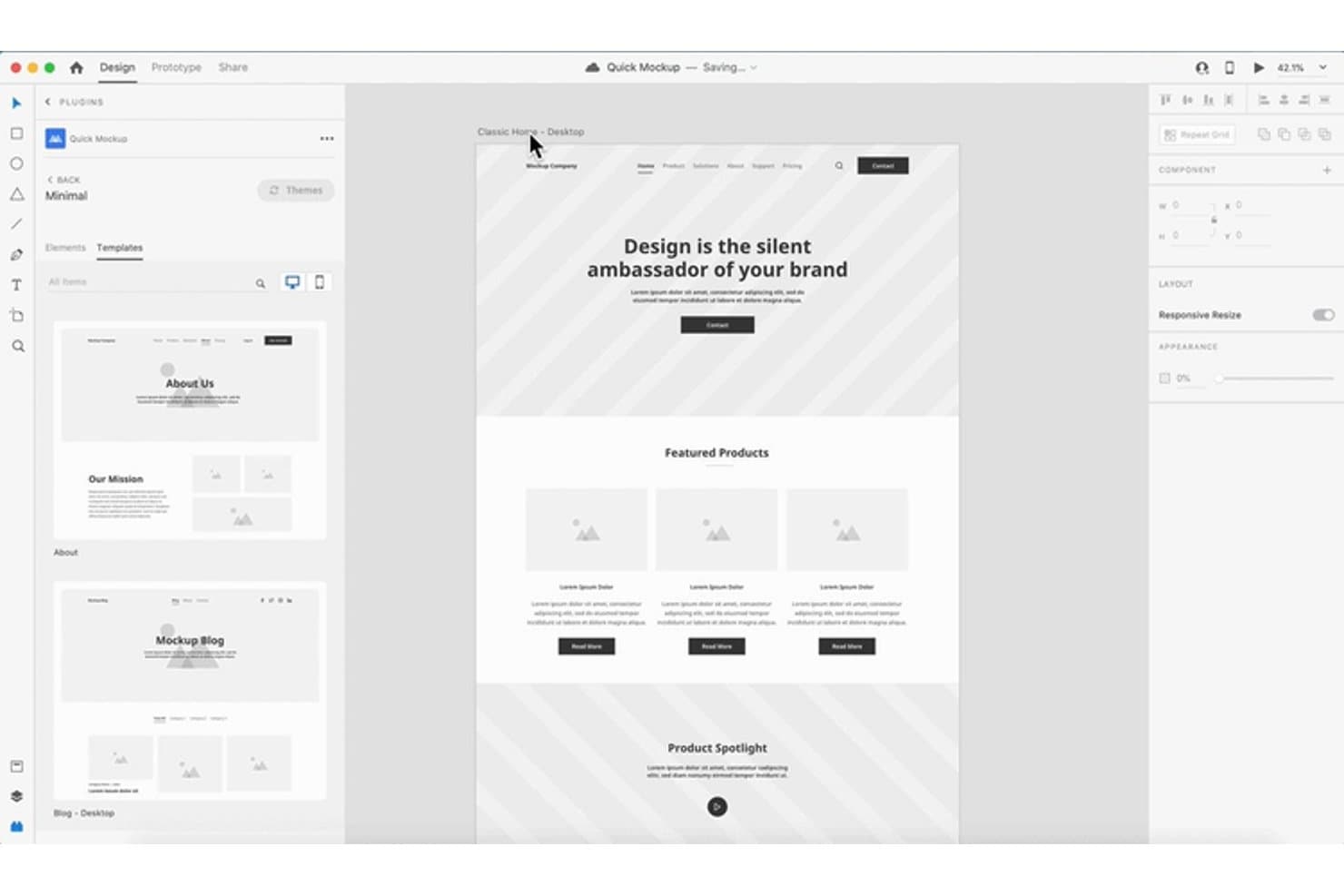
Adobe XD lets users design and preview website mockups with reusable templates. Adobe XD is a vector-based UI/UX design tool that covers wireframing, visual design, prototyping, and developer handoff in a single desktop app for macOS and Windows.
Who Is Adobe XD Best For?
Adobe XD is a strong fit for UI/UX designers and product managers already working within the Adobe Creative Cloud ecosystem who need reliable prototyping and design handoff.
Why I Picked Adobe XD
I've included Adobe XD in my top picks because it slots naturally into teams already running Creative Cloud, making design handoff feel like a native workflow rather than an afterthought. I particularly like how design specs links give developers a shareable view of sizing, spacing, colors, and assets without any extra tooling. On top of that, share presets like Design Review and Development let me send exactly the right context to the right audience, each with its own link.
Adobe XD Key Features
- Repeat grid: Drag any element or group to instantly repeat it across rows or columns, making it easy to mock up lists, cards, and data tables.
- Auto-animate: XD animates matching layers between artboards automatically, letting you simulate transitions and motion without writing any code.
- Component states: Define Default, Hover, and Toggle states for buttons and UI elements, then wire interactions between them directly in your prototype.
- Coediting: Multiple team members can edit the same cloud document simultaneously, with version history tracking changes across up to 180 days.
Adobe XD Integrations
Adobe XD offers documented integrations with Jira Cloud, Slack, Zoom, Photoshop, Illustrator, After Effects, and Creative Cloud Libraries. It also connects with macOS-only handoff tools, including Zeplin, Avocode, Sympli, Kite Compositor, and ProtoPie.
Pros and Cons
Pros:
- Content-aware layout speeds repeatable mockups
- Auto-animate demonstrates realistic product flows
- Design specs clarify developer handoff
Cons:
- Coediting creates friction for shared iterations
- Maintenance mode limits future product investment
 Best for open-source, self-hosted mockup design
- Free plan + 14-day free trial available
- From $7/user/month
Visit WebsiteCustomer Rating:4.5/5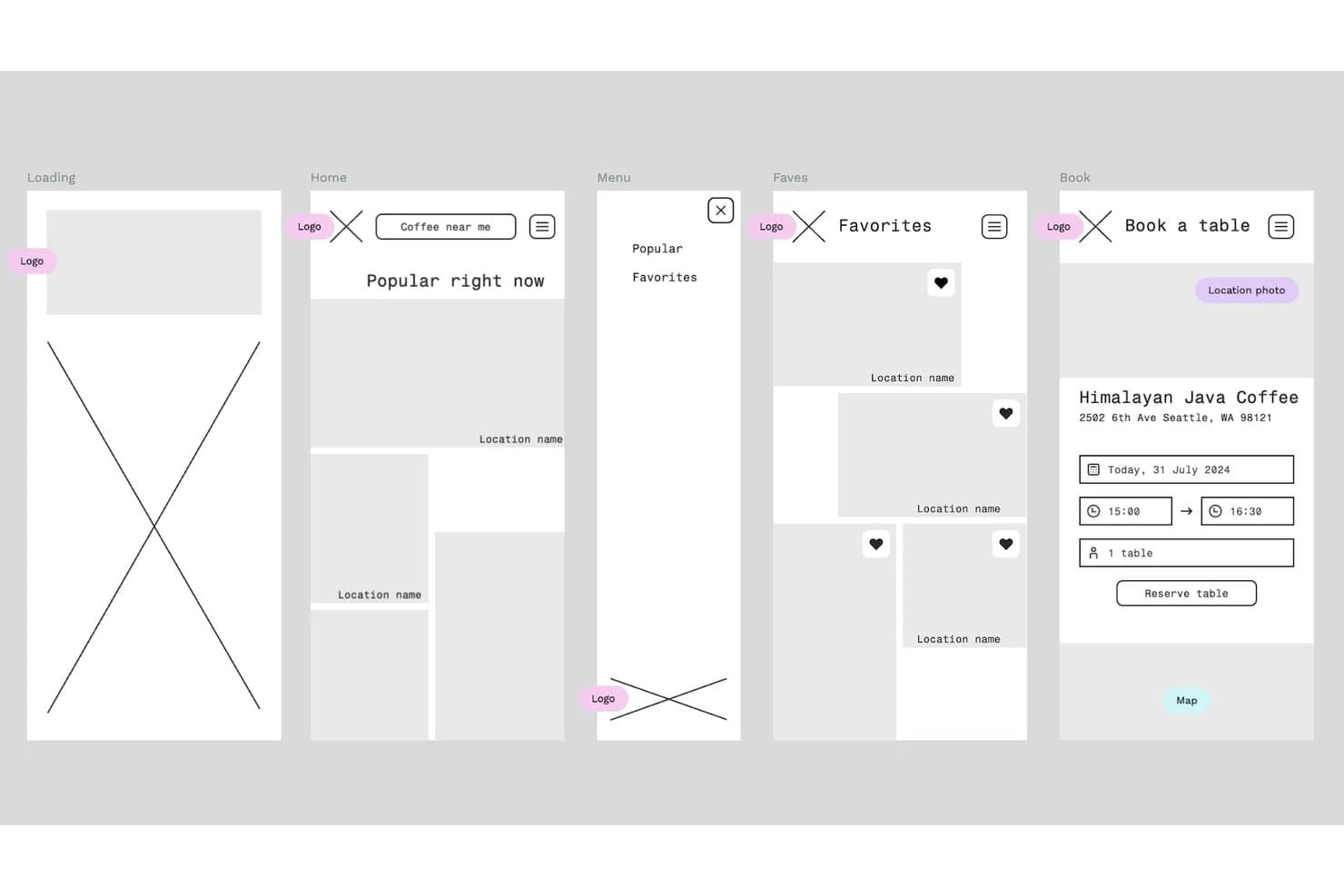
Penpot lets users build mobile app wireframes across multiple screens. Penpot is an open-source, browser-based design and prototyping tool that covers vector editing, responsive layout, component libraries, design tokens, and developer handoff in a single workspace.
Who Is Penpot Best For?
Penpot is a strong fit for dev-adjacent teams and startups that want full design tooling without vendor lock-in or per-seat licensing costs.
Why I Picked Penpot
Penpot earns its spot on my shortlist because it's the only fully open-source mockup tool that lets teams self-host the entire platform, keeping designs, tokens, and component libraries completely on their own infrastructure. I love that its CSS-based Flex and Grid layouts translate directly into production code, so handoff via the Inspect and Code tabs actually reduces back-and-forth with developers. The W3C-compliant design tokens system also lets my team manage Light/Dark themes and multi-brand token sets in one file, which is rare at this price point.
Penpot Key Features
- Multiplayer editing: Multiple team members can work in the same file at the same time, with in-context comments readable and resolvable without leaving design mode.
- Prototype flows: Connect boards using triggers, actions, overlays, and animations to build unlimited, separately shareable user flows in one file.
- Component variants: Create and manage component variants with boolean toggles that preserve overrides across your design system.
- MCP server integration: Connect any external LLM (Claude, Cursor, or VS Code) to read, modify, and generate designs, tokens, and components directly.
Penpot Integrations
Penpot offers about 125 marketplace plugins, including Locofy Lightning, Iconify, Sync Board Companion for Miro, and Design Tokens Export & Deploy for GitHub, GitLab, Azure DevOps, and Bitbucket. Its REST API, Plugins API, webhooks, and personal access tokens support custom integrations.
Pros and Cons
Pros:
- Tokens and variants support product systems
- Open-source self-hosting protects design ownership
- CSS-based layouts simplify developer handoff
Cons:
- Prototype logic lacks conditions and variables
- Performance can lag in complex files
Learn more about Penpot: Best for mapping flows before wireframing
- Free plan available
- From $6/user/month (billed annually)
Visit WebsiteCustomer Rating:4.5/5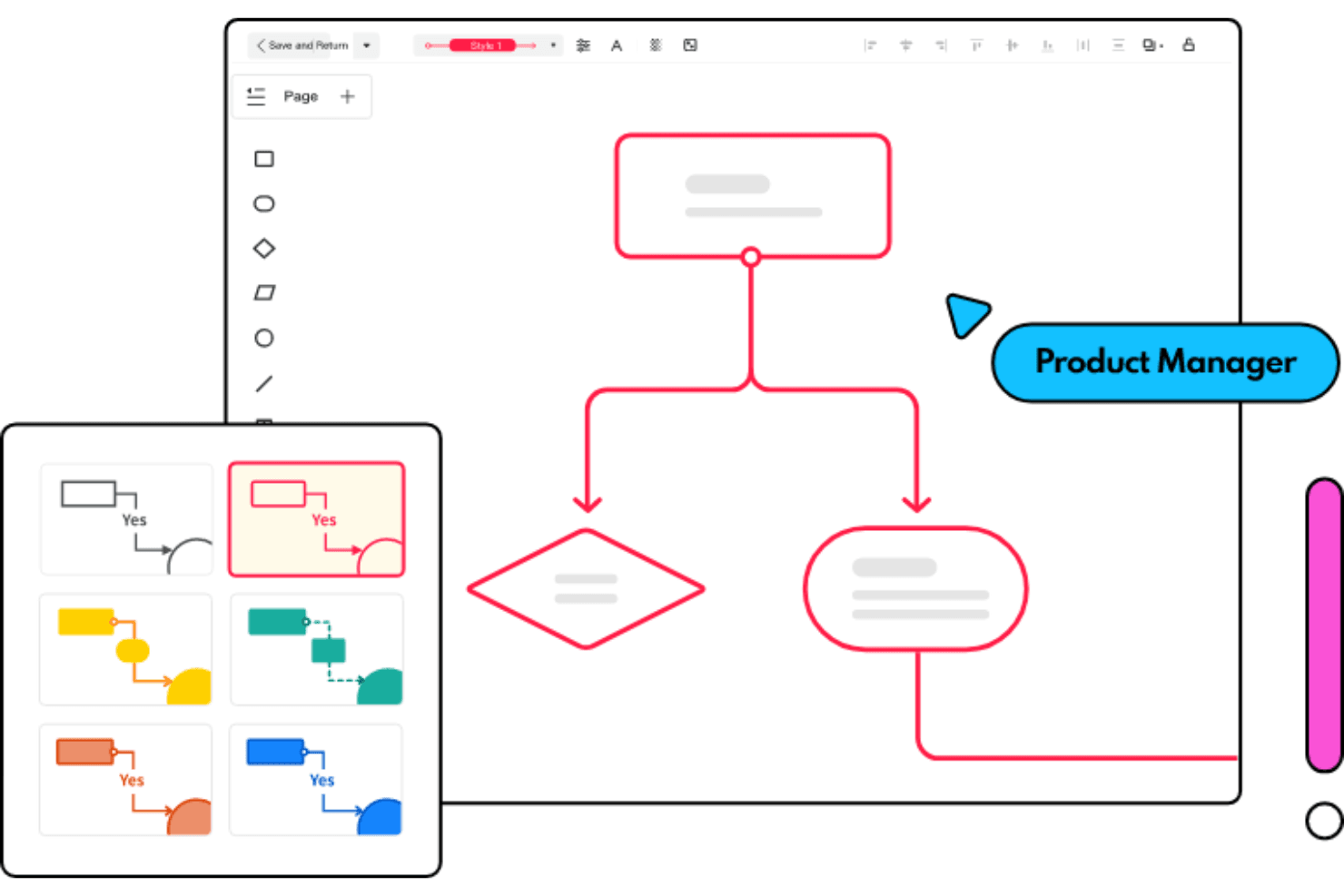
Mockitt has several flowchart templates for you to rock your next meeting Wondershare Mockitt is an all-in-one mockup and prototyping workspace that combines whiteboards, mind maps, flowcharts, wireframing, UI design, and interactive prototyping in a single browser-based tool.
Who Is Wondershare Mockitt Best For?
Wondershare Mockitt suits product managers who need to map user flows, mind maps, and sitemaps before touching a single wireframe.
Why I Picked Wondershare Mockitt
I've included Wondershare Mockitt in my top picks because it's one of the few mockup tools that lets you build out user flows, mind maps, and sitemaps on an infinite whiteboard before you ever open a wireframe canvas. I love that the AI Flowchart feature converts a plain-language process description into an editable diagram, which means a PM can move from rough thinking to structured flow in minutes. That flow then feeds directly into Mockitt's wireframing and prototyping workspace, keeping everything in one place.
Wondershare Mockitt Key Features
- Interactive prototype triggers: Link screens using click, hover, swipe, long-press, and gesture triggers, with dynamic states and animations between screens.
- Design-to-Code export: Generate code drafts in HTML, Vue, React, Flutter, or ArkUI directly from your designs for developer handoff.
- Multi-fidelity workspace: Move from low-fidelity wireframes to high-fidelity UI design within one canvas, without switching tools or exporting between stages.
- AI prototype generation: Convert text descriptions, screenshots, or hand-drawn sketches into editable prototypes for mobile, web, or tablet layouts.
Wondershare Mockitt Integrations
Wondershare Mockitt doesn't have any native integrations with Jira, Slack, or Confluence. It supports imports from Figma, Sketch, Axure, Adobe XD, and Photoshop, plus third-party resource plugins through its Community Resource Center.
Pros and Cons
Pros:
- Supports detailed developer handoff exports
- Converts sketches into editable prototypes
- Maps user flows before wireframing
Cons:
- Diagramming feels weaker than dedicated tools
- Performance lag affects complex projects
Learn more about Wondershare Mockitt: Best for Mac-native design-to-dev handoff
- 30-day free trial
- From $12/user/month (billed annually)
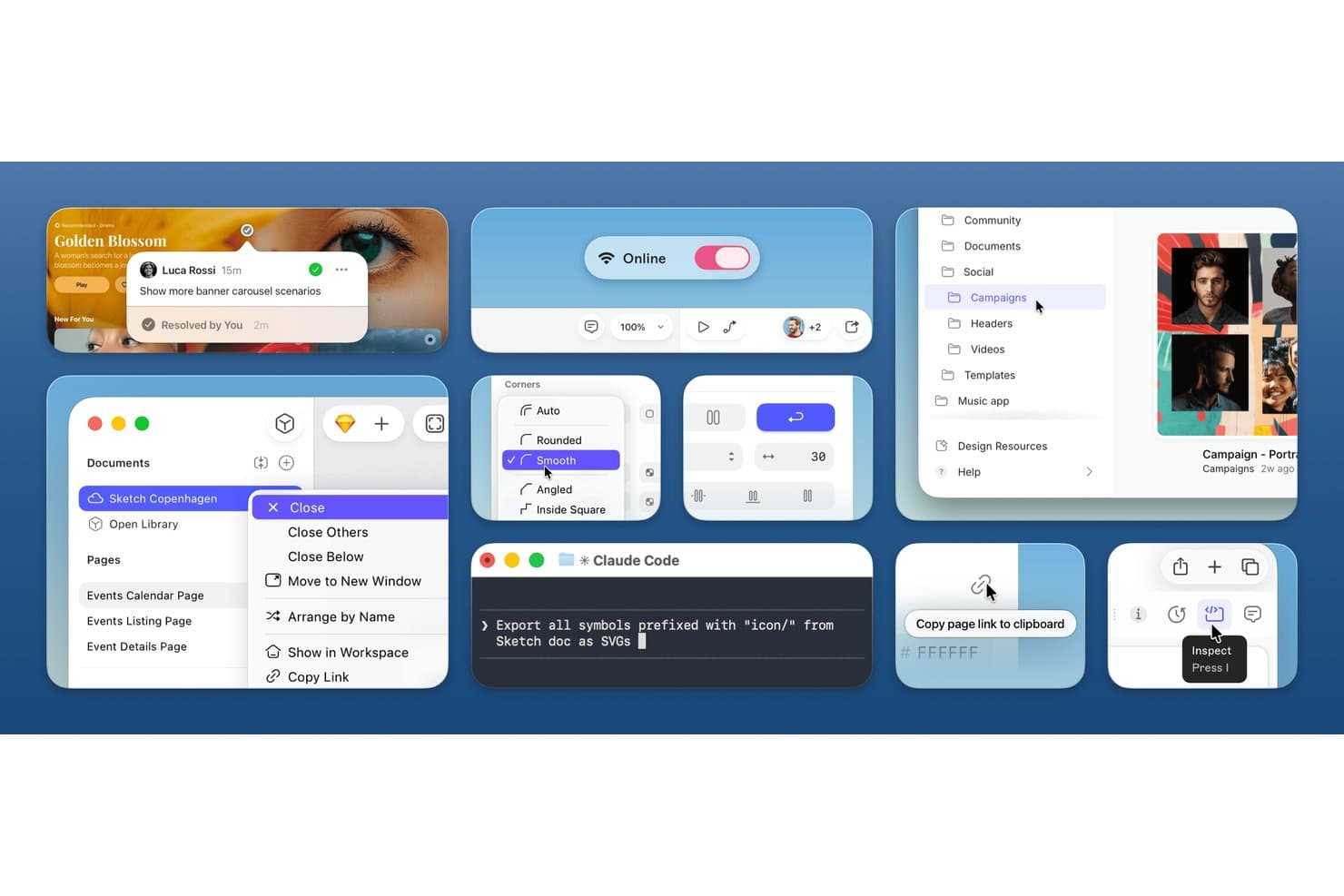
Sketch supports mockup design with collaborative tools and UI components. Sketch is a Mac-native vector design tool for creating wireframes, high-fidelity mockups, and interactive prototypes, with built-in design system support, real-time co-editing, and free browser-based developer handoff.
Who Is Sketch Best For?
Sketch is a strong fit for design-led teams on Mac who need a mature, full-featured tool with free, browser-based developer handoff.
Why I Picked Sketch
Sketch earns its spot on my shortlist because of how well it handles Mac-native design-to-dev handoff. I love that developers get a free, browser-based inspect view with CSS exports, color values, and downloadable assets without needing a Mac or a paid seat. The free handoff is paired with Sketch's MCP server, which lets me connect AI clients like Claude or Cursor directly to my designs and generate code with claimed 1:1 visual fidelity.
Sketch Key Features
- Real-time co-editing: Multiple designers can edit the same document simultaneously in the Mac app, with live cursors and avatar tracking.
- Smart Animate: Prototypes use custom easing and timing to animate transitions between frames without manual configuration.
- Design tokens export: Colors, layer styles, and text styles export as CSS or JSON, giving developers always-current design variables.
- Stacks layout tool: Flexible auto-layout containers support padding, alignment, distribution, wrap, and min/max sizing for responsive design work.
Sketch Integrations
Sketch offers documented integrations with Jira, Slack, Google Sheets Content Sync, ProtoPie, Overflow, Zeplin, and Stark. Its MCP server connects Claude, Cursor, VS Code/Copilot, Codex, and other MCP-compatible clients.
Pros and Cons
Pros:
- Smart Animate tests realistic product flows
- Native Mac editing supports offline mockups
- Browser handoff serves developers without Mac access
Cons:
- Browsers cannot edit shared designs
- Mac-only editing excludes Windows-based contributors
Learn more about Sketch: Best for collaborative interface design
- Free plan available
- From $16/user/month
Visit WebsiteCustomer Rating:4.7/5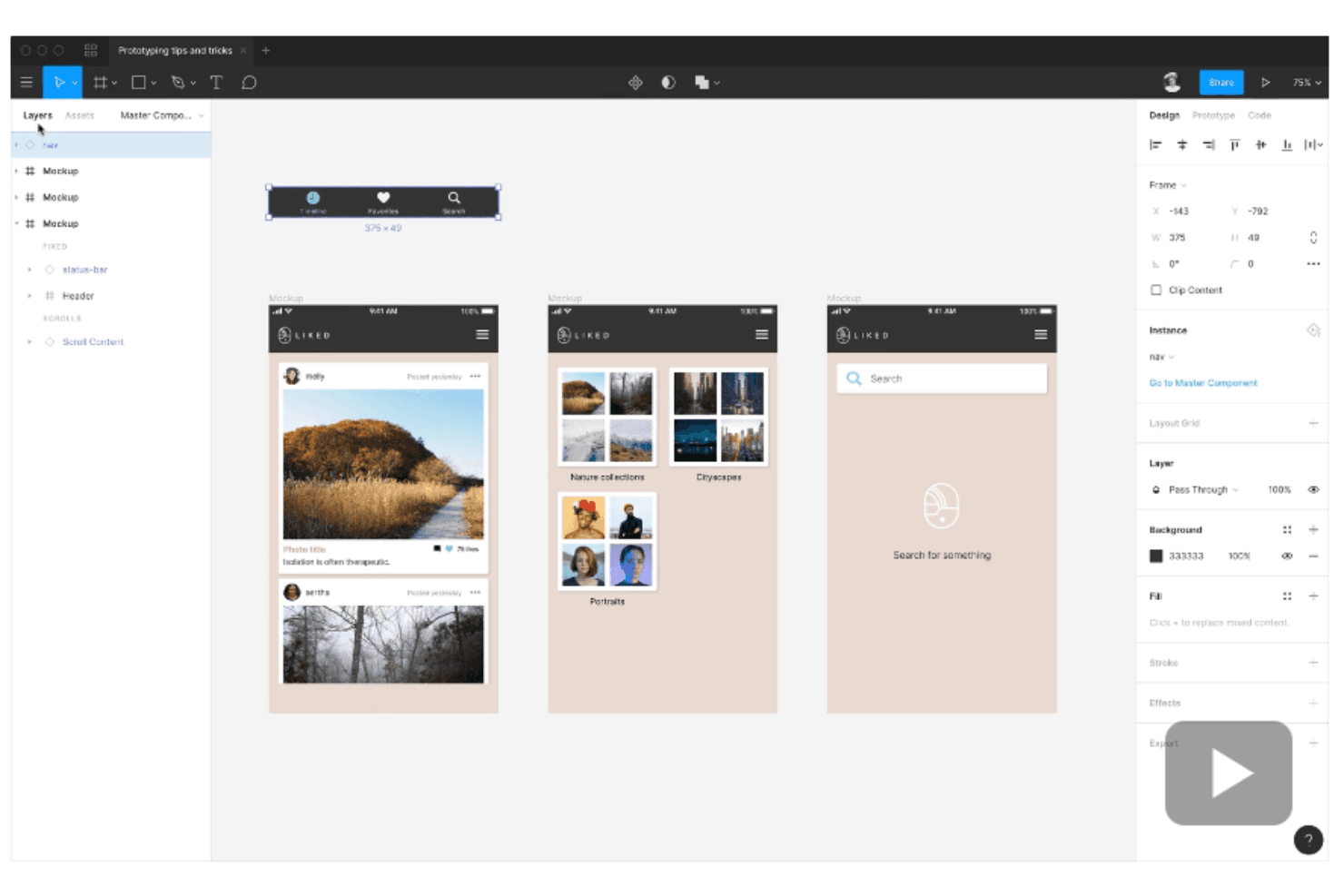
Figma enables interactive prototyping without syncing to other tools or exporting files. Figma is a browser-based interface design tool that brings wireframing, high-fidelity mockups, interactive prototyping, and developer handoff into a single multiplayer environment.
Who Is Figma Best For?
Figma suits cross-functional product teams where designers, PMs, and developers need to work in the same files without switching tools.
Why I Picked Figma
Figma earns its spot on my shortlist because real-time multiplayer editing genuinely changes how cross-functional teams work together. I've had designers, PMs, and developers all inside the same file simultaneously, leaving comments and iterating without a single export. Features like branching and merging keep experimental changes isolated until they're ready, and Dev Mode with Code Connect means developers get code-ready specs directly from the design file.
Figma Key Features
- Figma Make: Generate working prototypes or web apps from text prompts, with options to publish to a URL or copy output back as editable design layers.
- Advanced prototyping: Add conditional logic, variables, and expressions to prototype interactions, enabling dynamic flows that respond to user input.
- FigJam whiteboarding: Run async or live workshops with sticky notes, voting, timers, and AI-generated summaries directly inside Figma.
- Dev Mode: Inspect designs with CSS, React, and JSON code snippets, component playgrounds, and GitHub or Jira links attached to specific layers.
Figma Integrations
Figma offers 40+ documented integrations, including Jira, Confluence, Slack, Linear, Productboard, Notion, GitHub, Storybook, Maze, and UserTesting. Its REST API supports custom integrations.
Pros and Cons
Pros:
- Developer handoff reduces specification ambiguity
- Low-to-high fidelity workflows support iteration
- Real-time collaboration keeps teams aligned
Cons:
- Advanced controls overwhelm occasional users
- Large files can become sluggish
 Best for AI-generated mockups without design skills
- Free plan available
- From $14/user/month
Visit WebsiteCustomer Rating:4.8/5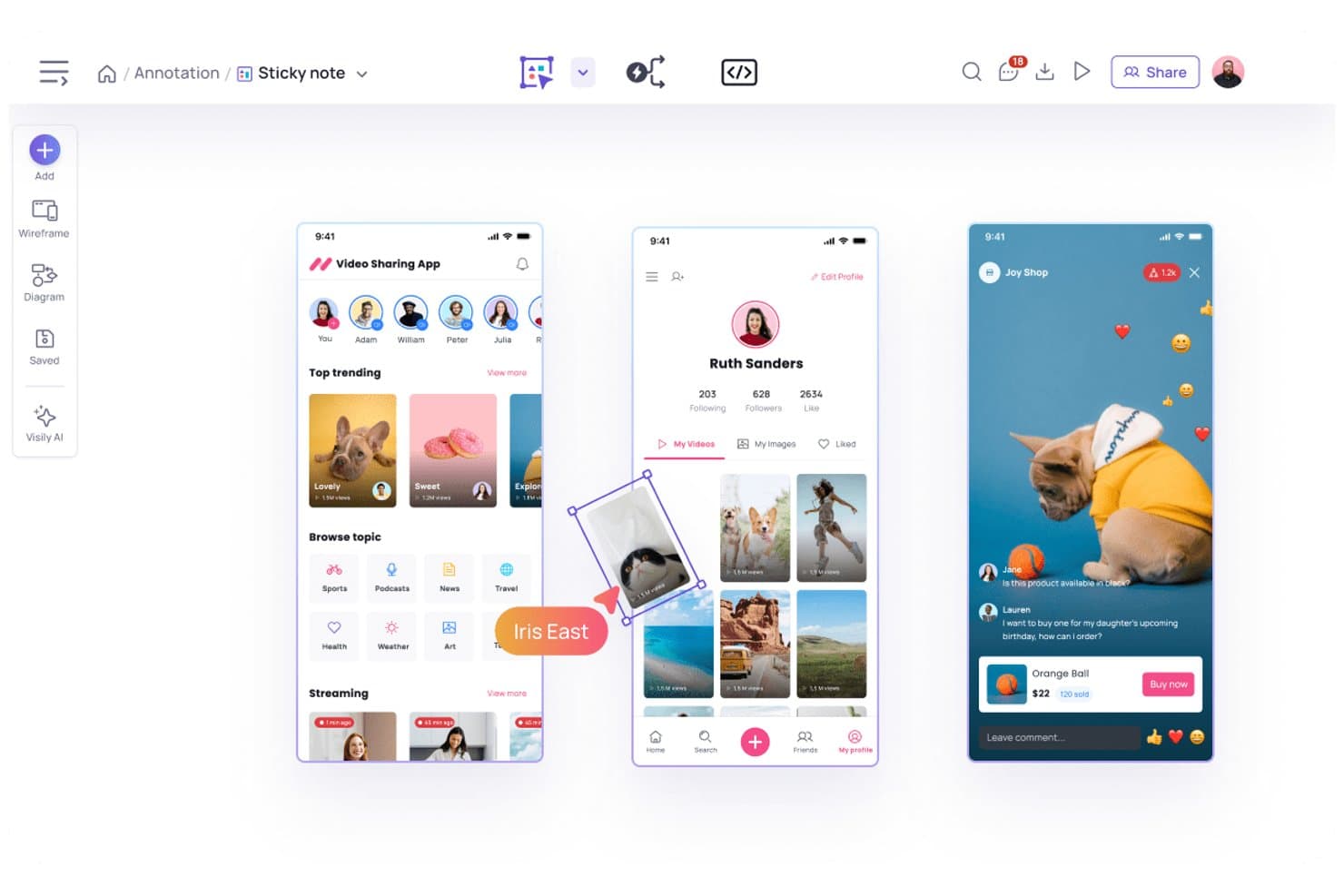
Visily lets users annotate and refine app mockups with sticky notes. Visily is a browser-based UI mockup and wireframing tool that lets you generate editable screens from text prompts, screenshots, sketches, or diagrams, with a drag-and-drop editor, 1,500+ templates, interactive prototyping, and developer handoff via Inspect Mode and code export.
Who Is Visily Best For?
Visily is a strong fit for product managers and startup founders who need to go from idea to shareable screen fast, without relying on a designer.
Why I Picked Visily
I picked Visily as one of the best because it genuinely removes the design skill barrier: you can paste a screenshot of a competitor's app or type a plain-text description and get an editable, multi-screen wireframe in seconds. I especially like the AI Auto-Prototype feature, which links up to 20 screens into a clickable flow automatically, so you can share a working prototype with engineers or stakeholders without touching a single connector line. The Inspect Mode output, with CSS and Tailwind values alongside exportable React or Vue code, means your handoff is already done by the time development starts.
Visily Key Features
- Real-time co-editing: Multiple teammates can design on the same board simultaneously, with cursor chat, comments, and emoji reactions included on every plan.
- Lo-fi/hi-fi toggle: Switch between low- and high-fidelity modes on any board, with dedicated templates available at both levels.
- Prototype triggers and transitions: Set up click, hover, swipe, drag, timeout, and keyboard interactions with fade or slide transitions and overlay positioning controls.
- Jira, Slack, and Notion integrations: Embed boards in Jira tickets, receive comment alerts in Slack, and display screens inside Notion pages without leaving your existing workflow.
Visily Integrations
Visily offers native integrations with Slack and Notion, plus a Jira Marketplace app and two-way Figma plugin for product workflows. Its MCP server connects boards with AI coding tools including Claude Code, Cursor, ChatGPT, and Lovable.
Pros and Cons
Pros:
- Auto-links up to 20 prototype screens
- Inspect Mode gives developers usable handoff specs
- AI turns screenshots into editable screens
Cons:
- AI edits can create unintended layout changes
- No auto-layout slows detailed interface refinement
Learn more about Visily: Best for wireframe-to-handoff in one workspace
- Free plan available
- From $24.90/user/month (billed annually)
Visit WebsiteCustomer Rating:4.5/5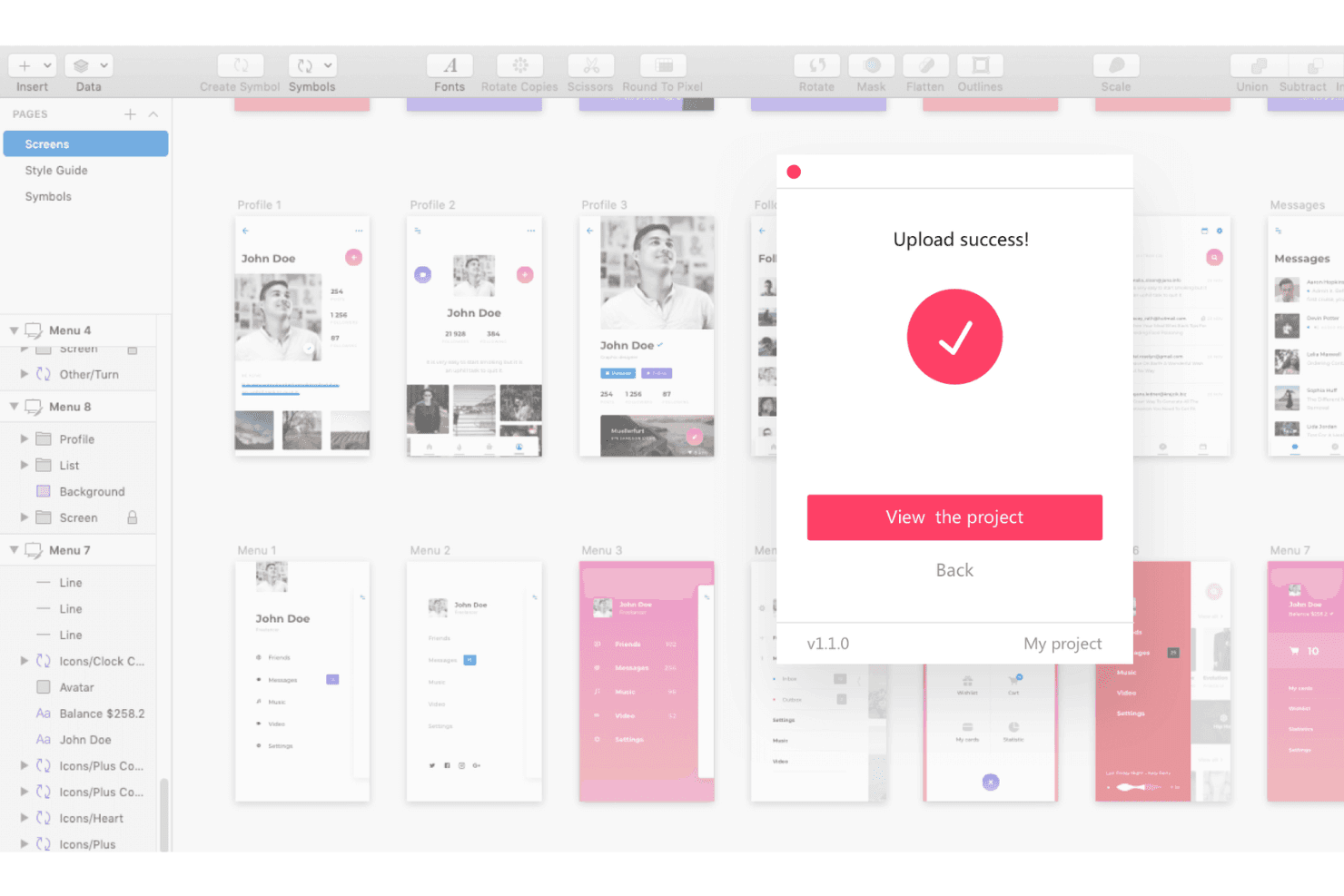
Mockplus welcomes you as you are. Upload your assets from various software into Mockplus and collaborate effectively with development teams. Mockplus RP is a browser-based wireframing and prototyping tool that covers the full design workflow—from drag-and-drop sketching and low-fidelity wireframes to interactive prototypes, stakeholder review, and developer handoff specs.
Who Is Mockplus Best For?
Mockplus RP is a strong fit for cross-functional teams—especially product managers and developers—who need to move from early wireframes to developer-ready handoff specs without switching tools.
Why I Picked Mockplus
I picked Mockplus RP because it genuinely covers the full arc from early wireframe to developer handoff without ever asking your team to switch tools. I especially like that auto-generated specs, redlines, and code snippets in CSS, Swift, and Objective-C are produced directly from your prototype, so developers get what they need without a manual export step. PRD documents and task assignment living in the same workspace also means PMs can keep product context attached to the designs being reviewed.
Mockplus Key Features
- Real-time co-editing: Multiple team members can work on the same prototype simultaneously, with changes auto-saved and synced across the workspace.
- Storyboard view: Visualize and organize the full user flow across all screens in a single connected view.
- Role-based access control: Assign permission roles to team members to manage who can view, edit, or comment on projects.
- QR-code sharing: Share live prototypes instantly via QR code for quick device previews and stakeholder feedback.
Mockplus Integrations
Mockplus documents integrations with Slack, Jira, Confluence, and Lark, plus plugins for Figma, Sketch, Photoshop, and Axure. No public API is documented for custom integrations.
Pros and Cons
Pros:
- PRDs and tasks keep product context attached
- Auto-generated specs support developer-ready handoffs
- Wireframe-to-handoff workflow stays in one workspace
Cons:
- Built-in usability testing and analytics are absent
- Individual plans exclude collaboration and handoff
Learn more about Mockplus: Best for mockups built from live URLs
- Free plan + 14-day free trial available
- From $29/user/month (billed annually)
Visit WebsiteCustomer Rating:4.2/5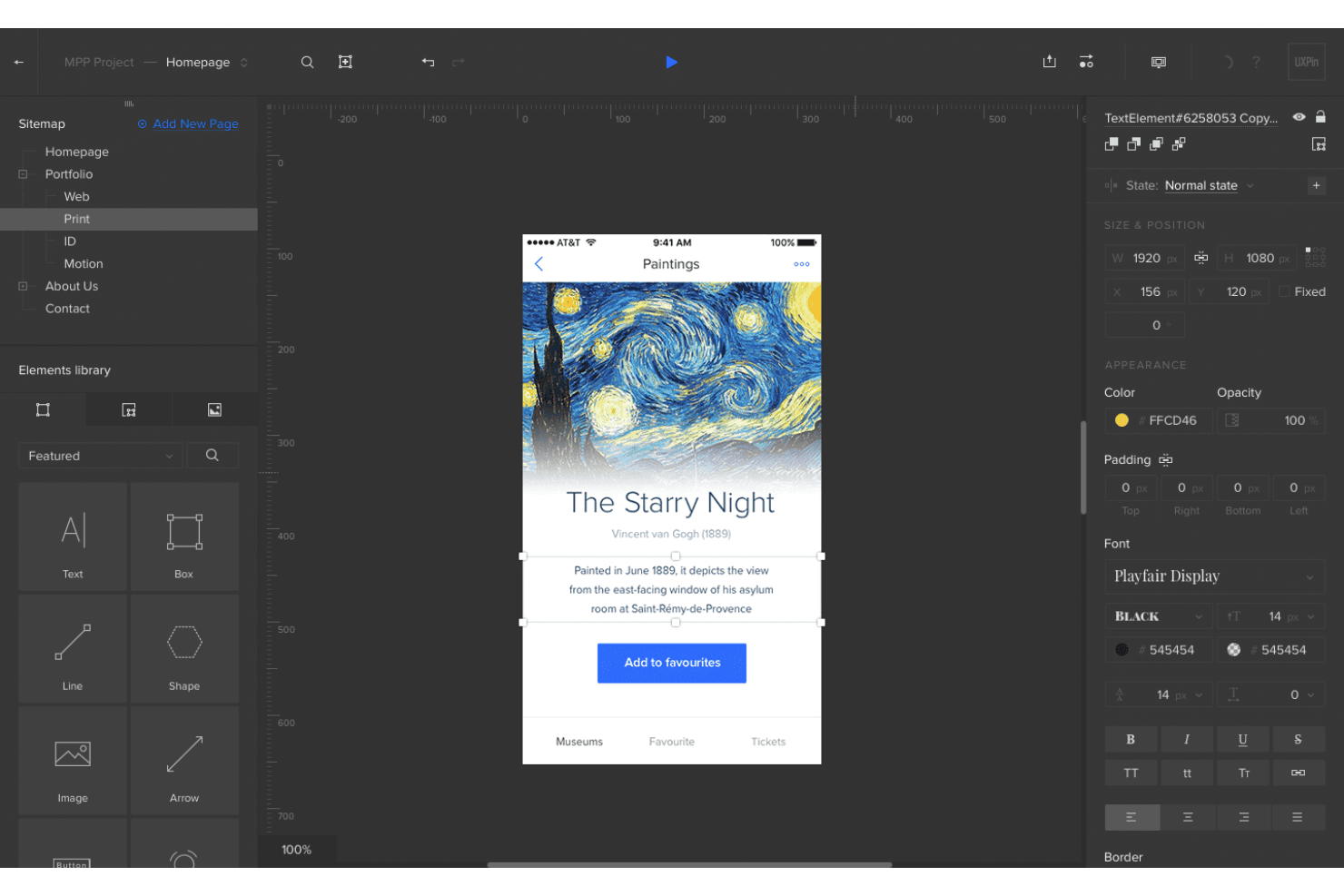
UXPin allows you to apply intricate design touches to mockup designs of websites and mobile applications. UXPin is a browser-based mockup and prototyping tool that lets you design with real, code-backed React components, generate layouts from URLs or screenshots, and hand off specs directly to developers.
Who Is UXPin Best For?
UXPin suits product managers and designers who need to turn existing sites, screenshots, or wireframes into editable, code-backed mockups without starting from a blank canvas.
Why I Picked UXPin
I've included UXPin in my top picks because its Forge AI does something I haven't seen elsewhere: paste in a live URL and it reconstructs the layout using your actual React component library, not generic shapes. That means if you're modernizing a legacy dashboard or auditing a competitor's UI, you get an editable, code-backed mockup in minutes. I also rely on Forge's image-to-UI feature to turn rough screenshots into structured designs that developers can inspect with real CSS specs.
UXPin Key Features
- Forge AI UX review: Scores your mockup across clarity, hierarchy, consistency, and accessibility, giving you structured feedback before handing off to developers.
- Variables and conditional logic: Lets you store user input and build branching interactions so prototypes respond dynamically, like a real app.
- Get Code spec mode: Generates inspectable CSS, element dimensions, and typography details directly from your design so developers can reference exact values without a separate handoff tool.
- Stakeholder approval and commenting: Lets reviewers leave comments and approve designs in Preview without creating a UXPin account.
UXPin Integrations
UXPin offers native integrations with Figma, Sketch, GitHub, Bitbucket, GitLab, Storybook, npm, Jira, Slack, and FullStory, plus StackBlitz and CodeSandbox for exported code.
Pros and Cons
Pros:
- Handoff specs reduce developer reconstruction
- Prototypes support variables and conditional logic
- Rebuilds existing websites with real components
Cons:
- Large projects can suffer slow performance
- Complex logic takes time to learn
Learn more about UXPin: Best for responsive web mockup design
- Free plan available
- From $19/user/month
Visit WebsiteCustomer Rating:4.2/5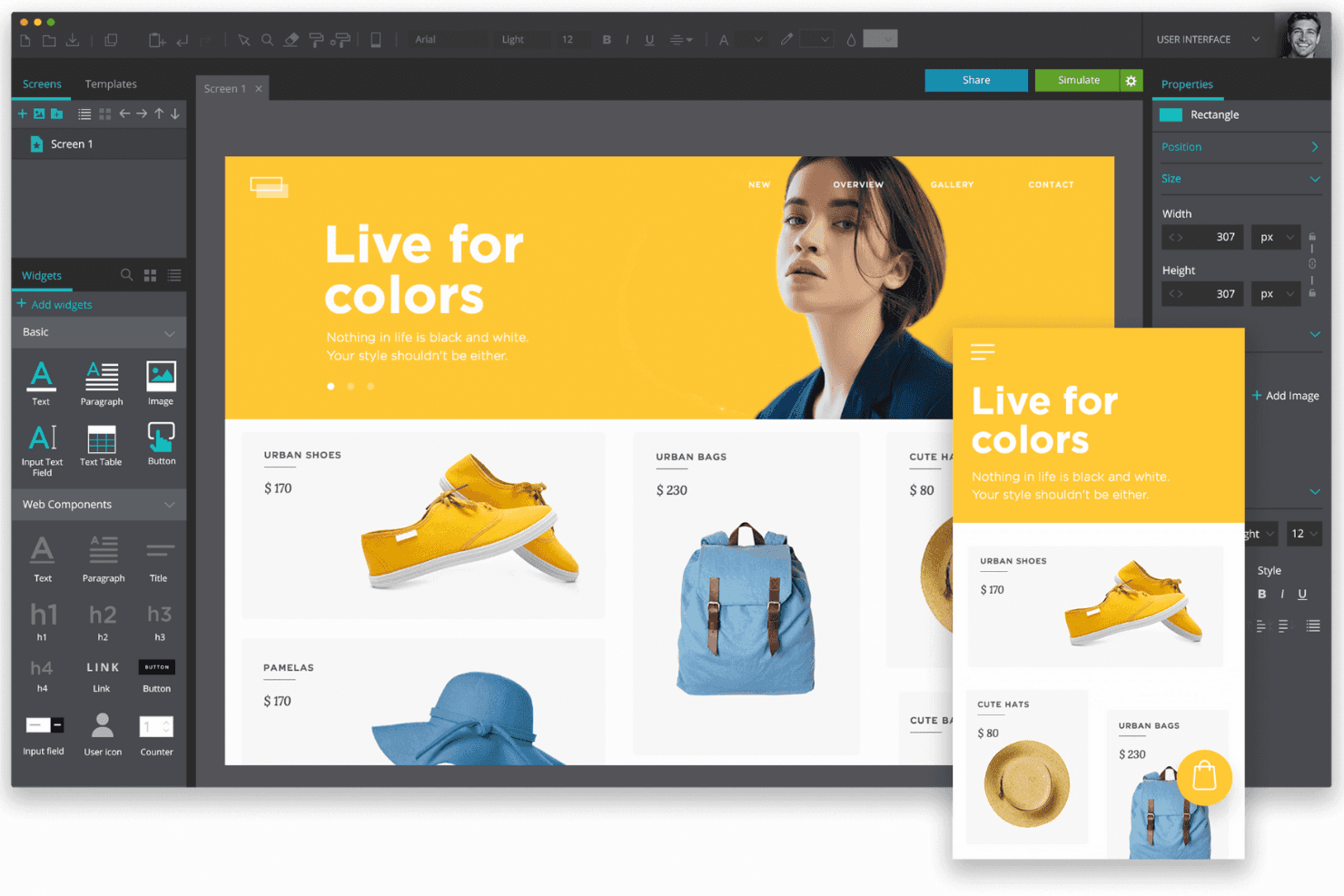
Justinmind helps you design responsive website mockup designs without knowing how to code. Justinmind is a mockup and prototyping tool that combines drag-and-drop UI design, responsive layout controls, 4,000+ pre-built components, and interactive prototyping across web, iOS, and Android.
Who Is Justinmind Best For?
Justinmind is a strong fit for product managers and UX designers who need to prototype responsive web layouts with real interactions, not just static screens.
Why I Picked Justinmind
Justinmind earns its spot on my shortlist because it's built specifically around responsive web mockup design in a way most prototyping tools aren't. I love that you can set element widths as percentages, pin headers and footers, and define breakpoint events that actually trigger layout changes, so a stakeholder review shows exactly how the UI behaves at different screen sizes. The Bootstrap and MUI kits mean I can drop in grid-aware components from the start, not retrofit responsiveness later.
Justinmind Key Features
- Jira and Azure DevOps sync: Link UI elements directly to work items and requirements, keeping design and delivery in the same workflow.
- Interactive HTML export: Export prototypes as functional HTML and JavaScript files that stakeholders can open in any browser.
- User flow diagramming: Map and visualize end-to-end user flows within the same project as your mockups.
- Inspect mode: Developers can view spacing, measurements, hex colors, and copy CSS directly from any prototype in the browser.
Justinmind Integrations
Justinmind has four documented project integrations: Jira, Confluence, Azure DevOps, and IBM DOORS. Its Java-based API/SDK supports custom plugins and code generation, while Figma, Sketch, and Adobe XD support design imports.
Pros and Cons
Pros:
- Extensive component library accelerates mockup creation
- Functional prototypes model complex user flows
- Responsive layouts mirror real device behavior
Cons:
- Unfamiliar interface slows first-time adoption
- Large prototypes can become unstable
Learn more about Justinmind:
Other Mockup Tools
Here are some additional mockup tools options that didn’t make it onto my shortlist, but are still worth checking out:
- 11Axure RPBest for logic-heavy prototype interactions
- 12Proto.ioBest for no-code interactive prototyping
- 13BalsamiqBest for B2B wireframes with Jira integration
- 14MarvelBest for no-code prototype-to-feedback handoff
- 15MiroBest for early-stage alignment across teams
- 16FramerBest for AI-generated web mockup iteration
- 17MoqupsBest for UX research within a single workspace
How I Evaluate Mockup Tools
I split my evaluation into three parts. Core functionality comes first—and carries the most weight—focusing on whether a tool lets you arrange screens and pull from ready-made UI assets. Then I look at standout features like AI-assisted design generation, and finally consider pricing value and onboarding ease.
Core Functionality (Table Stakes For This List)
When I'm selecting tools for my list, I score each one on a scale from 0 (does not offer the functionality) to 5 (excels in this area) for each core functionality listed below. I then convert the total into a percentage to help assess each tool's overall fit, with extra weight on any functionalities I've deemed essential.
- Layout & Element Design (Essential): I check whether you can freely place, resize, and layer UI components to build structured screens rather than just dropping shapes on a blank canvas.
- Templates & Asset Libraries (Essential): A good library saves hours. I look for categorized UI kits, device frames, and icon sets that cover common patterns like sign-up flows or dashboards.
- Multi-Fidelity Support: I evaluate how easily you can start with a rough wireframe and progress to a polished mockup in the same file without rebuilding screens from scratch.
- Real-Time Collaboration: Teams need to mark up mockups together. I look for live co-editing, threaded comments, and version history so feedback doesn't get lost in email chains.
- Export & Handoff: I check for developer-friendly outputs like CSS specs, asset slicing, and structured handoff views—not just static PNG exports that leave engineers guessing.
- Interactive Linking: Linking screens into clickable prototypes matters for stakeholder reviews. I look at how many interaction types a tool supports and whether the resulting prototype feels close to a real app.
Once I have a list of tools that meet the criteria, I consider what sets each platform apart.
Differentiating Factors (What Sets Vendors Apart)
Here's how I compare and contrast different vendors:
Standout Features
I look for AI-assisted design generation that goes beyond gimmicks—tools like Figma and Uizard let you turn a text prompt into a workable layout, which cuts hours off early concepting. Design handoff specs matter just as much. I check whether a tool auto-generates redlines and code snippets so engineers aren't left measuring pixels from a screenshot. I also evaluate plugin ecosystems, since a mockup tool that connects to Jira or Slack keeps feedback inside workflows PMs already use daily.
Beyond Features
I evaluate how quickly non-designers can produce a usable mockup. Tools like Uizard and Balsamiq let PMs skip onboarding entirely, while Figma rewards a steeper investment with deeper control. Pricing model matters too—per-seat licensing can quietly double costs when you loop in engineers and stakeholders for review. I also check whether a tool runs fully in the browser, since distributed teams need access across operating systems without installing desktop apps.
How to Choose Mockup Tools
It’s easy to get bogged down in long feature lists and complex pricing structures. To help you stay focused as you work through your unique software selection process, here’s a checklist of factors to keep in mind:
| Factor | What to Consider |
|---|---|
| FactorScalability | What to ConsiderConsider if the tool can grow with your team. Will it handle more users or larger projects as your company expands? Check if there are limitations on project size or user numbers. |
| FactorIntegrations | What to ConsiderEvaluate how well the tool connects with your existing software stack. Does it integrate with platforms like Slack, Jira, or Google Drive to streamline workflows? |
| FactorCustomizability | What to ConsiderAssess if the tool lets you tailor features to fit your needs. Can you customize templates or workflows to match your team's unique processes? |
| FactorEase of use | What to ConsiderLook for a tool with a simple interface that your team can learn quickly. Avoid tools that require extensive training or technical knowledge for everyday tasks. |
| FactorImplementation and onboarding | What to ConsiderInvestigate the setup process and available support. Are there resources like tutorials or support teams to help your team get started without disruption? |
| FactorCost | What to ConsiderCompare pricing models and ensure they fit your budget. Are there hidden fees or costs for additional features? Consider if annual billing offers savings. |
| FactorSecurity safeguards | What to ConsiderCheck if the tool meets your security standards. Does it offer features like data encryption and regular security updates to protect your information? |
| FactorSupport availability | What to ConsiderDetermine the level of support provided. Is there 24/7 customer service? Can you reach them through multiple channels like chat or phone? |
What Are Mockup Tools?
Mockup tools are apps that let you quickly create visual models of a product or webpage before it’s built. Designers, developers, and clients use these to picture layouts, test ideas, and get feedback early, instead of guessing how things will look from a sketch. With easy drag-and-drop features and shared workspaces, you can tweak designs together—saving everyone surprises and headaches once real development starts.
Features
When selecting mockup tools, keep an eye out for the following key features:
- Wireframing: Allows you to create basic layouts and structure for your designs, helping you visualize the user interface early in the design process.
- Prototyping: Enables you to build interactive models of your designs, which helps in testing user flows and gathering feedback before development.
- Collaboration: Offers tools for real-time teamwork, allowing multiple users to work on a project simultaneously and share feedback instantly.
- Design system management: Helps maintain consistency across projects by managing reusable components and style guides.
- Animation tools: Provides the ability to add transitions and animations to your prototypes, making them more realistic and engaging.
- User testing: Allows you to gather direct feedback from users within the platform, helping refine designs based on actual user interaction.
- Design handoff: Bridges the gap between design and development by generating code specifications, ensuring a smoother transition to the build phase.
- Accessibility checker: Ensures that your designs meet industry accessibility standards, making your product usable for a wider audience.
- Offline access: Lets you work on projects without an internet connection, ensuring productivity even in limited connectivity situations.
- Live data integration: Uses real data to create dynamic prototypes, providing a more realistic representation of the final product.
Benefits
Implementing mockup tools provides several benefits for your team and your business. Here are a few you can look forward to:
- Improved collaboration: Real-time collaboration features allow team members to work together efficiently, reducing miscommunication and enhancing teamwork.
- Faster iteration: Prototyping and user testing capabilities enable quick feedback and revisions, speeding up the design process and improving the final product.
- Consistent design: Design system management helps maintain uniformity across projects, ensuring that branding and design guidelines are consistently followed.
- Enhanced creativity: Features like animation tools and live data integration allow for more creative and realistic designs, making your prototypes more engaging.
- Cost savings: By identifying design issues early through wireframing and prototyping, you can avoid costly mistakes and rework during the development phase.
- Better accessibility: Accessibility checkers ensure your designs meet standards, broadening your audience and making your product more inclusive.
- Efficient handoff: Design handoff tools provide clear specifications for developers, facilitating a smoother transition from design to development.
Costs & Pricing
Selecting mockup tools requires an understanding of the various pricing models and plans available. Costs vary based on features, team size, add-ons, and more. The table below summarizes common plans, their average prices, and typical features included in mockup tools solutions:
Plan Comparison Table for Mockup Tools
| Plan Type | Average Price | Common Features |
|---|---|---|
| Plan TypeFree Plan | Average Price$0 | Common FeaturesBasic wireframing, limited prototyping, and basic collaboration. |
| Plan TypePersonal Plan | Average Price$5-$15/user/month | Common FeaturesAdvanced prototyping, access to templates, and basic integrations. |
| Plan TypeBusiness Plan | Average Price$20-$50/user/month | Common FeaturesReal-time collaboration, design system management, and enhanced security features. |
| Plan TypeEnterprise Plan | Average Price$60-$100/user/month | Common FeaturesCustomizable workflows, dedicated account support, advanced analytics, and full integration capabilities. |
Mockup Tools FAQs
Here are some answers to common questions about mockup tools:
How do mockup tools fit into the overall design process?
Mockup tools usually come into play after initial sketches and before full development. They help you visualize layouts and refine the user interface before coding starts. Using them early can help you identify design issues while changes are still easy to make.
Can mockup tools replace coding during the early stages of design?
Yes, mockup tools let you show visual ideas without needing to code. They’re ideal for communicating layout, color, and style choices before development begins. This way, you can focus on design clarity without worrying about the technical side yet.
How accurate are mockups compared to final designs?
Mockups give you a close representation of what the final product will look like. However, small differences can still appear once real data and functionality are added. Treat them as a guide to communicate intent rather than a pixel-perfect final version.
When should you update or revise mockups during a project?
You should revise mockups whenever your project scope, branding, or user feedback changes. Keeping them updated ensures everyone stays on the same page. Regular updates prevent confusion and make the handoff to development much smoother.