

Free brainstorming tools are digital platforms that let you capture, organize, and develop ideas without paying a cent—making them accessible on a free plan or trial. If you’re looking for smart, low-barrier ways to boost your team’s creativity, these tools cut out the cost and complication.
With so many options out there, it’s tough to know what truly helps you collaborate, map thoughts, or gather input in real-life work settings. This guide breaks down the best free brainstorming picks that actually deliver value, so you can focus on turning big ideas into real solutions.
Why Trust Our Software Recommendations
6,700+
Reviews
20
Industry experts
16+
Evaluation factors
14
Years
Our team has been testing and reviewing software since 2012. As product managers ourselves, we know how difficult—and important—it is to choose the right software.
For this guide, we evaluated tools using hands-on testing and independent research, scoring tools using our selection criteria.
Our reviews reflect our human editorial judgment, not a sales pitch.
Expert reviewers:
- Andrew LumbySenior TPM
- Cristiano ValimSenior UI/UX Lead


Best Free Brainstorming Tools Summary
This comparison chart summarizes pricing details for my Free brainstorming tools to help you find the best one for your budget and business needs.
| Tool | Best For | Trial Info | Price | ||
|---|---|---|---|---|---|
| 1 | Best for whiteboarding within a Figma workflow | Free plan available | From $16/user/month | Website | |
| 2 | Best for turning whiteboard ideas into tracked tasks | Free plan available | From $7/user/month (billed annually) | Website | |
| 3 | Best for brainstorming with built-in timers and voting | Free plan available | From $10/user/month (billed annually) | Website | |
| 4 | Best for free facilitation in remote workshops | Free demo + free plan available | From $9.99/user/month (billed annually) | Website | |
| 5 | Best for education-focused group brainstorming | Free plan available | From $11.61/month | Website | |
| 6 | Best for diagramming with cloud storage sync | Free plan available | Free to use | Website | |
| 7 | Best for EU-hosted visual collaboration | 30-day free trial + free plan available | From €5/user/month | Website | |
| 8 | Best for design-native team brainstorming | Free plan available and 30-day free trial | From $12/user/month (billed annually) | Website | |
| 9 | Best for mapping ideas into project tasks | 15-day free trial + free plan available | Pricing upon request | Website | |
| 10 | Best for infinite canvas collaboration | Free plan + 14-day free trial available | From $8/user/month (billed annually) | Website |




Free Brainstorming Tools Reviews
Below are my detailed summaries of the free brainstorming tools that made it onto my shortlist. My reviews offer a detailed look at the features, best use cases, and pricing of each tool to help you find the best one for you.
 Best for whiteboarding within a Figma workflow
- Free plan available
- From $16/user/month
Visit WebsiteCustomer Rating:4.7/5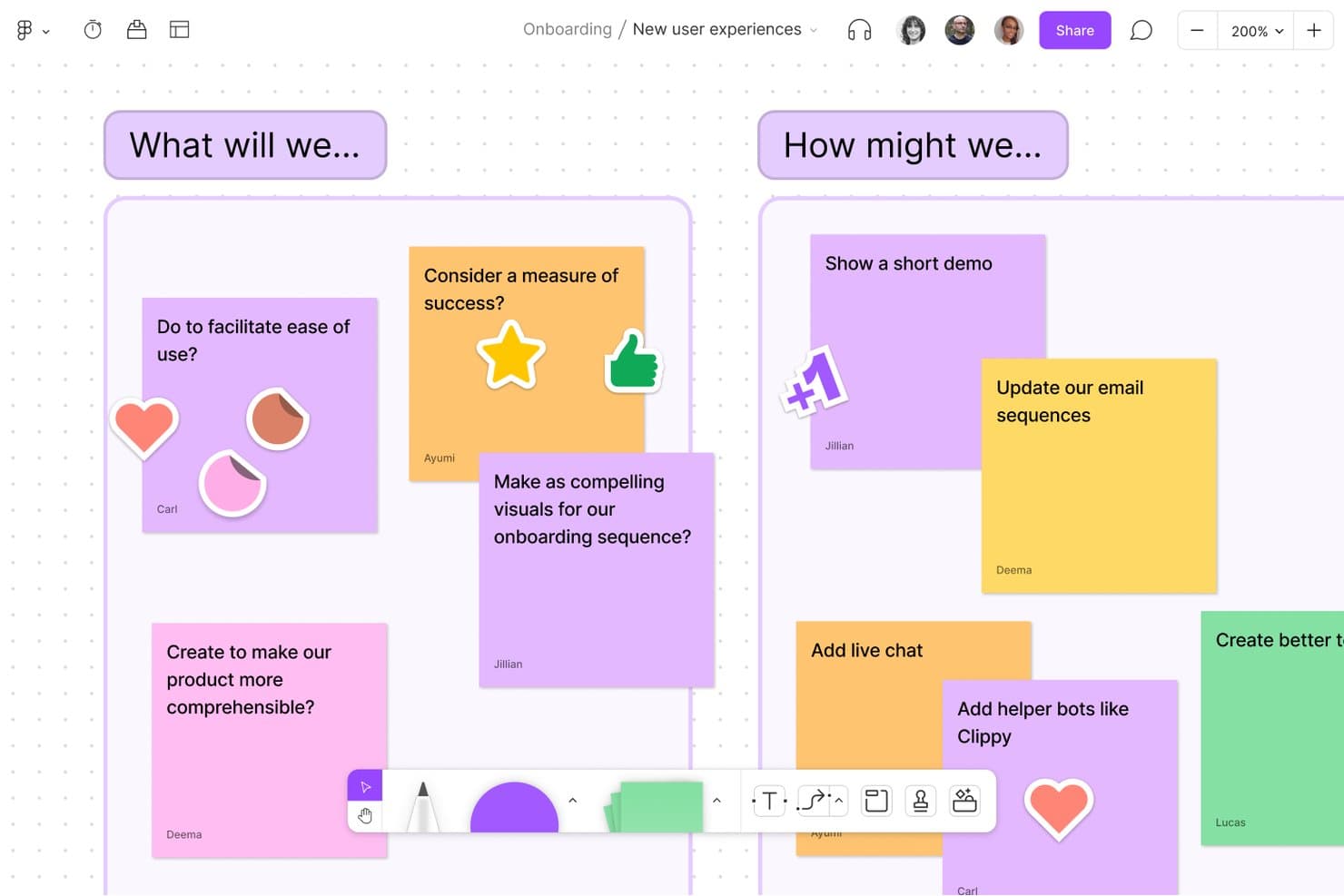
FigJam lets teams brainstorm ideas together using sticky notes and boards. FigJam is a collaborative online whiteboard for brainstorming, diagramming, and workshops, with an infinite canvas, sticky notes, templates, real-time editing, Figma integration, and AI-powered idea sorting and summaries.
Who Is FigJam Best For?
Product managers and UX teams will find FigJam useful for workshops, product discovery, journey mapping, and roadmap discussions within a Figma workflow.
Why I Picked FigJam
I picked FigJam because it’s best for whiteboarding within a Figma workflow. I use its infinite canvas, roadmap and customer journey templates, and Figma copy-paste support to move from discovery workshops into product design. AI Sort and Summarize then turn scattered sticky notes into themes and next steps.
FigJam Key Features
- Live collaboration: Multiple users can edit with live cursors, cursor chat, comments, and audio calls.
- Idea capture tools: Add stickies, shapes, connectors, text, drawings, tables, code blocks, GIFs, and stamps.
- Session timer: Run shared countdowns for workshops, exercises, and timed brainstorming activities.
- Board exports: Export boards as PNG, JPG, PDF, or CSV files, or copy content into Figma Design.
FigJam Integrations
FigJam offers integrations with Jira, Asana, GitHub, Slack, Microsoft Teams, Google Calendar, and Figma Design. It also supports board imports from Miro, Mural, Lucid, and Google Jamboard.
What's Free?
FigJam has a free Starter plan rather than a time-limited trial. You can collaborate with unlimited users on up to three files, with a three-page limit per file; viewers can access shared files without these editing limits.
Pros and Cons
Pros:
- Built-in timer supports structured brainstorming sessions
- Infinite canvas supports complex workshop layouts
- AI sorts stickies into actionable themes
Cons:
- Large boards can experience performance lag
- Free collaboration is limited to three files
Learn more about FigJam: Best for turning whiteboard ideas into tracked tasks
- Free plan available
- From $7/user/month (billed annually)
Visit WebsiteCustomer Rating:4.7/5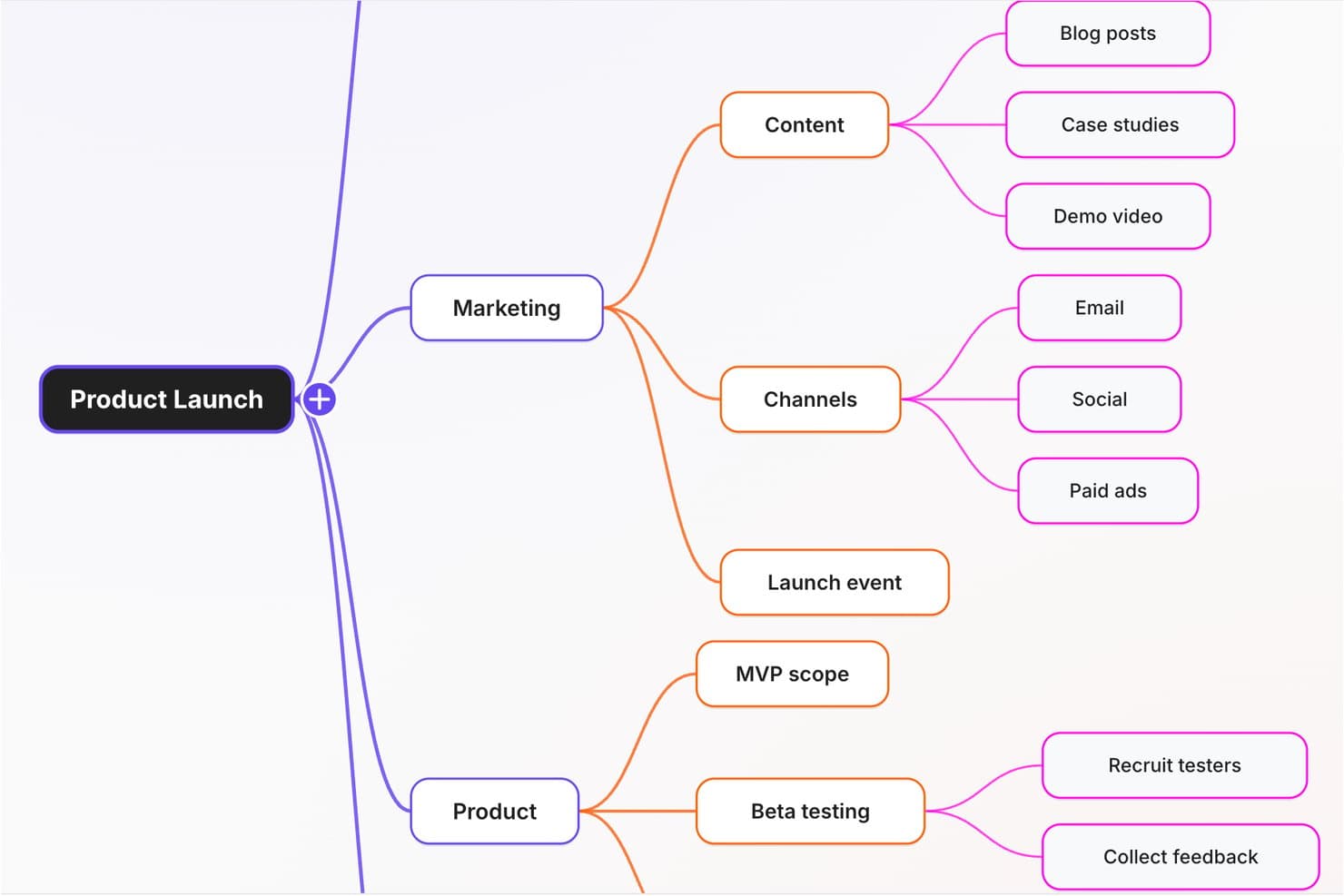
ClickUp's mind map organizes product launch ideas into branches. ClickUp is a brainstorming and visual collaboration tool with whiteboards, sticky notes, mind maps, flowcharts, live co-editing, embedded Docs, and task conversion within a project management workspace.
Who Is ClickUp Best For?
ClickUp suits product managers and startup founders who want to turn visual ideas into assigned tasks, due dates, and executable plans.
Why I Picked ClickUp
I picked ClickUp because it’s built for turning whiteboard ideas into tracked tasks. I can convert sticky notes, shapes, or text into tasks with assignees and due dates, then place live tasks and Docs beside the original concepts. Live cursors, comments, and @mentions keep product discovery connected to execution.
ClickUp Key Features
- Presentation mode: Guide viewers through board frames without exporting slides.
- Export formats: Save boards as PNG, JPEG, SVG, WEBP, or PDF files.
- Whiteboard templates: Create, save, apply, and update reusable board layouts.
- AI diagram generation: Generate editable flowcharts and process maps from prompts.
ClickUp Integrations
ClickUp lists integrations with Miro, Figma, Slack, Microsoft Teams, Google Drive, Zoom, GitHub, and Zapier. An API and webhooks support custom connections.
What's Free?
ClickUp offers a free-forever plan with unlimited tasks and free plan members. It includes 60 MB of storage, one Form, five active Automations, and 100 Automation actions per month, while advanced features and higher usage limits require a paid plan.
Pros and Cons
Pros:
- Supports rich visual idea capture
- Embeds live Docs and tasks
- Converts sticky notes into assigned tasks
Cons:
- No built-in voting or timers
- Free boards remain public
Learn more about ClickUp: Best for brainstorming with built-in timers and voting
- Free plan available
- From $10/user/month (billed annually)
Visit WebsiteCustomer Rating:4.6/5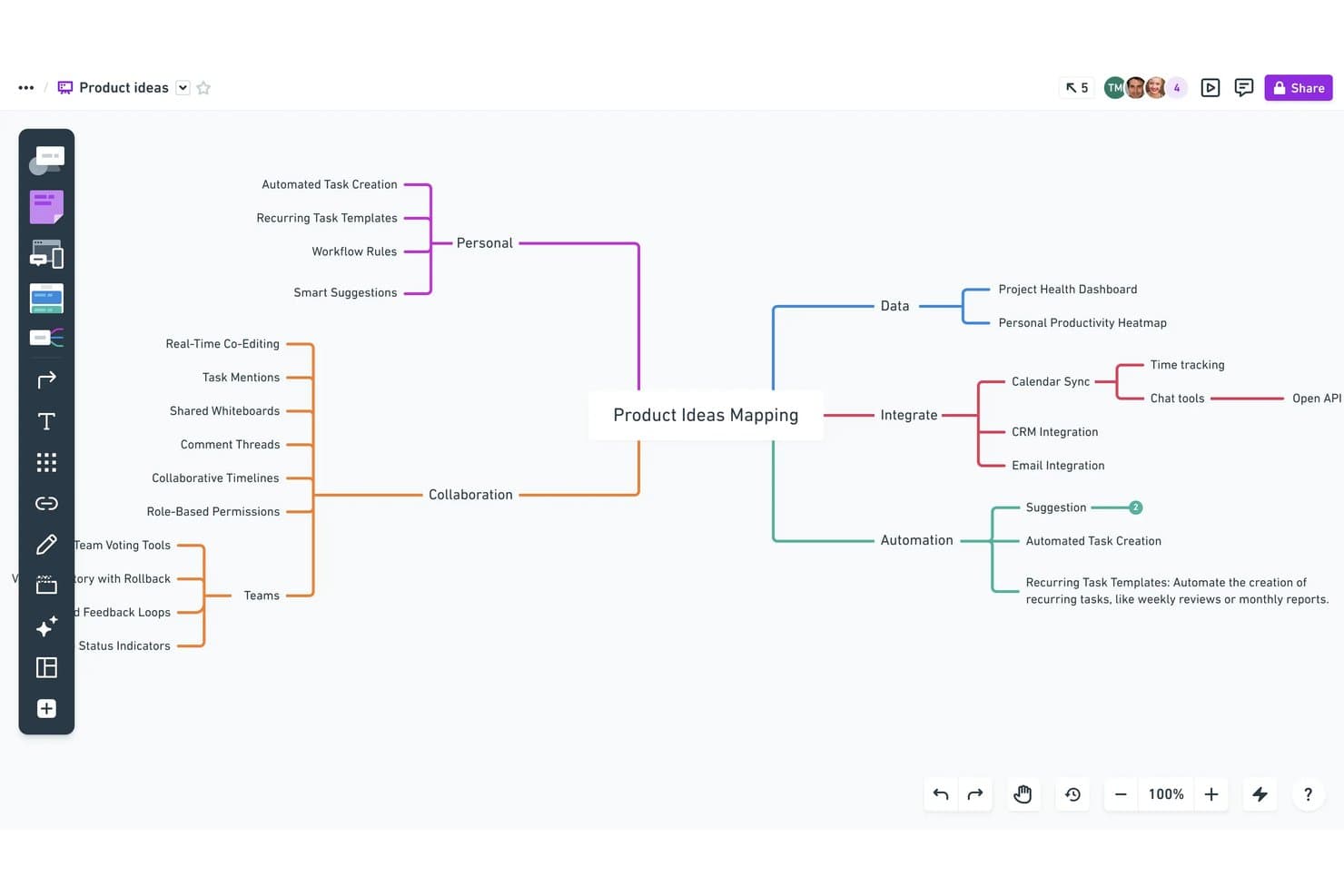
Whimsical lets users map product ideas visually with mind maps. Whimsical is a visual brainstorming and whiteboard tool with an infinite canvas for sticky notes, mind maps, flowcharts, wireframes, diagrams, collaborative documents, and AI-assisted idea organization.
Who Is Whimsical Best For?
Product managers and UX teams that need visual brainstorming with built-in timers, voting, diagrams, and wireframes.
Why I Picked Whimsical
I picked Whimsical for its “Best for brainstorming with built-in timers and voting” setup. I use the four-stage Brainstorming Workshop template to move from problem statements to solo ideas, grouping, and voting. During live sessions, the timer sets focused rounds while editor voting ranks sticky notes for the next product discovery step.
Whimsical Key Features
- Wireframe components: Build product screens with drag-and-drop interface elements.
- Project management integrations: Connect Whimsical with Jira, Linear, GitHub, and Slack.
- AI agent: Generate mind maps, flowcharts, wireframes, and docs from prompts.
- Board imports: Import work from Miro, FigJam, Mural, Visio, and Lucidspark.
Whimsical Integrations
Whimsical integrates with Jira, Linear, GitHub, Slack, Notion, and Google Docs, with embeds for Asana, ClickUp, Monday, and Trello. A beta API supports custom integrations.
What's Free?
Whimsical offers a free-forever plan with unlimited boards, workspace members, teams, guests, and viewers. It limits you to 50 board objects and 50 document blocks per month, adds watermarks to exports, provides seven-day version history, and includes 10 one-time AI credits.
Pros and Cons
Pros:
- Infinite canvas combines notes and diagrams
- Voting helps teams prioritize ideas quickly
- Built-in timers structure focused brainstorming rounds
Cons:
- Watermarked exports reduce presentation readiness
- Free plan limits monthly board objects
Learn more about Whimsical: Best for free facilitation in remote workshops
- Free demo + free plan available
- From $9.99/user/month (billed annually)
Visit WebsiteCustomer Rating:4.6/5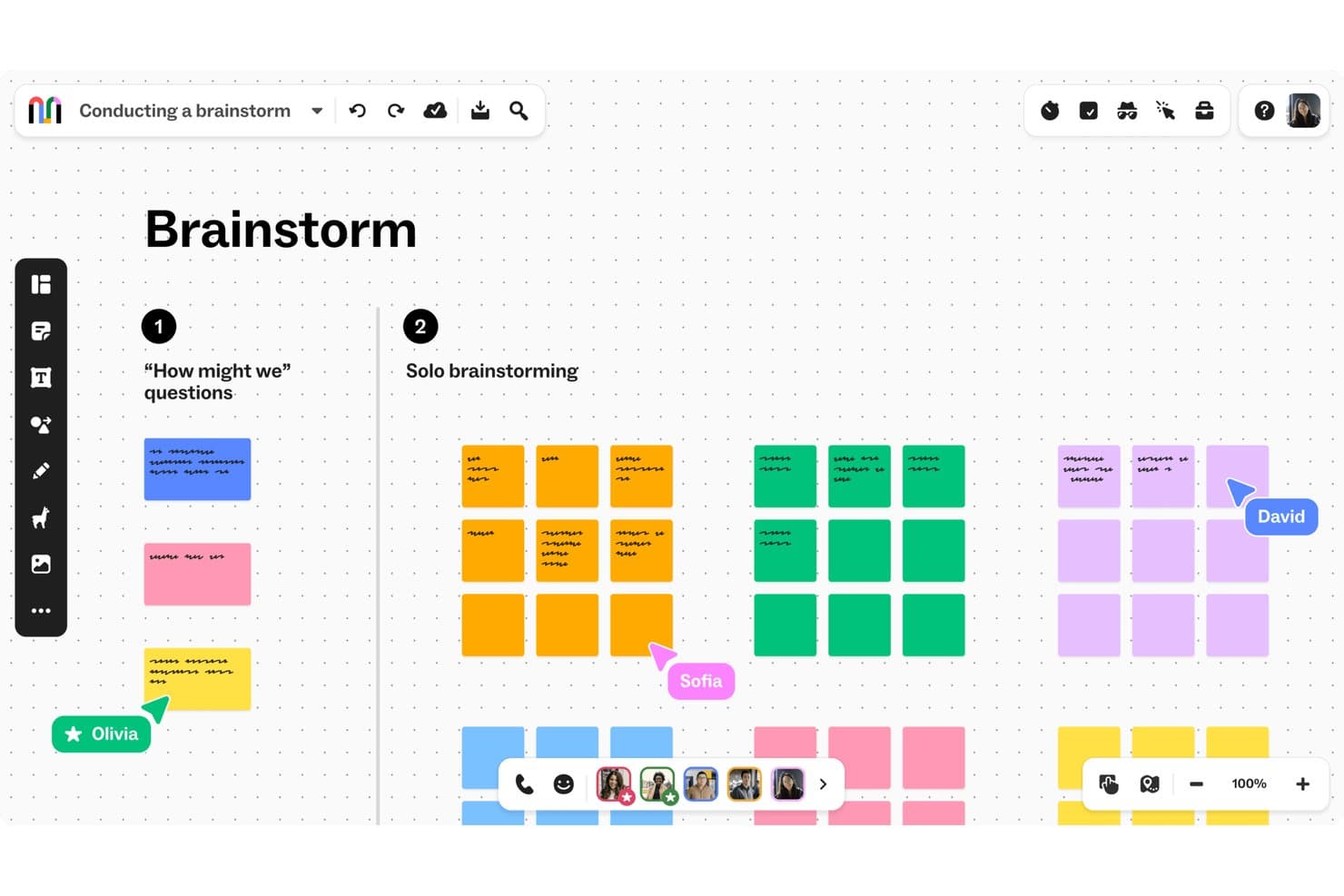
Mural lets teams brainstorm collaboratively using color-coded sticky notes. Mural is a visual brainstorming platform with an infinite canvas, sticky notes, mind maps, templates, real-time collaboration, workshop facilitation tools, and integrations with Jira, Asana, Linear, Figma, and Microsoft Teams.
Who Is Mural Best For?
Product managers and educators running structured remote workshops will value Mural’s free facilitation tools, templates, and unlimited members.
Why I Picked Mural
I picked Mural because it’s best for free facilitation in remote workshops. I use its timer, anonymous voting, and private mode to guide brainstorming without groupthink or lost momentum. Its outline and summon tools keep participants aligned during structured exercises, while sticky-note clustering turns raw ideas into themes for product discovery.
Mural Key Features
- Infinite canvas: Create visual boards with flexible, resizable workspaces.
- Mind maps: Build connected idea structures from a central concept.
- Project integrations: Connect Mural with Jira, Asana, Linear, and Figma.
- Content exports: Download murals as PDFs, PNGs, PowerPoint files, HTML, or CSV.
Mural Integrations
Mural offers native integrations with Jira, Asana, Linear, Figma, Microsoft Teams, Zoom, Google Workspace, Slack, and Confluence. It also supports Zapier and provides a public API for custom integrations.
What's Free?
Mural offers a free-forever plan with unlimited members, visitors, murals, and core collaboration features. You can edit only the three most recently created murals, while visitors have view-only access and private rooms aren’t available.
Pros and Cons
Pros:
- Unlimited members support large workshops
- Sticky-note clustering turns ideas into themes
- Free facilitation tools reduce workshop friction
Cons:
- Free murals lack private rooms
- Only three murals remain editable
Learn more about Mural: Best for education-focused group brainstorming
- Free plan available
- From $11.61/month
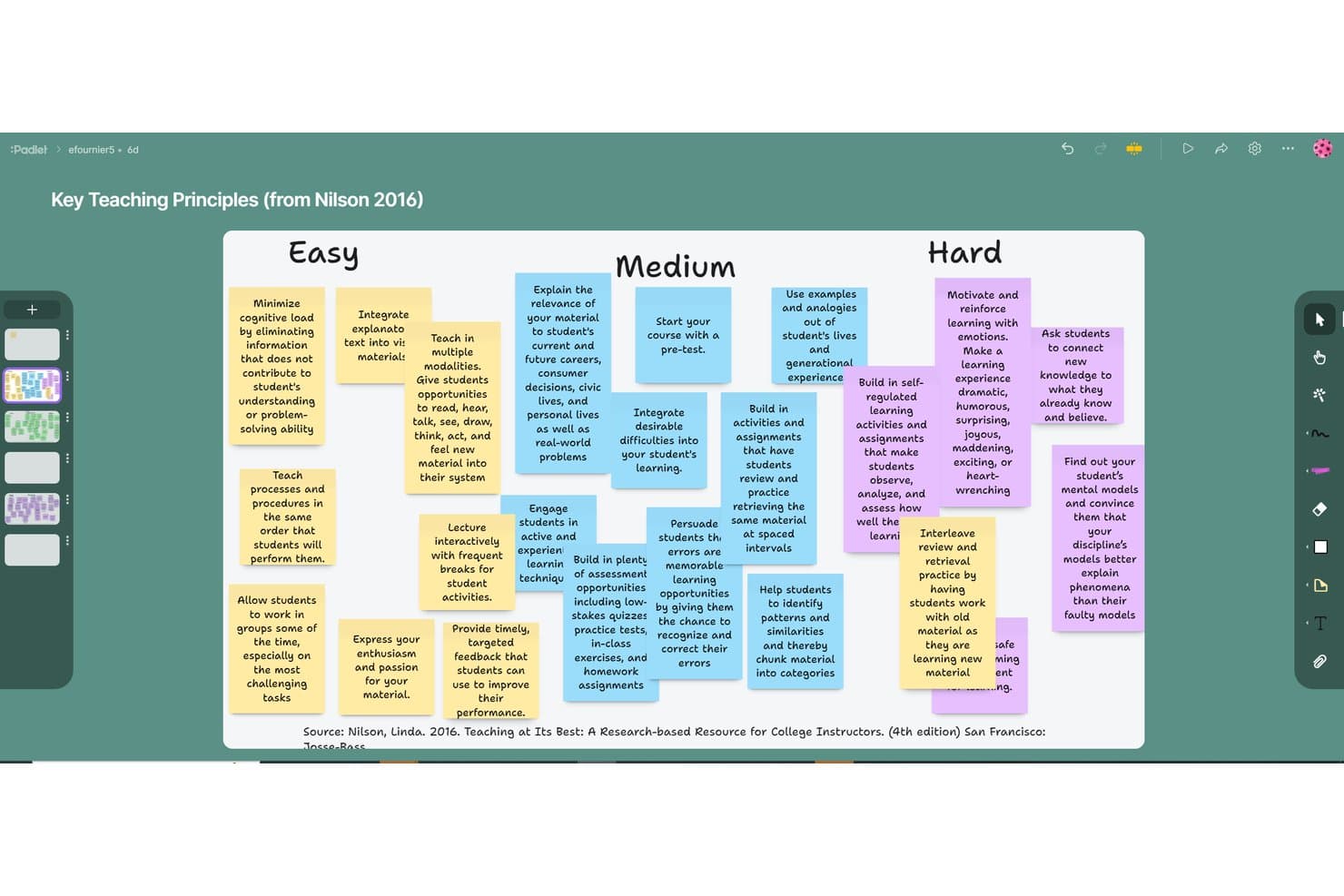
Padlet organizes brainstorming ideas into Easy, Medium, and Hard columns. Padlet is a visual brainstorming and collaboration tool with post-based boards and card-based Sandboxes for capturing text, media, drawings, polls, connectors, reactions, moderation, and presentation-style sessions.
Who Is Padlet Best For?
Padlet suits educators and students who need visual, collaborative brainstorming with anonymous input, media-rich posts, and classroom-friendly facilitation.
Why I Picked Padlet
I picked Padlet as one of the best free brainstorming tools because it’s best for education-focused group brainstorming. I use its boards and Sandboxes for anonymous idea sharing, visual grouping, and media-rich contributions. Breakout rooms, moderation, reactions, and slideshow mode help me facilitate structured classroom sessions.
Padlet Key Features
- Multiple board formats: Switch between Wall, Columns, Grid, Timeline, Table, Freeform, and Map layouts.
- Board exports: Download boards as PNG, PDF, CSV, Excel files, or ZIP archives.
- AI Recipes: Generate discussion boards, lesson plans, rubrics, and custom brainstorming boards from prompts.
- Mobile apps: Access boards and Sandboxes through iOS, Android, Mac, PC, and Chromebook apps.
Padlet Integrations
Padlet offers native integrations with Google Classroom, Google Drive, Canvas, Moodle, Blackboard, Schoology, Microsoft Teams, and Brightspace on education plans. It also supports API access on Platinum and Zapier.
What's Free?
Padlet offers a free-forever plan with no credit card required. It includes up to three active padlets, one user account, 20MB uploads, two-minute video recordings, and five-minute audio recordings, but excludes API access, LMS integrations, analytics, and user management.
Pros and Cons
Pros:
- Offers moderation, reactions, and breakout rooms
- Captures text, media, drawings, and polls
- Supports anonymous, real-time group brainstorming
Cons:
- Few workflows target product teams specifically
- Free Sandbox limits sessions to 20 cards
Learn more about Padlet:
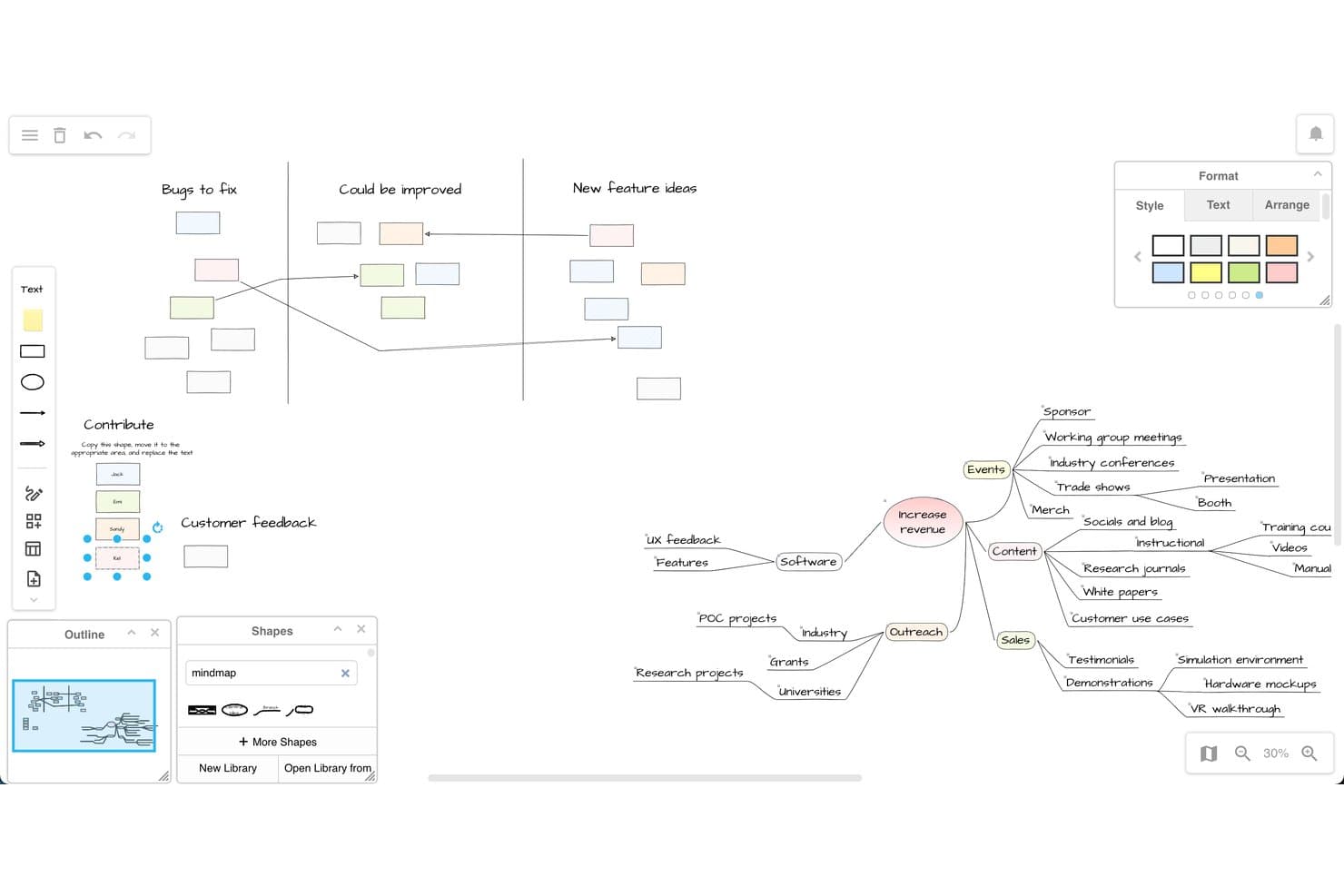
draw.io supports brainstorming with mind maps and whiteboard layouts. draw.io is a free diagramming and brainstorming tool with an infinite canvas, Sketch whiteboard theme, sticky notes, templates, connectors, and real-time co-editing.
Who Is draw.io Best For?
Educators, students, and product teams that need free, structured brainstorming with cloud-synced diagrams and flexible export options.
Why I Picked draw.io
I picked draw.io because it is Best for diagramming with cloud storage sync. I use its Sketch theme, infinite canvas, sticky notes, layers, and connectors to turn rough ideas into structured maps. Real-time cursors through Google Drive, OneDrive, Confluence, or Nextcloud support shared product discovery sessions.
draw.io Key Features
- Diagram templates: Use roadmap, Kanban, Gantt, story map, and business model canvas templates.
- Freehand drawing: Add sketches, images, screenshots, clip art, and links to the workspace.
- AI diagram generation: Create diagrams from text prompts or attached files.
- Multi-format export: Export editable diagrams as PNG, SVG, PDF, HTML, JSON, or XML.
draw.io Integrations
draw.io integrates with Google Drive, Microsoft OneDrive, SharePoint, Nextcloud, GitHub, GitLab, and Notion. Confluence and Jira connectivity is available through Marketplace apps, while Dropbox supports storage but not real-time editing.
What's Free?
draw.io is free forever, with no account or credit card required for the web app. You can create, edit, and share diagrams without user limits, but storage and collaboration depend on the connected service, such as Google Drive, OneDrive, SharePoint, or Confluence.
Pros and Cons
Pros:
- Templates bridge ideation and planning
- Editable exports preserve brainstorm context
- Unlimited canvas supports structured idea mapping
Cons:
- No built-in voting or timers
- Diagram-first interface can overwhelm brainstormers
Learn more about draw.io: Best for EU-hosted visual collaboration
- 30-day free trial + free plan available
- From €5/user/month
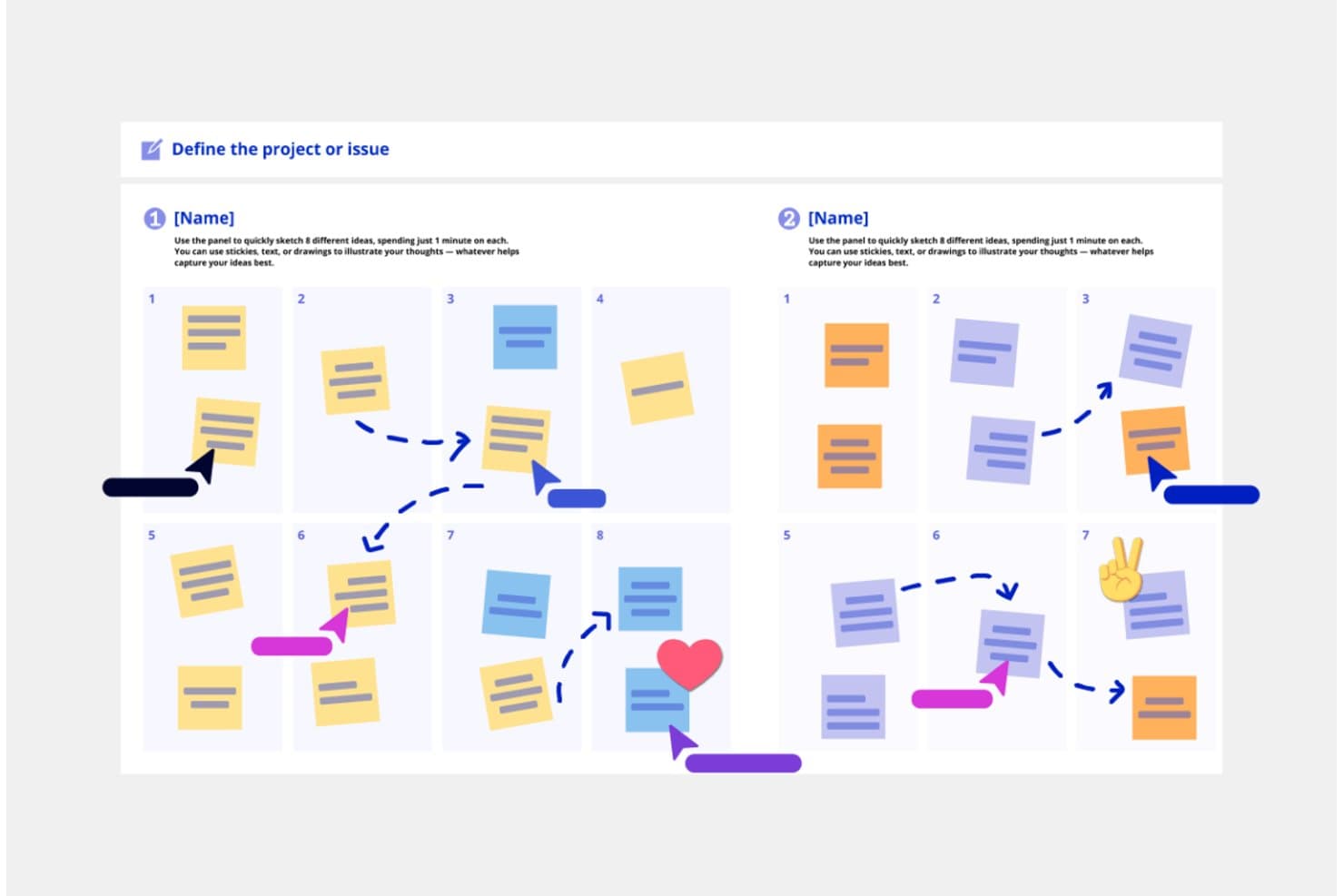
Conceptboard's Crazy Eights template lets teams brainstorm ideas collaboratively. Conceptboard is a browser-based brainstorming whiteboard with an infinite canvas, sticky notes, multimedia, templates, real-time collaboration, visual organization, and task conversion for product planning.
Who Is Conceptboard Best For?
Conceptboard suits product and UX teams seeking EU-hosted visual collaboration for privacy-conscious brainstorming and early task planning.
Why I Picked Conceptboard
I picked Conceptboard because its German hosting and GDPR-focused security suit privacy-conscious brainstorming. I use its infinite canvas, Smart Sections, and customer journey templates to organize research without losing context. Sticky notes can become tasks, helping me move validated ideas toward Kanban or Gantt planning while keeping collaboration EU-hosted.
Conceptboard Key Features
- Real-time co-editing: See participant cursors and presence while teams work together.
- Voting widget: Run dot or approve/reject votes with configurable vote limits.
- Multimedia embeds: Add videos, audio, web pages, iFrames, PDFs, and GIFs.
- Link-based guest access: Invite unlimited readers or reviewers without requiring accounts.
Conceptboard Integrations
Conceptboard offers nine documented integrations, including Jira, Azure DevOps, Microsoft Teams, Webex, Confluence, Google Drive, Dropbox, Box, and OneDrive. Jira and Azure DevOps support two-way task syncing on paid plans.
What's Free?
Conceptboard has a free-forever plan, plus a 30-day trial of its paid team features.
It allows unlimited link guests as readers or reviewers, with three active boards, 100 objects per board, 10 MB uploads, and limited integrations.Pros and Cons
Pros:
- Smart Sections preserve context on infinite canvases
- Unlimited link guests support review sessions
- German hosting supports privacy-conscious teams
Cons:
- No native mobile app for field workshops
- Free tier restricts boards and objects
Learn more about Conceptboard: Best for design-native team brainstorming
- Free plan available and 30-day free trial
- From $12/user/month (billed annually)
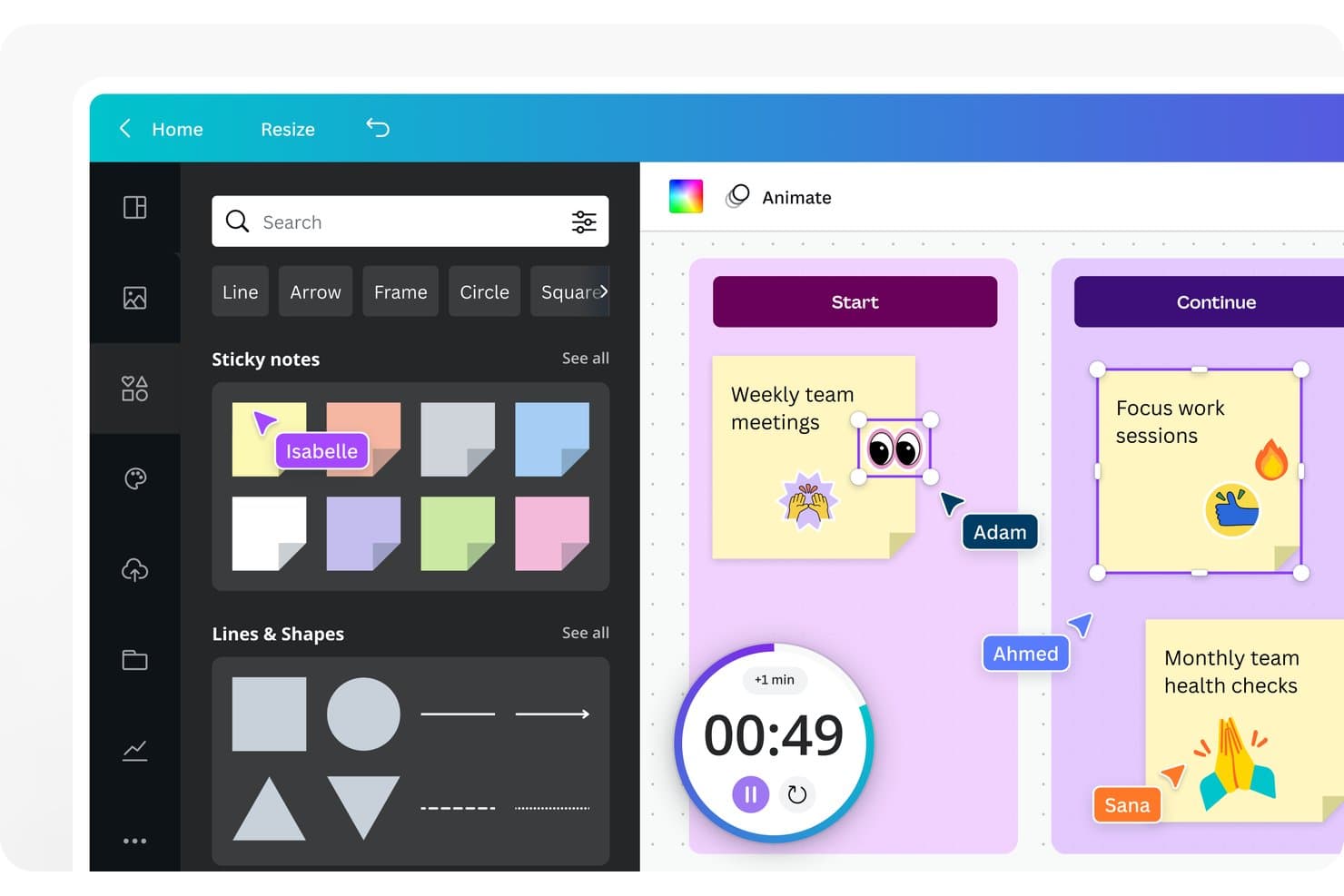
Canva Whiteboard lets users brainstorm with sticky notes and real-time collaboration. Canva Whiteboard is a visual brainstorming tool within Canva’s Visual Suite, combining an infinite canvas, sticky notes, templates, diagrams, real-time collaboration, and AI-assisted idea sorting and summaries.
Who Is Canva Whiteboard Best For?
Canva Whiteboard suits product managers and UX teams that want design-native team brainstorming with templates, visual assets, and real-time collaboration.
Why I Picked Canva Whiteboard
I picked Canva Whiteboard because it’s best for design-native team brainstorming, especially when ideas need visual context. I use its infinite canvas, journey map templates, and empathy maps to frame discovery discussions. AI sorting and summaries then turn scattered sticky notes into themes my team can carry into product planning.
Canva Whiteboard Key Features
- Sticky notes: Add colored notes, author names, and reactions to capture input.
- Session timer: Run timed activities with music and sound cues on desktop.
- Diagram connectors: Link shapes with lines and arrows that adjust automatically.
- Export options: Download boards as PDF, JPG, PNG, or SVG files.
Canva Whiteboard Integrations
Canva has native integrations with Slack, Microsoft Teams, Jira, Confluence, Asana, Monday.com, and SharePoint. Marketplace apps and custom integrations are available through Canva’s Apps SDK and Connect APIs on Business and Enterprise.
What's Free?
Canva Whiteboard is free forever, with unlimited boards and real-time collaboration. The free Canva plan limits access to premium templates, assets, and some AI features, while advanced team and admin capabilities require a paid plan.
Pros and Cons
Pros:
- Free collaboration includes useful facilitation basics
- Design assets enrich product discovery workshops
- Infinite canvases support expansive visual ideation
Cons:
- Mobile editing omits timer and advanced tools
- Large boards can trigger performance slowdowns
Learn more about Canva Whiteboard: Best for mapping ideas into project tasks
- 15-day free trial + free plan available
- Pricing upon request
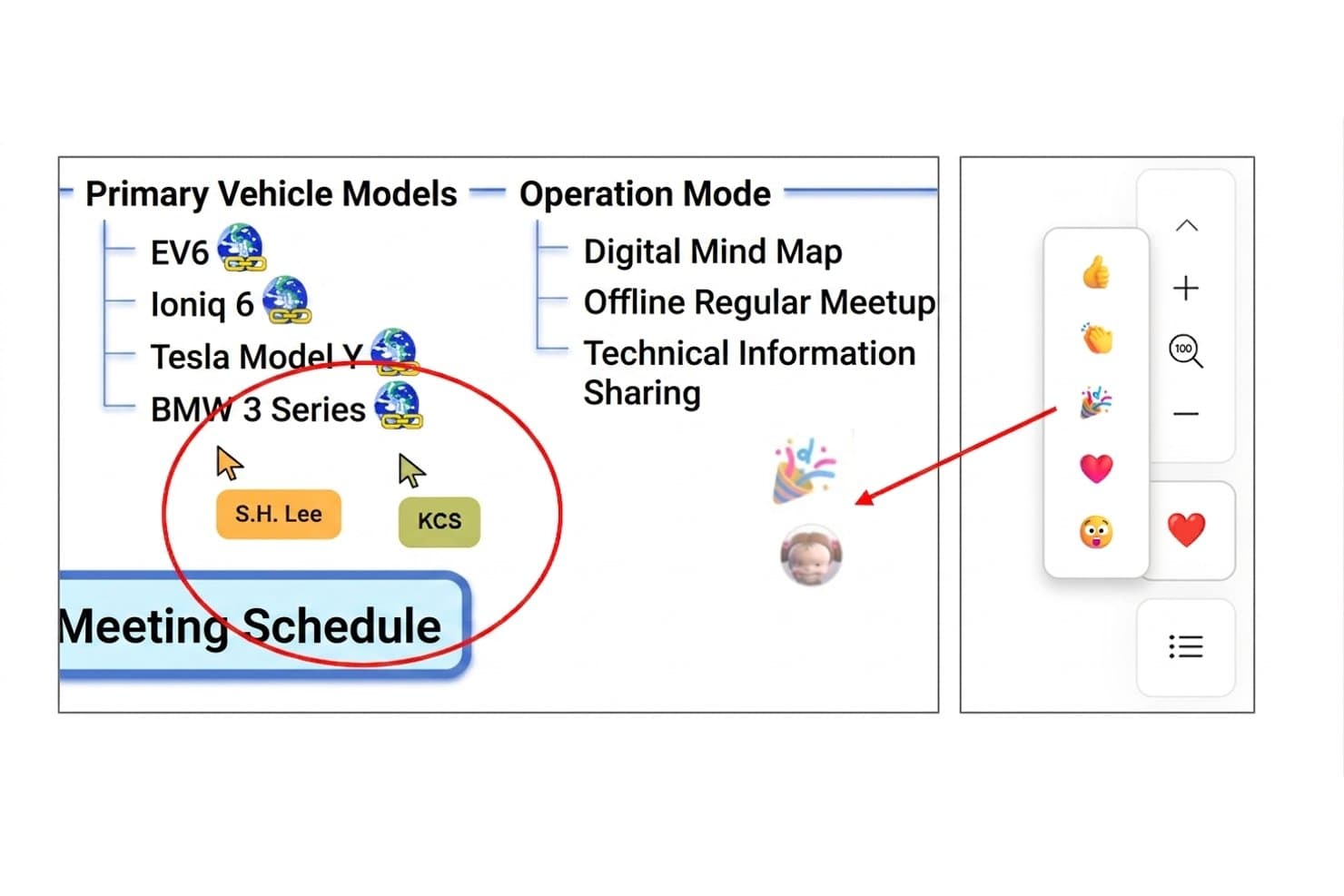
MindMapper lets users collaborate in real time on shared mind maps. MindMapper is a free brainstorming and mind-mapping tool with linked Mind Map, Outline, Kanban, and Gantt views, plus AI ideation, real-time collaboration, multilingual translation, and Microsoft Office exports.
Who Is MindMapper Best For?
Product managers who need to turn early ideas into structured roadmaps, tasks, and Gantt plans.
Why I Picked MindMapper
I picked MindMapper because it turns brainstorming into project tasks without leaving the same map. I use its Mind Map, Outline, Kanban, and Gantt views to move from product ideas to assigned work and delivery dates. AI Assist can generate ideas, categorize branches, and identify gaps, while real-time translation supports multilingual collaboration.
MindMapper Key Features
- Rich media notes: Add hyperlinks, YouTube embeds, audio notes, and rich text.
- Mapping directions: Choose from 30 desktop layouts, including fishbone and timeline.
- Brainstorming templates: Start with SWOT, root-cause analysis, or attribute-listing templates.
- Microsoft Office exports: Export maps to Word, PowerPoint, Excel, OneNote, and Project.
MindMapper Integrations
MindMapper integrates with Google Calendar and Google Drive and supports Microsoft Office connectivity across Word, PowerPoint, Excel, OneNote, Project, and Outlook Tasks. It doesn’t document native integrations with Jira, Asana, Slack, or Zapier.
What's Free?
MindMapper offers a free plan and a 15-day free trial. The free offering includes brainstorming and mind-mapping features, while advanced capabilities and integrations may depend on your plan.
Pros and Cons
Pros:
- Offers rich media for idea capture
- Supports multilingual real-time collaboration
- Links brainstorming directly to project tasks
Cons:
- Lacks timers and anonymous brainstorming input
- Free tier limits ongoing map creation
Learn more about MindMapper: 10Best for infinite canvas collaboration
Miro
- Free plan + 14-day free trial available
- From $8/user/month (billed annually)
Visit WebsiteCustomer Rating:4.8/5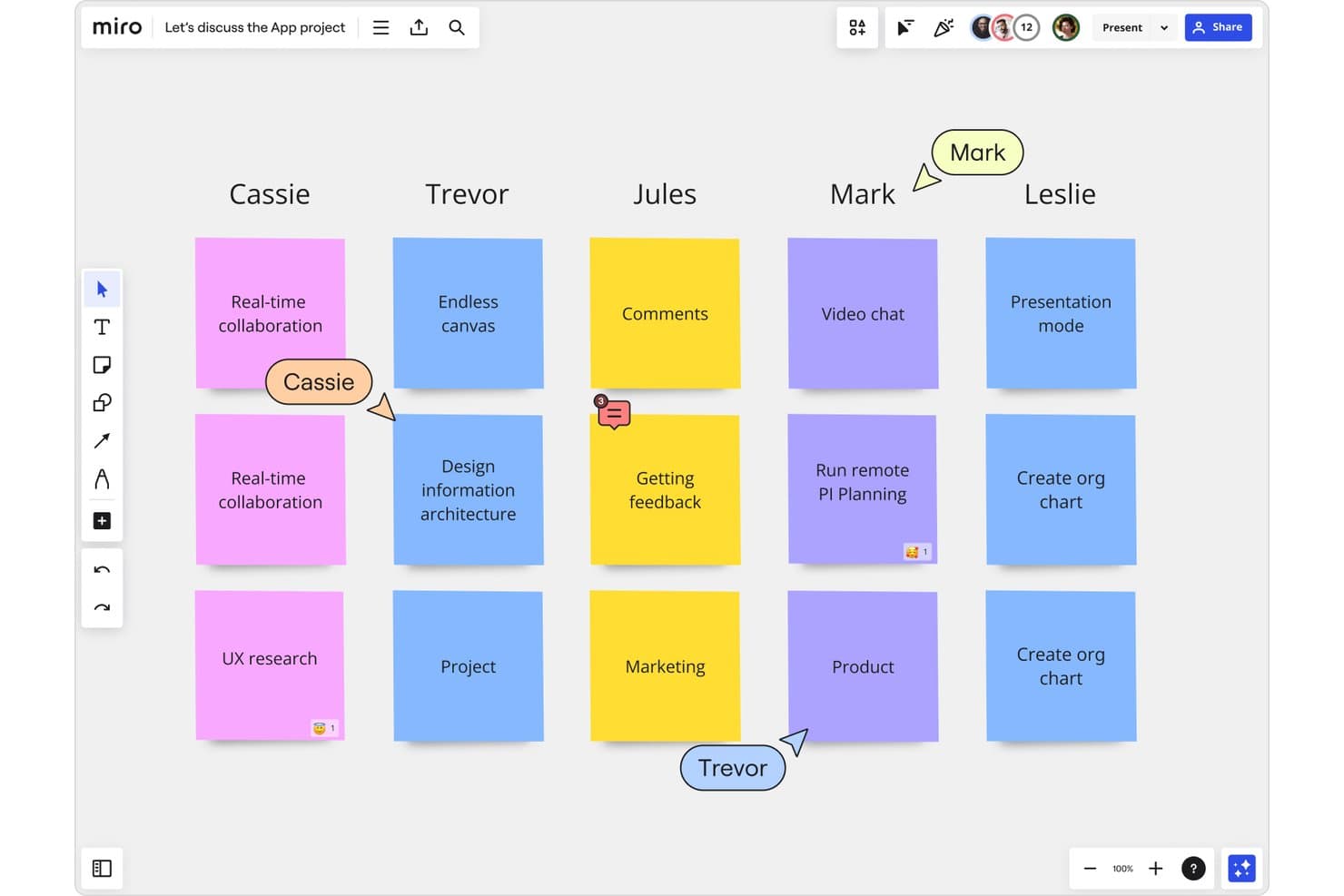
Miro lets users brainstorm collaboratively with sticky notes in real time. Miro is a visual brainstorming platform with an infinite canvas, sticky notes, diagrams, templates, AI clustering, real-time collaboration, and integrations for organizing ideas, research, and product concepts.
Who Is Miro Best For?
Product managers and UX teams that need to explore customer problems, map product concepts, and align distributed stakeholders on one shared canvas.
Why I Picked Miro
I picked Miro because its infinite canvas collaboration supports real-time brainstorming without forcing ideas into a rigid format. My team can combine sticky notes, diagrams, images, and Docs, then use AI to cluster themes and summarize patterns. Live cursors, comments, and Talktrack also help remote teams turn exploratory workshops into shared product insights.
Miro Key Features
- Kanban and Timelines: Organize ideas into lightweight workflows and product planning views.
- Pen and handwriting support: Draw with Apple Pencil or Surface Pen and convert handwritten notes into editable content.
- 250+ integrations: Connect boards with tools including Google Workspace, Slack, Zoom, Jira, and Confluence.
- Miro Lite: Create no-sign-up whiteboards that support link sharing and PDF or JPG exports.
Miro Integrations
Miro offers 250+ integrations, including Google Workspace, Slack, Zoom, Jira, and Confluence, plus Microsoft 365 and Atlassian connections. Its developer platform provides APIs and SDKs for custom integrations.
What's Free?
Miro’s Free plan is free forever and supports unlimited team members and boards. However, only the three most recent boards remain editable, while older boards become view-only, and guest or visitor access isn’t available.
Pros and Cons
Pros:
- AI clusters and summarizes sticky notes
- Real-time cursors clarify collaborative brainstorming
- Infinite canvas supports flexible idea mapping
Cons:
- Facilitation tools require a paid plan
- Free boards become view-only after three
Other Free Brainstorming Tools
Here are some additional free brainstorming tool options that didn’t make it onto my shortlist, but are still worth checking out:
- 11KlaxoonBest for large-group live brainstorming sessions
- 12LucidsparkBest for integrating with Lucidchart diagrams
- 13StormboardBest for agile team brainstorming with PM tool sync
- 14WejeBest for organizing ideas with sticky notes
- 15MindomoBest for switching between mind maps and outlines
- 16MilanoteBest for visual brainstorming with mixed media
- 17EdrawMindBest for exporting mind maps to multiple formats
- 18Microsoft WhiteboardBest for brainstorming inside Microsoft Teams
- 19ExcalidrawBest for no-login real-time canvas collaboration
Free Brainstorming Tools Selection Criteria
When selecting the best free brainstorming tools to include in this list, I considered common buyer needs and pain points like collaborating on ideas with remote teams and organizing complex brainstorming sessions visually. I also used the following framework to keep my evaluation structured and fair:
Core Functionality (25% of total score)
To be considered for inclusion in this list, each solution had to fulfill these common use cases:
- Capture and organize ideas visually
- Collaborate with team members in real time
- Export or share brainstorm outputs
- Create unlimited brainstorming sessions
- Use templates for structured brainstorming
Additional Standout Features (25% of total score)
To help further narrow down the competition, I also looked for unique features, such as:
- AI-powered idea generation or clustering
- Integration with project management tools
- Embedded voting or prioritization mechanisms
- Mind map to outline switching
- Real-time feedback or chat features
Usability (10% of total score)
To get a sense of the usability of each system, I considered the following:
- Simple and intuitive drag and drop functions
- Organized workspace that reduces clutter
- Responsive interface on desktop and mobile
- Customizable workspace layout or views
- Fast performance with large brainstorms
Onboarding (10% of total score)
To evaluate the onboarding experience for each platform, I considered the following:
- Access to step-by-step onboarding guides
- Prebuilt brainstorming templates and examples
- Interactive product tours at sign-up
- Availability of tutorial videos or webinars
- Helpful in-app tooltips or chatbots
Customer Support (10% of total score)
To assess each software provider’s customer support services, I considered the following:
- Fast response times to support tickets
- Live chat or real-time help options
- Detailed online help center resources
- Access to community forums or user groups
- Availability of multilingual support
Value for Money (10% of total score)
To evaluate the value for money of each platform, I considered the following:
- Clear features available in free versus paid plans
- No compulsory ads or paywalls for free use
- Flexibility to upgrade as needs grow
- Transparent pricing structure for additional features
- Trial period for premium features included
Customer Reviews (10% of total score)
To get a sense of overall customer satisfaction, I considered the following when reading customer reviews:
- Positive feedback on collaboration features
- Reliability and uptime during group brainstorms
- Comparison of free and paid value
- Ease of learning for new users
- Responsiveness to product feedback and requests
How to Choose Free Brainstorming Tools
It’s easy to get bogged down in long feature lists and complex pricing structures. To help you stay focused as you work through your unique software selection process, here’s a checklist of factors to keep in mind:
| Factor | What to Consider |
|---|---|
| FactorScalability | What to ConsiderWill the tool grow with your team’s size and project volume? Check for limits on boards, users, or maps. |
| FactorIntegrations | What to ConsiderDoes the tool connect natively to your preferred platforms (Slack, Google Drive, project management apps)? Consider integration range and ease of setup. |
| FactorCustomizability | What to ConsiderCan you adapt layouts, workflows, or templates to match your brainstorming style or internal processes? |
| FactorEase of use | What to ConsiderHow quickly can new users start working? Test for interface clarity, learning resources, and user feedback about onboarding friction. |
| FactorImplementation and onboarding | What to ConsiderHow much time and technical skill is required to roll out the tool? Are onboarding guides, tutorials, or migration tools available for teams? |
| FactorCost | What to ConsiderWhat’s actually included in the free plan? Watch for hidden restrictions on exports, collaborators, or cloud saves that may prompt future upgrades. |
| FactorSecurity safeguards | What to ConsiderAre your data and ideas protected by encryption, access controls, or compliance measures appropriate for your industry and organization? |
| FactorSupport availability | What to ConsiderIs timely help available if you run into technical issues? Assess support channels (chat, email, documentation) before committing your team. |
What Are Free Brainstorming Tools?
Free brainstorming tools are digital platforms that let individuals or teams generate, organize, and visualize ideas without cost. These tools often include features for real-time collaboration, mind mapping, note-taking, and exporting ideas.
They support group creativity, remote ideation, and strategic planning, all with minimal barriers to entry. Most free versions come with usage or feature limitations compared to paid plans.
Features
Let’s go over the features commonly found in brainstorming tools, and which ones are usually included in free vs. paid plans.
Typically Free Brainstorming Tools Features
- Unlimited idea capturing: Allows you to quickly jot down and collect an unlimited number of ideas or notes on a virtual whiteboard or workspace.
- Basic collaboration: Enables multiple users to view and contribute to the same brainstorming session in real time, supporting collective ideation.
- Drag-and-drop organization: Lets users rearrange ideas or group them visually with simple drag-and-drop motions, making sessions interactive and intuitive.
- Mind mapping: Provides simple tools to create mind maps that help visually organize relationships between concepts and ideas.
- Template library: Offers access to prebuilt templates, such as SWOT analysis or flowcharts, to kick off and structure brainstorming sessions.
- Commenting or sticky notes: Allows participants to leave comments or add digital sticky notes with feedback or suggestions during a session.
- Export to image or PDF: Lets you save and share brainstorming boards as image or PDF files, preserving work for future reference.
- Basic search: Enables users to quickly locate ideas or keywords across brainstorming sessions or boards.
- Color coding: Permits assignment of colors to ideas, notes, or categories for enhanced organization and visual clarity.
Typically Paid Brainstorming Tools Features
- Advanced export formats: Supports exporting brainstorms to formats like Word, Excel, PowerPoint, or integration with other software for deeper workflows.
- Integration with third-party tools: Enables connections to project management, file storage, or communication platforms, supporting easy data transfer.
- User roles and permissions: Allows for assigning different levels of access and editing rights, making it easier to manage larger or sensitive brainstorming sessions.
- Presentation mode: Provides a feature for turning your brainstorm into a presentation for stakeholders or team debriefs directly from the tool.
- Task assignment and tracking: Lets users create action items or assign tasks to participants from ideas generated during the session.
- Idea voting or prioritization: Implements tools for voting, ranking, or scoring ideas to quickly narrow down the best solutions.
- AI-powered suggestions: Offers artificial intelligence features that suggest related ideas, group similar concepts, or auto-generate branches.
- Custom branding: Allows organizations to add their own logos and themes for a more polished, branded workspace.
- Unlimited boards or sessions: Removes the cap on the number of brainstorming spaces users can create or save simultaneously.
- Analytics and reporting: Provides data or insights on participation, popular themes, or brainstorming effectiveness, helping teams analyze and optimize sessions.
Benefits
Implementing free brainstorming tools provides several benefits for your team and your business. Here are a few you can look forward to:
- Zero-cost experimentation: Try new digital brainstorming techniques and platforms without commitment or up-front investment.
- Real-time team collaboration: Enhance creativity by enabling teams to contribute ideas simultaneously from anywhere using shared boards and live sessions.
- Accessible idea organization: Use mind maps, color coding, and drag-and-drop features to simplify idea grouping and make complex projects easier to structure.
- Templates for quick starts: Jump into sessions quickly with ready-made templates for SWOT analysis, flowcharts, and other common ideation frameworks.
- Visual clarity and engagement: Make brainstorming sessions more engaging and easier to follow with visual tools and multiple layout options.
- Export and share outputs: Save brainstorming boards as images or PDFs for easy sharing, preserving team insights and decisions for future projects.
- Lower barrier to innovation: Remove technical and budget obstacles so your business can encourage more frequent, open-ended ideation and problem-solving.
Costs and Pricing
I realize you came to this article looking for the best brainstorming tools options that are available for free. However, since free plans only offer limited features, there's a good chance you'll need to scale your plan up in the future.
The table below summarizes common plans, their average prices, and typical features included in brainstorming tools:
Plan Comparison Table for Brainstorming Tools
| Plan Type | Average Price | Common Features |
|---|---|---|
| Plan TypeFree Plan | Average Price$0 | Common FeaturesBasic mind mapping, limited boards or maps, real-time collaboration, access to basic templates, and basic exports. |
| Plan TypePersonal Plan | Average Price$5-$10/user/month | Common FeaturesUnlimited boards, enhanced export options, custom templates, personal note organization, and priority support. |
| Plan TypeBusiness Plan | Average Price$10-$25/user/month | Common FeaturesTeam management, advanced integrations, user roles and permissions, task assignment, and unlimited sharing. |
| Plan TypeEnterprise Plan | Average Price$20-$40/user/month | Common FeaturesCustom branding, SSO and security controls, dedicated account management, API access, and compliance certifications. |
Free Brainstorming Tools FAQs
Here are some answers to common questions about free brainstorming tools:
Are free brainstorming tools secure for business use?
Yes, many free brainstorming tools offer basic security features like encrypted connections and access controls. However, you should review each provider’s privacy policy, data storage locations, and access settings to ensure they align with your organization’s security standards, especially when trying to protect your best ideas.
Can I collaborate with people outside my organization using free brainstorming tools?
Yes, most free brainstorming tools let you invite external collaborators by sharing a link or granting guest access. While these collaboration tools make it easy to share ideas across borders, some platforms may place limits on the number of collaborators or restrict advanced sharing features to paid plans.
What are the typical limitations of free brainstorming tool plans?
Free plans usually limit the number of boards, mind maps, or collaborators you can have at one time. They may also restrict export formats, integrations, and access to advanced features like voting, analytics, or custom branding.
For example, a free mind map maker might let you map out a basic ideation process or run a quick session of reverse brainstorming, but it might block you from the advanced formatting found in premium mind mapping software. Additionally, features like the ability to embed boards into internal wikis or share them directly to social media are often locked behind a paywall.
Can I migrate my content if I upgrade to a paid plan?
Yes, in most cases, your content remains accessible and transferable if you upgrade to a paid plan. Your existing concepts and projects should stay intact as you transition your virtual brainstorming hub, and you’ll unlock additional features without losing prior work.
Do free brainstorming tools work on mobile devices?
Yes, most free brainstorming tools offer web-based access, and many provide dedicated mobile apps for iOS and Android. You may find some advanced features to generate ideas are only available on desktop, but the core functions usually work on mobile, allowing your team to maintain consistent teamwork during a group brainstorming session on the go.
How I Evaluate Free Brainstorming Tools
First, I define what counts as free. For brainstorming tools, that means a free-forever plan or a 7–14-day trial with full canvas and collaboration access, with limits noted. From there, I split my evaluation into three parts: core functionality, weighted highest, like creating canvases and collaborating live; standout features, like built-in timers; and beyond features, like free-plan scalability.
Core Functionality (Table Stakes For This List)
In addition to my free plan requirements, I use a scoring system to select tools for my list. I score each one on a scale from 0 (does not offer the functionality) to 5 (excels in this area) for each core functionality listed below, based on what's available on the free plan. I then convert the total into a percentage to help assess each tool's overall fit, with extra weight on any functionalities I've deemed essential.
- Visual Canvas Creation (Essential): I look for flexible canvases where teams can place notes, images, shapes, and links during discovery sessions.
- Real-Time Collaboration (Essential): Live co-editing, visible presence, and reliable syncing matter when distributed teams shape ideas together.
- Idea Capture Elements: I check whether users can express concepts with sticky notes, text, diagrams, images, and links.
- Organization And Grouping: I assess clustering, colors, tags, and connectors for sorting research themes or mapping feature relationships.
- Session Facilitation Tools: Timers, voting, comments, and presentation modes support structured workshops and prioritization exercises.
- Export And Sharing: I look for shareable links, access controls, exports, and connections to tools used for documenting or tracking follow-up work.
Once I have a list of tools that meet the criteria, I consider what sets each platform apart.
Differentiating Factors (What Sets Vendors Apart)
Here's how I compare and contrast different vendors:
Standout Features
Built-in timers are a feature I check first. When you're running a retro or design sprint, a native countdown keeps the group focused without toggling to a separate app. Anonymous input mode is equally important—I look for whether participants can post sticky notes or cast votes without names attached, since that's what draws out honest feedback during sensitive sessions like post-mortems. I also evaluate cross-board linking, which lets you connect a feature brainstorm canvas to a broader journey map or roadmap board for traceability.
Beyond Features
I check how many editors and guests each free tier actually allows, since a capped seat count can block a full cross-functional workshop before it starts. Template libraries matter too—tools like Miro and FigJam ship community templates for retros, affinity maps, and journey maps that save facilitators real setup time. I also evaluate board privacy defaults, because teams clustering raw customer feedback need confidence that canvases aren't publicly visible or used as training data.