

With so many different brainstorming tools available, figuring out which is right for you is tough. You know you want a tool to help you generate ideas and add more organization to your creative process, but you need to figure out which tool is best. In this post, I'll help you make your choice easy by sharing my insights on the best brainstorming tools to foster innovation and get your creative juices flowing.
Why Trust Our Software Recommendations
6,700+
Reviews
20
Industry experts
16+
Evaluation factors
14
Years
Our team has been testing and reviewing software since 2012. As product managers ourselves, we know how difficult—and important—it is to choose the right software.
For this guide, we evaluated tools using hands-on testing and independent research, scoring tools using our selection criteria.
Our reviews reflect our human editorial judgment, not a sales pitch.
Expert reviewers:
- Andrew LumbySenior TPM
- Cristiano ValimSenior UI/UX Lead


Comparison Table: Brainstorming Tools
This comparison table summarizes basic details about each of the top brainstorming tools I selected.
| Tool | Best For | Trial Info | Price | ||
|---|---|---|---|---|---|
| 1 | Best for importing data from spreadsheets | Free plan + 14-day free trial + free demo available | From $8/user/month (billed annually) | Website | |
| 2 | Best brainstorming tool for project planning with tasks | Free plan + 14-day trial + demo available | From $10/user/month (billed annually) | Website | |
| 3 | Best for structured team brainstorming with agile sync | Free version available | From $8/active user/month | Website | |
| 4 | Best for diagramming-led brainstorming workflows | Free plan + 30-day free trial + free demo available | Pricing upon request | Website | |
| 5 | Best for M365-embedded team ideation | Free plan available | Pricing upon request | Website | |
| 6 | Best for design-led teams using Figma | Free plan available | From $3/user/month | Website | |
| 7 | Best for structured workshop facilitation | Free plan + trial + demo available | From $24.90/user/month (billed annually) | Website | |
| 8 | Best for brainstorming with sticky notes | Free plan + 7-day trial + demo available | From $9/user/month (billed annually) | Website | |
| 9 | Best for AI-guided ideation with dev tool sync | Free plan + 30-day trial + free demo available | Pricing upon request | Website | |
| 10 | Best for structured facilitation with AI clustering | Free plan available | From $9.99/user/month (billed annually) | Website |


Overviews of the Best Brainstorming Tools
Here’s a brief description of each brainstorming tool that showcases each vendor’s best use case, noteworthy features, and pros and cons. I’ve also included screenshots to give you a snapshot of their user interface too.
 1Best for importing data from spreadsheets
Miro
- Free plan + 14-day free trial + free demo available
- From $8/user/month (billed annually)
Visit WebsiteCustomer Rating:4.8/5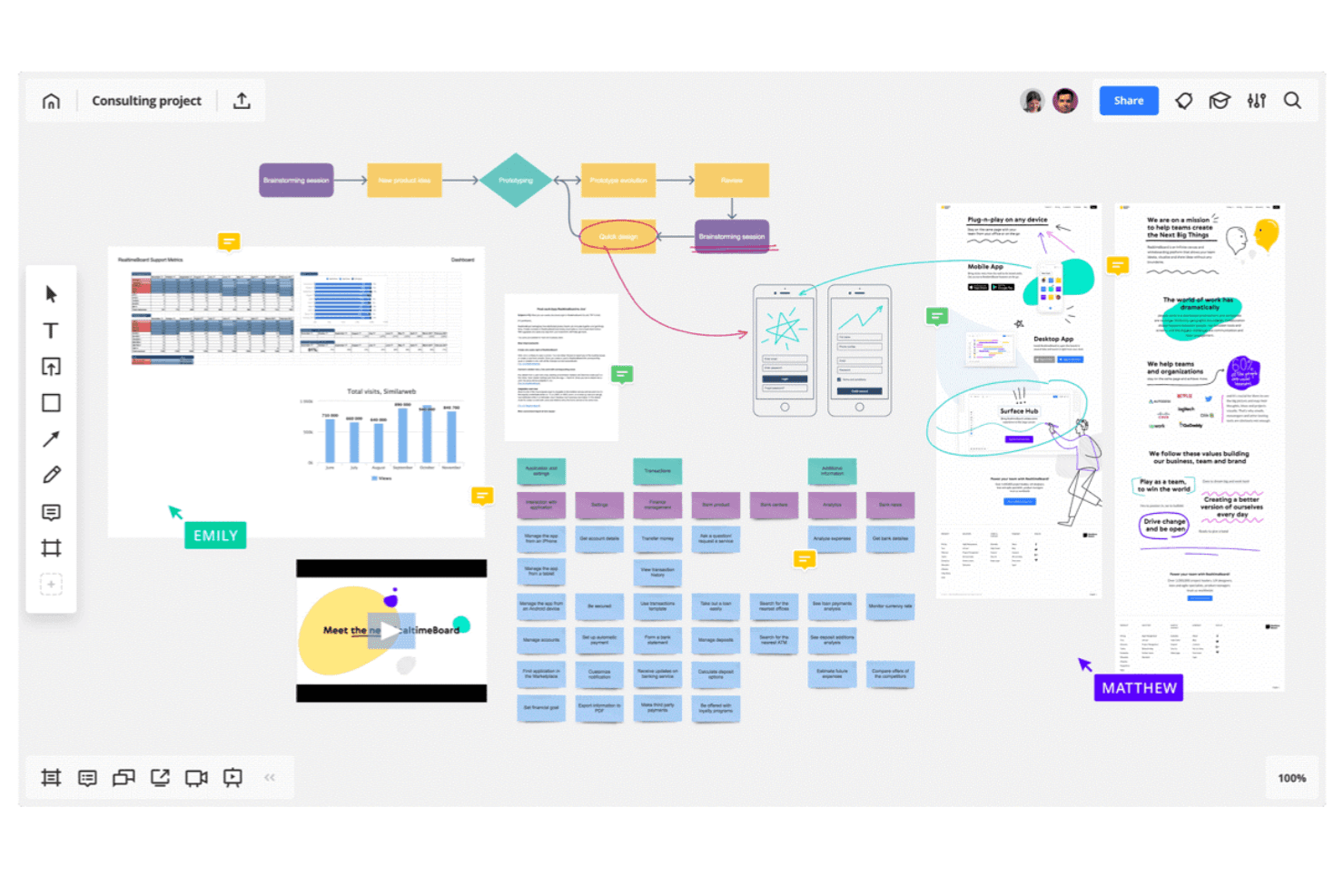
Miro allows you to map out complex workflows and systems. Miro is an infinite-canvas brainstorming and visual collaboration platform that combines sticky notes, mind maps, diagrams, flowcharts, spreadsheet import, AI-assisted clustering, and facilitation tools like voting, timers, and async Talktracks.
Who Is Miro Best For?
Miro is a strong fit for cross-functional teams—product managers, designers, and facilitators—who need to move ideas from raw input to structured plans without switching tools.
Why I Picked Miro
I picked Miro as one of the best because it's the only brainstorming tool I've used that lets you pull structured data directly from a spreadsheet onto an infinite canvas. Drop in a CSV and Miro converts rows into sticky notes or table elements you can cluster, tag, and rearrange in real time. From there, AI-assisted clustering groups related ideas automatically, and two-way sync with Jira or Asana moves prioritized items straight into your backlog without manual re-entry.
Miro Key Features
- Async Talktracks: Record a video walkthrough directly on a board so teammates can review and respond on their own time.
- AI Flows: Run multi-step AI workflows that convert raw board content into documents, diagrams, or summaries.
- Voting and anonymous voting: Run live voting sessions during workshops, with anonymous mode available to reduce groupthink.
- Miroverse community templates: Access thousands of community-built templates alongside Miro's native library to jumpstart any session.
Miro Integrations
Miro offers 250+ integrations, including Google Drive, Figma, Dropbox, Slack, Confluence, Jira, Asana, Linear, ClickUp, and Azure DevOps; Business supports two-way sync with the project management tools.
Pros and Cons
Pros:
- Talktracks support asynchronous workshop participation
- AI clusters themes from unstructured sticky notes
- Imports spreadsheet data onto the brainstorming canvas
Cons:
- AI usage is limited by monthly credits
- Large boards can become slow and laggy
 Best brainstorming tool for project planning with tasks
- Free plan + 14-day trial + demo available
- From $10/user/month (billed annually)
Visit WebsiteCustomer Rating:4.3/5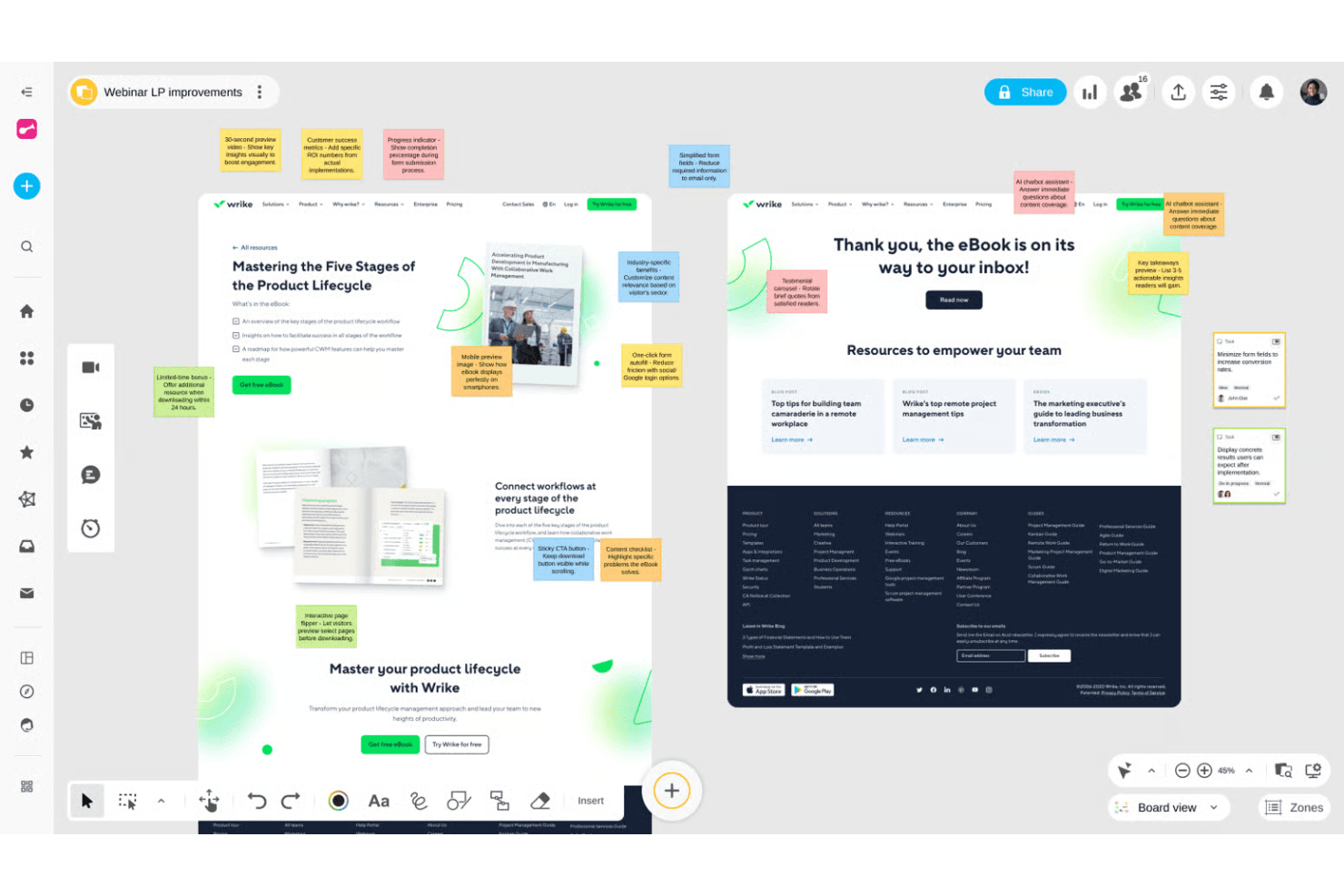
Wrike helps teams organize projects and connect ideas into workflows. Wrike is a project management platform that pairs an infinite collaborative whiteboard—with sticky notes, mind maps, and diagrams—with full project execution tools like Gantt charts, Kanban boards, and AI-powered task creation.
Who Is Wrike Best For?
Wrike is a good fit for product and project teams that want to move from whiteboard brainstorm to assigned tasks without switching tools.
Why I Picked Wrike
I picked Wrike as one of the best because it's the only tool on my list that turns a whiteboard brainstorm directly into a structured project. Wrike's AI reads your sticky notes and mind maps, then generates tasks, assigns them, and builds out Gantt charts or Kanban boards without any manual re-entry. I especially like that whiteboards attach to live projects, so the trail from idea to execution is always visible and nothing gets lost between sessions.
Wrike Key Features
- Whiteboard-to-task AI conversion: Wrike's AI reads sticky notes and mind maps on your whiteboard and generates structured tasks automatically.
- Guest collaboration via secure links: External participants can join whiteboard sessions without a Wrike account using customizable permission links.
- Polls and quizzes: Built-in voting tools let your team collect input and surface unbiased preferences during brainstorming sessions.
- Whiteboard-to-project attachment: Whiteboards link directly to live Wrike projects, keeping your ideation artifacts connected to active work.
Wrike Integrations
Wrike offers 400+ integrations, including Microsoft Teams, Zoom, Slack, Google, Dropbox, Jira, and GitHub. Whiteboards can open inside video calls, while Wrike Sync provides two-way connections with Jira and GitHub.
Pros and Cons
Pros:
- Guests join through secure links
- Whiteboards attach directly to projects
- Ideas become tasks without re-entry
Cons:
- Whiteboard operates as a separate add-on
- Limited facilitation controls for workshops
 Best for structured team brainstorming with agile sync
- Free version available
- From $8/active user/month
Visit WebsiteCustomer Rating:4.7/5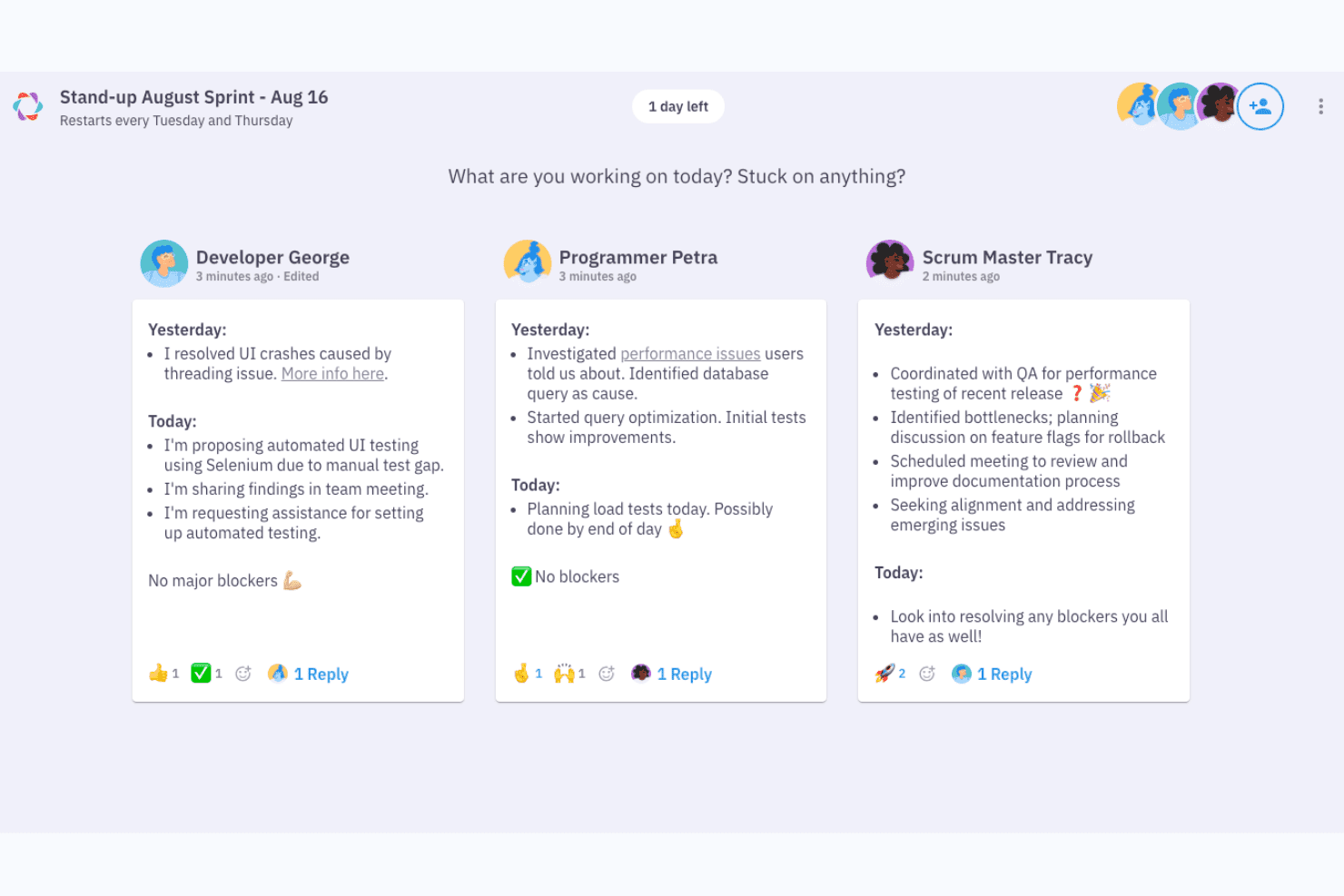
Parabol structures async standups with yesterday, today, and blockers. Parabol is an open-source agile meeting tool that structures brainstorming through a guided reflect-group-vote-discuss-tasks flow, with anonymous idea capture, drag-and-drop clustering, dot voting, and built-in retrospective and Sprint Poker templates.
Who Is Parabol Best For?
Parabol is a strong fit for agile teams and facilitators who need a structured, guided format to turn group input into decisions and action items.
Why I Picked Parabol
I picked Parabol as one of the best because it's the only tool on my list that turns brainstorming into a structured, guided ceremony rather than a free-for-all. I love how the reflect-group-vote-discuss-tasks flow keeps sessions moving, especially the anonymous reflection phase, which prevents louder voices from anchoring the room before quieter ideas surface. The AI-assisted group clustering is genuinely useful: hover over a card, see related reflections, and consolidate them in one click.
Parabol Key Features
- Anonymous reflection phase: Participants submit their ideas privately before anyone else can see them, preventing groupthink from shaping input early in the session.
- Sprint Poker estimation: Built-in Planning Poker uses Fibonacci and custom scales, with story points syncing directly back to Jira after the session.
- Async-ready meeting setup: Facilitators can open activities ahead of time with set deadlines, letting distributed teams contribute on their own schedule before a live session.
- Team Health check: A quick, anonymous pulse survey based on Google's Project Aristotle research tracks team sentiment across five categories and trends over time.
Parabol Integrations
Parabol lists seven integrations, including Jira, GitHub, GitLab, Slack, Mattermost, and Microsoft Teams. Enterprise adds support for Jira Data Center and self-managed GitLab.
Pros and Cons
Pros:
- Voting turns ideas into clear priorities
- Anonymous input reduces groupthink early
- Guided phases keep brainstorming focused
Cons:
- Agile templates limit open-ended innovation sessions
- No canvas for visual concept mapping
Learn more about Parabol: Best for diagramming-led brainstorming workflows
- Free plan + 30-day free trial + free demo available
- Pricing upon request
Visit WebsiteCustomer Rating:4.4/5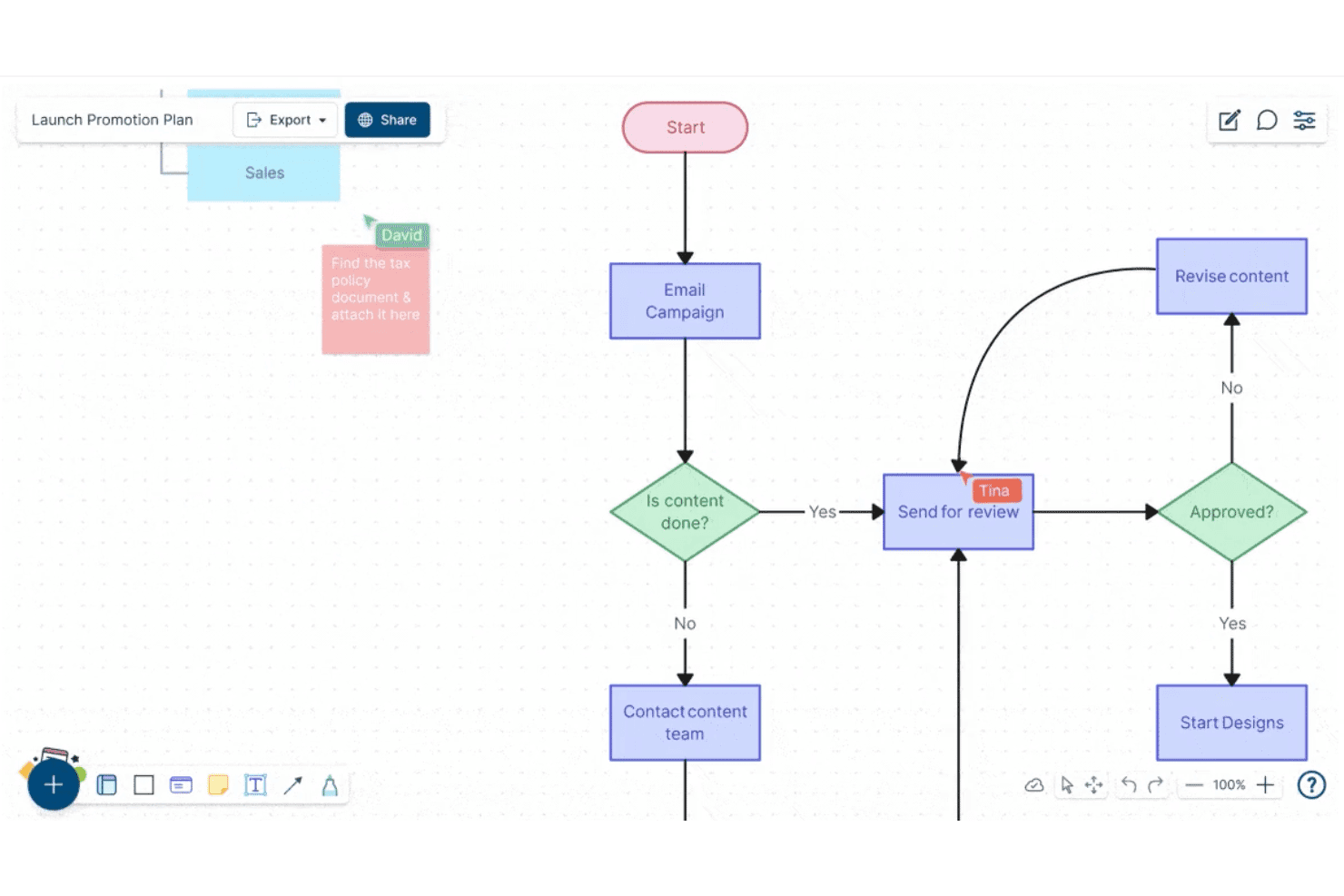
Creately lets users build and collaborate on flowcharts in real time. Creately is a visual collaboration and diagramming platform that combines an infinite canvas, sticky notes, freehand drawing, 70+ diagram types, 8,000+ templates, and real-time multi-user editing for brainstorming and structured planning workflows.
Who Is Creately Best For?
Creately is a strong fit for product managers, UX leads, and strategy teams who need to move fluidly between freeform ideation and structured diagramming without switching tools.
Why I Picked Creately
Creately earns its spot on my shortlist because it's one of the few tools that lets you move fluidly from a freeform sticky-note session directly into a structured diagram without leaving the canvas. I love that it ships with brainstorming-specific frameworks like Six Thinking Hats and Lotus diagrams alongside 8,000+ templates, so your team isn't starting from scratch. Timed, anonymous voting rounds out the ideation loop by letting groups converge on ideas without the usual groupthink pressure.
Creately Key Features
- Real-time multi-user editing: Multiple collaborators can edit the same canvas simultaneously, with visible cursors and spotlight or follow modes to keep everyone aligned.
- Timed, anonymous voting: Run voting sessions with a set time limit, with results appearing publicly or anonymously to help teams converge on ideas.
- Jira and Azure DevOps sync: Connect canvas items directly to Jira and Azure DevOps so ideas move into tracked work without leaving the tool.
- Presentation mode: Build slide decks directly from your canvas that update automatically as the board changes.
Creately Integrations
Creately offers integrations with Jira, GitHub, Azure DevOps, Google Sheets, Excel, Microsoft Teams, Slack, Google Drive, Confluence, and Zoom. It also provides an API for custom integrations and automation.
Pros and Cons
Pros:
- Timed anonymous voting supports fairer convergence
- Thousands of templates support varied workshops
- Diagramming turns ideas into structured workflows
Cons:
- Facilitation lacks private ideation controls
- Large boards can become sluggish
Learn more about Creately: Best for M365-embedded team ideation
- Free plan available
- Pricing upon request
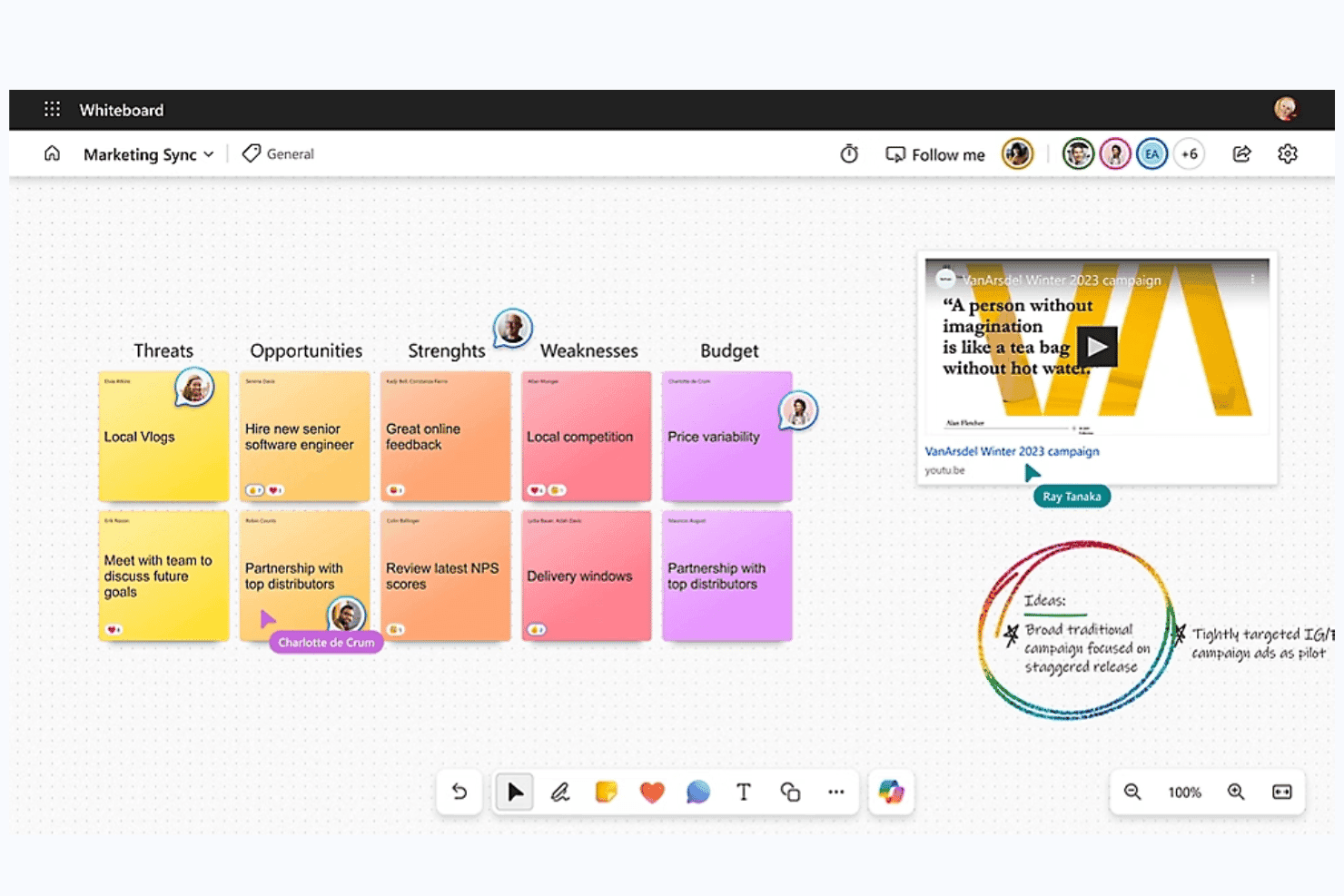
Microsoft Whiteboard is a digital whiteboard tool built into Microsoft 365 that offers a freeform collaborative canvas, sticky notes, smart inking, AI-assisted idea clustering and summarization via Copilot, and deep integration with Teams for real-time and async ideation sessions.
Who Is Microsoft Whiteboard Best For?
Microsoft Whiteboard is a natural fit for teams already working inside Microsoft 365, where pulling up a shared canvas in a Teams meeting requires zero extra setup or logins.
Why I Picked Microsoft Whiteboard
Microsoft Whiteboard earns its spot on my shortlist because it's the only brainstorming tool that lives natively inside Teams, meaning your team can open a shared canvas mid-meeting without switching apps or logging into anything new. I especially like Copilot's Categorize feature, which automatically groups sticky notes into color-coded clusters during live sessions, cutting the manual affinity-mapping work that usually eats up workshop time. The Summarize function then converts those clusters into an editable Loop document your team can act on immediately after the session wraps.
Microsoft Whiteboard Key Features
- Copilot Suggest: Generates a set of idea sticky notes directly on the canvas from a text prompt, giving teams a starting point when brainstorming stalls.
- Follow mode: Locks all participants' views to the facilitator's screen position as they navigate the canvas during live sessions.
- Async board access via OneDrive: Boards are stored in OneDrive for Business, so team members can contribute to a shared canvas before or after a meeting.
- Embedded Loop components: Teams can insert Microsoft Forms polls directly onto the canvas to collect structured input without leaving the board.
Microsoft Whiteboard Integrations
Microsoft Whiteboard offers native integrations across the Microsoft ecosystem, including Microsoft Teams, OneDrive for Business, Microsoft Loop, Microsoft Forms, Bing, and Microsoft Copilot. No third-party marketplace integrations or API are clearly documented.
Pros and Cons
Pros:
- Sticky notes support rich media capture
- Async boards support before-and-after-meeting input
- Copilot suggests, clusters, and summarizes ideas
Cons:
- Image-only export weakens action handoff
- No native dot voting or ranking
Learn more about Microsoft Whiteboard: Best for design-led teams using Figma
- Free plan available
- From $3/user/month
Visit WebsiteCustomer Rating:4.7/5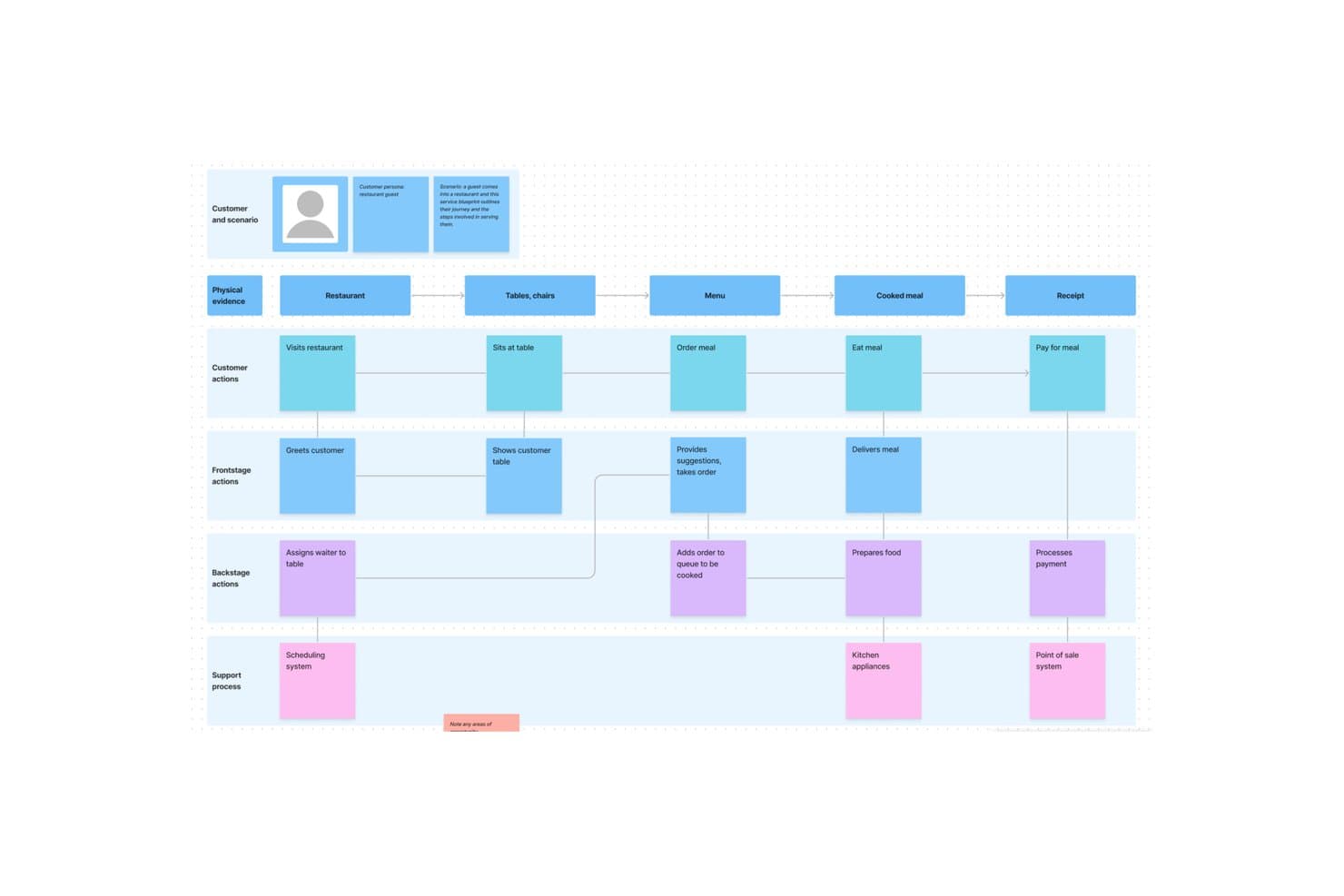
FigJam lets users map full service blueprints visually. FigJam is Figma's online whiteboard tool built for brainstorming, diagramming, and collaborative workshops, with sticky notes, AI-assisted clustering, 300+ templates, and live facilitation controls like spotlight mode, timers, and voting sessions.
Who Is FigJam Best For?
FigJam is a natural fit for cross-functional teams already working in Figma, where designers, PMs, and engineers share a single creative environment.
Why I Picked FigJam
FigJam earns its spot on my shortlist because it's built directly into the Figma ecosystem, making it the obvious brainstorming layer for teams that already live in Figma. I particularly like how AI-assisted sticky clustering lets you sort a chaotic ideation session into named themes and convert them into action items in one click. Spotlight mode is another feature I find genuinely useful: it pulls every participant's view to yours mid-session, so facilitation stays tight even across distributed teams.
FigJam Key Features
- 300+ ready-made templates: Choose from brainstorming frameworks, customer journey maps, retrospectives, roadmap reviews, and more—or build and save your own custom templates.
- Guest access: Anyone outside your organization can join a FigJam board for free for 24 hours without creating an account.
- Asana and Jira integrations: Convert ideas directly from a brainstorm session into trackable tasks in your project management tool.
- AI credit-based actions: Use AI to generate templates and visuals from a text prompt, with monthly credit allowances included on every paid plan.
FigJam Integrations
FigJam offers native integrations with Asana and Jira, helping teams turn brainstorm ideas into trackable tasks. Enterprise plans include API access for custom integrations across Figma workflows.
Pros and Cons
Pros:
- Spotlight keeps remote sessions coordinated
- 300-plus templates support varied workshops
- AI clusters sticky notes into themes
Cons:
- Research synthesis boards become muddy quickly
- Diagramming depth trails specialist whiteboards
Learn more about FigJam: Best for structured workshop facilitation
- Free plan + trial + demo available
- From $24.90/user/month (billed annually)
Visit WebsiteCustomer Rating:4.7/5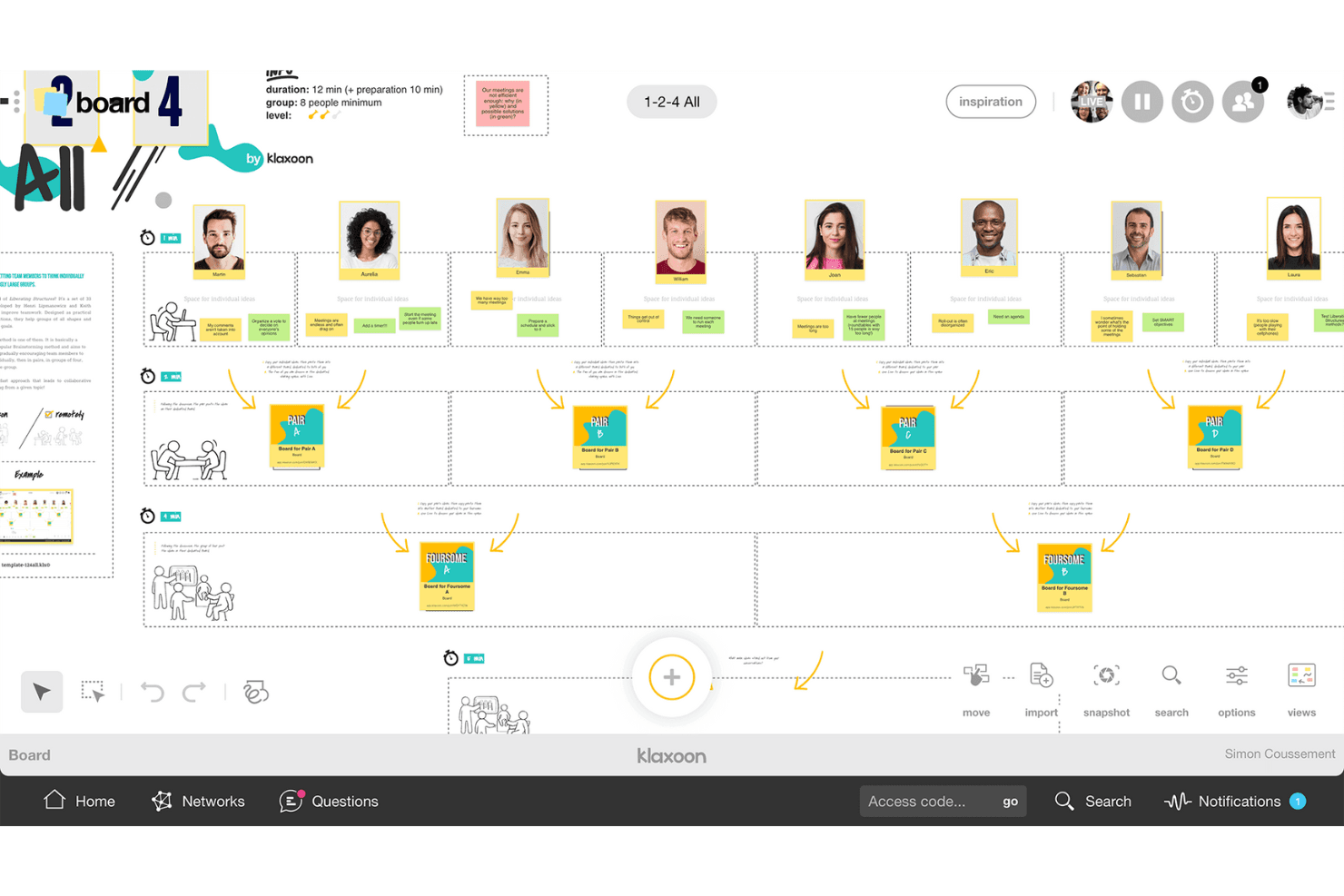
Klaxoon helps teams share ideas and organize discussions into actions. Klaxoon is a visual collaboration and workshop platform that combines an infinite whiteboard, structured facilitation controls, voting and prioritization tools, 200+ templates, and AI-assisted idea organization.
Who Is Klaxoon Best For?
Klaxoon is a strong fit for facilitators, consultants, and innovation teams who run structured workshops and need real-time facilitation controls alongside async collaboration tools.
Why I Picked Klaxoon
Klaxoon earns its spot on my list because no other tool I've tested matches its depth of live facilitation controls. I love how the Session feature lets you chain activities together—polls, quizzes, and boards—so a workshop flows like a proper agenda rather than a free-for-all. Sync Board is what really sets it apart: one click locks every participant's screen to the same canvas view, which I find invaluable when you need to walk a group through idea clustering or dot voting without losing anyone.
Klaxoon Key Features
- AI idea organization: Klaxoon's AI automatically sorts, summarizes, and translates ideas into 100+ languages directly on the board.
- Dot voting and polls: Participants can prioritize ideas using dot voting, likes, star ratings, word clouds, and live polls.
- Async missions: Missions and Adventures let contributors participate on their own schedule, keeping ideas flowing between live sessions.
- Wrike and Jira integration: Ideas on the board convert directly into Wrike tasks or Jira tickets, keeping discovery connected to delivery.
Klaxoon Integrations
Klaxoon offers a native Wrike integration and documented integrations with Jira, Confluence, Microsoft Teams, Google Workspace, OneDrive, Google Drive, Dropbox, and Zapier. Its API supports custom integrations.
Pros and Cons
Pros:
- AI groups and summarizes ideas automatically
- Multiple voting formats support quick prioritization
- Facilitator-led agendas keep workshops on track
Cons:
- Free participation limits restrict larger workshops
- Activity types take time to learn
Learn more about Klaxoon: Best for brainstorming with sticky notes
- Free plan + 7-day trial + demo available
- From $9/user/month (billed annually)
Visit WebsiteCustomer Rating:4.5/5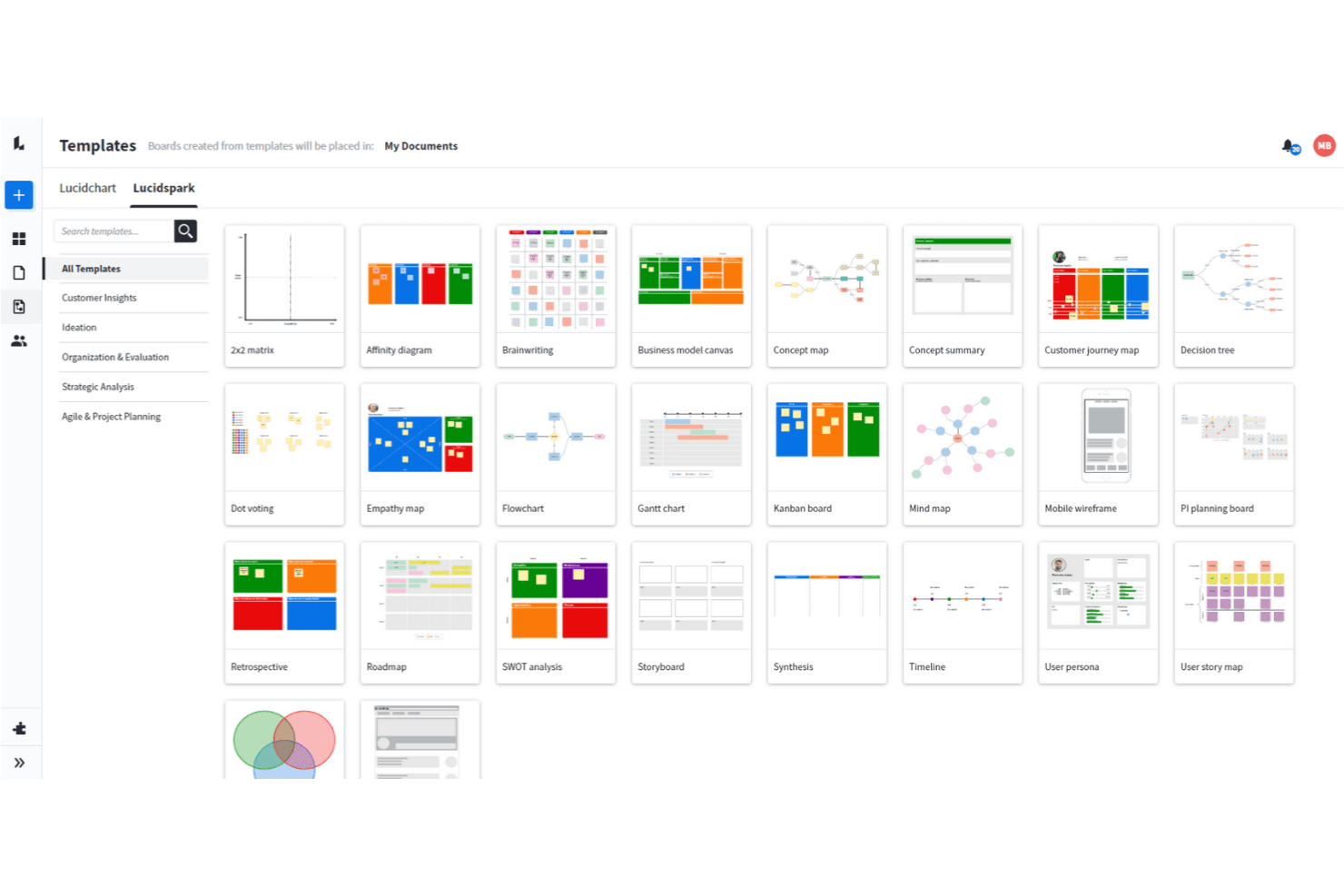
Lucidspark allows you to use a wide range of brainstorming techniques. Lucidspark is a visual collaboration and brainstorming tool built around an infinite canvas, offering sticky notes, mind maps, freehand drawing, AI-assisted ideation, voting sessions, and facilitation controls for live and async teamwork.
Who Is Lucidspark Best For?
Lucidspark is a great fit for facilitators, UX leads, and product managers who need to run structured brainstorming sessions and move ideas into execution without switching tools.
Why I Picked Lucidspark
Lucidspark earns its spot on my shortlist because sticky notes are genuinely central to how the tool works, not an afterthought. I love that private-mode brainstorming hides both note contents and authors until you're ready to reveal them, which keeps early ideas honest and avoids groupthink. From there, AI Magic Sort clusters those notes by theme automatically, so your team skips the tedious manual sorting and gets straight to discussing what matters.
Lucidspark Key Features
- Real-time collaborative canvas: An infinite shared canvas lets your whole team add, move, and edit ideas together live or asynchronously.
- Voting sessions: Team-tier voting lets facilitators run private or anonymous votes with time limits and live result tracking.
- Lucid Cards with Jira sync: Task-style cards connect directly to Jira and Azure DevOps, so ideas move into your backlog without leaving the board.
- Lucid AI idea generation: Prompt AI to generate ideas or build out an entire board, then summarize or cluster results by theme.
Lucidspark Integrations
Lucidspark offers 100+ marketplace integrations, including Jira, Azure DevOps, monday.com, Asana, Google Drive, Slack, Microsoft Teams, and Lucidchart. Team and Enterprise plans include a REST API for custom integrations.
Pros and Cons
Pros:
- Voting controls support group decisions
- AI clusters ideas by theme
- Sticky notes support private ideation
Cons:
- Canvas lacks native audio or video
- Free boards remain sharply limited
Learn more about Lucidspark: Best for AI-guided ideation with dev tool sync
- Free plan + 30-day trial + free demo available
- Pricing upon request
Visit WebsiteCustomer Rating:4.3/5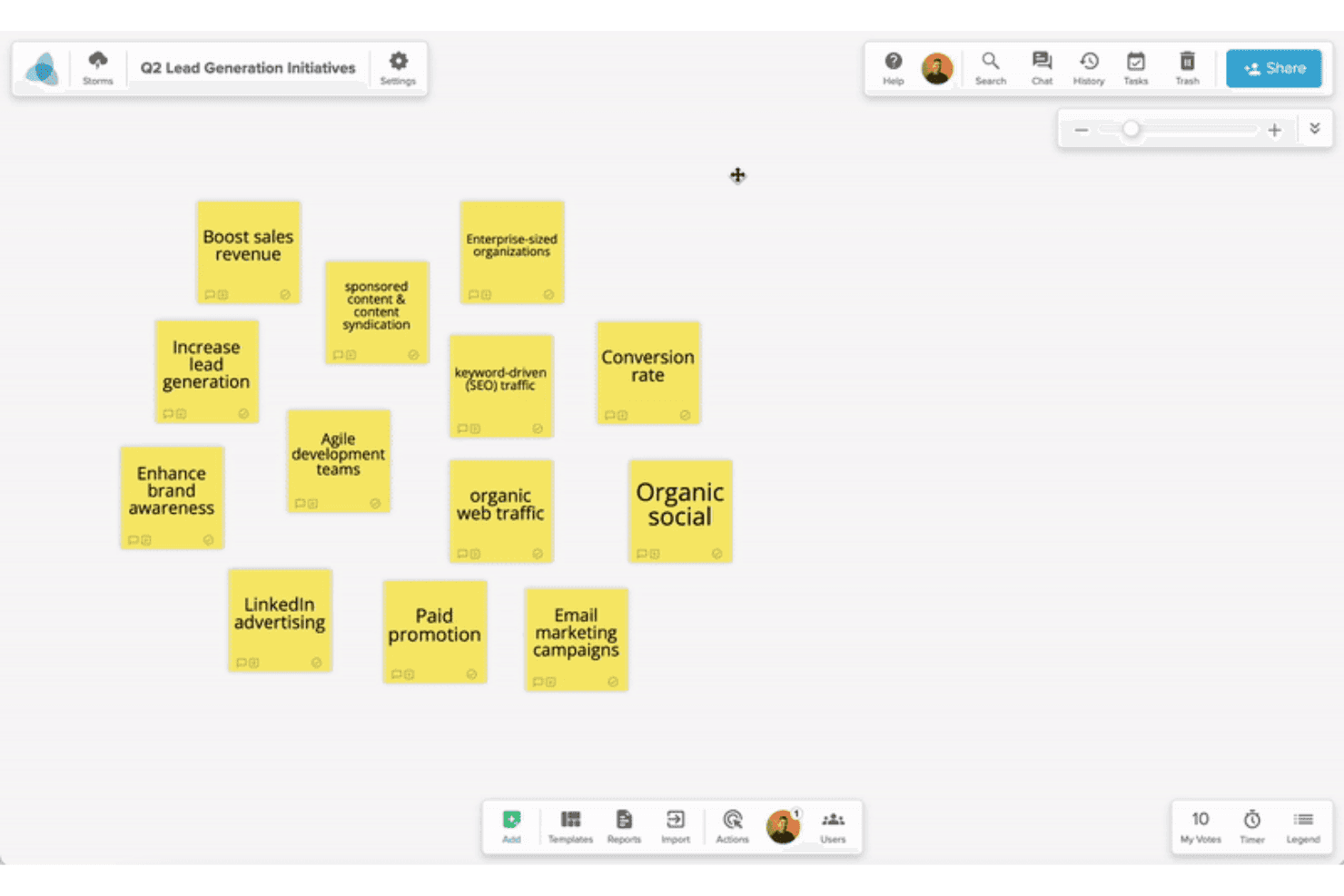
Stormboard helps teams capture and organize ideas into structured plans. Stormboard is a collaborative digital whiteboard built for structured brainstorming, offering AI-assisted idea generation, a large template library, real-time multi-user editing, and two-way sync with dev tools like Jira and Azure DevOps.
Who Is Stormboard Best For?
Stormboard is a strong fit for product and innovation teams that want AI-assisted ideation to flow directly into Jira, Rally, or Azure DevOps backlogs without manual handoffs.
Why I Picked Stormboard
I picked Stormboard as one of the best because StormAI is genuinely woven into the brainstorming process, not bolted on. It generates context-aware sticky notes per section, expands a single idea into five related ones, and clusters notes by theme or sentiment automatically. What pushes it further is the live two-way sync with Jira, Rally, and Azure DevOps, so ideas from a brainstorm session move directly into a sprint backlog without any manual re-entry.
Stormboard Key Features
- Substorms: Nest a full Storm inside a section of a parent Storm to break complex topics into focused, self-contained workspaces.
- Multiple sticky note types: Add text, image, video, freehand whiteboard, or index card notes to capture ideas in whatever format fits the moment.
- Built-in voting with exportable results: Collect votes directly on the board and export the results alongside word clouds and task data.
- Structured template library: Choose from hundreds of pre-built templates covering frameworks like SCAMPER, Affinity Diagram, and Abstraction Laddering.
Stormboard Integrations
Stormboard offers native two-way integrations with Jira, Rally, and Azure DevOps, plus Microsoft Office and Google Drive, Docs, Slides, and Sheets. It also connects with Microsoft Surface Hub and Azure OpenAI Service.
Pros and Cons
Pros:
- Multiple sticky note types support richer input
- Templates support structured discovery workshops
- StormAI expands and clusters brainstorm ideas
Cons:
- Live facilitation lacks video and spotlight tools
- Large sessions can experience board lag
Learn more about Stormboard: 10Best for structured facilitation with AI clustering
Mural
- Free plan available
- From $9.99/user/month (billed annually)
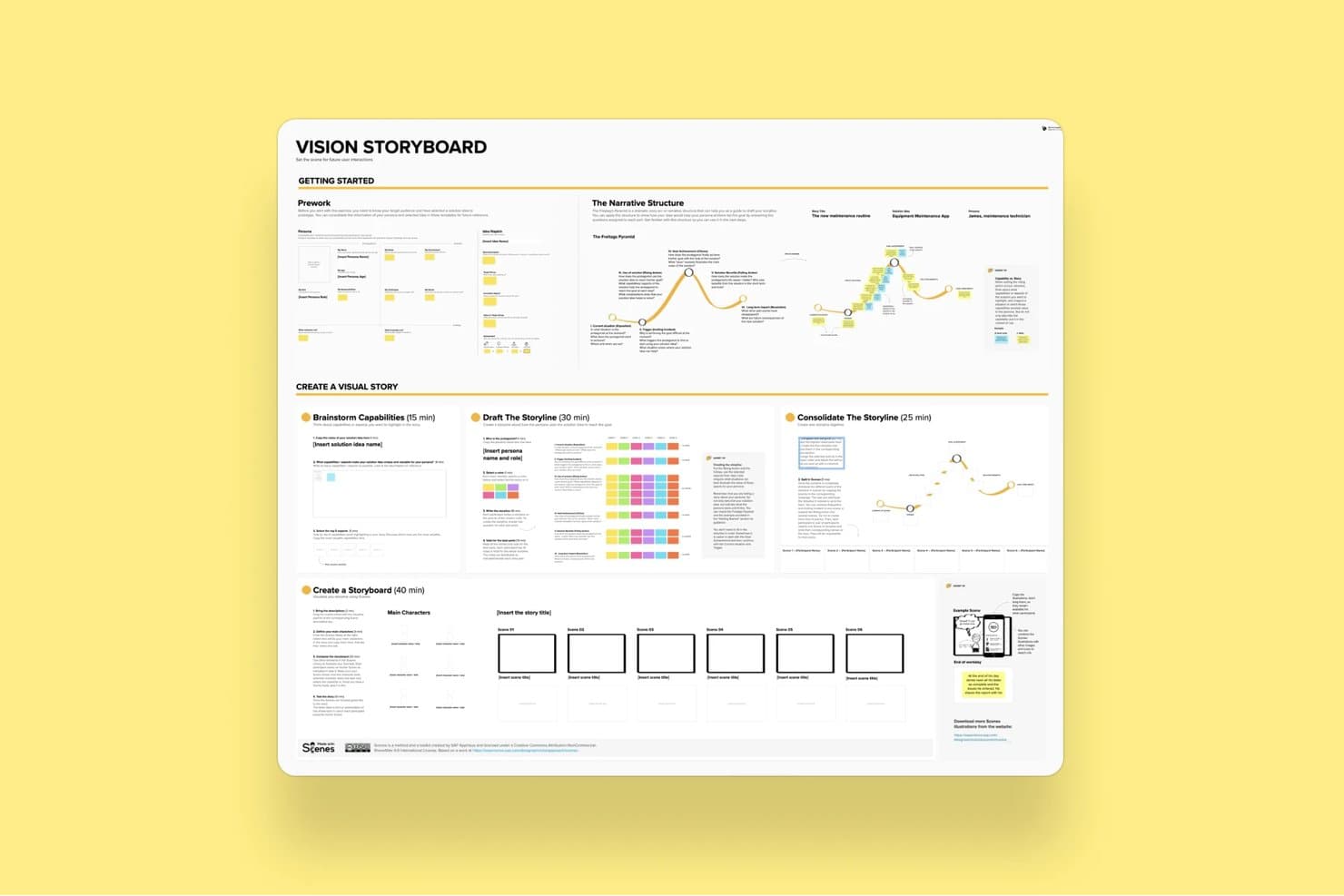
Mural's Vision Storyboard template guides users through building visual stories. Mural is a visual collaboration and brainstorming platform built around an infinite canvas, offering sticky notes, diagramming, AI-powered clustering, structured facilitation controls, and 250+ templates including LUMA design-thinking frameworks.
Who Is Mural Best For?
Mural is a strong fit for facilitators, consultants, and cross-functional teams who run structured workshops and need to move from raw ideas to organized outputs quickly.
Why I Picked Mural
Mural earns its spot on my shortlist because its AI Clustering feature genuinely changes how workshops end. Instead of manually grouping hundreds of sticky notes after a session, I can select them all and let Mural sort them into named thematic clusters, preview the results before committing, and then use the Summarize feature to pull key takeaways from each group. The full facilitation suite, including private mode to prevent groupthink and a step-by-step outline tool, means structured sessions stay on track from start to finish.
Mural Key Features
- Anonymous voting: Participants submit votes without seeing others' choices, keeping prioritization decisions free from social influence.
- Private mode: Hides each contributor's sticky notes from others during input phases, preventing groupthink before ideas are shared.
- Custom toolbar: Restricts which tools participants can access during a session, keeping the workspace focused on the task at hand.
- LUMA frameworks: A built-in set of design-thinking methods available on Business plans to guide teams through structured discovery and ideation activities.
Mural Integrations
Mural offers native integrations with Jira Cloud, Microsoft Teams, Zoom, Webex, Slack, Google Workspace, Adobe Creative Cloud Library, Butter, Azure Active Directory, Okta, and GitHub. It also provides an API for custom integrations.
Pros and Cons
Pros:
- Templates guide discovery and innovation workshops
- Facilitation controls support structured brainstorming sessions
- AI clustering organizes workshop output quickly
Cons:
- Large boards may respond slowly sometimes
- Interface changes can disrupt established workflows
Learn more about Mural:
Other Options
Here are a few more solid options that didn’t make the best brainstorming tools list:
- 11ConceptboardBest for live facilitation with built-in video chat
- 12IdeamapBest for multi-method voting on brainstormed ideas
- 13LucidchartBest for turning diagrams into data-linked visuals
- 14ClickUpBest for turning whiteboard ideas into tracked tasks
- 15WhimsicalBest for product builders who sketch and plan
- 16MindomoBest for brainstorming across web, desktop and mobile
- 17BluescapeBest for brainstorming in air-gapped environments
- 18Confluence WhiteboardsBest for ideation that feeds straight into Jira
How I Evaluate Brainstorming Tools
I split my evaluation into three parts. First—and most heavily weighted—I check whether a tool lets teams edit a shared canvas simultaneously and capture ideas fast using sticky notes or freeform elements. Then I look at standout features like AI-assisted ideation and facilitation controls. Finally, I consider onboarding simplicity and pricing value.
Core Functionality (Table Stakes for This List)
When I'm selecting tools for my list, I score each one on a scale from 0 (does not offer the functionality) to 5 (excels in this area) for each core functionality listed below. I then convert the total into a percentage to help assess each tool's overall fit, with extra weight on any functionalities I've deemed essential.
- Real-Time Collaboration (Essential): I check whether multiple teammates can add and move sticky notes on the same board simultaneously without lag or cursor conflicts.
- Idea Capture Elements (Essential): Tools should offer more than plain text—I look for sticky notes, shapes, cards, and freeform drawing that let people capture thoughts fast.
- Organization & Clustering: I evaluate how easily you can drag ideas into groups, tag them by theme, or draw connectors to map relationships during an affinity mapping session.
- Voting & Prioritization: Built-in dot-voting or ranking matters here. I look at whether facilitators can configure vote limits and whether results display clearly for the group.
- Templates & Frameworks: A solid library of ready-made formats—like mind maps, SWOT grids, or How Might We boards—saves real setup time. I also check if you can save custom templates.
- Session Facilitation Controls: I look for features like timers, reveal toggles, and participant-management options that let a facilitator guide a structured workshop from start to finish.
Once I have a list of tools that meet the criteria, I consider what sets each platform apart.
Differentiating Factors (What Sets Vendors Apart)
Here's how I compare and contrast different vendors:
Standout Features
AI-assisted ideation is the first thing I check. I look for tools where AI can auto-cluster sticky notes or generate starter prompts mid-session—helpful when a product discovery workshop stalls. Timer and facilitation controls matter just as much. A good reveal toggle keeps ideas hidden until everyone has contributed, which prevents anchoring bias in remote sprint planning. I also evaluate whether a tool supports async contributions, since distributed teams need persistent boards that stay usable across time zones without losing thread context.
Beyond Features
I look at how easily ideas move from a brainstorming board into execution. If your team has to manually copy sticky notes into Jira or Linear, you've already lost context. Tools with native export or two-way sync to PM platforms save that handoff. Adoption matters just as much—I check whether non-technical stakeholders like execs or designers can jump in without a tutorial. A tool nobody opens after the first workshop isn't worth the license. I also evaluate security controls, since early-stage feature ideas are sensitive IP that needs proper board-level permissions and SSO.
How to Choose a Brainstorming Tool
It’s easy to get bogged down in long feature lists and complex pricing structures. To help you stay focused as you work through your unique software selection process, here’s a checklist of factors to keep in mind:
| Factor | What to Consider |
|---|---|
| FactorScalability | What to ConsiderCan the tool grow with your team size and complexity? Look for user limits, performance lags with lots of data, or costs that spike as teams expand. |
| FactorIntegrations | What to ConsiderDoes it connect easily with your existing stack—like Slack, Jira, Figma, or Trello? Manual workarounds eat time and kill momentum. |
| FactorCustomizability | What to ConsiderCan you tailor templates, workflows, or views to fit how your team thinks and works? One-size-fits-all setups usually slow things down. |
| FactorEase of use | What to ConsiderCan cross-functional teams jump in with little explanation? If it takes hours to figure out, people won’t use it—no matter how powerful it is. |
| FactorImplementation and onboarding | What to ConsiderHow fast can you get up and running? Look for import tools, product tours, and in-app guidance to get your team contributing in their first session. |
| FactorCost | What to ConsiderWhat do you actually get for the price? Watch out for paywalls on collaboration features or high per-seat pricing that doesn’t match usage needs. |
| FactorSecurity safeguards | What to ConsiderDoes it support SSO, data encryption, and user role controls? If you’re brainstorming product ideas or IP, don’t risk loose security standards. |
| FactorInternal resourcing needs | What to ConsiderWill someone need to manage templates, users, or integrations on an ongoing basis? Lightweight tools save time, especially for smaller teams. |
What are Brainstorming Tools?
Brainstorming tools are digital aids that help individuals or teams generate ideas, organize them into groups, and demonstrate relationships between ideas or topics. They belong to the same group of software as digital whiteboards or mind-mapping tools and are designed to stimulate creative thinking and group collaboration. They include numerous ways to visualize ideas using colors, symbols, tags, sticky notes, and other aids, as well as tools to collaborate with other team members, including @ messages and simultaneous co-authoring.
Brainstorming tools help groups work together to collaborate on ideas, organize tasks, and enhance creativity. They also add order to a previously paper-based or manual process by digitizing the act of brainstorming so you can always look back at your ideas for future reference (rather than referring back to a photo of your scrawls on the whiteboard in your company's meeting room).
Features of Brainstorming Tools
When selecting brainstorming tools, keep an eye out for the following key features:
- Real-time collaboration: Allows multiple users to contribute ideas simultaneously, which helps teams stay aligned and productive during live sessions.
- Visual idea mapping: Lets users organize thoughts using diagrams or mind maps, making it easier to see relationships and develop concepts.
- Template library: Provides ready-made structures for common brainstorming formats, so teams can start quickly without setting up from scratch.
- Commenting and feedback tools: Enables team members to leave input directly on ideas, which supports discussion and refinement.
- Voting or prioritization: Allows teams to rank or score ideas to focus on the most promising ones and make decisions faster.
- Export options: Supports saving or sharing sessions in various formats like PDF, PNG, or CSV, making follow-up work easier.
- Access controls: Lets admins manage who can view, edit, or comment, protecting sensitive ideas and maintaining order in collaborative spaces.
- Cloud-based access: Ensures team members can participate from anywhere with internet, supporting remote and hybrid work models.
- Whiteboard functionality: Offers a flexible space for freeform thinking, sketching, or diagramming without constraints.
- Integration support: Connects with tools like Slack, Trello, or Google Drive to streamline workflows and reduce context switching.
Benefits of Brainstorming Software
Implementing brainstorming tools provides several benefits for your team and your business. Here are a few you can look forward to:
- Faster idea generation: Real-time input and visual tools help teams come up with more ideas in less time.
- Better team alignment: Shared workspaces and commenting keep everyone on the same page and reduce miscommunication.
- More organized sessions: Templates and mapping features give structure to brainstorming, so ideas don’t get lost or forgotten.
- Easier decision-making: Voting tools and prioritization features help teams quickly identify the most valuable ideas.
- Improved remote collaboration: Cloud access and integrations make it easy for distributed teams to join in and stay engaged.
- Stronger idea follow-through: Export options and connected workflows help turn rough ideas into real next steps.
- Clearer documentation: Every contribution gets recorded automatically, so you don’t have to rely on memory or notes.
Costs and Pricing of Brainstorming Tools
Selecting brainstorming tools requires an understanding of the various pricing models and plans available. Costs vary based on features, team size, add-ons, and more. The table below summarizes common plans, their average prices, and typical features included in brainstorming tool solutions:
Plan Comparison Table for Brainstorming Tools
| Plan Type | Average Price | Common Features |
|---|---|---|
| Plan TypeFree Plan | Average Price$0 | Common FeaturesBasic idea capture, limited templates, single user access, and minimal export options. |
| Plan TypePersonal Plan | Average Price$5–$15/user/month | Common FeaturesUnlimited boards, additional templates, cloud storage, and email support. |
| Plan TypeBusiness Plan | Average Price$10–$25/user/month | Common FeaturesTeam collaboration, real-time editing, integrations with third-party apps, and priority support. |
| Plan TypeEnterprise Plan | Average Price$20–$40/user/month | Common FeaturesAdvanced admin controls, SSO, audit logs, dedicated onboarding, and custom security settings. |
Brainstorming Tools FAQs
Because of my extensive experience in using brainstorming tools, people often ask me for more information on this topic. Here are answers to the most frequently asked questions:
How do brainstorming tools support remote teams?
Brainstorming tools let remote teams share ideas in real time, no matter where they are. You can use shared boards, live editing, comments, and video calls to collaborate like you’re in the same room. Look for tools with cloud access, autosave, and cross-device compatibility to keep things moving.
Why is brainstorming important?
Brainstorming is critical as a way of promoting creativity, innovation, and collaborative problem-solving. It’s a fantastic way for teams to generate new ideas, using out-of-the-box thinking to challenge assumptions.
By involving everyone in inclusive meetings, it boosts team morale, increases engagement, and inspires a new way of thinking. This can ultimately lead to improved decision-making and more effective solutions.
What are some popular brainstorming techniques?
There are many different brainstorming techniques you can use to come up with new ideas. These include mind-mapping, SWOT analysis, Rapid Ideation, and Brainwriting. Other popular options include Six Thinking Hats and SCAMPER (Substituting, Combining, Adapting, Modifying, Putting to another use, Eliminating, or Reverse).
The best technique to use depends very much on the context of your situation, plus the goals of the brainstorming session. I recommend mixing and matching different techniques to find what works best for you.
Is brainstorming the same as mind mapping?
Although the two concepts are related, brainstorming is not the same as mind mapping. Brainstorming is a general term that applies to generating a wide range of new ideas in any way that works.
Mind mapping, on the other hand, describes a visual tool or technique that helps teams organize their thoughts and ideas. So while brainstorming focuses on generating new ideas, mind mapping aids you in organizing and visualizing these ideas.
How do you manage too many ideas during a brainstorming session?
Set a timer for each round of brainstorming and limit how many ideas each person can share. Use voting or scoring features to narrow things down. Group similar ideas together to avoid repeats, and revisit any low-priority ones later if needed.