

Mockup-verktøy kan bidra til å spare enorme mengder tid. Som tidligere produktsjef husker jeg at jeg deltok i flere idédugnader og møter om produktutvikling. Ved å forberede produktmockuper før disse møtene kunne jeg gi ideene mine mer konkret innhold. I tillegg gjør produktmockuper det enklere å innhente verdifulle tilbakemeldinger fra ulike interessenter før utviklingsprosessen begynner.
Uansett hvilken type produkt du administrerer – enten det er et nettsted, en mobilapplikasjon eller noe fysisk som klær – hjelper en mockup deg med å konkretisere forventningene til den endelige versjonen av produktet.
Jeg skal hjelpe deg med å løfte nivået og imponere på ditt neste møte om produktutvikling. Det finnes mange mockup-verktøy der ute, og det kan bli overveldende å velge ett. Derfor har jeg laget denne listen over de ti beste mockup-verktøyene for produktsjefer. Følg med mens jeg går gjennom hvert verktøy og hjelper deg med å velge det riktige.
Hvis du har generelle spørsmål om hvordan mockup-verktøy fungerer, kan du ta en titt på delen med vanlige spørsmål nedenfor. Hvis du heller vil vite hvordan jeg utarbeidet denne listen, kan du se delen Hvordan jeg valgte de beste mockup-verktøyene nedenfor.
Hvorfor du kan stole på våre programvareanbefalinger
6,700+
Reviews
20
Industry experts
16+
Evaluation factors
14
Years
Teamet vårt har testet og anmeldt programvare siden 2012. Vi er selv produktledere, så vi vet hvor vanskelig og hvor viktig det er å velge riktig programvare.
I denne guiden har vi vurdert verktøyene gjennom praktisk testing og uavhengig research og gitt dem poeng ut fra våre utvelgelseskriterier.
Anmeldelsene våre bygger på vår egen redaksjonelle vurdering. De er ikke et salgsargument.
Ekspertanmeldere:
- Andrew LumbySenior TPM
- Cristiano ValimSenior UI/UX Lead


Sammenligningstabell for mockup-verktøy
Denne sammenligningstabellen oppsummerer prisopplysningene for mine beste utvalgte mockup-verktøy:
| Tool | Best For | Trial Info | Price | ||
|---|---|---|---|---|---|
| 1 | Best for mobile app wireframes and dev handoff | Free plan available | From $9/user/month (billed annually) | Website | |
| 2 | Best for Adobe CC-native design handoff | Free trial available | From $22.99/month (billed annually) | Website | |
| 3 | Best for open-source, self-hosted mockup design | Free plan + 14-day free trial available | From $7/user/month | Website | |
| 4 | Best for mapping flows before wireframing | Free plan available | From $6/user/month (billed annually) | Website | |
| 5 | Best for Mac-native design-to-dev handoff | 30-day free trial | From $12/user/month (billed annually) | Website | |
| 6 | Best for collaborative interface design | Free plan available | From $3/user/month | Website | |
| 7 | Best for AI-generated mockups without design skills | Free plan available | From $14/user/month | Website | |
| 8 | Best for wireframe-to-handoff in one workspace | Free plan available | From $24.90/user/month (billed annually) | Website | |
| 9 | Best for mockups built from live URLs | Free plan + 14-day free trial available | From $29/user/month (billed annually) | Website | |
| 10 | Best for responsive web mockup design | Free plan available | From $19/user/month | Website |


Anmeldelse av de beste mockup-verktøyene
Nedenfor finner du mine detaljerte sammendrag av de beste mockup-verktøyene som kom med på kortlisten. Anmeldelsene mine gir en detaljert gjennomgang av de viktigste funksjonene, fordelene & ulempene, integrasjonene og ideelle bruksområdene for hvert verktøy, slik at du kan finne det beste alternativet for deg.
 Best for mobile app wireframes and dev handoff
- Free plan available
- From $9/user/month (billed annually)
Visit WebsiteCustomer Rating:4.3/5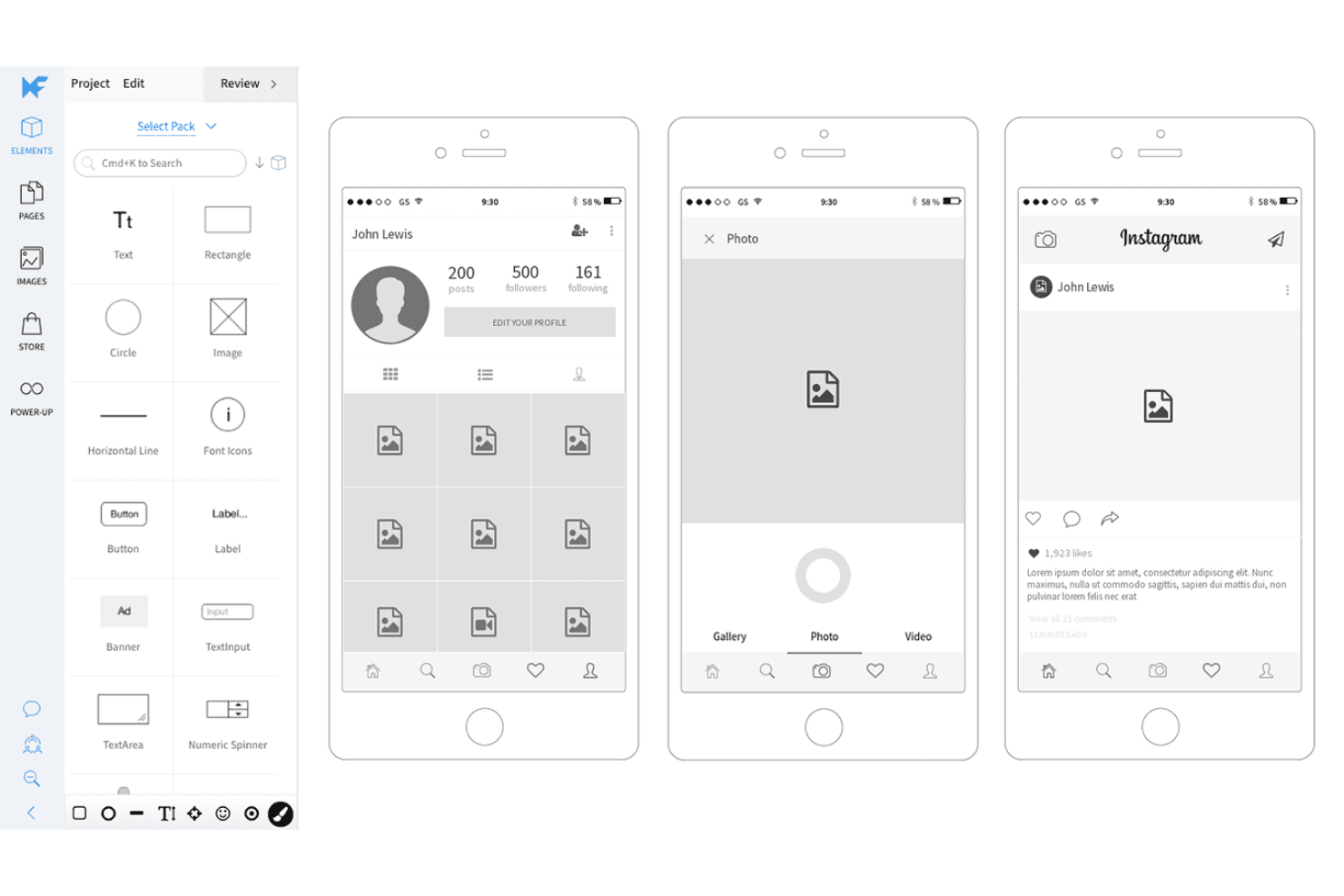
MockFlow has a rich library of mobile app focussed buttons and elements for you to ideate a smartphone application product idea quickly. MockFlow is a cloud-based wireframing and visual ideation platform that combines a drag-and-drop UI editor, mobile UI kits, AI-assisted wireframe generation, and developer handoff tools including code export and Specs mode.
Who Is MockFlow Best For?
MockFlow is a great fit for product managers and startup founders who need to go from mobile app concept to developer-ready wireframe without relying on a dedicated designer.
Why I Picked MockFlow
MockFlow earns its spot on my shortlist because its mobile UI kits are the most current I've seen in a wireframing tool, with ready-to-use iOS 26 Liquid Glass and Android 17 component sets that reflect what developers are actually building against. I also rely on Specs mode for dev handoff: it auto-generates a style guide with CSS variables, JSON design tokens, and a Tailwind config directly from your wireframes. Build mode then exports those wireframes as working React, Vue, or Next.js code, so the gap between mockup and first build is genuinely narrow.
MockFlow Key Features
- Mida AI assistant: Generates editable wireframes from a text prompt, screenshot, or URL, and can create new screens based on your existing wireframes to keep styling consistent.
- Design Suggestions: Reviewers can propose visual edits on a wireframe without altering the original, letting you compare versions side by side and accept changes in one click.
- MCP server integration: Connects AI coding assistants like Claude, Cursor, and VS Code Copilot directly to MockFlow, letting you build wireframes from PRDs, codebases, or Jira epics.
- Flow mode: Maps user flows between screens directly on the canvas, so you can plan navigation paths alongside your wireframe layouts.
MockFlow Integrations
MockFlow offers 20+ native Board Connectors, including Jira, Slack, Trello, Microsoft Teams, Google Drive, Linear, Asana, Notion, and GitHub. It also connects with Figma and AI coding assistants through MCP, including Claude, Cursor, and VS Code Copilot.
Pros and Cons
Pros:
- AI generates editable wireframes from screenshots
- Specs mode clarifies developer handoff
- Current mobile UI kits speed app mockups
Cons:
- Large projects can feel sluggish
- Simple prototypes lack conditional logic
Learn more about MockFlow: Best for Adobe CC-native design handoff
- Free trial available
- From $22.99/month (billed annually)
Visit WebsiteCustomer Rating:4.3/5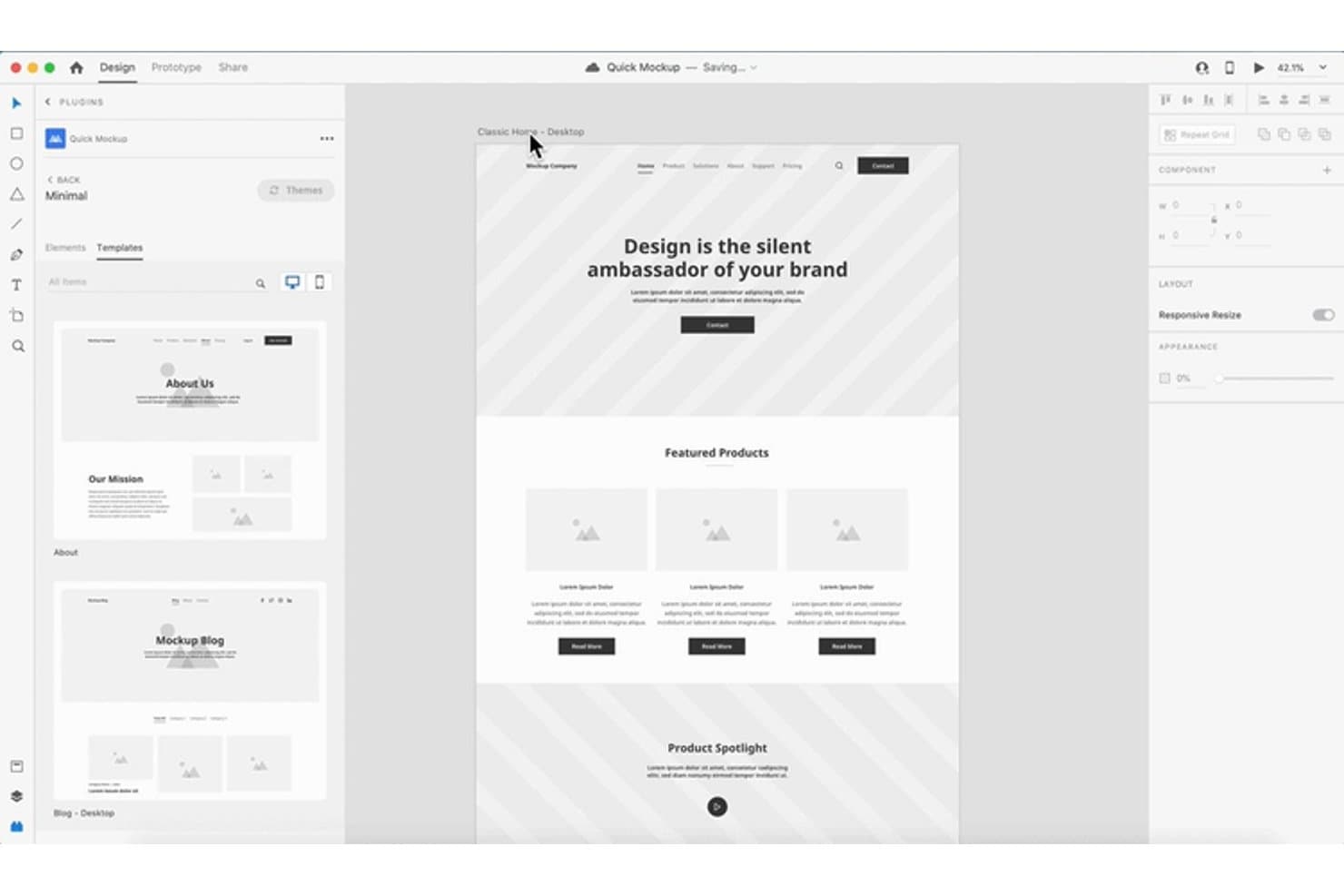
Adobe XD lets users design and preview website mockups with reusable templates. Adobe XD is a vector-based UI/UX design tool that covers wireframing, visual design, prototyping, and developer handoff in a single desktop app for macOS and Windows.
Who Is Adobe XD Best For?
Adobe XD is a strong fit for UI/UX designers and product managers already working within the Adobe Creative Cloud ecosystem who need reliable prototyping and design handoff.
Why I Picked Adobe XD
I've included Adobe XD in my top picks because it slots naturally into teams already running Creative Cloud, making design handoff feel like a native workflow rather than an afterthought. I particularly like how design specs links give developers a shareable view of sizing, spacing, colors, and assets without any extra tooling. On top of that, share presets like Design Review and Development let me send exactly the right context to the right audience, each with its own link.
Adobe XD Key Features
- Repeat grid: Drag any element or group to instantly repeat it across rows or columns, making it easy to mock up lists, cards, and data tables.
- Auto-animate: XD animates matching layers between artboards automatically, letting you simulate transitions and motion without writing any code.
- Component states: Define Default, Hover, and Toggle states for buttons and UI elements, then wire interactions between them directly in your prototype.
- Coediting: Multiple team members can edit the same cloud document simultaneously, with version history tracking changes across up to 180 days.
Adobe XD Integrations
Adobe XD offers documented integrations with Jira Cloud, Slack, Zoom, Photoshop, Illustrator, After Effects, and Creative Cloud Libraries. It also connects with macOS-only handoff tools, including Zeplin, Avocode, Sympli, Kite Compositor, and ProtoPie.
Pros and Cons
Pros:
- Content-aware layout speeds repeatable mockups
- Auto-animate demonstrates realistic product flows
- Design specs clarify developer handoff
Cons:
- Coediting creates friction for shared iterations
- Maintenance mode limits future product investment
 Best for open-source, self-hosted mockup design
- Free plan + 14-day free trial available
- From $7/user/month
Visit WebsiteCustomer Rating:4.5/5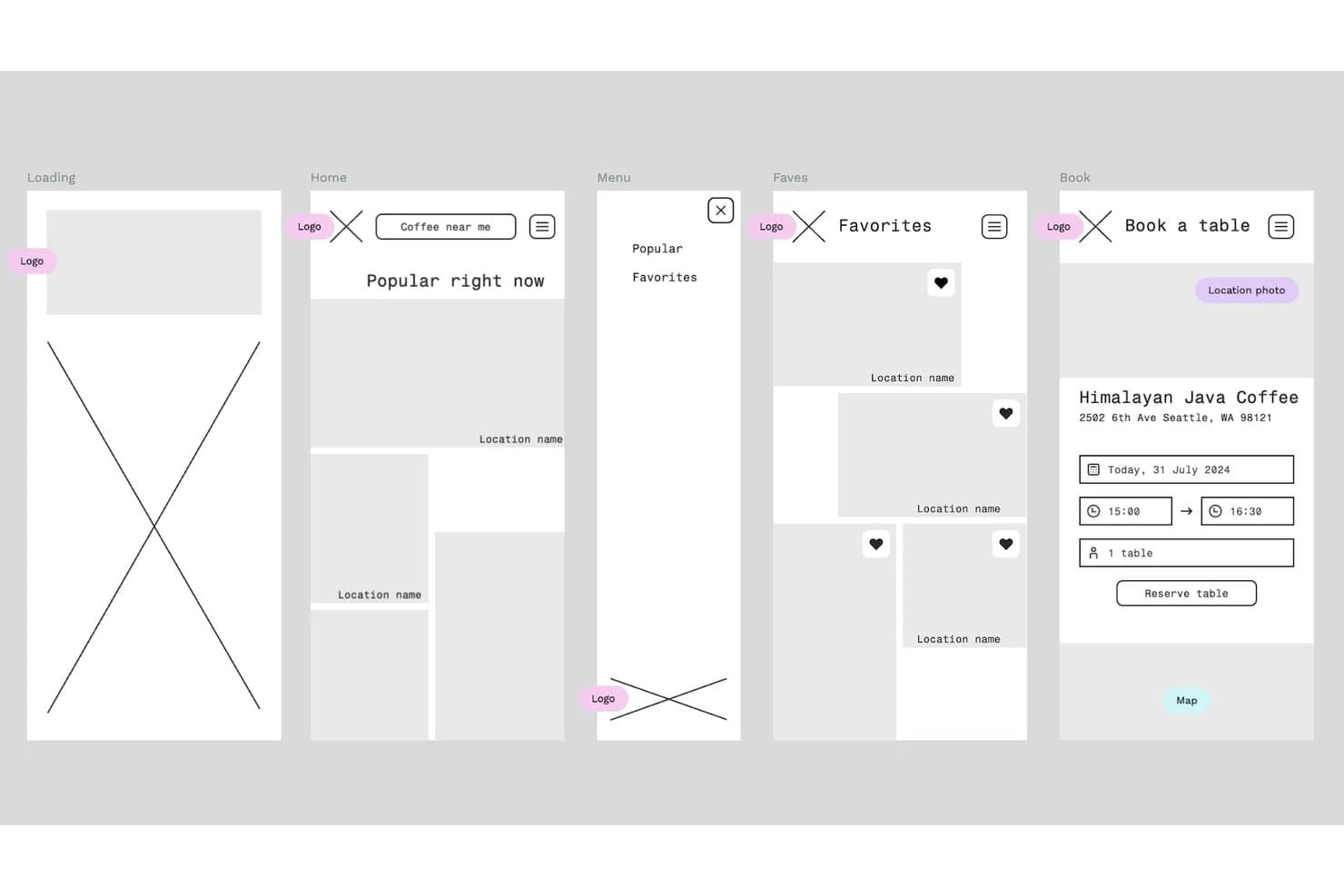
Penpot lets users build mobile app wireframes across multiple screens. Penpot is an open-source, browser-based design and prototyping tool that covers vector editing, responsive layout, component libraries, design tokens, and developer handoff in a single workspace.
Who Is Penpot Best For?
Penpot is a strong fit for dev-adjacent teams and startups that want full design tooling without vendor lock-in or per-seat licensing costs.
Why I Picked Penpot
Penpot earns its spot on my shortlist because it's the only fully open-source mockup tool that lets teams self-host the entire platform, keeping designs, tokens, and component libraries completely on their own infrastructure. I love that its CSS-based Flex and Grid layouts translate directly into production code, so handoff via the Inspect and Code tabs actually reduces back-and-forth with developers. The W3C-compliant design tokens system also lets my team manage Light/Dark themes and multi-brand token sets in one file, which is rare at this price point.
Penpot Key Features
- Multiplayer editing: Multiple team members can work in the same file at the same time, with in-context comments readable and resolvable without leaving design mode.
- Prototype flows: Connect boards using triggers, actions, overlays, and animations to build unlimited, separately shareable user flows in one file.
- Component variants: Create and manage component variants with boolean toggles that preserve overrides across your design system.
- MCP server integration: Connect any external LLM (Claude, Cursor, or VS Code) to read, modify, and generate designs, tokens, and components directly.
Penpot Integrations
Penpot offers about 125 marketplace plugins, including Locofy Lightning, Iconify, Sync Board Companion for Miro, and Design Tokens Export & Deploy for GitHub, GitLab, Azure DevOps, and Bitbucket. Its REST API, Plugins API, webhooks, and personal access tokens support custom integrations.
Pros and Cons
Pros:
- Tokens and variants support product systems
- Open-source self-hosting protects design ownership
- CSS-based layouts simplify developer handoff
Cons:
- Prototype logic lacks conditions and variables
- Performance can lag in complex files
Learn more about Penpot: Best for mapping flows before wireframing
- Free plan available
- From $6/user/month (billed annually)
Visit WebsiteCustomer Rating:4.5/5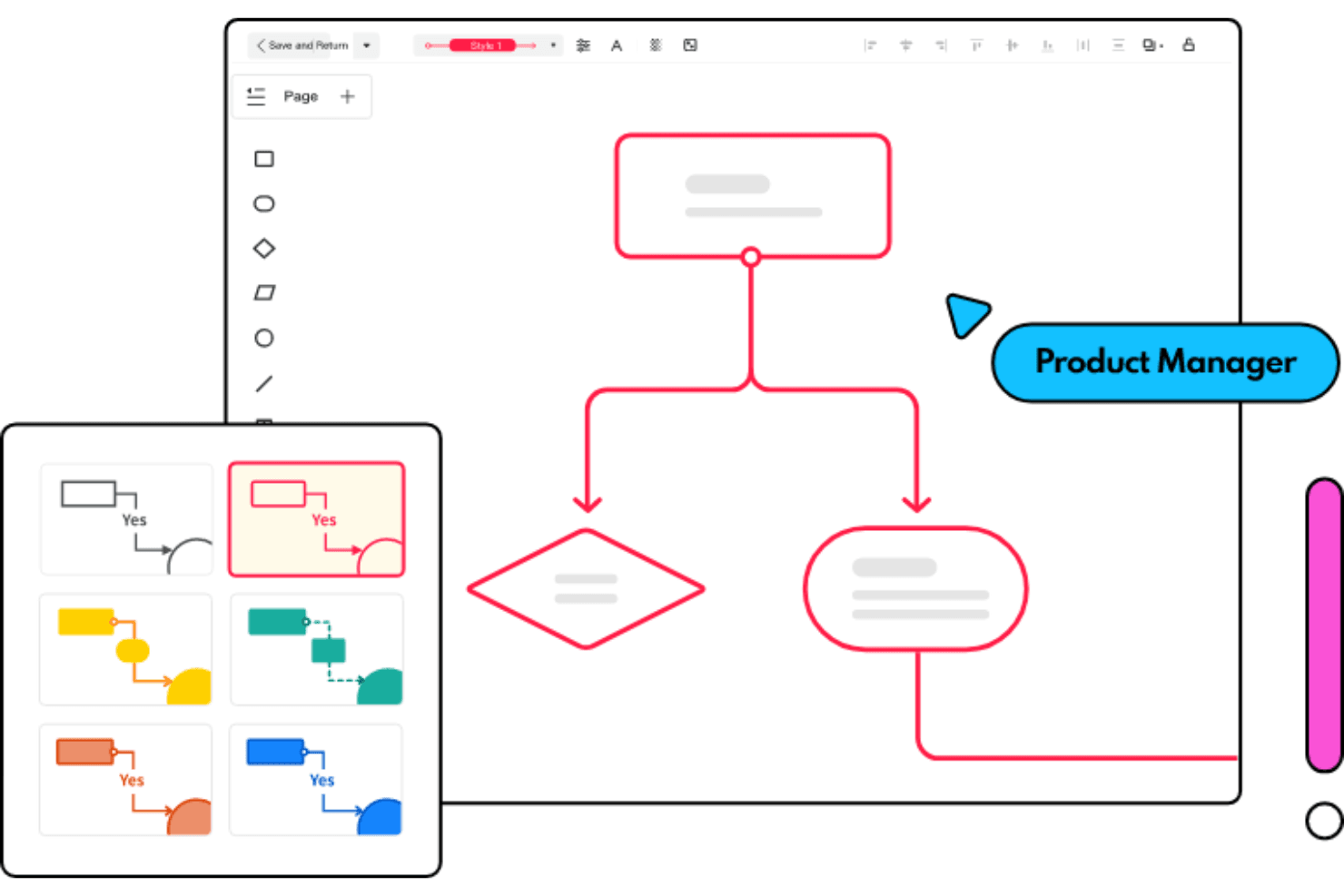
Mockitt has several flowchart templates for you to rock your next meeting Wondershare Mockitt is an all-in-one mockup and prototyping workspace that combines whiteboards, mind maps, flowcharts, wireframing, UI design, and interactive prototyping in a single browser-based tool.
Who Is Wondershare Mockitt Best For?
Wondershare Mockitt suits product managers who need to map user flows, mind maps, and sitemaps before touching a single wireframe.
Why I Picked Wondershare Mockitt
I've included Wondershare Mockitt in my top picks because it's one of the few mockup tools that lets you build out user flows, mind maps, and sitemaps on an infinite whiteboard before you ever open a wireframe canvas. I love that the AI Flowchart feature converts a plain-language process description into an editable diagram, which means a PM can move from rough thinking to structured flow in minutes. That flow then feeds directly into Mockitt's wireframing and prototyping workspace, keeping everything in one place.
Wondershare Mockitt Key Features
- Interactive prototype triggers: Link screens using click, hover, swipe, long-press, and gesture triggers, with dynamic states and animations between screens.
- Design-to-Code export: Generate code drafts in HTML, Vue, React, Flutter, or ArkUI directly from your designs for developer handoff.
- Multi-fidelity workspace: Move from low-fidelity wireframes to high-fidelity UI design within one canvas, without switching tools or exporting between stages.
- AI prototype generation: Convert text descriptions, screenshots, or hand-drawn sketches into editable prototypes for mobile, web, or tablet layouts.
Wondershare Mockitt Integrations
Wondershare Mockitt doesn't have any native integrations with Jira, Slack, or Confluence. It supports imports from Figma, Sketch, Axure, Adobe XD, and Photoshop, plus third-party resource plugins through its Community Resource Center.
Pros and Cons
Pros:
- Supports detailed developer handoff exports
- Converts sketches into editable prototypes
- Maps user flows before wireframing
Cons:
- Diagramming feels weaker than dedicated tools
- Performance lag affects complex projects
Learn more about Wondershare Mockitt: Best for Mac-native design-to-dev handoff
- 30-day free trial
- From $12/user/month (billed annually)
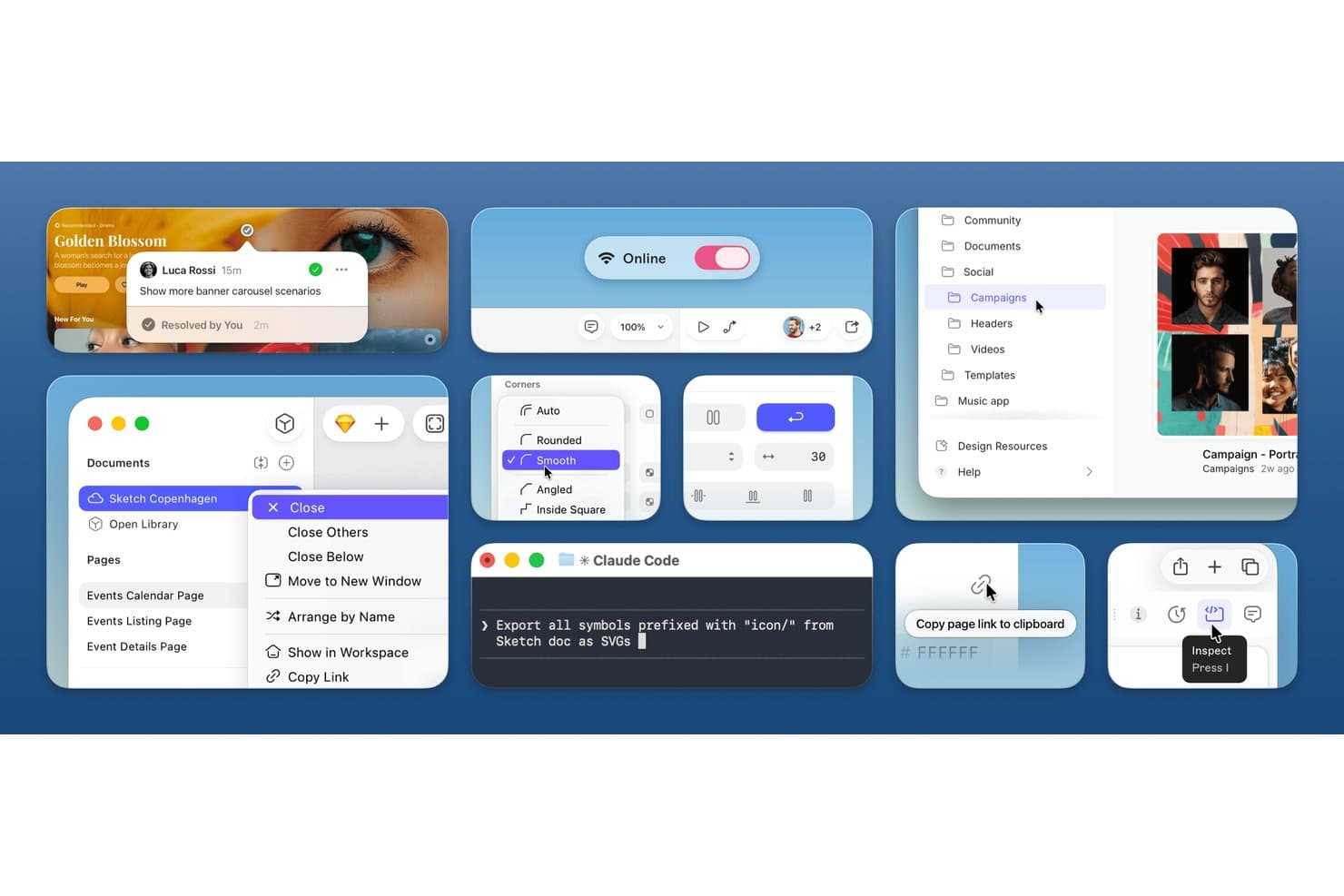
Sketch supports mockup design with collaborative tools and UI components. Sketch is a Mac-native vector design tool for creating wireframes, high-fidelity mockups, and interactive prototypes, with built-in design system support, real-time co-editing, and free browser-based developer handoff.
Who Is Sketch Best For?
Sketch is a strong fit for design-led teams on Mac who need a mature, full-featured tool with free, browser-based developer handoff.
Why I Picked Sketch
Sketch earns its spot on my shortlist because of how well it handles Mac-native design-to-dev handoff. I love that developers get a free, browser-based inspect view with CSS exports, color values, and downloadable assets without needing a Mac or a paid seat. The free handoff is paired with Sketch's MCP server, which lets me connect AI clients like Claude or Cursor directly to my designs and generate code with claimed 1:1 visual fidelity.
Sketch Key Features
- Real-time co-editing: Multiple designers can edit the same document simultaneously in the Mac app, with live cursors and avatar tracking.
- Smart Animate: Prototypes use custom easing and timing to animate transitions between frames without manual configuration.
- Design tokens export: Colors, layer styles, and text styles export as CSS or JSON, giving developers always-current design variables.
- Stacks layout tool: Flexible auto-layout containers support padding, alignment, distribution, wrap, and min/max sizing for responsive design work.
Sketch Integrations
Sketch offers documented integrations with Jira, Slack, Google Sheets Content Sync, ProtoPie, Overflow, Zeplin, and Stark. Its MCP server connects Claude, Cursor, VS Code/Copilot, Codex, and other MCP-compatible clients.
Pros and Cons
Pros:
- Smart Animate tests realistic product flows
- Native Mac editing supports offline mockups
- Browser handoff serves developers without Mac access
Cons:
- Browsers cannot edit shared designs
- Mac-only editing excludes Windows-based contributors
Learn more about Sketch: Best for collaborative interface design
- Free plan available
- From $3/user/month
Visit WebsiteCustomer Rating:4.7/5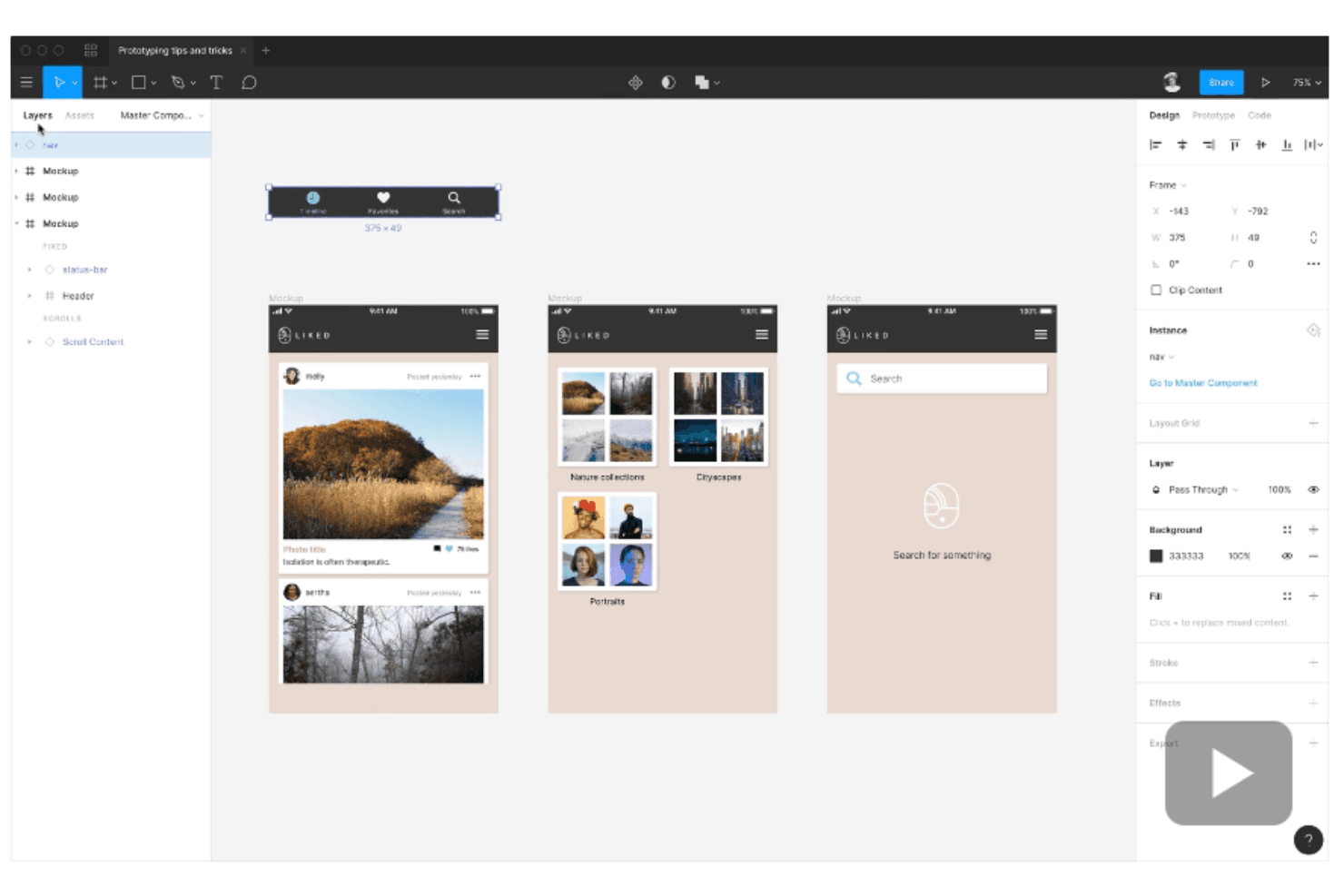
Figma enables interactive prototyping without syncing to other tools or exporting files. Figma is a browser-based interface design tool that brings wireframing, high-fidelity mockups, interactive prototyping, and developer handoff into a single multiplayer environment.
Who Is Figma Best For?
Figma suits cross-functional product teams where designers, PMs, and developers need to work in the same files without switching tools.
Why I Picked Figma
Figma earns its spot on my shortlist because real-time multiplayer editing genuinely changes how cross-functional teams work together. I've had designers, PMs, and developers all inside the same file simultaneously, leaving comments and iterating without a single export. Features like branching and merging keep experimental changes isolated until they're ready, and Dev Mode with Code Connect means developers get code-ready specs directly from the design file.
Figma Key Features
- Figma Make: Generate working prototypes or web apps from text prompts, with options to publish to a URL or copy output back as editable design layers.
- Advanced prototyping: Add conditional logic, variables, and expressions to prototype interactions, enabling dynamic flows that respond to user input.
- FigJam whiteboarding: Run async or live workshops with sticky notes, voting, timers, and AI-generated summaries directly inside Figma.
- Dev Mode: Inspect designs with CSS, React, and JSON code snippets, component playgrounds, and GitHub or Jira links attached to specific layers.
Figma Integrations
Figma offers 40+ documented integrations, including Jira, Confluence, Slack, Linear, Productboard, Notion, GitHub, Storybook, Maze, and UserTesting. Its REST API supports custom integrations.
Pros and Cons
Pros:
- Developer handoff reduces specification ambiguity
- Low-to-high fidelity workflows support iteration
- Real-time collaboration keeps teams aligned
Cons:
- Advanced controls overwhelm occasional users
- Large files can become sluggish
 Best for AI-generated mockups without design skills
- Free plan available
- From $14/user/month
Visit WebsiteCustomer Rating:4.8/5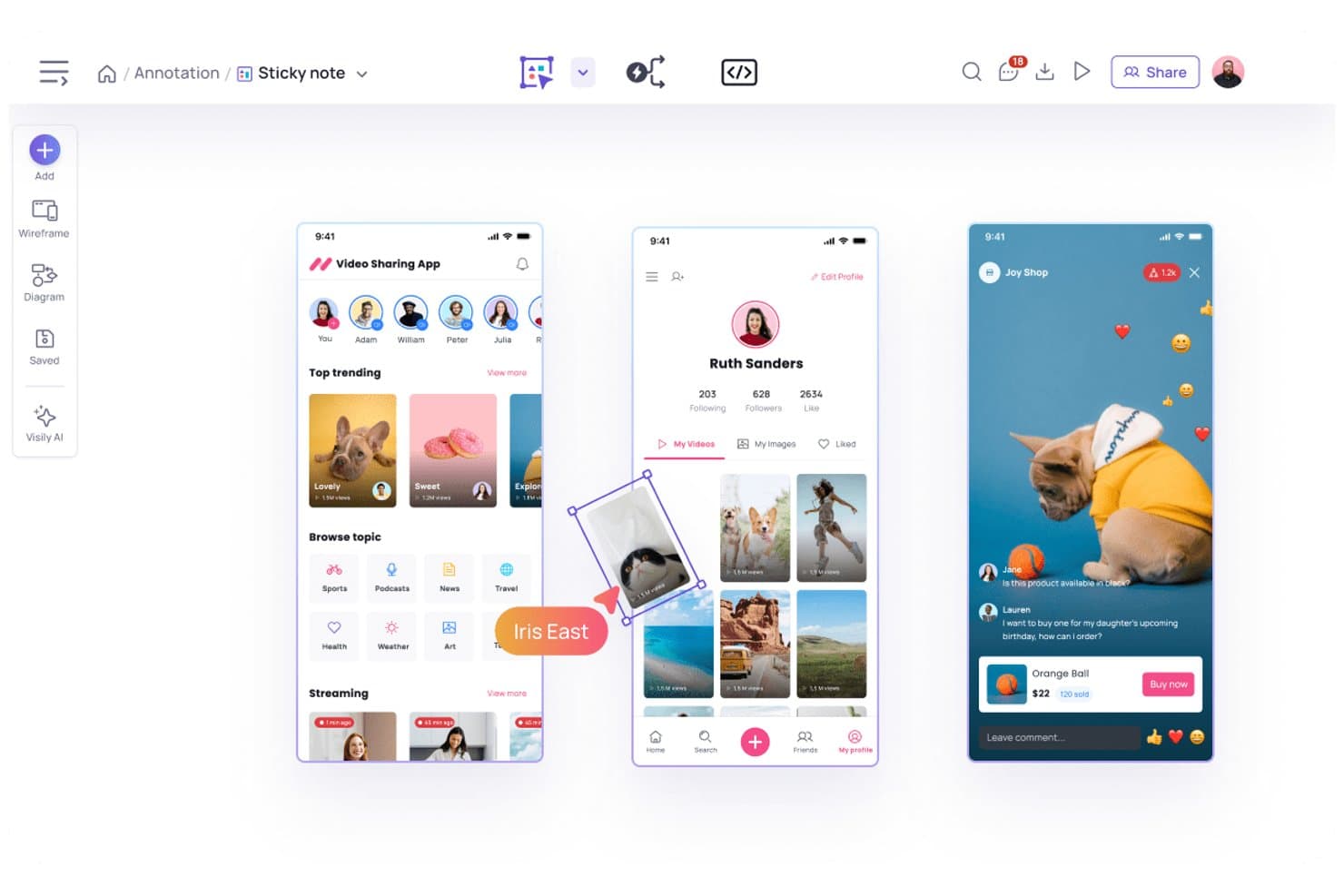
Visily lets users annotate and refine app mockups with sticky notes. Visily is a browser-based UI mockup and wireframing tool that lets you generate editable screens from text prompts, screenshots, sketches, or diagrams, with a drag-and-drop editor, 1,500+ templates, interactive prototyping, and developer handoff via Inspect Mode and code export.
Who Is Visily Best For?
Visily is a strong fit for product managers and startup founders who need to go from idea to shareable screen fast, without relying on a designer.
Why I Picked Visily
I picked Visily as one of the best because it genuinely removes the design skill barrier: you can paste a screenshot of a competitor's app or type a plain-text description and get an editable, multi-screen wireframe in seconds. I especially like the AI Auto-Prototype feature, which links up to 20 screens into a clickable flow automatically, so you can share a working prototype with engineers or stakeholders without touching a single connector line. The Inspect Mode output, with CSS and Tailwind values alongside exportable React or Vue code, means your handoff is already done by the time development starts.
Visily Key Features
- Real-time co-editing: Multiple teammates can design on the same board simultaneously, with cursor chat, comments, and emoji reactions included on every plan.
- Lo-fi/hi-fi toggle: Switch between low- and high-fidelity modes on any board, with dedicated templates available at both levels.
- Prototype triggers and transitions: Set up click, hover, swipe, drag, timeout, and keyboard interactions with fade or slide transitions and overlay positioning controls.
- Jira, Slack, and Notion integrations: Embed boards in Jira tickets, receive comment alerts in Slack, and display screens inside Notion pages without leaving your existing workflow.
Visily Integrations
Visily offers native integrations with Slack and Notion, plus a Jira Marketplace app and two-way Figma plugin for product workflows. Its MCP server connects boards with AI coding tools including Claude Code, Cursor, ChatGPT, and Lovable.
Pros and Cons
Pros:
- Auto-links up to 20 prototype screens
- Inspect Mode gives developers usable handoff specs
- AI turns screenshots into editable screens
Cons:
- AI edits can create unintended layout changes
- No auto-layout slows detailed interface refinement
Learn more about Visily: Best for wireframe-to-handoff in one workspace
- Free plan available
- From $24.90/user/month (billed annually)
Visit WebsiteCustomer Rating:4.5/5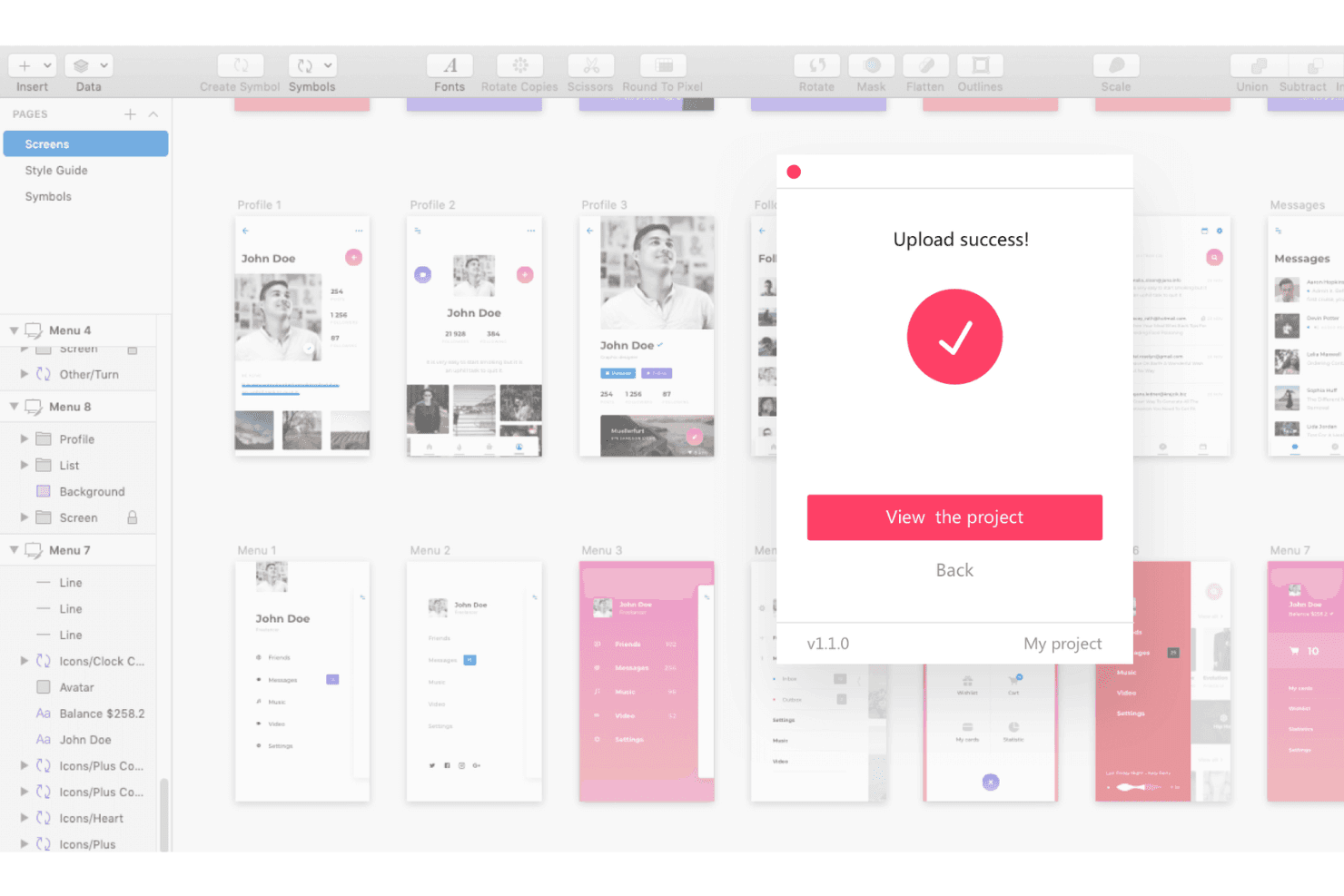
Mockplus welcomes you as you are. Upload your assets from various software into Mockplus and collaborate effectively with development teams. Mockplus RP is a browser-based wireframing and prototyping tool that covers the full design workflow—from drag-and-drop sketching and low-fidelity wireframes to interactive prototypes, stakeholder review, and developer handoff specs.
Who Is Mockplus Best For?
Mockplus RP is a strong fit for cross-functional teams—especially product managers and developers—who need to move from early wireframes to developer-ready handoff specs without switching tools.
Why I Picked Mockplus
I picked Mockplus RP because it genuinely covers the full arc from early wireframe to developer handoff without ever asking your team to switch tools. I especially like that auto-generated specs, redlines, and code snippets in CSS, Swift, and Objective-C are produced directly from your prototype, so developers get what they need without a manual export step. PRD documents and task assignment living in the same workspace also means PMs can keep product context attached to the designs being reviewed.
Mockplus Key Features
- Real-time co-editing: Multiple team members can work on the same prototype simultaneously, with changes auto-saved and synced across the workspace.
- Storyboard view: Visualize and organize the full user flow across all screens in a single connected view.
- Role-based access control: Assign permission roles to team members to manage who can view, edit, or comment on projects.
- QR-code sharing: Share live prototypes instantly via QR code for quick device previews and stakeholder feedback.
Mockplus Integrations
Mockplus documents integrations with Slack, Jira, Confluence, and Lark, plus plugins for Figma, Sketch, Photoshop, and Axure. No public API is documented for custom integrations.
Pros and Cons
Pros:
- PRDs and tasks keep product context attached
- Auto-generated specs support developer-ready handoffs
- Wireframe-to-handoff workflow stays in one workspace
Cons:
- Built-in usability testing and analytics are absent
- Individual plans exclude collaboration and handoff
Learn more about Mockplus: Best for mockups built from live URLs
- Free plan + 14-day free trial available
- From $29/user/month (billed annually)
Visit WebsiteCustomer Rating:4.2/5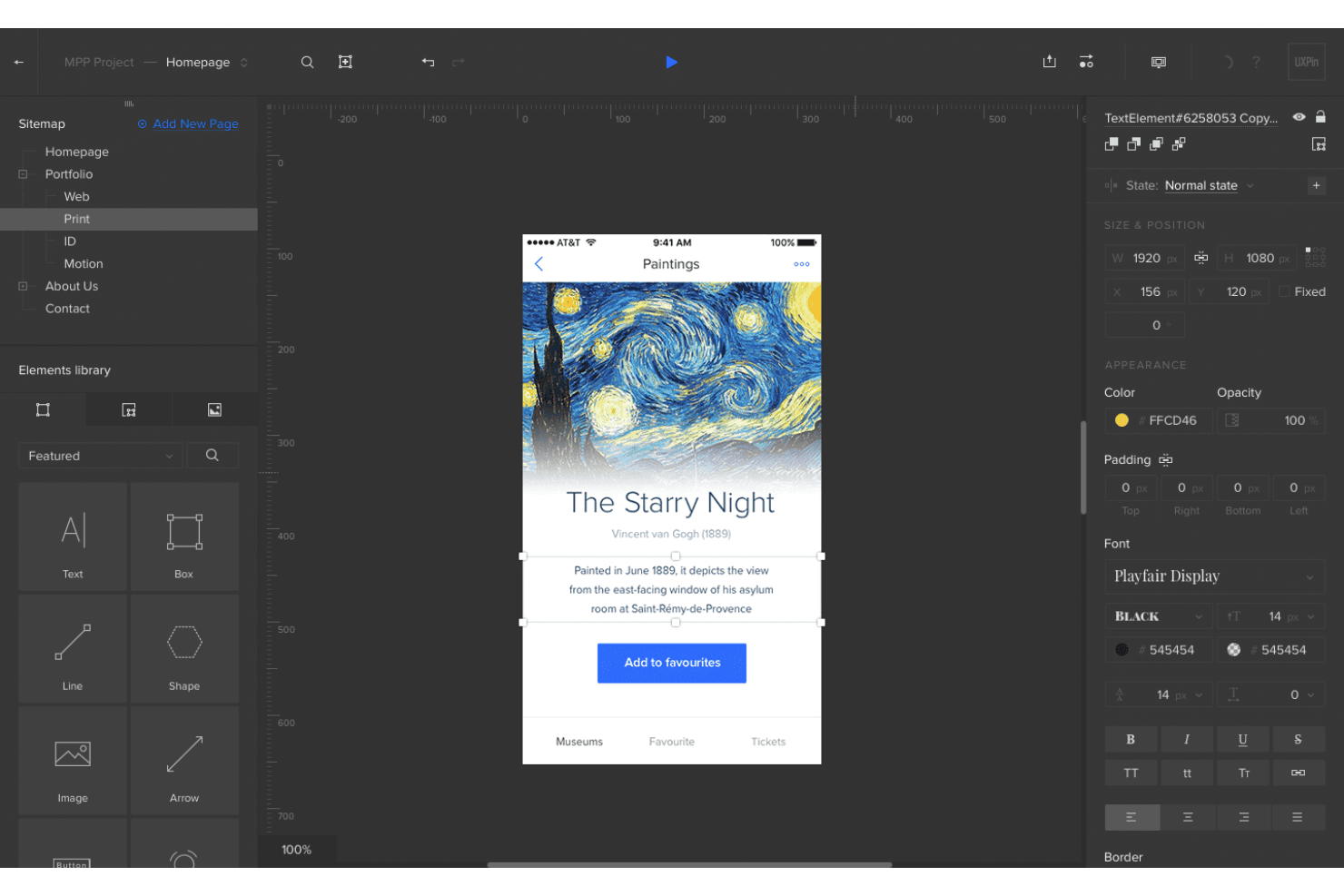
UXPin allows you to apply intricate design touches to mockup designs of websites and mobile applications. UXPin is a browser-based mockup and prototyping tool that lets you design with real, code-backed React components, generate layouts from URLs or screenshots, and hand off specs directly to developers.
Who Is UXPin Best For?
UXPin suits product managers and designers who need to turn existing sites, screenshots, or wireframes into editable, code-backed mockups without starting from a blank canvas.
Why I Picked UXPin
I've included UXPin in my top picks because its Forge AI does something I haven't seen elsewhere: paste in a live URL and it reconstructs the layout using your actual React component library, not generic shapes. That means if you're modernizing a legacy dashboard or auditing a competitor's UI, you get an editable, code-backed mockup in minutes. I also rely on Forge's image-to-UI feature to turn rough screenshots into structured designs that developers can inspect with real CSS specs.
UXPin Key Features
- Forge AI UX review: Scores your mockup across clarity, hierarchy, consistency, and accessibility, giving you structured feedback before handing off to developers.
- Variables and conditional logic: Lets you store user input and build branching interactions so prototypes respond dynamically, like a real app.
- Get Code spec mode: Generates inspectable CSS, element dimensions, and typography details directly from your design so developers can reference exact values without a separate handoff tool.
- Stakeholder approval and commenting: Lets reviewers leave comments and approve designs in Preview without creating a UXPin account.
UXPin Integrations
UXPin offers native integrations with Figma, Sketch, GitHub, Bitbucket, GitLab, Storybook, npm, Jira, Slack, and FullStory, plus StackBlitz and CodeSandbox for exported code.
Pros and Cons
Pros:
- Handoff specs reduce developer reconstruction
- Prototypes support variables and conditional logic
- Rebuilds existing websites with real components
Cons:
- Large projects can suffer slow performance
- Complex logic takes time to learn
Learn more about UXPin: Best for responsive web mockup design
- Free plan available
- From $19/user/month
Visit WebsiteCustomer Rating:4.2/5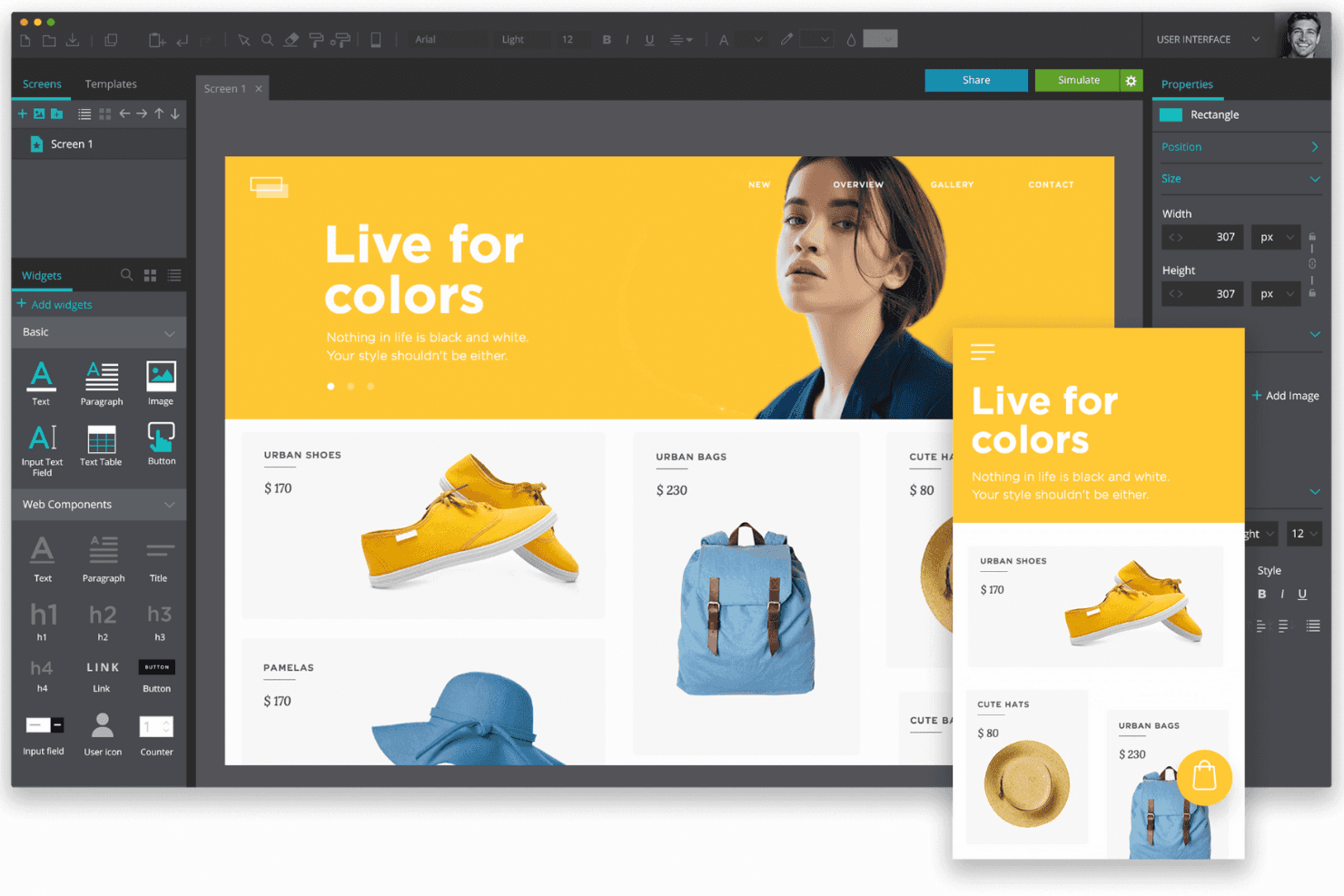
Justinmind helps you design responsive website mockup designs without knowing how to code. Justinmind is a mockup and prototyping tool that combines drag-and-drop UI design, responsive layout controls, 4,000+ pre-built components, and interactive prototyping across web, iOS, and Android.
Who Is Justinmind Best For?
Justinmind is a strong fit for product managers and UX designers who need to prototype responsive web layouts with real interactions, not just static screens.
Why I Picked Justinmind
Justinmind earns its spot on my shortlist because it's built specifically around responsive web mockup design in a way most prototyping tools aren't. I love that you can set element widths as percentages, pin headers and footers, and define breakpoint events that actually trigger layout changes, so a stakeholder review shows exactly how the UI behaves at different screen sizes. The Bootstrap and MUI kits mean I can drop in grid-aware components from the start, not retrofit responsiveness later.
Justinmind Key Features
- Jira and Azure DevOps sync: Link UI elements directly to work items and requirements, keeping design and delivery in the same workflow.
- Interactive HTML export: Export prototypes as functional HTML and JavaScript files that stakeholders can open in any browser.
- User flow diagramming: Map and visualize end-to-end user flows within the same project as your mockups.
- Inspect mode: Developers can view spacing, measurements, hex colors, and copy CSS directly from any prototype in the browser.
Justinmind Integrations
Justinmind has four documented project integrations: Jira, Confluence, Azure DevOps, and IBM DOORS. Its Java-based API/SDK supports custom plugins and code generation, while Figma, Sketch, and Adobe XD support design imports.
Pros and Cons
Pros:
- Extensive component library accelerates mockup creation
- Functional prototypes model complex user flows
- Responsive layouts mirror real device behavior
Cons:
- Unfamiliar interface slows first-time adoption
- Large prototypes can become unstable
Learn more about Justinmind:
Andre mockup-verktøy
Her er noen flere mockup-verktøy som ikke kom med på kortlisten, men som likevel er verdt å undersøke:
- 11Axure RPBest for logic-heavy prototype interactions
- 12Proto.ioBest for no-code interactive prototyping
- 13BalsamiqBest for B2B wireframes with Jira integration
- 14MarvelBest for no-code prototype-to-feedback handoff
- 15MiroBest for early-stage alignment across teams
- 16FramerBest for AI-generated web mockup iteration
- 17MoqupsBest for UX research within a single workspace
How I Evaluate Mockup Tools
I split my evaluation into three parts. Core functionality comes first—and carries the most weight—focusing on whether a tool lets you arrange screens and pull from ready-made UI assets. Then I look at standout features like AI-assisted design generation, and finally consider pricing value and onboarding ease.
Core Functionality (Table Stakes For This List)
When I'm selecting tools for my list, I score each one on a scale from 0 (does not offer the functionality) to 5 (excels in this area) for each core functionality listed below. I then convert the total into a percentage to help assess each tool's overall fit, with extra weight on any functionalities I've deemed essential.
- Layout & Element Design (Essential): I check whether you can freely place, resize, and layer UI components to build structured screens rather than just dropping shapes on a blank canvas.
- Templates & Asset Libraries (Essential): A good library saves hours. I look for categorized UI kits, device frames, and icon sets that cover common patterns like sign-up flows or dashboards.
- Multi-Fidelity Support: I evaluate how easily you can start with a rough wireframe and progress to a polished mockup in the same file without rebuilding screens from scratch.
- Real-Time Collaboration: Teams need to mark up mockups together. I look for live co-editing, threaded comments, and version history so feedback doesn't get lost in email chains.
- Export & Handoff: I check for developer-friendly outputs like CSS specs, asset slicing, and structured handoff views—not just static PNG exports that leave engineers guessing.
- Interactive Linking: Linking screens into clickable prototypes matters for stakeholder reviews. I look at how many interaction types a tool supports and whether the resulting prototype feels close to a real app.
Once I have a list of tools that meet the criteria, I consider what sets each platform apart.
Differentiating Factors (What Sets Vendors Apart)
Here's how I compare and contrast different vendors:
Standout Features
I look for AI-assisted design generation that goes beyond gimmicks—tools like Figma and Uizard let you turn a text prompt into a workable layout, which cuts hours off early concepting. Design handoff specs matter just as much. I check whether a tool auto-generates redlines and code snippets so engineers aren't left measuring pixels from a screenshot. I also evaluate plugin ecosystems, since a mockup tool that connects to Jira or Slack keeps feedback inside workflows PMs already use daily.
Beyond Features
I evaluate how quickly non-designers can produce a usable mockup. Tools like Uizard and Balsamiq let PMs skip onboarding entirely, while Figma rewards a steeper investment with deeper control. Pricing model matters too—per-seat licensing can quietly double costs when you loop in engineers and stakeholders for review. I also check whether a tool runs fully in the browser, since distributed teams need access across operating systems without installing desktop apps.
Slik velger du mockup-verktøy
Det er lett å gå seg vill i lange funksjonslister og komplekse prismodeller. For å hjelpe deg med å holde fokus mens du går gjennom den unike prosessen din for valg av programvare, har jeg laget en sjekkliste over faktorer du bør ha i bakhodet:
| Faktor | Hva du bør vurdere |
|---|---|
| FaktorSkalerbarhet | Hva du bør vurdereVurder om verktøyet kan vokse sammen med teamet ditt. Vil det håndtere flere brukere eller større prosjekter etter hvert som selskapet utvider seg? Kontroller om det finnes begrensninger på prosjektstørrelse eller antall brukere. |
| FaktorIntegrasjoner | Hva du bør vurdereVurder hvor godt verktøyet kobles til den eksisterende programvarestakken din. Integreres det med plattformer som Slack, Jira eller Google Drive for å effektivisere arbeidsflyten? |
| FaktorTilpasningsmuligheter | Hva du bør vurdereVurder om verktøyet lar deg tilpasse funksjonene etter behovene dine. Kan du tilpasse maler eller arbeidsflyter slik at de samsvarer med teamets unike prosesser? |
| FaktorBrukervennlighet | Hva du bør vurdereSe etter et verktøy med et enkelt grensesnitt som teamet raskt kan lære seg. Unngå verktøy som krever omfattende opplæring eller teknisk kunnskap for daglige oppgaver. |
| FaktorImplementering og innføring | Hva du bør vurdereUndersøk oppsettsprosessen og tilgjengelig støtte. Finnes det ressurser som veiledninger eller supportteam som kan hjelpe teamet med å komme i gang uten avbrudd? |
| FaktorKostnad | Hva du bør vurdereSammenlign prismodellene og sørg for at de passer budsjettet ditt. Finnes det skjulte gebyrer eller kostnader for ekstra funksjoner? Vurder om årlig fakturering gir besparelser. |
| FaktorSikkerhetstiltak | Hva du bør vurdereKontroller om verktøyet oppfyller sikkerhetsstandardene dine. Tilbyr det funksjoner som datakryptering og regelmessige sikkerhetsoppdateringer for å beskytte informasjonen din? |
| FaktorTilgjengelig kundestøtte | Hva du bør vurdereFinn ut hvilket støttenivå som tilbys. Finnes det kundeservice døgnet rundt? Kan du kontakte dem gjennom flere kanaler, som chat eller telefon? |
Hva er mockup-verktøy?
Mockupverktøy er apper som lar deg raskt lage visuelle modeller av et produkt eller en nettside før det bygges. Designere, utviklere og kunder bruker disse til å se for seg oppsett, teste ideer og få tilbakemeldinger tidlig, i stedet for å gjette hvordan ting vil se ut basert på en skisse. Med enkle dra-og-slipp-funksjoner og delte arbeidsområder kan dere justere design sammen – slik at alle unngår overraskelser og problemer når den faktiske utviklingen starter.
Funksjoner
Når du velger mockupverktøy, bør du se etter følgende viktige funksjoner:
- Skissearbeid: Lar deg lage grunnleggende oppsett og struktur for designene dine, slik at du kan visualisere brukergrensesnittet tidlig i designprosessen.
- Prototypeutvikling: Gjør det mulig å lage interaktive modeller av designene dine, noe som hjelper deg med å teste brukerflyter og samle inn tilbakemeldinger før utviklingen starter.
- Samarbeid: Tilbyr verktøy for samarbeid i sanntid, slik at flere brukere kan jobbe med et prosjekt samtidig og dele tilbakemeldinger umiddelbart.
- Håndtering av designsystem: Bidrar til å opprettholde konsistens på tvers av prosjekter ved å administrere gjenbrukbare komponenter og stilveiledninger.
- Animasjonsverktøy: Gir mulighet til å legge til overganger og animasjoner i prototypene dine, slik at de blir mer realistiske og engasjerende.
- Brukertesting: Lar deg samle inn direkte tilbakemeldinger fra brukere i plattformen, slik at du kan forbedre designene basert på faktisk brukerinteraksjon.
- Designoverlevering: Lukker gapet mellom design og utvikling ved å generere kodespesifikasjoner, noe som sikrer en smidigere overgang til byggefasen.
- Tilgjengelighetskontroll: Sikrer at designene dine oppfyller bransjestandarder for tilgjengelighet, slik at produktet kan brukes av et bredere publikum.
- Frakoblet tilgang: Lar deg arbeide med prosjekter uten internettforbindelse, slik at du kan være produktiv selv når tilkoblingen er begrenset.
- Integrasjon av sanntidsdata: Bruker reelle data til å lage dynamiske prototyper, noe som gir en mer realistisk fremstilling av sluttproduktet.
Fordeler
Implementering av mockupverktøy gir flere fordeler for teamet og virksomheten din. Her er noen av fordelene du kan se frem til:
- Bedre samarbeid: Funksjoner for samarbeid i sanntid gjør det mulig for teammedlemmer å arbeide effektivt sammen, redusere misforståelser og styrke teamarbeidet.
- Raskere iterasjoner: Muligheter for prototypeutvikling og brukertesting gir raske tilbakemeldinger og endringer, noe som fremskynder designprosessen og forbedrer sluttproduktet.
- Konsistent design: Håndtering av designsystem bidrar til å opprettholde enhetlighet på tvers av prosjekter, slik at retningslinjer for merkevarebygging og design følges konsekvent.
- Økt kreativitet: Funksjoner som animasjonsverktøy og integrasjon av sanntidsdata gir mulighet for mer kreative og realistiske design, slik at prototypene dine blir mer engasjerende.
- Reduserte kostnader: Ved å identifisere designproblemer tidlig gjennom skissearbeid og prototypeutvikling kan du unngå kostbare feil og omarbeiding i utviklingsfasen.
- Bedre tilgjengelighet: Tilgjengelighetskontroller sikrer at designene dine oppfyller standardene, utvider publikummet ditt og gjør produktet mer inkluderende.
- Effektiv designoverlevering: Verktøy for designoverlevering gir utviklere tydelige spesifikasjoner og legger til rette for en smidigere overgang fra design til utvikling.
Kostnader og priser
Valg av mockupverktøy krever en forståelse av de ulike prismodellene og abonnementene som er tilgjengelige. Kostnadene varierer basert på funksjoner, teamstørrelse, tillegg og mer. Tabellen nedenfor oppsummerer vanlige abonnementer, gjennomsnittsprisene deres og typiske funksjoner som er inkludert i løsninger for mockupverktøy:
Sammenligningstabell for mockupverktøy
| Abonnementstype | Gjennomsnittspris | Vanlige funksjoner |
|---|---|---|
| AbonnementstypeGratisabonnement | Gjennomsnittspris$0 | Vanlige funksjonerGrunnleggende skissearbeid, begrenset prototypeutvikling og grunnleggende samarbeid. |
| AbonnementstypePersonlig abonnement | Gjennomsnittspris$5-$15/user/month | Vanlige funksjonerAvansert prototypeutvikling, tilgang til maler og grunnleggende integrasjoner. |
| AbonnementstypeForretningsabonnement | Gjennomsnittspris$20-$50/user/month | Vanlige funksjonerSamarbeid i sanntid, håndtering av designsystem og forbedrede sikkerhetsfunksjoner. |
| AbonnementstypeBedriftsabonnement | Gjennomsnittspris$60-$100/user/month | Vanlige funksjonerTilpassbare arbeidsflyter, dedikert kontostøtte, avansert analyse og fullstendige integrasjonsmuligheter. |
Vanlige spørsmål om verktøy for visuelle utkast
Her er noen svar på vanlige spørsmål om verktøy for visuelle utkast:
Hvordan passer verktøy for visuelle utkast inn i den overordnede designprosessen?
Verktøy for visuelle utkast tas vanligvis i bruk etter de første skissene og før den fullstendige utviklingen. De hjelper deg med å visualisere oppsett og forbedre brukergrensesnittet før kodingen starter. Ved å bruke dem tidlig kan du identifisere designproblemer mens det fortsatt er enkelt å gjøre endringer.
Kan verktøy for visuelle utkast erstatte koding i de tidlige designfasene?
Ja, verktøy for visuelle utkast lar deg vise visuelle ideer uten å måtte kode. De er ideelle for å kommunisere valg av oppsett, farger og stil før utviklingen begynner. På denne måten kan du fokusere på tydelig design uten å måtte bekymre deg for den tekniske siden ennå.
Hvor nøyaktige er visuelle utkast sammenlignet med de endelige designene?
Visuelle utkast gir deg en god representasjon av hvordan det endelige produktet vil se ut. Det kan imidlertid fortsatt oppstå små forskjeller når ekte data og funksjonalitet legges til. Se på dem som en veiledning for å kommunisere hensikten, ikke som en pikselperfekt endelig versjon.
Når bør du oppdatere eller revidere visuelle utkast under et prosjekt?
Du bør revidere visuelle utkast hver gang prosjektets omfang, merkevareprofil eller tilbakemeldinger fra brukerne endres. Ved å holde dem oppdatert sikrer du at alle har samme forståelse. Regelmessige oppdateringer forebygger forvirring og gjør overleveringen til utviklingen mye smidigere.