

10 programas de diseño web para Mac en 2026

Lista de software de diseño web para Mac


El software de diseño web para Mac, ya sea un creador de sitios web estándar o un creador de sitios web con inteligencia artificial avanzado, hace referencia a herramientas digitales que permiten diseñar, crear prototipos y desarrollar páginas web directamente en tu dispositivo MacOS. Si estás buscando la plataforma de diseño web adecuada, probablemente quieras un software que se adapte a tu proceso creativo, facilite la colaboración y funcione sin problemas con las funciones nativas de tu Mac.
Con tantas opciones disponibles —cada una con distintos flujos de trabajo, integraciones y capacidades de diseño—, es difícil saber por dónde empezar o cuándo actualizarse.
Esta guía te ayudará a comparar las mejores opciones de creadores de sitios web y sus nuevas funciones para 2026, para que puedas elegir con confianza la opción perfecta para tus necesidades y las de tu equipo.
Por Qué Confiar en Nuestras Reseñas de Software
Llevamos revisando y probando software de gestión de productos desde 2020. Como product managers, sabemos lo crucial y complicado que es tomar la decisión correcta al seleccionar software. Invertimos en investigación profunda para ayudar a nuestra audiencia a tomar mejores decisiones de compra de software. Hemos probado más de 2,000 herramientas para distintos casos de uso y escrito más de 1,000 reseñas exhaustivas. Conozca cómo mantenemos la transparencia & nuestra metodología de reseñas de software.
Resumen del mejor software de diseño web
Este cuadro comparativo resume los detalles de precios de mis principales selecciones de software de diseño web para Mac, para ayudarte a encontrar la mejor opción según tu presupuesto y las necesidades de tu empresa.
| Tool | Best For | Trial Info | Price | ||
|---|---|---|---|---|---|
| 1 | Ideal para la colaboración en equipo en tiempo real | Plan gratuito disponible | Desde $16/usuario/mes (facturado anualmente) | Website | |
| 2 | Ideal para la entrega de diseño multiplataforma | Plan gratuito disponible | Desde $12.45/usuario/mes (facturado anualmente) | Website | |
| 3 | Ideal para la simplicidad en wireframing rápido | Prueba gratuita de 14 días disponible | Desde $16/usuario/mes (facturado anualmente) | Website | |
| 4 | Ideal para desarrollo front-end visual | Plan gratuito disponible | Desde $14/mes (facturación anual) | Website | |
| 5 | Ideal para integración de pruebas de usuario | Plan gratuito + demo gratis disponible | Desde $12/mes (facturado anualmente) | Website | |
| 6 | La mejor opción para bibliotecas de componentes interactivos | Prueba gratuita de 14 días + demo gratuita disponible | Desde $49/mes (facturado anualmente) | Website | |
| 7 | Ideal para flujos de trabajo de diseño de código abierto | Plan gratuito y prueba gratis de 14 días disponibles | Desde $7/usuario/mes | Website | |
| 8 | Mejor para prototipado de UI de alta fidelidad | Plan gratuito disponible | Desde $19/usuario/mes | Website | |
| 9 | Ideal para publicación integrada de sitios | Plan gratuito disponible | Desde $17/mes (facturado anualmente) | Website | |
| 10 | Ideal para diseño de interfaces nativo en MacOS | Prueba gratuita de 30 días disponible | Desde $12/usuario/mes (facturado anualmente) | Website |
Opiniones sobre software de diseño web para Mac
A continuación encontrarás mis resúmenes detallados del software de diseño web para Mac que incluí en mi lista. Mis reseñas ofrecen un análisis detallado de las funciones, los mejores casos de uso y las integraciones de cada plataforma para ayudarte a encontrar la mejor opción para ti.

Figma
Ideal para la colaboración en equipo en tiempo real
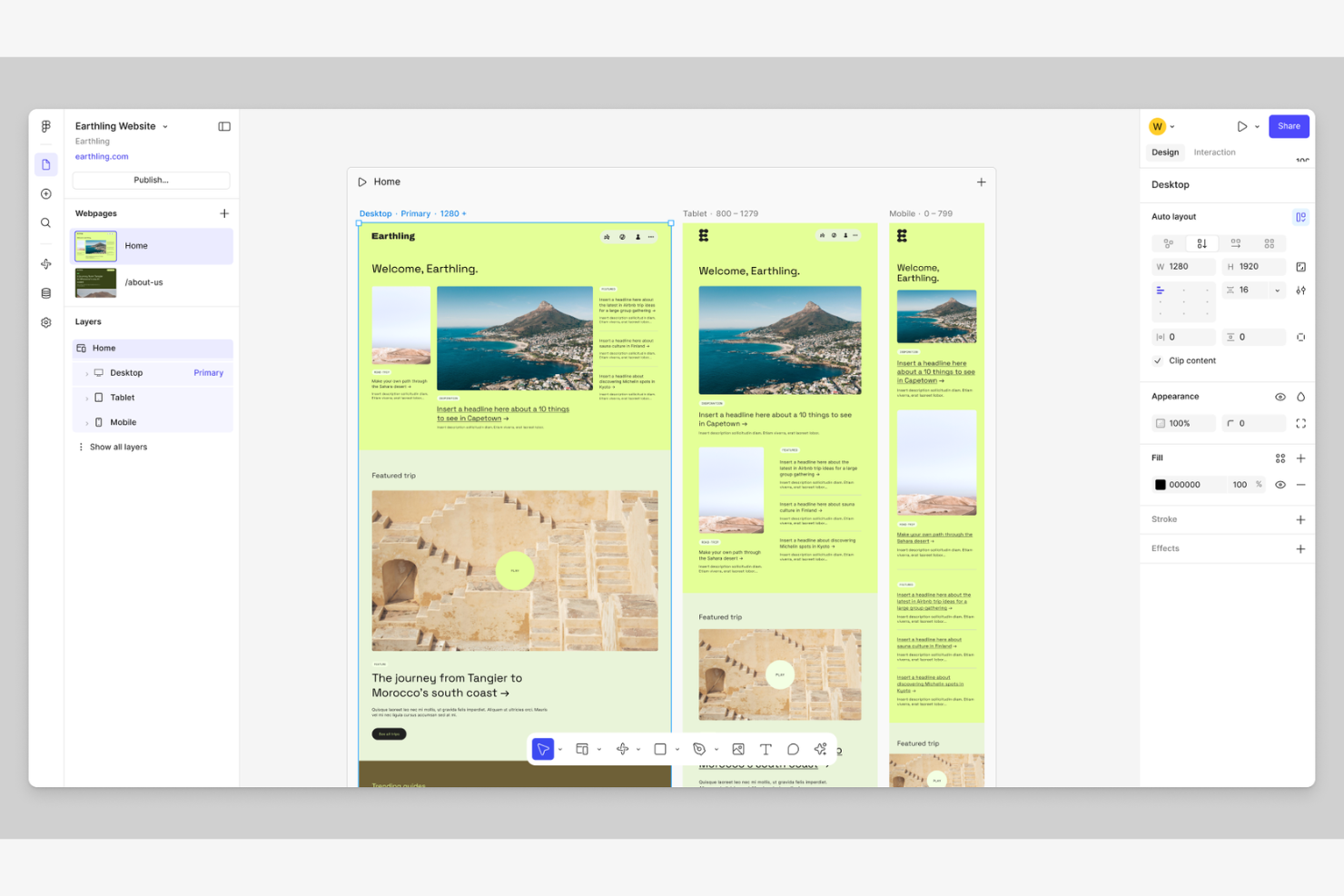
Figma ofrece a los equipos de diseño una forma de colaborar en proyectos web en tiempo real, todo desde un navegador o una aplicación para Mac. Es una opción ideal para agencias, equipos de producto y freelancers que necesitan co-crear, compartir comentarios y entregar diseños sin los inconvenientes del control de versiones. Si buscas una plataforma que mantenga a todos sincronizados y permita la edición en vivo, Figma destaca entre las herramientas de diseño web para Mac.
Por qué elegí Figma
La colaboración en equipo en tiempo real de Figma es una gran ventaja para el diseño web en Mac, especialmente cuando varios diseñadores o partes interesadas necesitan trabajar juntos. Elegí Figma porque su edición en modo multijugador permite que todos vean los cambios a medida que ocurren, lo cual ayuda a los equipos a evitar conflictos de versiones y el interminable intercambio de archivos.
Las herramientas integradas de comentarios y prototipado también facilitan reunir comentarios e iterar rápidamente dentro del mismo espacio de trabajo. Para los equipos de diseño web que valoran la colaboración en tiempo real y la toma de decisiones rápidas, el enfoque de Figma es difícil de igualar.
Funciones clave de Figma
Otras funciones de Figma que apoyan el diseño web en Mac incluyen:
- Auto Layout: Ajusta automáticamente los marcos y componentes al cambiar el tamaño o agregar contenido, facilitando el diseño responsivo.
- Bibliotecas de componentes: Permiten crear y reutilizar elementos de diseño en múltiples proyectos para garantizar consistencia.
- Historial de versiones: Registra cada cambio, así puedes revisar o volver a iteraciones anteriores en cualquier momento.
- Entrega para desarrolladores: Proporciona fragmentos de código y especificaciones de diseño a los desarrolladores directamente dentro de la plataforma.
Integraciones de Figma
Las integraciones incluyen Slack, Jira, Notion, Asana, Trello, Dropbox, Confluence, GitLab, Zeplin y Storybook.
Pros and Cons
Pros:
- Herramientas de autoajuste para diseño web
- Enorme ecosistema de plugins para MacOS
- Excelente soporte para Apple Silicon
Cons:
- No es una herramienta para crear sitios web
- Archivos web pesados ralentizan el Mac

Mockplus
Ideal para la entrega de diseño multiplataforma
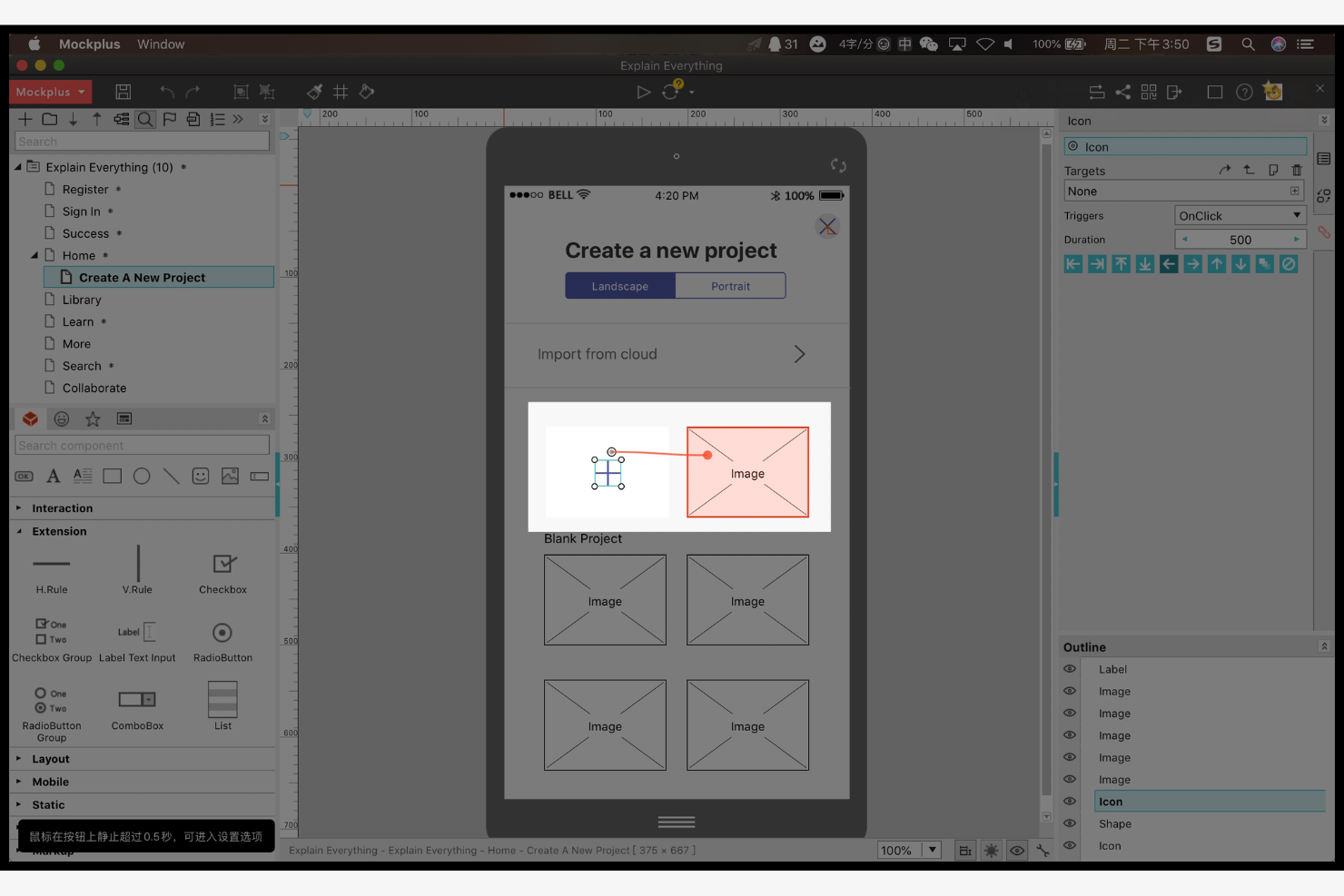
Si necesitas una herramienta de diseño web que sirva de puente entre el diseño y el desarrollo en Mac, Mockplus merece tu atención. Está pensada para equipos de producto, agencias y profesionales UX que desean transferir diseños entre plataformas sin perder detalle ni contexto. Mockplus destaca por su flujo de trabajo unificado, permitiéndote crear prototipos, colaborar y entregar recursos a los desarrolladores en un solo lugar.
Por qué elegí Mockplus
Cuando la transferencia de diseño multiplataforma es una prioridad, Mockplus reúne a diseñadores y desarrolladores en un flujo de trabajo único. Elegí Mockplus porque te permite cargar, inspeccionar y entregar diseños desde Mac a cualquier plataforma, manteniendo las especificaciones, recursos y fragmentos de código organizados y accesibles.
Las funciones de colaboración en tiempo real ayudan a los equipos a comentar, revisar y resolver los comentarios directamente sobre los archivos de diseño. Para quienes necesitan llevar proyectos web fluidamente del diseño al desarrollo, Mockplus cubre todo el proceso de entrega sin pasos adicionales.
Funciones clave de Mockplus
Además de sus capacidades para la entrega de diseños, también encontré útiles estas funciones:
- Bibliotecas de componentes: Accede a una amplia variedad de componentes UI reutilizables para prototipado rápido.
- Gestión de sistemas de diseño: Crea, gestiona y actualiza sistemas de diseño para mantener la coherencia de la marca.
- Prototipado interactivo: Construye prototipos interactivos con función de arrastrar y soltar y soporte para animaciones.
- Control de versiones: Haz seguimiento de los cambios y administra diferentes versiones de tus proyectos de diseño dentro de la plataforma.
Integraciones de Mockplus
Las integraciones incluyen Figma, Sketch, Axure, Adobe XD, Photoshop, Slack, Jira, Confluence y Lark.
Pros and Cons
Pros:
- Gran biblioteca de iconos web
- Enlaces interactivos rápidos
- Buena gestión de roles del equipo
Cons:
- La interfaz se siente algo desactualizada
- La animación web es básica

Balsamiq
Ideal para la simplicidad en wireframing rápido
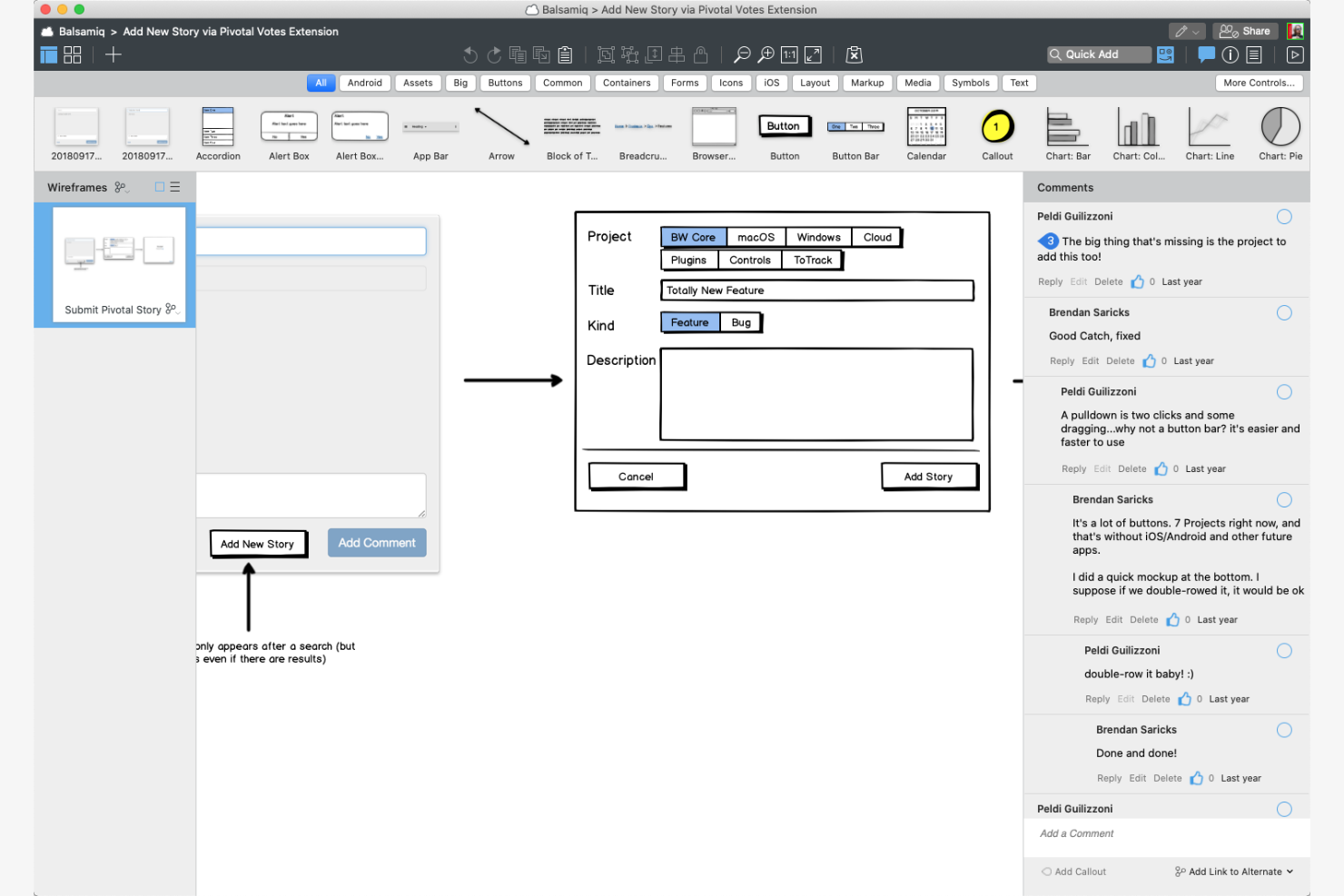
Balsamiq está diseñado para gestores de producto, fundadores y profesionales de UX que necesitan plasmar ideas web de forma rápida en Mac. Su estilo dibujado a mano y su interfaz de arrastrar y soltar te ayudan a centrarte en la estructura y el flujo sin distraerte con detalles visuales. Si deseas comunicar conceptos rápidamente y mantener los wireframes simples, el enfoque de Balsamiq mantiene a tu equipo alineado desde el principio.
Por Qué Elegí Balsamiq
Para diseñadores web que quieren avanzar rápido, la simplicidad en el wireframing rápido de Balsamiq destaca. Elegí Balsamiq porque sus elementos con estilo de boceto y el lienzo de arrastrar y soltar te permiten diseñar estructuras y flujos de usuario en minutos, no en horas. Las opciones limitadas de estilo visual hacen que todos se concentren en la estructura y la funcionalidad, lo cual es ideal para la lluvia de ideas en etapas tempranas.
Si necesitas comunicar ideas e iterar rápidamente con los interesados en Mac, el enfoque sencillo de Balsamiq te ayuda a obtener retroalimentación antes de pasar a un diseño de alta fidelidad.
Características Clave de Balsamiq
Además de su enfoque de wireframing rápido, Balsamiq ofrece varias otras características a destacar:
- Símbolos reutilizables: Crea y gestiona símbolos personalizados para utilizar en múltiples wireframes y proyectos.
- Opciones de exportación: Exporta wireframes como archivos PNG o PDF para compartir y documentar.
- Organización de proyectos: Agrupa los wireframes en proyectos y usa carpetas para mantener las pantallas organizadas.
- Enlaces interactivos: Añade enlaces clicables entre wireframes para simular flujos básicos de navegación.
Integraciones de Balsamiq
Las integraciones incluyen Confluence, Jira, Slack y Trello.
Pros and Cons
Pros:
- Se centra en el diseño puro de páginas
- Muy bajo impacto en el sistema Mac
- No se requieren conocimientos técnicos web
Cons:
- Interacciones web básicas
- Interfaz de diseño desactualizada

Webflow
Ideal para desarrollo front-end visual

Webflow ofrece a diseñadores y desarrolladores una forma de crear sitios web listos para producción de manera visual, sin necesidad de escribir código. Es una opción sólida para equipos creativos, agencias y freelancers que desean tener control total sobre el diseño, las interacciones y la adaptabilidad directamente en el navegador. Si buscas una solución de diseño web en Mac que conecte el diseño con el desarrollo front-end, Webflow destaca por sus controles visuales de CSS y su alojamiento integrado.
Por qué elegí Webflow
Lo que diferencia a Webflow es su capacidad de permitir que diseñes y desarrolles de forma visual, mientras sigues generando código limpio y listo para producción. Elegí Webflow porque ofrece a los usuarios de Mac la posibilidad de controlar CSS, HTML e interacciones a través de una interfaz visual, lo cual es especialmente útil para quienes quieren evitar la programación manual pero aún necesitan personalización avanzada.
El diseñador visual de la plataforma refleja la estructura del código front-end, por lo que puedes crear diseños adaptativos y animaciones complejas directamente en el navegador. Para el diseño web en Mac, este enfoque cierra la brecha entre el diseño y el desarrollo, facilitando el lanzamiento de sitios pulidos e interactivos.
Funciones clave de Webflow
Otras funciones de Webflow que favorecen el diseño web en Mac incluyen:
- Colecciones CMS: Te permite crear y gestionar estructuras de contenido dinámicas para blogs, portafolios o catálogos de productos.
- Alojamiento integrado: Proporciona un alojamiento rápido y seguro directamente a través de la plataforma de Webflow.
- Símbolos reutilizables: Permite crear y actualizar componentes compartidos como barras de navegación y pies de página en varias páginas.
- Editor para clientes: Da acceso a los clientes para que editen el contenido del sitio sin afectar el diseño o la estructura.
Integraciones de Webflow
Las integraciones incluyen HubSpot, Mailchimp, Zapier, Google Analytics y Stripe.
Pros and Cons
Pros:
- Genera HTML y CSS limpios
- Animaciones web avanzadas
- CMS integrado para diseño web
Cons:
- Altos costos mensuales de alojamiento
- No tiene app de escritorio nativa para MacOS

Marvel
Ideal para integración de pruebas de usuario
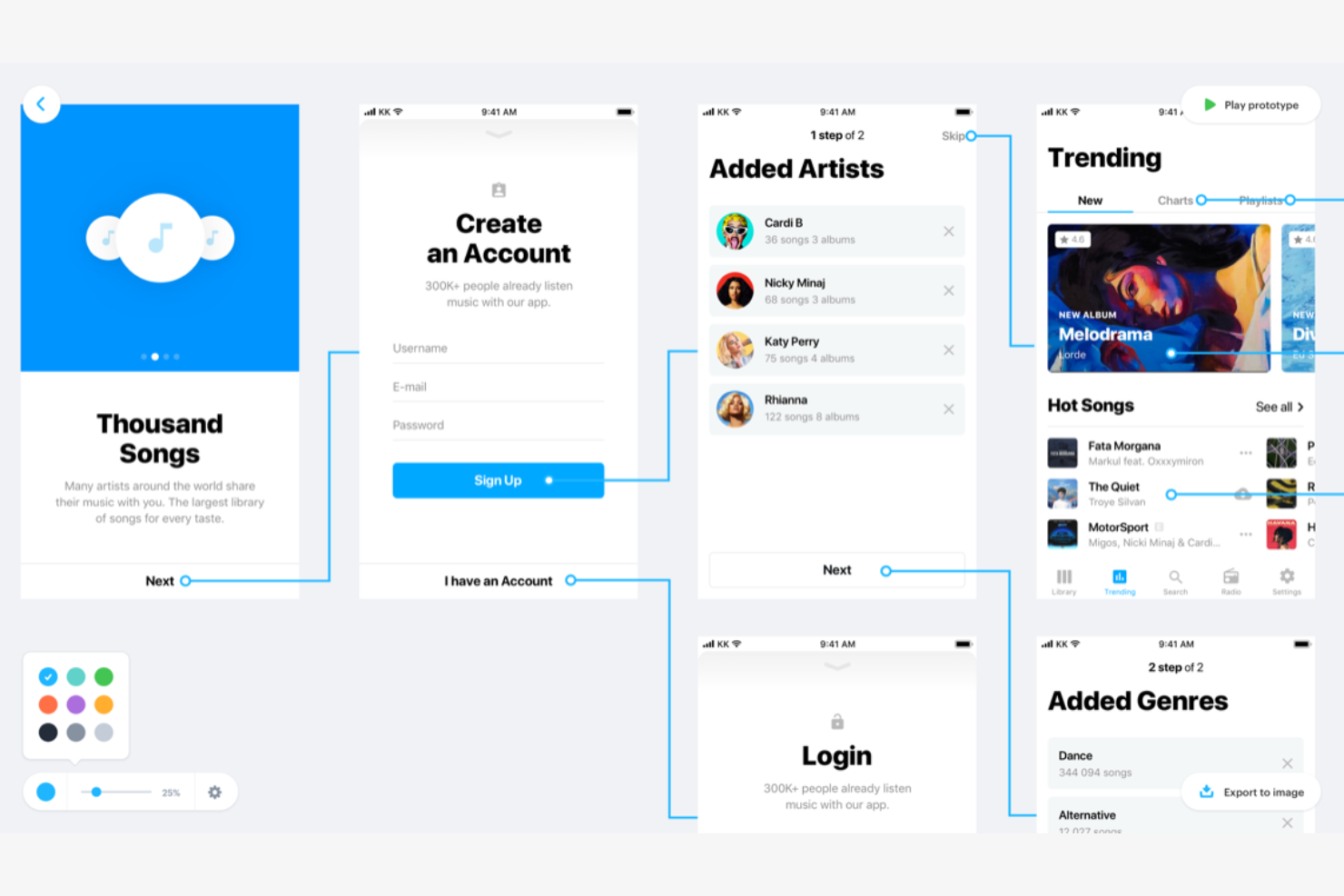
Marvel está diseñado para diseñadores y equipos de producto que desean crear prototipos y probar interfaces web y móviles rápidamente en Mac. Su característica más destacada es la prueba de usuario integrada, lo que te permite recopilar comentarios y validar diseños sin salir de la plataforma. Si necesitas una herramienta que conecte diseño, prototipado y test de usabilidad en un solo flujo de trabajo, Marvel está hecha para ese propósito.
Por qué elegí Marvel
Marvel destaca por su integración fluida de pruebas de usuario directamente en el flujo de trabajo de diseño, lo cual es especialmente valioso para el diseño web en Mac. Elegí Marvel porque puedes crear prototipos interactivos y luego lanzar pruebas de usabilidad sin exportar archivos ni cambiar de plataforma.
La herramienta te permite recopilar comentarios reales de usuarios, ver grabaciones de sesiones y analizar los resultados, todo en un solo lugar. Para los diseñadores que desean validar su trabajo rápidamente e iterar en base a información real, la integración de pruebas de usuario de Marvel es una gran ventaja.
Funciones clave de Marvel
Otras funciones que hacen a Marvel útil para el diseño web en Mac incluyen:
- Editor de diseño de arrastrar y soltar: Crea y organiza elementos de la interfaz visualmente y sin código.
- Herramientas de traspaso de diseño: Genera especificaciones y recursos para desarrolladores directamente desde tus diseños.
- Biblioteca de plantillas: Accede a una colección de plantillas ya hechas para proyectos web y móviles.
- Comentarios y feedback: Colabora con los miembros del equipo dejando comentarios directamente sobre los prototipos.
Integraciones de Marvel
Las integraciones incluyen Jira, Confluence, Dropbox, Sketch y Microsoft Teams.
Pros and Cons
Pros:
- Pruebas de usuario web integradas
- Sincroniza bien con la app Sketch
- Especificaciones simples para desarrolladores web
Cons:
- La interfaz parece un poco abandonada
- No sirve para lógica web compleja

UXPin
La mejor opción para bibliotecas de componentes interactivos
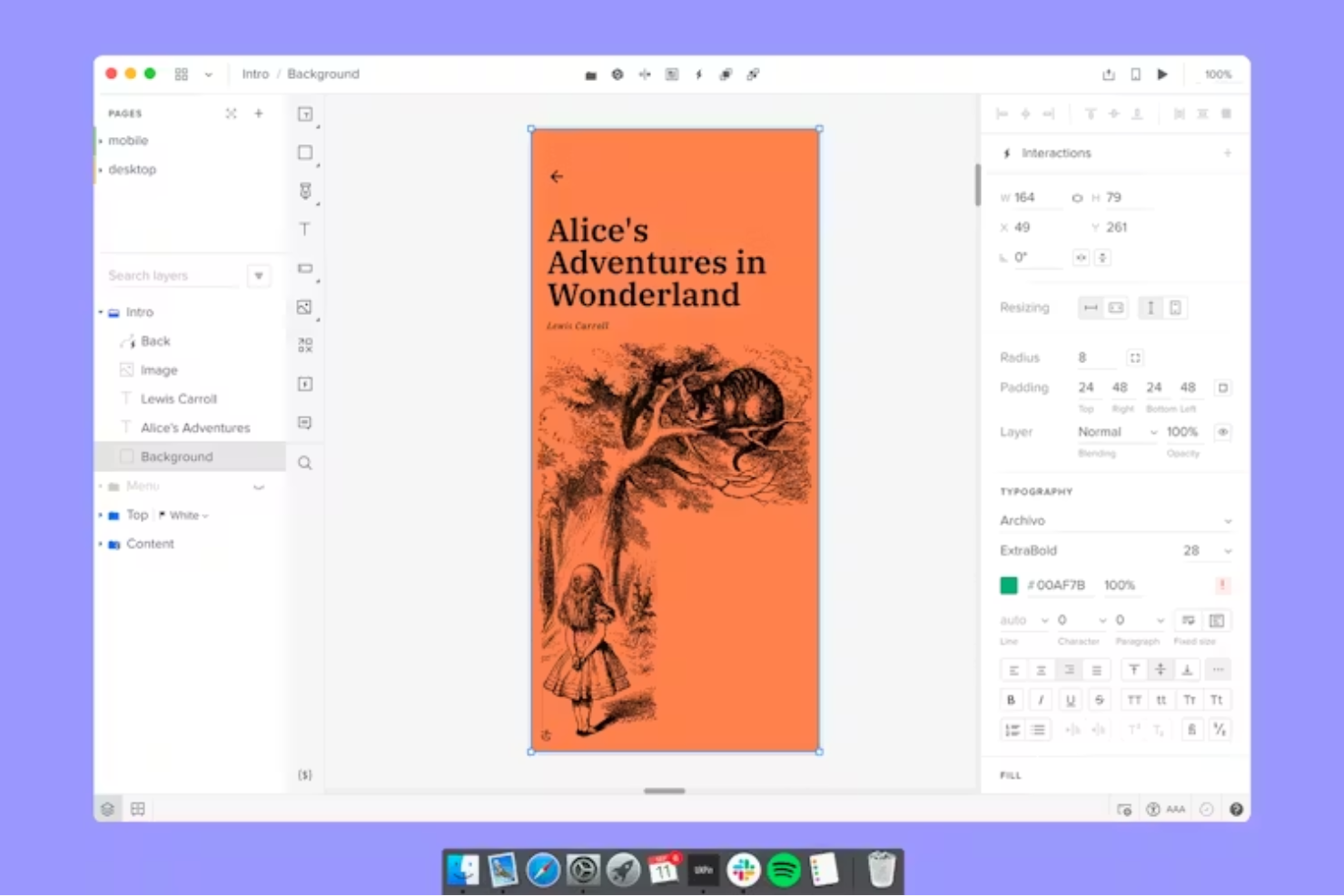
UXPin ofrece a los equipos de producto y diseñadores UX en Mac la posibilidad de crear prototipos interactivos utilizando componentes reales y reutilizables. Si necesitas crear diseños web que se comporten como productos codificados, las bibliotecas de componentes y funciones lógicas de UXPin te ayudan a simular experiencias de usuario auténticas. Esto lo hace especialmente útil para equipos que desean cerrar la brecha entre diseño y desarrollo sin salir del entorno Mac.
Por qué elegí UXPin
Lo que distingue a UXPin para el diseño web en Mac es su enfoque en bibliotecas de componentes interactivos que te permiten crear prototipos con elementos reales y reutilizables. Elegí UXPin porque te permite crear y gestionar sistemas de diseño, para que tu equipo mantenga la coherencia en los proyectos y actualice componentes rápidamente a medida que cambian los requisitos.
La capacidad de añadir lógica, estados y variables a los componentes significa que puedes simular interacciones reales de los usuarios sin escribir código. Para los diseñadores que quieren ir más allá de los bocetos estáticos, el enfoque orientado a componentes de UXPin te ayuda a entregar prototipos web más realistas y comprobables.
Funciones Clave de UXPin
Otras funciones de UXPin que apoyan el diseño web en Mac incluyen:
- Tecnología Merge: Te permite sincronizar componentes codificados desde tu repositorio de Git directamente en tus proyectos de diseño.
- Verificador de Accesibilidad: Analiza tus diseños en busca de problemas de accesibilidad y proporciona sugerencias accionables.
- Colaboración en Tiempo Real: Permite que varios miembros del equipo editen y comenten en los prototipos simultáneamente.
- Importación de Diseños: Permite importar archivos de Figma, Sketch y Adobe XD para continuar el trabajo en UXPin.
Integraciones de UXPin
Las integraciones incluyen Fullstory, Figma, Sketch, Git, Storybook, Jira, Adobe Fonts, Google Fonts y Slack.
Pros and Cons
Pros:
- Estados y lógica web reales
- Accesibilidad web integrada
- Transferencia sin problemas al desarrollador
Cons:
- La aplicación de escritorio puede ser lenta
- Niveles web premium caros

Penpot
Ideal para flujos de trabajo de diseño de código abierto
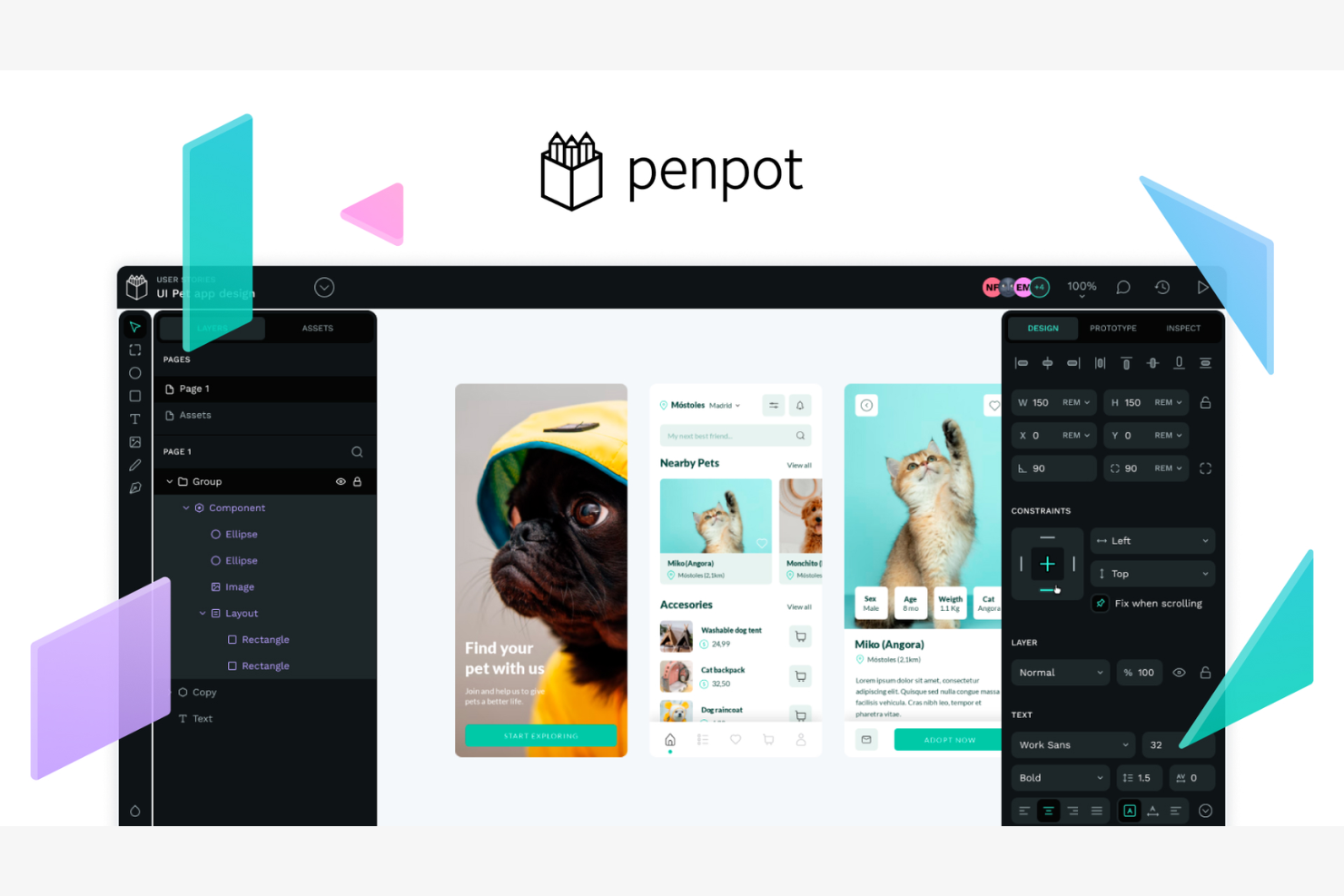
Penpot aporta la flexibilidad del código abierto a los equipos de diseño web que trabajan en Mac. Es una plataforma basada en navegador que atrae a diseñadores y desarrolladores que buscan tener control total sobre sus flujos de trabajo de diseño y el alojamiento de archivos. Si necesitas una herramienta que facilite el diseño colaborativo sin dependencia del proveedor, los estándares abiertos de Penpot y sus opciones de autoalojamiento lo distinguen.
Por qué elegí Penpot
Lo que me atrajo de Penpot es su compromiso con los flujos de trabajo de diseño de código abierto, lo cual es poco común entre las herramientas de diseño web para Mac. Penpot te permite alojar tu propio entorno de diseño, dando a tu equipo control total sobre los datos y la privacidad, algo especialmente valioso para organizaciones con necesidades de cumplimiento estrictas.
Su soporte para estándares abiertos como SVG y su interfaz colaborativa basada en navegador facilita que diseñadores y desarrolladores trabajen juntos sin estar atados a formatos propietarios. Si buscas una herramienta flexible y transparente que se adapte a flujos de trabajo personalizados, el enfoque de código abierto de Penpot es una excelente opción.
Características clave de Penpot
Otras características que hacen a Penpot atractivo para el diseño web en Mac incluyen:
- Bibliotecas de componentes: Construye y gestiona componentes de diseño reutilizables en todos los proyectos.
- Colaboración en tiempo real: Múltiples usuarios pueden editar y comentar diseños de forma simultánea.
- Prototipado interactivo: Crea prototipos interactivos para demostrar flujos e interacciones de usuario.
- Opciones de importación y exportación: Importa archivos desde SVG y exporta diseños a varios formatos para entregar al desarrollo.
Integraciones de Penpot
Las integraciones incluyen GitHub, GitLab, Docker, Taiga y Unsplash.
Pros and Cons
Pros:
- Funciona sin problemas en el navegador de Mac
- Opciones de autoalojamiento disponibles
- Herramientas de maquetación Flexbox para web
Cons:
- Aún carece de lógica avanzada
- La versión en la nube puede ser lenta

Mejor para prototipado de UI de alta fidelidad
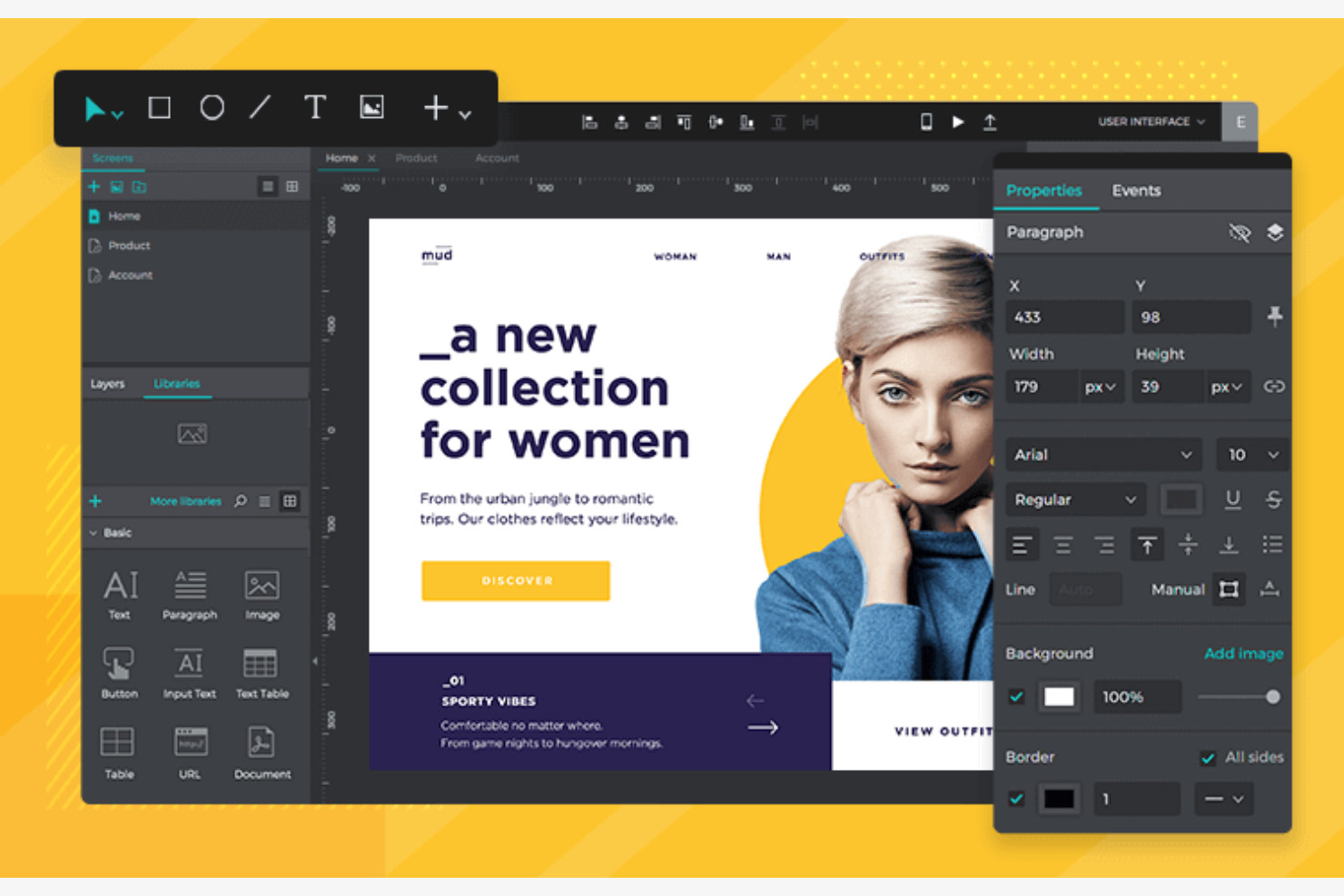
Justinmind destaca para equipos y diseñadores que necesitan crear prototipos de interfaz de usuario (UI) interactivos y de alta fidelidad en Mac. Es especialmente útil para gestores de producto, profesionales de UX y agencias que quieren simular flujos reales de usuario y probar interacciones avanzadas antes del desarrollo. Si buscas una herramienta que admita prototipado detallado con contenido dinámico y lógica, Justinmind está diseñada para ese nivel de precisión.
Por qué elegí Justinmind
Para los diseñadores que necesitan crear prototipos interactivos y perfectos en los píxeles en Mac, Justinmind ofrece un nivel de detalle difícil de igualar. Elegí esta herramienta porque permite crear maquetas de UI de alta fidelidad con interacciones avanzadas, lógica condicional y contenido dinámico.
Puedes simular flujos reales de usuario, incluidos gestos, transiciones y comportamientos basados en datos, lo cual es esencial para validar interfaces complejas antes del desarrollo. Si tu flujo de trabajo requiere prototipos realistas que van mucho más allá de los wireframes estáticos, Justinmind está hecha a medida para ese tipo de trabajo.
Características clave de Justinmind
Otras características que hacen de Justinmind una excelente opción para el diseño de UI en Mac incluyen:
- Bibliotecas de componentes UI: Acceso a una amplia variedad de elementos de UI preconstruidos para proyectos web y móviles.
- Herramientas de colaboración: Comparte prototipos y recopila comentarios de los interesados directamente en la plataforma.
- Gestión de requisitos: Adjunta requisitos y documentación a pantallas o componentes específicos.
- Exportar a HTML: Genera prototipos HTML interactivos para visualización sin conexión o presentaciones al cliente.
Integraciones de Justinmind
Las integraciones incluyen Figma, Sketch, Adobe XD, Jira y Azure DevOps.
Pros and Cons
Pros:
- Excelente diseño para formularios web
- Funciona sin conexión en tu Mac
- Genera especificaciones de desarrollo web
Cons:
- Archivos web grandes funcionan lento
- Las herramientas vectoriales son limitadas

Ideal para publicación integrada de sitios
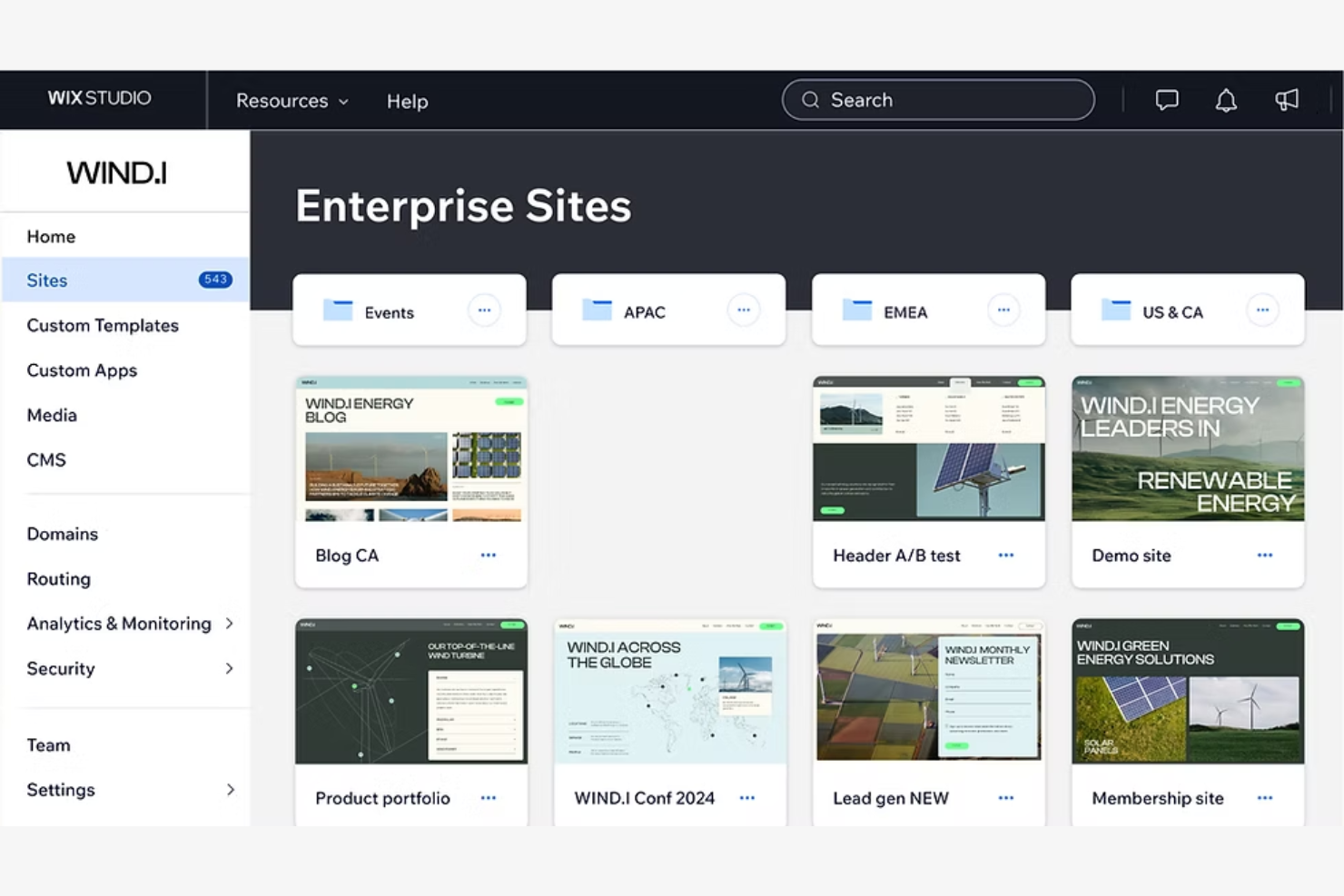
Wix Studio ofrece una plataforma unificada para diseñadores web que desean gestionar el diseño, el desarrollo y la publicación del sitio, todo en un solo lugar. Es especialmente útil para agencias y freelancers que necesitan entregar sitios listos para el cliente sin tener que alternar entre múltiples herramientas o servicios. Si buscas una solución compatible con Mac que cubra todo desde el diseño visual hasta el despliegue en vivo, Wix Studio integra estos flujos de trabajo.
Por qué elegí Wix Studio
Lo que destaca de Wix Studio es cómo combina diseño, desarrollo y publicación en una sola plataforma, lo que resulta ideal para el diseño web en Mac. Lo elegí porque puedes crear, personalizar y lanzar sitios sin cambiar entre diferentes herramientas ni exportar archivos.
El editor de sitios integrado y las funciones de despliegue te permiten pasar directamente del diseño a un sitio web en vivo, agilizando todo el proceso. Para quienes deseen gestionar el ciclo completo de vida del sitio desde su Mac, el enfoque integrado de Wix Studio es una excelente opción.
Funciones principales de Wix Studio
Otras funciones que hacen a Wix Studio atractivo para el diseño web en Mac incluyen:
- Controles de diseño responsivo: Ajusta los diseños y elementos para diferentes tamaños de pantalla directamente desde el editor.
- Inserciones de código personalizado: Agrega fragmentos de HTML, CSS y JavaScript para ampliar la funcionalidad del sitio.
- Biblioteca de gestión de recursos: Organiza imágenes, videos y documentos en una biblioteca multimedia centralizada.
- Permisos basados en roles: Asigna derechos específicos de edición y publicación a miembros del equipo o clientes.
Integraciones de Wix Studio
Las integraciones incluyen Google Analytics, Google Ads, Meta Pixel, Google Tag Manager y TikTok Pixel.
Pros and Cons
Pros:
- Publicación de sitios incorporada
- Grandes efectos de desplazamiento web
- Bueno para flujos de trabajo de agencias
Cons:
- Alto consumo de memoria en Safari
- Difícil de exportar el código del sitio

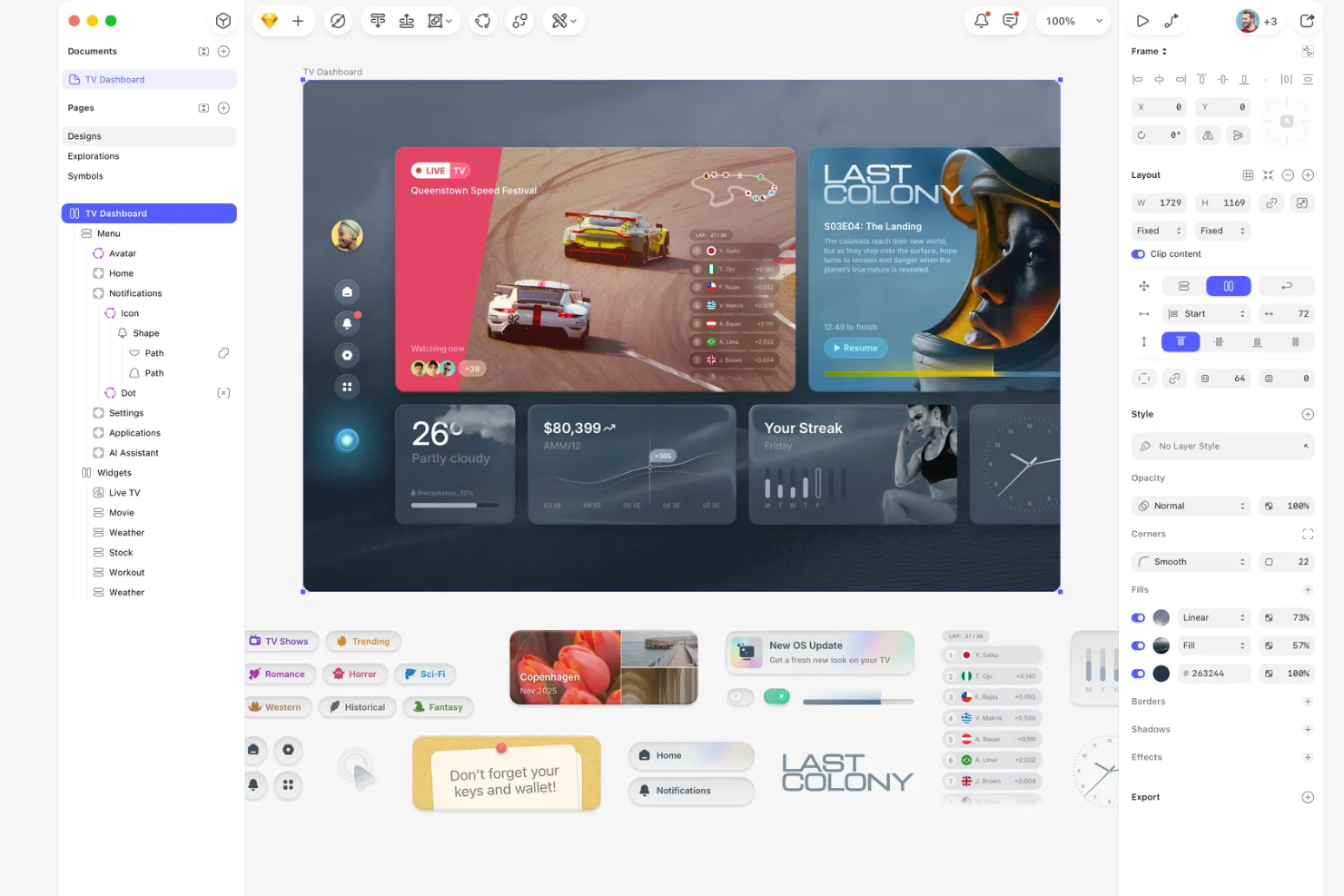
Sketch está diseñado específicamente para los diseñadores que buscan una experiencia nativa en MacOS al crear diseños web e interfaces. Es especialmente atractivo para equipos de producto y agencias que priorizan diseños perfectamente ajustados al píxel y una integración fluida con el lenguaje de diseño de Apple. Si necesitas una herramienta que se sienta como en casa en Mac y que permita una edición vectorial detallada, Sketch es una excelente opción.
Por qué elegí Sketch
Para los diseñadores que quieren una herramienta verdaderamente nativa para MacOS, Sketch destaca como la elección más clara. Su interfaz sigue de cerca las convenciones de diseño de Apple, lo que la hace intuitiva para usuarios de Mac y la vuelve ideal para crear interfaces que encajan perfectamente en el ecosistema de Apple.
Elegí Sketch porque sus herramientas de edición vectorial y precisión a nivel de píxel ayudan a los equipos a crear diseños detallados e íconos que se ven nítidos en cualquier dispositivo Apple. El soporte de la plataforma para las funciones nativas de MacOS, como los atajos de la Touch Bar y el renderizado de tipografías a nivel de sistema, la hacen especialmente relevante para el diseño web en Mac.
Características clave de Sketch
Otras funciones de Sketch que apoyan el diseño web en Mac incluyen:
- Bibliotecas compartidas: Permite a los equipos crear y actualizar componentes de diseño reutilizables en varios proyectos.
- Herramientas de prototipado: Te permiten construir flujos interactivos y previsualizar recorridos de usuario directamente dentro de la aplicación.
- Colaboración en la nube: Posibilita retroalimentación en tiempo real y control de versiones a través del espacio de trabajo en la nube de Sketch.
- Amplio ecosistema de plugins: Ofrece una gran variedad de plugins para automatización, exportación de recursos e integraciones con terceros.
Integraciones de Sketch
Las integraciones incluyen Slack, Notion y ProtoPie.
Pros and Cons
Pros:
- Interfaz de usuario familiar para Mac
- Verdadera usabilidad offline en Mac
- Excelente renderizado de fuentes en MacOS
Cons:
- Sincronización en tiempo real más lenta
- El prototipado es bastante básico
Otro software de diseño web para Mac
Estas son algunas opciones adicionales de software de diseño web para Mac que no incluí en mi lista, pero que aún merece la pena considerar:
- Axure RP
Ideal para funciones avanzadas de prototipado
- RapidWeaver Elements
Ideal para crear sitios en MacOS sin conexión
- Blocs
Ideal para crear sitios en MacOS sin código


Cómo Evalúo el Software de Diseño Web para Mac
Cuando un equipo de producto pasa de wireframes a una página en vivo en Mac, divido mi evaluación en requisitos básicos que toda herramienta debe cumplir y los factores diferenciadores que hacen destacar las mejores opciones.
Funcionalidad Principal (Requisitos Esenciales para esta Lista)
Al seleccionar herramientas para mi lista, califico cada una en una escala del 0 (no ofrece la funcionalidad) al 5 (sobresale en este aspecto) para cada funcionalidad principal que se muestra a continuación. Luego, calculo el puntaje total de la herramienta en porcentaje. Cada herramienta debe alcanzar una puntuación total mínima del 65% para ser considerada para su inclusión.
- Compatibilidad Nativa con macOS: Verifico si la herramienta funciona como una aplicación nativa de Mac o como una web app estable, y qué tan bien se desempeña en hardware Apple Silicon.
- Lienzo de Diseño Web Visual: Aquí evalúo un lienzo WYSIWYG de arrastrar y soltar; crear una landing page de producto debe sentirse visual, no basado en código.
- Controles de Diseño Responsivo: Las páginas de producto deben verse bien en cualquier pantalla. Busco controles de puntos de ruptura que permitan ajustar los diseños para escritorio, tablet y móvil.
- Prototipado Interactivo: Los prototipos clicables ayudan a los equipos de producto a demostrar flujos de características a los interesados. Evalúo la profundidad de los disparadores de interacción, transiciones y estados.
- Colaboración y Entrega: Los equipos necesitan dejar comentarios, compartir previsualizaciones y entregar especificaciones a los desarrolladores. Busco edición en tiempo real, modos de inspección y exportación de recursos.
- Exportación de Código o Publicación: Ya sea que estés lanzando un sitio en vivo o entregando HTML/CSS limpio al equipo de ingeniería, evalúo cómo cada herramienta lleva los diseños del lienzo a producción.
Una vez que tengo una lista de herramientas que cumplen estos criterios, considero qué hace única a cada plataforma.
Factores Diferenciadores (Lo que Distingue a los Proveedores)
Así es como comparo y contrasto diferentes proveedores:
Características Destacadas
Las bibliotecas de sistemas de diseño son importantes cuando varios equipos de producto crean páginas simultáneamente. Los componentes y tokens compartidos garantizan la coherencia sin revisiones constantes de control de calidad. También evalúo si la herramienta ofrece funcionalidad CMS nativa, ya que los equipos suelen necesitar vincular contenido dinámico, como niveles de precios o listas de funciones, a plantillas de página. El control de versiones y los ramales cierran mi evaluación. Al realizar una prueba A/B de un nuevo flujo de registro, la capacidad de ramificar un diseño, iterar y volver atrás aporta gran flexibilidad a los propietarios del producto.
Más Allá de las Características
El ecosistema de integraciones es un diferenciador importante. Analizo si la herramienta se conecta con Jira, Linear o Asana para que los equipos puedan vincular el trabajo de diseño directamente a los elementos de la hoja de ruta. El rendimiento en hardware macOS también importa: evalúo cómo maneja cada herramienta proyectos grandes en Apple Silicon sin retrasos ni consumo excesivo de batería. La estructura de precios finaliza mi comparación. Algunas herramientas cobran por usuario, mientras que otras por espacio de trabajo, y el modelo indicado depende de si tu equipo multifuncional de diseñadores, PMs y desarrolladores necesita acceso de edición o solo permisos de visualización.
Cómo elegir software de diseño web para Mac
Es fácil perderse entre largas listas de funciones y estructuras de precios complejas. Para ayudarte a mantenerte centrado mientras avanzas en tu proceso único de selección de software, aquí tienes una lista de factores que debes tener en cuenta:
| Factor | Qué debes considerar |
|---|---|
| Escalabilidad | ¿La herramienta será compatible con tu equipo a medida que crezca? Considera los límites de usuarios, los límites de proyectos y las necesidades de colaboración para futuras ampliaciones. |
| Integraciones | ¿El software se conecta con tus herramientas actuales de diseño, desarrollo y comunicación? Comprueba si ofrece integraciones nativas con Figma, Slack o Jira. |
| Personalización | ¿Puedes adaptar el espacio de trabajo, las plantillas o los flujos de trabajo para que coincidan con los procesos y los requisitos de marca de tu equipo? El software de diseño web de código abierto puede ofrecer control al permitirte modificar el código subyacente. |
| Facilidad de uso | ¿Con qué rapidez pueden los nuevos usuarios empezar a ser productivos? Busca interfaces intuitivas y requisitos mínimos de formación, especialmente para equipos con distintos niveles de habilidades. |
| Implementación e incorporación | ¿Qué recursos hay disponibles para la configuración y la migración? Evalúa la disponibilidad de tutoriales, asistencia para la incorporación y herramientas de importación para proyectos existentes. |
| Coste | ¿Los niveles de precios se ajustan a tu presupuesto y a tus necesidades de funciones? Presta atención a las tarifas ocultas, los complementos obligatorios o los precios basados en usuarios que podrían aumentar los costes. |
| Medidas de seguridad | ¿La herramienta ofrece cifrado, controles de acceso y cumplimiento de las normas de privacidad de datos? Evalúa cómo se protegen los recursos de diseño confidenciales y los datos de los clientes. |
| Disponibilidad de asistencia | ¿Qué canales de asistencia se ofrecen y durante qué horarios? Considera si necesitas asistencia por chat en directo, teléfono o correo electrónico, y si hay ayuda disponible en tu zona horaria. |
¿Qué es el software de diseño web para Mac?
El software de diseño web para Mac hace referencia a aplicaciones desarrolladas para MacOS, como Sparkle o los entornos locales de Wordpress, que permiten a los usuarios diseñar, crear prototipos y desarrollar sitios web o interfaces web responsivos. Estas herramientas fáciles de usar permiten crear diseños visuales, optimizar el rendimiento, crear prototipos interactivos y exportar recursos, todo adaptado al hardware y los flujos de trabajo de Mac.
Ayudan a diseñadores, desarrolladores y equipos a colaborar en proyectos de desarrollo web desde la concepción hasta la entrega, garantizando la compatibilidad con el sistema operativo de Apple y los estándares de diseño tanto en Mac como en iPad.
Características
Al seleccionar un software de diseño web para Mac, presta atención a las siguientes características clave:
- Editor de arrastrar y soltar: Permite organizar visualmente los elementos en el lienzo sin escribir código, lo que hace que los ajustes del diseño sean rápidos y accesibles para todos los niveles de experiencia.
- Herramientas de diseño adaptable: Permiten crear diseños que se adaptan automáticamente a diferentes tamaños de pantalla, garantizando que tu sitio web se vea bien en computadoras de escritorio, tabletas y teléfonos.
- Opciones de exportación de recursos: Permiten exportar imágenes, iconos y otros recursos de diseño en múltiples formatos y resoluciones para utilizarlos durante el desarrollo.
- Creación de prototipos interactivos: Permite crear prototipos en los que se puede hacer clic, con transiciones e interacciones, para probar los flujos de usuario antes de comenzar el desarrollo.
- Compatibilidad con sistemas de diseño: Proporciona herramientas para crear y gestionar componentes reutilizables, paletas de colores y estilos tipográficos que mantienen la coherencia de la marca en todos los proyectos.
- Funciones de colaboración: Ofrece comentarios, uso compartido e historial de versiones en tiempo real para que los equipos puedan trabajar juntos y realizar un seguimiento eficaz de los cambios.
- Exportación o inspección de código: Permite acceder a fragmentos de CSS, HTML u otro código generado a partir de los diseños, ayudando a conectar el diseño con el desarrollo.
- Biblioteca de plantillas: Proporciona una colección de diseños y elementos de interfaz de usuario prediseñados para acelerar el proceso de diseño e inspirar nuevas ideas.
Beneficios
Implementar un software de diseño web para Mac ofrece varios beneficios para tu equipo y tu empresa. Estos son algunos de los que puedes esperar:
- Rendimiento optimizado en MacOS: Estas herramientas están diseñadas para funcionar sin problemas en el hardware de Mac, aprovechando los recursos del sistema y las convenciones de la interfaz nativa.
- Entrega más rápida del diseño al desarrollo: Las funciones integradas de exportación de recursos, inspección de código y colaboración ayudan a los equipos a pasar los proyectos del diseño al desarrollo con menos errores.
- Coherencia de marca: La compatibilidad con sistemas de diseño y los componentes reutilizables garantizan que tu equipo mantenga la coherencia visual en todos los proyectos web.
- Mejor colaboración entre equipos: Las funciones de comentarios, uso compartido y control de versiones en tiempo real facilitan que los equipos trabajen juntos y realicen un seguimiento de los cambios.
- Creación flexible de prototipos: Las herramientas de creación de prototipos interactivos permiten probar los flujos de usuario y recopilar comentarios antes de comprometerse con el desarrollo.
- Adaptabilidad a varios dispositivos: Las herramientas de diseño adaptable ayudan a crear diseños que se ven excelentes en computadoras de escritorio, tabletas y teléfonos inteligentes.
- Incorporación simplificada: El acceso a plantillas, tutoriales e interfaces intuitivas ayuda a los nuevos usuarios a familiarizarse rápidamente con la herramienta.
Costos y precios
Seleccionar un software de diseño web para Mac requiere comprender los distintos modelos de precios y planes disponibles. Los costos varían según las características, el tamaño del equipo, los complementos y otros factores. La siguiente tabla resume los planes habituales, sus precios promedio y las características típicas incluidas en las soluciones de software de diseño web para Mac:
Tabla comparativa de planes de software de diseño web para Mac
| Tipo de plan | Precio promedio | Características habituales |
|---|---|---|
| Plan gratuito | $0 | Herramientas de diseño básicas, plantillas limitadas, acceso para un solo usuario y asistencia de la comunidad. |
| Plan personal | $9-$29/mes | Funciones de diseño completas, exportación de recursos, diseños adaptables, colaboración limitada y asistencia por correo electrónico. |
| Plan empresarial | $19-$119/mes | Colaboración en equipo, historial de versiones, creación avanzada de prototipos, herramientas de sistemas de diseño y asistencia prioritaria. |
| Plan empresarial avanzado | $75+/mes | Integraciones personalizadas, seguridad mejorada, controles de administración, asistencia para la incorporación y asistencia exclusiva. |
Preguntas frecuentes sobre software de diseño web para Mac
Estas son algunas respuestas a preguntas frecuentes sobre software de diseño web para Mac:
¿Puedo usar software de diseño web para Mac tanto para el diseño como para el desarrollo?
Sí, muchas soluciones de software de diseño web para Mac admiten tanto el diseño visual como el desarrollo básico del front-end. Puedes crear diseños, crear prototipos de interacciones y exportar recursos o fragmentos de código para los desarrolladores. Sin embargo, para la programación avanzada o el trabajo de back-end, es posible que necesites herramientas de desarrollo adicionales.
¿Las herramientas de software de diseño web para Mac permiten colaborar con usuarios de Windows?
Sí, la mayoría de las herramientas modernas de software de diseño web para Mac ofrecen funciones de colaboración basadas en la nube que funcionan en distintos sistemas operativos. Los miembros del equipo que utilizan Windows pueden acceder a proyectos compartidos, comentar y colaborar mediante navegadores web o aplicaciones de escritorio compatibles.
¿Qué formatos de archivo puedo exportar desde el software de diseño web para Mac?
Normalmente puedes exportar recursos en formatos como PNG, JPG, SVG y PDF. Algunas herramientas también permiten exportar CSS, HTML o tokens de diseño para facilitar la entrega a los desarrolladores. Comprueba siempre las opciones de exportación para garantizar la compatibilidad con tu flujo de trabajo y tu conjunto de tecnologías de desarrollo.
¿Es posible migrar proyectos de otras herramientas de diseño al software de diseño web para Mac?
Sí, muchas soluciones de software de diseño web para Mac permiten importar archivos de herramientas populares como Figma, Sketch o Adobe XD. Busca guías de importación o herramientas de migración que te ayuden a transferir tus proyectos existentes con una pérdida mínima de fidelidad.
¿Cómo puedo garantizar que mis diseños web sean accesibles utilizando software de diseño web para Mac?
Utiliza los comprobadores de accesibilidad integrados, las herramientas de contraste de color y las funciones de estructura semántica que ofrece el software. Revisa tus diseños para comprobar la navegación mediante teclado, la legibilidad de las fuentes y un contraste suficiente a fin de cumplir con estándares de accesibilidad como WCAG.