

10 herramientas gratuitas de diseño de interfaces de usuario en 2026

Lista de herramientas gratuitas de diseño de interfaces de usuario


Las herramientas gratuitas de diseño de interfaces de usuario son plataformas de software que te permiten crear, crear prototipos y colaborar en interfaces de usuario sin pagar por adelantado, ya sea mediante un plan gratuito o una prueba gratuita. Si buscas formas de diseñar interfaces, probar ideas o trabajar con tu equipo sin comprometerte con una suscripción de pago, necesitas opciones que equilibren la facilidad de uso, la colaboración y el acceso a funciones sin coste.
Esta lista te ayudará a comparar rápidamente las mejores herramientas gratuitas de diseño de interfaces de usuario para 2026, para que encuentres la opción adecuada para tu flujo de trabajo, ya sea que estés creando esquemas, prototipos o maquetas interactivas.
Por Qué Confiar en Nuestras Reseñas de Software
Llevamos revisando y probando software de gestión de productos desde 2020. Como product managers, sabemos lo crucial y complicado que es tomar la decisión correcta al seleccionar software. Invertimos en investigación profunda para ayudar a nuestra audiencia a tomar mejores decisiones de compra de software. Hemos probado más de 2,000 herramientas para distintos casos de uso y escrito más de 1,000 reseñas exhaustivas. Conozca cómo mantenemos la transparencia & nuestra metodología de reseñas de software.
Resumen de herramientas gratuitas de diseño de interfaces de usuario
| Tool | Best For | Trial Info | Price | ||
|---|---|---|---|---|---|
| 1 | Ideal para prototipado rápido con plantillas | Plan gratuito disponible | Desde $12/mes (facturado anualmente) | Website | |
| 2 | Ideal para colaboración en equipo en tiempo real | Plan gratuito disponible | Desde $16/usuario/mes (facturado anualmente) | Website | |
| 3 | Ideal para combinar wireframes y diagramas de flujo | Plan gratuito disponible | Desde $10/editor/mes (facturación anual) | Website | |
| 4 | Mejor para flujos de trabajo de diseño nativos en Windows | Plan gratuito disponible | Desde $11.99/usuario/mes (cobro anual) | Website | |
| 5 | Mejor para prototipos tipo boceto de baja fidelidad | Prueba gratuita de 14 días disponible | Desde $16/usuario/mes (facturado anualmente) | Website | |
| 6 | Ideal para planificar visualmente recorridos de usuario | Plan gratuito disponible | Desde $14/usuario/mes (facturado anualmente) | Website | |
| 7 | La mejor para entornos de equipo de código abierto | Plan gratuito y prueba gratuita de 14 días disponible | Desde $7/usuario/mes | Website | |
| 8 | Ideal para diagramar flujos de trabajo complejos | Gratis para usar | Gratis para usar | Website | |
| 9 | Ideal para wireframing sin distracciones | Plan gratuito disponible | Gratis para usar | Website | |
| 10 | Mejor para wireframes de escritorio sin conexión | Not available | Gratis y de código abierto | Website |
Análisis de herramientas gratuitas de diseño de interfaces de usuario
A continuación encontrarás mis resúmenes detallados de las herramientas gratuitas de diseño de interfaces de usuario que llegaron a mi lista. Mis análisis ofrecen una visión detallada de las funciones, los mejores casos de uso y los precios de cada herramienta para ayudarte a encontrar la mejor opción para ti.
Canva
Ideal para prototipado rápido con plantillas
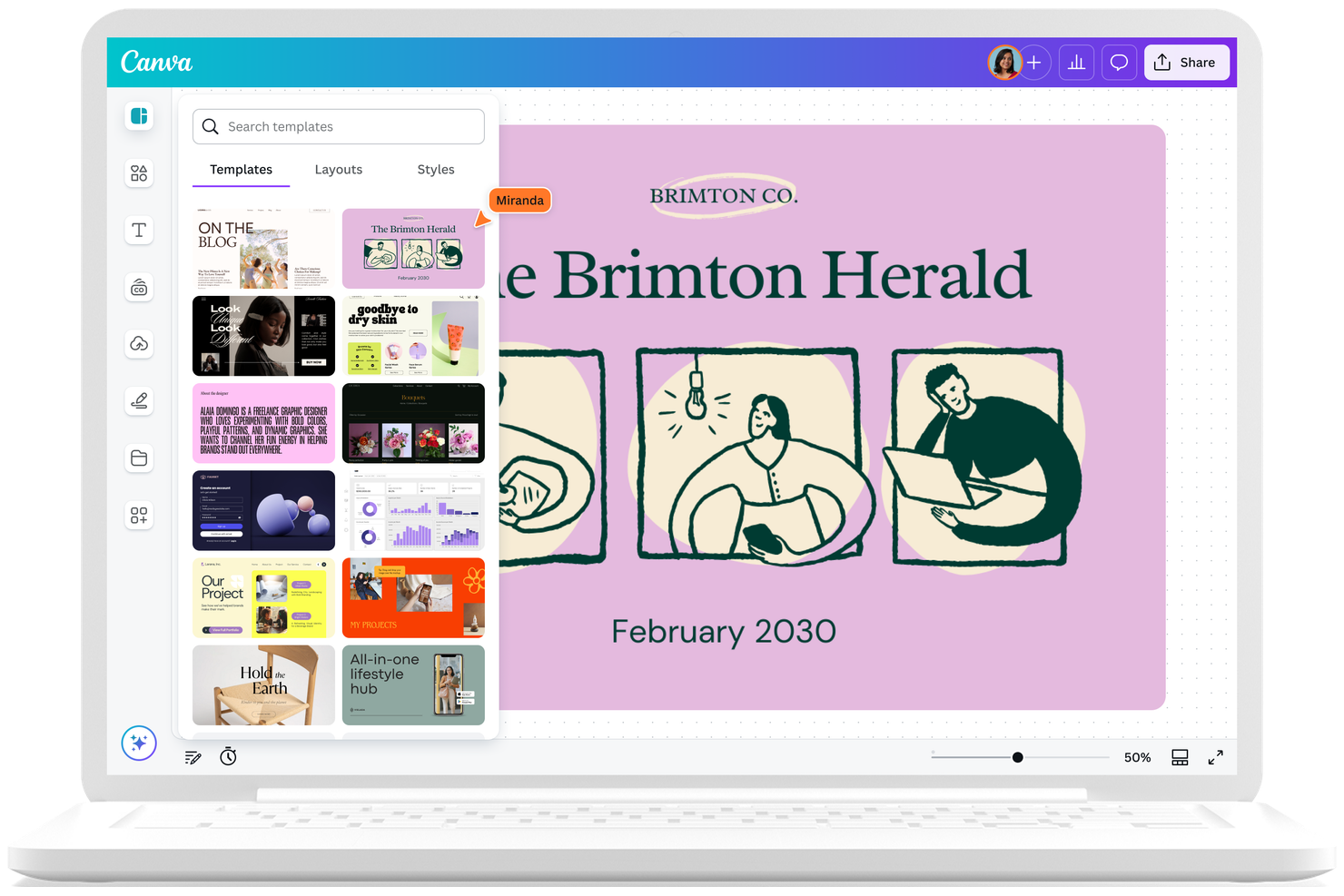
Si quieres pasar rápidamente de una idea a una interfaz, la herramienta de diseño de interfaces de Canva ofrece un enfoque basado en plantillas que es fácil de aprender. Es una de las mejores herramientas para principiantes, ideal para equipos de marketing, pequeñas empresas o cualquier persona que necesite un software de diseño fácil de usar y sin una curva de aprendizaje pronunciada. Canva se destaca por su vasta biblioteca de plantillas con formas, tipografías, herramientas de diseño y un editor de arrastrar y soltar, lo que facilita visualizar y compartir conceptos de interfaz de usuario rápidamente. Si buscas una herramienta de prototipado apta para principiantes, Canva sin duda tiene una interfaz de usuario intuitiva.
Por qué elegí Canva
Elegí Canva para esta lista porque su flujo de trabajo basado en plantillas hace que el prototipado rápido sea accesible para casi cualquier persona. La plataforma ofrece una amplia gama de plantillas de UI preconstruidas, para que puedas montar pantallas y diseños rápidamente, sin empezar desde cero. También me gusta que el editor de arrastrar y soltar de Canva te permite personalizar elementos y experimentar con diferentes ideas de interfaces en cuestión de minutos. Para equipos o individuos que necesitan visualizar conceptos rápidamente, el enfoque de Canva para el prototipado destaca entre las herramientas gratuitas de diseño de interfaces.
Características clave de Canva
Otras funciones destacadas en la herramienta de diseño de interfaz de Canva incluyen:
- Herramientas de colaboración: Varios usuarios pueden comentar, editar y trabajar en el mismo diseño en tiempo real.
- Biblioteca de recursos: Acceso a una gran colección de iconos, imágenes y elementos de interfaz directamente dentro del editor.
- Opciones de exportación: Descarga diseños en varios formatos, incluidos PNG, JPG y PDF, para compartir o presentar fácilmente.
- Historial de versiones: Realiza un seguimiento de los cambios y vuelve a versiones anteriores del diseño cuando sea necesario.
Integraciones de Canva
Las integraciones incluyen Google Drive, Dropbox, OneDrive, Google Photos, Instagram, Facebook, Slack, HubSpot, Mailchimp y LinkedIn.
¿Qué es gratis?
Canva ofrece un plan gratuito para siempre que incluye acceso a su herramienta de diseño de interfaces, plantillas y una amplia gama de recursos básicos. Algunas plantillas, elementos y funciones avanzadas premium solo están disponibles en los planes de pago.
Pros and Cons
Pros:
- Gran biblioteca de plantillas de interfaz para proyectos de prototipado rápido
- La colaboración en tiempo real facilita flujos de trabajo de diseño en equipo
- La biblioteca de recursos incluye iconos, imágenes y elementos de UI incorporados
Cons:
- Básico para diseñadores de producto, con funciones de prototipo limitadas en comparación con herramientas de UI dedicadas
- Sin soporte para estados avanzados de componentes o sistemas de diseño UX

Figma
Ideal para colaboración en equipo en tiempo real

Si necesitas una herramienta de diseño UI que facilite la colaboración en equipo en tiempo real, Figma es una de las mejores opciones. Es especialmente útil para equipos de diseño, gestores de producto y agencias que quieren colaborar en proyectos desde cualquier lugar. Figma ayuda a los equipos a coeditar diseños, compartir comentarios al instante y mantener a todos alineados durante todo el proceso de diseño.
Por qué elegí Figma
Lo que hace que Figma destaque entre las herramientas gratuitas de diseño UI es su colaboración en equipo en tiempo real. Lo elegí porque varios usuarios pueden trabajar en el mismo archivo de diseño simultáneamente, lo que ayuda a los equipos a mantenerse alineados y avanzar más rápido. Las funciones integradas de comentarios e historial de versiones permiten a todos dar su opinión y seguir los cambios sin salir de la plataforma. Esto convierte a Figma en una excelente elección para equipos que necesitan diseñar, revisar e iterar juntos, estén en la misma oficina o trabajando desde distintos lugares.
Características clave de Figma
Además de la colaboración en tiempo real, Figma ofrece varias otras funciones que apoyan el trabajo de diseño UI:
- Auto Layout: Esta función permite crear marcos y componentes dinámicos que se redimensionan y ajustan automáticamente a medida que agregas o modificas contenido.
- Historial de versiones: Puedes ver, nombrar y restaurar versiones anteriores de tus archivos de diseño, lo que facilita el seguimiento de los cambios a lo largo del tiempo.
- Bibliotecas de componentes: Figma permite crear y compartir componentes de diseño reutilizables entre proyectos y equipos para garantizar la coherencia de los elementos de la interfaz.
- Soporte de plugins: Puedes ampliar la funcionalidad de Figma con una amplia gama de plugins para tareas como insertar íconos, revisar la accesibilidad y facilitar la entrega de diseños.
Integraciones de Figma
Incluye integraciones con Asana, Dropbox, Flinto, Maze, Microsoft Teams, Notion, Slack, Sprig, Trello, Zeplin, y otros.
¿Qué es gratis?
Figma ofrece un plan gratuito para siempre que incluye archivos ilimitados, colaboradores ilimitados y hasta tres proyectos de Figma y tres de FigJam. El plan gratuito limita el historial de versiones a 30 días y restringe algunas funciones avanzadas y controles de administración.
Pros and Cons
Pros:
- La coedición en tiempo real permite que varios usuarios diseñen juntos
- El plan gratuito soporta archivos y colaboradores ilimitados para equipos pequeños
- El acceso basado en navegador implica que no hay restricciones de instalación o dispositivo
Cons:
- El plan gratuito limita el historial de versiones a 30 días
- Las funciones avanzadas de sistemas de diseño requieren un plan de pago

Ideal para combinar wireframes y diagramas de flujo
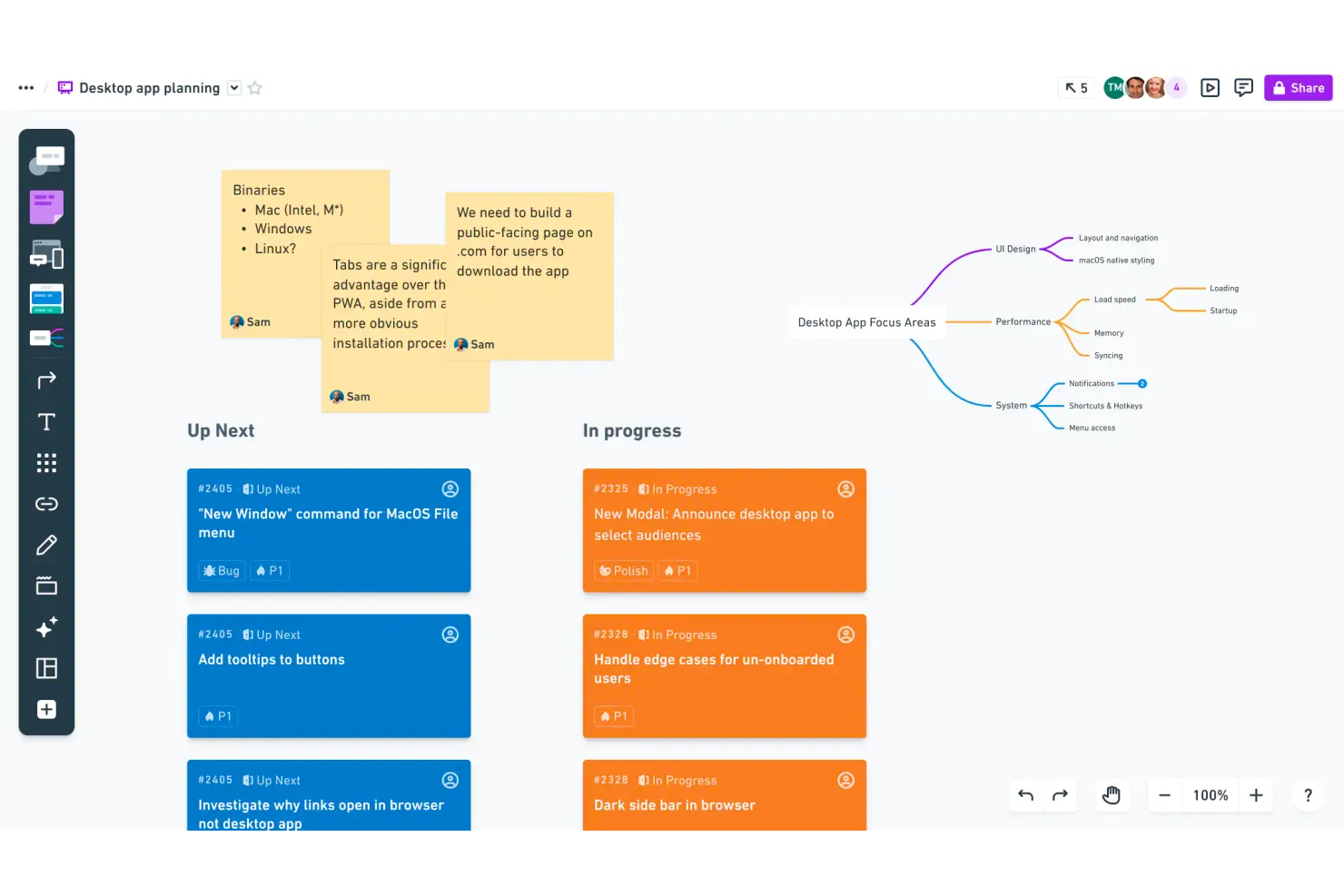
Si buscas una herramienta que combine wireframing y diagramación de flujos en un solo espacio de trabajo, Whimsical merece tu atención. Está diseñada para equipos de producto, diseñadores UX y cualquiera que necesite plasmar ideas de forma visual y colaborativa. Whimsical te ayuda a cambiar rápidamente entre wireframes y diagramas de flujo, facilitando la conexión de los flujos de usuario con las maquetas de interfaz en un solo proyecto.
Por qué elegí Whimsical
Lo que me atrajo de Whimsical es cómo combina wireframes y diagramas de flujo en un espacio de trabajo unificado. Este enfoque es especialmente útil para equipos que necesitan mapear flujos de usuario y maquetas de interfaz lado a lado, sin tener que cambiar entre diferentes herramientas.
Los elementos de wireframe y las formas de diagrama de flujo de arrastrar y soltar en Whimsical te permiten pasar rápidamente de la lluvia de ideas al diseño estructurado. Para quienes buscan una herramienta de diseño de interfaz gratuita que incluya tanto el mapeo de procesos como la planificación de interfaces, Whimsical ofrece un conjunto enfocado de funciones que satisfacen ambas necesidades juntas.
Funciones clave de Whimsical
Otras funciones de Whimsical la convierten en una opción flexible para el trabajo de diseño de interfaces:
- Notas adhesivas: Añade notas adhesivas codificadas por colores a tus tableros para ideas rápidas o comentarios.
- Mapas mentales: Crea mapas mentales ramificados para organizar visualmente conceptos y requisitos de proyecto.
- Comentarios y menciones: Etiqueta a compañeros de equipo y deja comentarios en hilos directamente sobre los elementos de diseño.
- Biblioteca de plantillas: Accede a una colección de plantillas predefinidas para wireframes, diagramas de flujo y diagramas.
Integraciones de Whimsical
Las integraciones incluyen Slack.
¿Qué es gratis?
Whimsical ofrece un plan gratuito para siempre que incluye hasta 3 tableros y espectadores ilimitados. El plan gratuito limita la cantidad de tableros activos que puedes crear y no incluye opciones avanzadas de exportación ni plantillas premium.
Pros and Cons
Pros:
- Combina wireframes, diagramas de flujo, mapas mentales y notas adhesivas en una sola herramienta
- Ofrece un plan gratuito con tableros limitados para individuos y pequeños equipos
- La colaboración en tiempo real permite comentar y mencionar a los compañeros en los diseños
Cons:
- El plan gratuito limita la cantidad de tableros que puedes crear
- No cuenta con funciones avanzadas de prototipado ni animaciones interactivas

Lunacy
Mejor para flujos de trabajo de diseño nativos en Windows
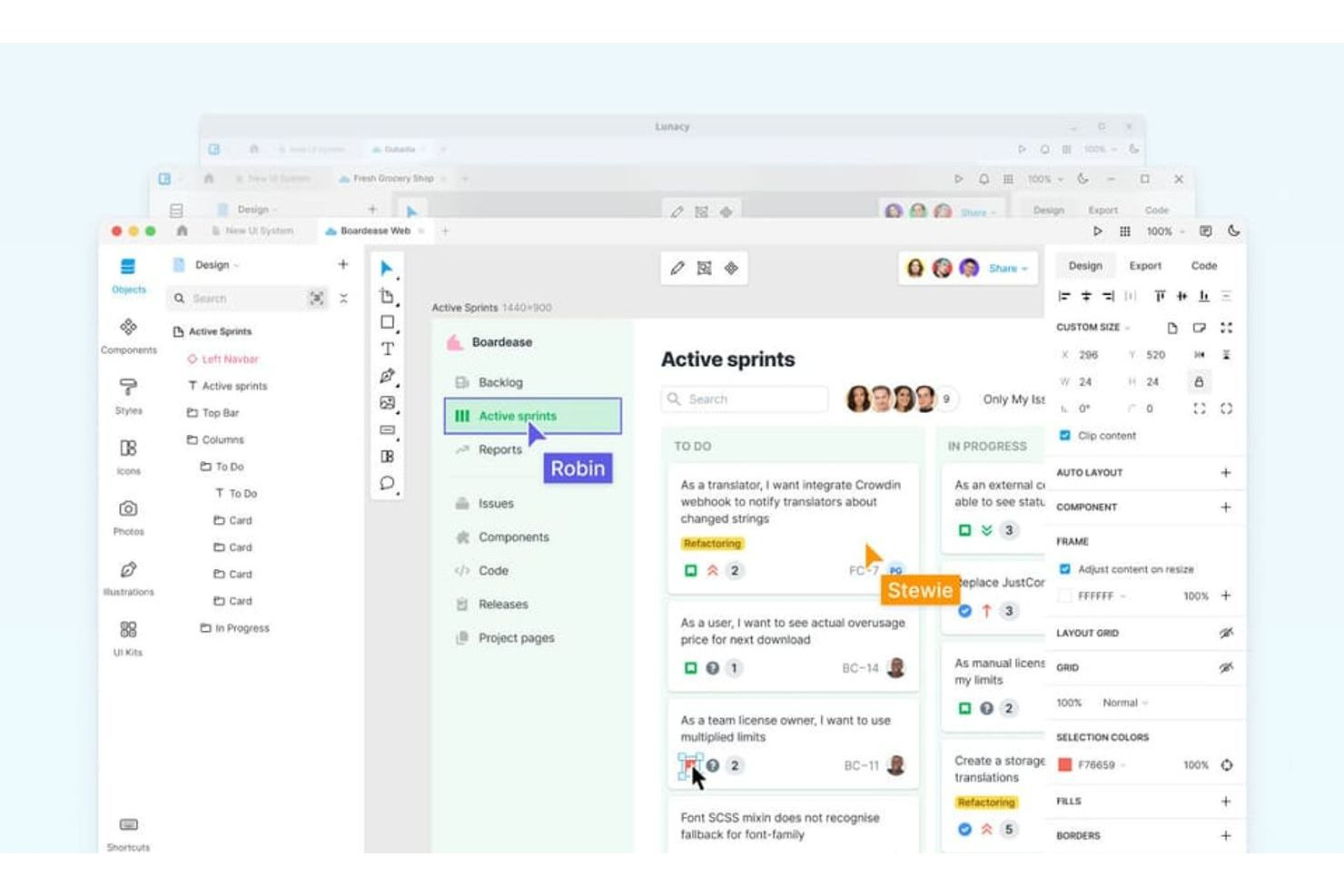
Si buscas una herramienta de diseño de interfaz gratuita construida específicamente para Windows, vale la pena considerar Lunacy. Está diseñada para diseñadores y equipos que desean una experiencia nativa en Windows con acceso sin conexión y recursos de diseño integrados. Lunacy te ayuda a trabajar de manera eficiente sin depender de herramientas basadas en navegador o de una conexión constante a internet.
Por qué elegí Lunacy
Lunacy destaca porque es una de las pocas herramientas gratuitas de diseño de UI creadas específicamente para Windows, lo cual es una gran ventaja para los equipos que quieren una experiencia nativa de escritorio. Elegí Lunacy para esta lista ya que se ejecuta sin problemas sin necesidad de conexión a internet y aprovecha al máximo los recursos del sistema Windows.
La herramienta también incluye recursos de diseño integrados como iconos, fotos e ilustraciones, por lo que no necesitas salir de la aplicación para buscar recursos creativos. Para los diseñadores que trabajan en Windows y quieren un flujo de trabajo rápido, sin conexión y con todo en un solo lugar, Lunacy es una excelente opción.
Características clave de Lunacy
Otras características hacen que Lunacy sea una opción flexible para trabajos gratuitos de diseño de UI:
- Compatibilidad con archivos Sketch: Abre, edita y guarda archivos de Sketch directamente en Lunacy sin conversión.
- Herramientas con IA: Accede a funcionalidades de IA para eliminar fondos, mejorar imágenes y generar avatares.
- Interfaz multilingüe: Trabaja en más de 20 idiomas con soporte de localización integrado.
- Historial de versiones: Haz seguimiento de los cambios y vuelve a versiones anteriores de tus archivos de diseño.
Actualmente, Lunacy no ofrece integraciones nativas listadas.
¿Qué es gratis?
Lunacy ofrece un plan gratuito para siempre, sin límites de usuarios o proyectos. Todas las funciones principales de diseño, los recursos integrados y el acceso sin conexión están incluidos sin restricciones.
Pros and Cons
Pros:
- Aplicación completamente nativa de Windows con capacidades de edición sin conexión
- Admite la apertura y edición de archivos Sketch de forma nativa
- Incluye recursos gratuitos integrados como iconos, fotos e ilustraciones
Cons:
- Las funciones de colaboración son menos avanzadas que las de las herramientas basadas en navegador
- Carece de integraciones directas con plataformas populares de terceros

Balsamiq
Mejor para prototipos tipo boceto de baja fidelidad
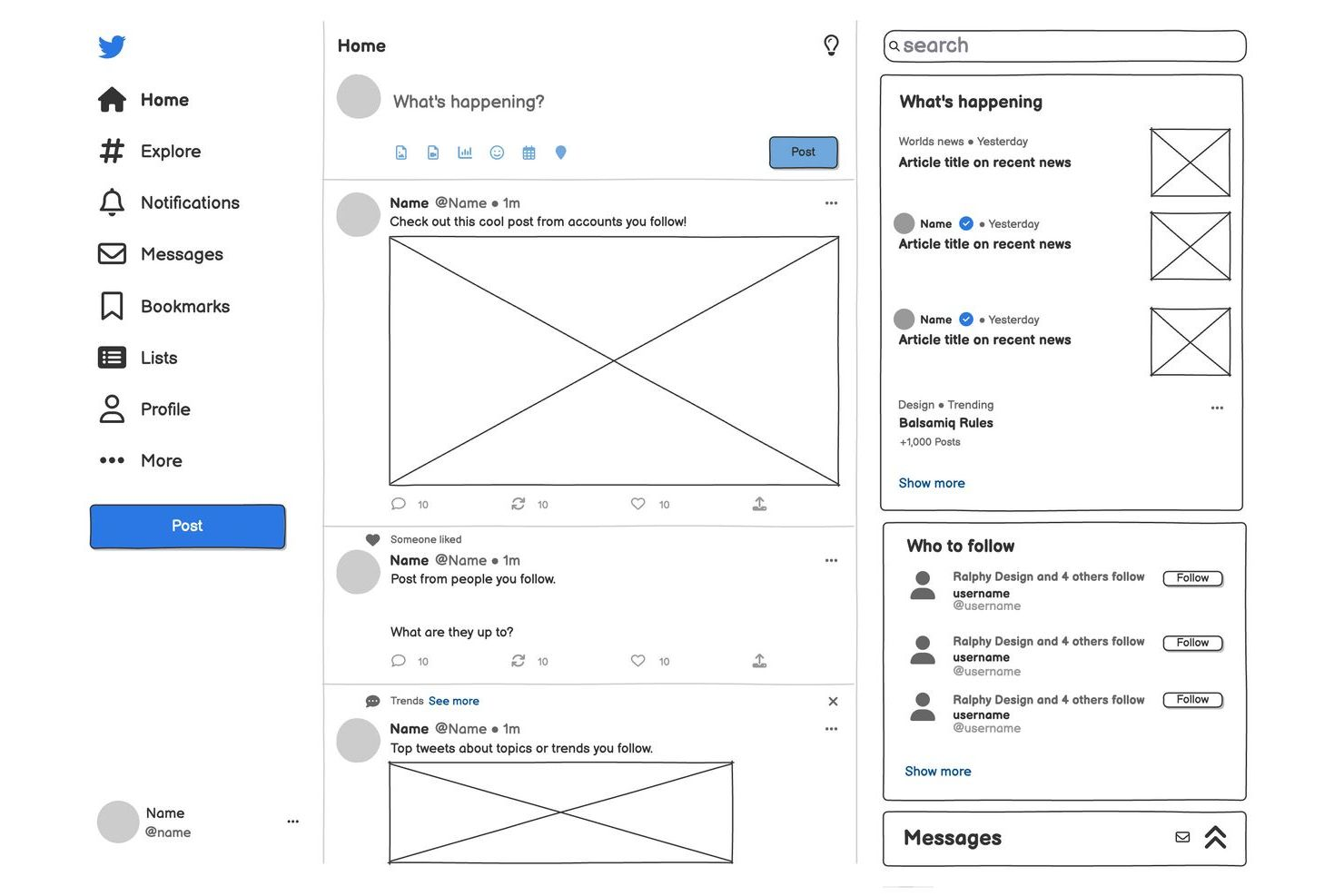
Si buscas una herramienta que te ayude a esbozar rápidamente ideas de interfaz, vale la pena echar un vistazo a Balsamiq. Está diseñada para gestores de producto, diseñadores UX y cualquier persona que necesite crear prototipos de baja fidelidad con estilo de boceto a mano, sin perderse en los detalles. Balsamiq facilita centrarse en la estructura y el flujo, ayudando a los equipos a comunicar conceptos desde las primeras fases del proceso de diseño.
Por qué elegí Balsamiq
Lo que distingue a Balsamiq entre las herramientas gratuitas de diseño de interfaces es su enfoque en los prototipos de baja fidelidad, con un estilo de boceto que mantiene a los equipos centrados en la estructura y el diseño en lugar de distraerse con detalles visuales. Elegí Balsamiq porque su biblioteca de componentes de arrastrar y soltar y su apariencia de dibujo a mano facilitan comunicar ideas tempranas y recibir comentarios antes de invertir tiempo en un diseño de alta fidelidad.
La interfaz sencilla de la herramienta fomenta la iteración rápida y la colaboración, lo cual resulta especialmente útil para gestores de producto y diseñadores UX que trabajan en conceptos iniciales. Para quienes buscan mantener el proceso de diseño ligero y centrado en los flujos de usuario, Balsamiq ofrece una solución directa.
Funciones clave de Balsamiq
Otras funciones de Balsamiq lo hacen una elección práctica para trabajos de diseño de UI en etapa inicial:
- Símbolos reutilizables: Crea y gestiona símbolos personalizados para utilizarlos en varios prototipos y mantener la coherencia.
- Opciones de exportación: Exporta wireframes como archivos PNG o PDF para compartir y documentar.
- Herramientas de colaboración: Invita a miembros del equipo a comentar directamente sobre los prototipos y revisar iteraciones.
- Historial de versiones: Accede a versiones anteriores de tus wireframes para rastrear cambios y recuperar si es necesario.
Integraciones de Balsamiq
Las integraciones incluyen Jira, Confluence, Google Drive y más.
¿Qué es gratis?
Balsamiq ofrece una prueba gratuita de 14 días con acceso completo a todas las funciones. Después del período de prueba, para seguir usándolo es necesario suscribirse, ya que no existe un plan gratuito permanente.
Pros and Cons
Pros:
- Biblioteca integrada de componentes UI que abarca elementos comunes de web y app
- Exportación rápida a PNG o PDF para compartir prototipos fácilmente
- La función de Símbolos permite reutilizar elementos de diseño en distintos proyectos
Cons:
- No tiene un plan gratuito permanente, solo una prueba gratuita limitada
- No incluye prototipos interactivos ni funciones de maquetas clicables

MockFlow
Ideal para planificar visualmente recorridos de usuario
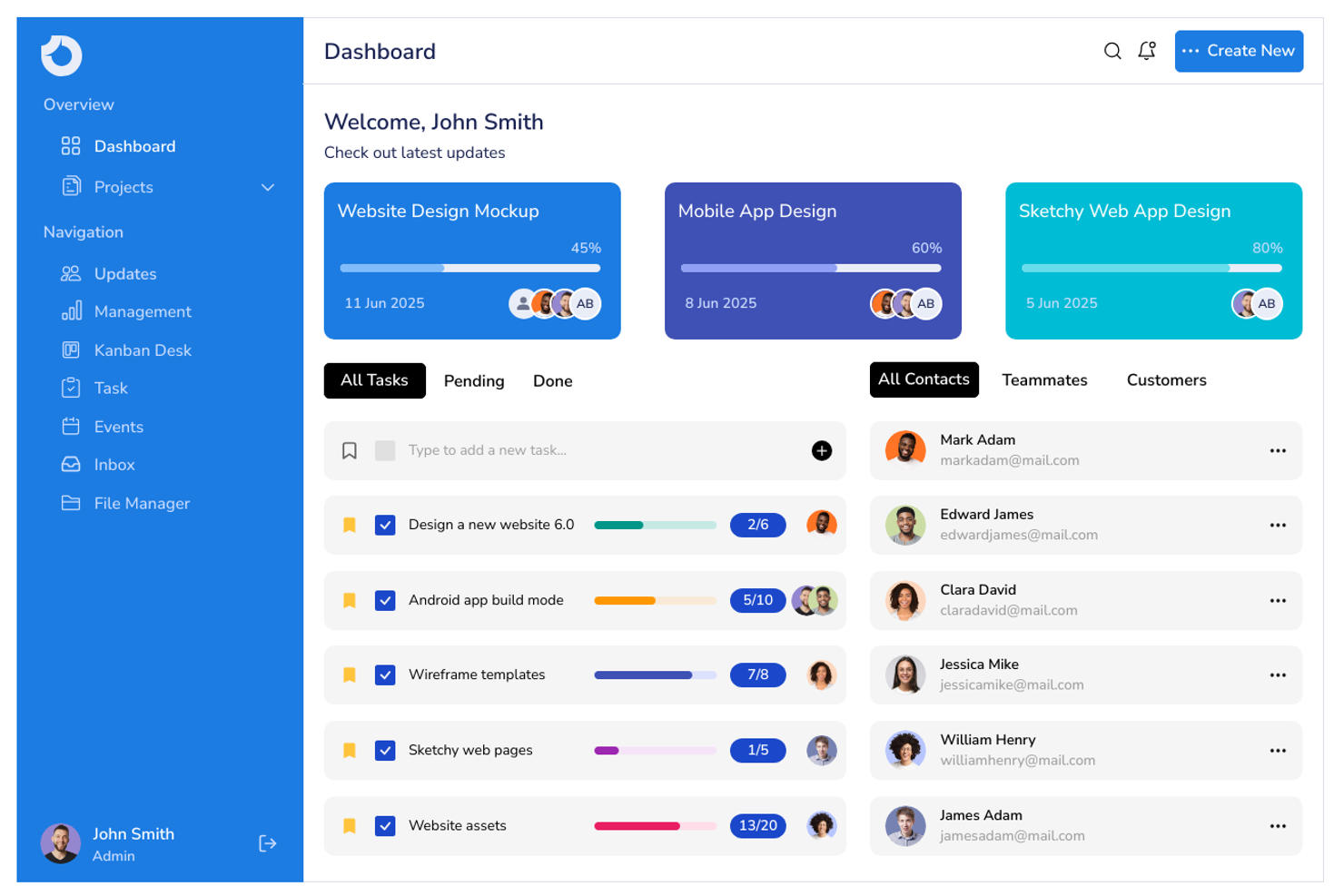
Si necesitas una herramienta enfocada en la planificación visual del recorrido del usuario, MockFlow está diseñada para ese propósito. Es una buena opción para gerentes de producto, diseñadores UX y equipos que desean mapear flujos y wireframes antes de pasar a un diseño de alta fidelidad. MockFlow te ayuda a esbozar rápidamente, organizar y compartir recorridos de usuario, facilitando la alineación temprana de los equipos en el proceso de diseño.
Por qué elegí MockFlow
Lo que destaca de MockFlow es cómo se centra en la planificación visual de los recorridos de usuario, algo que a menudo se pasa por alto en otras herramientas gratuitas de diseño de interfaces. Elegí MockFlow porque te permite crear diagramas de flujo, wireframes y mapas de recorrido todo en un mismo lugar, para que puedas visualizar toda la experiencia del usuario antes de sumergirte en el diseño detallado. La interfaz de arrastrar y soltar y las plantillas integradas hacen que sea sencillo mapear flujos complejos y compartirlos con tu equipo. Para quienes necesitan comunicar recorridos de usuario de forma visual y colaborativa, MockFlow ofrece un conjunto específico de funciones que resuelven directamente esta necesidad.
Características clave de MockFlow
Además de sus herramientas de mapeo visual de recorridos, MockFlow ofrece varias otras características que apoyan el trabajo de diseño de interfaces:
- Espacios de diseño: Organiza wireframes, documentos y recursos relacionados dentro de un mismo espacio de trabajo del proyecto.
- Paquetes de UI: Accede a una biblioteca de componentes y plantillas de UI predefinidos para un wireframing más rápido.
- Colaboración en tiempo real: Invita a los miembros del equipo a editar y comentar diseños simultáneamente.
- Historial de revisiones: Realiza un seguimiento de los cambios y restaura versiones anteriores de tus wireframes según sea necesario.
Integraciones de MockFlow
Las integraciones incluyen Slack, Google Workspace, JIRA, Trello, Microsoft Teams y más.
¿Qué es gratuito?
MockFlow ofrece un plan gratuito para siempre con proyectos ilimitados y funciones básicas de wireframing. El plan gratuito limita las opciones de exportación, restringe el acceso a algunos paquetes de UI premium y no incluye funciones avanzadas de colaboración ni integraciones.
Pros and Cons
Pros:
- Ofrece una herramienta específica para mapear recorridos de usuario junto con wireframing
- Incluye una gran biblioteca de paquetes y plantillas de UI para prototipado rápido
- Proporciona historial de revisiones para rastrear y restaurar cambios de diseño
Cons:
- Las opciones de exportación son limitadas en el plan gratuito respecto a los niveles de pago
- La interfaz puede parecer anticuada en comparación con herramientas de diseño más nuevas

Penpot
La mejor para entornos de equipo de código abierto
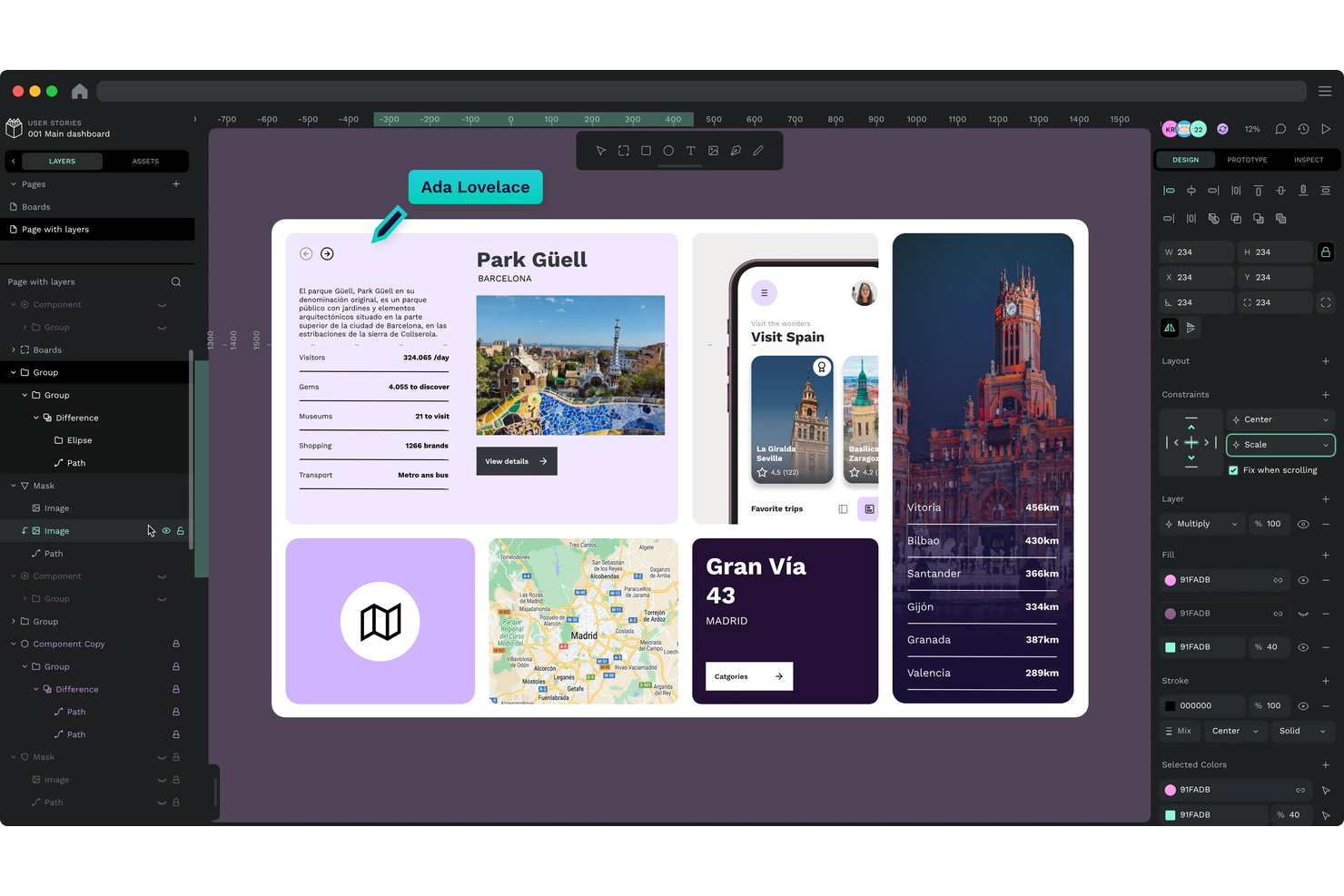
Si buscas una herramienta de diseño de interfaz de usuario (UI) gratuita, de código abierto y pensada para la colaboración, Penpot merece una mirada atenta. Es especialmente atractiva para equipos de diseño y desarrollo que desean transparencia, flexibilidad y control sobre su entorno de trabajo. Penpot ayuda a los equipos que valoran los estándares abiertos y quieren personalizar o alojar ellos mismos su plataforma de diseño.
Por qué elegí Penpot
Lo que me atrajo de Penpot es que está construida desde cero para entornos de trabajo en equipo de código abierto, lo cual es muy poco común entre las herramientas de diseño de UI gratuitas. Penpot permite que los equipos gestionen la plataforma en sus propios servidores, dándoles control total sobre sus datos y flujos de trabajo; esto es especialmente valioso para organizaciones con necesidades estrictas de seguridad o personalización.
También valoro que Penpot adopta estándares abiertos como SVG y CSS, lo que facilita que diseñadores y desarrolladores colaboren sin verse obligados a utilizar formatos propietarios. Para equipos que buscan transparencia, flexibilidad y la posibilidad de contribuir al desarrollo de la herramienta, Penpot destaca como una excelente opción.
Funciones clave de Penpot
Otras funciones hacen de Penpot una opción flexible para trabajos de diseño de UI gratuitos:
- Bibliotecas de componentes: Crea, gestiona y reutiliza componentes de diseño en múltiples proyectos.
- Prototipado interactivo: Crea prototipos interactivos con enlaces, transiciones y puntos activos.
- Herramientas de colaboración en equipo: Invita a los miembros del equipo, asigna roles y comenta directamente sobre los diseños.
- Historial de versiones: Accede a versiones anteriores de tus archivos y restaura cambios cuando lo necesites.
Integraciones de Penpot
Las integraciones incluyen Figma.
¿Qué es gratis?
Penpot ofrece un plan gratuito para siempre sin límites de usuarios ni proyectos. Todas las funciones principales de diseño y prototipado están incluidas, y los usuarios pueden elegir entre implementación en la nube o autoalojada sin restricciones.
Pros and Cons
Pros:
- Plataforma totalmente de código abierto sin restricciones de funciones para los usuarios gratuitos
- Admite colaboración en tiempo real para equipos de diseño
- Exporta diseños a SVG, PDF y PNG sin marcas de agua
Cons:
- Carece de funciones avanzadas de prototipado
- Biblioteca limitada de componentes y plantillas de UI predefinidos


Si necesitas una herramienta gratuita para mapear flujos de trabajo complejos, Draw.io es una opción sólida. Es especialmente útil para equipos de TI, ingeniería u operaciones que necesitan visualizar procesos detallados o arquitecturas de sistemas. La plataforma destaca por sus funciones flexibles de diagramación y su capacidad para manejar diseños intrincados y de múltiples capas.
Por qué elegí Draw.io
Lo que distingue a Draw.io para mí es cómo maneja flujos de trabajo complejos, algo con lo que muchas herramientas gratuitas de diseño de interfaces tienen dificultades. Lo elegí porque puedes crear diagramas multicapa con formas anidadas, conectores y etiquetas personalizadas, facilitando el mapeo de procesos detallados o flujos de sistemas.
La herramienta también admite un tamaño de lienzo ilimitado y te permite organizar los elementos en capas, por lo que incluso los diagramas más complicados se mantienen claros y manejables. Para quienes necesitan visualizar flujos de trabajo o arquitecturas complicadas, Draw.io ofrece la flexibilidad y profundidad que las herramientas de wireframing más sencillas simplemente no proporcionan.
Características clave de Draw.io
Otras características hacen de Draw.io una opción versátil para trabajos de diseño UI gratuitos:
- Biblioteca de plantillas: Accede a una amplia variedad de plantillas prediseñadas para diagramas de flujo, de red y wireframes.
- Conjuntos de formas e iconos: Utiliza extensas bibliotecas de formas y colecciones de iconos para representar distintos elementos de UI y sistemas.
- Integración con almacenamiento en la nube: Guarda y sincroniza diagramas directamente con Google Drive, OneDrive o Dropbox.
- Historial de versiones: Haz seguimiento de los cambios y recupera versiones anteriores de tus diagramas cuando lo necesites.
Draw.io Integraciones
Las integraciones incluyen Google Drive, Microsoft OneDrive, SharePoint, Atlassian Confluence, Jira, GitHub, GitLab, Dropbox, Notion y Nextcloud.
¿Qué es gratis?
Draw.io ofrece un plan gratuito para siempre sin límites de usuarios ni restricciones de funciones. Todas las funciones principales de diagramación, plantillas y opciones de exportación están disponibles sin coste alguno.
Pros and Cons
Pros:
- Completamente gratis, sin restricciones en funciones ni anuncios
- Permite exportar diagramas a múltiples formatos, incluidos SVG y PDF
- Ofrece una amplia gama de plantillas para diagramas de UI y flujos de trabajo
Cons:
- La interfaz puede parecer saturada al trabajar con diagramas grandes
- Carece de funciones avanzadas de prototipado o UI interactiva

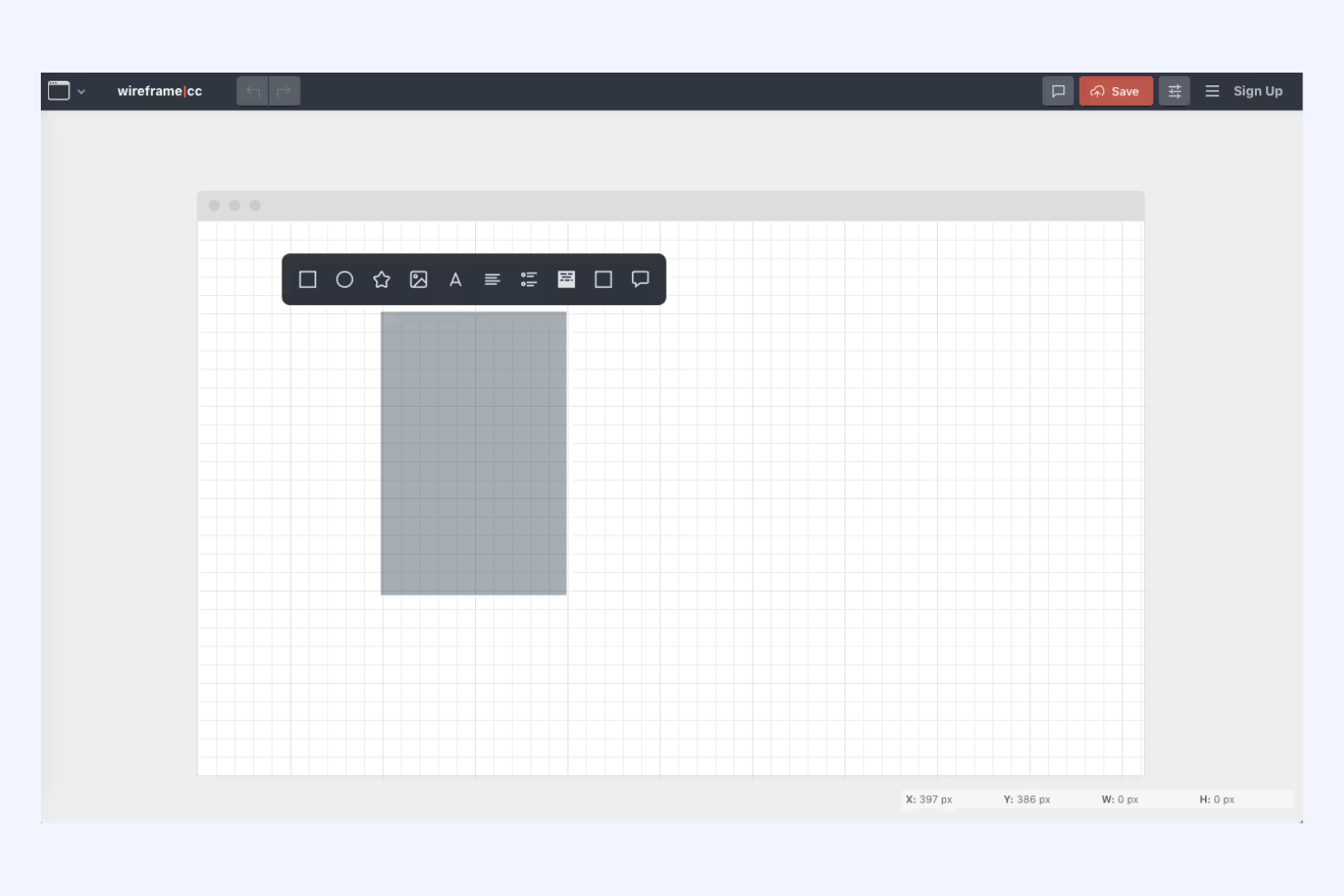
Si deseas una herramienta de wireframing que mantenga las cosas simples y enfocadas, Wireframe.cc merece una mirada. Está diseñada para diseñadores UX, gerentes de producto y cualquier persona que necesite bosquejar ideas sin distracciones. La interfaz minimalista te ayuda a crear rápidamente wireframes limpios, facilitando la comunicación de conceptos sin quedar atrapado en funciones adicionales.
Por qué elegí Wireframe.cc
Lo que me atrajo de Wireframe.cc es su enfoque en el wireframing sin distracciones, algo poco común entre las herramientas gratuitas de diseño de interfaces. La interfaz es intencionadamente minimalista, por lo que solo ves las herramientas básicas que necesitas para plasmar ideas, nada más. Me gusta que puedas crear y ajustar elementos con simples clics y arrastres, lo que mantiene tu atención en la disposición y estructura, en lugar de perderte en los menús. Esto hace que Wireframe.cc sea una excelente opción para quien desea hacer una lluvia de ideas o comunicar conceptos sin complejidades innecesarias.
Funciones clave de Wireframe.cc
Otras funciones hacen que Wireframe.cc sea una opción práctica para trabajos gratuitos de diseño de interfaces:
- Wireframes de una sola página: Crea y comparte wireframes simples sin tener que gestionar varias páginas o pantallas.
- Herramientas de anotación: Agrega notas directamente a tus wireframes para aclarar decisiones o requisitos de diseño.
- Exportar a PNG o PDF: Descarga tus wireframes en formatos comunes para compartir o documentar fácilmente.
- Prototipos interactivos: Enlaza elementos de los wireframes para simular navegación básica entre pantallas.
Integraciones de Wireframe.cc
Wireframe.cc actualmente no incluye integraciones nativas.
¿Qué es gratis?
Wireframe.cc ofrece un plan gratuito para siempre que te permite crear y compartir wireframes de una sola página sin registrarte. La versión gratuita no incluye funciones como proyectos de varias páginas, wireframes privados o la posibilidad de exportar proyectos como PDF, que solo están disponibles en los planes de pago.
Pros and Cons
Pros:
- La interfaz minimalista centra la atención solo en la estructura del wireframe
- No se requiere cuenta para crear y compartir wireframes básicos
- Opciones de exportación rápida a PNG y PDF para compartir fácilmente
Cons:
- Sin soporte para wireframes de múltiples páginas o proyectos complejos
- Carece de colaboración en tiempo real o edición en equipo


Si necesitas una herramienta gratuita de diseño de interfaz que funcione completamente sin conexión, Pencil Project merece tu atención. Está diseñada para diseñadores, desarrolladores y equipos que desean crear wireframes y prototipos sin depender del acceso a la nube. Pencil Project destaca por su enfoque de escritorio, lo que la convierte en una excelente opción para proyectos enfocados en la privacidad o entornos con conectividad a internet limitada.
Por qué elegí Pencil Project
Lo que diferencia a Pencil Project es su capacidad de funcionar totalmente sin conexión, algo poco común entre las herramientas gratuitas de diseño de interfaz. De esta manera, es ideal para entornos seguros o usuarios con conectividad limitada. La herramienta de código abierto incluye una variedad de colecciones de formas y plantillas integradas para interfaces de escritorio y móviles, para que puedas ensamblar rápidamente diseños detallados. Pencil Project también permite exportar en múltiples formatos, lo que resulta útil cuando necesitas compartir tu trabajo fuera de la aplicación.
Características clave de Pencil Project
Otras funciones útiles de Pencil Project para trabajos gratuitos de diseño de interfaz incluyen:
- Soporte para creación de diagramas: Crea diagramas de flujo y otros esquemas junto con los wireframes utilizando conectores y formas integradas.
- Navegador de clipart: Accede a un navegador de clipart integrado para añadir elementos visuales directamente a tus diseños.
- Colección de formas personalizadas: Importa o crea tus propias colecciones de formas para ampliar los elementos de diseño disponibles.
- Soporte para documentos multipágina: Organiza tus wireframes y prototipos en múltiples páginas dentro de un mismo archivo de proyecto.
Integraciones de Pencil Project
Pencil Project actualmente no presenta integraciones nativas, aunque su código abierto permite a los desarrolladores extender o personalizar la herramienta.
¿Qué es gratis?
Pencil Project es completamente gratis y de código abierto, sin límites de tiempo ni restricciones de funciones. Puedes usar todas las funciones, opciones de exportación y plantillas sin pagar ni registrarte.
Pros and Cons
Pros:
- Plantillas integradas para elementos UI de web, móvil y escritorio
- Soporte para documentos multipágina para organizar proyectos complejos
- Exporta a formatos PNG, PDF, SVG y OpenOffice
Cons:
- Sin colaboración en tiempo real ni funciones de uso compartido en la nube
- Prototipado interactivo limitado en comparación con herramientas basadas en la web
Otras herramientas gratuitas de diseño de interfaces de usuario
Estas son algunas herramientas gratuitas adicionales de diseño de interfaces de usuario que no llegaron a mi lista, pero que aún vale la pena probar:


Cómo evalúo las herramientas gratuitas de diseño UI
Divido mi evaluación en requisitos básicos—como un plan gratuito real y la creación de prototipos interactivos—y diferenciadores que separan las herramientas pensadas para PM de las creadas para diseñadores.
Funcionalidad principal (Requisitos indispensables para esta lista)
Al seleccionar herramientas para mi lista, califico cada una en una escala del 0 (no ofrece la funcionalidad) al 5 (destaca en esta área) para cada funcionalidad principal listada a continuación. Luego, calculo el puntaje total de la herramienta como un porcentaje. Cada herramienta debe alcanzar una puntuación mínima total del 65% para ser considerada para su inclusión.
- Plan genuinamente gratuito: Verifico si una herramienta ofrece un plan gratuito perpetuo que permita trabajar en proyectos reales—como construir y compartir un prototipo interactivo—en lugar de una prueba breve que expira antes de terminar un sprint.
- Creación de wireframes y maquetas: Cada herramienta debe permitir arrastrar elementos de UI, iconos y figuras para construir desde un boceto básico hasta un diseño de pantalla pulido sin necesidad de un software adicional.
- Prototipado interactivo: Vincular pantallas para simular un flujo de usuario—por ejemplo, mostrar a un participante el proceso de pago—es algo que evalúo en profundidad y facilidad de configuración.
- Colaboración en tiempo real: El trabajo de producto es transversal, por lo que busco edición y comentarios multiusuario en vivo, donde un PM, un ingeniero y un diseñador puedan revisar el mismo archivo y dejar comentarios en contexto.
- Bibliotecas de componentes y recursos: Botones reutilizables, barras de navegación y campos de formulario ahorran horas. Herramientas como Figma y Penpot gestionan esto con bibliotecas de componentes compartidas, así que evalúo cómo cada herramienta respalda la reutilización de diseños consistentes.
- Exportación y traspaso a desarrollo: Reviso si se pueden generar enlaces compartibles, exportar a formatos estándar o proporcionar CSS y especificaciones de espaciado para que ingeniería desarrolle a partir de los diseños sin el clásico ir y venir de dudas.
Una vez tengo una lista de herramientas que cumplen con estos criterios, considero qué distingue a cada plataforma.
Factores diferenciadores (Qué distingue a los proveedores)
Así es como comparo y pongo en contraste a diferentes proveedores:
Características destacadas
La generación de diseño asistida por IA es un gran diferenciador—analizo si un PM puede escribir un prompt y obtener una pantalla utilizable sin partir desde cero. El diagrama de flujo de usuario también es importante, porque mapear una experiencia de incorporación de varios pasos junto a las pantallas mantiene todo el contexto en un solo lugar. También valoro la profundidad del historial de versiones, ya que el descubrimiento de producto a menudo implica explorar varias alternativas antes de converger en una especificación final.
Más allá de las funciones
Valoro cuán bien se conecta una herramienta con el resto del stack de producto—enlazar un prototipo directamente con un ticket de Jira o Linear evita que los PM tengan que comparar manualmente diseños y especificaciones. La curva de aprendizaje es igual de relevante, sobre todo para los product managers que solo abren la herramienta de diseño algunas veces a la semana. El acceso multiplataforma es otro factor, ya que las herramientas basadas en navegador permiten que cualquier participante acceda a una revisión desde cualquier dispositivo sin instalar software.
Cómo elegir herramientas gratuitas de diseño de interfaces de usuario
Es fácil perderse entre largas listas de funciones y estructuras de precios complejas. Para ayudarte a mantener la atención mientras llevas a cabo tu proceso único de selección de software, aquí tienes una lista de factores que debes tener en cuenta:
| Factor | Qué debes tener en cuenta |
| Escalabilidad | ¿La herramienta será compatible con tu equipo a medida que crezca o superarás rápidamente los límites del plan gratuito? |
| Integraciones | ¿La herramienta se conecta de forma nativa con tus aplicaciones actuales de diseño, gestión de proyectos o almacenamiento de archivos? |
| Personalización | ¿Puedes adaptar los flujos de trabajo, las plantillas o las bibliotecas de la herramienta para que coincidan con el proceso único de tu equipo? |
| Facilidad de uso | ¿Los nuevos usuarios podrán empezar a diseñar rápidamente o necesitarán una formación considerable? |
| Implementación e incorporación | ¿Cuánto tardará tu equipo en ponerse en marcha y qué recursos hay disponibles para ayudarlo? |
| Coste | ¿Hay costes ocultos, requisitos de actualización o límites de uso que podrían afectar a tu presupuesto más adelante? |
| Medidas de seguridad | ¿La herramienta ofrece una protección de datos, unos permisos de usuario y un cumplimiento normativo adecuados para tus necesidades? |
| Disponibilidad de asistencia | Si tienes problemas, ¿puedes acceder a ayuda oportuna mediante chat, correo electrónico o una base de conocimientos? |
¿Qué son las herramientas gratuitas de diseño de interfaces de usuario?
Las herramientas gratuitas de diseño de interfaces de usuario son plataformas de software que permiten a los usuarios crear, editar y compartir maquetas o prototipos de interfaces de usuario sin necesidad de pagar. Estas herramientas suelen ofrecer funciones de diseño básicas, como componentes de arrastrar y soltar, colaboración básica y opciones de exportación. Las herramientas gratuitas de diseño de interfaces de usuario ayudan a particulares y equipos a visualizar productos digitales, probar ideas y comunicar conceptos de diseño antes del desarrollo, lo que las hace accesibles para proyectos iniciales o con presupuestos limitados.
Funciones de las herramientas gratuitas de diseño de interfaces de usuario
Repasemos las características que suelen encontrarse en las herramientas de diseño de interfaces de usuario y cuáles suelen incluirse en los planes gratuitos frente a los de pago.
Características habituales de las herramientas gratuitas de diseño de interfaces de usuario
- Editor de arrastrar y soltar: Crea esquemas o maquetas arrastrando elementos de la interfaz a un lienzo, lo que facilita visualizar las distribuciones sin programar.
- Biblioteca de componentes básica: Accede a un conjunto de elementos estándar de la interfaz, como botones, campos de entrada e iconos, para ensamblar pantallas rápidamente.
- Exportación a imagen o PDF: Guarda y comparte tus diseños como archivos PNG o PDF para recibir comentarios o crear documentación.
- Acceso para un solo usuario: Utiliza la herramienta individualmente sin funciones de colaboración en equipo, algo adecuado para diseñadores independientes o proyectos en sus primeras etapas.
- Almacenamiento de proyectos limitado: Crea y almacena un número reducido de proyectos o archivos, a menudo con límites en la cantidad de diseños activos.
- Comentarios o anotaciones: Añade notas o comentarios a los diseños para aclarar ideas o recopilar opiniones de otras personas.
- Selección de plantillas: Empieza con plantillas prediseñadas para tipos de pantalla habituales, lo que ayuda a acelerar el proceso de diseño.
- Historial de versiones básico: Accede a un historial sencillo de los cambios para volver a versiones anteriores cuando sea necesario.
Características habituales de las herramientas de pago de diseño de interfaces de usuario
- Colaboración en equipo en tiempo real: Trabaja simultáneamente con varios usuarios en el mismo diseño, lo que facilita el trabajo de equipos distribuidos y una iteración más rápida.
- Prototipado avanzado: Añade elementos interactivos, transiciones y animaciones para crear prototipos interactivos que simulen el comportamiento real de una aplicación.
- Bibliotecas de componentes personalizadas: Crea y gestiona sistemas de diseño reutilizables o kits de interfaz de usuario de marca para mantener la coherencia entre proyectos.
- Almacenamiento ilimitado de proyectos: Almacena un número ilimitado de proyectos, archivos y recursos sin preocuparte por alcanzar los límites de uso.
- Permisos basados en roles: Controla quién puede ver, editar o comentar los diseños, lo que permite una colaboración segura en organizaciones grandes.
- Integración con herramientas de terceros: Conecta directamente con plataformas de gestión de proyectos, desarrollo o almacenamiento en la nube para agilizar los flujos de trabajo.
- Atención al cliente prioritaria: Accede a tiempos de respuesta más rápidos, canales de asistencia exclusivos o ayuda durante la incorporación para usuarios de pago.
- Opciones de exportación avanzadas: Exporta diseños en formatos adicionales, como SVG o fragmentos de código, para agilizar la entrega a los desarrolladores.
- Herramientas para la entrega del diseño: Genera automáticamente especificaciones, recursos y guías de estilo para ayudar a los desarrolladores a implementar los diseños con precisión.
Beneficios de las herramientas gratuitas de diseño de interfaces de usuario
Implementar herramientas gratuitas de diseño de interfaces de usuario ofrece varios beneficios para tu equipo y tu empresa. Estos son algunos de los que puedes esperar:
- Menores costes iniciales: Empieza a diseñar interfaces de usuario sin comprometerte con planes de pago, lo que facilita experimentar o crear prototipos con un presupuesto limitado.
- Inicio más rápido de los proyectos: Utiliza plantillas integradas y editores de arrastrar y soltar para crear y compartir maquetas rápidamente, ayudando a los equipos a pasar de las ideas a los recursos visuales en menos tiempo.
- Colaboración accesible: Comparte diseños y recopila opiniones mediante funciones de comentarios o anotaciones, incluso cuando trabajes con equipos distribuidos o multifuncionales.
- Menor tiempo de incorporación: Las interfaces sencillas y los tutoriales guiados ayudan a los nuevos usuarios a empezar rápidamente, minimizando los retrasos en el proceso de diseño.
- Sin dependencia del proveedor: Prueba varias herramientas o cambia de plataforma sin riesgo financiero, ya que no estás sujeto a contratos o suscripciones a largo plazo.
- Apoyo a proyectos en sus primeras etapas: Los planes gratuitos permiten a las empresas emergentes o a los equipos pequeños validar ideas e iterar sobre los diseños antes de invertir en funciones avanzadas o mejoras de pago.
- Fomenta la experimentación: El almacenamiento limitado de proyectos y las opciones básicas de exportación facilitan probar diferentes distribuciones o conceptos sin preocuparte por los costes.
Costes y precios de las herramientas de diseño de interfaces de usuario
Entiendo que has llegado a este artículo buscando las mejores opciones de herramientas de diseño de interfaces de usuario disponibles de forma gratuita. Sin embargo, como los planes gratuitos solo ofrecen funciones limitadas, es muy probable que necesites ampliar tu plan en el futuro.
La siguiente tabla resume los planes habituales, sus precios medios y las funciones que suelen incluir las herramientas de diseño de interfaces de usuario:
Tabla comparativa de planes para herramientas de diseño de interfaces de usuario
| Tipo de plan | Precio promedio | Características comunes |
| Plan gratuito | $0 | Biblioteca básica de componentes, editor de arrastrar y soltar, almacenamiento limitado de proyectos, acceso para un solo usuario y opciones básicas de exportación. |
| Plan personal | $5-$15/usuario/mes | Proyectos ilimitados, mayor capacidad de almacenamiento, creación de prototipos básica, soporte prioritario y acceso a más plantillas. |
| Plan empresarial | $15-$30/usuario/mes | Colaboración en equipo, creación de prototipos avanzada, bibliotecas de componentes personalizadas, integraciones y permisos basados en roles. |
| Plan empresarial avanzado | $30-$60/usuario/mes | Seguridad avanzada, SSO, registros de auditoría, gestión de cuentas exclusiva, incorporación personalizada y funciones de cumplimiento normativo. |
Preguntas frecuentes sobre herramientas gratuitas de diseño de interfaz de usuario
Estas son algunas respuestas a preguntas frecuentes sobre las herramientas gratuitas de diseño de interfaz de usuario:
¿Las herramientas gratuitas de diseño de interfaz de usuario son adecuadas para proyectos profesionales?
Sí, las herramientas gratuitas de diseño de interfaz de usuario pueden utilizarse para proyectos profesionales, especialmente en las primeras etapas o para equipos pequeños. Sin embargo, es posible que encuentres límites de funciones o almacenamiento que requieran una actualización a medida que tu proyecto crezca o tus necesidades se vuelvan más complejas.
¿Puedo colaborar con otras personas usando herramientas gratuitas de diseño de interfaz de usuario?
Sí, muchas herramientas gratuitas de diseño de interfaz de usuario ofrecen funciones básicas de colaboración, como comentar o compartir enlaces. Para la edición en tiempo real con varios usuarios o los permisos avanzados, normalmente necesitarás un plan de pago.
¿Qué limitaciones debo esperar de las herramientas gratuitas de diseño de interfaz de usuario?
Los planes gratuitos suelen limitar el número de proyectos, el espacio de almacenamiento, los formatos de exportación o el acceso a funciones avanzadas de creación de prototipos e integración. Revisa los detalles del nivel gratuito de cada herramienta para asegurarte de que cumple tus requisitos mínimos.
¿Mis datos están seguros al usar herramientas gratuitas de diseño de interfaz de usuario?
La mayoría de las herramientas gratuitas de diseño de interfaz de usuario reconocidas ofrecen medidas de seguridad básicas, pero las funciones avanzadas, como SSO, los registros de auditoría o las certificaciones de cumplimiento, suelen estar reservadas para los planes de pago. Consulta siempre la política de privacidad y la documentación de seguridad del proveedor.
¿Puedo migrar mis diseños a otra herramienta más adelante?
Sí, la mayoría de las herramientas de diseño de interfaz de usuario permiten exportar tu trabajo en formatos estándar como PNG, PDF o SVG. Sin embargo, es posible que algunas funciones avanzadas o archivos editables no se transfieran perfectamente, así que planifica con antelación si esperas cambiar de plataforma.
Qué sigue:
Si estás investigando herramientas gratuitas de diseño de interfaz de usuario, ponte en contacto con un asesor de SoftwareSelect para recibir recomendaciones gratuitas.
Rellenas un formulario y mantienes una breve conversación en la que profundizan en los detalles de tus necesidades. Después recibirás una lista de opciones de software para revisar. También te ayudarán durante todo el proceso de compra, incluidas las negociaciones de precios.