
10 alternativas a Adobe Illustrator para creativos en 2026

Lista de las mejores alternativas a Adobe Illustrator


Una buena alternativa a Adobe Illustrator ofrece edición vectorial avanzada, compatibilidad con formatos de archivo habituales y opciones flexibles de precios o licencias. Si buscas alternativas a Adobe Illustrator, probablemente quieras herramientas que igualen su potencia creativa sin el compromiso de una suscripción o con funciones más adecuadas para tu flujo de trabajo. Esta lista te ayudará a comparar las principales opciones, comprender qué diferencia a cada una y elegir el software de diseño vectorial adecuado para las necesidades de tu equipo en 2026.
¿Qué es Adobe Illustrator?
Adobe Illustrator es un editor de gráficos vectoriales utilizado para el diseño de interfaces de usuario, el trabajo con interfaces y la creación de ilustraciones digitales escalables. Es compatible tanto con flujos de trabajo en aplicaciones de escritorio como con su integración en procesos más amplios de diseño de aplicaciones web, por lo que es una opción habitual para diseñadores web y equipos creativos. Gracias a funciones avanzadas como la herramienta Pluma, la edición precisa de formas y los atajos de teclado, permite crear gráficos detallados para proyectos digitales y de impresión en dispositivos Apple y otras plataformas.
Resumen de las mejores alternativas a Adobe Illustrator
Esta tabla comparativa resume los detalles de precios de mi selección de las mejores alternativas a Adobe Illustrator para contables, con el fin de ayudarte a encontrar la más adecuada para tu presupuesto y las necesidades de tu empresa.
| Tool | Best For | Trial Info | Price | ||
|---|---|---|---|---|---|
| 1 | Ideal para la edición sin conexión en Windows | Plan gratuito disponible | Desde $11.99/usuario/mes (facturado anualmente) | Website | |
| 2 | Ideal para compra de licencia única | Not available | Gratis para usar | Website | |
| 3 | La mejor opción para acceso multiplataforma desde navegador | Plan gratuito y prueba gratis de 14 días disponibles | Desde $7/usuario/mes | Website | |
| 4 | La mejor para una interfaz nativa de macOS | Prueba gratuita de 30 días | Desde $12/editor/mes (facturado anualmente) | Website | |
| 5 | Ideal para la personalización de código abierto | Not available | Gratis y de código abierto | Website | |
| 6 | Ideal para la generación de vectores con IA | Plan gratuito disponible | Desde $10/mes (facturado anualmente) | Website | |
| 7 | Ideal para herramientas avanzadas de diseño para impresión | Prueba gratuita de 15 días | Desde CA$349.00/año | Website | |
| 8 | Ideal para la colaboración en equipo en tiempo real | Plan gratuito disponible | Desde $3/usuario/mes (facturado anualmente) | Website | |
| 9 | Ideal para integración con gráficos en movimiento | Plan gratuito y prueba gratuita de 7 días disponible | Desde $6.58/mes (facturado anualmente) | Website | |
| 10 | Ideal para la versatilidad de los pinceles vectoriales | Plan gratuito y prueba gratis de 42 días disponible para descargar | Desde $95 pago único (licencia comercial) | Website |
Por Qué Confiar en Nuestras Reseñas de Software
Llevamos revisando y probando software de gestión de productos desde 2020. Como product managers, sabemos lo crucial y complicado que es tomar la decisión correcta al seleccionar software. Invertimos en investigación profunda para ayudar a nuestra audiencia a tomar mejores decisiones de compra de software. Hemos probado más de 2,000 herramientas para distintos casos de uso y escrito más de 1,000 reseñas exhaustivas. Conozca cómo mantenemos la transparencia & nuestra metodología de reseñas de software.
Opiniones sobre alternativas a Adobe Illustrator
A continuación encontrarás mis resúmenes detallados de las mejores alternativas a Adobe Illustrator que han entrado en mi lista. Mis reseñas ofrecen un análisis detallado de las funciones, los casos de uso más adecuados y los precios de cada software para ayudarte a encontrar el que mejor se adapte a ti.

Lunacy
Ideal para la edición sin conexión en Windows
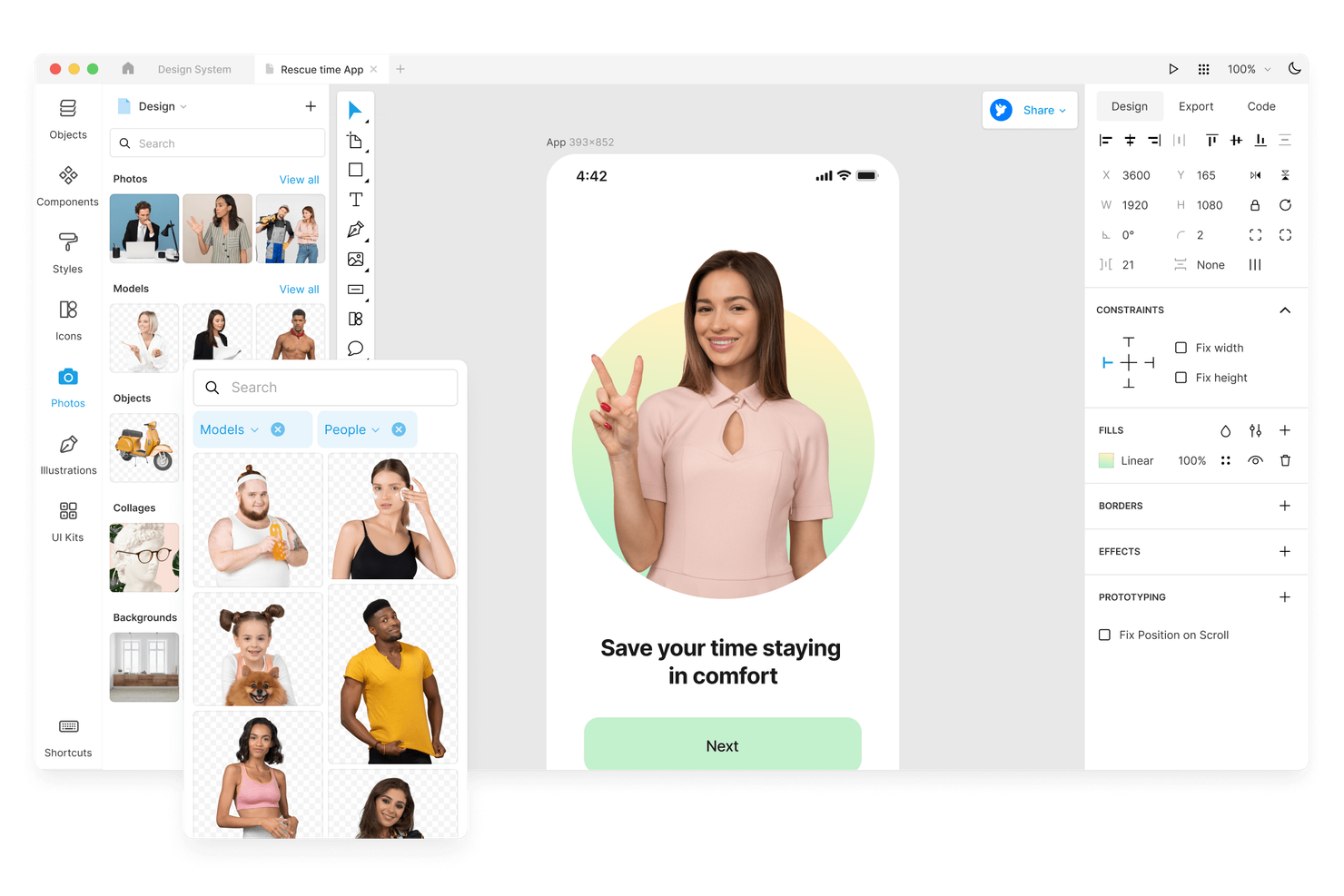
Si necesitas una herramienta de diseño vectorial que funcione completamente sin conexión en Windows, vale la pena considerar Lunacy. Esta aplicación está diseñada para diseñadores, ilustradores y equipos que buscan una experiencia rápida y nativa de Windows sin depender del acceso a la nube. A diferencia de Adobe Illustrator, Lunacy te permite trabajar sin conexión, ofrece recursos integrados y admite archivos .sketch de forma nativa, lo que la convierte en una opción práctica para flujos de trabajo centrados en Windows.
Por qué Lunacy es una buena alternativa a Adobe Illustrator
Lunacy destaca para quienes necesitan una herramienta de diseño vectorial que funcione completamente sin conexión en Windows. Elegí Lunacy porque ofrece una experiencia nativa de Windows, lo que te permite acceder a todas las funciones de diseño sin conexión a Internet. La aplicación incluye una biblioteca integrada de iconos, fotos e ilustraciones, por lo que no tienes que buscar recursos en otros lugares. Si buscas una alternativa a Adobe Illustrator que no dependa de la nube y sea compatible con archivos .sketch, Lunacy es una opción sólida.
Funciones principales de Lunacy
Otras funciones que hacen que Lunacy sea una opción atractiva para el trabajo de diseño en Windows incluyen:
- Eliminador de fondos con IA: Elimina instantáneamente los fondos de las imágenes dentro de tu proyecto.
- Colaboración en tiempo real: Invita a otras personas a editar y comentar tus archivos simultáneamente.
- Herramientas de texto y fuentes: Accede a opciones avanzadas de formato de texto y a una amplia variedad de fuentes.
- Mercado de complementos: Amplía las funciones con una variedad de complementos descargables.
Integraciones de Lunacy
Las integraciones incluyen Figma, Sketch y Pixso.
Pros and Cons
Pros:
- Aplicación nativa de Windows con funcionalidad completa sin conexión
- Biblioteca integrada de iconos e ilustraciones
- Admite el formato de archivo .sketch de forma nativa
Cons:
- Capacidades limitadas de edición vectorial avanzada
- El rendimiento puede ralentizarse con archivos complejos

Affinity
Ideal para compra de licencia única
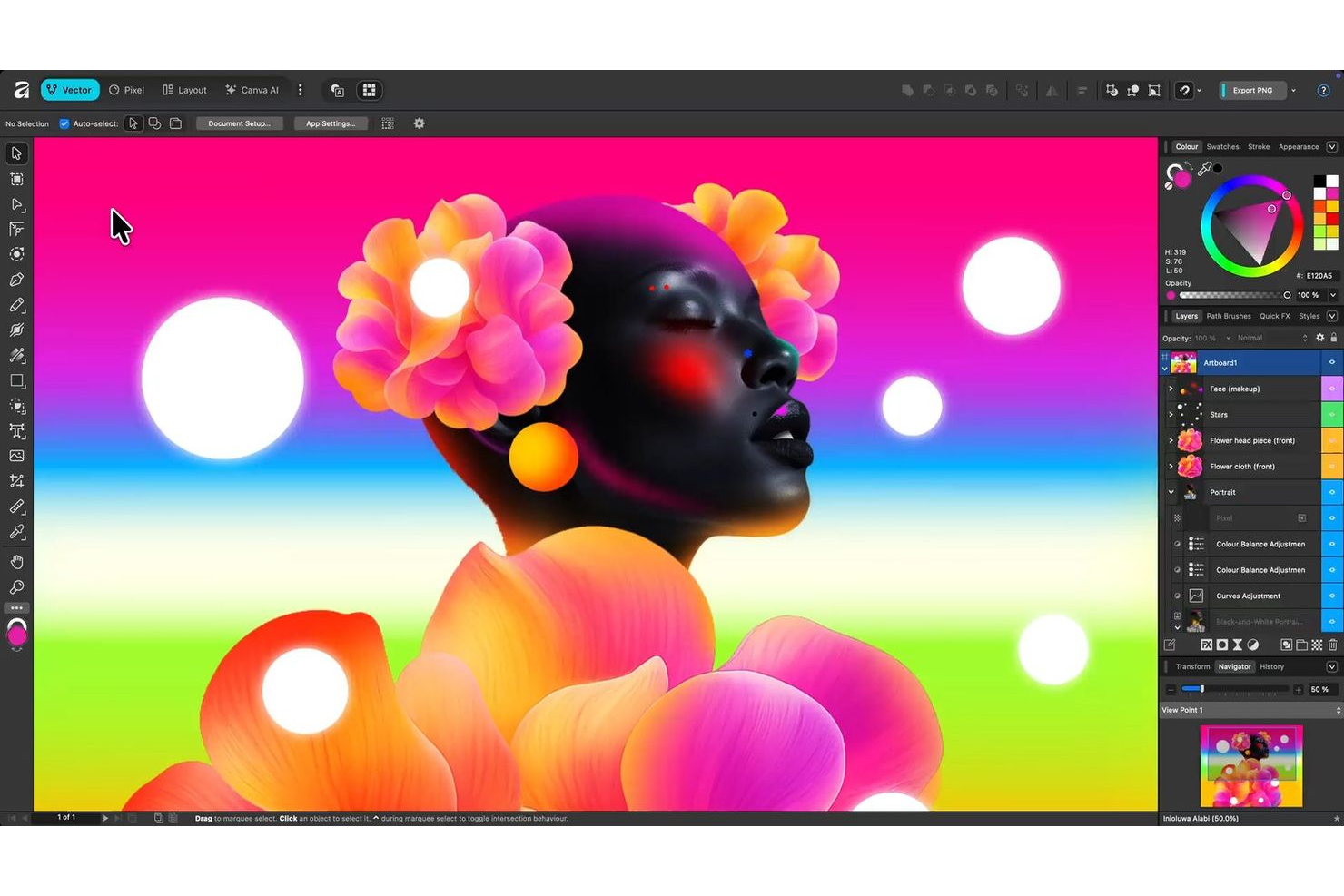
Si buscas una herramienta de diseño vectorial sin suscripción, Affinity de Canva es una opción que merece la pena considerar. Está diseñada para profesionales creativos, agencias y freelancers que desean funciones avanzadas de ilustración y maquetación con una licencia de pago único. Affinity atrae a quienes buscan un software de diseño completo sin pagos mensuales continuos ni dependencias de la nube.
Por Qué Affinity es una Buena Alternativa a Adobe Illustrator
Para los diseñadores que quieren evitar cuotas de suscripción permanentes, Affinity ofrece una solución de gráficos vectoriales completa con compra de licencia única. He elegido Affinity porque ofrece edición vectorial avanzada, mesas de trabajo ilimitadas y soporte profesional para impresión, todo sin atarte a un pago mensual. El software incluye herramientas precisas de pluma y forma, así como efectos y ajustes no destructivos para flujos de trabajo de diseño flexibles. Si valoras la propiedad y el acceso a largo plazo a tu software de diseño, Affinity es una sólida alternativa a Adobe Illustrator.
Características Clave de Affinity
Otras características de Affinity lo convierten en una excelente elección para trabajos de diseño profesional:
- Pixel Persona: Cambia entre espacios de trabajo vectorial y de mapa de bits para combinar ilustración y edición de fotos en un mismo archivo.
- Controles avanzados de tipografía: Accede a una amplia gama de estilos de texto, ligaduras y funciones OpenType para un diseño tipográfico detallado.
- Panel de gestión de activos: Organiza y reutiliza recursos de diseño, iconos y elementos en varios proyectos.
- Importación y exportación de PSD: Abre, edita y guarda archivos de Adobe Photoshop manteniendo capas y efectos.
Integraciones de Affinity
Se integra con Canva.
Pros and Cons
Pros:
- Edición vectorial avanzada con herramientas de pluma y forma precisas
- Admite efectos y ajustes no destructivos
- Permite flujos de trabajo vectorial y de mapa de bits en un mismo archivo
Cons:
- El acceso a funciones de IA de Canva requiere el plan Canva Premium
- No tiene funciones de colaboración en tiempo real

Penpot
La mejor opción para acceso multiplataforma desde navegador

Los equipos de diseño que necesitan una herramienta de diseño vectorial basada en navegador deberían echar un vistazo a Penpot. Esta plataforma de código abierto funciona en todos los sistemas operativos, por lo que es adecuada para organizaciones con entornos de dispositivos mixtos o equipos remotos. A diferencia de Adobe Illustrator, Penpot se ejecuta completamente en el navegador y permite la colaboración en tiempo real sin necesidad de descargas.
Por Qué Penpot es una Buena Alternativa a Adobe Illustrator
Penpot destaca por su verdadero acceso multiplataforma desde el navegador, algo que aprecio para equipos que trabajan en diferentes sistemas operativos. Puedes iniciar Penpot en cualquier navegador moderno, así que no necesitas instalar software ni preocuparte por problemas de compatibilidad entre Mac, Windows o Linux. La plataforma también permite colaboración en tiempo real, de modo que varios usuarios pueden trabajar en el mismo diseño simultáneamente. Si deseas una herramienta de diseño vectorial accesible desde cualquier lugar y que respalde equipos distribuidos, Penpot es una sólida alternativa a Adobe Illustrator.
Funciones Clave de Penpot
Otras funciones que hacen atractivo a Penpot para trabajos de diseño vectorial incluyen:
- Base de Código Abierto: Accede y modifica el código fuente de la plataforma para adaptarlo a las necesidades de tu organización.
- Bibliotecas de Componentes: Crea, organiza y reutiliza componentes de diseño en múltiples proyectos.
- Importar y Exportar SVG: Importa archivos SVG existentes o exporta tu trabajo para usarlo en otras herramientas.
- Prototipado Interactivo: Crea prototipos interactivos con enlaces, transiciones y elementos interactivos.
Integraciones de Penpot
Penpot cuenta con una API bien documentada para integraciones personalizadas y puede implementarse en modo autogestionado para mayor control sobre el despliegue. También ofrece webhooks, tokens de acceso y complementos a través de su sistema de plugins.
Pros and Cons
Pros:
- Funciona en el navegador en todos los principales sistemas operativos
- Código abierto con base personalizable
- Colaboración en tiempo real para equipos distribuidos
Cons:
- Herramientas vectoriales y de malla avanzadas limitadas
- El rendimiento puede ser lento con diseños complejos
Sketch
La mejor para una interfaz nativa de macOS
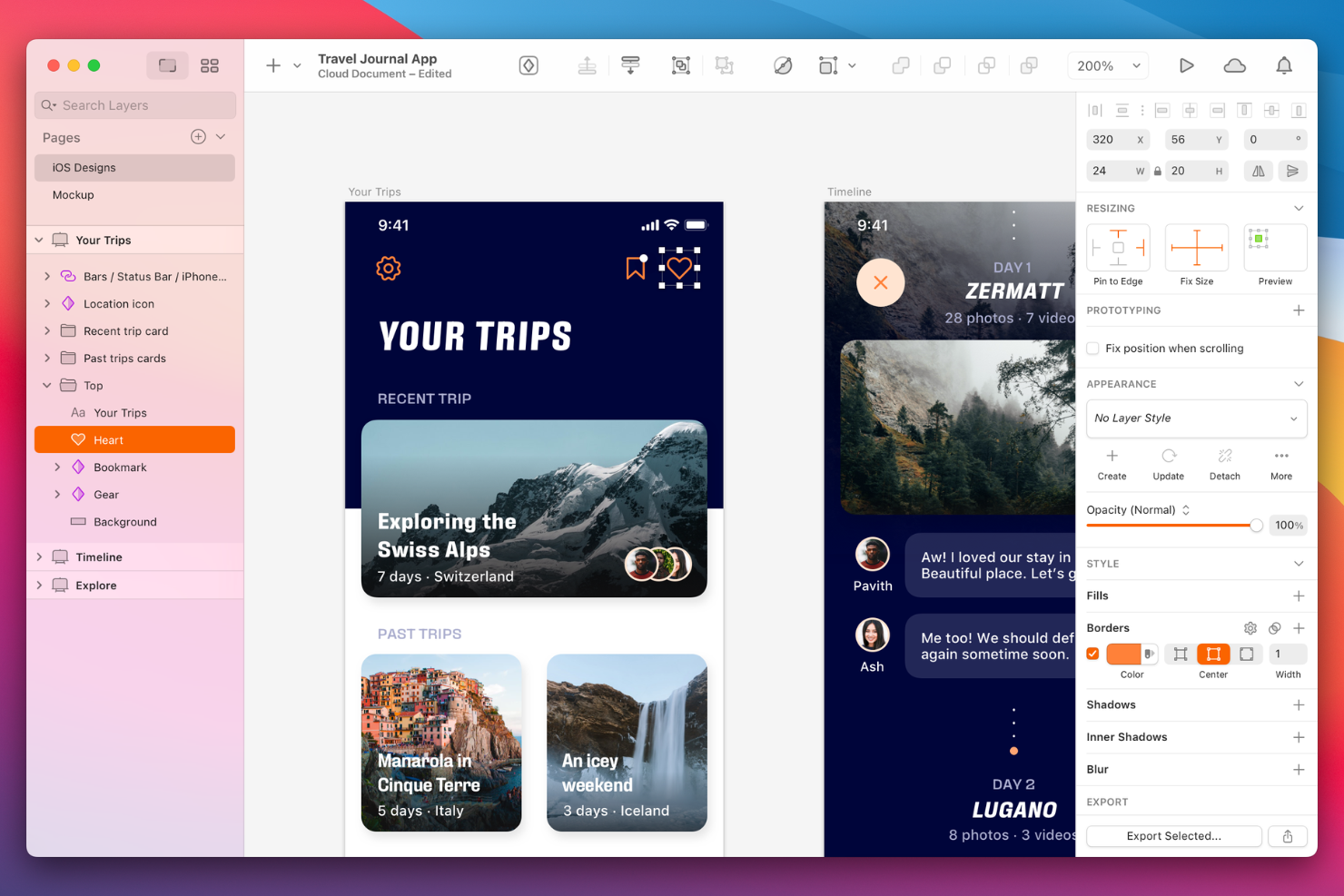
Los diseñadores que buscan una herramienta de vectores creada específicamente para macOS suelen escoger Sketch. Esta plataforma resulta atractiva para diseñadores de producto y equipos de UI/UX que valoran una interfaz nativa de Mac y la colaboración en tiempo real. Sketch se diferencia de Adobe Illustrator por su enfoque en el diseño de productos digitales, símbolos reutilizables y funciones integradas para una transferencia fluida a desarrolladores.
Por qué Sketch es una buena alternativa a Adobe Illustrator
Si buscas una herramienta de diseño vectorial que se sienta realmente integrada en macOS, Sketch es uno de los principales candidatos. Elegí Sketch porque su interfaz y rendimiento están optimizados específicamente para usuarios de Mac, haciendo que se sienta rápida y familiar. La plataforma es compatible con características nativas de macOS como el Modo Oscuro, renderizado de fuentes a nivel de sistema y gestos suaves del trackpad, lo que ayuda a los diseñadores a trabajar de forma más natural. Para quien valore una experiencia centrada en Mac dentro de su flujo creativo, Sketch ofrece una alternativa enfocada a Adobe Illustrator.
Características clave de Sketch
Otras funciones que hacen de Sketch una opción sólida para equipos de diseño incluyen:
- Símbolos reutilizables: Crea y actualiza componentes de UI consistentes en múltiples mesas de trabajo y proyectos.
- Bibliotecas compartidas: Almacena y distribuye recursos de diseño para que los usen varios miembros del equipo o proyectos.
- Herramientas de prototipado: Crea prototipos interactivos con transiciones y áreas activas directamente en tus archivos de diseño.
- Transferencia a desarrolladores: Genera fragmentos de código, especificaciones y recursos para que los desarrolladores puedan acceder e implementar los diseños.
Integraciones de Sketch
Las integraciones incluyen Slack, Notion y ProtoPie.
Pros and Cons
Pros:
- Interfaz nativa de macOS con rendimiento optimizado
- Símbolos reutilizables y bibliotecas compartidas para coherencia
- Prototipado integrado para vistas previas interactivas del diseño
Cons:
- Sin soporte para Windows ni Linux
- Herramientas limitadas para ilustración vectorial avanzada

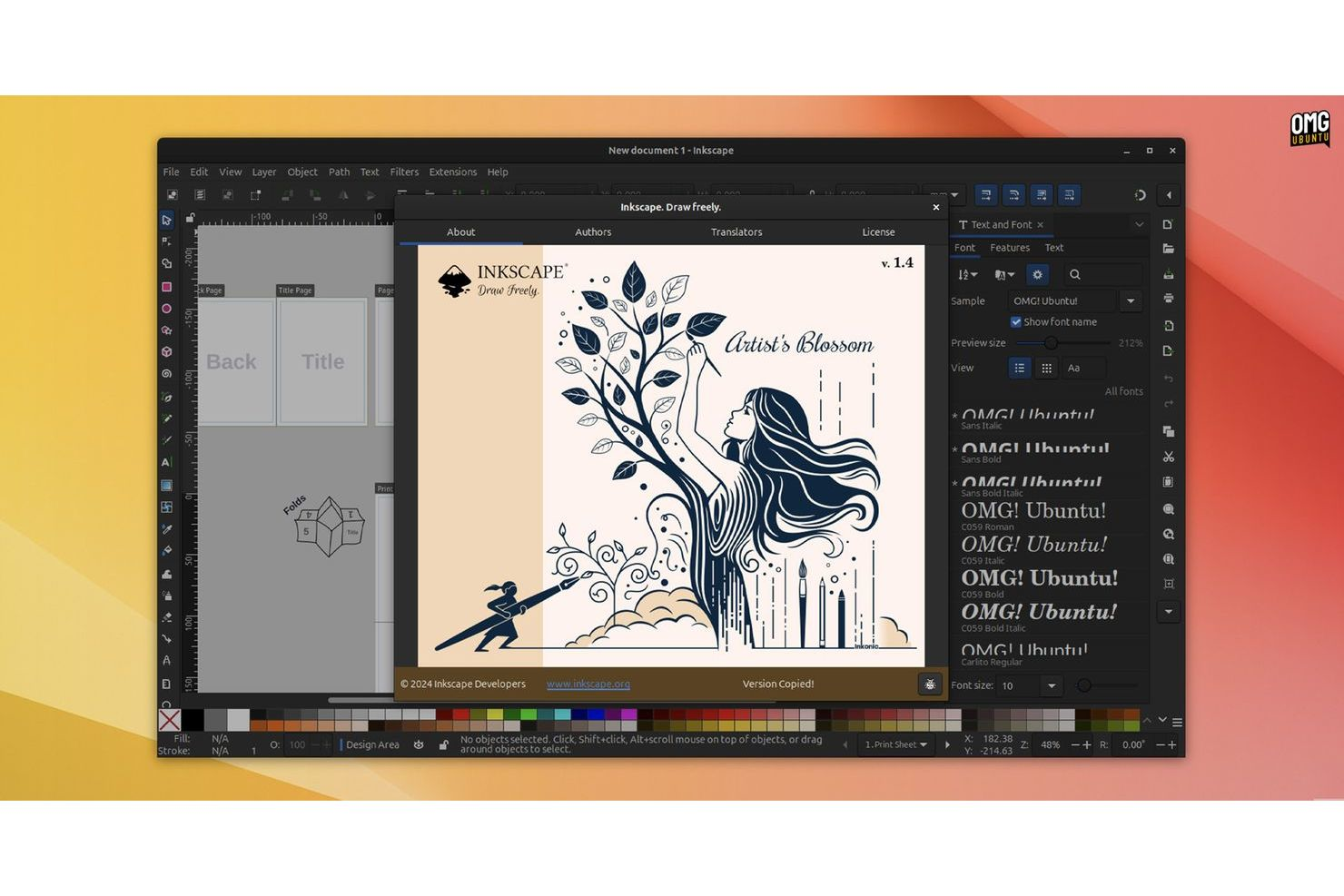
Los entusiastas del software de código abierto y los equipos que desean un control total sobre su entorno de diseño vectorial suelen elegir Inkscape. Esta herramienta resulta especialmente atractiva para diseñadores, educadores y organizaciones que necesitan una personalización profunda y la capacidad de modificar o ampliar funciones. Inkscape, una popular alternativa gratuita a Adobe Illustrator, destaca por su plataforma transparente impulsada por la comunidad, con un amplio soporte para complementos y acceso al código fuente.
Por qué Inkscape es una buena alternativa a Adobe Illustrator
Si buscas una herramienta de diseño vectorial que realmente puedas hacer tuya, Inkscape merece tu consideración. Elegí Inkscape porque es de código abierto, lo que significa que puedes personalizar el software, añadir complementos o incluso modificar el código fuente para adaptarlo a tu flujo de trabajo. La plataforma admite una amplia variedad de extensiones y scripts, permitiéndote automatizar tareas o incorporar nuevas funciones a medida que evolucionan tus necesidades. Para quienes valoran la flexibilidad y el desarrollo impulsado por la comunidad, Inkscape ofrece un nivel de control difícil de encontrar en otras alternativas a Adobe Illustrator.
Funciones clave de Inkscape
Además de su personalización de código abierto, también encontré útiles estas funciones para equipos creativos:
- Compatibilidad multiplataforma: Ejecuta Inkscape en Windows, macOS y Linux sin problemas de compatibilidad.
- Operaciones avanzadas de trazado: Usa herramientas para editar nodos, simplificar trazados y realizar operaciones booleanas sobre formas vectoriales.
- Soporte para el formato SVG: Crea, edita y exporta gráficos vectoriales escalables en el popular formato SVG.
- Vectorización de mapas de bits: Convierte imágenes rasterizadas en trazados vectoriales editables directamente en la aplicación.
Integraciones de Inkscape
Actualmente no existen integraciones nativas listadas.
Pros and Cons
Pros:
- Amplias funciones de edición y exportación en SVG
- Soporte comunitario activo y ecosistema de complementos
- Funciona de forma nativa en Windows, macOS y Linux
Cons:
- Sin compatibilidad nativa con color CMYK
- El rendimiento disminuye con archivos complejos o de gran tamaño

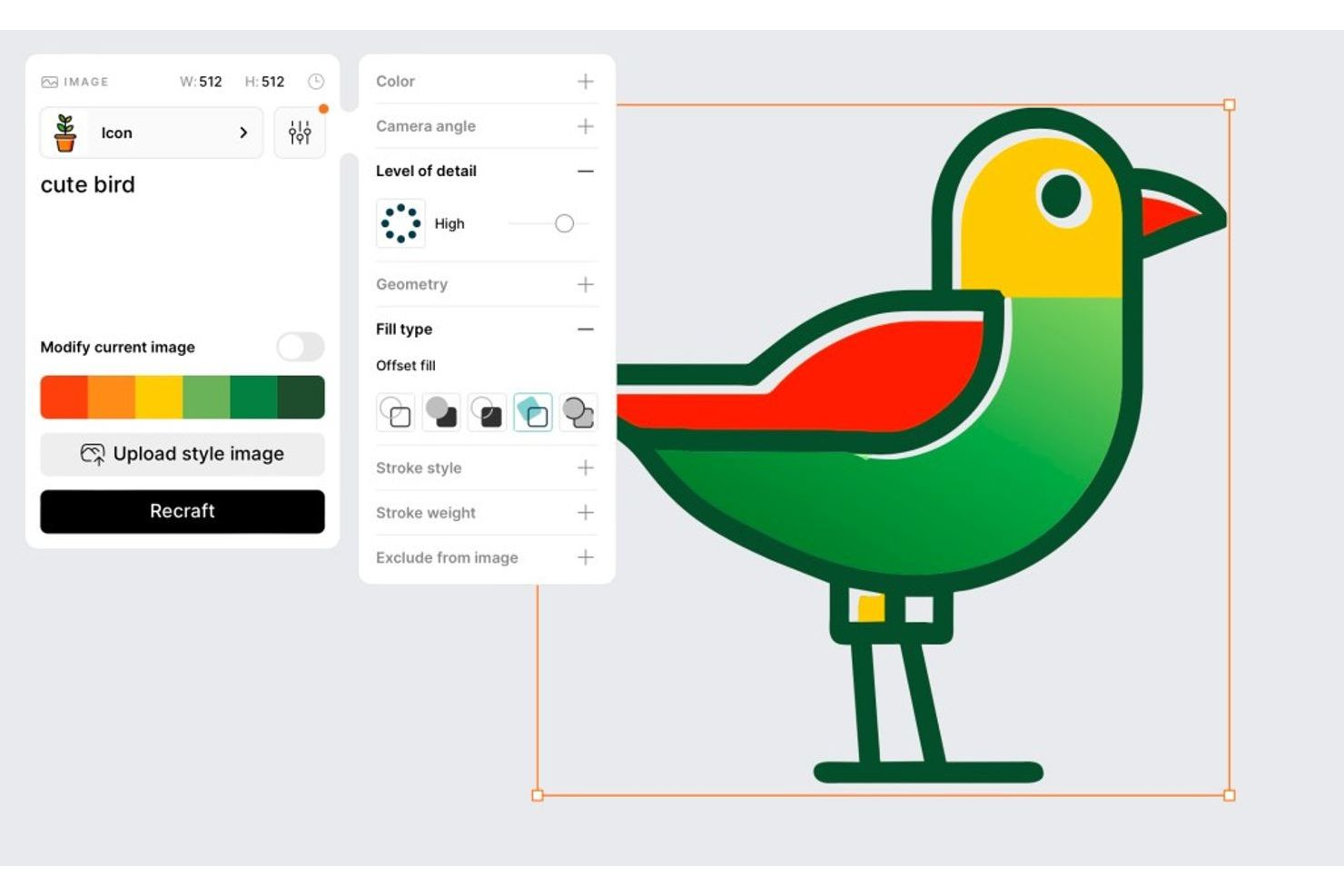
Los diseñadores que buscan generar gráficos vectoriales con IA deberían considerar Recraft. Esta herramienta resulta atractiva para profesionales creativos y equipos que desean producir rápidamente ilustraciones, iconos y patrones escalables a partir de indicaciones de texto. A diferencia de Adobe Illustrator, Recraft utiliza IA generativa para automatizar la creación de recursos vectoriales originales, acelerando el proceso de diseño para usuarios que necesitan imágenes nuevas bajo demanda.
Por Qué Recraft es una Buena Alternativa a Adobe Illustrator
Recraft adopta un enfoque diferente al de las herramientas tradicionales de diseño vectorial al usar IA para generar gráficos vectoriales a partir de textos. Elegí Recraft por su capacidad para crear rápidamente ilustraciones, iconos y patrones originales sin necesidad de dibujo manual. La plataforma te permite personalizar y perfeccionar los recursos generados por IA directamente en el editor, de modo que puedes ajustar los detalles para adaptarlos a tu proyecto. Si buscas una herramienta que agilice la creación de recursos y aporte creatividad impulsada por IA a tu flujo de trabajo, Recraft es una sólida alternativa a Adobe Illustrator.
Características Clave de Recraft
Otras funciones que hacen atractiva a Recraft para el diseño vectorial incluyen:
- Opciones de exportación SVG y PNG: Exporta tus gráficos terminados en formatos SVG y PNG para un uso flexible.
- Preajustes de estilo: Aplica una variedad de estilos visuales predefinidos a los recursos generados con un solo clic.
- Herramientas de edición de capas: Ajusta, reorganiza y perfecciona capas individuales dentro de tus diseños vectoriales.
- Gestión de kit de marca: Almacena y reutiliza colores, tipografías y recursos de marca en múltiples proyectos.
Integraciones de Recraft
Recraft ofrece una API para integraciones personalizadas, aunque actualmente no se especifican integraciones concretas.
Pros and Cons
Pros:
- Gráficos vectoriales generados por IA a partir de texto
- Capas editables para perfeccionar los diseños generados
- Preajustes de estilo para variaciones visuales rápidas
Cons:
- Herramientas limitadas para dibujo y edición de trazados manuales
- Las salidas de IA a menudo requieren ajustes manuales

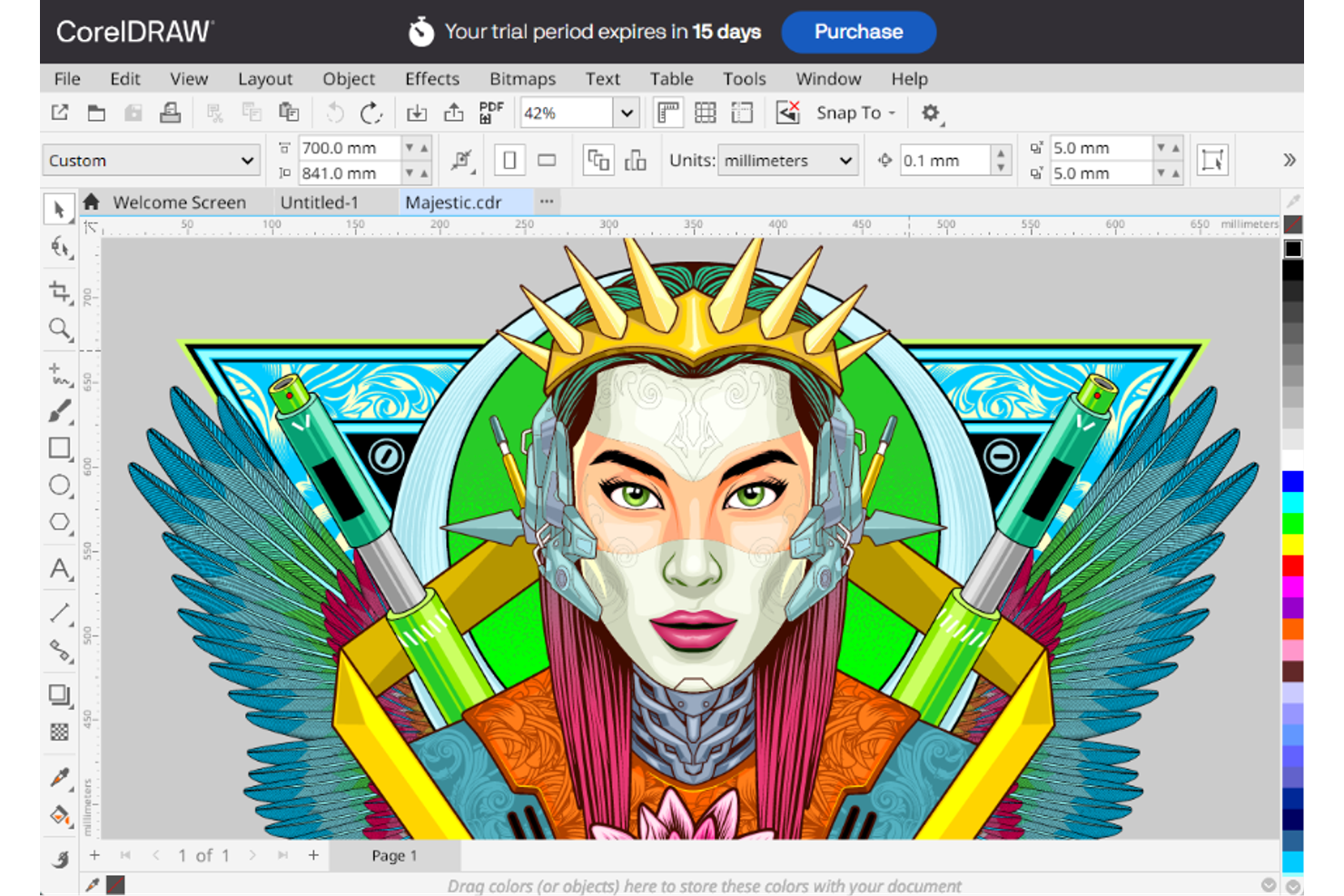
Los diseñadores enfocados en impresión y los equipos de producción suelen recurrir a CorelDRAW por sus capacidades especializadas de preimpresión y maquetación. El software está diseñado para profesionales que necesitan gestión avanzada del color, soporte para colores directos y controles precisos de salida de impresión. CorelDRAW destaca entre los usuarios que requieren herramientas adaptadas a proyectos de impresión complejos, packaging y trabajos de señalización.
Por qué CorelDRAW es una buena alternativa a Adobe Illustrator
Si tu trabajo está centrado en el diseño para impresión, CorelDRAW ofrece herramientas avanzadas que van más allá de lo que ofrecen muchas otras plataformas de diseño vectorial. Elegí CorelDRAW porque incluye funciones como soporte para colores directos, herramientas de preimpresión y gestión precisa del color, esenciales para la producción profesional de materiales impresos. El software también es compatible con tareas complejas de maquetación, incluidos documentos de varias páginas e impresión de datos variables, aspectos críticos para proyectos de packaging y señalización. Para quienes necesitan controles especializados de salida de impresión, CorelDRAW es una alternativa sólida frente a Adobe Illustrator.
Características clave de CorelDRAW
Otras funciones de CorelDRAW lo convierten en una opción versátil para profesionales del diseño:
- Herramienta LiveSketch: Dibuja ilustraciones vectoriales a mano alzada que se convierten automáticamente en curvas precisas.
- Administrador de fuentes: Organiza, busca y previsualiza fuentes sin necesidad de instalarlas en tu sistema.
- Vectorización de mapas de bits: Convierte imágenes rasterizadas en gráficos vectoriales editables con la herramienta integrada PowerTRACE.
- Relleno de malla interactivo: Aplica degradados de color complejos y sombreado a objetos para ilustraciones detalladas.
Integraciones de CorelDRAW
Actualmente no se indican integraciones nativas.
Pros and Cons
Pros:
- Soporte avanzado para colores directos y Pantone
- Herramientas integradas de impresión de datos variables
- Capacidades de maquetación multipágina para proyectos de impresión
Cons:
- La versión para Mac tiene menos funciones que la de Windows
- No dispone de opciones de colaboración en la nube en tiempo real

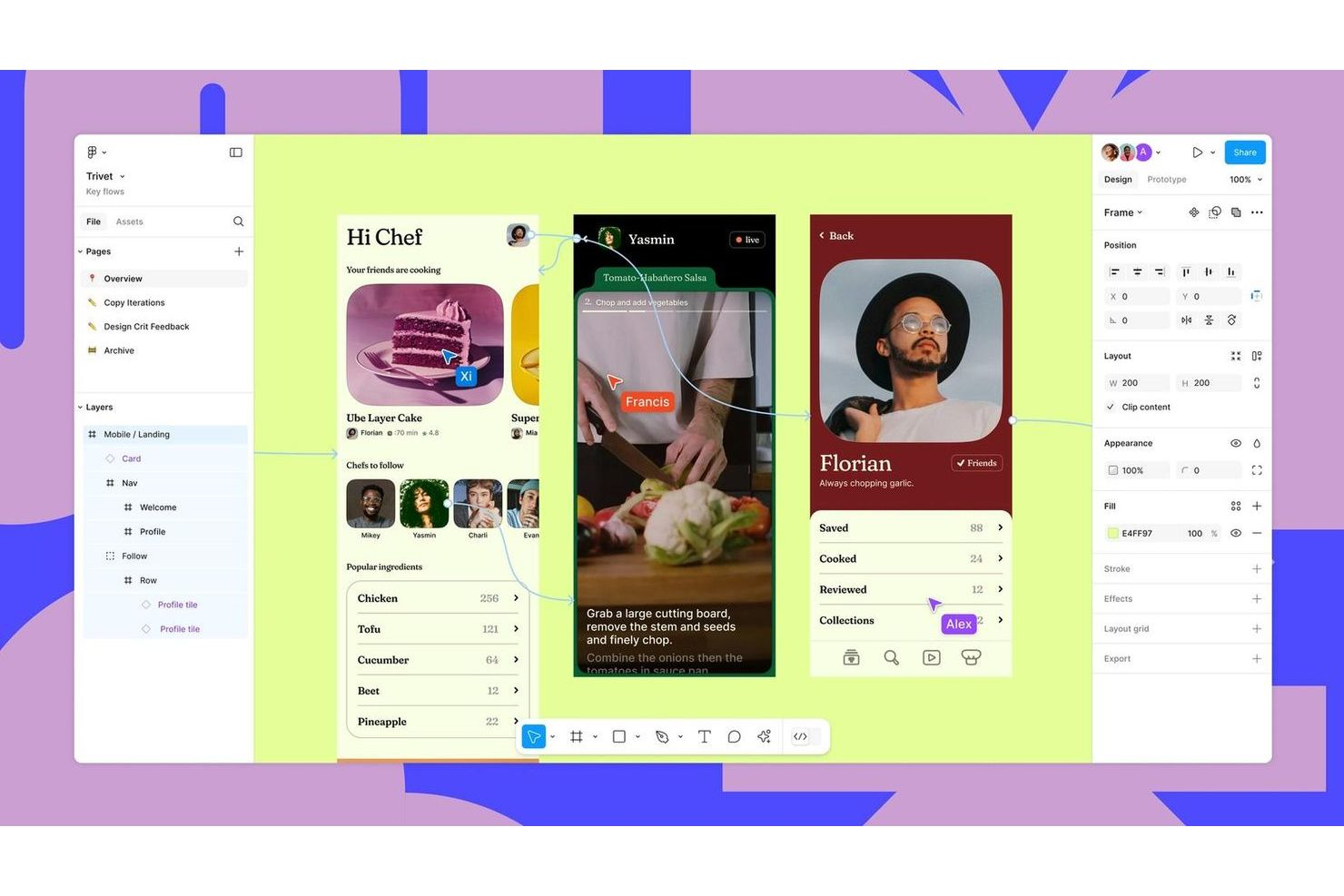
Figma Design es una herramienta de gráficos vectoriales basada en navegador, creada para equipos que necesitan colaborar en tiempo real. Es especialmente útil para diseñadores de productos, profesionales de UX y equipos creativos que quieran trabajar juntos en el mismo archivo sin los dolores de cabeza del control de versiones. Si buscas una solución que priorice la retroalimentación en vivo y los flujos de trabajo colaborativos, Figma Design destaca frente a las alternativas tradicionales de escritorio.
Por qué Figma Design es una buena alternativa a Adobe Illustrator
Figma Design es especialmente relevante para equipos que necesitan colaborar en gráficos vectoriales en tiempo real. Lo elegí como alternativa a Adobe Illustrator porque permite que varios usuarios editen el mismo archivo simultáneamente, lo que agiliza mucho el proceso de retroalimentación e iteración. Las funciones integradas de comentarios e historial de versiones ayudan a mantener alineado al equipo sin interminables intercambios de archivos. Si tu flujo de trabajo depende de la colaboración en vivo, Figma Design ofrece una ventaja única frente a las herramientas tradicionales de escritorio.
Características principales de Figma Design
Otras funciones de Figma Design lo convierten en una opción versátil para el trabajo de diseño vectorial:
- Auto Layout: Ajusta automáticamente los marcos y componentes a medida que redimensionas o agregas elementos, manteniendo la coherencia de los diseños.
- Bibliotecas de componentes: Te permiten crear y reutilizar elementos de diseño en múltiples proyectos para mantener la coherencia de marca.
- Herramientas de prototipado: Te permite construir prototipos interactivos directamente en tus archivos de diseño sin cambiar de aplicación.
- Opciones de exportación SVG: Exporta recursos vectoriales en múltiples formatos, incluido SVG, para facilitar su uso en desarrollo web y de apps.
Integraciones de Figma Design
Las integraciones incluyen Slack, Microsoft Teams, Zoom, Asana, Jira, Notion, Dropbox, Trello, Confluence y GitLab.
Pros and Cons
Pros:
- Colaboración en tiempo real con edición multiusuario
- Acceso desde el navegador sin necesidad de instalación
- Herramientas de prototipado integradas para flujos de trabajo de diseño interactivo
Cons:
- Edición vectorial avanzada limitada en comparación con Illustrator
- El rendimiento puede verse afectado con archivos grandes o complejos


Los diseñadores que buscan conectar la ilustración vectorial con los gráficos en movimiento suelen recurrir a Linearity Curve. Esta herramienta atrae a equipos creativos y profesionales del marketing que desean crear obras de arte que pasen sin problemas a flujos de trabajo de animación. Linearity Curve destaca por su integración directa con herramientas de diseño en movimiento, lo que facilita dar vida a los diseños estáticos.
Por qué Linearity Curve es una buena alternativa a Adobe Illustrator
Para los equipos enfocados en gráficos en movimiento, Linearity Curve ofrece una ventaja única sobre las herramientas tradicionales de diseño vectorial. Elegí Linearity Curve porque permite exportar archivos vectoriales por capas directamente a plataformas de animación como Linearity Move, haciendo la transición de contenido estático a animado mucho más fluida. El software también soporta la edición basada en líneas de tiempo y activos listos para fotogramas clave, que son esenciales para los flujos de trabajo de diseño en movimiento. Si necesitas una herramienta vectorial creada pensando en la animación, Linearity Curve es una sólida alternativa a Adobe Illustrator.
Características clave de Linearity Curve
Otras características de Linearity Curve ayudan a que se destaque entre los profesionales creativos:
- Exportación SVG y PDF: Exporta obras de arte en formatos vectoriales ampliamente usados para compatibilidad con otras herramientas de diseño.
- Biblioteca de activos: Acceso a una biblioteca integrada de formas, iconos y plantillas reutilizables para una configuración de proyectos más rápida.
- Colaboración en tiempo real: Invita a los miembros del equipo a ver o editar proyectos de forma simultánea dentro de la app.
- Personalización de pinceles: Ajusta la configuración de los pinceles para crear trazos y texturas únicos en las ilustraciones.
Integraciones de Linearity Curve
Las integraciones incluyen Brandfetch, Unsplash, SF Symbols, Icons8, Figma, Adobe Illustrator, Sketch y Linearity Move.
Pros and Cons
Pros:
- Exportación directa a flujos de trabajo de animación para diseño en movimiento
- Biblioteca de activos integrada con elementos de diseño reutilizables
- Colaboración en tiempo real para proyectos en equipo
Cons:
- Controles avanzados de tipografía limitados
- Menos opciones de plugins que otras herramientas de diseño más grandes

Los artistas e ilustradores que buscan un control avanzado de los pinceles en su trabajo vectorial suelen recurrir a VectorStyler. Esta herramienta está diseñada para profesionales creativos que necesitan una amplia variedad de pinceles vectoriales personalizables y efectos de dibujo natural. VectorStyler se diferencia de otras alternativas a Adobe Illustrator al ofrecer motores de pinceles únicos y opciones detalladas de trazo que permiten estilos expresivos y hechos a mano.
Por qué VectorStyler es una buena alternativa a Adobe Illustrator
VectorStyler destaca para quienes desean mayor libertad creativa con pinceles vectoriales. Elegí VectorStyler porque ofrece una gran variedad de tipos de pinceles, incluidos pinceles de patrón, de dispersión y artísticos, que permiten crear trazos complejos y con textura. El motor de pinceles es compatible con la sensibilidad a la presión y la creación personalizada de pinceles, lo cual es especialmente útil para ilustradores que buscan imitar los efectos de medios naturales. Si buscas una alternativa a Adobe Illustrator que te brinde más control sobre los estilos de pincel y trazos expresivos, VectorStyler es una opción sólida.
Funciones clave de VectorStyler
Otras características que hacen que VectorStyler sea atractivo para los profesionales creativos incluyen:
- Efectos no destructivos: Aplica y ajusta efectos a los objetos sin alterar permanentemente la obra vectorial original.
- Herramienta avanzada de creación de formas: Combina, fusiona o sustrae formas de forma interactiva para una edición vectorial precisa.
- Compatibilidad con fuentes variables: Utiliza y personaliza fuentes variables para una tipografía flexible en tus diseños.
- Gestión de documentos multipágina: Crea y administra diseños de varias páginas dentro de un solo archivo de proyecto.
Integraciones de VectorStyler
VectorStyler no lista públicamente integraciones nativas, pero ofrece una API bien documentada para integraciones personalizadas y admite conectividad sin código mediante herramientas de automatización de terceros.
Pros and Cons
Pros:
- Personalización extensa de pinceles vectoriales con soporte para presión
- Edición no destructiva para cambios de diseño flexibles
- Permite proyectos multipágina y con múltiples mesas de trabajo
Cons:
- Ecosistema limitado de plugins de terceros
- Problemas de rendimiento con archivos grandes o complejos
Otras alternativas a Adobe Illustrator
Estas son algunas opciones adicionales de alternativas a Adobe Illustrator que no llegaron a mi lista, pero que merece la pena conocer:
- Amadine
Ideal para principiantes que aprenden arte vectorial
- Xara Designer Pro+
Ideal como suite creativa todo en uno
- Vecta
Ideal para la creación colaborativa de diagramas SVG


Cómo evalúo las alternativas a Adobe Illustrator
Cuando un gestor de productos necesita esbozar un flujo de usuario o crear una presentación sin el alto coste de Illustrator, evalúo las herramientas en dos niveles: capacidad vectorial central y lo que diferencia a cada herramienta.
Funcionalidad principal (Requisitos básicos para esta lista)
Cuando selecciono herramientas para mi lista, califico cada una en una escala del 0 (no ofrece la funcionalidad) al 5 (destaca en esta área) para cada funcionalidad principal mencionada a continuación. Después, calculo la puntuación total de la herramienta en porcentaje. Cada herramienta debe alcanzar una puntuación total mínima del 65% para ser considerada para la inclusión.
- Herramientas de edición vectorial: Evalúo si la herramienta ofrece edición completa de pluma, ruta y nodos, para que puedas crear diagramas de productos e iconos personalizados desde cero, y no solo formas predefinidas.
- Exportación a múltiples formatos: La exportación a SVG, PDF y PNG es importante cuando tu equipo comparte recursos en presentaciones, especificaciones técnicas o páginas de marketing en diferentes formatos.
- Gestión de capas y mesas de trabajo: Verifico si puedes organizar visuales de productos complejos en varias mesas de trabajo y capas anidadas, como al diseñar el recorrido completo de una funcionalidad en un solo lienzo.
- Controles tipográficos: Unas buenas herramientas de texto van más allá de la selección de fuentes. Busco compatibilidad con kerning, tracking y texto en ruta, para gráficos de hoja de ruta y materiales de lanzamiento pulidos.
- Colaboración y compartición: El trabajo de producto es multifuncional. Evalúo cómo cada herramienta gestiona la coedición en tiempo real, hilos de comentarios y enlaces compartibles para revisión de las partes interesadas.
- Compatibilidad con archivos de Illustrator: Los equipos que migran desde Illustrator necesitan llevar consigo sus archivos .AI o SVG existentes. Verifico qué tan bien cada herramienta conserva las capas y efectos al importar.
Una vez tengo una lista de herramientas que cumplen estos criterios, considero qué diferencia a cada plataforma.
Factores diferenciadores (lo que distingue a los proveedores)
Así es como comparo y contrasto los diferentes proveedores:
Características destacadas
Busco herramientas con funciones de prototipado integradas, donde puedes vincular mesas de trabajo y añadir interacciones de clic para guiar a los interesados por un flujo de funcionalidad propuesto sin cambiar de aplicación. También valoro las bibliotecas de componentes compartidas. Permiten que tu equipo reutilice iconos, elementos de interfaz y recursos de marca aprobados en todos los gráficos de producto. Un fuerte mercado de plantillas es una ventaja, especialmente para los PM que necesitan producir wireframes o diagramas de viaje de usuario rápidamente sin empezar desde cero.
Más allá de las características
La estructura de precios es un gran diferenciador. Algunas herramientas ofrecen niveles gratuitos generosos que sirven para un PM individual, mientras que otras requieren suscripciones por usuario que solo tienen sentido para equipos. También evalúo la curva de aprendizaje, ya que muchos gestores de producto no son diseñadores y necesitan una herramienta que puedan usar sin semanas de tutoriales. Las integraciones con herramientas como Jira, Confluence o Slack también son importantes porque determinan si tu trabajo de diseño se mantendrá conectado a los flujos de trabajo de producto existentes o quedará aislado.
¿Por qué buscar una alternativa a Adobe Illustrator?
Aunque Adobe Illustrator es una buena opción entre las alternativas a Adobe Illustrator, hay varias razones por las que algunos usuarios buscan soluciones alternativas. Puede que estés buscando una alternativa a Adobe Illustrator porque…
- Necesitas una solución gratuita o de menor coste
- Quieres una herramienta con una interfaz más sencilla
- Necesitas compatibilidad nativa con plataformas que no sean Windows o Mac
- Necesitas mejores funciones de colaboración para equipos
- Quieres opciones de licencias o suscripciones más flexibles
- Necesitas una herramienta que funcione bien en equipos antiguos
Si te identificas con alguno de estos casos, has llegado al lugar adecuado. Mi lista incluye varias alternativas a Adobe Illustrator que se adaptan mejor a los equipos que afrontan estos desafíos con Adobe Illustrator y buscan soluciones alternativas.
Funciones principales de Adobe Illustrator
Estas son algunas de las funciones principales de Adobe Illustrator, para ayudarte a contrastar y comparar lo que ofrecen las soluciones alternativas:
- Herramientas avanzadas de dibujo vectorial y edición
- Controles de tipografía de precisión y gestión de fuentes
- Gestión de mesas de trabajo para proyectos de varias páginas
- Integración con las aplicaciones de Adobe Creative Cloud
- Amplias bibliotecas de pinceles y efectos
- Compatibilidad con formatos de archivo estándar del sector
- Espacio de trabajo y paneles de herramientas personalizables
- Herramientas Pluma y Creador de formas para trazados complejos
- Opciones de datos variables y exportación de recursos
- Vista previa y edición de ilustraciones en tiempo real