

10 mejores herramientas de comentarios de diseño para equipos creativos en 2026

10 Lista de las mejores herramientas de comentarios sobre diseño


Con tantas soluciones diferentes para recibir comentarios sobre diseño disponibles, resulta difícil determinar cuál es la adecuada para ti. Sabes que quieres recopilar e implementar comentarios de forma más eficiente, pero necesitas averiguar qué herramienta es la mejor. ¡Yo te ayudo! En esta publicación te ayudaré a elegir fácilmente, compartiendo mis experiencias personales al utilizar docenas de herramientas de comentarios diferentes con grandes equipos y proyectos de diseño, junto con mis selecciones de las mejores herramientas de comentarios sobre diseño.
Esta herramienta nos permite recibir comentarios en tiempo real, incluso mediante grabaciones de pantalla o GIF para mayor claridad. Y si quieres integrar un proceso de comentarios en un sitio web activo, esta herramienta se convierte en una herramienta indispensable para recibir comentarios sobre sitios web. Así que exploremos las mejores opciones disponibles, ¿te parece?
¿Qué es una herramienta de comentarios sobre diseño?
Las herramientas de comentarios sobre diseño son plataformas digitales que ayudan a los equipos a recopilar, analizar e implementar comentarios sobre sus diseños. El objetivo principal del software de comentarios sobre diseño es orientar el proceso de diseño y mejorar los resultados del diseño al facilitar el ciclo de comentarios. Muchas de estas herramientas cuentan con funciones para solicitar comentarios, analizar datos y establecer prioridades.
Por Qué Confiar en Nuestras Reseñas de Software
Llevamos revisando y probando software de gestión de productos desde 2020. Como product managers, sabemos lo crucial y complicado que es tomar la decisión correcta al seleccionar software. Invertimos en investigación profunda para ayudar a nuestra audiencia a tomar mejores decisiones de compra de software. Hemos probado más de 2,000 herramientas para distintos casos de uso y escrito más de 1,000 reseñas exhaustivas. Conozca cómo mantenemos la transparencia & nuestra metodología de reseñas de software.
| Tool | Best For | Trial Info | Price | ||
|---|---|---|---|---|---|
| 1 | Ideal para rastrear errores e incidencias en el diseño visual | Prueba gratuita disponible | Desde $41/mes | Website | |
| 2 | Ideal para la lluvia de ideas y la ideación colaborativa | Plan gratuito disponible | Desde $8/miembro/mes (facturado anualmente) | Website | |
| 3 | Ideal para comentarios sobre sitios web activos y entornos de prueba con clasificación mediante IA | Plan gratuito disponible | Desde $29/mes (facturado anualmente) | Website | |
| 4 | Ideal para la revisión en línea y evaluación de diseños | Demo gratuita + prueba gratuita de 10 días disponible | Desde $249/mes | Website | |
| 5 | La mejor opción para sistemas de diseño escalables | Plan gratuito disponible | Desde $16/usuario/mes (facturado anualmente) | Website | |
| 6 | Ideal para wireframes y diagramas de flujo rápidos | Plan gratuito disponible | Desde $10/editor/mes (facturado anualmente) | Website | |
| 7 | Ideal para la gestión de proyectos creativos | Prueba gratuita de 14 días + demo gratuita disponible | Desde $45/mes (facturado anualmente) | Website | |
| 8 | Ideal para prototipado y diseño de experiencia de usuario | Prueba gratuita de 30 días | Precio según solicitud | Website | |
| 9 | Ideal para edición vectorial y diseño de interfaces | Prueba gratis de 30 días | Desde $12/editor/mes (facturado anualmente) | Website | |
| 10 | Ideal para prototipos interactivos y colaboración en diseño | Not available | Desde $7.95/usuario/mes (facturado anualmente) | Website |

Las 10 mejores herramientas de comentarios sobre diseño

BugHerd
Ideal para rastrear errores e incidencias en el diseño visual
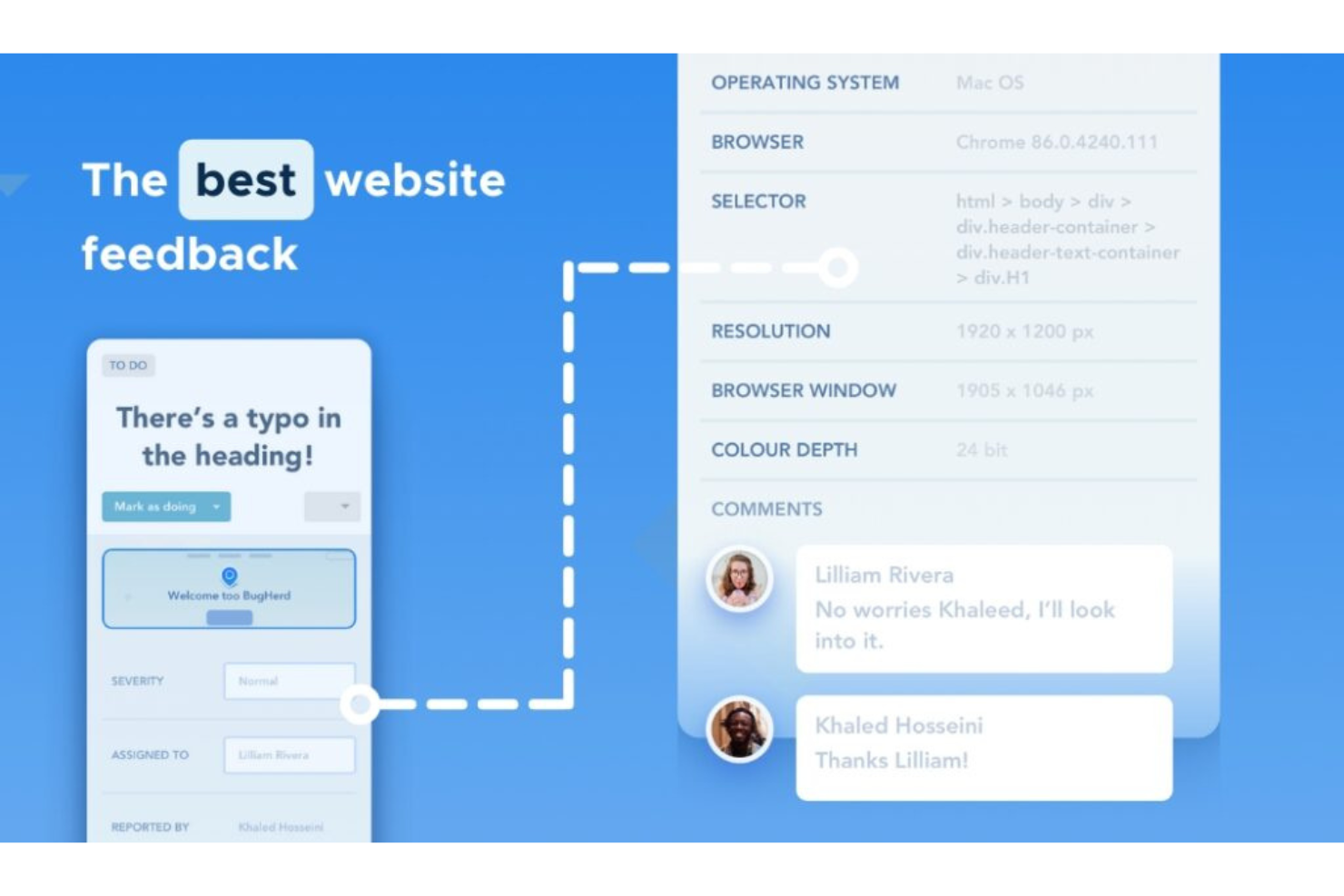
BugHerd es una herramienta visual de retroalimentación sobre sitios web y seguimiento de errores que permite a los clientes y miembros del equipo fijar comentarios directamente en páginas web en vivo, archivos PDF e imágenes, con captura automática de pantallas y recolección de metadatos técnicos integrada.
¿Para quién es mejor BugHerd?
BugHerd es ideal para agencias de diseño y desarrollo web que gestionan ciclos de revisión con clientes y necesitan una forma estructurada de recopilar y actuar sobre retroalimentación del sitio.
Por qué elegí BugHerd
BugHerd es uno de mis favoritos porque me encanta cómo cierra la brecha entre detectar un error visual y solucionarlo realmente. Cuando un cliente fija un comentario en una página en vivo, BugHerd captura automáticamente una captura de pantalla junto con metadatos técnicos como el navegador, sistema operativo, resolución de pantalla y la URL exacta. Eso significa que los desarrolladores obtienen un informe de error completo y reproducible sin necesidad de correos de seguimiento. Cada pin también se convierte directamente en una tarea en el tablero Kanban incorporado de BugHerd, por lo que nada se pasa por alto.
Características clave de BugHerd
- Acceso de retroalimentación para invitados: Los clientes pueden enviar comentarios directamente en un sitio en vivo sin crear una cuenta o iniciar sesión.
- Grabación de comentarios en video: Los revisores pueden grabar un breve recorrido en video junto con los comentarios fijados para demostrar los problemas en movimiento.
- Anotación en PDF y en imágenes: Sube archivos de diseño estáticos, PDFs o capturas de pantalla y recopila retroalimentación fijada de la misma forma que lo harías en un sitio en vivo.
- Gestión de tareas con IA: BugHerd genera automáticamente títulos y etiquetas para las tareas a partir de comentarios entrantes para reducir el trabajo manual de clasificación.
Pros and Cons
Pros:
- Precisión exacta al reportar errores visuales
- Interfaz fácil de entender para usuarios no técnicos
- Integración completa con herramientas de gestión de proyectos populares
Cons:
- Puede resultar costoso para equipos grandes
- Carece de función de chat integrada para discusiones en tiempo real
- Funciones limitadas para el seguimiento de errores no relacionados con el diseño
New Product Updates from BugHerd

BugHerd Enhances Jira Integration
BugHerd's Jira integration receives a major update enhancing workflow synchronization and user mapping for Premium plan users. These updates improve workflow synchronization, task management, and collaboration across both platforms. For more information, visit BugHerd's official site.
 .
.
Miro
Ideal para la lluvia de ideas y la ideación colaborativa
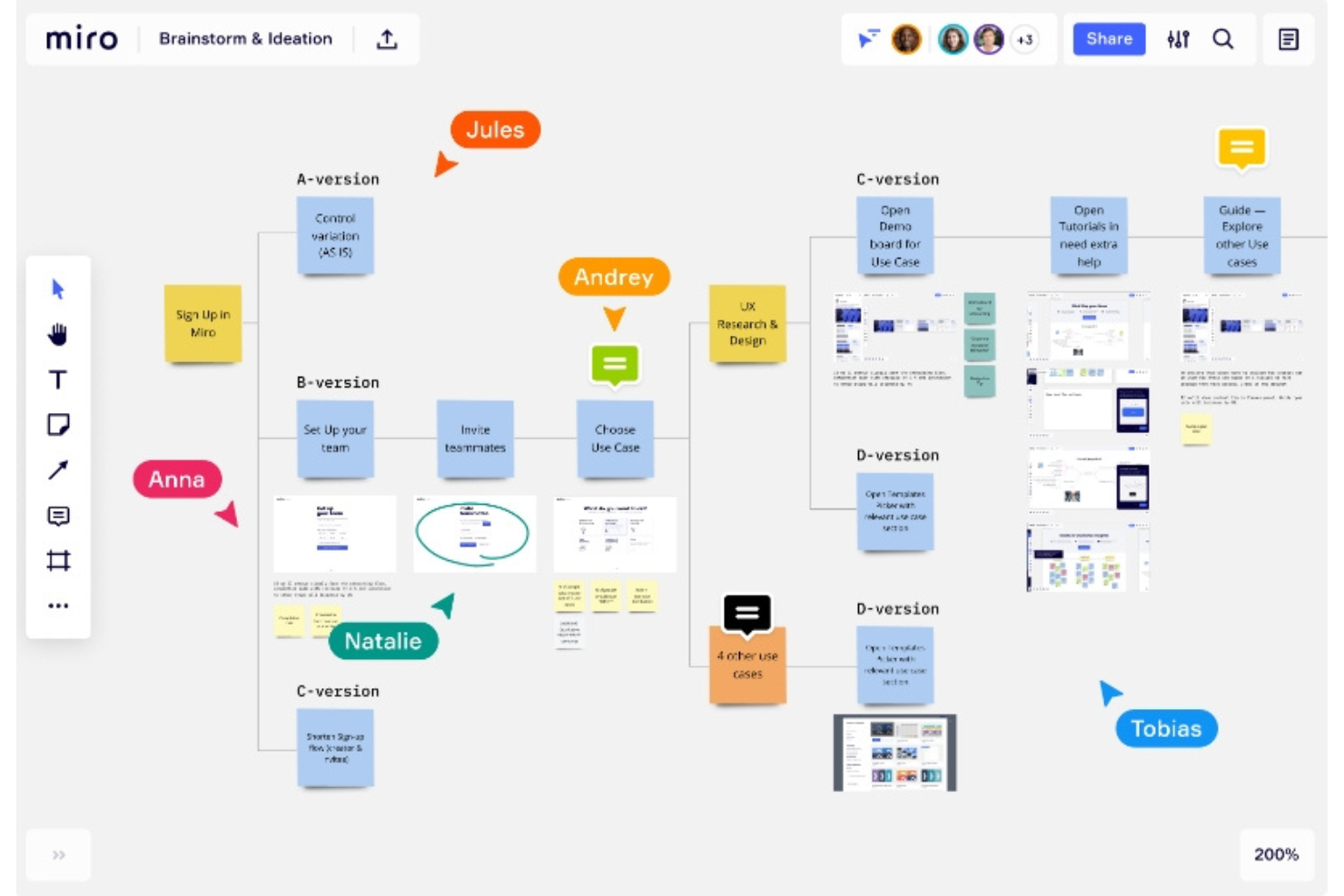
Miro es una plataforma de colaboración con un lienzo infinito que facilita la retroalimentación de diseño mediante anotaciones en tiempo real, comentarios, votaciones, creación de wireframes y recorridos en video asincrónicos.
¿Para quién es mejor Miro?
Miro es ideal para equipos multifuncionales—producto, diseño y marketing—que necesitan un espacio común para dar y recopilar retroalimentación sobre ideas en etapas tempranas.
Por qué elegí Miro
Miro se gana su lugar en mi lista porque el lienzo infinito ofrece a los equipos de diseño un espacio para hacer lluvias de ideas, esbozar y recopilar retroalimentación, todo en un solo lugar. Me gustan especialmente las funciones integradas de votación—cuando mi equipo necesita priorizar direcciones de diseño rápidamente, la votación por puntos permite que todos participen sin recurrir a una encuesta separada. Las notas adhesivas y las herramientas de agrupación también facilitan sintetizar la retroalimentación bruta en temas durante sesiones de ideación en vivo, lo que considero útil al llevar a cabo críticas de diseño con partes interesadas diversas.
Características clave de Miro
- Talktrack: Graba recorridos en video asincrónicos de tu tablero para que los interesados revisen los diseños y dejen comentarios con marca de tiempo cuando puedan.
- Comentarios contextuales: Fija comentarios directamente a elementos específicos en el lienzo para mantener la retroalimentación ligada al área exacta del diseño que se menciona.
- Herramientas de wireframing: Crea wireframes de baja fidelidad nativos en el lienzo para recolectar retroalimentación visual temprana antes de avanzar al diseño de alta fidelidad.
- Plantilla de crítica de diseño: Utiliza una estructura de tablero preconstruida que guía a los equipos mediante un proceso estructurado de revisión de diseño con categorías de retroalimentación definidas.
Pros and Cons
Pros:
- Lienzo expansivo para sesiones de lluvia de ideas
- Capacidades de colaboración en tiempo real
- Integración robusta con las herramientas de equipo más populares
Cons:
- La interfaz puede resultar abrumadora para nuevos usuarios
- Requiere una conexión a internet estable para un funcionamiento fluido
- La versión gratuita ofrece funciones limitadas
New Product Updates from Miro
Miro Adds Japan Data Residency for Enterprise Customers
Miro has introduced Japan data residency for enterprise customers, offering in-region storage for production data, backups, and metadata, plus in-region compute infrastructure. For more information, visit Miro's official site.

Userback
Ideal para comentarios sobre sitios web activos y entornos de prueba con clasificación mediante IA
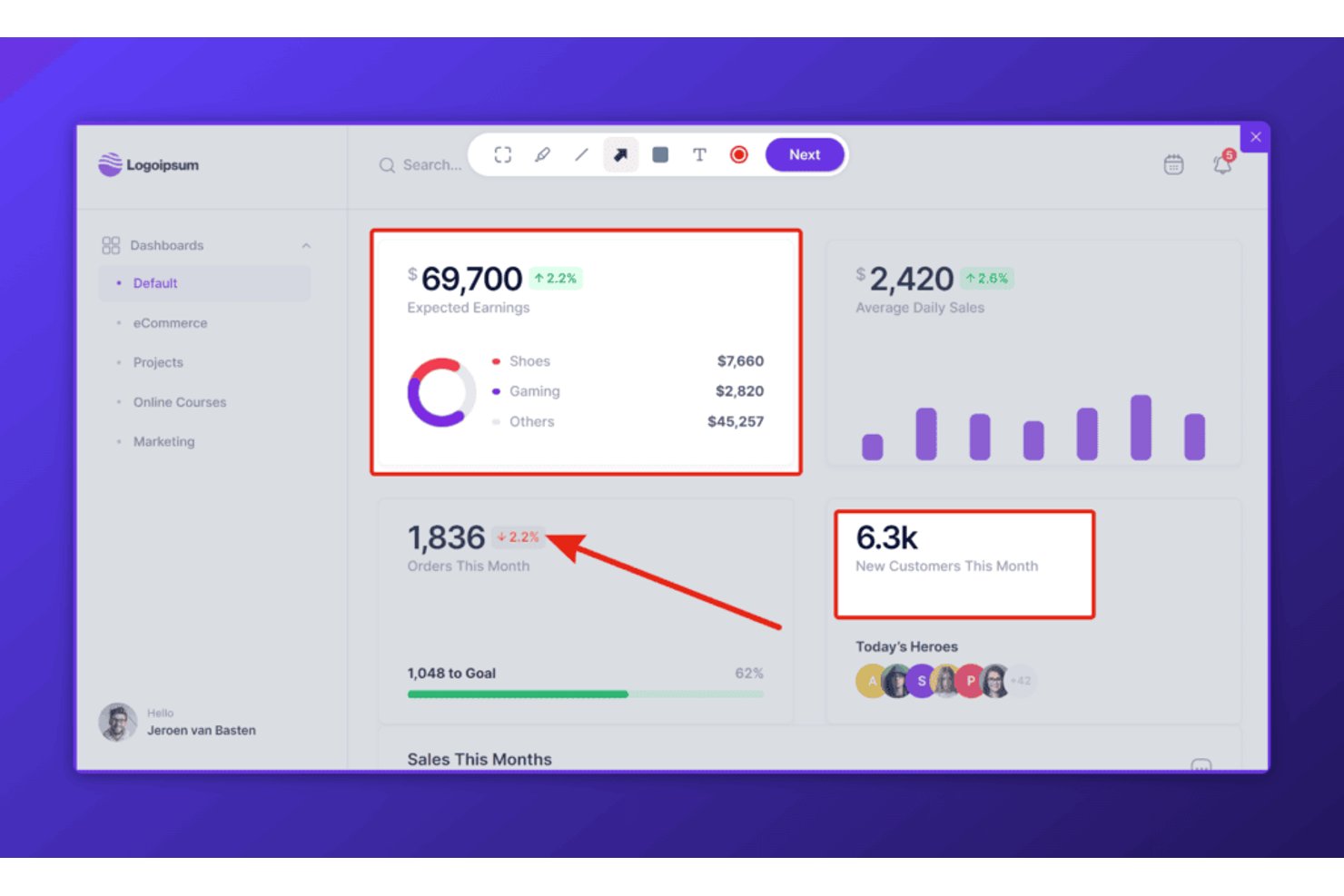
Userback es una herramienta de comentarios basada en la web que permite a los equipos recopilar capturas de pantalla anotadas, grabaciones de vídeo y reproducciones de sesiones directamente desde sitios web activos, entornos de prueba y aplicaciones web.
¿Para quién es más adecuado Userback?
Userback es una opción excelente para equipos de producto e ingeniería que recopilan comentarios sobre sitios web activos, aplicaciones web y entornos de prueba.
Por qué elegí Userback
Elegí Userback como una de las mejores opciones porque está diseñado específicamente para recopilar comentarios sobre sitios web activos y entornos de prueba, que es exactamente donde los equipos de productos web realizan su trabajo de revisión. Me encanta que el componente integrable capture automáticamente capturas de pantalla anotadas junto con registros de consola, metadatos del navegador y reproducciones de sesiones, por lo que no hay que adivinar qué vio o hizo un revisor. La capa de clasificación mediante IA categoriza los comentarios recibidos por sentimiento y tema recurrente, lo que reduce el tiempo que tendría que dedicar a separar manualmente los informes de errores de las solicitudes de funciones.
Características principales de Userback
- Componente de comentarios integrable: Un fragmento de JavaScript que se instala en cualquier sitio activo o URL de prueba para permitir que los revisores envíen capturas de pantalla anotadas y grabaciones de vídeo directamente desde la página.
- Extensión del navegador: Una extensión para Chrome, Firefox y Edge que permite a los revisores internos capturar y anotar comentarios desde cualquier página web, incluso sin tener instalado el componente.
- Reproducción de sesiones: Registra sesiones de usuario completas—movimientos del ratón, clics, desplazamiento y clics repetidos por frustración—y adjunta la reproducción al elemento de comentario correspondiente para ofrecer todo el contexto.
- Sincronización bidireccional con herramientas de gestión de proyectos: Mantiene el estado de los comentarios en Userback alineado en tiempo real con Jira, Linear y ClickUp, de modo que resolver un problema en una herramienta actualiza automáticamente la otra.
Integraciones de Userback
Userback ofrece integraciones nativas con Jira, Linear, ClickUp, Slack, Microsoft Teams, GitHub, GitLab, Asana y Azure DevOps. También admite la API REST, webhooks y Zapier.
Pros and Cons
Pros:
- Anota sitios web activos y entornos de prueba
- Captura vídeo, reproducciones de sesiones y registros de consola
- La IA ordena y resume los comentarios recibidos
Cons:
- No admite archivos de Figma ni Sketch
- Carece de funciones para comparar versiones de diseño
New Product Updates from Userback

Userback Mobile SDK Adds In-App Surveys
Userback’s Mobile SDK now supports in-app surveys, enabling iOS and Android users to submit NPS, CSAT, and other survey responses without leaving your app. For more information, visit Userback's official site.
 .
.
Ideal para la revisión en línea y evaluación de diseños

PageProof es una plataforma de revisión en línea donde los equipos de marketing y creativos pueden anotar, comparar versiones, gestionar flujos de aprobación y revisar cualquier tipo de archivo, desde PDFs y videos hasta prototipos de Figma y sitios web en vivo, todo en un solo lugar.
¿Para quién es mejor PageProof?
PageProof es ideal para equipos de marketing y creativos que gestionan grandes volúmenes de aprobaciones de diseño con múltiples revisores internos y externos.
Por qué elegí PageProof
Incluí PageProof en mi lista porque ninguna otra herramienta cubre tan completamente el ciclo completo de revisión. Me encanta cómo el modo de comparación de versiones me permite superponer dos versiones de una revisión con un control deslizante para detectar exactamente qué cambió entre rondas. La inteligencia de PageProof escanea automáticamente las pruebas en busca de errores ortográficos e inconsistencias de marca antes de que los revisores las abran, lo que reduce el intercambio constante sobre estos temas.
Funciones clave de PageProof
- Herramientas de anotación en la prueba: Añade comentarios anclados, dibujos a mano alzada y resaltados directamente sobre cualquier prueba para marcar áreas específicas para revisión.
- Flujos de trabajo de aprobación: Configura roles de revisores, define umbrales de decisión y activa recordatorios automáticos para mantener el proceso de aprobación en marcha.
- Listas de verificación para revisores: Adjunta listas de verificación personalizadas a una prueba para que los revisores confirmen los criterios de marca y calidad antes de enviar comentarios.
- Acceso de revisores invitados: Los colaboradores externos pueden abrir y anotar pruebas sin necesidad de crear una cuenta en PageProof.
Pros and Cons
Pros:
- Gestión integral de revisión y aprobación
- Función inteligente de comparación para seguimiento eficiente de revisiones
- Integración con plataformas populares de almacenamiento en la nube y diseño
Cons:
- El ciclo de facturación anual puede no adaptarse a todas las empresas
- No hay un plan gratuito disponible
- La interfaz de usuario puede requerir un periodo de adaptación para nuevos usuarios

Figma
La mejor opción para sistemas de diseño escalables
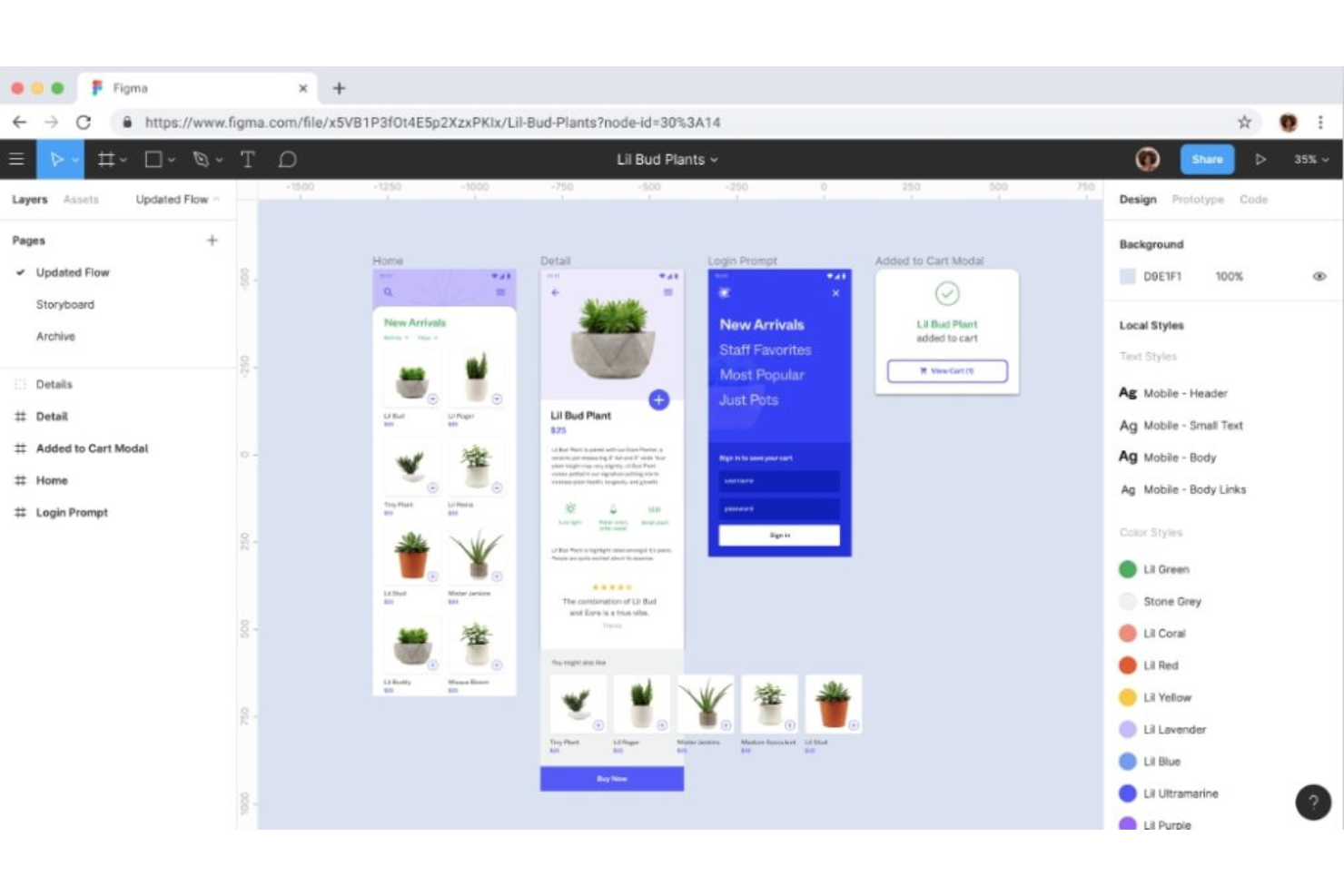
Figma es una plataforma de diseño colaborativo basada en el navegador que permite a los equipos de diseño y producto crear prototipos de interfaz de usuario, compartir anotaciones y recopilar comentarios contextuales directamente sobre el lienzo usando comentarios, Modo de desarrollo y bibliotecas de sistemas de diseño compartidas.
¿Para quién es mejor Figma?
Figma es ideal para equipos de producto y diseño en empresas medianas y grandes que necesitan un espacio compartido para el diseño de interfaces, creación de prototipos y revisión de diseño multifuncional.
Por qué elegí Figma
Figma se gana su lugar entre los mejores de mi lista porque gestiona la retroalimentación sobre sistemas de diseño a gran escala mejor que cualquier otra herramienta que haya usado. Las bibliotecas de componentes compartidos permiten a mi equipo dejar comentarios y resolver sugerencias directamente sobre los componentes fuente, de modo que los cambios se propagan automáticamente en cada archivo. También uso la ramificación para probar actualizaciones a nivel de sistema de forma aislada antes de fusionarlas nuevamente, lo que mantiene el ciclo de retroalimentación limpio y el historial de versiones intacto.
Principales funciones de Figma
- Comentarios en el lienzo: Ancla comentarios directamente a elementos específicos para que la retroalimentación esté siempre vinculada al diseño al que se refiere.
- Edición colaborativa en tiempo real: Varios colaboradores pueden trabajar en el mismo archivo simultáneamente, con seguimiento de cursores que muestra quién está haciendo qué.
- Compartir prototipos: Comparte prototipos interactivos y clicables por enlace para que los interesados puedan revisar los flujos y dejar comentarios sin una cuenta de Figma.
- Modo de desarrollo: Permite a los desarrolladores ver diseños con anotaciones y especificaciones listos para una transferencia y revisión precisas.
Pros and Cons
Pros:
- Colaboración en tiempo real que permite un diseño de equipo eficiente
- Herramientas de prototipado robustas
- Integraciones fluidas con otras herramientas populares
Cons:
- La curva de aprendizaje puede ser pronunciada para usuarios nuevos
- Algunos usuarios informan problemas de rendimiento con archivos complejos
- El precio puede ser elevado para equipos pequeños o freelancers

Ideal para wireframes y diagramas de flujo rápidos

Whimsical es un espacio de trabajo visual colaborativo para equipos técnicos que combina wireframes, diagramas de flujo, diagramas y mapas mentales con edición multijugador en tiempo real, comentarios e historial de versiones en un solo lienzo infinito.
¿Para quién es mejor Whimsical?
Whimsical está dirigido a gestores de producto, diseñadores e ingenieros en empresas tecnológicas de fase inicial o mediana que necesitan plasmar sus ideas antes de pasar a herramientas de diseño de alta fidelidad.
Por qué elegí Whimsical
Whimsical se gana su lugar en mi lista porque permite crear wireframes y diagramas de flujo más rápido que cualquier otra herramienta similar que haya usado. La biblioteca de componentes de arrastrar y soltar con propiedades ajustables permite a mi equipo esbozar un flujo de usuario completo en minutos, y los marcos de dispositivos para navegadores, teléfonos y tabletas muestran tu diseño en el contexto adecuado. También confío en la función de comentarios para mantener la retroalimentación vinculada directamente a formas o pantallas específicas, así las conversaciones de diseño nunca se pierden en un hilo separado.
Características clave de Whimsical
- Edición multijugador en tiempo real: Varios miembros del equipo pueden trabajar en el mismo tablero simultáneamente, con cursores en vivo que muestran quién está editando qué.
- Historial de versiones: Accede y restaura versiones anteriores de cualquier tablero para rastrear cómo ha evolucionado un diseño o flujo a lo largo del tiempo.
- @menciones en comentarios: Etiqueta a compañeros específicos en el hilo de comentarios para canalizar la retroalimentación o señalar una decisión que requiere su aporte.
- Plantillas: Comienza a partir de plantillas predefinidas de wireframe, diagramas de flujo y diagramas para evitar partir de un lienzo en blanco.
Pros and Cons
Pros:
- Creación rápida de wireframes y diagramas de flujo
- Función de 'tableros' útil para la organización de proyectos
- Integración efectiva con herramientas populares de gestión de proyectos
Cons:
- Elementos de diseño limitados para wireframes complejos
- Podría ofrecer más opciones personalizables
- No hay aplicación móvil disponible

ProofHub
Ideal para la gestión de proyectos creativos
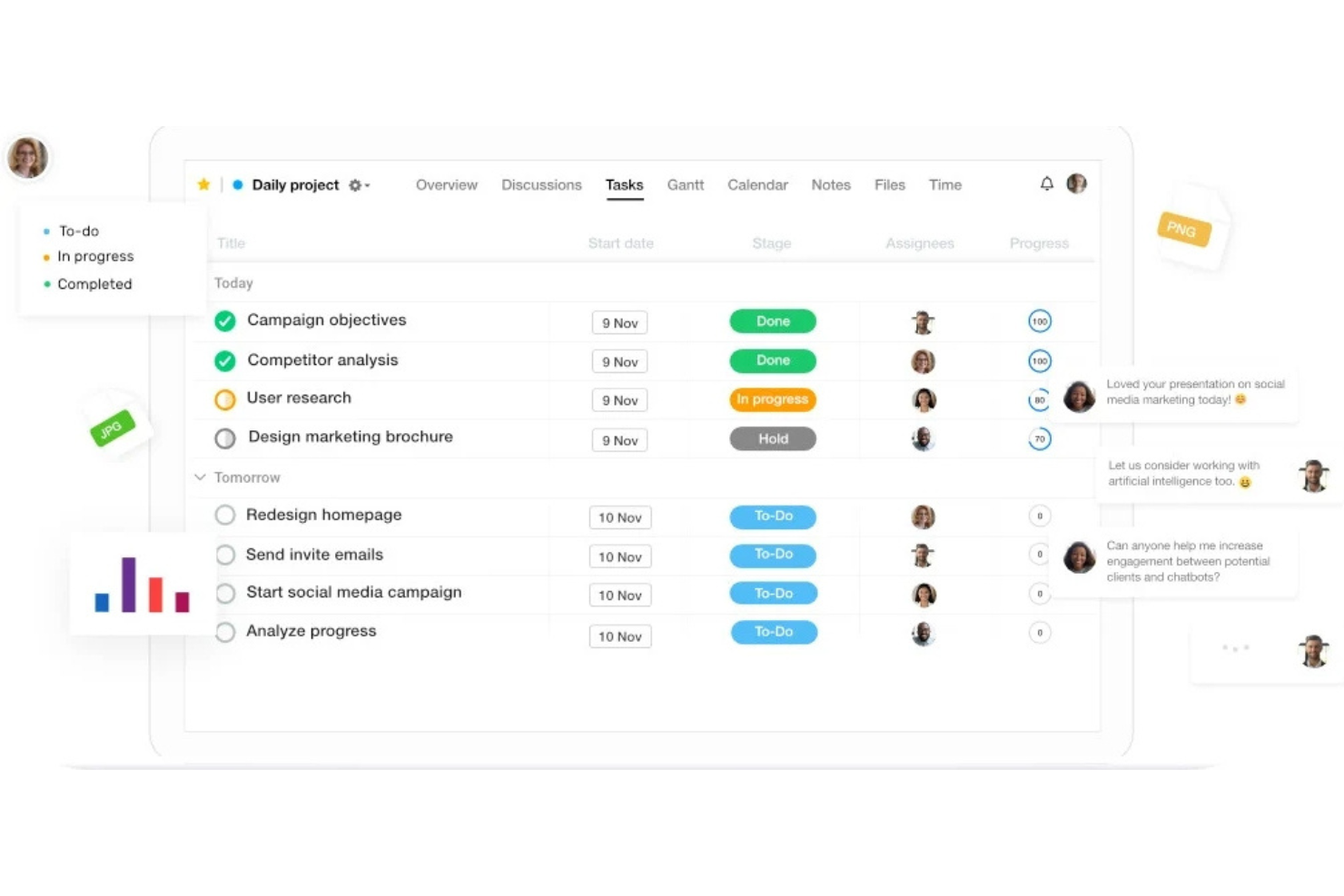
ProofHub es una plataforma de gestión de proyectos y colaboración en equipo que incluye herramientas de revisión en línea y anotación de archivos, lo que la hace especialmente adecuada para equipos creativos que necesitan gestionar revisiones y aprobaciones de diseños junto con los flujos de trabajo del proyecto.
¿Para Quién Es Mejor ProofHub?
ProofHub es ideal para equipos creativos y de marketing que requieren una única plataforma para gestionar proyectos, colaborar en archivos y manejar revisiones de diseño.
Por Qué Elegí ProofHub
He incluido ProofHub entre mis principales opciones porque es una de las pocas herramientas que conecta los comentarios sobre el diseño directamente con la ejecución del proyecto. Cuando mi equipo revisa un archivo de diseño, podemos anotarlo con herramientas de marcado, resolver los comentarios en línea y luego convertir ese feedback en tareas rastreadas de inmediato, sin cambiar de plataforma. También me gusta la función de control de versiones de archivos, que te permite subir múltiples iteraciones del mismo recurso y compartir versiones específicas con revisores concretos, evitando que los comentarios se mezclen entre distintos borradores.
Principales Funciones de ProofHub
- Discusiones en hilos: Crea temas de discusión dedicados vinculados a proyectos o archivos específicos para mantener las conversaciones sobre comentarios de diseño organizadas por contexto.
- Roles y permisos personalizados: Asigna diferentes niveles de acceso a miembros del equipo, clientes y revisores para que las personas correctas puedan ver, comentar o aprobar los recursos de diseño.
- Flujos de aprobación: Establece pasos formales de aprobación para archivos de diseño, de modo que los recursos pasen por un proceso de revisión y aprobación definido antes de marcarse como completos.
- Control de tiempo: Registra el tiempo directamente en tareas y proyectos para seguir las horas dedicadas a las revisiones de diseño y trabajos creativos.
Pros and Cons
Pros:
- La herramienta de revisión integrada facilita ciclos de revisión más rápidos
- El precio fijo lo hace asequible para equipos grandes
- Ofrece una amplia variedad de herramientas de gestión de proyectos
Cons:
- La interfaz puede parecer algo anticuada frente a la competencia
- Opciones de personalización limitadas
- No incluye una función de chat interno para mensajería instantánea

Adobe XD
Ideal para prototipado y diseño de experiencia de usuario
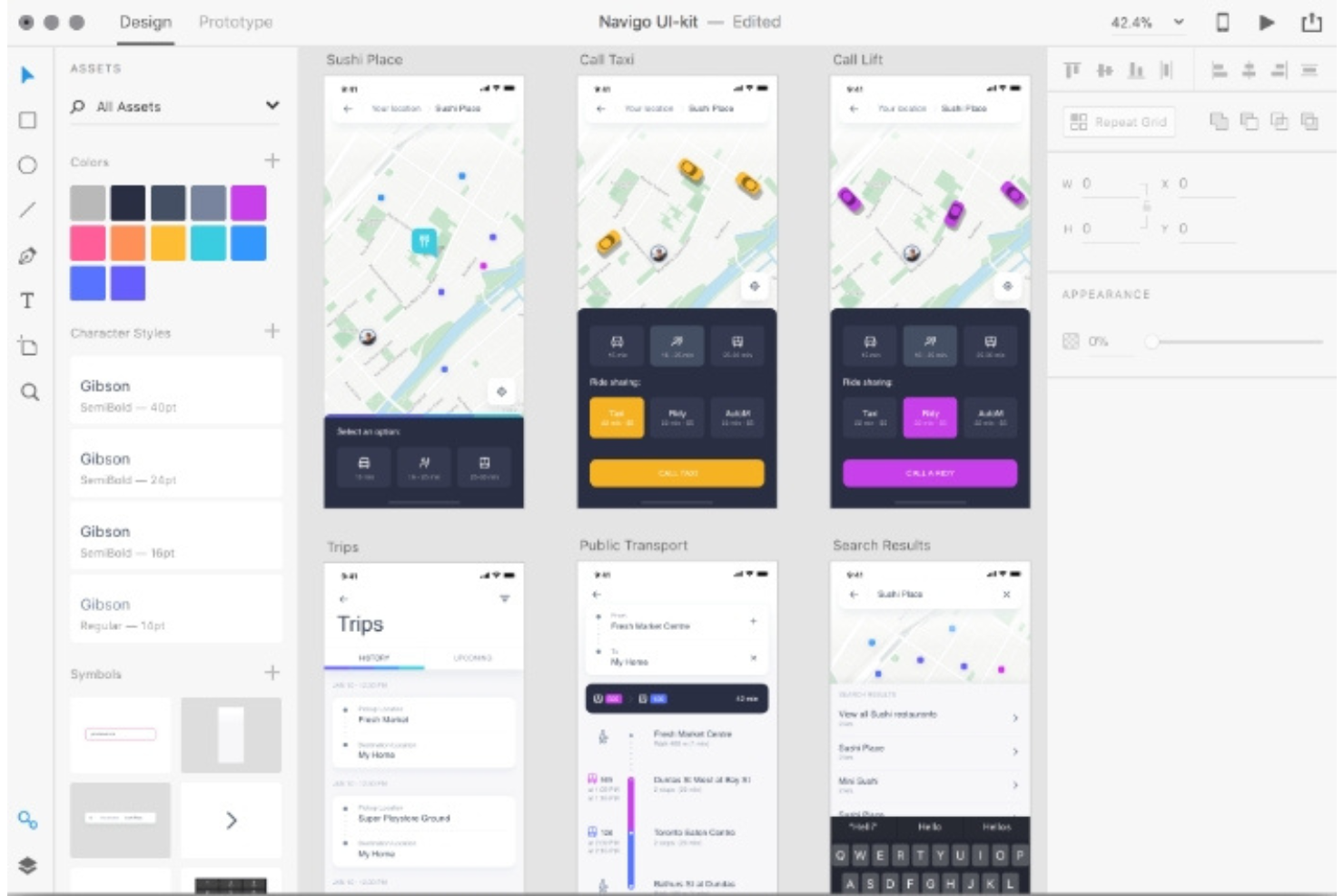
Adobe XD es una herramienta de diseño UI/UX basada en vectores que combina wireframing, prototipado y el intercambio de especificaciones de diseño, con funciones integradas de comentarios y coedición para una revisión colaborativa del diseño.
¿Para quién es mejor Adobe XD?
Adobe XD es ideal para diseñadores UI/UX y equipos de producto que ya trabajan dentro del ecosistema de Adobe y que necesitan un flujo de trabajo integrado desde el diseño hasta el prototipo.
Por qué elegí Adobe XD
He incluido Adobe XD entre mis principales opciones porque sus funciones de prototipado y retroalimentación funcionan dentro del mismo entorno donde se crean los diseños. Me gusta cómo se puede compartir un enlace de prototipo en vivo con los interesados, quienes pueden dejar comentarios directamente en pantallas específicas sin necesidad de tener una cuenta. La función Auto-Animate también facilita la creación de transiciones realistas entre mesas de trabajo, por lo que la retroalimentación se basa en una experiencia que se asemeja mucho al producto final.
Características clave de Adobe XD
- Panel de especificaciones de diseño: Permite a desarrolladores y revisores inspeccionar propiedades CSS, medidas y recursos directamente desde los archivos de diseño compartidos sin necesidad de acceso de edición.
- Coedición en tiempo real: Varios miembros del equipo pueden trabajar dentro del mismo documento de XD simultáneamente, haciendo posible revisiones de diseño en vivo sin conflictos de versiones.
- Notificaciones @mención: Etiqueta a colaboradores específicos en los comentarios para canalizar retroalimentación y activar alertas por correo electrónico que los inviten a incorporarse nuevamente a la revisión.
- Estados de componentes: Define estados interactivos (hover, por defecto, activo) dentro de componentes reutilizables, para que los revisores puedan interactuar y evaluar el comportamiento en todo el sistema de diseño.
Pros and Cons
Pros:
- Conjunto completo de herramientas de diseño y prototipado
- Integración fluida con el ecosistema de Adobe y plataformas externas
- Colaboración en tiempo real con Coedición
Cons:
- Capacidad limitada para animaciones complejas comparado con otras herramientas especializadas
- Puede ser intensivo en recursos, lo que podría ralentizar equipos menos potentes
- Curva de aprendizaje para nuevos usuarios no familiarizados con productos de Adobe
Sketch
Ideal para edición vectorial y diseño de interfaces
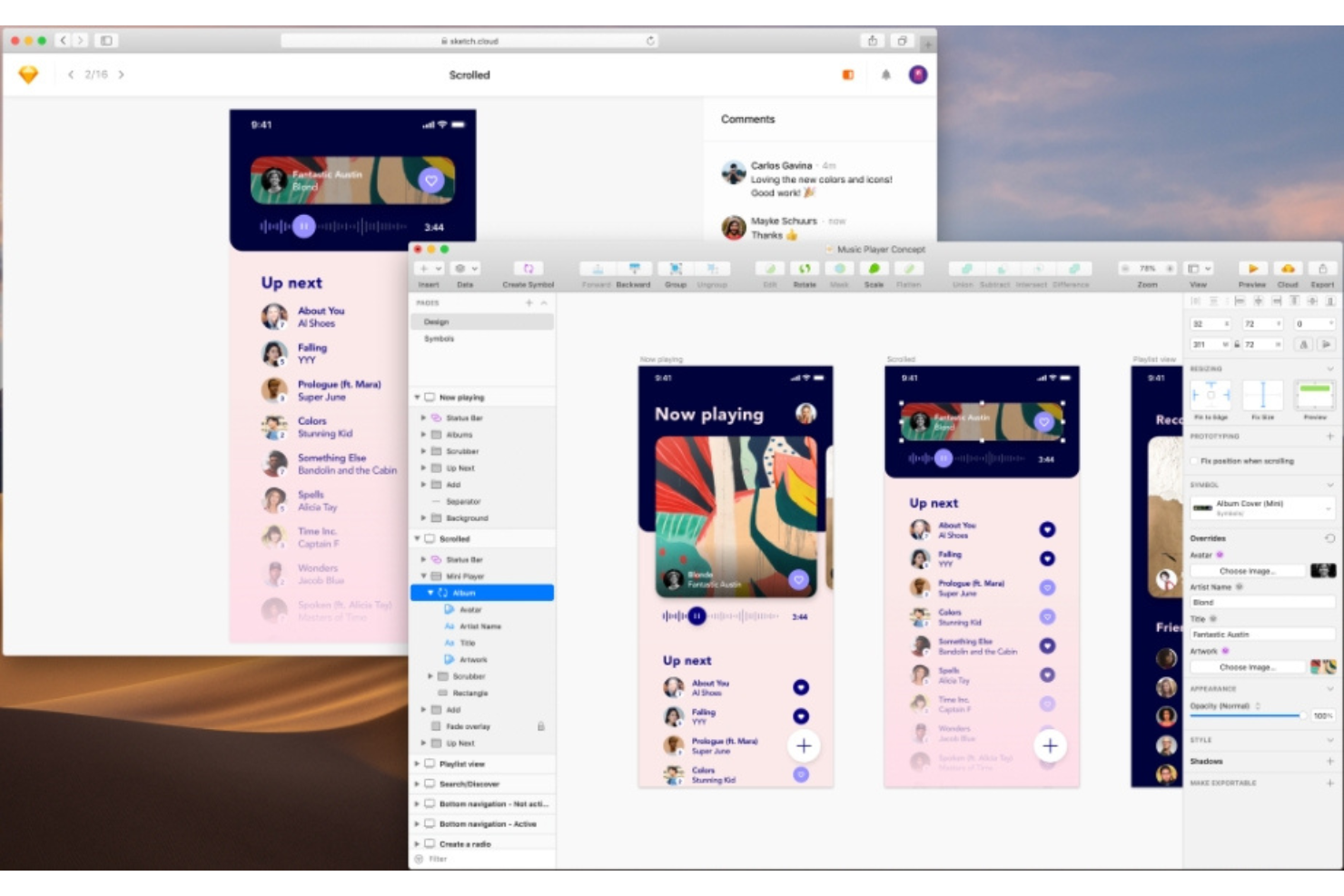
Sketch es una herramienta de diseño vectorial y prototipado para macOS con funciones de colaboración integradas, incluyendo comentarios fijados, retroalimentación con hilos, vistas previas compartibles y herramientas gratuitas de entrega para desarrolladores para la revisión de diseños.
¿Para quién es mejor Sketch?
Sketch es una excelente opción para diseñadores UI/UX y equipos de diseño de productos que trabajan principalmente en macOS y necesitan un espacio unificado para diseño de interfaces, prototipado y revisión de diseños.
Por qué elegí Sketch
Sketch es uno de mis favoritos porque me encanta lo integrada que está su experiencia de edición vectorial con el ciclo de retroalimentación. Cuando trabajo en diseños de interfaces, puedo compartir un enlace de Vista Previa directamente desde un artboard vectorial, y los colaboradores pueden fijar comentarios en elementos exactos sin necesitar una cuenta de Sketch. El sistema de Símbolos también hace que la retroalimentación sea más precisa; los revisores no comentan sobre formas aisladas, sino sobre componentes reutilizables que reflejan decisiones reales de diseño a través de todo el archivo.
Características clave de Sketch
- Historial de versiones: Explora el historial completo de versiones de un documento y restaura cualquier guardado anterior directamente desde la app en Mac.
- Prototipado interactivo: Vincula artboards para crear prototipos clicables y visualizables en el navegador que los revisores pueden explorar sin una cuenta de Sketch.
- Entrega para desarrolladores: Los desarrolladores pueden inspeccionar diseños, copiar CSS y exportar recursos desde cualquier navegador, sin costo, usando el visor gratuito de Sketch.
- Resolución de comentarios: Marca comentarios individuales como resueltos para llevar un seguimiento de qué retroalimentación ha sido atendida en una Vista Previa compartida.
Pros and Cons
Pros:
- Herramientas de edición vectorial de alta calidad
- Conjunto de funciones robustas para diseño de interfaces
- Amplia gama de integraciones con otras herramientas de diseño y plugins
Cons:
- Solo disponible en macOS, lo que limita su accesibilidad
- Curva de aprendizaje pronunciada para principiantes debido a la complejidad de las funciones
- La dependencia de plugins para algunas funciones puede complicar el flujo de trabajo


InVisionApp es una plataforma de prototipado de diseño y recopilación de comentarios donde los equipos pueden crear maquetas interactivas, recoger comentarios a nivel de pantalla de las partes interesadas y gestionar revisiones de diseño en un solo lugar.
¿Para quién es mejor InVisionApp?
InVisionApp es ideal para diseñadores de productos y equipos de UX que necesitan compartir prototipos interactivos con las partes interesadas y recopilar feedback estructurado sobre el diseño.
Por qué elegí InVisionApp
InVisionApp merece su lugar entre los mejores de mi lista por cómo conecta directamente el prototipado interactivo con el ciclo de retroalimentación. Me gusta que los revisores pueden navegar por un prototipo funcional y dejar comentarios fijados a pantallas o estados de interacción específicos, lo que elimina gran parte de las suposiciones en las rondas de comentarios. El modo de presentación también permite a mi equipo guiar a las partes interesadas a través de un flujo clicable sin compartir los archivos de diseño originales, manteniendo la revisión enfocada.
Características clave de InVisionApp
- Historial de versiones: Permite rastrear los cambios entre las distintas iteraciones del diseño y revisar versiones anteriores de un prototipo en cualquier momento del proceso de revisión.
- Modo de inspección: Permite a los desarrolladores extraer CSS, medidas y recursos directamente desde una pantalla de diseño sin necesidad de acceder al archivo original.
- LiveShare: Facilita la co-navegación en tiempo real de un prototipo para que varios revisores puedan navegar juntos durante una sesión de retroalimentación en vivo.
- Feed de actividad: Muestra un registro continuo de comentarios, cambios de estado y acciones de revisores en todas las pantallas de un proyecto.
Pros and Cons
Pros:
- Capacidades avanzadas de prototipado interactivo
- Potentes funciones de colaboración para trabajo en equipo de diseño
- Integración con plataformas populares de diseño y colaboración en equipo
Cons:
- La interfaz puede resultar abrumadora para nuevos usuarios
- No hay un plan gratuito disponible
- Algunas funciones avanzadas solo están disponibles en planes de mayor precio
Otras herramientas de comentarios sobre diseño
A continuación se incluye una lista de herramientas adicionales de comentarios sobre diseño que seleccioné, pero que no llegaron a estar entre las 10 mejores. Sin duda, vale la pena echarles un vistazo.
- Diigo
Mejor para investigación y gestión del conocimiento basada en la web
- Atarim
Ideal para la gestión de proyectos de diseño web
- Overflow
Ideal para crear storyboards visuales y diagramas de flujo de usuario
- StreamWork
Mejor para flujos de aprobación


Cómo evalúo las herramientas de feedback de diseño
Evalúo las herramientas de feedback de diseño en dos niveles: las funciones básicas que permiten pasar un prototipo de la revisión a la aprobación, y los diferenciadores que hacen que una herramienta sea más adecuada que otra.
Funcionalidad básica (Condiciones mínimas para esta lista)
Al seleccionar herramientas para mi lista, califico cada una en una escala del 0 (no ofrece la funcionalidad) al 5 (destaca en este área) para cada funcionalidad básica indicada a continuación. Luego, calculo la puntuación total de la herramienta en porcentaje. Cada herramienta debe lograr una puntuación total mínima del 65% para ser considerada para su inclusión.
- Anotación visual sobre diseños: Busco herramientas de comentarios tipo "pin" y de marcación que permitan a los revisores señalar un botón, icono o problema de maquetación específico, en lugar de describirlo en un mensaje aparte.
- Compatibilidad con archivos de diseño: La herramienta debe permitir importar o integrarse con plataformas como Figma, Sketch o Adobe XD, para que los equipos puedan revisar archivos en su entorno de trabajo habitual.
- Comentarios con hilo: Las conversaciones de feedback necesitan hilos, menciones (@) y seguimiento de resolución, para que un PM pueda retomar una inquietud sobre contraste de color sin perderla entre una avalancha de comentarios.
- Comparación de versiones entre iteraciones: Verifico si los revisores pueden comparar una sección principal actualizada, al lado de la versión anterior, manteniendo el historial de feedback entre versiones.
- Gestión del flujo de revisión: Aquí importan las etapas de aprobación, los responsables y las etiquetas de estado. Un líder de diseño debe poder ver rápidamente qué pantallas están aprobadas y cuáles aún necesitan revisiones.
- Compartir con colaboradores y acceso de invitados: Compartir un enlace de prototipo con un cliente o directivo sin asiento de pago es algo habitual. Evalúo cómo cada herramienta gestiona el acceso y los permisos de revisores externos.
Cuando tengo una lista de herramientas que cumplen estos criterios, considero lo que distingue a cada plataforma.
Factores diferenciadores (Lo que distingue a los proveedores)
Así es como comparo y distingo a los distintos proveedores:
Características destacadas
Las herramientas para transferencia a desarrolladores marcan una gran diferencia. Cuando un revisor puede convertir una sugerencia en un ticket de Jira o Linear con las especificaciones de diseño adjuntas, se elimina la necesidad de reingreso manual. También busco la posibilidad de anotar directamente sitios web, lo que permite al equipo revisar entornos de pruebas o páginas publicadas en lugar de capturas de pantalla estáticas. El video y la grabación de pantalla son otras funciones que vale la pena evaluar. Un PM puede grabar un recorrido y explicar por qué un flujo no se siente correcto, lo que aporta mucha más información contextual que un comentario escrito.
Más allá de las funciones
La tarifa y los modelos de acceso de invitados varían mucho en esta categoría. Verifico si partes interesadas como ejecutivos o clientes pueden revisar y comentar sin necesitar un asiento de pago, ya que eso influye directamente en la adopción. La profundidad de las integraciones es igual de relevante. Una herramienta que sincroniza el feedback con Jira, Asana o Slack se integra en el flujo actual de trabajo de producto en lugar de crear un silo nuevo. También evalúo cómo escala cada plataforma entre múltiples proyectos y espacios de trabajo, especialmente para equipos que gestionan varios productos con diferentes ciclos de revisión en paralelo.
Preguntas frecuentes
¿Cuáles son los beneficios de utilizar una herramienta de comentarios sobre diseño?
Utilizar una herramienta de comentarios sobre diseño puede mejorar considerablemente la productividad y la eficiencia del proceso de diseño. Estos son cinco beneficios clave:
\u003cul\u003e
\u003cli\u003e\u003cstrong\u003eColaboración mejorada:\u003c/strong\u003e Estas herramientas permiten que diseñadores, desarrolladores y partes interesadas colaboren en tiempo real, lo que hace que el proceso de diseño sea más eficiente.\u003c/li\u003e
\u003cli\u003e\u003cstrong\u003eComunicación clara:\u003c/strong\u003e Proporcionan una plataforma unificada donde se pueden realizar comentarios directamente sobre los diseños, eliminando malentendidos y mejorando la claridad de la comunicación.\u003c/li\u003e
\u003cli\u003e\u003cstrong\u003eFlujo de trabajo optimizado:\u003c/strong\u003e Estas herramientas suelen incluir funciones de gestión de proyectos que ayudan a hacer un seguimiento del progreso y a gestionar las tareas eficazmente.\u003c/li\u003e
\u003cli\u003e\u003cstrong\u003ePrototipado interactivo:\u003c/strong\u003e Muchas herramientas de comentarios sobre diseño ofrecen capacidades de creación de prototipos, lo que permite crear modelos interactivos del diseño para realizar pruebas y demostraciones.\u003c/li\u003e
\u003cli\u003e\u003cstrong\u003eEntrega sencilla:\u003c/strong\u003e Pueden generar automáticamente especificaciones y recursos de diseño en un formato fácil de utilizar para los desarrolladores, simplificando la transición del diseño al desarrollo.\u003c/li\u003e
\u003c/ul\u003e
¿Cuánto cuestan las herramientas de comentarios sobre diseño?
El precio de las herramientas de comentarios sobre diseño varía considerablemente según sus funciones, el tamaño del equipo y las necesidades específicas.
¿Cuáles son los modelos de precios habituales de las herramientas de comentarios sobre diseño?
Las herramientas de comentarios sobre diseño suelen seguir un modelo de precios basado en suscripciones. Esto significa que se paga una tarifa periódica (mensual o anual) por acceder a la herramienta. Algunas ofrecen un modelo de precios escalonado, en el que el coste aumenta al añadir más funciones o usuarios.
¿Cuál es el rango de precios habitual de las herramientas de comentarios sobre diseño?
Los precios pueden ir desde opciones gratuitas para herramientas muy básicas o que ofrecen un nivel gratuito limitado, hasta varios cientos de dólares al mes para soluciones de nivel empresarial. Para equipos pequeños o medianos, se puede esperar pagar entre $20 y $100 por usuario al mes.
¿Cuáles son las herramientas de comentarios sobre diseño más baratas y más caras?
Entre las herramientas incluidas en esta lista, UserGuiding y Conceptboard ofrecen algunos de los planes más económicos, a partir de aproximadamente $20/usuario/mes. En el extremo superior, herramientas como UserZoom y UserTesting pueden costar varios cientos de dólares al mes, según el paquete y el número de usuarios.
¿Existen herramientas gratuitas de comentarios sobre diseño?
Sí, algunas herramientas como InVision y Framer ofrecen planes gratuitos, pero suelen ser bastante limitados en cuanto a funciones y capacidad de usuarios. Estos planes gratuitos pueden ser un buen punto de partida para personas o equipos pequeños con presupuestos limitados. Sin embargo, a medida que el equipo crece y las necesidades se vuelven más complejas, puede ser necesario considerar un plan de pago.
Otras reseñas de software de comentarios
Resumen
En resumen, la herramienta adecuada de comentarios sobre diseños dependerá en gran medida de tus necesidades específicas, del tamaño de tu equipo y de tu presupuesto. Desde el seguimiento de errores de diseño visual con BugHerd, pasando por la revisión y aprobación en línea con PageProof, hasta la creación de prototipos interactivos con InVision, hay una gran variedad de herramientas disponibles, cada una con sus propias propuestas de valor y modelos de precios.
Conclusiones clave
- Define tus necesidades: Comprender las necesidades específicas y los procesos de trabajo de tu equipo es fundamental para seleccionar la herramienta adecuada. Evalúa qué funcionalidades básicas, características principales y aspectos de usabilidad son importantes para tu proceso de diseño.
- Considera el precio: Los modelos de precios de las herramientas de comentarios sobre diseños pueden variar considerablemente. Al tener en cuenta tu presupuesto, recuerda buscar una herramienta que ofrezca una buena relación calidad-precio en términos de sus características y capacidades.
- Prueba y elige: La mayoría de las herramientas ofrecen pruebas gratuitas o versiones gratuitas. Puede ser beneficioso probar varias antes de tomar una decisión final. Esto te permite evaluar la compatibilidad de la herramienta con tu flujo de trabajo y la facilidad de incorporación para tu equipo.
¿Qué opinas?
Encontrar la herramienta adecuada de comentarios sobre diseños es fundamental para gestionar y mejorar el proceso de diseño. Todo depende de comprender tus requisitos, evaluar la rentabilidad y probar minuciosamente las opciones antes de tomar una decisión.
Ahora tengo curiosidad por conocer tu opinión. ¿Tienes experiencia con alguna herramienta de comentarios sobre diseños que no haya incluido en esta guía? ¿Cómo ha sido tu experiencia? Me encantaría conocer tus impresiones, así que no dudes en compartir tus recomendaciones en la sección de comentarios a continuación. Tu perspectiva podría ayudar a otra persona a encontrar la herramienta perfecta para sus necesidades.