
Web tasarımı dünyasında gezinmek, özellikle internet erişiminin güvenilir olmadığı durumlarda zorlayıcı olabilir. Çevrimdışı web tasarım yazılımları, ekibinizin kesintisiz çalışmasına olanak tanıyarak bir çözüm sunar. Bu araçlar, projeleri güvenli ve verimli bir şekilde yönetmek için büyük kolaylık sağlar.
Deneyimlerime göre doğru yazılımı seçmek, internete bağımlılık ve güvenlik endişeleri gibi yaygın sorunları hafifletebilir. Tarafsız bir değerlendirme sunmak için bazı çevrimdışı web tasarım çözümlerini test edip inceledim.
Bu makalede, en iyi çevrimdışı web sitesi oluşturucularının kapsamlı ve iyi araştırılmış bir incelemesini bulacaksınız. Ekibiniz için bilinçli bir karar vermenize yardımcı olmak amacıyla temel özellikleri, avantajları ve dezavantajları ele alacağım. İhtiyaçlarınıza en uygun seçeneği bulmaya başlayalım.
Why Trust Our Software Recommendations
6,700+
Reviews
20
Industry experts
16+
Evaluation factors
14
Years
Our team has been testing and reviewing software since 2012. As product managers ourselves, we know how difficult—and important—it is to choose the right software.
For this guide, we evaluated tools using hands-on testing and independent research, scoring tools using our selection criteria.
Our reviews reflect our human editorial judgment, not a sales pitch.
Expert reviewers:
- Andrew LumbySenior TPM
- Cristiano ValimSenior UI/UX Lead


Karşılaştırma Tablosu: Çevrimdışı Web Tasarım Yazılımları
Bu karşılaştırma tablosu, en iyi çevrimdışı web tasarım yazılımı seçimlerimin fiyatlandırma ayrıntılarını özetlemektedir.
Score legend (out of 5)
- Excellent4.5–5
- Good4–4.4
- Average3–3.9
- Below average2–2.9
- Poor1–1.9
Sorted by: Default
| Tool | Starting Price | Website | |||||||
|---|---|---|---|---|---|---|---|---|---|
Best for CMS theme export across multiple platforms | 3.5 out of 5 | 2 | 3 | 3 | 4 | 4 | 5 | $49 Free download available | Website |
Best for Mac-native offline site building | 3.7 out of 5 | 2 | 4 | 4 | 4 | 4 | 4 | $112.99 one-time Free plan available | Website |
Best for Mac-native Tailwind site exports | 3.7 out of 5 | 2 | 4 | 4 | 5 | 4 | 3 | $99/year Free trial available | Website |
Best for open-source site portability | 3.3 out of 5 | 3 | 3 | 4 | 4 | 5 | 1 | $15/month Free plan + 14-day free trial available | Website |
Best for per-screen layout tuning | 3.3 out of 5 | 1 | 3 | 4 | 4 | 4 | 4 | $12/user/month 14-day free trial | Website |
Best for code-first web design workflows | 3.8 out of 5 | 5 | 4 | 4 | 5 | 3 | 2 | $22.99/month 7-day free trial | Website |
Best for framework-driven visual code editing | 4.0 out of 5 | 4 | 4 | 4 | 4 | 4 | 4 | $12/user/month Free trial available | Website |
Best for one-time licensed responsive design | 4.2 out of 5 | 2 | 4 | 4 | 5 | 5 | 5 | $59.95 Free 30-day trial available | Website |
Best for one-time-purchase responsive pages | 3.7 out of 5 | 3 | 3 | 4 | 4 | 4 | 4 | $99/month Free HTML editor available | Website |
Best for publish-to-any-host site building | 3.8 out of 5 | 1 | 4 | 4 | 5 | 4 | 5 | €99 Free plan available | Website |




En İyi Çevrimdışı Web Tasarım Yazılımları İncelemeleri
Aşağıda, kısa listeme giren en iyi çevrimdışı web tasarım yazılımlarına ilişkin ayrıntılı özetlerimi bulabilirsiniz. İncelemelerim, ihtiyaçlarınıza en uygun aracı bulmanıza yardımcı olmak için her aracın temel özelliklerine, avantajlarına ve dezavantajlarına, entegrasyonlarına ve ideal kullanım alanlarına ayrıntılı bir bakış sunmaktadır.
 Best for CMS theme export across multiple platforms
- Free download available
- From $49 (one-time purchase)

TemplateToaster helps beginners build sites without coding knowledge. TemplateToaster is a Windows desktop offline website builder that lets you design sites visually and export them as installable themes for WordPress, Joomla, Drupal, Magento, and several other CMS platforms.
Who Is TemplateToaster Best For?
TemplateToaster is a strong fit for freelance designers and agencies managing client sites across multiple CMS platforms who want a low-cost, one-time purchase tool they can use entirely offline.
Why I Picked TemplateToaster
I picked TemplateToaster as one of the best because its one-click CMS switching lets you take a single design and export it as an installable theme for WordPress, Joomla, Drupal, Magento, or PrestaShop without rebuilding anything. I love that the entire workflow stays local, so your client's design files never leave your machine. If you're managing builds across multiple CMS platforms, that export flexibility is genuinely hard to replicate in a single offline tool.
TemplateToaster Key Features
- Built-in FTP client: Publish your finished HTML/CSS site directly to your host from within the app, without a separate FTP tool.
- Bootstrap version switching: Choose between Bootstrap 3, 4, or 5 for your project and switch between framework versions as needed.
- No-time-limit free trial: Download and use the full feature set indefinitely before purchasing, with no credit card required.
- Custom CSS, JS, and PHP editors: Write and save custom styles, scripts, and WordPress functions directly inside the desktop app.
TemplateToaster Integrations
TemplateToaster exports installable themes for WordPress, Joomla, Drupal, Magento, PrestaShop, WooCommerce, OpenCart, VirtueMart, and Blogger. It also supports static HTML, Bootstrap 3–5, and publishing through its built-in FTP client.
Pros and Cons
Pros:
- Exports clean, valid website files
- Visual canvas speeds up page creation
- Works fully offline on Windows
Cons:
- Responsive layouts require manual adjustments
- Windows-only limits device flexibility
Learn more about TemplateToaster: Best for Mac-native offline site building
- Free plan available
- From $112.99 one-time
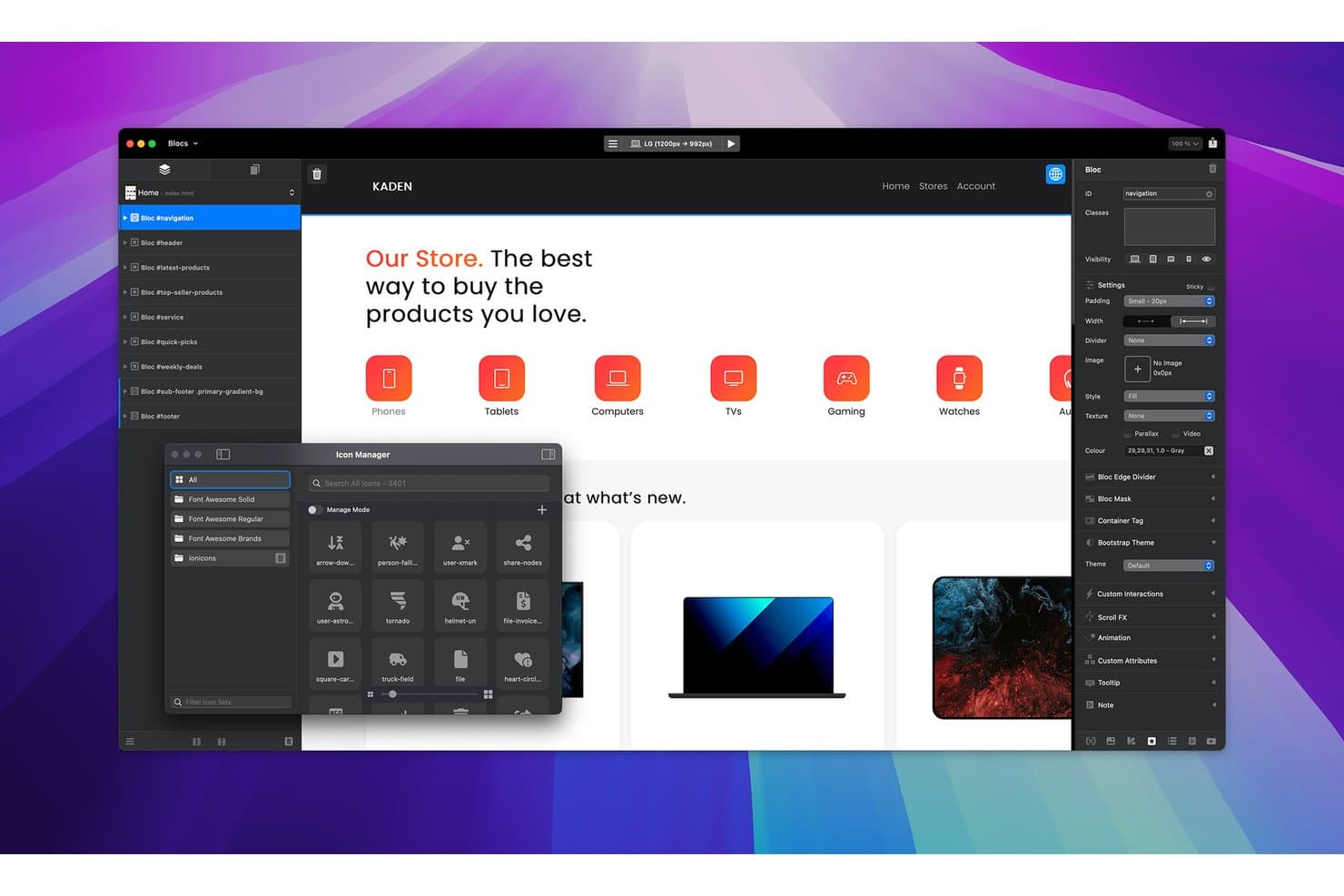
Blocs lets users browse and insert icons via a built-in Icon Manager. Blocs is a Mac-native offline website builder that lets you design, manage, and publish sites visually using a drag-and-drop Bloc and Bric component system, built on Bootstrap, with built-in FTP/SFTP publishing and local asset management.
Who Is Blocs Best For?
Blocs is a strong fit for Mac-based freelance designers and agencies who want to build and publish client sites entirely offline without a recurring subscription.
Why I Picked Blocs
Blocs earns its spot on my shortlist because it's the only Mac-native offline builder I've found that combines a full visual design system with built-in FTP/SFTP publishing, no subscription required. I love the Bloc and Bric component system, which lets you stack pre-built sections and drop in carousels, modals, or media players without writing a line of code. The built-in Publish Manager handles change-only SFTP uploads and stores server credentials in the macOS Keychain, so you're shipping real sites, not just prototypes.
Blocs Key Features
- Bloc and Bric component system: Stack pre-built section layouts (Blocs) and drop in interactive elements like carousels, modals, and media players (Brics) without writing code.
- CSS Grid and class editor: Design fluid or pixel-precise layouts using CSS Grid, with a Class Editor that controls backgrounds, gradients, shadows, and typography.
- Responsive breakpoint controls: Adjust layouts across four Bootstrap breakpoints and show or hide elements per breakpoint for precise responsive design.
- Asset Manager with local image optimisation: Import, group, and manage files locally, with built-in Quick Compress, automatic WebP generation, and per-image lazy-load control.
Blocs Integrations
Blocs connects to hosting through FTP, SFTP, and FTPS, and supports WordPress theme exports on Plus. It also supports Stripe, Paddle, Ecwid, Google Fonts, Adobe Fonts, the Blocs Store marketplace, and a developer API.
Pros and Cons
Pros:
- Reusable Blocs speed multi-page builds
- Local WebP optimization and asset grouping
- Native Mac offline editing
Cons:
- Full-page HTML editing remains unavailable
- Apple-only limits mixed-hardware teams
Learn more about Blocs:- Best for Mac-native Tailwind site exports
- Free trial available
- From $99/year (billed annually)
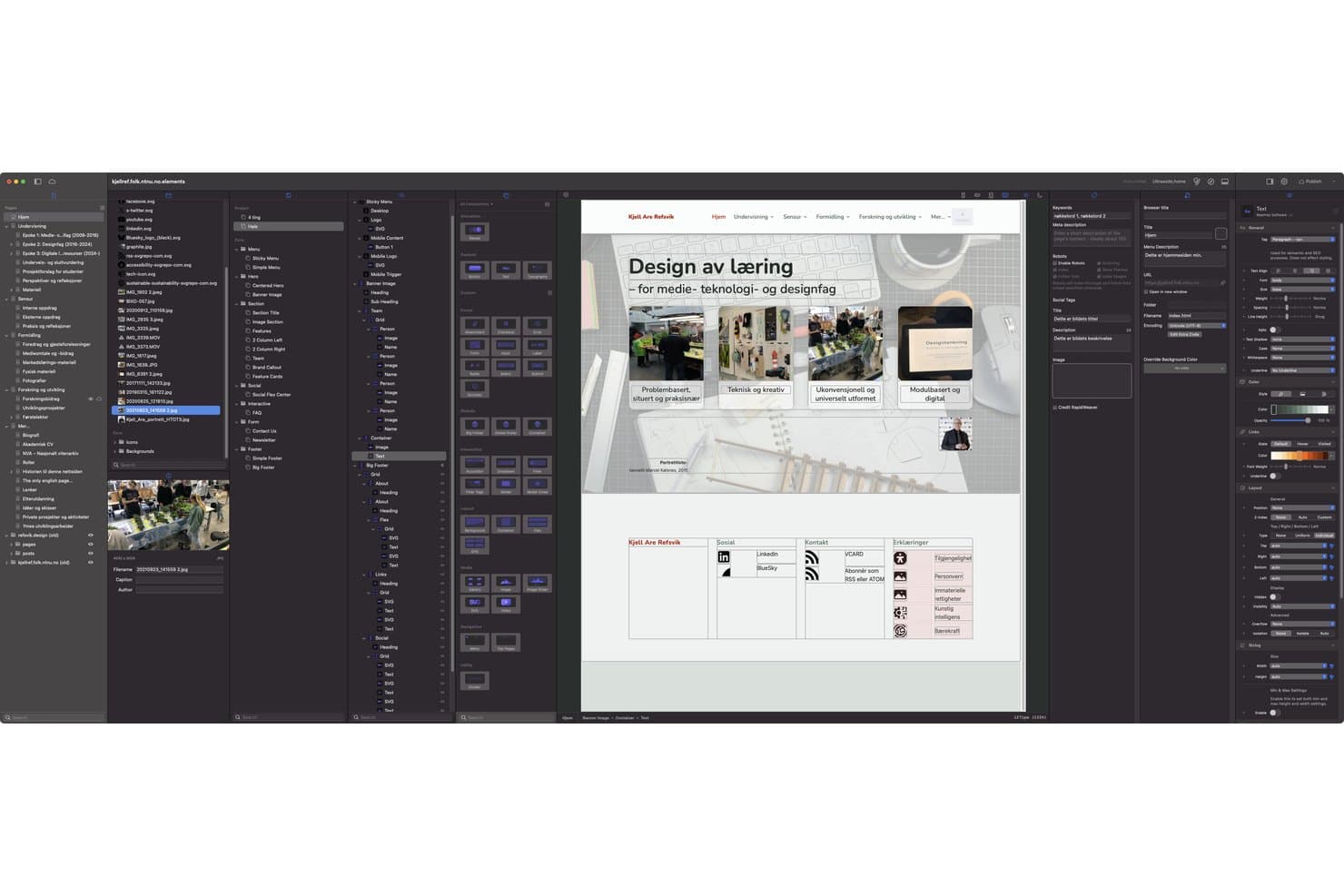
RapidWeaver lets users build and preview full websites with drag-and-drop tools. RapidWeaver Elements is a Mac-native offline website builder that lets you design, build, and publish static sites visually using a drag-and-drop WYSIWYG editor built on Tailwind CSS, with support for custom components, a Markdown-based CMS, and flexible publishing to FTP, SFTP, S3, or local export.
Who Is RapidWeaver Best For?
RapidWeaver Elements is a strong fit for Mac-based freelancers and agencies who want to build and export clean, Tailwind-powered static sites without relying on a browser-based tool.
Why I Picked RapidWeaver
RapidWeaver Elements earns its spot on my shortlist because it's the only Mac-native offline builder that outputs clean Tailwind CSS directly, with no third-party export step. I love that Globals let you link headers and footers site-wide, so one edit propagates everywhere instantly. The flexible publishing options, including FTP, SFTP, and Amazon S3, mean you can hand off a finished static site to virtually any host without touching a separate deployment tool.
RapidWeaver Key Features
- Reusable Globals: Link headers, footers, and sections across your entire site so one edit updates every page that uses them.
- Breakpoint-level responsive controls: Override layout, spacing, and sizing settings per user-defined breakpoint directly in the Inspector.
- Built-in Markdown CMS: Store and manage content as plain Markdown files with YAML front matter—no database needed, and files are Git-compatible.
- Elements AI assistant: Connect your own OpenAI or Anthropic API key to get AI support inside the app, with an MCP server for Claude Desktop and Cursor.
RapidWeaver Integrations
RapidWeaver integrates with OpenAI and Anthropic API keys, plus Claude Desktop, Cursor, and ChatGPT Work mode through its MCP server. It also supports iCloud Drive for project syncing and VS Code for Elements syntax highlighting.
Pros and Cons
Pros:
- Local previews include breakpoint controls
- Globals update shared sections sitewide
- Clean Tailwind output for static sites
Cons:
- Online activation interrupts fully offline workflows
- Mac-only support excludes cross-platform teams
Learn more about RapidWeaver:  Best for open-source site portability
- Free plan + 14-day free trial available
- From $15/month (billed annually)
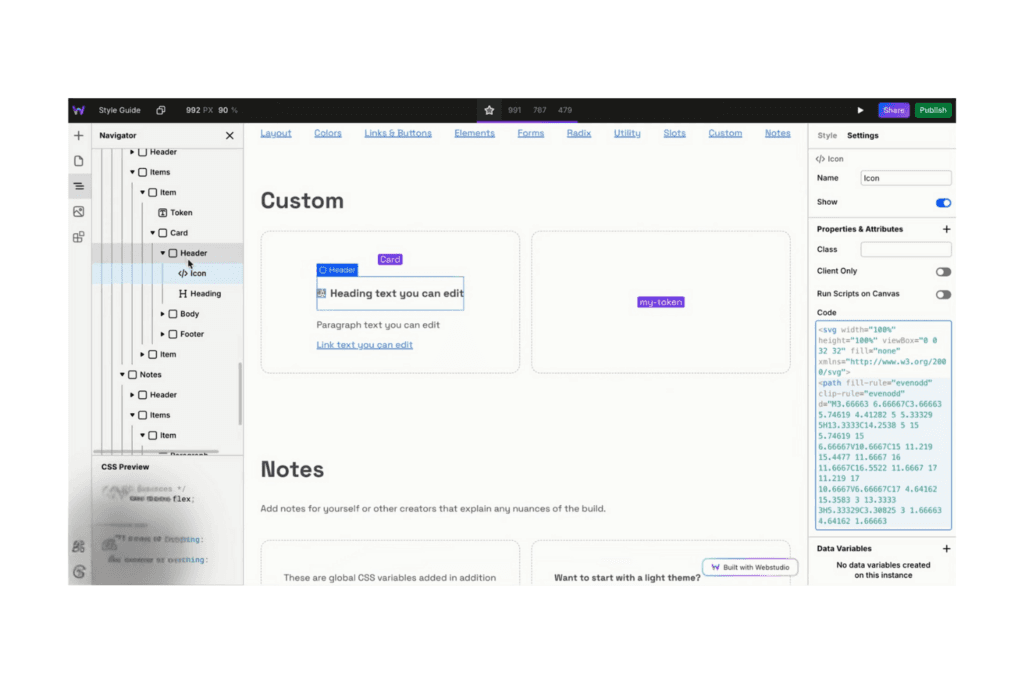
Webstudio helps build high-performance sites with CMS integrations. Webstudio is an open-source, browser-based visual website builder with a full CSS editor, drag-and-drop layout tools, reusable design tokens, and CLI-based static and dynamic site export.
Who Is Webstudio Best For?
Webstudio suits developers and technical designers who want open-source flexibility and the ability to export and host their sites anywhere.
Why I Picked Webstudio
I've included Webstudio in my top picks because its open-source codebase gives developers something rare: the ability to sync an entire project locally via the CLI, export it as a static ZIP or a full Remix app, and host it on any infrastructure they control. I like that the
npx webstudio synccommand pulls down a project into portable JSON and asset files, making site portability genuinely practical rather than just a marketing claim.Webstudio Key Features
- Full CSS property access: The Style Panel exposes every CSS property, including variables,
calc(), and unit conversion, so you can apply precise styles without writing code externally. - Custom and advanced breakpoints: Add your own breakpoints alongside media conditions like dark mode, reduced motion, and pointer type, with live canvas preview for each.
- Radix UI component library: Drag in pre-built interactive components—dropdowns, dialogs, tabs, accordions—and style them directly on the canvas without custom code.
- Assets panel with structured collections: Organize images, fonts, code files, and other assets into nested folders, then designate any folder as a structured content collection for CMS-style workflows.
Webstudio Integrations
Webstudio integrates with Strapi, Hygraph, Notion, Baserow, Contentful, Payload, Directus, WordPress, and Ghost. It supports REST and GraphQL data sources, plus webhook connections to n8n and Make.com.
Pros and Cons
Pros:
- CLI enables local export previews
- Precise CSS and grid control
- Open-source project portability
Cons:
- Exported code resists hand-editing
- No supported offline editing
Learn more about Webstudio: Best for per-screen layout tuning
- 14-day free trial
- From $12/user/month (billed annually)
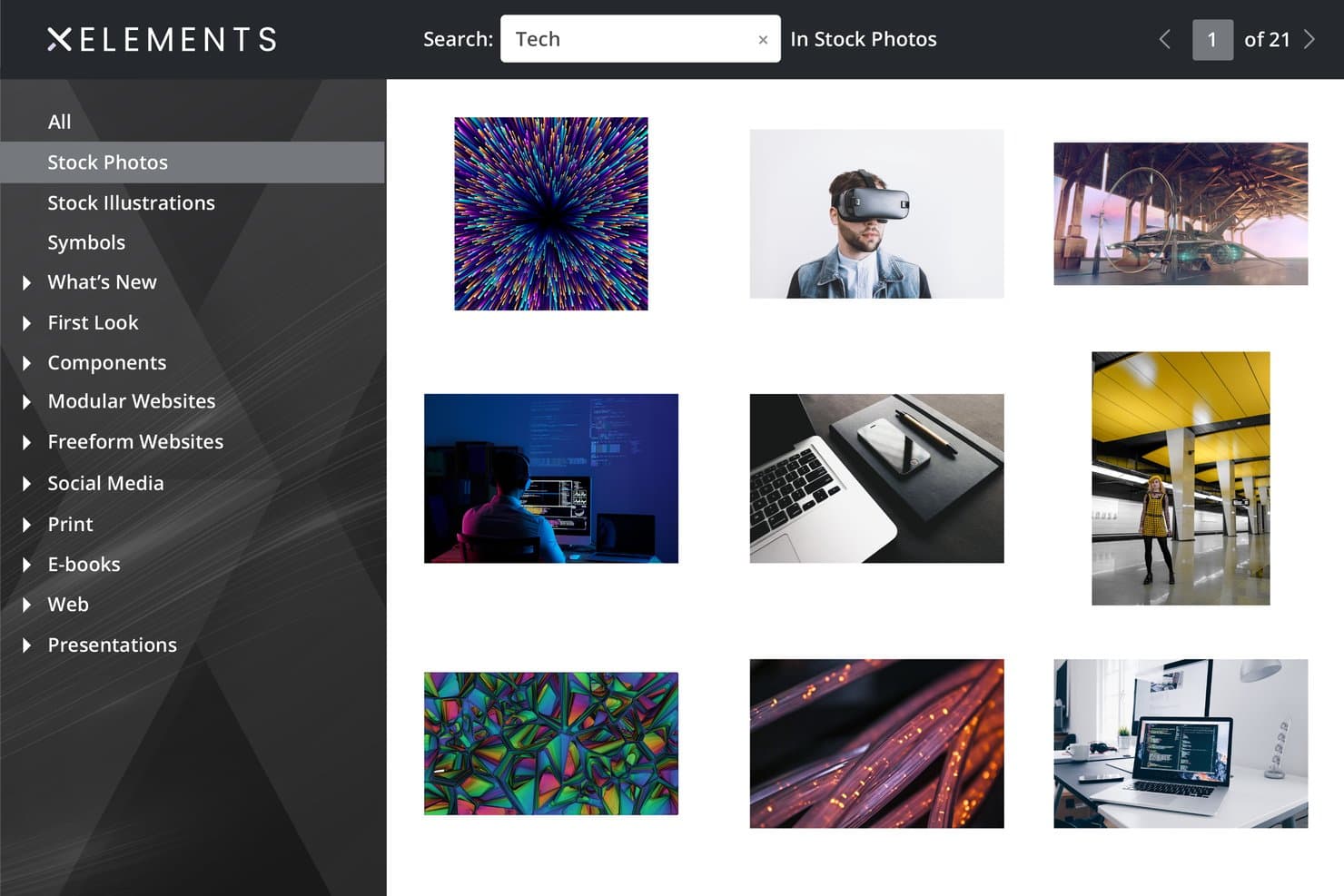
Xara Web Designer+ includes a stock photo library with search. Xara Web Designer+ is a Windows-only offline web design app that lets you build and publish multi-page sites using a drag-and-drop visual editor, freehand and flexblock layouts, built-in graphics tools, and separate responsive variants for desktop, tablet, and mobile.
Who Is Xara Web Designer+ Best For?
Xara Web Designer+ is a strong fit for freelancers and hobbyists on Windows who want precise control over how their site looks on each screen size without touching a line of code.
Why I Picked Xara Web Designer+
I picked Xara Web Designer+ because its dedicated variant system gives you hands-on control over exactly how your site looks at every screen width. Instead of relying on automatic breakpoint logic, you build separate desktop, tablet, and mobile layouts in their own tabs and can view them side by side. When a navigation bar sits too low on mobile or a flexblock column collapses awkwardly on tablet, you fix it directly in that variant without touching the others.
Xara Web Designer+ Key Features
- Built-in FTP/SFTP publishing: Publish your site directly to any host by entering your FTP, FTPS, or SFTP credentials inside the app, with port and subfolder options configurable per project.
- Freehand and flexblock layouts: Place elements freely anywhere on the page with freehand blocks, or arrange content in structured grids using flexblocks.
- Built-in photo and vector editing tools: Edit photos, apply filters, and create vector graphics without leaving the app, using the integrated drawing and image tools.
- Automatic sitemap generation: Xara generates a sitemap automatically once you enter your site's URL, supporting basic on-page SEO without manual setup.
Xara Web Designer+ Integrations
Xara Web Designer+ integrates with Google Drive, Dropbox, OneDrive, OVHcloud, Google Forms, JotForm, Typeform, PayPal, Stripe, Mailchimp, and HubSpot forms. It also supports embeds from YouTube, Calendly, and TripAdvisor.
Pros and Cons
Pros:
- Built-in photo and vector editing
- Works offline after activation
- Precise layouts across desktop, tablet, and mobile
Cons:
- No integrated code editor
- Windows-only desktop application
Learn more about Xara Web Designer+: Best for code-first web design workflows
- 7-day free trial
- From $22.99/month (billed annually)
Visit WebsiteCustomer Rating:4.4/5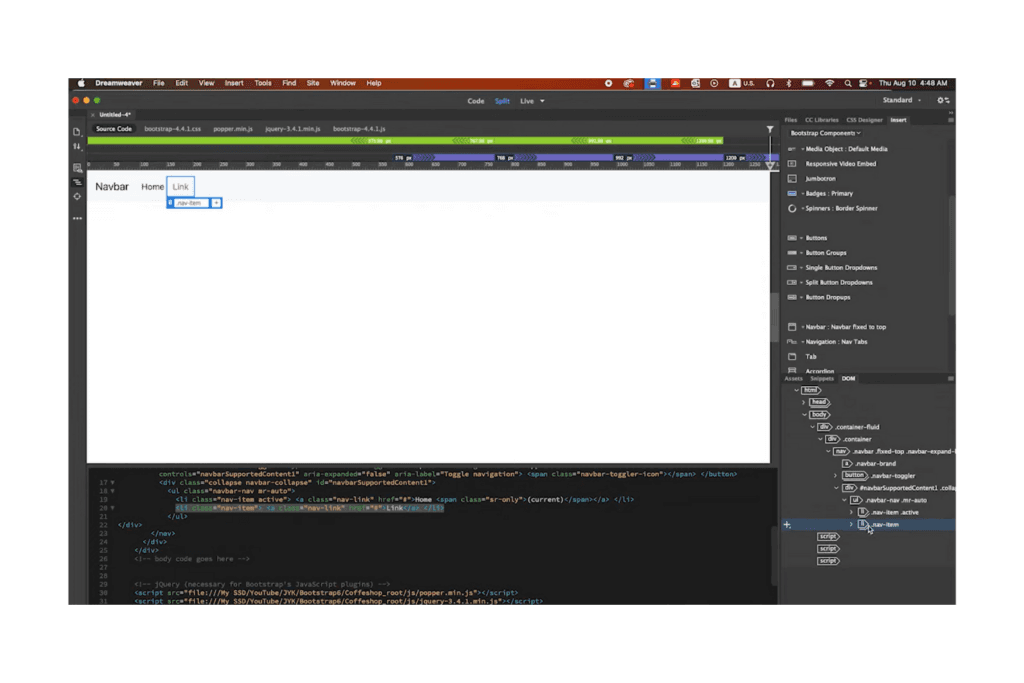
Adobe Dreamweaver combines design and code editing and offers split views. Adobe Dreamweaver is a desktop web design application that combines a professional-grade code editor with visual design views, site file management, and built-in FTP/SFTP publishing tools for building and deploying multi-page websites.
Who Is Adobe Dreamweaver Best For?
Dreamweaver is a strong fit for freelance web designers and agencies who work primarily in code and need a desktop app that handles HTML, CSS, and JavaScript editing alongside built-in FTP/SFTP publishing.
Why I Picked Adobe Dreamweaver
I've included Adobe Dreamweaver in my top picks because it's the only desktop web design app that pairs a professional-grade code editor with built-in FTP, FTPS, and SFTP publishing in a single workflow. I especially like the Split Code/Live view, where I can write HTML and CSS while watching changes render in real time, alongside the CSS Designer panel for visual property editing. The built-in server behaviors and Git panel round out a genuinely code-first setup that no browser-based tool can replicate.
Adobe Dreamweaver Key Features
- Bootstrap component insertion: Add Bootstrap accordions, carousels, and other components visually from the Insert panel, with support for Bootstrap versions 3, 4, and 5.
- Site-wide templates: Create reusable templates with editable and repeating regions so updates to a template automatically propagate across every page built from it.
- Git panel: Manage commits, pushes, pulls, branches, and clones directly inside Dreamweaver using an integrated Git panel connected to an external Git client.
- Visual media query bar: Adjust and preview responsive breakpoints in Live View using a color-coded scrubber that toggles between max-width, min-width, and range-based media queries.
Adobe Dreamweaver Integrations
Adobe Dreamweaver has native integrations with Git, Creative Cloud Libraries, Adobe Stock, Adobe Animate, and Microsoft Office. It also supports FTP, FTPS, SFTP, WebDAV, and RDS connections for publishing and server workflows.
Pros and Cons
Pros:
- Reusable templates update multiple pages
- Split code and live preview
- Strong code editing for local projects
Cons:
- Visual rendering can differ from browsers
- Offline access requires periodic validation
Learn more about Adobe Dreamweaver: Best for framework-driven visual code editing
- Free trial available
- From $12/user/month
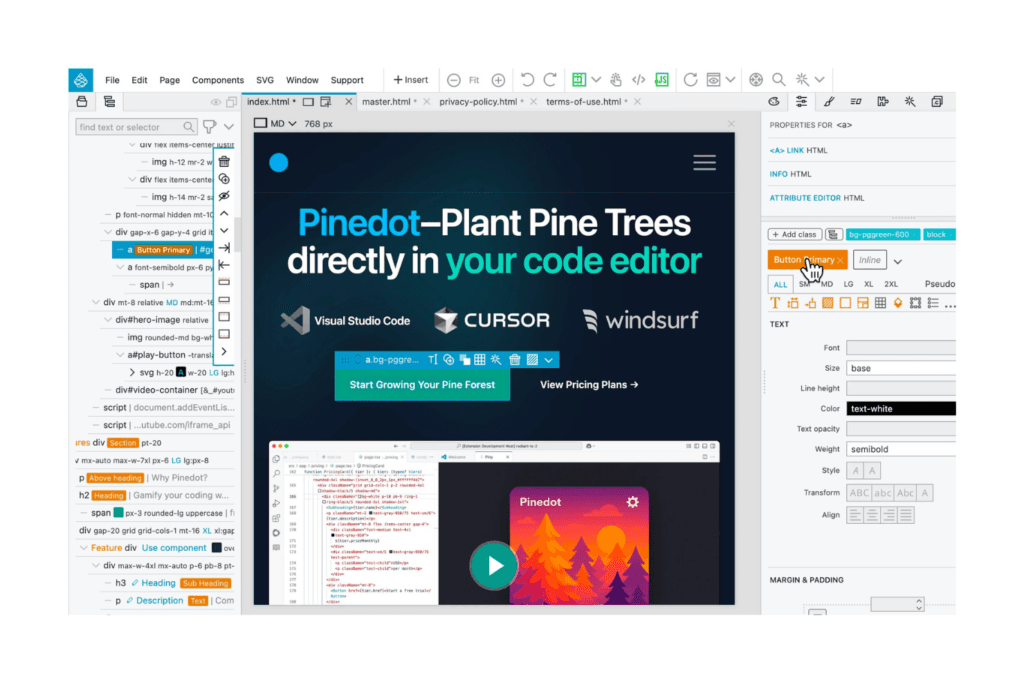
Pinegrow's web design tool combines visual design with access to HTML and CSS. Pinegrow is a desktop web design app that lets you visually edit HTML, CSS, and JavaScript files locally, with built-in support for Bootstrap, Tailwind CSS, WordPress, and CSS Grid.
Who Is Pinegrow Best For?
Pinegrow is a strong fit for freelance designers and web development agencies who want visual editing speed without giving up direct control over HTML, CSS, and JavaScript.
Why I Picked Pinegrow
I've included Pinegrow in my top picks because it's the only offline web design tool I've used that lets you work visually inside real Bootstrap or Tailwind CSS code, not a proprietary format you'd have to export and clean up later. I particularly like the visual CSS Grid editor and Tailwind Class Inspector, which let you build complex layouts without ever losing sight of the underlying markup. The built-in Live Preview server with multi-device QR code testing rounds out a genuinely code-first workflow that doesn't sacrifice design speed.
Pinegrow Key Features
- Smart components and master pages: Reusable components and master pages let you update shared elements once and push changes across your entire site.
- Git-based project revisions: Pinegrow stores project history as Git repositories, with code diffs and side-by-side visual comparisons for reviewing changes.
- Content editing workspace: A dedicated workspace lets non-technical users edit text, images, links, and metadata without touching page structure.
- Built-in publishing pipeline: Publish directly to GitHub, Netlify, Cloudflare Pages, or via SFTP, with a preflight review and incremental uploads after the first deploy.
Pinegrow Integrations
Pinegrow offers native integrations with GitHub, Netlify, Cloudflare Pages, SFTP, and VS Code. It also supports Bootstrap, Tailwind CSS, WordPress, WooCommerce, and AI providers including OpenAI, Anthropic, and OpenRouter.
Pros and Cons
Pros:
- Git revisions support safer experimentation
- Framework visual tools preserve code control
- Edits standard files without proprietary lock-in
Cons:
- Text selection and copy-paste can misbehave
- Interface can feel sluggish on some hardware
Learn more about Pinegrow: Best for one-time licensed responsive design
- Free 30-day trial available
- From $59.95
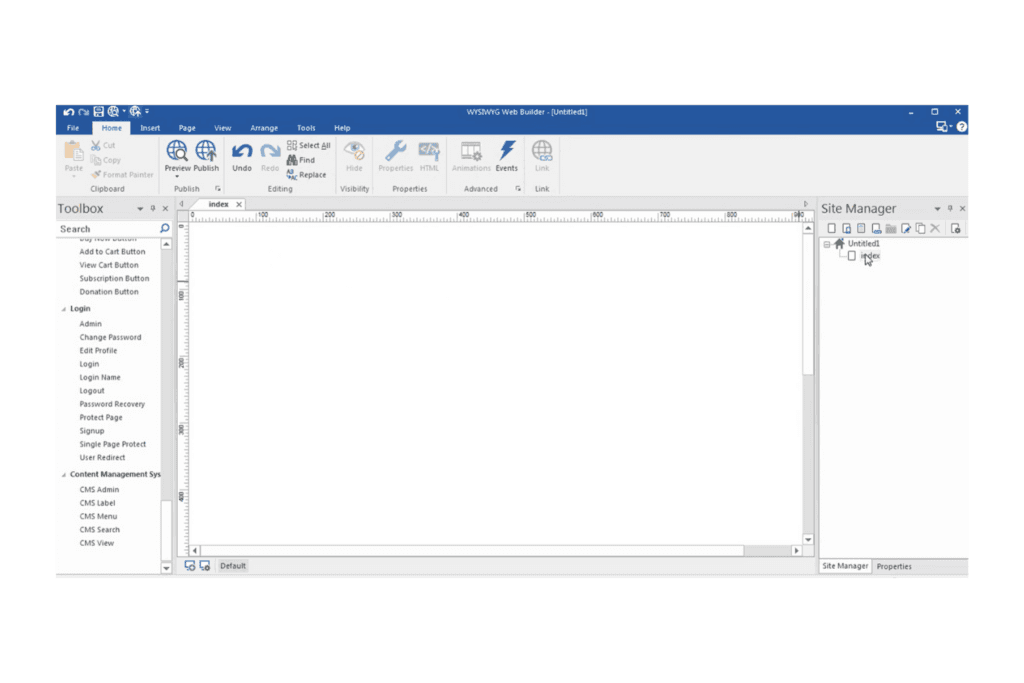
WYSIWYG Web Builder allows for quick content creation and visual adjustments. WYSIWYG Web Builder is a Windows desktop application for building and publishing websites offline, featuring drag-and-drop visual design, responsive layout tools, built-in FTP publishing, forms, ecommerce integrations, and an AI-assisted site generator.
Who Is WYSIWYG Web Builder Best For?
WYSIWYG Web Builder is a strong fit for freelancers and small business owners who want full visual control over their websites without paying recurring subscription fees.
Why I Picked WYSIWYG Web Builder
I've included WYSIWYG Web Builder in my top picks because its responsive design tools are genuinely deeper than what most offline-first tools offer. I particularly like the Easy Breakpoints feature, which lets you control visibility, font size, and spacing for a single object at one breakpoint without triggering page-wide layout changes. Combined with flexbox, CSS grid, and a Mobile View Toggle for quick workspace previews, you get precise multi-device control that stays entirely on your machine.
WYSIWYG Web Builder Key Features
- Built-in FTP publishing: Publish your site directly from the app using a built-in FTP, FTPS, or SFTP client—no separate tool needed.
- AI site generator: Build a full site from a text prompt or image using OpenAI, Google Gemini, or local models like Ollama.
- Master pages and frames: Apply shared design elements across multiple pages from one editable source within your project file.
- Image Converter Wizard: Convert, compress, resize, and strip metadata from JPG, PNG, and WebP images before publishing.
WYSIWYG Web Builder Integrations
WYSIWYG Web Builder supports integrations with OpenAI, Google Gemini, Ollama, LM Studio, ComfyUI, PayPal, Stripe, Ecwid, and Shopify via extensions. It publishes to hosting servers through FTP, FTPS, and SFTP.
Pros and Cons
Pros:
- Built-in publishing previews sites before launch
- Local projects keep files under your control
- Precise breakpoint controls preserve responsive layouts
Cons:
- Code insertion lacks editor assistance tools
- Windows-only availability limits platform choice
Learn more about WYSIWYG Web Builder: Best for one-time-purchase responsive pages
- Free HTML editor available
- From $99/month
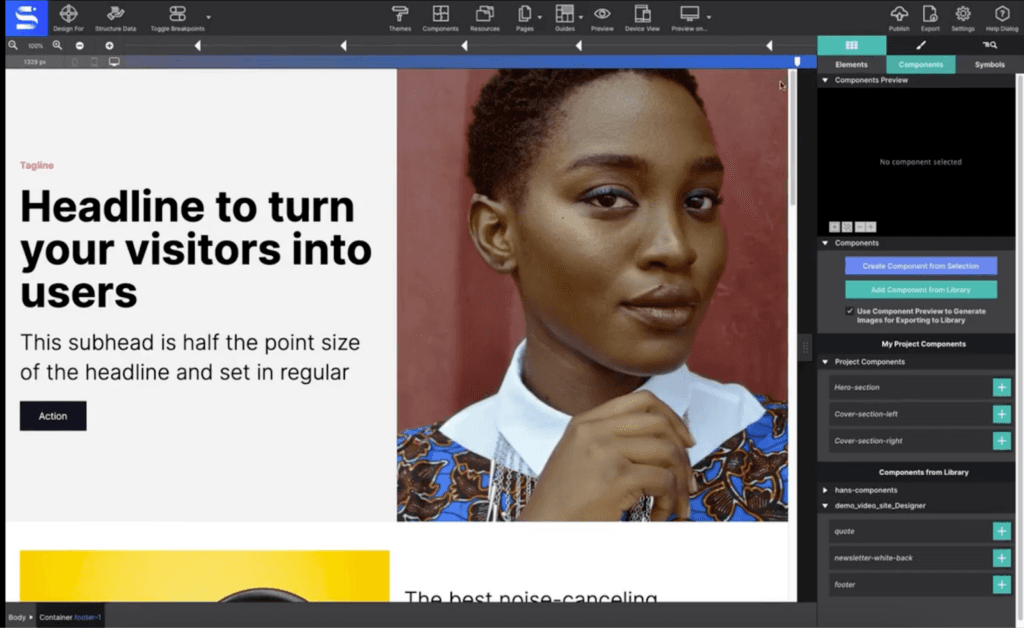
CoffeeCup has a responsive component design library. CoffeeCup Site Designer is a desktop web design tool for Windows and macOS that lets you build responsive pages visually using a drag-and-drop canvas, CSS Grid and Flexbox controls, reusable Symbols, and built-in code editing, with direct export to any host.
Who Is CoffeeCup Best For?
CoffeeCup Site Designer suits freelancers and hobbyists who want a one-time-purchase desktop tool to build responsive sites without a recurring subscription.
Why I Picked CoffeeCup
CoffeeCup earns its spot on my shortlist because it's the only visual web design tool here built around a true one-time purchase with no subscription required. I like that you get a full drag-and-drop canvas with CSS Grid and Flexbox controls, plus reusable Symbols that sync site-wide changes to navbars and footers instantly. The March 2026 Live Preview feature also lets you test PHP files against a local server like XAMPP before exporting a single file.
CoffeeCup Key Features
- Breakpoint manager: Add, delete, or toggle custom breakpoints with color-coded framework breakpoints to control how your layout shifts across screen widths.
- Symbols: Create reusable, synced blocks for elements like navigation and footers that update across every page when you edit the source.
- Page Manager: Manage page order, SEO metadata, Open Graph tags, and Twitter/X Cards from a single panel without touching code.
- Export options: Export your project as modular or flat file structures for upload to any FTP or cPanel host.
CoffeeCup Site Designer Integrations
Native third-party integrations are not clearly documented. CoffeeCup Site Designer supports CodePen exports, CoffeeCup S-Drive publishing, local PHP testing with XAMPP, and exports to FTP or cPanel hosts.
Pros and Cons
Pros:
- Grid, Flexbox, and breakpoint controls
- Synced Symbols update site-wide components
- Local PHP testing before export
Cons:
- Large projects can expose performance issues
- Bootstrap support stops at version four
Learn more about CoffeeCup:
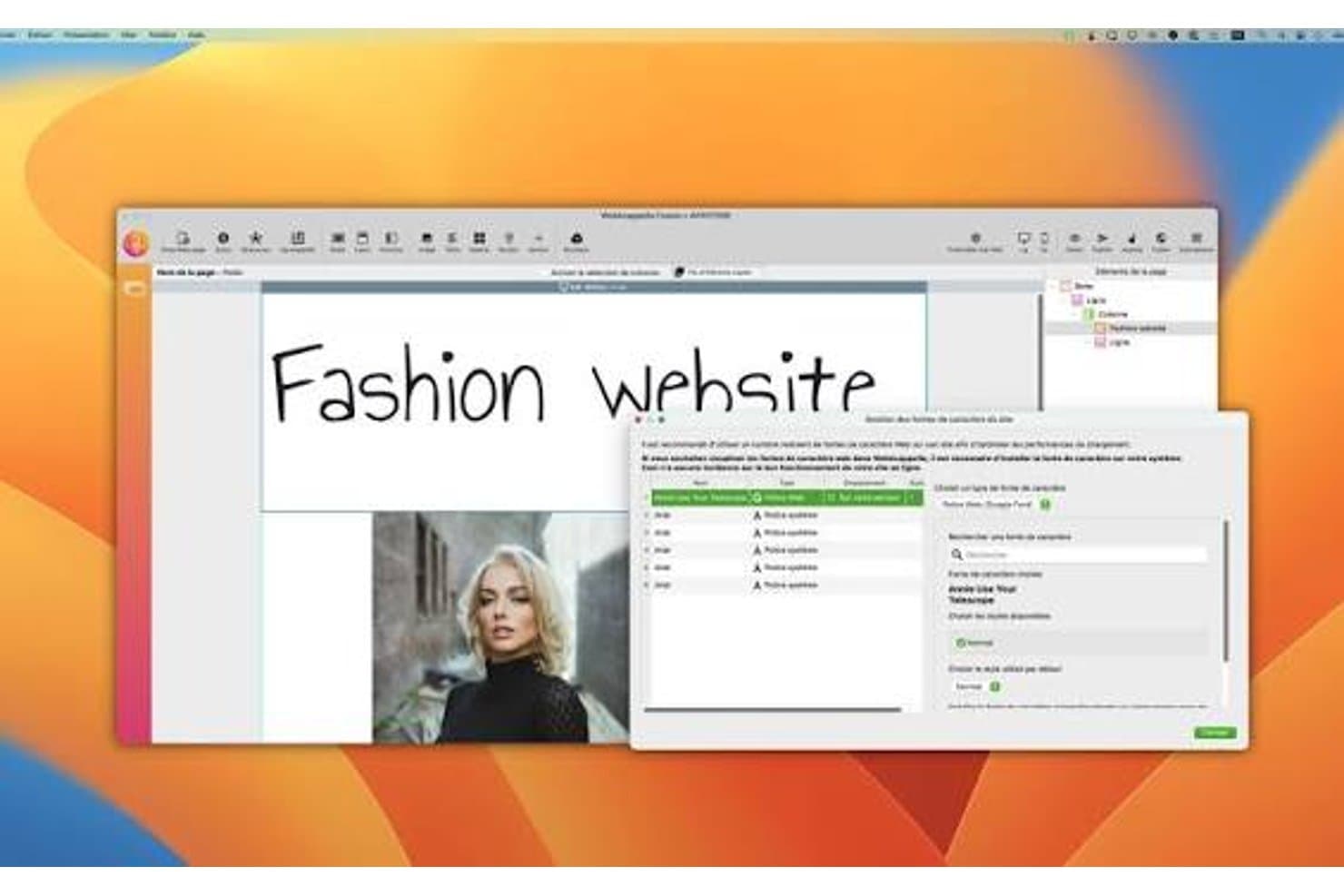
WebAcappella lets users manage and customize fonts for their fashion website. WebAcappella Fusion is an installed desktop app for Mac and Windows that lets you design and build websites offline using a drag-and-drop grid editor, with built-in FTP, SFTP, SSH/rsync publishing, and local folder export to any host.
Who Is WebAcappella Best For?
WebAcappella Fusion is a strong fit for freelance web designers and small agencies who need full control over hosting, want a one-time license, and regularly build sites for clients across different servers.
Why I Picked WebAcappella
I picked WebAcappella Fusion as one of the best because no other tool on this list gives you the same level of publishing flexibility from a desktop app. You can push a finished site to any host over FTP, SFTP, or SSH/rsync, or export to a local folder and hand it off to FileZilla, Cyberduck, or a CI/CD pipeline. I especially like the rsync option for large sites: it sends only changed file segments, compresses in transit, and resumes after dropped connections.
WebAcappella Key Features
- Grid and FlexLayout containers: Drag-and-drop containers let you build galleries, team pages, and testimonial sections with items that wrap automatically across screen sizes.
- Per-breakpoint responsive controls: Properties like visibility, spacing, and layout can be set independently for each screen size, with cascade mode to stack columns vertically on mobile.
- Custom code injection: Add HTML, CSS, or JavaScript at the component, page, or site level without touching the core project files.
- Searchable Section Library: A built-in library of ready-made headers, heroes, content blocks, and footers that you can drop into any page during editing.
WebAcappella Integrations
WebAcappella offers native integrations with Stripe, Google Analytics 4, DeepL API, OpenStreetMap, and Google Fonts. It also supports FTP/SFTP, SSH/rsync, and local-folder export for FileZilla, Cyberduck, scripts, and CI/CD workflows.
Pros and Cons
Pros:
- Exports static sites for flexible handoff
- Works fully offline on Mac and Windows
- Publishes through FTP, SFTP, or rsync
Cons:
- Custom code lacks a full editor
- Manual layouts require careful breakpoint adjustments
Learn more about WebAcappella:
Diğer Çevrimdışı Web Tasarım Yazılımları
Kısa listeme giremeyen ancak yine de göz atmaya değer bazı ek çevrimdışı web tasarım yazılımı seçenekleri şunlardır:
- 11SitelyBest for freeform layout on Mac and iPad
- 12PubliiBest for free static sites with local control
- 13Google Web DesignerBest for HTML5 ad animations
- 14SilexBest for free open-source offline site building
- 15MobiriseBest for free offline drag-and-drop site building
- 16NicepageBest for multi-format site export and design
- 17Tumult HypeBest for HTML5 animation-first prototyping
Related Reviews
How I Evaluate Offline Web Design Software
I split my evaluation into three parts, with the most weight on building pages visually and editing site files offline. Next, I look for reusable component libraries that keep headers and buttons consistent across pages. Finally, I consider code handoff, local data control, and licensing value beyond the feature set.
Core Functionality (Table Stakes For This List)
When I'm selecting tools for my list, I score each one on a scale from 0 (does not offer the functionality) to 5 (excels in this area) for each core functionality listed below. I then convert the total into a percentage to help assess each tool's overall fit, with extra weight on any functionalities I’ve deemed essential.
- Visual Page Design (Essential): I look for flexible visual controls to arrange multi-section pages and refine layouts without writing code for every change.
- Offline Editing (Essential): I check whether core design and editing tasks work locally without an active internet connection.
- Code Editing: I assess direct access to HTML, CSS, or JavaScript and how clearly the editor supports code changes.
- File Management: I look for ways to organize pages, folders, and assets, then preview how they fit together locally.
- Publishing And Export: I check how a finished site moves from local files to a host, through export, upload, or publishing tools.
- Responsive Design: I evaluate controls and previews for adapting page layouts across screen sizes and device types.
Once I have a list of tools that meet the criteria, I consider what sets each platform apart.
Differentiating Factors (What Sets Vendors Apart)
Here's how I compare and contrast different vendors:
Standout Features
I look for reusable symbol libraries that let you define a button or header once and sync changes across every page. Without them, updating a nav bar means editing dozens of files. I also evaluate interactive prototyping tools—clickable states and hover transitions that let a product team validate a flow before any code is written. Tools like Pinegrow and Bootstrap Studio handle these differently, so I check how closely the prototype mirrors real behavior.
Beyond Features
I check how cleanly exported code drops into an existing engineering pipeline. Some tools, like Bootstrap Studio, output production-ready markup, while others need heavy refactoring before a developer can use the files. Licensing models matter too—perpetual licenses from vendors like Pinegrow shift long-term costs compared to subscriptions, but upgrade policies vary widely. I also evaluate whether a tool forces any cloud sync or telemetry that could expose confidential work, since many product teams run under NDA constraints during early discovery.
Çevrimdışı Web Tasarım Yazılımı Nasıl Seçilir?
Uzun özellik listeleri ve karmaşık fiyatlandırma yapıları arasında kaybolmak kolaydır. Kendinize özgü yazılım seçim süreciniz üzerinde çalışırken odaklanmanızı korumanıza yardımcı olmak için göz önünde bulundurmanız gereken faktörleri içeren bir kontrol listesi hazırladım:
| Etken | Dikkat Edilmesi Gerekenler |
|---|---|
| EtkenÖlçeklenebilirlik | Dikkat Edilmesi GerekenlerYazılım ihtiyaçlarınızla birlikte büyüyebilir mi? İşletmeniz büyüdükçe daha büyük projeleri veya daha fazla kullanıcıyı yönetip yönetemeyeceğini değerlendirin. Esnek planlar veya modüller sunan araçları tercih edin. |
| EtkenEntegrasyonlar | Dikkat Edilmesi GerekenlerMevcut araçlarınızla çalışıyor mu? İş akışınızdaki kesintileri önlemek için kullandığınız içerik yönetim sistemleri, analiz veya e-ticaret platformlarıyla entegre olup olmadığını kontrol edin. |
| EtkenÖzelleştirilebilirlik | Dikkat Edilmesi Gerekenlerİhtiyaçlarınıza ne ölçüde uyarlayabilirsiniz? Aracın, karmaşık kodlama gerektirmeden belirli gereksinimlerinize uyacak şekilde tasarım ve işlevsellik açısından yeterli özelleştirmeye izin verdiğinden emin olun. |
| EtkenKullanım kolaylığı | Dikkat Edilmesi GerekenlerEkibiniz için kullanıcı dostu mu? Arayüzü değerlendirin ve kapsamlı bir eğitim gerektirip gerektirmediğini düşünün. Dik bir öğrenme eğrisi proje takviminizi yavaşlatabilir. |
| EtkenUygulama ve başlangıç süreci | Dikkat Edilmesi GerekenlerKurulum için hangi destekler sunuluyor? Eğitimler, destek forumları veya özel başlangıç desteği gibi işe başlamak için sunulan kaynakları ve rehberliği değerlendirin. |
| EtkenMaliyet | Dikkat Edilmesi GerekenlerBütçeniz dahilinde mi? Fiyatlandırma modellerini karşılaştırın ve gizli ücretleri kontrol edin. Güncellemeler ve ek özellikler de dahil olmak üzere toplam sahip olma maliyetini göz önünde bulundurun. |
| EtkenGüvenlik önlemleri | Dikkat Edilmesi GerekenlerVerilerinizi koruyor mu? Şifreleme ve düzenli güncellemeler gibi özellikleri arayın. Hassas bilgiler işliyorsanız sektör standartlarına uygunluğu değerlendirin. |
| EtkenDestek erişilebilirliği | Dikkat Edilmesi Gerekenlerİhtiyaç duyduğunuzda yardıma ne kadar kolay ulaşabilirsiniz? Özellikle çalışma saatlerinizde sohbet, e-posta veya telefon gibi müşteri destek kanallarının erişilebilirliğini göz önünde bulundurun. |
Çevrimdışı Web Tasarım Yazılımı Nedir?
Çevrimdışı web tasarım yazılımı, kullanıcıların internet bağlantısına ihtiyaç duymadan web siteleri tasarlamasına ve geliştirmesine olanak tanıyan bir araçtır. Bu araçlar genellikle internet erişiminin sınırlı olduğu ortamlarda çalışan web tasarımcıları, geliştiriciler ve küçük işletme sahipleri tarafından kullanılır. Sürükle ve bırak arayüzleri, özelleştirilebilir şablonlar ve çevrimdışı düzenleme özellikleri, kullanıcıların web sitelerini verimli bir şekilde oluşturmasına ve yönetmesine yardımcı olur. Genel olarak bu araçlar, sürekli bağlantıya güvenmeden web tasarım süreci üzerinde esneklik ve kontrol sağlar.
Özellikler
Çevrimdışı web tasarım yazılımı seçerken aşağıdaki temel özelliklere dikkat edin:
- Sürükle ve bırak arayüzü: Kodlama yapmadan sayfadaki öğelerin kolayca yerleştirilmesini sağlar ve tasarımı teknik bilgiye sahip olmayan kullanıcılar için erişilebilir hale getirir.
- Çevrimdışı düzenleme: İnternet bağlantısı olmadan projeler üzerinde çalışmanıza olanak tanıyarak kesintisiz ilerleme sağlar.
- Özelleştirilebilir şablonlar: Markanıza uyacak şekilde düzenlenebilen önceden tasarlanmış yerleşimler sunarak tasarım sürecini hızlandırır.
- Duyarlı tasarım araçları: Kullanıcı deneyimini farklı platformlarda iyileştirerek web sitenizin tüm cihazlarda iyi görünmesini sağlar.
- SEO dostu özellikler: Sitenizi arama motorları için optimize etmeye yardımcı olarak görünürlüğü artırır ve trafik sağlar.
- Dahili görsel düzenleyici: Görselleri doğrudan yazılım içinde değiştirmenize olanak tanıyarak zamandan ve kaynaklardan tasarruf sağlar.
- Çoklu platform desteği: Sitenizi çeşitli platformlarda yayımlamanıza olanak tanıyarak farklı kitlelere erişiminizi genişletir.
- Kod düzenleme özellikleri: Daha gelişmiş özelleştirmeler için HTML, CSS ve JavaScript üzerinde değişiklik yapma esnekliği sunar.
- Animasyon ve efektler: Hareket efektleri ve geçişlerle sitenize görsel ilgi katarak kullanıcı etkileşimini artırır.
- Güvenlik önlemleri: Şifreleme ve düzenli güncellemelerle verilerinizi koruyarak sektör standartlarına uygunluk sağlar.
Avantajlar
Çevrimdışı web tasarım yazılımını uygulamak ekibiniz ve işletmeniz için çeşitli avantajlar sağlar. Yararlanabileceğiniz avantajlardan bazıları şunlardır:
- Kesintisiz çalışma: Çevrimdışı düzenleme, ekibinizin internet erişimi olmadan çalışmaya devam etmesini sağlayarak uzak konumlarda bile verimliliği korur.
- Daha fazla kontrol: Özelleştirilebilir şablonlar ve kod düzenleme özellikleri, tasarımları tam olarak belirlediğiniz özelliklere uyarlama esnekliği sunar.
- Artan güvenlik: Çevrimdışı çalışmak veri güvenlik açıklarını en aza indirerek hassas bilgileri çevrimiçi tehditlerden korur.
- Geliştirilmiş iş birliği: Çoklu platform desteği, ekip üyelerinin projeleri farklı cihazlar arasında paylaşmasına ve düzenlemesine olanak tanıyarak ekip çalışmasını güçlendirir.
- Zaman verimliliği: Sürükle ve bırak arayüzleri ile dahili görsel düzenleyiciler tasarım sürecini hızlandırarak projelerin daha kısa sürede tamamlanmasını sağlar.
- Maliyet tasarrufu: Sürekli bağlantı ihtiyacını azaltan çevrimdışı araçlar, internet kullanımıyla ilişkili işletme maliyetlerini düşürebilir.
- Daha iyi kullanıcı deneyimi: Duyarlı tasarım araçları, web sitenizin tüm cihazlarda erişilebilir ve işlevsel olmasını sağlayarak memnun kullanıcılar elde etmenize yardımcı olur.
Maliyetler ve Fiyatlandırma
Çevrimdışı web tasarım yazılımı seçmek, mevcut çeşitli fiyatlandırma modellerini ve planlarını anlamayı gerektirir. Maliyetler; özelliklere, ekip büyüklüğüne, eklentilere ve diğer unsurlara göre değişir. Aşağıdaki tablo, çevrimdışı web tasarım yazılımı çözümlerinde yaygın olarak sunulan planları, ortalama fiyatlarını ve genellikle dahil edilen özellikleri özetlemektedir:
Çevrimdışı Web Tasarım Yazılımı için Plan Karşılaştırma Tablosu
| Plan Türü | Ortalama Fiyat | Yaygın Özellikler |
|---|---|---|
| Plan TürüÜcretsiz Plan | Ortalama Fiyat$0 | Yaygın ÖzelliklerTemel tasarım araçları, sınırlı şablonlar ve topluluk desteği. |
| Plan TürüKişisel Plan | Ortalama Fiyat$5-$25/kullanıcı/ay | Yaygın ÖzelliklerÖzelleştirilebilir şablonlar, duyarlı tasarım araçları ve temel SEO özellikleri. |
| Plan Türüİşletme Planı | Ortalama Fiyat$30-$80/kullanıcı/ay | Yaygın ÖzelliklerGelişmiş tasarım seçenekleri, e-ticaret özellikleri ve öncelikli müşteri desteği. |
| Plan TürüKurumsal Plan | Ortalama Fiyat$80-$150/kullanıcı/ay | Yaygın ÖzelliklerTam özelleştirme, özel hesap yöneticisi, gelişmiş güvenlik özellikleri ve kurumsal sistemlerle entegrasyon. |
Çevrimdışı Web Tasarım Yazılımı Hakkında Sık Sorulan Sorular
Çevrimdışı web tasarım yazılımı hakkında sık sorulan soruların bazı yanıtları şunlardır:
Çevrimdışı web tasarım yazılımı herhangi bir işletim sisteminde çalışabilir mi?
Evet, çoğu çevrimdışı web tasarım yazılımı Windows, Mac ve Linux gibi birden fazla işletim sisteminde çalışacak şekilde tasarlanmıştır. Satın almadan önce yazılımın sistem gereksinimlerini kontrol ederek cihazınızla uyumlu olduğundan emin olun. Ekibiniz çoğunlukla Apple donanımı kullanıyorsa, bu ortam için geliştirilmiş veya optimize edilmiş araçları daraltmanıza Mac için web tasarım yazılımlarını karşılaştırmak yardımcı olabilir. Bazı araçlar bir işletim sisteminde diğerine kıyasla daha iyi performans gösteren belirli özellikler sunabilir. Bu nedenle seçim yaparken ekibinizin mevcut altyapısını dikkate almanız akıllıca olacaktır.
Çevrimdışı web tasarım yazılımı yeni başlayanlar için uygun mu?
Evet, birçok çevrimdışı web tasarım aracı sürükle ve bırak arayüzleri ile özelleştirilebilir şablonlar sunarak yeni başlayanlar için kullanımı kolaydır. Bu araçlar genellikle başlamanıza yardımcı olacak eğitimler ve destek kaynakları içerir. Web tasarımında yeniyseniz, süreç boyunca size rehberlik edecek kullanıcı dostu bir arayüze ve bol miktarda eğitici materyale sahip bir yazılım arayın.
E-ticaret siteleri oluşturmak için çevrimdışı web tasarım yazılımı kullanabilir miyim?
Evet, çeşitli çevrimdışı web tasarım araçları e-ticaret özellikleri sunarak çevrimiçi mağazalar oluşturmanıza ve yönetmenize olanak tanır. Bu özellikler ürün kataloglarını, alışveriş sepeti işlevlerini ve ödeme işleme seçeneklerini içerebilir. Seçtiğiniz yazılımın tercih ettiğiniz e-ticaret platformuyla entegre olabildiğinden ve işletmenizin ihtiyaçlarını desteklemek için gerekli özellikleri sunduğundan emin olun.