

As melhores ferramentas de automação da interface do utilizador simplificam os testes de software, reduzindo os erros manuais, acelerando os ciclos de lançamento e dando às equipas confiança na qualidade do produto. Sem elas, os gestores de produto enfrentam atrasos causados por casos de teste repetitivos, resultados inconsistentes entre navegadores ou dispositivos e horas de engenharia desperdiçadas a corrigir problemas que poderiam ter sido detetados mais cedo.
A plataforma certa automatiza estes passos, integra-se no seu fluxo de trabalho e permite que a sua equipa se concentre na disponibilização de funcionalidades. Depois de testar várias ferramentas com equipas de produto dinâmicas, identifiquei as opções mais fiáveis para ajudar a melhorar a precisão, a velocidade e a colaboração.
Why Trust Our Software Recommendations
6,700+
Reviews
20
Industry experts
16+
Evaluation factors
14
Years
Our team has been testing and reviewing software since 2012. As product managers ourselves, we know how difficult—and important—it is to choose the right software.
For this guide, we evaluated tools using hands-on testing and independent research, scoring tools using our selection criteria.
Our reviews reflect our human editorial judgment, not a sales pitch.
Expert reviewers:
- Andrew LumbySenior TPM
- Cristiano ValimSenior UI/UX Lead


Tabela comparativa das ferramentas de automação da interface do utilizador
Esta tabela comparativa resume os detalhes de preços das minhas principais escolhas de ferramentas de automação da interface do utilizador:
| Tool | Best For | Trial Info | Price | ||
|---|---|---|---|---|---|
| 1 | Best for AI-managed test suite with flake guarantees | Free demo available | From 1¢/AI credit | Website | |
| 2 | Best for real-device cross-browser testing at scale | Free trial available | From $29/user/month (billed annually) | Website | |
| 3 | Best for plain-English test authoring at scale | Free plan + 14-day free trial + free demo available | Pricing upon request | Website | |
| 4 | Best for web, API, and mobile testing in one platform | Free plan + 30-day free trial + free demo available | From $180/seat/month | Website | |
| 5 | Best for cloud-native continuous testing | Free demo available | Pricing upon request | Website | |
| 6 | Best for large-scale test management in enterprises | Free demo available | Pricing upon request | Website | |
| 7 | Best for enterprise continuous testing at scale | Free trial + free demo available | Pricing upon request | Website | |
| 8 | Best for AI-driven end-to-end test automation | 14-day free trial + free demo available | Pricing upon request | Website | |
| 9 | Best for developer-friendly cross-browser automation | Free plan available | Free, open-source | Website | |
| 10 | Best for scriptless testing | 14-day free trial + free demo available | From $3,598/year (billed annually) | Website |


Avaliações das melhores ferramentas de automação da interface do utilizador
Seguem-se os meus resumos detalhados das melhores ferramentas de automação da interface do utilizador que entraram na minha lista restrita. As minhas avaliações apresentam uma análise detalhada das principais funcionalidades, vantagens & desvantagens, integrações e casos de utilização ideais de cada ferramenta, para ajudar a encontrar a melhor opção para si.
 Best for AI-managed test suite with flake guarantees
- Free demo available
- From 1¢/AI credit
Visit WebsiteCustomer Rating:4.9/5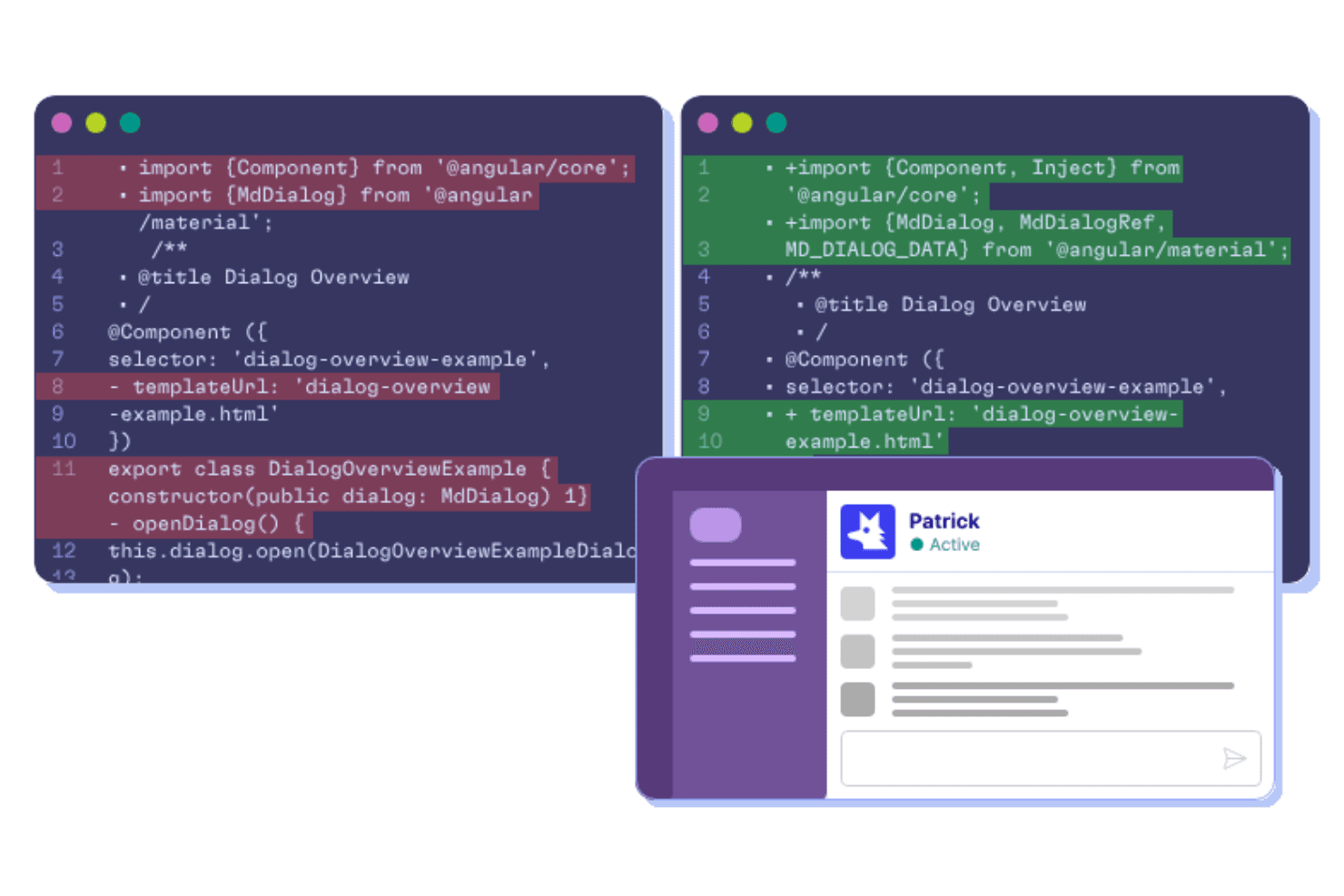
QA Wolf supports UI automation by helping teams create, maintain, and troubleshoot automated end-to-end tests as application code changes. QA Wolf is a UI test automation platform that combines AI-driven test creation, cloud-based parallel execution, and an optional fully managed service for building and maintaining end-to-end test suites across web, mobile, and Electron apps.
Who Is QA Wolf Best For?
QA Wolf is a strong fit for QA engineers and test managers at scaling software teams who need AI-driven test coverage without the overhead of building and maintaining the infrastructure themselves.
Why I Picked QA Wolf
I picked QA Wolf as one of the best because its AI-managed service is the only option I've seen that backs a full test suite with a Zero Flake Guarantee and a 24-hour maintenance SLA. Automation AI doesn't just flag broken tests; it reproduces the failure, identifies the root cause, and rewrites the Playwright or Appium code automatically. Mapping AI can explore your app and generate 200+ test cases without any human input, then adjust those tests as you ship new features.
QA Wolf Key Features
- Parallel test execution: Run unlimited tests simultaneously, each in its own isolated container with pre-warmed environments to cut startup time to milliseconds.
- Visual regression testing: Capture pixel-level screenshot comparisons with adjustable tolerances across web and native mobile to catch unintended UI changes.
- Run Rules: Configure test order, dependencies, and multi-user workflows without writing custom orchestration scripts.
- CI/CD triggers: Kick off test runs via deploy webhook, REST API, CLI, or the
@qawolf/ci-sdk, with results reporting back as GitHub or GitLab checks.
QA Wolf Integrations
QA Wolf has native integrations with GitHub, GitLab, CircleCI, TestRail, Xray, Zephyr, Qase.io, Jira, Linear, and Azure DevOps Boards. It also supports REST API, webhooks,
@qawolf/ci-sdk, CLI, and GitHub Actions for CI/CD workflows.Pros and Cons
Pros:
- Handles complex mobile and multi-user workflows
- Isolated containers support unlimited parallel runs
- AI repairs nearly all flaky tests
Cons:
- Mobile testing requires managed service
- Dashboards can obscure failure signals
Learn more about QA Wolf: Best for real-device cross-browser testing at scale
- Free trial available
- From $29/user/month (billed annually)
Visit WebsiteCustomer Rating:4.5/5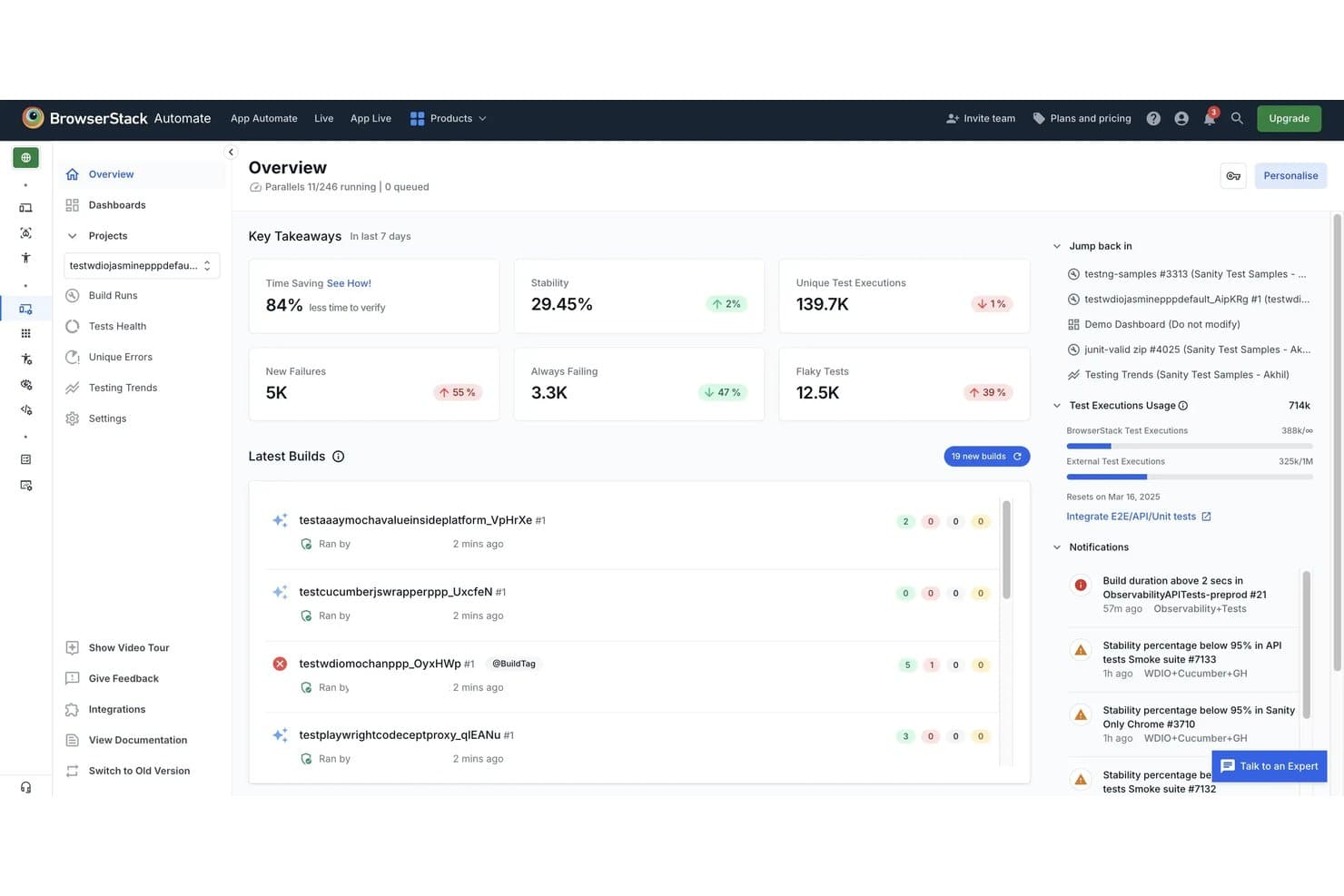
BrowserStack helps teams monitor UI automation runs, test stability, failures, and flaky tests from one dashboard. BrowserStack is a cloud-based UI automation platform that runs test scripts across real devices and browsers, supporting frameworks like Selenium, Playwright, Cypress, and Appium alongside low-code and AI-assisted test creation tools.
Who Is BrowserStack Best For?
BrowserStack is a strong fit for QA and DevOps teams that need to run automated tests across a wide range of real browsers and devices without maintaining their own infrastructure.
Why I Picked BrowserStack
BrowserStack earns its spot as one of the best on my shortlist because no other tool comes close to its real-device and browser coverage: 35,000+ real devices and 3,500+ browser combinations, all without maintaining a single piece of hardware. I love that parallel execution scales to run thousands of tests simultaneously, with customer examples like 20,000 tests completing in two hours. The AI-powered Test Failure Analysis Agent automatically sorts failures into product, automation, or environment issues, cutting triage time significantly.
BrowserStack Key Features
- Test Failure Analysis Agent: Automatically categorizes test failures into product, automation, or environment issues to speed up root-cause investigation.
- 46 CI/CD integrations: Connects with Jenkins, GitHub Actions, GitLab CI, Azure Pipelines, CircleCI, and more to fit tests directly into your existing pipeline.
- Percy visual regression testing: Uses AI-based visual comparisons to detect layout shifts, DOM changes, and CSS differences across builds.
- Quality Gates: Lets you set rules that block or allow merges and deployments based on test stability, new failures, and flakiness thresholds.
BrowserStack Integrations
BrowserStack lists integrations across multiple products, including Jenkins, GitHub Actions, GitLab, Azure Pipelines, CircleCI, Jira, GitHub, Slack, and Microsoft Teams. A REST API supports custom CI/CD integrations.
Pros and Cons
Pros:
- Detailed videos and logs speed debugging
- Parallel execution cuts regression cycles
- Real-device coverage across browsers and devices
Cons:
- Self-healing supports only Selenium and Cypress
- Peak-time queues slow test sessions
Learn more about BrowserStack: Best for plain-English test authoring at scale
- Free plan + 14-day free trial + free demo available
- Pricing upon request
Visit WebsiteCustomer Rating:4.8/5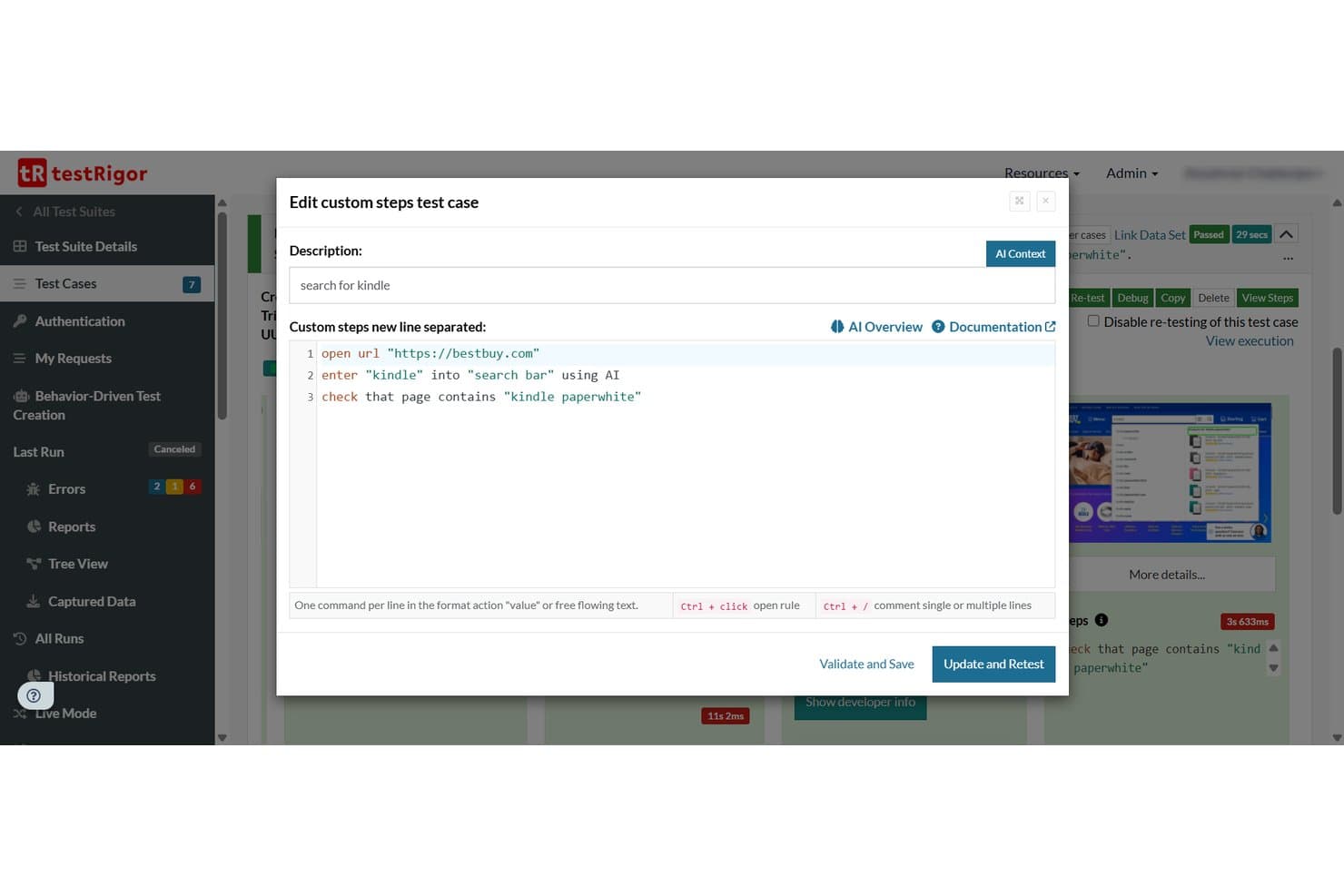
testRigor lets users write plain-English test steps for UI automation. testRigor is a UI automation testing platform that supports web, mobile, desktop, API, and email testing through plain-English test scripts, AI-generated test cases, and cross-environment execution across thousands of browser, device, and OS combinations.
Who Is testRigor Best For?
testRigor is a strong fit for QA teams and product managers who need to build and scale test coverage without relying on engineers to write or maintain every test.
Why I Picked testRigor
testRigor earns its spot on my shortlist because it lets non-engineers write real end-to-end tests in plain English, like
click "Add to cart"orcheck that page contains "Order confirmed", without touching a single selector. I also like that you can paste a Jira ticket or user story directly into testRigor and get a runnable test suite out of it, which genuinely cuts the time from spec to coverage. On top of that, one test can chain web, mobile, API, email, and SMS steps together, so you're not juggling separate tools for each surface.testRigor Key Features
- Visual regression testing: Compare screens pixel-by-pixel against previous versions or stored baselines, with configurable tolerance levels and severity classifications.
- Parallel test execution: Run up to 10,000 parallel servers simultaneously, with configurable batch sizes and team-based server allocation on Enterprise plans.
- API and database testing: Execute API calls, run SQL queries against MySQL, PostgreSQL, Oracle, and MongoDB, and validate downloaded file contents within your test flows.
- Production behavior-based test generation: A JavaScript library captures anonymized usage data from your live app and automatically generates tests for your most frequent user flows.
testRigor Integrations
testRigor offers documented integrations with GitHub Actions, GitLab, Jenkins, Azure DevOps, CircleCI, BrowserStack, LambdaTest, SauceLabs, Jira, and TestRail. It also supports custom integrations through its CLI and API.
Pros and Cons
Pros:
- Parallel execution supports large regression suites
- Cross-platform coverage spans web, mobile, desktop
- Plain-English scripts reduce locator maintenance
Cons:
- Occasional reruns and crashes disrupt execution
- Debugging failures can lack sufficient visibility
Learn more about testRigor: Best for web, API, and mobile testing in one platform
- Free plan + 30-day free trial + free demo available
- From $180/seat/month
Visit WebsiteCustomer Rating:4.4/5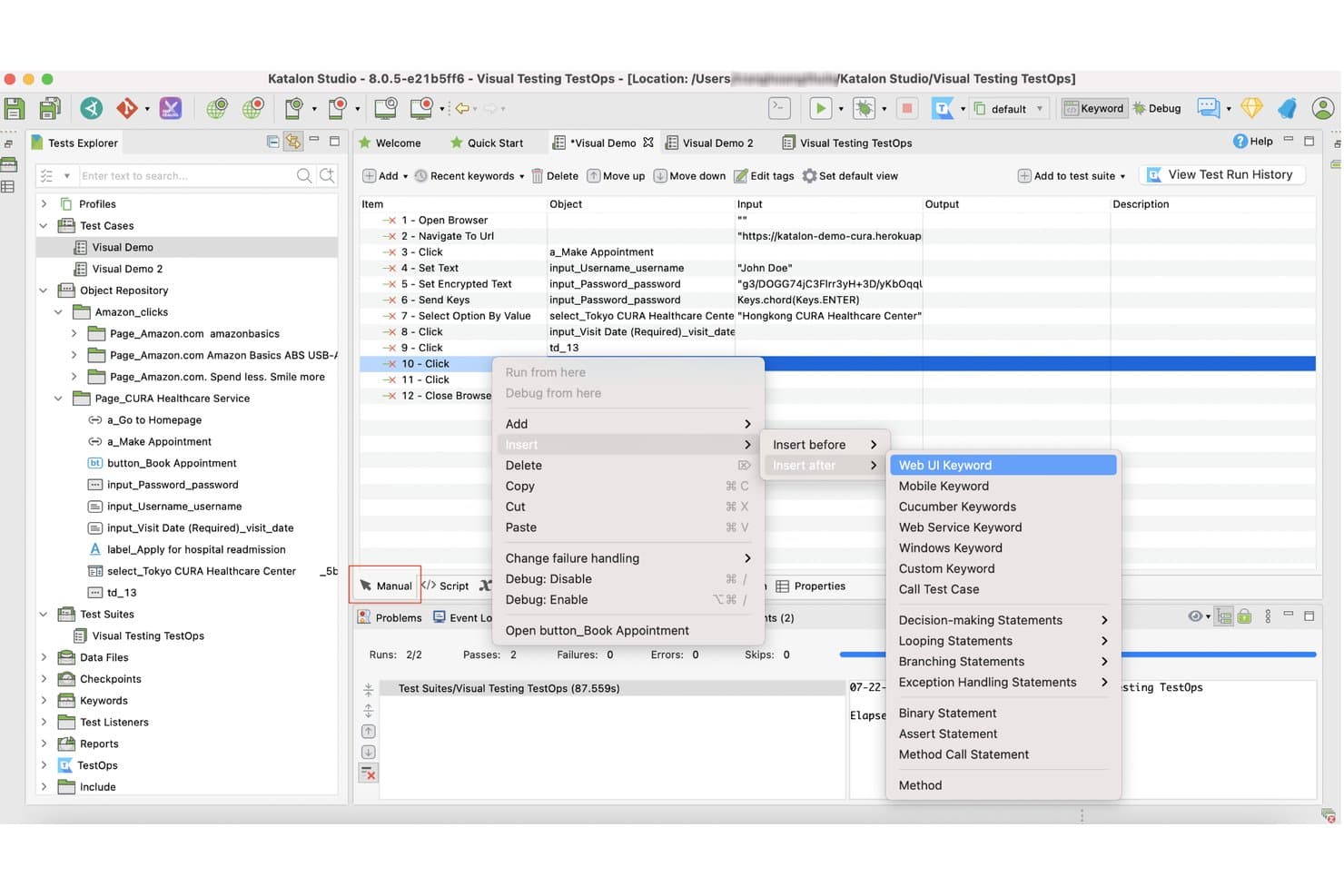
Katalon Studio lets users insert Web UI keywords via right-click context menu. Katalon Studio is a UI automation testing platform that supports web, mobile (iOS and Android), API, and Windows desktop testing from a single IDE, with no-code recorders, full Groovy/Java scripting, and built-in AI-assisted test creation.
Who Is Katalon Studio Best For?
Katalon Studio is a strong fit for QA engineers and test managers on mixed-skill teams who need to cover web, mobile, API, and desktop testing without juggling multiple tools.
Why I Picked Katalon Studio
I picked Katalon Studio as one of the best because it genuinely consolidates web, mobile, API, and Windows desktop testing into a single project, so I'm not context-switching between tools mid-sprint. I particularly like the no-code recorder paired with full Groovy/Java scripting, which means both manual testers and engineers can contribute to the same suite. The two-layer self-healing (classic locator fallback, then AI-assisted analysis with human approval) keeps tests alive through UI changes without requiring a full rewrite.
Katalon Studio Key Features
- AI test generation: Creates test cases automatically from Jira tickets or written requirements, supporting both low-code authoring and natural-language test steps.
- Visual regression testing: Compares UI screenshots against baselines using pixel-level, layout, or text-content analysis, with configurable sensitivity and a review workflow for each difference.
- TestOps traceability: Links requirements, test runs, defects, and releases into a single view, giving test managers real-time release-readiness data.
- Real-device cloud grid: Runs tests on actual iOS and Android devices with advanced mobile simulation, including GPS spoofing, network throttling, and camera injection.
Katalon Studio Integrations
Katalon Studio offers native integrations with Jenkins, GitHub Actions, GitLab, Azure DevOps, Jira, Slack, TestRail, BrowserStack, LambdaTest, and Selenium Grid. It also supports integrations with Postman, SoapUI, and SQL Server.
Pros and Cons
Pros:
- Provides human-reviewed self-healing suggestions
- Supports no-code through Groovy and Java
- Covers web, mobile, API, and desktop
Cons:
- AI image healing can be unreliable
- Resource-heavy suites can slow or crash
Learn more about Katalon Studio: Best for cloud-native continuous testing
- Free demo available
- Pricing upon request
Visit WebsiteCustomer Rating:4.4/5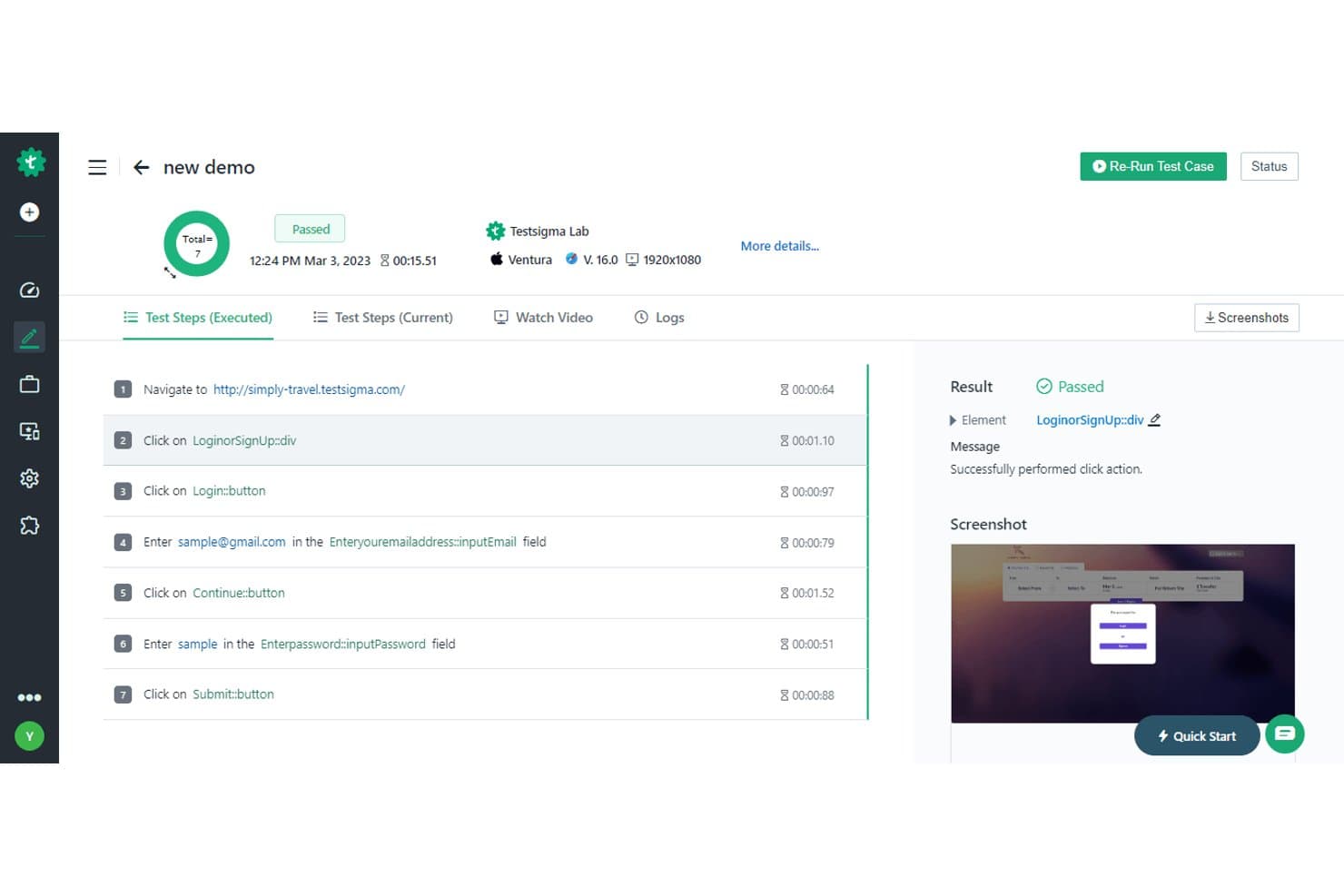
Testsigma displays detailed test step results with pass/fail status and screenshots. Testsigma is a cloud-native UI automation testing platform that supports web, mobile, desktop, API, Salesforce, and SAP testing through a combination of plain-English test creation, AI-driven test generation, and built-in CI/CD integrations.
Who Is Testsigma Best For?
Testsigma is a strong fit for QA and DevOps teams that need to run continuous, automated tests across web, mobile, and API layers within active CI/CD pipelines.
Why I Picked Testsigma
Testsigma earns its spot on my list because it's built from the ground up for cloud-native continuous testing, not retrofitted for it. I love that the Atto AI agents handle the full test lifecycle: generating tests from Jira stories or Figma designs, healing broken locators automatically, and producing a release confidence score that combines pass rate, coverage, and critical-path risk into one actionable number. That last feature alone makes it easier to gate releases in a live CI/CD pipeline without manual sign-off.
Testsigma Key Features
- Visual regression testing: Compares screenshots at each test step and lets you limit comparisons to specific page areas or elements.
- API testing: Supports REST, SOAP, and GraphQL, with test generation from Postman collections and Swagger/OpenAPI specs.
- Test data management: Stores positive and negative data sets in one place, with support for runtime variables, randomized data, and AI-generated test data.
- Cross-platform coverage: Runs tests across web, mobile (iOS and Android), Windows desktop, Salesforce, and SAP from a single platform.
Testsigma Integrations
Testsigma offers 30+ native integrations on Pro and 40+ on Enterprise, including Jenkins, GitHub Actions, Azure DevOps, Jira, Slack, Microsoft Teams, BrowserStack, Sauce Labs, and LambdaTest. Its REST API supports custom CI/CD workflows and environment-targeted test execution.
Pros and Cons
Pros:
- Diagnoses failures with visual evidence
- Covers web, mobile, APIs, and desktop
- Generates tests from Jira and Figma
Cons:
- Large test runs may execute slowly
- Complex workflows can challenge automation
Learn more about Testsigma: Best for large-scale test management in enterprises
- Free demo available
- Pricing upon request
Visit WebsiteCustomer Rating:4.2/5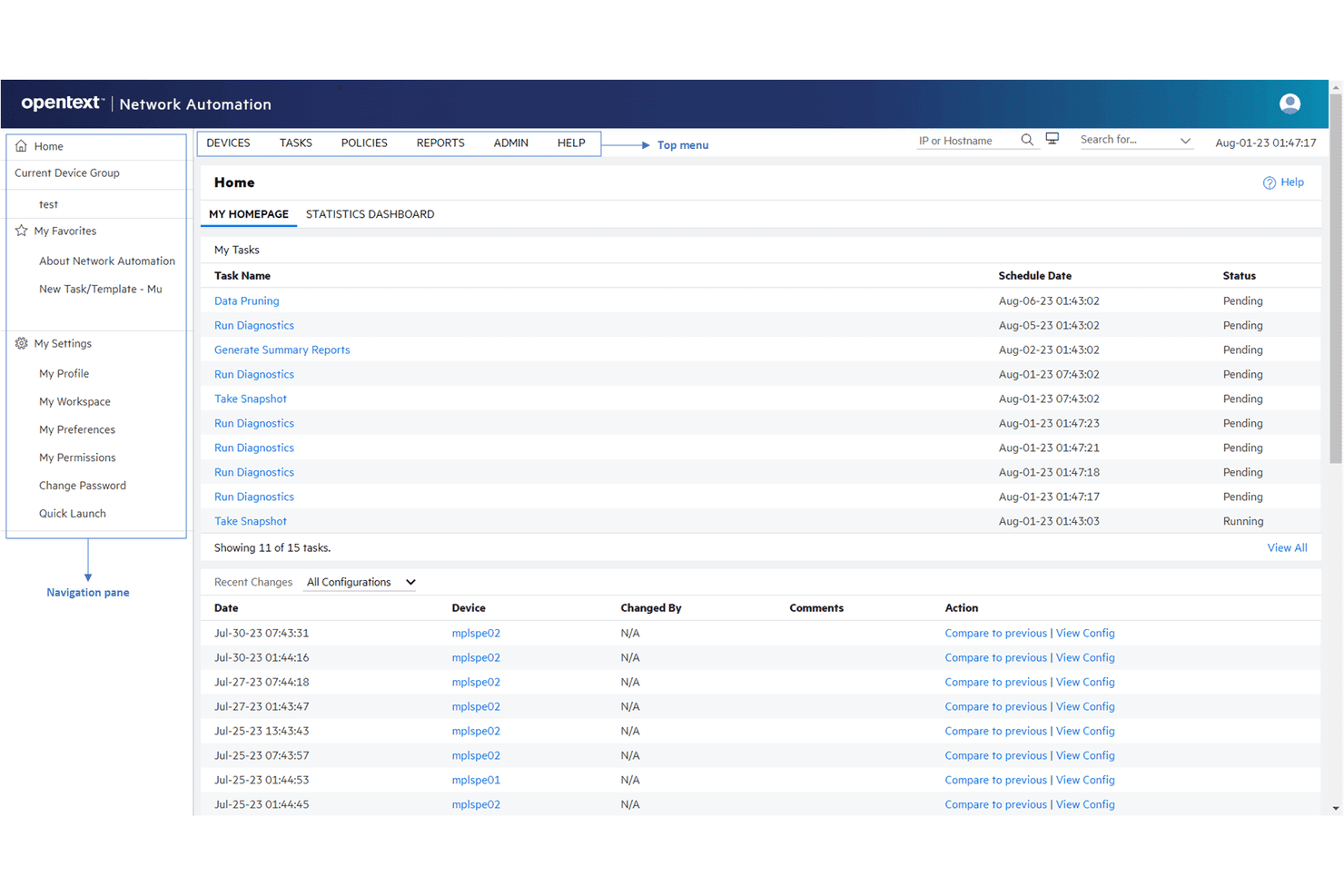
OpenText delivers functional, performance, and load testing for enterprises. OpenText Functional Testing is a UI automation platform that covers web, desktop, mobile, API, and enterprise app testing—with scripting in Python and VBScript, a real-device lab, model-based testing, and built-in test management tools like AQM and SDM.
Who Is OpenText Best For?
OpenText is a strong fit for enterprise QA and test engineering teams that need to manage large-scale test programs across legacy, desktop, and modern web environments from a single vendor.
Why I Picked OpenText
OpenText earns its spot on my shortlist because no other tool covers large-scale enterprise test management as thoroughly from a single vendor. I like that AQM provides requirements-driven test planning with full traceability matrices and audit trails, which matters when you're managing thousands of test assets across regulated environments. The Autonomous Tester in Core SDP can execute existing manual tests without any scripting, cutting the overhead for teams running high-volume regression programs at scale.
OpenText Key Features
- Python and VBScript scripting: Write test scripts in either Python or VBScript, with support for data-driven testing and modular, reusable components.
- Real-device lab: Run tests on real Android and iOS devices, emulators, and cloud browsers, with built-in accessibility testing and AWS Device Farm access.
- CI/CD pipeline plugins: Connect directly to Jenkins, Azure DevOps, GitHub Actions, GitLab, and Harness CI with ready-made plugins and integrations.
- Autonomous Tester: Execute existing manual, Gherkin/BDD, and MBT tests automatically without writing any scripts.
OpenText Integrations
OpenText offers native integrations with Jenkins, Azure DevOps, GitHub Actions, GitLab, Git, and Docker. Functional Testing Lab also supports Selenium, and Appium.
Pros and Cons
Pros:
- Unifies UI, API, mobile, and governance
- Supports large-scale parallel regression execution
- Covers legacy and modern enterprise applications
Cons:
- VBScript dependence persists alongside Python support
- Long runs can become slow or unstable
Learn more about OpenText: Best for enterprise continuous testing at scale
- Free trial + free demo available
- Pricing upon request
Visit WebsiteCustomer Rating:4.2/5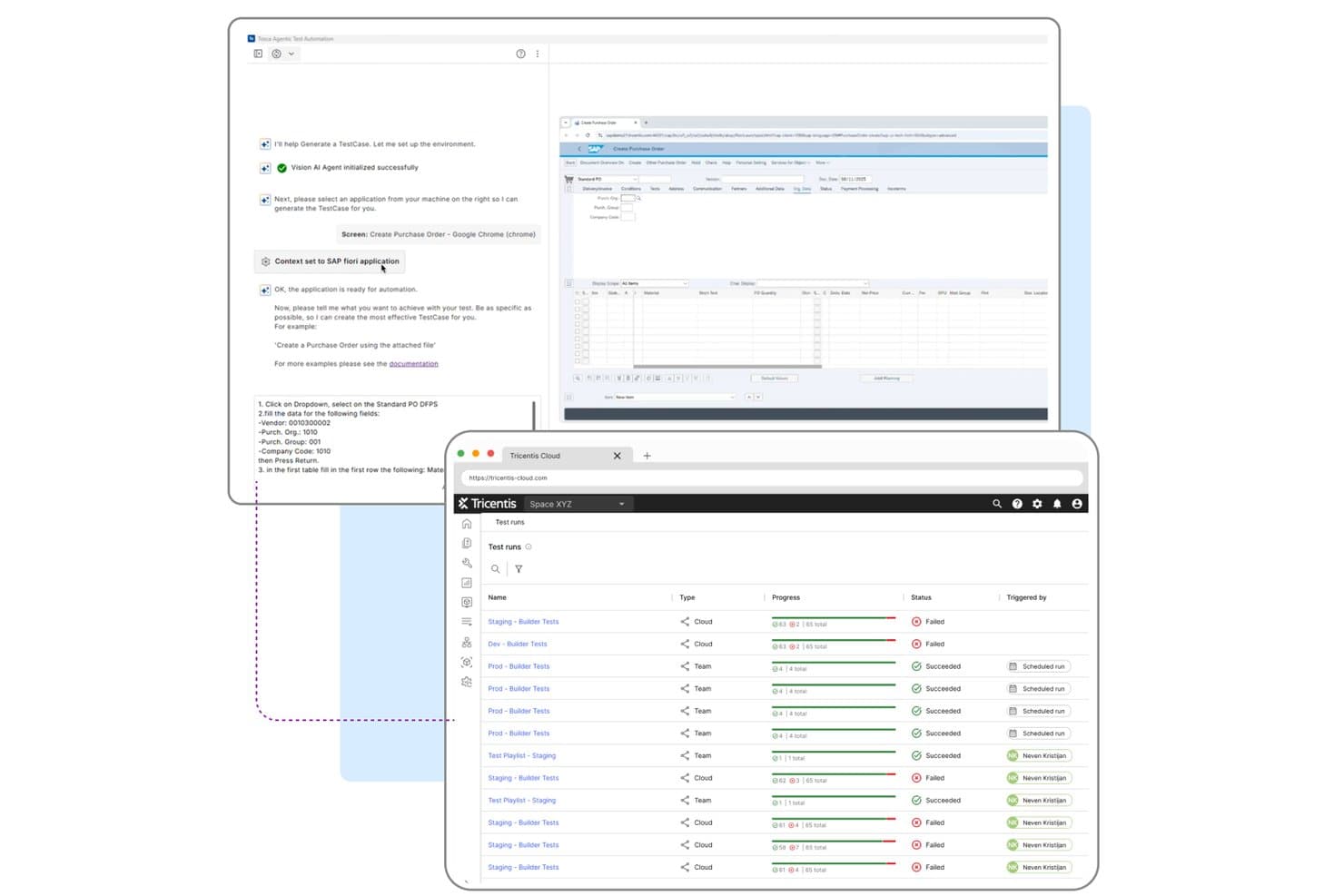
Tricentis Tosca automates UI test creation and tracks cloud test run results. Tricentis Tosca is a model-based UI automation platform that covers web, desktop, mobile, and enterprise apps—including SAP, Oracle, Salesforce, and Workday—with codeless test creation, AI-driven test generation, self-healing, and parallel execution at scale.
Who Is Tricentis Tosca Best For?
Tosca is a strong fit for QA teams at large enterprises that need to automate testing across SAP, Oracle, Salesforce, or Workday alongside web, desktop, and mobile apps in a single platform.
Why I Picked Tricentis Tosca
Tricentis Tosca earns its spot on my shortlist because no other tool handles enterprise app ecosystems—SAP, Oracle, Salesforce, Workday—alongside web, desktop, and mobile in a single platform the way Tosca does. I'm particularly impressed by the Elastic Execution Grid, which runs thousands of tests in parallel across cloud, on-prem, or hybrid agents without manual load balancing. The Agentic Test Automation feature also stands out to me: you describe a test in plain language and Tosca generates it, merging the result with your existing assets automatically.
Tricentis Tosca Key Features
- Vision AI recognition: Identifies UI controls by visual attributes—type, label, position, and color—so tests run on any technology, including Citrix and VMware remote desktops.
- Self-healing test execution: Automatically repairs broken test steps using weighted or combination matching, then flags healed steps in the execution log for review.
- Model-based test architecture: Stores test logic in reusable modules separate from application code, so a single fix to a shared module updates every test that references it.
- Tosca Query Language (TQL) AI queries: Converts plain-language questions into TQL queries to locate unused, duplicate, or failing tests across your workspace.
Tricentis Tosca Integrations
Tricentis Tosca integrates with Jenkins, qTest, Sauce Labs, BrowserStack, LambdaTest, and Perfecto. Its REST API and CLI support custom CI/CD connections, including Azure DevOps workflows.
Pros and Cons
Pros:
- Runs thousands of tests in parallel
- Reusable models reduce regression maintenance
- Covers SAP, Oracle, Salesforce, and Workday
Cons:
- Cloud reports expire after 30 days
- Complex setup challenges smaller QA teams
Learn more about Tricentis Tosca: 8Best for AI-driven end-to-end test automation
Mabl
- 14-day free trial + free demo available
- Pricing upon request
Visit WebsiteCustomer Rating:4.2/5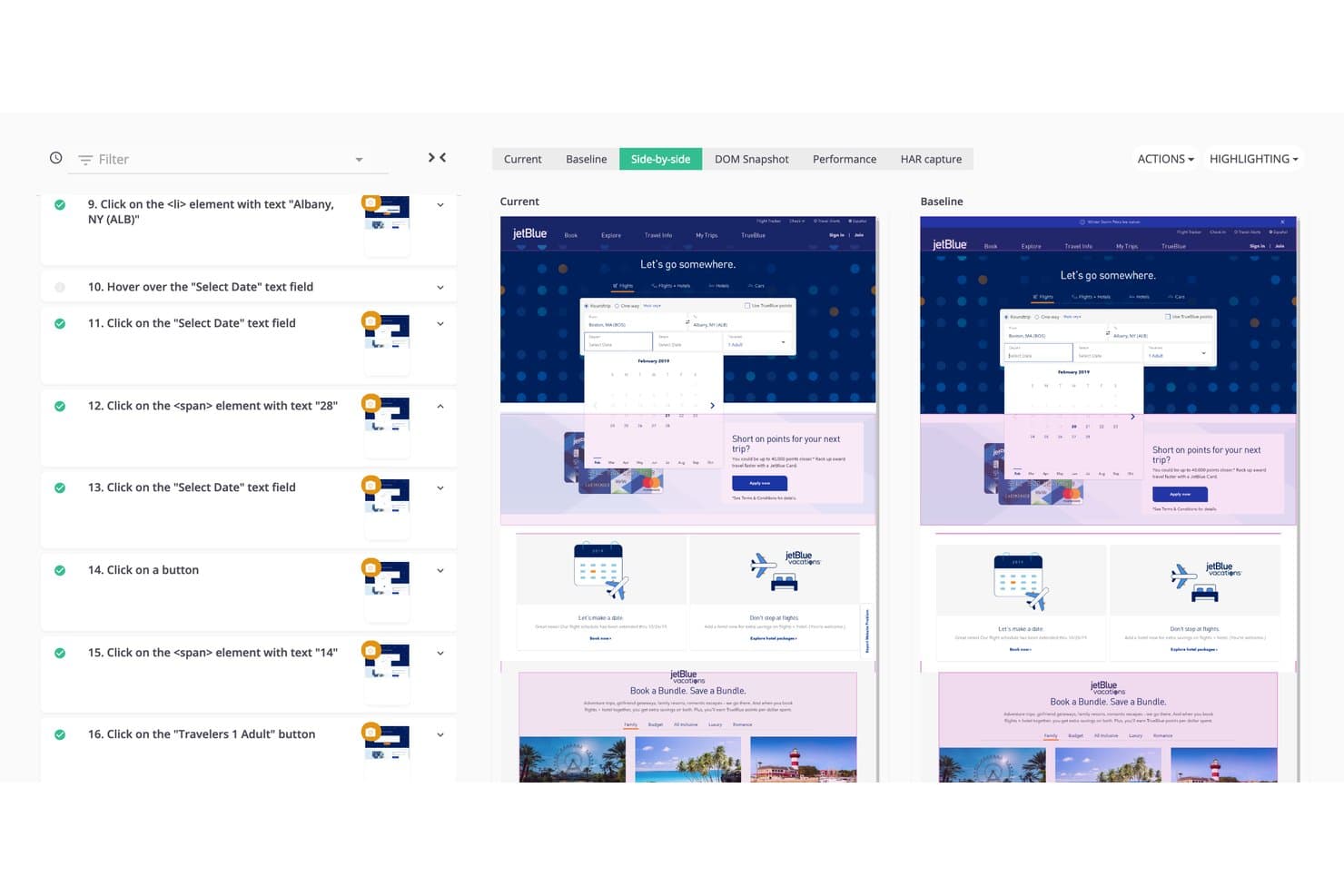
Mabl lets users compare current vs. baseline UI screenshots side by side. Mabl is an AI-driven test automation platform that combines agentic test authoring, low-code recording, cross-browser execution, self-healing maintenance, and built-in API, visual, and mobile testing in a single suite.
Who Is Mabl Best For?
Mabl is a strong fit for QA and DevOps teams that need to scale end-to-end test coverage across web and mobile without growing their maintenance burden.
Why I Picked Mabl
Mabl earns its spot on my shortlist because its agentic test authoring genuinely changes how fast a team can build end-to-end coverage. I love that you can describe a test in plain language, and the agent writes the steps, runs them, and reworks anything that fails before saving. The Adaptive Auto-Healing layer then handles UI changes automatically, using multiple AI models to update locators without you touching the test.
Mabl Key Features
- Unlimited cloud concurrency: Run browser, API, and mobile tests in parallel across all environments at no extra cost.
- Auto TFA (automatic test failure analysis): Analyzes each failed test to identify root cause and labels it as a real regression, app change, or noise.
- Visual regression testing: Compares baseline and current screenshots side by side, flagging UI changes with bounding boxes for review.
- Cross-browser execution: Tests run across Chrome, Edge, Firefox, and Safari from a single test, with no browser-specific code required.
Mabl Integrations
Mabl offers native integrations with GitHub Actions, GitLab, Jenkins, Azure Pipelines, Bitbucket, Jira, TestRail, Slack, Microsoft Teams, and Postman, plus a REST API and CLI for custom CI/CD workflows.
Pros and Cons
Pros:
- Cross-browser execution supports broad UI coverage
- Auto-healing reduces locator maintenance work
- Agentic authoring expands coverage quickly
Cons:
- Trainer consumes substantial computer memory
- Cloud test execution can run slowly
Learn more about Mabl: Best for developer-friendly cross-browser automation
- Free plan available
- Free, open-source
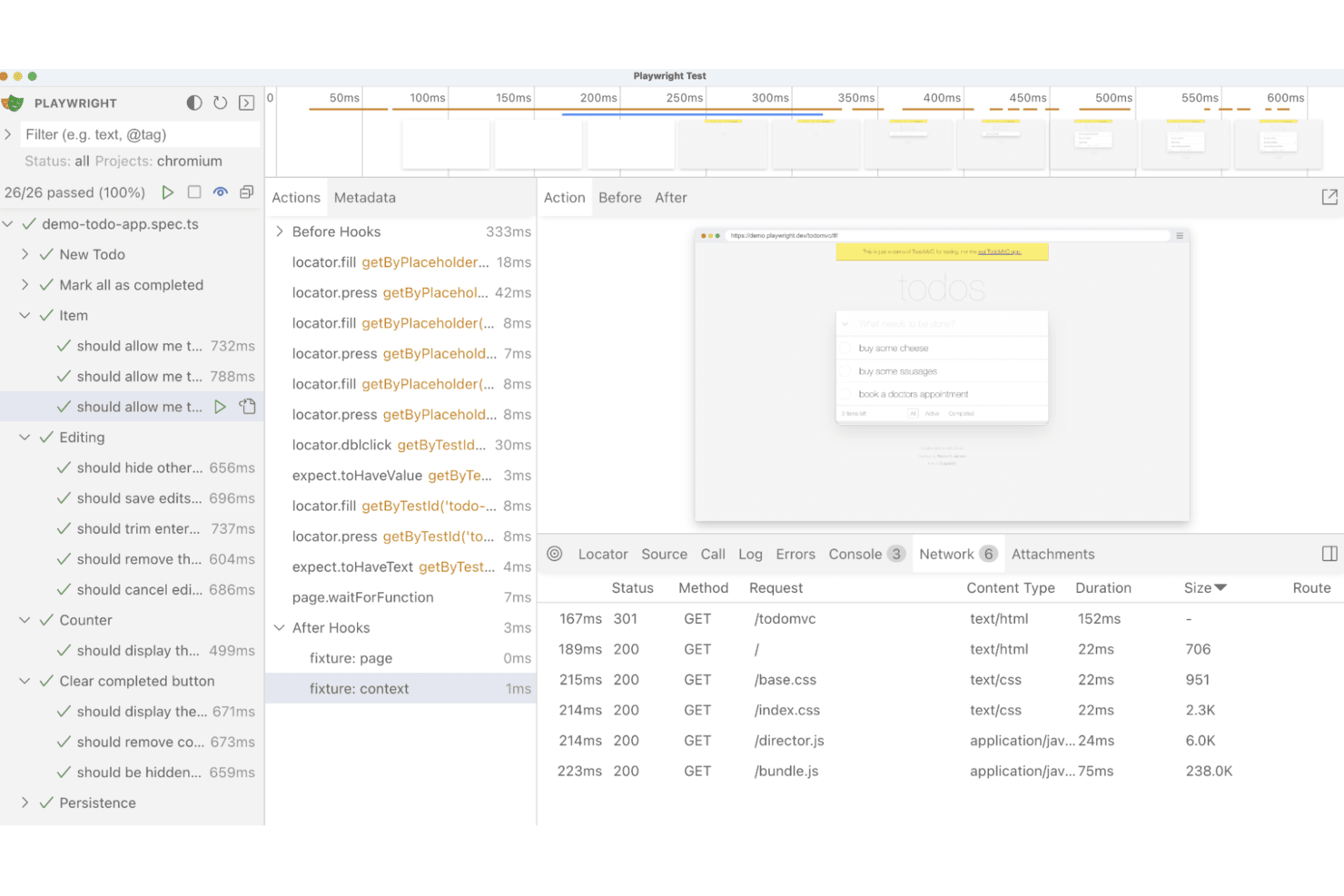
Playwright supports cross-browser automation for end-to-end application testing. Playwright is an open-source UI automation framework from Microsoft that supports cross-browser test scripting, parallel execution, visual regression testing, API testing, and network mocking across Chromium, Firefox, and WebKit.
Who Is Playwright Best For?
Playwright is built for QA automation engineers and DevOps engineers who write and maintain test code and need reliable cross-browser coverage wired into CI/CD pipelines.
Why I Picked Playwright
Playwright earns its spot on my shortlist because it's the most developer-native cross-browser automation framework I've worked with. I love that a single config covers Chromium, Firefox, and WebKit, plus branded Chrome and Edge, without any extra setup. Its Trace Viewer is genuinely useful: after a failed CI run, I can step through a full DOM timeline, network requests, and console logs to pinpoint exactly what broke.
Playwright Key Features
- AI test agents: Three agents—Planner, Generator, and Healer—help you draft test plans, generate test files, and repair failing tests against a live app.
- Network interception and mocking: Intercept, modify, or replay network requests using
page.routeor recorded HAR files, including WebSocket mocking. - Visual regression testing:
toHaveScreenshot()compares page renders against pixel-level baselines, with configurable thresholds and ARIA snapshot comparisons. - API testing fixture: A built-in
requestfixture lets you write standalone API tests or combine HTTP calls with UI test steps to set up and verify app state.
Playwright Integrations
Playwright documents integrations with GitHub Actions, Azure Pipelines, CircleCI, Jenkins, Bitbucket Pipelines, Docker, and the VS Code extension. It supports custom connectivity through JUnit, JSON, and custom reporter outputs.
Pros and Cons
Pros:
- Parallel workers shorten regression test cycles
- Trace Viewer accelerates failed-test diagnosis
- Cross-browser coverage includes Chromium, Firefox, WebKit
Cons:
- Mobile coverage relies mainly on emulation
- Recorded tests still require code maintenance
Learn more about Playwright: Best for scriptless testing
- 14-day free trial + free demo available
- From $3,598/year (billed annually)
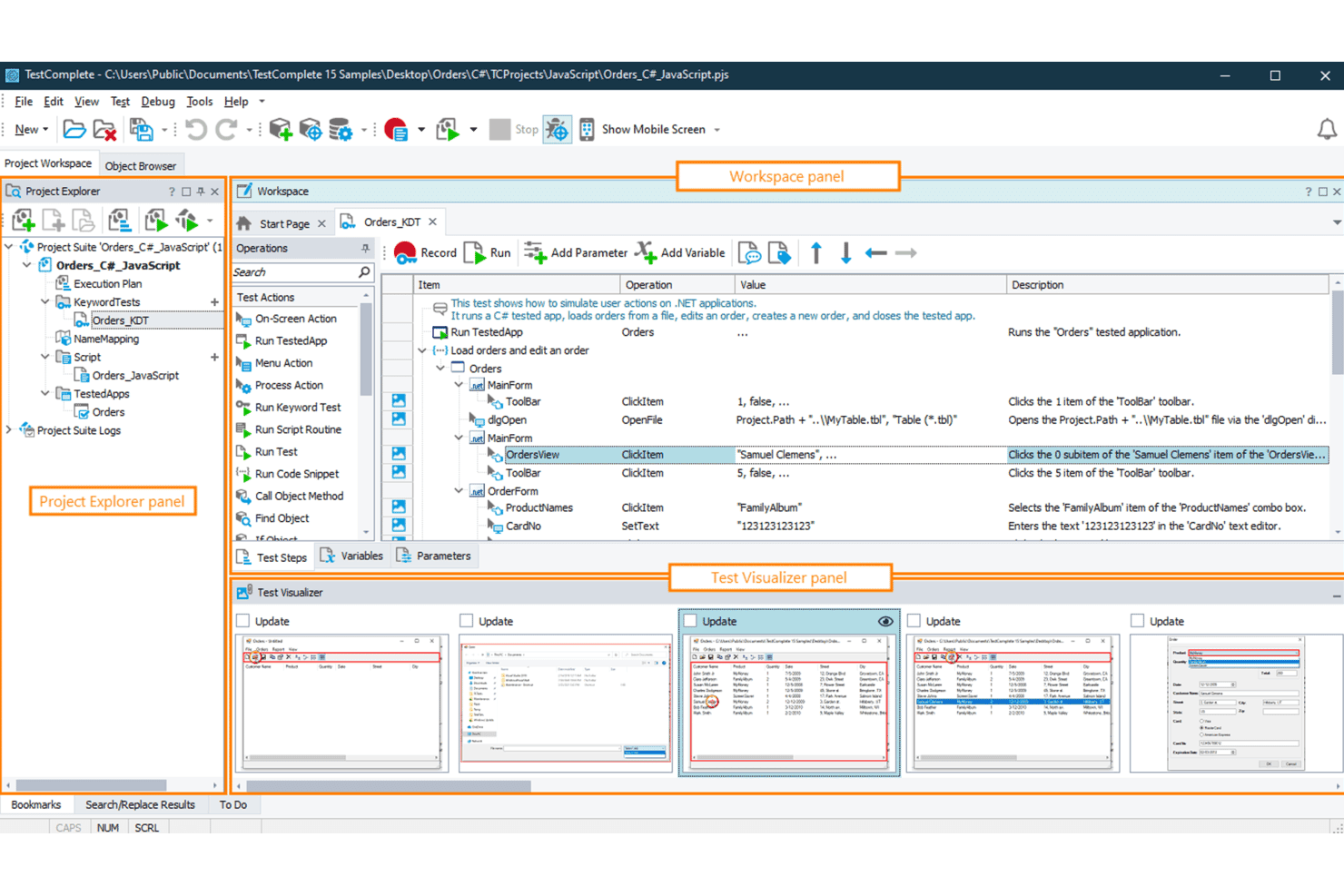
TestComplete enables scriptless automated UI testing for desktop, web, and mobile. TestComplete is a UI automation testing tool from SmartBear that supports scriptless record-and-replay, keyword-driven, BDD, and scripted test creation across desktop, web, and mobile applications.
Who Is TestComplete Best For?
TestComplete is a strong fit for QA automation engineers and test managers at enterprises that need to cover desktop, web, and mobile apps from a single tool.
Why I Picked TestComplete
TestComplete earns its spot on my shortlist because its scriptless capabilities go deeper than basic record and replay. I love that keyword-driven tests let you build out complex UI scenarios, including handling unwanted pop-ups or database access, without writing a single line of code. When your suite outgrows that, one click converts any test to Python or JavaScript. It's one of the few tools that covers desktop, web, and mobile from a single authoring environment without forcing you to switch products.
TestComplete Key Features
- Selenium WebDriver import: Run existing Selenium scripts written in JUnit or TestNG directly inside TestComplete without rewriting them.
- Name Mapping object repository: Store and manage how UI objects are identified across your entire test suite in one centralized location.
- CI/CD pipeline integration: Connect TestComplete to Jenkins, Azure DevOps, GitHub Actions, TeamCity, and Bamboo via a CLI or REST API.
- Cross-platform mobile testing: Test iOS and Android apps on real or virtual devices, including React Native, Flutter, and SwiftUI apps, without jailbreaking.
TestComplete Integrations
TestComplete offers native integrations with Jenkins, Azure DevOps, GitHub Actions, TeamCity, Bamboo, Jira, Zephyr Enterprise, Selenium, and Appium. Its CLI and REST API support CI/CD workflows and custom integrations.
Pros and Cons
Pros:
- Supports legacy desktop controls and packaged applications
- Covers desktop, web, and mobile applications
- Scriptless tests convert to Python or JavaScript
Cons:
- Codeless suites often require scripting at scale
- Windows authoring limits platform flexibility
Learn more about TestComplete:
Outras ferramentas de automação da interface do utilizador
Eis algumas opções adicionais de ferramentas de automação da interface do utilizador que não entraram na minha lista restrita, mas que ainda vale a pena consultar:
- 11LeapworkBest for no-code automation
- 12Sahi ProBest for testing legacy and complex web apps
- 13Sauce LabsBest for cross-browser and real-device test execution
- 14CypressBest for fast test execution
- 15SquishBest for cross-platform GUI testing
- 16ApplitoolsBest for AI-powered visual validation
- 17Ranorex StudioBest for mixed no-code and C# desktop testing
- 18Robot FrameworkBest for keyword-driven testing
How I Evaluate UI Automation Tools
I split my evaluation into three parts, with the most weight on core needs: create UI tests and run them across browsers and devices. Next, I look for differentiators such as visual regression testing. Finally, I consider support, onboarding, and pricing value.
Core Functionality (Table Stakes For This List)
When I'm selecting tools for my list, I score each one on a scale from 0 (does not offer the functionality) to 5 (excels in this area) for each core functionality listed below. I then convert the total into a percentage to help assess each tool's overall fit, with extra weight on any functionalities I’ve deemed essential.
- Test Creation (Essential): I look for recording, scripting, or visual builders that help teams create reusable tests, such as checking a checkout flow after a UI update.
- Cross-Environment Execution (Essential): I assess browser, operating system, and device coverage, including how easily a team can run the same regression test across environments.
- CI/CD Integration: I check how tests fit into pipeline workflows, such as triggering a focused UI suite after a deployment or before a release.
- Test Maintenance: I look for ways tools detect or handle changed UI elements, such as when a renamed button breaks a test after a redesign.
- Reporting & Insights: I assess whether results include useful failure context, such as logs or screenshots that help teams trace a failed sign-in test.
- Parallel Execution: I check whether teams can run multiple tests at once, particularly when a growing regression suite needs to finish before release decisions.
Once I have a list of tools that meet the criteria, I consider what sets each platform apart.
Differentiating Factors (What Sets Vendors Apart)
Here's how I compare and contrast different vendors:
Standout Features
Visual regression testing is the first thing I check. A broken layout after a font change won't fail a functional test, but a screenshot comparison catches it instantly. I look for tools that flag pixel-level differences and let you approve intentional changes without noise. AI test generation also matters—I evaluate whether a tool can turn a plain-language description of a signup flow into a runnable test, cutting authoring time for teams without deep scripting skills. Finally, cloud device grid access determines whether your team can validate on real device and browser combinations without maintaining its own lab.
Beyond Features
I check whether non-engineers can realistically own tests. If a product manager needs to verify a post-launch flow, a codeless builder with templates beats filing a ticket with QA. Pricing transparency also matters—some vendors bundle cloud device access into base tiers while others charge per parallel session, which changes the true cost fast. I also evaluate vendor support quality, since teams without dedicated QA engineers need responsive help when a test suite breaks after a platform update.
Como escolher ferramentas de automação da interface do utilizador
É fácil ficar preso a longas listas de funcionalidades e estruturas de preços complexas. Para ajudar a manter o foco enquanto analisa o seu processo específico de seleção de software, eis uma lista de verificação dos fatores a ter em conta:
| Fator | O que considerar |
|---|---|
| FatorEscalabilidade | O que considerarA ferramenta pode acompanhar o crescimento da sua equipa? Considere se suporta um número crescente de casos de teste e utilizadores sem perda de desempenho. Avalie se consegue lidar com projetos de grande escala. |
| FatorIntegrações | O que considerarFunciona com as suas ferramentas existentes? Verifique a compatibilidade com pipelines de CI/CD, sistemas de controlo de versões e sistemas de acompanhamento de erros, para garantir uma integração harmoniosa nos fluxos de trabalho. |
| FatorCapacidade de personalização | O que considerarPode adaptá-la às suas necessidades? Procure opções para personalizar scripts de teste, painéis e relatórios de modo a corresponderem aos processos e requisitos da sua equipa. |
| FatorFacilidade de utilização | O que considerarÉ fácil de utilizar? Avalie se a interface é intuitiva e se os utilizadores conseguem aprender rapidamente e navegar sem formação ou apoio extensivos. |
| FatorImplementação e integração inicial | O que considerarQuanto tempo será necessário para começar? Considere o tempo e os recursos necessários para a configuração e verifique se existem guias, tutoriais e apoio durante a integração inicial. |
| FatorCusto | O que considerarEstá dentro do seu orçamento? Compare os modelos de preços, incluindo as taxas de subscrição e quaisquer custos ocultos relativos a funcionalidades ou utilizadores adicionais, para determinar se é acessível. |
| FatorMedidas de segurança | O que considerarProtege os seus dados? Certifique-se de que a ferramenta cumpre as normas de segurança e oferece funcionalidades como encriptação e controlos de acesso para proteger as informações. |
| FatorDisponibilidade do apoio | O que considerarQue tipo de ajuda está disponível? Procure apoio 24 horas por dia, 7 dias por semana, gestores de conta dedicados e vários canais de apoio para resolver rapidamente os problemas quando surgirem. |
O que são ferramentas de automação da interface do utilizador?
As ferramentas de automação da interface do utilizador são soluções de software que automatizam os testes das interfaces de utilizador das aplicações. Estas ferramentas são normalmente utilizadas por testadores de QA, programadores e gestores de produto para garantir que as aplicações funcionam corretamente e proporcionam valor, melhorando a eficiência e a precisão dos testes.
Funcionalidades como a execução automatizada de testes, a compatibilidade entre navegadores e os relatórios detalhados ajudam a reduzir o esforço dos testes manuais, a garantir a consistência da interface e a fornecer informações úteis. De um modo geral, estas ferramentas melhoram a qualidade e a fiabilidade das aplicações de software ao automatizarem tarefas de teste repetitivas.
Funcionalidades das ferramentas de automação da interface do utilizador
Ao selecionar ferramentas de automação da interface do utilizador para testes de software, tenha em atenção as funcionalidades que melhoram a eficiência e a precisão em todo o conjunto de testes:
- Execução automatizada de testes: Executa os testes automaticamente, reduzindo o esforço manual e apoiando a integração contínua no desenvolvimento de software.
- Compatibilidade entre navegadores: Valida as aplicações no Chrome, Firefox e noutros navegadores para garantir um desempenho consistente.
- Capacidades de autocorreção: Adapta-se às alterações nos elementos da interface do utilizador, minimizando a necessidade de depuração e reduzindo a manutenção dos testes.
- Execução paralela de testes: Permite executar vários testes em simultâneo em diferentes sistemas operativos, incluindo Linux, acelerando a entrega.
- Criação de testes sem scripts: As opções de baixo código facilitam a criação de testes pelas equipas sem conhecimentos avançados de programação em Python ou Ruby.
- Testes visuais com inteligência artificial: Deteta diferenças subtis nas interações do utilizador e garante a precisão visual em diferentes dispositivos e emuladores.
- Relatórios detalhados: Fornece informações em tempo real sobre os resultados dos testes, ajudando a identificar problemas mais rapidamente.
- Integração com pipelines de CI/CD: Integra-se diretamente nas estruturas de automação e nos fluxos de trabalho de desenvolvimento de software existentes.
- Painéis personalizáveis: As vistas de relatórios extensíveis podem ser adaptadas a projetos específicos, facilitando a colaboração.
- Suporte de reprodução e IDE: As opções de gravação e reprodução, combinadas com a integração com IDE, proporcionam flexibilidade às equipas na gestão e edição dos casos de teste.
Benefícios das ferramentas de automação da interface do utilizador
A implementação de ferramentas de automação da interface do utilizador proporciona vários benefícios à sua equipa e à sua empresa. Eis alguns dos benefícios que pode esperar:
- Maior eficiência: Os testes automatizados encurtam os ciclos de teste e reduzem as tarefas manuais repetitivas.
- Maior precisão: Funcionalidades como os testes com autocorreção e o suporte do Selenium WebDriver garantem uma execução consistente e fiável.
- Cobertura melhorada: Os testes entre navegadores no Chrome, Firefox e em vários sistemas operativos aumentam a fiabilidade das aplicações.
- Ciclos de lançamento mais rápidos: A execução paralela de testes e a integração com CI/CD aceleram as implementações.
- Informações mais úteis: Os relatórios detalhados e os painéis em tempo real fornecem dados úteis para a depuração.
- Facilidade de utilização: A criação de testes sem scripts e com baixo código permite que mais membros da equipa participem sem conhecimentos aprofundados de programação.
- Qualidade consistente: As comparações baseadas em inteligência artificial mantêm a integridade da interface do utilizador, garantindo que as interações do utilizador permanecem fluidas em diferentes disposições HTML, emuladores e dispositivos.
Custos e preços das ferramentas de automação da interface do utilizador
A seleção de ferramentas de automação da interface do utilizador exige uma compreensão dos vários modelos de preços e planos disponíveis. Os custos variam consoante as funcionalidades, a dimensão da equipa, os complementos e outros fatores. A tabela abaixo resume os planos comuns, os respetivos preços médios e as funcionalidades normalmente incluídas nas soluções de ferramentas de automação da interface do utilizador:
Tabela de comparação de planos para ferramentas de automação da interface do utilizador
| Tipo de plano | Preço médio | Funcionalidades comuns |
|---|---|---|
| Tipo de planoPlano gratuito | Preço médio$0/user/month | Funcionalidades comunsExecução básica de testes, relatórios limitados e apoio da comunidade. |
| Tipo de planoPlano pessoal | Preço médio$5-$25/user/month | Funcionalidades comunsExecução automatizada de testes, testes entre navegadores e análise básica. |
| Tipo de planoPlano empresarial | Preço médio$50-$100/user/month | Funcionalidades comunsExecução paralela de testes, relatórios detalhados e integração com pipelines de CI/CD. |
| Tipo de planoPlano empresarial avançado | Preço médio$150-$300/user/month | Funcionalidades comunsPainéis personalizáveis, funcionalidades de segurança avançadas e apoio dedicado ao cliente. |
Perguntas frequentes sobre ferramentas de automação da interface do utilizador
Eis algumas respostas a perguntas comuns sobre ferramentas de automação da interface do utilizador:
As ferramentas de automação da interface do utilizador podem lidar com testes de aplicações móveis?
Sim, muitas ferramentas de automação da interface do utilizador suportam testes de aplicações móveis. Certifique-se de que a ferramenta selecionada é compatível com as plataformas de que necessita, como iOS ou Android. Procure funcionalidades como a emulação de dispositivos e os testes em dispositivos reais para garantir uma cobertura completa.
Quais são os desafios comuns na implementação da automação da interface do utilizador?
Os desafios comuns incluem a manutenção dos scripts de teste à medida que a aplicação evolui, a integração da ferramenta com os sistemas existentes e a garantia de compatibilidade entre navegadores. Planeie atualizações regulares e escolha uma ferramenta com suporte e documentação sólidos para minimizar estes problemas.
Como posso garantir que os meus testes automatizados são fiáveis?
Para garantir a fiabilidade, utilize práticas robustas de conceção de testes, como testes orientados por dados e parametrização. Atualize regularmente os seus testes para refletirem as alterações da aplicação e utilize ferramentas com capacidades de autorreparação para minimizar os esforços de manutenção.
Existem preocupações de segurança associadas à utilização de ferramentas de automação da interface do utilizador?
Podem surgir preocupações de segurança se a ferramenta aceder a dados sensíveis durante os testes. Escolha ferramentas que disponibilizem funcionalidades de tratamento seguro de dados, como encriptação e controlos de acesso. Reveja sempre as políticas de segurança da ferramenta e a sua conformidade com as normas do setor.
Como é que as ferramentas de automação da interface do utilizador se integram em pipelines de CI/CD?
A maioria das ferramentas de automação da interface do utilizador suporta a integração com pipelines de CI/CD através de plug-ins ou APIs. Esta integração permite automatizar os testes como parte do fluxo de trabalho de desenvolvimento, garantindo um feedback mais rápido e ciclos de lançamento mais eficientes.