
Existem aparentemente inúmeras soluções de software Kanban disponíveis, pelo que é difícil perceber qual é a melhor para si. Quer aumentar a visibilidade dos processos de trabalho, melhorar a colaboração, reduzir os estrangulamentos e aumentar a eficiência geral do fluxo de trabalho, mas precisa de descobrir qual é a ferramenta mais adequada. Eu ajudo! Nesta publicação, simplifico o processo, recorrendo à minha experiência na gestão de produtos grandes e complexos e à utilização de dezenas de ferramentas diferentes para lhe apresentar esta seleção das melhores ferramentas Kanban.
Why Trust Our Software Recommendations
6,700+
Reviews
20
Industry experts
16+
Evaluation factors
14
Years
Our team has been testing and reviewing software since 2012. As product managers ourselves, we know how difficult—and important—it is to choose the right software.
For this guide, we evaluated tools using hands-on testing and independent research, scoring tools using our selection criteria.
Our reviews reflect our human editorial judgment, not a sales pitch.
Expert reviewers:
- Andrew LumbySenior TPM
- Cristiano ValimSenior UI/UX Lead


Tabela comparativa de ferramentas Kanban
Esta tabela comparativa resume os detalhes dos preços das minhas principais escolhas de ferramentas Kanban.
| Tool | Best For | Trial Info | Price | ||
|---|---|---|---|---|---|
| 1 | Best for its Agile reporting features | Free plan available | From $1/user/month (billed annually) | Website | |
| 2 | Best for customizable templates | Free plan + 7-day trial + demo available | From $9/user/month (billed annually) | Website | |
| 3 | Best for no-code app development | 30-day free trial | From $35/user/month (billed annually) | Website | |
| 4 | Best for cross-functional workflows | Free plan + 14-day trial + demo available | From $10/user/month (billed annually) | Website | |
| 5 | Best for tracking new feature development process | Free plan + 14-day free trial + free demo available | From $8/user/month (billed annually) | Website | |
| 6 | Best for built-in WIP limits and AI nudges | Free plan + free trial + free demo available | From $12/user/month | Website | |
| 7 | Best for linking dev workflows to board planning | Free plan available | From $8.50/user/month (billed annually) | Website | |
| 8 | Best for multi-board portfolio visibility | 30-day free trial available | Pricing upon request | Website | |
| 9 | Best for enterprise-scale kanban portfolio planning | 30-day free trial + free demo available | Pricing upon request | Website | |
| 10 | Best for no-code automation on any board size | Free plan + free trial available | From $5/user/month (billed annually) | Website |


Análise das melhores ferramentas Kanban
Abaixo encontrará os meus resumos detalhados das melhores ferramentas Kanban que entraram na minha seleção. As minhas análises apresentam uma visão detalhada das principais funcionalidades, vantagens e desvantagens, integrações e casos de utilização ideais de cada ferramenta, para o ajudar a encontrar a melhor opção para si.
 Best for its Agile reporting features
- Free plan available
- From $1/user/month (billed annually)
Visit WebsiteCustomer Rating:4.4/5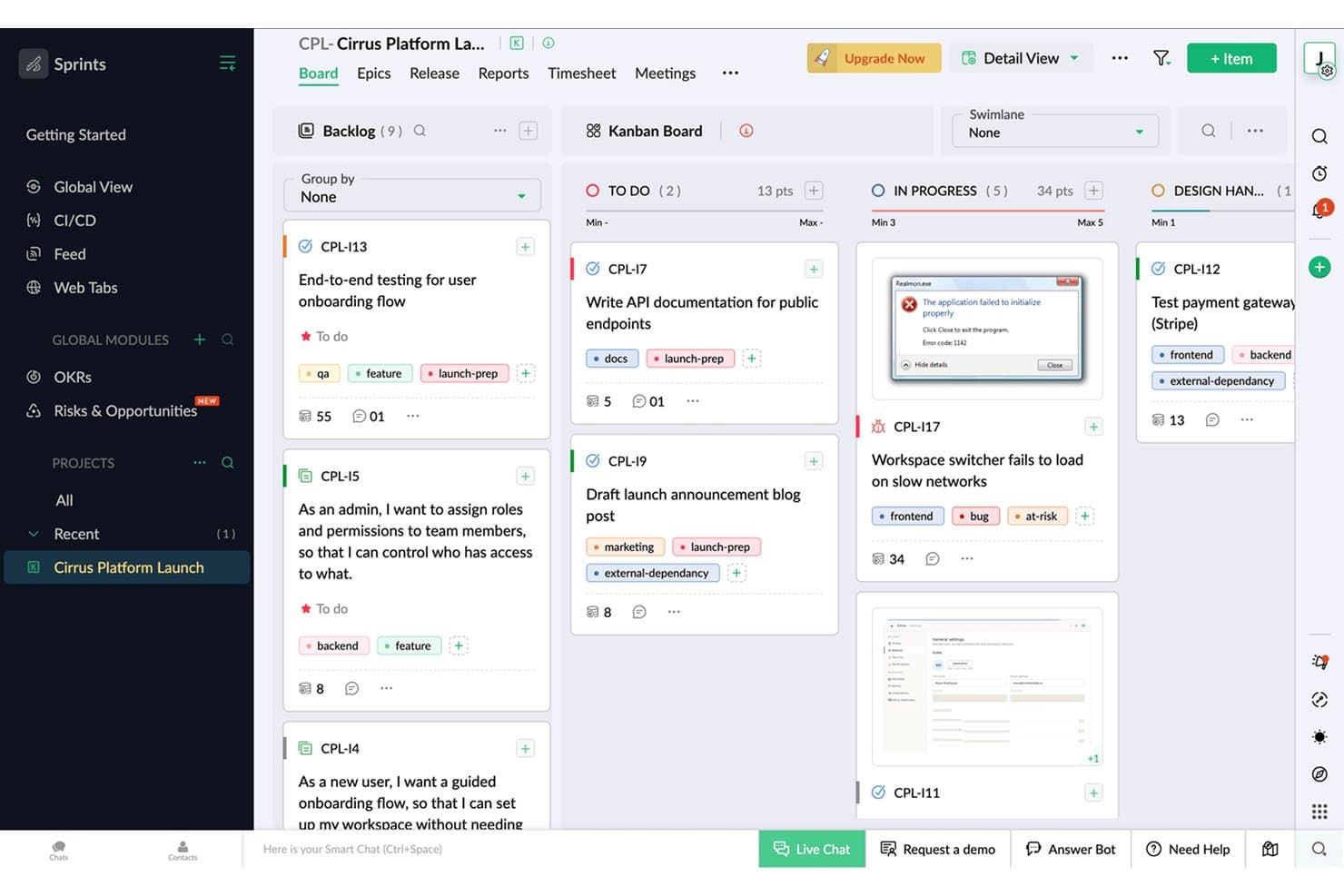
Zoho Sprints organizes tasks across Kanban columns with tags and points. Zoho Sprints is an Agile project management tool that supports Kanban, Scrum, and Scrumban workflows, with built-in backlog management, sprint planning, time tracking, and Agile reporting across burndown charts, velocity, and cumulative flow diagrams.
Who Is Zoho Sprints Best For?
Zoho Sprints is a strong fit for Scrum masters and product managers who need detailed Agile reporting alongside their day-to-day sprint and backlog work.
Why I Picked Zoho Sprints
Zoho Sprints earns its spot on my shortlist because of its Agile reporting depth, which goes well beyond what most Kanban tools offer. I'm talking burndown and burnup charts, velocity tracking, cumulative flow diagrams, and cycle time and lead time reports, all available on every plan. I also like that WIP limits are strictly enforced per column, not just suggested, so when a sprint column hits capacity, the board actually blocks new additions rather than quietly ignoring the limit.
Zoho Sprints Key Features
- Backlog and epic management: Organize work items into epics and a prioritized backlog, then pull them into sprints as your team's capacity allows.
- Swimlanes: Divide your Kanban board into horizontal lanes by team, work type, or any custom grouping to separate parallel workstreams visually.
- Built-in time tracking: Log hours directly on work items using a global timer, with timesheet approval workflows available for team leads.
- Client and vendor portals: Give external collaborators scoped access to projects without requiring a full user license.
Zoho Sprints Integrations
Zoho Sprints offers native integrations with GitLab, Bitbucket, Azure DevOps, Jenkins, Google apps, Microsoft 365, Zoho Cliq, Zoho Desk, Zoho Analytics, and Zendesk. It also supports REST API connections, webhooks, and Zapier.
Pros and Cons
Pros:
- Built-in time tracking connects effort to work
- Strict WIP limits protect team throughput
- Detailed Agile reporting supports product decisions
Cons:
- Multiple projects become confusing to manage
- Scrum terminology can confuse nontechnical stakeholders
Learn more about Zoho Sprints: Best for customizable templates
- Free plan + 7-day trial + demo available
- From $9/user/month (billed annually)
Visit WebsiteCustomer Rating:4.5/5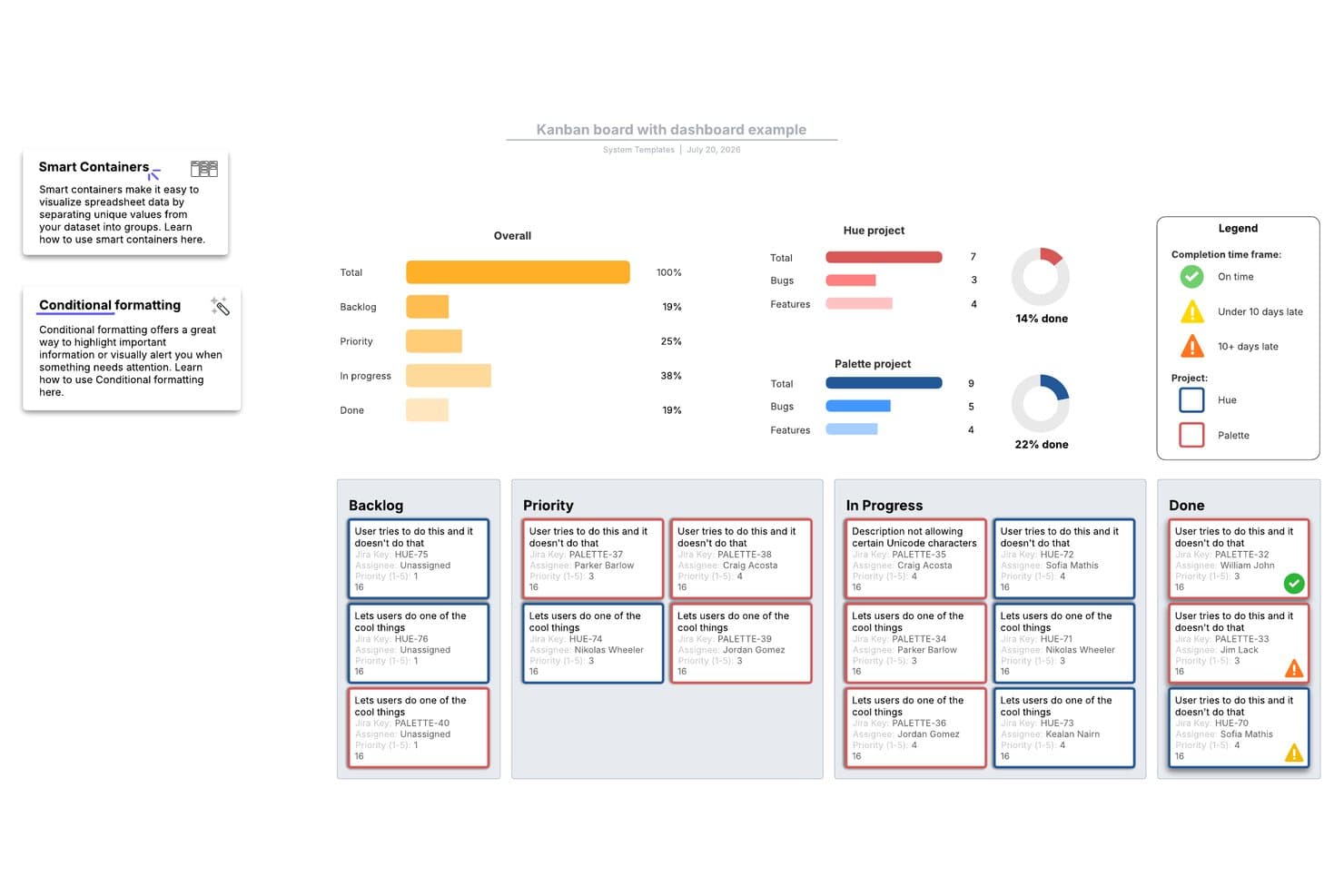
Lucidspark's Kanban board template tracks project progress across stages. Lucidspark is an infinite-canvas whiteboard tool that lets teams build kanban boards, manage tasks with Lucid Cards, and collaborate in real time using a large library of agile and project planning templates.
Who Is Lucidspark Best For?
Lucidspark suits cross-functional teams that run agile ceremonies—like sprint planning and retrospectives—and want a flexible, template-driven canvas to organize work visually.
Why I Picked Lucidspark
Lucidspark earns its spot on my shortlist because of its massive, customizable template library, which is genuinely unmatched for teams that run agile ceremonies on a visual canvas. I love that you can pull up a sprint planning, backlog refinement, or retrospective template and tailor every column and card layout to your team's exact workflow. The Agile board template, in particular, lets you sync Lucid Cards directly with Jira or Azure DevOps, so your canvas stays tied to real backlog data.
Lucidspark Key Features
- Real-time co-editing: Multiple team members can edit the same canvas simultaneously, with live cursors, in-app chat, and emoji reactions visible to all participants.
- Jira and Azure DevOps two-way sync: Lucid Cards connect directly to your existing backlog, keeping your visual board and dev tool in sync without manual updates.
- Voting and facilitation activities: Built-in voting sessions, timers, and private mode let teams run structured retrospectives and prioritization exercises on the canvas.
- Dynamic Tables: A canvas-native table object that lets you organize and view task data in a structured format alongside your boards and diagrams.
Lucidspark Integrations
Lucidspark offers native two-way integrations with Jira, Azure DevOps, and Smartsheet. It also supports Asana and provides an API for custom integrations.
Pros and Cons
Pros:
- Visual canvas supports cross-functional planning
- Strong facilitation tools support retrospectives
- Customizable agile templates fit varied workflows
Cons:
- Limited board analytics and alternate views
- No native WIP limits for throughput control
Learn more about Lucidspark: Best for no-code app development
- 30-day free trial
- From $35/user/month (billed annually)
Visit WebsiteCustomer Rating:4.4/5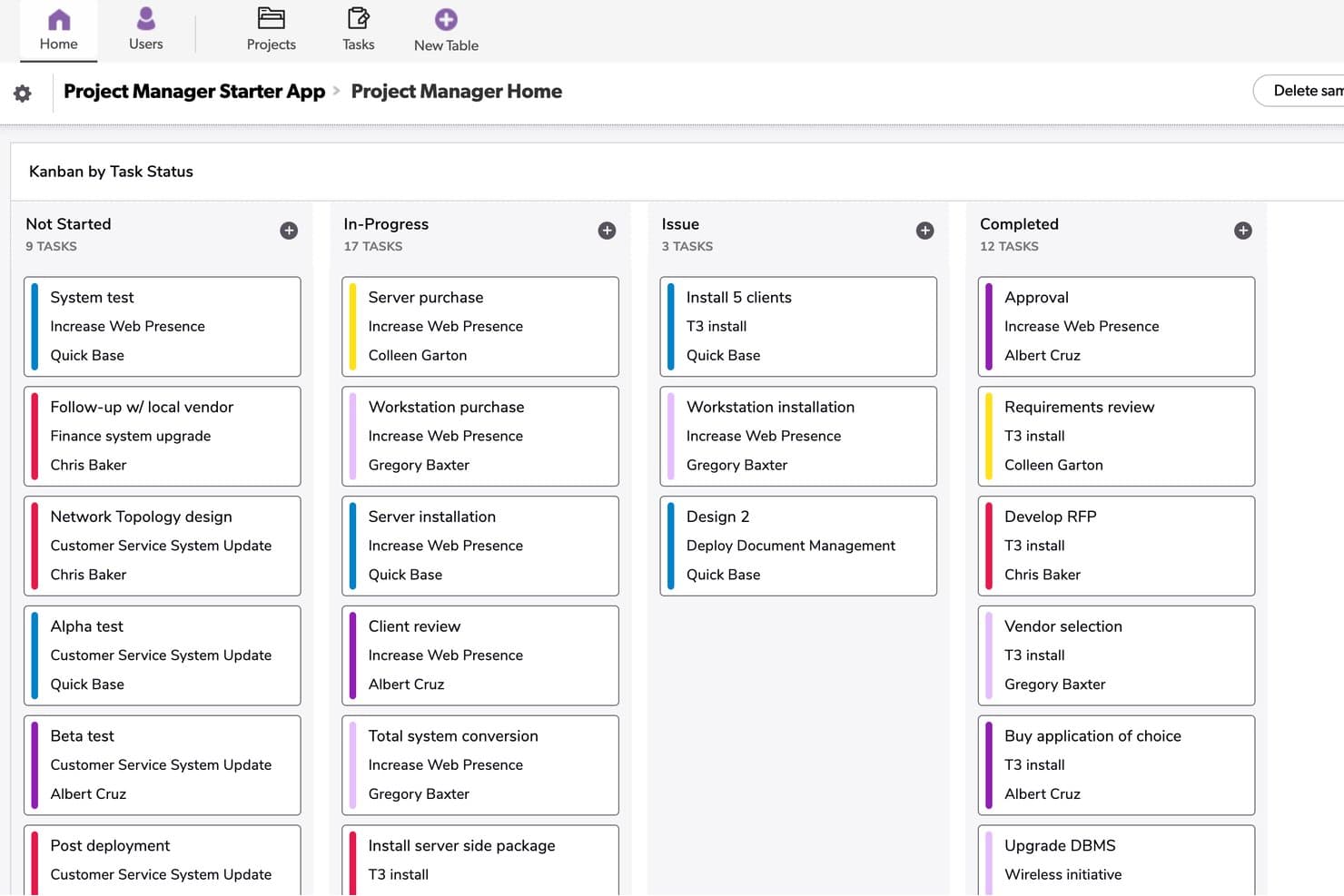
Quickbase organizes tasks by status across four Kanban columns. Quickbase is a no-code app-building platform that lets you create custom kanban boards, portfolio dashboards, Gantt charts, and automated workflows on top of your own data models.
Who Is Quickbase Best For?
Quickbase suits enterprise operations and project teams in industries like construction, manufacturing, and energy that need custom workflows built on their own data models.
Why I Picked Quickbase
I've included Quickbase in my top picks because it's the only tool on this list that lets you build a kanban board directly on top of a custom data model, which is a genuine differentiator for operations-heavy product teams. I like that you can pull records from linked tables into your board cards, so a card for a construction deliverable can surface budget fields, attached specs, and child task records all in one place. The cross-project portfolio dashboard is also something I rarely see this well-executed, letting you track status and dependencies across multiple workstreams without switching apps.
Quickbase Key Features
- Formula-based card coloring: Set card colors on your kanban board using custom formulas tied to field values, so you can visually flag priority, status, or risk at a glance.
- Role-based board visibility: Control which boards specific roles can see, or mark a board as personal so only you can access it.
- Linked child table records: Attach related child records directly to a card's form, letting you surface subtasks, dependencies, or supporting data without leaving the card.
- No-code automation builder (Pipelines): Build trigger-based workflow automations without writing code, including automations generated from plain-text descriptions using AI.
Quickbase Integrations
Quickbase offers native integrations with Salesforce, SAP, Oracle, and Microsoft Teams. It also provides RESTful and governance APIs for custom integrations, plus data-warehouse and on-premise connectivity on Enterprise.
Pros and Cons
Pros:
- Linked records keep supporting details accessible
- Portfolio dashboards connect multiple workstreams
- Custom boards fit complex product data
Cons:
- Board caps restrict high-volume workflows
- No native work-in-progress limits
Learn more about Quickbase: Best for cross-functional workflows
- Free plan + 14-day trial + demo available
- From $10/user/month (billed annually)
Visit WebsiteCustomer Rating:4.3/5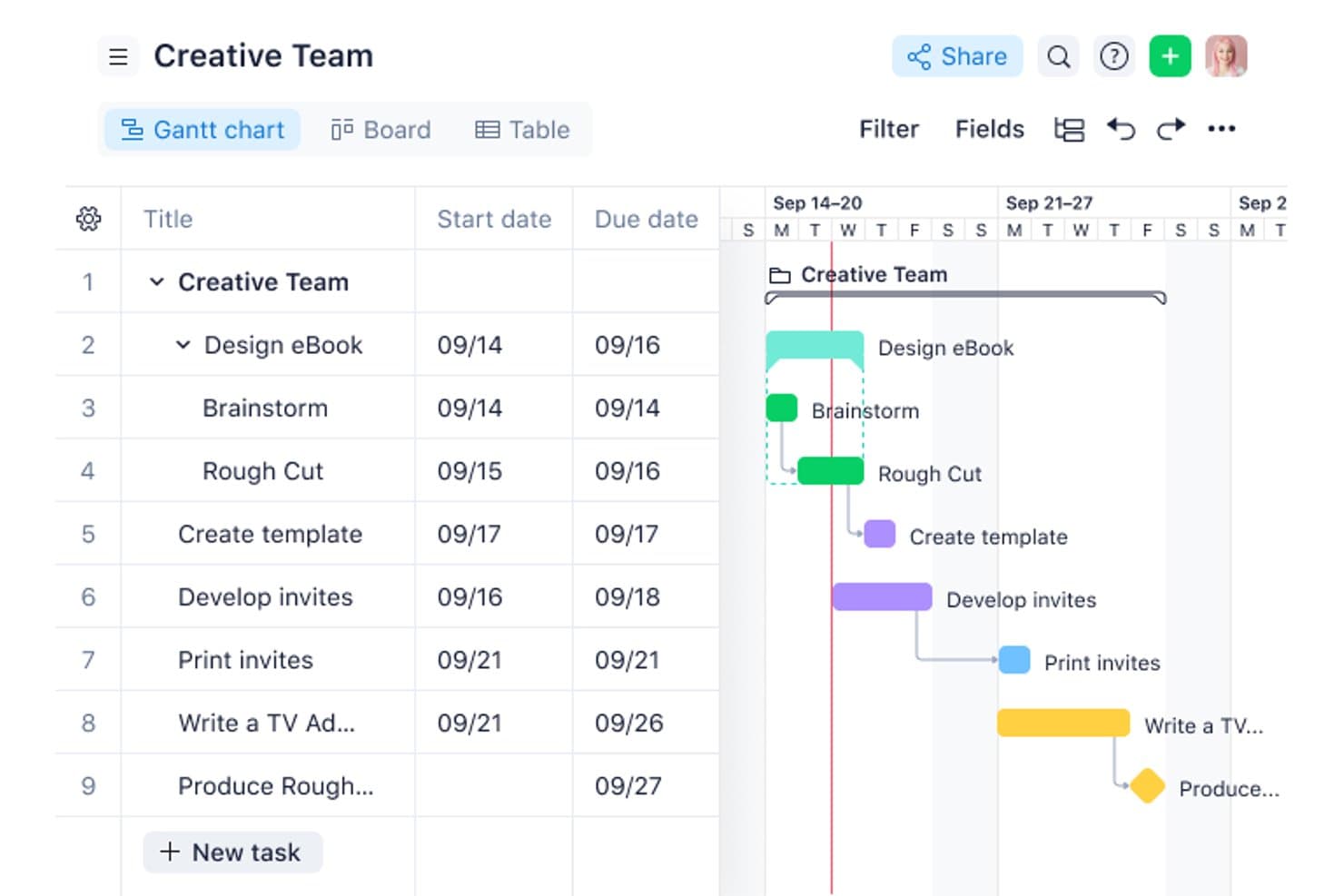
See the status of all your tasks with Wrike’s Kanban view. Wrike is a project management platform with a configurable Kanban board, 15+ synced views, no-code automation, AI-assisted collaboration, and cross-functional dashboards built to support multi-project and portfolio-level work.
Who Is Wrike Best For?
Wrike fits product managers and operations teams coordinating work across multiple departments, tools, and stakeholders at once.
Why I Picked Wrike
Wrike earns its spot on my shortlist because its board is built to handle the complexity of cross-functional work, not just single-team sprints. I love that you can toggle a board between individual tasks and portfolio-level views, so I can track a product launch across marketing, engineering, and ops without switching tools. Custom-field columns and swimlanes let me organize work by team, priority, or any other category that matters in the moment.
Wrike Key Features
- No-code automation builder: Create automation rules in plain language to auto-escalate at-risk tasks and route incoming work to the right queues.
- Request forms: Build intake forms that automatically assign submitted work to specific projects or team queues without manual triage.
- AI summaries on comments: Wrike Copilot condenses long comment threads on tasks into summaries, keeping you current without reading every reply.
- Portfolio-level board toggle: Switch the board view from individual tasks to program or portfolio level to track work across multiple projects at once.
Wrike Integrations
Wrike offers more than 400 integrations, including Jira, GitHub, GitLab, Bitbucket, Slack, Microsoft Teams, Google Workspace, Salesforce, Tableau, and Power BI. Wrike Sync provides two-way sync with 22+ apps, including Jira and GitHub.
Pros and Cons
Pros:
- Synced views connect planning with delivery
- Custom fields organize cross-functional workflow stages
- Portfolio-level boards support product roadmaps
Cons:
- Initial setup can burden smaller teams
- WIP limits lack confirmed enforcement
 5Best for tracking new feature development process
Miro
- Free plan + 14-day free trial + free demo available
- From $8/user/month (billed annually)
Visit WebsiteCustomer Rating:4.8/5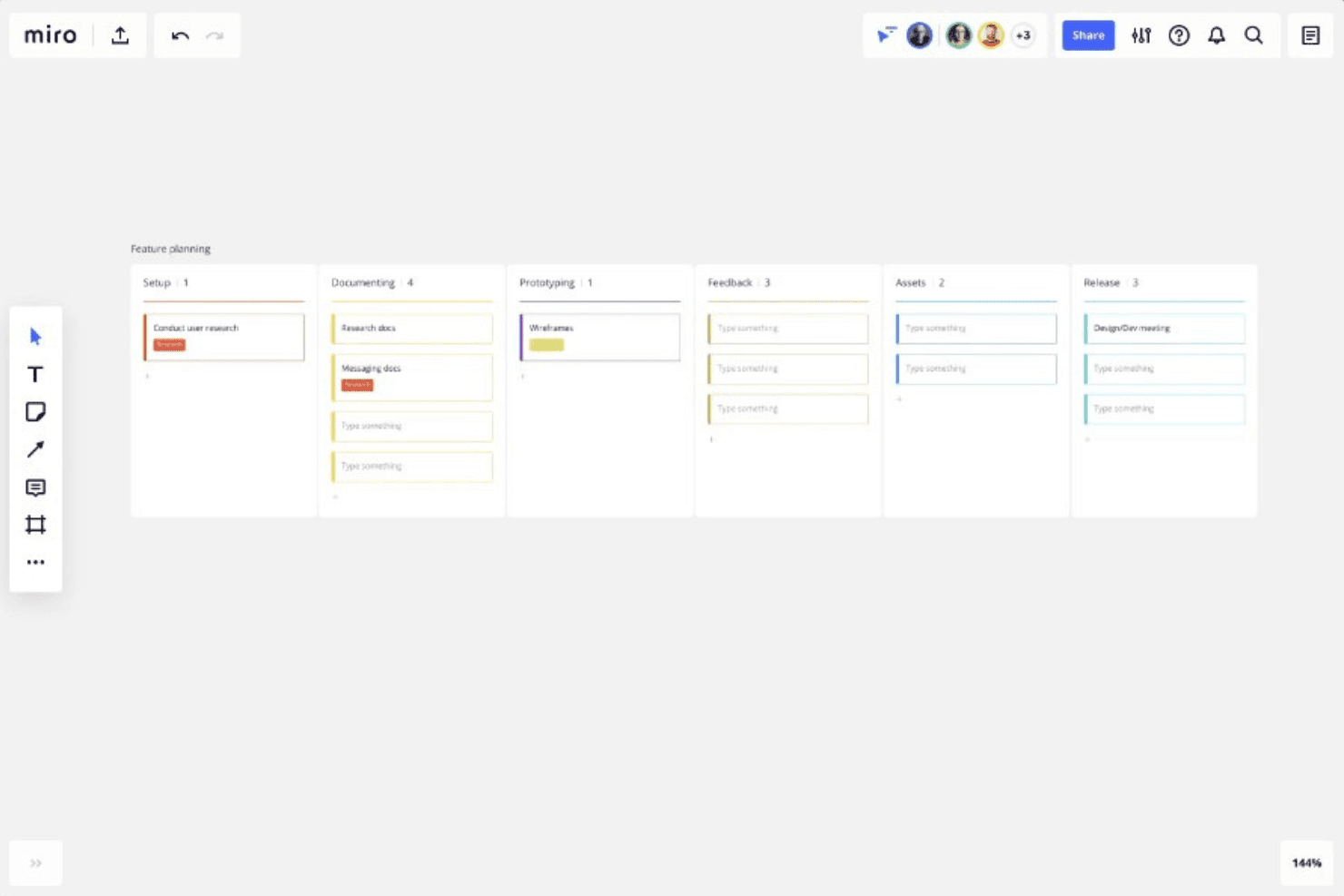
You can use Miro to track each phase of your product development, from setup through to prototyping, feedback, and eventually release. Miro is an infinite-canvas collaboration platform that brings Kanban boards together with roadmaps, diagrams, and prototypes in a single visual workspace.
Who Is Miro Best For?
Miro is a strong fit for product managers who need to connect Kanban boards directly to roadmaps, prototypes, and discovery work in a single visual space.
Why I Picked Miro
I picked Miro as one of the best because its infinite canvas lets a Kanban board sit directly alongside roadmaps, discovery docs, and prototypes, so you can track a new feature from the first sticky note to the final card in a single workspace. I love that Kanban, Timeline, and Table views all share the same underlying data, which means switching between sprint progress and a quarterly roadmap view takes one click rather than a context switch across tools.
Miro Key Features
- Synced cards: Drag a Kanban card onto the canvas to create a linked copy that updates in both directions when edited.
- Multiple board views: Switch between Kanban, Timeline, and Table views without duplicating data, so you can move from sprint progress to quarterly planning in one click.
- Jira card integration: Drag Jira cards directly into your Miro Kanban, convert cards to Jira issues, and get two-way sync on the Business plan.
- AI-generated Kanban structure: Use Miro AI to generate a Kanban layout from a prompt, with your existing board content used as context.
Miro Integrations
Miro advertises 250+ integrations, including Jira, Asana, Azure DevOps, Linear, ClickUp, Trello, Slack, Microsoft Teams, GitHub, and Zapier. Business adds two-way sync with Jira, Asana, Linear, ClickUp, and Azure DevOps.
Pros and Cons
Pros:
- Supports real-time cross-functional product collaboration
- Syncs Kanban, Timeline, and Table views
- Connects Kanban with roadmaps and prototypes
Cons:
- Lacks native subtasks and time tracking
- Provides no enforced work-in-progress limits
 Best for built-in WIP limits and AI nudges
- Free plan + free trial + free demo available
- From $12/user/month
Visit WebsiteCustomer Rating:4.6/5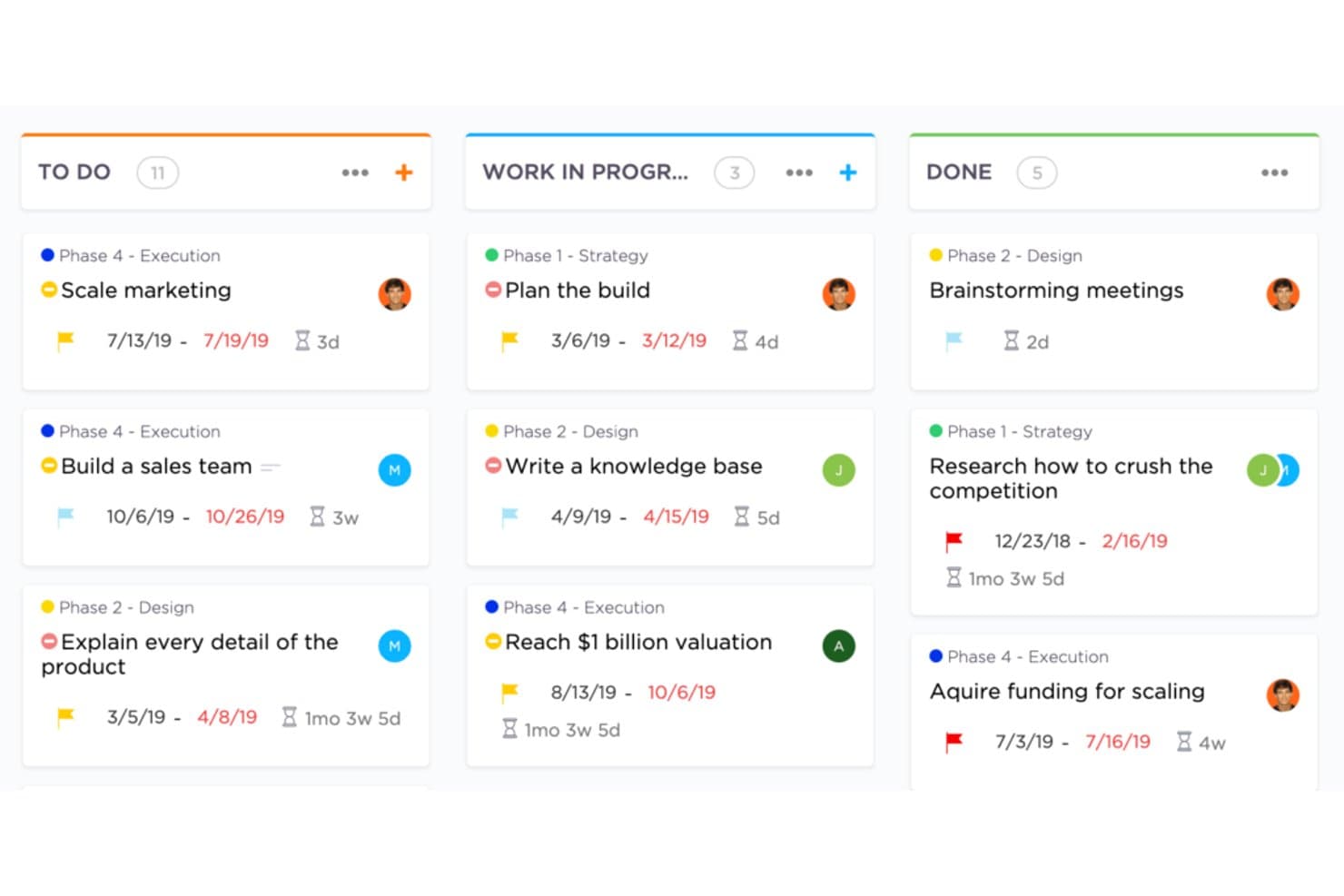
Create flexible Kanban boards in ClickUp. ClickUp is a work management platform with kanban board views, WIP limits, sprint management, multi-view task tracking, native time tracking, automations, and built-in AI tools.
Who Is ClickUp Best For?
ClickUp is a strong fit for product and engineering teams that want kanban, sprints, WIP limits, and portfolio tracking in a single workspace.
Why I Picked ClickUp
I picked ClickUp as one of the best because its native WIP limits go beyond a simple cap: when a column hits its limit, the board flags it visually, and ClickUp's AI Super Agents actively ping whoever owns the stalled cards. That kind of proactive enforcement is something I rarely see built in elsewhere. Sprint Points and sprint reporting round out the kanban workflow, so product teams can manage backlog, track velocity, and enforce throughput discipline without stitching together separate tools.
ClickUp Key Features
- Multiple synced views: Switch between List, Calendar, Gantt, Timeline, and Mind Map views without rebuilding your tasks—they all pull from the same data.
- Sprint management: Plan and track sprints with Sprint Points directly on the Free plan, with full sprint reporting available on Business.
- Native time tracking: Log time against tasks from within ClickUp, starting on the Unlimited plan, without a third-party integration.
- ClickUp Brain: Ask questions about your board—like which tasks are stalled or what's due soon—and get answers from the built-in AI assistant.
ClickUp Integrations
ClickUp offers native integrations with Slack, HubSpot, and Google Drive on Unlimited and higher. It supports webhooks and an Enterprise API for custom integrations.
Pros and Cons
Pros:
- AI nudges owners about stalled cards
- Synced views connect backlog and roadmaps
- Native WIP caps flag blocked columns
Cons:
- Large feature set slows initial setup
- Advanced controls sit behind higher plans
Learn more about ClickUp: Best for linking dev workflows to board planning
- Free plan available
- From $8.50/user/month (billed annually)
Visit WebsiteCustomer Rating:4.5/5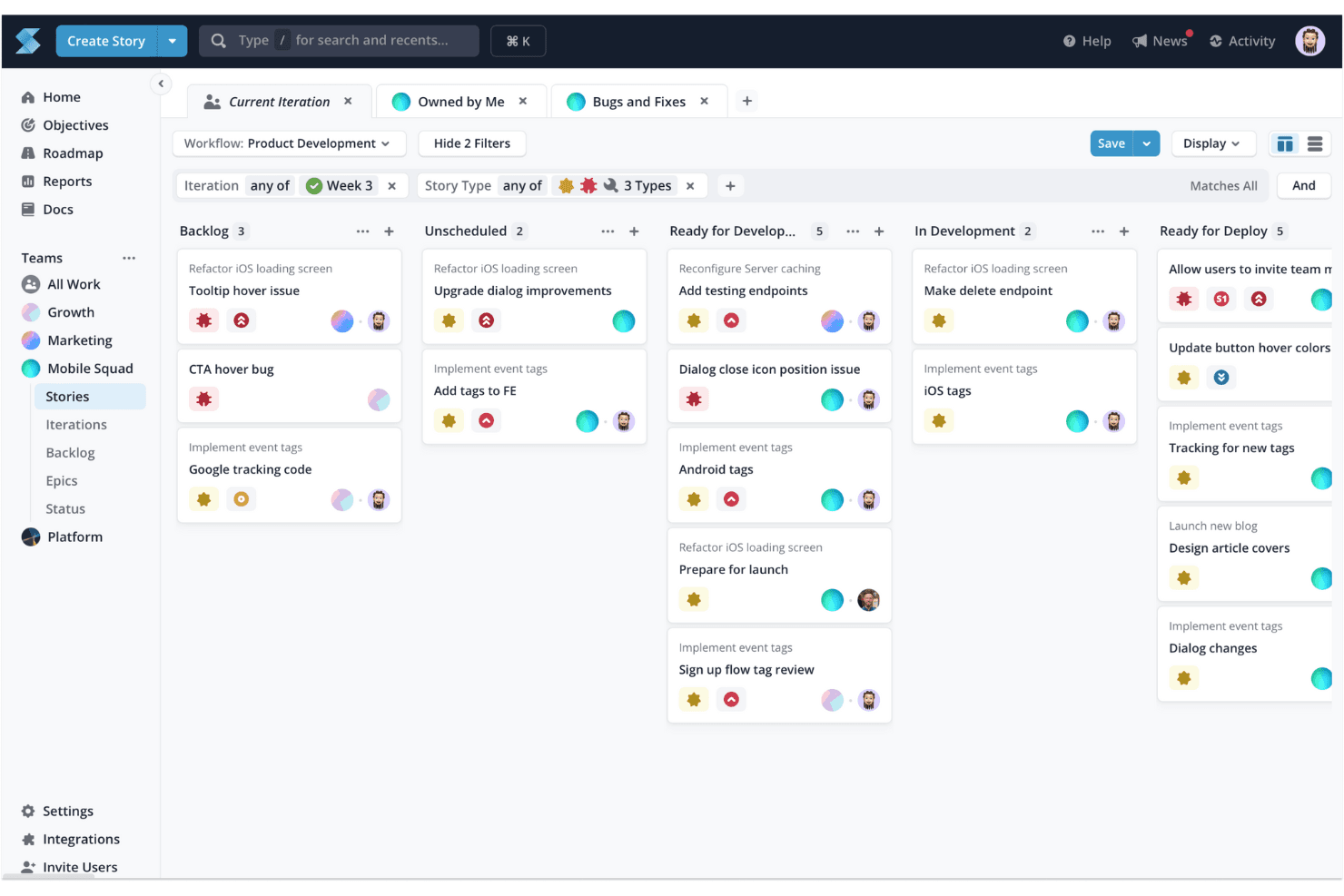
Shortcut's Kanban board helps you visualize and manage tasks, making it ideal for task tracking and optimizing workflow processes. Shortcut is a kanban-based project management tool for software teams that combines Stories, Epics, Objectives, and Timeline roadmaps with built-in Iterations, WIP limits, and code integrations across GitHub, GitLab, and Bitbucket.
Who Is Shortcut Best For?
Shortcut is a strong fit for software teams that want their kanban boards and dev workflows—pull requests, branches, commits—connected in one place.
Why I Picked Shortcut
I've included Shortcut in my top picks because it's the only tool on this list that directly connects kanban board states to code activity, which matters when you're managing a product backlog alongside an active engineering team. When a developer opens a pull request on GitHub, Shortcut can automatically move the linked Story to the right workflow state, so your board reflects reality without anyone updating it manually. I also like how Epics and Objectives layer on top of Stories, giving you a clear line from daily dev tasks up to strategic goals.
Shortcut Key Features
- Story hierarchy: Stories roll up into Epics, which connect to Objectives, giving you a clear line from individual tasks to strategic goals.
- Iterations: Built-in sprint-style cycles let you scope and time-box work without leaving the board.
- WIP limit warnings: Column headers turn red when a team hits its work-in-progress limit, flagging overloaded states at a glance.
- Timeline roadmap: A cross-team roadmap view shows Epic and Iteration health status alongside your board planning.
Shortcut Integrations
Shortcut offers 65+ documented integrations, including GitHub, GitLab, Bitbucket Cloud, Slack, Figma, Productboard, Airfocus, Roadmunk, and Google Sheets. It also provides a REST API v3, outgoing webhooks, and Zapier support for custom connectivity.
Pros and Cons
Pros:
- Advisory WIP limits expose overloaded columns
- Iterations support sprint-based product planning
- Objectives connect roadmaps with delivery work
Cons:
- No native time tracking for capacity planning
- Workspace-only permissions limit access control
Learn more about Shortcut: Best for multi-board portfolio visibility
- 30-day free trial available
- Pricing upon request
Visit WebsiteCustomer Rating:3.9/5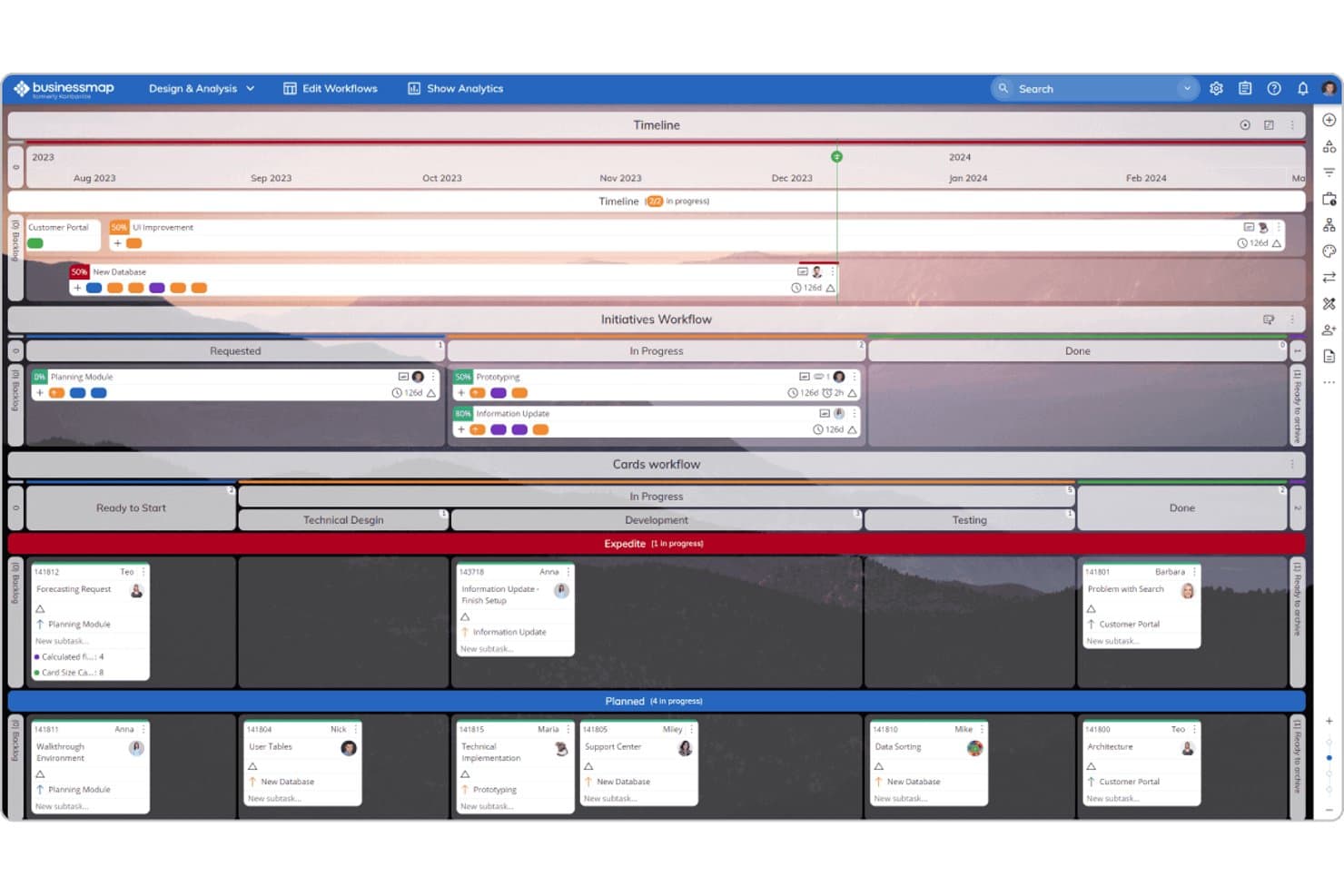
Businessmap combines Timeline, Kanban, and workflow views for product management. Businessmap is a project and portfolio management platform built around Kanban boards, offering multi-board workspaces, WIP limits, Gantt views, automation rules, and cross-board portfolio tracking.
Who Is Businessmap Best For?
Businessmap fits teams that need to connect individual task boards to a broader portfolio view—especially product and project managers overseeing multiple workstreams at once.
Why I Picked Businessmap
Businessmap earns its spot on my shortlist because of how well it connects individual task boards to a portfolio-level view—something most Kanban tools don't do without a workaround. I particularly like the Portfolio Workspaces feature, which links boards across teams so you can track cross-team dependencies in one place. The Initiatives Workflow also stands out: it auto-updates a parent epic as linked task cards move, so your high-level roadmap stays current without manual syncing.
Businessmap Key Features
- WIP limits by task size: Set work-in-progress limits based on task size rather than card count, giving your team a more accurate picture of actual workload.
- Cumulative flow diagram: Track how work moves through each stage over time with a built-in chart that surfaces bottlenecks and throughput patterns.
- Workflow designer: Build custom columns, sub-columns, and swimlanes using a no-code designer to match your team's exact process.
- Monte Carlo forecasting: Use statistical delivery date predictions—ranging from optimistic to pessimistic—based on your team's real historical data.
Businessmap Integrations
Businessmap offers documented integrations with Jira, GitLab, Bitbucket, Power BI, Tableau, Looker Studio, Okta, Azure AD, and OneLogin. It also supports Make, Microsoft Power Automate, and REST API connections, plus Zapier.
Pros and Cons
Pros:
- Initiatives connect epics with delivery tasks
- Size-based WIP limits clarify team capacity
- Cross-board portfolio visibility supports roadmap oversight
Cons:
- Extensive configuration slows initial adoption
- Multiple boards can complicate prioritization
Learn more about Businessmap: Best for enterprise-scale kanban portfolio planning
- 30-day free trial + free demo available
- Pricing upon request
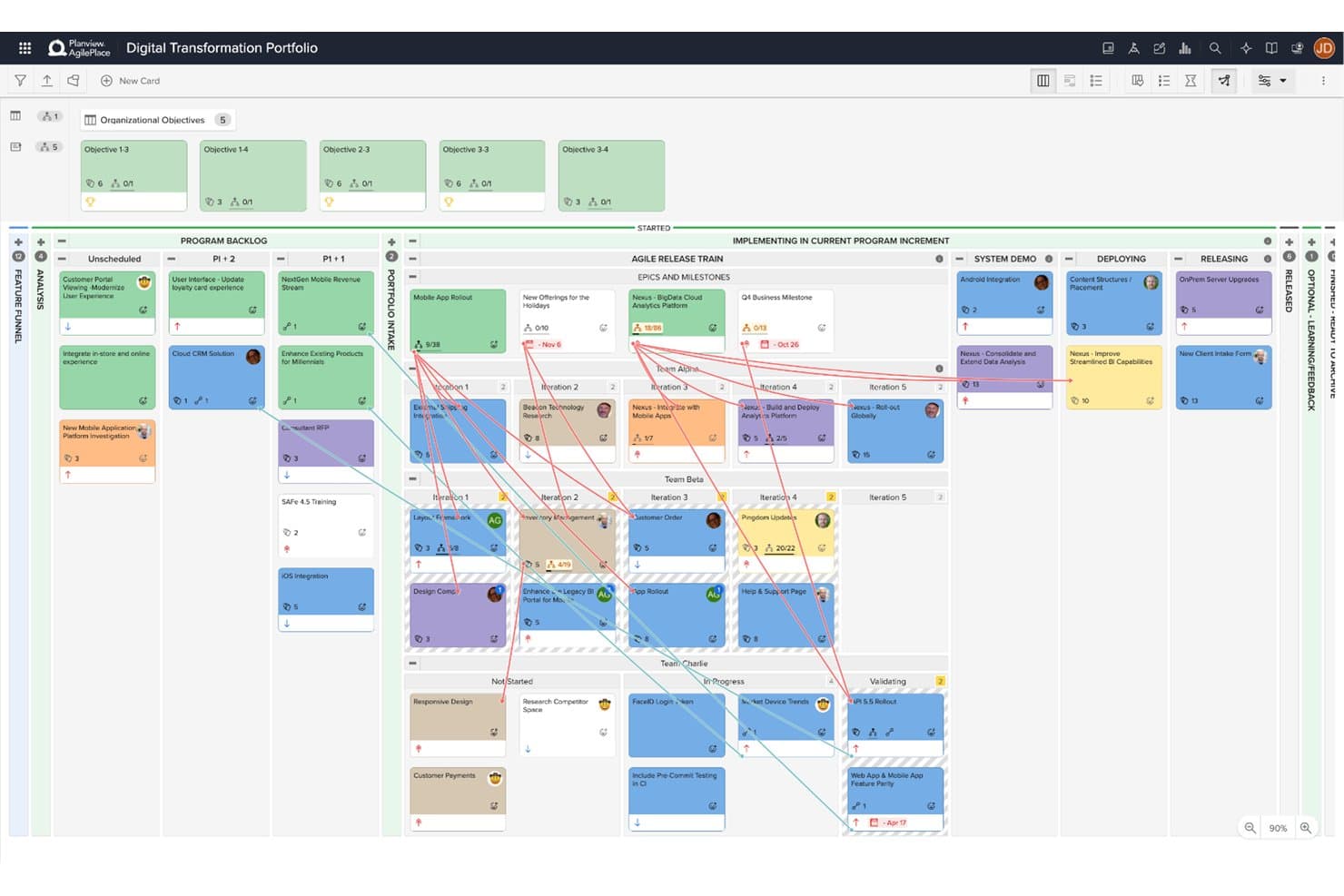
Planview AgilePlace visualizes portfolio work across teams and program increments. Planview AgilePlace is an enterprise kanban platform that combines visual board management, cross-board portfolio planning, WIP limit enforcement, flow analytics, and PI planning across teams of teams.
Who Is Planview AgilePlace Best For?
Planview AgilePlace is a strong fit for enterprise product and engineering teams coordinating work across multiple teams, boards, and program increments.
Why I Picked Planview AgilePlace
Planview AgilePlace earns its spot on my shortlist because it's built from the ground up for teams managing work across dozens of boards simultaneously. I particularly like the cross-board portfolio view, which rolls up parent-child card relationships so you can track epics and milestones across teams without losing sight of lane-level detail. The PI and quarter planning features are equally impressive, letting teams-of-teams coordinate dependencies and visualize blockers across program increments in one place.
Planview AgilePlace Key Features
- WIP limits: Set work-in-progress limits on lanes and individual users, with alerts on every limit breach and recorded override reasons.
- Flow analytics: Track cycle time, lead time, and cumulative flow diagrams to identify bottlenecks across your boards.
- Card scoring: Rank backlog items using custom scoring criteria to support prioritization decisions.
- AI assistant (Planview Anvi): Ask questions in natural language, surface risks, and get backlog curation suggestions directly within the tool.
Planview AgilePlace Integrations
Planview AgilePlace offers native integrations with Jira, Broadcom Rally, Microsoft Azure DevOps, digital.ai, and ServiceNow. It also provides an open API for connections to Power BI, Tableau, and other Planview products.
Pros and Cons
Pros:
- Flow metrics expose product delivery bottlenecks
- WIP enforcement records override reasons
- Cross-board portfolio planning connects team dependencies
Cons:
- Reporting needs more depth for some teams
- Interface feels dated to some reviewers
Learn more about Planview AgilePlace: 10Best for no-code automation on any board size
Trello
- Free plan + free trial available
- From $5/user/month (billed annually)
Visit WebsiteCustomer Rating:4.5/5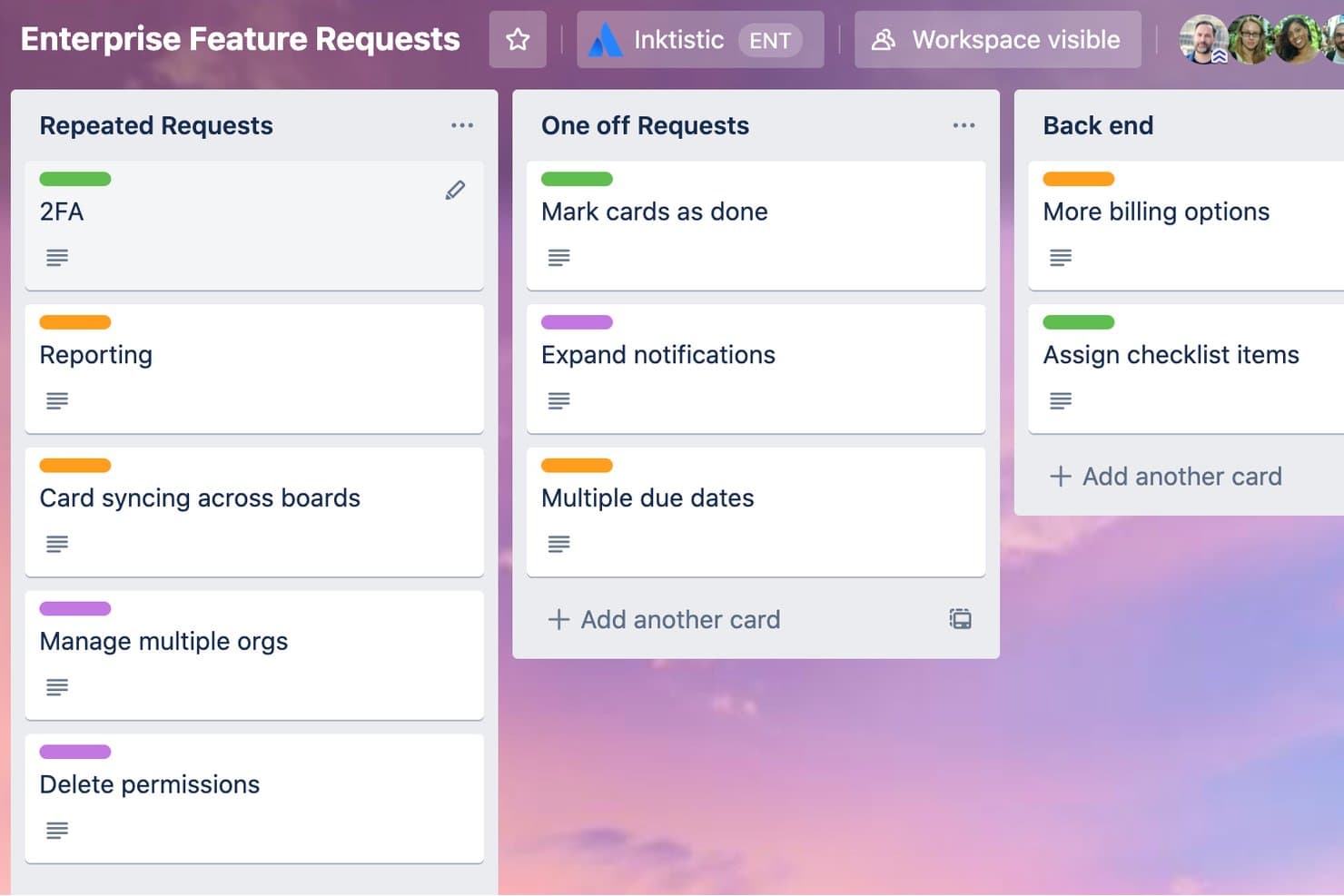
Trello organizes enterprise feature requests across labeled Kanban columns. Trello is a kanban-based project management tool built around boards, lists, and cards, with built-in no-code automation, 200+ Power-Up integrations, and cross-functional collaboration features like comments, assignees, and checklists.
Who Is Trello Best For?
Trello works well for small to mid-sized teams that want a simple, visual way to manage tasks without a steep learning curve or heavy setup.
Why I Picked Trello
I've included Trello in my top picks because its built-in Butler automation works across boards of any size without writing a single line of code. I particularly like how you can set rules to automatically move cards between lists, assign members, or apply due dates the moment a trigger fires. For product teams juggling backlog grooming and sprint handoffs, that automation removes a lot of repetitive manual work from the board.
Trello Key Features
- Custom fields: Add structured data to cards—like priority, status, or product area—to keep your backlog organized and consistent across the board.
- Card mirroring: Display a single card across multiple boards so cross-functional teams always see the same up-to-date task without duplication.
- AI-generated checklists and due dates: Let Trello draft task breakdowns and timelines from a card description, giving you a starting point for sprint planning.
- 200+ Power-Up integrations: Connect tools like Slack, Google Drive, and Salesforce directly to your boards to keep work centralized without switching tabs.
Trello Integrations
Trello supports 200+ integrations through Power-Ups, including Slack, Google Drive, and Salesforce. Power-Ups are unlimited per board, though some carry separate subscription fees.
Pros and Cons
Pros:
- Card mirroring aligns shared work
- Visual backlog-to-completion tracking
- No-code automation across boards
Cons:
- Complex portfolios become difficult to organize
- Native WIP limit controls absent
Outras ferramentas Kanban
Eis algumas opções adicionais de ferramentas Kanban que não entraram na minha seleção, mas que vale a pena conhecer:
- 11JiraBest for kanban with multi-team agile reporting
- 12FavroBest for built-in flow metrics across every board
- 13SmartsheetBest for spreadsheet-style kanban at scale
- 14AsanaBest for managing multiple workstreams across boards
- 15monday AI WorkspaceBest for cross-team backlog on one board
- 16Kanban ToolBest for Kanban purists needing on-site hosting
- 17Easy ProjectsBest for ops-heavy teams tracking time and budgets
- 18TeamhoodBest for customizable boards with flow metrics
- 19NotionBest for keeping docs and boards in one workspace
- 20Azure BoardsBest for dev-team kanban in Microsoft ecosystems
How I Evaluate Kanban Tools
I split my evaluation into three parts, with core functionality carrying the most weight: can the tool build boards that actually mirror how your team works, and does it enforce WIP limits with real visibility? Then I look at standout features like cross-board dependency tracking, and finally consider onboarding ease and pricing transparency.
Core Functionality (Table Stakes for This List)
When I'm selecting tools for my list, I score each one on a scale from 0 (does not offer the functionality) to 5 (excels in this area) for each core functionality listed below. I then convert the total into a percentage to help assess each tool's overall fit, with extra weight on any functionalities I've deemed essential.
- Visual Kanban Boards (Essential): I check whether boards scale beyond a single team—can you run separate boards for discovery, delivery, and ops without the layout falling apart?
- Drag-and-Drop Cards (Essential): Cards should update status the moment you move them, and I look for bulk drag support so reprioritizing a dozen items isn't a one-by-one chore.
- Work-in-Progress Limits: I evaluate whether WIP limits actually warn or block your team when a column is overloaded, not just display a number no one notices.
- Multiple Board Views: Teams need list, calendar, and timeline views that stay in sync with the board. I look for full data parity so switching views never means losing context.
- Workflow Customization: I check for configurable columns, swimlanes, and sub-stages—plus whether you can save custom workflows as templates to reuse across new product squads.
- Flow and Performance Reporting: Cycle time, lead time, and cumulative flow charts tell you where work stalls. I look for filtering by team or time period so you can spot bottlenecks early.
Once I have a list of tools that meet the criteria, I consider what sets each platform apart.
Differentiating Factors (What Sets Vendors Apart)
Here's how I compare and contrast different vendors:
Standout Features
I evaluate each tool's automation and rules engine first. A board that can auto-assign cards, trigger notifications, and move items between columns based on status changes saves hours of manual upkeep each sprint. I also check for cross-board dependency tracking, since product teams running parallel workstreams need to see how a blocked card on one board affects delivery on another. Finally, I look at native integrations with tools like Slack, GitHub, and Google Workspace to confirm data flows both ways without manual re-entry.
Beyond Features
I evaluate how well a tool scales from a single squad to an org-wide rollout, checking whether permission tiers and guest access keep up as teams multiply. Onboarding ease matters just as much—kanban adoption usually starts with one team and spreads organically, so guided templates and in-app walkthroughs shorten time-to-value. I also look at integration depth with dev and PM ecosystems, since two-way sync with tools like Jira or Slack determines whether your board stays the source of truth or drifts into a silo.
Como escolher uma ferramenta Kanban
É fácil perder-se em listas longas de funcionalidades e estruturas de preços complexas. Para o ajudar a manter o foco enquanto avança no seu processo específico de seleção de software, eis uma lista de verificação dos fatores a ter em conta:
| Fator | O que considerar |
|---|---|
| FatorEscalabilidade | O que considerarA ferramenta pode crescer com a sua equipa? Considere as necessidades futuras de mais utilizadores ou projetos. Procure ferramentas que ofereçam níveis de preços flexíveis ou opções empresariais. |
| FatorIntegrações | O que considerarA ferramenta funciona com o software que já utiliza? Verifique se existem integrações com ferramentas essenciais, como o Slack, o Google Workspace ou o Microsoft Office. Evite ferramentas que exijam transferências manuais de dados. |
| FatorPersonalização | O que considerarPode adaptar a ferramenta aos seus fluxos de trabalho? Procure opções para personalizar quadros, campos e notificações. Evite ferramentas rígidas que não se adaptem aos seus processos. |
| FatorFacilidade de utilização | O que considerarA ferramenta é fácil de utilizar pela sua equipa? Teste a interface para verificar a simplicidade e a clareza. Uma curva de aprendizagem acentuada pode dificultar a adoção. |
| FatorImplementação e integração inicial | O que considerarCom que rapidez pode a sua equipa começar a utilizar a ferramenta? Avalie a disponibilidade de materiais de formação, o apoio durante a configuração e a facilidade de migração de dados. |
| FatorCusto | O que considerarA ferramenta cabe no seu orçamento? Compare os planos de preços e tenha em conta custos ocultos, como complementos ou limites de utilizadores. Procure uma ferramenta que ofereça valor sem exceder o seu orçamento. |
| FatorMedidas de segurança | O que considerarA ferramenta protege os seus dados? Certifique-se de que dispõe de funcionalidades de segurança sólidas, como encriptação e cópias de segurança regulares. Verifique a conformidade com os regulamentos de proteção de dados. |
| FatorDisponibilidade do apoio | O que considerarObterá ajuda quando precisar? Verifique os horários e os canais de apoio disponíveis. Procure opções de apoio rápidas, como chat ou assistência telefónica, especialmente se a sua equipa trabalhar em diferentes fusos horários. |
Tendências nas ferramentas Kanban
As ferramentas e a tecnologia Kanban continuam a evoluir rapidamente, refletindo as necessidades crescentes dos profissionais de gestão de produtos relativamente a formas mais eficientes de organizar, definir prioridades e acompanhar tarefas — sem esquecer a continuidade da transição das metodologias em cascata para as metodologias Ágeis. Como tal, surgiram várias tendências importantes que, na minha opinião, continuarão a influenciar as ferramentas Kanban e os profissionais de gestão de produtos no futuro.
- Integração com IA e aprendizagem automática: As ferramentas Kanban estão a incorporar cada vez mais IA e aprendizagem automática para automatizar a definição de prioridades das tarefas e prever os tempos de conclusão dos projetos. Esta funcionalidade melhora ao longo do tempo à medida que os algoritmos aprendem com os padrões de fluxo de trabalho da equipa, tornando estas ferramentas mais inteligentes e capazes de fazer previsões na gestão dos prazos dos projetos.
- Sustentabilidade e funcionalidades ecológicas: Um número crescente de ferramentas Kanban está a incorporar funcionalidades destinadas a promover a sustentabilidade nas práticas de gestão de projetos. Isto inclui o acompanhamento da pegada de carbono dos projetos e a promoção do minimalismo digital para reduzir o consumo de energia. Estas funcionalidades respondem à crescente procura de práticas empresariais ambientalmente conscientes e refletem uma tendência mais abrangente de responsabilidade ambiental no setor tecnológico.
- Espaços de trabalho de realidade virtual (VR): Algumas das funcionalidades novas mais inovadoras incluem a introdução de espaços de trabalho de VR, permitindo aos utilizadores interagir com os seus quadros Kanban num ambiente virtual 3D. Esta funcionalidade invulgar responde à necessidade de experiências de gestão de projetos mais imersivas e cativantes, especialmente nos setores criativos e orientados para o design.
- Análise da inteligência emocional: Outra funcionalidade inovadora é a integração da análise da inteligência emocional, que avalia o moral e o bem-estar da equipa com base nos padrões de interação e nas taxas de conclusão das tarefas. Esta abordagem única pretende fornecer aos líderes de equipa informações sobre o bem-estar das suas equipas, destacando a importância crescente da saúde mental no local de trabalho.
- Elementos de gamificação: A incorporação de elementos de gamificação nas ferramentas Kanban está a tornar-se cada vez mais popular, com funcionalidades como distintivos de conquistas, classificações e sistemas de recompensas. Estes elementos destinam-se a aumentar o envolvimento e a motivação dos utilizadores, tornando a conclusão de tarefas e o acompanhamento do progresso dos projetos mais interativos e agradáveis para os membros da equipa.
Estas tendências refletem as necessidades e os desafios em evolução enfrentados pelos profissionais de gestão de produtos. À medida que as ferramentas Kanban continuam a inovar, o objetivo é criar ambientes mais inteligentes, flexíveis e colaborativos que não só aumentem a produtividade, como também deem prioridade ao bem-estar e ao envolvimento das equipas.
O que é uma ferramenta Kanban?
Uma ferramenta Kanban é uma plataforma de gestão de projetos que permite mapear as suas tarefas em quadros digitais para uma melhor visibilidade e fluidez. Os gestores de projetos, os responsáveis de produto e os membros da equipa utilizam-na para organizar o trabalho, acompanhar o progresso e identificar atempadamente os estrangulamentos. Ajuda a manter todos alinhados, a dar prioridade ao que é importante e a garantir que nada fica esquecido.
Funcionalidades
Ao selecionar uma ferramenta Kanban, esteja atento às seguintes funcionalidades principais:
- Quadros Kanban: Visualize os fluxos de trabalho e gira as tarefas de forma eficaz, ajudando as equipas a ver o progresso rapidamente.
- Atribuição de tarefas: Atribua tarefas aos membros da equipa, garantindo que todos conhecem as suas responsabilidades e prazos.
- Acompanhamento do progresso: Monitorize a conclusão das tarefas e o estado dos projetos para manter as equipas no caminho certo e cumprir os prazos.
- Opções de personalização: Adapte os quadros e os fluxos de trabalho às necessidades e aos processos específicos da sua equipa.
- Integrações: Ligue-se a outras ferramentas, como o Slack ou o Google Workspace, para simplificar o trabalho entre plataformas.
- Capacidades de automatização: Automatize tarefas repetitivas para poupar tempo e reduzir erros manuais.
- Ferramentas de elaboração de relatórios: Gere informações e análises para avaliar o desempenho da equipa e os resultados dos projetos.
- Acesso móvel: Gira tarefas em qualquer lugar através de aplicações móveis, garantindo flexibilidade e acessibilidade.
- Ferramentas de colaboração: Facilite a comunicação da equipa e a partilha de ideias através de comentários e anexos de ficheiros.
- Funcionalidades de segurança: Proteja os seus dados através de encriptação e do cumprimento dos regulamentos de proteção de dados.
Benefícios
A implementação de uma ferramenta Kanban proporciona vários benefícios à sua equipa e à sua empresa. Eis alguns dos benefícios que pode esperar:
- Melhor organização: Visualize os fluxos de trabalho com quadros kanban, ajudando a sua equipa a manter-se organizada e concentrada nas tarefas.
- Colaboração melhorada: Utilize ferramentas de colaboração para facilitar a comunicação e a partilha de ideias entre os membros da equipa.
- Maior produtividade: Automatize tarefas repetitivas e acompanhe o progresso para garantir que a sua equipa trabalha de forma eficiente e cumpre os prazos.
- Flexibilidade: Personalize os fluxos de trabalho para se adaptarem aos processos únicos da sua equipa, permitindo uma adaptação fácil às mudanças.
- Melhor tomada de decisões: Aceda a ferramentas de relatórios para obter informações sobre o desempenho da equipa e os resultados dos projetos, apoiando decisões fundamentadas.
- Acessibilidade: Gira tarefas a partir de qualquer lugar com acesso móvel, proporcionando flexibilidade aos membros da equipa que trabalham remotamente ou em movimento.
- Segurança dos dados: Proteja as informações da sua empresa com funcionalidades de segurança robustas, garantindo a conformidade com os regulamentos de proteção de dados.
Custos e preços
A seleção de uma ferramenta kanban requer uma compreensão dos vários modelos de preços e planos disponíveis. Os custos variam consoante as funcionalidades, o tamanho da equipa, os complementos, entre outros fatores. A tabela abaixo resume os planos comuns, os respetivos preços médios e as funcionalidades normalmente incluídas nas soluções de ferramentas kanban:
Tabela de comparação de planos para ferramentas kanban
| Tipo de plano | Preço médio | Funcionalidades comuns |
|---|---|---|
| Tipo de planoPlano gratuito | Preço médio$0 | Funcionalidades comunsQuadros kanban básicos, gestão limitada de tarefas e ferramentas básicas de colaboração. |
| Tipo de planoPlano pessoal | Preço médio$5-$15/utilizador/mês | Funcionalidades comunsQuadros personalizáveis, atribuição de tarefas, acompanhamento do progresso e acesso móvel. |
| Tipo de planoPlano empresarial | Preço médio$15-$30/utilizador/mês | Funcionalidades comunsRelatórios avançados, capacidades de automatização, integrações com ferramentas populares e segurança reforçada. |
| Tipo de planoPlano empresarial avançado | Preço médio$30-$60/utilizador/mês | Funcionalidades comunsUtilizadores ilimitados, suporte dedicado, fluxos de trabalho personalizáveis e análise avançada. |
Perguntas frequentes sobre ferramentas kanban
Eis algumas respostas a perguntas comuns sobre ferramentas kanban:
As ferramentas kanban podem ser utilizadas por equipas remotas?
Sim, as ferramentas kanban são excelentes para equipas remotas. Permitem que os membros da equipa colaborem e acompanhem o progresso a partir de qualquer lugar. Procure ferramentas com funcionalidades de colaboração robustas, acesso móvel e integrações com plataformas de comunicação como o Slack ou o Microsoft Teams para melhorar o trabalho em equipa à distância.
É difícil mudar de outra ferramenta de gestão de projetos para uma ferramenta kanban?
Mudar para uma ferramenta kanban pode ser simples se a ferramenta oferecer um bom apoio inicial. Muitas ferramentas disponibilizam modelos, vídeos de formação e visitas guiadas interativas para facilitar a transição. Certifique-se de que a nova ferramenta consegue importar dados do sistema anterior, de modo a minimizar as interrupções e manter os projetos no bom caminho.
As ferramentas kanban são compatíveis com a gestão ágil de projetos?
Sim, muitas ferramentas kanban são compatíveis com metodologias ágeis. Oferecem funcionalidades como gestão do backlog, sprints e definição de prioridades das tarefas, essenciais para equipas ágeis. Se a sua equipa seguir práticas ágeis, procure ferramentas que mencionem especificamente o suporte a estruturas de trabalho ágeis, para garantir que satisfazem as suas necessidades.
Que desafios de migração de dados devo esperar ao mudar para uma nova ferramenta kanban?
Poderá ser necessário mapear os cartões, as colunas, os anexos e as atribuições de utilizadores existentes para o formato da nova ferramenta — conte com alguma limpeza manual, sobretudo se a ferramenta anterior utilizasse campos ou estados personalizados. Reveja os formatos de importação/exportação (CSV, JSON) para poder transferir um histórico relevante em vez de começar do zero. Verifique também como serão migradas as tarefas arquivadas e os cartões associados, uma vez que a sua ausência pode prejudicar a rastreabilidade.
Como posso garantir a gestão da mudança ao adotar uma ferramenta kanban em toda a organização?
Comunique o “porquê” — mostre às equipas como a ferramenta tornará o trabalho visível e gerível, em vez de ser apenas mais uma ferramenta. Crie um grupo-piloto que represente diferentes equipas e recolha feedback desde cedo, para captar as preocupações reais dos utilizadores. Disponibilize formação não só sobre os aspetos práticos, mas também sobre os comportamentos (por exemplo, atualizar os cartões quando o estado muda), para que a nova ferramenta passe a fazer parte da forma como as pessoas trabalham e não seja apenas um extra opcional.