
Com tantas ferramentas de pensamento de design diferentes disponíveis, descobrir qual é a mais adequada para si pode ser demorado. Sabe que pretende uma ferramenta que o ajude a compreender problemas de design e a gerar soluções criativas, mas precisa de descobrir qual é a melhor opção. Neste artigo, vou ajudá-lo a tornar esta escolha mais fácil, partilhando as minhas perspetivas sobre as melhores ferramentas de pensamento de design para promover a criatividade, a inovação e a colaboração ao enfrentar desafios de design.
Why Trust Our Software Recommendations
6,700+
Reviews
20
Industry experts
16+
Evaluation factors
14
Years
Our team has been testing and reviewing software since 2012. As product managers ourselves, we know how difficult—and important—it is to choose the right software.
For this guide, we evaluated tools using hands-on testing and independent research, scoring tools using our selection criteria.
Our reviews reflect our human editorial judgment, not a sales pitch.
Expert reviewers:
- Andrew LumbySenior TPM
- Cristiano ValimSenior UI/UX Lead


Tabela comparativa de ferramentas de pensamento de design
Esta tabela comparativa resume os detalhes de preços das minhas principais escolhas de ferramentas de pensamento de design:
| Tool | Best For | Trial Info | Price | ||
|---|---|---|---|---|---|
| 1 | Best agile design thinking tool | Free plan + 14-day free trial + free demo available | From $8/user/month (billed annually) | Website | |
| 2 | Best for AI-generated wireframes and diagrams | Free plan available | From $10/user/month (billed annually) | Website | |
| 3 | Best for data-linked visual research synthesis | Free plan + 30-day free trial + free demo available | Pricing upon request | Website | |
| 4 | Best for GDPR-conscious whiteboard collaboration | Free plan + 30-day trial available | From €5/user/month | Website | |
| 5 | Best for ideation within a broader design suite | Free plan available | Free plan available | Website | |
| 6 | Best for a highly flexible virtual whiteboard | Free plan available | From $3/user/month | Website | |
| 7 | Best for end-to-end ideation to handoff | Free plan available | From $3/user/month | Website | |
| 8 | Best for live workshop facilitation and AI ideation | Free plan + trial + demo available | From $24.90/user/month (billed annually) | Website | |
| 9 | Best for team feedback and voting features | Free plan + free demo available | From $9.99/user/month (billed annually) | Website | |
| 10 | Best virtual whiteboard for facilitated sprints | Free plan + 7-day trial + demo available | From $9/user/month (billed annually) | Website |


Avaliações das melhores ferramentas de pensamento de design
Eis breves descrições das 10 principais ferramentas de pensamento de design da minha lista restrita, que destacam aquilo que cada ferramenta faz melhor, acompanhadas de capturas de ecrã que mostram algumas das funcionalidades. Incluí também mais algumas opções adicionais abaixo, caso pretenda considerar ainda mais alternativas.
 1Best agile design thinking tool
Miro
- Free plan + 14-day free trial + free demo available
- From $8/user/month (billed annually)
Visit WebsiteCustomer Rating:4.8/5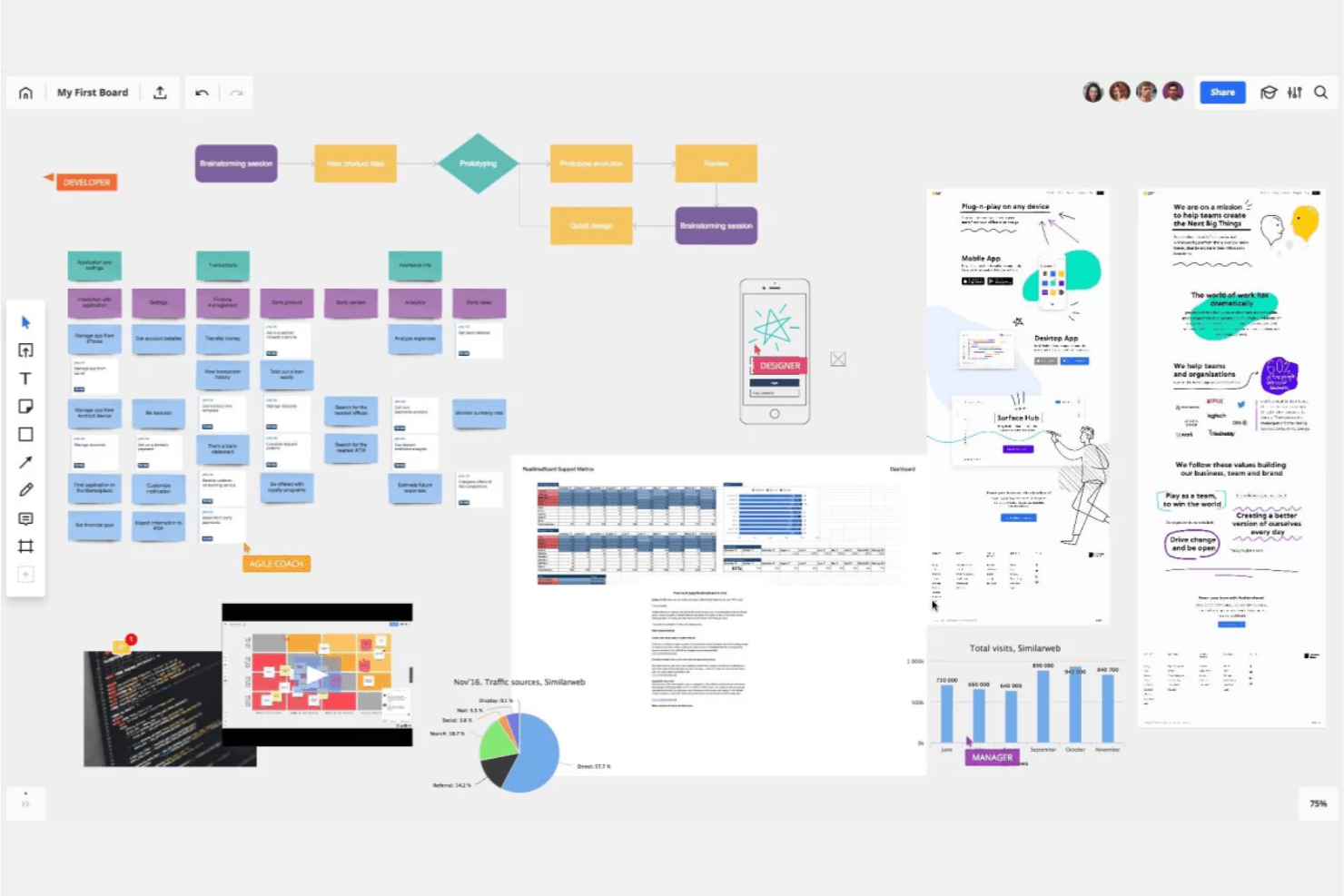
Miro is like a collaborative visual whiteboard where you and your team can brainstorm, group ideas, and vote on next steps. Miro is an infinite-canvas visual collaboration platform that combines real-time multi-user editing, 7,000+ templates, AI-assisted ideation, and prototyping tools to support design thinking workflows from empathy mapping through design sprints.
Who Is Miro Best For?
Miro is a strong fit for cross-functional teams—product managers, UX designers, and innovation consultants—who need one shared space to run design sprints, map user journeys, and move ideas into prototypes.
Why I Picked Miro
I picked Miro as one of the best because it's built specifically around agile design thinking cycles, where sprints move fast and teams need to shift from empathy mapping to prototyping without switching tools. Miro's official Remote 5-Day Design Sprint template (built with Google design sprint experts) and AJ&Smart's version with 12,000+ uses give you a proven structure out of the box. I also love that the Business plan lets you turn boards directly into interactive prototypes, so your team can test concepts before a single line of code is written.
Miro Key Features
- AI-assisted diagram and summary generation: Miro's AI can generate diagrams, tables, and summaries directly on the canvas, helping teams move from raw ideas to structured visuals faster.
- Engage facilitation activities: The Business plan includes polls, 2x2 matrix activities, and scales for up to 50 participants, with AI synthesis of results built in.
- Two-way sync with project management tools: Miro connects bidirectionally with Jira, Asana, Linear, ClickUp, and Azure DevOps so work on the board stays in sync with delivery workflows.
- Enterprise-grade security and compliance: Miro holds ISO/IEC 27001, SOC 2 Type II, and GDPR certifications, with data hosting options in the EU, US, Australia, or Japan.
Miro Integrations
Miro offers 250+ integrations, including Jira, Asana, Linear, ClickUp, Azure DevOps, Confluence, Slack, Microsoft 365, and Google Workspace. Its APIs and SDKs support custom integrations, while Business adds two-way sync with Jira, Asana, Linear, ClickUp, and Azure DevOps.
Pros and Cons
Pros:
- AI synthesizes collaborative ideation results
- Infinite canvas connects research to prototypes
- Official design sprint templates support structured workshops
Cons:
- Mobile experience trails desktop workflows
- Large boards can become sluggish
 Best for AI-generated wireframes and diagrams
- Free plan available
- From $10/user/month (billed annually)
Visit WebsiteCustomer Rating:4.6/5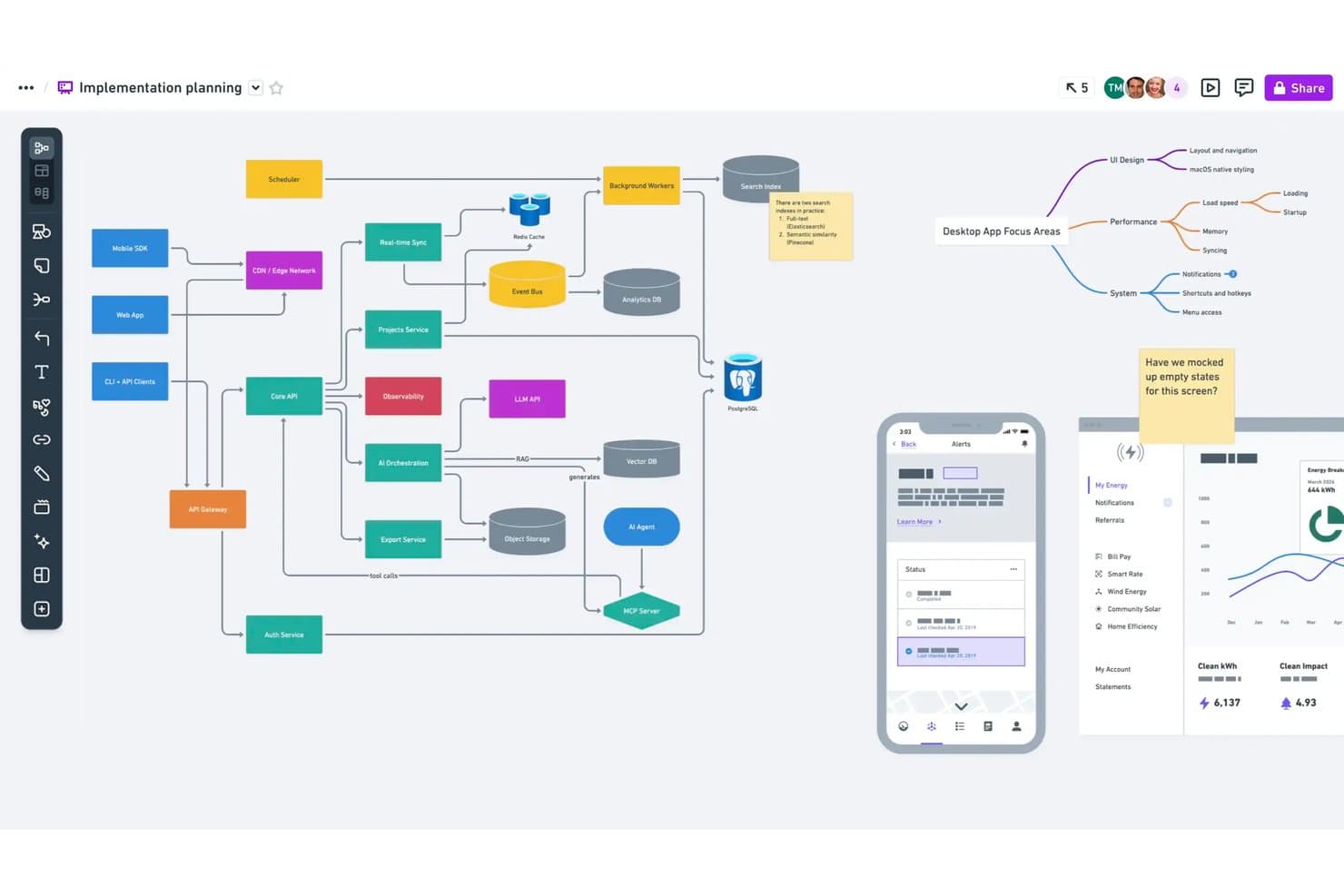
Whimsical lets users map system architecture and flows on one canvas. Whimsical is a visual collaboration tool built for product teams that combines infinite-canvas boards, wireframes, mind maps, flowcharts, and docs in a single workspace—with AI-assisted generation for wireframes and diagrams.
Who Is Whimsical Best For?
Whimsical is a strong fit for product managers and UX designers who need wireframes, flowcharts, and mind maps in one shared workspace.
Why I Picked Whimsical
I picked Whimsical as one of the best because its AI wireframe generation genuinely accelerates early concept work. You can type a prompt and get an editable wireframe or wireflow in seconds, which is something I find invaluable during early ideation sprints. The Whimsical Agent also builds mind maps and flowcharts from a single idea, so your team can move from scattered thinking to structured visuals fast. That combination of AI-assisted diagramming and wireframing in one canvas makes it a natural fit for product teams doing rapid concept testing.
Whimsical Key Features
- Real-time multiplayer editing: Multiple team members can edit boards, wireframes, and mind maps simultaneously, with comments included on every plan.
- Affinity diagram template: A pre-built brainstorming workshop template lets teams group sticky notes into themes and run dot-voting sessions to surface top ideas.
- Backlinks across files: Backlinks connect related boards, docs, and diagrams within your workspace, so you can trace ideas from discovery through to delivery.
- Version history: Whimsical saves your workspace history—90 days on Pro and unlimited on Business—so you can revisit earlier iterations of any board or wireframe.
Whimsical Integrations
Whimsical offers documented integrations with ChatGPT, Claude, Claude Code, Cursor, Jira, Linear, GitHub, Notion, Google Docs, and Slack. Its MCP server also connects Whimsical with MCP-compatible clients for AI-assisted prototyping.
Pros and Cons
Pros:
- Affinity diagrams group ideas for synthesis
- Editable wireflows support rapid prototype iteration
- AI-generated wireframes accelerate concept testing
Cons:
- No dedicated journey mapping templates confirmed
- Workshop facilitation lacks breakout rooms
Learn more about Whimsical: Best for data-linked visual research synthesis
- Free plan + 30-day free trial + free demo available
- Pricing upon request
Visit WebsiteCustomer Rating:4.4/5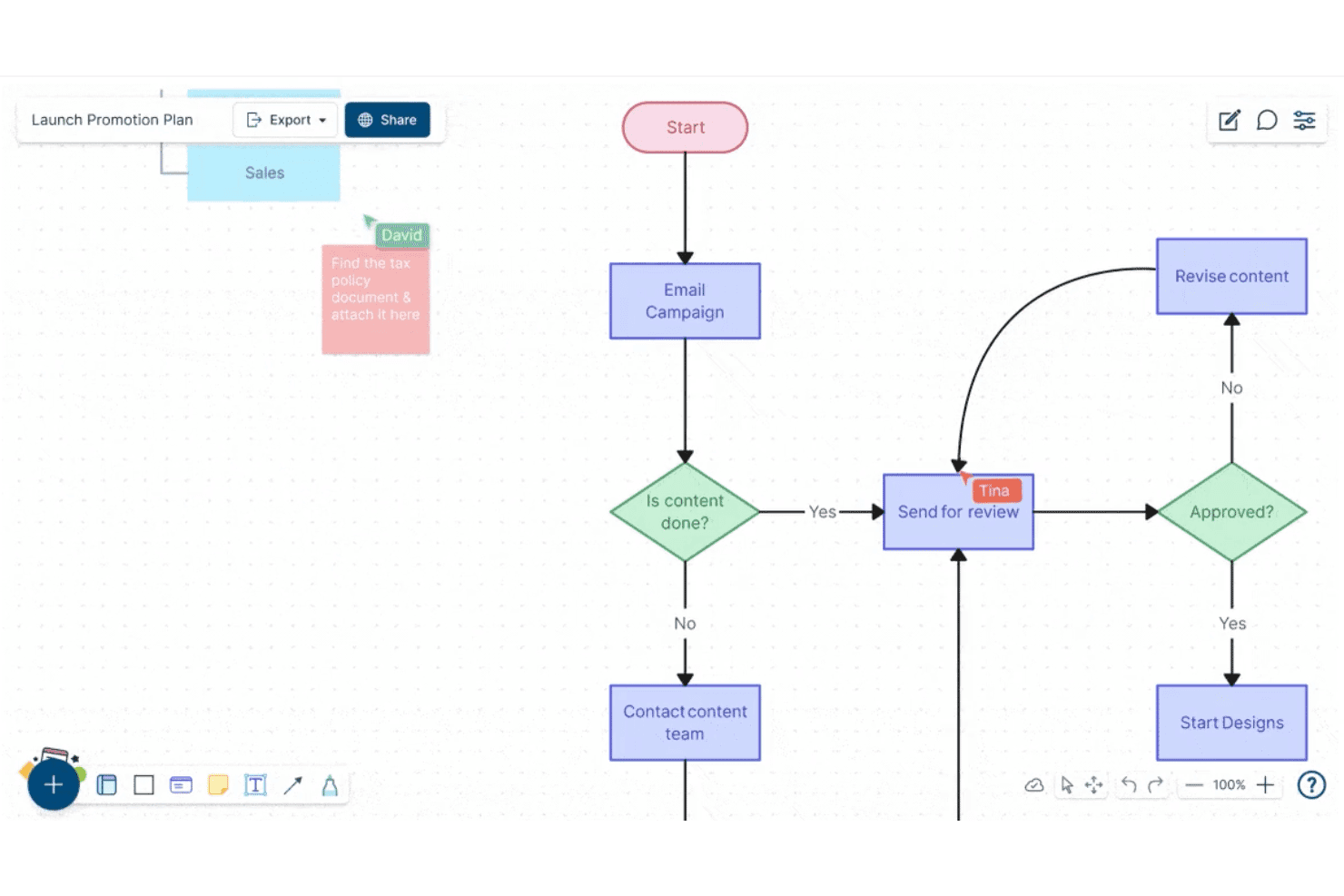
Creately lets users build and collaborate on flowcharts in real time. Creately is a visual collaboration and diagramming platform that combines an infinite canvas, structured diagram types, sticky notes, data-linked databases, and real-time multi-user editing for teams working through research synthesis, ideation, and planning.
Who Is Creately Best For?
Creately is a strong fit for cross-functional teams that need to connect visual research and diagrams directly to structured data, tasks, and project tracking in one workspace.
Why I Picked Creately
Creately earns its spot on my shortlist because its data-linked canvas goes beyond standard whiteboarding by connecting research visuals directly to structured databases. I love that you can tag and track insights across synced views, so when your team finishes an affinity-mapping session, those sticky notes don't just sit there—they feed into a searchable, filterable database tied to real project tasks. The custom database feature, with full-text search and multiple synced views, is genuinely useful for turning messy discovery work into organized, actionable insight records.
Creately Key Features
- Timed voting sessions: Run anonymous or public votes directly on canvas elements to help teams prioritize ideas without side conversations derailing the process.
- Presentation mode: Build and update slides straight from your canvas, so your research and diagrams become the presentation without any copy-pasting.
- Mind maps and concept maps: Create branching visual structures to explore relationships between ideas during early-stage ideation and problem framing.
- Version history: Track changes to any canvas over time, with a status feed per item and up to one year of history on higher-tier plans.
Creately Integrations
Creately documents 11 integrations, including Confluence Cloud, Microsoft Teams, Slack, Zoom, Jira, and Google Drive. Business supports two-way sync with Microsoft Excel and Google Sheets, while Enterprise adds GitHub, Azure DevOps, and SharePoint.
Pros and Cons
Pros:
- Offers timed voting for prioritizing ideas
- Supports real-time diagramming and visual synthesis
- Links research insights to structured databases
Cons:
- Provides no interactive prototyping or testing tools
- Lacks dedicated design-thinking framework templates
Learn more about Creately: Best for GDPR-conscious whiteboard collaboration
- Free plan + 30-day trial available
- From €5/user/month
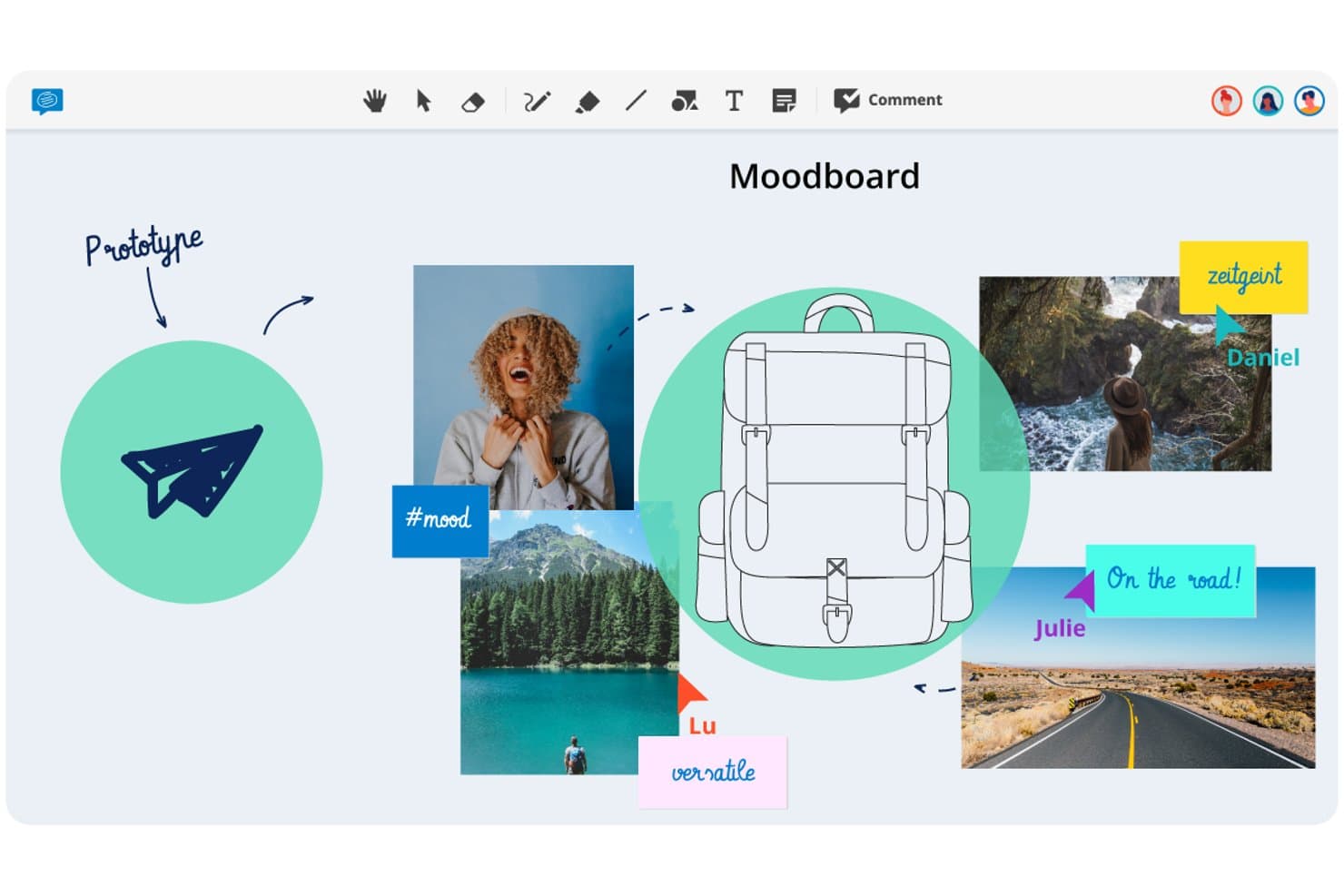
Conceptboard lets users build visual moodboards to prototype design ideas. Conceptboard is a browser-based online whiteboard that combines real-time multi-user editing, sticky notes, voting, facilitation controls, and task integrations on a flexible visual canvas.
Who Is Conceptboard Best For?
Conceptboard is a strong fit for teams in regulated industries—particularly in Europe—where GDPR compliance and flexible data residency options are non-negotiable.
Why I Picked Conceptboard
I've included Conceptboard in my top picks because it's the only whiteboard tool on this list built from the ground up with European data residency as a core feature, not an afterthought. If your team works in a regulated industry, the fact that data is hosted on AWS infrastructure in Germany, ISO 27001/27017/27018 certified, and available as a fully on-premises deployment changes what's possible in terms of stakeholder sign-off. I also like that facilitation controls like timed voting, moderation, and the Hide Sections feature (which lets you reveal canvas content step by step during a session) are available even on entry-level plans.
Conceptboard Key Features
- Real-time multi-user editing: Multiple users can edit the same board simultaneously, with guest access available via link and no account required for external participants.
- Enhanced voting widget: Run timed voting sessions with automatic incognito mode, a simplified results view, and the option to export voting outcomes.
- Jira and Azure DevOps integration: Import tickets directly onto the board and manage status and assignees without leaving the canvas.
- Board tagging and CSV export: Tag boards for organized search and retrieval, and export board content as a table for use in external tools.
Conceptboard Integrations
Conceptboard documents nine integrations, including Microsoft Teams, Webex, Confluence, Google Drive, Jira, Azure DevOps, Dropbox, Box, and OneDrive. No public API or Figma integration is documented.
Pros and Cons
Pros:
- Guest access simplifies stakeholder participation
- Timed voting supports structured workshop decisions
- German hosting supports regulated design teams
Cons:
- Reports cite lag during client sessions
- No journey-mapping templates for customer research
Learn more about Conceptboard: Best for ideation within a broader design suite
- Free plan available
- Free plan available
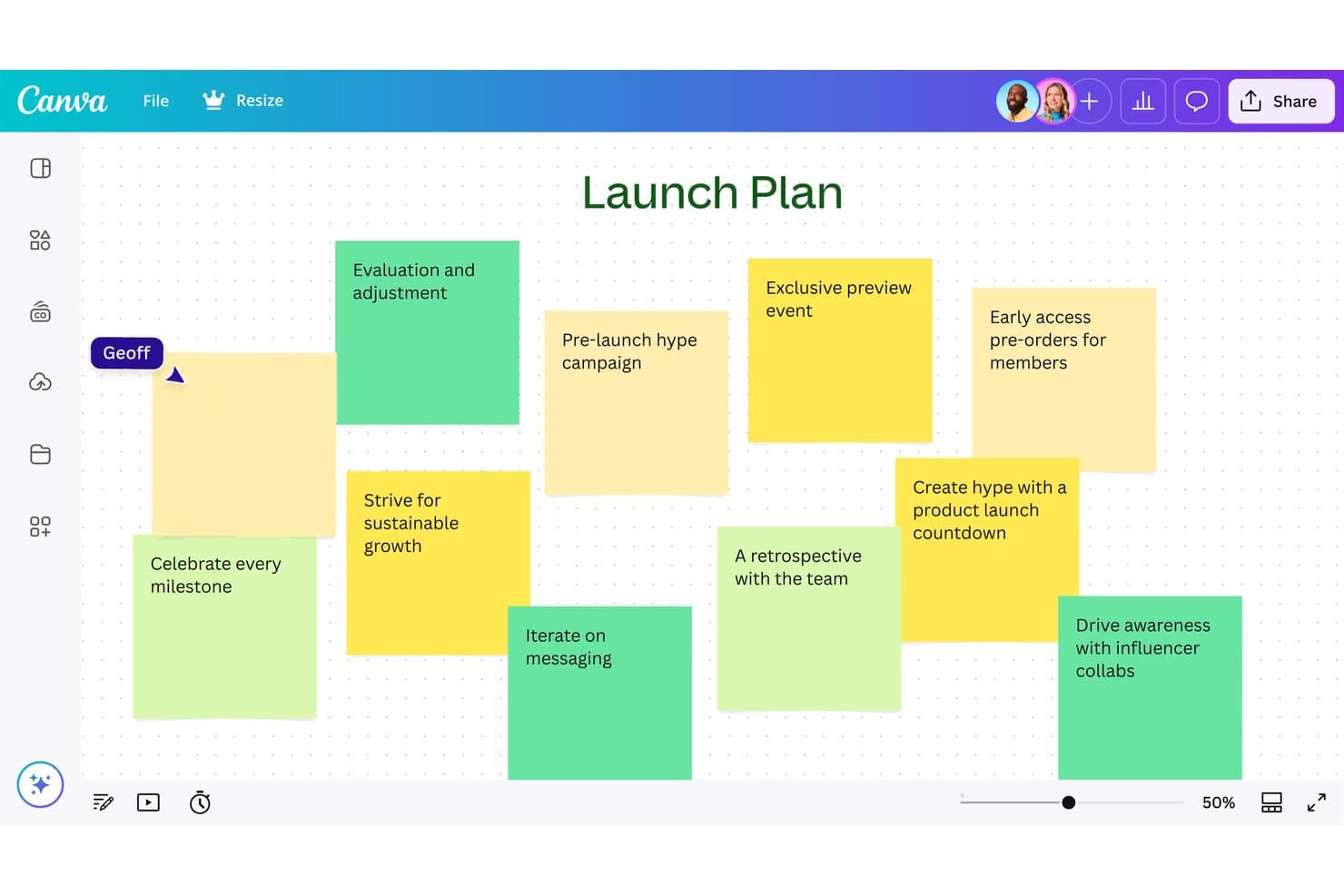
Canva Whiteboard lets users brainstorm launch ideas using sticky notes. Canva Whiteboard is a web-based infinite canvas tool that combines real-time collaboration, sticky notes, AI-assisted idea sorting, and a large library of whiteboard templates—including journey maps, flowcharts, and mind maps—within Canva's broader Visual Suite.
Who Is Canva Whiteboard Best For?
Canva Whiteboard is a strong fit for teams that already live in Canva and want to move from brainstorming to polished deliverables without switching tools.
Why I Picked Canva Whiteboard
I've included Canva Whiteboard in my top picks because it's the only tool here where your ideation and your final deliverable live in the same place. You can brainstorm on an infinite canvas with sticky notes, use AI to sort and summarize your team's ideas by topic, and then move that content directly into a Canva presentation or doc without re-creating anything. I also like that the whiteboard and presentation modes coexist in a single file, so running a session and sharing polished outputs afterward is one continuous workflow.
Canva Whiteboard Key Features
- Infinite canvas: An unlimited workspace where teams can add shapes, images, drawings, and graphic elements without running out of space.
- Sticky note sorting: Automatically organizes sticky notes by name, color, or topic with a single click to help teams make sense of large volumes of ideas.
- Timer with music: A built-in countdown timer with background music keeps sessions on pace during brainstorming or workshop activities.
- Cross-format file switching: Whiteboard and presentation slides coexist in a single file, letting you toggle between working modes without opening a separate document.
Canva Whiteboard Integrations
Canva Whiteboard has native integrations across Canva’s Visual Suite, including Canva Docs, Sheets, and Presentations. It also supports marketplace integrations through Canva’s Apps Marketplace, while API and custom app integrations are mainly available on Enterprise.
Pros and Cons
Pros:
- Supports mobile-friendly collaborative whiteboarding
- Sorts sticky notes by topic automatically
- Connects brainstorming directly to polished deliverables
Cons:
- Provides no prototyping or developer handoff
- Offers limited structured workshop facilitation
Learn more about Canva Whiteboard: Best for a highly flexible virtual whiteboard
- Free plan available
- From $3/user/month
Visit WebsiteCustomer Rating:4.7/5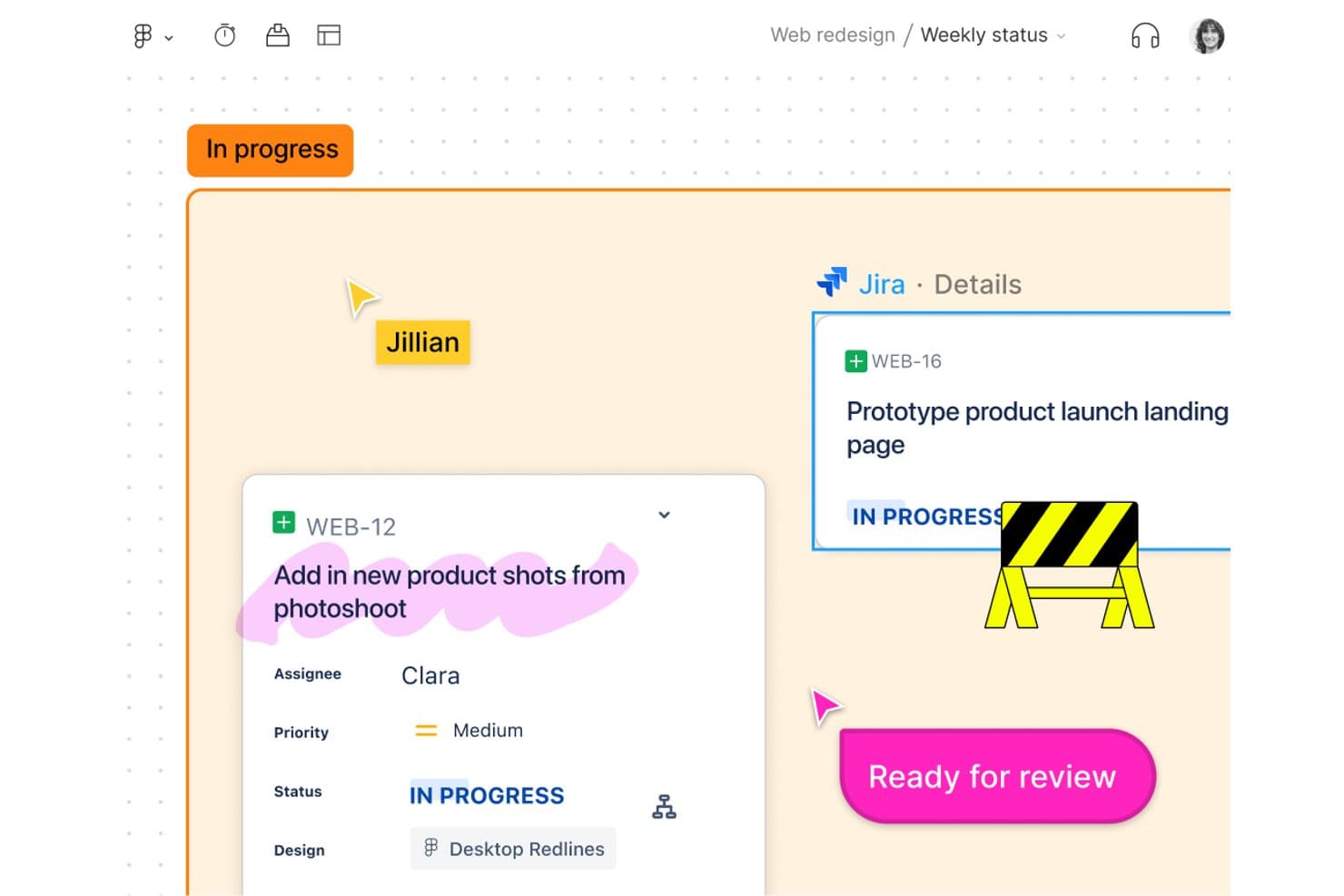
FigJam links Jira tasks directly to design boards for team tracking. FigJam is Figma's collaborative whiteboard tool designed for brainstorming, diagramming, agile workflows, and strategy sessions, with AI-assisted ideation, 300+ templates, and real-time multiplayer editing built in.
Who Is FigJam Best For?
FigJam is a natural fit for product and design teams already working in Figma who want a whiteboard that connects directly to their design and delivery workflow.
Why I Picked FigJam
FigJam earns its spot on my shortlist because the canvas is genuinely open-ended in a way most whiteboard tools aren't. I can run a full design sprint, from "How Might We" clustering to journey mapping, without ever bumping into layout constraints. The AI affinity clustering is a real time-saver: it groups sticky notes into themes automatically, so I spend less time sorting and more time acting on what I find. Spotlight mode keeps distributed teams focused during live sessions without me having to manage chaos manually.
FigJam Key Features
- 300+ ready-made templates: Choose from templates covering customer journey maps, retrospectives, sprint planning, roadmaps, and more to jump-start any design thinking session.
- 24-hour guest access: Invite external collaborators to contribute to a board for 24 hours without requiring them to create a Figma account.
- Asana and Jira integrations: Connect FigJam boards directly to your project management tools so ideas from sessions translate into actionable tasks.
- Dev Mode handoff: Pass designs from FigJam into Figma's Dev Mode for code inspection, asset export, and direct developer access without leaving the ecosystem.
FigJam Integrations
FigJam offers native integrations with Asana and Jira, plus connectivity across Figma Design, Dev Mode, Figma Slides, Figma Make, and Figma Buzz. It also supports Figma Community plugins and widgets, live embeds, and MCP connectors.
Pros and Cons
Pros:
- Guest access simplifies external workshop participation
- AI clustering turns sticky notes into themes
- Flexible canvas supports complex workshop formats
Cons:
- Research synthesis remains shallow without repositories
- Large boards can become slow and messy
Learn more about FigJam: Best for end-to-end ideation to handoff
- Free plan available
- From $3/user/month
Visit WebsiteCustomer Rating:4.7/5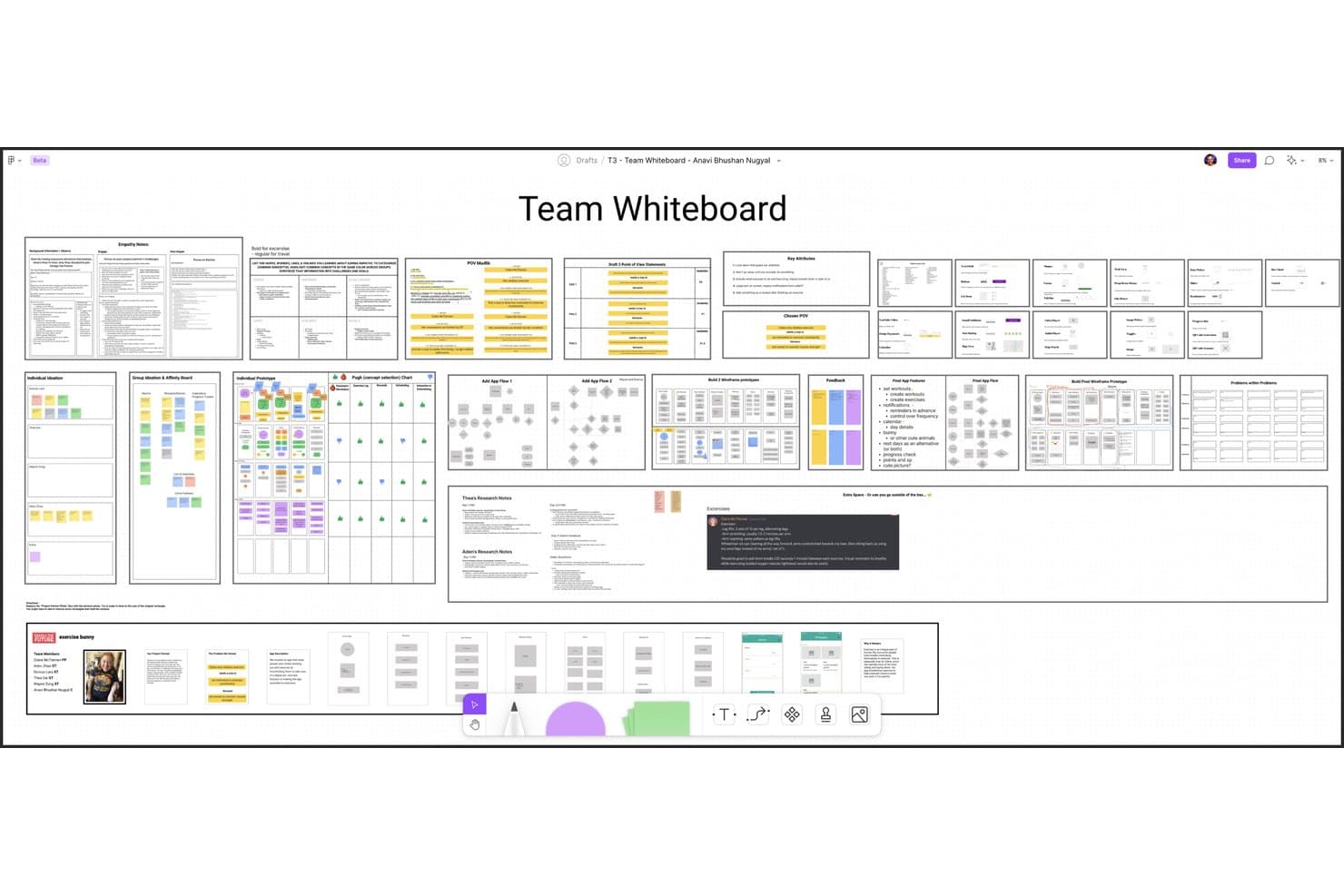
Figma lets users build and organize design thinking workflows collaboratively. Figma is a design platform that pairs FigJam, an infinite collaborative whiteboard, with prototyping, testing, and developer handoff tools in one connected ecosystem.
Who Is Figma Best For?
Figma is the go-to choice for product and design teams that need one connected workspace to take ideas from early brainstorming all the way through developer handoff.
Why I Picked Figma
Figma earns its spot on my shortlist because it's the only tool that carries your work from a FigJam brainstorm all the way through to developer handoff without switching platforms. I particularly like how AI-powered affinity clustering in FigJam automatically groups sticky notes into themes, turning a messy ideation session into a structured synthesis in seconds. From there, your team can move directly into advanced prototyping with conditional logic and variables, then share specs via Dev Mode.
Figma Key Features
- Voting and prioritization: Team members can vote on sticky notes or ideas directly on the FigJam canvas to surface the most valued concepts.
- Open sessions: Guests outside your organization can join a FigJam board for 24 hours without needing a paid seat.
- Figma Make: An AI tool that turns text prompts into working prototypes and web apps, with optional backend connections.
- Dev Mode: A dedicated view that surfaces code snippets, specs, and measurements from design files for engineering handoff.
Figma Integrations
Figma offers two documented native integrations with Jira and Asana. It also supports community plugins and widgets, a VS Code extension, an MCP Server, and Supabase connections through Figma Make.
Pros and Cons
Pros:
- 300+ templates support design thinking workshops
- AI clusters sticky notes into themes
- Connects ideation, prototyping, and handoff
Cons:
- No breakout rooms or guided agendas
- Large boards can suffer performance issues
 Best for live workshop facilitation and AI ideation
- Free plan + trial + demo available
- From $24.90/user/month (billed annually)
Visit WebsiteCustomer Rating:4.7/5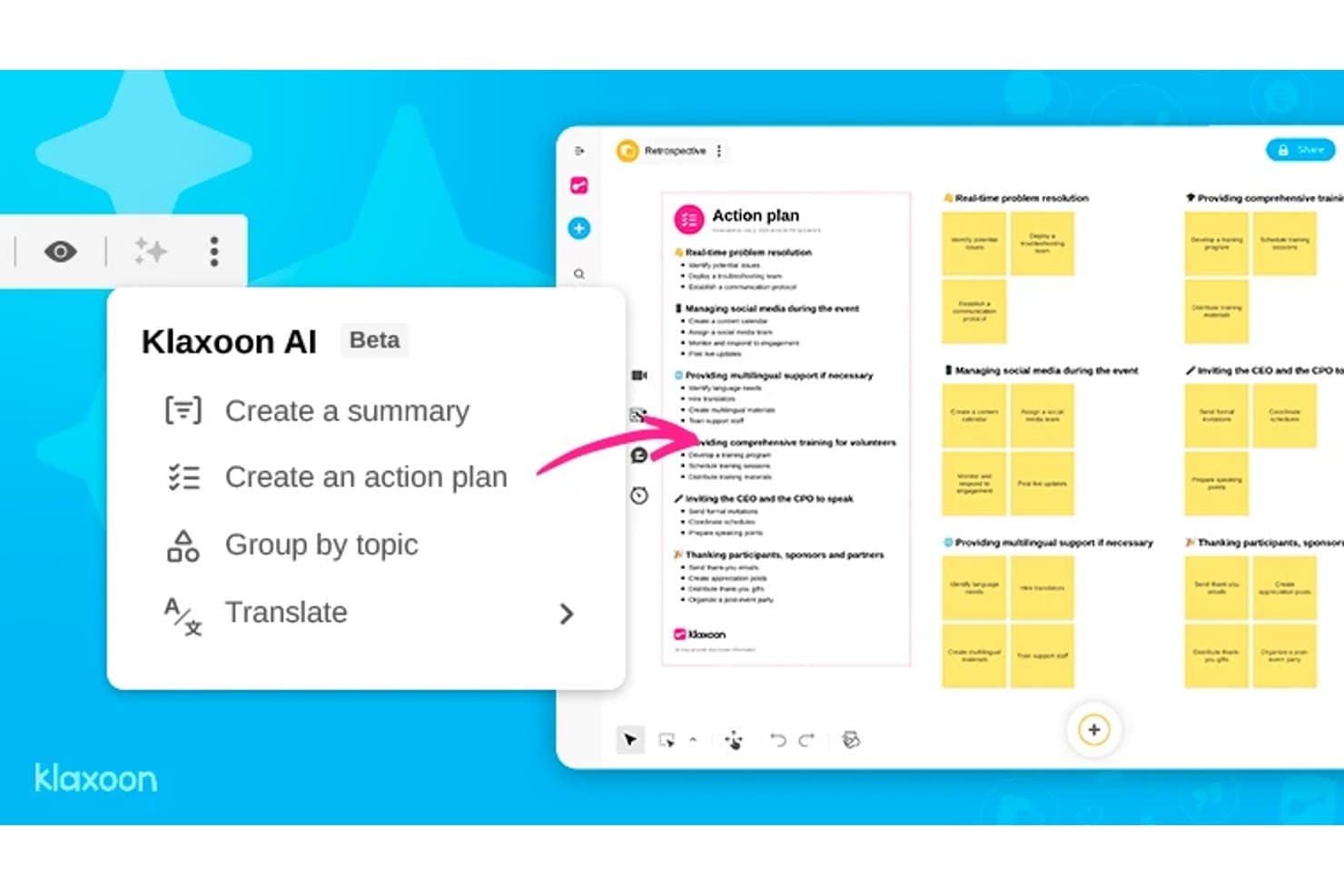
Klaxoon AI generates action plans from retrospective boards automatically. Klaxoon is a visual collaboration platform that combines an infinite whiteboard, facilitator-led sessions, AI-assisted ideation, and interactive widgets like polls, voting, and word clouds.
Who Is Klaxoon Best For?
Klaxoon is a strong fit for facilitators, coaches, and innovation consultants who run structured workshops and need live session controls built into their collaboration space.
Why I Picked Klaxoon
Klaxoon earns its spot on my shortlist because it's the only tool here that treats live facilitation as a first-class feature alongside ideation. I love how Sync Board lets me move every participant's view to the same section of the whiteboard in real time, which keeps workshops from falling apart when people go off in different directions. The built-in AI can also cluster and summarize sticky notes by topic the moment voting closes, turning a wall of ideas into a prioritized list without manual sorting.
Klaxoon Key Features
- Dot-voting with real-time ranking: Participants vote on ideas during a session and results rank automatically as votes come in, so the group sees priorities emerge without any manual sorting.
- Extra fields on sticky notes: Attach metadata like names, dates, and keywords directly to individual ideas on the Board to add structure to your ideation output.
- AI template generation: Generate a whiteboard template in one click based on your session goals, skipping the blank-canvas setup.
- Wrike and Jira task sync: Convert Board ideas directly into tasks in Wrike or Jira, with updates syncing in both directions between your whiteboard and project tools.
Klaxoon Integrations
Klaxoon offers native integrations with Wrike, Jira, Confluence, Microsoft Teams, and Google Workspace, plus Zapier. An API and MCP server support custom connections.
Pros and Cons
Pros:
- Converts brainstorming into prioritized actions
- AI clusters and summarizes ideas
- Strong live workshop facilitation controls
Cons:
- Research insights lack dedicated repository
- No prototyping or developer handoff
Learn more about Klaxoon: Best for team feedback and voting features
- Free plan + free demo available
- From $9.99/user/month (billed annually)
Visit WebsiteCustomer Rating:4.6/5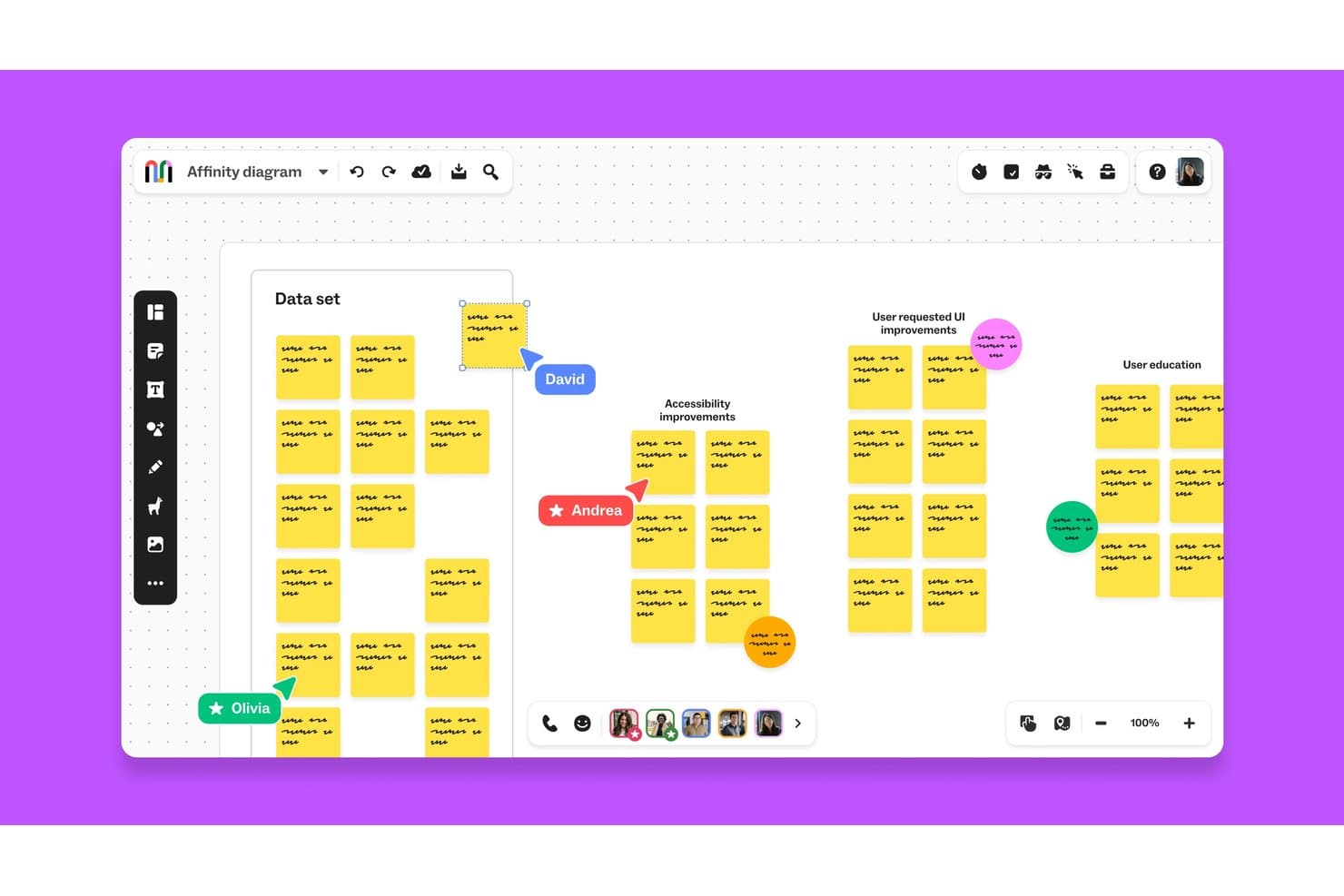
Mural lets teams collaborate on affinity diagrams in real time. Mural is a visual collaboration platform that combines an infinite canvas, design thinking templates from the LUMA Institute, real-time multi-user editing, and facilitation controls for running structured brainstorming and feedback sessions.
Who Is Mural Best For?
Mural is a strong fit for facilitators, innovation consultants, and product teams who need structured ways to collect input, run voting rounds, and synthesize feedback across distributed groups.
Why I Picked Mural
I picked Mural as one of the best because its voting and feedback tools are genuinely built into the product at every level, not bolted on as an afterthought. Private mode lets each team member submit ideas independently before anyone sees the group's input, which eliminates the groupthink that kills honest feedback in design sessions. Then, Facilitation Superpowers like the summon control and step-by-step outline keep structured voting rounds moving without losing the room.
Mural Key Features
- LUMA Institute method library: Access a full library of pre-built design thinking templates built on LUMA Institute's frameworks, available on Business and Enterprise plans.
- AI-powered clustering and summaries: Mural AI automatically groups sticky notes by topic and generates board summaries to help teams synthesize session output.
- Infinite resizable canvas: Build flows, journey maps, and process diagrams on an unlimited canvas across web, iOS, Android, and desktop apps.
- Asana and Jira two-way sync: Connect murals directly to project management tools so action items move from the board into your team's existing workflows.
Mural Integrations
Mural documents integrations with Jira, Asana, Figma, Confluence, Microsoft Teams, Slack, Google Workspace, and Productboard. It also offers a public API for custom integrations and supports Zapier.
Pros and Cons
Pros:
- Facilitation controls keep sessions on track
- LUMA methods guide structured workshops
- Private voting limits groupthink
Cons:
- No native prototyping or developer handoff
- Large boards can lag with participants
Learn more about Mural: Best virtual whiteboard for facilitated sprints
- Free plan + 7-day trial + demo available
- From $9/user/month (billed annually)
Visit WebsiteCustomer Rating:4.5/5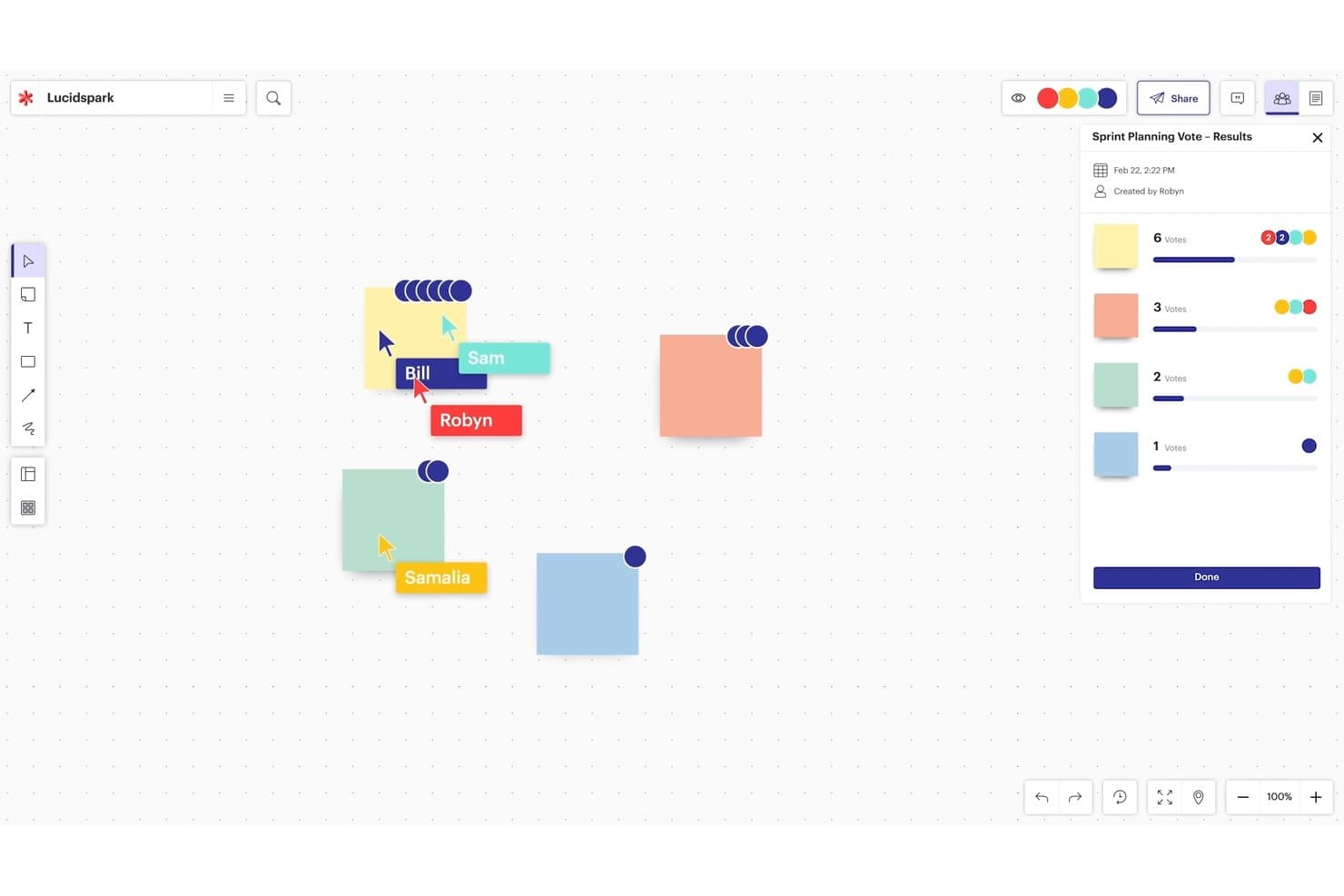
Lucidspark’s infinite canvas supports collaborative planning and voting. Lucidspark is a virtual whiteboard built for brainstorming and design thinking, offering an infinite canvas, sticky notes, voting, facilitation controls, and AI-powered ideation tools.
Who Is Lucidspark Best For?
Lucidspark is a strong fit for facilitators and product teams who run structured brainstorming sessions and need built-in session controls to keep groups on track.
Why I Picked Lucidspark
I picked Lucidspark as one of the best because its facilitation suite is purpose-built for running design sprints, not just supporting them. I love that private mode hides sticky notes and cursors while everyone ideates independently, then the voting and "take the lead" features let me bring the group to a decision without losing control of the session. Breakout Boards can split a large sprint into up to 50 smaller working groups simultaneously, which I've found invaluable when running parallel ideation tracks.
Lucidspark Key Features
- AI ideation and theme sorting: Lucid's AI generates ideas from prompts, identifies themes across sticky notes, and summarizes brainstorms directly on the canvas.
- Lucid Cards: Turns ideas on the board into Jira or Azure DevOps work items, connecting brainstorming sessions to your product backlog.
- Visual Activities: Lets participants rank items on sliders, sort them into categories, or place them on a matrix, with results displayed per person or as a group average.
- 100+ integrations: Connects with tools like Figma, Confluence, Microsoft 365, Slack, Zoom, and Microsoft Teams through Lucid's integration marketplace.
Lucidspark Integrations
Lucidspark offers 100+ marketplace integrations, including Jira, Azure DevOps, Confluence, Figma, Slack, Zoom, Microsoft Teams, and Google Workspace. Lucid Cards connect ideas to Jira and Azure DevOps, while Confluence pages can be added, viewed, and edited inside Lucid.
Pros and Cons
Pros:
- Breakout boards support parallel ideation groups
- AI clusters brainstorm themes
- Facilitator controls guide structured sprint sessions
Cons:
- Key facilitation tools require paid tiers
- Large boards can slow under heavy collaboration
Learn more about Lucidspark:
Outras ferramentas
Eis mais algumas plataformas de design que vale a pena conhecer e que não entraram na minha lista das 10 melhores ferramentas de pensamento de design, mas que continuam a merecer a sua atenção:
- 11Confluence WhiteboardsBest for ideation inside Atlassian workflows
- 12SprintbaseBest design thinking analytics & reporting suite
- 13StormboardBest tool for building a shared workspace
- 14LucidchartBest for diagramming with Jira and Confluence
- 15MindMeisterBest for collaborative mind mapping
- 16MilanoteBest for visual moodboarding and UX research
- 17IdeaflipBest for small group breakout sessions
- 18Microsoft WhiteboardBest for brainstorming within Microsoft 365
- 19BoardmixBest for AI-generated ideation on an open canvas
- 20SessionLabBest for planning and structuring workshops
How I Evaluate Design Thinking Tools
I split my evaluation into three parts: core functionality first (can the tool support a shared visual canvas and real-time co-editing?), then standout features like AI-assisted ideation, and finally what the tool offers beyond features—onboarding depth, facilitation resources, and pricing fairness for cross-functional teams.
Core Functionality (Table Stakes For This List)
When I'm selecting tools for my list, I score each one on a scale from 0 (does not offer the functionality) to 5 (excels in this area) for each core functionality listed below. I then convert the total into a percentage to help assess each tool's overall fit, with extra weight on any functionalities I've deemed essential.
- Visual Collaboration Canvas (Essential): I evaluate canvas fluidity, zoom behavior, and whether teams can arrange mixed media freely across an infinite workspace.
- Real-Time Multi-User Editing (Essential): Live cursors, low-latency syncing, and conflict-free co-editing during sessions with 10+ participants are what I check for here.
- Design Thinking Templates: The best template libraries cover all five stages and let you customize layouts rather than locking you into rigid formats.
- Sticky Notes and Ideation Widgets: I look for voting, clustering, and tagging tools that mirror the speed of a physical brainstorm on a shared wall.
- Facilitation and Session Controls: Built-in timers, guided flows, and participant permissions help facilitators keep a design sprint focused and on track.
- Export and Integration Options: I check whether outputs sync to tools like Jira, Confluence, or Notion so insights don't get stranded on the board.
Once I have a list of tools that meet the criteria, I consider what sets each platform apart.
Differentiating Factors (What Sets Vendors Apart)
Here's how I compare and contrast different vendors:
Standout Features
AI-assisted ideation is the first thing I check. I want to see whether a tool can auto-generate sticky notes from a prompt or cluster themes after a brainstorm, like Miro's AI features do during affinity mapping. Workshop facilitation mode matters just as much—I look for built-in timers, guided agendas, and breakout rooms that let a facilitator run a structured design sprint without juggling a separate video call. I also evaluate each tool's insight repository, since teams that can't resurface past research end up repeating discovery work across sprints.
Beyond Features
I check how well each tool integrates with your existing product stack. A two-way sync between Miro and Jira, for example, keeps sprint insights from dying on a whiteboard. I also evaluate remote facilitation readiness—canvas lag during a 20-person workshop across time zones can derail an entire design sprint. Security matters too: I look for SSO, SOC 2 compliance, and granular board permissions, especially when teams are synthesizing sensitive customer research.
Como escolher uma ferramenta de pensamento de design
É fácil perder-se em listas extensas de funcionalidades e estruturas de preços complexas. Para o ajudar a manter o foco enquanto trabalha no seu processo específico de seleção de software, eis uma lista de verificação dos fatores a ter em conta:
| Fator | O que deve considerar |
|---|---|
| FatorEscalabilidade | O que deve considerarA ferramenta consegue acompanhar o crescimento da sua equipa à medida que são adicionados mais utilizadores, projetos ou modelos? Evite ferramentas que limitem as funcionalidades nos planos inferiores. |
| FatorIntegrações | O que deve considerarÉ fácil ligá-la às ferramentas que a sua equipa já utiliza, como Jira, Miro, Slack ou Trello? As soluções manuais acabam com o ritmo. |
| FatorPersonalização | O que deve considerarPode adaptar os fluxos de trabalho, os modelos ou os quadros para corresponderem ao processo específico da sua equipa? As ferramentas rígidas criam rapidamente obstáculos. |
| FatorFacilidade de utilização | O que deve considerarOs utilizadores que não são designers conseguem começar a utilizá-la sem precisarem de uma sessão de formação? Se as pessoas evitarem utilizá-la, não será útil. |
| FatorImplementação e integração inicial | O que deve considerarQuanto tempo demorará a obter valor após a compra? Procure modelos pré-criados, vídeos explicativos e demonstrações guiadas em direto. |
| FatorCusto | O que deve considerarQual é o verdadeiro custo por utilizador e a solução adapta-se bem à dimensão da sua equipa? Esteja atento a limites ocultos relativamente a utilizadores ou quadros. |
| FatorMedidas de segurança | O que deve considerarOferece SSO, conformidade com SOC 2 ou controlos de acesso? Se estiver a criar protótipos de ideias sensíveis, não ignore este aspeto. |
| FatorDisponibilidade do apoio | O que deve considerarHaverá alguém disponível para ajudar se ficar bloqueado a meio de um sprint? Verifique se o apoio é prestado em direto, através de pedidos de suporte ou pela comunidade. |
O que são as ferramentas de pensamento de design?
As ferramentas de pensamento de design incluem o software, os métodos, as técnicas e os processos utilizados para facilitar a abordagem do pensamento de design, um método de resolução de problemas centrado nas pessoas que coloca as necessidades e as experiências do utilizador no centro do processo de design. Estas ferramentas têm como objetivo promover a empatia, a criatividade e a colaboração entre os membros da equipa, de modo a gerar soluções inovadoras para problemas complexos.
Alguns exemplos de ferramentas de design thinking incluem a criação de personas, o mapeamento da jornada, mapas de empatia, brainstorming, storyboarding, prototipagem e testes com utilizadores. Estas ferramentas ajudam as equipas a recolher informações, identificar as necessidades dos utilizadores, gerar ideias e desenvolver soluções, bem como validar e iterar essas soluções com base no feedback dos utilizadores. De um modo geral, as ferramentas de design thinking ajudam as equipas a abordar os problemas com uma mentalidade centrada no utilizador e a gerar soluções relevantes que respondam às necessidades dos utilizadores.
Características
Eis as principais características que qualquer excelente ferramenta de design thinking deve ter:
- Quadro branco colaborativo: Permite às equipas fazer brainstorming, mapear ideias e trabalhar em conjunto em tempo real a partir de qualquer lugar.
- Biblioteca de modelos: Disponibiliza estruturas prontas a utilizar, como mapas de empatia, jornadas do utilizador e quadros de ideação, para acelerar as sessões.
- Notas autocolantes e votação: Permite aos utilizadores adicionar contributos rapidamente e votar nas ideias para dar prioridade aos conceitos durante os workshops.
- Criador de personas: Ajuda a criar e visualizar personas para manter a equipa alinhada quanto às necessidades dos utilizadores.
- Interface de prototipagem: Permite criar rapidamente protótipos de baixa fidelidade para testar e aperfeiçoar soluções numa fase inicial.
- Ferramentas de facilitação de workshops: Inclui temporizadores, modo de apresentação e ferramentas para grupos de trabalho, de modo a orientar sessões estruturadas.
- Histórico de versões: Regista as alterações e permite aos utilizadores reverter para iterações anteriores, de modo a gerir ideias em evolução.
- Comentários e feedback: Suporta comentários em tempo real ou assíncronos para registar contributos e incentivar a discussão.
- Opções de exportação e partilha: Facilita a partilha do trabalho com as partes interessadas através de ligações, PDFs ou integrações.
- Acesso em vários dispositivos: Garante que os utilizadores podem aceder às sessões e contribuir a partir de computadores portáteis, tablets ou telemóveis.
Benefícios
A implementação de ferramentas de design thinking proporciona vários benefícios à sua equipa e à sua empresa. Eis alguns dos benefícios que pode esperar:
- Desenvolvimento mais rápido de ideias: Os modelos integrados e a colaboração em tempo real ajudam as equipas a passar mais rapidamente da ideia ao conceito.
- Melhor alinhamento da equipa: Os quadros partilhados e as ferramentas visuais mantêm todos a par durante os workshops e as revisões.
- Resultados mais centrados no utilizador: As ferramentas de personas e os mapas de empatia facilitam a manutenção das necessidades dos utilizadores em primeiro plano.
- Colaboração remota mais fácil: O acesso à nuvem e o suporte para vários dispositivos permitem que todos contribuam, independentemente do local onde se encontrem.
- Tomada de decisões mais clara: As funcionalidades de votação e as ferramentas de feedback ajudam as equipas a definir prioridades sem debates prolongados.
- Menor risco de retrabalho: As funcionalidades de prototipagem e teste numa fase inicial detetam problemas antes de serem investidos demasiado tempo ou dinheiro.
- Maior adesão das partes interessadas: A partilha fácil e as exportações visuais simplificam a apresentação do progresso e a recolha de contributos.
Custos e preços
A seleção de ferramentas de design thinking exige uma compreensão dos vários modelos de preços e planos disponíveis. Os custos variam consoante as funcionalidades, a dimensão da equipa, os extras, entre outros fatores. A tabela abaixo resume os planos mais comuns, os seus preços médios e as funcionalidades habitualmente incluídas nas soluções de ferramentas de design thinking:
Tabela de comparação de planos para ferramentas de design thinking
| Plano gratuito | $0 | Quadro branco básico, modelos limitados, colaboradores limitados e opções básicas de exportação. |
| Plano pessoal | $5–$15/utilizador/mês | Acesso completo aos modelos, quadros ilimitados, histórico de versões e integrações padrão. |
| Plano empresarial | $15–$30/utilizador/mês | Ferramentas de colaboração em equipa, permissões avançadas, controlos de administrador e suporte prioritário. |
| Plano empresarial avançado | $30–$60/utilizador/mês | Funcionalidades de SSO e segurança, análises avançadas, suporte dedicado e integração personalizada. |
Perguntas frequentes
Ainda tem dúvidas sobre as ferramentas de pensamento de design e o seu funcionamento? Estas respostas às perguntas frequentes (FAQ) deverão ajudar a esclarecer melhor a questão:
O que é o pensamento de design?
O pensamento de design é uma forma produtiva e criativa de resolver problemas através da criação de produtos que respondem a uma necessidade específica.
Jeanne Liedtka, especialista em pensamento de design, observou na Harvard Business Review que: “o pensamento de design tem o potencial de fazer pela inovação exatamente o que a TQM fez pela indústria transformadora: libertar toda a energia criativa das pessoas, conquistar o seu empenho e melhorar radicalmente os processos.”
O melhor modelo de negócio é aquele que mantém o utilizador final no centro durante todo o processo de conceção do serviço. Pode fazê-lo criando um mapa de empatia para fins de iteração, identificando os pontos problemáticos dos utilizadores no seu produto e realizando uma grande quantidade de investigação prática com os utilizadores.
No entanto, as sessões de tempestade de ideias são uma perda de tempo se não tiver uma forma de recolher e compilar os dados resultantes através de uma plataforma capaz de os utilizar.
O pensamento de design pode ter uma enorme influência no desenvolvimento de novos produtos, como quando a Braun se propôs conceber uma escova de dentes elétrica IoT simplificada, por exemplo. O pensamento de design é precisamente isso: pegar no que já sabe e desenvolvê-lo para criar um produto melhor, que responda a mais preocupações do utilizador final e proporcione uma melhor experiência ao cliente.
Como podem as ferramentas de pensamento de design ajudar o processo criativo?
O pensamento de design ajuda a desenvolver soluções criativas para problemas técnicos de forma centrada no cliente. As ferramentas de pensamento de design online podem ajudá-lo a organizar as suas ideias e a planear o seu percurso rumo à inovação de produtos.
O processo de pensamento de design pode tornar-se complexo porque está constantemente a equilibrar a viabilidade das ideias + a acessibilidade (para a empresa) + a desejabilidade (para o utilizador final). No entanto, as aplicações de pensamento de design foram concebidas para o orientar ao longo das 5 etapas do pensamento de design, para que possa acompanhar novas ideias desde o início do projeto até à sua conclusão.
O que é a jornada do cliente?
A jornada do cliente é o percurso (ou percursos) provável que os seus utilizadores ideais seguirão durante a interação com o seu produto, desde a apresentação até à conclusão. O design centrado no ser humano é importante para tornar esta jornada o mais simples possível. O processo de pensamento de design depende de uma compreensão sólida da jornada do cliente: como os clientes passam de A para B e onde poderão encontrar dificuldades, bem como qual o principal problema que o seu produto/serviço procura resolver por eles.
Quais são as 5 etapas do pensamento de design?
De acordo com a Universidade de Stanford, as 5 etapas do pensamento de design são: empatia, definição, conceção, prototipagem e teste.
- A empatia consiste em trabalhar para compreender as necessidades do utilizador final (a “declaração do problema”);
- A definição é a apresentação breve do problema que pretende resolver e da forma como o fará;
- A conceção (ou ideação) é uma tempestade de ideias criativa (“idear”) para encontrar a melhor solução através do design do produto;
- A prototipagem consiste em criar a versão mais básica do seu produto;
- Os testes consistem em transformar esse produto mínimo viável num artigo totalmente funcional, testado pelo controlo de qualidade e pronto para lançamento.
Que outros recursos podem ajudar-me a saber mais sobre o pensamento de design?
Se o conceito de pensamento de design lhe despertou o interesse, existem muitos outros recursos para o ajudar ao longo do seu percurso de aprendizagem.
Existem kits de ferramentas de pensamento de design gratuitos?
Embora possam ter algumas limitações em comparação com as suas alternativas mediante subscrição paga, utilizar uma ferramenta de design gratuita é uma excelente opção para equipas mais pequenas ou para quem pretenda simplesmente experimentar primeiro o software. Enquanto líder de design, pode decidir o que melhor se adapta às suas necessidades.
As possíveis soluções gratuitas incluem:
- Kit de ferramentas da Ideo
- Kit de ferramentas de pensamento de design da IBM
- “Crie a minha persona”, da Hubspot
- Google Design