

Um construtor de interfaces de utilizador com função de arrastar e largar é um tipo específico de ferramenta visual que permite criar interfaces de utilizador movendo e organizando elementos numa tela — sem necessidade de programação. Se está à procura do melhor construtor de interfaces de utilizador com função de arrastar e largar, provavelmente pretende acelerar o design de interfaces, reduzir os estrangulamentos no desenvolvimento e dar à sua equipa mais controlo sobre o aspeto e a funcionalidade das suas aplicações ou websites. Esta lista ajudá-lo-á a comparar as principais opções, compreender o que distingue cada ferramenta e escolher a plataforma certa para o seu próximo projeto.
Why Trust Our Software Recommendations
6,700+
Reviews
20
Industry experts
16+
Evaluation factors
14
Years
Our team has been testing and reviewing software since 2012. As product managers ourselves, we know how difficult—and important—it is to choose the right software.
For this guide, we evaluated tools using hands-on testing and independent research, scoring tools using our selection criteria.
Our reviews reflect our human editorial judgment, not a sales pitch.
Expert reviewers:
- Andrew LumbySenior TPM
- Cristiano ValimSenior UI/UX Lead


Tabela de comparação dos construtores de interfaces de utilizador com função de arrastar e largar
Esta tabela de comparação resume os detalhes de preços das minhas principais escolhas de construtores de interfaces de utilizador com função de arrastar e largar:
| Tool | Best For | Trial Info | Price | ||
|---|---|---|---|---|---|
| 1 | Best for pixel-perfect responsive layouts | Free plan available | From $15/month (billed annually) | Website | |
| 2 | Best for data-connected internal tool builders | Free plan available | From $10/builder/month (billed annually) | Website | |
| 3 | Best for building full-stack apps without code | Free plan available | From $29/month (billed annually) | Website | |
| 4 | Best for no-code web app creation | Free plan available | From $20/month (billed annually) | Website | |
| 5 | Best for shipping mobile apps without developers | Free plan available | From $39/month | Website | |
| 6 | Best for design-token-driven site building | Free plan + 14-day free trial available | From $15/month (billed annually) | Website | |
| 7 | Best for launching mobile apps with owned code | Free plan available | From $15/month | Website | |
| 8 | Best for visual editing with a headless CMS | Free plan available | From $24/user/month (billed annually) | Website | |
| 9 | Best for apps built across multiple data sources | Free plan + free demo available | From $24/user/month | Website | |
| 10 | Best for syncing visual edits to a React codebase | Free plan available | From $39/month (billed annually) | Website |


Avaliações dos construtores de interfaces de utilizador com função de arrastar e largar
Abaixo encontrará os meus resumos detalhados dos construtores de interfaces de utilizador com função de arrastar e largar que entraram na minha lista. As minhas avaliações apresentam uma análise detalhada das funcionalidades, dos melhores casos de utilização e das integrações de cada ferramenta, para o ajudar a encontrar a opção mais adequada para si.
 Best for pixel-perfect responsive layouts
- Free plan available
- From $15/month (billed annually)
Visit WebsiteCustomer Rating:4.4/5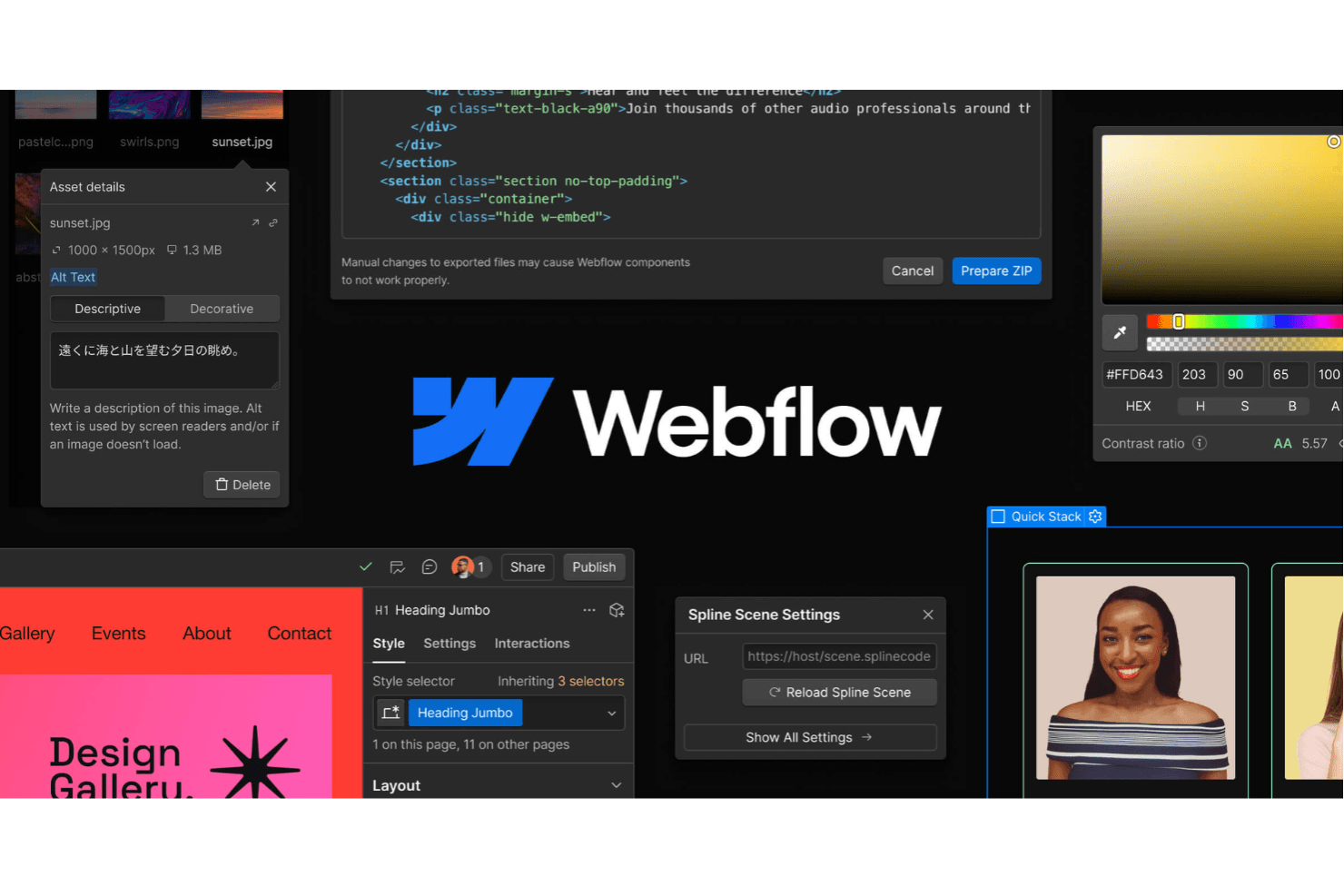
Webflow lets teams design, build, and launch responsive websites visually. Webflow is a visual drag-and-drop website builder that combines a freeform flexbox and CSS grid canvas, a class-based design system, CMS editing, and code export tools including DevLink for React output.
Who Is Webflow Best For?
Webflow is a strong fit for UX/UI designers and design-led teams who need to ship production-ready, responsive sites without handing off to a developer.
Why I Picked Webflow
Webflow earns its spot as one of the best on my shortlist because its freeform flexbox and CSS grid canvas gives you genuine pixel-level control over every element, not just the snap-to-grid nudging you get from most builders. I particularly like how breakpoint-based cascading styles let you override spacing, typography, and visibility at each viewport, so a layout that looks exact on desktop stays exact on mobile. The class-based design system with variables also means style changes propagate across every component instance the moment you update a single token.
Webflow Key Features
- Figma-to-Webflow plugin: Converts Figma auto-layout frames into responsive flexbox HTML and CSS, carrying over styles, colors, text, and variables.
- DevLink: Exports Webflow components as production-ready React code and syncs style and component updates back to your codebase via CLI or CI.
- GSAP-based interactions timeline: Lets you build scroll, hover, click, and mouse-tracked animations on a visual timeline with reusable presets and reduced-motion support.
- Real-time collaboration: Shows teammate presence on the canvas, gives each person their own undo history, and supports page branches across all plans.
Webflow Integrations
Webflow offers integrations with Figma, GitHub, Slack, Google Analytics, Google Search Console, and Google Tag Manager. It also supports APIs, DevLink, MCP, Marketplace apps, and Zapier.
Pros and Cons
Pros:
- GSAP timelines add production-ready interactions
- Figma frames become responsive front ends
- Pixel-perfect flexbox and grid layouts
Cons:
- Prototyping lacks clickable screen flows
- CSS concepts challenge nontechnical builders
Learn more about Webflow: Best for data-connected internal tool builders
- Free plan available
- From $10/builder/month (billed annually)
Visit WebsiteCustomer Rating:4.6/5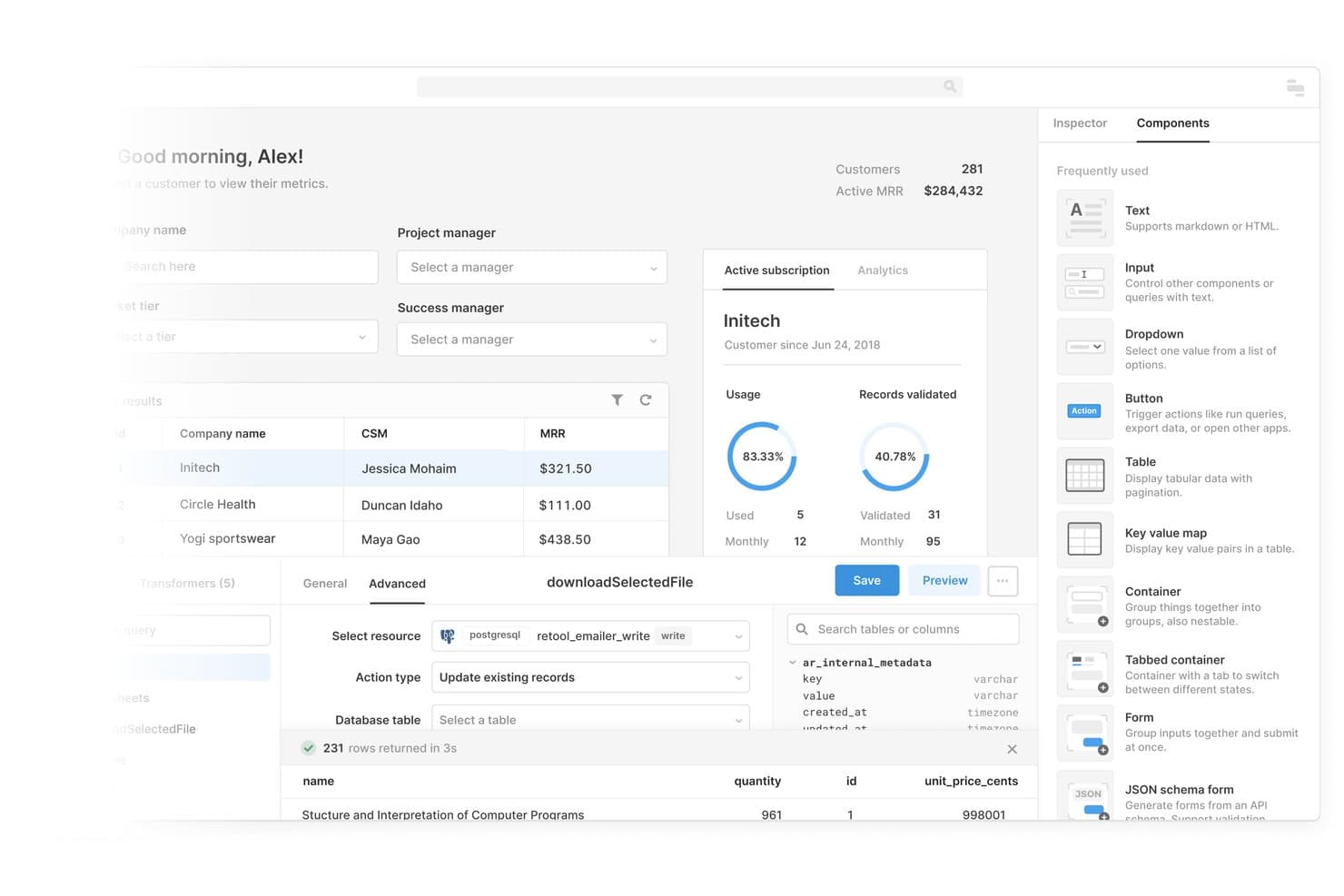
Retool lets users build customer dashboards by dragging and dropping UI components. Retool is a low-code app builder that lets you drag and drop pre-built components onto a canvas and connect them directly to databases, APIs, and data warehouses to create internal tools and dashboards.
Who Is Retool Best For?
Retool is a strong fit for developers and technical operations teams who need to build data-connected internal tools and dashboards without starting from scratch.
Why I Picked Retool
I picked Retool as one of the best because its classic drag-and-drop canvas pairs directly with live database and API connections, which is exactly what you need when building internal tools. I love how the component library covers data-heavy UI needs out of the box: tables with inline editing and filtering, charts ranging from bar to Sankey to heat maps, and form components that tie straight to your queries. That combination lets you drag a table onto a canvas, point it at your PostgreSQL or Snowflake database, and have a working admin panel without writing layout code.
Retool Key Features
- Multipage app navigation: Classic apps include a Pages tab with navigation components and event handlers so you can build multi-screen tools with real routing logic.
- Custom component libraries: Add your own React/TypeScript components to classic apps via CLI tooling and npm packages, extending the built-in library with proprietary UI elements.
- React code export and editing: The new AI builder exposes every app file in a Code tab, letting you edit the underlying React directly or deploy via CLI and MCP coding agents like Claude Code or Cursor.
- Reusable modules: Business and Enterprise plans support unlimited reusable modules in classic apps, letting you share components and queries across multiple internal tools without rebuilding them.
Retool Integrations
Retool offers native integrations with PostgreSQL, MySQL, Snowflake, BigQuery, Salesforce, HubSpot, Jira, GitHub, Slack, and Microsoft Teams. It also connects to REST, GraphQL, OpenAPI, and SOAP APIs for custom data sources.
Pros and Cons
Pros:
- Classic canvas supports nested drag-and-drop layouts
- Extensive components support complex internal interfaces
- Data-connected tables and dashboards build quickly
Cons:
- No Figma import or clickable prototypes
- New builder abandons visual drag-and-drop editing
Learn more about Retool: Best for building full-stack apps without code
- Free plan available
- From $29/month (billed annually)
Visit WebsiteCustomer Rating:4.4/5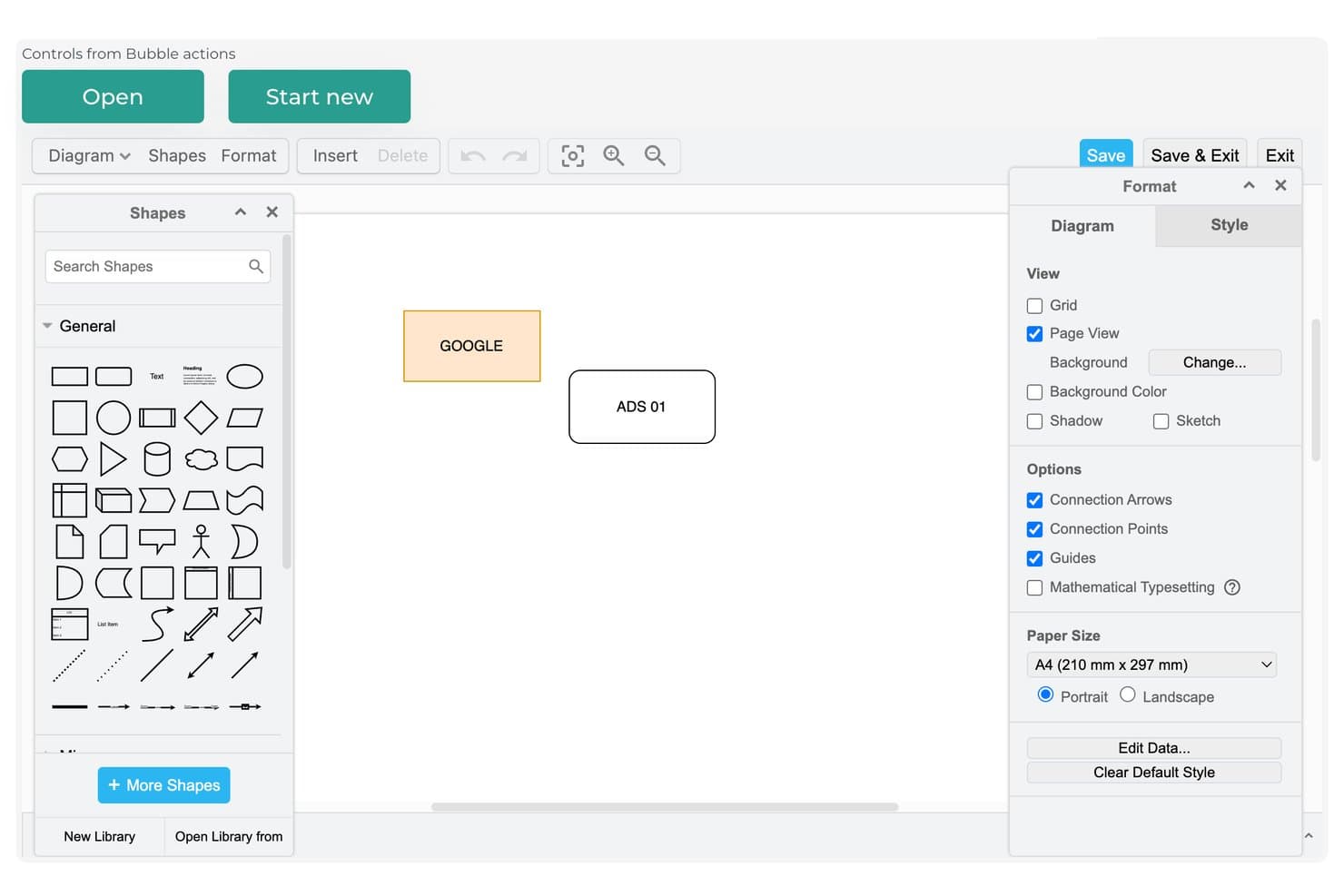
Bubble's diagram editor lets users build and style visual flows. Bubble is a visual no-code platform that lets you build full-stack web and mobile apps through a drag-and-drop editor, combining UI design, database management, workflow logic, and hosting in a single environment.
Who Is Bubble Best For?
Bubble is a strong fit for startup founders and no-code developers who want to build and ship a full-stack web or mobile app without writing a single line of code.
Why I Picked Bubble
Bubble earns its spot as one of the best on my shortlist because it's the only drag-and-drop builder I've used that covers UI, database, logic, and hosting in a single visual editor. I love that AI-generated apps produce real, editable workflows and data types rather than static mockups. You can go from a text prompt to a live, hosted web or native mobile app without touching code.
Bubble Key Features
- Figma import: Convert Figma designs into Bubble elements using a plugin and Chrome extension, with best results when your Figma file uses auto layout.
- Reusable elements: Build elements once and reuse them across your app; each instance updates automatically when you edit the source.
- Version control with branching: Create up to 25 custom branches, track changes by collaborator or date, and merge with guided conflict resolution.
- Plugin marketplace: Browse and install from over 7,500 plugins covering payments, charts, AI models, and other UI and backend functionality.
Bubble Integrations
Bubble offers 7,576 marketplace plugins, including connections for Figma, OpenAI, Anthropic Claude, Google Gemini, Grok, and DeepSeek. Its API Connector supports custom REST API integrations.
Pros and Cons
Pros:
- AI generates editable screens and workflows
- Reusable elements keep designs consistent
- Builds functional interfaces beyond static mockups
Cons:
- Complex workflows slow initial interface building
- No code export for engineering handoff
Learn more about Bubble: Best for no-code web app creation
- Free plan available
- From $20/month (billed annually)
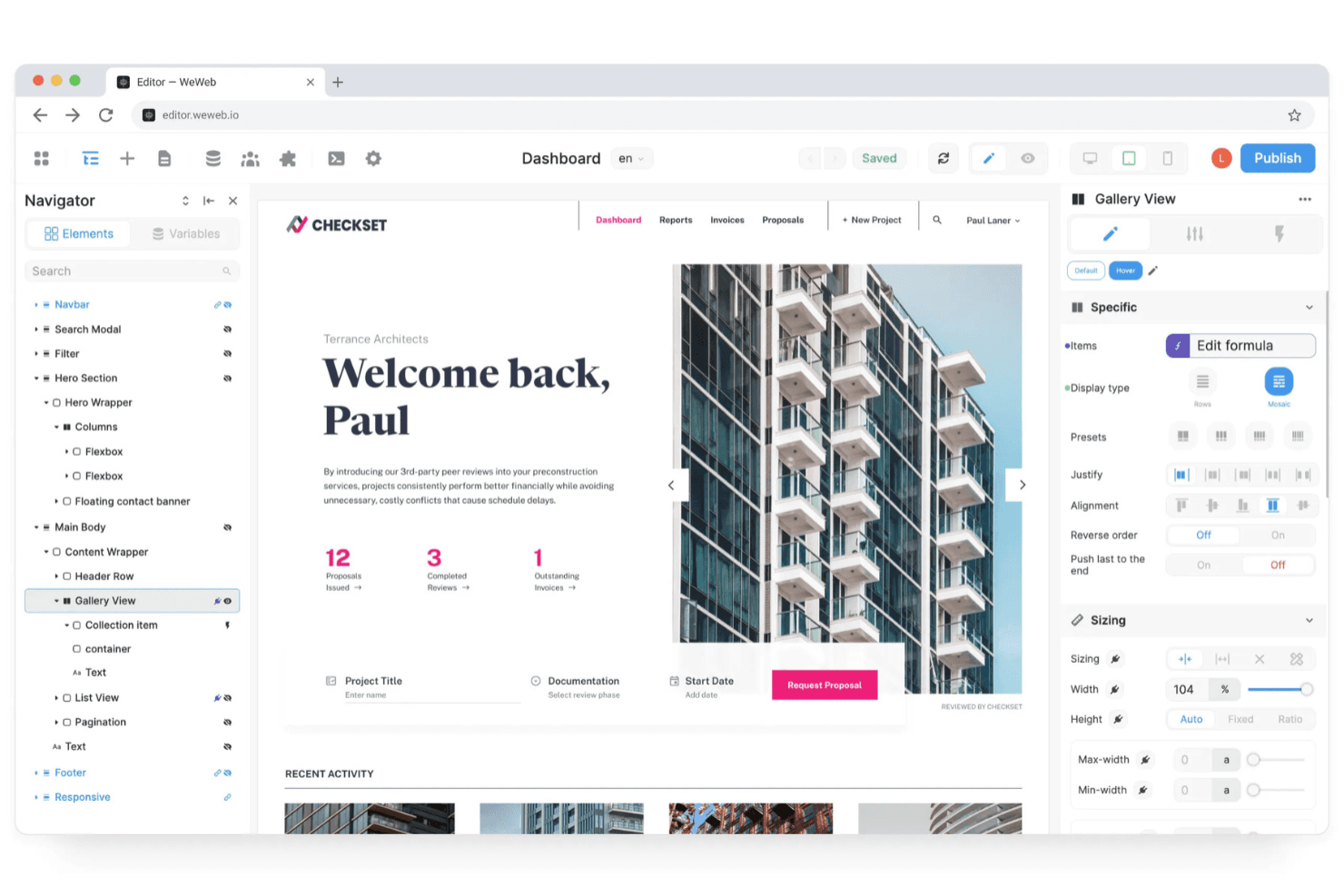
WeWeb helps teams build flexible web apps without coding. WeWeb is a visual development platform that combines a drag-and-drop canvas with AI-assisted generation, a native backend, and Vue.js code export to build fully functional web apps.
Who Is WeWeb Best For?
WeWeb is a strong fit for startup founders and no-code developers who need to ship functional web apps fast, without handing off to a full engineering team.
Why I Picked WeWeb
WeWeb earns its spot on my shortlist because it goes further than most no-code builders by letting you ship a fully functional web app, not just a clickable mockup. I particularly like that the AI generation produces native WeWeb elements you can edit visually afterward, so you're not stuck re-prompting to fix one button. The Figma plugin is also genuinely useful: it imports full frames with layout, fonts, and design tokens, then maps Figma components directly to reusable WeWeb components for future imports.
WeWeb Key Features
- Native backend builder: WeWeb includes a built-in PostgreSQL-powered backend with tables, auto-generated CRUD APIs, authentication, role-based access control, and file storage.
- Vue.js code export: Every paid plan includes export of a standalone Vue.js SPA with zero runtime dependency on WeWeb, ready to self-host on AWS, Vercel, Netlify, or your own server.
- Visual workflow builder: A no-code workflow editor handles branching logic, loops, API calls, form validation, and state management with step-by-step debugging built in.
- MCP server for AI agents: External agents like Claude Code, Cursor, and ChatGPT can work directly inside your WeWeb project, turning PRDs into structured app screens, data models, and logic.
WeWeb Integrations
WeWeb offers native integrations with Supabase, Xano, Airtable, Google Sheets, GitHub, Figma, and Zapier. It also connects to REST and GraphQL APIs, SQL databases, and other external data sources.
Pros and Cons
Pros:
- Imports Figma layouts and design tokens
- Builds functional workflows beyond mockups
- Exports standalone Vue.js applications
Cons:
- AI changes can disrupt existing logic
- Requires technical fluency for advanced projects
Learn more about WeWeb: Best for shipping mobile apps without developers
- Free plan available
- From $39/month
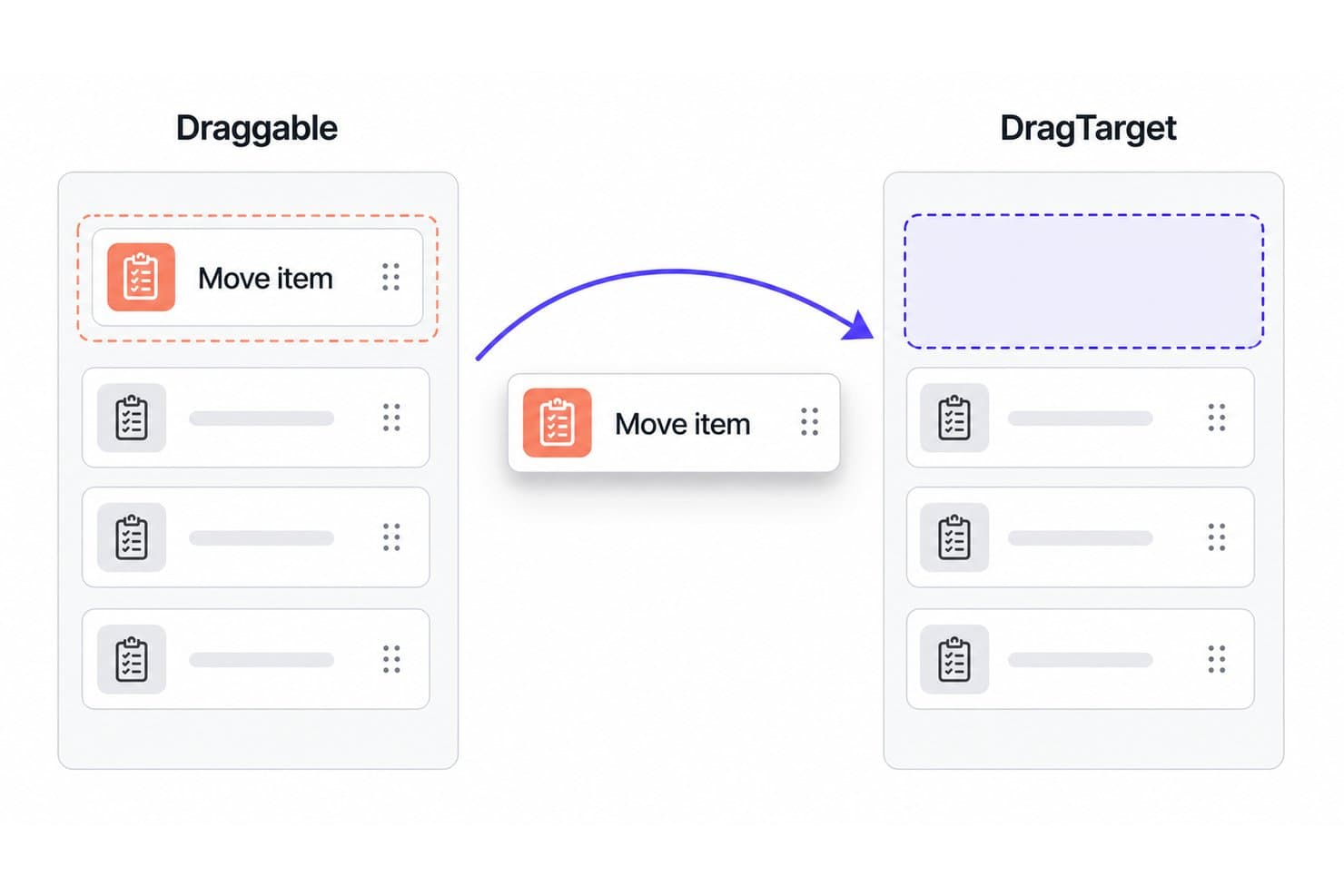
FlutterFlow lets users drag items between lists with Draggable and DragTarget widgets. FlutterFlow is a visual app development environment that lets you build, prototype, and publish mobile, web, and desktop apps through a drag-and-drop canvas with pre-built UI components, responsive layout controls, and a visual logic editor.
Who Is FlutterFlow Best For?
FlutterFlow is a strong fit for startup founders and product managers who need to ship real mobile apps without a dedicated engineering team.
Why I Picked FlutterFlow
I picked FlutterFlow as one of the best because it's the only drag-and-drop builder on my list that generates real, exportable Flutter code, so you're not just prototyping but actually shipping. The Action Flow Editor lets you wire up page-level logic and conditional UI states visually, and one-click App Store and Play Store deployment means a solo founder or PM can go from canvas to live app without touching a terminal.
FlutterFlow Key Features
- Action Flow Editor: A visual logic editor that lets you wire up page-level triggers, conditional visibility, and parameterized navigation without writing code.
- Responsive breakpoint controls: Set distinct layout, sizing, and visibility rules across four device tiers—mobile, tablet, desktop, and wide—from a single settings panel.
- Reusable component libraries: Publish entire projects, components, API calls, and action blocks as versioned dependencies that can be shared and reused across multiple projects.
- AI-assisted UI generation: Type a natural-language prompt to generate theme-styled widgets and reusable components directly on the canvas using the Generate with Designer feature.
FlutterFlow Integrations
FlutterFlow connects natively with Firebase, Supabase, Stripe, RevenueCat, OneSignal, Mux, and Google Cloud. It also supports REST APIs and Swagger/OpenAPI imports for custom data connections.
Pros and Cons
Pros:
- Responsive controls span four device tiers
- Builds functional prototypes without engineering support
- Exports Flutter code for future ownership
Cons:
- Large projects can slow debugging
- Web output remains Flutter-rendered
Learn more about FlutterFlow : Best for design-token-driven site building
- Free plan + 14-day free trial available
- From $15/month (billed annually)
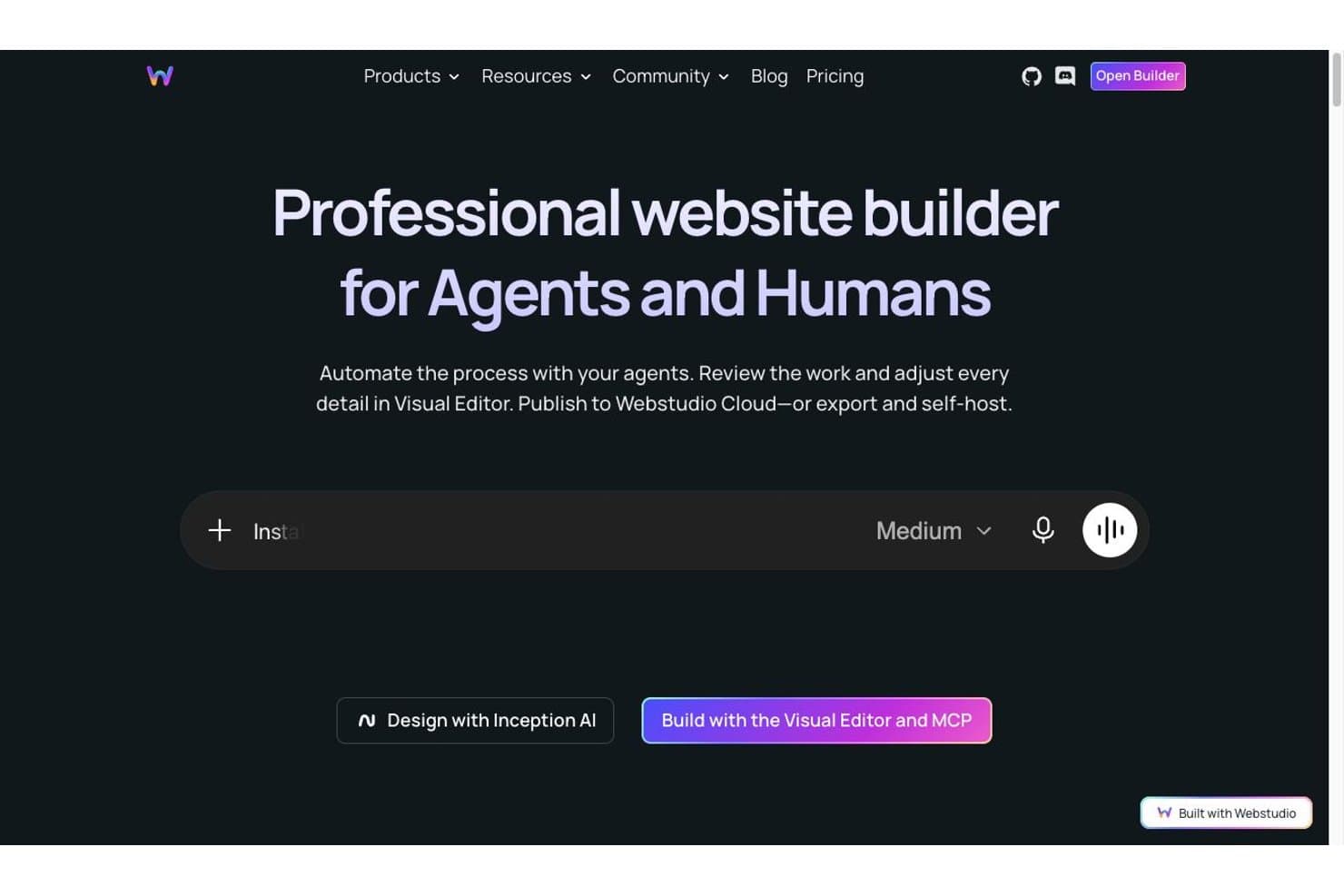
Webstudio lets users build websites with AI agents or a visual editor. Webstudio is an open-source, browser-based visual site builder that gives you drag-and-drop layout control alongside a full CSS Style Panel, Design Tokens, Radix UI components, and Figma Variables import.
Who Is Webstudio Best For?
Webstudio is a strong fit for frontend developers and UX/UI designers who want pixel-level CSS control and design-system workflows without leaving the browser.
Why I Picked Webstudio
Webstudio earns its spot on my shortlist because of how seriously it takes design-token-driven workflows. I love that you can import Figma Variables directly, then stack Design Tokens in the Style Panel so the rightmost token wins and local styles override everything—this mirrors how real design systems behave. When I'm building a site with a defined design language, that token-stacking model means visual consistency scales without manual overrides piling up.
Webstudio Key Features
- Radix UI components: A suite of WAI-ARIA compliant interactive components—including modals, tabs, accordions, and menus—that you can style fully in the Style Panel.
- Content Mode: A restricted editing view that lets clients update copy and media without accessing any design or style controls.
- Dynamic routing and Collections: Page templates with URL parameters (e.g.,
/blog/:slug) that bind to external data sources to generate real, data-driven pages. - MCP and CLI integration: A command-line and Model Context Protocol connection that lets AI agents like Claude or Cursor edit your live project directly.
Webstudio Integrations
Webstudio supports integrations with Strapi, Hygraph, Notion, Baserow, Contentful, Payload, Directus, WordPress, Flotiq, and Supabase. It also connects to REST and GraphQL APIs, with webhook form guides for Zapier, n8n, and Pabbly.
Pros and Cons
Pros:
- Production-ready output avoids hosting lock-in
- Figma Variables translate into reusable styles
- Design tokens keep visual systems consistent
Cons:
- CSS-centric controls challenge nontechnical collaborators
- Interactive prototyping lacks flow and hotspot tools
Learn more about Webstudio: Best for launching mobile apps with owned code
- Free plan available
- From $15/month
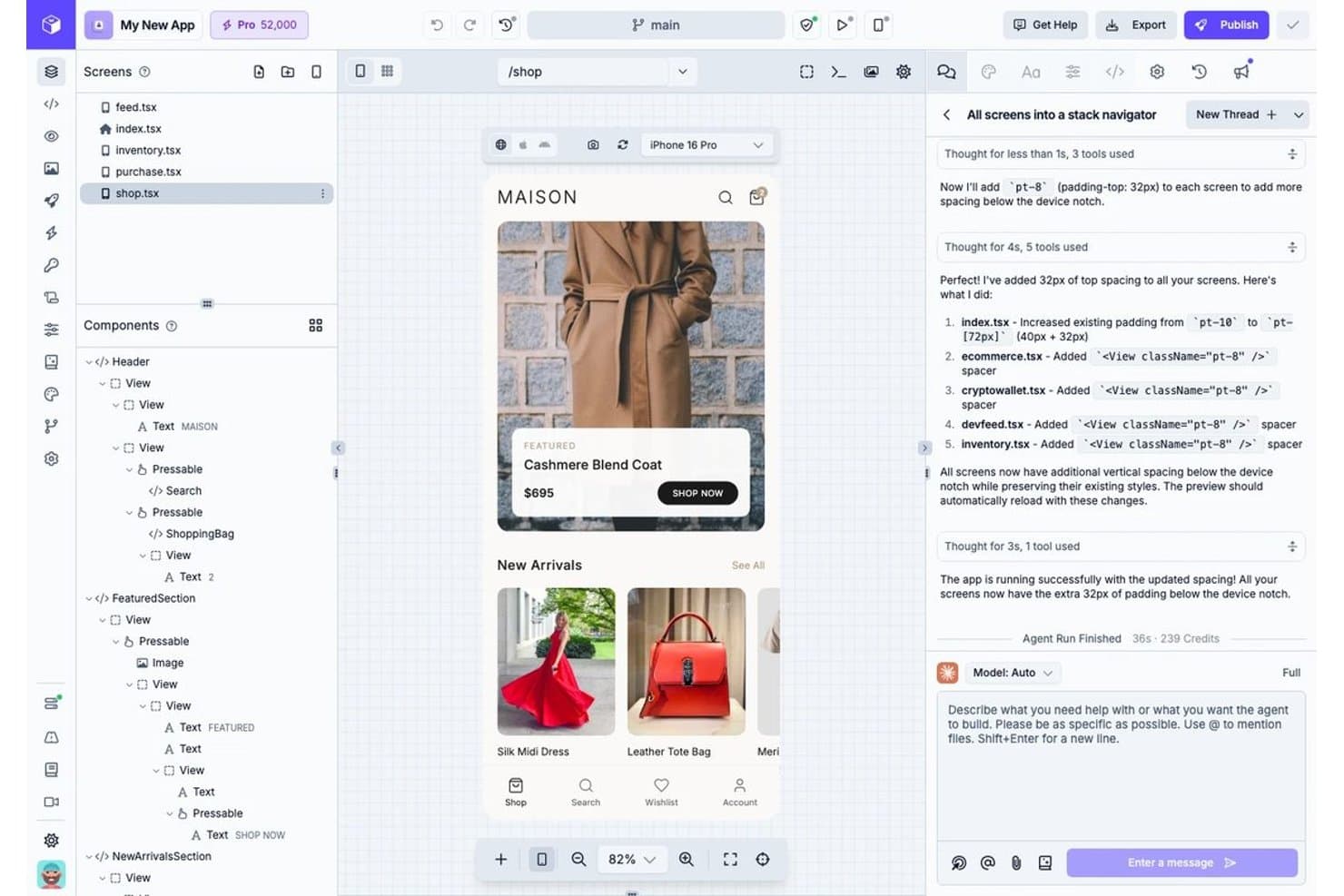
Draftbit lets users build app screens visually with a drag-and-drop component tree. Draftbit is a visual drag-and-drop app builder that lets you construct mobile and web UIs on an infinite canvas while generating real React Native, Vite, or Astro code you can export, edit, and publish directly to app stores.
Who Is Draftbit Best For?
Draftbit is a strong fit for startup founders and no-code developers who want to ship a real mobile app to the App Store without handing ownership of the codebase to a proprietary platform.
Why I Picked Draftbit
I picked Draftbit as one of the best because it's the only drag-and-drop builder I've found that produces real, exportable React Native and Vite code you fully own. Build a mobile app visually, then push it straight to the App Store with one click, no third-party lock-in. I also love that AI agents write directly to the same codebase the visual editor uses, so switching between dragging components and prompting Claude Code never breaks your project.
Draftbit Key Features
- Design blocks: Pre-built screens, navigation patterns, and UI components you can drop into your project to scaffold full app flows without starting from scratch.
- 26+ device simulators: Preview your app live across iPhones, iPads, Android devices, and desktop breakpoints directly in the browser.
- Theme editor: Edit global palettes, typography, and style tokens across your entire project using a visual theme editor with full Google Fonts support.
- Supabase backend integration: Connect a built-in Postgres database, authentication, storage, and edge functions to your app without leaving the builder.
Draftbit Integrations
Draftbit documents 80+ integrations across REST, GraphQL, and MCP, including Supabase, Firebase, Xano, Airtable, Contentful, Figma, Stripe, GitHub, Linear, and Zapier. You can connect custom REST and GraphQL APIs, with custom MCP servers available on Pro and Enterprise.
Pros and Cons
Pros:
- Publishes working apps to app stores
- Visual edits sync with AI changes
- Exports real code you control
Cons:
- AI can miss described requirements
- Complex logic requires code or AI
Learn more about Draftbit: Best for visual editing with a headless CMS
- Free plan available
- From $24/user/month (billed annually)
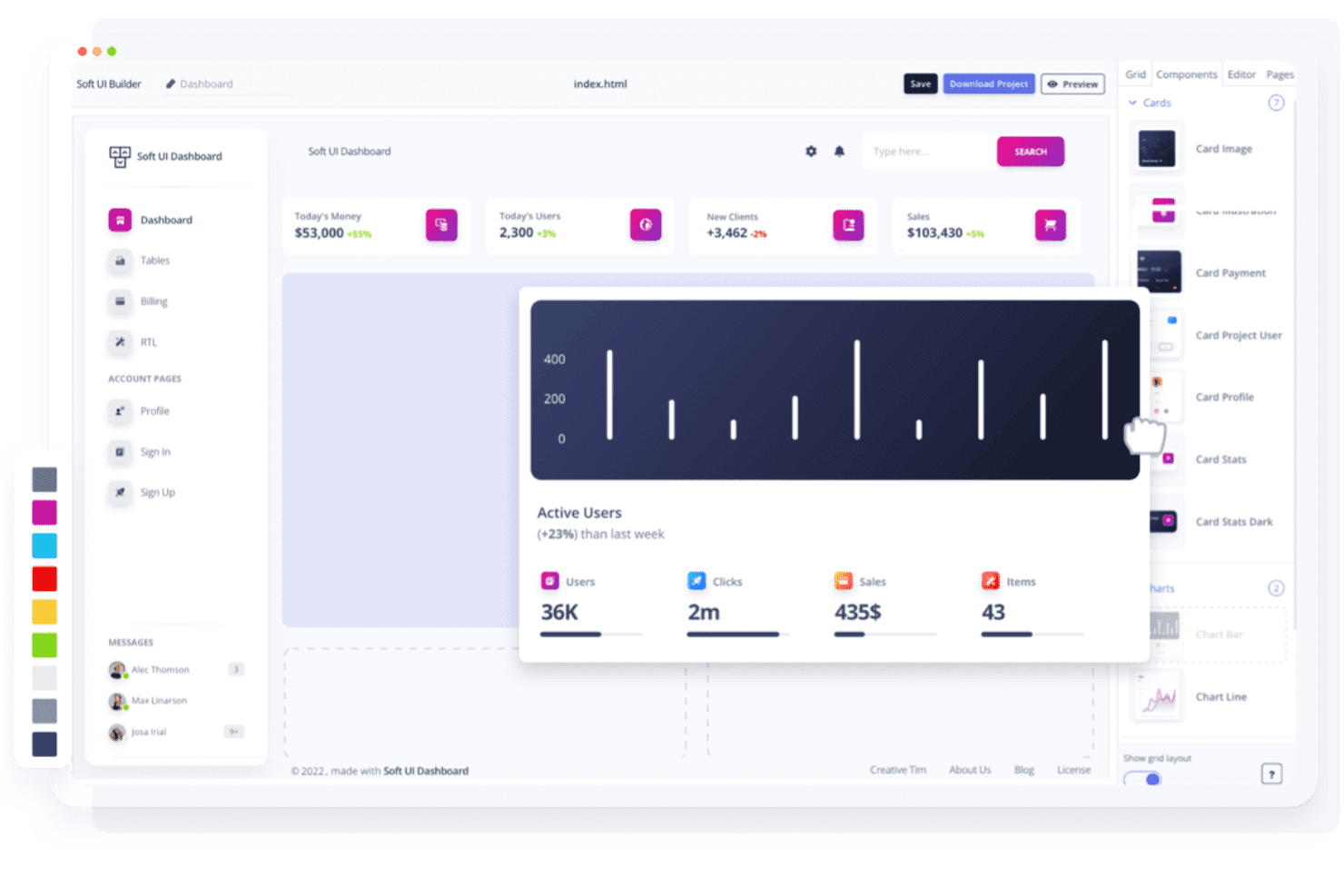
Builder.io helps teams build and optimize e-commerce sites without coding Builder.io is a drag-and-drop UI builder that combines a visual code editor with a headless CMS, letting teams design, build, and publish interfaces through a shared visual canvas with Figma import, AI-assisted generation, and real code output.
Who Is Builder.io Best For?
Builder.io is a strong fit for cross-functional product teams—designers, developers, and PMs—who need visual editing to connect directly to a live codebase and a headless CMS.
Why I Picked Builder.io
Builder.io earns its spot on my shortlist because it's the only drag-and-drop UI builder that pairs a true visual canvas with a fully functional headless CMS in one platform. I love how Visual Copilot converts Figma frames directly into production-ready code, and edits made in Design mode sync automatically to the underlying codebase as real PRs. That means my team can push content changes and UI updates without ever creating a throwaway prototype.
Builder.io Key Features
- Design token support: Define and enforce reusable values for color, spacing, typography, and more, with a strict mode that limits editors to approved tokens only.
- Custom breakpoints: Set pixel-level breakpoints for your whole space and preview layouts at any width directly in the visual editor.
- A/B testing and personalization: Run split tests and target content variations by URL path, device type, or custom audience rules without leaving the platform.
- Cross-functional commenting and peer review: Leave element-level comments with screenshots and request peer reviews on changes before they merge to your codebase.
Builder.io Integrations
Builder.io offers native integrations with GitHub, GitLab, Bitbucket, Azure DevOps, Figma, Slack, Jira, Contentful, and Sanity. It supports REST and GraphQL APIs, plus Zapier, for custom integrations and content delivery.
Pros and Cons
Pros:
- Headless CMS adds testing and personalization
- Figma designs convert into frontend components
- Visual edits become production-ready code
Cons:
- No dedicated screen-flow prototyping canvas
- Advanced widgets require custom components
Learn more about Builder.io: Best for apps built across multiple data sources
- Free plan + free demo available
- From $24/user/month

Jet Admin builds internal dashboards and data tools without code Jet Admin is a drag-and-drop app builder that lets you create admin panels, dashboards, and internal tools by connecting to databases, APIs, and third-party business apps across multiple data sources.
Who Is Jet Admin Best For?
Jet Admin is a strong fit for startup founders and small teams who need to build data-connected internal tools, admin panels, or portals without a dedicated development team.
Why I Picked Jet Admin
I've included Jet Admin in my top picks because it's the builder I reach for when an app needs to pull live data from several places at once. I can connect a PostgreSQL database, a Stripe account, and a HubSpot CRM in the same app without writing a backend from scratch. The Figma-to-Jet plugin also lets me bring existing designs in as data-bindable components, so I'm not rebuilding layouts by hand.
Jet Admin Key Features
- AI app builder: Generate a working app from a text prompt, then refine it visually or with follow-up prompts.
- Custom component builder: Create custom components in HTML, React, Vue, or Angular, with AI assistance for the code.
- Role-based access control: Set granular permissions to show, hide, or restrict content based on user role or data values.
- Two-way GitHub sync: Connect your app to a GitHub repository for version control across production, staging, and development environments.
Jet Admin Integrations
Jet Admin offers 200+ integrations, including PostgreSQL, MySQL, Figma, GitHub, HubSpot, Salesforce, Stripe, and Google Sheets. It also supports REST, GraphQL, OpenAPI, and Zapier for custom connectivity.
Pros and Cons
Pros:
- Supports custom code and visual styling
- Converts Figma frames into responsive components
- Builds functional apps from visual layouts
Cons:
- Classic builder now trails AI-first workflows
- Better suited to business apps than prototypes
Learn more about Jet Admin: 10Best for syncing visual edits to a React codebase
Plasmic
- Free plan available
- From $39/month (billed annually)
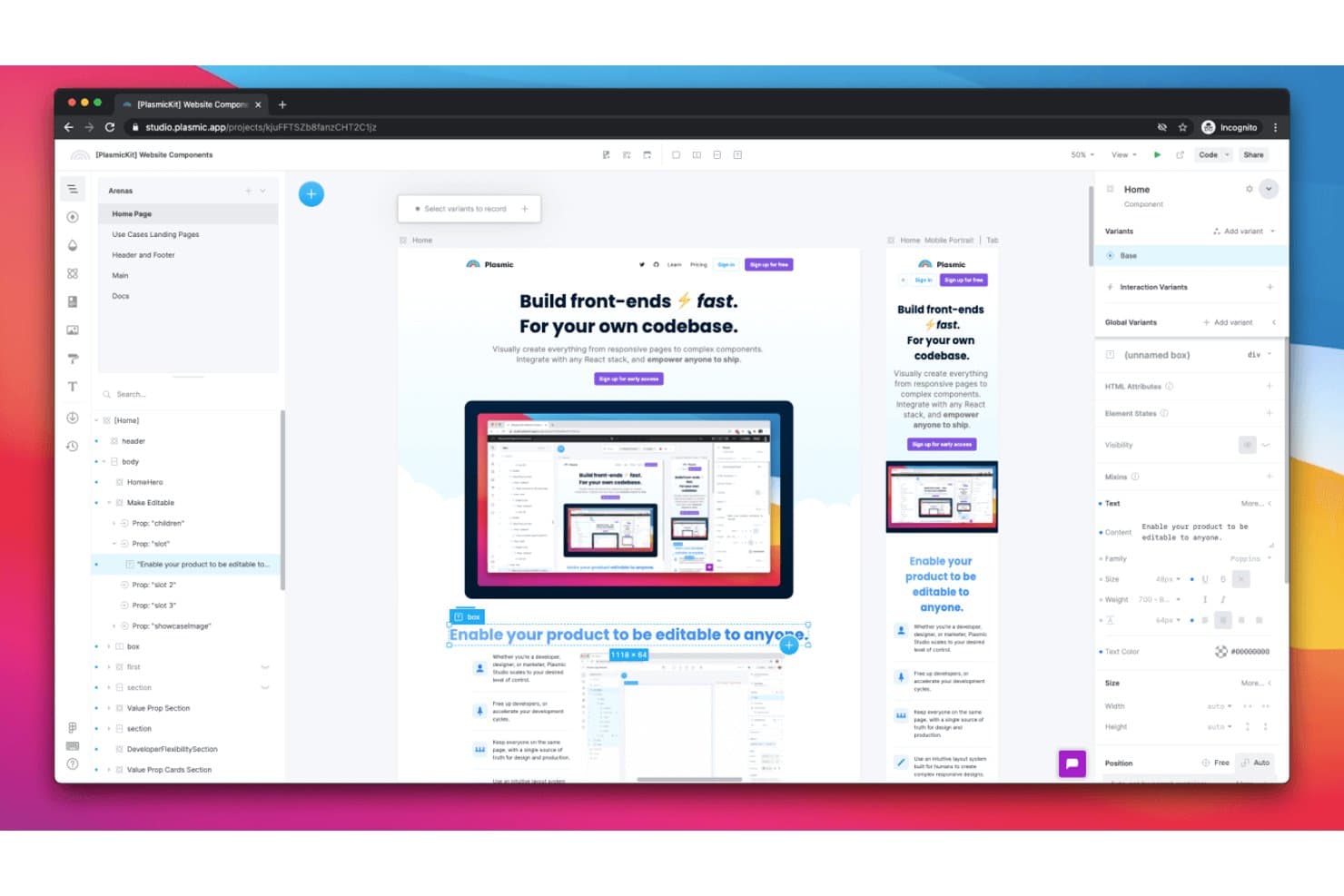
Plasmic lets users visually build and edit UI components via drag-and-drop. Plasmic is an open-source visual drag-and-drop builder for React websites and web apps that lets you design on a canvas, register custom React components as drag-and-drop blocks, and sync generated code directly into your codebase.
Who Is Plasmic Best For?
Plasmic is a strong fit for frontend developers and product teams who want to let non-technical collaborators edit UI visually without breaking the underlying React codebase.
Why I Picked Plasmic
I picked Plasmic as one of the best because it's the only drag-and-drop builder I've found that keeps your visual edits and React codebase in genuine sync. Running
plasmic watchmeans any design change in the canvas regenerates your React components automatically, without overwriting your custom code. I also love that you can register your own React components as drag-and-drop blocks, so your team edits real production components visually, not placeholder stand-ins.Plasmic Key Features
- Style tokens: Define reusable color, spacing, and typography tokens that reference each other and apply globally across your project via CSS variables.
- Content creator mode: A simplified editor view that lets non-technical teammates edit content without accessing the full design canvas.
- Multiplayer editing: Multiple team members can work in the same project simultaneously, with comments for async collaboration.
- AI-assisted generation: A beta tool that generates sections, pages, and tokens from text or image prompts, reusing your project's existing tokens to stay on-brand.
Plasmic Integrations
Plasmic offers native integrations with Figma, GitHub, Vercel, Netlify, Shopify, Contentful, Sanity, Airtable, Supabase, and Optimizely. It supports custom integrations through REST, GraphQL, or SQL, plus Zapier.
Pros and Cons
Pros:
- Supports real app behavior beyond mockups
- Reuses production components inside the canvas
- Keeps visual edits synced with React code
Cons:
- Installed components require manual update work
- Figma imports need manual responsive rework
Learn more about Plasmic:
Outros construtores de interfaces de utilizador com função de arrastar e largar
Eis algumas opções adicionais de construtores de interfaces de utilizador com função de arrastar e largar que não entraram na minha lista, mas que ainda vale a pena conhecer:
- 11UI BakeryBest for building internal business tools fast
- 12FramerBest for interactive prototyping with animation
- 13OutSystemsBest for enterprise app generation from a prompt
- 14TeleportHQBest for instant React code generation
- 15AdaloBest for launching native mobile and web MVPs
How I Evaluate Drag-and-Drop UI Builders
I split my evaluation into three parts, with core functionality carrying the most weight: I look for tools that let teams arrange UI components on a canvas and publish responsive pages. Next, I consider standout features such as Figma-to-editable-UI generation. Finally, I weigh factors beyond features, including onboarding, support, and pricing value.
Core Functionality (Table Stakes For This List)
When I'm selecting tools for my list, I score each one on a scale from 0 (does not offer the functionality) to 5 (excels in this area) for each core functionality listed below. I then convert the total into a percentage to help assess each tool's overall fit, with extra weight on any functionalities I’ve deemed essential.
- Visual Canvas (Essential): I look for flexible drag-and-drop layouts, including nested sections and precise placement for a landing page or app screen.
- UI Components (Essential): I assess whether the library covers practical needs like forms, navigation, buttons, and tables for the product being built.
- Responsive Controls: I check whether teams can preview and adjust layouts across desktop and mobile breakpoints.
- Visual Styling: I evaluate control over typography, color, spacing, and reusable styles to keep screens consistent.
- Publishing Options: I look for usable code export, live publishing, or a clear path into an existing development workflow.
- Interactive Prototyping: I consider whether teams can link screens and model navigation or conditional flows to assess an idea before launch.
Once I have a list of tools that meet the criteria, I consider what sets each platform apart.
Differentiating Factors (What Sets Vendors Apart)
Here's how I compare and contrast different vendors:
Standout Features
I look for AI-assisted generation that turns a text prompt or Figma file into an editable layout, because it collapses the gap between a rough idea and a testable screen. Real-time design-to-code sync matters just as much; when canvas changes update the underlying code instantly, teams skip the re-export cycle that stalls handoff. I also evaluate how well a platform pulls in existing design tokens or component libraries, since brand-consistent prototypes build stakeholder trust faster during validation rounds.
Beyond Features
I evaluate how quickly a PM can go from first login to a shareable prototype, because a tool that demands hours of onboarding stalls discovery cycles. Equally important is how well the platform connects to an existing stack—linking a builder to Figma, Jira, or GitHub means prototypes feed directly into backlog items instead of living as disconnected artifacts. I also check whether sharing and feedback features support stakeholder validation, since a testable link with embedded comments beats a static screenshot in every roadmap discussion.
Como escolher um construtor de interfaces de utilizador com função de arrastar e largar
É fácil perder-se em listas extensas de funcionalidades e estruturas de preços complexas. Para se manter concentrado enquanto analisa o seu processo específico de seleção de software, eis uma lista de verificação dos fatores a ter em conta:
| Fator | O que deve considerar |
|---|---|
| FatorEscalabilidade | O que deve considerarA ferramenta acompanhará a sua equipa à medida que os seus projetos ou a sua base de utilizadores crescem? Verifique os limites de utilizadores, os limites de projetos e o desempenho com ficheiros grandes. |
| FatorIntegrações | O que deve considerarEstabelece ligação nativa às suas ferramentas de design, desenvolvimento ou análise? Confirme a compatibilidade com ferramentas como o Figma, o GitHub ou o Slack. |
| FatorPersonalização | O que deve considerarPode adaptar a ferramenta ao seu fluxo de trabalho? Procure opções para adicionar código personalizado, modelos ou elementos de marca à medida que as suas necessidades evoluem. |
| FatorFacilidade de utilização | O que deve considerarCom que rapidez podem os novos utilizadores tornar-se produtivos? Avalie a curva de aprendizagem, a clareza da interface e a disponibilidade de orientação na aplicação. |
| FatorImplementação e integração inicial | O que deve considerarQue recursos são necessários para começar? Considere o apoio à migração, os materiais de formação e o tempo necessário para integrar a sua equipa. |
| FatorCusto | O que deve considerarOs níveis de preços estão alinhados com o seu orçamento e utilização? Esteja atento a taxas ocultas, complementos obrigatórios ou preços baseados no número de utilizadores, que podem acumular-se. |
| FatorMedidas de segurança | O que deve considerarA ferramenta cumpre as normas de segurança da sua organização? Procure início de sessão único, encriptação de dados e conformidade com os regulamentos relevantes. |
| FatorDisponibilidade do apoio | O que deve considerarQue canais de apoio são disponibilizados e durante que horário? Considere se precisa de chat em direto, apoio telefónico ou apenas apoio por e-mail, especialmente para problemas urgentes. |
O que é um construtor de interfaces de utilizador com função de arrastar e largar?
Um construtor de interfaces de arrastar e largar é uma ferramenta visual que ajuda as equipas a conceber e criar interfaces através da organização de elementos numa tela, em vez de escrever código. Estas ferramentas apoiam o desenvolvimento de aplicações, facilitando a criação de esquemas para aplicações Web e projetos de criação de websites, sem depender demasiado dos programadores. Ao simplificarem o processo de desenvolvimento, os construtores de interfaces de arrastar e largar permitem que as equipas se concentrem em criar aplicações mais rapidamente, testar ideias e iterar sobre os designs com menos esforço técnico.
Funcionalidades
Ao selecionar um construtor de interfaces de arrastar e largar, esteja atento às seguintes funcionalidades essenciais:
- Tela visual: Permite organizar, redimensionar e dispor elementos da interface diretamente numa área de trabalho digital, tornando as alterações ao esquema intuitivas e imediatas.
- Biblioteca de componentes: Fornece uma coleção de elementos de interface reutilizáveis, como botões, formulários e barras de navegação, que pode arrastar para o seu design.
- Ferramentas de design responsivo: Permitem criar esquemas que se ajustam automaticamente a diferentes tamanhos de ecrã e dispositivos, garantindo uma experiência de utilização consistente.
- Prototipagem interativa: Permite adicionar ligações, transições e interações básicas, para simular os percursos dos utilizadores e testar a lógica da interface.
- Editor de estilos: Disponibiliza controlos para ajustar cores, tipos de letra, espaçamento e outras propriedades visuais, sem ter de escrever CSS ou código.
- Modo de pré-visualização: Permite ver e interagir com o design como faria um utilizador final, ajudando a detetar problemas antes do desenvolvimento.
- Opções de exportação e transferência: Permite exportar recursos, excertos de código ou especificações de design para partilhar com programadores ou outras partes interessadas.
- Histórico de versões: Regista as alterações efetuadas ao projeto ao longo do tempo, permitindo reverter para estados anteriores ou consultar as edições feitas por colaboradores.
- Ferramentas de colaboração: Facilitam o trabalho em equipa em tempo real ou assíncrono, com funcionalidades como comentários, partilha e edição por vários utilizadores.
- Biblioteca de modelos: Inclui esquemas pré-concebidos ou kits de interface para ajudar a iniciar rapidamente novos projetos e manter a consistência do design.
Funcionalidades comuns de IA
Para além das funcionalidades padrão dos construtores de interfaces de arrastar e largar acima indicadas, muitas destas soluções estão a incorporar IA com funcionalidades como:
- Sugestões de esquema baseadas em IA: Analisa o seu design e recomenda automaticamente a colocação, o espaçamento e o alinhamento ideais dos elementos, para melhorar a usabilidade e o equilíbrio visual.
- Componentes gerados por IA: Cria novos elementos de interface ou secções completas com base nos requisitos do projeto ou em instruções de texto, reduzindo o trabalho manual de design.
- Preenchimento automático de conteúdo: Utiliza IA para gerar texto de marcador de posição, imagens ou ícones que correspondem ao contexto do design, ajudando a visualizar protótipos realistas mais rapidamente.
- Verificações de acessibilidade: Analisa a interface em busca de possíveis problemas de acessibilidade e sugere correções baseadas em IA para melhorar a conformidade com as normas de acessibilidade.
- Análise da consistência do design: Revê o projeto em busca de estilos, cores ou tipos de letra inconsistentes e recomenda ajustes baseados em IA para manter uma aparência coerente.
Benefícios
A implementação de um construtor de interfaces de arrastar e largar proporciona vários benefícios à sua equipa e à sua empresa. Eis alguns dos benefícios que pode esperar:
- Prototipagem mais rápida: As telas visuais e as bibliotecas de componentes permitem criar e testar rapidamente ideias de interfaces sem programação.
- Processo de design acessível: As ferramentas de arrastar e largar tornam a criação de interfaces possível para membros da equipa com diferentes níveis de conhecimentos técnicos.
- Colaboração melhorada: As funcionalidades de edição em tempo real, comentários e partilha ajudam as equipas a trabalhar em conjunto e a recolher feedback de forma eficiente.
- Experiências de utilização consistentes: As bibliotecas de modelos e os editores de estilos promovem a consistência da marca e dos padrões de design entre projetos.
- Menos atrito na transferência: As opções de exportação e transferência facilitam a partilha de especificações e recursos com os programadores, minimizando falhas de comunicação.
- Suporte para design responsivo: As ferramentas responsivas integradas garantem que as interfaces têm bom aspeto e funcionam corretamente em qualquer dispositivo.
- Menos obstáculos à integração: Os tutoriais guiados, os modelos e as interfaces intuitivas ajudam os novos utilizadores a tornarem-se produtivos rapidamente.
Custos e preços
A seleção de um construtor de interfaces de arrastar e largar requer uma compreensão dos vários modelos de preços e planos disponíveis. Os custos variam consoante as funcionalidades, o tamanho da equipa, os complementos, entre outros fatores. A tabela abaixo resume os planos comuns, os respetivos preços médios e as funcionalidades normalmente incluídas nas soluções de construtores de interfaces de arrastar e largar:
Tabela de comparação de planos para criadores de interfaces de utilizador com funcionalidade de arrastar e largar
| Tipo de plano | Preço médio | Funcionalidades comuns |
|---|---|---|
| Tipo de planoPlano gratuito | Preço médio$0 | Funcionalidades comunsAcesso a componentes básicos, projetos limitados, suporte para um único utilizador e recursos de ajuda da comunidade. |
| Tipo de planoPlano pessoal | Preço médio$10–$25/utilizador/mês | Funcionalidades comunsProjetos ilimitados, componentes avançados, ferramentas de design responsivo e suporte por e-mail. |
| Tipo de planoPlano empresarial | Preço médio$25–$50/utilizador/mês | Funcionalidades comunsColaboração em equipa, histórico de versões, opções de exportação, suporte prioritário e capacidades de integração. |
| Tipo de planoPlano empresarial avançado | Preço médio$50–$100+/utilizador/mês | Funcionalidades comunsSegurança personalizada, integração inicial dedicada, controlos administrativos avançados, suporte com SLA e registos de auditoria. |
Perguntas frequentes
\u003cspan style=\u0022font-weight: 400\u0022\u003eEis algumas respostas a perguntas frequentes sobre criadores de interfaces de utilizador com funcionalidade de arrastar e largar:\u003c/span\u003e
Posso utilizar um criador de interfaces de utilizador com funcionalidade de arrastar e largar sem qualquer experiência de programação?
\u003cspan style=\u0022font-weight: 400\u0022\u003eSim, a maioria dos criadores de interfaces de utilizador com funcionalidade de arrastar e largar foi concebida para utilizadores com pouca ou nenhuma experiência de programação. Pode organizar visualmente os elementos, personalizar estilos e criar protótipos interativos através de interfaces intuitivas, tornando estas ferramentas acessíveis a designers, gestores de produto e outros profissionais que não desenvolvem software.\u003c/span\u003e
Como é que os criadores de interfaces de utilizador sem código apoiam a colaboração em equipa?
\u003cspan style=\u0022font-weight: 400\u0022\u003eMuitos criadores de interfaces de utilizador com funcionalidade de arrastar e largar disponibilizam edição em tempo real, comentários e funcionalidades de partilha. Estas ferramentas permitem que vários membros da equipa trabalhem simultaneamente no mesmo projeto, forneçam feedback diretamente sobre os designs e giram permissões para diferentes funções, ajudando a manter todos alinhados.\u003c/span\u003e
Que tipos de projetos são mais adequados para este tipo de criador de interfaces de utilizador?
\u003cspan style=\u0022font-weight: 400\u0022\u003eOs criadores de interfaces de utilizador com funcionalidade de arrastar e largar são ideais para criar protótipos de interfaces Web e móveis, criar sistemas de design e desenvolver sites de marketing ou painéis de controlo. São especialmente úteis para projetos que exigem iterações rápidas, feedback das partes interessadas ou colaboração entre designers e membros da equipa sem conhecimentos técnicos.\u003c/span\u003e
Posso exportar os meus designs ou código a partir de um criador de interfaces de utilizador com funcionalidade de arrastar e largar?
\u003cspan style=\u0022font-weight: 400\u0022\u003eSim, a maioria das soluções permite exportar recursos, especificações de design ou fragmentos de código para serem entregues aos programadores. Algumas ferramentas oferecem integração direta com plataformas de desenvolvimento ou geram código pronto para produção, enquanto outras se concentram em fornecer documentação clara e ficheiros de design.\u003c/span\u003e