

Gratis designverktøy for brukergrensesnitt er programvareplattformer som lar deg opprette, prototypere og samarbeide om brukergrensesnitt uten å betale på forhånd – enten gjennom en gratisversjon eller en gratis prøveperiode. Hvis du leter etter måter å utforme grensesnitt, teste ideer eller samarbeide med teamet ditt uten å binde deg til et betalt abonnement, trenger du alternativer som balanserer brukervennlighet, samarbeid og tilgang til funksjoner uten kostnad.
Denne listen hjelper deg med å sammenligne de beste gratis designverktøyene for brukergrensesnitt i 2026, slik at du kan finne det som passer best til arbeidsflyten din, enten du lager trådskisser, prototyper eller interaktive modeller.
Why Trust Our Software Recommendations
6,700+
Reviews
20
Industry experts
16+
Evaluation factors
14
Years
Our team has been testing and reviewing software since 2012. As product managers ourselves, we know how difficult—and important—it is to choose the right software.
For this guide, we evaluated tools using hands-on testing and independent research, scoring tools using our selection criteria.
Our reviews reflect our human editorial judgment, not a sales pitch.
Expert reviewers:
- Andrew LumbySenior TPM
- Cristiano ValimSenior UI/UX Lead


Sammenligningstabell for gratis designverktøy for brukergrensesnitt
| Tool | Best For | Trial Info | Price | ||
|---|---|---|---|---|---|
| 1 | Best for real-time team collaboration | Free plan available | From $3/user/month | Website | |
| 2 | Best for native Windows design workflows | Free plan + free demo available | From $11.99/user/month (billed annually) | Website | |
| 3 | Best for non-designer mockups with AI prompts | Free plan available | From $14/user/month | Website | |
| 4 | Best for prototyping with coded components | Free plan + 14-day free trial available | From $29/user/month (billed annually) | Website | |
| 5 | Best with open-source team environments | Free plan + 14-day free trial available | From $7/user/month | Website | |
| 6 | Best for AI-assisted design-to-live-site publishing | Free plan available | From $10/month (billed annually) | Website | |
| 7 | Best for macOS vector editing workflows | 30-day free trial | From $12/user/month (billed annually) | Website | |
| 8 | Best for mobile app interface animation | 15-day free trial + free plan available | From $29/month | Website | |
| 9 | Best for wireframing without a design background | Free plan available | From $9/user/month (billed annually) | Website | |
| 10 | Best for cross-platform design handoff | Free plan available | From $4/user/month | Website |


Anmeldelser av gratis designverktøy for brukergrensesnitt
Nedenfor finner du mine detaljerte sammendrag av gratis designverktøy for brukergrensesnitt som kom med på kortlisten min. Anmeldelsene mine gir et detaljert innblikk i funksjonene, de beste bruksområdene og prisene for hvert verktøy, slik at du kan finne det beste alternativet for deg.
 Best for real-time team collaboration
- Free plan available
- From $3/user/month
Visit WebsiteCustomer Rating:4.7/5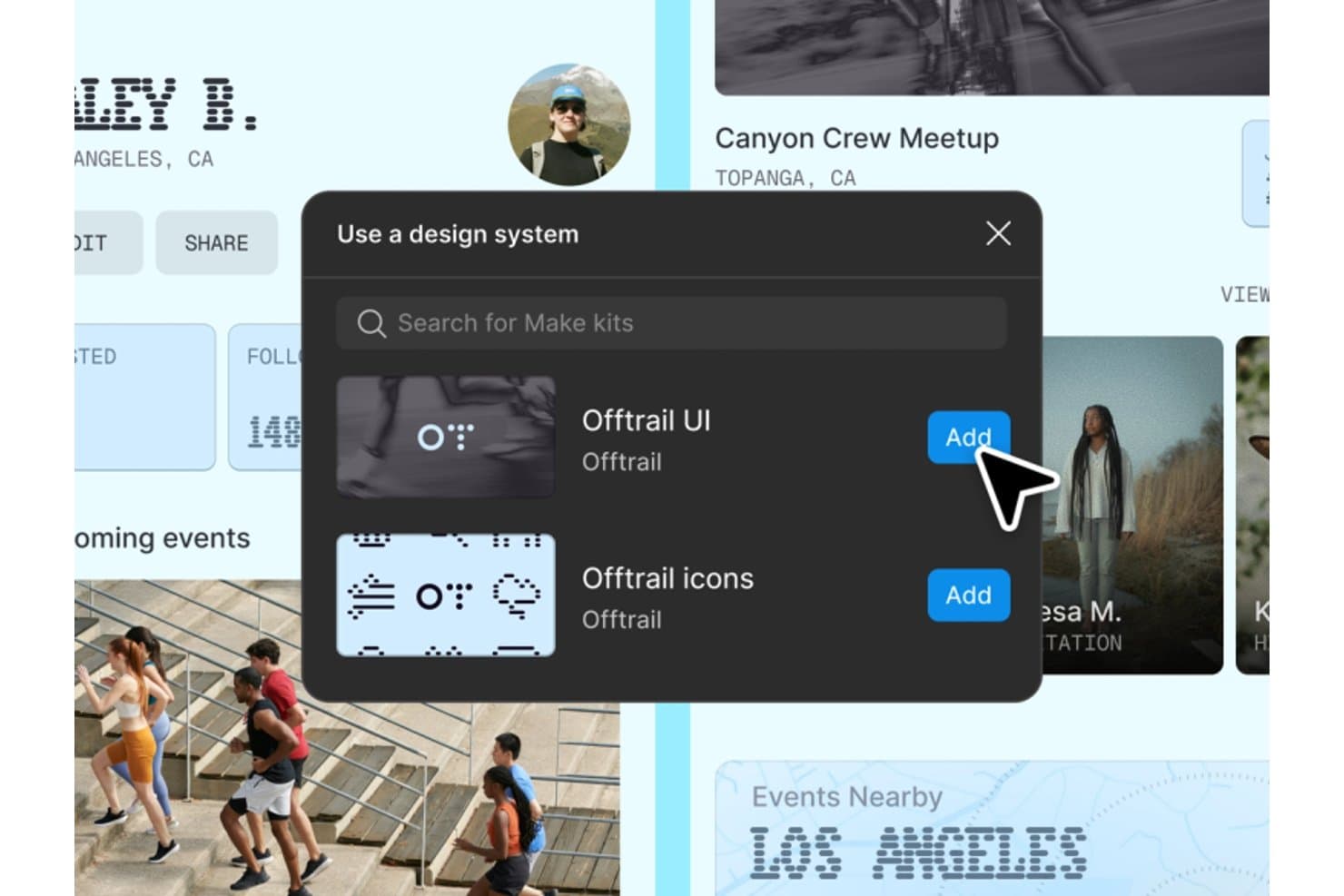
Figma lets users add free UI kits and icon sets via design system panels. Figma is a free UI design tool with an infinite vector canvas, components, variables, interactive prototypes, browser-based editing, comments, and AI-assisted Figma Make workflows.
Who Is Figma Best For?
UI/UX designers and startup teams that need to create, review, and iterate on interfaces together in a browser will find Figma a strong fit.
Why I Picked Figma
I picked Figma because its infinite multiplayer canvas lets my team co-edit wireframes and interface screens with live cursors, comments, and cursor chat. We use shareable prototype links to gather feedback from stakeholders without requiring editor access. That combination makes Figma best for real-time team collaboration.
Figma Key Features
- Auto layout: Create responsive frames that resize and reflow as content changes.
- Interactive prototyping: Add triggers, overlays, Smart Animate transitions, and interactive components.
- Community assets: Browse free UI kits, wireframes, icon sets, templates, and plugins.
- Figma Make: Generate code-backed prototypes and web apps from text prompts.
Figma Integrations
Figma offers native integrations with Jira, Slack, Asana, Microsoft Teams, Confluence, GitHub, and Storybook. GitHub and Storybook connectivity supports developer handoff, while Jira and Slack help teams coordinate design reviews.
What's Free?
Figma offers a free-forever Starter plan, rather than only a time-limited trial. It includes unlimited drafts and collaborators, but limits teams to three collaborative design files, three FigJam files, one project, and 30-day version history.
Pros and Cons
Pros:
- Shareable prototypes support stakeholder feedback
- Extensive community assets speed wireframing
- Real-time co-editing supports quick design reviews
Cons:
- Cross-file component sharing remains unavailable
- Three-file limit constrains ongoing projects
 Best for native Windows design workflows
- Free plan + free demo available
- From $11.99/user/month (billed annually)
Visit WebsiteCustomer Rating:4.4/5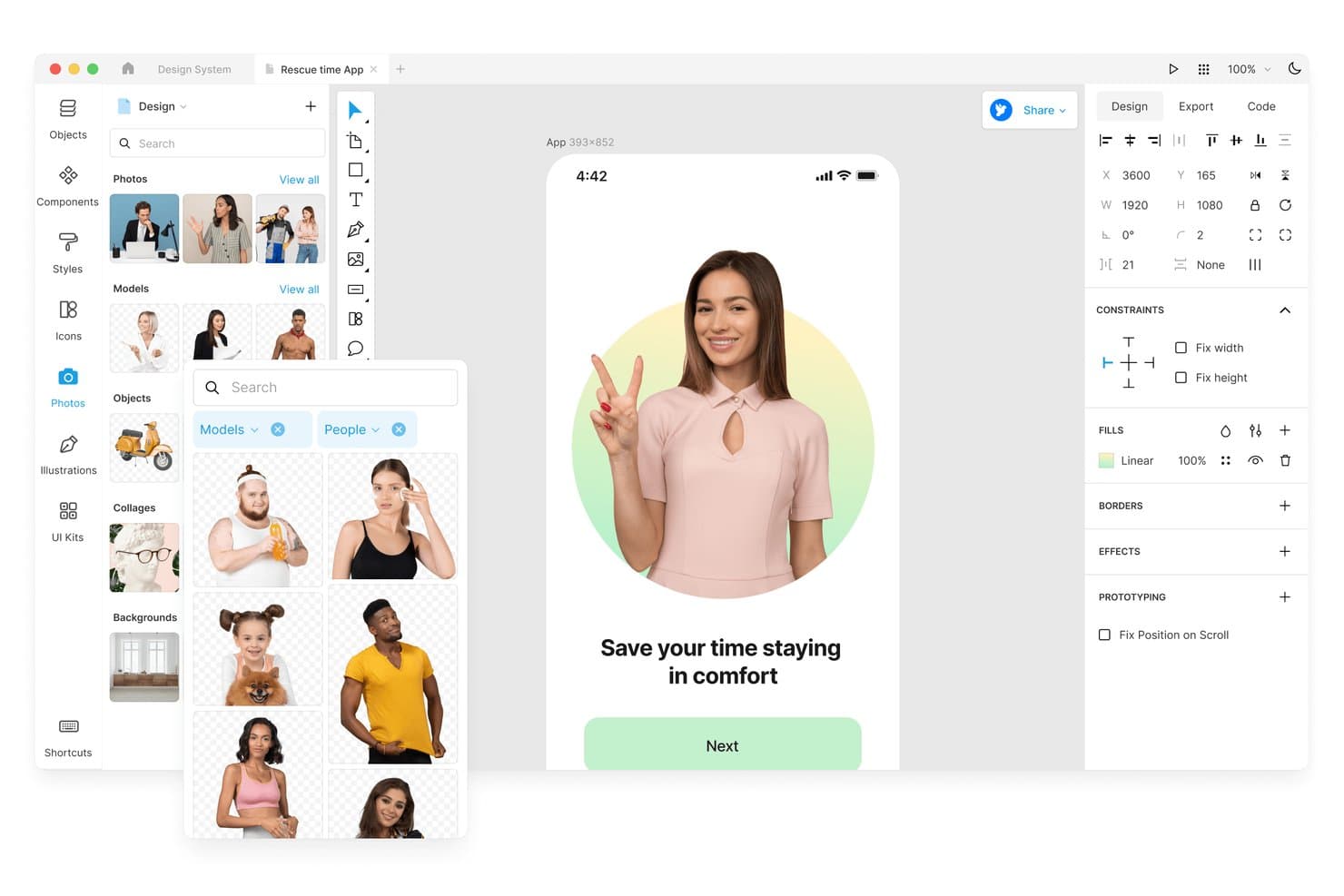
Lunacy lets users browse and insert stock photos directly into designs. Lunacy is a free UI design tool with a vector canvas, components, auto layout, prototyping, built-in UI kits and graphics, real-time collaboration, and code-focused export across desktop and web apps.
Who Is Lunacy Best For?
Lunacy suits UI/UX designers and front-end developers who want a free, native Windows workflow with built-in assets and code-focused handoff.
Why I Picked Lunacy
I picked Lunacy because it’s best for native Windows design workflows, with a desktop app that works offline instead of relying on a browser. I use its built-in UI kits and components to shape interface screens, then check CSS, XAML, JSON, or SVG in the Code tab for developer handoff. I can move a Windows mockup from frames and components into developer-ready output without changing tools.
Lunacy Key Features
- Interactive prototyping: Create hotspots with triggers, overlays, animations, and scroll behaviors.
- Real-time collaboration: Invite up to 10 co-editors to cloud documents.
- Color variables: Organize reusable colors with themes and variable groups.
- File compatibility: Open and save Sketch files, import Figma files, and use the open
.freeformat.
Lunacy Integrations
Lunacy’s native integrations are not clearly documented. It supports file-based workflows with Figma, Adobe XD, Zeplin, Abstract, and Simpli.
What's Free?
Lunacy has a free-forever plan with a full single-user license for its native Windows, macOS, and Linux apps. Cloud documents support up to 10 co-editors, while larger teams and advanced collaboration needs require a paid plan.
Pros and Cons
Pros:
- Offline editing protects local documents
- Built-in assets speed interface mockups
- Native Windows performance on older hardware
Cons:
- Cloud document limits constrain ongoing collaboration
- Free assets require attribution and low resolution
Learn more about Lunacy: Best for non-designer mockups with AI prompts
- Free plan available
- From $14/user/month
Visit WebsiteCustomer Rating:4.8/5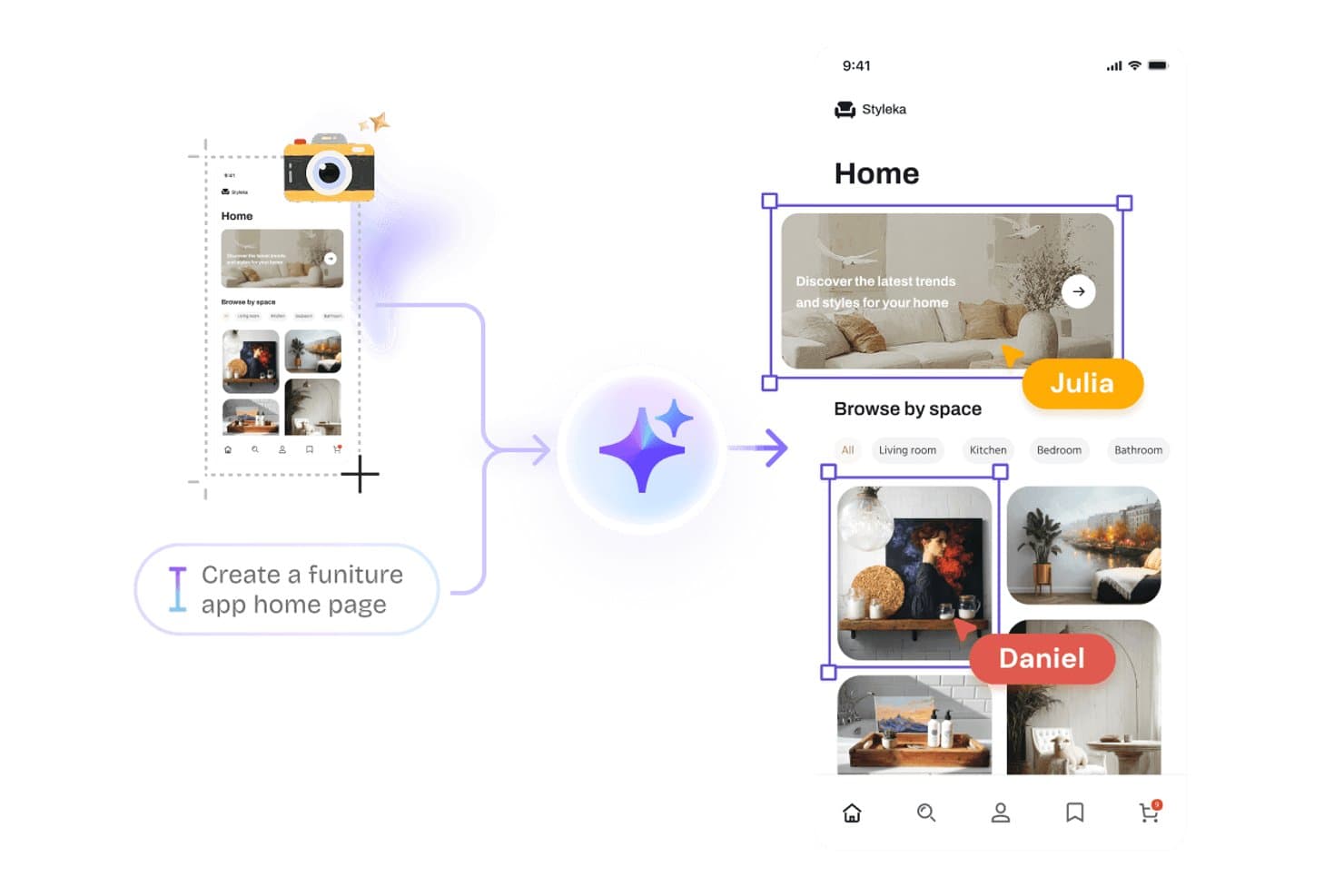
Visily lets users generate UI designs from text prompts using AI. Visily is a browser-based UI design tool for wireframes, mockups, prototypes, and diagrams, combining AI-generated editable screens, drag-and-drop components, interactive flows, and real-time collaboration.
Who Is Visily Best For?
Product managers, startup founders, and cross-functional teams that need to turn early ideas into shareable prototypes without relying on a dedicated designer.
Why I Picked Visily
I picked Visily because it’s best for non-designer mockups with AI prompts. I can turn text prompts, screenshots, sketches, or diagrams into editable UI screens, then refine components through inline AI chat. Auto-Prototyping, overlays, hover states, and drag triggers help me test product flows before involving engineering.
Visily Key Features
- Real-time co-editing: Edit boards together with comments, cursor chat, and follower mode.
- Template library: Choose from more than 1,500 templates for apps, websites, diagrams, and workflows.
- Inspect mode: View dimensions, typography, spacing, colors, CSS, Tailwind variables, and downloadable assets.
- Grid layouts: Organize screens with configurable rows and gridlines for structured interface planning.
Visily Integrations
Visily offers native integration with Figma. Pro and Business plans also include an MCP server for connecting AI coding agents.
What's Free?
Visily’s Starter plan is free forever, with 300 AI credits per workspace each month. It includes two editable boards, up to 2,500 elements per board, and up to 50 workspace members, but excludes private boards, Figma import and export, code export, MCP, and guest viewers or editors.
Pros and Cons
Pros:
- Enables real-time co-editing with comments and cursor chat
- Supports hover, drag, overlays, and animated transitions
- Converts prompts and screenshots into editable mockups
Cons:
- Reusable components lack confirmed variants and master components
- Vector editing lacks paths and Boolean operations
Learn more about Visily: Best for prototyping with coded components
- Free plan + 14-day free trial available
- From $29/user/month (billed annually)
Visit WebsiteCustomer Rating:4.2/5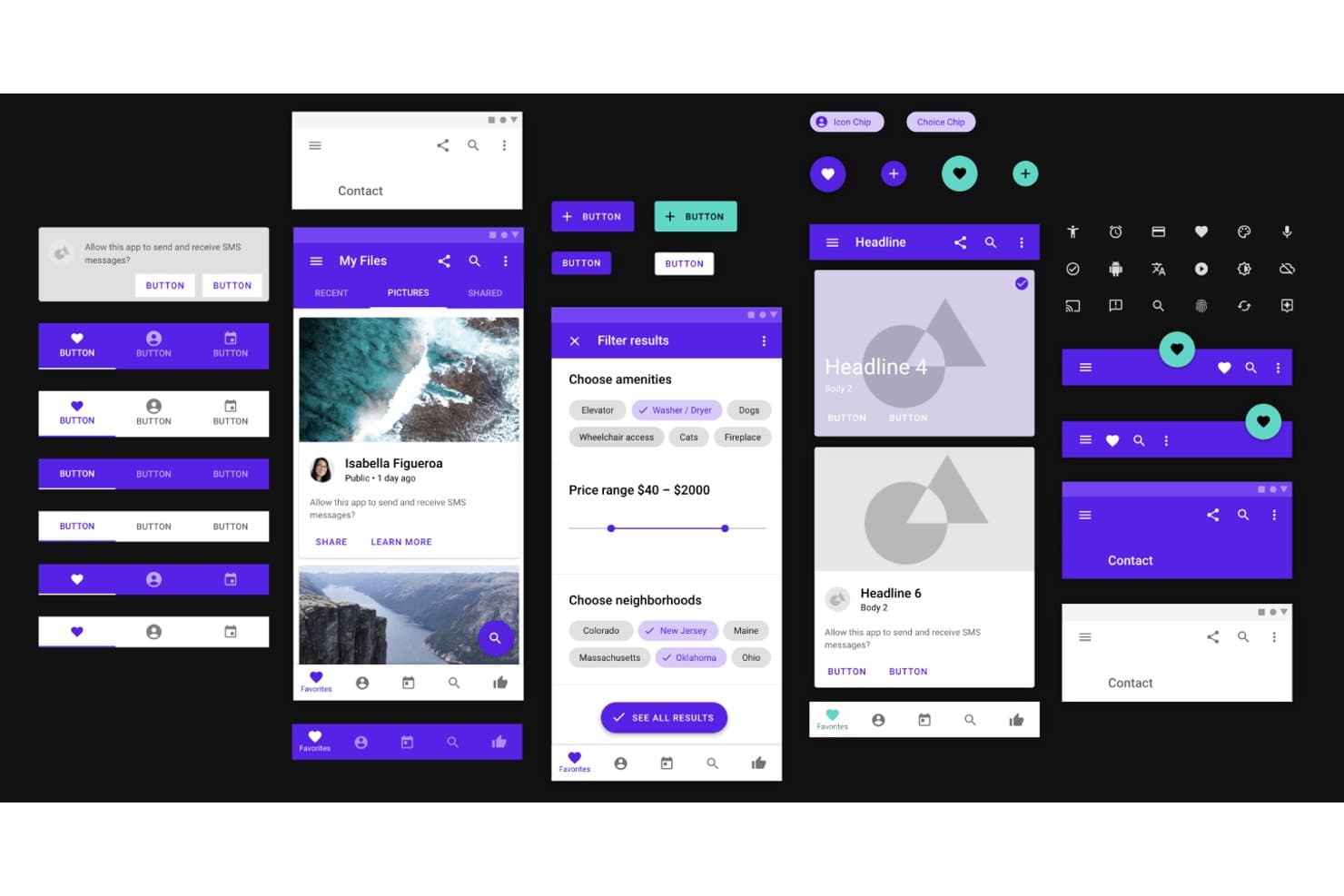
UXPin provides ready-made Material Design UI components for prototyping. UXPin is a free UI design tool with a vector canvas, interactive prototyping, reusable components, AI-assisted interface creation, code-backed libraries, and developer handoff features.
Who Is UXPin Best For?
UXPin suits UI/UX designers and front-end developers who need high-fidelity prototypes built with code-backed components.
Why I Picked UXPin
I picked UXPin because it’s best for prototyping with coded components, bringing React, Storybook, and npm-based elements into interface designs. I use Merge with MUI components to test realistic product flows instead of approximating controls. Its states, variables, conditional logic, and API requests also support prototypes that behave like working applications.
UXPin Key Features
- Vector editing: Create interfaces with pen, pencil, shape, and SVG tools.
- Interactive form elements: Add functional inputs, buttons, checkboxes, and select lists.
- Responsive breakpoints: Preview adaptive layouts across different device views.
- Accessibility tools: Check color contrast and simulate common color-vision deficiencies.
UXPin Integrations
UXPin lists integrations with Figma, Sketch, Storybook, Jira, Slack, FullStory, Adobe Fonts, and Google Fonts. Merge also connects to Git and npm, while API requests support data-driven prototypes.
What's Free?
UXPin offers a free-forever plan after its 14-day free trial, with access limited to two prototypes, 50 AI credits per month, GPT-5 mini, and 20 MUI components. Paid plans are required for advanced features such as conditional logic, expressions, Storybook integration, and additional coded libraries.
Pros and Cons
Pros:
- Detailed handoff specs support developer review
- Logic-rich prototypes model application behavior
- Real form controls support realistic usability testing
Cons:
- Large projects can load slowly
- Free offering restricts long-term experimentation
Learn more about UXPin: Best with open-source team environments
- Free plan + 14-day free trial available
- From $7/user/month
Visit WebsiteCustomer Rating:4.5/5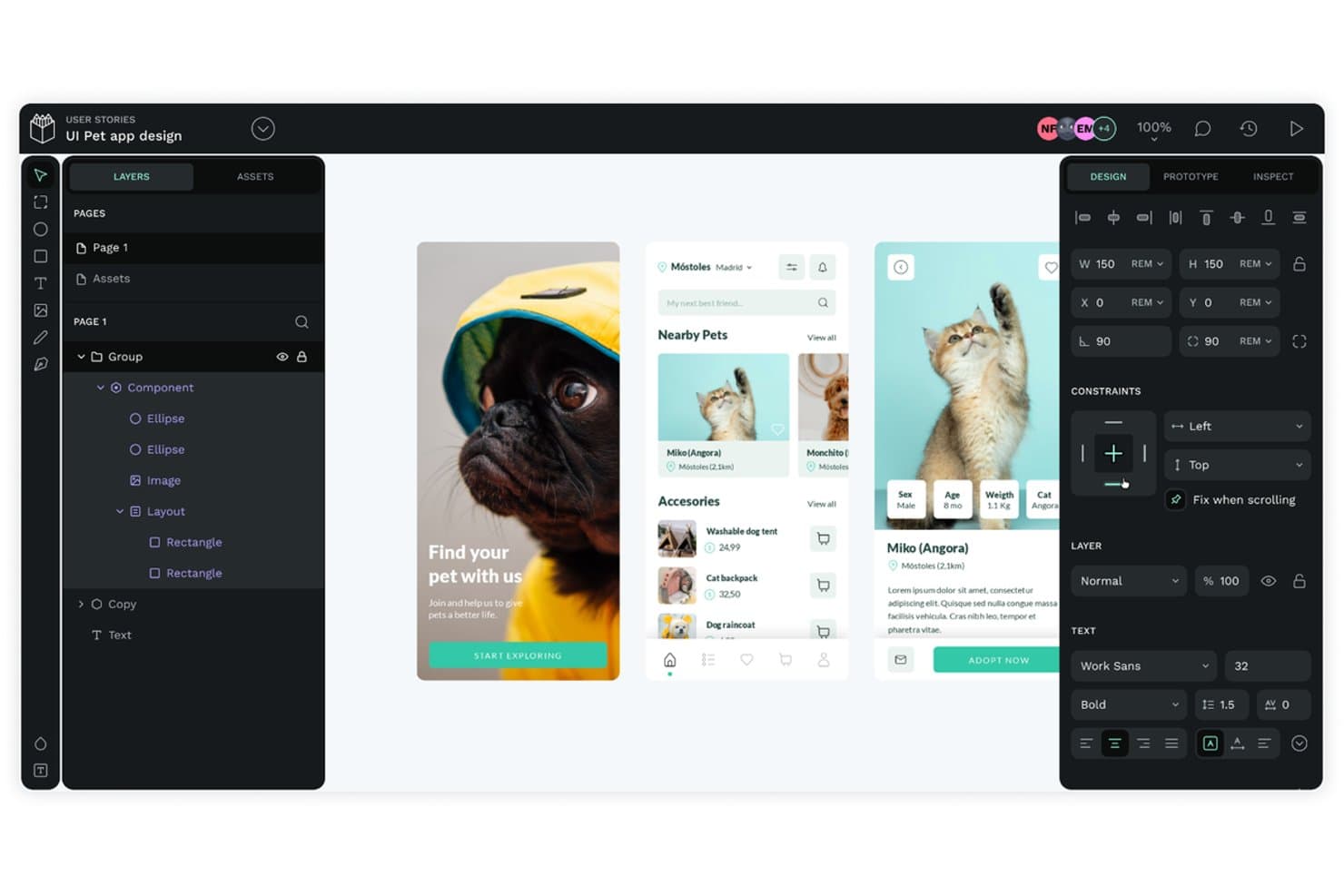
Penpot lets users design mobile app UIs with flex layout tools. Penpot is a free UI design tool with an SVG-based canvas, CSS Flex and Grid layouts, reusable components and design tokens, interactive prototypes, real-time collaboration, and developer handoff tools.
Who Is Penpot Best For?
Penpot suits product teams that want CSS-based UI design, shared design systems, and open-source or self-hosted collaboration.
Why I Picked Penpot
I picked Penpot because it brings open-source collaboration into serious UI design work. My team can self-host projects, build interfaces on an SVG canvas, and use CSS Flex and Grid layouts that translate directly to frontend implementation. Shared components, variants, and W3C design tokens help us maintain a consistent design system across product screens.
Penpot Key Features
- Interactive prototyping: Connect screens with triggers, overlays, actions, and animated transitions.
- Penpot Hub: Access community libraries, UI kits, icon sets, and research templates.
- Inspect mode: View measurements, copy CSS, inspect markup, and export design assets.
- Multi-format export: Export designs as PNG, JPEG, WEBP, SVG, or PDF.
Penpot Integrations
Native integrations are not clearly documented; Penpot supports plugins for Iconify, Tailwind, Locofy, and Figma-to-Penpot migration, plus Adobe XD imports. It also offers webhooks and REST/open API.
What’s Free?
Penpot offers a free-forever plan, not just a trial, with unlimited files and teams. The cloud plan supports up to eight team members, unlimited viewers, 10 GB of storage, and seven-day version history and file recovery; paid plans add larger limits and advanced administration.
Pros and Cons
Pros:
- Free self-hosting supports unlimited users
- Native W3C design token support
- CSS-based Flex and Grid layouts
Cons:
- Prototypes lack conditional logic and variables
- Real-time editing can become sluggish
Learn more about Penpot: Best for AI-assisted design-to-live-site publishing
- Free plan available
- From $10/month (billed annually)
Visit WebsiteCustomer Rating:4.4/5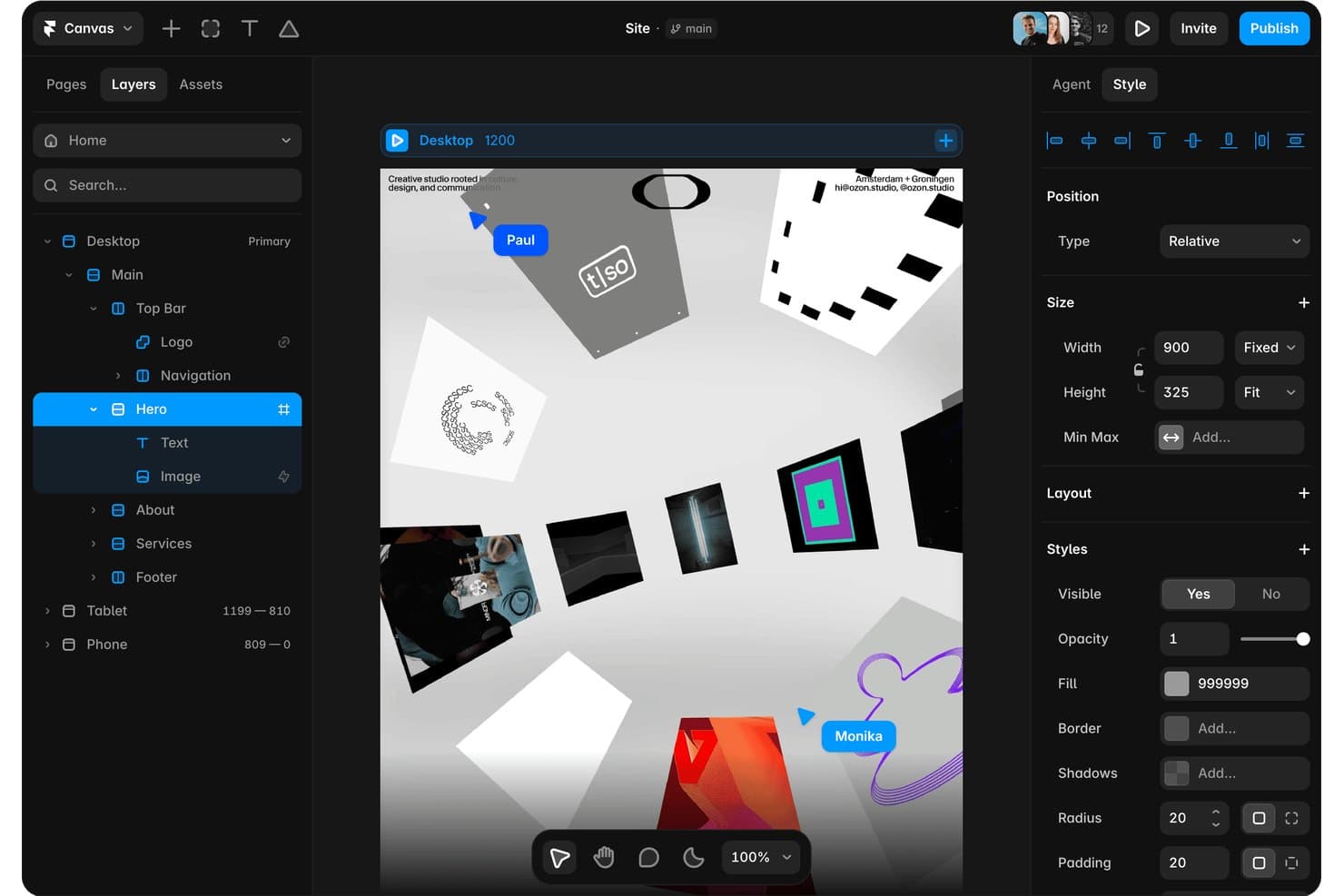
Framer lets users design and layer components visually with real-time collaboration. Framer is a free UI design tool with a vector canvas for wireframes, high-fidelity interfaces, interactive prototypes, reusable components, team collaboration, and live website publishing.
Who Is Framer Best For?
Framer suits UI/UX designers, startup founders, and solopreneurs who want to turn AI-assisted concepts into polished, publishable websites.
Why I Picked Framer
I picked Framer because it connects free UI design with AI-assisted design-to-live-site publishing. I use its AI Design Agent to turn reference images or URLs into editable layouts, then apply responsive breakpoints and interactions on the vector canvas. Publishing that prototype as a live, responsive website lets me validate concepts without rebuilding them elsewhere.
Framer Key Features
- Reusable components: Create variants and component variables for repeatable interface elements.
- Real-time collaboration: Use multiplayer cursors, pinned comments, and threaded discussions.
- Templates and plugins: Browse community templates and plugins for UI assets and workflows.
- Figma import: Transfer frames, layers, and visual structure through the official plugin.
Framer Integrations
Framer offers marketplace integrations with Figma, WordPress, Tally Forms, and Framer Commerce through plugins.
What's Free?
Framer offers a free-forever plan with design tools, 500 monthly AI credits, 10 CMS collections, and up to 1,000 pages. It supports up to three editors and includes a Framer domain, 1 GB bandwidth, and 5 MB file uploads, but custom domains require a paid plan.
Pros and Cons
Pros:
- Pinned comments support focused design reviews
- Live prototypes validate ideas without rebuilding
- AI turns references into editable layouts
Cons:
- Website focus limits native app workflows
- Developer handoff lacks native inspection tools
 Best for macOS vector editing workflows
- 30-day free trial
- From $12/user/month (billed annually)
Visit WebsiteCustomer Rating:4.5/5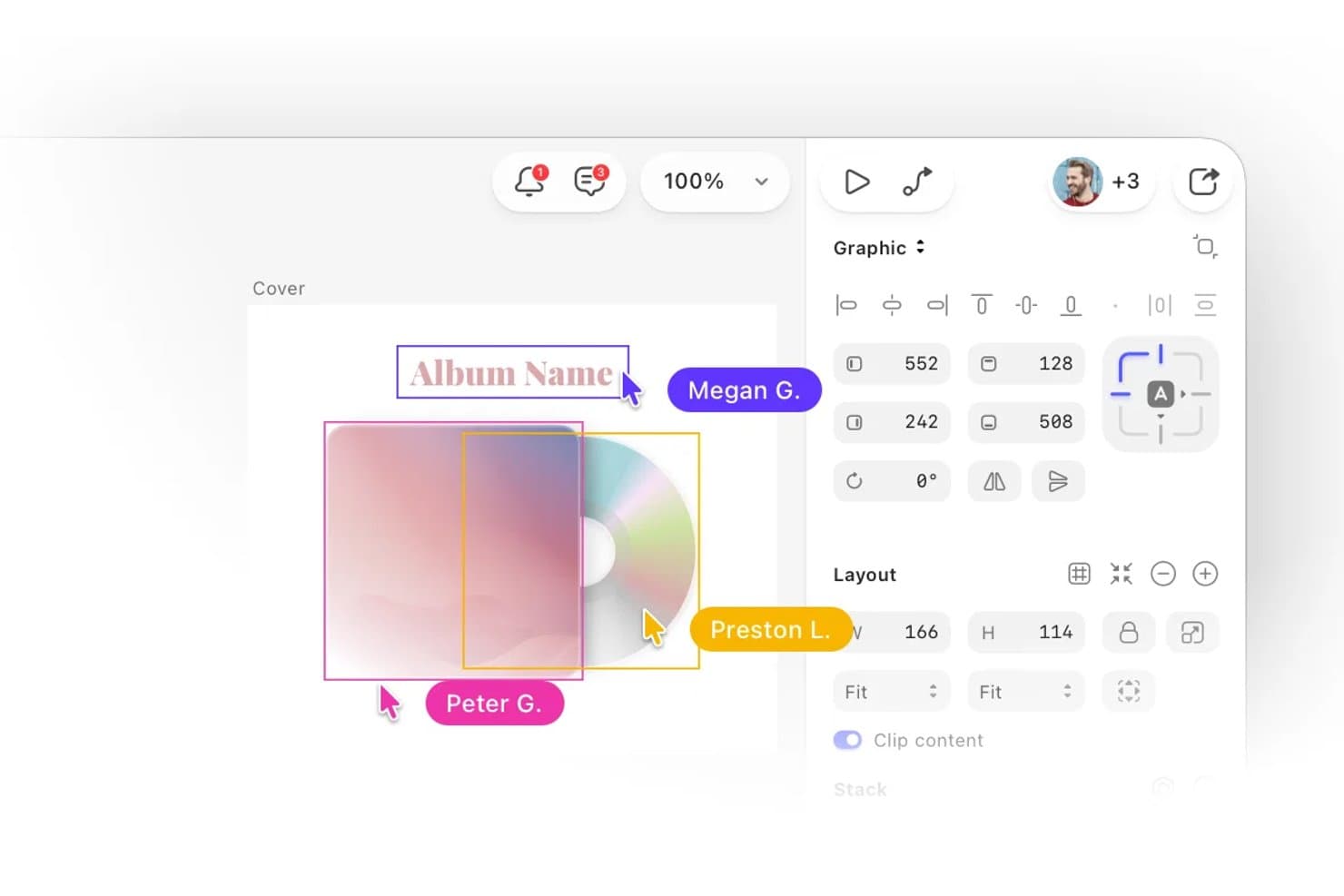
Sketch lets users collaborate in real time on UI design projects. Sketch is a UI design tool for macOS that combines vector editing, prototyping, reusable Symbols, team collaboration, and browser-based developer handoff, with free Viewers and a 30-day trial instead of ongoing free editing.
Who Is Sketch Best For?
Mac-based UI designers who need precise vector editing, reusable components, and browser-based developer handoff.
Why I Picked Sketch
I picked Sketch for its Best for macOS vector editing workflows positioning. Its native editor combines boolean operations, nested frames, and Stacks for precise interface layouts. I also use Smart Animate and overlays to test mobile flows, while browser-based handoff lets developers inspect designs without a Mac. Free access is limited to Viewers and a 30-day trial.
Sketch Key Features
- Symbols and Libraries: Reuse nested components, shared styles, and Color Variables across documents.
- Free Viewers: Invite unlimited viewers to comment, inspect designs, download assets, and play prototypes.
- Design Templates: Start with Apple, Microsoft Fluent, Google Material, macOS, and browser mockup resources.
- Offline Editing: Save files locally and continue designing without an internet connection.
Sketch Integrations
Sketch supports integrations with Slack, Jira, Notion, GitHub, Unsplash, ProtoPie, Zeplin, Principle, Origami, and Overflow. Its extension ecosystem also includes accessibility tools such as Stark and AdeeApp, plus the Sketch MCP Server for AI-assisted workflows.
What's Free?
Sketch offers a 30-day free trial rather than a free-forever editing plan. After the trial, editing requires a paid subscription, while free Viewers can inspect designs, comment, download assets, and play prototypes without editing access.
Pros and Cons
Pros:
- Reusable Symbols support consistent interface systems
- Free browser handoff supports developer inspection
- Native Mac vector editing remains smooth
Cons:
- Mac-only editing excludes cross-platform teams
- Long-term free editing isn't available
 Best for mobile app interface animation
- 15-day free trial + free plan available
- From $29/month
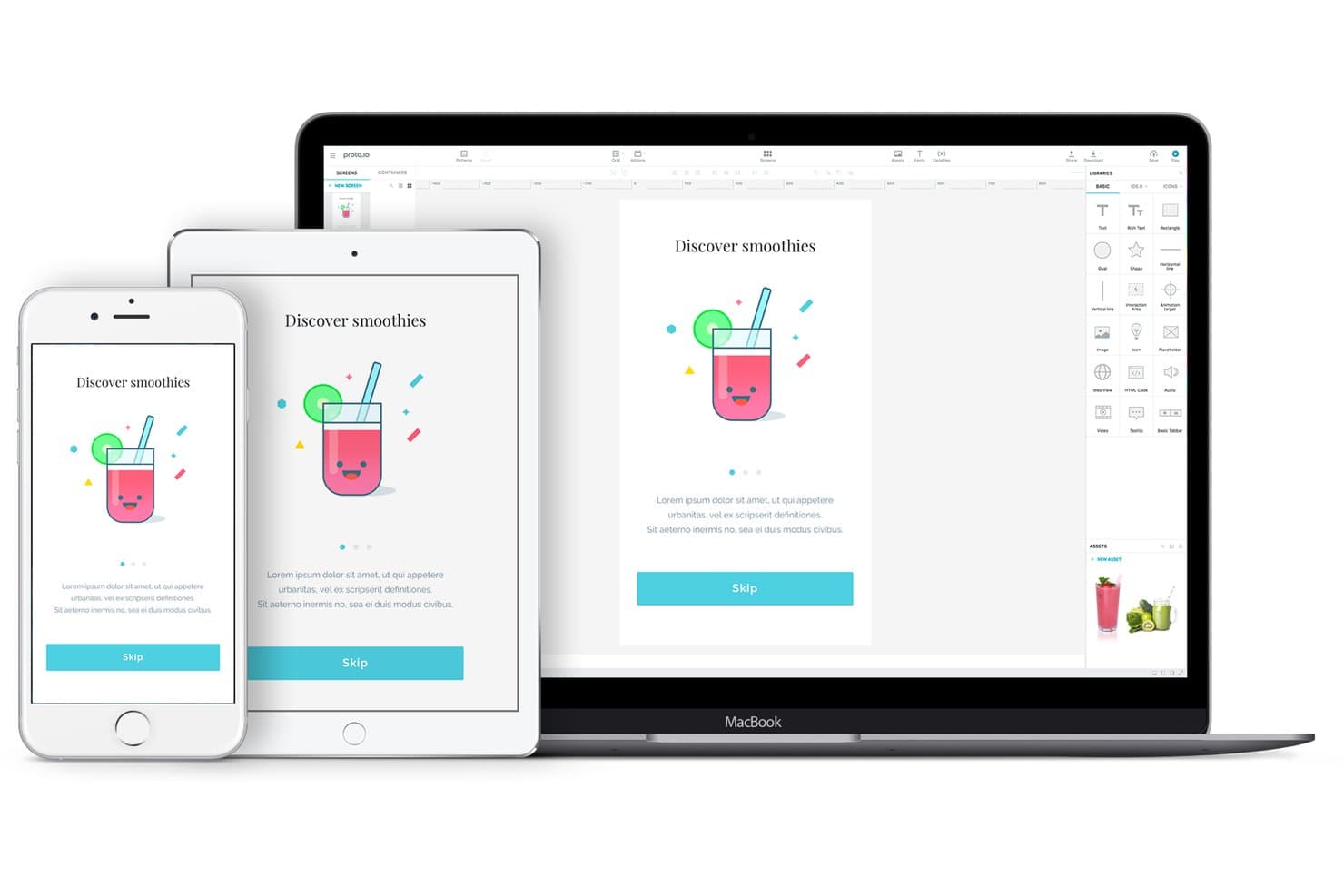
Proto.io previews designs across iPhone, iPad, and MacBook simultaneously. Proto.io is a browser-based UI prototyping tool with a limited free plan, offering no-code screen design, native-style components, animated interactions, variables, comments, device previews, and HTML, PNG, and PDF exports.
Who Is Proto.io Best For?
Product managers and startup founders can use Proto.io to test mobile app flows with realistic gestures, animations, and no-code interactions.
Why I Picked Proto.io
I picked Proto.io for mobile app interface animation because I can prototype gestures, screen transitions, and touch responses without code. Its 80-plus events, timeline animations, custom easing, and Lottie support help me recreate app interactions for user testing. Variables and conditional logic let me test flows such as onboarding, form validation, and personalized states.
Proto.io Key Features
- Browser-based editor: Create prototypes without installing desktop software.
- Native UI components: Use 250-plus iOS, Android, web, Windows, and watchOS elements.
- Design imports: Import layered files from Figma, Sketch, Adobe XD, and Photoshop.
- Prototype sharing: Share live or snapshot links with threaded comments and password protection.
Proto.io Integrations
Proto.io offers integrations with Figma, Sketch, Adobe XD, Photoshop, Jira, Confluence, Trello, UserTesting, UserZoom, Userlytics, Lookback, and UXArmy. Design imports preserve layers, while Jira, Confluence, and Trello support product workflow reviews.
What's Free?
Proto.io offers a 15-day free trial with all prototyping features, unlimited projects, and users, without requiring a credit card. After the trial, you can downgrade to a free plan with limited options, or your account will be deleted if you take no action.
Pros and Cons
Pros:
- Extensive native-style components and templates
- Timeline animations support realistic app flows
- Detailed mobile gestures and touch interactions
Cons:
- No simultaneous editing for design teams
- No pen tool for precise vector design
Learn more about Proto.io: Best for wireframing without a design background
- Free plan available
- From $9/user/month (billed annually)
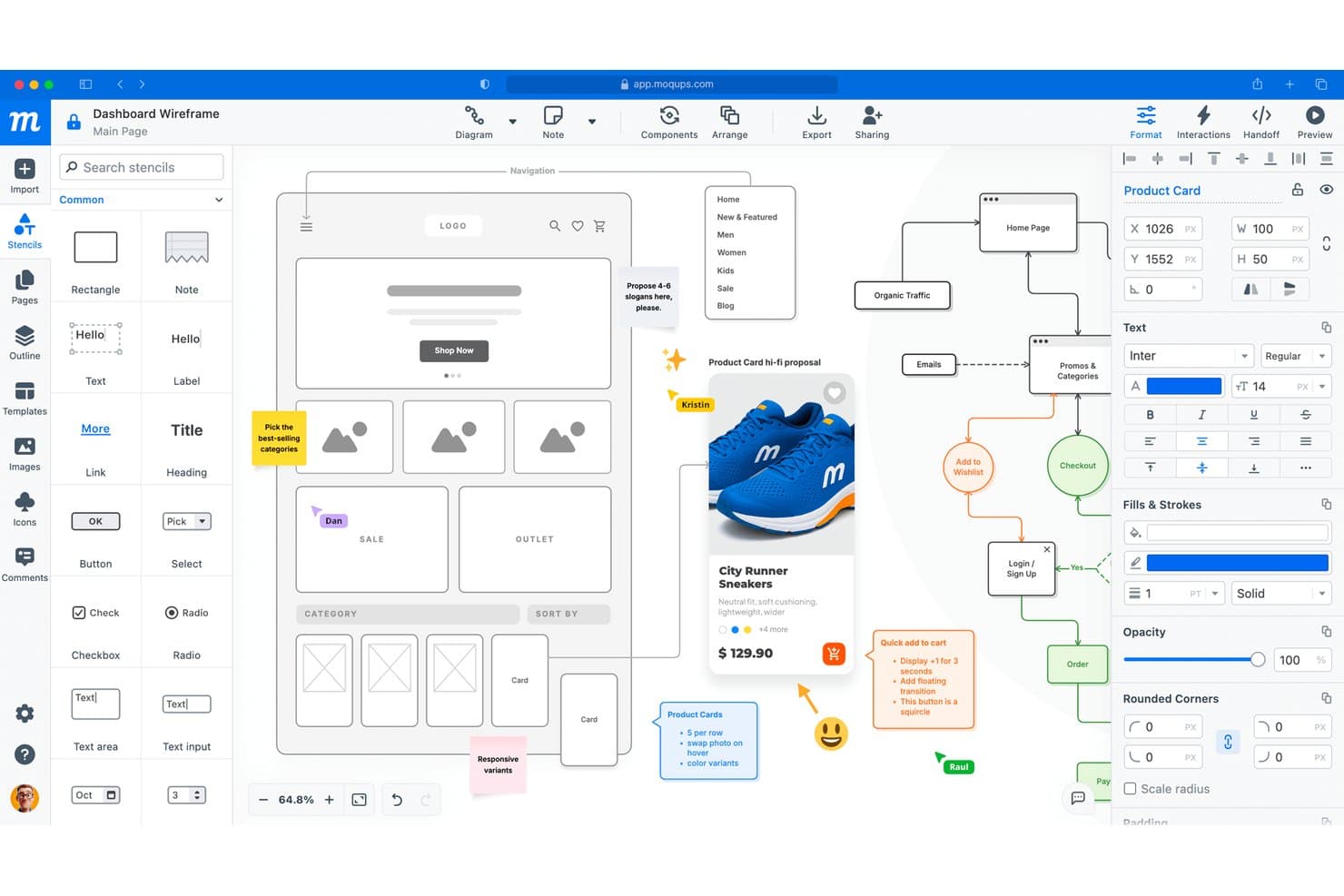
Moqups lets users design wireframes with collaborative annotations and feedback. Moqups is a browser-based UI design tool with a free plan for wireframes, mockups, diagrams, and clickable prototypes, combining stencil-based screen design with templates, reusable components, stakeholder comments, and CSS/JSX handoff.
Who Is Moqups Best For?
Product managers and startup founders who need quick wireframes, clickable prototypes, and stakeholder feedback without advanced design skills.
Why I Picked Moqups
I picked Moqups for wireframing without a design background because its stencil-based canvas and 150+ templates turn product ideas into usable screens quickly. I use UI kits, layout grids, and reusable components to map flows without drawing every element from scratch. Clickable hotspots and object interactions help me test concepts before investing in high-fidelity design.
Moqups Key Features
- CSS/JSX export: Export selected objects for developer handoff.
- Pinned comments: Add feedback directly to designs and objects.
- Page interactions: Link screens to pages or external URLs.
- Jira and Confluence integration: Embed projects in Atlassian workspaces.
Moqups Integrations
Moqups offers native integrations with Jira Cloud, Confluence Cloud, Slack, Google Drive, Dropbox, Box, and Trello.
What's Free?
Moqups offers a free-forever plan with no time limit. It allows two active projects, 400 objects per project, 25 MB of image storage, and up to seven guests, but excludes team roles, private projects, project permissions, archiving, and PNG, PDF, or HTML exports.
Pros and Cons
Pros:
- CSS and JSX exports aid handoff
- Clickable hotspots support quick validation
- Templates accelerate wireframe creation
Cons:
- Basic interactions limit advanced prototypes
- Free projects and objects cap growth
Learn more about Moqups:
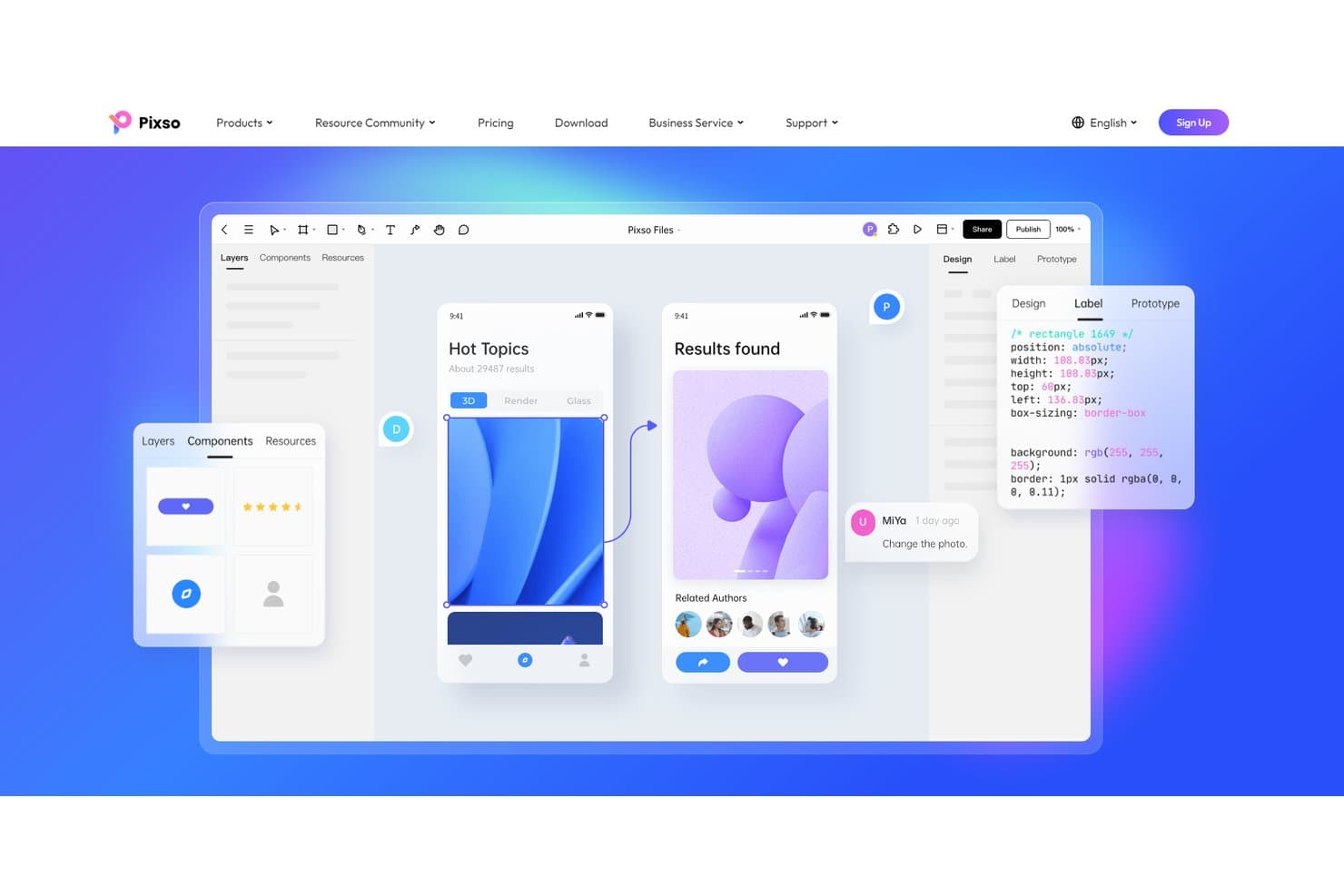
Pixso lets users design, prototype, and inspect UI with CSS code export. Pixso is a free UI design platform with vector editing, interactive prototyping, reusable components, collaborative whiteboards, design systems, and developer handoff tools for CSS, iOS, Android, SwiftUI, and HTML.
Who Is Pixso Best For?
UI/UX designers and front-end developers who need shared design workspaces with CSS, iOS, Android, SwiftUI, and HTML handoff.
Why I Picked Pixso
I picked Pixso because its cross-platform design handoff connects interface work with implementation. I use its Dev view for CSS, iOS, and Android reference code, then export SwiftUI or HTML through Design to Code. Its unit conversion and pinned developer annotations help translate responsive screens into build-ready specifications.
Pixso Key Features
- Vector editing: Create interfaces with pen tools, boolean operations, grids, and auto layout.
- Interactive prototyping: Add triggers, overlays, transitions, scrolling, videos, and GIFs.
- Component libraries: Build reusable components with variants, properties, shared styles, and version control.
- Real-time collaboration: Co-edit designs, add visual comments, and manage file permissions.
Pixso Integrations
Pixso connects to Cursor, VS Code, Windsurf, and Claude Code through Pixso MCP for AI-assisted handoff. It also offers a public Plugin API and plugins such as Tokens Studio, Phosphor Icons, and Pexels.
What's Free?
Pixso offers a free-forever plan with unlimited free viewer seats. Version history retention and some advanced features depend on your plan, so editing and collaboration needs may require paid seats.
Pros and Cons
Pros:
- Prototype triggers include overlays and gestures
- Unlimited viewers simplify stakeholder reviews
- Cross-platform handoff supports developer collaboration
Cons:
- Imported designs may need manual fixes
- Free plan restricts ongoing project work
Learn more about Pixso:
Andre gratis designverktøy for brukergrensesnitt
Her er noen flere gratis designverktøy for brukergrensesnitt som ikke kom med på kortlisten min, men som likevel er verdt å se nærmere på:
- 11PlasmicBest for design-to-code handoff on dev teams
- 12v0 by VercelBest for prompt-to-deployed app prototyping
- 13MockFlowBest for planning user journeys visually
- 14CanvaBest for non-designer mockups with templates
- 15MarvelBest for quick stakeholder prototype sign-off
- 16MiroBest for brainstorming that feeds into mockups
- 17MockplusBest for Axure-style prototyping without design skills
- 18ProtoPieBest for sensor-driven interaction prototyping
- 19Quant UXBest for prototype testing without extra tools
How I Evaluate Free UI Design Tools
First, I define what counts as free. For UI design tools, it means a free-forever plan, not a trial, with usable design and prototyping access; limits must be clear. From there, I split my evaluation into three parts: core functionality, which carries the most weight, like creating vector screens and linking flows; standout features, like stakeholder commenting; and beyond features, like free-plan scalability.
Core Functionality (Table Stakes For This List)
In addition to my free plan requirements, I use a scoring system to select tools for my list. I score each one on a scale from 0 (does not offer the functionality) to 5 (excels in this area) for each core functionality listed below, based on what's available on the free plan. I then convert the total into a percentage to help assess each tool's overall fit, with extra weight on any functionalities I've deemed essential.
- Vector-Based Design Canvas (Essential): I look for frames, artboards, layers, grids, and precise vector editing for multi-screen product interfaces.
- Prototyping & Interactions (Essential): I evaluate linked screens, click or hover triggers, transitions, and flows that support user testing or stakeholder reviews.
- Component Reusability: Reusable buttons, icons, text styles, and variants should support consistent screens and practical design system work.
- Real-Time Collaboration: I check whether teammates can comment, review, or co-edit designs while discussing a checkout flow or feature concept.
- Design Templates & Assets: Templates, UI kits, icons, and community assets should help teams explore common product patterns without starting from scratch.
- Export & Handoff: I look for asset exports, measurements, colors, and inspection details that help developers translate approved screens into code.
Once I have a list of tools that meet the criteria, I consider what sets each platform apart.
Differentiating Factors (What Sets Vendors Apart)
Here's how I compare and contrast different vendors:
Standout Features
I look for shareable prototype links that let you send a clickable flow to a VP or test participant without requiring them to create an account. Cross-platform browser access matters just as much—when your engineer runs Linux and your stakeholder uses a tablet, nobody should be blocked. I also evaluate community template marketplaces, since a pre-built onboarding kit in Figma or Penpot can cut hours off early discovery work.
Beyond Features
I evaluate how quickly a PM can go from blank canvas to testable prototype without designer support. Tools like Uizard let you drag pre-built components onto a screen in minutes, which matters when you need a clickable flow ready for a sprint review. I also check free-plan collaborator caps and file limits, since a three-person startup and a ten-person product team hit those ceilings very differently. Data portability is another factor—I look for straightforward SVG or PNG export so your work isn't locked to one platform if priorities shift.
Slik velger du gratis designverktøy for brukergrensesnitt
Det er lett å gå seg vill i lange funksjonslister og kompliserte prisstrukturer. For å hjelpe deg med å holde fokus mens du går gjennom den unike prosessen din for valg av programvare, får du her en sjekkliste over faktorer du bør ha i tankene:
| Faktor | Hva du bør vurdere |
| Skalerbarhet | Vil verktøyet støtte teamet ditt etter hvert som det vokser, eller vil dere raskt vokse ut av begrensningene i gratisversjonen? |
| Integrasjoner | Kan verktøyet kobles direkte til eksisterende apper for design, prosjektstyring eller fillagring? |
| Tilpasningsmuligheter | Kan du tilpasse verktøyets arbeidsflyter, maler eller biblioteker til teamets unike prosess? |
| Brukervennlighet | Vil nye brukere kunne begynne å designe raskt, eller trenger de omfattende opplæring? |
| Implementering og introduksjon | Hvor lang tid tar det å få teamet i gang, og hvilke ressurser er tilgjengelige for å hjelpe dere? |
| Kostnad | Finnes det skjulte kostnader, krav om oppgradering eller bruksgrenser som kan påvirke budsjettet senere? |
| Sikkerhetstiltak | Tilbyr verktøyet tilstrekkelig databeskyttelse, brukertillatelser og samsvar med regelverk for behovene dine? |
| Tilgang på brukerstøtte | Hvis du får problemer, kan du få hjelp i tide via chat, e-post eller en kunnskapsbase? |
Hva er gratis designverktøy for brukergrensesnitt?
Gratis designverktøy for brukergrensesnitt er programvareplattformer som lar brukere opprette, redigere og dele modeller eller prototyper av brukergrensesnitt uten at det kreves betaling. Disse verktøyene tilbyr vanligvis grunnleggende designfunksjoner som dra-og-slipp-komponenter, enkel samhandling og alternativer for eksport. Gratis designverktøy for brukergrensesnitt hjelper enkeltpersoner og team med å visualisere digitale produkter, teste ideer og kommunisere designkonsepter før utviklingen starter, noe som gjør dem tilgjengelige for prosjekter i tidlig fase eller prosjekter med begrensede budsjetter.
Funksjoner i gratis designverktøy for brukergrensesnitt
La oss gå gjennom funksjonene som vanligvis finnes i verktøy for UI-design, og hvilke som vanligvis er inkludert i gratis- kontra betalte abonnementer.
Vanlige funksjoner i gratis verktøy for UI-design
- Redigerer med dra-og-slipp: Lag trådskisser eller mockuper ved å dra grensesnittelementer til et lerret, slik at det blir enkelt å visualisere oppsett uten å programmere.
- Grunnleggende komponentbibliotek: Få tilgang til et utvalg standardelementer i brukergrensesnittet, for eksempel knapper, inndatafelt og ikoner, slik at du raskt kan sette sammen skjermer.
- Eksport til bilde eller PDF: Lagre og del designene dine som PNG- eller PDF-filer for tilbakemeldinger eller dokumentasjon.
- Tilgang for én bruker: Bruk verktøyet individuelt uten funksjoner for teamsamarbeid, noe som passer for enkeltstående designere eller prosjekter i en tidlig fase.
- Begrenset prosjektlagring: Opprett og lagre et lite antall prosjekter eller filer, ofte med begrensninger på antallet aktive design.
- Kommentering eller merknader: Legg til notater eller kommentarer i designene for å tydeliggjøre ideer eller innhente tilbakemeldinger fra andre.
- Malutvalg: Start med ferdiglagde maler for vanlige skjermtyper, noe som bidrar til å gjøre designprosessen raskere.
- Grunnleggende versjonshistorikk: Få tilgang til en enkel oversikt over endringer, slik at du kan gå tilbake til tidligere versjoner ved behov.
Vanlige funksjoner i betalte verktøy for UI-design
- Teamsamarbeid i sanntid: Jobb samtidig med flere brukere på det samme designet, noe som støtter distribuerte team og raskere iterasjoner.
- Avansert prototyping: Legg til interaktive elementer, overganger og animasjoner for å lage klikkbare prototyper som simulerer hvordan ekte apper fungerer.
- Tilpassede komponentbiblioteker: Bygg og administrer gjenbrukbare designsystemer eller merkevaretilpassede UI-sett for å sikre enhetlighet på tvers av prosjekter.
- Ubegrenset prosjektlagring: Lagre et ubegrenset antall prosjekter, filer og ressurser uten å bekymre deg for bruksgrenser.
- Rollebaserte tillatelser: Bestem hvem som kan se, redigere eller kommentere design, slik at sikkert samarbeid støttes i større organisasjoner.
- Integrasjon med tredjepartsverktøy: Koble direkte til plattformer for prosjektstyring, utvikling eller skylagring for mer effektive arbeidsflyter.
- Prioritert kundestøtte: Få raskere svar, tilgang til dedikerte supportkanaler eller hjelp med oppstart som betalende bruker.
- Avanserte eksportalternativer: Eksporter design i flere formater, for eksempel SVG eller kodeutdrag, for å effektivisere overleveringen til utviklere.
- Verktøy for designoverlevering: Generer spesifikasjoner, ressurser og stilguider automatisk for å hjelpe utviklere med å implementere design nøyaktig.
Fordeler med gratis verktøy for UI-design
Implementering av gratis verktøy for UI-design gir flere fordeler for teamet og virksomheten din. Her er noen du kan se frem til:
- Lavere kostnader i startfasen: Begynn å utforme brukergrensesnitt uten å binde deg til betalte abonnementer, noe som gjør det enklere å eksperimentere eller lage prototyper med et begrenset budsjett.
- Raskere prosjektoppstart: Bruk innebygde maler og redigerere med dra-og-slipp for raskt å lage og dele mockuper, slik at teamene kan gå fra ideer til visualiseringer på kortere tid.
- Tilgjengelig samarbeid: Del design og innhent tilbakemeldinger ved hjelp av funksjoner for kommentering eller merknader, også når du jobber med distribuerte eller tverrfunksjonelle team.
- Redusert opplæringstid: Enkle grensesnitt og veiledede introduksjoner hjelper nye brukere raskt i gang og minimerer forsinkelser i designprosessen.
- Ingen leverandørbinding: Prøv flere verktøy eller bytt plattform uten økonomisk risiko, siden du ikke er bundet til langsiktige avtaler eller abonnementer.
- Støtter prosjekter i en tidlig fase: Gratis abonnementer gjør det mulig for oppstartsbedrifter eller små team å validere ideer og videreutvikle design før de investerer i avanserte funksjoner eller betalte oppgraderinger.
- Oppmuntrer til eksperimentering: Begrenset prosjektlagring og grunnleggende eksportalternativer gjør det enkelt å teste ulike oppsett eller konsepter uten å bekymre seg for kostnader.
Kostnader og priser for verktøy for UI-design
Jeg forstår at du kom til denne artikkelen på jakt etter de beste alternativene for UI-designverktøy som er tilgjengelige gratis. Siden gratisabonnementer imidlertid bare tilbyr begrensede funksjoner, er det stor sannsynlighet for at du må oppgradere abonnementet ditt i fremtiden.
Tabellen nedenfor oppsummerer vanlige abonnementer, gjennomsnittsprisene deres og typiske funksjoner som er inkludert i verktøy for UI-design:
Sammenligningstabell for abonnementer på verktøy for UI-design
| Plantype | Gjennomsnittlig pris | Vanlige funksjoner |
| Gratisplan | $0 | Grunnleggende komponentbibliotek, dra-og-slipp-redigering, begrenset prosjektlagring, tilgang for én bruker og grunnleggende eksportalternativer. |
| Personlig plan | $5-$15/bruker/måned | Ubegrenset antall prosjekter, større lagringsplass, grunnleggende prototyping, prioritert kundestøtte og tilgang til flere maler. |
| Forretningsplan | $15-$30/bruker/måned | Teamsamarbeid, avansert prototyping, egendefinerte komponentbiblioteker, integrasjoner og rollebaserte tillatelser. |
| Foretaksplan | $30-$60/bruker/måned | Avansert sikkerhet, SSO, revisjonslogger, dedikert kontoadministrasjon, egendefinert onboarding og funksjoner for overholdelse av regelverk. |
Vanlige spørsmål om gratis verktøy for UI-design
Her er noen svar på vanlige spørsmål om gratis verktøy for UI-design:
Er gratis verktøy for UI-design egnet for profesjonelle prosjekter?
Ja, gratis verktøy for UI-design kan brukes til profesjonelle prosjekter, særlig i tidlige faser eller av små team. Du kan imidlertid støte på begrensninger for funksjoner eller lagringsplass som gjør det nødvendig å oppgradere etter hvert som prosjektet vokser eller behovene blir mer komplekse.
Kan jeg samarbeide med andre ved hjelp av gratis verktøy for UI-design?
Ja, mange gratis verktøy for UI-design tilbyr grunnleggende samarbeidsfunksjoner som kommentering eller deling av lenker. For redigering i sanntid med flere brukere eller avanserte tillatelser trenger du vanligvis en betalt plan.
Hvilke begrensninger bør jeg forvente med gratis verktøy for UI-design?
Gratisplaner begrenser ofte antallet prosjekter, lagringsplassen, eksportformatene eller tilgangen til avanserte prototype- og integrasjonsfunksjoner. Se gjennom detaljene for gratisnivået til hvert verktøy for å sikre at det oppfyller minimumskravene dine.
Er dataene mine sikre når jeg bruker gratis verktøy for UI-design?
De fleste anerkjente gratis verktøy for UI-design tilbyr grunnleggende sikkerhetstiltak, men avanserte funksjoner som SSO, revisjonslogger eller samsvarssertifiseringer er vanligvis forbeholdt betalte planer. Sjekk alltid leverandørens personvernerklæring og sikkerhetsdokumentasjon.
Kan jeg flytte designene mine til et annet verktøy senere?
Ja, de fleste verktøy for UI-design lar deg eksportere arbeidet ditt i standardformater som PNG, PDF eller SVG. Enkelte avanserte funksjoner eller redigerbare filer overføres imidlertid ikke nødvendigvis perfekt, så planlegg på forhånd hvis du forventer å bytte plattform.