

Med så mange ulike verktøy for designtenkning tilgjengelig, er det tidkrevende å finne ut hvilket som passer for deg. Du vet at du ønsker et verktøy som kan hjelpe deg med å forstå designproblemer og utvikle kreative løsninger, men du må finne ut hvilket alternativ som er best. I denne artikkelen hjelper jeg deg med å gjøre dette valget enklere ved å dele mine innsikter om de beste verktøyene for designtenkning for å fremme kreativitet, innovasjon og samarbeid når du arbeider med designutfordringer.
Hvorfor du kan stole på våre programvareanbefalinger
6,700+
Reviews
20
Industry experts
16+
Evaluation factors
14
Years
Teamet vårt har testet og anmeldt programvare siden 2012. Vi er selv produktledere, så vi vet hvor vanskelig og hvor viktig det er å velge riktig programvare.
I denne guiden har vi vurdert verktøyene gjennom praktisk testing og uavhengig research og gitt dem poeng ut fra våre utvelgelseskriterier.
Anmeldelsene våre bygger på vår egen redaksjonelle vurdering. De er ikke et salgsargument.
Ekspertanmeldere:
- Andrew LumbySenior TPM
- Cristiano ValimSenior UI/UX Lead


Sammenligningstabell for verktøy for designtenkning
Denne sammenligningstabellen oppsummerer prisopplysningene for mine utvalgte favoritter blant verktøyene for designtenkning:
| Tool | Best For | Trial Info | Price | ||
|---|---|---|---|---|---|
| 1 | Best agile design thinking tool | Free plan + 14-day free trial available | From $8/user/month (billed annually) | Website | |
| 2 | Best for AI-generated wireframes and diagrams | Free plan available | From $10/user/month (billed annually) | Website | |
| 3 | Best for data-linked visual research synthesis | Free plan available | From $5/month (billed annually) | Website | |
| 4 | Best for GDPR-conscious whiteboard collaboration | 30-day free trial | Pricing upon request | Website | |
| 5 | Best for ideation within a broader design suite | Free plan available | Free plan available | Website | |
| 6 | Best for a highly flexible virtual whiteboard | Free plan available | From $16/user/month | Website | |
| 7 | Best for end-to-end ideation to handoff | Free plan available | From $3/user/month | Website | |
| 8 | Best for live workshop facilitation and AI ideation | Free plan available | From $24.90/month (billed annually) | Website | |
| 9 | Best for team feedback and voting features | Free demo + free plan available | From $9.99/user/month (billed annually) | Website | |
| 10 | Best virtual whiteboard for facilitated sprints | Free plan available | From $9/month (billed annually) | Website |


Anmeldelser av de beste verktøyene for designtenkning
Her finner du korte beskrivelser av de 10 beste verktøyene for designtenkning i utvalget mitt, som fremhever hva hvert verktøy gjør best, samt skjermbilder som viser noen av funksjonene. Jeg har også inkludert noen ekstra alternativer nedenfor hvis du ønsker enda flere alternativer å vurdere.
 1Best agile design thinking tool
Miro
- Free plan + 14-day free trial available
- From $8/user/month (billed annually)
Visit WebsiteCustomer Rating:4.8/5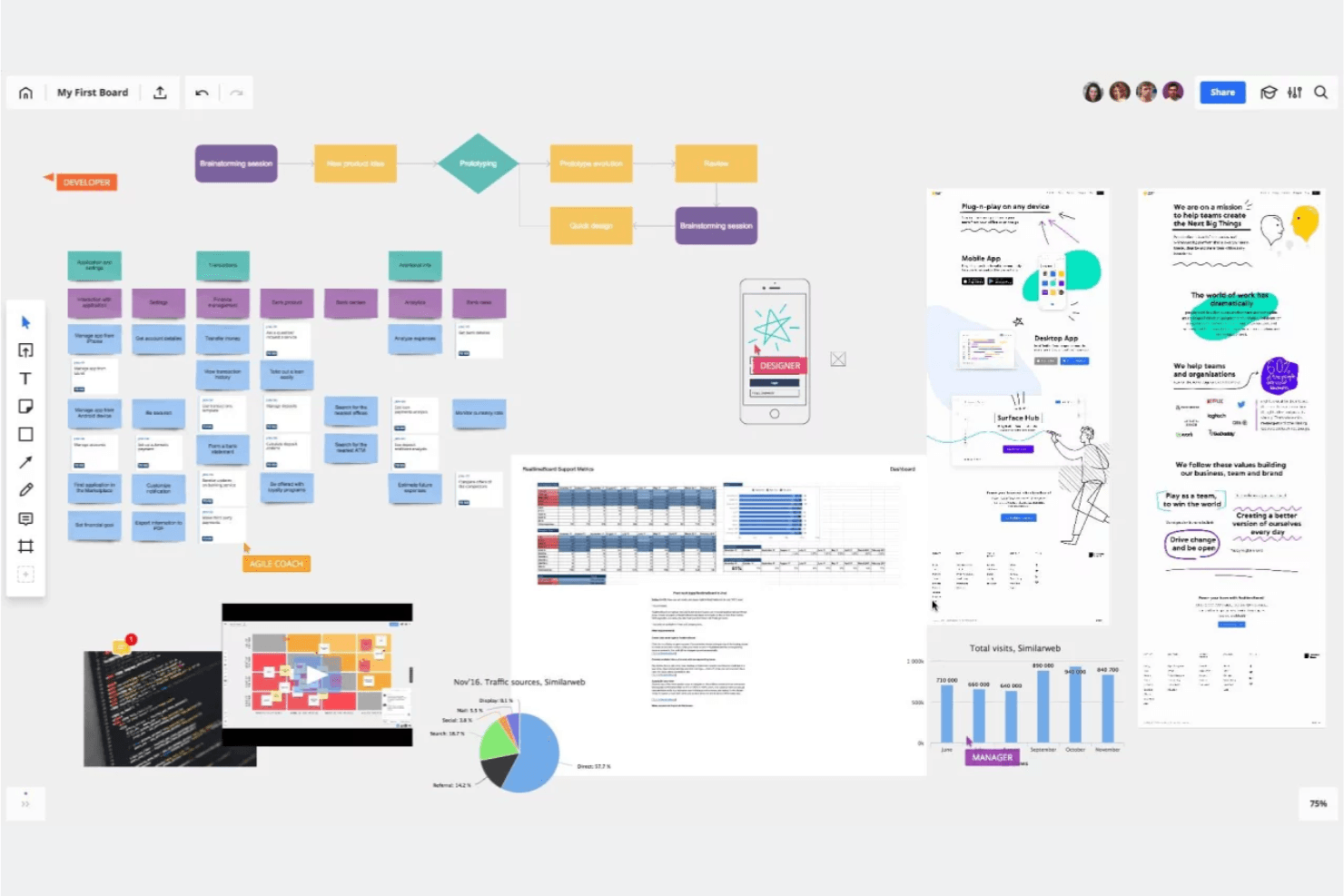
Miro is like a collaborative visual whiteboard where you and your team can brainstorm, group ideas, and vote on next steps. Miro is an infinite-canvas visual collaboration platform that combines real-time multi-user editing, 7,000+ templates, AI-assisted ideation, and prototyping tools to support design thinking workflows from empathy mapping through design sprints.
Who Is Miro Best For?
Miro is a strong fit for cross-functional teams—product managers, UX designers, and innovation consultants—who need one shared space to run design sprints, map user journeys, and move ideas into prototypes.
Why I Picked Miro
I picked Miro as one of the best because it's built specifically around agile design thinking cycles, where sprints move fast and teams need to shift from empathy mapping to prototyping without switching tools. Miro's official Remote 5-Day Design Sprint template (built with Google design sprint experts) and AJ&Smart's version with 12,000+ uses give you a proven structure out of the box. I also love that the Business plan lets you turn boards directly into interactive prototypes, so your team can test concepts before a single line of code is written.
Miro Key Features
- AI-assisted diagram and summary generation: Miro's AI can generate diagrams, tables, and summaries directly on the canvas, helping teams move from raw ideas to structured visuals faster.
- Engage facilitation activities: The Business plan includes polls, 2x2 matrix activities, and scales for up to 50 participants, with AI synthesis of results built in.
- Two-way sync with project management tools: Miro connects bidirectionally with Jira, Asana, Linear, ClickUp, and Azure DevOps so work on the board stays in sync with delivery workflows.
- Enterprise-grade security and compliance: Miro holds ISO/IEC 27001, SOC 2 Type II, and GDPR certifications, with data hosting options in the EU, US, Australia, or Japan.
Miro Integrations
Miro offers 250+ integrations, including Jira, Asana, Linear, ClickUp, Azure DevOps, Confluence, Slack, Microsoft 365, and Google Workspace. Its APIs and SDKs support custom integrations, while Business adds two-way sync with Jira, Asana, Linear, ClickUp, and Azure DevOps.
Pros and Cons
Pros:
- AI synthesizes collaborative ideation results
- Infinite canvas connects research to prototypes
- Official design sprint templates support structured workshops
Cons:
- Mobile experience trails desktop workflows
- Large boards can become sluggish
 Best for AI-generated wireframes and diagrams
- Free plan available
- From $10/user/month (billed annually)
Visit WebsiteCustomer Rating:4.6/5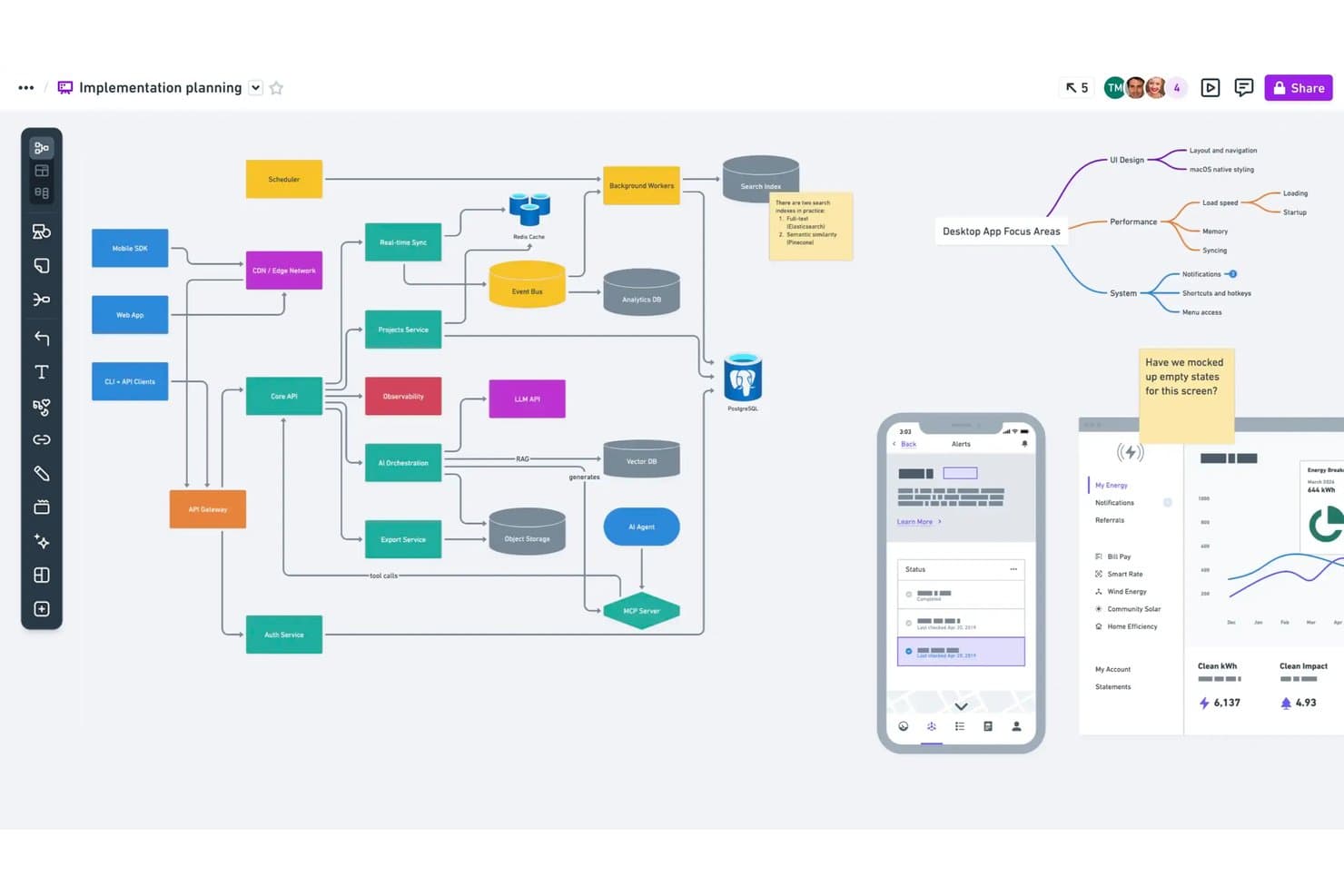
Whimsical lets users map system architecture and flows on one canvas. Whimsical is a visual collaboration tool built for product teams that combines infinite-canvas boards, wireframes, mind maps, flowcharts, and docs in a single workspace—with AI-assisted generation for wireframes and diagrams.
Who Is Whimsical Best For?
Whimsical is a strong fit for product managers and UX designers who need wireframes, flowcharts, and mind maps in one shared workspace.
Why I Picked Whimsical
I picked Whimsical as one of the best because its AI wireframe generation genuinely accelerates early concept work. You can type a prompt and get an editable wireframe or wireflow in seconds, which is something I find invaluable during early ideation sprints. The Whimsical Agent also builds mind maps and flowcharts from a single idea, so your team can move from scattered thinking to structured visuals fast. That combination of AI-assisted diagramming and wireframing in one canvas makes it a natural fit for product teams doing rapid concept testing.
Whimsical Key Features
- Real-time multiplayer editing: Multiple team members can edit boards, wireframes, and mind maps simultaneously, with comments included on every plan.
- Affinity diagram template: A pre-built brainstorming workshop template lets teams group sticky notes into themes and run dot-voting sessions to surface top ideas.
- Backlinks across files: Backlinks connect related boards, docs, and diagrams within your workspace, so you can trace ideas from discovery through to delivery.
- Version history: Whimsical saves your workspace history—90 days on Pro and unlimited on Business—so you can revisit earlier iterations of any board or wireframe.
Whimsical Integrations
Whimsical offers documented integrations with ChatGPT, Claude, Claude Code, Cursor, Jira, Linear, GitHub, Notion, Google Docs, and Slack. Its MCP server also connects Whimsical with MCP-compatible clients for AI-assisted prototyping.
Pros and Cons
Pros:
- Affinity diagrams group ideas for synthesis
- Editable wireflows support rapid prototype iteration
- AI-generated wireframes accelerate concept testing
Cons:
- No dedicated journey mapping templates confirmed
- Workshop facilitation lacks breakout rooms
Learn more about Whimsical: Best for data-linked visual research synthesis
- Free plan available
- From $5/month (billed annually)
Visit WebsiteCustomer Rating:4.4/5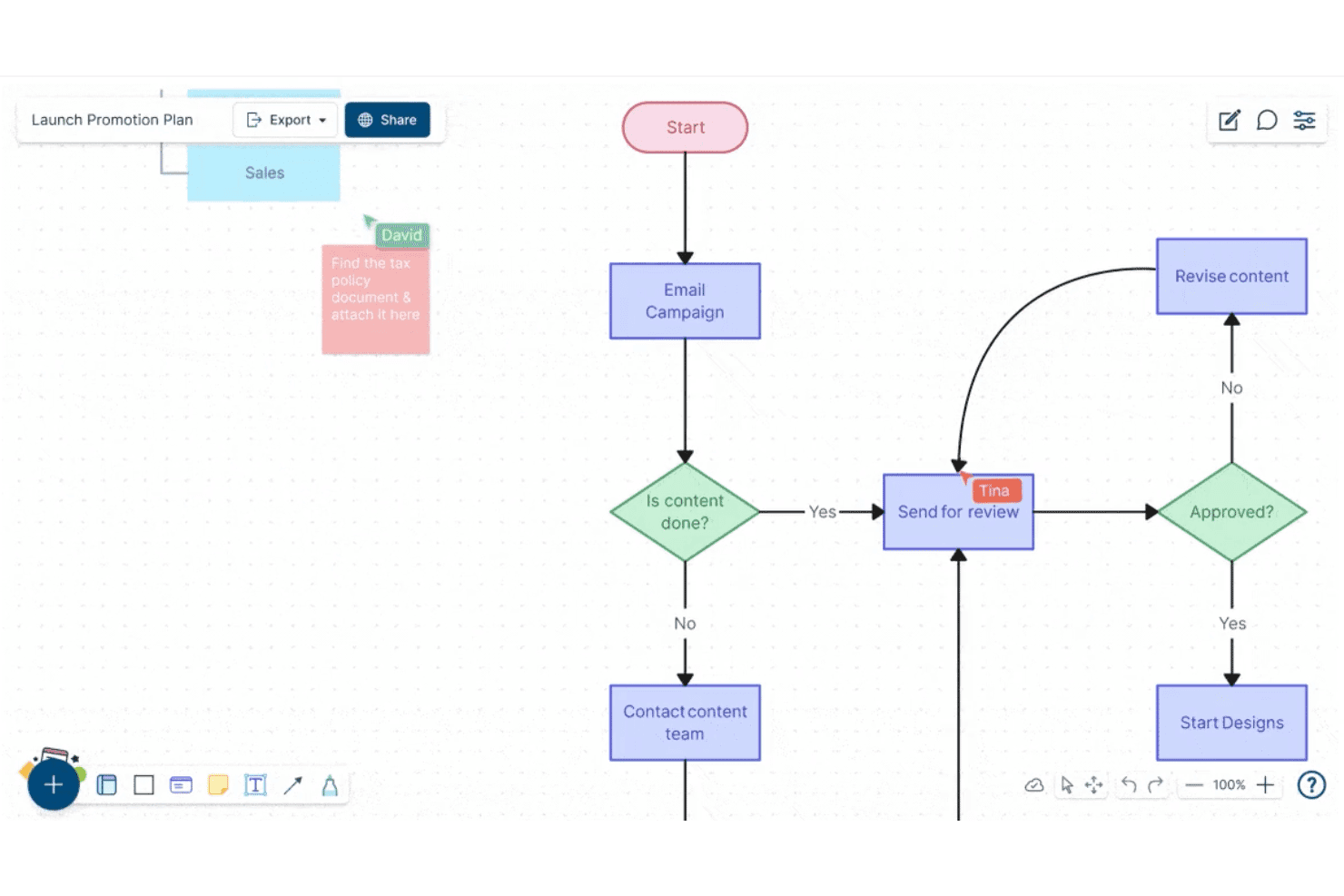
Creately lets users build and collaborate on flowcharts in real time. Creately is a visual collaboration and diagramming platform that combines an infinite canvas, structured diagram types, sticky notes, data-linked databases, and real-time multi-user editing for teams working through research synthesis, ideation, and planning.
Who Is Creately Best For?
Creately is a strong fit for cross-functional teams that need to connect visual research and diagrams directly to structured data, tasks, and project tracking in one workspace.
Why I Picked Creately
Creately earns its spot on my shortlist because its data-linked canvas goes beyond standard whiteboarding by connecting research visuals directly to structured databases. I love that you can tag and track insights across synced views, so when your team finishes an affinity-mapping session, those sticky notes don't just sit there—they feed into a searchable, filterable database tied to real project tasks. The custom database feature, with full-text search and multiple synced views, is genuinely useful for turning messy discovery work into organized, actionable insight records.
Creately Key Features
- Timed voting sessions: Run anonymous or public votes directly on canvas elements to help teams prioritize ideas without side conversations derailing the process.
- Presentation mode: Build and update slides straight from your canvas, so your research and diagrams become the presentation without any copy-pasting.
- Mind maps and concept maps: Create branching visual structures to explore relationships between ideas during early-stage ideation and problem framing.
- Version history: Track changes to any canvas over time, with a status feed per item and up to one year of history on higher-tier plans.
Creately Integrations
Creately documents 11 integrations, including Confluence Cloud, Microsoft Teams, Slack, Zoom, Jira, and Google Drive. Business supports two-way sync with Microsoft Excel and Google Sheets, while Enterprise adds GitHub, Azure DevOps, and SharePoint.
Pros and Cons
Pros:
- Offers timed voting for prioritizing ideas
- Supports real-time diagramming and visual synthesis
- Links research insights to structured databases
Cons:
- Provides no interactive prototyping or testing tools
- Lacks dedicated design-thinking framework templates
Learn more about Creately: Best for GDPR-conscious whiteboard collaboration
- 30-day free trial
- Pricing upon request
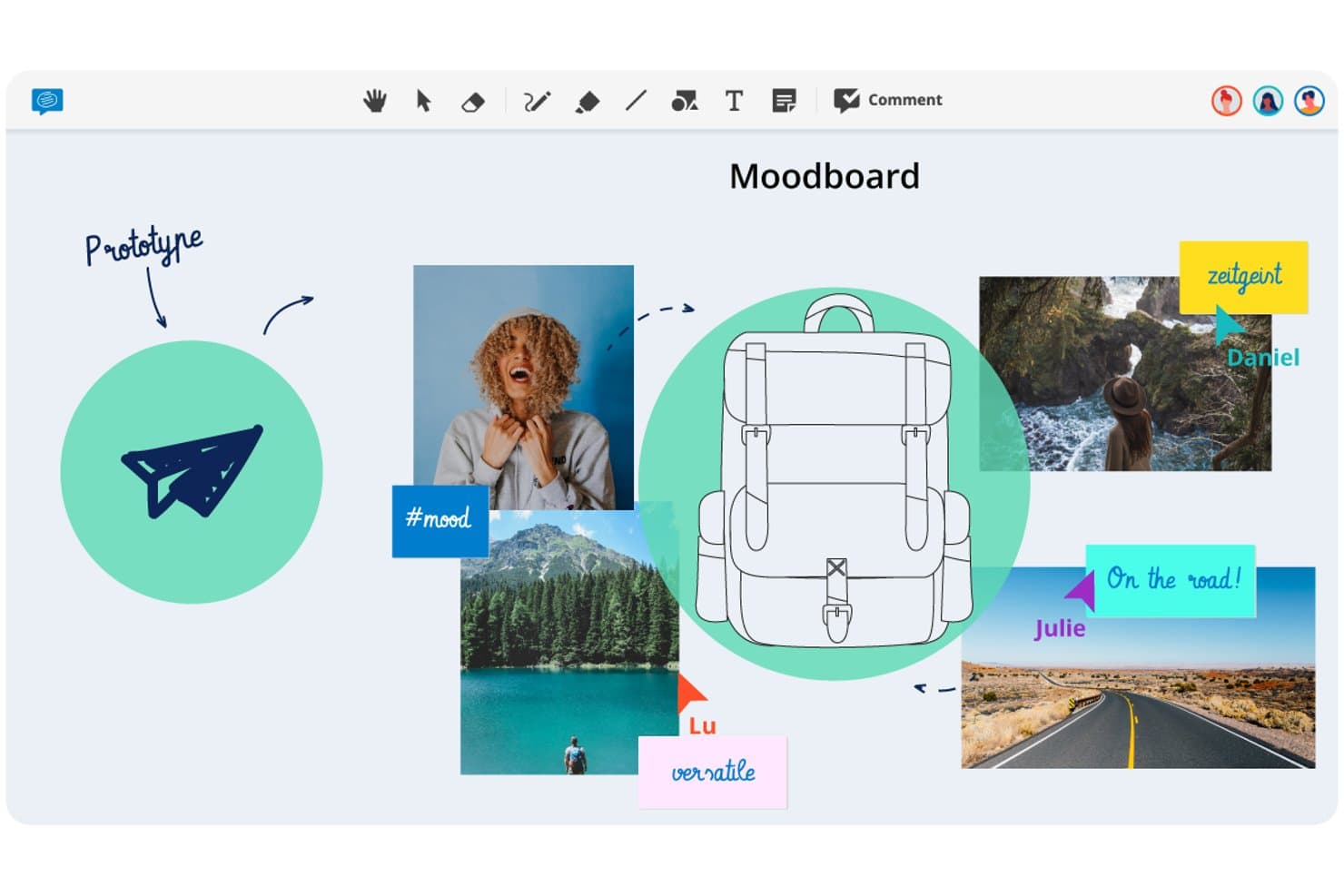
Conceptboard lets users build visual moodboards to prototype design ideas. Conceptboard is a browser-based online whiteboard that combines real-time multi-user editing, sticky notes, voting, facilitation controls, and task integrations on a flexible visual canvas.
Who Is Conceptboard Best For?
Conceptboard is a strong fit for teams in regulated industries—particularly in Europe—where GDPR compliance and flexible data residency options are non-negotiable.
Why I Picked Conceptboard
I've included Conceptboard in my top picks because it's the only whiteboard tool on this list built from the ground up with European data residency as a core feature, not an afterthought. If your team works in a regulated industry, the fact that data is hosted on AWS infrastructure in Germany, ISO 27001/27017/27018 certified, and available as a fully on-premises deployment changes what's possible in terms of stakeholder sign-off. I also like that facilitation controls like timed voting, moderation, and the Hide Sections feature (which lets you reveal canvas content step by step during a session) are available even on entry-level plans.
Conceptboard Key Features
- Real-time multi-user editing: Multiple users can edit the same board simultaneously, with guest access available via link and no account required for external participants.
- Enhanced voting widget: Run timed voting sessions with automatic incognito mode, a simplified results view, and the option to export voting outcomes.
- Jira and Azure DevOps integration: Import tickets directly onto the board and manage status and assignees without leaving the canvas.
- Board tagging and CSV export: Tag boards for organized search and retrieval, and export board content as a table for use in external tools.
Conceptboard Integrations
Conceptboard documents nine integrations, including Microsoft Teams, Webex, Confluence, Google Drive, Jira, Azure DevOps, Dropbox, Box, and OneDrive. No public API or Figma integration is documented.
Pros and Cons
Pros:
- Guest access simplifies stakeholder participation
- Timed voting supports structured workshop decisions
- German hosting supports regulated design teams
Cons:
- Reports cite lag during client sessions
- No journey-mapping templates for customer research
Learn more about Conceptboard: Best for ideation within a broader design suite
- Free plan available
- Free plan available
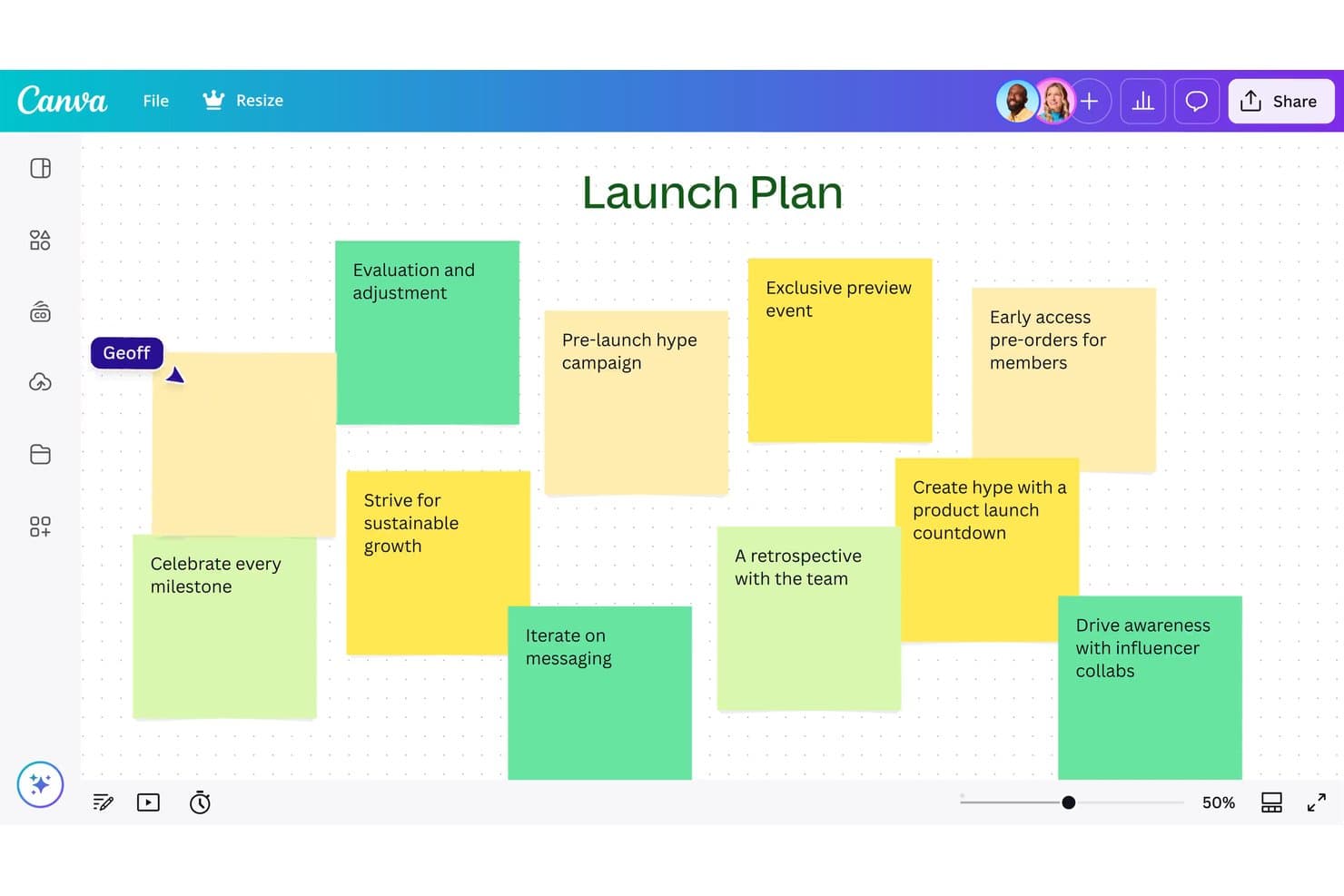
Canva Whiteboard lets users brainstorm launch ideas using sticky notes. Canva Whiteboard is a web-based infinite canvas tool that combines real-time collaboration, sticky notes, AI-assisted idea sorting, and a large library of whiteboard templates—including journey maps, flowcharts, and mind maps—within Canva's broader Visual Suite.
Who Is Canva Whiteboard Best For?
Canva Whiteboard is a strong fit for teams that already live in Canva and want to move from brainstorming to polished deliverables without switching tools.
Why I Picked Canva Whiteboard
I've included Canva Whiteboard in my top picks because it's the only tool here where your ideation and your final deliverable live in the same place. You can brainstorm on an infinite canvas with sticky notes, use AI to sort and summarize your team's ideas by topic, and then move that content directly into a Canva presentation or doc without re-creating anything. I also like that the whiteboard and presentation modes coexist in a single file, so running a session and sharing polished outputs afterward is one continuous workflow.
Canva Whiteboard Key Features
- Infinite canvas: An unlimited workspace where teams can add shapes, images, drawings, and graphic elements without running out of space.
- Sticky note sorting: Automatically organizes sticky notes by name, color, or topic with a single click to help teams make sense of large volumes of ideas.
- Timer with music: A built-in countdown timer with background music keeps sessions on pace during brainstorming or workshop activities.
- Cross-format file switching: Whiteboard and presentation slides coexist in a single file, letting you toggle between working modes without opening a separate document.
Canva Whiteboard Integrations
Canva Whiteboard has native integrations across Canva’s Visual Suite, including Canva Docs, Sheets, and Presentations. It also supports marketplace integrations through Canva’s Apps Marketplace, while API and custom app integrations are mainly available on Enterprise.
Pros and Cons
Pros:
- Supports mobile-friendly collaborative whiteboarding
- Sorts sticky notes by topic automatically
- Connects brainstorming directly to polished deliverables
Cons:
- Provides no prototyping or developer handoff
- Offers limited structured workshop facilitation
Learn more about Canva Whiteboard: Best for a highly flexible virtual whiteboard
- Free plan available
- From $16/user/month
Visit WebsiteCustomer Rating:4.7/5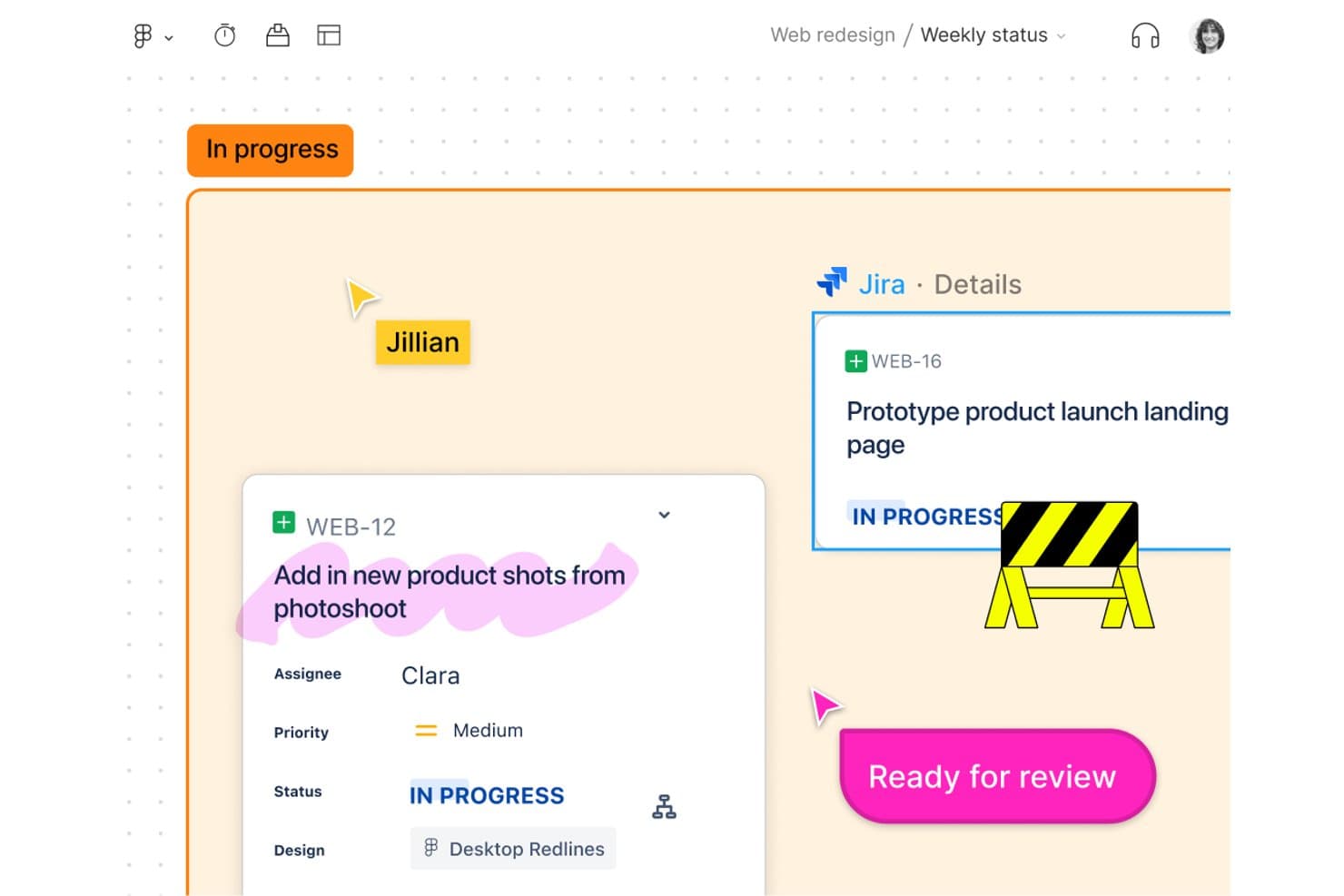
FigJam links Jira tasks directly to design boards for team tracking. FigJam is Figma's collaborative whiteboard tool designed for brainstorming, diagramming, agile workflows, and strategy sessions, with AI-assisted ideation, 300+ templates, and real-time multiplayer editing built in.
Who Is FigJam Best For?
FigJam is a natural fit for product and design teams already working in Figma who want a whiteboard that connects directly to their design and delivery workflow.
Why I Picked FigJam
FigJam earns its spot on my shortlist because the canvas is genuinely open-ended in a way most whiteboard tools aren't. I can run a full design sprint, from "How Might We" clustering to journey mapping, without ever bumping into layout constraints. The AI affinity clustering is a real time-saver: it groups sticky notes into themes automatically, so I spend less time sorting and more time acting on what I find. Spotlight mode keeps distributed teams focused during live sessions without me having to manage chaos manually.
FigJam Key Features
- 300+ ready-made templates: Choose from templates covering customer journey maps, retrospectives, sprint planning, roadmaps, and more to jump-start any design thinking session.
- 24-hour guest access: Invite external collaborators to contribute to a board for 24 hours without requiring them to create a Figma account.
- Asana and Jira integrations: Connect FigJam boards directly to your project management tools so ideas from sessions translate into actionable tasks.
- Dev Mode handoff: Pass designs from FigJam into Figma's Dev Mode for code inspection, asset export, and direct developer access without leaving the ecosystem.
FigJam Integrations
FigJam offers native integrations with Asana and Jira, plus connectivity across Figma Design, Dev Mode, Figma Slides, Figma Make, and Figma Buzz. It also supports Figma Community plugins and widgets, live embeds, and MCP connectors.
Pros and Cons
Pros:
- Guest access simplifies external workshop participation
- AI clustering turns sticky notes into themes
- Flexible canvas supports complex workshop formats
Cons:
- Research synthesis remains shallow without repositories
- Large boards can become slow and messy
Learn more about FigJam: Best for end-to-end ideation to handoff
- Free plan available
- From $3/user/month
Visit WebsiteCustomer Rating:4.7/5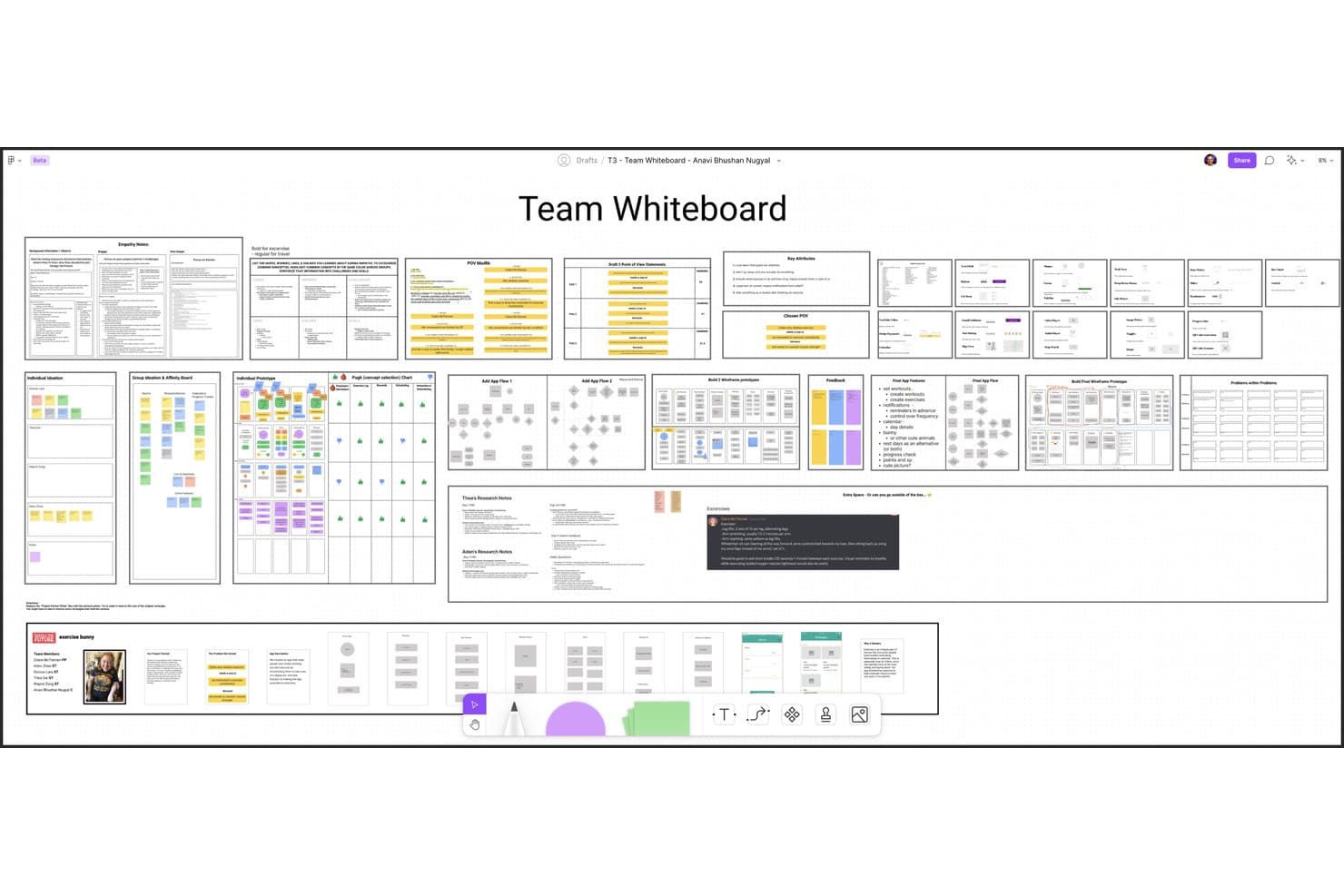
Figma lets users build and organize design thinking workflows collaboratively. Figma is a design platform that pairs FigJam, an infinite collaborative whiteboard, with prototyping, testing, and developer handoff tools in one connected ecosystem.
Who Is Figma Best For?
Figma is the go-to choice for product and design teams that need one connected workspace to take ideas from early brainstorming all the way through developer handoff.
Why I Picked Figma
Figma earns its spot on my shortlist because it's the only tool that carries your work from a FigJam brainstorm all the way through to developer handoff without switching platforms. I particularly like how AI-powered affinity clustering in FigJam automatically groups sticky notes into themes, turning a messy ideation session into a structured synthesis in seconds. From there, your team can move directly into advanced prototyping with conditional logic and variables, then share specs via Dev Mode.
Figma Key Features
- Voting and prioritization: Team members can vote on sticky notes or ideas directly on the FigJam canvas to surface the most valued concepts.
- Open sessions: Guests outside your organization can join a FigJam board for 24 hours without needing a paid seat.
- Figma Make: An AI tool that turns text prompts into working prototypes and web apps, with optional backend connections.
- Dev Mode: A dedicated view that surfaces code snippets, specs, and measurements from design files for engineering handoff.
Figma Integrations
Figma offers two documented native integrations with Jira and Asana. It also supports community plugins and widgets, a VS Code extension, an MCP Server, and Supabase connections through Figma Make.
Pros and Cons
Pros:
- 300+ templates support design thinking workshops
- AI clusters sticky notes into themes
- Connects ideation, prototyping, and handoff
Cons:
- No breakout rooms or guided agendas
- Large boards can suffer performance issues
 Best for live workshop facilitation and AI ideation
- Free plan available
- From $24.90/month (billed annually)
Visit WebsiteCustomer Rating:4.7/5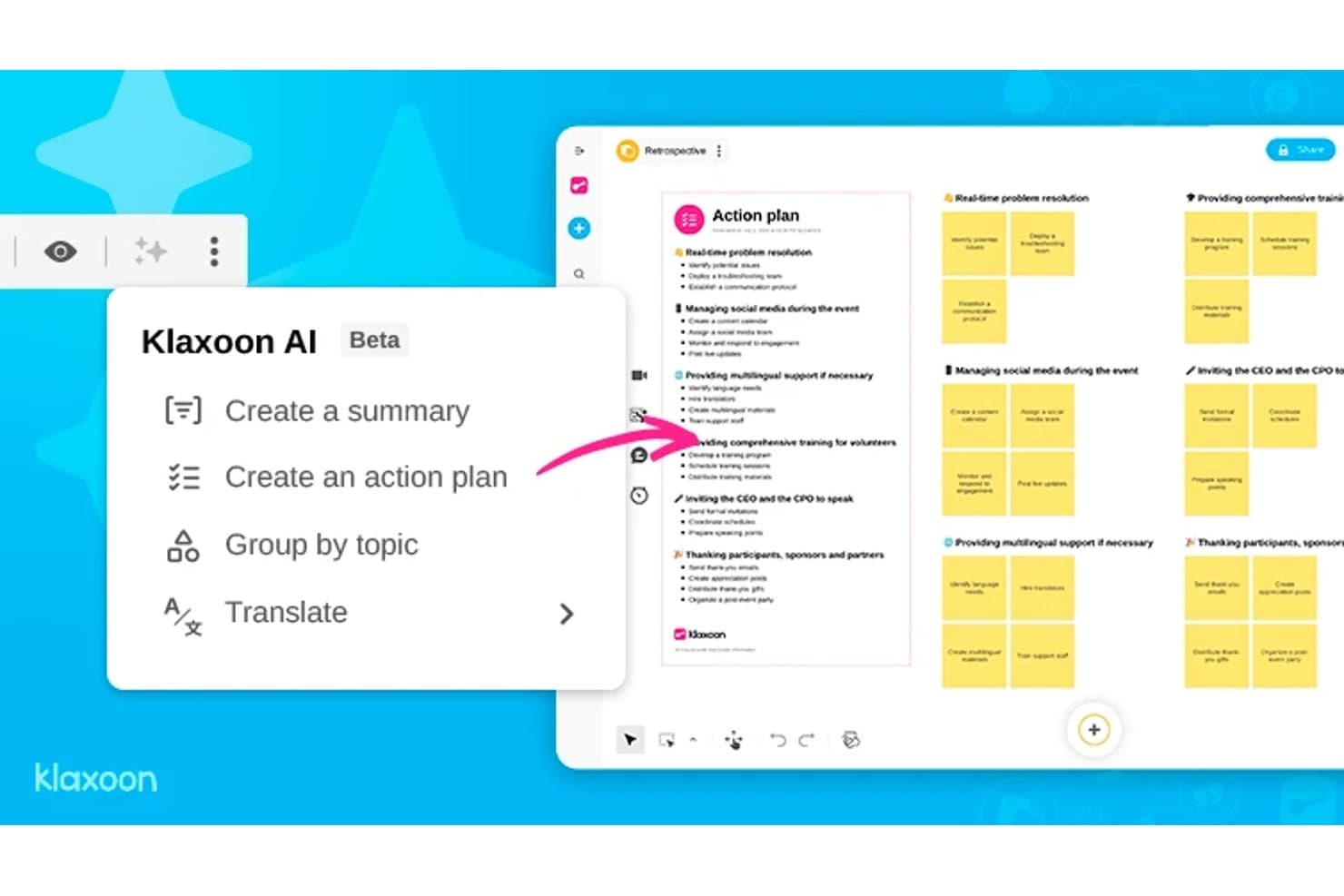
Klaxoon AI generates action plans from retrospective boards automatically. Klaxoon is a visual collaboration platform that combines an infinite whiteboard, facilitator-led sessions, AI-assisted ideation, and interactive widgets like polls, voting, and word clouds.
Who Is Klaxoon Best For?
Klaxoon is a strong fit for facilitators, coaches, and innovation consultants who run structured workshops and need live session controls built into their collaboration space.
Why I Picked Klaxoon
Klaxoon earns its spot on my shortlist because it's the only tool here that treats live facilitation as a first-class feature alongside ideation. I love how Sync Board lets me move every participant's view to the same section of the whiteboard in real time, which keeps workshops from falling apart when people go off in different directions. The built-in AI can also cluster and summarize sticky notes by topic the moment voting closes, turning a wall of ideas into a prioritized list without manual sorting.
Klaxoon Key Features
- Dot-voting with real-time ranking: Participants vote on ideas during a session and results rank automatically as votes come in, so the group sees priorities emerge without any manual sorting.
- Extra fields on sticky notes: Attach metadata like names, dates, and keywords directly to individual ideas on the Board to add structure to your ideation output.
- AI template generation: Generate a whiteboard template in one click based on your session goals, skipping the blank-canvas setup.
- Wrike and Jira task sync: Convert Board ideas directly into tasks in Wrike or Jira, with updates syncing in both directions between your whiteboard and project tools.
Klaxoon Integrations
Klaxoon offers native integrations with Wrike, Jira, Confluence, Microsoft Teams, and Google Workspace, plus Zapier. An API and MCP server support custom connections.
Pros and Cons
Pros:
- Converts brainstorming into prioritized actions
- AI clusters and summarizes ideas
- Strong live workshop facilitation controls
Cons:
- Research insights lack dedicated repository
- No prototyping or developer handoff
Learn more about Klaxoon: Best for team feedback and voting features
- Free demo + free plan available
- From $9.99/user/month (billed annually)
Visit WebsiteCustomer Rating:4.6/5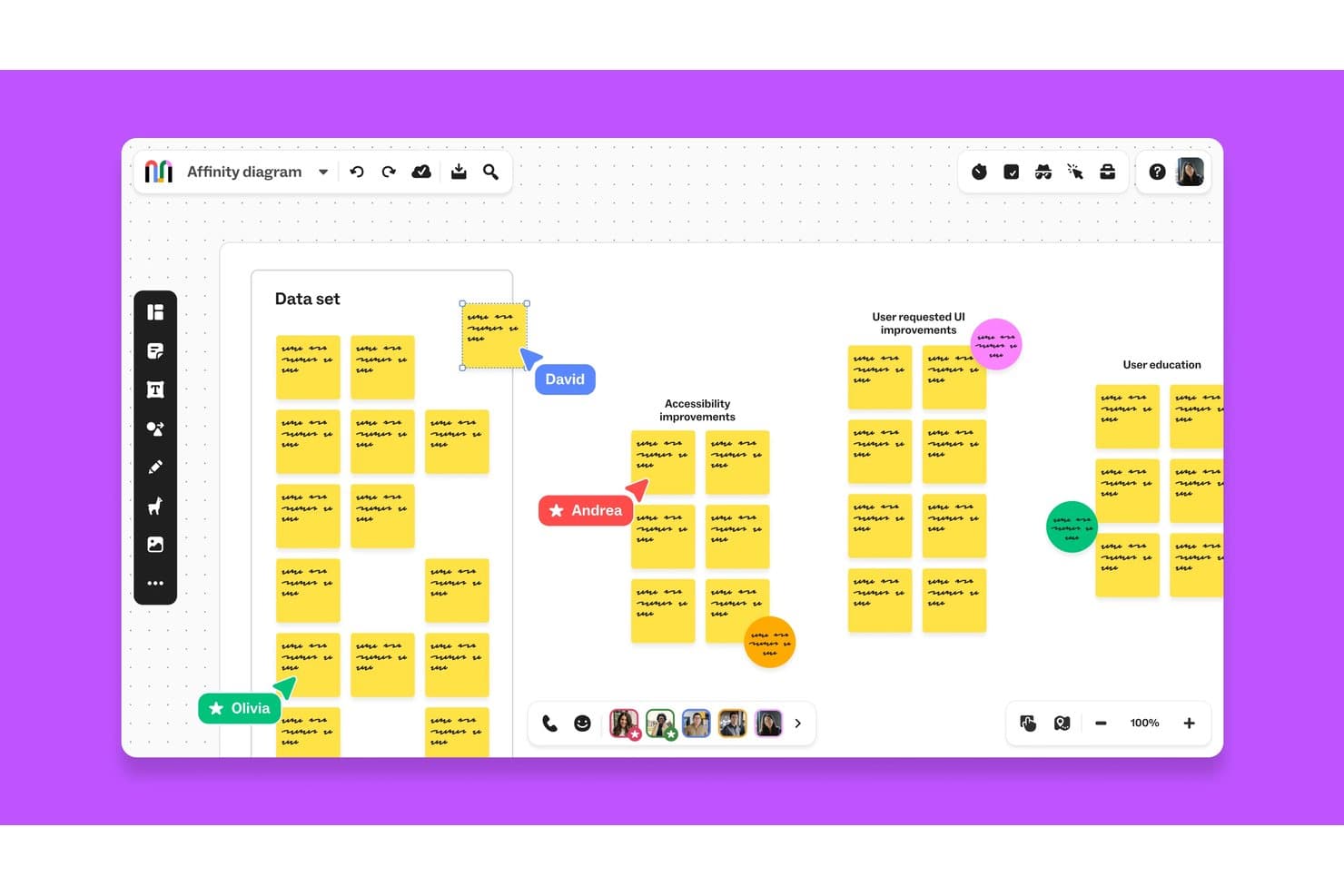
Mural lets teams collaborate on affinity diagrams in real time. Mural is a visual collaboration platform that combines an infinite canvas, design thinking templates from the LUMA Institute, real-time multi-user editing, and facilitation controls for running structured brainstorming and feedback sessions.
Who Is Mural Best For?
Mural is a strong fit for facilitators, innovation consultants, and product teams who need structured ways to collect input, run voting rounds, and synthesize feedback across distributed groups.
Why I Picked Mural
I picked Mural as one of the best because its voting and feedback tools are genuinely built into the product at every level, not bolted on as an afterthought. Private mode lets each team member submit ideas independently before anyone sees the group's input, which eliminates the groupthink that kills honest feedback in design sessions. Then, Facilitation Superpowers like the summon control and step-by-step outline keep structured voting rounds moving without losing the room.
Mural Key Features
- LUMA Institute method library: Access a full library of pre-built design thinking templates built on LUMA Institute's frameworks, available on Business and Enterprise plans.
- AI-powered clustering and summaries: Mural AI automatically groups sticky notes by topic and generates board summaries to help teams synthesize session output.
- Infinite resizable canvas: Build flows, journey maps, and process diagrams on an unlimited canvas across web, iOS, Android, and desktop apps.
- Asana and Jira two-way sync: Connect murals directly to project management tools so action items move from the board into your team's existing workflows.
Mural Integrations
Mural documents integrations with Jira, Asana, Figma, Confluence, Microsoft Teams, Slack, Google Workspace, and Productboard. It also offers a public API for custom integrations and supports Zapier.
Pros and Cons
Pros:
- Facilitation controls keep sessions on track
- LUMA methods guide structured workshops
- Private voting limits groupthink
Cons:
- No native prototyping or developer handoff
- Large boards can lag with participants
Learn more about Mural: Best virtual whiteboard for facilitated sprints
- Free plan available
- From $9/month (billed annually)
Visit WebsiteCustomer Rating:4.5/5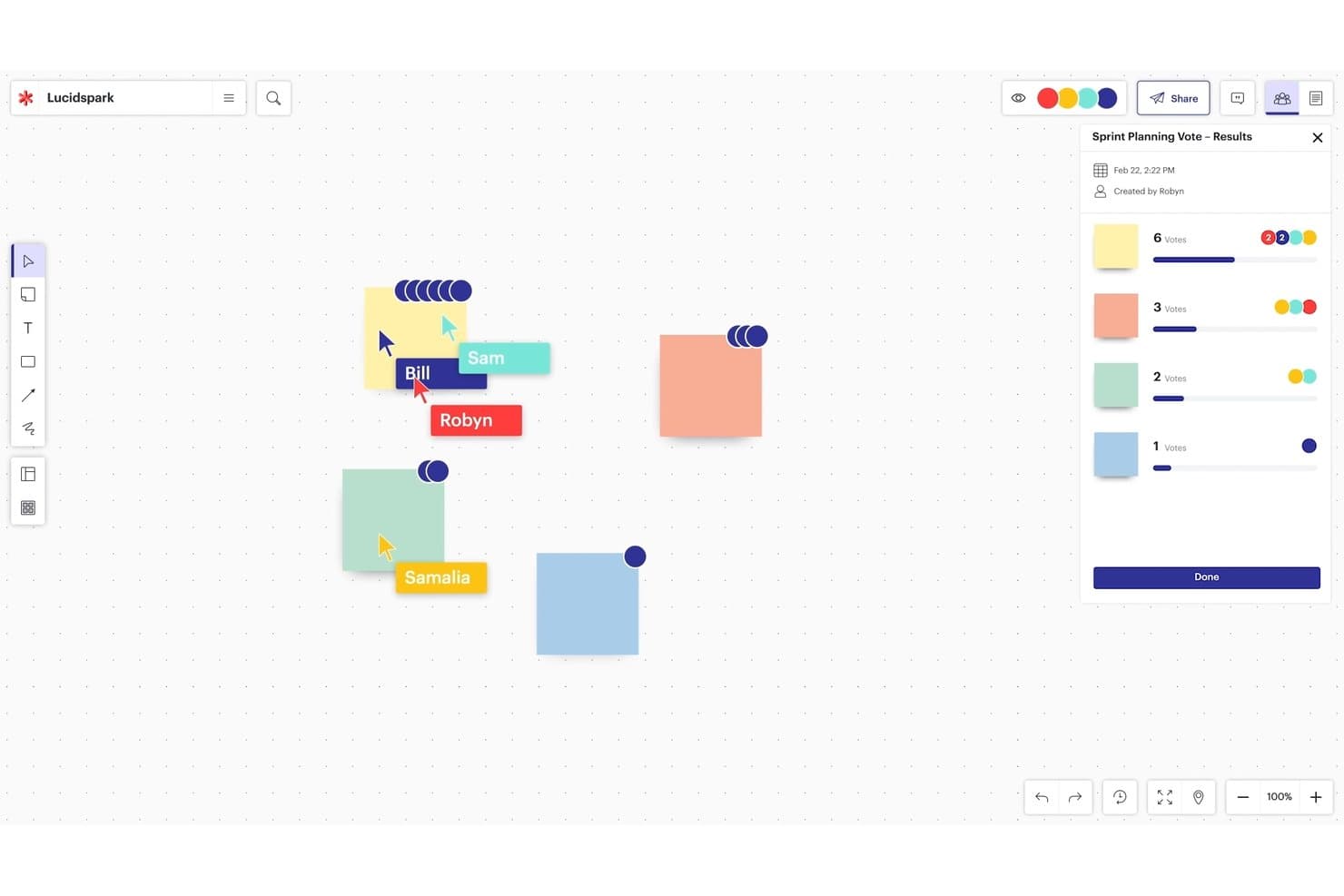
Lucidspark’s infinite canvas supports collaborative planning and voting. Lucidspark is a virtual whiteboard built for brainstorming and design thinking, offering an infinite canvas, sticky notes, voting, facilitation controls, and AI-powered ideation tools.
Who Is Lucidspark Best For?
Lucidspark is a strong fit for facilitators and product teams who run structured brainstorming sessions and need built-in session controls to keep groups on track.
Why I Picked Lucidspark
I picked Lucidspark as one of the best because its facilitation suite is purpose-built for running design sprints, not just supporting them. I love that private mode hides sticky notes and cursors while everyone ideates independently, then the voting and "take the lead" features let me bring the group to a decision without losing control of the session. Breakout Boards can split a large sprint into up to 50 smaller working groups simultaneously, which I've found invaluable when running parallel ideation tracks.
Lucidspark Key Features
- AI ideation and theme sorting: Lucid's AI generates ideas from prompts, identifies themes across sticky notes, and summarizes brainstorms directly on the canvas.
- Lucid Cards: Turns ideas on the board into Jira or Azure DevOps work items, connecting brainstorming sessions to your product backlog.
- Visual Activities: Lets participants rank items on sliders, sort them into categories, or place them on a matrix, with results displayed per person or as a group average.
- 100+ integrations: Connects with tools like Figma, Confluence, Microsoft 365, Slack, Zoom, and Microsoft Teams through Lucid's integration marketplace.
Lucidspark Integrations
Lucidspark offers 100+ marketplace integrations, including Jira, Azure DevOps, Confluence, Figma, Slack, Zoom, Microsoft Teams, and Google Workspace. Lucid Cards connect ideas to Jira and Azure DevOps, while Confluence pages can be added, viewed, and edited inside Lucid.
Pros and Cons
Pros:
- Breakout boards support parallel ideation groups
- AI clusters brainstorm themes
- Facilitator controls guide structured sprint sessions
Cons:
- Key facilitation tools require paid tiers
- Large boards can slow under heavy collaboration
Learn more about Lucidspark:
Andre verktøy
Her er noen flere nyttige designplattformer som ikke kom med på listen min over de 10 beste verktøyene for designtenkning, men som likevel er verdt å sjekke ut:
- 11Confluence WhiteboardsBest for ideation inside Atlassian workflows
- 12SprintbaseBest design thinking analytics & reporting suite
- 13StormboardBest tool for building a shared workspace
- 14LucidchartBest for diagramming with Jira and Confluence
- 15MindMeisterBest for collaborative mind mapping
- 16MilanoteBest for visual moodboarding and UX research
- 17IdeaflipBest for small group breakout sessions
- 18Microsoft WhiteboardBest for brainstorming within Microsoft 365
- 19BoardmixBest for AI-generated ideation on an open canvas
- 20SessionLabBest for planning and structuring workshops
How I Evaluate Design Thinking Tools
I split my evaluation into three parts: core functionality first (can the tool support a shared visual canvas and real-time co-editing?), then standout features like AI-assisted ideation, and finally what the tool offers beyond features—onboarding depth, facilitation resources, and pricing fairness for cross-functional teams.
Core Functionality (Table Stakes For This List)
When I'm selecting tools for my list, I score each one on a scale from 0 (does not offer the functionality) to 5 (excels in this area) for each core functionality listed below. I then convert the total into a percentage to help assess each tool's overall fit, with extra weight on any functionalities I've deemed essential.
- Visual Collaboration Canvas (Essential): I evaluate canvas fluidity, zoom behavior, and whether teams can arrange mixed media freely across an infinite workspace.
- Real-Time Multi-User Editing (Essential): Live cursors, low-latency syncing, and conflict-free co-editing during sessions with 10+ participants are what I check for here.
- Design Thinking Templates: The best template libraries cover all five stages and let you customize layouts rather than locking you into rigid formats.
- Sticky Notes and Ideation Widgets: I look for voting, clustering, and tagging tools that mirror the speed of a physical brainstorm on a shared wall.
- Facilitation and Session Controls: Built-in timers, guided flows, and participant permissions help facilitators keep a design sprint focused and on track.
- Export and Integration Options: I check whether outputs sync to tools like Jira, Confluence, or Notion so insights don't get stranded on the board.
Once I have a list of tools that meet the criteria, I consider what sets each platform apart.
Differentiating Factors (What Sets Vendors Apart)
Here's how I compare and contrast different vendors:
Standout Features
AI-assisted ideation is the first thing I check. I want to see whether a tool can auto-generate sticky notes from a prompt or cluster themes after a brainstorm, like Miro's AI features do during affinity mapping. Workshop facilitation mode matters just as much—I look for built-in timers, guided agendas, and breakout rooms that let a facilitator run a structured design sprint without juggling a separate video call. I also evaluate each tool's insight repository, since teams that can't resurface past research end up repeating discovery work across sprints.
Beyond Features
I check how well each tool integrates with your existing product stack. A two-way sync between Miro and Jira, for example, keeps sprint insights from dying on a whiteboard. I also evaluate remote facilitation readiness—canvas lag during a 20-person workshop across time zones can derail an entire design sprint. Security matters too: I look for SSO, SOC 2 compliance, and granular board permissions, especially when teams are synthesizing sensitive customer research.
Slik velger du et verktøy for designtenkning
Det er lett å gå seg vill i lange funksjonslister og komplekse prismodeller. For å hjelpe deg med å holde fokus mens du arbeider deg gjennom den unike prosessen din for valg av programvare, har vi laget en sjekkliste over faktorer du bør ha i mente:
| Faktor | Hva du bør vurdere |
|---|---|
| FaktorSkalerbarhet | Hva du bør vurdereKan verktøyet vokse med teamet ditt etter hvert som flere brukere, prosjekter eller maler legges til? Unngå verktøy som begrenser funksjonaliteten i rimeligere abonnementer. |
| FaktorIntegrasjoner | Hva du bør vurdereKan det enkelt kobles til verktøy teamet ditt allerede bruker, som Jira, Miro, Slack eller Trello? Manuelle omveier svekker fremdriften. |
| FaktorTilpasningsmuligheter | Hva du bør vurdereKan du tilpasse arbeidsflyter, maler eller tavler slik at de samsvarer med teamets spesifikke prosess? Rigide verktøy skaper raskt friksjon. |
| FaktorBrukervennlighet | Hva du bør vurdereKan ikke-designere komme i gang uten å måtte delta på et opplæringskurs? Hvis folk unngår å bruke det, er det ikke til hjelp. |
| FaktorImplementering og introduksjon | Hva du bør vurdereHvor lang tid tar det å få verdi etter kjøpet? Se etter forhåndsbygde maler, instruksjonsvideoer og direkte gjennomganger. |
| FaktorKostnad | Hva du bør vurdereHva er den faktiske kostnaden per bruker, og skalerer den godt med teamstørrelsen din? Vær oppmerksom på skjulte begrensninger for brukere eller tavler. |
| FaktorSikkerhetstiltak | Hva du bør vurdereTilbyr det SSO, SOC 2-samsvar eller tilgangskontroller? Hvis du lager prototyper av sensitive ideer, bør du ikke hoppe over dette. |
| FaktorTilgjengelig kundestøtte | Hva du bør vurdereVil noen være tilgjengelige for å hjelpe hvis du møter en hindring midt i en sprint? Sjekk om kundestøtten er direkte, billettbasert eller fellesskapsbasert. |
Hva er verktøy for designtenkning?
Verktøy for designtenkning omfatter programvaren, metodene, teknikkene og prosessene som brukes til å legge til rette for designtenkning – en menneskesentrert metode for problemløsning som setter brukerens behov og opplevelser i sentrum av designprosessen. Disse verktøyene har som mål å fremme empati, kreativitet og samarbeid mellom teammedlemmer for å utvikle innovative løsninger på komplekse problemer.
Noen eksempler på verktøy for designtenkning er oppretting av personaer, kartlegging av brukerreiser, empatikart, idémyldring, storyboard, prototyping og brukertesting. Disse verktøyene hjelper team med å samle innsikt, identifisere brukerbehov, utvikle ideer og løsninger samt validere og videreutvikle disse løsningene basert på tilbakemeldinger fra brukerne. Alt i alt hjelper verktøy for designtenkning team med å tilnærme seg problemer med et brukersentrert tankesett og utvikle meningsfulle løsninger som dekker brukernes behov.
Funksjoner
Her er de viktigste funksjonene ethvert godt verktøy for designtenkning bør ha:
- Samarbeidstavle: Gjør det mulig for team å idémyldre, kartlegge ideer og samarbeide i sanntid, uansett hvor de befinner seg.
- Mallbibliotek: Tilbyr ferdige rammeverk som empatikart, brukerreiser og idéutviklingstavler for å effektivisere arbeidsøkter.
- Gule lapper og avstemning: Lar brukere raskt komme med innspill og stemme på ideer for å prioritere konsepter under arbeidsøkter.
- Verktøy for å opprette brukerpersonaer: Hjelper med å opprette og visualisere personaer slik at teamet holder fokus på brukerbehovene.
- Prototypingsgrensesnitt: Gjør det mulig å raskt opprette prototyper med lav detaljgrad for å teste og videreutvikle løsninger tidlig.
- Verktøy for fasilitering av arbeidsøkter: Inkluderer tidtakere, presentatørmodus og verktøy for gruppearbeid som veileder strukturerte arbeidsøkter.
- Versjonshistorikk: Sporer endringer og lar brukere gå tilbake til tidligere versjoner for å håndtere ideer i utvikling.
- Kommentering og tilbakemeldinger: Støtter kommentarer i sanntid eller asynkrone kommentarer for å samle innspill og oppmuntre til diskusjon.
- Alternativer for eksport og deling: Gjør det enkelt å dele arbeid med interessenter via lenker, PDF-filer eller integrasjoner.
- Tilgang på tvers av enheter: Sikrer at brukere kan få tilgang til og bidra i arbeidsøkter fra bærbare datamaskiner, nettbrett eller telefoner.
Fordeler
Implementering av verktøy for designtenkning gir flere fordeler for teamet og virksomheten din. Her er noen av fordelene du kan se frem til:
- Raskere idéutvikling: Innebygde maler og samarbeid i sanntid hjelper team med å gå raskere fra idé til konsept.
- Bedre samkjøring i teamet: Delte tavler og visuelle verktøy sørger for at alle har samme forståelse under arbeidsøkter og gjennomganger.
- Mer brukersentrerte resultater: Persona-verktøy og empatikart gjør det enklere å holde brukerbehovene i sentrum.
- Enklere samarbeid på avstand: Tilgang i skyen og støtte for flere enheter gjør at alle kan bidra, uansett hvor de befinner seg.
- Tydeligere beslutningstaking: Avstemningsfunksjoner og tilbakemeldingsverktøy hjelper team med å prioritere ideer uten lange diskusjoner.
- Lavere risiko for omarbeiding: Tidlig prototyping og testing av funksjoner avdekker problemer før for mye tid eller penger er brukt.
- Større oppslutning fra interessenter: Enkel deling og visuell eksport gjør det lettere å vise fremdrift og samle innspill.
Kostnader og priser
Valg av verktøy for designtenkning krever en forståelse av de ulike prismodellene og abonnementene som er tilgjengelige. Kostnadene varierer basert på funksjoner, teamstørrelse, tillegg og mer. Tabellen nedenfor oppsummerer vanlige abonnementer, gjennomsnittsprisene deres og typiske funksjoner som er inkludert i løsninger for verktøy for designtenkning:
Sammenligningstabell for abonnementer for verktøy for designtenkning
| Gratisabonnement | $0 | Grunnleggende tavlefunksjoner, begrenset antall maler, begrenset antall samarbeidspartnere og grunnleggende eksportalternativer. |
| Personlig abonnement | $5–$15/bruker/måned | Full tilgang til maler, ubegrenset antall tavler, versjonshistorikk og standardintegrasjoner. |
| Bedriftsabonnement | $15–$30/bruker/måned | Verktøy for teamsamarbeid, avanserte tillatelser, administratorkontroller og prioritert brukerstøtte. |
| Virksomhetsabonnement | $30–$60/bruker/måned | SSO- og sikkerhetsfunksjoner, avansert analyse, dedikert brukerstøtte og tilpasset oppstart. |
Vanlige spørsmål
Lurer du fortsatt på verktøy for designtenkning og hvordan de fungerer? Disse svarene på ofte stilte spørsmål (FAQs) bør bidra til å klargjøre ting ytterligere:
Hva er designtenkning?
Designtenkning er en produktiv og kreativ måte å løse problemer på ved å utvikle produkter som dekker et spesifikt behov.
Jeanne Liedtka, ekspert på designtenkning, bemerket i Harvard Business Review at: «designtenkning har potensial til å gjøre for innovasjon nøyaktig det TQM gjorde for produksjon: frigjøre menneskers fulle kreative energi, vinne deres engasjement og forbedre prosesser radikalt.»
Den beste forretningsmodellen er en som holder sluttbrukeren i sentrum gjennom hele tjenestedesignprosessen. Du kan gjøre dette ved å lage et empatikart for iterasjonsformål, avdekke brukernes utfordringer med produktet ditt og gjennomføre omfattende praktisk brukerundersøkelse.
Idémyldringer er imidlertid bortkastet tid hvis du ikke har en måte å samle inn og sammenstille dataene som oppstår, ved hjelp av en plattform som kan utnytte dataene.
Designtenkning kan ha stor innflytelse når det gjelder utvikling av nye produkter, slik som da Braun for eksempel satte seg fore å designe en forenklet elektrisk IoT-tannbørste. Designtenkning er nettopp det: å ta det du allerede vet og bygge videre på det for å lage et bedre produkt som svarer på flere av sluttbrukerens behov og gir en bedre kundereise.
Hvordan kan verktøy for designtenkning hjelpe den kreative prosessen?
Designtenkning hjelper deg med å utvikle kreative løsninger på tekniske problemer på kundesentrerte måter. Nettbaserte verktøy for designtenkning kan hjelpe deg med å organisere tankene dine og planlegge veien mot produktinnovasjon.
Prosessen for designtenkning kan bli kompleks fordi du hele tiden balanserer idéenes gjennomførbarhet + overkommelighet (for virksomheten) + attraktivitet (for sluttbrukeren). Apper for designtenkning er imidlertid laget for å veilede deg gjennom de 5 stadiene i designtenkning, slik at du kan følge nye ideer fra prosjektstart til prosjektavslutning.
Hva er kundereisen?
Kundereisen er den sannsynlige veien (eller veiene) som de ideelle brukerne dine vil følge når de samhandler med produktet ditt, fra introduksjon til fullføring. Menneskesentrert design er viktig for å gjøre denne reisen så problemfri som mulig. Prosessen for designtenkning er avhengig av en god forståelse av kundereisen: hvordan kundene kommer fra A til B og hvor de kan støte på problemer, samt hvilket sentralt problem produktet/tjenesten din prøver å løse for dem.
Hva er de 5 stadiene i designtenkning?
Ifølge Stanford University er de 5 stadiene i designtenkning: empati, definisjon, idéutvikling, prototyping og testing.
- Empati innebærer å arbeide for å forstå sluttbrukerens behov («problemformuleringen»);
- Definisjon er kortversjonen av hvilket problem du har tenkt å løse, og hvordan;
- Idéutvikling (eller idémyldring) innebærer kreativ idéutvikling («ideate») for å finne den beste løsningen gjennom produktdesign;
- Prototyping innebærer å lage den mest grunnleggende versjonen av produktet ditt;
- Testing innebærer å gjøre dette minimum levedyktige produktet om til et fullt funksjonelt, kvalitetssikret og lanseringsklart produkt.
Hvilke andre ressurser kan hjelpe meg med å lære mer om designtenkning?
Hvis konseptet designtenkning har satt i gang tankene dine, finnes det mange andre ressurser som kan hjelpe deg videre på læringsreisen.
Finnes det gratis verktøysett for designtenkning?
Selv om de kan ha noen begrensninger sammenlignet med de betalte alternativene, er bruk av et gratis designverktøy et godt alternativ for mindre team eller for dem som først og fremst ønsker å teste programvaren. Som designleder kan du selv avgjøre hva som passer best til behovene dine.
Gratis alternativer inkluderer:
- Ideos verktøysett
- IBMs verktøysett for designtenkning
- HubSpots Make My Persona
- Google Design