

Denne veiledningen går gjennom de beste verktøyene for UX-samarbeid – programvareplattformer som er utviklet for å hjelpe produktledere, designere og tverrfunksjonelle team med å samarbeide mer effektivt, kommunisere beslutninger tydelig og opprettholde en felles prosjektvisjon.
Hvis du er her, er sjansen stor for at du opplever friksjon i den nåværende prosessen – misforståelser, verktøytthet eller rett og slett for mange bevegelige deler. Jeg forstår det. Jeg har testet disse verktøyene i praksis for å hjelpe deg med å slippe prøving og feiling.
I denne veiledningen finner du detaljerte innsikter om brukervennlighet, samarbeidsfunksjoner og ytelse i virkelige situasjoner – slik at du kan velge verktøyet som sparer tid, reduserer behovet for omarbeiding og hjelper teamet med å holde fokus på å utvikle gode produkter.
Hvorfor du kan stole på våre programvareanbefalinger
6,700+
Reviews
20
Industry experts
16+
Evaluation factors
14
Years
Teamet vårt har testet og anmeldt programvare siden 2012. Vi er selv produktledere, så vi vet hvor vanskelig og hvor viktig det er å velge riktig programvare.
I denne guiden har vi vurdert verktøyene gjennom praktisk testing og uavhengig research og gitt dem poeng ut fra våre utvelgelseskriterier.
Anmeldelsene våre bygger på vår egen redaksjonelle vurdering. De er ikke et salgsargument.
Ekspertanmeldere:
- Andrew LumbySenior TPM
- Cristiano ValimSenior UI/UX Lead


Sammenligningstabell for UX-samarbeidsverktøy
Sammenlign prisopplysninger for mine utvalgte UX-samarbeidsverktøy i tabellen nedenfor.
| Tool | Best For | Trial Info | Price | ||
|---|---|---|---|---|---|
| 1 | Best for collaborative boards | Free plan available | From $10/month (billed annually) | Website | |
| 2 | Best for UI planning with non-designers | Free plan available | From $9/user/month (billed annually) | Website | |
| 3 | Best for code-backed design systems | Free plan + 14-day free trial available | From $29/user/month (billed annually) | Website | |
| 4 | Best for code-free, data-driven prototypes | Free plan available | From $19/user/month | Website | |
| 5 | Best for code-free conditional logic prototypes | 30-day free trial | From $29/user/month (billed annually) | Website | |
| 6 | Best for design collaboration and feedback | Free plan available | From $3/user/month | Website | |
| 7 | Best for non-designers creating UX drafts with AI | Free plan available | From $14/user/month | Website | |
| 8 | Best for open-source design and dev handoff | Free plan + 14-day free trial available | From $7/user/month | Website | |
| 9 | Best for macOS-native design teams | Free plan available; 30-day free trial | From $12/user/month (billed annually) | Website | |
| 10 | Best for logic-driven prototype handoff to devs | Free plan available | From $25/month (billed annually) | Website |


Anmeldelser av de beste UX-samarbeidsverktøyene
Nedenfor finner du mine detaljerte sammendrag av de beste UX-samarbeidsverktøyene som kom med på kortlisten. Anmeldelsene mine gir en detaljert gjennomgang av de viktigste funksjonene, fordeler \u0026 ulemper, integrasjoner og ideelle bruksområder for hvert verktøy, slik at du kan finne det som passer best for deg.
 Best for collaborative boards
- Free plan available
- From $10/month (billed annually)
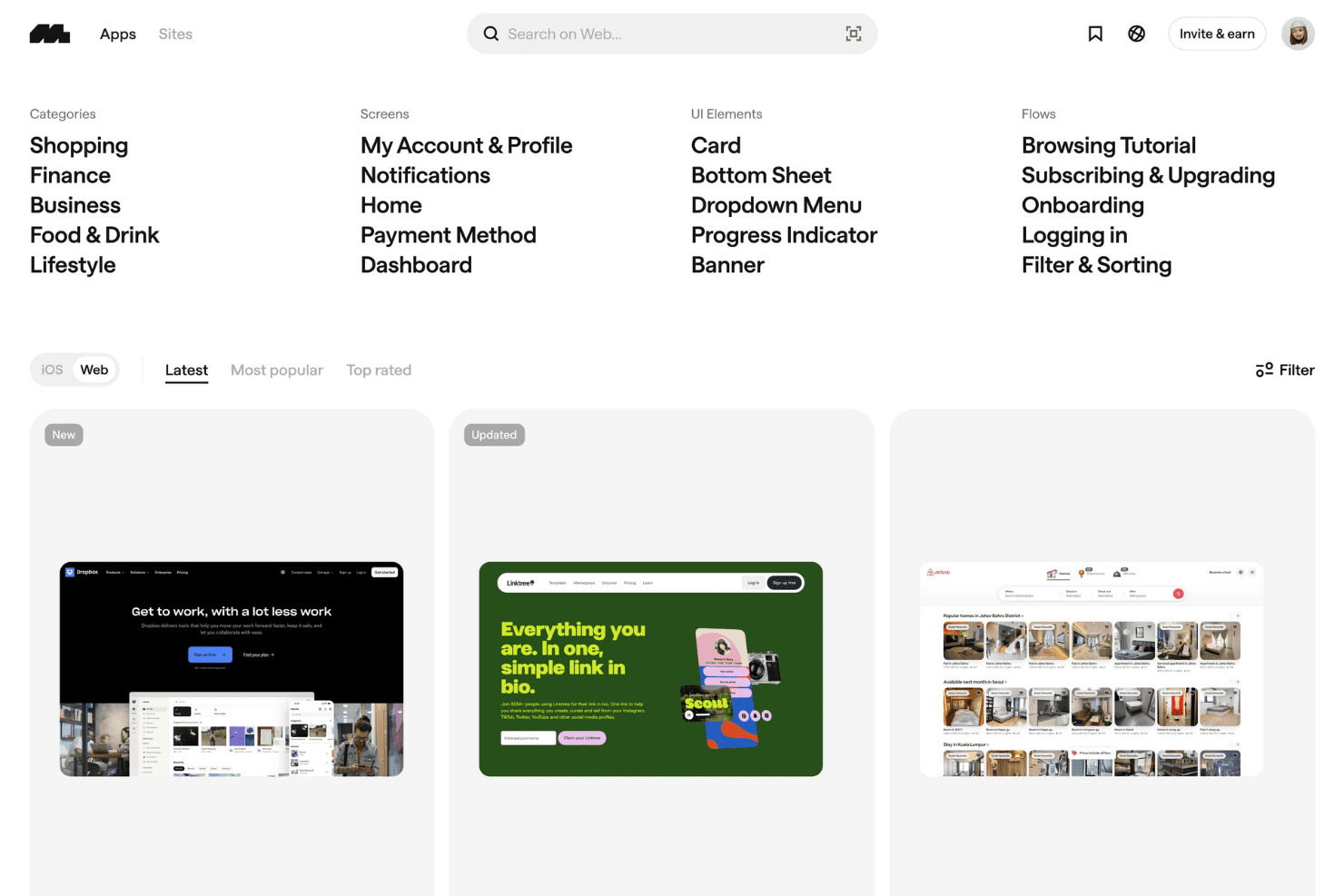
Mobbin showcases categorized web UI examples, from dashboards to onboarding flows to helping designers explore and compare real-world interface patterns efficiently. Mobbin is a design reference library that gives teams access to a curated collection of real app screenshots, user flows, and marketing pages, organized into shared boards for collaborative research and UI inspiration.
Who Is Mobbin Best For?
Mobbin suits UX and product teams that spend significant time on competitive research and UI inspiration, and want one shared space to save and discuss real-app references.
Why I Picked Mobbin
I've included Mobbin in my top picks because its shared collections make it the go-to tool for teams that run regular UI research and want one place to save, organize, and discuss real-app references together. I love that you can capture entire user flows, not just single screens, so your team can comment on a full onboarding sequence or checkout path in context. Public comments and mentions on saved screens keep the conversation tied directly to the reference, which cuts down on scattered Slack threads during early-stage design exploration.
Mobbin Key Features
- AI-powered deep search: Search across more than 600,000 real app screens using natural language, with results ranked by recency and filtered for animated screens or in-screenshot text.
- Flow capture and playback: Browse complete multi-screen user flows from real apps, clicking through each step or watching micro-interactions as short video recordings.
- Figma and FigJam export plugin: Copy selected screens or entire flows directly into Figma or FigJam in bulk using the Mobbin community plugin.
- Team activity reporting: Admins can view when each team member was last active and download full team activity reports to track workspace engagement.
Mobbin Integrations
Mobbin offers a Figma Community plugin for copying screens and flows into Figma and FigJam. Team and Enterprise plans include API access, while Pro and Team support MCP connections with Claude, Cursor, v0, and custom clients.
Pros and Cons
Pros:
- Large library supports competitive research
- Full user flows reveal interaction patterns
- Shared boards centralize reference discussions
Cons:
- No prototype builder or handoff specs
- No editing canvas for team designs
Learn more about Mobbin: Best for UI planning with non-designers
- Free plan available
- From $9/user/month (billed annually)
Visit WebsiteCustomer Rating:4.3/5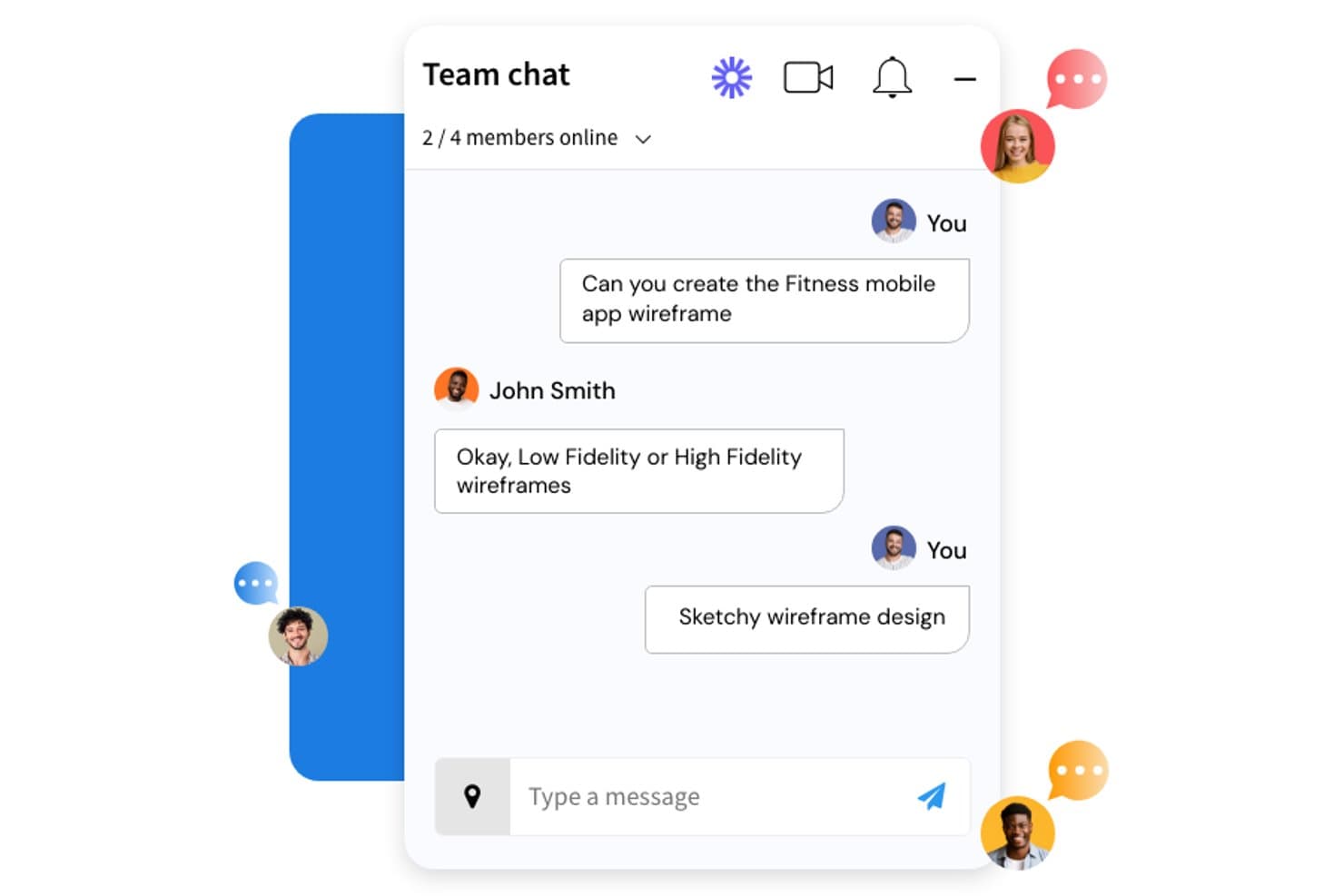
MockFlow lets teams discuss wireframe tasks in real time via built-in chat. MockFlow is a browser-based wireframing and visual collaboration platform that combines UI wireframing, lightweight prototyping, AI-assisted design generation, and whiteboard-style ideation tools in one workspace.
Who Is MockFlow Best For?
MockFlow is a strong fit for product managers and founders who need to turn ideas into structured UI plans without relying on a dedicated designer.
Why I Picked MockFlow
I picked MockFlow as one of the best because it's built around the reality that most wireframing happens before a designer is in the room. Its AI wireframe generator lets a product manager describe a screen in plain text and get a structured, multi-screen layout back instantly. Pair that with Design Suggestions, where reviewers can propose changes directly on the wireframe and owners apply them in one click, and you get a feedback loop that doesn't require anyone to open Figma.
MockFlow Key Features
- Smart comments: Threaded commenting lets reviewers leave contextual feedback directly on wireframes, with a "resolved" status to track what's been addressed.
- Real-time co-editing: Multiple team members can edit wireframes simultaneously, with live cursors and a built-in messenger for chat, voice notes, and video calls.
- IdeaBoard brainstorming tools: A whiteboard-style space with mind maps, live polls, voting, and timers built for structured ideation sessions with distributed teams.
- Specs mode style guide: Automatically generates a style guide from your wireframe's colors, fonts, and assets, exportable as CSS variables, JSON design tokens, or a Tailwind config.
MockFlow Integrations
MockFlow supports 20+ business-app connectors, including Slack, Jira, Notion, GitHub, Linear, Microsoft Teams, Google Drive, Trello, and HubSpot. It also integrates with Figma, Confluence, Google Meet, and Microsoft 365 for design collaboration.
Pros and Cons
Pros:
- Design Suggestions shorten feedback cycles
- Live co-editing supports cross-functional planning
- AI-assisted wireframing helps non-designers contribute
Cons:
- Shared component packs lack cross-project syncing
- Prototyping lacks variables and conditional logic
Learn more about MockFlow: Best for code-backed design systems
- Free plan + 14-day free trial available
- From $29/user/month (billed annually)
Visit WebsiteCustomer Rating:4.2/5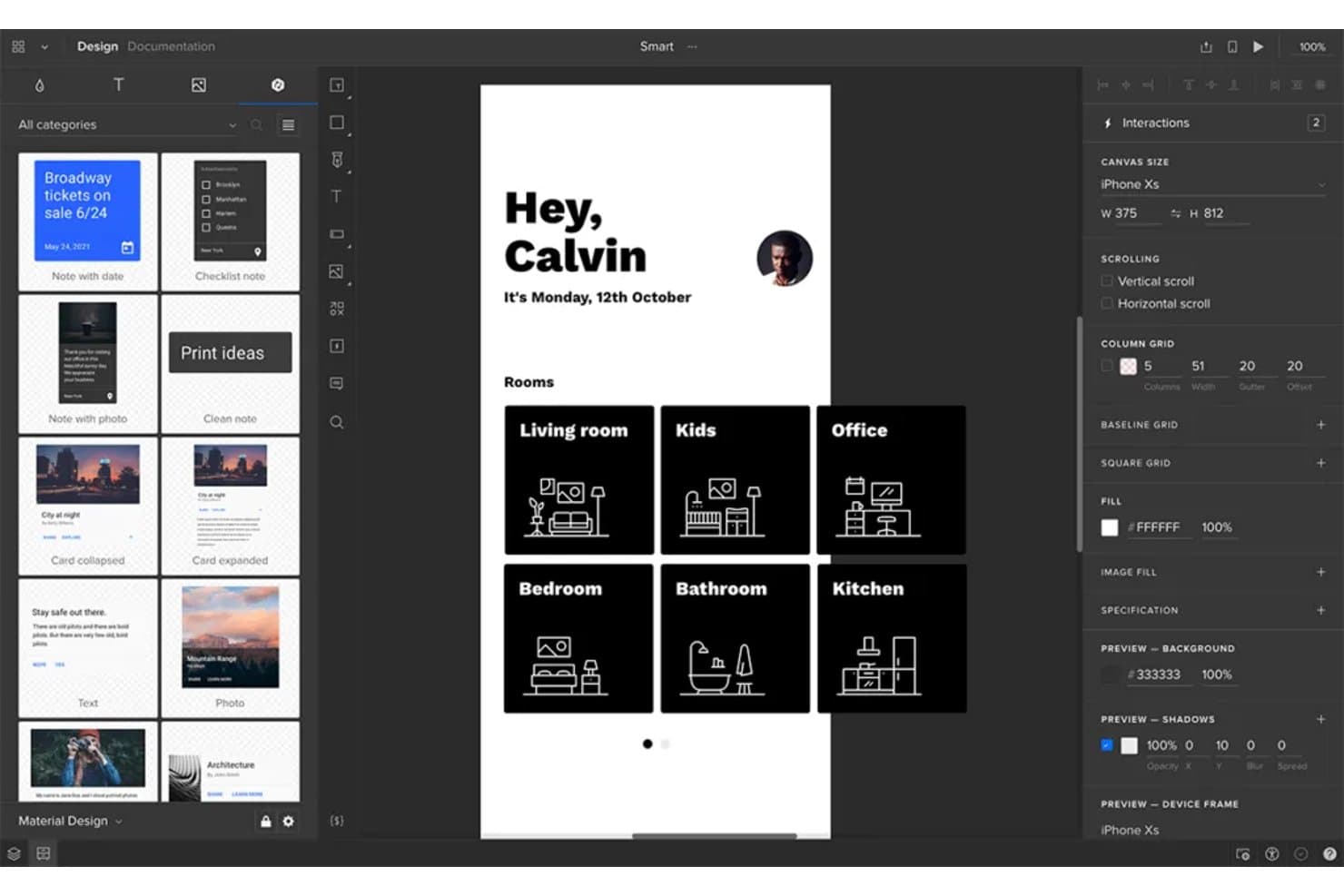
UXPin lets users prototype and design mobile app interfaces collaboratively. UXPin is a UX design and prototyping platform that combines real-time collaborative editing, high-fidelity interactive prototyping, shared design system libraries, and built-in developer handoff through its code-backed Merge technology.
Who Is UXPin Best For?
UXPin is a strong fit for design teams that maintain a shared component library and need their prototypes to reflect production-ready code.
Why I Picked UXPin
UXPin earns its spot on my shortlist because of Merge, its code-backed design system technology that lets designers prototype with real React components instead of static imitations. When your team syncs a component library via Storybook or Git, every prototype automatically reflects production behavior, so what stakeholders approve is what developers actually build. I also like that the built-in Get Code mode auto-updates specs the moment a design changes, giving developers accurate CSS and JSX without a separate handoff step.
UXPin Key Features
- Approval workflow: Send stakeholders a private preview link to formally request approvals or rejections, without requiring them to have a UXPin account.
- Commenting and annotation: Pin threaded comments to specific canvas elements, assign them to teammates, and mark them resolved directly within the editor or preview.
- Real-time presence indicators: See teammates' avatars in the top bar and track which page or element each person is actively editing.
- Jira integration: Attach prototype cards to Jira Cloud issues, giving developers direct access to previews, comments, and spec mode from within their existing workflow.
UXPin Integrations
UXPin offers documented integrations with Storybook, npm, GitHub, Bitbucket, Jira Cloud, Slack, FullStory, StackBlitz, CodeSandbox, and Figma. Git integration requires Enterprise, while Storybook, Jira, and FullStory require Growth or higher.
Pros and Cons
Pros:
- Approval workflows simplify stakeholder feedback
- Conditional logic supports realistic product behavior
- Production components reduce design-to-code drift
Cons:
- Full code export remains beta-limited
- Element locking limits simultaneous editing
Learn more about UXPin: Best for code-free, data-driven prototypes
- Free plan available
- From $19/user/month
Visit WebsiteCustomer Rating:4.2/5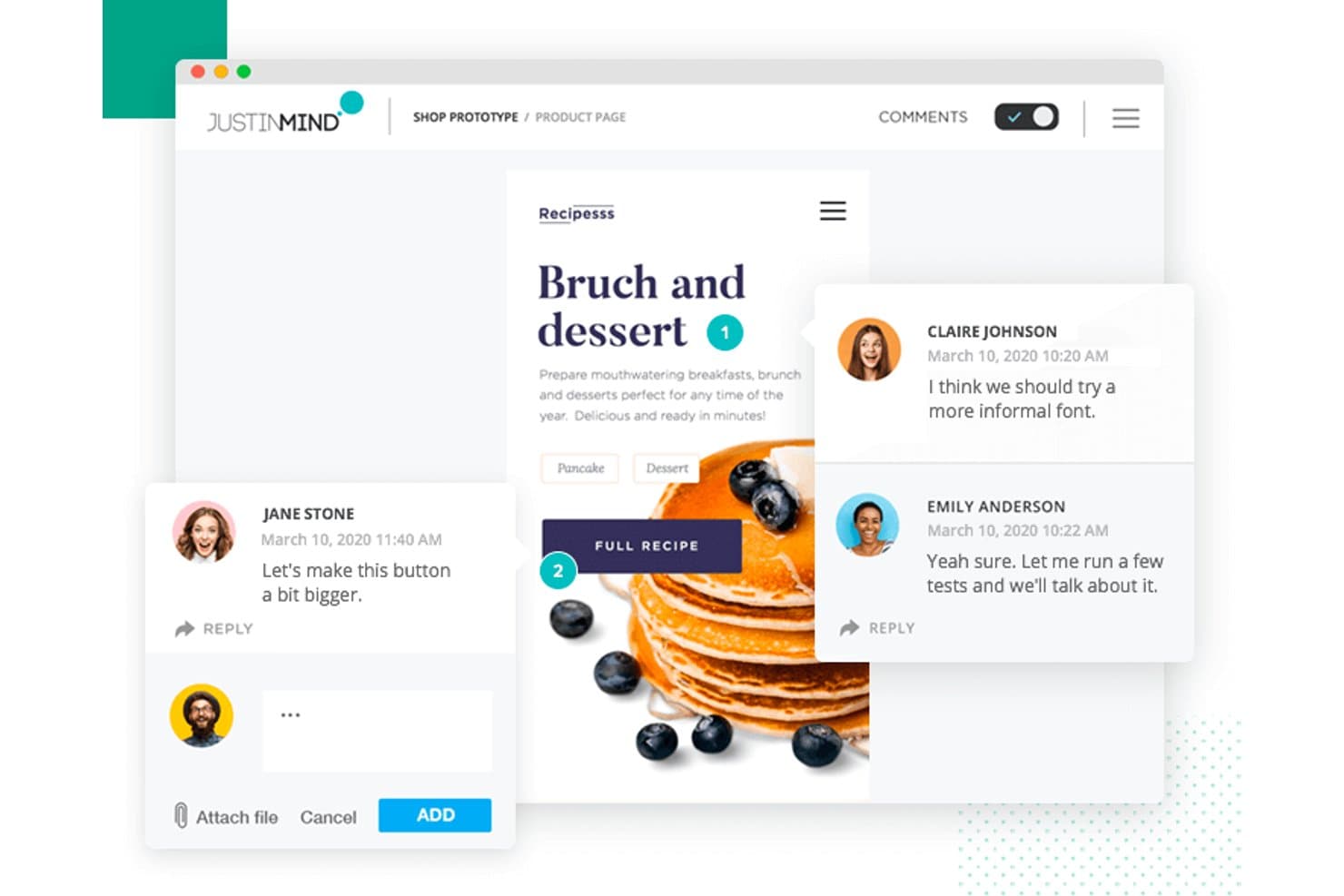
Justinmind lets users leave contextual comments directly on prototypes. Justinmind is a desktop prototyping tool for Windows and macOS that combines interaction design, conditional logic, data-driven simulation, and collaborative review for web, iOS, and Android prototypes.
Who Is Justinmind Best For?
Justinmind is a strong fit for UX designers and business analysts who need to build functional, data-driven prototypes without writing a single line of code.
Why I Picked Justinmind
I picked Justinmind as one of the best because no other tool on this list matches its depth for building functional, data-driven prototypes without writing code. I'm particularly impressed by its Data Masters feature, which lets you import a CSV file to populate realistic data grids and forms directly in your prototype. Pair that with conditions and variables, and you can simulate real business logic, like validation rules and dynamic screen states, long before a developer writes a single line.
Justinmind Key Features
- Lock-based co-editing: Multiple editors can work in the same cloud project simultaneously, with each active element automatically locked to prevent conflicting changes.
- Component-level commenting: Reviewers can pin comments directly to specific UI components, filter by author or date, and reply in threads for targeted feedback.
- Design handoff panel: Viewers access a dedicated panel showing CSS styles, measurements, spacing, hex colors, and downloadable assets without needing an editor seat.
- Shared UI libraries: Teams can build and sync shared widget libraries across the account, with access to over 4,000 prebuilt components from iOS 18, Material Design 3, and Bootstrap.
Justinmind Integrations
Justinmind offers integrations with Figma, Sketch, Adobe XD, Jira, Azure DevOps, and Confluence, plus an API and SDK for custom integrations. Vertex? No.
Pros and Cons
Pros:
- Component-level feedback supports focused reviews
- Conditions and variables simulate business logic
- Data-driven prototypes model realistic workflows
Cons:
- Version recovery requires creating project copies
- Lock-based editing limits simultaneous collaboration
Learn more about Justinmind: Best for code-free conditional logic prototypes
- 30-day free trial
- From $29/user/month (billed annually)
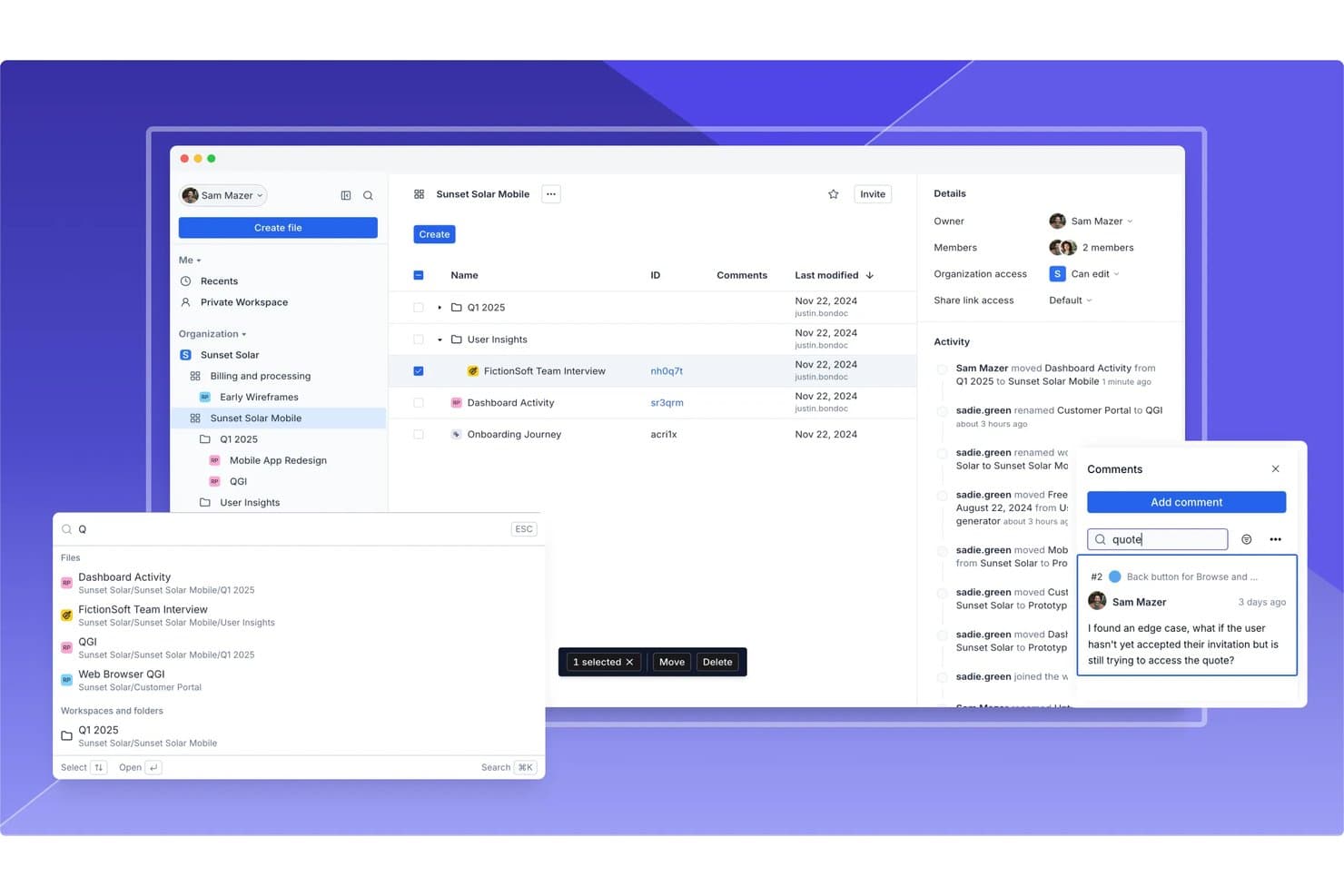
Axure RP supports team collaboration with comments, activity logs, and file sharing. Axure RP is a desktop-based wireframing and prototyping tool that lets UX teams build interactive mockups using conditional logic, variables, dynamic panels, and adaptive views—without writing code.
Who Is Axure RP Best For?
Axure RP is a strong fit for UX designers and product teams who need to prototype complex, logic-driven interactions without writing a single line of code.
Why I Picked Axure RP
Axure RP earns its spot on my shortlist because no other tool I've used matches its depth of code-free conditional logic for prototyping. I can build filterable data tables using the repeater widget, wire up global variables to drive state changes across screens, and layer in conditional logic that actually mirrors how a real product behaves. When stakeholders review a prototype that responds like the live product, feedback gets sharper and handoff friction drops.
Axure RP Key Features
- Inspect mode: Lets developers view redlines, spacing measurements, typography, fill colors, and copyable CSS directly from a shared Axure Cloud link.
- Repeater widget: Displays data-driven tables and lists that stakeholders can sort and filter inside the prototype without any code.
- Axure Cloud commenting: Stakeholders leave on-screen comments directly on wireframes and prototypes, with notifications sent via email, Slack, or Microsoft Teams.
- Jira and Confluence embedding: Fully interactive prototypes embed directly into Jira tickets and Confluence pages for in-context developer and PM review.
Axure RP Integrations
Axure RP offers native integrations with Jira, Confluence, Slack, Microsoft Teams, Figma, Sketch, and Adobe XD. It also connects with Claude Code, VS Code, and Cursor through an alpha MCP server.
Pros and Cons
Pros:
- Delivers detailed developer handoff specifications
- Simulates forms, filters, and responsive states
- Builds realistic logic-driven prototypes without code
Cons:
- Shared component updates require extra coordination
- Prevents simultaneous editing within RP files
Learn more about Axure RP : Best for design collaboration and feedback
- Free plan available
- From $3/user/month
Visit WebsiteCustomer Rating:4.7/5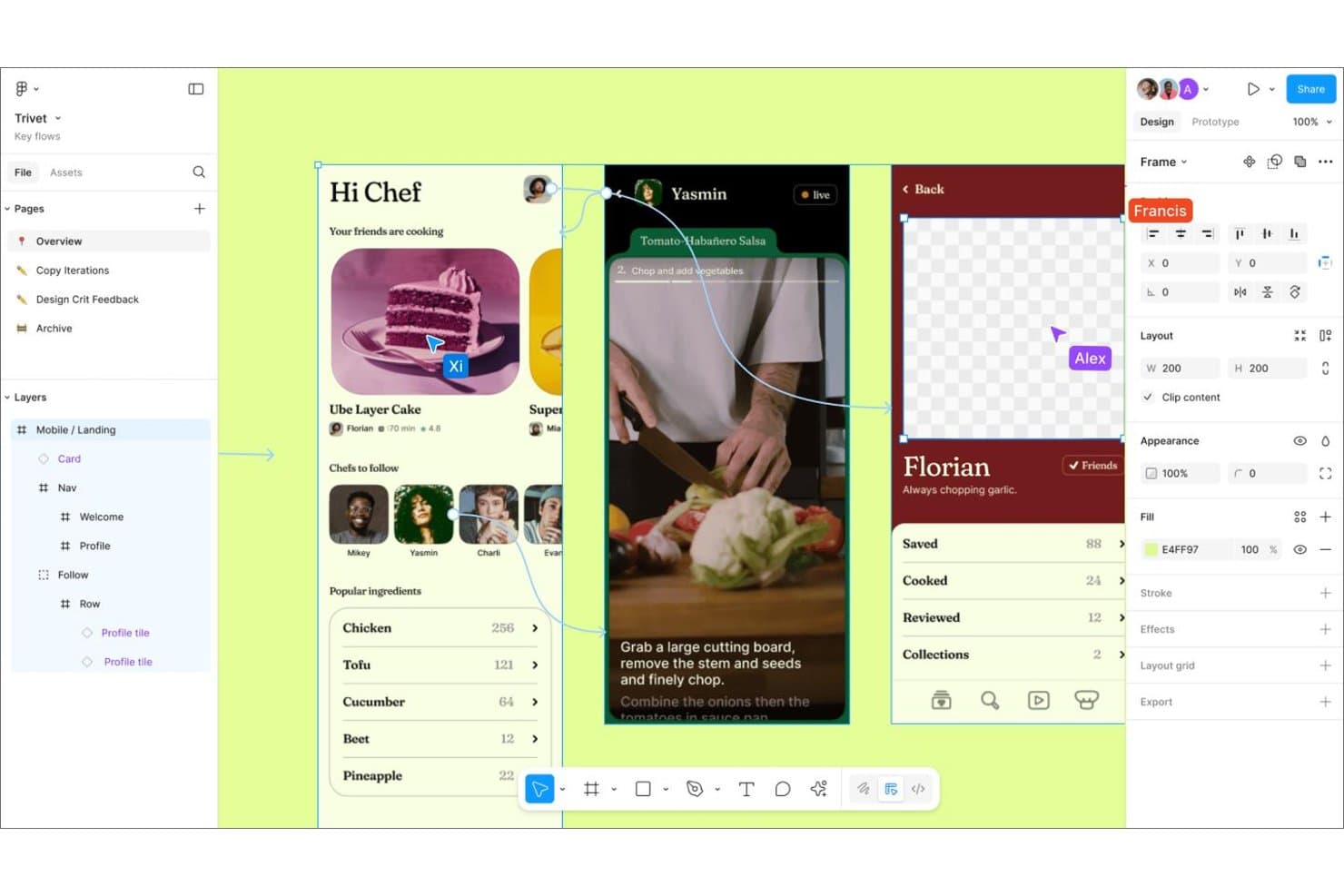
Figma lets multiple collaborators work and comment on designs simultaneously. Figma is a browser-based design collaboration platform that combines real-time multiplayer editing, interactive prototyping, whiteboarding, and developer handoff in a single canvas.
Who Is Figma Best For?
Figma fits cross-functional product teams where designers, PMs, and engineers need to collaborate on the same files without juggling separate tools for prototyping, feedback, and handoff.
Why I Picked Figma
Figma earns its spot on my shortlist because no other tool matches its depth of design collaboration and feedback in a single canvas. I love how comments pin directly to specific canvas elements, with threaded replies, , and real-time Slack notifications, so stakeholders can react to a prototype without ever touching the design file. Figma's Spotlight feature is another standout: I can share my exact view during a review session, and everyone follows my cursor, zoom, and page switches live.
Figma Key Features
- Spotlight: Share your exact canvas view with collaborators so everyone follows your cursor, zoom level, and page switches in real time.
- Dev Mode: Gives developers a dedicated inspection panel with code export in CSS, iOS, and Android, plus "Ready for dev" status tracking and Storybook integration.
- FigJam: A built-in whiteboarding tool with voting, audio, stamps, and open sessions for distributed brainstorming and ideation.
- Branching and merging: Create isolated file copies for parallel design work, then compare, review, and merge changes back into the main file.
Figma Integrations
Figma offers integrations with Jira Software, Slack, GitHub, Storybook, VS Code, and Asana. It also provides REST and Embed APIs, plus Figma MCP Server for connecting AI coding tools.
Pros and Cons
Pros:
- Advanced prototypes model conditional product flows
- Pinned feedback keeps prototype discussions contextual
- Real-time canvas collaboration reduces version conflicts
Cons:
- Branch comments remain separate from main files
- Large files can slow collaborative work
 Best for non-designers creating UX drafts with AI
- Free plan available
- From $14/user/month
Visit WebsiteCustomer Rating:4.8/5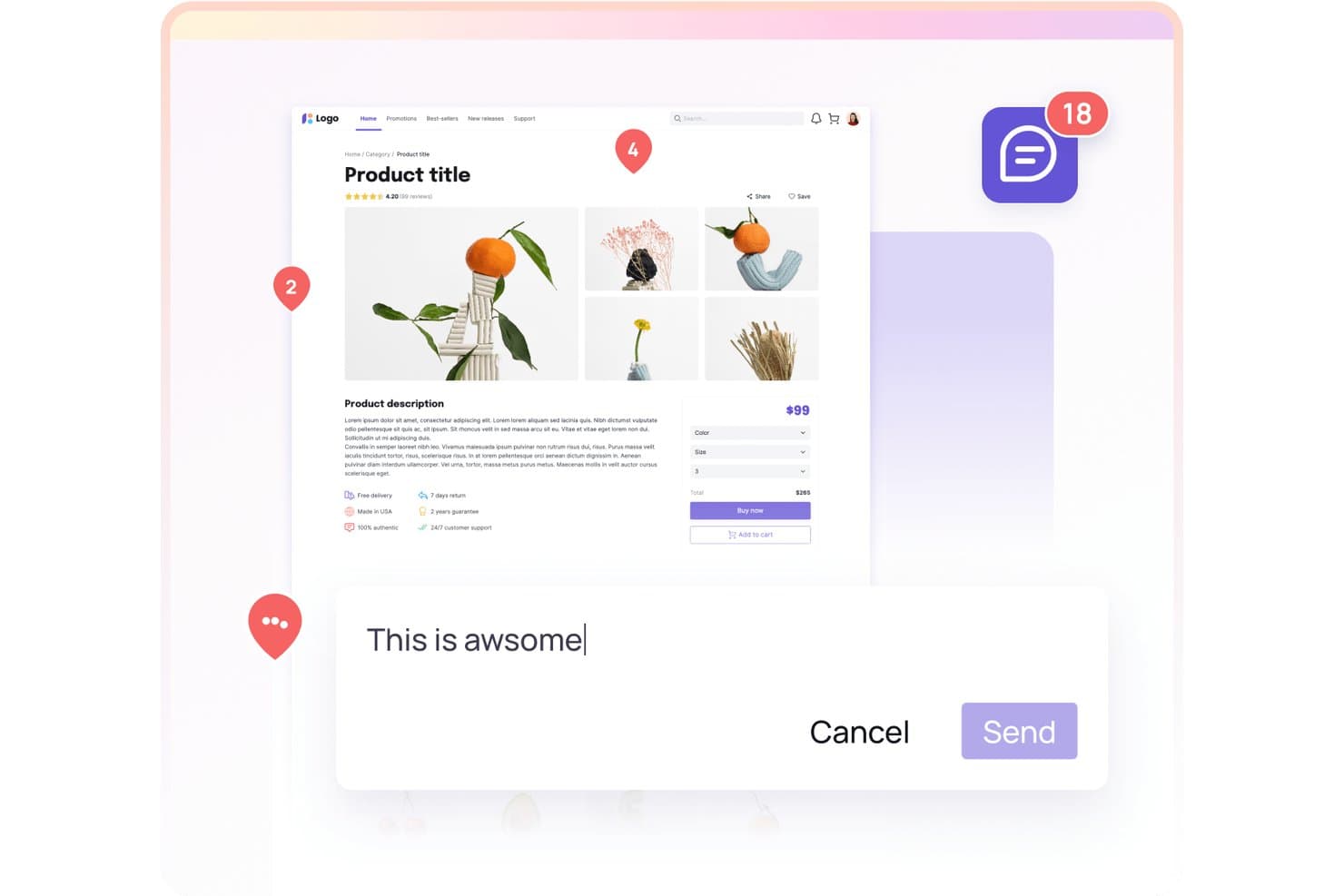
Visily lets users collaborate with comments directly on product designs. Visily is an AI-powered design canvas for wireframing, prototyping, and diagramming that combines text-to-design, screenshot-to-design, and real-time collaboration tools in one workspace.
Who Is Visily Best For?
Visily is a strong fit for product managers and cross-functional teams who need to get wireframes and prototypes in front of stakeholders fast, without relying on a dedicated designer.
Why I Picked Visily
I've included Visily in my top picks because it's one of the few UX collaboration tools built explicitly for non-designers to create real, shareable UX drafts without touching a design system. Its text-to-design and screenshot-to-design features let a product manager turn a rough brief or a competitor screenshot into an editable wireframe in minutes. From there, Synced Templates push updates across every board automatically, so cross-functional teams stay aligned without a designer acting as the go-between.
Visily Key Features
- Comment mode: Pin threaded comments directly to the canvas, with mentions, emoji reactions, and Slack notifications to keep feedback in one place.
- Inspect mode: View element measurements, spacing, and auto-generated CSS or Tailwind output, with one-click asset download for developers.
- Smart Components: Create interactive elements like dropdowns, sliders, and buttons that behave realistically inside your prototype.
- Flows: Organize multiple prototype flows in one project and share each flow independently with different stakeholders.
Visily Integrations
Visily offers native integrations with Jira, Notion, and Slack, plus Figma import/export and a Figma plugin on paid plans. Its MCP server connects with Claude Code, Codex, Cursor, Gemini CLI, Kiro, ChatGPT, and Lovable.
Pros and Cons
Pros:
- Developer handoff includes CSS and code export
- Real-time co-design supports stakeholder feedback
- AI turns screenshots into editable wireframes
Cons:
- Version history offers limited retention and comparison
- Prototyping lacks variables and conditional logic
Learn more about Visily: Best for open-source design and dev handoff
- Free plan + 14-day free trial available
- From $7/user/month
Visit WebsiteCustomer Rating:4.5/5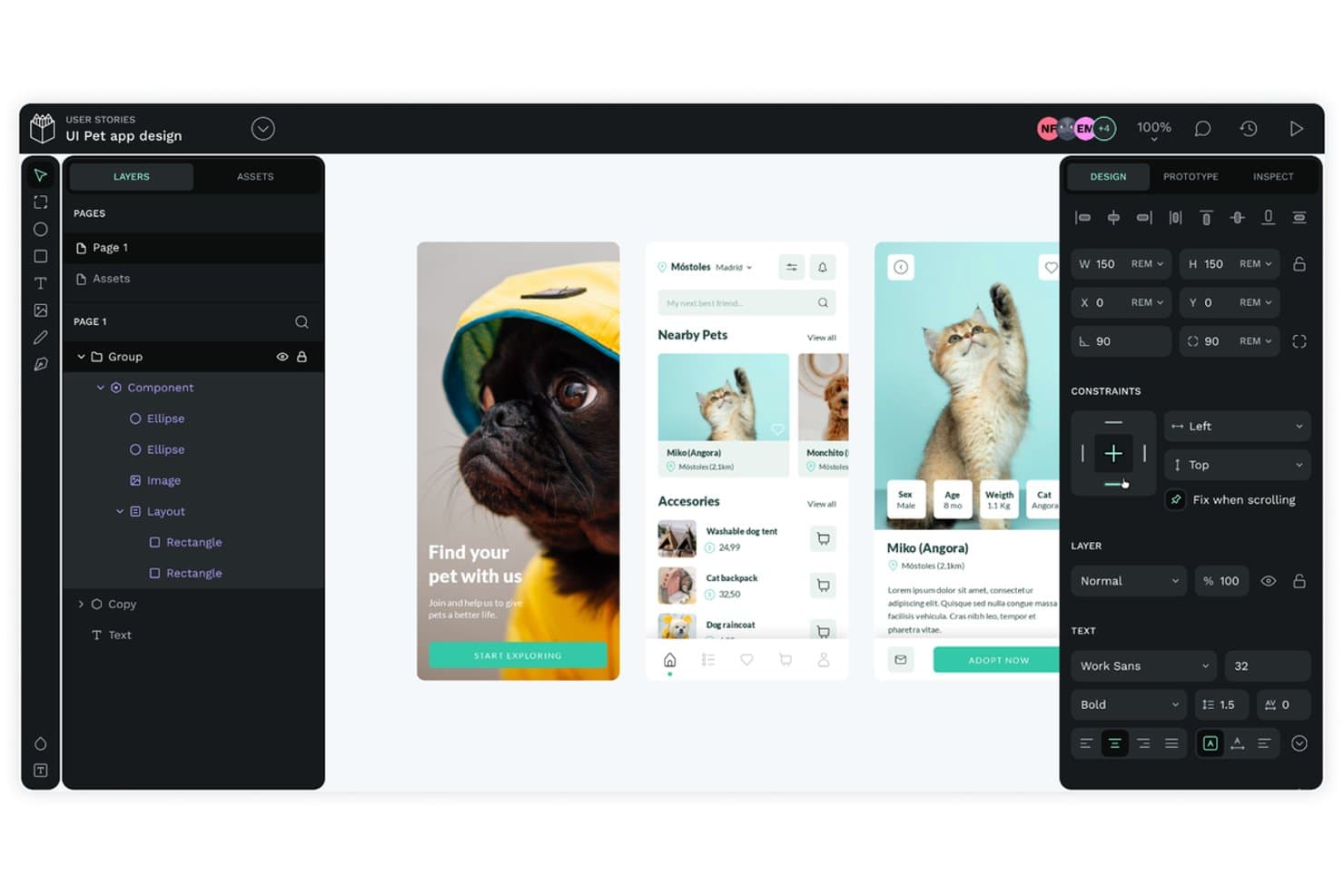
Penpot lets teams co-design and prototype pet app UIs collaboratively. Penpot is an open-source UX design and collaboration platform that offers real-time multiplayer editing, prototyping, component libraries with native design tokens, and a built-in developer inspect mode with CSS code generation.
Who Is Penpot Best For?
Penpot is a strong fit for design teams that want full control over their tooling, especially those in privacy-sensitive or compliance-heavy environments that need self-hosting options.
Why I Picked Penpot
Penpot earns its spot on my shortlist because it's the only open-source UX collaboration tool that handles design and dev handoff without locking your team into a proprietary ecosystem. I particularly like that Inspect mode generates real CSS, including flex and grid layouts that mirror actual code, so developers aren't translating design intent. Native design tokens in the W3C DTCG format mean your token sets export directly to JSON or CSS, ready to use in production.
Penpot Key Features
- Real-time multiplayer editing: Multiple team members can work on the same file simultaneously, with role-based access across Viewer, Editor, Admin, and Owner levels.
- Shared component libraries: Publish any file as a shared library of components, colors, and typographies that connected files across your team can access and sync.
- Prototype flows: Set up multiple starting points for different devices or user journeys, with triggers, animated transitions, and sticky scroll elements built into View mode.
- Version history with authorship: Autosaved and manually pinned versions display the author, timestamp, and short ID, with restore and read-only preview available.
Penpot Integrations
Native integrations with Jira, Slack, and Linear aren't documented. Penpot supports custom integrations through its REST API and webhooks, plus plugins via PenpotHub and an MCP server for compatible AI clients.
Pros and Cons
Pros:
- Unlimited reviewers reduce stakeholder licensing friction
- Open-source deployment supports strict data control
- Real CSS handoff mirrors production layouts
Cons:
- Large files can raise performance concerns
- Advanced prototype logic remains limited
Learn more about Penpot: Best for macOS-native design teams
- Free plan available; 30-day free trial
- From $12/user/month (billed annually)
Visit WebsiteCustomer Rating:4.5/5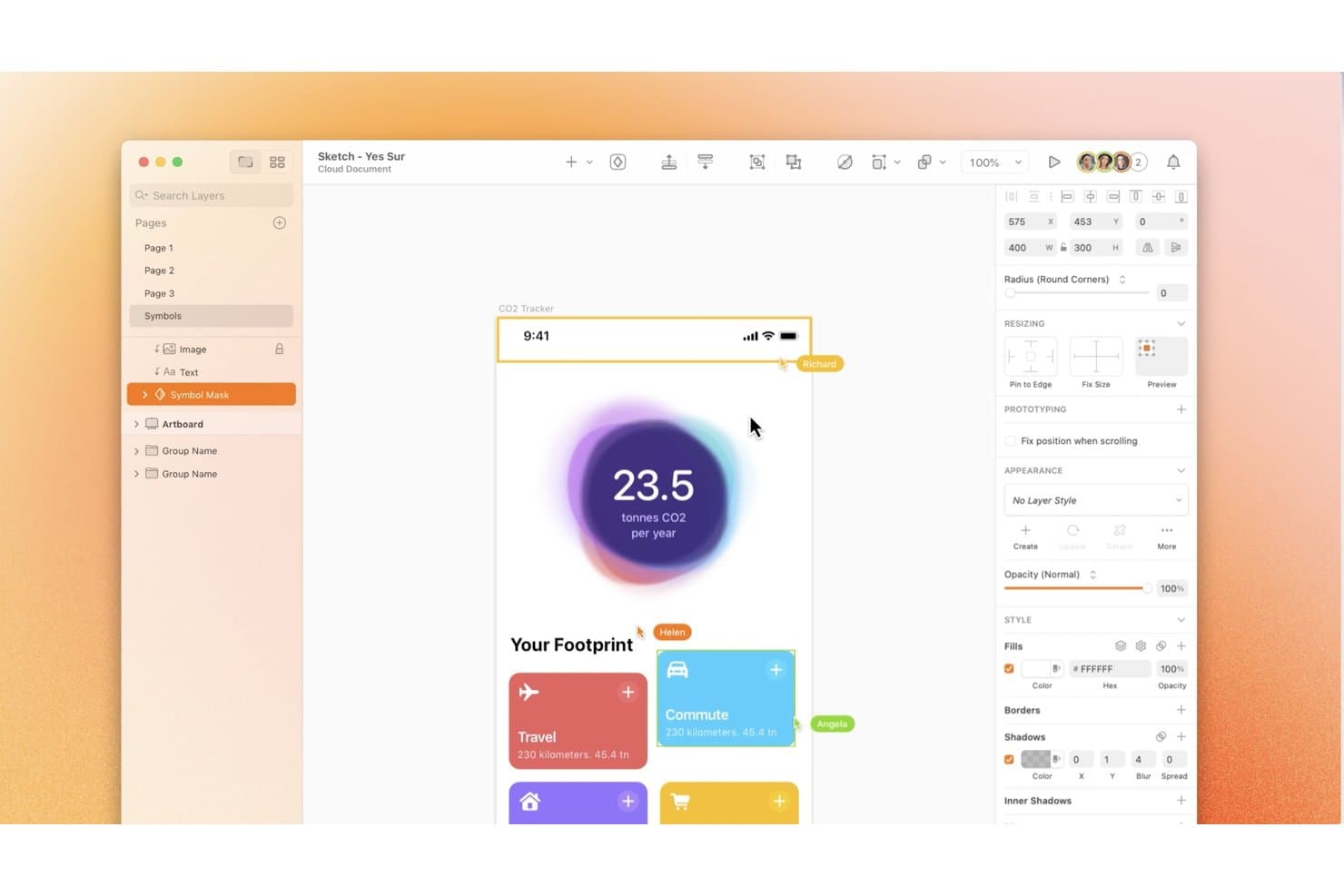
Sketch lets multiple collaborators edit and comment on designs simultaneously. Sketch is a native macOS design tool that combines vector editing, prototyping, shared libraries, real-time co-editing, and browser-based developer handoff in a single workspace.
Who Is Sketch Best For?
Sketch is the go-to choice for macOS-native design teams that want a fast, lightweight tool with strong library governance and free browser-based developer handoff.
Why I Picked Sketch
Sketch earns its spot on my shortlist because it's built from the ground up for macOS, and that native foundation genuinely shows in day-to-day design work. I particularly like how Shared Libraries sync across documents with tight governance controls, so design leads can manage who updates components and when, keeping systems consistent across a whole team. Free, browser-based developer handoff with full CSS export and design tokens means engineers get everything they need without a paid seat or a Mac.
Sketch Key Features
- Real-time co-editing: Multiple designers can edit the same document simultaneously in the Mac app, with live cursors and per-user avatar presence visible in the toolbar.
- Pinned canvas comments: Reviewers and stakeholders can leave threaded comments with @mentions, emoji, and Markdown formatting directly on any frame or prototype.
- Version history with named saves: Teams can manually create named and starred versions with descriptions, then restore or download any previous version from the web app.
- oEmbed document sharing: Sketch documents, frames, and prototypes can be embedded interactively in Notion, GitHub, Jira, and other platforms, always reflecting the latest version.
Sketch Integrations
Sketch offers documented integrations with Slack, Jira, Notion, and Miro, plus its Sketch MCP Server and JavaScript plugin API for custom workflows.
Pros and Cons
Pros:
- Governed libraries keep components consistent across documents
- Free browser handoff helps developers inspect designs
- Fast native Mac performance for designers
Cons:
- Prototypes lack variables and conditional logic
- Editing requires a Mac application
 10Best for logic-driven prototype handoff to devs
ProtoPie
- Free plan available
- From $25/month (billed annually)
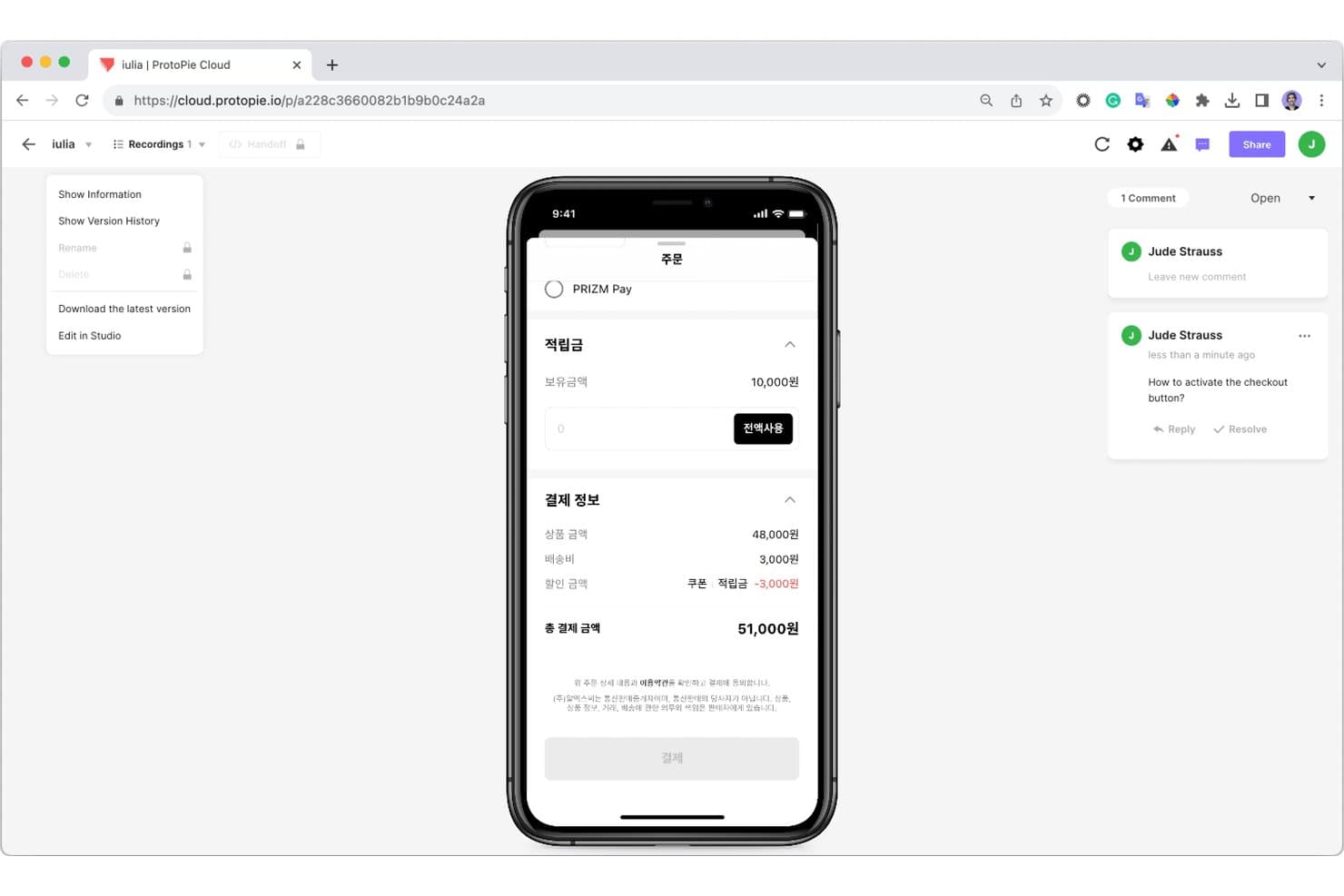
ProtoPie lets collaborators leave comments directly on prototypes. ProtoPie is a high-fidelity prototyping tool that lets you build logic-driven, interactive mockups using variables, conditions, and multi-device interactions, then share them with developers and stakeholders through cloud-based handoff and inspection tools.
Who Is ProtoPie Best For?
ProtoPie is a strong fit for UX designers and product teams in automotive, IoT, or enterprise industries who need to prototype and hand off complex, logic-driven interactions to developers.
Why I Picked ProtoPie
I picked ProtoPie as one of the best because its developer handoff goes far deeper than a static spec sheet. I love how interaction recordings let developers replay every trigger, response, and property change frame by frame, with specs that update automatically when the prototype changes. Pair that with Dev View and the MCP beta, which feeds your prototype's full interaction model directly into tools like Cursor or Claude Code, and developers can generate accurate code without a single back-and-forth.
ProtoPie Key Features
- Multi-device prototyping: Build and test interactive prototypes across phones, tablets, desktops, and custom hardware like car dashboards or IoT devices simultaneously.
- ProtoPie AI: Generate editable interaction logic from plain-language prompts, targeting specific layers with @mentions directly inside the Studio editor.
- Built-in user testing: Run moderated or remote test sessions with OTP-protected links and get timestamped interaction logs, task scores, and session replays within 60 seconds of a session ending.
- Team interaction libraries: Publish shared interaction libraries to the cloud so every prototype built from them updates automatically when a change is released.
ProtoPie Integrations
ProtoPie offers plugins for Figma, Sketch, and Adobe XD, plus MCP connectivity with Claude Code, Codex, Cursor, and VS Code. Its Connect add-on links prototypes to APIs, Unity, Unreal, Arduino, and custom hardware.
Pros and Cons
Pros:
- Built-in testing captures detailed interaction behavior
- Interaction recordings clarify developer handoff details
- Logic-driven prototypes mirror complex user journeys
Cons:
- Feedback lacks threads, mentions, and resolution tracking
- No simultaneous editing for distributed design teams
Learn more about ProtoPie:
Andre UX-samarbeidsverktøy
Her er noen andre alternativer for UX-samarbeidsverktøy som ikke kom med på kortlisten min, men som likevel er verdt å undersøke:
- 11FramerBest for live, responsive site prototypes
- 12BalsamiqBest for wireframe simplicity
- 13MarvelBest for sketch-to-prototype handoff in minutes
- 14MiroBest for visual brainstorming and ideation
- 15AnimaBest for Figma-to-code handoff with AI agents
- 16Proto.ioBest for mobile gesture-rich prototypes
- 17ZeplinBest for developer handoff specs and sign-off
- 18zeroheightBest for design system docs tied to live code
How I Evaluate UX Collaboration Tools
I split my evaluation into three parts, giving the most weight to core functionality: co-edit screens and link them into clickable flows. Next, I look for standout features such as conditional prototype logic for testing a personalized flow. Finally, I consider beyond-feature factors like onboarding, support, and pricing value for product, design, and engineering teams.
Core Functionality (Table Stakes For This List)
When I'm selecting tools for my list, I score each one on a scale from 0 (does not offer the functionality) to 5 (excels in this area) for each core functionality listed below. I then convert the total into a percentage to help assess each tool's overall fit, with extra weight on any functionalities I’ve deemed essential.
- Real-Time Collaboration (Essential): I look for simultaneous editing, clear presence cues, and reliable shared access when product and design teams work through a flow together.
- Interactive Prototyping (Essential): I assess how easily teams can link screens and test realistic paths, such as signup flows with branching choices or overlays.
- Feedback Comments: Check whether reviewers can pin comments to specific screens or elements, then track replies and resolutions without losing context.
- Version History: I look for restorable versions and clear change records, which help teams compare iterations after feedback or a design direction shift.
- Developer Handoff: I assess whether engineers can inspect measurements, styles, and exportable assets to build from approved designs.
- Shared Libraries: I check whether reusable components and styles stay in sync across files, especially when multiple teams work from the same design system.
Once I have a list of tools that meet the criteria, I consider what sets each platform apart.
Differentiating Factors (What Sets Vendors Apart)
Here's how I compare and contrast different vendors:
Standout Features
I look for design variables and conditional logic that let teams simulate real user states—like toggling a logged-in view or testing a multi-step onboarding path—without writing code. An integrated research hub also matters: tools like UXPin or Maze connect usability findings directly to the designs being iterated on, closing the gap between insight and action. I also evaluate design system analytics, checking whether dashboards surface component adoption and drift across teams so product managers can spot inconsistency before it ships.
Beyond Features
I evaluate how well each tool fits cross-functional workflows—especially native integrations with trackers like Jira or Linear that sync design status to sprints without manual updates. Onboarding resources matter too, since a product manager joining a review shouldn't need a tutorial to leave feedback. I check whether free viewer tiers let stakeholders outside the design team participate without inflating costs.
Slik velger du et UX-samarbeidsverktøy
Det er lett å gå seg vill i lange funksjonslister og kompliserte prisstrukturer. For å hjelpe deg med å holde fokus mens du går gjennom din unike prosess for valg av programvare, får du her en sjekkliste over faktorer du bør ha i mente:
| Faktor | Hva du bør vurdere |
| Skalerbarhet | Vokser verktøyet med teamet ditt? Vurder om det kan håndtere flere brukere eller prosjekter uten ytelsesproblemer. Tenk på fremtidige behov og hvor enkelt det er å oppgradere eller utvide. |
| Integrasjoner | Kan det kobles til de eksisterende verktøyene dine? Kontroller kompatibiliteten med programvaren teamet allerede bruker. Vurder både nåværende og mulige fremtidige integrasjoner for en smidig arbeidsflyt. |
| Tilpasningsmuligheter | Kan du tilpasse det til prosessene dine? Se etter muligheter for å justere arbeidsflyter, maler og innstillinger slik at de passer teamets spesifikke behov og preferanser. |
| Brukervennlighet | Er det brukervennlig for alle? Vurder læringskurven for nye brukere. Verktøyene bør være intuitive og redusere tiden som trengs til opplæring og introduksjon. |
| Implementering og introduksjon | Hvor raskt kan du begynne å bruke det? Vurder tiden og ressursene som trengs for oppsettet. Se etter verktøy som tilbyr tydelig veiledning, opplæringsmateriell og støtte under overgangen. |
| Kostnad | Passer det inn i budsjettet ditt? Gå gjennom prisstrukturene og vurder både kortsiktige og langsiktige kostnader. Se etter skjulte gebyrer og om du får god verdi for funksjonene som tilbys. |
| Sikkerhetstiltak | Er dataene dine beskyttet? Sørg for at verktøyet følger bransjestandarder for databeskyttelse. Spør om kryptering, tilgangskontroller og sikkerhetskopieringsprosesser for å beskytte informasjonen din. |
Hva er UX-samarbeidsverktøy?
UX-samarbeidsverktøy er programvareløsninger som er utviklet for å legge til rette for teamarbeid i design- og utviklingsprosessen. Designere, produktledere og utviklere bruker vanligvis disse verktøyene for å forbedre kommunikasjonen og prosjektresultatene. Funksjoner som samarbeid i sanntid, tilbakemeldingshåndtering og prototyping bidrar til å samordne teamets innsats, samle innsikt og videreutvikle design effektivt. Disse verktøyene gir betydelig verdi ved å forbedre arbeidsflytens effektivitet og sikre at designprosjekter ivaretar brukernes behov på en effektiv måte.
Funksjoner i UX-samarbeidsverktøy
Når du velger UX-samarbeidsverktøy, bør du se etter følgende viktige funksjoner:
- Samarbeid i sanntid: Gjør det mulig for teammedlemmer å arbeide med prosjekter samtidig, noe som forbedrer kommunikasjonen og reduserer forsinkelser.
- Tilbakemeldingshåndtering: Gjør det mulig å samle inn og organisere tilbakemeldinger effektivt, slik at alle innspill fra teamet tas med i designprosessen.
- Prototyping: Tilbyr verktøy for å lage interaktive prototyper, slik at team kan visualisere og teste designkonsepter før utviklingen.
- Versjonskontroll: Holder oversikt over endringer i prosjekter, slik at team kan gå tilbake til tidligere versjoner ved behov og opprettholde konsistens.
- Tilpassbare maler: Tilbyr forhåndsdesignede oppsett som kan tilpasses spesifikke prosjektbehov, noe som sparer tid og opprettholder merkevarekonsistens.
- Integrasjon for brukertesting: Forenkler innsamlingen av brukerinnsikt direkte i verktøyet, slik at det blir mulig å ta datadrevne designbeslutninger.
- Datasikkerhet: Sørger for at sensitive prosjektdata beskyttes gjennom kryptering og tilgangskontroller, slik at informasjonen sikres.
- Kompatibilitet på tvers av plattformer: Støtter tilgang fra ulike enheter og operativsystemer, slik at team kan samarbeide uavhengig av den tekniske løsningen de bruker.
Fordeler med UX-samarbeidsverktøy
Implementering av UX-samarbeidsverktøy gir flere fordeler for teamet og virksomheten din. Her er noen av fordelene du kan se frem til:
- Forbedret kommunikasjon: Funksjoner for samarbeid i sanntid forbedrer samhandlingen i teamet og sørger for at alle holdes informert og er samkjørte om prosjektmålene.
- Effektive tilbakemeldingssløyfer: Funksjoner for tilbakemeldingshåndtering gjør det mulig for team å samle inn og følge opp innspill raskt, noe som fører til mer gjennomarbeidede design.
- Raskere prototyping: Prototypeverktøy legger til rette for raske designiterasjoner, slik at team kan visualisere konsepter og ta informerte beslutninger tidlig i prosessen.
- Bedre prosjektorganisering: Versjonskontroll og tilpassbare maler holder prosjekter organiserte og konsistente, noe som reduserer forvirring og feil.
- Brukersentrert design: Integrasjon for brukertesting støtter datadrevne beslutninger og sikrer at designene effektivt oppfyller brukernes behov og forventninger.
- Økt produktivitet: Kompatibilitet på tvers av plattformer gjør det mulig for teammedlemmer å arbeide fra hvilken som helst enhet, noe som forbedrer fleksibiliteten og produktiviteten.
Kostnader og priser for UX-samarbeidsverktøy
Ved valg av UX-samarbeidsverktøy er det viktig å forstå de ulike prismodellene og abonnementene som er tilgjengelige. Kostnadene varierer basert på funksjoner, teamstørrelse, tillegg og mer. Tabellen nedenfor oppsummerer vanlige abonnementer, gjennomsnittsprisene deres og typiske funksjoner som er inkludert i UX-samarbeidsverktøy:
Sammenligningstabell for abonnementer for UX-samarbeidsverktøy
| Abonnementstype | Gjennomsnittspris | Vanlige funksjoner |
| Gratisabonnement | $0 | Grunnleggende samarbeidsverktøy, begrenset lagringsplass og viktige integrasjoner. |
| Personlig abonnement | $5-$15/bruker/ måned | Ekstra lagringsplass, flere integrasjoner og tilgang til grunnleggende prototypeverktøy. |
| Bedriftsabonnement | $20-$50/bruker/ måned | Avanserte samarbeidsfunksjoner, forbedret sikkerhet og flere tilpasningsmuligheter. |
| Virksomhetsabonnement | $60-$100/bruker/ måned | Premiumstøtte, omfattende sikkerhetstiltak og fullstendige muligheter for tilpasning og integrasjon. |
Vanlige spørsmål om UX-samarbeidsverktøy
Her er noen svar på vanlige spørsmål om UX-samarbeidsverktøy:
Hvordan forbedrer UX-samarbeidsverktøy teamets produktivitet?
UX-samarbeidsverktøy forbedrer teamets produktivitet ved å muliggjøre kommunikasjon og tilbakemeldinger i sanntid, noe som reduserer tiden som brukes på revisjoner. De samler all prosjektrelatert informasjon på ett sted, slik at det blir enklere for teammedlemmene å få tilgang til og samarbeide om oppgaver. Dette fører til en mer strømlinjeformet arbeidsflyt og færre misforståelser.
Kan UX-samarbeidsverktøy integreres med annen programvare?
Ja, de fleste UX-samarbeidsverktøy kan integreres med en rekke annen programvare, for eksempel prosjektstyringsverktøy, kommunikasjonsplattformer og designapplikasjoner. Denne integrasjonen sørger for at teamets arbeidsflyt forblir uavbrutt, og at data flyter sømløst mellom ulike verktøy, noe som forbedrer den generelle effektiviteten.
Hva bør jeg vurdere når jeg velger et UX-samarbeidsverktøy?
Når du velger et UX-samarbeidsverktøy, bør du vurdere faktorer som skalerbarhet, brukervennlighet og integrasjonsmuligheter. Vurder om verktøyet støtter teamets spesifikke arbeidsflyt, og om det tilbyr funksjoner som samsvarer med prosjektets behov. Evaluer også prismodellen for å sikre at den passer budsjettet ditt.
Passer UX-samarbeidsverktøy for eksterne team?
Absolutt, UX-samarbeidsverktøy er ideelle for eksterne team, ettersom de legger til rette for kommunikasjon og samarbeid på tvers av ulike steder. De tilbyr funksjoner som videokonferanser, redigering i sanntid og delte arbeidsområder, noe som bidrar til å opprettholde produktivitet og samhold i teamet til tross for geografiske avstander.
Hvor sikre er UX-samarbeidsverktøy?
Sikkerheten varierer mellom ulike UX-samarbeidsverktøy, men de fleste anerkjente leverandører tilbyr solide tiltak for databeskyttelse. Se etter verktøy som tilbyr kryptering, sikre tilgangskontroller og regelmessige sikkerhetsoppdateringer. Det er viktig å sikre at verktøyet overholder relevante personvernforordninger for å beskytte informasjonen din.
Tilbyr UX-samarbeidsverktøy tilpasningsmuligheter?
Mange UX-samarbeidsverktøy tilbyr tilpasningsmuligheter, slik at plattformen kan skreddersys til teamets spesifikke behov. Dette kan omfatte tilpassbare maler, justerbare arbeidsflyter og personlige dashbord. Tilpasning bidrar til å sikre at verktøyet samsvarer med prosessene deres og forbedrer produktiviteten.