

Produktdesign er VANSKELIG (særlig hvis du har høye standarder!), så det finnes ikke noe viktigere enn verktøy for produktdesign som kan bidra med den tunge jobben. I løpet av karrieren min har jeg gjort alt – utviklet produktmodeller, samarbeidet med en rekke interessenter med sterke meninger, alt mulig – og jeg vet hvor viktig det er å se på designprogramvaren som en støttespiller, ikke en fiende.
Med dette i tankene har jeg satt mine egne høye standarder i arbeid ved å teste ut en lang rekke verktøy for produktdesign og velge ut de beste av de beste. Her er verktøyene jeg har godkjent, sammen med produktspesifikke detaljer som kan hjelpe deg med å sammenligne dem.
Why Trust Our Software Recommendations
6,700+
Reviews
20
Industry experts
16+
Evaluation factors
14
Years
Our team has been testing and reviewing software since 2012. As product managers ourselves, we know how difficult—and important—it is to choose the right software.
For this guide, we evaluated tools using hands-on testing and independent research, scoring tools using our selection criteria.
Our reviews reflect our human editorial judgment, not a sales pitch.
Expert reviewers:
- Andrew LumbySenior TPM
- Cristiano ValimSenior UI/UX Lead


Hva er programvare for produktdesign?
Programvare for produktdesign er en type program som brukes til å lage og utvikle digitale design for produkter. Denne programvaren brukes vanligvis av produktdesignere, ingeniører og produsenter til å lage 2D- og 3D-design som kan brukes til å lage prototyper av og produsere fysiske produkter.
Programvare for produktdesign omfatter vanligvis en rekke verktøy og funksjoner, for eksempel 3D-modellering, prototyping, gjengivelse, simulering og samarbeidsverktøy, for å støtte designprosessen og sikre at sluttproduktet oppfyller de ønskede spesifikasjonene og kravene.
Sammenligningstabell for programvare for produktdesign
Denne sammenligningstabellen oppsummerer prisdetaljene for mine beste utvalgte programmer for produktdesign:
| Tool | Best For | Trial Info | Price | ||
|---|---|---|---|---|---|
| 1 | Best for prototyping from live product code | Free plan + free demo available | From $20/user/month | Website | |
| 2 | Best for free UI design across Windows, Mac, and Linux | Free plan + free demo available | From $11.99/user/month (billed annually) | Website | |
| 3 | Best for Adobe CC users prototyping flows | Free trial available | From $22.99/month (billed annually) | Website | |
| 4 | Best for desktop-to-mobile design continuity | 14-day free trial | From $37.99/month (billed annually) | Website | |
| 5 | Best for no-code interactive prototype realism | 30-day free trial | From $29/user/month (billed annually) | Website | |
| 6 | Best for product design collaboration | Free plan available | From $3/user/month | Website | |
| 7 | Best for prototyping with real coded components | Free plan + 14-day free trial available | From $29/user/month (billed annually) | Website | |
| 8 | Best for open-source UI design with no seat limits | Free plan + 14-day free trial available | From $7/user/month | Website | |
| 9 | Best for logic-driven interactive prototyping | Free plan available | From $19/user/month | Website | |
| 10 | Best for Mac-native UI design with free dev handoff | 30-day free trial | From $12/user/month (billed annually) | Website |


Oversikt over de 10 beste programmene for produktdesign
Her er en kort beskrivelse av hver løsning for produktdesign, med informasjon om det beste bruksområdet og de fremste funksjonene til hvert verktøy.
 Best for prototyping from live product code
- Free plan + free demo available
- From $20/user/month
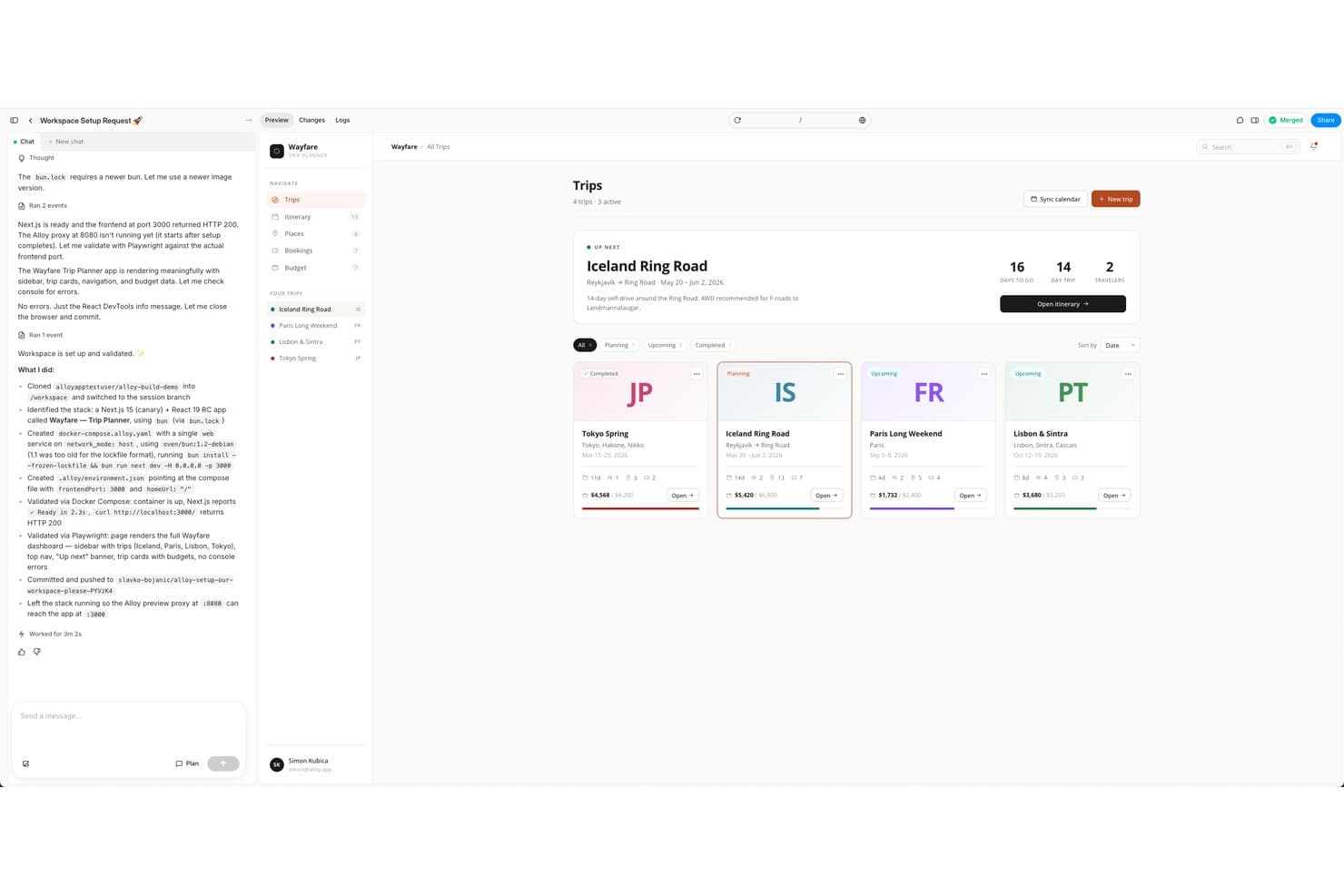
Alloy displays a fully rendered Wayfare Trip Planner workspace with trip cards, itinerary sidebar, and budget data after successful GitHub codebase setup. Alloy is an AI prototyping tool that generates interactive, code-accurate prototypes by capturing live web pages or connecting directly to your GitHub codebase.
Who Is Alloy Best For?
Alloy is a strong fit for product managers at companies with an existing web product who want to prototype changes against real code without involving engineering.
Why I Picked Alloy
I picked Alloy as one of the best because it builds prototypes directly from your live web product, which means what stakeholders see isn't a simulation—it's your actual UI, using your real CSS and components. I love that the browser extension captures any live page instantly, and the codebase sessions boot your repo in a cloud sandbox so the prototype runs as genuine, interactive code. For validating a proposed change against the shipping product before a single engineering ticket is written, nothing else I've tested comes this close to the real thing.
Alloy Key Features
- Inline comments: Pin threaded feedback to specific elements on a prototype page, managed from a dedicated Comments panel.
- Libraries and components: Upload a design-system folder so Alloy extracts tokens, brand assets, and components with live previews for use across sessions.
- Model selection: Choose an AI model per prompt across Anthropic, OpenAI, and xAI, with cost, speed, and intelligence ratings to guide your pick.
- Skills: Create reusable named instruction sets that you can invoke via slash command to apply consistent prompting logic across sessions.
Alloy Integrations
Alloy offers 30+ documented integrations, including GitHub, Figma, Jira, Linear, Slack, and Productboard. Enterprise plans include API access for custom integrations, and Zapier is also supported.
Pros and Cons
Pros:
- Libraries extract and reuse design tokens
- Changes preview as live, interactive sessions
- Prototypes use real product code and CSS
Cons:
- Requires an existing product or codebase
- No vector tool for custom screen design
Learn more about Alloy: Best for free UI design across Windows, Mac, and Linux
- Free plan + free demo available
- From $11.99/user/month (billed annually)
Visit WebsiteCustomer Rating:4.4/5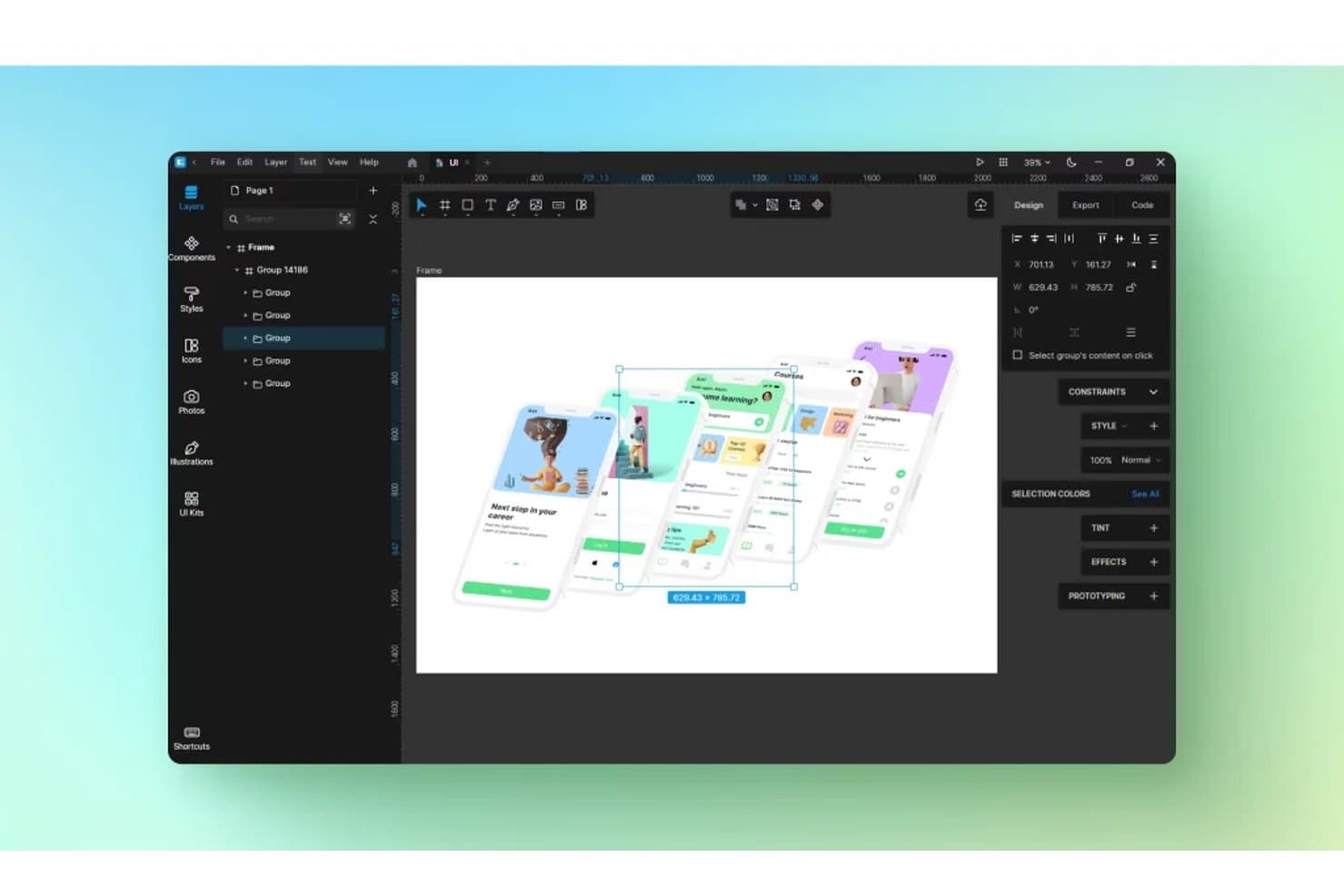
Lunacy lets users design and arrange multi-screen UI mockups visually. Lunacy is a cross-platform UI design tool from Icons8 that covers vector editing, interactive prototyping, real-time collaboration, and design system management, with built-in access to a large asset library and AI-powered utilities.
Who Is Lunacy Best For?
Lunacy is a great fit for UX/UI designers and product designers who need a capable, free design tool that runs natively on Windows, Mac, or Linux.
Why I Picked Lunacy
Lunacy earns its spot on my shortlist because it's the only UI design tool that runs natively on Windows, Mac, and Linux with a fully free tier, which matters when your team is split across operating systems. I picked it specifically for its cross-platform offline capability: you can open, edit, and save Sketch files on a Linux machine without a subscription. I also like that the built-in asset library puts ~1.5M icons, photos, and illustrations directly inside the editor, so you're not switching tabs to source UI components mid-design.
Lunacy Key Features
- Auto layout: Automatically resizes and reflows UI frames as you add, remove, or rearrange elements inside them.
- Smart Animate: Creates smooth animated transitions between prototype frames by detecting matching layers and interpolating their properties.
- Shared libraries: Lets teams publish and sync components, styles, and variables across multiple design files from a single source.
- Linked design: Generates CSS embed codes that push design changes from Lunacy directly to a live webpage without a manual re-export.
Lunacy Integrations
Lunacy supports Sketch files and Figma
.figimports, plus compatibility with Avocode, Zeplin, Abstract, and Simpli. Its MCP API supports custom integrations, while AI Chat connects with Claude, Gemini, OpenAI, and Grok.Pros and Cons
Pros:
- Sketch file editing without Mac required
- Built-in asset and template library
- True cross-platform support, including Linux
Cons:
- Prototyping lacks variables and logic
- No CMYK support for print output
Learn more about Lunacy: Best for Adobe CC users prototyping flows
- Free trial available
- From $22.99/month (billed annually)
Visit WebsiteCustomer Rating:4.3/5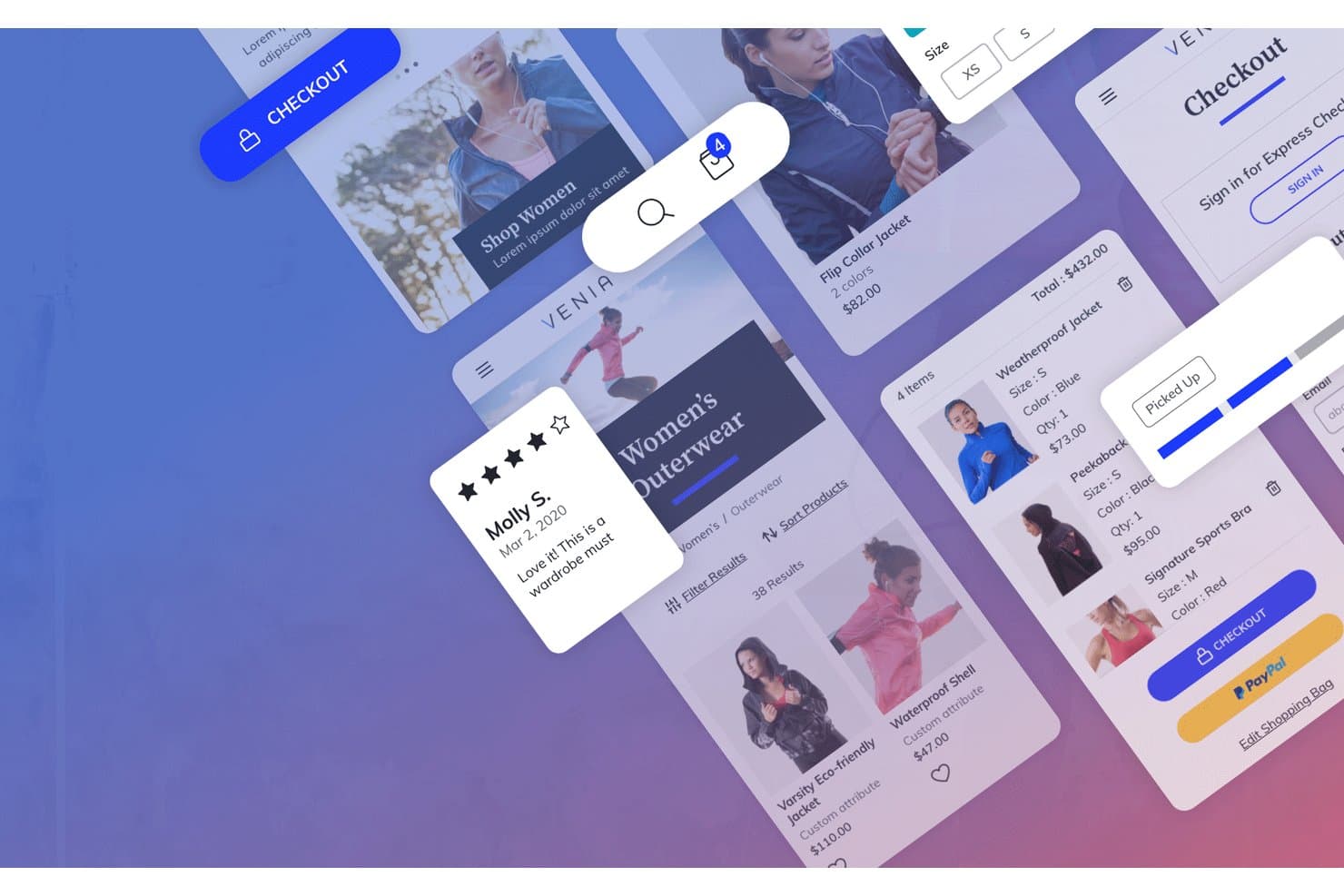
Adobe XD enables realistic mobile e-commerce UI design with product flows. Adobe XD is a desktop-based UI/UX design tool that combines vector editing, interactive prototyping, cloud document coediting, and developer handoff into a single Creative Cloud-integrated application.
Who Is Adobe XD Best For?
Adobe XD suits designers already embedded in Creative Cloud who need a familiar, low-friction tool for building and sharing interactive prototypes with clients or stakeholders.
Why I Picked Adobe XD
Adobe XD earns its spot on my shortlist because it fits naturally into a Creative Cloud workflow, letting designers pull assets directly from Photoshop and Illustrator without any conversion friction. I've used XD's Auto-Animate feature to build convincing multi-screen prototype flows that clients can click through via a shareable link, no app install required on their end. CC Libraries also mean brand tokens like colors and type styles stay in sync across every file automatically.
Adobe XD Key Features
- Auto-Animate transitions: Automatically animates differences between artboard states to create realistic motion previews for interactive prototypes.
- Component states: Define multiple states—hover, pressed, toggled—for any component so your prototype responds like a real interface.
- Mobile device preview: Stream your design live to an iOS or Android device via the Adobe XD mobile app for on-device interaction testing.
- Share-for-development links: Generate inspectable spec links that give developers direct access to measurements, type styles, colors, and exportable assets.
Adobe XD Integrations
Adobe XD integrates with Photoshop, Illustrator, Adobe Fonts, Adobe Stock, After Effects, Jira, Slack, Zoom, and Microsoft Teams. Its plugin marketplace and UXP API support additional design, collaboration, and handoff connections.
Pros and Cons
Pros:
- Fast desktop prototyping without browser dependency
- Familiar workflows for longtime Adobe Creative Cloud users
- Auto-Animate creates convincing product motion flows
Cons:
- Hard for new users to access or install
- Discontinued with no new features planned
 Best for desktop-to-mobile design continuity
- 14-day free trial
- From $37.99/month (billed annually)
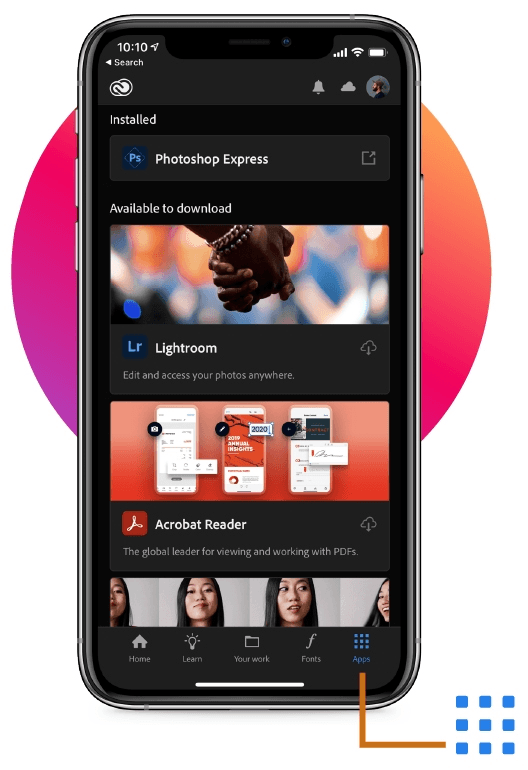
Adobe has a mobile version compatible with iOS and Android mobile devices. Adobe Creative Cloud is a multi-app design suite spanning vector editing, raster compositing, templated design, generative AI, and 3D tooling—built to support product design workflows across desktop, web, and mobile.
Who Is Adobe Creative Cloud Best For?
Adobe Creative Cloud fits design teams that move assets between desktop and mobile devices and need professional-grade vector and raster tools backed by enterprise governance.
Why I Picked Adobe Creative Cloud
I've included Adobe Creative Cloud in my top picks because Illustrator's vector engine lets you apply artwork directly to realistic product mockups on desktop, then pick up the same file on iPad or iPhone via Photoshop mobile's full layer and compositing toolkit. That desktop-to-mobile continuity is genuine: your subscription activates across devices, so a packaging design started in Illustrator on your laptop stays live and editable on your phone. I also like that Firefly's generative AI is woven into both surfaces, letting you iterate on product visuals without breaking your workflow mid-session.
Adobe Creative Cloud Key Features
- Creative Cloud Libraries: Sync logos, colors, typography, and reusable assets across Illustrator, Photoshop, and Express from a single shared library.
- Generative Fill (Photoshop): Use AI to add, remove, or replace elements in product visuals directly on desktop, web, or mobile.
- 180-day version history: Restore any prior version of a cloud document up to 180 days back on teams and enterprise plans.
- Firefly Boards: A multiplayer AI whiteboard canvas for gathering product visual references, generating concepts, and sharing mood boards with your team.
Adobe Creative Cloud Integrations
Adobe Creative Cloud has native connections across Photoshop, Illustrator, Adobe Stock, Firefly, and Creative Cloud Libraries, with XD integrations for Jira, Slack, and Zoom. Illustrator plans also include Frame.io collaboration and review.
Pros and Cons
Pros:
- Deep generative AI for rapid concepting
- Genuine desktop-to-mobile design continuity
- Delivers industry-leading vector and raster output
Cons:
- No dedicated end-to-end UX handoff tool
- Interactive prototyping relies on unmaintained XD
Learn more about Adobe Creative Cloud: Best for no-code interactive prototype realism
- 30-day free trial
- From $29/user/month (billed annually)
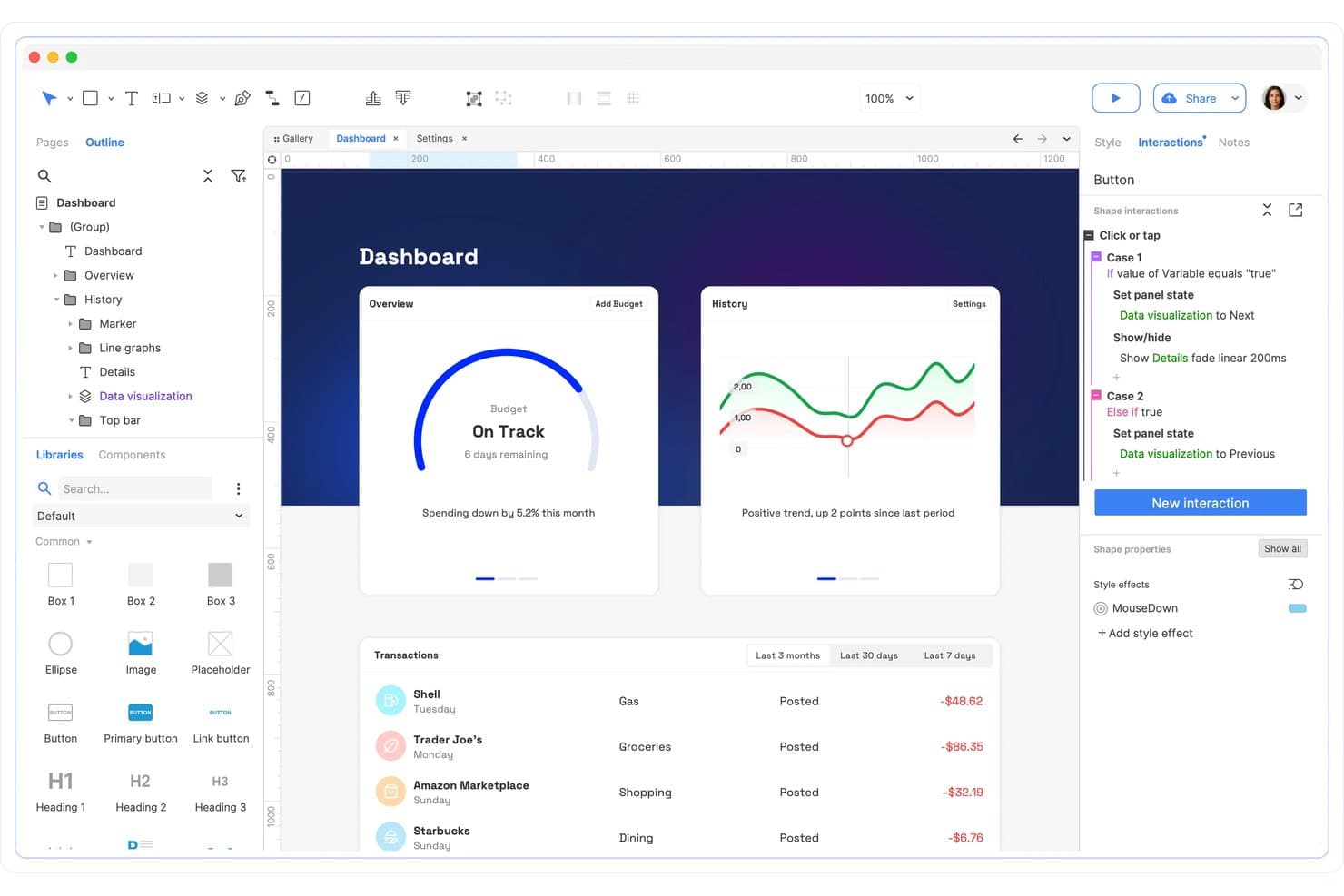
Axure RP lets users build interactive prototypes with conditional logic. Axure RP is a desktop-based product design and prototyping tool that combines wireframing, flow diagramming, and no-code interactive prototyping with conditional logic, dynamic panels, variables, and adaptive views.
Who Is Axure RP Best For?
Axure RP is a strong fit for product managers and UX practitioners who need to simulate realistic, functional software behavior without writing a single line of code.
Why I Picked Axure RP
Axure RP earns its spot on my shortlist because no other no-code tool comes close to simulating how software actually behaves. I've built prototypes with real typed form inputs, conditional logic that branches based on user actions, and dynamic panels that replicate scrollable mobile screens—all without touching code. The Repeater widget alone lets you create sortable, filterable data tables that look and function like a live product, which is something clickable mockups in other tools simply can't do.
Axure RP Key Features
- Adaptive views: Design desktop, tablet, and mobile layouts on a single page, with the correct view loading automatically based on the user's screen.
- Repeater widget: Build data-driven tables and grids that can be dynamically sorted and filtered to simulate real product behavior.
- Developer inspect: Automated redlines, CSS inspection, and downloadable assets give developers what they need directly from Axure Cloud.
- Free reviewer accounts: Unlimited stakeholders can view prototypes, leave comments, and inspect assets without a paid seat.
Axure RP Integrations
Axure RP offers native integrations with Jira, Confluence, Slack, Microsoft Teams, Figma, Sketch, and Adobe XD. It also supports embedded third-party usability-testing services and SAML 2.0 SSO for enterprise workflows.
Pros and Cons
Pros:
- Free viewer accounts for unlimited stakeholders
- Supports advanced conditional logic and variables
- Simulates real product behavior without code
Cons:
- Collaboration is check-out/check-in, not real time
- Lacks advanced visual design editing tools
Learn more about Axure RP : Best for product design collaboration
- Free plan available
- From $3/user/month
Visit WebsiteCustomer Rating:4.7/5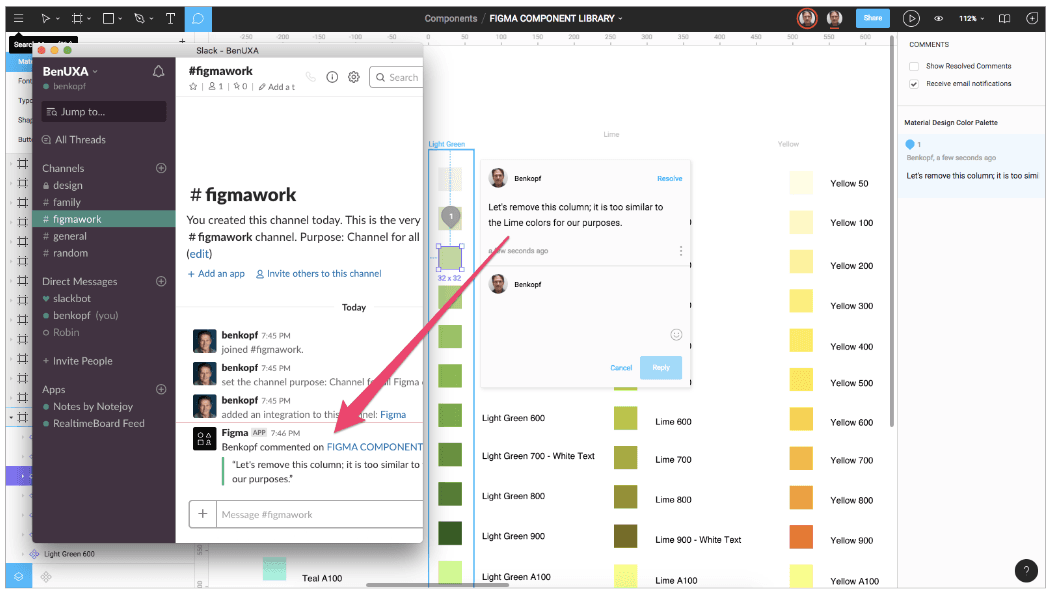
Figma allows users to build a channel where they can coordinate to ensure that all members are on the same page. Figma is a browser-based product design platform that combines vector editing, interactive prototyping, design system management, and developer handoff into a single collaborative workspace.
Who Is Figma Best For?
Figma is a strong fit for cross-functional product teams where designers, developers, and product managers need to work inside the same files without handing off between separate tools.
Why I Picked Figma
Figma earns its spot on my shortlist because no other product design tool makes collaboration feel this natural across designers, developers, and product managers. I love how multiplayer editing lets my whole team work inside the same file in real time, with live cursors and comments, so there's never a question about which version is current. Pair that with Dev Mode's code snippets and Code Connect, and handoff stops being a separate step entirely.
Figma Key Features
- Variables and conditional logic: Set up dynamic values across color, spacing, and text that update across your entire design when conditions change.
- Smart Animate transitions: Create fluid, physics-aware motion between prototype frames by automatically interpolating matching layers.
- Design checking: Scan a file against your team's design system and fix mismatches—wrong tokens, detached components—in a single click.
- Figma Make: Generate a functional, code-backed web prototype from a text prompt or an existing design file, with backend support via Supabase.
Figma Integrations
Figma offers integrations with Jira, Asana, GitHub, Storybook, and VS Code for product planning, repository context, component references, and developer handoff. Its REST, plugin, widget, and MCP APIs support custom connections, while Supabase supports Figma Make backends.
Pros and Cons
Pros:
- Design fidelity closely matches final product look
- Simulates advanced interactions with variables and logic
- Enables live multi-designer prototyping and editing
Cons:
- Advanced prototyping features require higher-tier plans
- Slows down with very large design files
 Best for prototyping with real coded components
- Free plan + 14-day free trial available
- From $29/user/month (billed annually)
Visit WebsiteCustomer Rating:4.2/5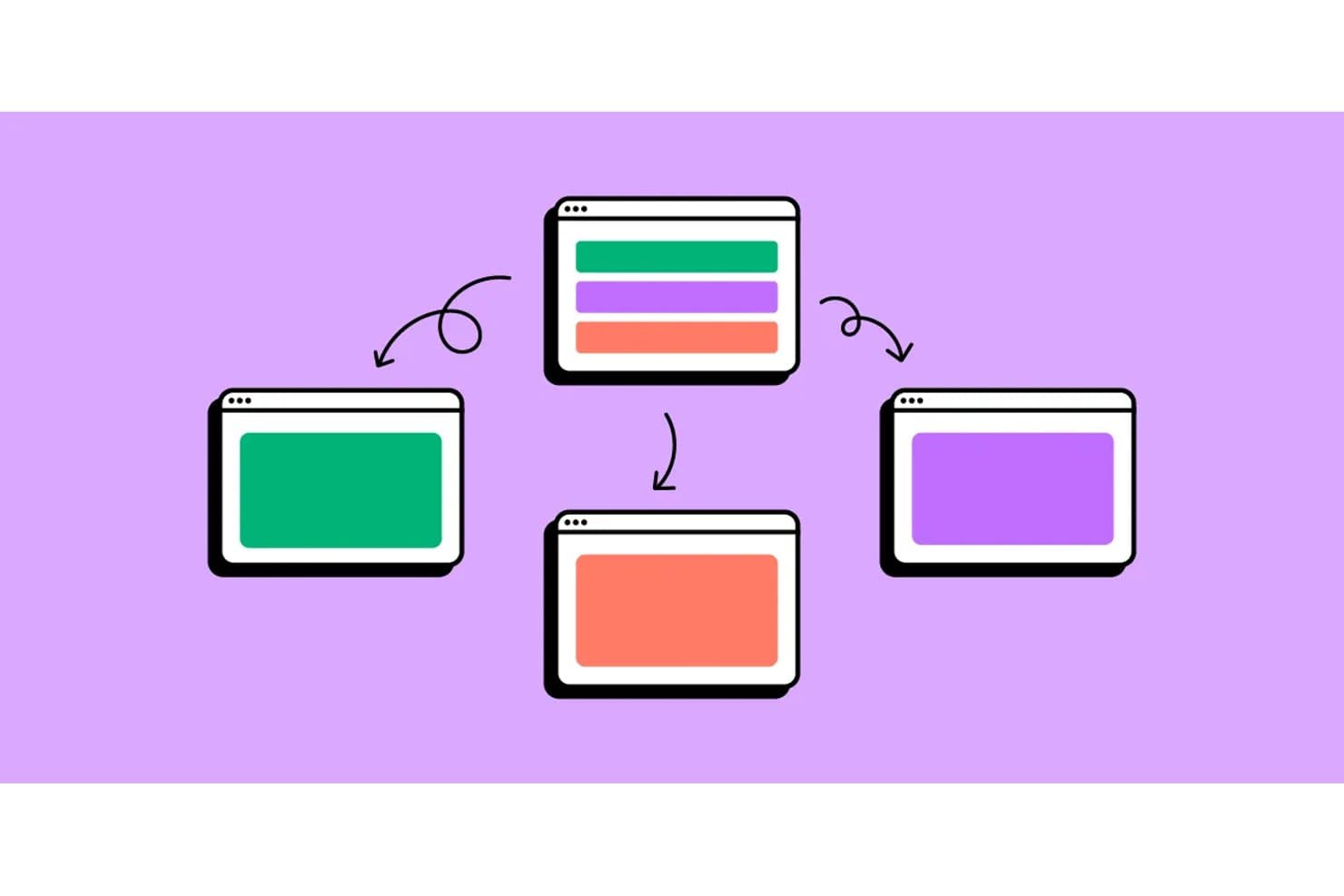
UXPin supports linking design components across multiple screens. UXPin is a browser- and desktop-based product design tool that pairs vector editing with code-backed interactive prototyping, letting you build and test high-fidelity designs using real React components, conditional logic, variables, and dynamic data.
Who Is UXPin Best For?
UXPin is a strong fit for product designers and design team leads at mid-to-large organizations building complex, code-backed prototypes that need to mirror production-ready components.
Why I Picked UXPin
UXPin earns its spot on my shortlist because it's the only design tool I've used where prototypes genuinely behave like working software. Its Merge feature lets you pull production React components directly into the canvas, so your prototype runs on the exact same components engineering ships. Add conditional logic, variables, and real dynamic data, and you can prototype a working multi-step form with validation or a data-driven dashboard without writing a single line of code yourself.
UXPin Key Features
- Conditional logic and variables: Build prototypes with branching interactions, state changes, and data that persists across screens to simulate real user flows.
- Built-in coded component libraries: Access pre-built, interactive React libraries including MUI, Tailwind UI, Ant Design, and Bootstrap directly on the canvas.
- Spec mode: Share a single link that exposes CSS, JSX, measurements, and documentation so developers can inspect and reference designs without a separate handoff step.
- Design Systems management: Create and maintain a centralized library of components, styles, typography, and reusable Patterns with versioning across your team.
UXPin Integrations
UXPin offers integrations with Storybook, GitHub, Bitbucket, npm, Jira, FullStory, Slack, StackBlitz, and CodeSandbox. These connections support production component libraries, realistic prototypes, and developer handoff.
Pros and Cons
Pros:
- Spec mode streamlines developer handoff
- Conditional logic enables true-to-life user flows
- Prototypes run on real React components
Cons:
- Advanced features gated to upper tiers
- No free viewer or commenter seat
Learn more about UXPin: Best for open-source UI design with no seat limits
- Free plan + 14-day free trial available
- From $7/user/month
Visit WebsiteCustomer Rating:4.5/5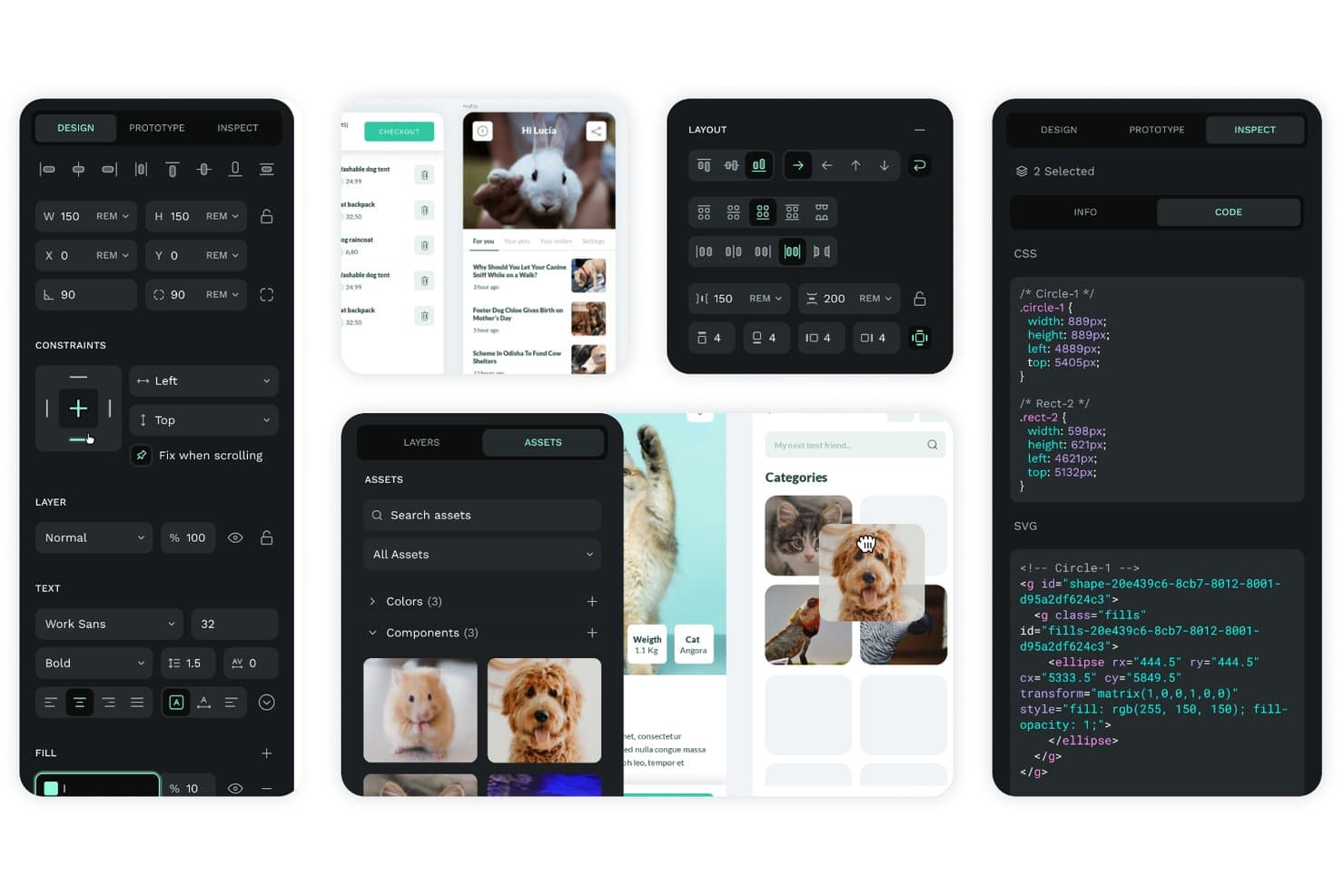
Penpot lets users inspect design specs and export clean CSS and SVG code. Penpot is an open-source, browser-based UI design tool that combines vector editing, CSS Grid/Flex layouts, interactive prototyping, real-time collaboration, and developer handoff into a single self-hostable platform.
Who Is Penpot Best For?
Penpot is a strong fit for cross-functional product teams that need every designer, developer, and stakeholder in the same tool without paying per seat.
Why I Picked Penpot
I've included Penpot in my top picks because its open-source foundation means your entire cross-functional team, designers, developers, and product managers, can work inside the same files with no seat caps eating into your budget. I particularly like that its CSS Grid and Flex layouts generate inspect output that maps directly to real implementation, so developer handoff skips the usual translation layer. Native W3C design tokens, managed without a plugin, keep your design system's color and spacing values consistent across every component from day one.
Penpot Key Features
- Boolean operations: Combine, subtract, intersect, and exclude vector shapes to build precise, complex UI elements directly on the canvas.
- Interactive prototype flows: Define multiple starting points per page so you can simulate different user journeys or device contexts in a single file.
- Code inspector: Generates ready-to-use CSS and SVG output from your designs, grounded in the same Flex and Grid standards used to build them.
- Shared component libraries: Publish any file as a shared library so teams can access and sync reusable components, colors, and typography across projects.
Penpot Integrations
Penpot offers an open REST API and webhooks for custom workflows, plus import support for Figma and Adobe XD. Its ~125-plugin Penpot Hub includes Locofy Lightning and Design Tokens Export & Deploy, which connects with GitHub, GitLab, Bitbucket, and Azure DevOps.
Pros and Cons
Pros:
- Real CSS based layouts aid developer handoff
- Native design tokens ensure spec fidelity
- Unlimited team members without extra cost
Cons:
- No advanced prototyping logic or variables
- Large files can cause slow performance
Learn more about Penpot: Best for logic-driven interactive prototyping
- Free plan available
- From $19/user/month
Visit WebsiteCustomer Rating:4.2/5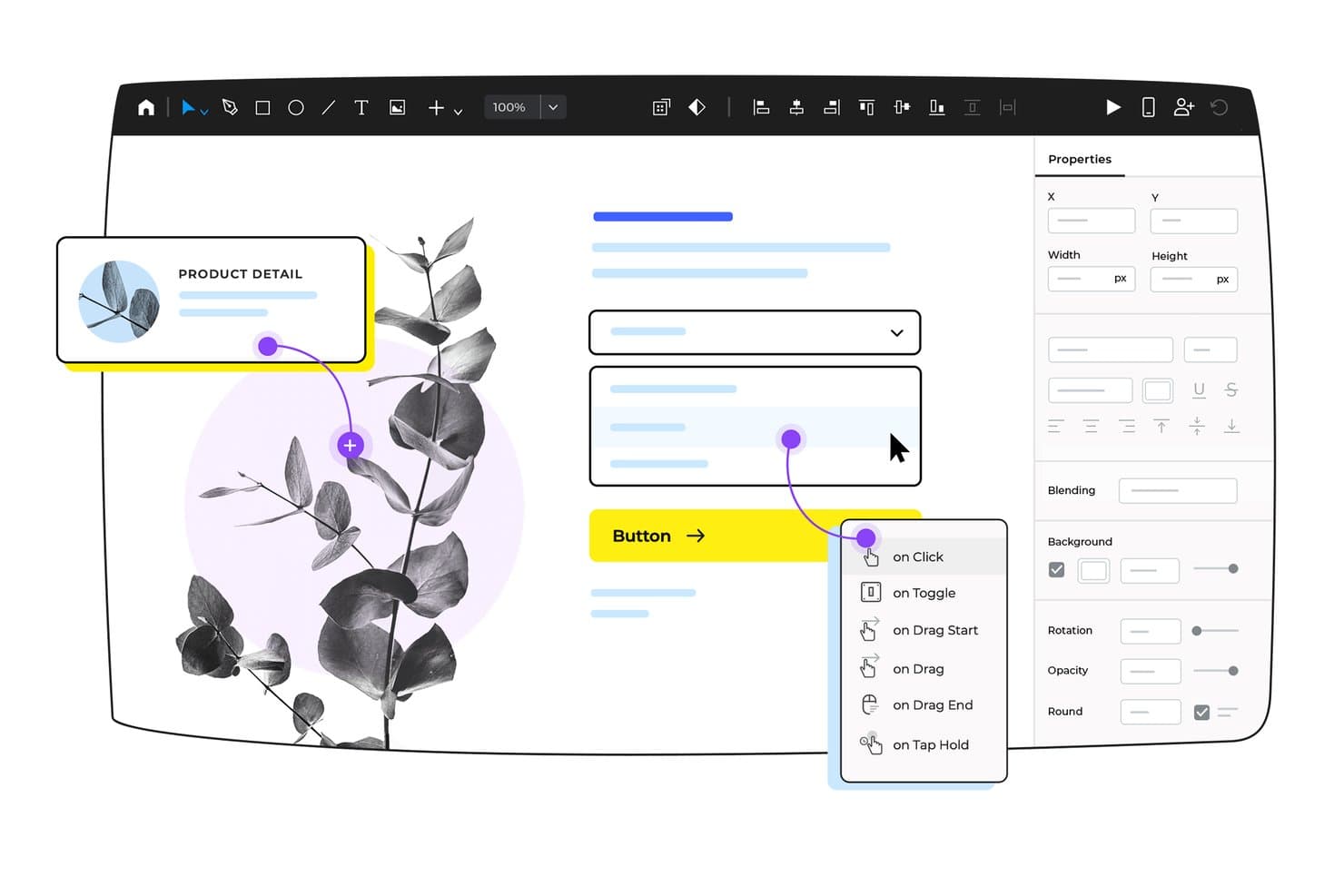
Justinmind lets users add interactive triggers to prototype elements. Justinmind is a desktop-based product design tool that combines vector UI design, a library of 4,000+ interactive components, and logic-driven prototyping with conditions, variables, and data simulation.
Who Is Justinmind Best For?
Justinmind is a strong fit for UX/UI designers and product managers who need to build and test logic-driven, highly interactive prototypes without writing code.
Why I Picked Justinmind
I picked Justinmind as one of the best because its logic-driven prototyping goes further than most tools I've tested. You can build conditions, variables, and sequences that simulate real app behavior, like inline form validation that triggers error messages or data grids populated from imported CSV files. That level of fidelity means stakeholders experience something close to a working product, not just a clickable mockup.
Justinmind Key Features
- 4,000+ pre-built UI components: A library of interactive web, iOS, and Android UI components you can drop directly into your designs.
- CSV data import: Pull real data from CSV files into Data Masters to populate grids and lists in your prototype.
- Native device viewer apps: Test your prototype on actual iOS or Android devices using Justinmind's dedicated viewer apps.
- One-click document export: Generate full design specifications as a Word or PDF document directly from your prototype.
Justinmind Integrations
Justinmind has native integrations with Jira, Azure DevOps/TFS, Confluence, Figma, Sketch, Adobe Photoshop, Adobe Illustrator, and Adobe XD. Its public API and SDK support custom integrations and deliverables.
Pros and Cons
Pros:
- Generates detailed specs and prototypes for testing
- Imports CSV data for real data modeling
- Simulates functional logic with conditions and variables
Cons:
- Large prototypes may experience slow performance
- Real-time collaboration uses check-in/check-out system
Learn more about Justinmind: 10Best for Mac-native UI design with free dev handoff
Sketch
- 30-day free trial
- From $12/user/month (billed annually)
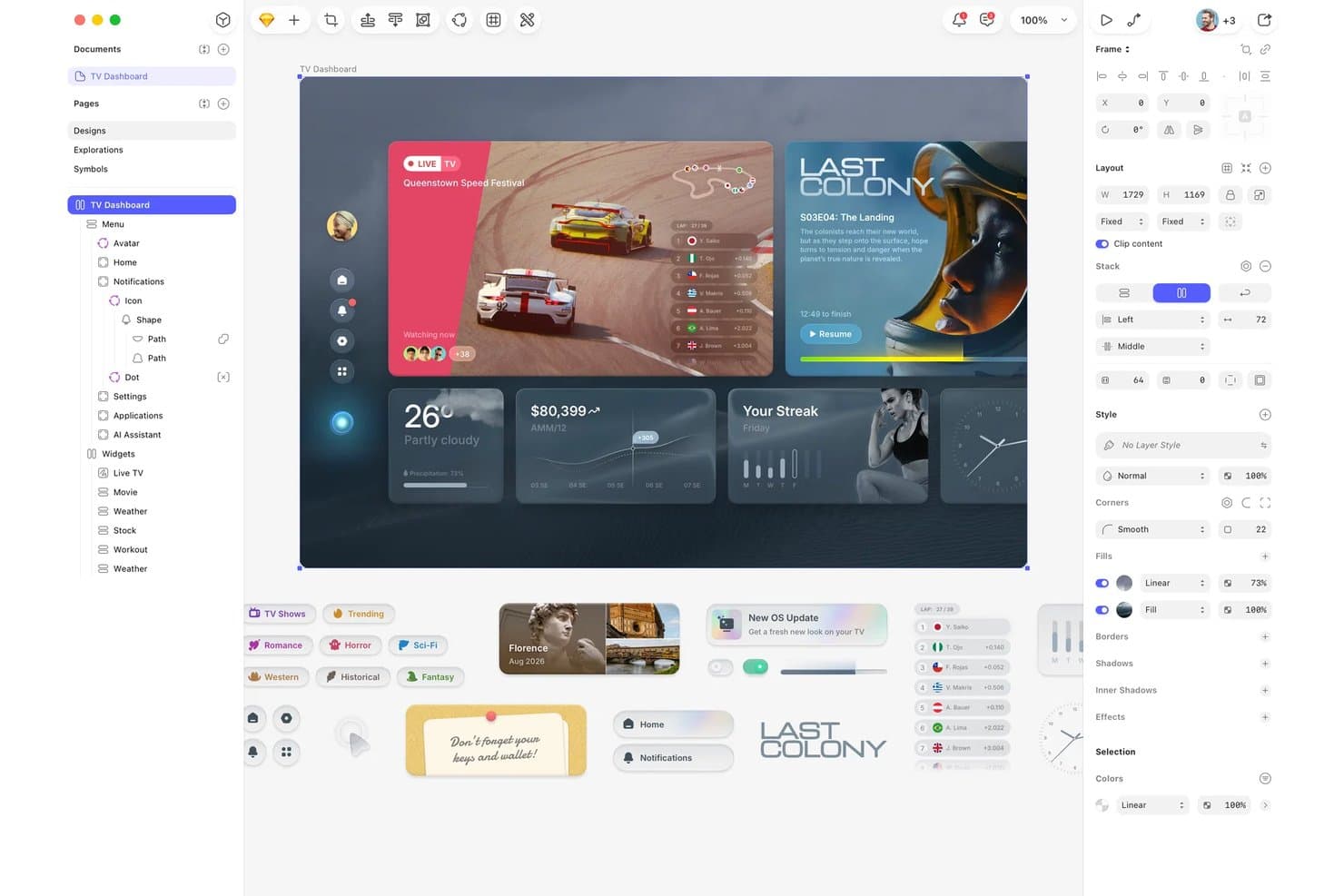
Sketch lets users design complex UI dashboards with layered components. Sketch is a macOS-native UI design tool built for product and UX designers, offering vector editing, interactive prototyping, design system management, and free developer handoff.
Who Is Sketch Best For?
Sketch is a strong fit for product designers and UX/UI designers working on macOS who need precise vector editing, mature design system tooling, and free developer handoff without paying for extra seats.
Why I Picked Sketch
Sketch earns its spot on my shortlist because its vector engine is genuinely best-in-class for Mac-based UI design, with non-destructive boolean operations, granular point control, and Display P3 color support that keeps designs crisp at every fidelity level. I also love that developer handoff is completely free, meaning developers can inspect layers, copy CSS values, and export assets without consuming a paid seat. Shared Libraries and Color Variables let my team maintain a consistent design system across every file without manual syncing.
Sketch Key Features
- Stacks (auto-layout): Automatically adjusts spacing, alignment, and distribution of nested elements as content changes, with support for min/max sizing and wrapping.
- Smart Animate: Animates matching layers between prototype frames with customizable easing and duration controls.
- Shared Libraries: Syncs Symbols, styles, and Color Variables across multiple documents with team-controlled update rollout.
- Design token export: Exports Color Variables, Layer Styles, and Text Styles in multiple formats via a shareable, always-current token link.
Sketch Integrations
Sketch offers integrations with Jira, GitHub, Slack, Notion, Zeplin, Avocode, ProtoPie, and Principle for design review, developer handoff, and advanced product prototyping. Its plugin API supports custom integrations, while the Sketch MCP Server connects designs with Claude, Cursor, VS Code, Codex, and other MCP-compatible clients.
Pros and Cons
Pros:
- Symbols and libraries enable scalable systems
- Free developer handoff for unlimited reviewers
- Vector engine supports precision and realism
Cons:
- No advanced prototyping logic or variables
- Editing limited to macOS devices only
Learn more about Sketch:
Andre alternativer for produktdesign
Her er noen flere alternativer som ikke kom med på topplisten, men som likevel er verdt å vurdere.
Hvordan jeg valgte den beste programvaren for produktdesign
Først tok jeg utgangspunkt i programvare for produktdesign som hadde høye vurderinger av brukere og høy brukertilfredshet. Deretter brukte jeg erfaringen min innen produktledelse til å finne ut hvilke kriterier som var viktigst for programvare for produktdesign, og sammenlignet hvordan de ulike alternativene målte seg mot resten.
Jeg forstår hvor mye tid det tar å finne riktig programvare til en jobb. Jeg gjør dette arbeidet slik at du slipper. Jeg har brukt og vurdert programvare for produktdesign i årevis, så du kan stole på at jeg tar den tunge jobben og samler alle faktaene du trenger for å ta den endelige avgjørelsen.
How I Evaluate Product Design Software
I split my evaluation into three parts, with core functionality carrying the most weight. I look for tools that draw precise vector assets and link screens into interactive prototypes. Then I weigh standout features like AI-assisted design generation, plus pricing and onboarding value.
Core Functionality (Table Stakes For This List)
When I'm selecting tools for my list, I score each one on a scale from 0 (does not offer the functionality) to 5 (excels in this area) for each core functionality listed below. I then convert the total into a percentage to help assess each tool's overall fit, with extra weight on any functionalities I've deemed essential.
- Vector Design Editing (Essential): I check whether a tool supports boolean operations, pen paths, and precise alignment—the basics for building production-ready screens and icons.
- Interactive Prototyping (Essential): Linking frames with transitions and overlays is table stakes, but I also evaluate support for variables, conditional logic, and scroll behaviors.
- Real-Time Collaboration: I look for live cursors, inline commenting, and simultaneous editing so designers and PMs can work in the same file without version conflicts.
- Design System Management: Teams need shared component libraries with auto-propagating updates. I evaluate how each tool handles variants, style tokens, and cross-project library sharing.
- Developer Handoff: I check whether engineers can inspect spacing, grab exported assets, and copy CSS or platform-specific code snippets directly from the design file.
- Version History: Being able to name checkpoints, compare past states, and restore earlier versions matters—especially when multiple contributors are editing the same file.
Once I have a list of tools that meet the criteria, I consider what sets each platform apart.
Differentiating Factors (What Sets Vendors Apart)
Here's how I compare and contrast different vendors:
Standout Features
AI-assisted design generation is the feature I evaluate most closely. Tools like Figma and Framer now offer prompt-driven layout and copy drafts that can cut early ideation from hours to minutes. I also check each tool's plugin and API ecosystem, since teams often need to connect design work to niche internal tools or analytics platforms. Community templates and UI kits matter too—a rich asset library means your team spends less time rebuilding common patterns like signup flows or dashboards from scratch.
Beyond Features
Pricing structure matters a lot when your "design team" includes PMs and engineers who only need to comment or inspect. I check whether viewer and commenter seats are free or paid, since that single detail can double your bill. I also evaluate how each tool connects to dev and product workflows—Figma's Jira integration, for example, lets you link frames directly to tickets, which keeps handoff context intact. For larger orgs, I look at enterprise controls like SSO, SCIM provisioning, and granular permissions that let design ops leads govern library access across distributed teams.
Vanlige spørsmål om programvare for produktdesign
Finn svar på vanlige spørsmål som andre stiller om dette emnet.
Hva er produktdesign?
Produktdesign er en prosess der du visuelt utformer en kundesentrert opplevelse som tar hensyn til selskapets strategi og produktvisjon. Ved hjelp av et verdiforslagslerret kan designteamet finne ut mer om kundens behov, utfordringer, vaner og ønsker. Deretter kan de bruke denne informasjonen til å utforme et produkt som tilfredsstiller kundene, og plassere resultatet i et kundereisekart. Til slutt kan kundereisekartet videreutvikles for å forbedre opplevelsen.
Finn ut mer om emnet i vår artikkel om produktdesign for nybegynnere.
Hva er fordelene med programvare for produktdesign?
\u003col class=\u0022ol1\u0022\u003e
\u003cli class=\u0022li1\u0022\u003e\u003cb\u003eForbedret effektivitet\u003c/b\u003e: Programvare for produktdesign kan bidra til å effektivisere designprosessen ved å tilby verktøy for rask og enkel oppretting og endring av design. Dette kan spare tid og redusere feil, slik at designere kan lage flere produkter på kortere tid.\u003c/li\u003e
\u003cli class=\u0022li1\u0022\u003e\u003cb\u003eØkt kreativitet\u003c/b\u003e: Med programvare for produktdesign kan designere eksperimentere med ulike designkonsepter, farger, materialer og teksturer, og visualisere dem i 3D. Dette kan inspirere til kreativitet og hjelpe designere med å utvikle mer innovative og visuelt tiltalende design.\u003c/li\u003e
\u003cli class=\u0022li1\u0022\u003e\u003cb\u003eBedre samarbeid\u003c/b\u003e: Programvare for produktdesign gjør det mulig for designere, ingeniører og andre interessenter å samarbeide og dele designfiler og tilbakemeldinger i sanntid. Dette kan legge til rette for kommunikasjon og sikre at alle er samkjørte, noe som fører til bedre designresultater.\u003c/li\u003e
\u003cli class=\u0022li1\u0022\u003e\u003cb\u003eKostnadsbesparelser\u003c/b\u003e: Ved å simulere og teste design i et virtuelt miljø kan programvare for produktdesign bidra til å identifisere og løse potensielle problemer før fysiske prototyper opprettes. Dette kan spare tid og penger på kostbare prototyper og forhindre dyre feil.\u003c/li\u003e
\u003cli class=\u0022li1\u0022\u003e\u003cb\u003eForbedret produktkvalitet\u003c/b\u003e: Ved å tilby verktøy for simulering og analyse kan programvare for produktdesign bidra til å sikre at sluttproduktet oppfyller de ønskede spesifikasjonene og kravene. Resultatet blir produkter av høyere kvalitet som oppfyller kundenes behov og forventninger.\u003c/li\u003e
\u003c/ol\u003e
Hva er de viktigste funksjonene i programvare for produktdesign?
De viktigste funksjonene i den beste programvaren for produktdesign kan variere avhengig av brukerens spesifikke behov og krav, men noen av de viktigste funksjonene omfatter:
\u003col class=\u0022ol1\u0022\u003e
\u003cli class=\u0022li1\u0022\u003e\u003cstrong\u003e3D-modellering for markedsføringsvisualiseringer:\u003c/strong\u003e Enkelte verktøy lar deg gjenbruke 3D-modeller for å lage fotorealistisk markedsføringsmateriell. Denne funksjonen bidrar til å spare tid og kostnader ved å eliminere behovet for fysiske prototyper og fotograferinger. Den muliggjør også raskere produksjon av reklamemateriell, slik at produktet kommer raskere ut på markedet.\u003c/li\u003e
\u003cli class=\u0022li1\u0022\u003e\u003cb\u003eSimulering og analyse\u003c/b\u003e: Programvaren bør inneholde verktøy for simulering og analyse for å teste og kontrollere designet, for eksempel belastningstesting, fluiddynamikk og termisk analyse.\u003c/li\u003e
\u003cli class=\u0022li1\u0022\u003e\u003cb\u003eSamarbeid og deling\u003c/b\u003e: Programvaren bør gjøre det enkelt å samarbeide om og dele design med teammedlemmer, kunder og leverandører.\u003c/li\u003e
\u003cli class=\u0022li1\u0022\u003e\u003cb\u003eVersjonskontroll\u003c/b\u003e: Programvaren bør inneholde funksjoner for versjonskontroll, slik at endringer i designet kan spores og tidligere versjoner enkelt kan åpnes.\u003c/li\u003e
\u003cli class=\u0022li1\u0022\u003e\u003cb\u003eKompatibilitet og integrasjon\u003c/b\u003e: Programvaren bør være kompatibel med andre verktøy og annen programvare som ofte brukes i bransjen, for eksempel CAD-programvare og programvare for 3D-utskrift.\u003c/li\u003e
\u003cli class=\u0022li1\u0022\u003e\u003cb\u003eTilpasning\u003c/b\u003e: Programvaren bør kunne tilpasses og konfigureres for å dekke brukerens unike behov og de spesifikke kravene til prosjektet.\u003c/li\u003e
\u003cli class=\u0022li1\u0022\u003e\u003cb\u003eKomponentbibliotek:\u003c/b\u003e Programvaren bør ha et bredt utvalg av innebygde, viktige komponenter, som knapper og trekkspill, for å gjøre designarbeidet enklere.\u003c/li\u003e
\u003cli class=\u0022li1\u0022\u003e\u003cb\u003eRessursadministrasjon/dokumentadministrasjon:\u003c/b\u003e Programvaren bør kunne lagre, spore og dele produktelementer og dokumenter.\u003c/li\u003e
\u003cli class=\u0022li1\u0022\u003e\u003cb\u003eAllsidig modellering:\u003c/b\u003e Programvare som fungerer godt med ulike 3D-modelleringsmetoder, for eksempel direkte modellering eller parametrisk modellering.\u003c/li\u003e
\u003cli\u003e\u003cstrong\u003eDesignautomatisering:\u003c/strong\u003e Programvaren bør automatisere repetitive prosesser og oppgaver, som å generere designvarianter, oppdatere sammenstillinger, lage tegninger fra 3D-modeller og behandle filer i grupper for produksjon. Dette effektiviserer arbeidsflyter og reduserer manuelle feil. produksjon.\u003c/li\u003e
\u003c/ol\u003e
Hva er de tre typene 3D-modellering?
Hvis du bruker datastøttet konstruksjon (CAD) for produktene dine, kan du bruke tre typer modellering: trådmodellering, overflatemodellering og solidmodellering.
\u003cul\u003e
\u003cli\u003e\u003cstrong\u003eTrådmodellering:\u003c/strong\u003e Denne typen CAD-modellering brukes når produktet har flere buede kanter. I denne typen modellering bruker du linjer, sirkler, buer og andre former for å definere objektene dine. I motsetning til 2D-versjoner av et produkt, som du kan lage som trådmodell ved hjelp av et \u003ca href=\u0022https://cpoclub.com/tools/best-wireframing-tools/\u0022\u003etrådmodelleringsverktøy\u003c/a\u003e eller notatboken din, lar CAD deg lage 3D-versjoner der du kan se produktet fra alle vinkler.\u003c/li\u003e
\u003cli\u003e\u003cstrong\u003eOverflatemodellering:\u003c/strong\u003e Av disse tre metodene er overflatemodellering den mest avanserte. Den fungerer ved hjelp av hjelpelinjer som avgrenser konturene og krumningen til en komponent. Deretter beregner programvaren en sammenhengende overflate som knytter sammen disse hjelpelinjene. Noen av verktøyene på denne listen har dette som en funksjon kalt lofting.\u003c/li\u003e
\u003cli\u003e\u003cstrong\u003eSolidmodellering:\u003c/strong\u003e Tenk på dette som en avansert versjon av Tetris, der du setter sammen tredimensjonale former som byggeklosser. Hvis du trenger å lage et hull i designet, kan du også bruke noen av formene til å fjerne (trekke fra) materiale fra det.\u003c/li\u003e
\u003c/ul\u003e