

10 migliori strumenti per il feedback sul design per team creativi nel 2026

10 Elenco dei migliori strumenti per il feedback sul design


Con così tante soluzioni diverse per il feedback sul design disponibili, capire quale sia quella giusta per te è difficile. Sai di voler raccogliere e implementare i feedback in modo più efficiente, ma devi capire quale strumento sia il migliore. Ci penso io! In questo articolo ti aiuterò a scegliere facilmente, condividendo le mie esperienze personali nell'utilizzo di decine di diversi strumenti per il feedback con grandi team di progettazione e su grandi progetti, insieme alle mie scelte dei migliori strumenti per il feedback sul design.
Questo strumento ci permette di ricevere feedback in tempo reale, anche utilizzando registrazioni dello schermo o GIF per maggiore chiarezza. E se stai cercando di integrare un processo di feedback in un sito web attivo, questo strumento diventa uno strumento indispensabile per il feedback sui siti web. Quindi, esploriamo insieme le migliori opzioni disponibili, d'accordo?
Che cos'è uno strumento per il feedback sul design?
Gli strumenti per il feedback sul design sono piattaforme digitali che aiutano i team a raccogliere, analizzare e implementare feedback sui loro progetti. Lo scopo principale del software per il feedback sul design è supportare il processo di progettazione e migliorare i risultati del design facilitando il ciclo di feedback. Molti di questi strumenti offrono funzionalità per la raccolta dei feedback, l'analisi dei dati e la definizione delle priorità.
Perché fidarsi dei nostri consigli sui software
Il nostro team testa e recensisce software dal 2012. In quanto product manager noi stessi, sappiamo quanto sia difficile — e importante — scegliere il software giusto.
Per questa guida, abbiamo valutato gli strumenti attraverso test pratici e ricerche indipendenti, assegnando un punteggio agli strumenti in base ai nostri criteri di selezione.
Le nostre recensioni riflettono il nostro giudizio editoriale umano, non un discorso di vendita.
| Tool | Best For | Trial Info | Price | ||
|---|---|---|---|---|---|
| 1 | Ideale per il tracciamento di bug e problemi di design visivo | Prova gratuita disponibile | A partire da $41/mese | Website | |
| 2 | Ideale per brainstorming collaborativi e ideazione | Piano gratuito disponibile | A partire da $8/membro/mese (fatturato annualmente) | Website | |
| 3 | Ideale per feedback su siti web attivi e ambienti di staging con triage basato sull'IA | Piano gratuito disponibile | Da $29/mese (con fatturazione annuale) | Website | |
| 4 | Ideale per la revisione online e la valutazione di progetti grafici | Demo gratuita + prova gratuita di 10 giorni disponibile | A partire da $249/mese | Website | |
| 5 | Ideale per sistemi di design scalabili | Disponibile piano gratuito | Da $16/utente/mese (fatturazione annuale) | Website | |
| 6 | Ideale per wireframe e diagrammi di flusso rapidi | Piano gratuito disponibile | A partire da $10/editor/mese (fatturazione annuale) | Website | |
| 7 | Ideale per la gestione di progetti creativi | Prova gratuita di 14 giorni + demo gratuita disponibile | Da $45/mese (fatturato annualmente) | Website | |
| 8 | Ideale per prototipazione e design dell'esperienza utente | Prova gratuita di 30 giorni | Prezzo su richiesta | Website | |
| 9 | Ideale per editing vettoriale e progettazione di interfacce | Prova gratuita di 30 giorni | Da $12/editor/mese (fatturato annualmente) | Website | |
| 10 | Ideale per prototipi interattivi e collaborazione sul design | Not available | Da $7.95/utente/mese (fatturazione annuale) | Website |

I 10 migliori strumenti per la raccolta di feedback sul design

BugHerd
Ideale per il tracciamento di bug e problemi di design visivo
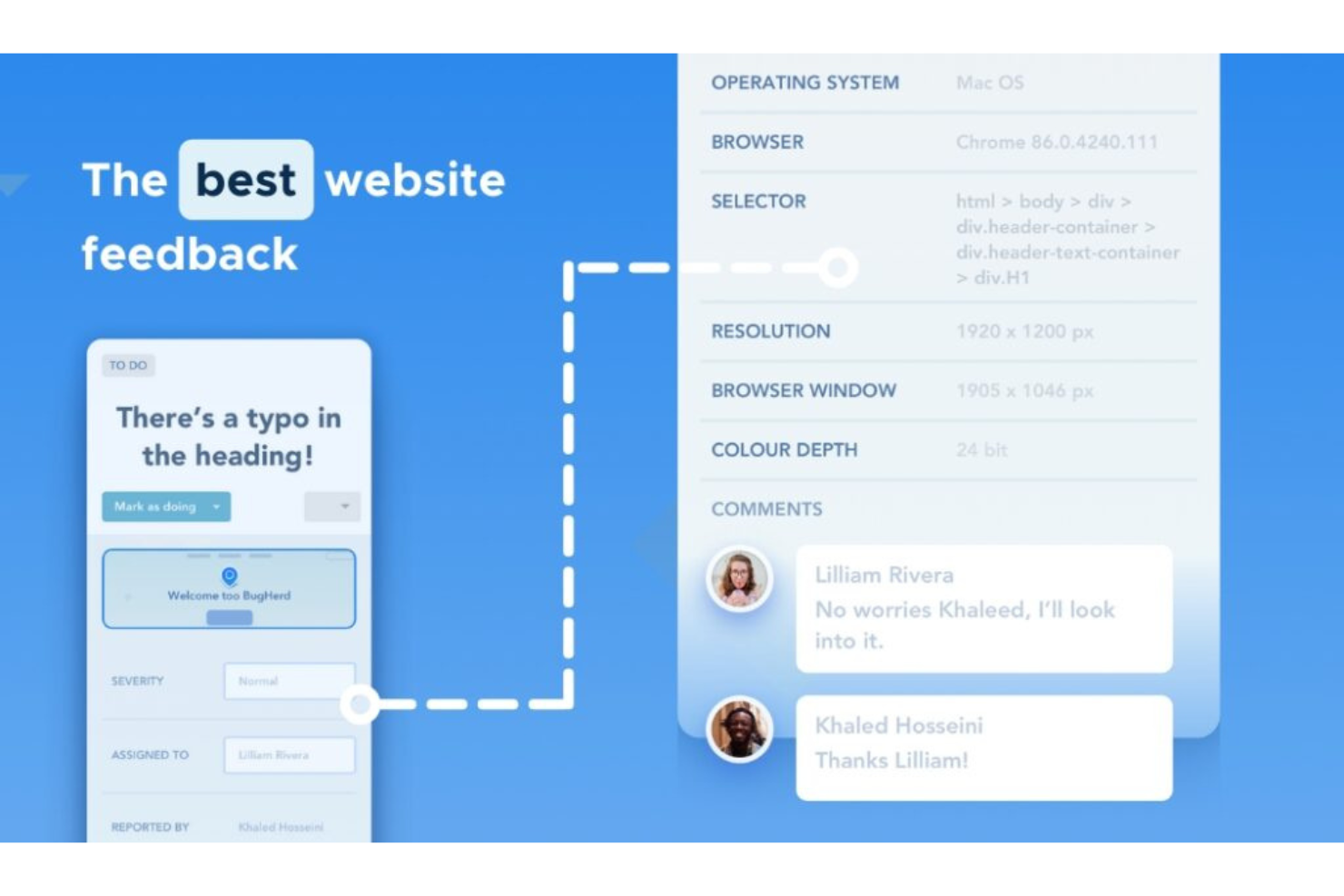
BugHerd è uno strumento visivo per il feedback sui siti web e il tracciamento dei bug che consente a clienti e membri del team di appuntare commenti direttamente su pagine web live, PDF e immagini, con cattura automatica dello screenshot e raccolta di metadati tecnici integrata.
Per chi è più indicato BugHerd?
BugHerd è particolarmente adatto per le agenzie di web design e sviluppo che gestiscono cicli di revisione dei clienti e hanno bisogno di un modo strutturato per raccogliere e agire sui feedback del sito.
Perché ho scelto BugHerd
BugHerd è tra le mie scelte principali perché apprezzo come colma il divario tra l'individuazione e la reale risoluzione di un bug visivo. Quando un cliente fissa un commento su una pagina live, BugHerd cattura automaticamente uno screenshot insieme a metadati tecnici come browser, sistema operativo, risoluzione dello schermo e l'URL esatto. Questo significa che gli sviluppatori ricevono un rapporto completo e riproducibile del bug senza necessità di ulteriori email di follow-up. Ogni pin si trasforma inoltre direttamente in un'attività sulla bacheca Kanban integrata di BugHerd, così nulla viene trascurato.
Caratteristiche principali di BugHerd
- Accesso come ospite al feedback: I clienti possono inviare feedback direttamente su un sito live senza dover creare un account o effettuare il login.
- Registrazione video del feedback: I revisori possono registrare un breve video dimostrativo insieme ai commenti fissati per mostrare i problemi in movimento.
- Annotazione di PDF e immagini: Carica file di design statici, PDF o screenshot e raccogli il feedback appuntato come faresti su un sito live.
- Gestione delle attività tramite AI: BugHerd genera titoli e tag delle attività automaticamente a partire dal feedback ricevuto per ridurre il lavoro manuale di smistamento.
Pros and Cons
Pros:
- Precisione nell'individuazione dei bug visivi
- Interfaccia facile da comprendere anche per utenti non tecnici
- Integrazione completa con i più diffusi strumenti di project management
Cons:
- Può risultare costoso per team numerosi
- Manca una chat interna per discussioni in tempo reale
- Funzionalità limitate per il tracciamento di bug non legati al design
New Product Updates from BugHerd

BugHerd Enhances Jira Integration
BugHerd's Jira integration receives a major update enhancing workflow synchronization and user mapping for Premium plan users. These updates improve workflow synchronization, task management, and collaboration across both platforms. For more information, visit BugHerd's official site.
 .
.
Miro
Ideale per brainstorming collaborativi e ideazione

Miro è una piattaforma di collaborazione su una tela infinita che supporta il feedback sul design tramite annotazioni in tempo reale, commenti, votazioni, wireframe e walkthrough video asincroni.
Per chi è Miro?
Miro è ideale per team trasversali—prodotto, design e marketing—che necessitano di uno spazio condiviso per fornire e raccogliere feedback su idee nelle prime fasi di sviluppo.
Perché ho scelto Miro
Miro merita un posto nella mia shortlist perché la tela infinita offre ai team di design uno spazio dove fare brainstorming, schizzi e raccogliere feedback tutto in un unico luogo. Mi piacciono in particolare le funzioni di voto integrate—quando il mio team deve dare rapidamente priorità alle direzioni di design, il voto a puntini permette a tutti di esprimersi senza dover ricorrere a sondaggi separati. I post-it virtuali e gli strumenti di raggruppamento facilitano inoltre la sintesi dei feedback grezzi in temi durante le sessioni di ideazione dal vivo, cosa che trovo utile durante le critiche di design con partecipanti diversi.
Caratteristiche principali di Miro
- Talktrack: Registra walkthrough video asincroni della tua board così che gli stakeholder possano rivedere i design e lasciare commenti con timestamp quando preferiscono.
- Commenti contestuali: Appunta i commenti direttamente su specifici elementi della tela per mantenere il feedback collegato all’area precisa del design cui si riferisce.
- Strumenti di wireframe: Crea wireframe a bassa fedeltà nativamente sulla tela per raccogliere feedback visivi nelle fasi iniziali prima di passare al design ad alta fedeltà.
- Template Critica al Design: Usa una struttura di board predefinita che guida i team attraverso un processo strutturato di revisione del design con categorie di feedback ben definite.
Pros and Cons
Pros:
- Tela espansiva per il brainstorming
- Collaborazione in tempo reale
- Robusta integrazione con i principali strumenti di team
Cons:
- L'interfaccia può risultare complessa ai nuovi utenti
- Richiede una connessione internet stabile per un funzionamento fluido
- La versione gratuita offre funzionalità limitate
New Product Updates from Miro
Miro Adds Japan Data Residency for Enterprise Customers
Miro has introduced Japan data residency for enterprise customers, offering in-region storage for production data, backups, and metadata, plus in-region compute infrastructure. For more information, visit Miro's official site.

Userback
Ideale per feedback su siti web attivi e ambienti di staging con triage basato sull'IA
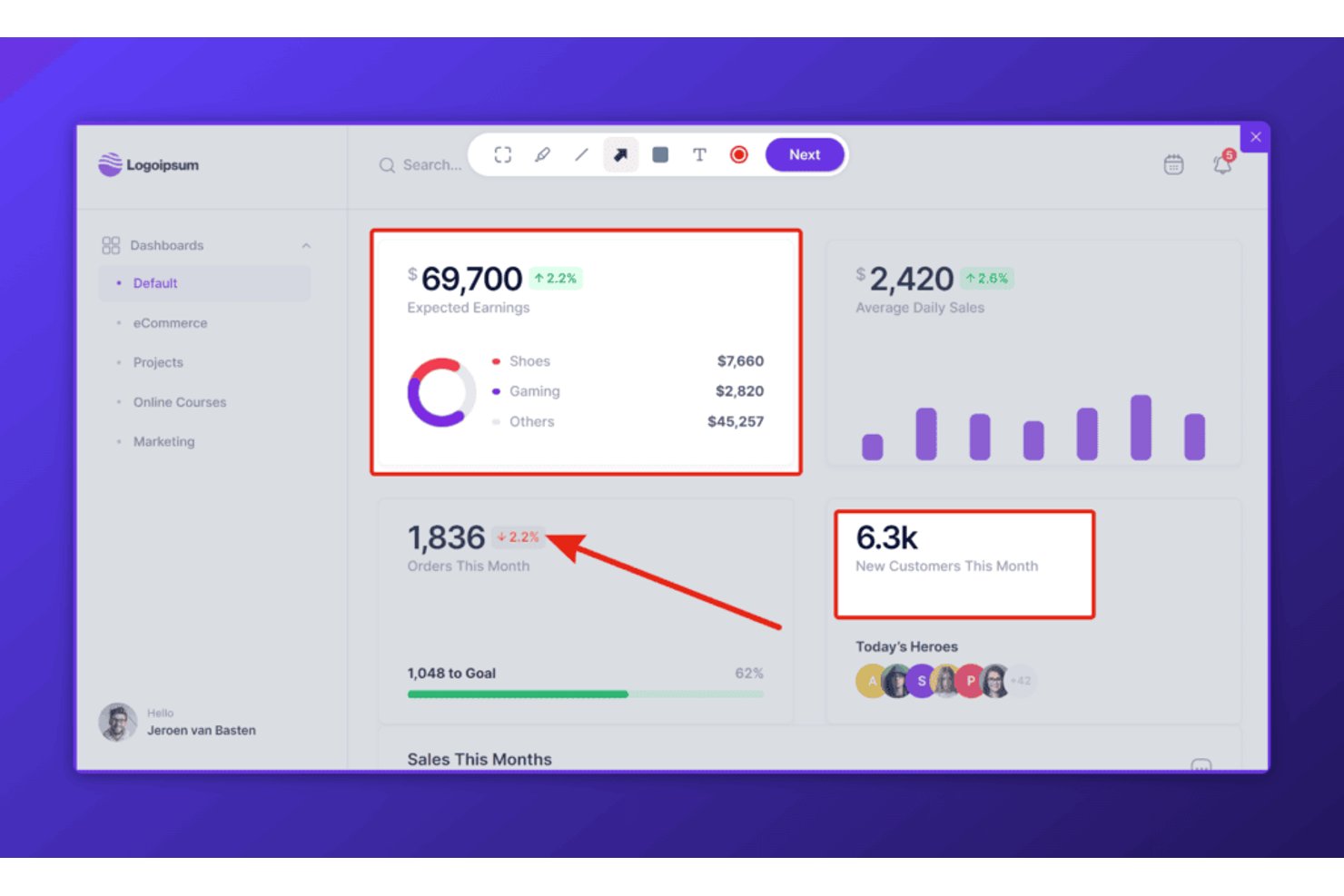
Userback è uno strumento di feedback basato sul web che consente ai team di raccogliere schermate annotate, registrazioni video e riproduzioni delle sessioni direttamente da siti web attivi, ambienti di staging e applicazioni web.
Per chi è più adatto Userback?
Userback è particolarmente adatto ai team di prodotto e ingegneria che raccolgono feedback su siti web attivi, applicazioni web e ambienti di staging.
Perché ho scelto Userback
Ho scelto Userback come uno dei migliori perché è progettato appositamente per raccogliere feedback su siti web attivi e ambienti di staging, ovvero proprio i contesti in cui i team che sviluppano prodotti web svolgono il loro lavoro di revisione. Mi piace molto il fatto che il widget incorporabile acquisisca automaticamente schermate annotate insieme ai log della console, ai metadati del browser e alle riproduzioni delle sessioni, così non c'è bisogno di dedurre cosa abbia visto o fatto un revisore. Il livello di triage basato sull'IA classifica i feedback ricevuti in base al sentiment e ai temi ricorrenti, riducendo il tempo che altrimenti passerei a separare manualmente le segnalazioni di bug dalle richieste di funzionalità.
Funzionalità principali di Userback
- Widget di feedback incorporabile: Un frammento JavaScript che installi su qualsiasi sito attivo o URL di staging per consentire ai revisori di inviare schermate annotate e registrazioni video direttamente dalla pagina.
- Estensione del browser: Un'estensione per Chrome, Firefox ed Edge che consente ai revisori interni di acquisire e annotare feedback da qualsiasi pagina web, anche senza aver installato il widget.
- Riproduzione delle sessioni: Registra sessioni utente complete—movimenti del mouse, clic, scorrimento e clic ripetuti—e collega la riproduzione al relativo elemento di feedback per fornire il contesto completo.
- Sincronizzazione bidirezionale con gli strumenti di gestione dei progetti: Mantiene lo stato del feedback in Userback sincronizzato in tempo reale con Jira, Linear e ClickUp, così la risoluzione di un problema in uno strumento aggiorna automaticamente anche l'altro.
Integrazioni di Userback
Userback offre integrazioni native con Jira, Linear, ClickUp, Slack, Microsoft Teams, GitHub, GitLab, Asana e Azure DevOps. Supporta inoltre REST API, webhook e Zapier.
Pros and Cons
Pros:
- Consente di annotare siti web attivi e ambienti di staging
- Acquisisce video, riproduzioni delle sessioni e log della console
- L'IA ordina e riassume i feedback ricevuti
Cons:
- Nessun supporto per file Figma o Sketch
- Mancano funzionalità per confrontare le versioni di un progetto
New Product Updates from Userback

Userback Mobile SDK Adds In-App Surveys
Userback’s Mobile SDK now supports in-app surveys, enabling iOS and Android users to submit NPS, CSAT, and other survey responses without leaving your app. For more information, visit Userback's official site.
 .
.
Ideale per la revisione online e la valutazione di progetti grafici
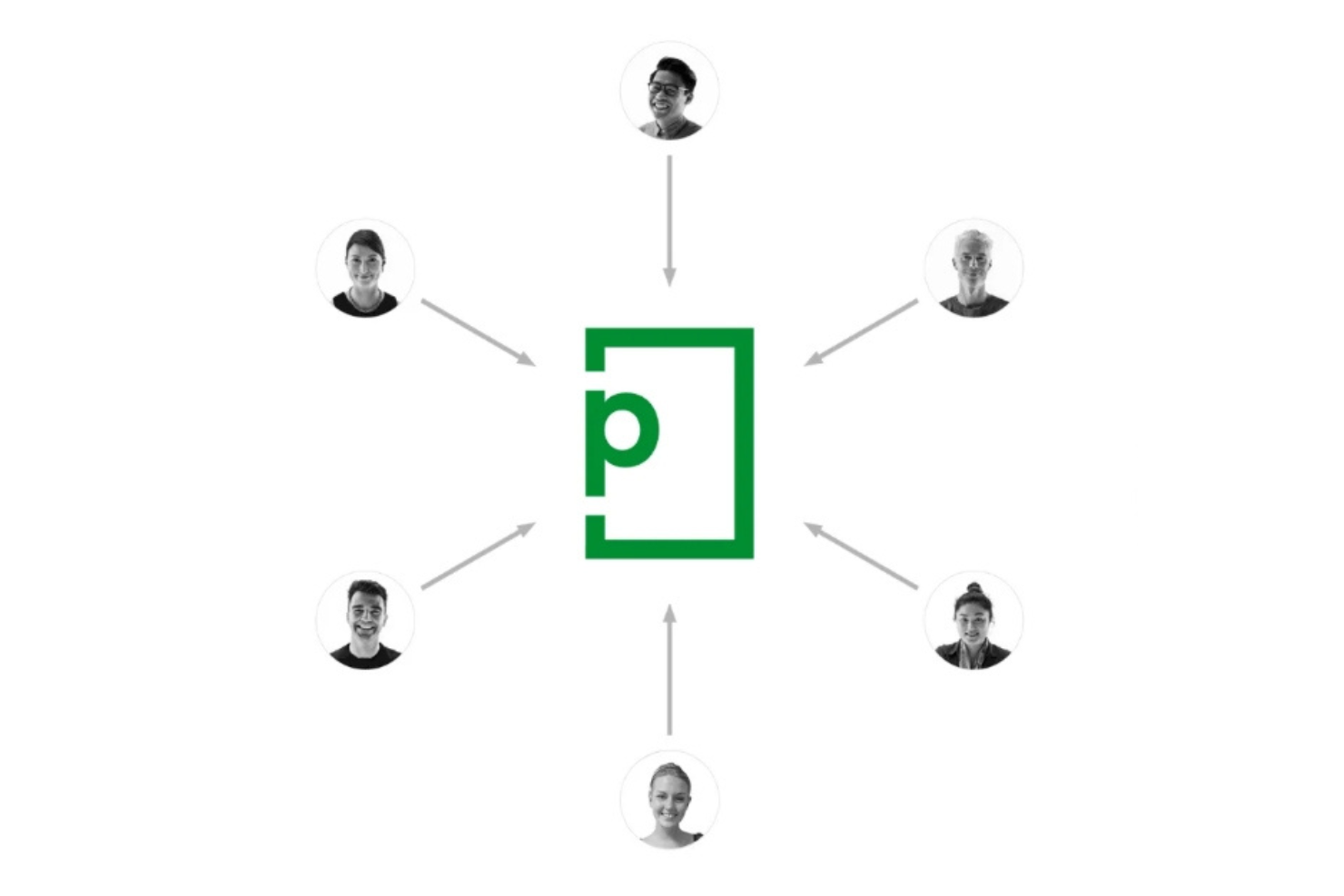
PageProof è una piattaforma di revisione online in cui i team di marketing e creativi possono annotare, confrontare versioni, gestire flussi di approvazione e revisionare qualsiasi tipo di file—da PDF e video a prototipi Figma e siti web live—tutto in un unico posto.
Per chi è ideale PageProof?
PageProof è adatto a team di marketing e creativi che devono gestire grandi volumi di approvazioni di design con diversi revisori interni ed esterni.
Perché ho scelto PageProof
PageProof è tra i miei strumenti preferiti perché nessun altro gestisce l'intero ciclo di revisione in modo così completo. Adoro la modalità di confronto delle versioni che consente di sovrapporre due revisioni con uno slider per individuare esattamente cosa è cambiato tra i vari passaggi. PageProof Intelligence scansiona automaticamente le bozze alla ricerca di errori ortografici e incoerenze di brand prima che i revisori le aprano, riducendo lo scambio di messaggi su questi aspetti.
Funzionalità principali di PageProof
- Strumenti di annotazione sulla bozza: Aggiungi commenti fissati, disegni a mano libera ed evidenziazioni direttamente su qualsiasi revisione per segnare aree specifiche da correggere.
- Flussi di approvazione: Imposta ruoli dei revisori, definisci soglie di decisione e attiva promemoria automatici per garantire il proseguimento delle approvazioni.
- Checklist per i revisori: Allega checklist personalizzate a una bozza affinché i revisori confermino il rispetto dei criteri di brand e qualità prima di inviare i feedback.
- Accesso per revisori esterni: I soggetti esterni possono aprire e annotare le bozze senza creare un account PageProof.
Pros and Cons
Pros:
- Gestione completa della revisione e dell'approvazione
- Funzionalità di confronto intelligente per il tracciamento efficiente delle revisioni
- Integrazione con piattaforme di cloud storage e design popolari
Cons:
- La fatturazione annuale potrebbe non essere adatta a tutte le aziende
- Nessun piano gratuito disponibile
- L'interfaccia utente può richiedere un po' di tempo di apprendimento per i nuovi utenti

Figma
Ideale per sistemi di design scalabili

Figma è una piattaforma collaborativa di design basata su browser che consente ai team di design e prodotto di creare prototipi di interfacce utente, condividere annotazioni e raccogliere feedback contestuali direttamente sulla tela utilizzando commenti, modalità Dev e librerie condivise del sistema di design.
Per chi è ideale Figma?
Figma è una scelta naturale per i team di prodotto e design di aziende di medie e grandi dimensioni che necessitano di uno spazio condiviso per la progettazione di interfacce, prototipazione e revisione trasversale dei progetti.
Perché ho scelto Figma
Figma si è guadagnato un posto tra i migliori della mia lista perché gestisce il feedback sui sistemi di design su larga scala meglio di qualsiasi altro strumento che abbia utilizzato. Le librerie di componenti condivise permettono al mio team di lasciare commenti e risolvere i feedback direttamente sui componenti sorgente, cosicché le modifiche si propagano automaticamente su tutti i file. Mi affido anche ai branch per testare gli aggiornamenti a livello di sistema in isolamento prima di unirli al resto, mantenendo così puliti i cicli di feedback e intatta la cronologia delle versioni.
Funzionalità chiave di Figma
- Commenti sulla tela: Fissa commenti direttamente su elementi specifici così che il feedback resti collegato al design di riferimento.
- Modifica multiplayer in tempo reale: Più collaboratori possono lavorare simultaneamente nello stesso file, con il tracciamento dei cursori in tempo reale per mostrare chi sta facendo cosa.
- Condivisione dei prototipi: Condividi prototipi interattivi e cliccabili tramite link in modo che le parti interessate possano visionare i flussi e lasciare feedback senza un account Figma.
- Modalità Dev: Offre agli sviluppatori visualizzazioni annotate e pronte per le specifiche dei design per un passaggio e una revisione accurata.
Pros and Cons
Pros:
- Collaborazione in tempo reale che consente un design di squadra efficiente
- Strumenti di prototipazione avanzati
- Integrazioni senza soluzione di continuità con altri strumenti popolari
Cons:
- La curva di apprendimento può essere ripida per i nuovi utenti
- Alcuni utenti segnalano problemi di prestazioni con file complessi
- Il prezzo può essere elevato per piccoli team o freelance individuali

Ideale per wireframe e diagrammi di flusso rapidi
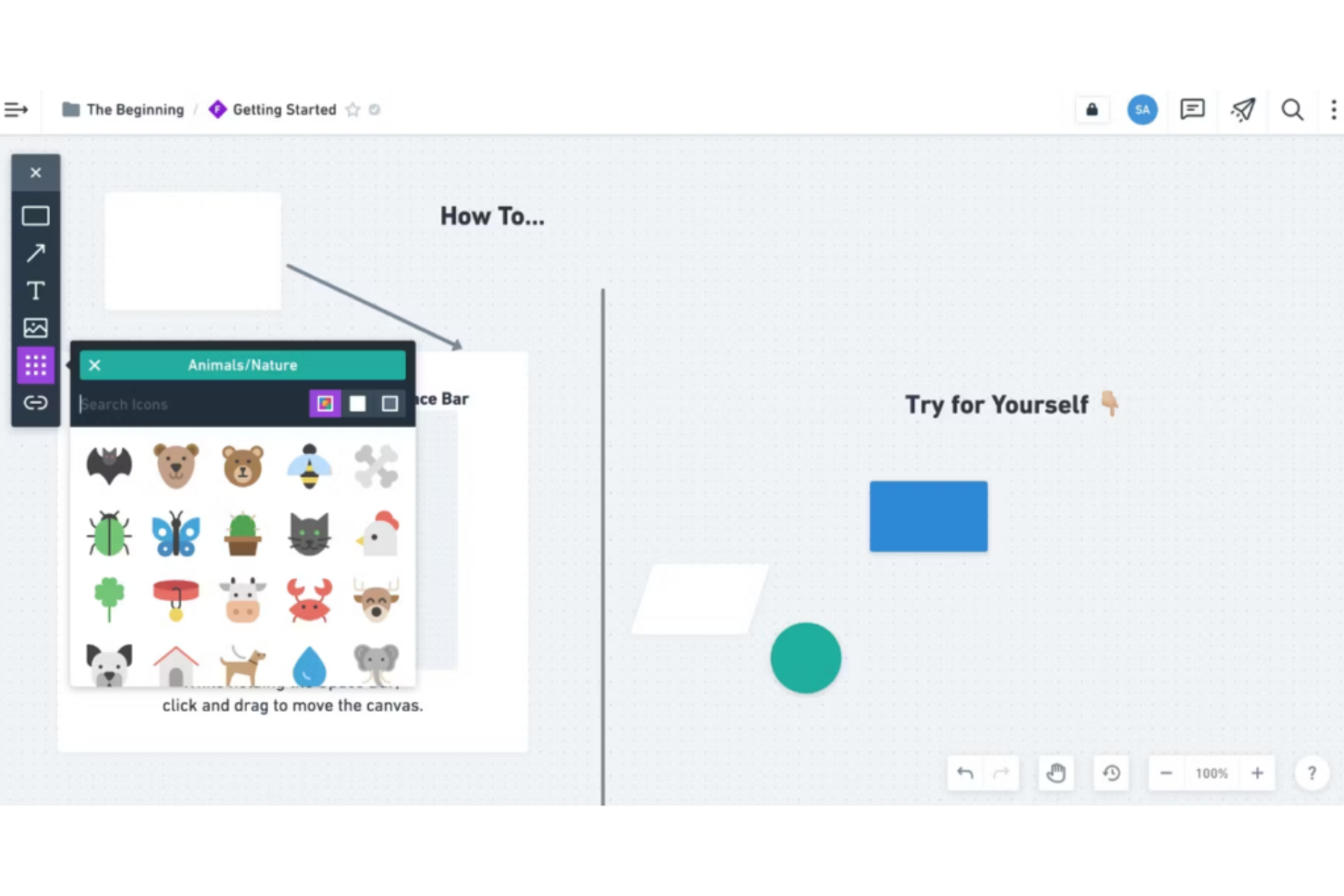
Whimsical è uno spazio di lavoro visivo collaborativo per team tecnici che combina wireframe, diagrammi di flusso, diagrammi e mappe mentali con modifica multiplayer in tempo reale, commenti e cronologia delle versioni su un'unica tela infinita.
Per chi è Whimsical?
Whimsical è adatto a product manager, designer ed ingegneri di aziende tecnologiche in fase iniziale o di medie dimensioni che hanno bisogno di organizzare idee prima di passare a strumenti di design ad alta fedeltà.
Perché ho scelto Whimsical
Whimsical si è guadagnato un posto nella mia lista perché permette di creare wireframe e diagrammi di flusso più velocemente di qualsiasi altro strumento simile che abbia mai usato. La libreria di componenti drag-and-drop con proprietà regolabili permette al mio team di abbozzare un intero flusso utente in pochi minuti, e le cornici dei dispositivi per browser, telefoni e tablet mostrano il layout nel giusto contesto. Mi affido inoltre alla funzione dei commenti per mantenere il feedback direttamente legato a forme o schermate specifiche, così che le conversazioni di design non si perdano mai in una discussione separata.
Funzionalità principali di Whimsical
- Editing multiplayer in tempo reale: Più membri del team possono lavorare sulla stessa lavagna simultaneamente, con i cursori in tempo reale che mostrano chi sta modificando cosa.
- Cronologia delle versioni: Accedi e ripristina versioni precedenti di qualsiasi lavagna per tracciare come un design o un flusso si sia evoluto nel tempo.
- @menzioni nei commenti: Tagga colleghi specifici in un thread di commento per inoltrare feedback o segnalare una decisione che richiede il loro intervento.
- Template: Parti da modelli preimpostati di wireframe, diagrammi di flusso e diagrammi per saltare la configurazione dal foglio bianco.
Pros and Cons
Pros:
- Creazione rapida di wireframe e diagrammi di flusso
- Utile funzione 'board' per l'organizzazione dei progetti
- Integrazione efficace con i principali strumenti di project management
Cons:
- Elementi di design limitati per wireframe complessi
- Potrebbe offrire opzioni più personalizzabili
- Nessuna app mobile disponibile

ProofHub
Ideale per la gestione di progetti creativi
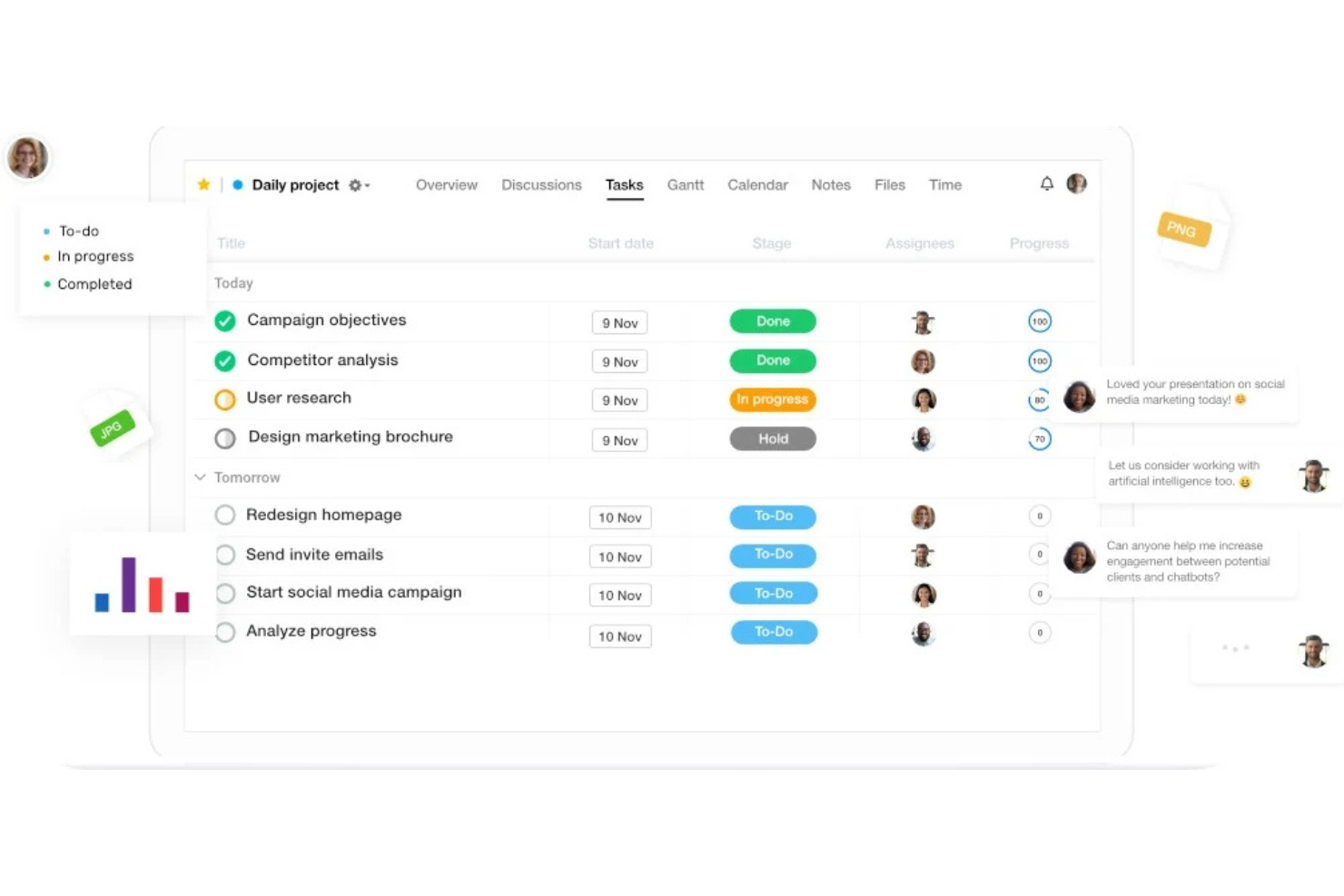
ProofHub è una piattaforma di gestione dei progetti e collaborazione di team che include strumenti di revisione online e annotazione dei file, rendendola particolarmente adatta ai team creativi che devono gestire revisioni e approvazioni di progetti grafici insieme ai flussi di lavoro.
Per chi è ideale ProofHub?
ProofHub è ideale per team creativi e di marketing che necessitano di una piattaforma unica per gestire progetti, collaborare sui file e gestire le revisioni delle grafiche.
Perché ho scelto ProofHub
Ho incluso ProofHub tra le mie scelte principali perché è uno dei pochi strumenti che collega direttamente il feedback sul design all'esecuzione del progetto. Quando il mio team esamina un file grafico, possiamo annotarlo con strumenti di markup, risolvere i commenti in linea e poi convertire immediatamente quel feedback in attività tracciate, senza cambiare piattaforma. Mi piace anche la funzione di versionamento dei file, che consente di caricare più iterazioni dello stesso asset e condividere versioni specifiche con determinati revisori, evitando che i feedback si confondano tra diverse bozze.
Funzionalità principali di ProofHub
- Discussioni strutturate: Crea argomenti di discussione dedicati collegati a progetti o file specifici, mantenendo le conversazioni sul feedback grafico organizzate per contesto.
- Ruoli e permessi personalizzati: Assegna diversi livelli di accesso a membri del team, clienti e revisori affinché solo le persone giuste possano visualizzare, commentare o approvare i materiali grafici.
- Flussi di approvazione: Imposta passaggi formali di approvazione per i file grafici, così che i materiali seguano un processo di revisione e approvazione definito prima di essere contrassegnati come completi.
- Monitoraggio del tempo: Registra il tempo direttamente sulle attività e sui progetti per tenere traccia delle ore spese su revisioni grafiche e lavori creativi.
Pros and Cons
Pros:
- Lo strumento di revisione integrato accelera i cicli di feedback
- Il prezzo fisso lo rende accessibile a team numerosi
- Offre una vasta gamma di strumenti per la gestione dei progetti
Cons:
- L'interfaccia potrebbe sembrare un po' datata rispetto ai concorrenti
- Opzioni di personalizzazione limitate
- Manca una chat integrata per la messaggistica istantanea

Adobe XD
Ideale per prototipazione e design dell'esperienza utente

Adobe XD è uno strumento di design UI/UX basato su vettori che combina wireframing, prototipazione e condivisione delle specifiche di design con funzionalità di commento integrate e co-editing per revisioni collaborative del design.
Per chi è ideale Adobe XD?
Adobe XD è particolarmente indicato per designer UI/UX e team di prodotto che già lavorano nell’ecosistema Adobe e hanno bisogno di un flusso di lavoro integrato dalla progettazione al prototipo.
Perché ho scelto Adobe XD
Ho incluso Adobe XD tra le mie scelte principali perché le sue funzionalità di prototipazione e feedback sono disponibili nello stesso ambiente in cui vengono creati i design. Mi piace il fatto che puoi condividere un link al prototipo live con le parti interessate, che possono quindi lasciare commenti direttamente su schermate specifiche senza bisogno di un account. Inoltre, la funzione Auto-Animate rende semplice creare transizioni realistiche tra artboard, così il feedback si basa su un’esperienza che rispecchia fedelmente il prodotto finale.
Caratteristiche principali di Adobe XD
- Pannello specifiche di design: Consente a sviluppatori e revisori di ispezionare proprietà CSS, misurazioni e asset direttamente dai file di design condivisi senza necessità di accesso in modifica.
- Co-editing in tempo reale: Più membri del team possono lavorare nello stesso documento XD contemporaneamente, rendendo possibili revisioni di design dal vivo senza conflitti di versione.
- Notifiche @mention: Permette di taggare collaboratori specifici nei commenti per indirizzare il feedback e inviare avvisi email che li riportano alla revisione.
- Stati dei componenti: Definisci stati interattivi (hover, predefinito, attivo) all’interno di componenti riutilizzabili in modo che i revisori possano interagire e valutare il comportamento in tutto il sistema di design.
Pros and Cons
Pros:
- Set completo di strumenti per design e prototipazione
- Integrazione fluida con l’ecosistema Adobe e piattaforme esterne
- Collaborazione in tempo reale con il co-editing
Cons:
- Capacità limitate per animazioni complesse rispetto ad altri strumenti specializzati
- Può essere esigente in termini di risorse e rallentare le macchine meno potenti
- Curva di apprendimento per i nuovi utenti non familiari con i prodotti Adobe

Sketch
Ideale per editing vettoriale e progettazione di interfacce
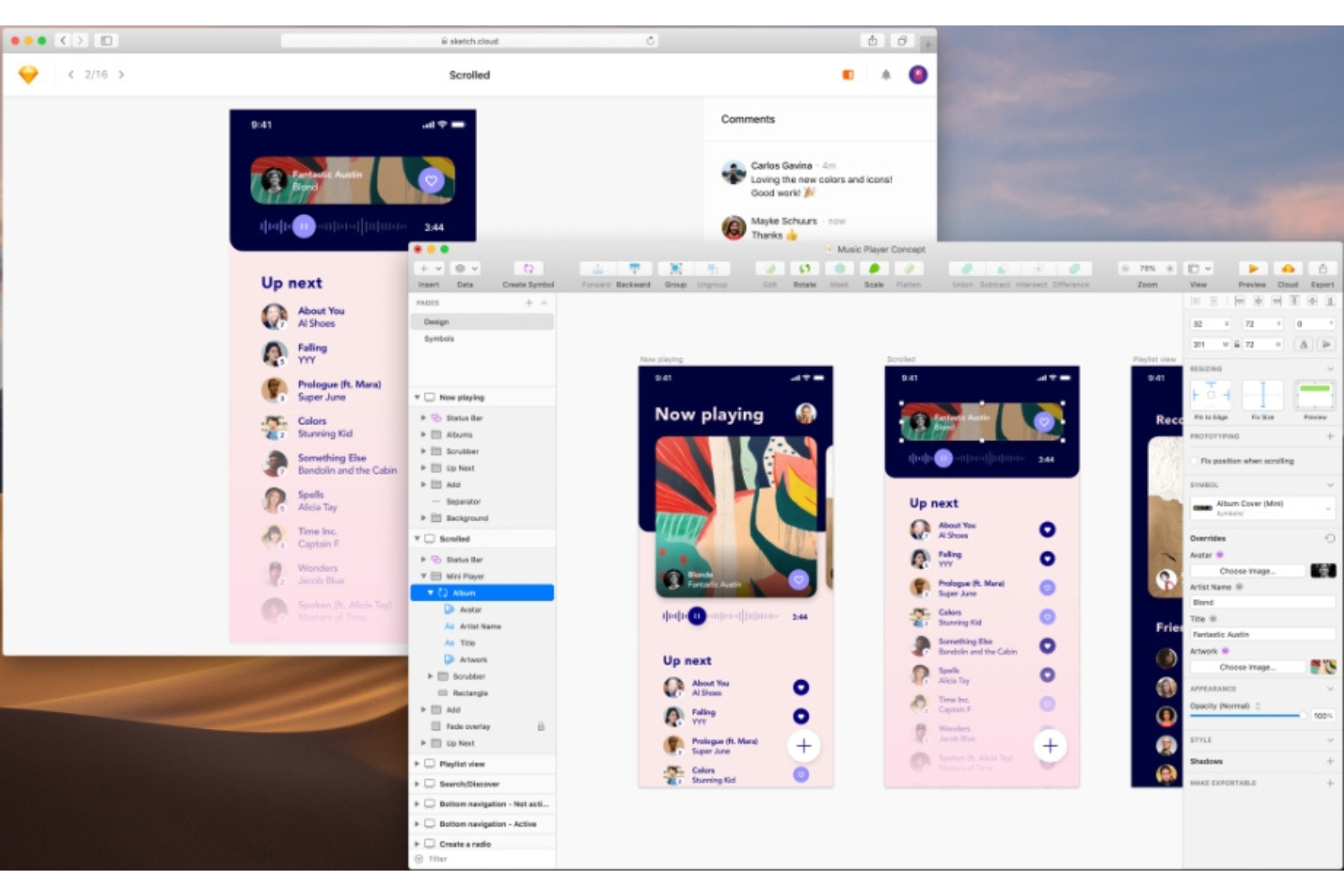
Sketch è uno strumento di progettazione vettoriale e prototipazione basato su macOS, con funzionalità di collaborazione integrate, tra cui commenti bloccati, feedback a thread, anteprime condivisibili e strumenti gratuiti per lo sviluppo per la revisione del design.
Per chi è Sketch?
Sketch è particolarmente adatto a designer UI/UX e team di design di prodotto che lavorano principalmente su macOS e hanno bisogno di uno spazio unificato per progettazione interfacce, prototipazione e revisione del design.
Perché ho scelto Sketch
Sketch è una delle mie scelte preferite perché amo quanto strettamente il suo ambiente di modifica vettoriale sia connesso al ciclo di feedback. Quando lavoro su progetti di interfacce, posso condividere un link di Anteprima direttamente da una tavola vettoriale, e i collaboratori possono inserire commenti precisi su elementi esatti senza bisogno di un account Sketch. Il sistema dei Simboli rende il feedback ancora più preciso: i revisori non commentano su singole forme, ma su componenti riutilizzabili che riflettono decisioni progettuali reali su tutto il file.
Funzionalità principali di Sketch
- Cronologia delle versioni: Sfoglia la cronologia completa di un documento e ripristina qualsiasi salvataggio precedente direttamente dall'app Mac.
- Prototipazione interattiva: Collega le tavole per creare prototipi cliccabili e visualizzabili dal browser che i revisori possono navigare senza account Sketch.
- Handoff sviluppatore: Gli sviluppatori possono ispezionare i design, copiare CSS ed esportare asset da qualsiasi browser gratuitamente grazie al visualizzatore libero di Sketch.
- Risoluzione dei commenti: Contrassegna i singoli commenti come risolti per tenere traccia di quali feedback sono stati gestiti in un'Anteprima condivisa.
Pros and Cons
Pros:
- Strumenti di editing vettoriale di alta qualità
- Set di funzionalità robuste per la progettazione di interfacce
- Ampia gamma di integrazioni con altri strumenti e plugin di design
Cons:
- Disponibile solo su macOS, il che ne limita l’accessibilità
- Curva di apprendimento elevata per i principianti a causa delle numerose funzionalità
- La dipendenza dai plugin per alcune funzionalità può complicare il flusso di lavoro

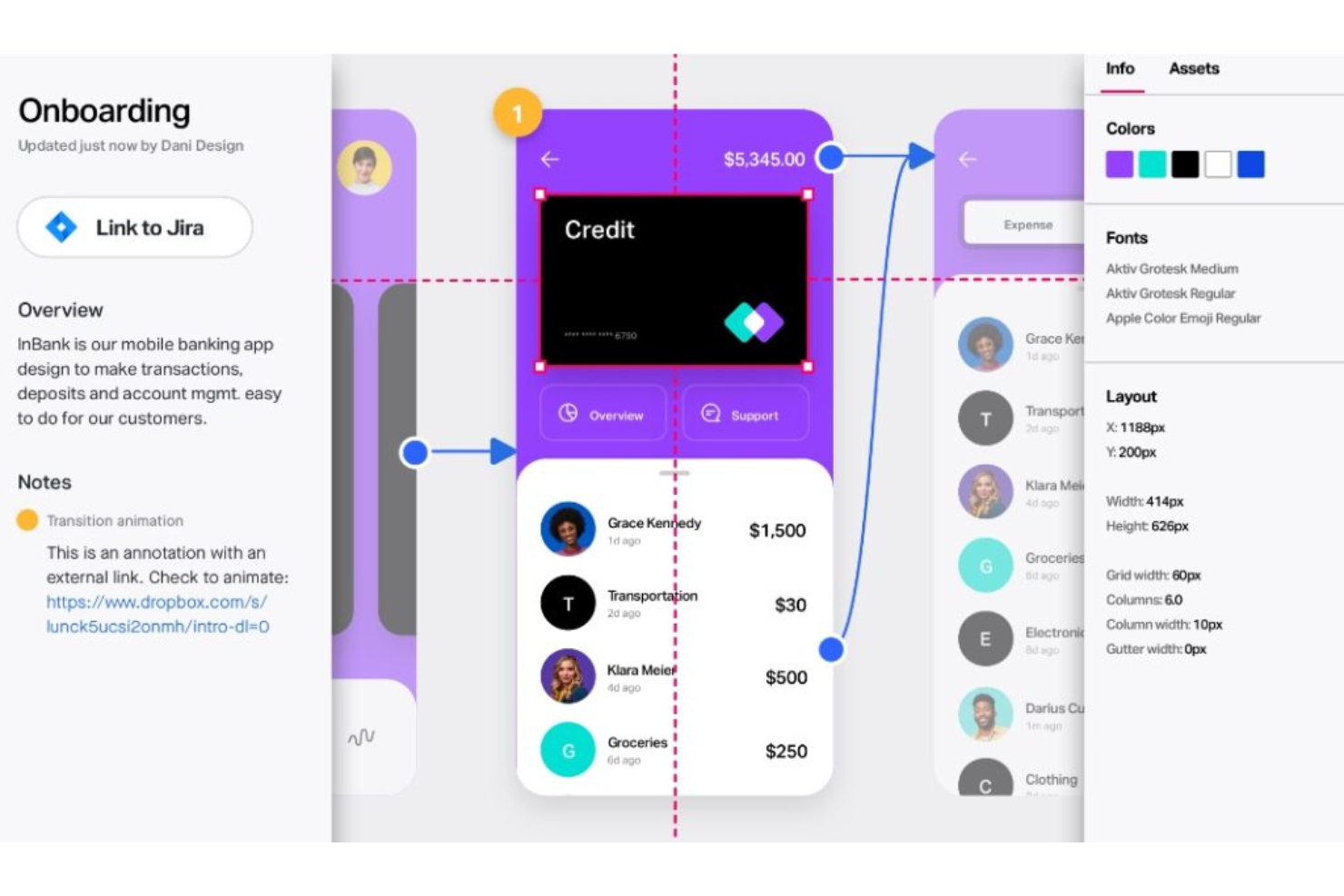
InVisionApp è una piattaforma per la prototipazione di design e la raccolta di feedback dove i team possono creare mockup interattivi, raccogliere commenti a livello di schermo dagli stakeholder e gestire le revisioni di design in un unico posto.
Per chi è meglio InVisionApp?
InVisionApp è adatto a designer di prodotto e team UX che devono condividere prototipi interattivi con gli stakeholder e raccogliere feedback strutturati sul design.
Perché ho scelto InVisionApp
InVisionApp merita il suo posto tra i migliori nella mia shortlist per come collega la prototipazione interattiva direttamente al ciclo di feedback. Mi piace che i revisori possano cliccare su un prototipo funzionante e lasciare commenti fissati su specifici schermi o stati d’interazione, eliminando molta dell’incertezza nelle fasi di feedback. La modalità presentazione consente inoltre al mio team di guidare gli stakeholder attraverso un flusso cliccabile senza condividere i file di design grezzi, mantenendo la revisione focalizzata.
Funzionalità chiave di InVisionApp
- Storico delle versioni: Traccia le modifiche nelle iterazioni di design e consente di rivisitare versioni precedenti di un prototipo in qualsiasi fase del processo di revisione.
- Modalità Inspect: Permette agli sviluppatori di estrarre CSS, misurazioni e risorse direttamente da una schermata di design senza dover accedere al file di design originale.
- LiveShare: Consente la co-navigazione in tempo reale di un prototipo, così più revisori possono esplorare insieme le schermate durante una sessione di feedback dal vivo.
- Feed attività: Mostra un registro continuo di commenti, cambi di stato e azioni dei revisori su tutte le schermate di un progetto.
Pros and Cons
Pros:
- Funzionalità avanzate di prototipazione interattiva
- Solide funzionalità collaborative per il lavoro di design in gruppo
- Integrazione con le principali piattaforme di design e collaborazione del team
Cons:
- L’interfaccia può essere complessa per i nuovi utenti
- Nessun piano gratuito disponibile
- Alcune funzionalità avanzate sono disponibili solo per i piani di prezzo più alti
Altri strumenti per il feedback sul design
Di seguito è riportato un elenco di ulteriori strumenti per il feedback sul design che ho selezionato, ma che non sono rientrati nella top 10. Vale sicuramente la pena provarli.
- Diigo
Ideale per la ricerca web e la gestione della conoscenza
- Atarim
Ideale per la gestione di progetti di web design
- Overflow
Ideale per storyboard visivi e diagrammi dei flussi utente
- StreamWork
Ideale per flussi di lavoro di approvazione


Come valuto gli strumenti di feedback per il design
Valuto gli strumenti di feedback per il design su due livelli: le funzionalità di base che permettono a un mockup di passare dalla revisione all'approvazione, e i fattori che differenziano uno strumento dall'altro rendendolo più adatto alle diverse esigenze.
Funzionalità principali (requisiti minimi per questa lista)
Quando seleziono gli strumenti per la mia lista, valuto ciascuno su una scala da 0 (non offre la funzionalità) a 5 (eccelle in quest'area) per ciascuna delle funzionalità principali elencate qui sotto. Successivamente, calcolo il punteggio totale dello strumento e lo converto in percentuale. Ogni strumento deve ottenere un punteggio totale minimo del 65% per essere incluso.
- Annotazioni visive sui design: Cerco strumenti che consentano commenti "pin-drop" e strumenti di markup che permettono ai revisori di indicare un bottone, un'icona o un problema di layout specifico invece di descriverlo in un messaggio a parte.
- Compatibilità con i file di design: Lo strumento deve supportare importazioni o integrazioni da piattaforme come Figma, Sketch o Adobe XD, così che i team possano revisionare i file dove lavorano abitualmente.
- Commenti annidati: Le conversazioni di feedback hanno bisogno di thread, @menzioni e tracciamento delle risoluzioni, così che un project manager possa seguire una questione sul contrasto dei colori senza che si perda tra decine di commenti.
- Confronto di versioni tra iterazioni: Verifico se i revisori possono confrontare una sezione hero aggiornata fianco a fianco con la versione precedente, mantenendo la cronologia dei feedback su tutte le versioni.
- Gestione del flusso di revisione: Sono importanti le fasi di approvazione, gli assegnatari e le etichette di stato. Un responsabile del design deve poter vedere a colpo d'occhio quali schermate sono approvate e quali necessitano ancora di revisioni.
- Condivisione con collaboratori e accesso ospite: Condividere un link a un prototipo con un cliente o un dirigente che non ha una licenza a pagamento è una situazione frequente. Valuto come ogni strumento gestisce l'accesso e i permessi di revisori esterni.
Una volta trovata la lista di strumenti che soddisfano questi criteri, considero ciò che distingue ciascuna piattaforma.
Fattori differenzianti (cosa distingue i fornitori)
Ecco come confronto e metto a confronto i vari fornitori:
Funzionalità distintive
Gli strumenti per il passaggio di consegne agli sviluppatori rappresentano un grande fattore differenziante. Se un revisore può trasformare un commento di feedback in un ticket Jira o Linear con allegati gli specifiche di design, si evita l'inserimento manuale. Cerco anche la possibilità di annotare siti web live, che permette ai team di revisionare ambienti di staging o pagine online anziché solo screenshot statici. Anche video e registrazione dello schermo sono funzionalità da tenere in considerazione: un project manager può registrare una spiegazione che illustra perché un flusso non convince, fornendo ai designer molto più contesto rispetto a un commento scritto.
Oltre le funzionalità
Modelli di prezzo e accesso ospite variano molto in questa categoria. Verifico se stakeholder come dirigenti o clienti possono visualizzare e commentare senza bisogno di una licenza a pagamento, perché ciò influisce direttamente sull'adozione. Allo stesso modo, la profondità delle integrazioni è importante. Uno strumento che sincronizza i feedback con Jira, Asana o Slack si integra nei flussi di lavoro già esistenti invece di creare nuovi compartimenti stagni. Valuto inoltre quanto bene ogni piattaforma si adatti a progetti e workspace multipli, soprattutto per team che gestiscono diversi prodotti con cicli di revisione differenti attivi contemporaneamente.
Domande frequenti
Quali sono i vantaggi dell'utilizzo di uno strumento per il feedback sul design?
L’utilizzo di uno strumento per il feedback sul design può migliorare notevolmente la produttività e l’efficienza del processo di progettazione. Ecco cinque vantaggi principali:
\u003cul\u003e
\t\u003cli\u003e\u003cstrong\u003eCollaborazione migliorata:\u003c/strong\u003e Questi strumenti consentono a designer, sviluppatori e parti interessate di collaborare in tempo reale, rendendo il processo di progettazione più efficiente.\u003c/li\u003e
\t\u003cli\u003e\u003cstrong\u003eComunicazione chiara:\u003c/strong\u003e Offrono una piattaforma unificata in cui è possibile fornire feedback direttamente sui design, eliminando i malintesi e migliorando la chiarezza della comunicazione.\u003c/li\u003e
\t\u003cli\u003e\u003cstrong\u003eFlusso di lavoro ottimizzato:\u003c/strong\u003e Questi strumenti spesso includono funzionalità di gestione dei progetti, aiutandoti a monitorare i progressi e a gestire le attività in modo efficace.\u003c/li\u003e
\t\u003cli\u003e\u003cstrong\u003ePrototipazione interattiva:\u003c/strong\u003e Molti strumenti per il feedback sul design offrono funzionalità di prototipazione, consentendo di creare modelli interattivi del design per scopi di test e dimostrazione.\u003c/li\u003e
\t\u003cli\u003e\u003cstrong\u003eConsegna semplificata:\u003c/strong\u003e Possono generare automaticamente specifiche e risorse di design in un formato facile da utilizzare per gli sviluppatori, semplificando il passaggio dalla progettazione allo sviluppo.\u003c/li\u003e
\u003c/ul\u003e
Quanto costano gli strumenti per il feedback sul design?
Il prezzo degli strumenti per il feedback sul design varia notevolmente a seconda delle funzionalità, delle dimensioni del team e delle esigenze specifiche.
Quali sono i modelli di prezzo tipici degli strumenti per il feedback sul design?
Gli strumenti per il feedback sul design seguono generalmente un modello di prezzo basato sull’abbonamento. Ciò significa che si paga una tariffa regolare (mensile o annuale) per accedere allo strumento. Alcuni offrono un modello di prezzo a livelli, in cui il costo aumenta in base al numero di funzionalità o utenti.
Qual è la fascia di prezzo tipica degli strumenti per il feedback sul design?
I prezzi possono variare da gratuiti per gli strumenti molto basilari o quelli che offrono un livello gratuito limitato, fino a diverse centinaia di dollari al mese per le soluzioni di livello aziendale. Per i team di piccole e medie dimensioni, è possibile aspettarsi di pagare da $20 a $100 per utente al mese.
Quali sono gli strumenti per il feedback sul design più economici e più costosi?
Tra gli strumenti inclusi in questo elenco, UserGuiding e Conceptboard offrono alcuni dei piani dal prezzo più basso, a partire da circa $20/utente/mese. Nella fascia più alta, strumenti come UserZoom e UserTesting possono costare diverse centinaia di dollari al mese, a seconda del pacchetto e del numero di utenti.
Esistono strumenti gratuiti per il feedback sul design?
Sì, alcuni strumenti come InVision e Framer offrono piani gratuiti, ma spesso sono piuttosto limitati in termini di funzionalità e numero di utenti. Questi piani gratuiti possono essere un buon punto di partenza per singoli utenti o piccoli team con budget limitati. Tuttavia, con la crescita del team e l’aumento della complessità delle esigenze, potrebbe essere necessario prendere in considerazione un piano a pagamento.
Altre recensioni di software per il feedback
- Software per il feedback degli utenti
- Software per il feedback sui prodotti
- Strumenti di progettazione
Riepilogo
In sintesi, lo strumento di feedback sul design più adatto a te dipenderà in larga misura dalle tue esigenze specifiche, dalle dimensioni del team e dal budget. Dal monitoraggio dei problemi visivi di progettazione con BugHerd, alla revisione e all'approvazione online con PageProof, fino alla prototipazione interattiva con InVision, esiste una miriade di strumenti disponibili, ciascuno con le proprie caratteristiche distintive e i propri modelli di prezzo.
Punti chiave
- Definisci le tue esigenze: comprendere le esigenze specifiche e i processi di lavoro del tuo team è fondamentale per scegliere lo strumento giusto. Valuta quali funzionalità principali, caratteristiche chiave e aspetti di usabilità siano importanti per il tuo processo di progettazione.
- Considera i prezzi: i modelli di prezzo degli strumenti di feedback sul design possono variare significativamente. Nel valutare il tuo budget, ricorda di cercare uno strumento che offra un buon rapporto qualità-prezzo in termini di caratteristiche e funzionalità.
- Prova e scegli: la maggior parte degli strumenti offre periodi di prova gratuiti o versioni gratuite. Può essere utile provarne alcuni prima di prendere una decisione definitiva. In questo modo puoi valutare la compatibilità dello strumento con il tuo flusso di lavoro e la facilità di integrazione per il tuo team.
Cosa ne pensi?
Trovare lo strumento giusto per il feedback sul design è fondamentale per gestire e migliorare il processo di progettazione. Tutto dipende dalla comprensione dei tuoi requisiti, dalla valutazione del rapporto costi-benefici e dalla verifica approfondita delle opzioni prima di effettuare una scelta.
Ora sono curioso di conoscere la tua opinione. Hai esperienza con uno strumento di feedback sul design che non ho incluso in questa guida? Com'è stata la tua esperienza? Mi piacerebbe conoscere il tuo punto di vista, quindi sentiti libero di condividere i tuoi consigli nella sezione dei commenti qui sotto. La tua esperienza potrebbe aiutare qualcun altro a trovare lo strumento perfetto per le proprie esigenze.