

Questa guida analizza i principali strumenti di collaborazione UX: piattaforme software progettate per aiutare responsabili di prodotto, designer e squadre interfunzionali a lavorare insieme in modo più efficiente, comunicare chiaramente le decisioni e mantenere una visione condivisa del progetto.
Se sei qui, è probabile che tu stia riscontrando difficoltà nel tuo processo attuale: incomprensioni, stanchezza dovuta agli strumenti o semplicemente troppe attività in corso. Ti capisco. Ho testato questi strumenti direttamente per aiutarti a evitare tentativi ed errori.
In questa guida troverai analisi dettagliate sull'usabilità, sulle funzionalità di collaborazione e sulle prestazioni nel mondo reale, così potrai scegliere lo strumento che fa risparmiare tempo, riduce il lavoro da rifare e aiuta la tua squadra a concentrarsi sulla creazione di ottimi prodotti.
Perché fidarsi dei nostri consigli sui software
6,700+
Reviews
20
Industry experts
16+
Evaluation factors
14
Years
Il nostro team testa e recensisce software dal 2012. In quanto product manager noi stessi, sappiamo quanto sia difficile — e importante — scegliere il software giusto.
Per questa guida, abbiamo valutato gli strumenti attraverso test pratici e ricerche indipendenti, assegnando un punteggio agli strumenti in base ai nostri criteri di selezione.
Le nostre recensioni riflettono il nostro giudizio editoriale umano, non un discorso di vendita.
Revisori esperti:
- Andrew LumbySenior TPM
- Cristiano ValimSenior UI/UX Lead


Tabella di confronto degli strumenti di collaborazione UX
Confronta nella tabella qui sotto i dettagli sui prezzi delle mie migliori selezioni di strumenti di collaborazione UX.
| Tool | Best For | Trial Info | Price | ||
|---|---|---|---|---|---|
| 1 | Ideale per bacheche collaborative | Piano gratuito disponibile | Da $10/mese (con fatturazione annuale) | Website | |
| 2 | Ideale per la pianificazione dell'interfaccia utente con persone non esperte di progettazione | Piano gratuito disponibile | A partire da $9/utente/mese (fatturato annualmente) | Website | |
| 3 | Ideale per sistemi di progettazione basati sul codice | Piano gratuito + prova gratuita di 14 giorni disponibile | A partire da $29/utente/mese (fatturati annualmente) | Website | |
| 4 | Ideale per prototipi senza codice e basati sui dati | Piano gratuito disponibile | A partire da $19/utente/mese | Website | |
| 5 | Ideale per prototipi con logica condizionale senza codice | Piano gratuito disponibile | A partire da $29/utente/mese (con fatturazione annuale) | Website | |
| 6 | Ideale per la collaborazione e il feedback sulla progettazione | Piano gratuito disponibile | A partire da $16/utente/mese | Website | |
| 7 | Ideale per i non progettisti che creano bozze UX con l'intelligenza artificiale | Piano gratuito disponibile | A partire da $14/utente/mese | Website | |
| 8 | Ideale per la progettazione open source e il passaggio allo sviluppo | Piano gratuito disponibile | A partire da $7/utente/mese | Website | |
| 9 | Ideale per team di progettazione nativi per macOS | Prova gratuita di 30 giorni | Da $12/editor/mese (fatturato annualmente) | Website | |
| 10 | Ideale per il trasferimento agli sviluppatori di prototipi guidati dalla logica | Piano gratuito disponibile | Da $25/seat/month (fatturato annualmente) | Website |


Recensioni dei migliori strumenti di collaborazione UX
Di seguito trovi le mie sintesi dettagliate dei migliori strumenti di collaborazione UX inclusi nel mio elenco. Le mie recensioni offrono uno sguardo approfondito sulle funzionalità principali, sui pro e contro, sulle integrazioni e sui casi d’uso ideali di ogni strumento, per aiutarti a trovare quello più adatto a te.
 Ideale per bacheche collaborative
- Piano gratuito disponibile
- Da $10/mese (con fatturazione annuale)
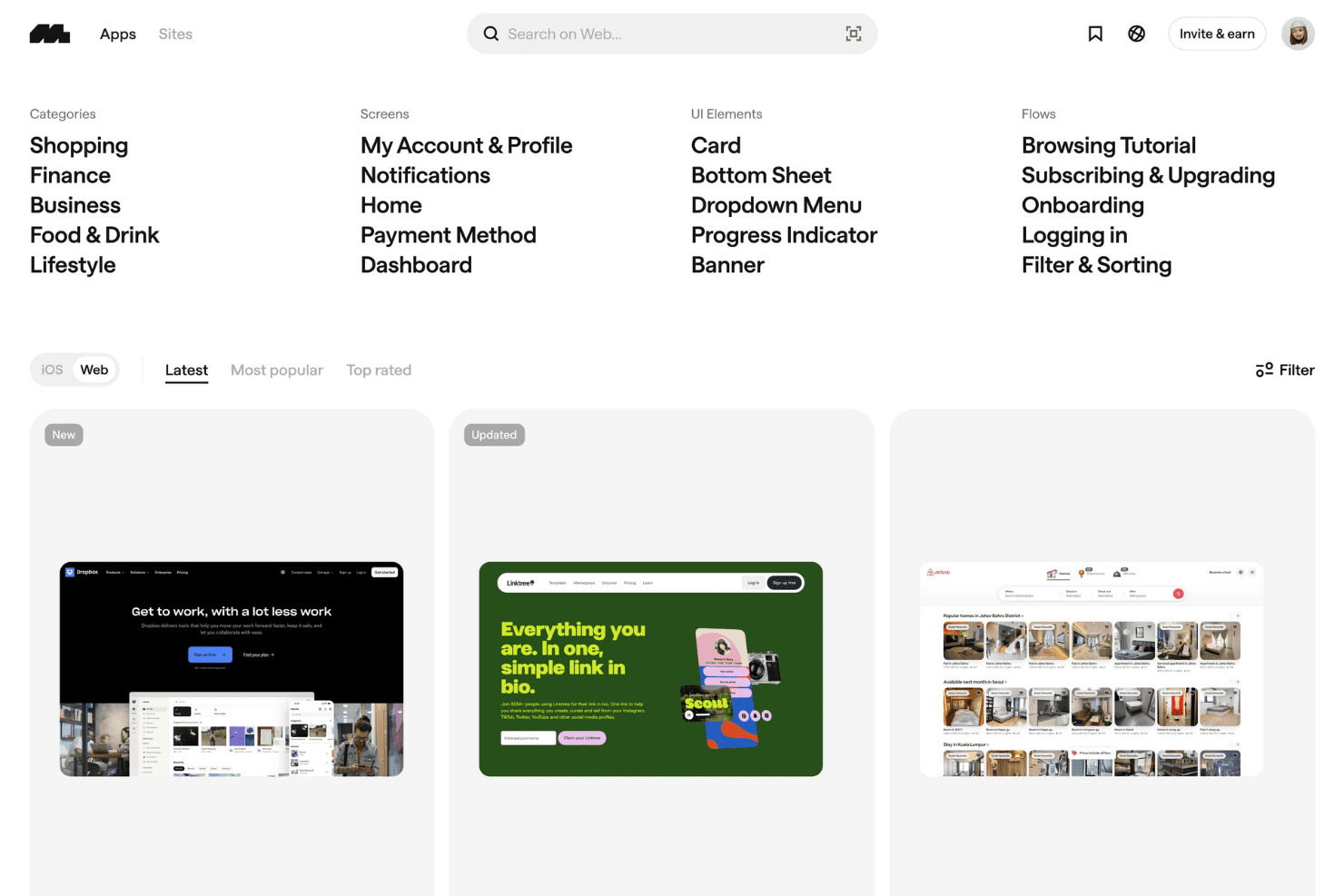
Mobbin presenta esempi di interfacce utente web categorizzati, dai pannelli di controllo ai flussi di attivazione iniziale, aiutando i progettisti a esplorare e confrontare in modo efficiente modelli di interfaccia reali. Mobbin è una libreria di riferimenti di progettazione che offre ai gruppi accesso a una raccolta curata di schermate reali di app, flussi utente e pagine di marketing, organizzati in bacheche condivise per la ricerca collaborativa e l'ispirazione per l'interfaccia utente.
Per chi è più adatto Mobbin?
Mobbin è adatto ai gruppi UX e di prodotto che dedicano molto tempo alla ricerca competitiva e all'ispirazione per l'interfaccia utente e desiderano uno spazio condiviso in cui salvare e discutere riferimenti tratti da app reali.
Perché ho scelto Mobbin
Ho incluso Mobbin tra le mie migliori scelte perché le sue raccolte condivise lo rendono lo strumento di riferimento per i gruppi che svolgono regolarmente ricerche sull'interfaccia utente e desiderano un unico luogo in cui salvare, organizzare e discutere insieme riferimenti tratti da app reali. Mi piace il fatto che sia possibile acquisire interi flussi utente, non solo singole schermate, così il gruppo può commentare in contesto un'intera sequenza di attivazione iniziale o un percorso di pagamento. I commenti pubblici e le menzioni sulle schermate salvate mantengono la conversazione direttamente collegata al riferimento, riducendo le discussioni disperse su Slack durante le prime fasi dell'esplorazione progettuale.
Funzionalità principali di Mobbin
- Ricerca approfondita basata sull'AI: Cerca tra oltre 600.000 schermate reali di app utilizzando il linguaggio naturale, con risultati classificati in base alla recenza e filtrabili per schermate animate o testo presente nelle schermate.
- Acquisizione e riproduzione dei flussi: Esplora flussi utente completi e composti da più schermate, tratti da app reali, facendo clic su ogni passaggio o guardando le microinterazioni come brevi registrazioni video.
- Componente aggiuntivo di esportazione per Figma e FigJam: Copia schermate selezionate o interi flussi direttamente in Figma o FigJam in blocco utilizzando il componente aggiuntivo della comunità di Mobbin.
- Report sull'attività del gruppo: Gli amministratori possono vedere quando ogni membro del gruppo è stato attivo l'ultima volta e scaricare report completi sull'attività del gruppo per monitorare il coinvolgimento nell'area di lavoro.
Integrazioni di Mobbin
Mobbin offre un componente aggiuntivo della comunità di Figma per copiare schermate e flussi in Figma e FigJam. I piani Team ed Enterprise includono l'accesso all'API, mentre i piani Pro e Team supportano le connessioni MCP con Claude, Cursor, v0 e client personalizzati.
Pros and Cons
Pros:
- Le bacheche condivise centralizzano le discussioni sui riferimenti
- I flussi utente completi rivelano i modelli di interazione
- Ampia libreria per la ricerca competitiva
Cons:
- Nessuna tela di modifica per i progetti del gruppo
- Nessun generatore di prototipi o specifiche per il passaggio in consegna
Learn more about Mobbin: Ideale per la pianificazione dell'interfaccia utente con persone non esperte di progettazione
- Piano gratuito disponibile
- A partire da $9/utente/mese (fatturato annualmente)
Visit WebsiteCustomer Rating:4.3/5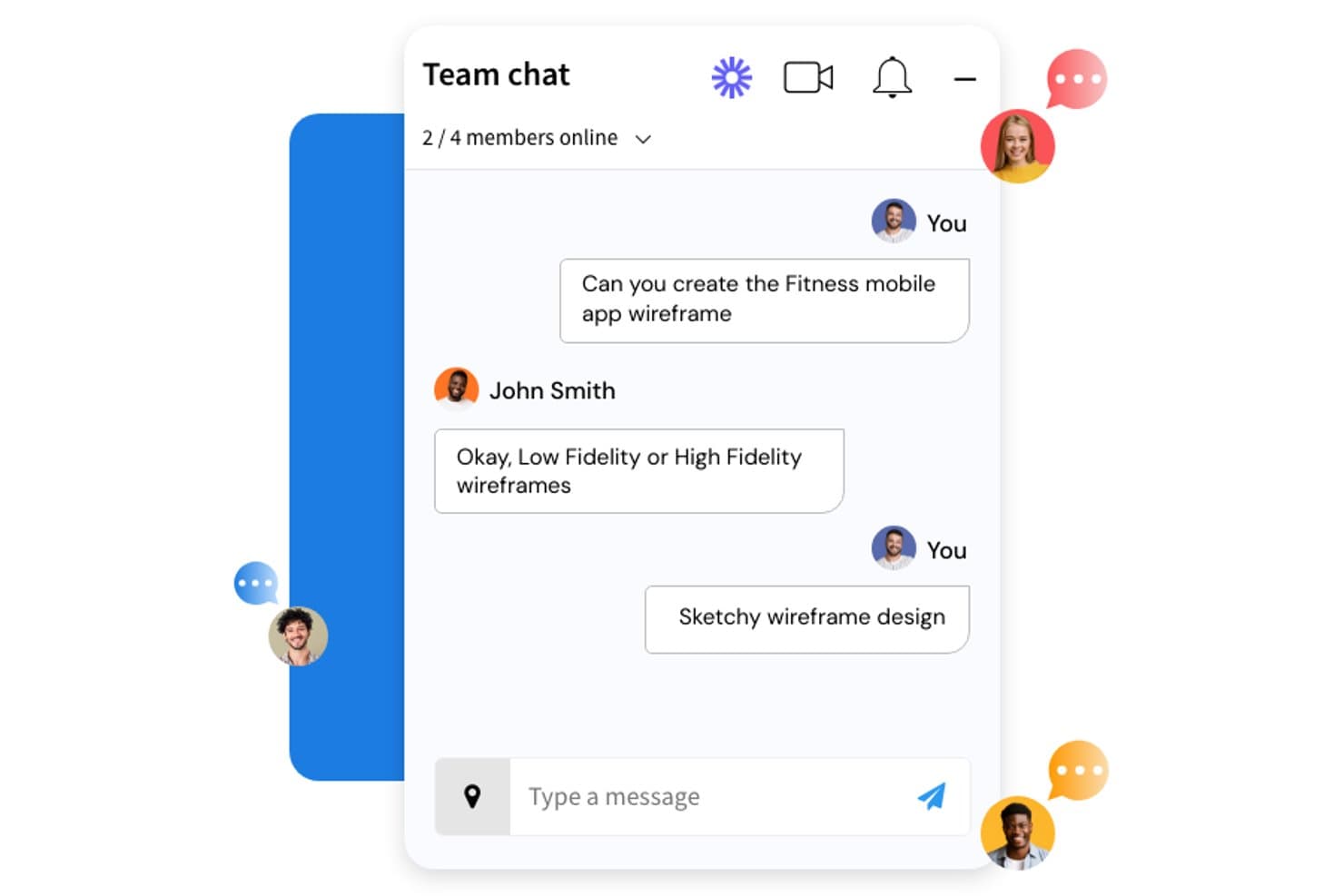
MockFlow consente ai gruppi di discutere in tempo reale delle attività relative alle bozze dell'interfaccia tramite la messaggistica integrata. MockFlow è una piattaforma per la creazione di bozze dell'interfaccia e la collaborazione visiva basata su browser, che combina la creazione di bozze dell'interfaccia utente, la prototipazione leggera, la generazione di progetti assistita dall'IA e strumenti di ideazione in stile lavagna in un unico spazio di lavoro.
Per chi è più adatto MockFlow?
MockFlow è particolarmente adatto a responsabili di prodotto e fondatori che devono trasformare le idee in piani strutturati per l'interfaccia utente senza affidarsi a un progettista dedicato.
Perché ho scelto MockFlow
Ho scelto MockFlow come una delle soluzioni migliori perché è stato progettato tenendo conto del fatto che la maggior parte della creazione di bozze dell'interfaccia avviene prima che un progettista entri in gioco. Il suo generatore di bozze dell'interfaccia basato sull'IA consente a un responsabile di prodotto di descrivere una schermata in linguaggio naturale e ottenere immediatamente un'impaginazione strutturata con più schermate. Abbinando questa funzione ai Suggerimenti di progettazione, che permettono ai revisori di proporre modifiche direttamente sulla bozza dell'interfaccia e ai responsabili di applicarle con un solo clic, si ottiene un ciclo di riscontri che non richiede a nessuno di aprire Figma.
Caratteristiche principali di MockFlow
- Commenti intelligenti: Le discussioni organizzate in conversazioni consentono ai revisori di lasciare riscontri contestuali direttamente sulle bozze dell'interfaccia, con uno stato 'risolto' per tenere traccia degli aspetti già gestiti.
- Modifica collaborativa in tempo reale: Più membri del gruppo possono modificare contemporaneamente le bozze dell'interfaccia, usando cursori in tempo reale e un sistema di messaggistica integrato per conversazioni, note vocali e videochiamate.
- Strumenti di raccolta di idee IdeaBoard: Uno spazio in stile lavagna con mappe mentali, sondaggi in tempo reale, votazioni e timer, progettato per sessioni di ideazione strutturate con gruppi distribuiti.
- Guida di stile in modalità Specifiche: Genera automaticamente una guida di stile dai colori, dai caratteri e dagli elementi grafici della bozza dell'interfaccia, esportabile come variabili CSS, token di progettazione JSON o configurazione Tailwind.
Integrazioni di MockFlow
MockFlow supporta oltre 20 connettori per app aziendali, tra cui Slack, Jira, Notion, GitHub, Linear, Microsoft Teams, Google Drive, Trello e HubSpot. Si integra inoltre con Figma, Confluence, Google Meet e Microsoft 365 per la collaborazione alla progettazione.
Pros and Cons
Pros:
- La creazione di bozze dell'interfaccia assistita dall'IA aiuta le persone non esperte di progettazione a contribuire
- La modifica collaborativa in tempo reale supporta la pianificazione interfunzionale
- I Suggerimenti di progettazione accorciano i cicli di riscontri
Cons:
- La prototipazione non include variabili e logica condizionale
- I pacchetti di componenti condivisi non supportano la sincronizzazione tra progetti
Learn more about MockFlow: Ideale per sistemi di progettazione basati sul codice
- Piano gratuito + prova gratuita di 14 giorni disponibile
- A partire da $29/utente/mese (fatturati annualmente)
Visit WebsiteCustomer Rating:4.2/5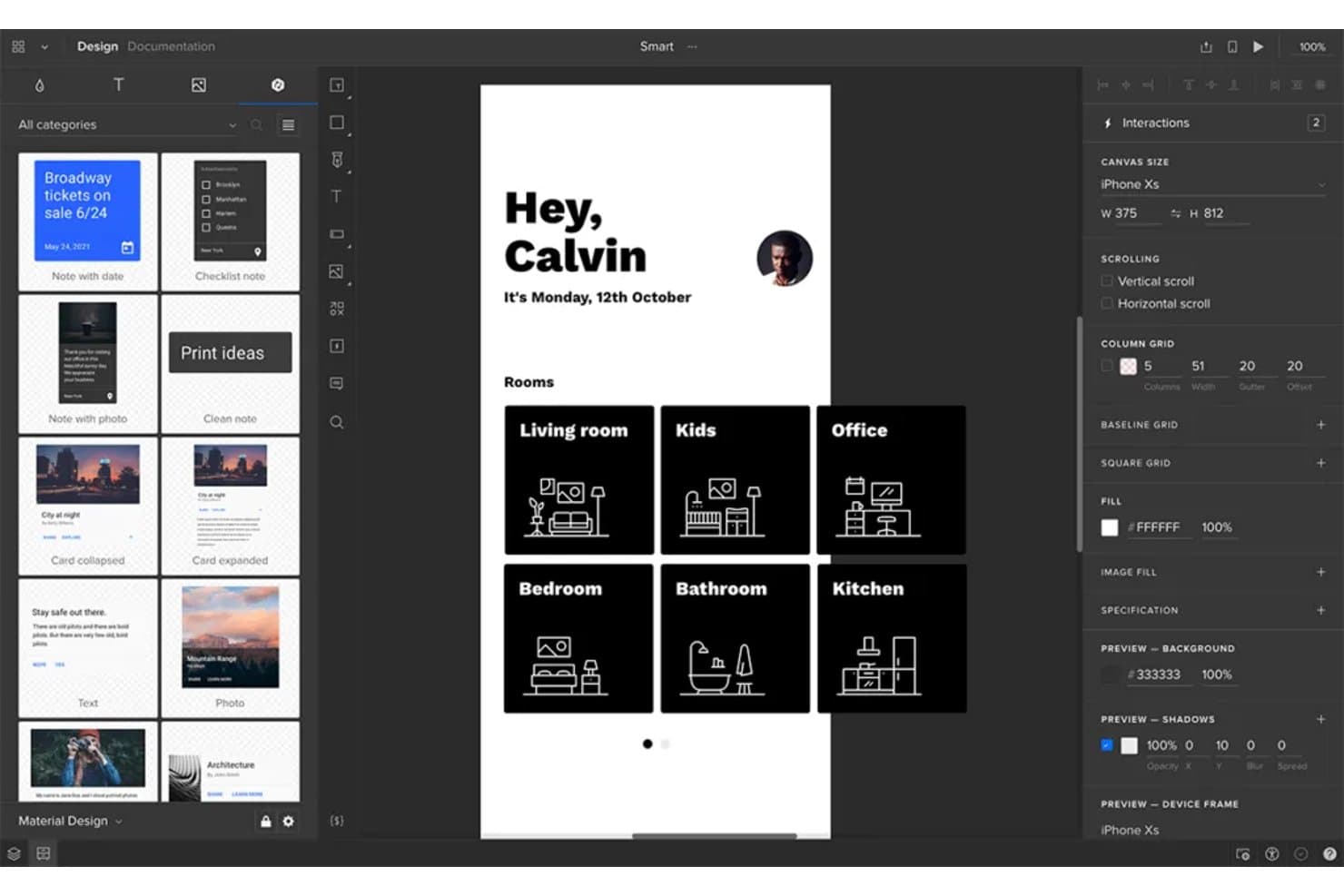
UXPin consente agli utenti di creare prototipi e progettare insieme interfacce per app mobili. UXPin è una piattaforma di progettazione UX e prototipazione che combina modifica collaborativa in tempo reale, prototipazione interattiva ad alta fedeltà, librerie di sistemi di progettazione condivise e passaggio integrato agli sviluppatori tramite la tecnologia Merge basata sul codice.
Per chi è più adatto UXPin?
UXPin è particolarmente adatto ai team di progettazione che gestiscono una libreria di componenti condivisa e hanno bisogno che i loro prototipi riflettano codice pronto per la produzione.
Perché ho scelto UXPin
UXPin è entrato nella mia selezione ristretta grazie a Merge, la sua tecnologia per i sistemi di progettazione basata sul codice, che consente ai designer di creare prototipi con componenti React reali invece di imitazioni statiche. Quando il team sincronizza una libreria di componenti tramite Storybook o Git, ogni prototipo riflette automaticamente il comportamento in produzione: ciò che gli stakeholder approvano è ciò che gli sviluppatori costruiscono effettivamente. Apprezzo anche il fatto che la modalità integrata Ottieni codice aggiorni automaticamente le specifiche non appena cambia un progetto, fornendo agli sviluppatori CSS e JSX accurati senza un passaggio separato per la consegna.
Funzionalità principali di UXPin
- Flusso di lavoro per le approvazioni: Invia agli stakeholder un link di anteprima privato per richiedere formalmente approvazioni o rifiuti, senza che debbano avere un account UXPin.
- Commenti e annotazioni: Aggiungi commenti organizzati in discussioni a elementi specifici della tela, assegnali ai membri del team e contrassegnali come risolti direttamente nell'editor o nell'anteprima.
- Indicatori di presenza in tempo reale: Visualizza gli avatar dei membri del team nella barra superiore e controlla quale pagina o elemento ogni persona sta modificando attivamente.
- Integrazione con Jira: Allega schede del prototipo alle attività di Jira Cloud, offrendo agli sviluppatori accesso diretto alle anteprime, ai commenti e alla modalità delle specifiche direttamente dal loro flusso di lavoro esistente.
Integrazioni di UXPin
UXPin offre integrazioni documentate con Storybook, npm, GitHub, Bitbucket, Jira Cloud, Slack, FullStory, StackBlitz, CodeSandbox e Figma. L'integrazione con Git richiede il piano Enterprise, mentre Storybook, Jira e FullStory richiedono il piano Growth o superiore.
Pros and Cons
Pros:
- I componenti di produzione riducono la divergenza tra progettazione e codice
- La logica condizionale supporta comportamenti realistici del prodotto
- I flussi di lavoro per le approvazioni semplificano il feedback degli stakeholder
Cons:
- Il blocco degli elementi limita la modifica simultanea
- L'esportazione completa del codice è ancora limitata alla versione beta
Learn more about UXPin: Ideale per prototipi senza codice e basati sui dati
- Piano gratuito disponibile
- A partire da $19/utente/mese
Visit WebsiteCustomer Rating:4.2/5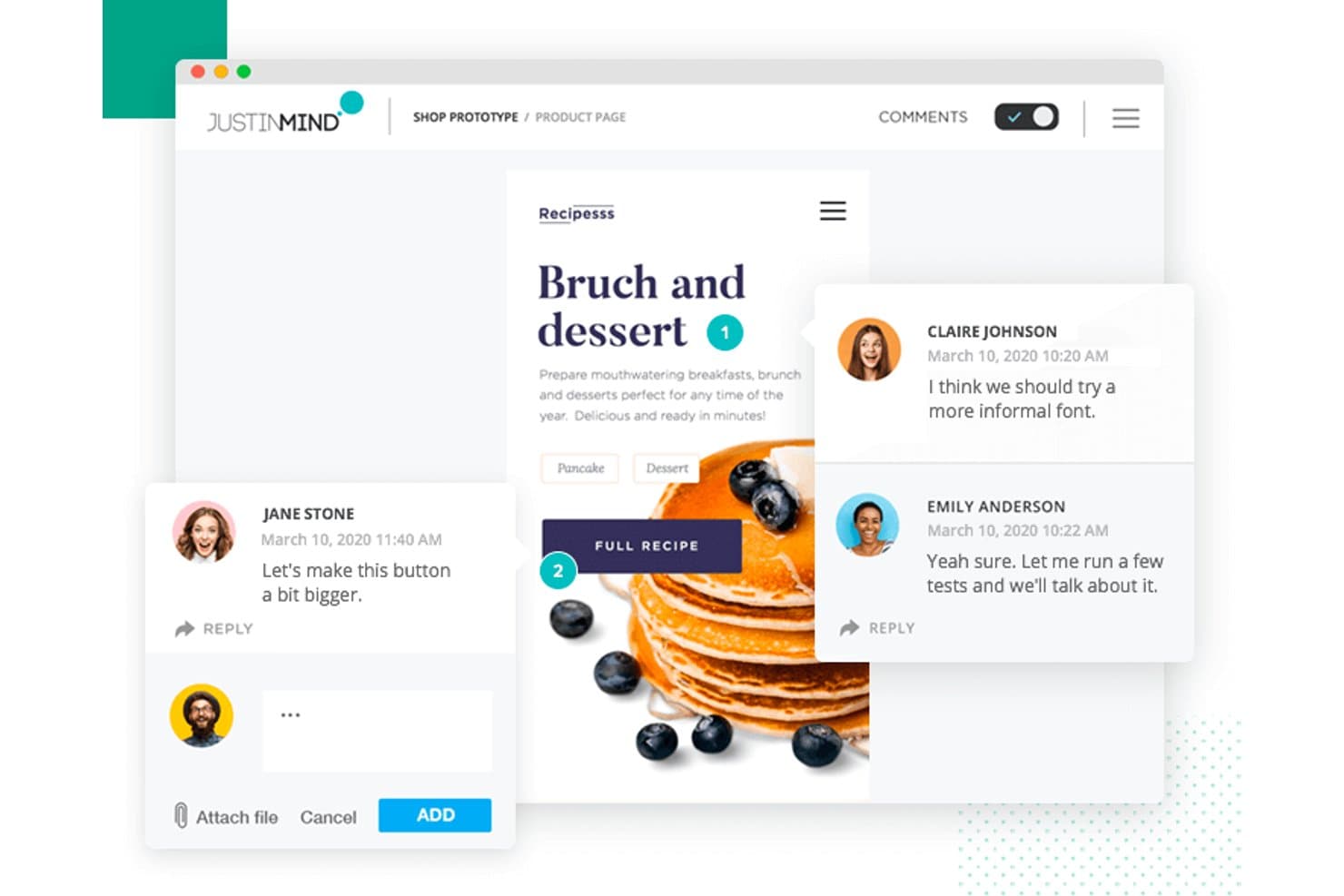
Justinmind consente agli utenti di lasciare commenti contestuali direttamente sui prototipi. Justinmind è uno strumento desktop per la prototipazione su Windows e macOS che combina progettazione dell'interazione, logica condizionale, simulazione basata sui dati e revisione collaborativa per prototipi web, iOS e Android.
Per chi è più adatto Justinmind?
Justinmind è particolarmente adatto a UX designer e analisti aziendali che devono creare prototipi funzionali e basati sui dati senza scrivere una sola riga di codice.
Perché ho scelto Justinmind
Ho scelto Justinmind come uno dei migliori perché nessun altro strumento di questo elenco è paragonabile alla sua profondità nella creazione di prototipi funzionali e basati sui dati senza scrivere codice. Sono particolarmente colpito dalla sua funzionalità Master dei dati, che consente di importare un file CSV per popolare griglie di dati e moduli realistici direttamente nel prototipo. Abbinandola a condizioni e variabili, è possibile simulare la logica aziendale reale, come le regole di convalida e gli stati dinamici delle schermate, molto prima che uno sviluppatore scriva una sola riga.
Funzionalità principali di Justinmind
- Co-modifica basata sul blocco: Più editor possono lavorare contemporaneamente allo stesso progetto cloud, mentre ogni elemento attivo viene bloccato automaticamente per impedire modifiche in conflitto.
- Commenti a livello di componente: I revisori possono aggiungere commenti direttamente a componenti specifici dell'interfaccia, filtrare per autore o data e rispondere nelle conversazioni per fornire feedback mirati.
- Pannello per il passaggio alla fase di sviluppo: Gli utenti con accesso in sola visualizzazione possono accedere a un pannello dedicato che mostra stili CSS, misure, spaziature, colori esadecimali e risorse scaricabili senza dover disporre di un accesso come editor.
- Librerie UI condivise: I team possono creare e sincronizzare librerie di widget condivise nell'account, con accesso a oltre 4.000 componenti predefiniti di iOS 18, Material Design 3 e Bootstrap.
Integrazioni di Justinmind
Justinmind offre integrazioni con Figma, Sketch, Adobe XD, Jira, Azure DevOps e Confluence, oltre a un'API e un SDK per integrazioni personalizzate. Vertex? No.
Pros and Cons
Pros:
- I prototipi basati sui dati modellano flussi di lavoro realistici
- Le condizioni e le variabili simulano la logica aziendale
- Il feedback a livello di componente favorisce revisioni mirate
Cons:
- La modifica basata sul blocco limita la collaborazione simultanea
- Per recuperare una versione è necessario creare copie del progetto
Learn more about Justinmind: Ideale per prototipi con logica condizionale senza codice
- Piano gratuito disponibile
- A partire da $29/utente/mese (con fatturazione annuale)
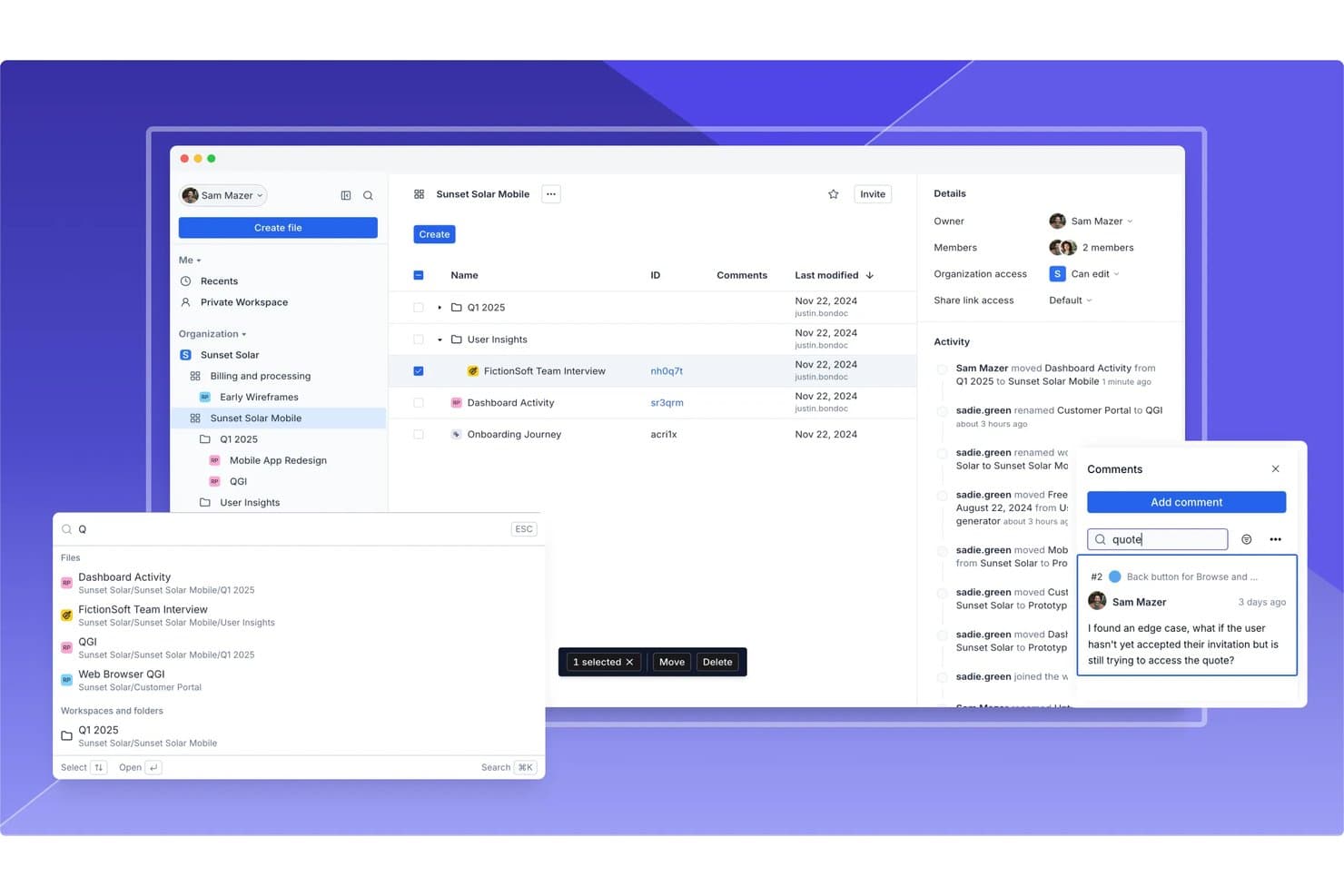
Axure RP supporta la collaborazione tra team con commenti, registri delle attività e condivisione dei file. Axure RP è uno strumento desktop per la creazione di wireframe e prototipi che consente ai team UX di creare mockup interattivi utilizzando logica condizionale, variabili, pannelli dinamici e viste adattive, senza scrivere codice.
Per chi è più adatto Axure RP?
Axure RP è particolarmente adatto ai designer UX e ai team di prodotto che hanno bisogno di prototipare interazioni complesse basate sulla logica senza scrivere una sola riga di codice.
Perché ho scelto Axure RP
Axure RP è nella mia lista ristretta perché nessun altro strumento che ho usato eguaglia la sua profondità nella logica condizionale senza codice per la prototipazione. Posso creare tabelle di dati filtrabili utilizzando il widget ripetitore, collegare variabili globali per gestire i cambiamenti di stato tra le schermate e aggiungere una logica condizionale che rispecchia realmente il comportamento di un prodotto reale. Quando gli stakeholder esaminano un prototipo che reagisce come il prodotto in produzione, il feedback diventa più preciso e diminuisce l'attrito nel passaggio allo sviluppo.
Funzionalità principali di Axure RP
- Modalità di ispezione: Consente agli sviluppatori di visualizzare annotazioni di dettaglio, misure degli spazi, tipografia, colori di riempimento e CSS copiabile direttamente da un link condiviso di Axure Cloud.
- Widget ripetitore: Mostra tabelle ed elenchi basati sui dati che gli stakeholder possono ordinare e filtrare all'interno del prototipo senza alcun codice.
- Commenti in Axure Cloud: Gli stakeholder lasciano commenti direttamente sullo schermo, all'interno di wireframe e prototipi, ricevendo notifiche via e-mail, Slack o Microsoft Teams.
- Integrazione con Jira e Confluence: I prototipi completamente interattivi vengono incorporati direttamente nei ticket di Jira e nelle pagine di Confluence per consentire la revisione contestuale da parte degli sviluppatori e dei responsabili di prodotto.
Integrazioni di Axure RP
Axure RP offre integrazioni native con Jira, Confluence, Slack, Microsoft Teams, Figma, Sketch e Adobe XD. Si collega inoltre a Claude Code, VS Code e Cursor tramite un server MCP alfa.
Pros and Cons
Pros:
- Crea prototipi realistici basati sulla logica senza codice
- Simula moduli, filtri e stati adattivi
- Fornisce specifiche dettagliate per il passaggio allo sviluppo
Cons:
- Impedisce la modifica simultanea dei file RP
- Gli aggiornamenti dei componenti condivisi richiedono un coordinamento aggiuntivo
Learn more about Axure RP : Ideale per la collaborazione e il feedback sulla progettazione
- Piano gratuito disponibile
- A partire da $16/utente/mese
Visit WebsiteCustomer Rating:4.7/5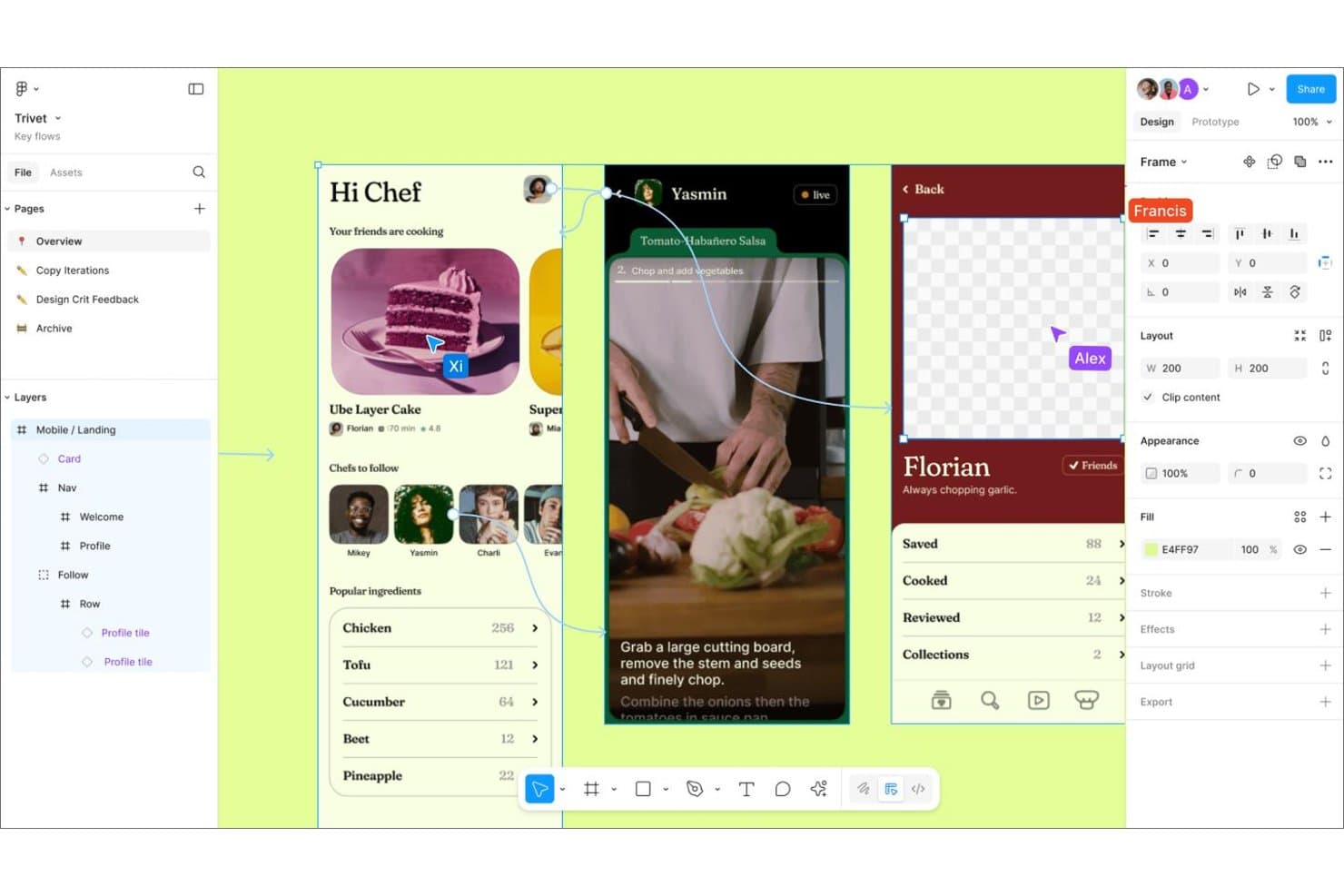
Figma consente a più collaboratori di lavorare e commentare contemporaneamente sui progetti. Figma è una piattaforma di collaborazione per la progettazione basata su browser che combina modifica multiutente in tempo reale, prototipazione interattiva, lavagne virtuali e passaggio di consegne agli sviluppatori in un'unica tela.
Per chi è più adatto Figma?
Figma è adatto ai team di prodotto interfunzionali in cui designer, PM e ingegneri devono collaborare sugli stessi file senza dover gestire strumenti separati per la prototipazione, il feedback e il passaggio di consegne.
Perché ho scelto Figma
Figma si è guadagnato un posto nella mia rosa di preferiti perché nessun altro strumento è all'altezza della sua profondità nella collaborazione e nella raccolta di feedback sulla progettazione in un'unica tela. Adoro il modo in cui i commenti vengono fissati direttamente su elementi specifici della tela, con risposte in thread e notifiche Slack in tempo reale, così gli stakeholder possono reagire a un prototipo senza mai toccare il file di progettazione. Anche la funzione Spotlight di Figma si distingue: posso condividere la mia visualizzazione esatta durante una sessione di revisione e tutti seguono dal vivo il mio cursore, lo zoom e i cambi di pagina.
Funzionalità principali di Figma
- Spotlight: Condividi la visualizzazione esatta della tua tela con i collaboratori, così tutti seguono il tuo cursore, il livello di zoom e i cambi di pagina in tempo reale.
- Modalità sviluppatore: Offre agli sviluppatori un pannello di ispezione dedicato con esportazione del codice in CSS, iOS e Android, oltre al monitoraggio dello stato 'Pronto per lo sviluppo' e all'integrazione con Storybook.
- FigJam: Uno strumento di lavagna virtuale integrato con votazioni, audio, timbri e sessioni aperte per il brainstorming e l'ideazione distribuiti.
- Ramificazione e unione: Crea copie isolate dei file per lavorare in parallelo sulla progettazione, quindi confronta, esamina e unisci le modifiche al file principale.
Integrazioni di Figma
Figma offre integrazioni con Jira Software, Slack, GitHub, Storybook, VS Code e Asana. Fornisce inoltre API REST e strumenti di incorporamento, oltre al server MCP di Figma per connettere gli strumenti di programmazione basati sull'intelligenza artificiale.
Pros and Cons
Pros:
- La collaborazione sulla tela in tempo reale riduce i conflitti tra versioni
- Il feedback fissato mantiene contestuali le discussioni sui prototipi
- I prototipi avanzati modellano flussi di prodotto condizionali
Cons:
- I file di grandi dimensioni possono rallentare il lavoro collaborativo
- I commenti sui rami restano separati dai file principali
 Ideale per i non progettisti che creano bozze UX con l'intelligenza artificiale
- Piano gratuito disponibile
- A partire da $14/utente/mese
Visit WebsiteCustomer Rating:4.8/5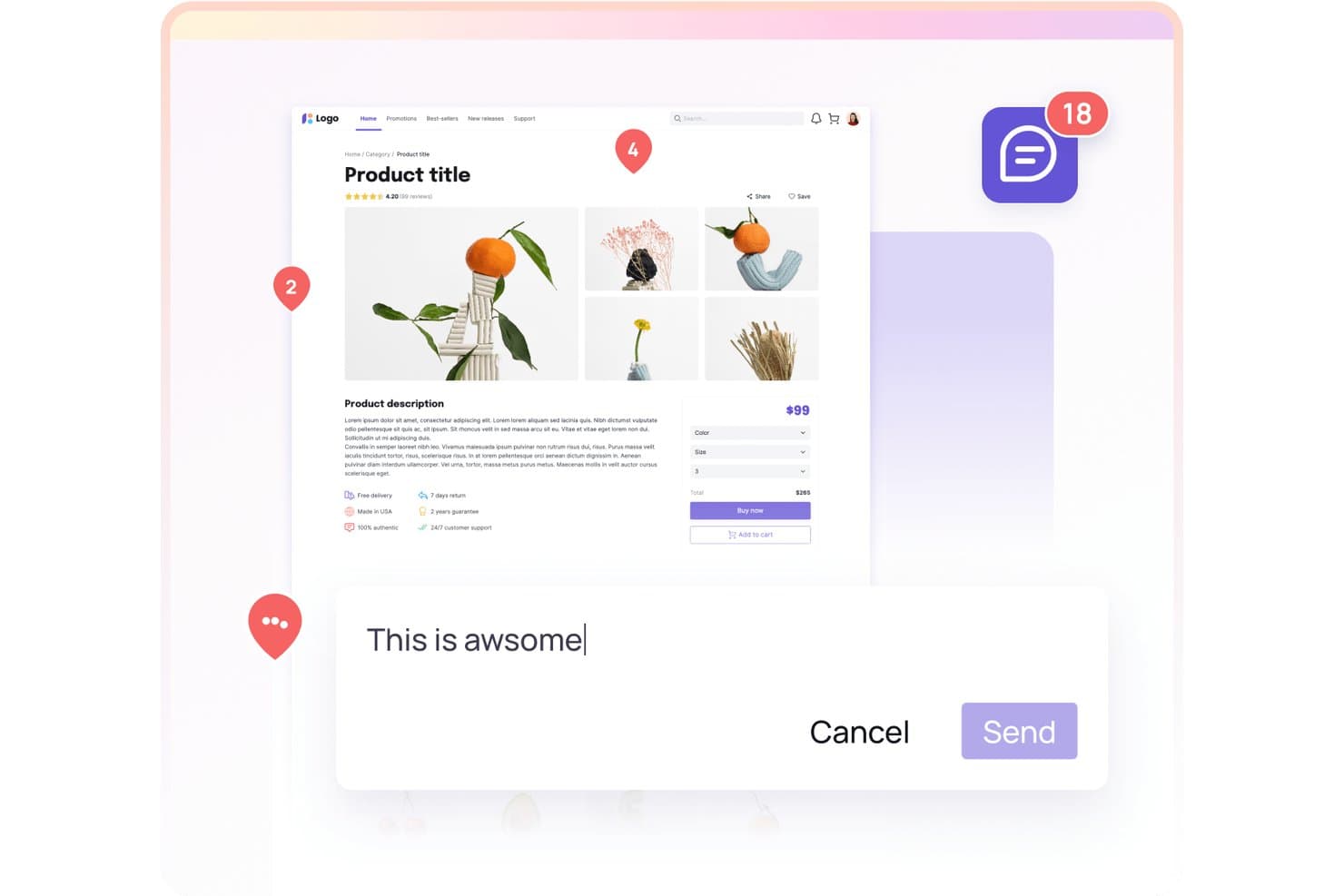
Visily consente agli utenti di collaborare con commenti direttamente sui progetti dei prodotti. Visily è un'area di lavoro di progettazione basata sull'intelligenza artificiale per la creazione di schemi strutturali, prototipi e diagrammi, che combina strumenti di trasformazione da testo a progetto, da screenshot a progetto e di collaborazione in tempo reale in un unico spazio di lavoro.
Per chi è più indicato Visily?
Visily è particolarmente adatto ai responsabili di prodotto e ai team interfunzionali che hanno bisogno di presentare rapidamente schemi strutturali e prototipi alle parti interessate, senza dipendere da un progettista dedicato.
Perché ho scelto Visily
Ho incluso Visily tra le mie scelte principali perché è uno dei pochi strumenti di collaborazione UX progettati esplicitamente per consentire ai non progettisti di creare bozze UX reali e condivisibili senza dover utilizzare un sistema di progettazione. Le sue funzioni di trasformazione da testo a progetto e da screenshot a progetto consentono a un responsabile di prodotto di trasformare una descrizione preliminare o lo screenshot di un concorrente in uno schema strutturale modificabile in pochi minuti. Da lì, i modelli sincronizzati propagano automaticamente gli aggiornamenti su ogni bacheca, così i team interfunzionali rimangono allineati senza che un progettista debba fungere da intermediario.
Funzionalità principali di Visily
- Modalità commenti: aggiungi commenti collegati direttamente all'area di lavoro, con menzioni, reazioni emoji e notifiche Slack per mantenere tutti i riscontri in un unico posto.
- Modalità ispezione: visualizza le misure degli elementi, la spaziatura e il codice CSS o Tailwind generato automaticamente, con il download delle risorse con un solo clic per gli sviluppatori.
- Componenti intelligenti: crea elementi interattivi come menu a discesa, slider e pulsanti che si comportano in modo realistico all'interno del prototipo.
- Flussi: organizza più flussi di prototipi in un unico progetto e condividi ogni flusso separatamente con parti interessate diverse.
Integrazioni di Visily
Visily offre integrazioni native con Jira, Notion e Slack, oltre all'importazione e all'esportazione da Figma e a un componente aggiuntivo per Figma nei piani a pagamento. Il suo server MCP si connette a Claude Code, Codex, Cursor, Gemini CLI, Kiro, ChatGPT e Lovable.
Pros and Cons
Pros:
- L'intelligenza artificiale trasforma gli screenshot in schemi strutturali modificabili
- La co-progettazione in tempo reale supporta i riscontri delle parti interessate
- Il passaggio di consegne agli sviluppatori include l'esportazione di CSS e codice
Cons:
- La prototipazione non supporta variabili e logica condizionale
- La cronologia delle versioni offre conservazione e confronto limitati
Learn more about Visily: Ideale per la progettazione open source e il passaggio allo sviluppo
- Piano gratuito disponibile
- A partire da $7/utente/mese
Visit WebsiteCustomer Rating:4.5/5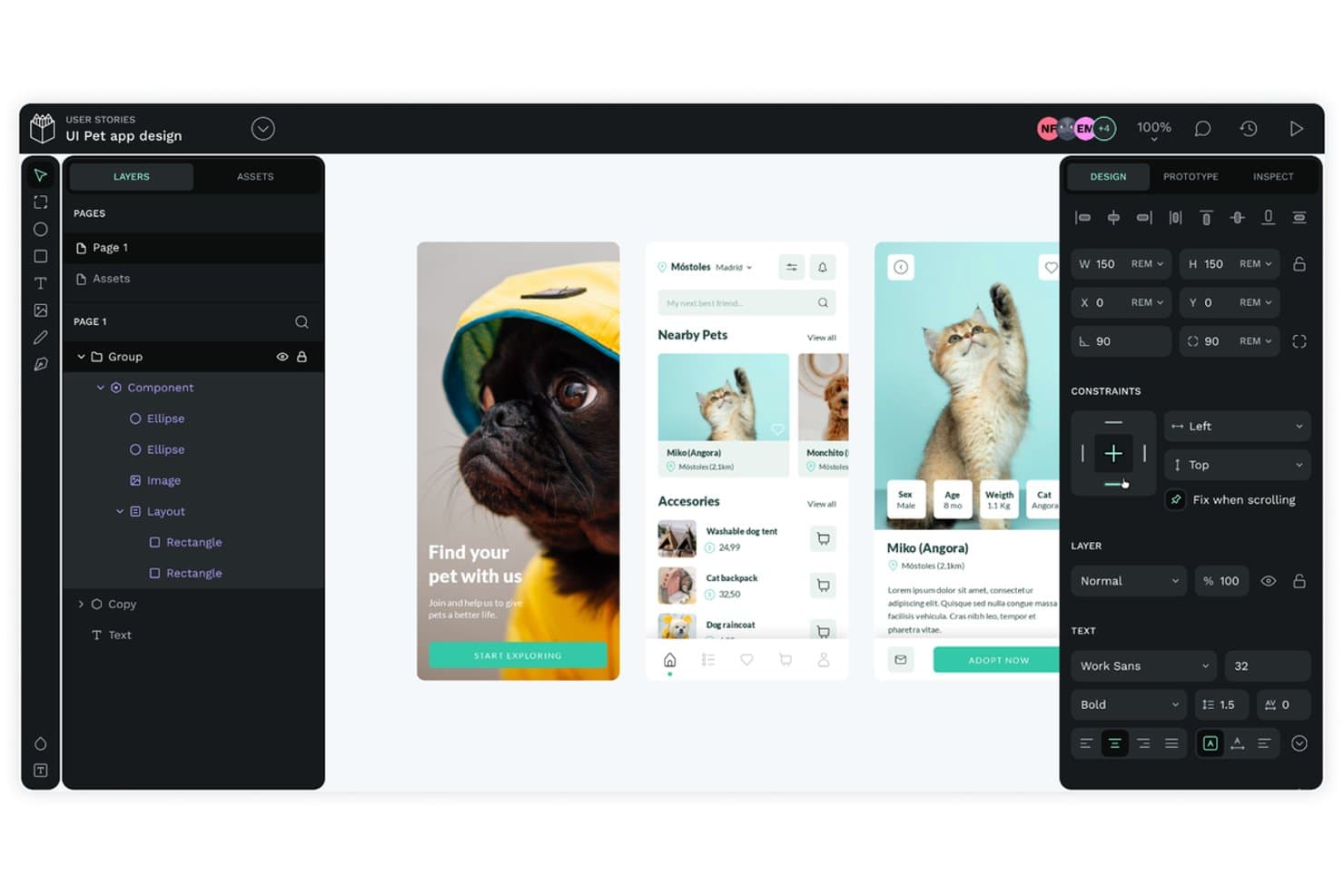
Penpot consente ai team di progettare insieme e creare in collaborazione prototipi di interfacce per app dedicate agli animali domestici. Penpot è una piattaforma open source per la progettazione UX e la collaborazione, che offre modifica multiplayer in tempo reale, prototipazione, librerie di componenti con token di progettazione nativi e una modalità di ispezione integrata per sviluppatori con generazione di codice CSS.
A chi è più adatto Penpot?
Penpot è particolarmente adatto ai team di progettazione che desiderano il pieno controllo sui propri strumenti, soprattutto quelli che operano in ambienti sensibili alla privacy o soggetti a rigorosi requisiti di conformità e che necessitano di opzioni di hosting autonomo.
Perché ho scelto Penpot
Penpot si è guadagnato un posto nella mia lista ristretta perché è l'unico strumento open source per la collaborazione UX che gestisce il passaggio dalla progettazione allo sviluppo senza vincolare il team a un ecosistema proprietario. Apprezzo in particolare il fatto che la modalità di ispezione generi CSS reale, inclusi layout flex e grid che rispecchiano il codice effettivo, così gli sviluppatori non devono tradurre le intenzioni progettuali. I token di progettazione nativi nel formato W3C DTCG consentono di esportare direttamente i set di token in JSON o CSS, pronti per l'uso in produzione.
Funzionalità principali di Penpot
- Modifica multiplayer in tempo reale: Più membri del team possono lavorare contemporaneamente sullo stesso file, con accesso basato sui ruoli ai livelli Visualizzatore, Editor, Amministratore e Proprietario.
- Librerie di componenti condivise: Pubblica qualsiasi file come libreria condivisa di componenti, colori e tipografie, a cui i file collegati del team possono accedere e con cui possono sincronizzarsi.
- Flussi di prototipazione: Configura più punti di partenza per dispositivi o percorsi utente diversi, con trigger, transizioni animate ed elementi con scorrimento fisso integrati nella modalità Visualizzazione.
- Cronologia delle versioni con attribuzione dell'autore: Le versioni salvate automaticamente e quelle fissate manualmente mostrano l'autore, la data e l'ora e un ID breve, con possibilità di ripristino e di visualizzazione in sola lettura.
Integrazioni di Penpot
Non sono documentate integrazioni native con Jira, Slack e Linear. Penpot supporta integrazioni personalizzate tramite la propria API REST e webhook, oltre a plugin tramite PenpotHub e a un server MCP per client IA compatibili.
Pros and Cons
Pros:
- Il passaggio al CSS reale rispecchia i layout di produzione
- La distribuzione open source supporta uno stretto controllo dei dati
- I revisori illimitati riducono gli ostacoli legati alle licenze per gli stakeholder
Cons:
- La logica avanzata dei prototipi rimane limitata
- I file di grandi dimensioni possono causare problemi di prestazioni
Learn more about Penpot: Ideale per team di progettazione nativi per macOS
- Prova gratuita di 30 giorni
- Da $12/editor/mese (fatturato annualmente)
Visit WebsiteCustomer Rating:4.5/5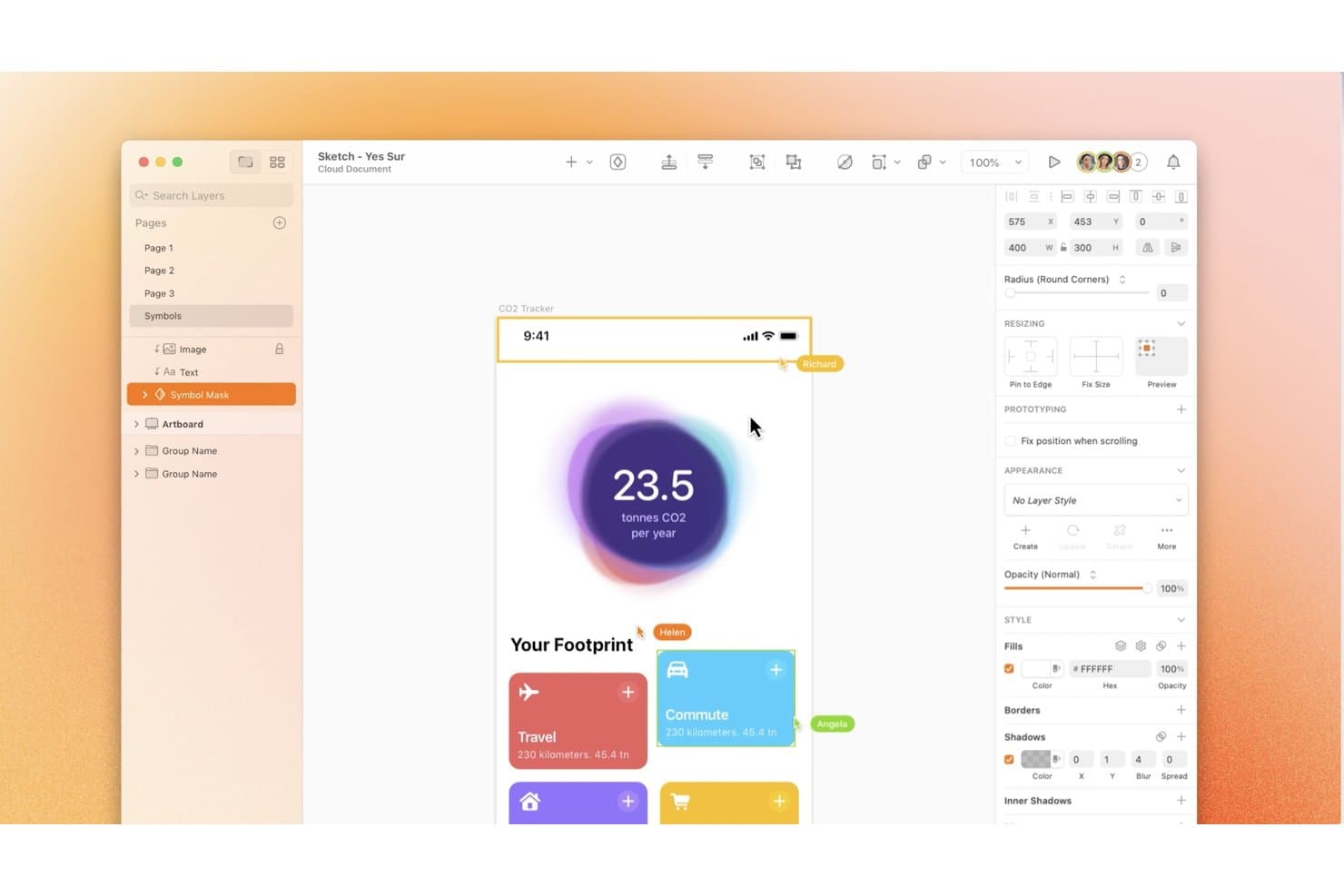
Sketch consente a più collaboratori di modificare e commentare simultaneamente i progetti. Sketch è uno strumento di progettazione nativo per macOS che combina modifica vettoriale, prototipazione, librerie condivise, co-modifica in tempo reale e passaggio di consegne agli sviluppatori basato su browser in un unico spazio di lavoro.
Per chi è più adatto Sketch?
Sketch è la scelta ideale per i team di progettazione nativi per macOS che desiderano uno strumento veloce e leggero, con una solida gestione delle librerie e un passaggio di consegne agli sviluppatori gratuito e basato su browser.
Perché ho scelto Sketch
Sketch si è guadagnato un posto nella mia selezione perché è stato progettato fin dall'inizio per macOS, e questa base nativa si nota davvero nel lavoro quotidiano di progettazione. Apprezzo particolarmente il modo in cui le librerie condivise si sincronizzano tra i documenti con rigorosi controlli di gestione, consentendo ai responsabili della progettazione di stabilire chi può aggiornare i componenti e quando, mantenendo la coerenza dei sistemi in tutto il team. Il passaggio di consegne agli sviluppatori gratuito e basato su browser, con esportazione CSS completa e token di progettazione, garantisce agli ingegneri tutto ciò di cui hanno bisogno senza dover acquistare una licenza a pagamento o utilizzare un Mac.
Funzionalità principali di Sketch
- Co-modifica in tempo reale: più designer possono modificare contemporaneamente lo stesso documento nell'app per Mac, con cursori in tempo reale e avatar dei singoli utenti visibili nella barra degli strumenti.
- Commenti ancorati alla tela: revisori e stakeholder possono lasciare commenti organizzati in discussioni con @menzioni, emoji e formattazione Markdown direttamente su qualsiasi riquadro o prototipo.
- Cronologia delle versioni con salvataggi denominati: i team possono creare manualmente versioni denominate e aggiunte ai preferiti con descrizioni, quindi ripristinare o scaricare qualsiasi versione precedente dall'app web.
- Condivisione di documenti tramite oEmbed: i documenti, i riquadri e i prototipi di Sketch possono essere incorporati interattivamente in Notion, GitHub, Jira e altre piattaforme, riflettendo sempre la versione più recente.
Integrazioni di Sketch
Sketch offre integrazioni documentate con Slack, Jira, Notion e Miro, oltre al suo Sketch MCP Server e all'API per i plugin JavaScript per flussi di lavoro personalizzati.
Pros and Cons
Pros:
- Prestazioni native veloci su Mac per i designer
- Il passaggio di consegne gratuito basato su browser aiuta gli sviluppatori a ispezionare i progetti
- Le librerie gestite mantengono coerenti i componenti tra i documenti
Cons:
- La modifica richiede un'applicazione per Mac
- I prototipi non dispongono di variabili e logica condizionale
 10Ideale per il trasferimento agli sviluppatori di prototipi guidati dalla logica
ProtoPie
- Piano gratuito disponibile
- Da $25/seat/month (fatturato annualmente)
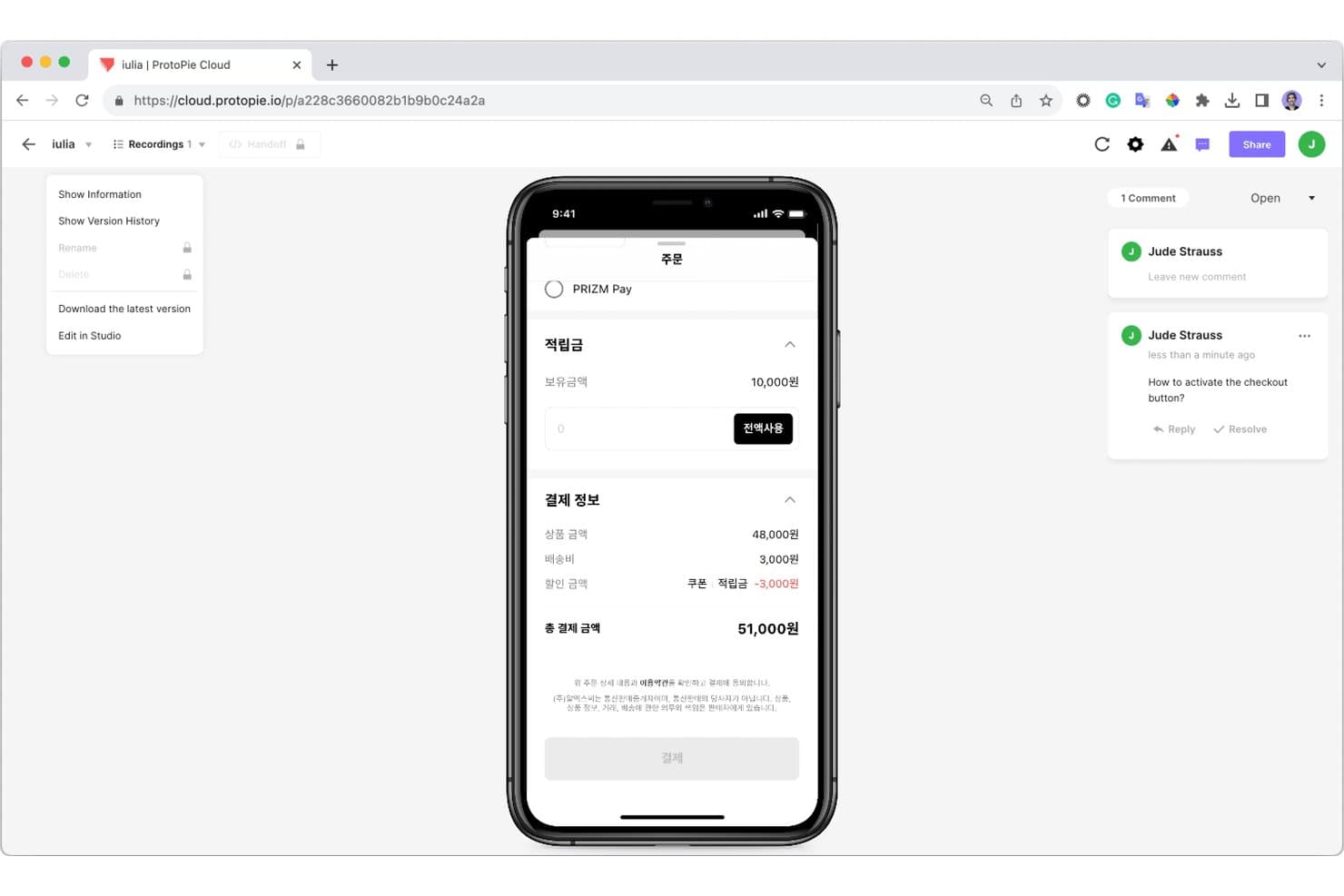
ProtoPie consente ai collaboratori di lasciare commenti direttamente sui prototipi. ProtoPie è uno strumento di prototipazione ad alta fedeltà che consente di creare modelli interattivi guidati dalla logica utilizzando variabili, condizioni e interazioni tra più dispositivi, per poi condividerli con sviluppatori e stakeholder tramite strumenti di trasferimento e ispezione basati sul cloud.
Per chi è più adatto ProtoPie?
ProtoPie è particolarmente adatto a designer UX e team di prodotto nei settori automobilistico, IoT o aziendale che hanno bisogno di prototipare e trasferire agli sviluppatori interazioni complesse e guidate dalla logica.
Perché ho scelto ProtoPie
Ho scelto ProtoPie come uno dei migliori strumenti perché il suo trasferimento per gli sviluppatori va molto più in profondità rispetto a una scheda tecnica statica. Mi piace il fatto che le registrazioni delle interazioni consentano agli sviluppatori di riprodurre ogni attivatore, risposta e modifica delle proprietà fotogramma per fotogramma, con specifiche che si aggiornano automaticamente quando il prototipo cambia. A questo si aggiungono Dev View e la versione beta di MCP, che trasferisce il modello completo delle interazioni del prototipo direttamente in strumenti come Cursor o Claude Code, consentendo agli sviluppatori di generare codice accurato senza alcun passaggio avanti e indietro.
Funzionalità principali di ProtoPie
- Prototipazione multi-dispositivo: Crea e testa contemporaneamente prototipi interattivi su telefoni, tablet, computer desktop e hardware personalizzato come cruscotti per auto o dispositivi IoT.
- ProtoPie AI: Genera logiche di interazione modificabili a partire da prompt in linguaggio naturale, rivolgendoti a livelli specifici con menzioni @ direttamente nell'editor Studio.
- Test utente integrati: Conduci sessioni di test moderate o da remoto con link protetti da OTP e ottieni log delle interazioni con indicazione temporale, punteggi delle attività e riproduzioni delle sessioni entro 60 secondi dalla fine di una sessione.
- Librerie di interazioni del team: Pubblica librerie di interazioni condivise sul cloud, così ogni prototipo creato a partire da esse si aggiorna automaticamente quando viene rilasciata una modifica.
Integrazioni di ProtoPie
ProtoPie offre componenti aggiuntivi per Figma, Sketch e Adobe XD, oltre alla connettività MCP con Claude Code, Codex, Cursor e VS Code. Il suo componente aggiuntivo Connect collega i prototipi ad API, Unity, Unreal, Arduino e hardware personalizzato.
Pros and Cons
Pros:
- I prototipi guidati dalla logica riproducono percorsi utente complessi
- Le registrazioni delle interazioni chiariscono i dettagli del trasferimento agli sviluppatori
- I test integrati acquisiscono dettagliati comportamenti delle interazioni
Cons:
- Nessuna modifica simultanea per i team di progettazione distribuiti
- Il feedback non supporta thread, menzioni né il monitoraggio della risoluzione
Learn more about ProtoPie:
Altri strumenti di collaborazione UX
Ecco alcune opzioni aggiuntive di strumenti di collaborazione UX che non sono entrate nel mio elenco, ma che vale comunque la pena valutare:
- 11FramerIdeale per prototipi di siti web pubblicati e adattivi
- 12BalsamiqIdeale per la semplicità del wireframing
- 13MarvelIdeale per trasferire gli schizzi ai prototipi in pochi minuti
- 14MiroIdeale per il brainstorming visivo e l'ideazione
- 15AnimaIdeale per il passaggio da Figma al codice con agenti IA
- 16Proto.ioIdeale per prototipi ricchi di gesti per dispositivi mobili
- 17ZeplinIdeale per le specifiche e l'approvazione del passaggio agli sviluppatori
- 18zeroheightIdeale per la documentazione dei sistemi di progettazione collegata al codice in uso
Come valuto gli strumenti di collaborazione per la UX
Divido la mia valutazione in tre parti, attribuendo il peso maggiore alle funzionalità fondamentali: modificare file collaborativamente, creare prototipi cliccabili e fissare feedback. In seguito, cerco caratteristiche distintive come l'analisi dei sistemi di progettazione. Infine, considero l'assistenza, l'onboarding, la sicurezza, la scalabilità e i prezzi.
Funzionalità fondamentali (requisiti essenziali per questo elenco)
Quando seleziono gli strumenti da inserire nel mio elenco, assegno a ciascuno un punteggio su una scala da 0 (non offre la funzionalità) a 5 (eccelle in quest'area) per ogni funzionalità fondamentale elencata di seguito. Converto quindi il totale in una percentuale per contribuire a valutare l'idoneità complessiva di ciascuno strumento, attribuendo un peso aggiuntivo alle funzionalità che ho considerato essenziali.
- Modifica in tempo reale (essenziale): cerco la possibilità di modificare contemporaneamente, i cursori in tempo reale, gli indicatori di presenza e una collaborazione affidabile sui file condivisi.
- Prototipazione interattiva (essenziale): valuto schermate collegate, transizioni, sovrapposizioni, animazioni e logica per flussi utente realistici e revisioni dell'usabilità.
- Commenti di feedback: verifico se i team possono fissare commenti organizzati in thread su schermate o elementi, menzionare i membri del team e risolvere i feedback.
- Cronologia delle versioni: cerco checkpoint salvati, confronti visivi, timestamp degli utenti e un ripristino affidabile delle versioni precedenti dei progetti.
- Consegna agli sviluppatori: valuto misurazioni, stili, risorse e dettagli del codice ispezionabili che chiariscano l'implementazione per gli sviluppatori.
- Librerie condivise: valuto componenti, stili, varianti sincronizzati e funzionalità di governance per interfacce coerenti tra i progetti.
Una volta ottenuto un elenco di strumenti che soddisfano i criteri, considero ciò che distingue ciascuna piattaforma.
Fattori distintivi (ciò che differenzia i fornitori)
Ecco come confronto e metto in contrasto i diversi fornitori:
Caratteristiche distintive
Cerco variabili di progettazione e logica condizionale che consentano ai team di simulare flussi utente reali, ad esempio alternando gli stati di accesso effettuato e non effettuato o personalizzando i contenuti in base agli input dei moduli, senza scrivere codice. Strumenti come Figma e Axure gestiscono questi aspetti in modo diverso, quindi valuto quanto sia intuitivo ciascun approccio per i membri del team che non sono progettisti. Verifico anche la presenza di analisi del sistema di progettazione, poiché i pannelli di controllo che monitorano l'adozione dei componenti e la deriva delle librerie aiutano i responsabili di prodotto a individuare le incoerenze prima che arrivino allo sviluppo. Anche i centri di ricerca integrati sono importanti: collegare direttamente i test di usabilità e le registrazioni delle sessioni ai file di progettazione evita che i risultati finiscano sepolti in strumenti separati.
Oltre le funzionalità
Valuto quanto bene ciascuno strumento colleghi il passaggio dalla progettazione all'ingegneria del software attraverso integrazioni native con strumenti di monitoraggio come Jira o Linear. Un prototipo è utile solo se gli sviluppatori possono ispezionarlo senza dover cercare collegamenti. Verifico anche se i piani gratuiti per visualizzatori consentono alle parti interessate esterne al team di progettazione, come responsabili di prodotto, sviluppatori e dirigenti, di commentare e revisionare senza aumentare i costi delle licenze utente. Anche la sicurezza è importante: SSO, SCIM e la registrazione degli audit mi indicano se uno strumento è pronto per team che gestiscono proprietà intellettuale sensibile dei prodotti in più reparti.
Come scegliere uno strumento di collaborazione UX
È facile perdersi in lunghi elenchi di funzionalità e strutture tariffarie complesse. Per aiutarti a rimanere concentrato mentre affronti il tuo processo di selezione del software, unico per le tue esigenze, ecco un elenco di fattori da tenere a mente:
| Fattore | Cosa considerare |
| Scalabilità | Lo strumento cresce insieme alla tua squadra? Valuta se può gestire un numero maggiore di utenti o progetti senza problemi di prestazioni. Considera le esigenze future e la facilità con cui puoi effettuare l'aggiornamento o espandere il sistema. |
| Integrazioni | Si collega agli strumenti che già utilizzi? Verifica la compatibilità con il software già in uso alla tua squadra. Considera sia le integrazioni attuali sia quelle potenziali future per garantire un flusso di lavoro fluido. |
| Personalizzazione | Puoi adattarlo ai tuoi processi? Cerca opzioni per modificare flussi di lavoro, modelli e impostazioni in base alle esigenze e preferenze specifiche della tua squadra. |
| Facilità d'uso | È intuitivo per tutti? Valuta la curva di apprendimento per i nuovi utenti. Gli strumenti dovrebbero essere intuitivi, riducendo al minimo il tempo necessario per la formazione e l'inserimento. |
| Implementazione e inserimento | Quanto velocemente puoi iniziare a utilizzarlo? Considera il tempo e le risorse necessari per la configurazione. Cerca strumenti che offrano indicazioni chiare, materiali di formazione e assistenza durante la transizione. |
| Costo | Rientra nel tuo budget? Esamina le strutture tariffarie e considera sia i costi a breve termine sia quelli a lungo termine. Verifica la presenza di costi nascosti e se lo strumento offre un buon rapporto qualità-prezzo in relazione alle funzionalità disponibili. |
| Misure di sicurezza | I tuoi dati sono protetti? Assicurati che lo strumento sia conforme agli standard di settore per la protezione dei dati. Informati sulla crittografia, sui controlli degli accessi e sui processi di copia di sicurezza dei dati per proteggere le tue informazioni. |
Cosa sono gli strumenti di collaborazione UX?
Gli strumenti di collaborazione UX sono soluzioni software progettate per facilitare il lavoro di squadra nel processo di progettazione e sviluppo. Designer, product manager e sviluppatori utilizzano comunemente questi strumenti per migliorare la comunicazione e i risultati dei progetti. Funzionalità come la collaborazione in tempo reale, la gestione dei feedback e la prototipazione aiutano ad allineare gli sforzi del team, raccogliere informazioni e iterare i progetti in modo efficiente. Questi strumenti offrono un valore significativo migliorando l'efficienza del flusso di lavoro e garantendo che i progetti di design soddisfino efficacemente le esigenze degli utenti.
Caratteristiche degli strumenti di collaborazione UX
Quando selezioni gli strumenti di collaborazione UX, presta attenzione alle seguenti caratteristiche chiave:
- Collaborazione in tempo reale: consente ai membri del team di lavorare contemporaneamente sui progetti, migliorando la comunicazione e riducendo i ritardi.
- Gestione dei feedback: consente agli utenti di raccogliere e organizzare i feedback in modo efficiente, assicurando che tutti i contributi del team vengano considerati nel processo di progettazione.
- Prototipazione: fornisce strumenti per creare prototipi interattivi, aiutando i team a visualizzare e testare i concetti di design prima dello sviluppo.
- Controllo delle versioni: tiene traccia delle modifiche apportate ai progetti, consentendo ai team di tornare alle versioni precedenti quando necessario e mantenere la coerenza.
- Modelli personalizzabili: offre layout predefiniti che possono essere adattati alle esigenze specifiche del progetto, facendo risparmiare tempo e mantenendo la coerenza del marchio.
- Integrazione dei test con gli utenti: facilita la raccolta di informazioni sugli utenti direttamente all'interno dello strumento, consentendo di prendere decisioni di design basate sui dati.
- Sicurezza dei dati: garantisce la protezione dei dati sensibili del progetto mediante crittografia e controlli degli accessi, salvaguardando le informazioni.
- Compatibilità multipiattaforma: supporta l'accesso da vari dispositivi e sistemi operativi, consentendo ai team di collaborare indipendentemente dalla configurazione tecnologica utilizzata.
Vantaggi degli strumenti di collaborazione UX
L'implementazione di strumenti di collaborazione UX offre diversi vantaggi al tuo team e alla tua azienda. Ecco alcuni dei vantaggi che puoi aspettarti:
- Comunicazione migliorata: le funzionalità di collaborazione in tempo reale migliorano le interazioni del team, assicurando che tutti siano informati e allineati sugli obiettivi del progetto.
- Cicli di feedback efficienti: le funzionalità di gestione dei feedback consentono ai team di raccogliere e utilizzare rapidamente i contributi, portando a design più raffinati.
- Prototipazione più rapida: gli strumenti di prototipazione consentono rapide iterazioni del design, aiutando i team a visualizzare i concetti e prendere decisioni informate nelle prime fasi del processo.
- Organizzazione del progetto migliorata: il controllo delle versioni e i modelli personalizzabili mantengono i progetti organizzati e coerenti, riducendo confusione ed errori.
- Design incentrato sull'utente: l'integrazione dei test con gli utenti supporta decisioni basate sui dati, garantendo che i design soddisfino efficacemente le esigenze e le aspettative degli utenti.
- Maggiore produttività: la compatibilità multipiattaforma consente ai membri del team di lavorare da qualsiasi dispositivo, migliorando flessibilità e produttività.
Costi e prezzi degli strumenti di collaborazione UX
La selezione degli strumenti di collaborazione UX richiede una conoscenza dei diversi modelli e piani tariffari disponibili. I costi variano in base alle funzionalità, alle dimensioni del team, ai componenti aggiuntivi e ad altri fattori. La tabella seguente riassume i piani più comuni, i relativi prezzi medi e le funzionalità tipicamente incluse nelle soluzioni di strumenti di collaborazione UX:
Tabella di confronto dei piani per gli strumenti di collaborazione UX
| Tipo di piano | Prezzo medio | Funzionalità comuni |
| Piano gratuito | $0 | Strumenti di collaborazione di base, spazio di archiviazione limitato e integrazioni essenziali. |
| Piano personale | $5-$15/utente/ mese | Spazio di archiviazione aggiuntivo, più integrazioni e accesso agli strumenti di prototipazione di base. |
| Piano aziendale | $20-$50/utente/ mese | Funzionalità di collaborazione avanzate, sicurezza migliorata e più opzioni di personalizzazione. |
| Piano aziendale avanzato | $60-$100/utente/ mese | Assistenza premium, misure di sicurezza complete e funzionalità complete di personalizzazione e integrazione. |
Domande frequenti sugli strumenti di collaborazione UX
Ecco alcune risposte alle domande più comuni sugli strumenti di collaborazione UX:
In che modo gli strumenti di collaborazione UX migliorano la produttività del team?
Gli strumenti di collaborazione UX migliorano la produttività del team consentendo la comunicazione e il feedback in tempo reale, riducendo il tempo dedicato alle revisioni. Centralizzano tutte le informazioni relative al progetto, facilitando l’accesso e la collaborazione dei membri del team sulle attività. Questo porta a un flusso di lavoro più efficiente e a un minor numero di incomprensioni.
Gli strumenti di collaborazione UX possono integrarsi con altri software?
Sì, la maggior parte degli strumenti di collaborazione UX può integrarsi con diversi altri software, come strumenti di gestione dei progetti, piattaforme di comunicazione e applicazioni di progettazione. Questa integrazione garantisce che il flusso di lavoro del team non venga interrotto e che i dati fluiscano senza problemi tra i diversi strumenti, migliorando l’efficienza complessiva.
Cosa devo considerare nella scelta di uno strumento di collaborazione UX?
Quando scegli uno strumento di collaborazione UX, considera fattori come scalabilità, facilità d’uso e capacità di integrazione. Valuta se lo strumento supporta il flusso di lavoro specifico del tuo team e se offre funzionalità in linea con le esigenze del progetto. Inoltre, esamina la struttura dei prezzi per assicurarti che rientri nel tuo budget.
Gli strumenti di collaborazione UX sono adatti ai team che lavorano da remoto?
Assolutamente, gli strumenti di collaborazione UX sono ideali per i team che lavorano da remoto, poiché facilitano la comunicazione e la collaborazione tra luoghi diversi. Offrono funzionalità come videoconferenze, modifica in tempo reale e spazi di lavoro condivisi, che aiutano a mantenere la produttività e la coesione del team nonostante le distanze geografiche.
Quanto sono sicuri gli strumenti di collaborazione UX?
Il livello di sicurezza varia tra gli strumenti di collaborazione UX, ma la maggior parte dei fornitori affidabili offre solide misure di protezione dei dati. Cerca strumenti che forniscano crittografia, controlli di accesso sicuri e aggiornamenti di sicurezza regolari. È essenziale assicurarsi che lo strumento sia conforme alle normative pertinenti sulla protezione dei dati per salvaguardare le proprie informazioni.
Gli strumenti di collaborazione UX offrono opzioni di personalizzazione?
Molti strumenti di collaborazione UX offrono opzioni di personalizzazione per adattare la piattaforma alle esigenze specifiche del team. Queste possono includere modelli personalizzabili, flussi di lavoro regolabili e dashboard personalizzate. La personalizzazione contribuisce a garantire che lo strumento sia in linea con i propri processi e migliori la produttività.