
10 migliori alternative ad Adobe Photoshop per creativi nel 2026

Alternative ad Adobe Photoshop: selezione


Una valida alternativa ad Adobe Photoshop offre funzionalità avanzate di modifica delle immagini, supporto per i livelli e compatibilità con i formati di file di progettazione più comuni, senza vincolarti all’ecosistema Adobe. Se stai cercando un software per strumenti di progettazione che offra le funzionalità fondamentali di Photoshop o si adatti meglio al tuo flusso di lavoro, non sei il solo. Che tu voglia un’opzione più conveniente, abbia bisogno di uno strumento che funzioni in modo nativo sul tuo dispositivo o preferisca un editor basato sul browser, questo elenco ti aiuterà a confrontare le migliori alternative per 2026e a trovare quella più adatta ai tuoi progetti creativi.
Che cos’è Adobe Photoshop?
Adobe Photoshop è uno strumento di progettazione professionale utilizzato per il fotoritocco, la pittura digitale e la creazione di grafiche. Supporta funzionalità avanzate come livelli, maschere e un’ampia gamma di formati di file, diventando così uno standard nei settori creativi. Designer, fotografi e artisti si affidano a Photoshop per attività che vanno dal ritocco delle immagini alla creazione di opere d’arte digitali complesse. Il suo ampio set di strumenti e il supporto per i plugin lo hanno reso una scelta di riferimento per i professionisti creativi di tutto il mondo.
Riepilogo delle migliori alternative ad Adobe Photoshop
Questa tabella comparativa riassume i dettagli sui prezzi delle mie migliori alternative ad Adobe Photoshop, per aiutarti a trovare quella più adatta al tuo budget e alle esigenze della tua attività.
| Tool | Best For | Trial Info | Price | ||
|---|---|---|---|---|---|
| 1 | Ideale per creare rapidamente design basati su modelli | Piano gratuito disponibile | A partire da $12/mese (fatturati annualmente) | Website | |
| 2 | Ideale per chi cerca opzioni di personalizzazione open source | Not available | Gratuito e open source | Website | |
| 3 | Ideale per flussi di lavoro professionali di editing vettoriale | Not available | Gratuito da usare | Website | |
| 4 | Ideale per la modifica leggera di immagini su Mac | Prova gratuita di 14 giorni disponibile | A partire da $29.99 (acquisto una tantum) | Website | |
| 5 | Ideale per utenti Mac che cercano un'integrazione nativa | Prova gratuita di 30 giorni disponibile | Da $69.99 (acquisto una tantum, versione Mac) | Website | |
| 6 | Ideale per modificare file PSD direttamente nel browser | Not available | Gratis | Website | |
| 7 | Ideale per i miglioramenti fotografici alimentati dall'IA | Prova gratuita di 7 giorni disponibile | Da $119 (acquisto una tantum) | Website | |
| 8 | Ideale per l'editing non distruttivo di foto raw | Prova gratuita di 30 giorni disponibile | Da $109.99 (acquisto una tantum) | Website | |
| 9 | Ideale per l'elaborazione batch su Windows | Prova gratuita di 30 giorni disponibile | A partire da $99.99 (acquisto una tantum) | Website | |
| 10 | Ideale per modifiche guidate e strumenti di apprendimento | Prova gratuita di 7 giorni disponibile | Da $99.99 una tantum | Website |
Perché Fidarsi delle Nostre Recensioni Software
Testiamo e recensiamo software per il product management dal 2020. Come product manager sappiamo quanto sia fondamentale e difficile fare la scelta giusta in termini di software. Investiamo in una ricerca approfondita per aiutare il nostro pubblico a prendere decisioni migliori sugli acquisti di software. Abbiamo testato oltre 2.000 strumenti per diversi casi d’uso e scritto più di 1.000 recensioni approfondite.Scopri come assicuriamo la trasparenza & la nostra metodologia di recensione software.
Recensioni delle alternative ad Adobe Photoshop
Di seguito trovi i miei riepiloghi dettagliati delle migliori alternative ad Adobe Photoshop incluse nella mia selezione. Le mie recensioni offrono un’analisi approfondita delle funzionalità, dei casi d’uso migliori e delle capacità di ogni strumento, per aiutarti a trovare quello più adatto a te.
Canva
Ideale per creare rapidamente design basati su modelli

Se hai bisogno di creare design raffinati rapidamente, Canva offre un approccio basato su modelli difficile da eguagliare. Pur non essendo un editor di foto tradizionale, questo strumento è particolarmente utile per marketer, proprietari di piccole imprese e team che vogliono produrre grafiche per i social media, presentazioni o materiali stampati senza competenze avanzate di design. Canva si distingue da Adobe Photoshop rendendo immediatamente accessibili layout professionali e risorse per l'identità visiva con pochi clic.
Perché Canva è una valida alternativa ad Adobe Photoshop
Per chiunque debba realizzare design dall'aspetto professionale in pochi minuti, il sistema basato su modelli di Canva rappresenta un grande vantaggio. Ho scelto Canva perché offre migliaia di template preimpostati per qualsiasi esigenza, dai post social ai biglietti da visita, permettendoti di entrare subito nel vivo del lavoro creativo senza partire da zero. L'editor drag-and-drop rende semplice personalizzare layout, immagini e testo per adattarli al tuo brand o progetto. Se desideri creare rapidamente elementi visivi di qualità senza formazione avanzata nel design, Canva offre una soluzione mirata e diversa dall'approccio manuale di Photoshop.
Funzionalità principali di Canva
Altre funzionalità di Canva che possono risultare preziose per i team di design includono:
- Gestione Kit del Brand: archivia e applica colori, font e loghi del tuo brand su tutti i design.
- Strumenti di collaborazione: invita i membri del team a commentare, modificare e collaborare in tempo reale sui progetti.
- Magic Resize: adatta istantaneamente il tuo design a diversi formati e piattaforme con un solo clic.
- Libreria di contenuti stock: accedi a una vasta raccolta di foto, illustrazioni, icone e video gratuiti e premium direttamente dall'editor.
Integrazioni di Canva
Le integrazioni includono Pinterest, Twitter, LinkedIn, Slack, Microsoft PowerPoint, Mailchimp, Issuu, Brandfetch, Frontify e SharePoint.
Pros and Cons
Pros:
- Ampia libreria di template per creare design rapidamente
- Collaborazione in tempo reale del team su progetti condivisi
- Il Kit del Brand archivia e applica le risorse dell'identità visiva
Cons:
- Nessun controllo avanzato su livelli o maschere
- Non è possibile modificare immagini RAW o ad alta profondità di bit

Gimp
Ideale per chi cerca opzioni di personalizzazione open source
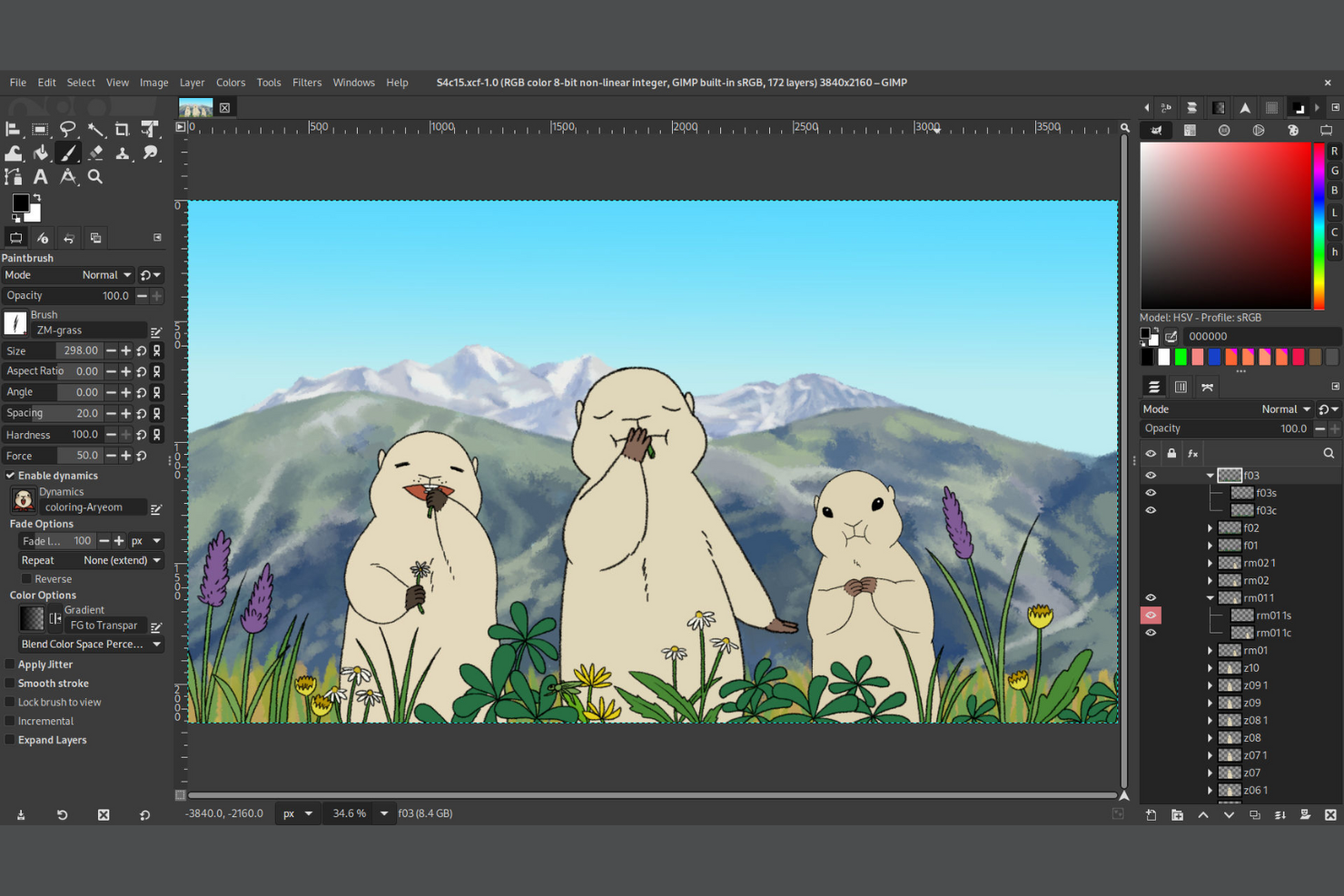
I designer che cercano un'alternativa completamente personalizzabile e open source ad Adobe Photoshop spesso si rivolgono a GIMP. Questo strumento attira professionisti creativi, educatori e sviluppatori che desiderano adattare l'ambiente di modifica o estenderne le funzionalità tramite plugin e script. GIMP si distingue offrendo opzioni di personalizzazione approfondite e miglioramenti guidati dalla community che non si trovano nella maggior parte degli strumenti di design proprietari.
Perché GIMP è una buona alternativa ad Adobe Photoshop
A differenza della maggior parte degli strumenti di design proprietari, GIMP offre pieno accesso al suo codice sorgente, rendendolo una scelta valida per chi desidera personalizzare il proprio ambiente di editing. Ho scelto GIMP perché puoi installare plugin sviluppati dalla community, scrivere i tuoi script e persino modificare l'interfaccia in base al tuo flusso di lavoro. Lo strumento supporta scripting avanzato in linguaggi come Python e Scheme, consentendo di automatizzare attività o aggiungere nuove funzionalità. Per team di design o sviluppatori che vogliono modellare il software secondo esigenze specifiche, GIMP offre un livello di flessibilità difficile da trovare altrove.
Funzionalità principali di GIMP
Altre funzionalità che i professionisti del design possono trovare utili in GIMP includono:
- Modifica non distruttiva dei livelli: Apporta modifiche ai singoli livelli senza alterare i dati originali dell'immagine.
- Pennelli e motivi personalizzabili: Crea, importa e modifica pennelli e motivi per lavori artistici dettagliati e ritocchi.
- Strumenti di gestione del colore: Utilizza una correzione colore avanzata, miscelazione dei canali e supporto per vari spazi colore.
- Ampio supporto per i formati di file: Apri, modifica ed esporta una vasta gamma di tipi di file immagine, inclusi PSD, TIFF, PNG e JPEG.
Integrazioni di GIMP
Le integrazioni includono Scribus e Inkscape.
Pros and Cons
Pros:
- Totalmente open source con alto potenziale di personalizzazione
- Supporta scripting per automazione delle attività
- Ampia gamma di plugin da una community attiva
Cons:
- L'interfaccia può sembrare meno intuitiva per i nuovi utenti
- Le funzionalità di editing non distruttivo sono limitate

Affinity
Ideale per flussi di lavoro professionali di editing vettoriale

Affinity offre una suite di strumenti di design pensati per professionisti che necessitano di editing vettoriale avanzato e controllo preciso sui propri progetti creativi. I grafici e gli illustratori che cercano un'alternativa a Photoshop con solide funzionalità vettoriali spesso scelgono Affinity per il suo flusso di lavoro fluido e il modello di acquisto una tantum. L'attenzione all'editing ad alte prestazioni e la compatibilità con i formati di file standard del settore lo rendono una scelta pratica sia per agenzie che per liberi professionisti.
Perché Affinity è una valida alternativa ad Adobe Photoshop
Per i professionisti che necessitano di flussi di lavoro di editing vettoriale avanzati, Affinity si distingue come una solida alternativa ad Adobe Photoshop. Ho scelto Affinity perché offre strumenti di manipolazione vettoriale precisi e supporta l'editing non distruttivo, fondamentale per lavori di design dettagliati. La gestione delle tavole da disegno consente di gestire più layout in un unico progetto, rendendolo ideale per progetti di branding o campagne su più formati. Queste caratteristiche offrono ai designer maggiore flessibilità e controllo rispetto a molti strumenti focalizzati sui raster.
Funzionalità principali di Affinity
Altre funzionalità di Affinity utili per i professionisti del design includono:
- Filtri Live: Applica e regola i filtri in modo non distruttivo, permettendoti di vedere le modifiche in tempo reale senza alterare permanentemente l'immagine.
- Strumenti tipografici avanzati: Accedi a un'ampia gamma di controlli per il testo, tra cui legature, crenatura e regolazione della linea di base per un design tipografico preciso.
- Compatibilità con file PSD: Apri, modifica ed esporta file PSD di Photoshop mantenendo i livelli e gli effetti.
- Elaborazione in batch: Automatizza attività ripetitive applicando azioni a più file contemporaneamente, risparmiando tempo su progetti di grandi dimensioni.
Integrazioni di Affinity
Si integra con Canva.
Pros and Cons
Pros:
- Acquisto una tantum senza abbonamento
- Editing vettoriale e raster avanzato in un'unica app
- Prestazioni rapide con file grandi e complessi
Cons:
- Nessun cloud storage integrato o collaborazione
- Meno plugin di terze parti rispetto a Photoshop

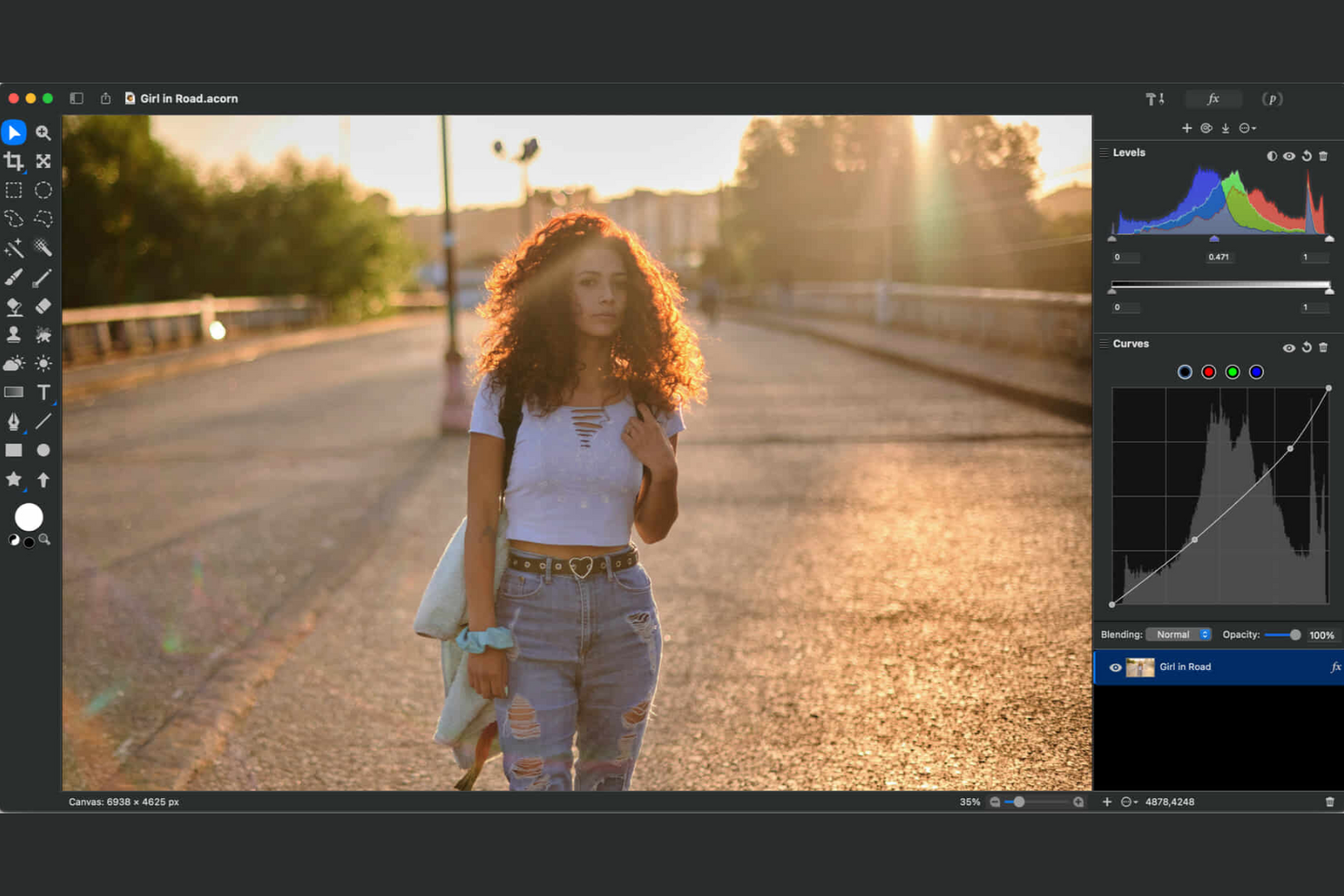
Se stai cercando un editor di immagini veloce e leggero progettato appositamente per Mac, Acorn merita sicuramente uno sguardo più attento. È una scelta ideale per designer, marketer e piccoli team aziendali che desiderano strumenti di modifica essenziali senza la complessità o le esigenze di risorse di Adobe Photoshop. Acorn si distingue per la sua interfaccia semplice, i tempi di avvio rapidissimi e l'integrazione nativa con macOS, che rende la modifica diretta e accessibile.
Perché Acorn è una valida alternativa ad Adobe Photoshop
Per gli utenti Mac che desiderano un editor di immagini leggero, Acorn offre un set di strumenti mirato senza i pesi delle suite di progettazione più grandi. Ho scelto Acorn perché offre filtri non distruttivi, strumenti per forme vettoriali e modifica basata su livelli in un pacchetto compatto. Il supporto nativo del software per funzionalità macOS come Quick Look e display Retina lo fa sentire subito a casa sui dispositivi Apple. Se hai bisogno di un modo veloce e affidabile per gestire le attività quotidiane di modifica delle immagini, Acorn è un'alternativa pratica all'approccio più esigente in termini di risorse di Photoshop.
Funzionalità principali di Acorn
Altre caratteristiche che rendono Acorn interessante includono:
- Browser di effetti fotografici: visualizza in anteprima e applica una vasta gamma di effetti in tempo reale.
- Esportazione intelligente dei livelli: esporta livelli singoli o gruppi come file separati con un solo clic.
- Pennelli personalizzati: crea e modifica i tuoi pennelli per pittura e ritocco unici.
- Importazione ed esportazione PDF: apri, modifica e salva file PDF direttamente nell'app.
Integrazioni di Acorn
Le integrazioni native non sono attualmente elencate.
Pros and Cons
Pros:
- Prestazioni leggere con tempi di caricamento veloci
- Supporto nativo macOS con ottimizzazione per Retina
- Interfaccia semplice per compiti di modifica rapidi
Cons:
- Funzionalità di modifica avanzata e automazione limitate
- Non adatto a flussi di lavoro di progettazione complessi


Pixelmator Pro è progettato specificamente per gli utenti Mac che desiderano una profonda integrazione con le funzionalità e l'hardware di macOS. I professionisti creativi e le piccole imprese che si affidano ai dispositivi Apple apprezzeranno il supporto per Apple Silicon, iCloud e le tecnologie native di macOS. Questo strumento si distingue da Adobe Photoshop offrendo un'interfaccia snella e prestazioni rapide, pensate appositamente per l'ecosistema Apple.
Perché Pixelmator Pro è una buona alternativa ad Adobe Photoshop
Se cerchi uno strumento di design che sia veramente a casa su Mac, Pixelmator Pro è una scelta solida. Ho scelto Pixelmator Pro perché è sviluppato esclusivamente per macOS, offrendo supporto nativo per Apple Silicon, Touch Bar e iCloud Drive. L'integrazione con funzionalità macOS come Quick Look e Foto permette di inserirsi facilmente nei flussi di lavoro già esistenti su Apple. Queste capacità garantiscono agli utenti Mac un'esperienza di editing fluida e ad alte prestazioni, difficile da eguagliare con strumenti multipiattaforma.
Caratteristiche principali di Pixelmator Pro
Altre funzioni di Pixelmator Pro che potrebbero interessare ai professionisti del design includono:
- Strumenti di modifica potenziati dall’apprendimento automatico: Usa funzionalità basate su intelligenza artificiale per compiti come la rimozione automatica dello sfondo e il miglioramento intelligente delle immagini.
- Modifica non distruttiva: Applica regolazioni ed effetti senza alterare in modo permanente la tua immagine originale.
- Supporto ai file RAW: Apri e modifica file RAW da un'ampia gamma di fotocamere direttamente nell'app.
- Strumenti vettoriali: Crea e modifica forme e illustrazioni vettoriali insieme alla grafica raster nello stesso progetto.
Integrazioni di Pixelmator Pro
Le integrazioni includono Apple Photos, iCloud Drive, Universal Clipboard, Apple Pencil, Final Cut Pro, Logic Pro, Motion, Compressor, MainStage e Freeform.
Pros and Cons
Pros:
- Profonda integrazione con macOS e le funzionalità di sistema native
- Strumenti di intelligenza artificiale per miglioramenti rapidi delle immagini
- Prestazioni rapide ottimizzate per hardware Apple
Cons:
- Disponibile solo nell'ecosistema Apple
- Supporto limitato per plugin ed estendibilità

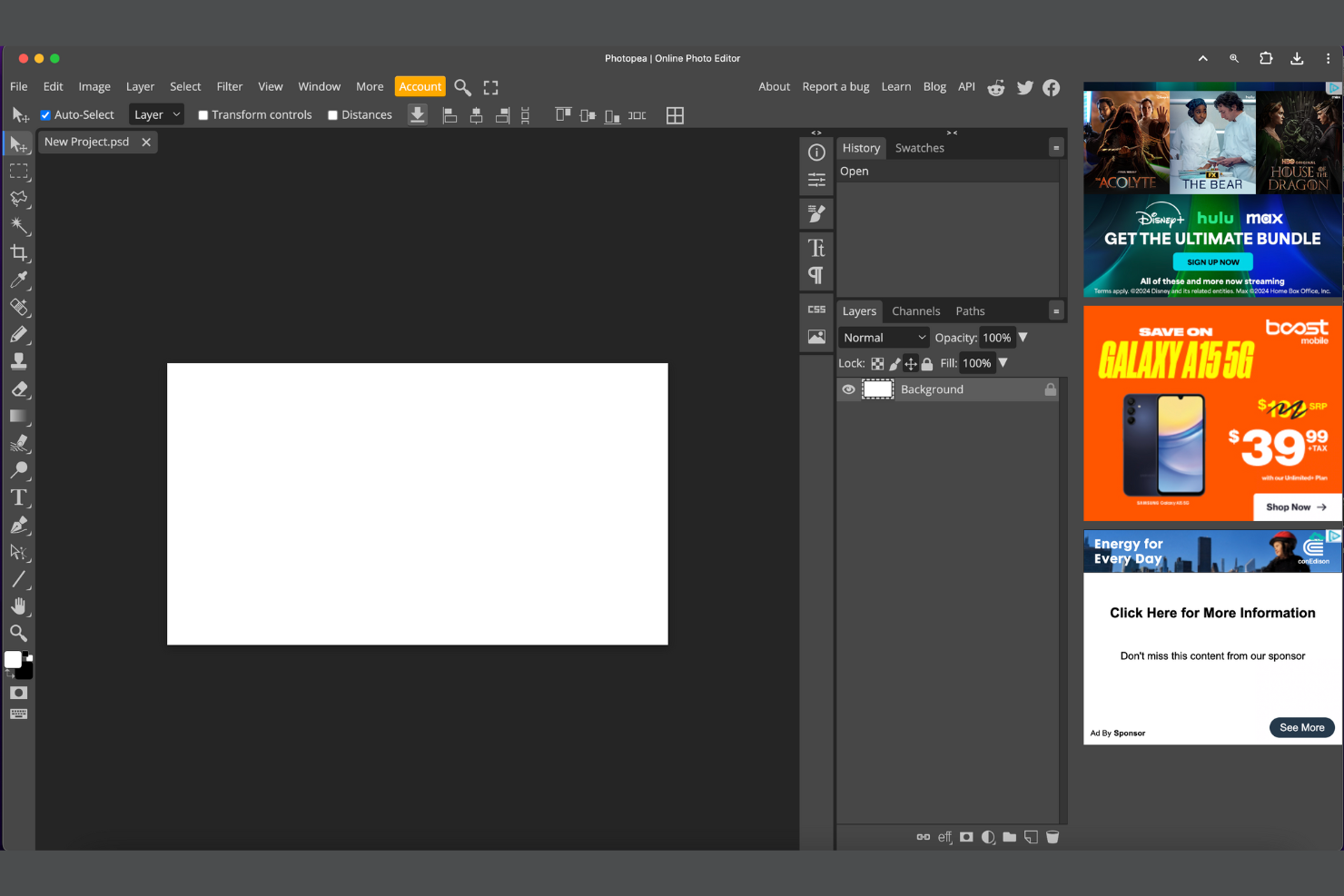
Photopea offre una soluzione basata su browser per chiunque abbia bisogno di aprire e modificare file PSD senza installare software. Designer grafici, freelance e team di marketing che lavorano su diversi dispositivi o sistemi operativi possono accedere a funzionalità di editing complete direttamente dal proprio browser web. A differenza di Adobe Photoshop, Photopea si distingue per il supporto online ai file PSD multilivello e ad altri formati, facilitando la collaborazione e il lavoro in mobilità.
Perché Photopea è una valida alternativa ad Adobe Photoshop
Per i team che devono modificare file PSD senza installare software desktop, Photopea offre un'esperienza unica direttamente dal browser. Ho scelto Photopea perché consente di aprire, modificare ed esportare file PSD multilivello da qualsiasi browser web, indipendentemente dal sistema operativo. Lo strumento supporta inoltre una vasta gamma di formati di file, tra cui Sketch, XD e CDR, il che è utile per i professionisti che lavorano su più piattaforme di progettazione. Questa flessibilità rende Photopea una scelta pratica per team remoti, freelance o per chiunque abbia bisogno di un editing simile a Photoshop in movimento.
Funzionalità principali di Photopea
Altre funzionalità di Photopea che possono essere utili ai professionisti del design includono:
- Supporto Smart Object: Lavora con oggetti avanzati per preservare la qualità dell'immagine durante trasformazioni e modifiche.
- Stili di livello e modalità di fusione: Applica una varietà di effetti e opzioni di fusione ai singoli livelli per composizioni avanzate.
- Azioni scriptabili: Automatizza attività ripetitive utilizzando script basati su JavaScript all'interno dell'editor.
- Strumenti di editing vettoriale: Crea e modifica forme e tracciati vettoriali insieme a elementi raster nello stesso progetto.
Integrazioni Photopea
Non sono elencate integrazioni native, anche se è disponibile un'API per integrazioni personalizzate.
Pros and Cons
Pros:
- Funziona completamente in browser senza bisogno di installazione
- Apre e modifica PSD e numerosi formati di design
- Accessibile su dispositivi e sistemi operativi diversi
Cons:
- Le prestazioni possono diminuire con file ad alta risoluzione
- Funzionalità avanzate di editing basato su AI limitate

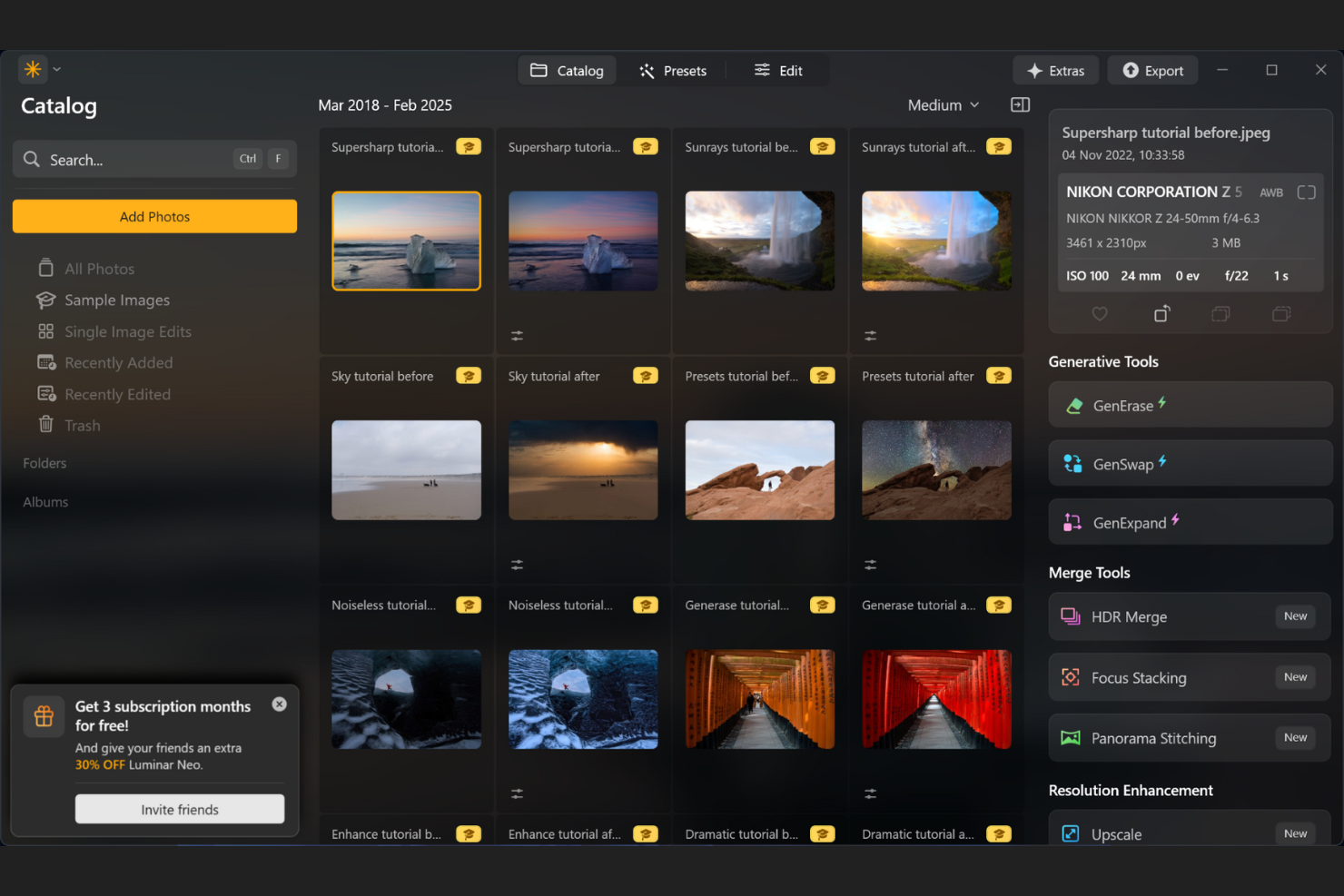
I fotografi e i team creativi che cercano un fotoritocco veloce e guidato dall'IA troveranno Skylum un'opzione unica. A differenza di Adobe Photoshop, gli strumenti di Skylum automatizzano miglioramenti complessi come la sostituzione del cielo e il ritocco dei ritratti con pochi clic. Questo lo rende particolarmente utile per i professionisti che vogliono risultati di alta qualità senza passare ore su regolazioni manuali.
Perché Skylum è una buona alternativa ad Adobe Photoshop
Ciò che distingue Skylum è la sua attenzione ai miglioramenti fotografici basati su IA che automatizzano le operazioni di editing più lunghe. Ho scelto Skylum perché i suoi strumenti IA gestiscono regolazioni complesse come la sostituzione del cielo, la levigatura della pelle e la rimozione dello sfondo con pochi clic. Queste funzionalità permettono di ottenere risultati professionali senza il mascheramento manuale e la stratificazione richiesti da Photoshop. Per i team o singoli che desiderano velocizzare il proprio flusso di lavoro mantenendo immagini rifinite, Skylum offre un vantaggio distintivo.
Caratteristiche principali di Skylum
Altre funzionalità di Skylum che i professionisti del design possono trovare utili includono:
- Elaborazione in batch: Applica le modifiche a più foto contemporaneamente per risparmiare tempo su attività ripetitive.
- Supporto file RAW: Importa ed elabora immagini RAW ad alta risoluzione da una vasta gamma di fotocamere.
- Preset personalizzati: Crea e salva i tuoi preset di modifica per risultati coerenti tra vari progetti.
- Compatibilità coi plugin: Usa Skylum come plugin all'interno di Adobe Photoshop o Lightroom per maggiore flessibilità.
Integrazioni di Skylum
Le integrazioni includono Adobe Photoshop, Adobe Lightroom e Apple Foto.
Pros and Cons
Pros:
- Strumenti alimentati da IA velocizzano modifiche fotografiche complesse
- Ottimo supporto per editing RAW per fotografi
- Preset personalizzati migliorano la coerenza del flusso di lavoro
Cons:
- Mancano capacità di vettorializzazione e illustrazione
- Controllo manuale dell'editing più limitato

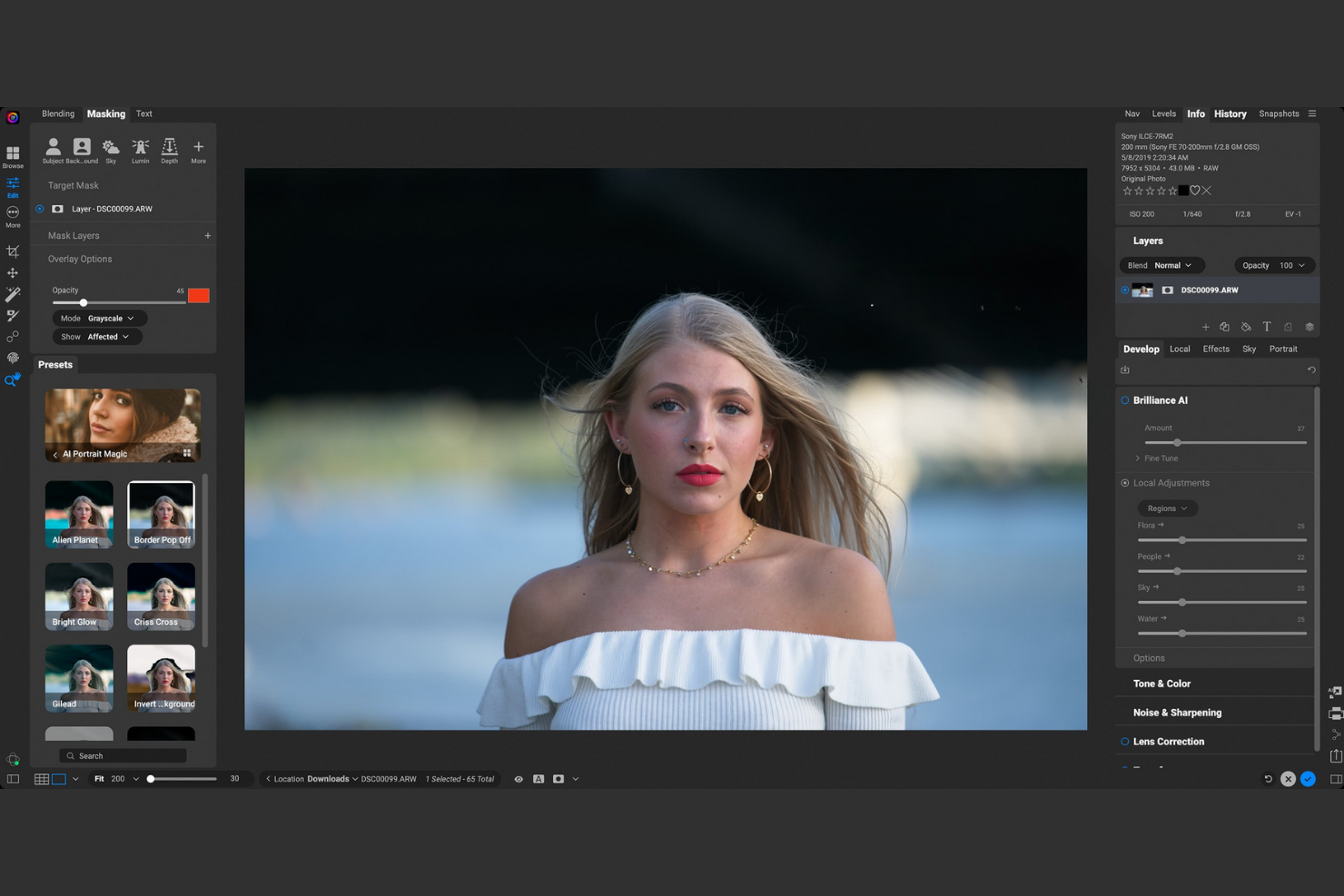
Se hai bisogno di uno strumento di design focalizzato sull'editing delle foto raw senza cambiamenti distruttivi, ON1 Photo Raw merita attenzione. Questo software è rivolto a fotografi e team creativi che desiderano preservare i dati originali delle immagini mentre effettuano modifiche avanzate. A differenza di Adobe Photoshop, ON1 Photo Raw combina l'elaborazione raw, l'editing a livelli e le regolazioni potenziate dall'IA in un unico flusso di lavoro.
Perché ON1 Photo Raw è una valida alternativa ad Adobe Photoshop
ON1 Photo Raw si distingue per il suo editing non distruttivo delle foto raw, essenziale per i professionisti che vogliono mantenere la qualità originale delle immagini durante tutto il flusso di lavoro. Ho scelto ON1 Photo Raw perché permette di effettuare modifiche a livelli, applicare filtri e utilizzare strumenti basati su IA senza alterare in modo permanente i file sorgente. Le funzionalità di versioning e cronologia del software rendono semplice sperimentare e annullare cambiamenti in qualsiasi momento. Per chi dà valore alla flessibilità e all'integrità delle immagini, ON1 Photo Raw offre una solida alternativa all'approccio più distruttivo di Photoshop.
Funzionalità principali di ON1 Photo Raw
Altre funzionalità di ON1 Photo Raw che potrebbero risultare utili ai professionisti del design includono:
- Organizzatore di foto integrato: Gestisci, ordina ed etichetta la tua libreria fotografica direttamente all'interno del software.
- Portrait AI: Rileva e migliora automaticamente i volti per un ritocco rapido.
- Regolazioni locali: Applica modifiche selettive su aree specifiche di un'immagine utilizzando strumenti di mascheratura.
- Libreria di preset: Accedi a un'ampia gamma di preset a un solo clic per diversi stili fotografici.
Integrazioni di ON1 Photo Raw
Le integrazioni non sono elencate.
Pros and Cons
Pros:
- L'editing non distruttivo preserva i file raw originali
- L'organizzatore integrato gestisce grandi librerie fotografiche
- Portrait AI automatizza il ritocco dei volti
Cons:
- Nessun strumento avanzato per vettoriali o illustrazioni
- Meno plugin di terze parti rispetto a Photoshop

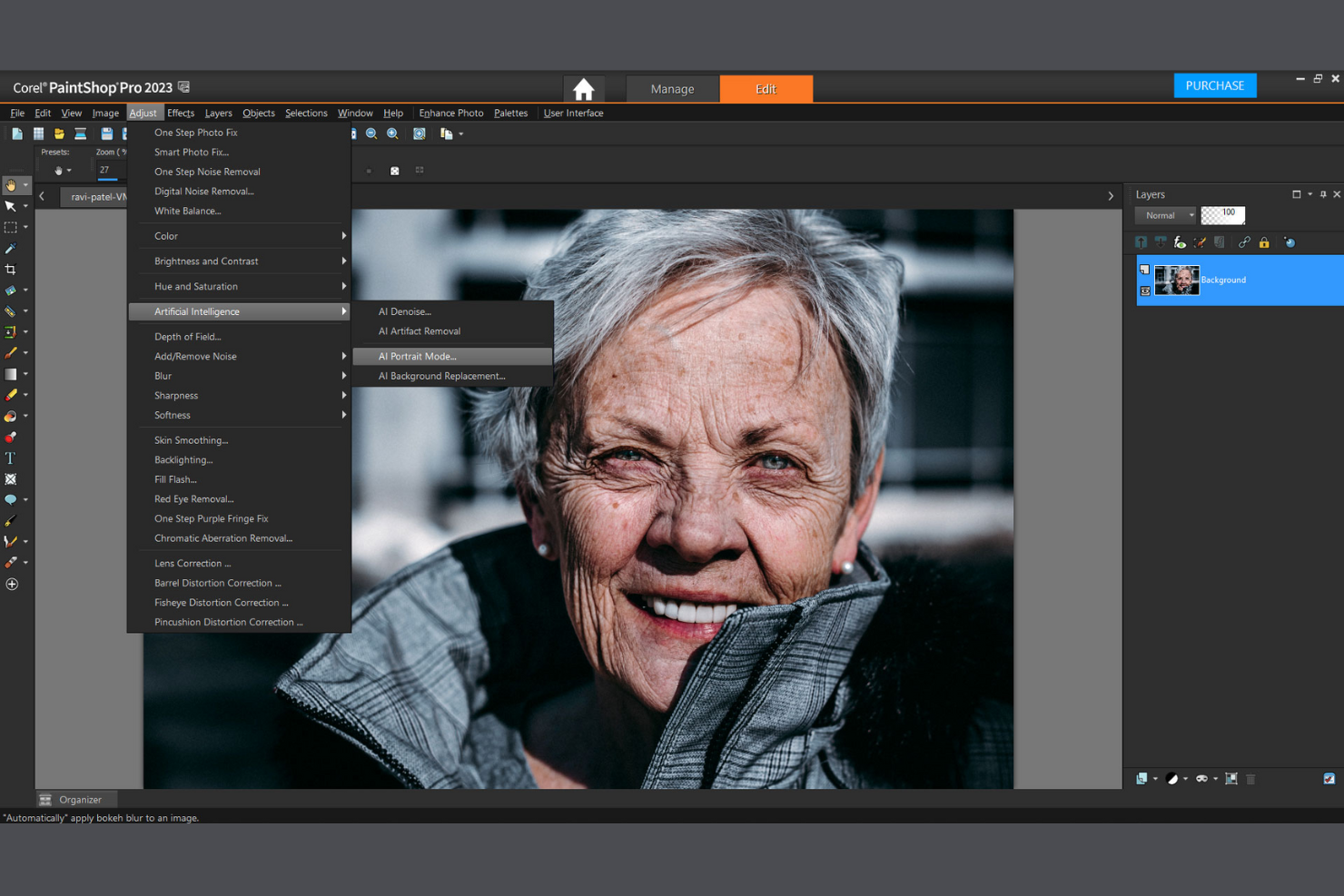
Per i team che lavorano su Windows e hanno bisogno di elaborare grandi quantità di immagini, PaintShop Pro offre una soluzione mirata. Questo strumento è particolarmente utile per fotografi, marketer e creatori di contenuti che desiderano automatizzare attività di editing ripetitive senza affidarsi a software basati su cloud. A differenza di Adobe Photoshop, PaintShop Pro si distingue per le sue avanzate funzionalità di elaborazione batch e il modello di acquisto una tantum.
Perché PaintShop Pro è una valida alternativa ad Adobe Photoshop
PaintShop Pro è una scelta solida per chiunque abbia bisogno di un'elaborazione batch avanzata su Windows. Ho scelto questo strumento perché permette di automatizzare modifiche ripetitive su centinaia di immagini grazie al suo motore di elaborazione batch e alle sue capacità di scripting. Il software supporta una vasta gamma di formati di file e offre script personalizzabili, rendendo semplice applicare regolazioni o effetti coerenti su larga scala. Per team o professionisti che gestiscono ampie librerie di immagini, PaintShop Pro garantisce un flusso di lavoro difficilmente eguagliabile rispetto all'approccio più manuale di Photoshop.
Funzionalità principali di PaintShop Pro
Oltre alle sue capacità di elaborazione batch, ho trovato interessanti anche queste funzionalità:
- Strumenti basati su IA: Migliora le immagini con AI Upsampling, Rimozione Artefatti IA e Riduzione Rumore IA per una qualità fotografica superiore.
- Editing su livelli: Crea composizioni complesse utilizzando più livelli e modalità di fusione.
- Riempimento sensibile al contenuto: Rimuovi oggetti indesiderati dalle foto e riempi automaticamente lo sfondo.
- Modifica di foto a 360°: Modifica, raddrizza e regola le foto a 360 gradi direttamente all'interno del software.
Integrazioni di PaintShop Pro
Al momento non sono elencate integrazioni native.
Pros and Cons
Pros:
- Elaborazione batch per editing di immagini ad alto volume
- Strumenti di IA per l'ingrandimento e la riduzione del rumore
- Supporta una vasta gamma di formati di file
Cons:
- Elaborazione batch per editing di immagini ad alto volume
- Strumenti di IA per l'ingrandimento e la riduzione del rumore
- Supporta una vasta gamma di formati di file

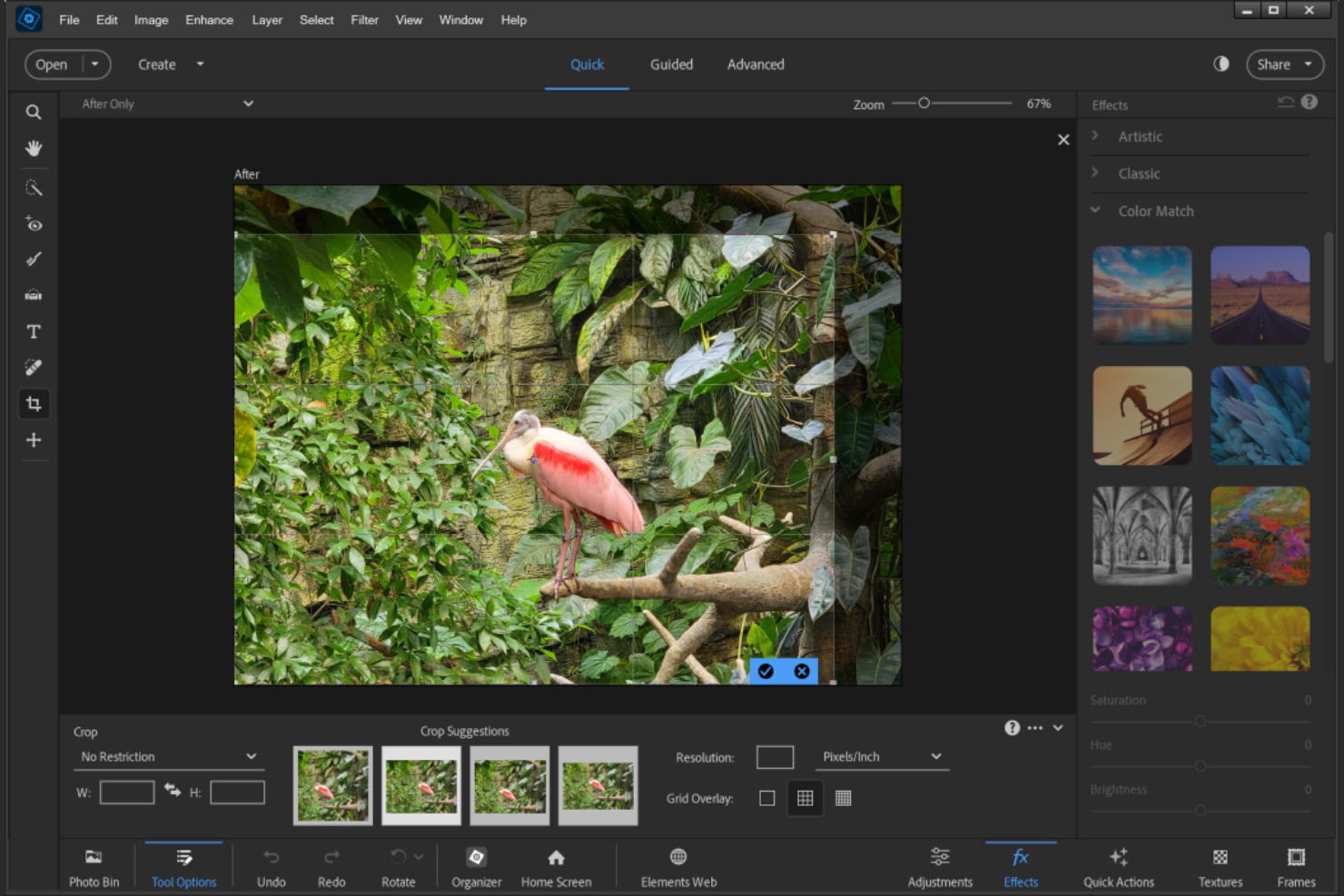
Se vuoi imparare a modificare le immagini senza sentirti sopraffatto, Adobe Photoshop Elements è pensato proprio per te. Questo strumento è ideale per creativi, insegnanti e piccoli imprenditori che desiderano una guida passo passo e funzioni automatizzate per il miglioramento delle foto. Ciò che lo distingue è la sua libreria di modifiche guidate e strumenti di apprendimento che aiutano gli utenti a padroneggiare nuove tecniche mentre lavorano.
Perché Adobe Photoshop Elements è una valida alternativa ad Adobe Photoshop
A differenza di molti strumenti di design avanzati, Adobe Photoshop Elements si concentra su modifiche guidate e risorse didattiche integrate per aiutare gli utenti a sviluppare competenze mentre modificano. Ho scelto Photoshop Elements perché le sue Modifiche Guidate passo passo ti accompagnano in attività complesse come la rimozione dello sfondo, effetti artistici e il restauro di foto. Il software include anche un Organizzatore che ti consente di gestire e taggare le tue immagini per un accesso rapido durante i progetti. Per chiunque desideri imparare nuove tecniche di editing lavorando su immagini reali, Photoshop Elements offre un ambiente di supporto e formativo che lo distingue dall'approccio più aperto di Photoshop.
Caratteristiche Principali di Adobe Photoshop Elements
Altre funzionalità che rendono Photoshop Elements utile per progetti creativi includono:
- Creazioni Automatiche: Il software genera automaticamente presentazioni, collage ed effetti dalle tue foto.
- Riempimento in base al contenuto: Rimuovi oggetti indesiderati dalle immagini e riempi lo sfondo con un solo clic.
- Riconoscimento facciale e dei tag: Organizza e cerca rapidamente la tua libreria di foto utilizzando il riconoscimento facciale e tag personalizzati.
- Modalità Modifica Rapida: Accedi a strumenti di modifica semplificati per regolazioni rapide senza dover navigare tra menu complessi.
Integrazioni di Adobe Photoshop Elements
Le integrazioni includono l'Adobe Creative Suite.
Pros and Cons
Pros:
- Le modifiche guidate facilitano l'apprendimento e lo sviluppo delle competenze
- Organizzatore integrato per la gestione delle librerie fotografiche
- Creazioni automatiche per risultati visivi rapidi
Cons:
- Editing avanzato limitato rispetto a Photoshop completo
- Nessun supporto per il lavoro di design vettoriale
Altre alternative ad Adobe Photoshop
Ecco alcune ulteriori alternative ad Adobe Photoshop che non sono entrate nella mia selezione, ma che vale comunque la pena provare:


Come valuto le alternative ad Adobe Photoshop
Divido la mia valutazione in due livelli: la modifica raster di base, il supporto dei livelli e la compatibilità con i file PSD che uno strumento deve offrire, oltre a fattori distintivi come le funzionalità di IA e i prezzi, importanti per i team di prodotto.
Funzionalità fondamentali (requisiti essenziali per questo elenco)
Quando seleziono gli strumenti per il mio elenco, assegno a ciascuno un punteggio su una scala da 0 (non offre la funzionalità) a 5 (eccelle in quest'area) per ogni funzionalità fondamentale elencata di seguito. Quindi, converto il punteggio totale dello strumento in una percentuale. Ogni strumento deve raggiungere un punteggio totale minimo del 75% per essere preso in considerazione.
- Modifica delle immagini raster: cerco controlli a livello di pixel, come la correzione del colore, il ritaglio e la regolazione dell'esposizione, che consentano ai responsabili di prodotto di perfezionare le schermate delle app nei negozi di applicazioni o le immagini principali.
- Flusso di lavoro basato sui livelli: ogni strumento dovrebbe supportare livelli, maschere e modalità di fusione, così da poter iterare sui modelli grafici senza appiattire le modifiche precedenti.
- Compatibilità con i file PSD: i team di prodotto ricevono spesso risorse dai designer in formato PSD, quindi verifico se uno strumento importa ed esporta questi file mantenendo intatti i livelli.
- Esportazione in più formati: valuto la gamma di opzioni di esportazione—PNG, JPG, SVG, WebP, PDF—poiché il lavoro di prodotto comprende ogni tipo di risorsa, dagli elementi grafici per il web alle presentazioni commerciali.
- Strumenti di ritocco e selezione: pennelli, clonazione, correttivo, selezione intelligente e strumenti di testo sono tutti importanti. Queste funzioni vengono utilizzate costantemente per ripulire le schermate dell'interfaccia utente o annotare gli elementi visivi del prodotto.
- Collaborazione o accesso tramite servizi online: i team di prodotto interfunzionali devono condividere e revisionare le risorse, quindi cerco funzionalità come archiviazione online, collegamenti per la condivisione, commenti o modifica collaborativa in tempo reale.
Una volta ottenuto un elenco di strumenti che soddisfano questi criteri, considero ciò che distingue ogni piattaforma.
Fattori distintivi (ciò che differenzia i fornitori)
Ecco come confronto e metto in contrasto i diversi fornitori:
Funzionalità di spicco
La modifica basata sull'IA è un importante elemento distintivo. Gli strumenti con riempimento generativo, rimozione automatica dello sfondo o selezione intelligente degli oggetti fanno risparmiare tempo ai responsabili di prodotto quando preparano gli elementi visivi per il lancio. Cerco anche raccolte integrate di modelli: impaginazioni pronte per la grafica dei negozi di applicazioni o per gli annunci sui social network consentono di evitare completamente il problema della tela vuota. Il supporto per la modifica vettoriale completa il quadro, permettendo di creare icone o elementi dell'interfaccia utente scalabili insieme al lavoro raster, invece di passare da un'applicazione all'altra.
Oltre le funzionalità
Il prezzo e il modello di licenza sono molto importanti quando si deve dotare un intero team di prodotto. Valuto se gli strumenti offrono piani gratuiti, acquisti una tantum o piani per utente che si adattano alle esigenze senza costi imprevisti. La disponibilità multipiattaforma è un altro fattore chiave: i responsabili di prodotto passano da computer portatili, tablet e browser durante la giornata, quindi verifico la parità delle funzionalità tra i dispositivi. Considero anche quanto bene ogni strumento si colleghi all'insieme più ampio di strumenti per il prodotto, come Jira, Slack, Confluence o Notion, poiché questo determina la fluidità con cui le risorse passano attraverso i flussi di lavoro esistenti.
Perché cercare un’alternativa ad Adobe Photoshop?
Sebbene Adobe Photoshop sia uno dei principali software di fotoritocco, esistono diversi motivi per cui gli utenti prendono in considerazione strumenti alternativi. A seconda del flusso di lavoro, del livello di esperienza o del dispositivo, un altro editor di immagini potrebbe essere più adatto.
Potresti cercare un’alternativa ad Adobe Photoshop perché…
- Vuoi un acquisto una tantum invece di un abbonamento, come quello offerto da strumenti quali Affinity Photo
- Hai bisogno di un’interfaccia utente più semplice, più facile da imparare per i principianti
- Preferisci opzioni software gratuite o strumenti open source che funzionano su Linux
- Vuoi strumenti di fotoritocco basati sul browser o leggeri, che non richiedano una CPU potente
- Hai bisogno di una soluzione specifica per la piattaforma, che funzioni bene su dispositivi come un iPad o un dispositivo Android
- Crei contenuti rapidamente e vuoi flussi di lavoro più veloci rispetto agli strumenti di progettazione tradizionali
Se ti riconosci in una di queste situazioni, non sei il solo. Molti utenti scelgono editor basati sui pixel, app per dispositivi mobili o piattaforme di progettazione semplificate per adattarsi meglio alle proprie esigenze. Questo elenco mette in evidenza strumenti di fotoritocco con punti di forza diversi, aiutandoti a trovare quello più adatto in base al tuo flusso di lavoro, al livello di competenza e al dispositivo che preferisci.
Caratteristiche principali di Adobe Photoshop
- Gestione avanzata di livelli e maschere: Consente un controllo preciso sulle modifiche, permettendo agli utenti di isolare e regolare parti specifiche di un'immagine senza influire sull'intera composizione
- Modifica non distruttiva con oggetti avanzati: Permette agli utenti di sperimentare liberamente preservando i file originali e mantenendo la flessibilità durante tutto il processo di modifica
- Riempimento in base al contenuto e rimozione degli oggetti: Aiuta a identificare e sostituire gli elementi indesiderati nelle immagini basandosi sui dati visivi circostanti
- Ampia libreria di pennelli e strumenti di disegno: Supporta lavori creativi dettagliati, tra cui la pittura digitale e le illustrazioni in stile grafica vettoriale
- Strumenti professionali di color grading e correzione: Offrono un controllo preciso su tonalità, contrasto e bilanciamento del colore per risultati di alta qualità nell'editing fotografico
- Supporto per flussi di lavoro CMYK e con colori spot: Utile per progetti pronti per la stampa e per lavori che richiedono una precisione cromatica elevata
- Elaborazione in batch e automazione con azioni: Accelera le attività di modifica ripetitive, migliorando l'efficienza con grandi quantità di immagini
- Integrazione con le app Adobe Creative Cloud: Si collega ad altri strumenti Adobe per flussi di lavoro che possono includere l'editing video o la condivisione di risorse
- Funzionalità di progettazione 3D e texturing: Amplia le possibilità creative oltre il tradizionale editing fotografico, fino alla progettazione tridimensionale
- Strumenti avanzati di selezione e ritocco: Aiutano gli utenti a perfezionare i dettagli e ad apportare modifiche precise con un controllo maggiore