

A drag and drop UI builder is a specific type of visual tool that lets you design user interfaces by moving and arranging elements on a canvas—no coding required. If you’re searching for the best drag and drop UI builder, you likely want to speed up interface design, reduce development bottlenecks, and give your team more control over the look and feel of your apps or websites. This list will help you compare leading options, understand what sets each tool apart, and choose the right platform for your next project.
Why Trust Our Software Recommendations
6,700+
Reviews
20
Industry experts
16+
Evaluation factors
14
Years
Our team has been testing and reviewing software since 2012. As product managers ourselves, we know how difficult—and important—it is to choose the right software.
For this guide, we evaluated tools using hands-on testing and independent research, scoring tools using our selection criteria.
Our reviews reflect our human editorial judgment, not a sales pitch.
Expert reviewers:
- Andrew LumbySenior TPM
- Cristiano ValimSenior UI/UX Lead


Best Drag and Drop UI Builders Summary
This comparison chart summarizes pricing details for my top drag and drop UI builder selections to help you find the best one for your budget and business needs.
| Tool | Best For | Trial Info | Price | ||
|---|---|---|---|---|---|
| 1 | Best for pixel-perfect responsive layouts | Free plan available | From $15/month (billed annually) | Website | |
| 2 | Best for data-connected internal tool builders | Free plan available | From $10/builder/month (billed annually) | Website | |
| 3 | Best for building full-stack apps without code | Free plan available | From $29/month (billed annually) | Website | |
| 4 | Best for no-code web app creation | Free plan available | From $20/month (billed annually) | Website | |
| 5 | Best for shipping mobile apps without developers | Free plan available | From $39/month | Website | |
| 6 | Best for design-token-driven site building | Free plan + 14-day free trial available | From $15/month (billed annually) | Website | |
| 7 | Best for launching mobile apps with owned code | Free plan available | From $15/month | Website | |
| 8 | Best for visual editing with a headless CMS | Free plan available | From $24/user/month (billed annually) | Website | |
| 9 | Best for apps built across multiple data sources | Free plan + free demo available | From $24/user/month | Website | |
| 10 | Best for syncing visual edits to a React codebase | Free plan available | From $39/month (billed annually) | Website |


Drag and Drop UI Builders Reviews
Below are my detailed summaries of the drag and drop UI builders that made it onto my shortlist. My reviews offer a detailed look at the features, best use cases, and integrations of each tool to help you find the best one for you.
 Best for pixel-perfect responsive layouts
- Free plan available
- From $15/month (billed annually)
Visit WebsiteCustomer Rating:4.4/5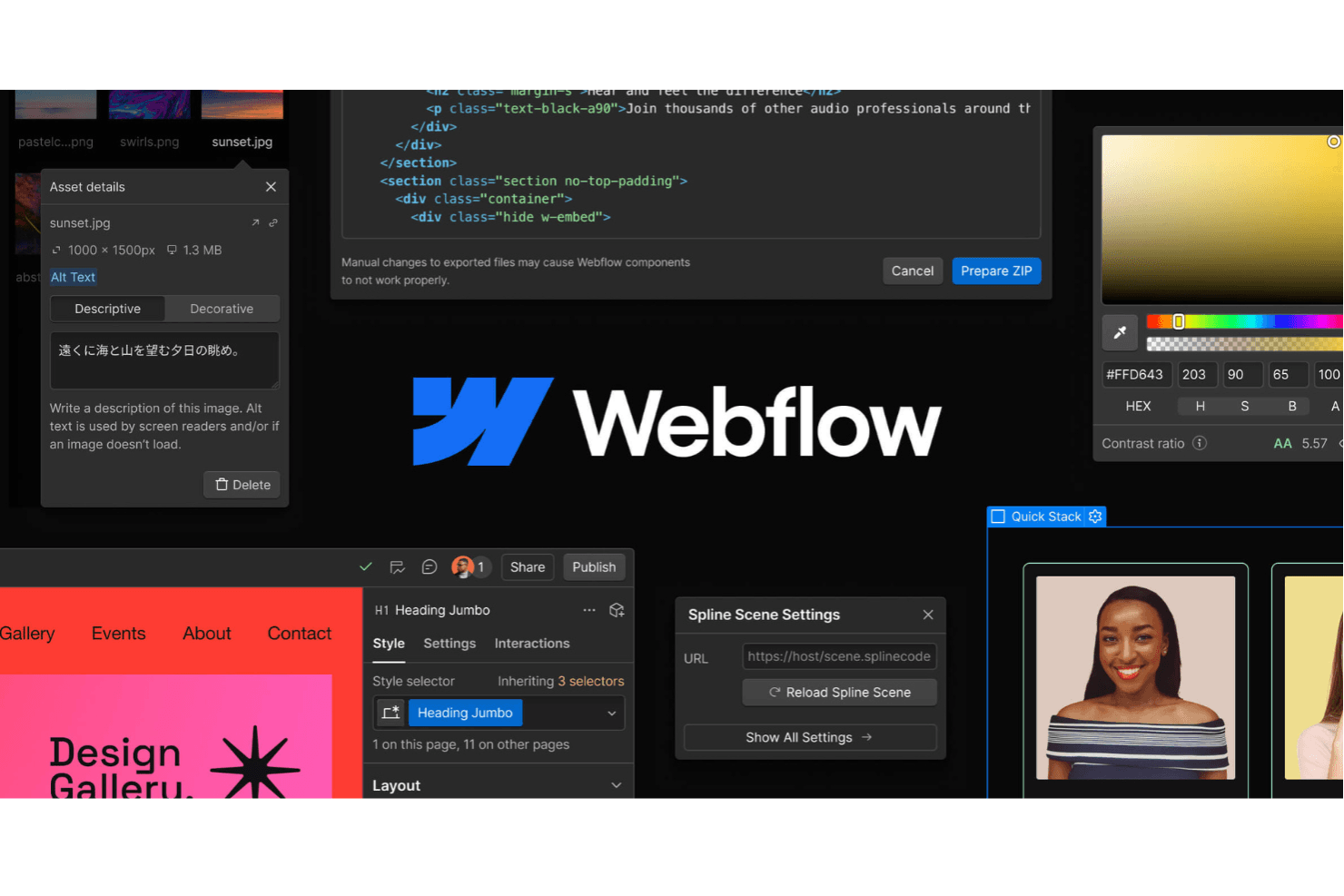
Webflow lets teams design, build, and launch responsive websites visually. Webflow is a visual drag-and-drop website builder that combines a freeform flexbox and CSS grid canvas, a class-based design system, CMS editing, and code export tools including DevLink for React output.
Who Is Webflow Best For?
Webflow is a strong fit for UX/UI designers and design-led teams who need to ship production-ready, responsive sites without handing off to a developer.
Why I Picked Webflow
Webflow earns its spot as one of the best on my shortlist because its freeform flexbox and CSS grid canvas gives you genuine pixel-level control over every element, not just the snap-to-grid nudging you get from most builders. I particularly like how breakpoint-based cascading styles let you override spacing, typography, and visibility at each viewport, so a layout that looks exact on desktop stays exact on mobile. The class-based design system with variables also means style changes propagate across every component instance the moment you update a single token.
Webflow Key Features
- Figma-to-Webflow plugin: Converts Figma auto-layout frames into responsive flexbox HTML and CSS, carrying over styles, colors, text, and variables.
- DevLink: Exports Webflow components as production-ready React code and syncs style and component updates back to your codebase via CLI or CI.
- GSAP-based interactions timeline: Lets you build scroll, hover, click, and mouse-tracked animations on a visual timeline with reusable presets and reduced-motion support.
- Real-time collaboration: Shows teammate presence on the canvas, gives each person their own undo history, and supports page branches across all plans.
Webflow Integrations
Webflow offers integrations with Figma, GitHub, Slack, Google Analytics, Google Search Console, and Google Tag Manager. It also supports APIs, DevLink, MCP, Marketplace apps, and Zapier.
Pros and Cons
Pros:
- GSAP timelines add production-ready interactions
- Figma frames become responsive front ends
- Pixel-perfect flexbox and grid layouts
Cons:
- Prototyping lacks clickable screen flows
- CSS concepts challenge nontechnical builders
Learn more about Webflow: Best for data-connected internal tool builders
- Free plan available
- From $10/builder/month (billed annually)
Visit WebsiteCustomer Rating:4.6/5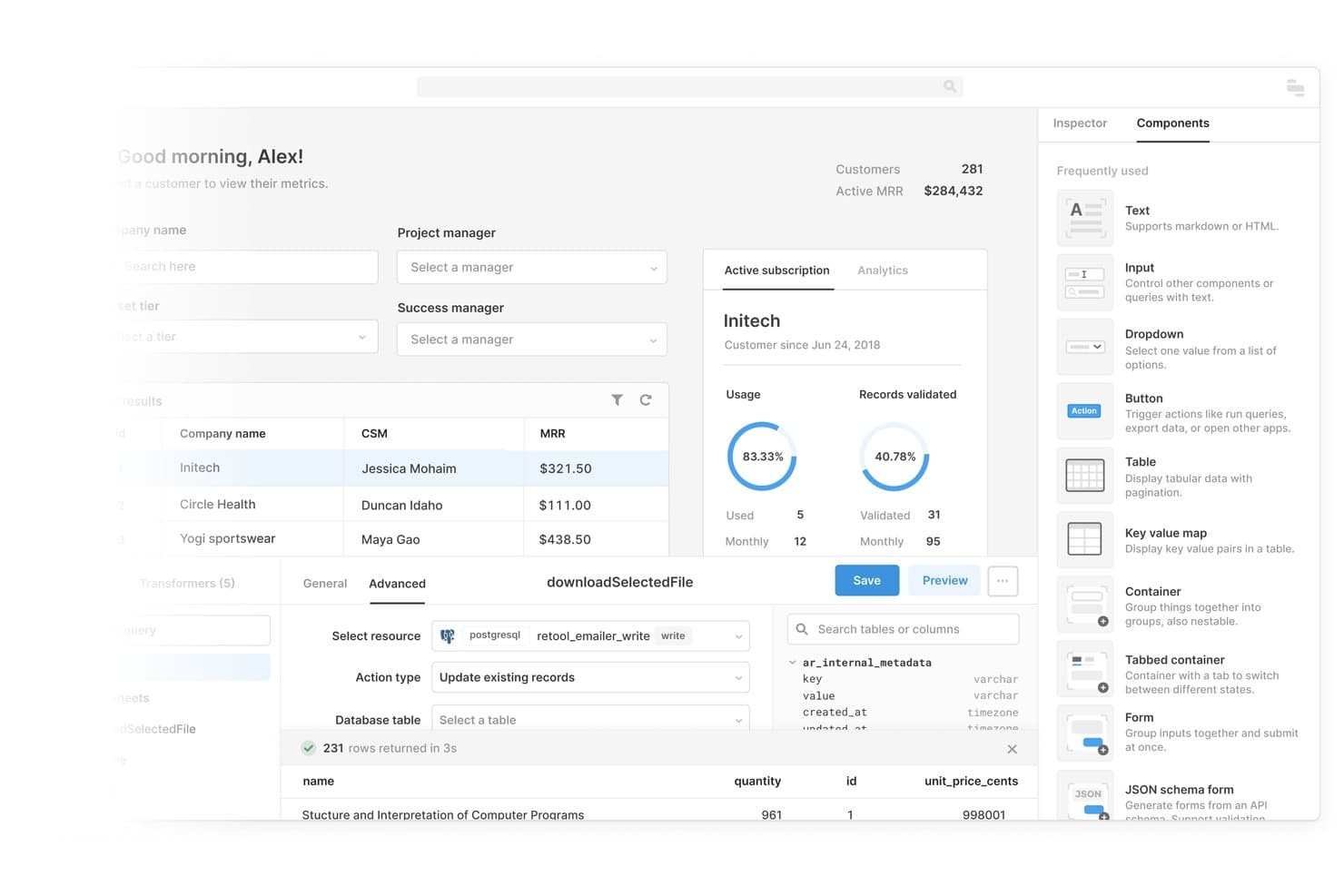
Retool lets users build customer dashboards by dragging and dropping UI components. Retool is a low-code app builder that lets you drag and drop pre-built components onto a canvas and connect them directly to databases, APIs, and data warehouses to create internal tools and dashboards.
Who Is Retool Best For?
Retool is a strong fit for developers and technical operations teams who need to build data-connected internal tools and dashboards without starting from scratch.
Why I Picked Retool
I picked Retool as one of the best because its classic drag-and-drop canvas pairs directly with live database and API connections, which is exactly what you need when building internal tools. I love how the component library covers data-heavy UI needs out of the box: tables with inline editing and filtering, charts ranging from bar to Sankey to heat maps, and form components that tie straight to your queries. That combination lets you drag a table onto a canvas, point it at your PostgreSQL or Snowflake database, and have a working admin panel without writing layout code.
Retool Key Features
- Multipage app navigation: Classic apps include a Pages tab with navigation components and event handlers so you can build multi-screen tools with real routing logic.
- Custom component libraries: Add your own React/TypeScript components to classic apps via CLI tooling and npm packages, extending the built-in library with proprietary UI elements.
- React code export and editing: The new AI builder exposes every app file in a Code tab, letting you edit the underlying React directly or deploy via CLI and MCP coding agents like Claude Code or Cursor.
- Reusable modules: Business and Enterprise plans support unlimited reusable modules in classic apps, letting you share components and queries across multiple internal tools without rebuilding them.
Retool Integrations
Retool offers native integrations with PostgreSQL, MySQL, Snowflake, BigQuery, Salesforce, HubSpot, Jira, GitHub, Slack, and Microsoft Teams. It also connects to REST, GraphQL, OpenAPI, and SOAP APIs for custom data sources.
Pros and Cons
Pros:
- Classic canvas supports nested drag-and-drop layouts
- Extensive components support complex internal interfaces
- Data-connected tables and dashboards build quickly
Cons:
- No Figma import or clickable prototypes
- New builder abandons visual drag-and-drop editing
Learn more about Retool: Best for building full-stack apps without code
- Free plan available
- From $29/month (billed annually)
Visit WebsiteCustomer Rating:4.4/5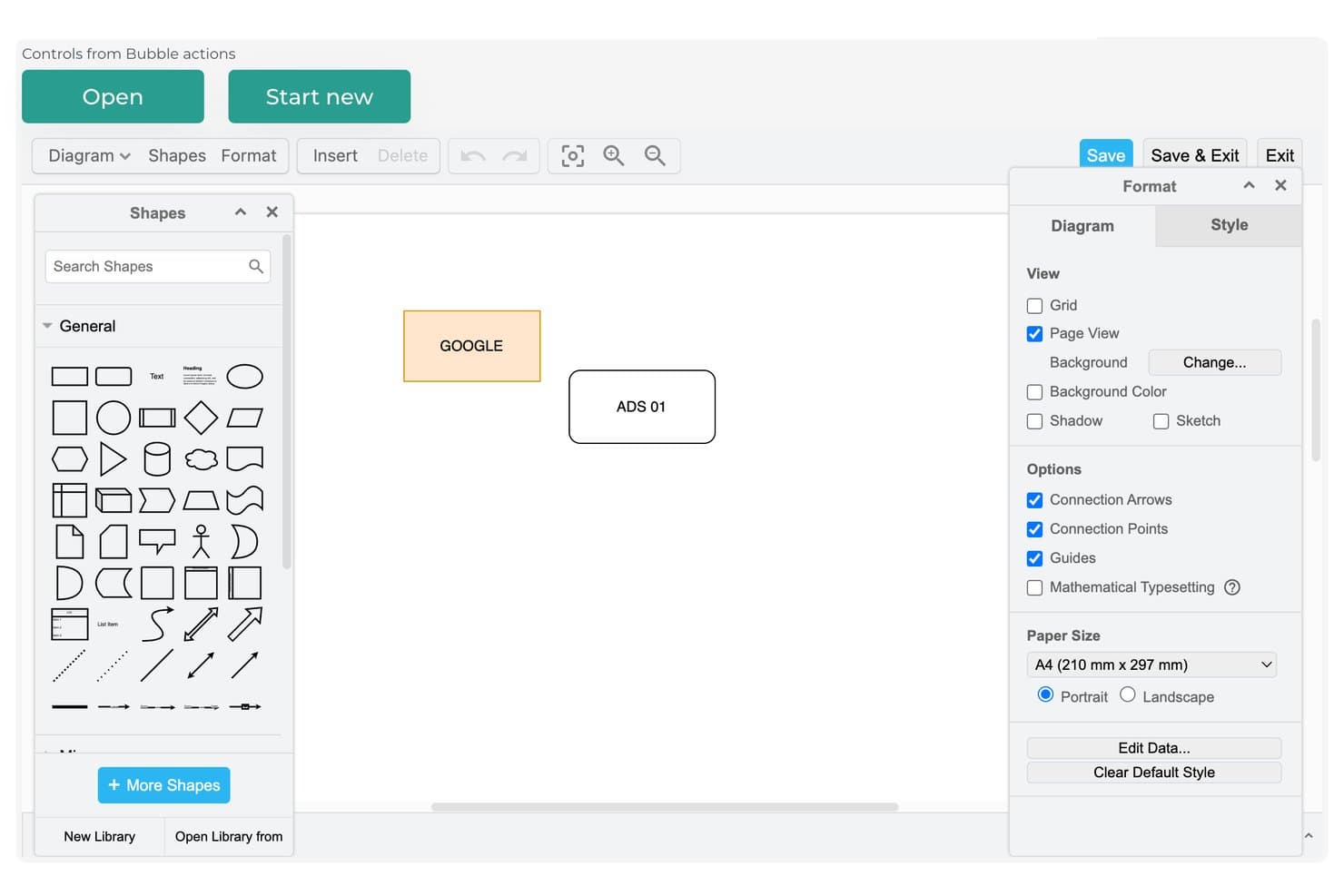
Bubble's diagram editor lets users build and style visual flows. Bubble is a visual no-code platform that lets you build full-stack web and mobile apps through a drag-and-drop editor, combining UI design, database management, workflow logic, and hosting in a single environment.
Who Is Bubble Best For?
Bubble is a strong fit for startup founders and no-code developers who want to build and ship a full-stack web or mobile app without writing a single line of code.
Why I Picked Bubble
Bubble earns its spot as one of the best on my shortlist because it's the only drag-and-drop builder I've used that covers UI, database, logic, and hosting in a single visual editor. I love that AI-generated apps produce real, editable workflows and data types rather than static mockups. You can go from a text prompt to a live, hosted web or native mobile app without touching code.
Bubble Key Features
- Figma import: Convert Figma designs into Bubble elements using a plugin and Chrome extension, with best results when your Figma file uses auto layout.
- Reusable elements: Build elements once and reuse them across your app; each instance updates automatically when you edit the source.
- Version control with branching: Create up to 25 custom branches, track changes by collaborator or date, and merge with guided conflict resolution.
- Plugin marketplace: Browse and install from over 7,500 plugins covering payments, charts, AI models, and other UI and backend functionality.
Bubble Integrations
Bubble offers 7,576 marketplace plugins, including connections for Figma, OpenAI, Anthropic Claude, Google Gemini, Grok, and DeepSeek. Its API Connector supports custom REST API integrations.
Pros and Cons
Pros:
- AI generates editable screens and workflows
- Reusable elements keep designs consistent
- Builds functional interfaces beyond static mockups
Cons:
- Complex workflows slow initial interface building
- No code export for engineering handoff
Learn more about Bubble: Best for no-code web app creation
- Free plan available
- From $20/month (billed annually)
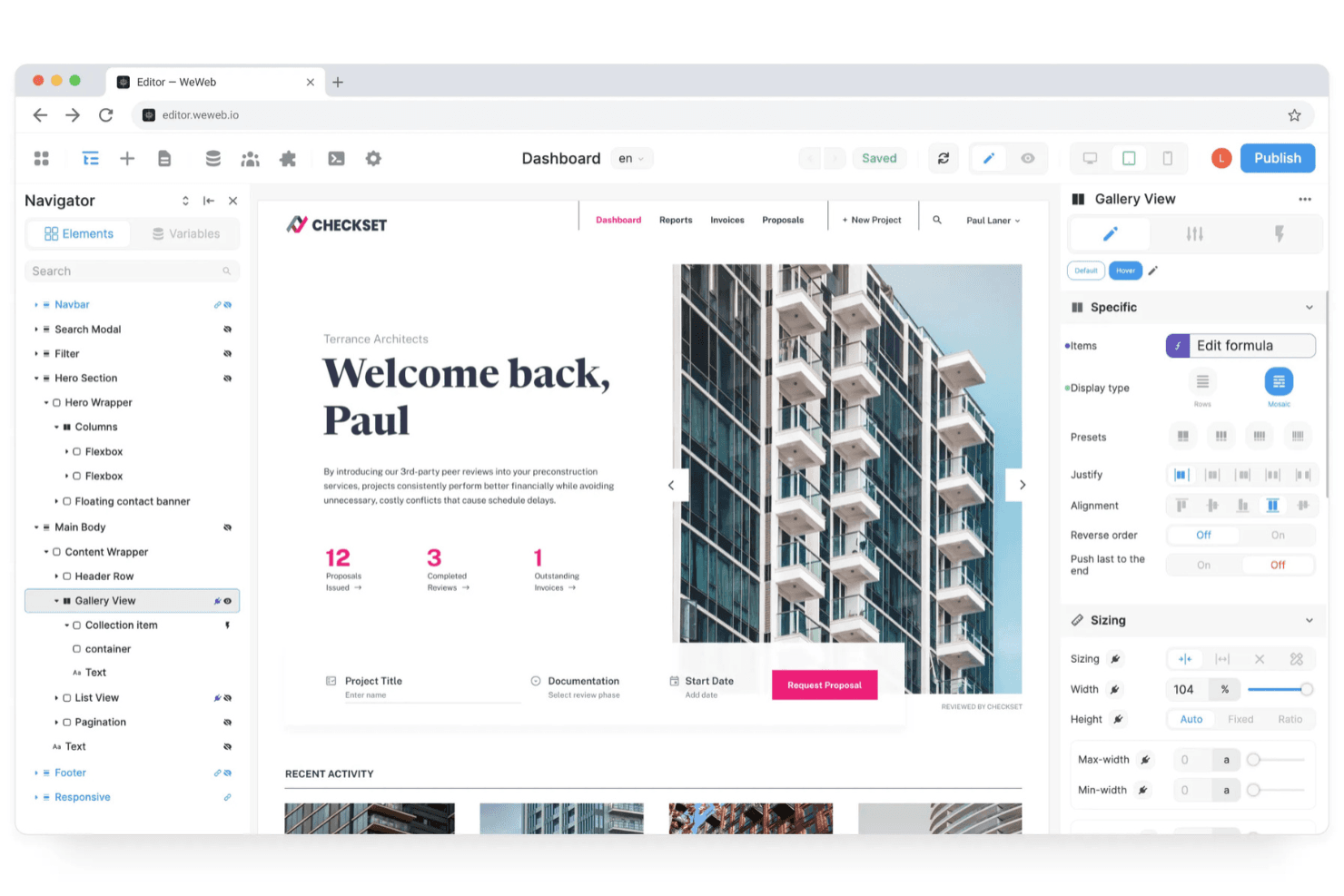
WeWeb helps teams build flexible web apps without coding. WeWeb is a visual development platform that combines a drag-and-drop canvas with AI-assisted generation, a native backend, and Vue.js code export to build fully functional web apps.
Who Is WeWeb Best For?
WeWeb is a strong fit for startup founders and no-code developers who need to ship functional web apps fast, without handing off to a full engineering team.
Why I Picked WeWeb
WeWeb earns its spot on my shortlist because it goes further than most no-code builders by letting you ship a fully functional web app, not just a clickable mockup. I particularly like that the AI generation produces native WeWeb elements you can edit visually afterward, so you're not stuck re-prompting to fix one button. The Figma plugin is also genuinely useful: it imports full frames with layout, fonts, and design tokens, then maps Figma components directly to reusable WeWeb components for future imports.
WeWeb Key Features
- Native backend builder: WeWeb includes a built-in PostgreSQL-powered backend with tables, auto-generated CRUD APIs, authentication, role-based access control, and file storage.
- Vue.js code export: Every paid plan includes export of a standalone Vue.js SPA with zero runtime dependency on WeWeb, ready to self-host on AWS, Vercel, Netlify, or your own server.
- Visual workflow builder: A no-code workflow editor handles branching logic, loops, API calls, form validation, and state management with step-by-step debugging built in.
- MCP server for AI agents: External agents like Claude Code, Cursor, and ChatGPT can work directly inside your WeWeb project, turning PRDs into structured app screens, data models, and logic.
WeWeb Integrations
WeWeb offers native integrations with Supabase, Xano, Airtable, Google Sheets, GitHub, Figma, and Zapier. It also connects to REST and GraphQL APIs, SQL databases, and other external data sources.
Pros and Cons
Pros:
- Imports Figma layouts and design tokens
- Builds functional workflows beyond mockups
- Exports standalone Vue.js applications
Cons:
- AI changes can disrupt existing logic
- Requires technical fluency for advanced projects
Learn more about WeWeb: Best for shipping mobile apps without developers
- Free plan available
- From $39/month
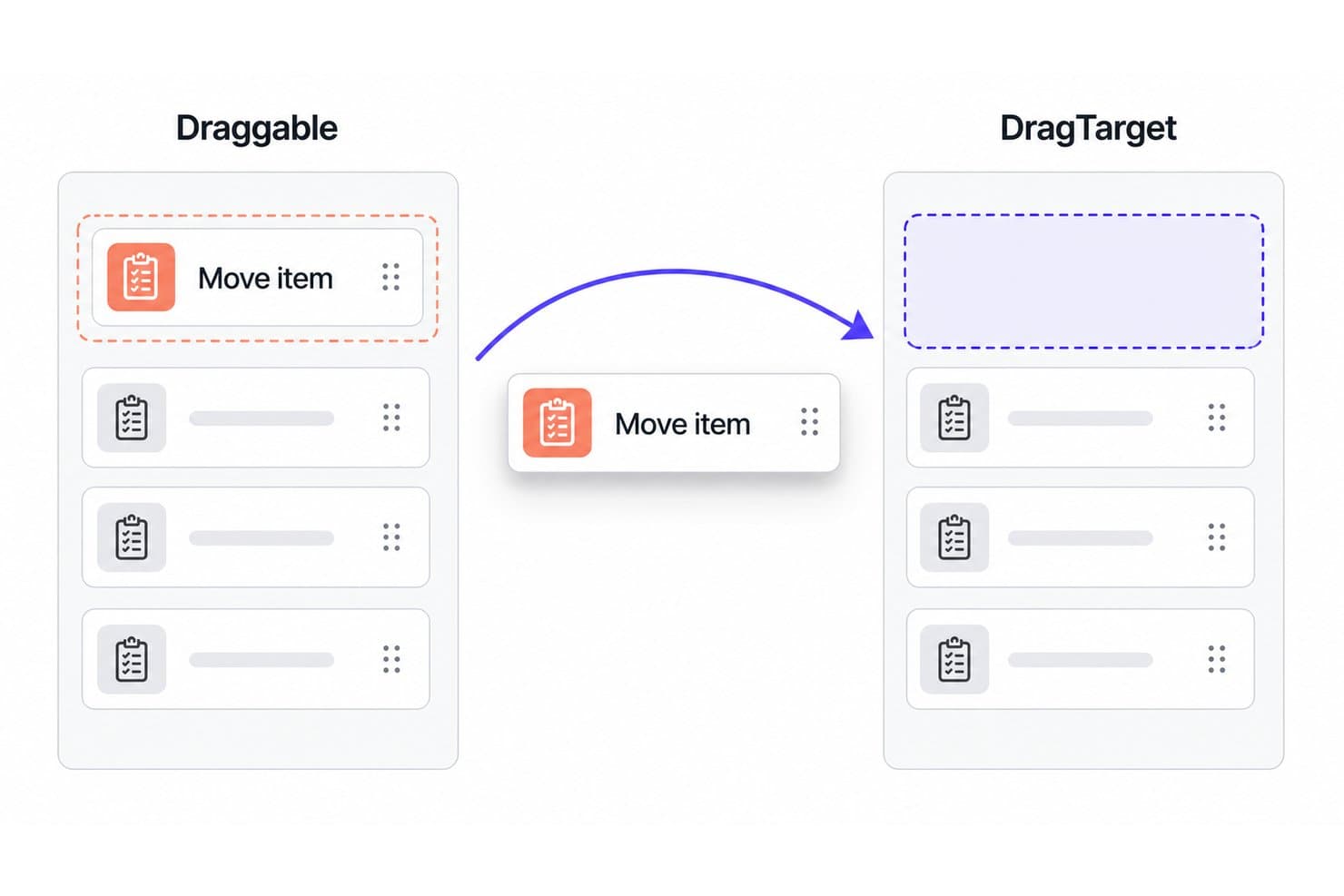
FlutterFlow lets users drag items between lists with Draggable and DragTarget widgets. FlutterFlow is a visual app development environment that lets you build, prototype, and publish mobile, web, and desktop apps through a drag-and-drop canvas with pre-built UI components, responsive layout controls, and a visual logic editor.
Who Is FlutterFlow Best For?
FlutterFlow is a strong fit for startup founders and product managers who need to ship real mobile apps without a dedicated engineering team.
Why I Picked FlutterFlow
I picked FlutterFlow as one of the best because it's the only drag-and-drop builder on my list that generates real, exportable Flutter code, so you're not just prototyping but actually shipping. The Action Flow Editor lets you wire up page-level logic and conditional UI states visually, and one-click App Store and Play Store deployment means a solo founder or PM can go from canvas to live app without touching a terminal.
FlutterFlow Key Features
- Action Flow Editor: A visual logic editor that lets you wire up page-level triggers, conditional visibility, and parameterized navigation without writing code.
- Responsive breakpoint controls: Set distinct layout, sizing, and visibility rules across four device tiers—mobile, tablet, desktop, and wide—from a single settings panel.
- Reusable component libraries: Publish entire projects, components, API calls, and action blocks as versioned dependencies that can be shared and reused across multiple projects.
- AI-assisted UI generation: Type a natural-language prompt to generate theme-styled widgets and reusable components directly on the canvas using the Generate with Designer feature.
FlutterFlow Integrations
FlutterFlow connects natively with Firebase, Supabase, Stripe, RevenueCat, OneSignal, Mux, and Google Cloud. It also supports REST APIs and Swagger/OpenAPI imports for custom data connections.
Pros and Cons
Pros:
- Responsive controls span four device tiers
- Builds functional prototypes without engineering support
- Exports Flutter code for future ownership
Cons:
- Large projects can slow debugging
- Web output remains Flutter-rendered
Learn more about FlutterFlow : Best for design-token-driven site building
- Free plan + 14-day free trial available
- From $15/month (billed annually)
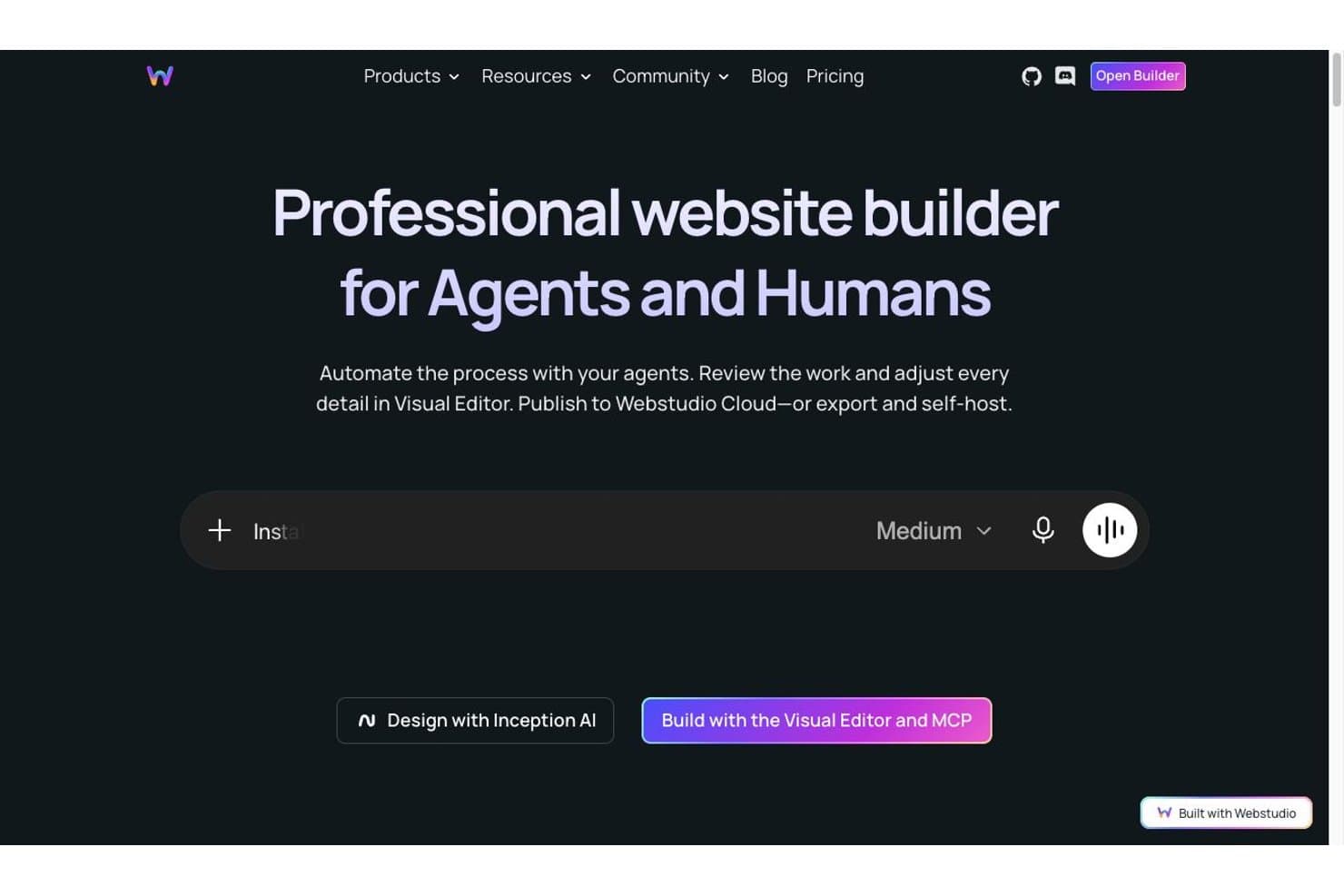
Webstudio lets users build websites with AI agents or a visual editor. Webstudio is an open-source, browser-based visual site builder that gives you drag-and-drop layout control alongside a full CSS Style Panel, Design Tokens, Radix UI components, and Figma Variables import.
Who Is Webstudio Best For?
Webstudio is a strong fit for frontend developers and UX/UI designers who want pixel-level CSS control and design-system workflows without leaving the browser.
Why I Picked Webstudio
Webstudio earns its spot on my shortlist because of how seriously it takes design-token-driven workflows. I love that you can import Figma Variables directly, then stack Design Tokens in the Style Panel so the rightmost token wins and local styles override everything—this mirrors how real design systems behave. When I'm building a site with a defined design language, that token-stacking model means visual consistency scales without manual overrides piling up.
Webstudio Key Features
- Radix UI components: A suite of WAI-ARIA compliant interactive components—including modals, tabs, accordions, and menus—that you can style fully in the Style Panel.
- Content Mode: A restricted editing view that lets clients update copy and media without accessing any design or style controls.
- Dynamic routing and Collections: Page templates with URL parameters (e.g.,
/blog/:slug) that bind to external data sources to generate real, data-driven pages. - MCP and CLI integration: A command-line and Model Context Protocol connection that lets AI agents like Claude or Cursor edit your live project directly.
Webstudio Integrations
Webstudio supports integrations with Strapi, Hygraph, Notion, Baserow, Contentful, Payload, Directus, WordPress, Flotiq, and Supabase. It also connects to REST and GraphQL APIs, with webhook form guides for Zapier, n8n, and Pabbly.
Pros and Cons
Pros:
- Production-ready output avoids hosting lock-in
- Figma Variables translate into reusable styles
- Design tokens keep visual systems consistent
Cons:
- CSS-centric controls challenge nontechnical collaborators
- Interactive prototyping lacks flow and hotspot tools
Learn more about Webstudio: Best for launching mobile apps with owned code
- Free plan available
- From $15/month
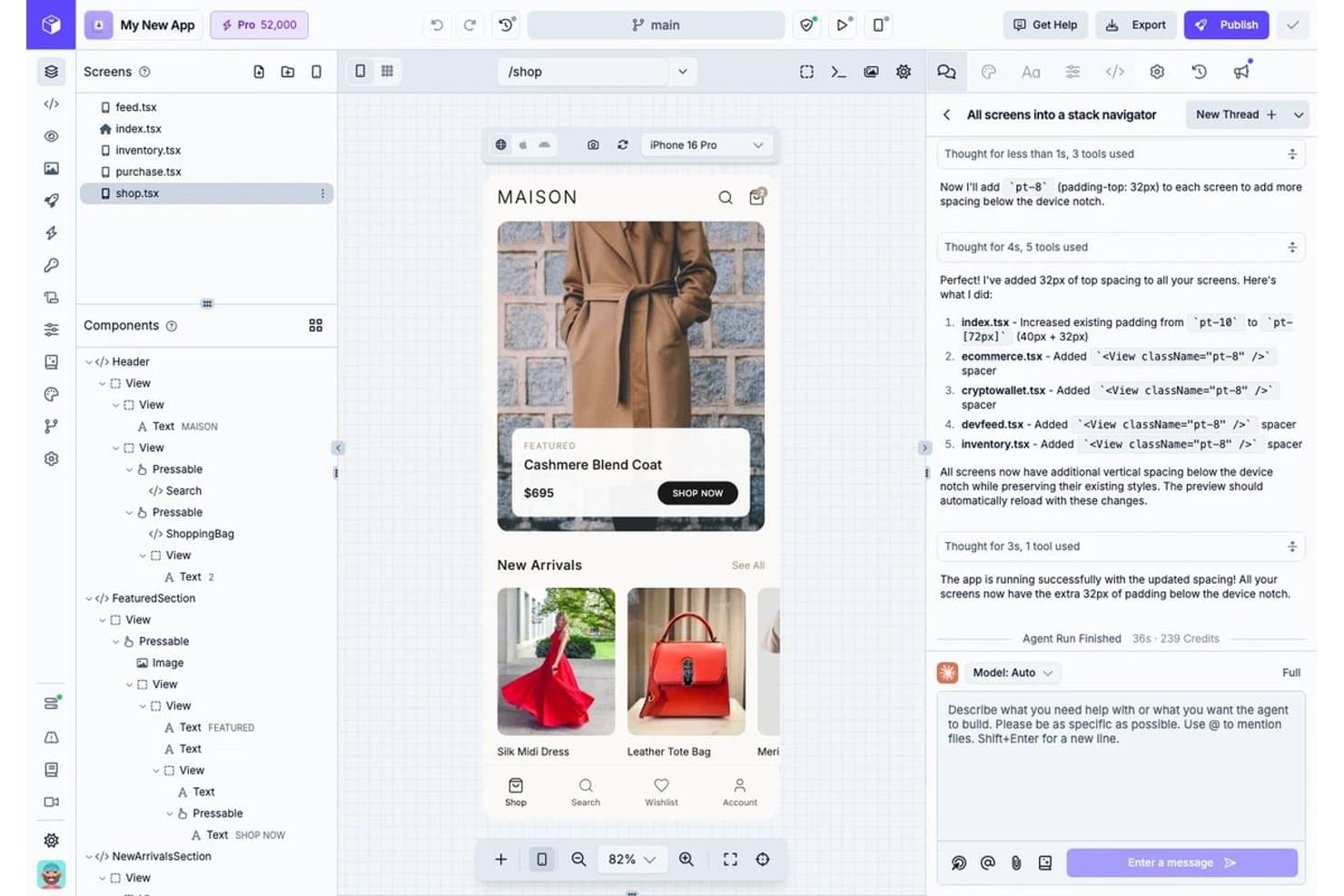
Draftbit lets users build app screens visually with a drag-and-drop component tree. Draftbit is a visual drag-and-drop app builder that lets you construct mobile and web UIs on an infinite canvas while generating real React Native, Vite, or Astro code you can export, edit, and publish directly to app stores.
Who Is Draftbit Best For?
Draftbit is a strong fit for startup founders and no-code developers who want to ship a real mobile app to the App Store without handing ownership of the codebase to a proprietary platform.
Why I Picked Draftbit
I picked Draftbit as one of the best because it's the only drag-and-drop builder I've found that produces real, exportable React Native and Vite code you fully own. Build a mobile app visually, then push it straight to the App Store with one click, no third-party lock-in. I also love that AI agents write directly to the same codebase the visual editor uses, so switching between dragging components and prompting Claude Code never breaks your project.
Draftbit Key Features
- Design blocks: Pre-built screens, navigation patterns, and UI components you can drop into your project to scaffold full app flows without starting from scratch.
- 26+ device simulators: Preview your app live across iPhones, iPads, Android devices, and desktop breakpoints directly in the browser.
- Theme editor: Edit global palettes, typography, and style tokens across your entire project using a visual theme editor with full Google Fonts support.
- Supabase backend integration: Connect a built-in Postgres database, authentication, storage, and edge functions to your app without leaving the builder.
Draftbit Integrations
Draftbit documents 80+ integrations across REST, GraphQL, and MCP, including Supabase, Firebase, Xano, Airtable, Contentful, Figma, Stripe, GitHub, Linear, and Zapier. You can connect custom REST and GraphQL APIs, with custom MCP servers available on Pro and Enterprise.
Pros and Cons
Pros:
- Publishes working apps to app stores
- Visual edits sync with AI changes
- Exports real code you control
Cons:
- AI can miss described requirements
- Complex logic requires code or AI
Learn more about Draftbit: Best for visual editing with a headless CMS
- Free plan available
- From $24/user/month (billed annually)
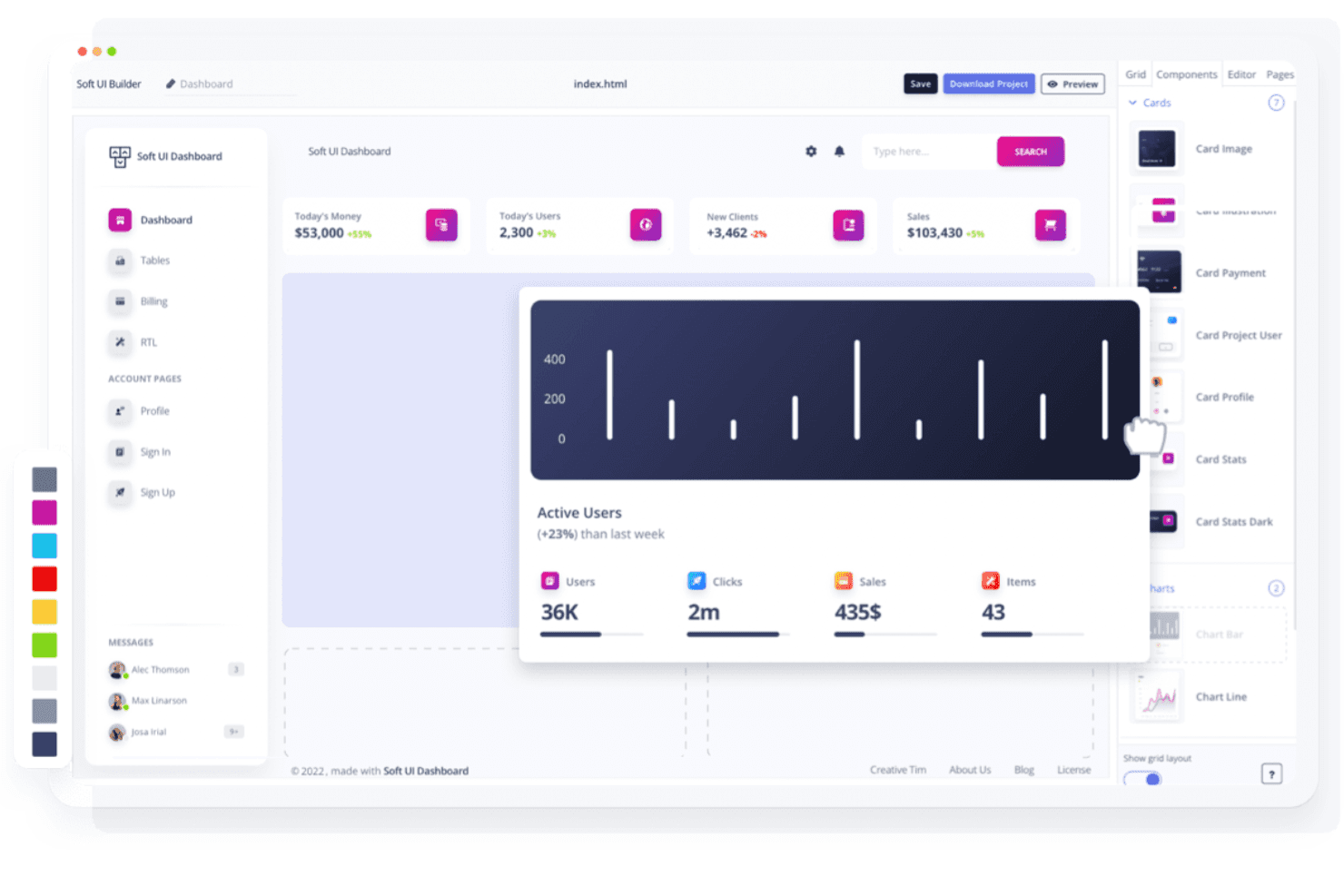
Builder.io helps teams build and optimize e-commerce sites without coding Builder.io is a drag-and-drop UI builder that combines a visual code editor with a headless CMS, letting teams design, build, and publish interfaces through a shared visual canvas with Figma import, AI-assisted generation, and real code output.
Who Is Builder.io Best For?
Builder.io is a strong fit for cross-functional product teams—designers, developers, and PMs—who need visual editing to connect directly to a live codebase and a headless CMS.
Why I Picked Builder.io
Builder.io earns its spot on my shortlist because it's the only drag-and-drop UI builder that pairs a true visual canvas with a fully functional headless CMS in one platform. I love how Visual Copilot converts Figma frames directly into production-ready code, and edits made in Design mode sync automatically to the underlying codebase as real PRs. That means my team can push content changes and UI updates without ever creating a throwaway prototype.
Builder.io Key Features
- Design token support: Define and enforce reusable values for color, spacing, typography, and more, with a strict mode that limits editors to approved tokens only.
- Custom breakpoints: Set pixel-level breakpoints for your whole space and preview layouts at any width directly in the visual editor.
- A/B testing and personalization: Run split tests and target content variations by URL path, device type, or custom audience rules without leaving the platform.
- Cross-functional commenting and peer review: Leave element-level comments with screenshots and request peer reviews on changes before they merge to your codebase.
Builder.io Integrations
Builder.io offers native integrations with GitHub, GitLab, Bitbucket, Azure DevOps, Figma, Slack, Jira, Contentful, and Sanity. It supports REST and GraphQL APIs, plus Zapier, for custom integrations and content delivery.
Pros and Cons
Pros:
- Headless CMS adds testing and personalization
- Figma designs convert into frontend components
- Visual edits become production-ready code
Cons:
- No dedicated screen-flow prototyping canvas
- Advanced widgets require custom components
Learn more about Builder.io: Best for apps built across multiple data sources
- Free plan + free demo available
- From $24/user/month

Jet Admin builds internal dashboards and data tools without code Jet Admin is a drag-and-drop app builder that lets you create admin panels, dashboards, and internal tools by connecting to databases, APIs, and third-party business apps across multiple data sources.
Who Is Jet Admin Best For?
Jet Admin is a strong fit for startup founders and small teams who need to build data-connected internal tools, admin panels, or portals without a dedicated development team.
Why I Picked Jet Admin
I've included Jet Admin in my top picks because it's the builder I reach for when an app needs to pull live data from several places at once. I can connect a PostgreSQL database, a Stripe account, and a HubSpot CRM in the same app without writing a backend from scratch. The Figma-to-Jet plugin also lets me bring existing designs in as data-bindable components, so I'm not rebuilding layouts by hand.
Jet Admin Key Features
- AI app builder: Generate a working app from a text prompt, then refine it visually or with follow-up prompts.
- Custom component builder: Create custom components in HTML, React, Vue, or Angular, with AI assistance for the code.
- Role-based access control: Set granular permissions to show, hide, or restrict content based on user role or data values.
- Two-way GitHub sync: Connect your app to a GitHub repository for version control across production, staging, and development environments.
Jet Admin Integrations
Jet Admin offers 200+ integrations, including PostgreSQL, MySQL, Figma, GitHub, HubSpot, Salesforce, Stripe, and Google Sheets. It also supports REST, GraphQL, OpenAPI, and Zapier for custom connectivity.
Pros and Cons
Pros:
- Supports custom code and visual styling
- Converts Figma frames into responsive components
- Builds functional apps from visual layouts
Cons:
- Classic builder now trails AI-first workflows
- Better suited to business apps than prototypes
Learn more about Jet Admin: 10Best for syncing visual edits to a React codebase
Plasmic
- Free plan available
- From $39/month (billed annually)
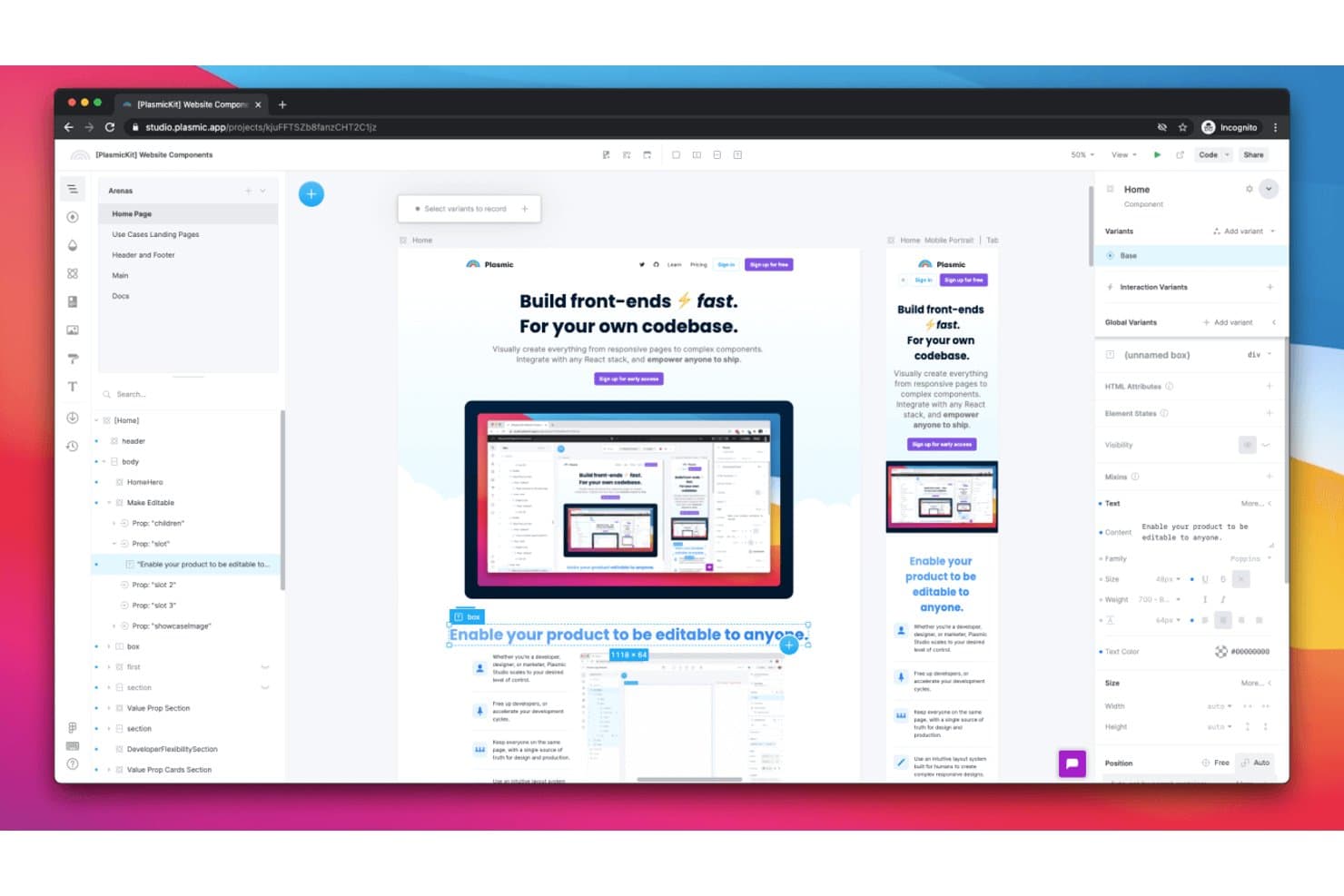
Plasmic lets users visually build and edit UI components via drag-and-drop. Plasmic is an open-source visual drag-and-drop builder for React websites and web apps that lets you design on a canvas, register custom React components as drag-and-drop blocks, and sync generated code directly into your codebase.
Who Is Plasmic Best For?
Plasmic is a strong fit for frontend developers and product teams who want to let non-technical collaborators edit UI visually without breaking the underlying React codebase.
Why I Picked Plasmic
I picked Plasmic as one of the best because it's the only drag-and-drop builder I've found that keeps your visual edits and React codebase in genuine sync. Running
plasmic watchmeans any design change in the canvas regenerates your React components automatically, without overwriting your custom code. I also love that you can register your own React components as drag-and-drop blocks, so your team edits real production components visually, not placeholder stand-ins.Plasmic Key Features
- Style tokens: Define reusable color, spacing, and typography tokens that reference each other and apply globally across your project via CSS variables.
- Content creator mode: A simplified editor view that lets non-technical teammates edit content without accessing the full design canvas.
- Multiplayer editing: Multiple team members can work in the same project simultaneously, with comments for async collaboration.
- AI-assisted generation: A beta tool that generates sections, pages, and tokens from text or image prompts, reusing your project's existing tokens to stay on-brand.
Plasmic Integrations
Plasmic offers native integrations with Figma, GitHub, Vercel, Netlify, Shopify, Contentful, Sanity, Airtable, Supabase, and Optimizely. It supports custom integrations through REST, GraphQL, or SQL, plus Zapier.
Pros and Cons
Pros:
- Supports real app behavior beyond mockups
- Reuses production components inside the canvas
- Keeps visual edits synced with React code
Cons:
- Installed components require manual update work
- Figma imports need manual responsive rework
Learn more about Plasmic:
Other Drag and Drop UI Builders
Here are some additional drag and drop UI builder options that didn’t make it onto my shortlist, but are still worth checking out:
- 11UI BakeryBest for building internal business tools fast
- 12FramerBest for interactive prototyping with animation
- 13OutSystemsBest for enterprise app generation from a prompt
- 14TeleportHQBest for instant React code generation
- 15AdaloBest for launching native mobile and web MVPs
How I Evaluate Drag-And-Drop UI Builders
I split my evaluation into three parts. Core functionality carries the most weight: arrange components, preview responsive layouts, and link screens. Next come standout features such as AI-assisted generation, including screenshot-to-layout workflows. Finally, I consider beyond-feature value: collaboration, onboarding, support, and pricing.
Core Functionality (Table Stakes For This List)
When I'm selecting tools for my list, I score each one on a scale from 0 (does not offer the functionality) to 5 (excels in this area) for each core functionality listed below. I then convert the total into a percentage to help assess each tool's overall fit, with extra weight on any functionalities I’ve deemed essential.
- Drag-And-Drop Canvas (Essential): I look for flexible placement, nesting, and multi-section layouts for real product screens, dashboards, and responsive pages.
- UI Component Library (Essential): I assess coverage of buttons, forms, navigation, tables, modals, and other components used in functional product interfaces.
- Responsive Layout Control: I check breakpoint previews and manual adjustments for adapting customer-facing pages and internal tools across screen sizes.
- Visual Styling Controls: I evaluate typography, color, spacing, states, reusable styles, and design tokens across screens and components.
- Publish Or Export: I look for live publishing, usable code export, or development pipeline connections that support MVP and production workflows.
- Interactive Prototyping: I assess screen links, navigation flows, conditional behavior, and state changes for validating product concepts before development.
Once I have a list of tools that meet the criteria, I consider what sets each platform apart.
Differentiating Factors (What Sets Vendors Apart)
Here's how I compare and contrast different vendors:
Standout Features
AI-assisted generation is the first thing I evaluate. I check whether a tool can turn a text prompt or screenshot into an editable layout, since that compresses early discovery from hours to minutes. Design system integration matters just as much. I look for tools that pull in existing tokens and component libraries so prototypes stay brand-consistent without manual rebuilding. I also assess real-time design-to-code sync, where canvas changes push straight to production-ready code with no re-export step—a gap that typically stalls handoff between design and engineering.
Beyond Features
I evaluate how quickly a PM with no front-end background can build a shareable prototype—tools that demand hours of onboarding stall discovery cycles before they start. Cross-functional workflow fit matters just as much: I check whether the builder connects to Figma, Jira, or GitHub so prototypes feed directly into sprint planning instead of living as disconnected artifacts. I also look at stakeholder validation support, like shareable review links and embedded commenting, since PMs need fast feedback loops to justify roadmap decisions with testable screens.
How to Choose a Drag and Drop UI Builder
It’s easy to get bogged down in long feature lists and complex pricing structures. To help you stay focused as you work through your unique software selection process, here’s a checklist of factors to keep in mind:
| Factor | What to Consider |
|---|---|
| FactorScalability | What to ConsiderWill the tool support your team as your projects or user base grow? Check for user limits, project caps, and performance with large files. |
| FactorIntegrations | What to ConsiderDoes it connect natively to your design, dev, or analytics stack? Confirm compatibility with tools like Figma, GitHub, or Slack. |
| FactorCustomizability | What to ConsiderCan you adapt the tool to your workflow? Look for options to add custom code, templates, or branding as your needs evolve. |
| FactorEase of use | What to ConsiderHow quickly can new users become productive? Evaluate the learning curve, interface clarity, and availability of in-app guidance. |
| FactorImplementation and onboarding | What to ConsiderWhat resources are needed to get started? Consider migration support, training materials, and the time required to onboard your team. |
| FactorCost | What to ConsiderAre the pricing tiers aligned with your budget and usage? Watch for hidden fees, required add-ons, or user-based pricing that can add up. |
| FactorSecurity safeguards | What to ConsiderDoes the tool meet your organization’s security standards? Look for SSO, data encryption, and compliance with relevant regulations. |
| FactorSupport availability | What to ConsiderWhat support channels are offered and during what hours? Consider if you need live chat, phone, or only email support, especially for urgent issues. |
What Is a Drag and Drop UI Builder?
A drag and drop UI builder is a visual tool that helps teams design and build interfaces by arranging elements on a canvas instead of writing code. These tools support app development by making it easier to create layouts for web applications and website builder projects without relying heavily on developers. By simplifying the development process, drag and drop UI builders allow teams to focus on building apps faster, testing ideas, and iterating on designs with less technical effort.
Features
When selecting a drag and drop UI builder, keep an eye out for the following key features:
- Visual canvas: Lets you arrange, resize, and organize interface elements directly on a digital workspace, making layout changes intuitive and immediate.
- Component library: Provides a collection of reusable UI elements like buttons, forms, and navigation bars that you can drag into your design.
- Responsive design tools: Allows you to create layouts that automatically adjust to different screen sizes and devices, ensuring a consistent user experience.
- Interactive prototyping: Enables you to add links, transitions, and basic interactions so you can simulate user flows and test interface logic.
- Style editor: Offers controls for adjusting colors, fonts, spacing, and other visual properties without needing to write CSS or code.
- Preview mode: Lets you view and interact with your design as an end user would, helping you catch issues before development.
- Export and handoff options: Supports exporting assets, code snippets, or design specs to share with developers or other stakeholders.
- Version history: Tracks changes to your project over time, allowing you to revert to previous states or review edits made by collaborators.
- Collaboration tools: Facilitates real-time or asynchronous teamwork, with features like commenting, sharing, and multi-user editing.
- Template library: Includes pre-designed layouts or UI kits to help you start new projects quickly and maintain design consistency.
Common AI Features
Beyond the standard drag and drop UI builder features listed above, many of these solutions are incorporating AI with features like:
- AI layout suggestions: Analyzes your design and automatically recommends optimal element placement, spacing, and alignment to improve usability and visual balance.
- AI-generated components: Creates new UI elements or entire sections based on your project requirements or text prompts, reducing manual design work.
- Content auto-fill: Uses AI to generate placeholder text, images, or icons that match your design context, helping you visualize realistic prototypes faster.
- Accessibility checks: Scans your interface for potential accessibility issues and suggests AI-powered fixes to improve compliance with accessibility standards.
- Design consistency analysis: Reviews your project for inconsistent styles, colors, or fonts and recommends AI-driven adjustments to maintain a cohesive look.
Benefits
Implementing a drag and drop UI builder provides several benefits for your team and your business. Here are a few you can look forward to:
- Faster prototyping: Visual canvas and component libraries let you quickly build and test interface ideas without coding.
- Accessible design process: Drag and drop tools make UI creation possible for team members with varying technical backgrounds.
- Improved collaboration: Real-time editing, commenting, and sharing features help teams work together and gather feedback efficiently.
- Consistent user experiences: Template libraries and style editors support brand consistency and design standards across projects.
- Reduced handoff friction: Export and handoff options make it easier to share specs and assets with developers, minimizing miscommunication.
- Responsive design support: Built-in responsive tools ensure your interfaces look and function well on any device.
- Lower onboarding barriers: Guided tours, templates, and intuitive interfaces help new users become productive quickly.
Costs and Pricing
Selecting drag and drop UI builder requires an understanding of the various pricing models and plans available. Costs vary based on features, team size, add-ons, and more. The table below summarizes common plans, their average prices, and typical features included in drag and drop UI builder solutions:
Plan Comparison Table for Drag and Drop UI Builders
| Plan Type | Average Price | Common Features |
|---|---|---|
| Plan TypeFree Plan | Average Price$0 | Common FeaturesAccess to basic components, limited projects, single user support, and community help resources. |
| Plan TypePersonal Plan | Average Price$10–$25/user/month | Common FeaturesUnlimited projects, advanced components, responsive design tools, and email support. |
| Plan TypeBusiness Plan | Average Price$25–$50/user/month | Common FeaturesTeam collaboration, version history, export options, priority support, and integration capabilities. |
| Plan TypeEnterprise Plan | Average Price$50–$100+/user/month | Common FeaturesCustom security, dedicated onboarding, advanced admin controls, SLA-backed support, and audit logs. |
FAQs
Here are some answers to common questions about drag and drop UI builder:
Can I use a drag and drop UI builder without any coding experience?
Yes, most drag and drop UI builders are designed for users with little or no coding background. You can visually arrange elements, customize styles, and build interactive prototypes using intuitive interfaces, making them accessible to designers, product managers, and other non-developers.
How do no-code UI builders support team collaboration?
Many drag and drop UI builders offer real-time editing, commenting, and sharing features. These tools let multiple team members work on the same project simultaneously, provide feedback directly on designs, and manage permissions for different roles, which helps keep everyone aligned.
What types of projects are best suited for this type of UI builder?
Drag and drop UI builders are ideal for prototyping web and mobile interfaces, creating design systems, and building marketing sites or dashboards. They’re especially useful for projects that require quick iteration, stakeholder feedback, or collaboration between designers and non-technical team members.
Can I export my designs or code from a drag and drop UI builder?
Yes, most solutions let you export assets, design specs, or code snippets for handoff to developers. Some tools offer direct integration with development platforms or generate production-ready code, while others focus on providing clear documentation and design files.