

A strong Adobe Photoshop alternative offers advanced image editing, layer support, and compatibility with common design file formats—without locking you into Adobe’s ecosystem. If you’re searching for design tool software that matches Photoshop’s core features or better fits your workflow, you’re not alone. Whether you want a more affordable option, need a tool that runs natively on your device, or prefer a browser-based editor, this list will help you compare the top alternatives for 2026and find the right fit for your creative projects.
What Is Adobe Photoshop?
Adobe Photoshop is a professional design tool used for photo editing, digital painting, and graphic creation. It supports advanced features like layers, masks, and a wide range of file formats, making it a standard in creative industries. Designers, photographers, and artists rely on Photoshop for tasks ranging from retouching images to creating complex digital artwork. Its extensive toolset and plugin support have made it a go-to choice for creative professionals worldwide.
Adobe Photoshop Alternatives Comparison Table
This comparison table summarizes pricing details for my top Adobe Photoshop alternative selections.
| Tool | Best For | Trial Info | Price | ||
|---|---|---|---|---|---|
| 1 | Best for open-source customization options | Free plan available | Free and open-source | Website | |
| 2 | Best for free, local-only raw photo editing | Free plan available | Free forever | Website | |
| 3 | Best for illustration-focused perpetual licensing | Free plan available | From $0.99/month (billed annually) | Website | |
| 4 | Best for photo organizing and editing in one app | 15-day free trial | From $214/month | Website | |
| 5 | Best for photographers on a Windows budget | 7-day free trial | From $5.99/month | Website | |
| 6 | Best for Mac users seeking native integration | 30-day free trial available | Pricing upon request | Website | |
| 7 | Best for editing PSD files in-browser | Free plan available | From $5/month | Website | |
| 8 | Best for AI-powered photo enhancements | 7-day free trial | From $119 (one-time purchase) | Website | |
| 9 | Best for non-destructive raw photo editing | Not available | From $89.99/month (billed annually) | Website | |
| 10 | Best for Windows-based batch processing | 30-day free trial | From $79.99 | Website |


Why Trust Our Software Recommendations
6,700+
Reviews
20
Industry experts
16+
Evaluation factors
14
Years
Our team has been testing and reviewing software since 2012. As product managers ourselves, we know how difficult—and important—it is to choose the right software.
For this guide, we evaluated tools using hands-on testing and independent research, scoring tools using our selection criteria.
Our reviews reflect our human editorial judgment, not a sales pitch.
Expert reviewers:
- Andrew LumbySenior TPM
- Cristiano ValimSenior UI/UX Lead


Adobe Photoshop Alternatives Reviews
Below are my detailed summaries of the best Adobe Photoshop alternatives that made it onto my shortlist. My reviews offer a detailed look at the features, best use cases, and capabilities of each tool to help you find the best one for you.
 1Best for open-source customization options
Gimp
- Free plan available
- Free and open-source
Visit WebsiteCustomer Rating:4.2/5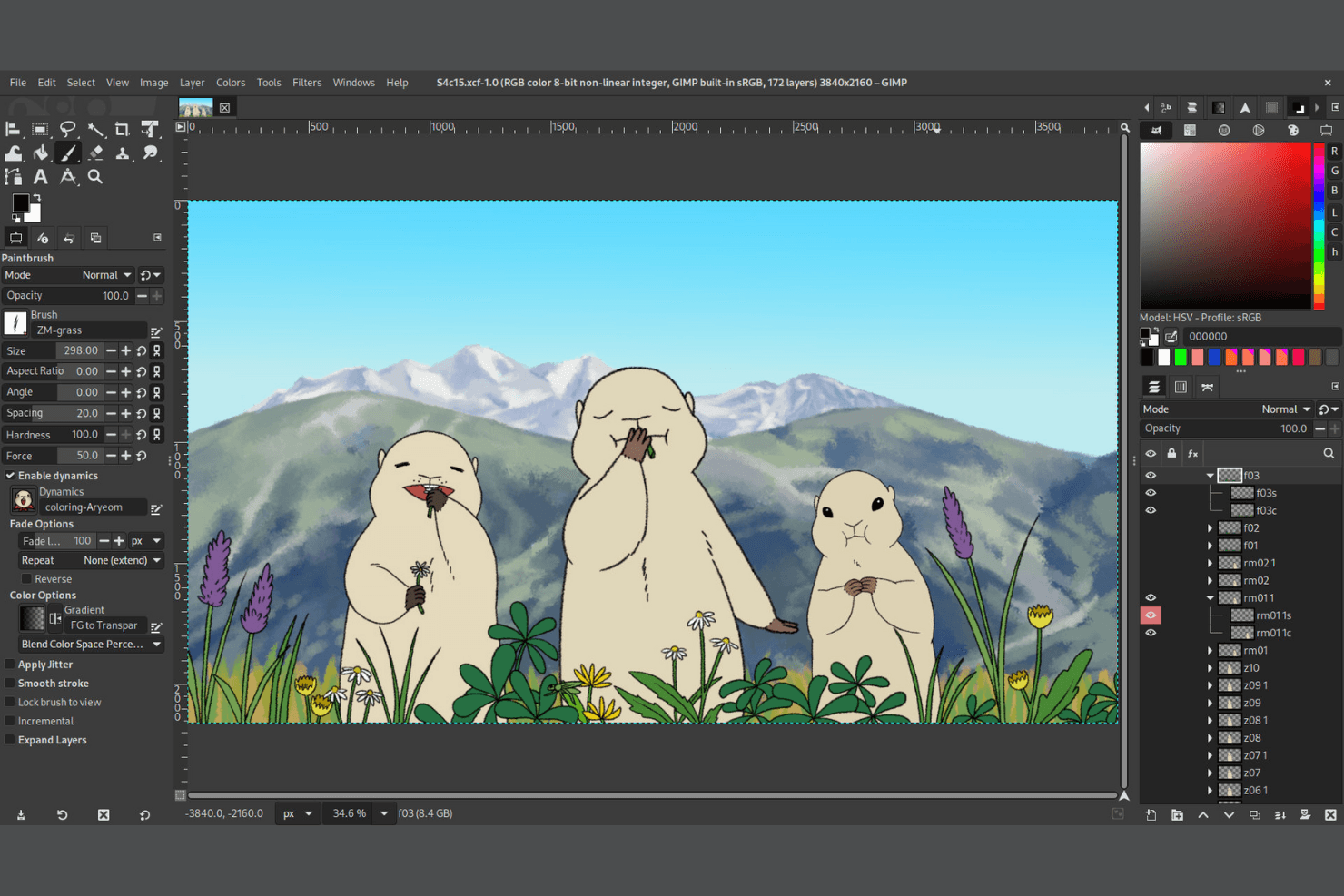
GIMP supports layered painting with brushes and advanced color tools. GIMP is photo editing software for designers, photographers, and creative teams seeking a Photoshop alternative for retouching, compositing, and image preparation without subscription costs.
Who Is GIMP Best For?
GIMP suits designers, photographers, and creative teams that need a customizable desktop editor without subscription licensing.
Why Gimp Is a Good Adobe Photoshop Alternative
I picked Gimp because its open-source customization options let me tailor photo editing to specific workflows. I use its plugin architecture to add tools, while dockable panels and customizable keyboard shortcuts keep retouching and compositing tasks aligned with my process.
GIMP Key Features
- Layer masks: Hide or reveal image areas without permanently altering pixels.
- Color management: Configure color profiles for consistent screen and print output.
- Transform tools: Scale, rotate, shear, and perspective-correct image elements.
- File format support: Import and export formats including PSD, TIFF, PNG, JPEG, and GIF.
GIMP Integrations
GIMP doesn't have any native integrations. Its plugin architecture and scripting support can extend workflows.
Pros and Cons
Pros:
- Broad format support eases Photoshop file migration
- Layer masks and channel tools suit compositing
- Extensive plugin and script customization options
Cons:
- Text and vector workflows trail Photoshop
- Raw photo workflows feel less polished
Learn more about Gimp:
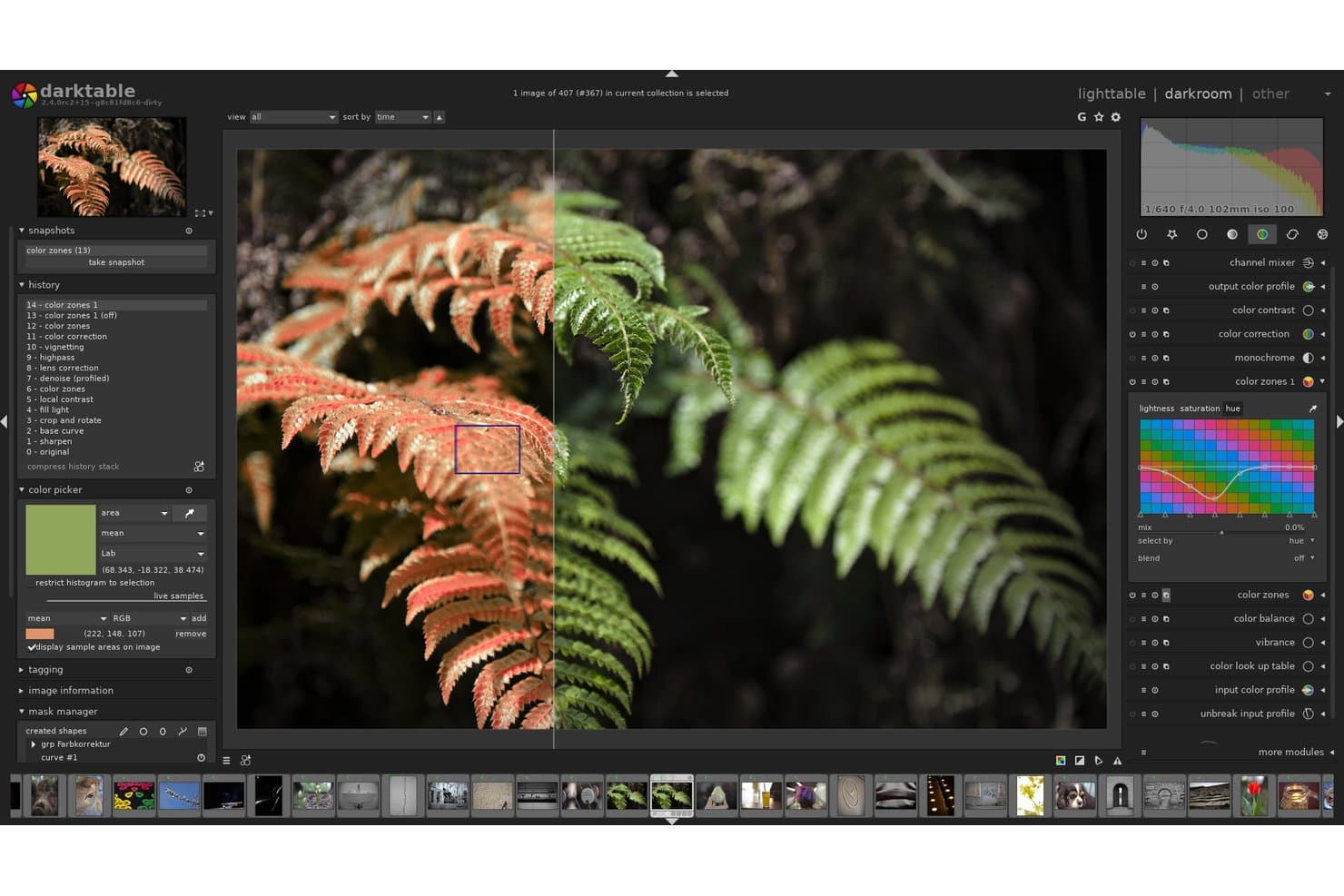
darktable lets users fine-tune colors with precision using the color zones module. darktable is an open-source photo editing application for photographers and creative teams seeking a capable Adobe Photoshop alternative for organizing, developing, and refining raw images.
Who Is darktable Best For?
Photographers and creative teams that want open-source raw development on a desktop, with image files kept under their own local control.
Why darktable Is a Good Adobe Photoshop Alternative
I picked darktable because it delivers free, local-only raw photo editing without sending image files to a cloud service. Its non-destructive workflow, parametric masks, and modular raw-processing tools let my team refine exposure, color, and detail while preserving the original file. Local XMP sidecars also keep edits portable across projects.
darktable Key Features
- Lighttable view: Browse, rate, tag, and filter image collections.
- Tethered shooting: Capture images directly from supported cameras.
- Geotagging: Add GPS coordinates and view photos on a map.
- Export presets: Save settings for recurring image exports.
darktable Integrations
Native integrations are not currently listed.
Pros and Cons
Pros:
- Tethered shooting supports supported cameras
- Parametric masks enable precise adjustments
- Local, non-destructive raw editing
Cons:
- Raw defaults require manual module setup
- No Photoshop-style layers or compositing
Learn more about darktable: Best for illustration-focused perpetual licensing
- Free plan available
- From $0.99/month (billed annually)
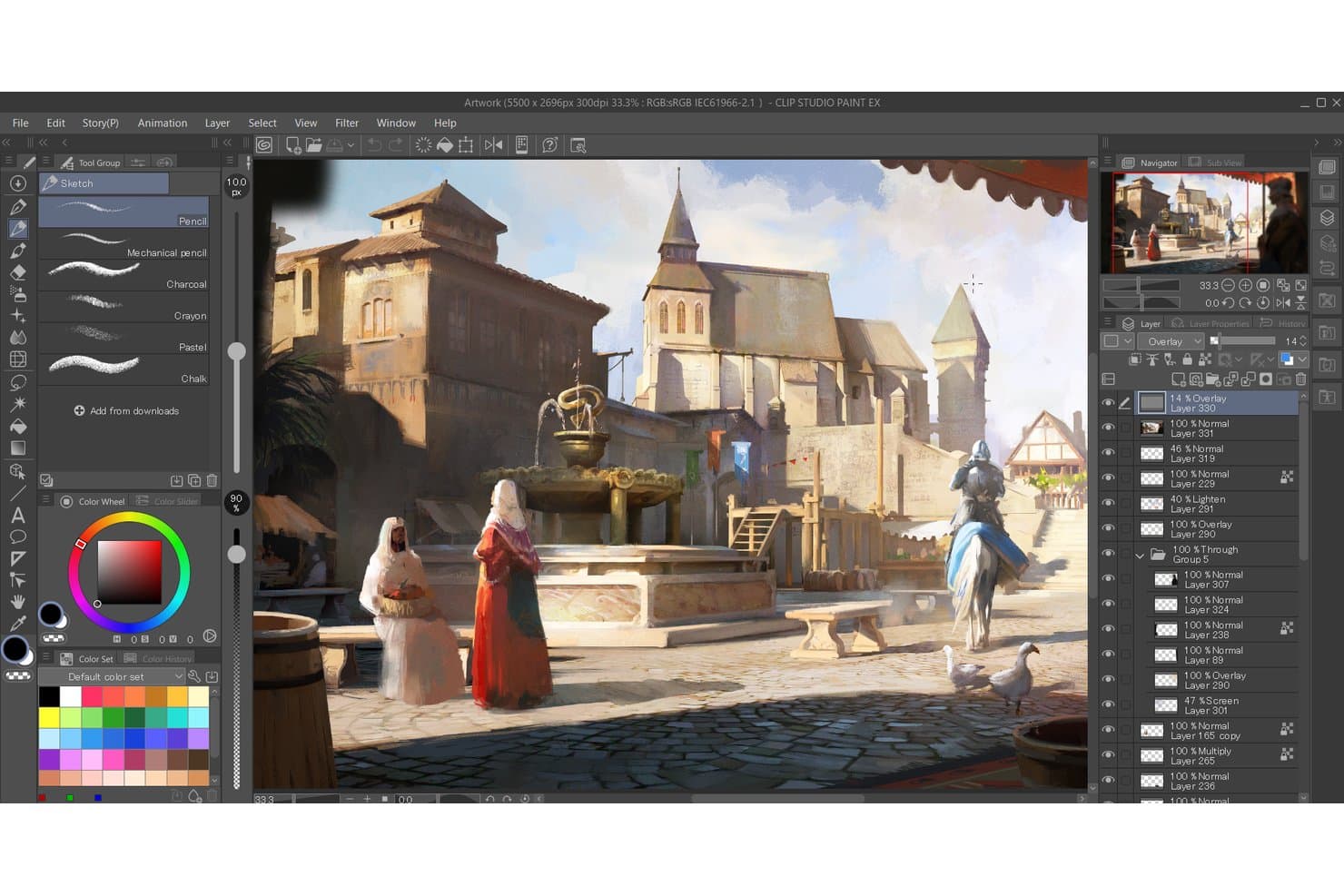
Clip Studio Paint supports complex multi-layer digital painting workflows. Clip Studio Paint is a raster graphics editor for illustrators, comic artists, and design teams seeking an Adobe Photoshop alternative with specialized tools for drawing, inking, coloring, and visual storytelling.
Who Is Clip Studio Paint Best For?
Illustrators, comic artists, and small creative teams creating drawing-heavy projects with a perpetual license option.
Why Clip Studio Paint Is a Good Adobe Photoshop Alternative
I picked Clip Studio Paint because its illustration-focused perpetual licensing suits artists who want long-term ownership. I use vector layers for clean comic linework, while its specialized brush engine handles textured pencils, inks, and painted backgrounds. Its 3D poseable models also help me block out characters and perspective before raster coloring.
Clip Studio Paint Key Features
- Animation timeline: Create frame-by-frame animations with timeline controls.
- Page management: Organize multi-page comics and illustration projects.
- Speech balloon tools: Add editable balloons, tails, and text to comics.
- Perspective rulers: Build adjustable guides for one-, two-, and three-point perspectives.
Clip Studio Paint Integrations
Clip Studio Paint doesn’t have clearly documented native integrations with third-party business tools. It supports file-based workflows with formats such as PSD and PDF.
Pros and Cons
Pros:
- 3D pose models simplify perspective blocking
- Vector layers keep comic linework editable
- Natural brushes closely mimic traditional media
Cons:
- Text and layout controls feel less mature
- Advanced photo retouching trails Photoshop’s toolkit
Learn more about Clip Studio Paint: Best for photo organizing and editing in one app
- 15-day free trial
- From $214/month
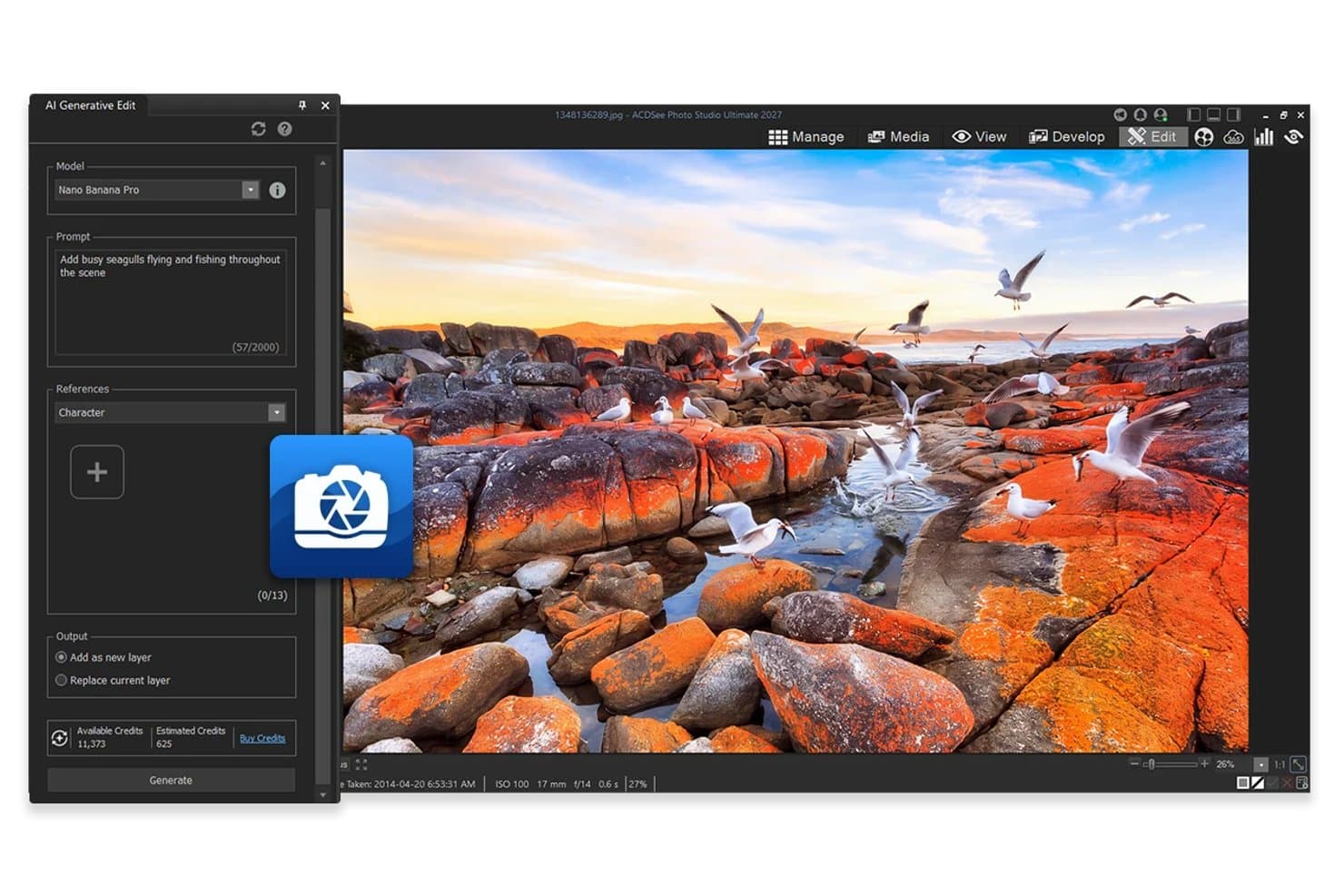
ACDSee Photo Studio uses AI to add elements like seagulls to photos. ACDSee Photo Studio is photo editing software for photographers, creative teams, and businesses that need to organize image libraries, refine photos, and manage their asset workflow in one place.
Who Is ACDSee Photo Studio Best For?
It suits photographers and creative teams that need one workspace for cataloging large image libraries and making everyday edits.
Why Acdsee Photo Studio Is a Good Adobe Photoshop Alternative
I picked ACDSee Photo Studio because it combines photo organizing and editing in one app. I use its cataloging tools to manage large libraries, then refine RAW files in Develop mode without switching applications. Batch processing also helps my team apply consistent adjustments across event or product shoots.
ACDSee Photo Studio Key Features
- Layer editing: Create composite images with layers, blending modes, and opacity controls.
- Masking tools: Apply adjustments to selected areas with gradient and brush masks.
- Lens correction: Fix distortion, vignetting, and chromatic aberration in photos.
- HDR blending: Combine multiple exposures into one high-dynamic-range image.
ACDSee Photo Studio Integrations
ACDSee Photo Studio supports a documented integration with Microsoft OneDrive for browsing and editing cloud-based photos.
Pros and Cons
Pros:
- Batch processing keeps shoot adjustments consistent
- Layer editing supports composite image creation
- Catalogs large libraries without importing files
Cons:
- RAW processing trails dedicated alternatives
- Catalog tools lag behind Lightroom’s sophistication
Learn more about Acdsee Photo Studio: Best for photographers on a Windows budget
- 7-day free trial
- From $5.99/month
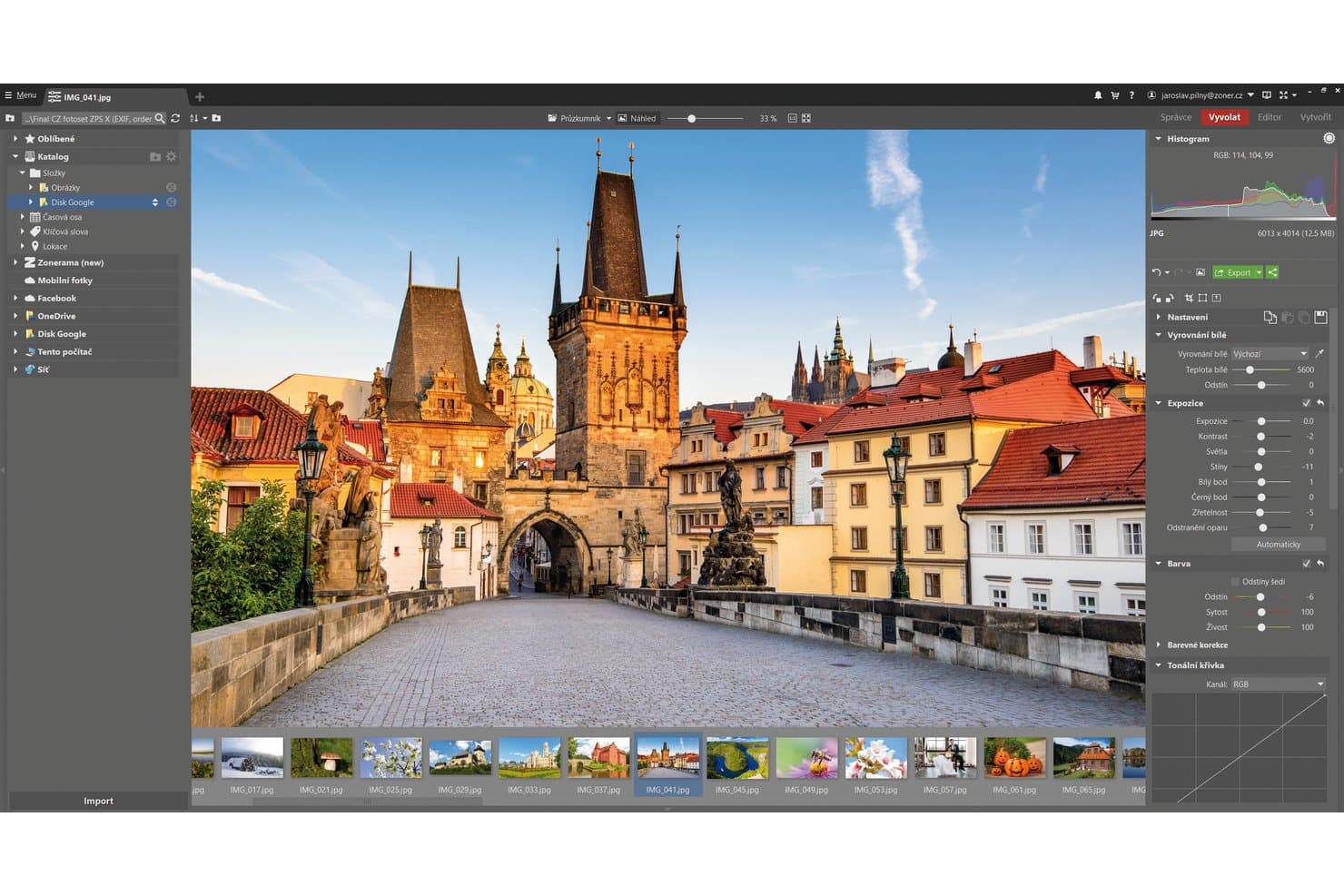
Zoner Photo Studio X lets users edit and develop RAW photos with precision tools. Zoner Photo Studio X is a Windows photo editing and management suite for photographers who want to organize, enhance, and share images without Photoshop’s complexity.
Who Is Zoner Photo Studio X Best For?
Windows photographers and small creative teams seeking affordable photo organization, editing, and sharing in one application.
Why Zoner Photo Studio X Is a Good Adobe Photoshop Alternative
I picked Zoner Photo Studio X because it gives Windows photographers a budget-friendly alternative with cataloging, RAW processing, and layer-based editing in one application. I use its Develop module for camera files, then move images into layered edits for portraits, product photos, or marketing graphics. That combination makes it a strong choice for photographers on a Windows budget.
Zoner Photo Studio X Key Features
- Batch editing: Apply adjustments and watermarks to multiple photos.
- Photo retouching: Remove unwanted objects with repair and clone tools.
- Panorama stitching: Combine overlapping images into panoramic photographs.
- HDR merging: Blend bracketed exposures into high-dynamic-range images.
Zoner Photo Studio X Integrations
Native integrations are not currently listed.
Pros and Cons
Pros:
- Includes panorama stitching and HDR merging
- Batch edits and watermarks multiple photos
- Combines cataloging, RAW development, and layers
Cons:
- Less advanced compositing than Photoshop
- Windows-only desktop workflow
Learn more about Zoner Photo Studio X: Best for Mac users seeking native integration
- 30-day free trial available
- Pricing upon request
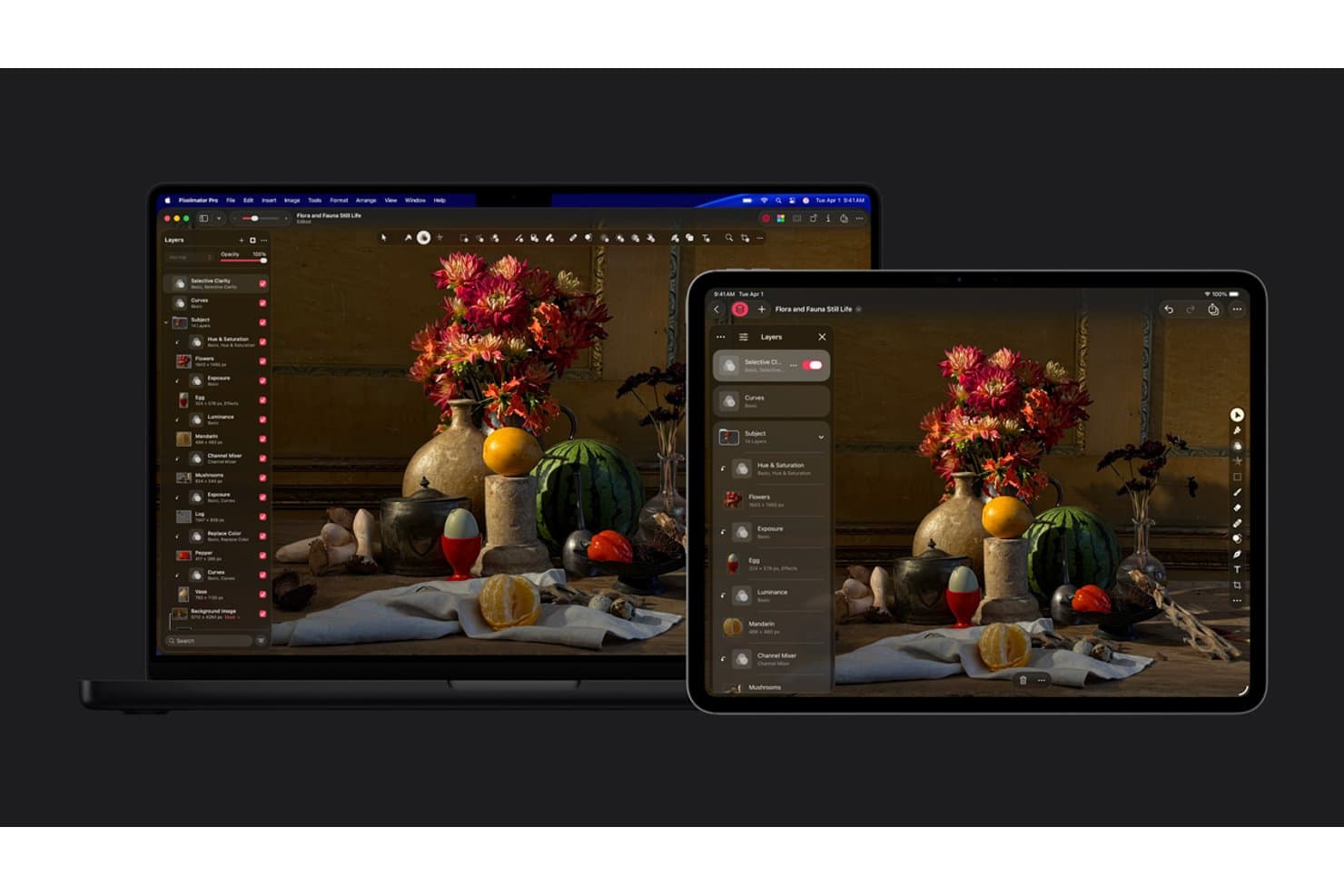
Pixelmator Pro supports cross-device editing with shared layers on Mac and iPad. Pixelmator Pro is photo editing software for Mac-based designers, marketers, and creative teams seeking a Photoshop alternative for polished image edits, compositing, and production work.
Who Is Pixelmator Pro Best For?
Creative professionals who work primarily on Mac and want photo editing integrated with Apple’s design and productivity ecosystem.
Why Pixelmator Pro Is a Good Adobe Photoshop Alternative
I picked Pixelmator Pro because its native macOS integration fits naturally into my Apple-based workflow. I edit images directly from the Photos extension, work with Apple silicon acceleration, and use Shortcuts to automate repeatable image tasks. Its RAW editing, vector tools, and machine learning features cover polished campaign graphics without leaving the Mac ecosystem.
Pixelmator Pro Key Features
- Layer-based editing: Organize images, text, shapes, and effects across editable layers.
- Color adjustments: Fine-tune exposure, contrast, curves, saturation, and white balance.
- Repair tool: Remove unwanted objects, blemishes, and distractions from photos.
- Templates: Start designs with ready-made layouts for social posts, posters, and graphics.
Pixelmator Pro Integrations
Pixelmator Pro offers native integrations with Apple Photos through its Photos extension and Apple Shortcuts for automation.
Pros and Cons
Pros:
- Machine learning accelerates repairs and selections
- Combines photo editing and vector tools
- Native Mac performance with Apple silicon
Cons:
- Fewer advanced workflows than Photoshop
- Available exclusively on Apple platforms
Learn more about Pixelmator Pro:
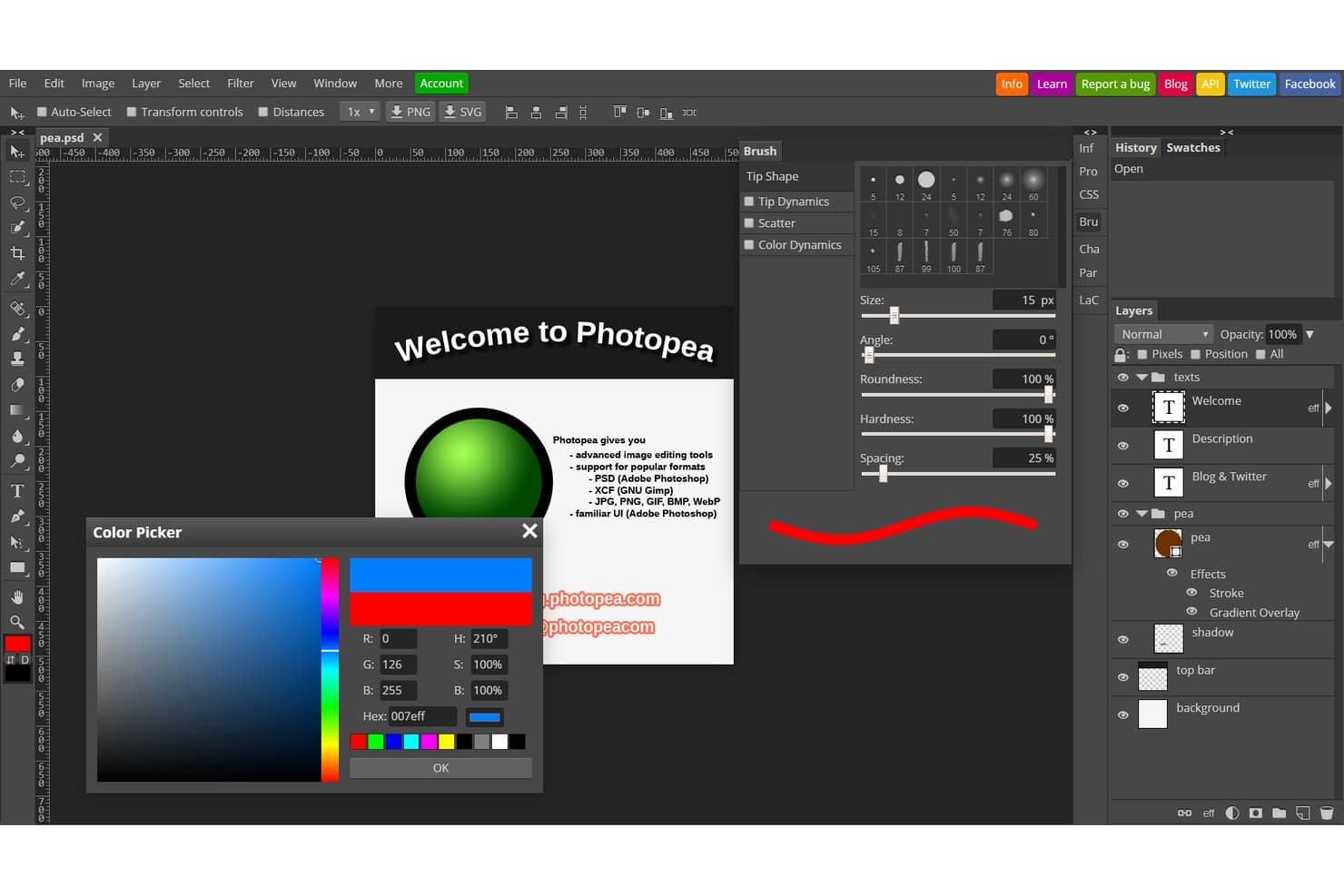
Photopea offers a color picker and brush tools rivaling Photoshop. Photopea is a browser-based photo editing solution for freelancers, designers, and lean teams seeking an Adobe Photoshop alternative for accessible creative work; it is Best for editing PSD files in-browser.
Who Is Photopea Best For?
Photopea suits product and marketing teams that need to review or adjust layered PSD assets without installing desktop design software.
Why Photopea Is a Good Adobe Photoshop Alternative
I picked Photopea because it is Best for editing PSD files in-browser. I open layered PSDs with masks, adjustment layers, and smart objects, then save revisions back to PSD. My team uses it to review campaign designs and adjust product mockups without installing desktop software.
Photopea Key Features
- Vector shape tools: Create and edit paths, shapes, and custom graphics.
- Layer styles: Apply shadows, strokes, gradients, and bevel effects.
- Smart filters: Apply editable blur, sharpening, and distortion effects.
- Export formats: Export designs as PNG, JPG, SVG, PDF, or GIF.
Photopea Integrations
Photopea has built-in connections to Google Drive, Dropbox, OneDrive, and its own Peadrive storage. You can open, edit, and save files directly within these storage services.
Pros and Cons
Pros:
- Local processing keeps files on device
- Browser access skips desktop installation requirements
- Full PSD support preserves layered workflows
Cons:
- Free version displays disruptive video advertisements
- Large documents can cause browser slowdowns
Learn more about Photopea: Best for AI-powered photo enhancements
- 7-day free trial
- From $119 (one-time purchase)
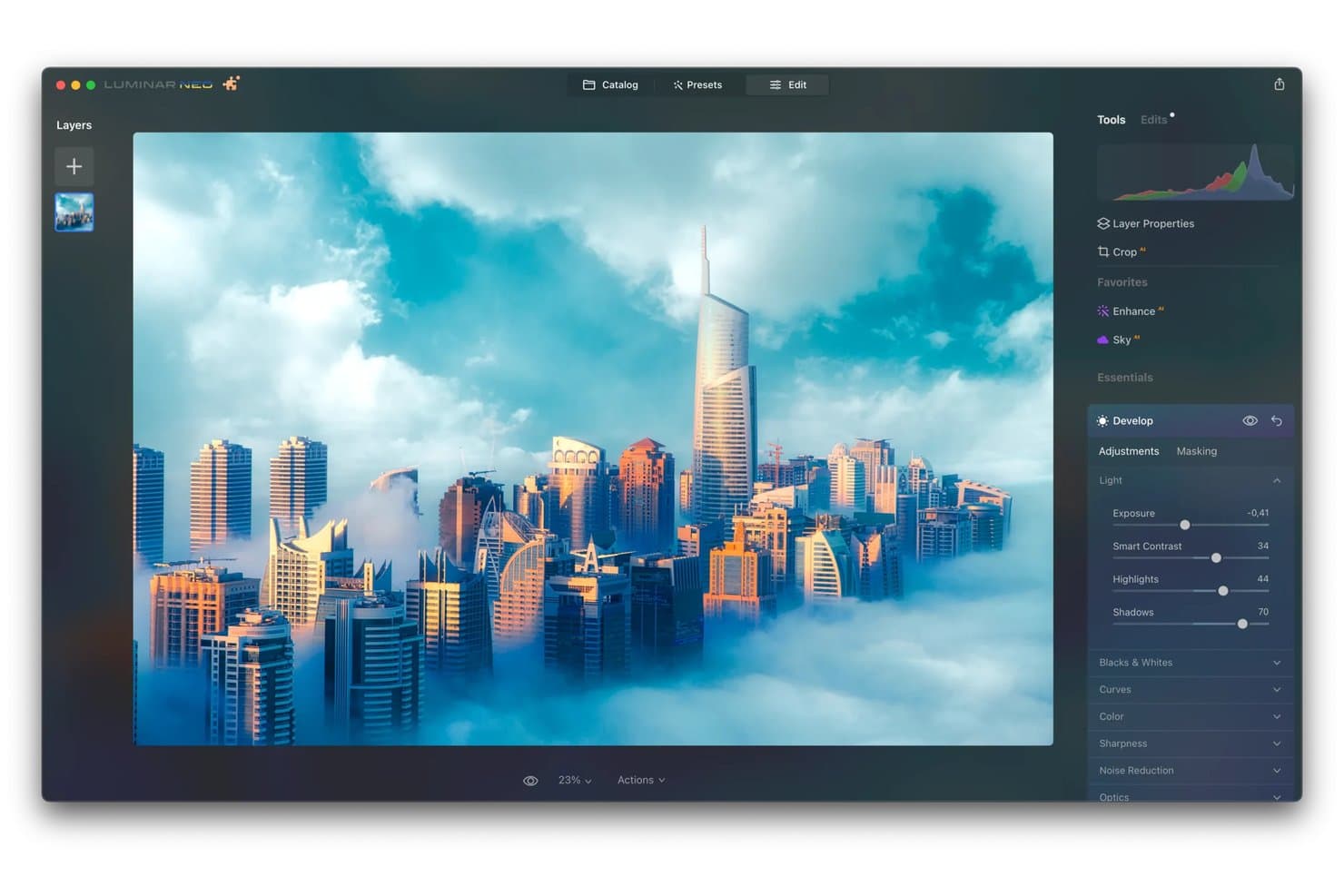
Skylum lets users fine-tune exposure, contrast, and shadows with precision. Skylum is photo editing software for photographers, creators, and marketing teams seeking an Adobe Photoshop alternative that simplifies complex edits and speeds up AI-powered photo enhancements.
Who Is Skylum Best For?
Photographers, content teams, and small businesses that need fast AI-assisted photo enhancements without mastering complex editing software.
Why Skylum Is a Good Adobe Photoshop Alternative
I picked Skylum because its AI-powered photo enhancements speed up edits I’d otherwise handle manually. Luminar Neo’s Sky AI replaces skies, while Relight AI adjusts lighting across foregrounds and backgrounds. I use GenErase to remove distracting objects from travel and marketing photos without rebuilding the scene by hand.
Skylum Key Features
- RAW editing: Adjust RAW photos with exposure, color, detail, and tone controls.
- Layers: Combine images, textures, and adjustments in layered compositions.
- Masking: Apply edits selectively with brush, linear, radial, and luminance masks.
- Presets: Save and apply reusable looks across individual photos or batches.
Skylum Integrations
Skylum supports official plugin or extension workflows with Adobe Photoshop, Adobe Lightroom Classic, and Apple Photos for macOS.
Pros and Cons
Pros:
- Presets accelerate repeatable photo adjustments
- GenErase removes distracting objects quickly
- AI sky replacement speeds compositing
Cons:
- AI edits sometimes require manual cleanup
- Large catalogs can feel cumbersome
Learn more about Skylum: Best for non-destructive raw photo editing
- Not available
- From $89.99/month (billed annually)
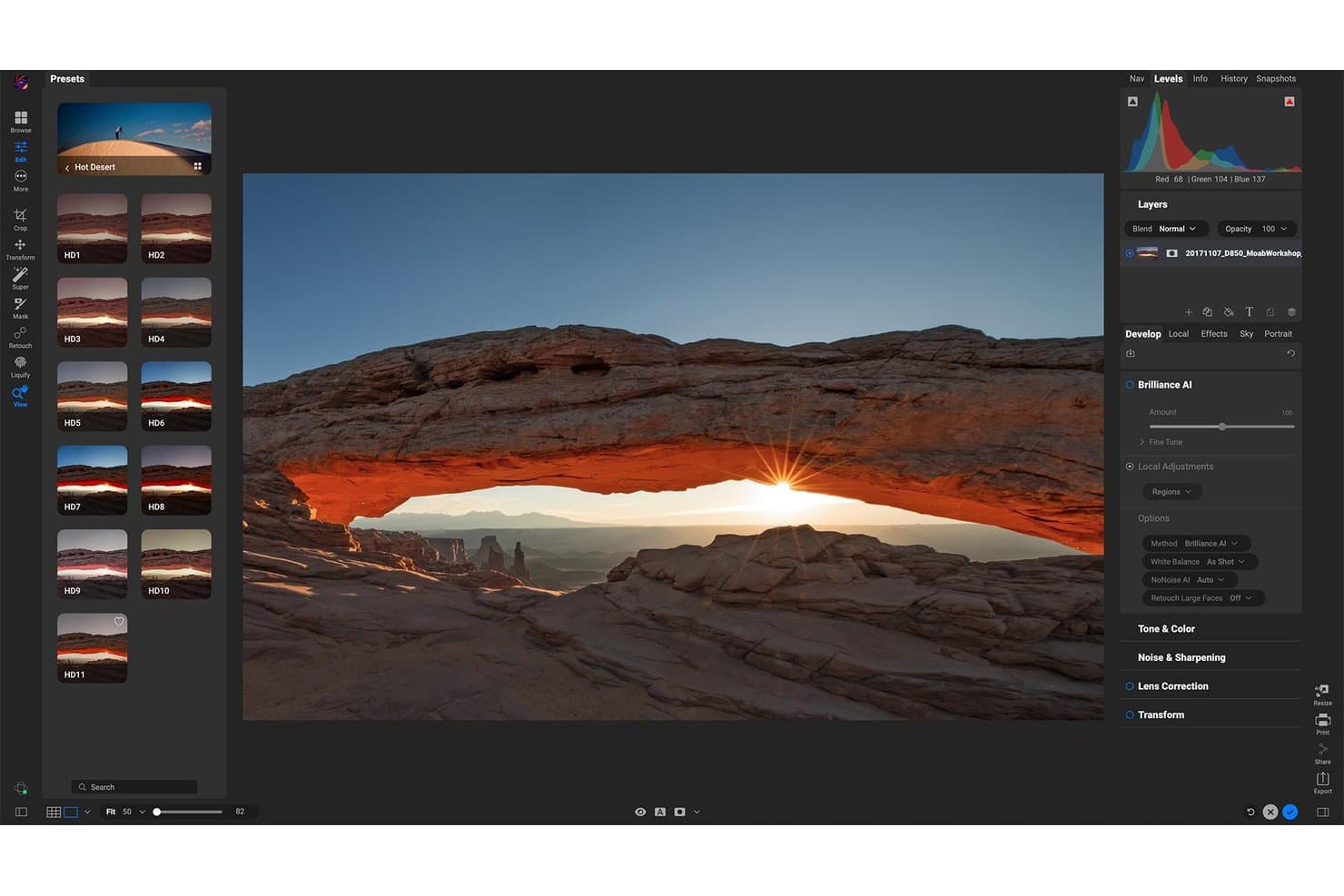
ON1 Photo RAW lets users apply desert-themed presets to landscape photos. ON1 Photo Raw is a photo editing software alternative to Adobe Photoshop for photographers and creative teams that need an all-in-one workspace for organising, enhancing, and refining images without juggling multiple applications.
Who Is ON1 Photo Raw Best For?
Freelance photographers and small creative studios can use it to organize, edit, and refine RAW images in one desktop workspace.
Why ON1 Photo Raw Is a Good Adobe Photoshop Alternative
I picked ON1 Photo Raw because its non-destructive RAW workflow keeps original files untouched while I refine exposure, color, and detail. I use layered editing and masking to apply targeted adjustments, such as brightening a subject without changing the background. This makes it practical for revisiting portrait or landscape edits later.
ON1 Photo Raw Key Features
- Photo organization: Browse folders, rate images, and add keywords without importing files.
- Portrait retouching: Adjust skin, eyes, teeth, and facial features with dedicated controls.
- Presets and LUTs: Apply, save, and customize presets and LUTs for repeatable looks.
- HDR and panorama stitching: Merge bracketed exposures or multiple frames into finished compositions.
ON1 Photo Raw Integrations
ON1 Photo RAW MAX supports official plugin integrations with Adobe Photoshop, Adobe Lightroom Classic, Affinity Photo, and Apple Photos, while the core app works as a standalone editor.
Pros and Cons
Pros:
- Layers and masks support targeted adjustments
- Integrated browsing avoids mandatory catalog imports
- Non-destructive RAW editing preserves original files
Cons:
- RAW processing and lens corrections need improvement
- Dense interface can slow initial navigation
Learn more about ON1 Photo Raw:
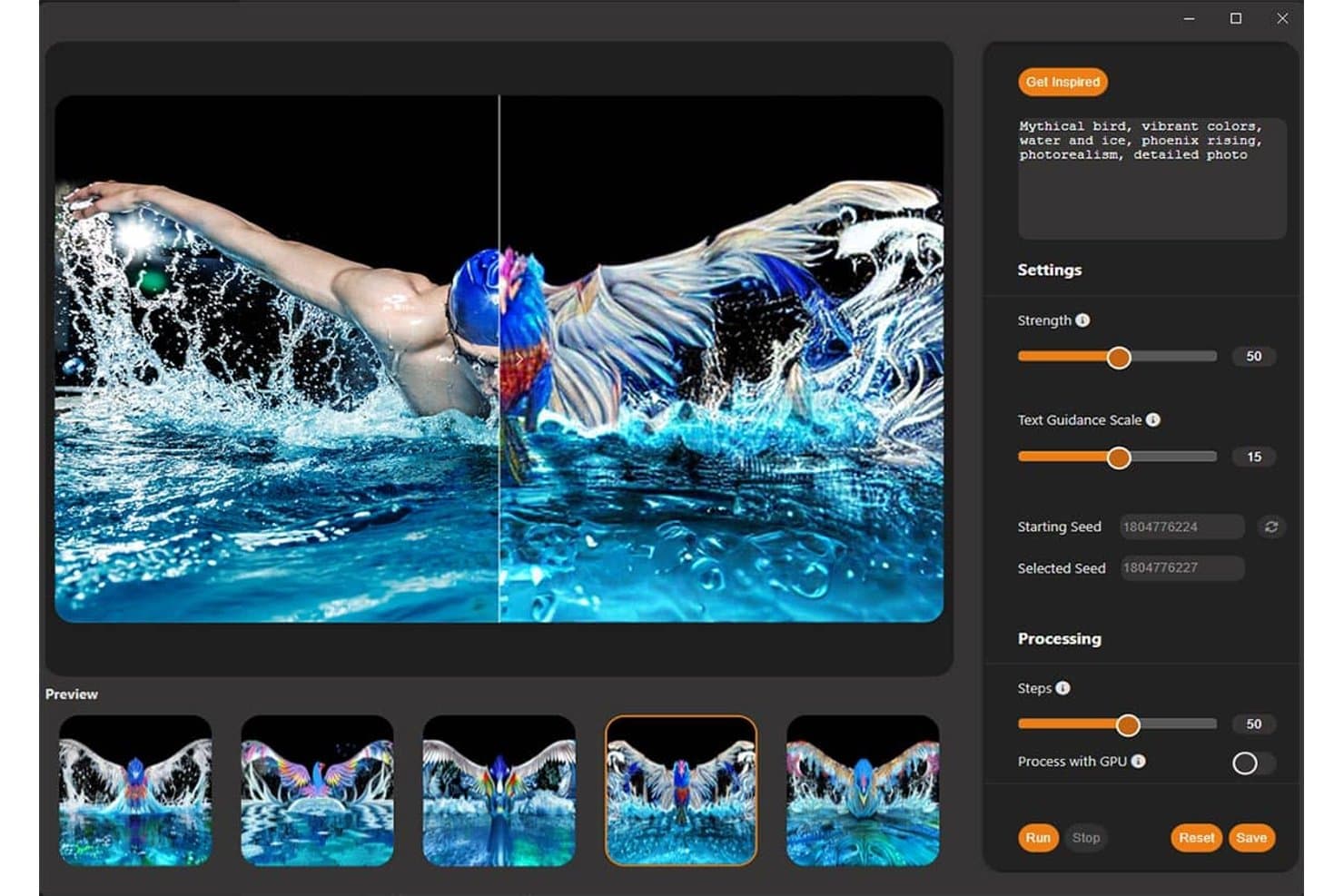
PaintShop Pro transforms photos into AI-generated mythical bird artwork. PaintShop Pro is a Windows photo editing and graphic design solution for photographers, marketers, and creative teams that need precise image retouching, compositing, and design tools without Photoshop’s workflow.
Who Is PaintShop Pro Best For?
Windows-based photographers, marketers, and creative teams can use PaintShop Pro to edit and process large image batches.
Why PaintShop Pro Is a Good Adobe Photoshop Alternative
I picked PaintShop Pro because its Windows-based batch processing handles repetitive edits across large image libraries. I use batch commands to resize, rename, convert formats, and apply adjustments to product photos or campaign assets. Its scripting tools also let me repeat custom editing workflows across hundreds of files.
PaintShop Pro Key Features
- RAW editing: Adjust exposure, white balance, highlights, and shadows in RAW files.
- Layer support: Build composites with raster, vector, adjustment, and group layers.
- HDR merge: Combine multiple exposures into one high-dynamic-range image.
- Focus stacking: Merge photographs with different focal points for greater depth of field.
PaintShop Pro Integrations
Native integrations are not currently listed. PaintShop Pro provides a dedicated C++ Plugin API and SDK for plugin development, and supports Python scripting as well as 64-bit Adobe Photoshop plugins
Pros and Cons
Pros:
- RAW Lab provides manual image adjustments
- Layer tools support detailed composites
- Batch processing handles repetitive edits
Cons:
- Interface feels dated and counterintuitive
- Windows-only, with no macOS version
Learn more about PaintShop Pro:
Other Adobe Photoshop alternatives
Here are some additional Adobe Photoshop alternatives that didn’t make it onto my shortlist, but are still worth checking out:
- 11Adobe Photoshop ElementsBest for guided editing and learning tools
- 12Acorn 8Best for Mac-only batch graphic automation
- 13PixlrBest for browser-based photo editing
- 14Capture One ProBest for professional RAW color grading
- 15Luminar NeoBest for AI-driven portrait retouching
- 16CyberLink PhotoDirectorBest for AI-driven photo and video in one app
- 17KritaBest for digital painting and illustration
- 18Photo Pos ProBest for free commercial use without subscribing
How I Evaluate Adobe Photoshop Alternatives
I split my evaluation into three parts, with core functionality—stacking layers and editing at the pixel level—carrying the most weight. Then I look at distinguishing features like AI-powered generative fill or browser-based access. Finally, I consider pricing model and onboarding ease.
Core Functionality (Table Stakes For This List)
When I'm selecting tools for my list, I score each one on a scale from 0 (does not offer the functionality) to 5 (excels in this area) for each core functionality listed below. I then convert the total into a percentage to help assess each tool’s overall fit, with extra weight on any functionalities I’ve deemed essential.
- Layer-Based Editing (Essential): I look for flexible layers, blend modes, grouping, and non-destructive edits for complex compositions.
- Raster Image Editing (Essential): I assess cloning, healing, retouching, brushes, and pixel-level control for professional photo corrections.
- Selection And Masking: I check object isolation, edge refinement, and masks for targeted edits, composites, and background removal.
- Color And Tone Adjustments: Curves, levels, exposure, and selective color controls matter for consistent image correction and creative grading.
- File Format Support: I evaluate PSD and common raster format support, including how well layered files preserve masks and edits.
- Export Flexibility: I look for adjustable resolution, compression, color settings, and presets for print, web, social, and further editing.
Once I have a list of tools that meet the criteria, I consider what sets each platform apart.
Differentiating Factors (What Sets Vendors Apart)
Here's how I compare and contrast different vendors:
Standout Features
I look for browser-based editing because it lets distributed product teams jump into asset work without install requests or IT tickets. AI-powered generative fill is another separator—tools like Photopea or Pixlr handle it differently, and I evaluate how well each generates or replaces content from a text prompt for quick marketing visuals. I also check plugin and API extensibility, since connecting an editor to your existing design system or asset pipeline saves real handoff time.
Beyond Features
I evaluate pricing model closely because a one-time purchase like Affinity Photo 2 versus a recurring subscription changes total cost fast when you're adding seats across product, marketing, and UX. Learning curve matters just as much—if a PM needs to crop and annotate a screenshot for a stakeholder deck, the tool should let them do that without a tutorial. I also check cross-functional collaboration fit, looking for real-time co-editing, shareable review links, and integrations with tools like Slack or Figma that your team already uses daily.
Why Look For An Adobe Photoshop Alternative?
While Adobe Photoshop is a leading photo editing software, there are several reasons why users explore alternative tools. Depending on your workflow, experience level, or device, another photo editor may be a better fit.
You might be looking for an Adobe Photoshop alternative because…
- You want a one-time purchase instead of a subscription, as offered by tools like Affinity Photo
- You need a simpler user interface that’s easier for beginners to learn
- You prefer free software options or open-source tools that run on Linux
- You want browser-based or lightweight photo editing tools that don’t require a powerful CPU
- You need a platform-specific solution that works well on devices like an iPad or an Android
- You create quick content and want faster workflows than traditional design tools
If any of these sound like you, you’re not alone. Many users turn to alternatives like Pixel-based editors, mobile apps, or simplified design platforms to better match their needs. This list highlights photo editing tools that offer different strengths, helping you find the right fit based on your workflow, skill level, and preferred device.
Adobe Photoshop Key Features
- Advanced layer and mask management: Enables precise control over edits, allowing users to isolate and adjust specific parts of an image without affecting the entire composition
- Non-destructive editing with smart objects: Allows users to experiment freely while preserving original files and maintaining flexibility throughout the editing process
- Content-aware fill and object removal: Helps identify and replace unwanted elements in images based on surrounding visual data
- Extensive brush and drawing tool library: Supports detailed creative work, including digital painting and vector graphics-style illustrations
- Professional color grading and correction tools: Provides fine control over tones, contrast, and color balance for high-quality photo editing results
- Support for CMYK and spot color workflows: Useful for print-ready designs and projects requiring precise color accuracy
- Batch processing and automation with actions: Speeds up repetitive editing tasks, improving efficiency for large image sets
- Integration with Adobe Creative Cloud apps: Connects with other Adobe tools for workflows that may include video editing or asset sharing
- 3D design and texturing capabilities: Expands creative possibilities beyond standard photo editing into dimensional design
- Advanced selection and retouching tools: Helps users refine details and make precise edits with greater control